 Teleport your device anywhere instantly with one click.

 100% Security Verified | No Subscription Required | No Malware

 :
: 
 ChatGPT
 Perplexity
 Gemini
 Claude
 Grok
Grok
Google Maps is an indispensable tool for navigation, offering detailed routes and stunning aerial imagery. However, there are numerous scenarios where you might want to fake your Google Maps location. Whether it's to playfully trick your friends on social media, protect your privacy from tracking apps, or access location-specific features in games, changing your GPS coordinates is a common need.
Many believe that simply turning off location services will suffice, but Google can often still approximate your position using cell tower signals or your IP address. This guide provides reliable, step-by-step methods to effectively spoof your Google Maps location on both iPhone and Android devices, ensuring your virtual presence is exactly where you want it to be.
In this article
Part 1. The Easiest Way to Fake Google Maps Location (iPhone & Android)
While several methods exist, using a dedicated desktop application is the most reliable and feature-rich way to fake your GPS on Google Maps, especially for iPhones where such functionality is restricted. These tools give you precise control over your device's GPS chip, making the fake location appear completely authentic to apps like Google Maps.
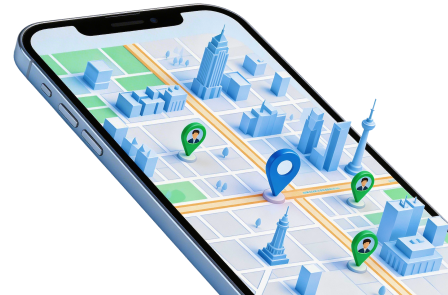
For both iPhone and Android users, the standout solution is Dr.Fone - Virtual Location (iOS/Android). It provides a simple, one-click interface to teleport your phone to any location worldwide without needing to jailbreak or root your device. This powerful software offers a stable and safe environment for all your location spoofing needs.
 Set your map route to simulate GPS movement.
- Set your wanted movement speed.
- HD and large map view to check location.
- Fake GPS location to anywhere.
Key Features of a Reliable Location Spoofer
Dr.Fone - Virtual Location is more than just a simple location changer. It comes packed with features designed for a variety of uses, from gaming to social media.
- Instant Teleportation: Change your GPS location to anywhere in the world with a single click.
- Route Simulation: Simulate movement between two or more points on the map at customizable speeds (walking, cycling, or driving).
- Joystick Control: Enjoy flexible and precise 360-degree GPS movement using a joystick, perfect for AR games.
- Wide Compatibility: Works seamlessly with all major location-based apps, including Google Maps, Snapchat, Instagram, Pokémon GO, and more.
- Cross-Platform Support: Fully compatible with the latest iOS and Android operating systems.
Video Guide: How to Change GPS Location Effortlessly
How to Spoof Your GPS Location Step-by-Step
Here’s a detailed walkthrough on how to show a fake location on Google maps using Dr. Fone - Virtual Location.
Step 1 Download and Launch the Software
Begin by downloading and installing Dr.Fone on your computer. Launch the program and select the "Virtual Location" module from the main toolkit.

Step 2 Connect Your Device
Connect your iPhone or Android device to your computer using a USB cable. Once the device is recognized, click "Get Started" to proceed.
Step 3 Select Teleport Mode and Choose a Location
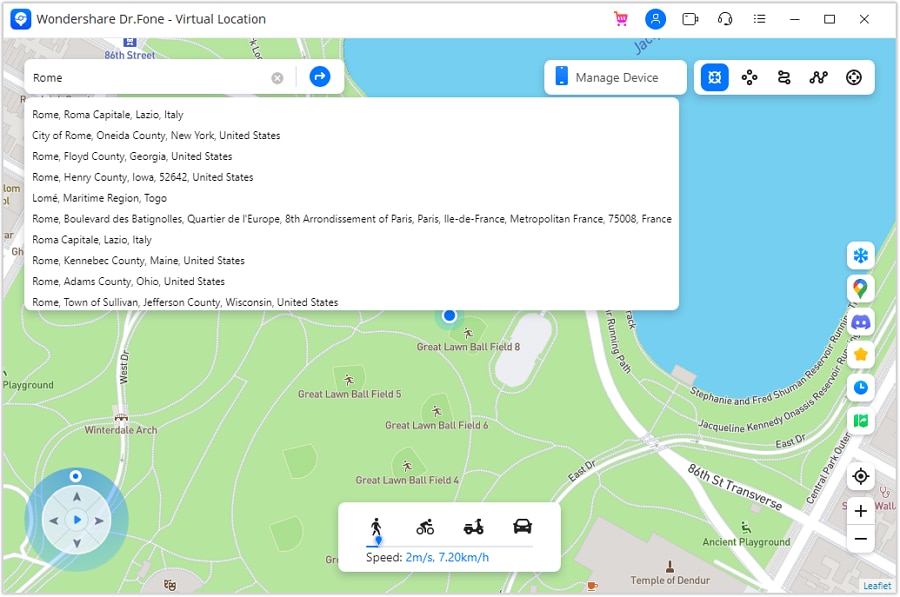
On the map interface, click the third icon in the top-right corner to activate "Teleport Mode." In the search bar at the top-left, type the name of the place you want to move to and press Enter. You can also manually pinpoint a location on the map.
Step 4 Confirm and Move Your Location
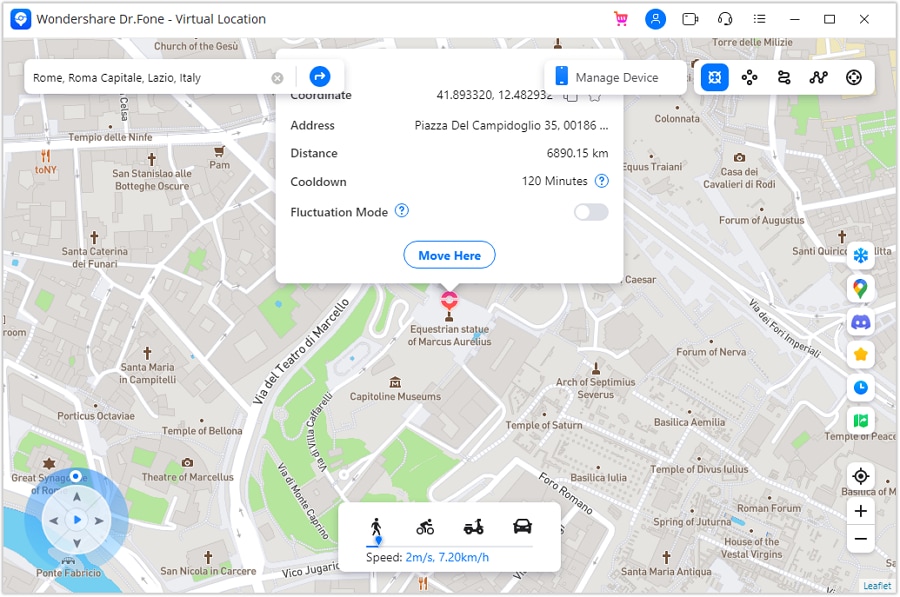
Once you have selected your desired virtual location, a pop-up box will appear. Click the "Move Here" button to instantly change your device's GPS location. Your phone, along with Google Maps, will now show this new position as your real one.




Part 2. Using a VPN to Change Your Location on Google Maps
Another common method to alter your location is by using a Virtual Private Network (VPN). VPNs are primarily designed to mask your IP address and encrypt your internet traffic, which can also influence how some services perceive your location.
How VPNs Work for Location Spoofing
A VPN reroutes your internet connection through a server in a different geographical location. This replaces your real IP address with one from the VPN server. Since your IP address can be used to approximate your location, services that rely on it will think you are wherever the server is. However, this method is less effective for GPS-based apps like Google Maps, which often prioritize the device's GPS signal over its IP address.
Comparing Top VPN Services
While a VPN might not be the most precise tool for faking a GPS signal, it's excellent for web browsing and accessing geo-restricted content. Here are a few popular options.
1. NordVPN
NordVPN is a leading service known for its strong security features and vast server network. It offers a Smart DNS tool that can help unblock streaming content on various devices.
- Competitive pricing
- Excellent Smart DNS feature
- Robust IP and DNS leak protection
- Connection speeds can be slower than competitors
- Fewer server locations in some regions
2. ExpressVPN
ExpressVPN is renowned for its blazing-fast speeds and ability to bypass strict streaming blocks. It offers a wide range of server locations, making it a versatile choice.
- Exceptional connection speeds
- Built-in DNS and IPv6 leak protection
- Numerous server locations worldwide
- Higher price point than many competitors
3. Surfshark
A great budget-friendly option, Surfshark offers a secure and private connection with a user-friendly interface. It's a newer player but has quickly gained a strong reputation.
- Highly affordable
- Secure and private connection
- Smooth and intuitive user experience
- Smaller server network than established rivals
- Performance can occasionally be inconsistent
Part 3. How to Share Your (Real or Faked) Location in Google Maps
Once you have set your desired location—either real or fake—you can easily share it with others directly from Google Maps. The process is straightforward for both iPhone and Android users.
For iPhone Users:
Step 1 Open Google Maps
Launch the Google Maps app on your iPhone. Your current (or faked) location will be shown as a blue dot.

Step 2 Access Location Sharing
Tap on your profile picture in the top-right corner, then select "Location sharing" from the menu. Tap "New share" to begin.

Step 3 Choose Contacts and Duration
Select the contacts you wish to share your location with from the list. You can also set a duration for how long your location will be shared, from one hour to until you manually turn it off. Finally, tap "Share."

For Android Users:
Step 1 Find a Place
Open the Google Maps app on your Android device. You can either search for a specific place or tap and hold on the map to drop a pin.
Step 2 Open the Share Menu
At the bottom of the screen, tap the place's name or address to bring up more details. Then, tap the "Share" icon.

Step 3 Select an App to Share
A list of apps will appear. Choose the app (like WhatsApp, Telegram, or Messenger) through which you want to share the link to the map location.
Conclusion
Faking your Google Maps location is an achievable task, whether your goal is privacy, entertainment, or bypassing geo-restrictions. While VPNs offer a simple way to change your IP-based location, they often fall short for GPS-dependent applications. For precise, reliable, and feature-rich location spoofing on both Android and iOS devices, a dedicated tool is superior.
We highly recommend Dr.Fone - Virtual Location (iOS/Android) as the ultimate solution. Its intuitive interface, one-click teleportation, and route simulation features provide unparalleled control over your device's GPS. By following the steps in this guide, you can confidently and safely appear to be anywhere in the world. convincing any app or person you choose.
FAQ
1. Can Google Maps detect a fake GPS location?
While Google is sophisticated, high-quality location spoofing tools like Dr.Fone - Virtual Location are designed to mimic real GPS signals, making them very difficult to detect. Free or poorly designed apps are more likely to be flagged. For best results, use a reputable desktop-based application.2. Is it safe to use a location spoofer on my phone?
Yes, it is generally safe when you use a reliable tool from a trusted developer like Wondershare Dr.Fone. These applications do not require you to jailbreak or root your device, which preserves its security and warranty. Avoid downloading apps from untrusted sources, as they may contain malware.3. Will faking my location on Google Maps affect other apps?
Yes, changing your device's GPS coordinates at the system level will affect all apps that use location services. This includes weather apps, social media check-ins, ride-sharing services, and location-based games. Your entire phone will report the fake location until you reset it.4. Can I fake my location on Google Maps without a computer?
For Android users, some standalone apps available on the Play Store can fake your location, though their reliability can vary. For iPhone users, it is extremely difficult and often unsafe to spoof GPS without a computer, as it typically requires jailbreaking. Using a computer-based tool like Dr.Fone is the safest and most effective method for both platforms.
 Add Wondershare Dr.Fone as a preferred source on Google



