
Foldable iPhone (iPhone Fold) Rumors: Expected Release, Design, Price
iPhone Backup
- iPhone Data Backup
- 1. Back up iPhone in Recovery Mode
- 2. Back Up iPhone With/Without iTunes
- 3. Back up iPhone to Mac
- 4. Back up iPhone/iPad to Computer
- 5. Back up iPhone to Mac Catalina
- 6. Back up Jailbreak Apps And Restore
- 7. iPhone Backup Software
- 8. Back up iPhone/iPad Easily
- 9. Back up iPhone/iPad in DFU Mode
- 10. Back up iPhone Apps and App Data
- 11. Back up Notes on iPhone and iPad
- 12. Back up iOS to External Hard Drive
- 13. Export Notes from iPhone to PC/Mac
- 14.Back up iPhone Photos to Google Photos
- 15. Back Up Your iPhone Voicemails
- 16. Back Up to External Drive
- 17.How to Back Up to NAS
- 18.Back Up iPhone With Broken Screen
- 19.Back Up iPhone to Google Drive
- 20.Buy Used iPhones
- 21.Sell Used Phone for Cash
- 22.Sell Used iPhone for Dollar
- 23.How Much is My iPhone Worth
- iPhone Data Recovery
- 1. Recover iPhone Data Without Backup
- 2. Restore Calendar on iPhone
- 3. Recover Call History on iPhone
- 4. Recover iPhone Lost Data
- 5. Restore iPhone in Recovery Mode
- 6. Undelete iPhone Backup Files
- 7. Recover Deleted iPhone Messages
- iPhone Data Restore
- 1. Restore iPhone from iTunes Backup
- 2. Restore iPhone after Downgrade
- 3. Restore iPhone from Backup
- 4. Restore iPhone from iPad Backup
- 5. Restore iPhone from DFU Mode
- 6. Restore iPhone Deleted Text Message
- iPhone Backup Problems
- 1. Find iPhone Backup Location on Mac
- 2. iPhone Backup Password Never Set
- 3. iPhone Backup Password Forget
- 4. iCloud Backup Taking Forever
- 5. iPhone Won't Backup to iCloud
- 6. iTunes Won't Backup iPhone
- iPhone Restore Problems
- 1. iTunes Stuck on Verifying iPhone
- 2. Not Space to Restore iPhone Backup
- 3. iTunes Backup Not Restoring
- 4. iPhone Won't Restore
- WhatsApp Backup & Restore
- 1. WhatsApp from Google Drive to iOS
- 2. Restore Old WhatsApp Backup
- 3. Restore WhatsApp Chat on iPhone
- 4. Retrieve WhatsApp Chat History
- 5. See Deleted Messages on WhatsApp
- 6. Restore WhatsApp Stuck on iPhone
- 7. iPhone WhatsApp to Google Drive
- 8. Back Up WhatsApp on iPhone
- 9. Backup WhatsApp Data before Changing Number
- iPhone Backup Tips
- 1. Extract Data From iPhone
- 2. Encrypt iPhone Backup
- 3. Reset iPhone Backup Password
- 4. Extract iPhone Backup in Win 10
- 5. How Long take iPhone to Backup
- 6. Find iPhone Backup Location
- 7. iPhone Backup Password
- 8. View iPhone Backup on Computer
- 9. iPhone Backup with iTunes/iCloud
- 10.Check Last Backup on iPhone
- 11. How To Backup Foldable iPhone
- 12. Best Backup Chargers for iPhone
- 13. Speed Up Your iPhone Backups
- 14. Save Data When iPhone Disabled
- ● Manage/transfer/recover data
- ● Unlock screen/activate/FRP lock
- ● Fix most iOS and Android issues
- Free Download Free Download Free Download


Oct 22, 2026 • Filed to: Data Transfer Solutions • Proven solutions
 TL;DR:
Apple's rumored book-style foldable iPhone is expected to launch in late 2026 with a premium price tag around $2,000+, making it critical for prospective buyers to prepare a disciplined local backup and selective data migration strategy to safely manage larger media libraries.
● Unconfirmed hardware specifications point to a mid-5-inch outer display, a high-7-inch inner screen, an advanced hinge designed for a nearly invisible crease, and a potential shift to a Touch ID side button instead of Face ID to reduce internal component constraints.
● Upgrading to a foldable device intensifies data migration risks due to heavier media use and larger app caches, establishing a strict prerequisite to clean duplicate storage and secure a local computer backup before attempting a standard cloud or phone-to-phone transfer.
● Wondershare Dr.Fone addresses these foldable-scale migration challenges by enabling scheduled incremental computer backups and selective data restoration, allowing users to transfer specific files and media without risking a full device overwrite or facing traditional iTunes limitations.
Ask AI for a summary
 ChatGPT
 Perplexity
 Gemini
 Claude
 Grok
Grok
Dr.Fone Basic:
Better Control for Your Phone
Manage, transfer, back up, restore, and mirror your device
Quick note before we begin (Rumor disclaimer)
Apple has not officially announced a foldable iPhone. The details below reflect ongoing reporting and rumor roundups from established tech outlets and may change before any product launches. Source Source
- Part 1. The foldable iPhone moment: why this upgrade could be different
- Part 2. What is the Foldable iPhone (aka “iPhone Fold”)?
- Part 3. Rumored release window: When could Apple launch it?
- Part 4. Rumored design & display: size, crease, durability
- Part 5. Rumored hardware: hinge, cameras, biometrics
- Part 6. Rumored price: What could a foldable iPhone cost?
- Part 7. The real challenge you can solve today: data migration at a foldable scale

- Part 8. Why Dr.Fone fits the “phone butler” role for the foldable era
- Part 9. Upgrade readiness checklist: clean → backup → transfer → verify
- Part 10. How Dr.Fone Backup helps you avoid common upgrade disasters
- Part 11. How Dr.Fone Transfer helps you move data with more control than iTunes/Finder
- Part 12. A practical migration plan (step-by-step) for a foldable iPhone upgrade
Part 1. The foldable iPhone moment: why this upgrade could be different
For many iPhone owners, upgrading is routine: sign in, restore a backup, and move on. But a foldable iPhone—if Apple launches one—may shift that “simple upgrade” assumption. Foldables tend to encourage heavier media use (more video, more multitasking, more attachments in messaging apps) and more complex device usage patterns because you effectively carry both a phone and a mini-tablet. A bigger canvas can mean faster storage growth, larger app caches, and more “must-not-lose” work. Source
Just as importantly, flip iphone introduce new practical risks around setup and migration. Early adopter devices often come with new workflows (two displays, different aspect ratios, new camera cutouts, or authentication methods). Even if Apple’s foldable ships polished, the transition from a conventional iPhone to a foldable-style iPhone could involve more steps than a typical upgrade—especially if you want stronger control over what gets backed up, what gets transferred, and what stays private. Source
That’s where a “phone butler” positioning makes sense. Tools focused on backup discipline and transfer control become more valuable as the cost (and emotional value) of your data rises—particularly if foldable iPhone pricing rumors land anywhere near the current expectations. Source
Part 2. What is the Foldable iPhone (aka “iPhone Fold”)?
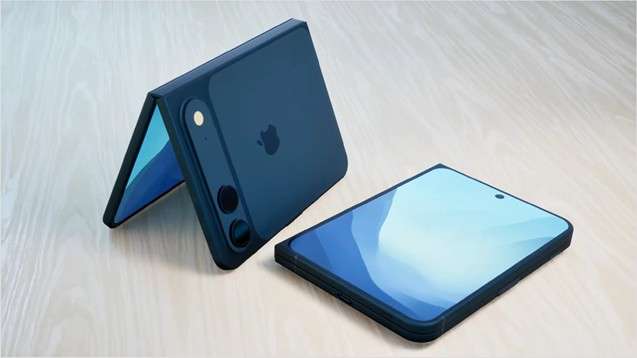
The term “iPhone Fold” is not official; it’s a common shorthand used across tech media to describe Apple’s rumored foldable iPhone project. Current rumor consensus (again: not confirmed by Apple) points toward a book-style foldable—a phone that opens like a book to reveal a larger inner display—rather than a flip-phone clamshell design. Source
Visual reference (concept imagery)
Below is a concept-style image commonly used in rumor coverage. Always verify licensing before using any third-party images commercially.
Part 3. Rumored release window: When could Apple launch it?
Most recent rumor roundups continue to point toward a 2026 timeframe, often discussed as a late-2026 launch window, potentially alongside an iPhone generation cycle (frequently referenced as the iPhone 18 era in reporting). This is not a guarantee—Apple may delay if durability, yield, or software readiness isn’t satisfactory. Source
From an SEO and marketing standpoint, this “not yet, but getting closer” phase is exactly when consumers begin planning. People don’t just buy a premium phone; they budget, wait for trade-in timing, clear storage, and—critically—decide whether their data is safe enough to move. If your content helps them take action today (backup + transfer workflow), you’ll capture intent long before launch day. Source
Part 4. Rumored design & display: size, crease, durability
4.1 Rumored display sizes (outer + inner)
One widely repeated rumor set suggests an outer display around the mid‑5‑inch range and an inner display near the high‑7‑inch range when unfolded (often described as iPad mini-like in feel). The exact numbers vary by report, but the key point is consistent: a foldable iPhone could offer substantially more screen area than any current iPhone. Source
4.2 The crease problem (and why Apple reportedly cares so much)
Every foldable conversation eventually comes back to the crease. Reporting suggests Apple has been highly focused on minimizing crease visibility and hinge quality, with some sources describing the crease as “nearly invisible” in prototypes or target designs—again, unconfirmed. If Apple ships a foldable, it likely wants the unfolded experience to feel like a “real display,” not a compromise you tolerate. Source
4.3 Durability expectations: hinge quality and long-term wear
Foldables concentrate mechanical stress into one of the hardest engineering areas: the hinge. Rumor roundups mention advanced hinge materials and manufacturing approaches designed to improve durability and reduce deformation over time. Even with Apple’s standards, users should expect foldables to be more complex devices—meaning your data safety strategy matters even more. Source
Part 5. Rumored hardware: hinge, cameras, biometrics
Rumor coverage frequently highlights hinge and authentication choices, with some reports suggesting Apple may opt for a Touch ID-style side button rather than Face ID in order to keep the device thin and reduce internal component constraints. That would be a meaningful shift in daily use and could impact how people unlock phones during setup, transfers, and restore flows. Source
Cameras are also discussed heavily, including potential under-display camera approaches for the inner display and punch-hole styles for the outer display, but details remain fluid. What matters for migration planning is that camera upgrades often correlate with bigger file sizes—especially if you record more video on a larger unfolded screen. If you upgrade to a foldable, assume your photo/video storage footprint will rise, not fall. Source
Part 6. Rumored price: What could a foldable iPhone cost?
Multiple rumor summaries have suggested a foldable iPhone could land in a premium price band, often discussed in the neighborhood of $2,000+, depending on configuration and market. While pricing is speculative, the direction is clear: foldables are expensive to build, and Apple’s first-gen foldable would likely be positioned as a high-end flagship. Source
A higher price changes buyer psychology. People become more cautious about migration risk: “Will my data transfer cleanly?” “What if my backup is corrupted?” “What if I lose my WhatsApp media or my work files?” These questions become central—so your article should answer them with practical workflows and recommended tooling. Source
Part 7. The real challenge you can solve today: data migration at a foldable scale
Even before Apple announces anything, we already know what happens every upgrade season:
- Users discover they’re out of iCloud storage at the worst time.
- The “quick start” transfer stalls overnight.
- People don’t know whether a computer backup is encrypted or complete.
- A restore overwrites the wrong things.
- Photos, messages, and social app attachments become messy, duplicated, or missing.
Foldables intensify these issues because users are more likely to treat the inner screen like a workspace—more documents, more project files, more media editing, and more messaging attachments. That’s why the best foldable iPhone content shouldn’t stop at rumors. It should give readers a repeatable migration system: clean → backup → transfer → verify → keep a rollback plan. Source
Part 8. Why Dr.Fone fits the “phone butler” role for the foldable era
Dr.Fone positions itself as an all-in-one toolkit that covers everyday device management and emergency scenarios—from data transfer and storage cleaning to backup workflows and more. Its App Store listing also emphasizes guided flows and device help features, reinforcing a “phone assistant” framing for non-technical users.
For a foldable iPhone upgrade journey, two capabilities matter most:
- Backup with control: don’t rely on a single point of failure, and don’t overwrite everything when you only need specific items.
- Transfer with control: move data between iPhone and computer without unnecessary friction, and manage media and files more flexibly than traditional iTunes-style constraints.
Dr.Fone’s product pages explicitly emphasize both iOS backup and restore workflows, as well as Phone Manager/iPhone transfer features that aim to bypass iTunes limitations and improve file transfer flexibility.
Part 9. Upgrade readiness checklist: clean → backup → transfer → verify
Think of a foldable iPhone upgrade as a small project. The best time to plan is not launch day—it’s weeks before.
Step A: Clean (reduce clutter so backups and transfers are faster)
Start by trimming duplicated and low-value data: similar photos, repeated downloads, and old videos. The goal isn’t “minimalism,” it’s risk reduction: smaller datasets are easier to back up, faster to validate, and less likely to fail mid-transfer.
Step B: Backup (create two layers)
A simple principle: one cloud backup is good, but a local backup you control is often the difference between a smooth upgrade and a disaster recovery scenario. Dr.Fone’s iOS backup page emphasizes automated backup to computer, optional incremental backups, and selective/full options—designed to give users more flexibility than relying on one method alone. Source
Step C: Transfer (move data intentionally)
When you migrate to a foldable iPhone, the question isn’t “Can I move everything?” It’s “Can I move everything cleanly—and can I re-move specific data later if I missed something?”
Dr.Fone’s iPhone transfer/Phone Manager page highlights media transfer without iTunes restrictions, plus the ability to manage and export multiple data types between iOS devices and computers.
Step D: Verify (prove the migration worked)
Verification is the step most people skip. But with a premium device upgrade, you want proof: photo counts, key message threads, contacts, and important files all present.
Part 10. How Dr.Fone Backup helps you avoid common upgrade disasters

Wondershare Dr.Fone
Selectively Backup Your iPhone Data in 3 minutes
- One-click to backup the whole iOS device to your computer.
- Allow previewing and selectively export contacts from iPhone to your computer.
- No data loss on devices during the restoration.
- Works for all iOS devices. Compatible with the latest iOS version.



10.1 Disaster #1: “My iCloud backup didn’t finish.”
Cloud backups fail for predictable reasons: storage limits, unstable Wi‑Fi, account issues, or time constraints. Dr.Fone’s iOS backup workflow focuses on backing up iOS devices to a computer (local backup) and restoring selectively, which gives you a second safety net when cloud backup isn’t reliable. Source
10.2 Disaster #2: “Restoring overwrote my new phone.”
Many users want to restore only certain items—photos, contacts, or messages—without replacing everything on the device. Dr.Fone’s backup/restore positioning highlights selective restore and the ability to preview and restore in a more controlled way, aimed at preventing “nuke-and-restore” frustration. Source
10.3 Disaster #3: “I need backups that don’t waste time and disk space.”
Incremental backups can be a meaningful quality-of-life upgrade: rather than rebuilding the same huge backup repeatedly, you capture what changed. Dr.Fone’s page explicitly calls out incremental backups as a feature that saves time and storage space. Source
10.4 Disaster #4: “I need a schedule, not a reminder.”
Many people intend to back up “later,” then forget. The Dr.Fone iOS backup page emphasizes Wi‑Fi scheduled backups (automation), which is exactly the kind of “butler behavior” that reduces human error before an expensive upgrade. Source
 safe & secure
4,624,541 people have downloaded it
Part 11. How Dr.Fone Transfer helps you move data with more control than iTunes/Finder
When users think “transfer,” they often think only about phone-to-phone setup. But foldable iPhone upgrades may benefit from a broader approach: phone ↔ computer ↔ new phone, because computers are stable staging environments for organization, verification, and long-term archiving.
Wondershare Dr.Fone’s iPhone transfer/Phone Manager page focuses on transferring music, ringtones, and media between iOS devices and computers without iTunes restrictions, and on managing multiple data categories like contacts, SMS, and more. For many users, this is the missing layer between “whatever Apple transfers automatically” and “the exact files I need where I want them.” Source
Wondershare Dr.Fone
Transfer Photos from Computer to iPod/iPhone/iPad without iTunes
- Transfer, manage, export/import your music, photos, videos, contacts, SMS, Apps, etc.
- Back up your music, photos, videos, contacts, SMS, Apps, etc., to the computer and restore them easily.
- Transfer music, photos, videos, contacts, messages, etc., from one smartphone to another.
- Transfer media files between iOS devices and iTunes.
- Fully compatible with the newest iOS system.
11.1 Why computer-assisted transfer matters more for foldables
A foldable iPhone is expected to encourage heavier media use; larger screens lead to more editing, more downloads, and more creative content workflows. If you treat your upgrade as a media library migration (not just a phone swap), then a transfer tool that emphasizes flexible file movement and management becomes more relevant. Source
11.2 Real-world benefits you can emphasize in marketing copy
Instead of repeating generic “fast transfer” claims, focus on user outcomes:
- Less uncertainty: you can back up to a computer, then transfer or restore with a clearer sense of what’s included.
- More control: you’re not forced into a single “all or nothing” path.
- Easier troubleshooting: if something goes wrong on setup day, you still have a local copy you can work with.
These points align with how Dr.Fone describes managing/transferring iOS data in more flexible ways than iTunes alone. Source
safe & secure4,624,541 people have downloaded it
Part 12. A practical migration plan (step-by-step) for a foldable iPhone upgrade
Below is a repeatable plan you can publish as a “Foldable iPhone Upgrade Checklist.” It’s designed to be actionable even before Apple confirms any foldable device.
Phase 1 (7–14 days before upgrade): Build your safety net
Step 1. Create a local backup on your computer
The purpose is resilience. If your cloud backup fails or your phone-to-phone transfer stalls, you still have a controlled backup path. Dr.Fone’s iOS backup page is explicitly built around backing up iOS devices to a computer and restoring them flexibly. Source
Step 2. Turn on incremental and scheduled backups (if available in your workflow)
This reduces the chance you forget and reduces the time cost of repeated full backups. Dr.Fone describes both incremental backups and scheduled Wi‑Fi backups as part of its approach to automation and efficiency. Source
Step 3. Validate your backup
Open the backup history/preview step and confirm that your “critical categories” exist: Photos, Contacts, Messages, Notes, and the messaging app data you value most.
Phase 2 (1–3 days before upgrade): Prepare for transfer efficiency
Step 4. Clean duplicates and reduce low-value data
Less clutter means faster transfer and fewer weird edge cases. (If you include DF app-based cleaning in your funnel, you can reference the App Store listing’s “AI Storage Cleaner” concept as a user-friendly pre-upgrade step.) Source
Step 5. Stage large media on your computer (optional but recommended)
If you have a large video library, consider moving or exporting a copy to your computer as a separate archive. This is especially useful if you’re moving from a smaller-storage iPhone to a foldable iPhone you plan to use for more media.
Phase 3 (Upgrade-day): Transfer with control
Step 6. Do the initial device setup, then use a transfer workflow that matches your needs
Some users want the fastest “move everything.” Others want a clean setup and then to bring over only selected categories. Dr.Fone’s Phone Manager / iPhone transfer positioning supports broader “manage and transfer iPhone data efficiently” workflows across iOS devices and computers. Source
Step 7. Move your must-have categories first
Start with “identity and continuity” data: Contacts, key photos/albums, and messages you rely on daily.
Step 8. Move your heavy libraries last
Music libraries, large video collections, and old archived content can be transferred later, once you’ve confirmed the new device is stable.
Phase 4 (After migration): Verify and keep a rollback plan
Step 9. Verification checklist (don’t skip this)
Confirm counts, open key threads, check photo albums, and ensure your essential files open correctly.
Step 10. Keep your old iPhone for at least 1–2 weeks
This is your rollback device. If you discover missing data, you can re-export or re-transfer.
FAQs
 Q1. When will Apple release a Foldable iPhone?Q2. Will the iPhone Fold be crease-free?Q3. How expensive could a foldable iPhone be?Q4. What’s the safest way to prepare for a foldable iPhone upgrade?Q4. How can Dr.Fone help with data migration to a new iPhone?Q5. Why is “selective restore” important?
Final take: prepare once, upgrade confidently
Foldable iPhone rumors are getting louder, and while the exact specs, name, and launch date remain unconfirmed, the upgrade concerns are already clear: bigger screens encourage bigger data, and premium devices raise the cost of mistakes. Rumor summaries point to a book-style foldable with a larger inner display and premium positioning—exactly the kind of upgrade that calls for a disciplined migration plan. Source
If you want your foldable iPhone upgrade to feel effortless, treat backup and transfer as the core of your plan—not an afterthought. Dr.Fone’s ecosystem is designed around that reality: its iOS backup workflows emphasize automation, incremental efficiency, and selective restore, while its iPhone transfer/Phone Manager features emphasize flexible movement and management of iOS data across devices and computers. That combination is a strong match for users preparing for a “new category” iPhone upgrade.
Dr.Fone Basic:
Better Control for Your Phone
Manage, transfer, back up, restore, and mirror your device


 > How-to > Data Transfer Solutions > Foldable iPhone (iPhone Fold) Rumors: Expected Release, Design, Price
Alice MJ
staff Editor