
Honest Keep2Share Downloader Review with Premium Link Tips

Sep 23, 2026 • Filed to: Device Data Management • Proven solutions
 TL;DR:
Obtaining unrestricted Keep2Share downloads requires an official premium subscription or a third-party debrid service, which is best paired with automation tools like JDownloader or Free Download Manager to maximize speed and enable file resume capabilities.
● Free account users face strict bandwidth limits and mandatory waiting timers, while attempting to bypass these restrictions with a VPN may result in Keep2Share blocking the free download session entirely.
● JDownloader is the recommended open-source manager for automating free-tier waiting times and captchas, whereas Download Accelerator Plus (DAP) should be avoided due to embedded ads, Windows-only compatibility, and a lack of major updates since 2014.
● To manage internal memory after heavy Keep2Share transfers, users can connect their device to the Wondershare Dr.Fone desktop interface on Windows or Mac to bulk delete, export, and organize Android media files.
Ask AI for a summary
 ChatGPT
 Perplexity
 Gemini
 Claude
 Grok
Grok
Dr.Fone Basic:
Better Control for Your Phone
Manage, transfer, back up, restore, and mirror your device
A single Keep2Share link can mean very different experiences depending on how it is accessed. The platform operates as a commercial cloud hosting service, offering free downloads with strict bandwidth limits and premium plans that unlock higher speeds, parallel connections, and resume support.
That gap has fueled constant interest in tools labeled as a keep2share downloader, along with third-party services that claim to simplify or accelerate the process. In practice, performance depends on account status, server load, and download method.
This review examines how the K2S download works in real-world conditions, what premium access actually changes, and which solutions deliver stable results without compromising security or data integrity.

Part 1. What is Keep2Share Downloader?
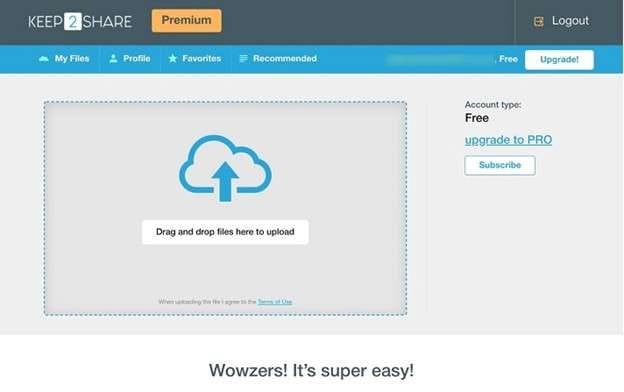
A Keep2Share downloader is an online tool built to improve the way files are downloaded from Keep2Share. Instead of dealing with slow transfer rates, waiting timers, and heavy ads, this tool converts a normal file link into a faster, direct, premium-style link. The goal is simple. Provide smoother access without requiring a paid subscription.
Because of this feature, many people rely on a keep2share premium link generator to improve download speed and remove common free-mode limits. It is often presented as a practical option for users who want unrestricted access without buying a plan.
Main Features of Keep2Share Premium Downloader
A typical keep2share premium downloader highlights these benefits:
- Fast and direct file downloads
- No waiting time before the download starts
- No captcha verification
- No login or subscription required
- Acts as a bypass solution for free users
Part 2. Primary Download Methods
Keep2Share supports several ways to access files. The method you use depends on your account type and the tools you prefer. Each option affects speed, stability, and control during a K2S download.
1: Direct Web Browser Download
This is the default way to download Keep2Share files.
How it works
- Open the shared file link
- Choose free or premium mode
- Free users wait for the timer
- Complete the captcha if required
- Click download
Free account limits
- Slower speed
- File size restrictions
- Waiting period before start
Premium account benefits
- Instant start
- Higher speed
- Resume support
Users with keep2share download premium access experience smoother transfers without delays.
2: JDownloader Automated Method
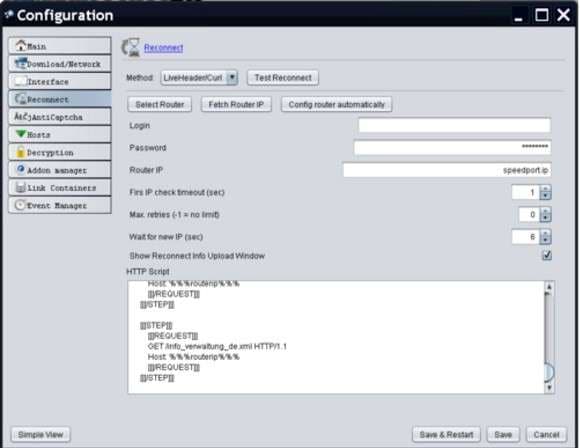
JDownloader is an open-source download manager. It supports Keep2Share links and automates the process.
How it works
- Paste the link into JDownloader
- The tool processes the file
- It handles waiting time and captcha if supported
When premium credentials are added, multiple parallel downloads can be enabled at maximum speed. This makes it a strong option for users who want an efficient keep2share fast download.
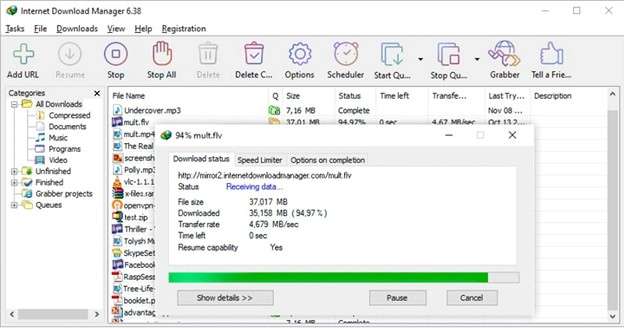
3: Internet Download Manager (IDM)
IDM integrates directly with web browsers.
Process
- Log in to your premium account in the browser
- Click the file link
- IDM captures the direct link
- Download begins at high speed.
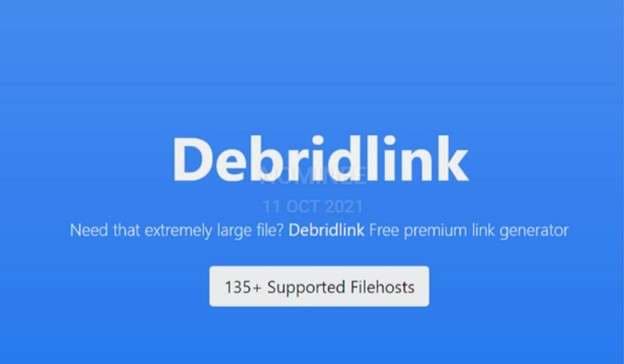
4: Premium Link Generators (Debrid Services)
Some third-party services act as a keep2share premium link generator.
How it works
- Paste the Keep2Share link into the service
- Their server downloads the file
- A direct premium link is generated
This approach is often used as an alternative to buying a full subscription. However, reliability depends on the provider.
5: API and Script-Based Access
Keep2Share provides API access for advanced users.
Developers can:
- Automate downloads
- Integrate scripts
- Build custom download workflows
This method requires technical knowledge. It is not common for casual users.
Quick Comparison
|
Method |
User Type |
Speed |
Ease |
| Browser | Free or Premium | Varies | Manual |
| JDownloader | Free or Premium | High with Premium | Automated |
| IDM | Premium | High | Integrated |
| Link Generator | Third Party | High | Simple |
Note On VPN Use
Some users attempt to bypass limits with a VPN. Recent behavior shows that Keep2Share may block free downloads when VPN traffic is detected. This can interrupt the keep2share free download sessions.
Part 3. Top Download Managers for Keep2Share
A stable download manager can improve speed and resume support during a K2S download. These tools help organize files, manage bandwidth, and prevent data loss if a connection drops. Below are the most capable options for handling large Keep2Share files.
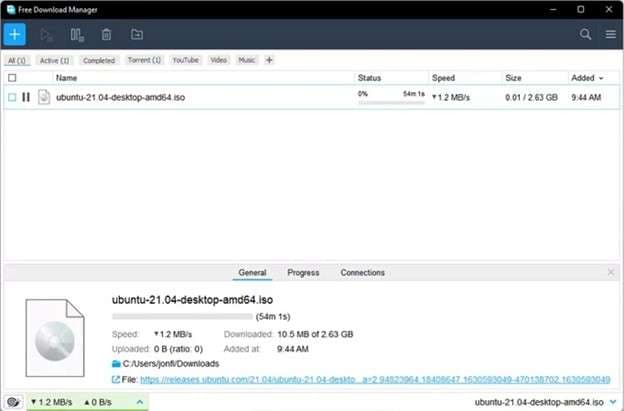
1. Free Download Manager (FDM)
Free Download Manager is a powerful and fully free tool. It works with browser monitoring or as a standalone app. It is often preferred for handling large premium keep2share downloads due to its wide feature set.
Key Features
- Batch downloads
- Torrent support
- Preview ZIP files before full download
- Remove unwanted files inside archives
- Resume broken downloads
- Automatic virus checks
- Bandwidth control
- Download all links from the clipboard
- Reorder files to set priority
- Schedule downloads
- Convert or preview audio and video before completion
- Create a portable version
Compatibility
Runs on Windows 11, 10, 8, and 7. Also available for Linux, Android, and macOS 10.12 and later. Browser extensions support Chrome and Firefox.
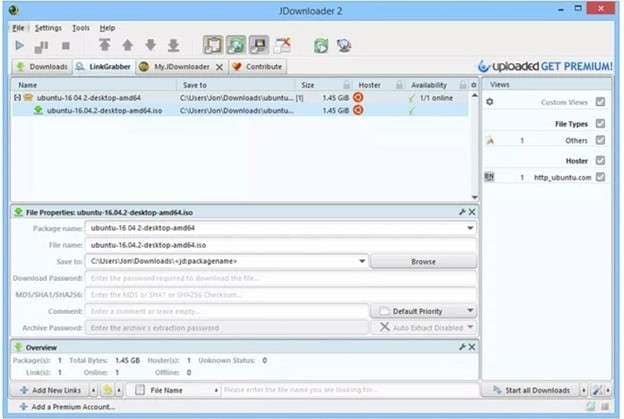
2. JDownloader
JDownloader is an open-source automation manager. It is suitable for both free and premium users.
Core Functions
- Remote management through the mobile app or the MyJDownloader website
- Start, stop, and monitor downloads from anywhere
- LinkGrabber captures copied links automatically
- Save download lists as encrypted password-protected files
- Play, pause, and stop controls are in the top panel
- Adjust speed and simultaneous connections easily
Compatibility
Supports Windows, Linux, and macOS. Works with Chrome and Firefox browsers.
3: Internet Download Accelerator (IDA)
Internet Download Accelerator includes a live browser monitor. Files are automatically sorted into categories for easy organization.
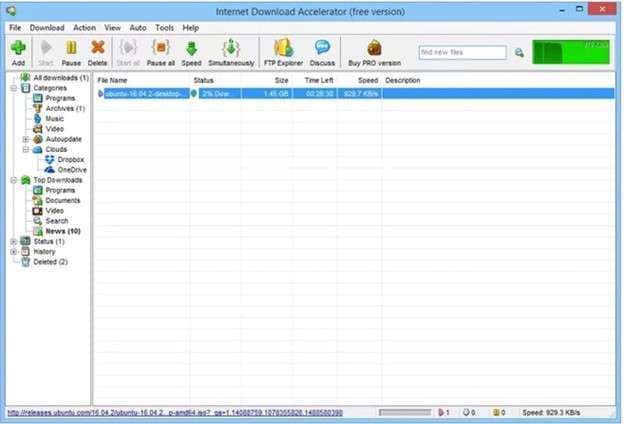
Features
- Capture downloads through browser monitoring
- Support for FTP and standard links
- Group downloads using URL variables
- Automatic virus scanning
- Hotkey control
- Modify user agent details
- Auto download specific file extensions
- Plugin support for extended features
- Advanced scheduling
Compatibility
Runs on Windows 11, 10, 8, 7, Vista, and XP. Works with Chrome, Firefox, Opera, Safari, Yandex, and Vivaldi.
4: Download Accelerator Plus (DAP)
Download Accelerator Plus includes a built-in browser. Links can also be added by copying and pasting.
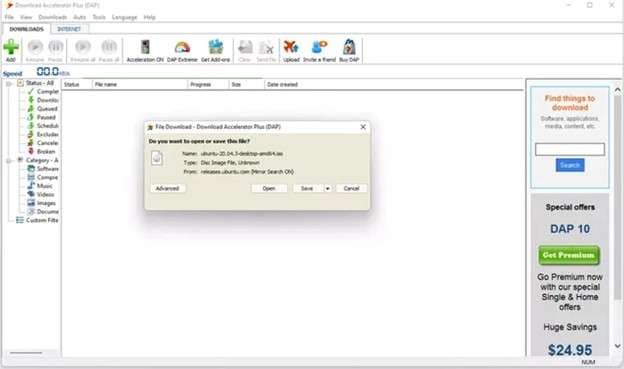
Features
- Import link lists via M3U or text file
- Disconnect the internet after downloads finish
- Built-in virus checking
- Auto start downloads after import
- Schedule downloads
Limitations
- Displays ads
- Last major update was in 2014
- Some advanced features require a paid edition
Compatibility
Runs only on Windows. Integrates with Chrome, Safari, Opera, and Firefox.
5: FlashGet
FlashGet monitors browser downloads and integrates into Firefox. It supports antivirus scanning before file completion.
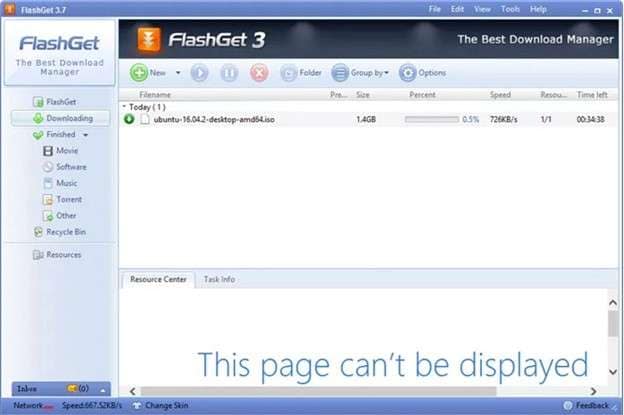
How It Works
- Handles HTTP, FTP, and BitTorrent protocols
- Uses one universal download button
- Detects torrent, image, and video files automatically
- Shows file size before downloading
- Includes a floating desktop control button
Compatibility
Available for Windows systems.
Part 4. How to Generate Keep2Share Premium Links
There are only two practical ways to generate a real premium link for Keep2Share. One is official. The other uses third-party debrid services.
Method 1: Using an Official Premium Account
This is the most secure and stable method.
- Purchase a Keep2Share premium subscription from the official website.
- Log in to your account.
- Open the file link you want.
- Click the download button.
Once logged in, the system automatically provides a premium direct link. No timer. No captcha. Full speed. This is the only fully reliable way to get a genuine premium link.
Method 2: Using a Debrid Service
Some multi-host services act as a keep2share premium link generator. They use their own premium accounts to fetch the file.
- Register on a trusted debrid platform.
- Copy your Keep2Share file URL.
- Paste the link into the generator box.
- The service processes the file on its server.
- A direct premium style link is created for download.
Bonus Tip. Manage Downloaded Files With Wondershare Dr.Fone
After completing a large keep2share download, the next challenge is storage. Video files, ZIP archives, and documents quickly fill up a phone's memory. Instead of moving files manually between folders, a structured device manager helps keep data clean and organized.
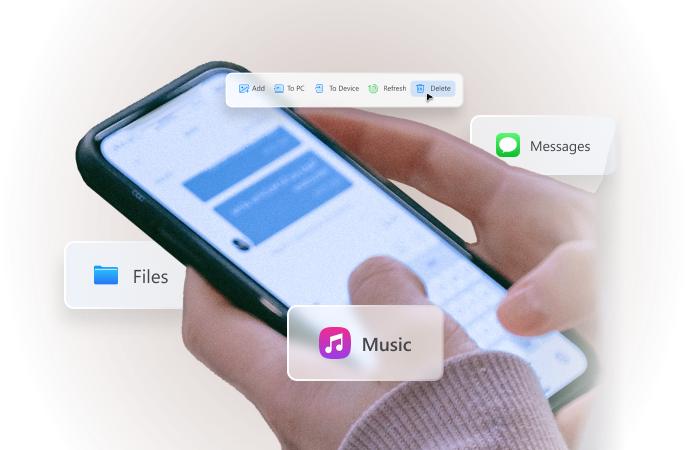
Wondershare Dr.Fone includes a Phone Manager feature for managing Android data. It allows direct access to media, messages, contacts, and internal storage from a desktop interface. This is useful after frequent K2S download transfers, when files need to be sorted or backed up. Below is a clear step-by-step process.

Wondershare Dr.Fone
One-Stop Solution to Manage and Transfer Data on Android Phone
- Transfer files between Android and computer, including contacts, photos, music, SMS, and more.
- Manage, export/import your music, photos, videos, contacts, SMS, Apps, etc.
- Transfer iTunes to Android (vice versa).
- Manage your Android device on the computer.
- Fully compatible with the newest Android OS.


- Step 1. Install Wondershare DrFone on your computer. Launch the program. Connect your Android phone using a USB cable.
The software automatically detects the device. Main categories appear on screen, such as photos, videos, contacts, messages, and files. This central dashboard makes navigation simple and structured.
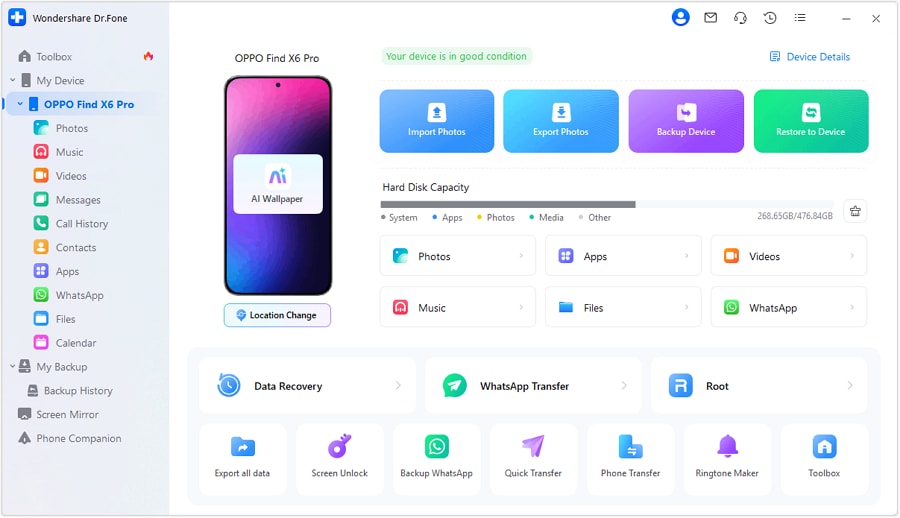
- Step 2. Open the Photos or Videos section. Preview each file before taking action.
You can export important media, ebooks, or documents to your computer. Unwanted downloads collected during repeated keep2share download sessions can be removed safely. This helps free space without risking important data.
Key features include:
- Media preview before export
- Bulk delete option
- File transfer between phone and PC
- Storage management control
- Step 3. Select Messages or Call History from the dashboard. View conversations directly on your desktop screen.
You can export chats and attachments for backup. Old or unnecessary records can be deleted securely. This is useful when large file transfers from Keep2Share premium download activity require additional storage space.

Features include:
- Desktop message preview
- Export conversations
- Manage call logs
- Safe removal of old data
- Step 4. Open the Files section to access internal or SD card storage. Create folders to sort documents, research files, or media. Move, export, or manage files using simple controls. You can also review and export calendar entries when needed.

Main benefits:
- Direct file system access
- Folder creation and organization
- Import and export support
- Calendar data management
Conclusion
Keep2Share access depends on the method, not just the link itself. Free mode limits speed and adds timers, while premium access removes most barriers and improves stability. Third-party generators may promise shortcuts, but official access remains the most reliable way to obtain a genuine Keep2Share premium link. Download managers such as FDM or JDownloader improve control, resume support, and transfer reliability during heavy sessions.
After large transfers, organizing files becomes just as important. Wondershare Dr.Fone helps manage storage, back up data, and keep devices clean after repeated K2S download activity, creating a smoother and safer workflow overall.
 safe & secure
4,624,541 people have downloaded it
Dr.Fone Basic:
Better Control for Your Phone
Manage, transfer, back up, restore, and mirror your device


Android Manage
- Android to iTunes/iCloud
- Android to Mac
- 1. Transfer Data from Android to Mac
- 2. Transfer Videos from Android to Mac
- 3. Transfer Files from Android to Mac
- 4. Connect Android with Mac
- 5. Transfer Photos from Android to Mac
- 6. Sync Android with Mac OS X
- Android to PC
- 1. Transfer Files Using USB Cable
- 2. Share Apps for Android to PC
- 3. Transfer Photos to Windows 10
- 4. Transfer Contacts to PC
- 5. Transfer Photos from Android
- 6. Transfer Files from Android to PC
- 7. Backup and Transfer SMS
- 8. Transfer Photos from Android to PC
- 9. Transfer Videos from Phone to Computer
- 10. Best MoboRobo Alternative to Manage and Transfer Data
- iCloud to Android
- 1. Tips to Sync Data to Android
- 2. Set Up iCloud Account on Android
- 3. Transfer iCloud Contacts
- 4. Transfer iCloud Photos to Android
- iTunes to Android
- 1. Transfer iTunes Audio Books
- 2. Sync iTunes Music with Google Play
- 3. Copy iTunes Playlists to Hard Drive
- 4. Transfer Music from iTunes
- Mac to Android
- 1. Transfer Files from Mac to Android
- 2. Send Files from Mac to Android
- 3. Transfer Music from Mac
- 4. Transfer Photos from Mac
- PC to Android
- 1. Transfer Files to Android Wi-Fi
- 2. Transfer Pictures from Computer
- 3. Transfer Files from PC to Android
- 4. Transfer data from Acer device
- Manage Tips
- 1. Where Are Screenshots Saved on Android
- 2. Android File Transfer for Mac
- 3. Android File Transfer Alternatives
- 4. Unsend a Text on Android
- 5. Introduction To Send Anywhere
- 6. Bold PolyBuzz Mod APK
- 7. Fix File Transfer Not Working
- 8. Top 4chan Alternatives
- 9. Sideloadly Review
- 10. Top LibGen Alternative Options
- 11. 1337x Alternatives
- 12. Keep2Share Downloader Review
- 13. Tez Files Review and Best Alternatives
- ● Manage/transfer/recover data
- ● Unlock screen/activate/FRP lock
- ● Fix most iOS and Android issues
- Free Download Free Download Free Download




Daisy Raines
staff Editor