
Where Are Screenshots Saved on Android? Storage & Recovery Guide

Sep 18, 2026 • Filed to: Device Data Management • Proven solutions
 TL;DR:
Android screenshots are natively saved in the device's Gallery under the Screenshots album or within Internal Storage under the DCIM or Pictures folders, though missing captures require verifying storage permissions or clearing app cache to reappear.
● Samsung devices route screenshots to Gallery > Essential Albums or Internal Storage > DCIM > Screenshots, while other models like Redmi store them in File Manager > Images > Albums > Screenshots.
● If captures fail to save without system alerts, users must enable the Allow Access to Manage All Files permission for the gallery app or configure a new default save folder to bypass SD card capacity errors.
● Transferring or managing these captured files in bulk between Android, iTunes, and a computer requires physically connecting the smartphone to a Windows or Mac system using Wondershare Dr.Fone.
Ask AI for a summary
 ChatGPT
 Perplexity
 Gemini
 Claude
 Grok
Grok
Dr.Fone Basic:
Better Control for Your Phone
Manage, transfer, back up, restore, and mirror your device
You just took a screenshot on your Android phone, but now you can’t find it. Sometimes, screenshots seem to disappear, and leave you frustrated when you need them for work, sharing, or reference. Therefore, this guide will explain the importance of Android screenshots and explain where the device saves them exactly.
So, once you learn where screenshots are saved on Android, this guide also provides simple solutions to help you locate them when they go missing. Additionally, you will learn why tools like Dr.Fone can be the best option for effectively managing data on Android.
- Part 1. Understanding Screenshots on Android
- Part 2. Where Do Screenshots Go on Samsung Devices?
- Part 3. Where Are Screenshots Saved on Other Android Phones?
- Part 4. How to Find Screenshots Quickly on Android
- Part 5. 4 Fix If Screenshots Are Missing or Not Saving

- Pro Tip. Efficiently Manage Your Android Data with Wondershare Dr.Fone
Part 1. Understanding Screenshots on Android
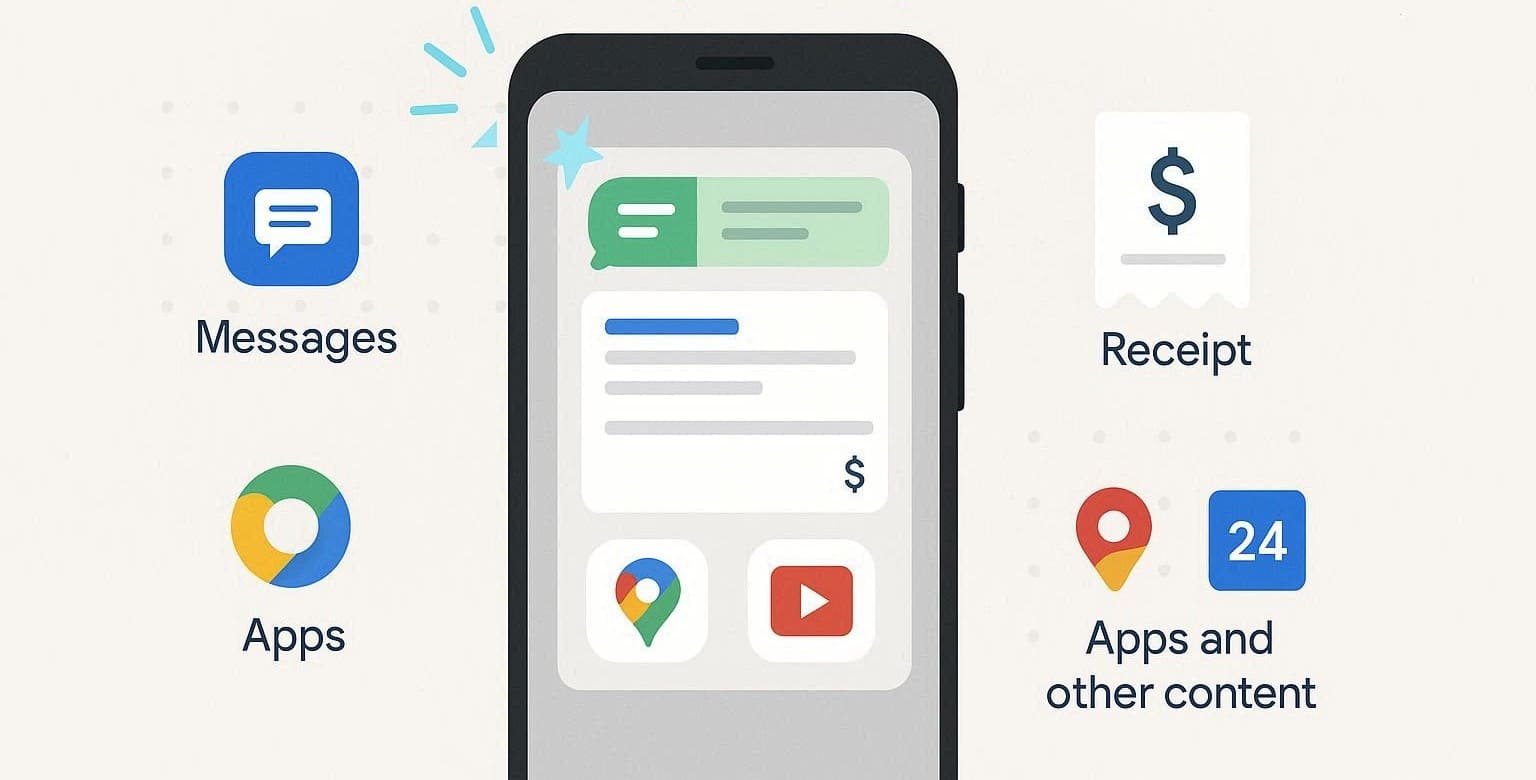
Before you know where screenshots are saved on Android, know that a screenshot on Android is a picture of what shows on your screen at that moment. Simply put, it lets you save and share messages, receipts, app screens, or anything you can’t download or save manually.
Part 2. Where Do Screenshots Go on Samsung Devices?
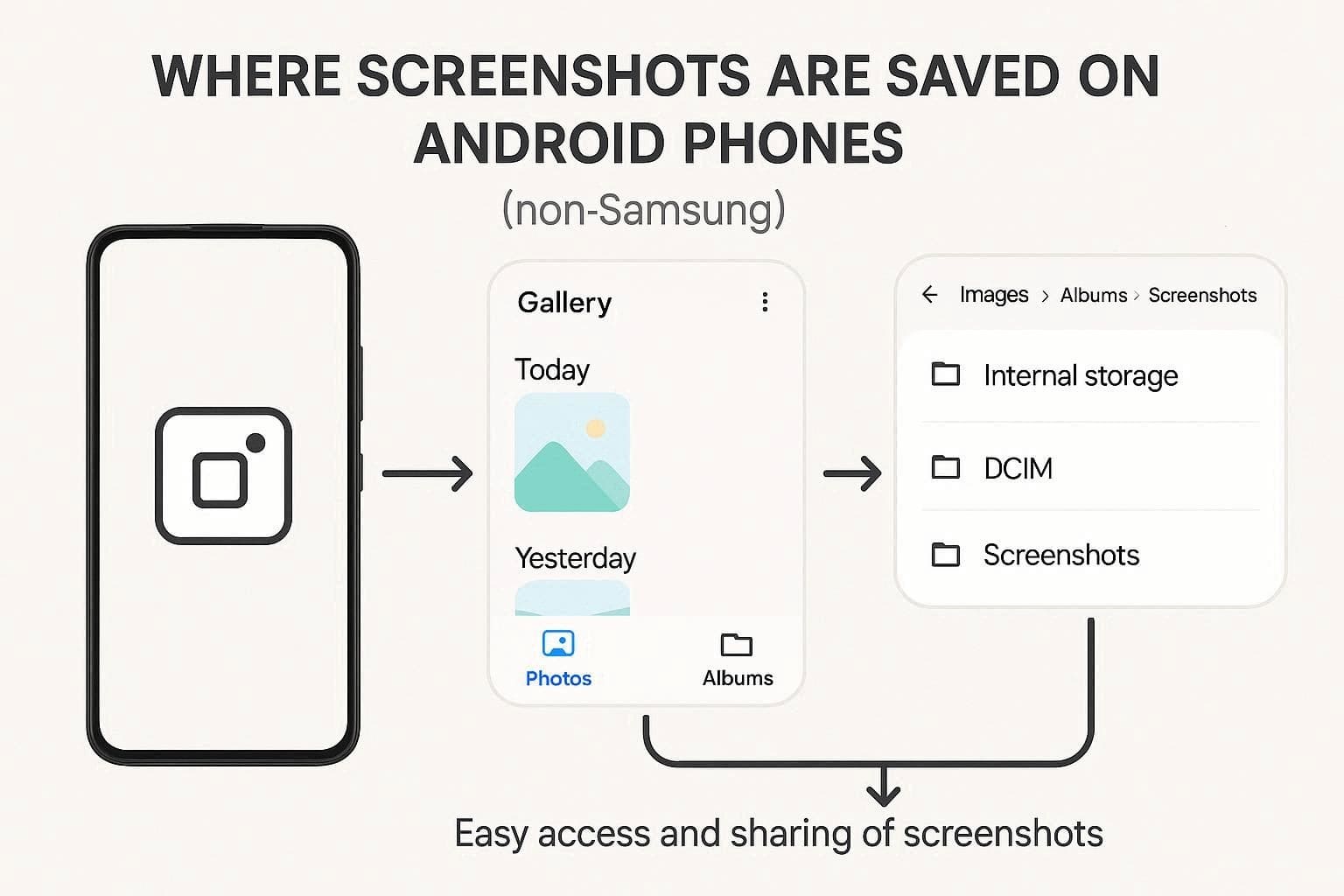
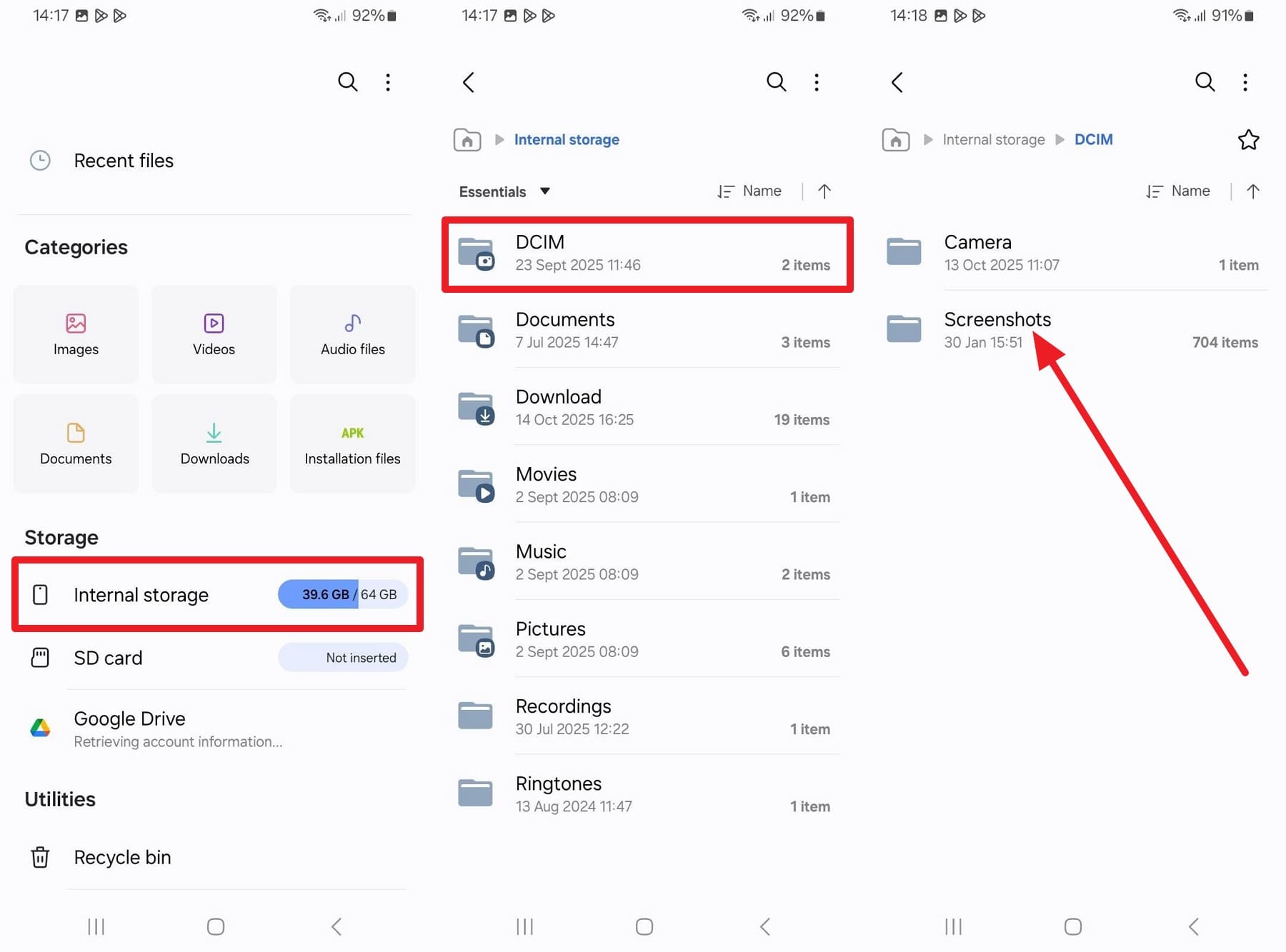
To know where pictures are saved on Android, mainly Samsung, they go directly to the screenshot folders. Hence, you can easily locate them in the Gallery, under Albums or Essential Albums > Screenshots. Users can also access them from the Files/My Files app by heading to Internal Storage > DCIM > Screenshots.
Part 3. Where Are Screenshots Saved on Other Android Phones?
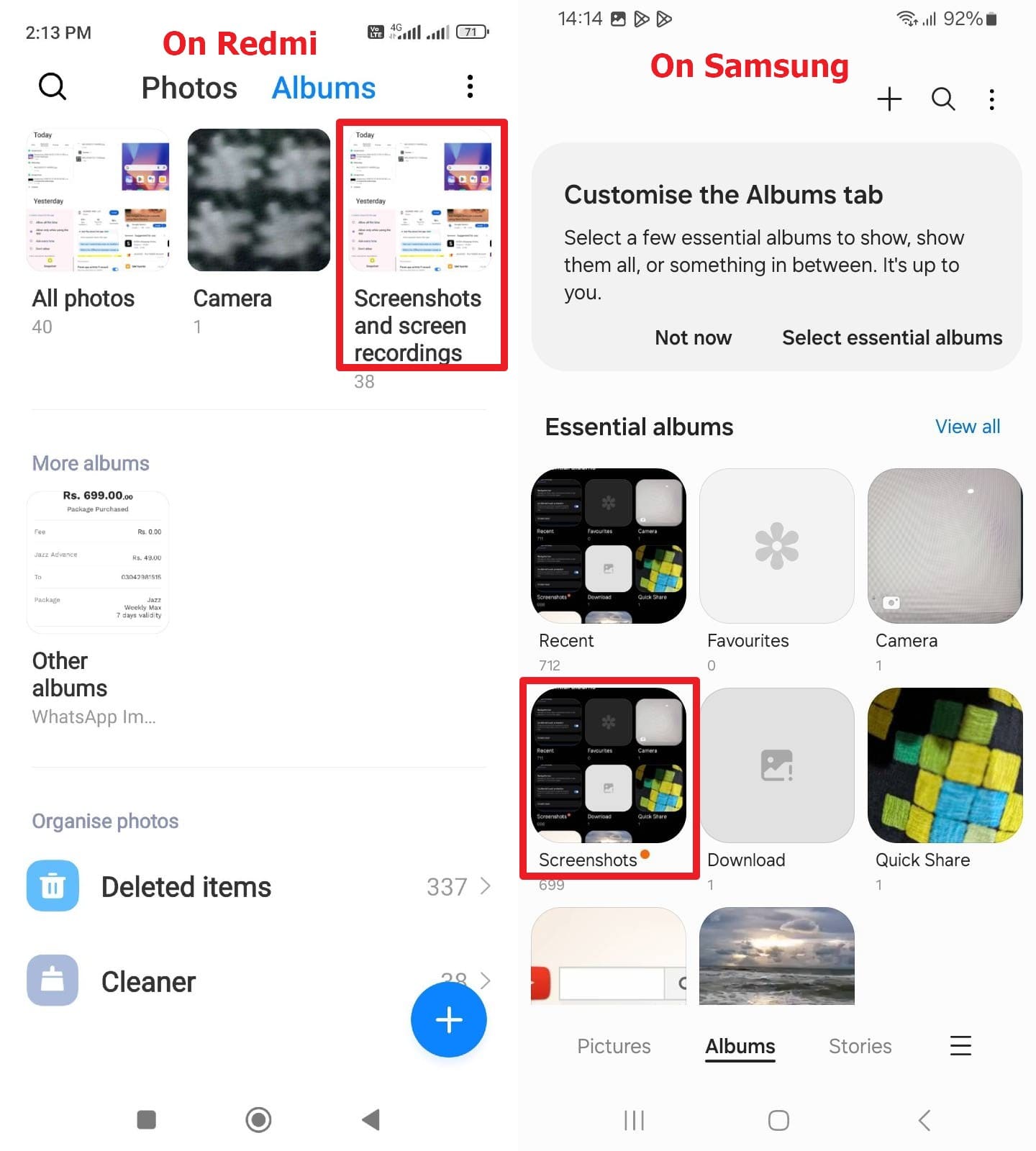
As a non-Samsung user, if you ask where screenshots go on Android, the default location will be the Gallery. There, you can access them by section, like Today or Yesterday, based on when they were taken. There, you can also go to the Albums section and find the Screenshots and Screen Recordings folder.
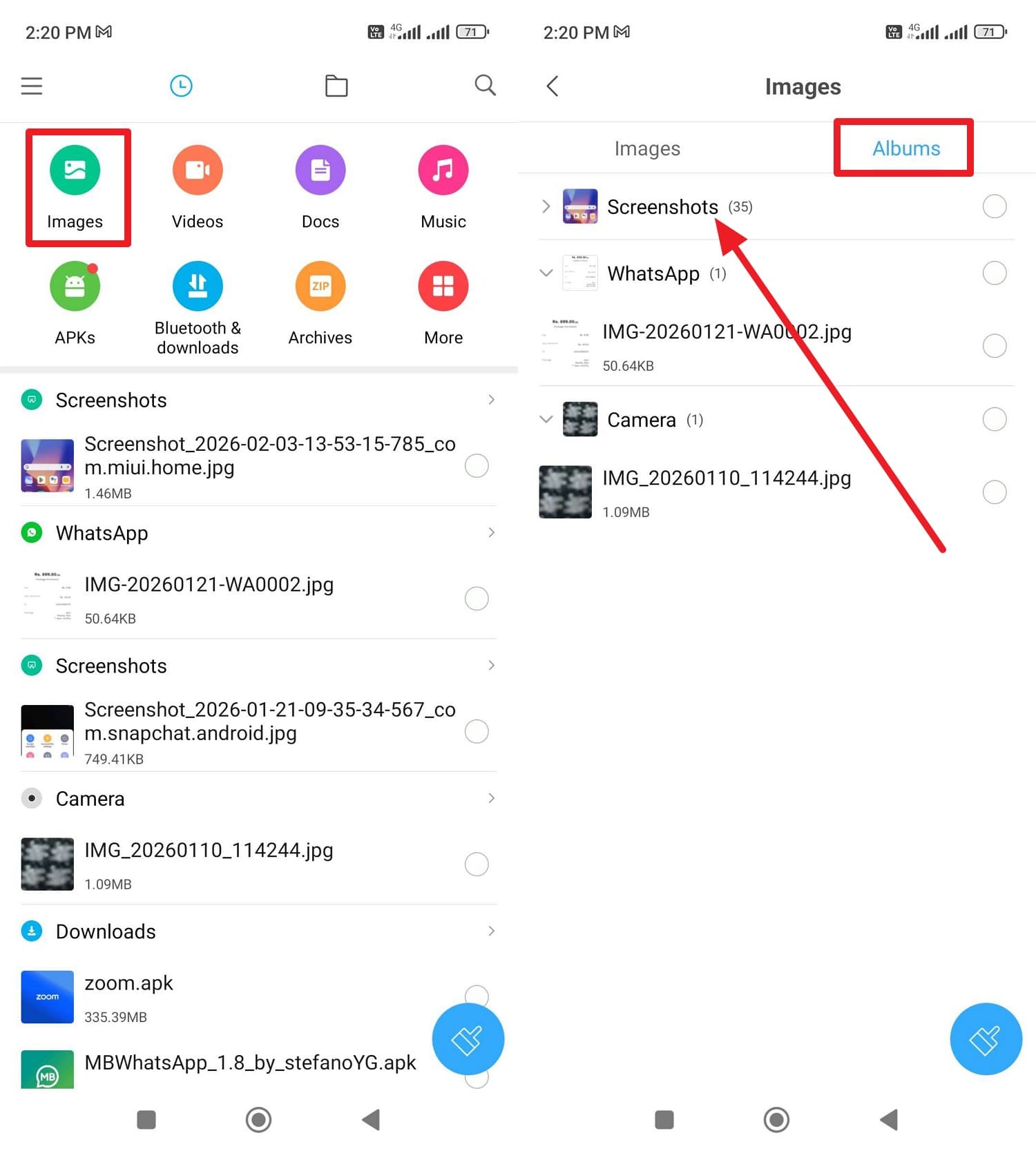
Other than Gallery, they are also saved in the File Manager under Images > Albums > Screenshots (i.e., Redmi). In most devices, it's Internal Storage > DCIM > Screenshots, and they are easy to fetch or share.
Part 4. How to Find Screenshots Quickly on Android?
While knowing the default location, you might want a detailed guide on where screenshots go on a Google Pixel or any Android device. So, review the basic steps for the Gallery and File app/File Manager to locate screenshots:
From Gallery
Instructions: In the Gallery, see the screenshots under the sections like “Today” or “Yesterday.” Other than that, head to the “Albums” section and tap the “Screenshots and Screen Recording” folder. For Samsung, head to the “Essential Albums” section and find the “Screenshots” folder.
From Files App (Mainly Samsung)
Instructions: Go to the “Internal Storage” and choose the “DCIM” or “Pictures” folder. If it's the DCIM folder, select the “Screenshots” folder, then choose the media you want to share.
From File Manager (Other Android Models like Redmi)
Instructions: Choose the “Image” option at the top and head to the “Albums” section to see all screenshots.
Part 5. 4 Fix If Screenshots Are Missing or Not Saving
Even though you know where screenshots are saved on Android, there are times when you can’t find them in the default location. So, if you are having a screenshot missing or not saving issue, try the 4 fixes mentioned below:
Fix 1: Check Storage Permissions
Sometimes, Android may block the capture service from saving images when storage or media access is off. So, when the permission stays limited, screenshots may fail without clear alerts. Hence, turn on storage access for the capture or gallery app to restore normal saving. To do that, follow the simple guidelines given ahead to clarity:
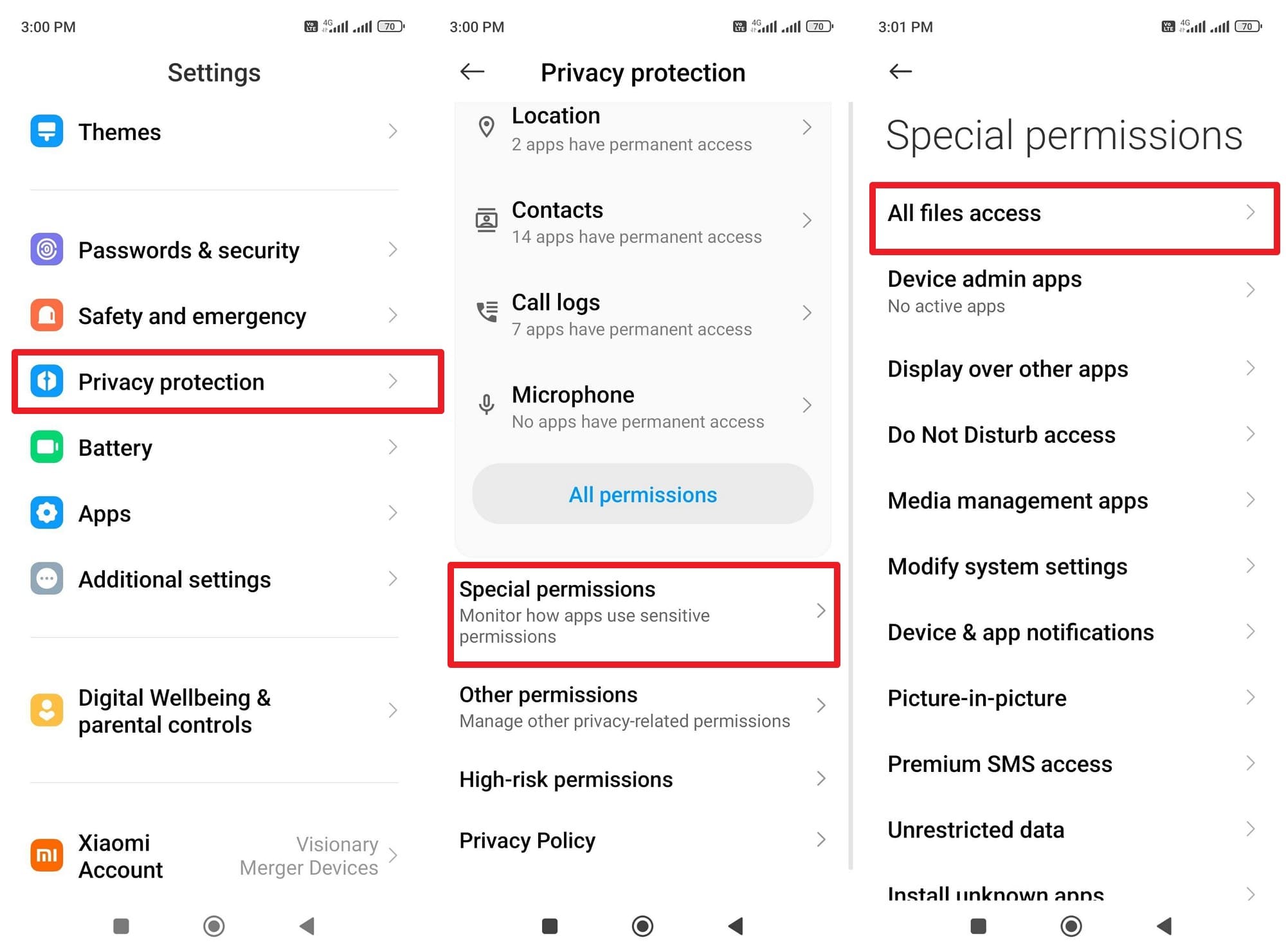
Step 1. On Android, like Redmi, choose the “Privacy Protection” option in settings and pick the “Special Permissions” option. Here, press the “All Files Access” menu to continue.
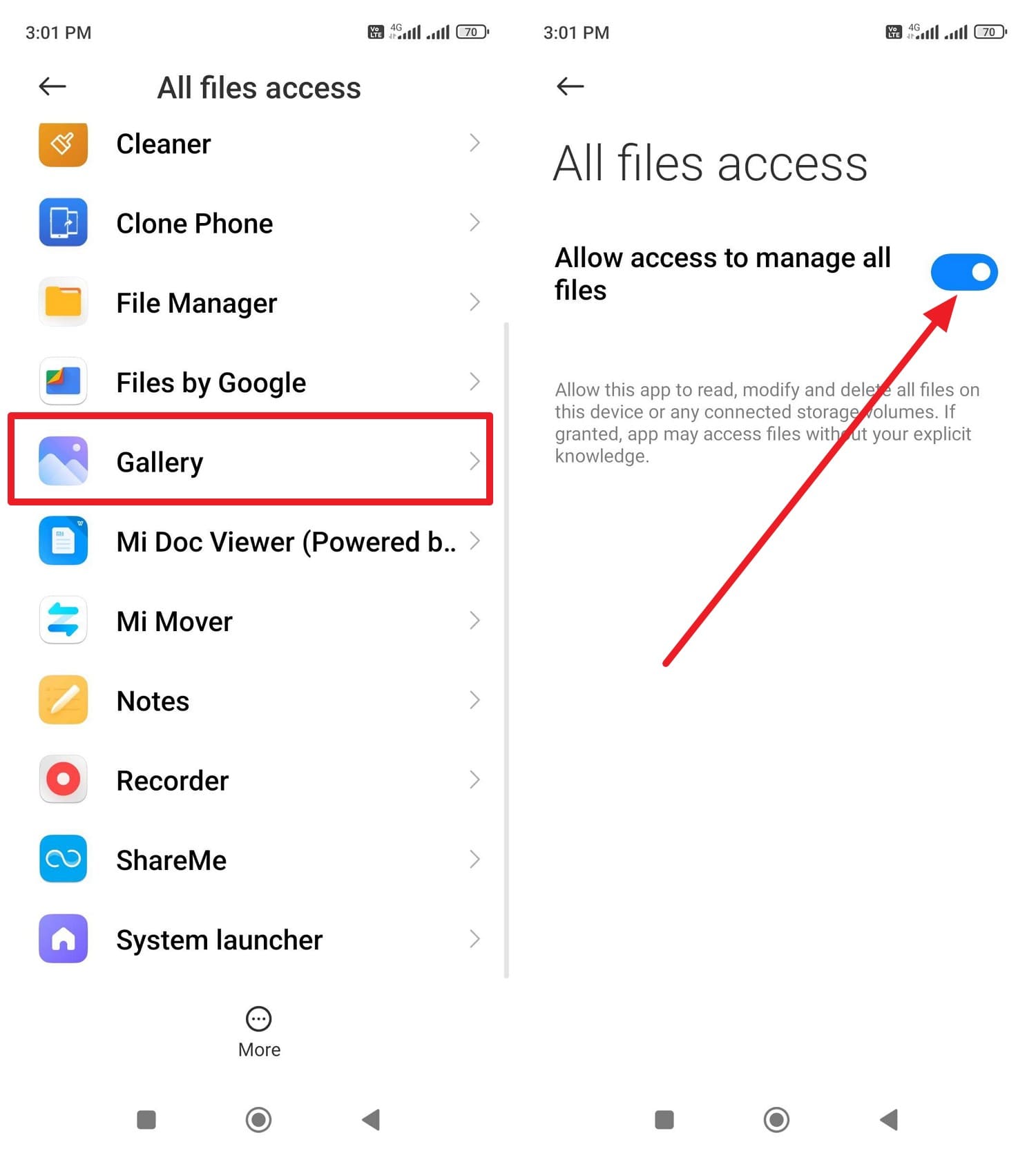
Step 2. Locate the “Gallery” option in the list and toggle the “Allow Access to Manage All Files” option.
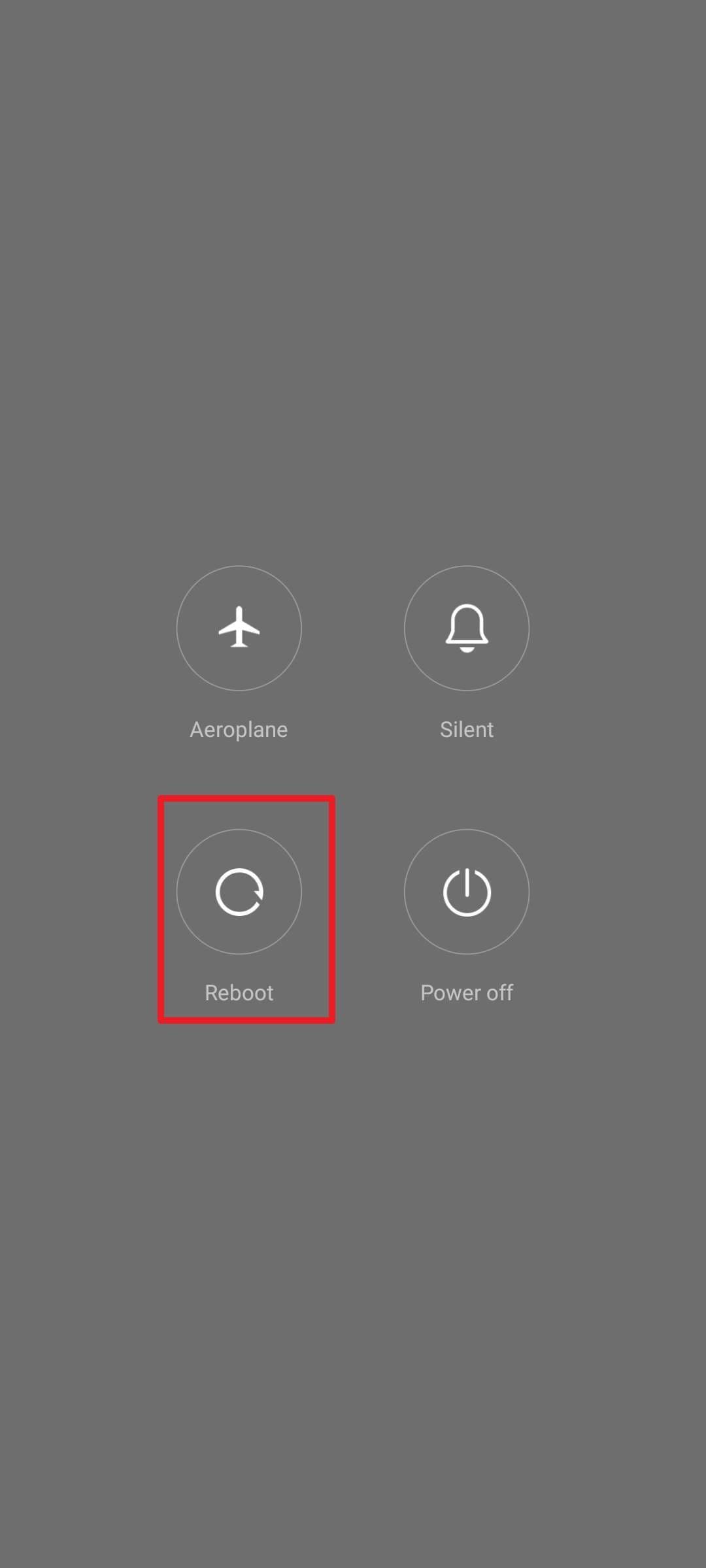
Fix 2: Restart Your Device
If you know where screenshots go on Android and still can’t find them, restart the device. A restart clears small system glitches, resets the capture service, and refreshes storage so new screenshots can be saved normally. Furthermore, it causes hidden screenshots to appear after the system scans the file again. So, adhere to the simple steps and learn how you can restart your Android device like Redmi:
Instructions: Press the “Power and Volume Up” buttons together, then select the “Reboot” option to restart.
Fix 3: Clear the cache of the Gallery/Photos App
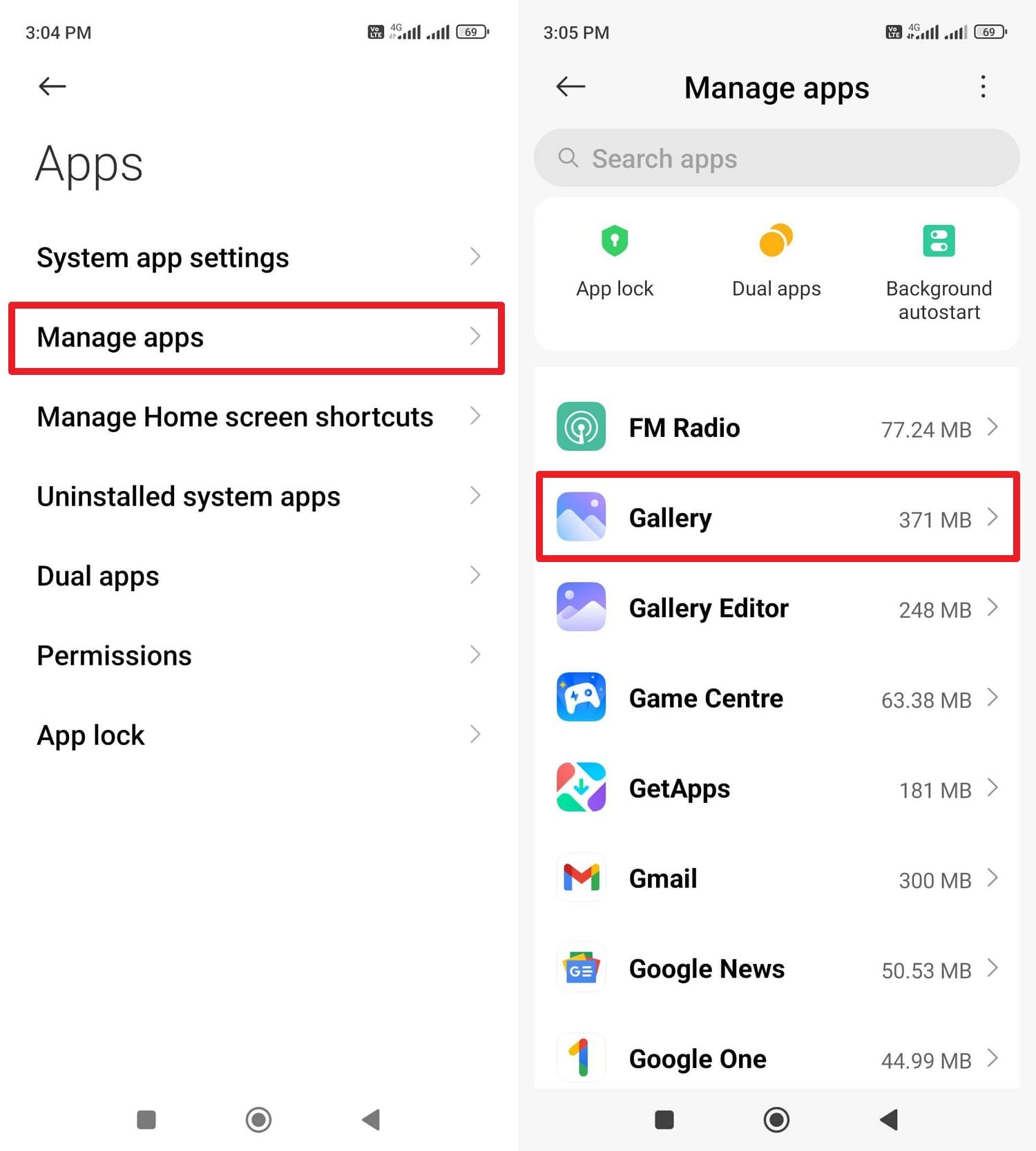
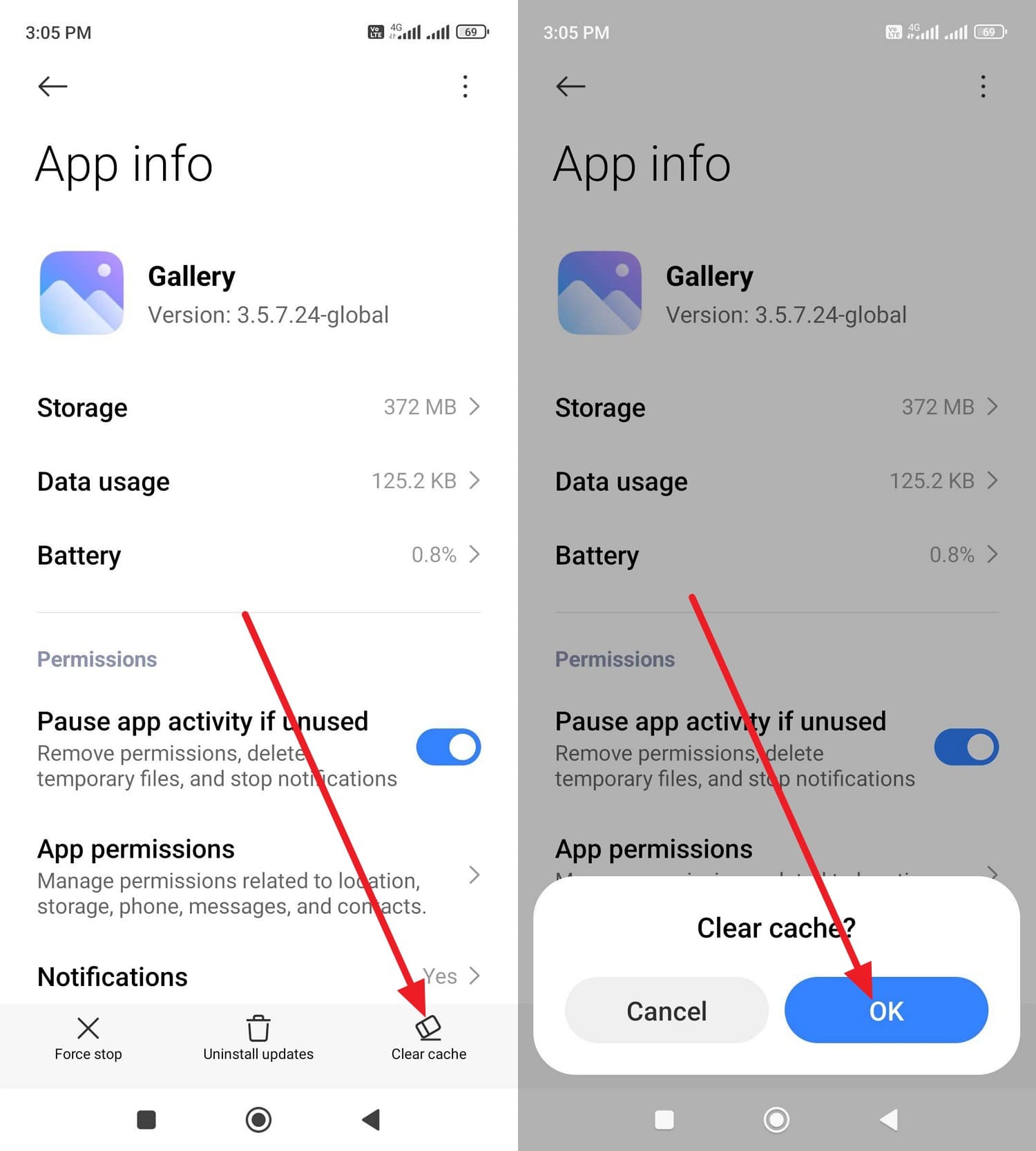
There are chances that the app may show old or broken preview data, so new screenshots do not appear even when you know where screenshots go on the Google Pixel. So, clear the cache to force the app to scan storage again and rebuild image data. This step can make hidden screenshots show up, fix gray thumbnails, and confirm the problem comes from gallery data, as guided:
Step 1. In the “Apps” settings, choose the “Manage App” option and pick the “Gallery” from the list.
Step 2. Press the “Clear Cache” option at the bottom right corner and select the “OK” option to confirm.
Fix 4: Verify Default Storage Location
If the issue persists, verify the default location, as your phone may store them in a different folder, on internal storage, or on an SD card. Moreover, if the SD card has errors or insufficient space, saving will fail, causing a screenshot missing issue. So, set the save location to a working folder so screenshots appear in the Gallery or the assigned folder via the given guide:
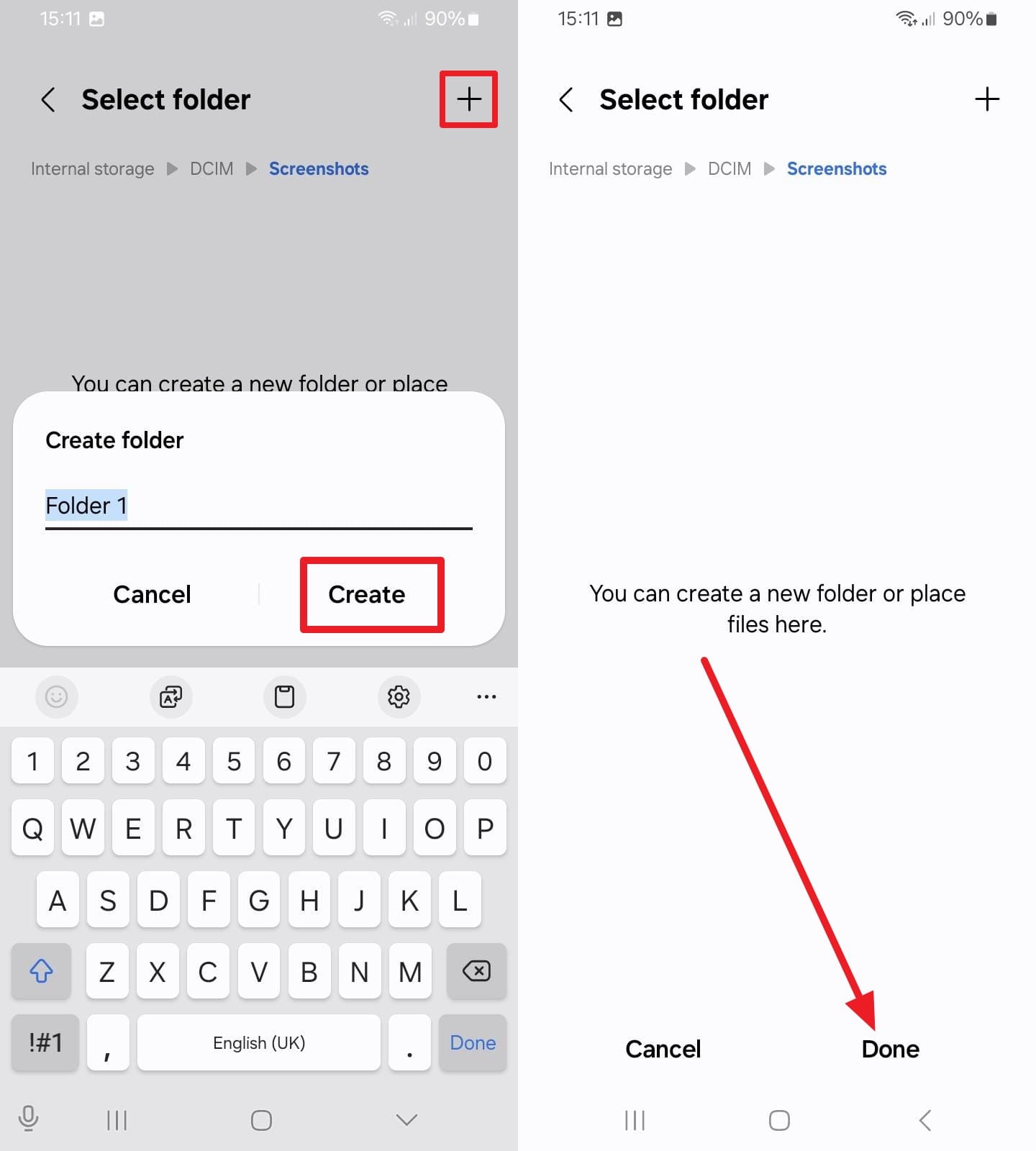
Step 1. On Samsung, pick the “Advanced Features” option and press the “Screenshots” option to choose the “Save Screenshots In” option.
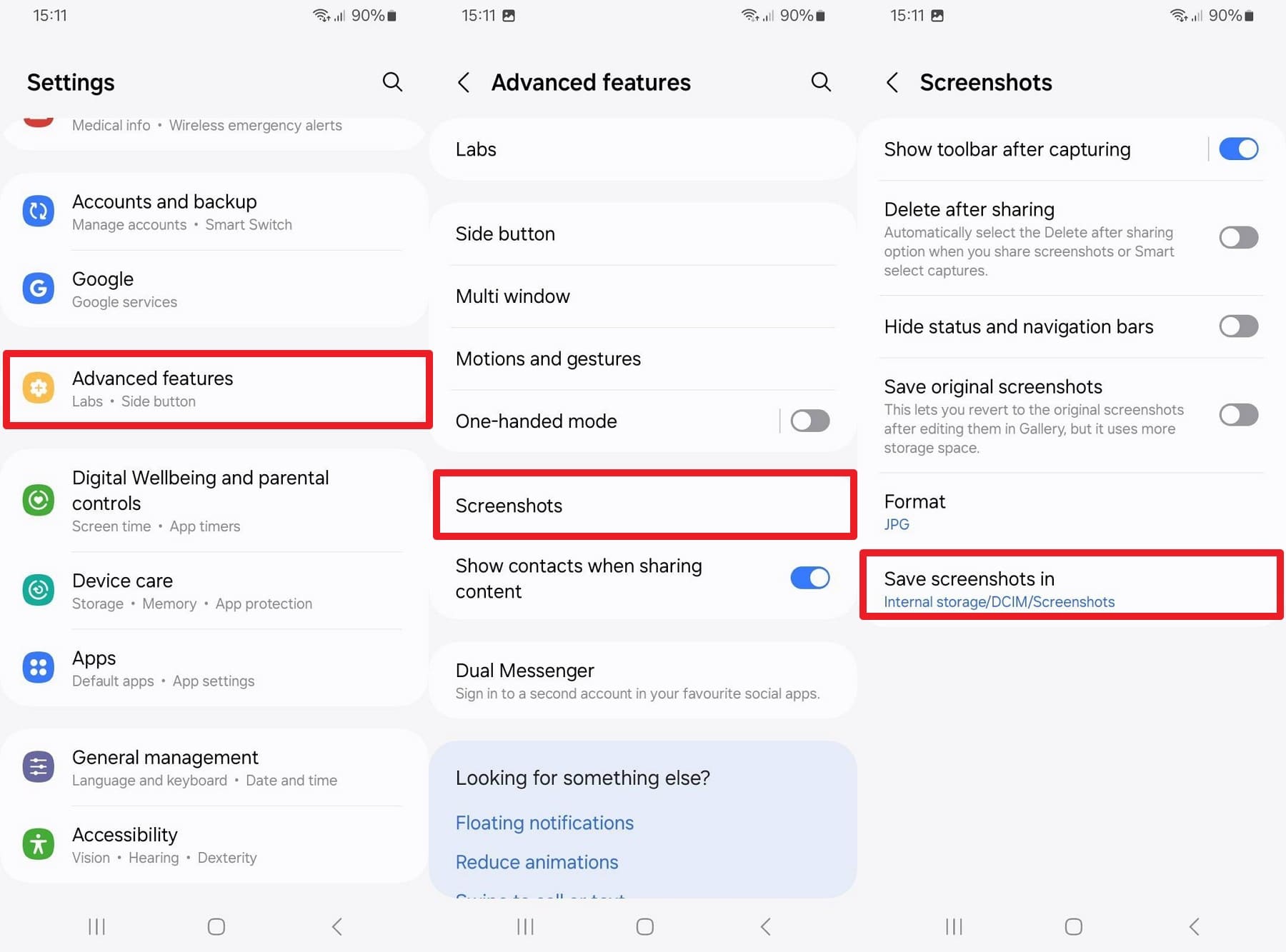
Step 2. Now, pick the “+” icon to add a new folder, and press the “Create” button after you name it. Choose the “Done” button to confirm the default location for saving screenshots.
Pro Tip. Efficiently Manage Your Android Data with Wondershare Dr.Fone
If seeking the answer to managing and where pictures are saved on Android becomes unsolvable for you, rely on Wondershare Dr.Fone. The tool allows you to manage data between Android and PC with import, export, or drag & drop options. Users can choose to switch data in bulk with the option to preview files once shared across the device.
In addition, users can use it to move contacts from iCloud to Android/computer or manage notifications on a PC. Unlike other tools, it also offers the option to move media files between iTunes and Android, making it a versatile option. Besides, it can automatically check available storage and show a simple device history report with key details. Overall, guided steps make its usage seamless, and it is an ideal option to manage data for novices.

Wondershare Dr.Fone
One-Stop Solution to Manage and Transfer Data on Android Phone
- Transfer files between Android and computer, including contacts, photos, music, SMS, and more.
- Manage, export/import your music, photos, videos, contacts, SMS, Apps, etc.
- Transfer iTunes to Android (vice versa).
- Manage your Android device on the computer.
- Fully compatible with the newest Android OS.


Guide to Move Data Across Android and PC with Dr.Fone Manager
Step 1. Launch Phone Manager and Connect Device
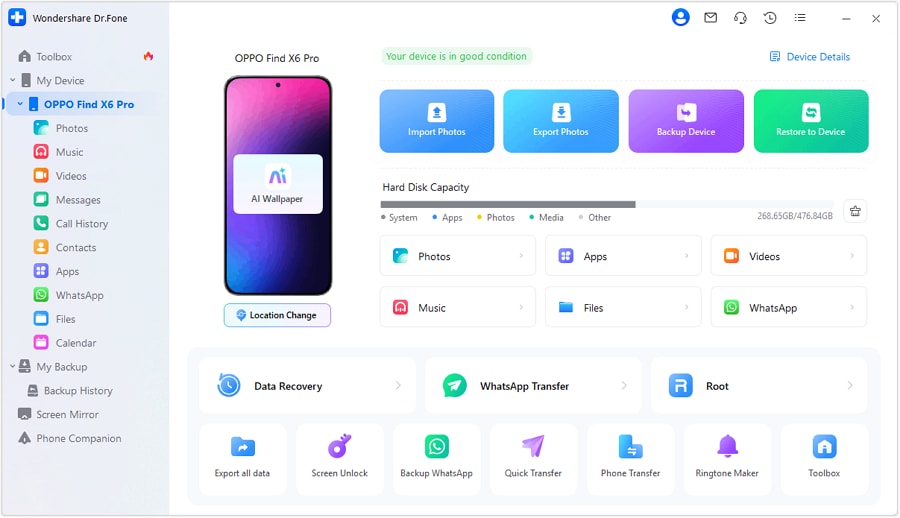
Connect your Android smartphone, like a Samsung, with the tool and locate it under the “My Device” section.
Step 2. Choose to Import or Export on The Tool
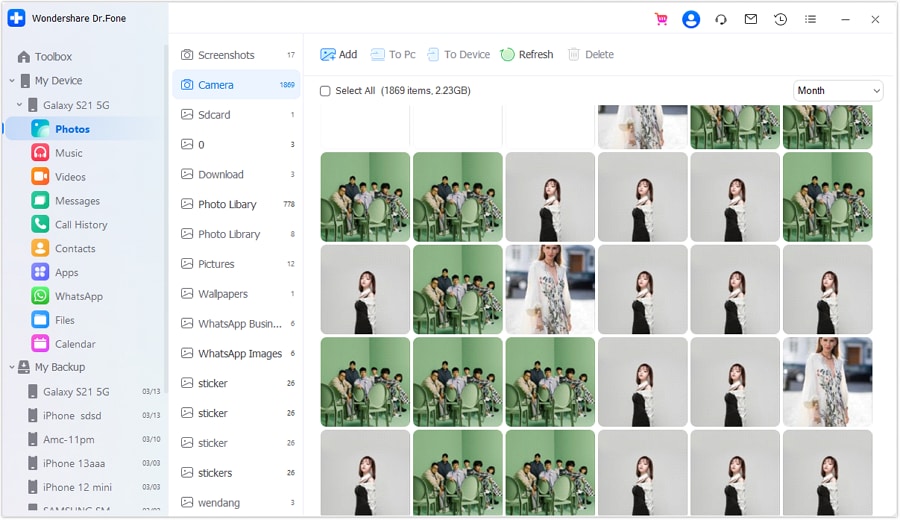
Choose media like “Photos” from the left tab, then select the “To PC” option to export it. To import, tap the “Add” button, then select multiple images to move to Android.
Step 3. Preview the Shared Data on the Dr.Fone
Once shared, press them and preview in detail to determine the accuracy.

 safe & secure
4,624,541 people have downloaded it
Conclusion
To sum up, this guide has explained where screenshots are saved on Android and has provided the default location for Android users. Not just that, a detailed stepwise guide is given to help users locate the screenshots seamlessly from the gallery, Files app, or File Manager. However, if one wants to manage screenshots across PCs, Dr.Fone - Phone Manager (Android) is recommended.
safe & secure4,624,541 people have downloaded it
Frequently Asked Questions
 Q1. Why do screenshots appear late in the gallery?Q2. Do third-party screenshot apps use different folders?Q3. Why do screenshots show in Google Photos but not in Gallery?
Dr.Fone Basic:
Better Control for Your Phone
Manage, transfer, back up, restore, and mirror your device


Android Transfer
- Android to Android
- 1. Transfer Files to Android
- 3. Transfer Contacts to Android
- 4. Data Transfer Apps to Switch Phone
- 5. Transfer Data to Android
- 6. Transfer Text Messages to Android
- 7. Transfer Music to Android
- 8. Transfer Contacts Using Bluetooth
- 9. Transfer Apps to Another Android
- 10. Migrate Data to New Android
- 11. Best Clone Apps for Android
- Android to iPad/iPod
- Android to iPhone
- 1. Transfer Files to iPhone 13
- 2. Transfer Contacts to iPhone 13
- 3. Transfer Music to iPhone
- 4. Transfer Contacts to iPhone
- 5. Android to iPhone Transfer Apps
- 6. Transfer Text Messages to iPhone
- 7. Transfer Photos to iPhone
- 8. Transfer Messages to iPhone 13
- 9. Transfer Contacts to iPhone XS/11
- 10. Transfer Messages to iPhone 12
- 11. FaceTime for Android and iPhone
- 12. Move Data From Android to iPhone After Setup
- 13. Transfer Data from OnePlus to iPhone
- 14. Move Contacts From Android to iPhone
- 15. Transfer Data From Android To iPhone
- 16. Top Apps To Transfer Data From Android To iPhone
- Contacts Transfer
- 1. Sync Contacts to Gmail
- 2. Transfer Contacts from Outlook
- 3. Transfer Contacts to Outlook
- 4. Import Contacts from Excel
- 5. Import Contacts to Android
- 6. Export Contacts to Android Phones
- 7. Merge Contacts in Phones
- 8. Export CSV Contacts for Android
- iOS to Android
- 1. Transfer Files from iPad
- 2. Move Custom Ringtones from iPhone
- 3. Transfer Data from iPhone
- 4. Transfer Music from iPhone
- 5. Transfer Contacts from iPhone
- WhatsApp Transfer
- 1. Transfer WhatsApp from Android
- 2. Transfer WhatsApp Messages
- 3. Transfer WhatsApp Messages to PC
- 4. Transfer Messages to Android
- 5. Transfer WhatsApp Data to Android
- Transfer Tips
- 1. Android USB File Transfer Software
- 2. Android Apps to Transfer Files
- 3. Android Sync Managers
- 4. Android File Transfer Apps
- 5. Fix Transfer Files Not Working
- 6. Simplify Android File Transfer
- 7. Transfer Photos to USB
- 8. Transfer Data to BlackBerry
- 9. Transfer Data From ZTE
- 10. Transfer Data From Windows phone
- 11. Clone Phone and Copy Data
- 11. 12 Best Phone Clone Apps
- 12. Transfer Torrents from PC to Phone
- 13. Send Large Files Through Outlook
- ● Manage/transfer/recover data
- ● Unlock screen/activate/FRP lock
- ● Fix most iOS and Android issues
- Free Download Free Download


 > How-to > Device Data Management > Where Are Screenshots Saved on Android? Storage & Recovery Guide
Daisy Raines
staff Editor