
Sideloadly Review: Is It Safe for iOS Sideloading

Sep 10, 2026 • Filed to: Data Transfer Solutions • Proven solutions
 TL;DR:
Sideloadly provides a safe, legal, and reliable method to install non-App Store iOS applications without jailbreaking by utilizing Apple's official signing process via a Windows or macOS computer.
● Using a free Apple ID limits installations to a maximum of three active apps that expire and require re-signing every 7 days, whereas a paid Developer account removes this cap and extends app validity to one year.
● Unlike Android's direct APK downloads or PC-free iOS shortcuts like Scarlet that rely on easily revoked enterprise certificates, Sideloadly requires a physical computer connection to ensure stable, non-revokable IPA installations.
● Since untested sideloaded builds can crash or corrupt application data, users should back up device media and files using a device manager like Wondershare Dr.Fone before initiating the installation process.
Ask AI for a summary
 ChatGPT
 Perplexity
 Gemini
 Claude
 Grok
Grok
Dr.Fone Basic:
Better Control for Your Phone
Manage, transfer, back up, restore, and mirror your device
App control on iPhone is no longer the same old song. From 2024, Apple started permitting alternative app marketplaces in the European Union under the Digital Markets Act, and that policy continued through to 2026. This transition has led to more users looking for iOS sideloading solutions that work in real life rather than through the App Store.
Meanwhile, developer tools and signing limits remain enforced across the globe. This is also confirmed by Apple’s own official documentation for developers, which states that sideloaded applications installed using a free Apple ID will expire after 7 days. That reality drives interest in tools like Sideloadly for structured iPhone sideload setup.
This review explains how sideloading iOS works, what is legally allowed, what still requires a computer, and what users should expect before starting a sideloading download.

Part 1. Is sideloading illegal?
Installing apps outside the App Store is called sideloading. Many people use sideloadly for this purpose. The action itself is not illegal. What matters is what you install and how you use it.
Legal in Principle
Using Sideloadly to sideload iOS apps ios is not a crime. Installing apps outside the App Store is allowed under Apple’s developer framework. iOS sideloading works through app signing, not by hacking the system. Android also allows sideloading by design.
Illegal When It Involves Piracy
The problem starts when users install cracked or paid apps without permission. If iPhone sideload is used to run pirated games or modified premium apps, it violates copyright law.
Security and Risk
Apps installed via sideloading are not reviewed by Apple. That raises malware risk. Always verify the source before you download sideload files.
Warranty Considerations
iOS-sideloaded apps do not void the warranty on their own. But damage caused by unsafe files may affect support.
2026 Regulatory Update
In the EU, Apple allows alternative marketplaces under the Digital Markets Act. This supports controlled iPad sideloading and structured iPhone side-loading processes.
Part 2. What does Sideloadly do?
Sideloadly is a desktop application that allows you to install apps from outside of the App Store without having to jailbreak. It's compatible with iPhone, iPad, Apple Silicon Macs, and even Apple TV. The goal is simple. Make iOS sideloading controlled and accessible.
Core Functions
- Install IPA files directly to iPhone or iPad
- Support both free and paid Apple Developer accounts
- Enable WiFi-based installs after the first setup
- Auto refresh apps to reduce expiration issues
- Support JIT for better performance in supported apps
- Allow edits to app name, icon, and bundle ID
- Install apps on Apple Silicon Macs and tvOS
How sideload iOS Works
- Step 1. Download and install Sideloadly for Windows or macOS on your computer.
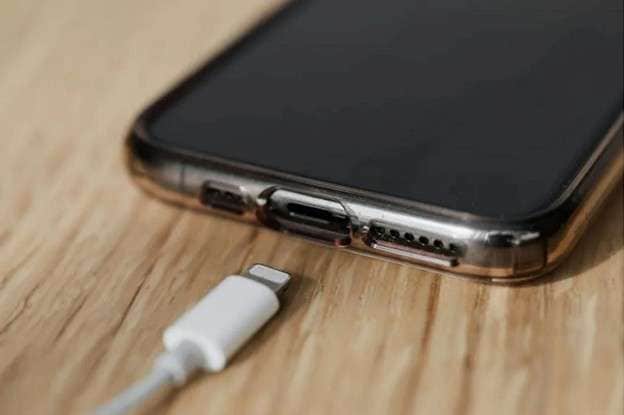
- Step 2. Use a USB cable to connect your iPhone or iPad. This enables iPhone sideload access.
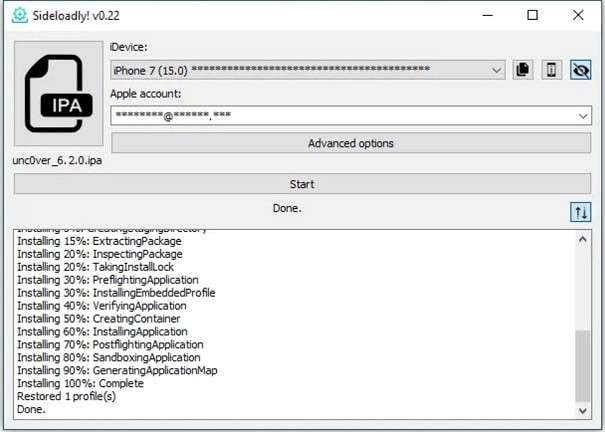
- Step 3. Drag and drop the IPA file into the sideloadly app interface.
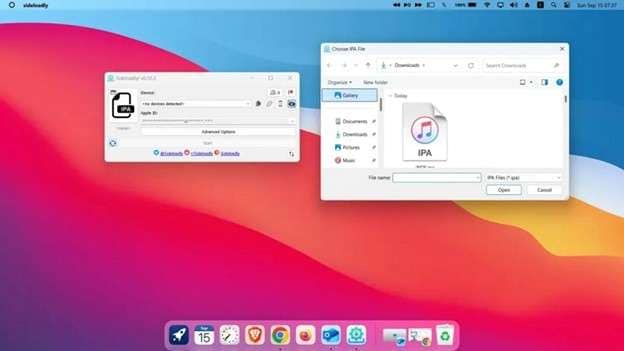
- Step 4. Sign in with your Apple ID. This signs the app for iOS sideload installation.
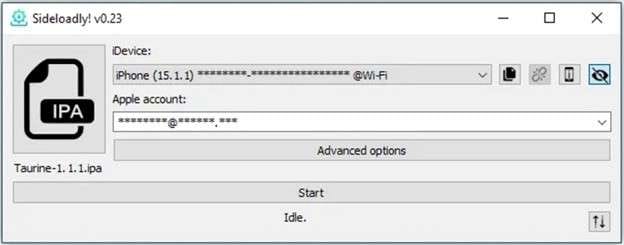
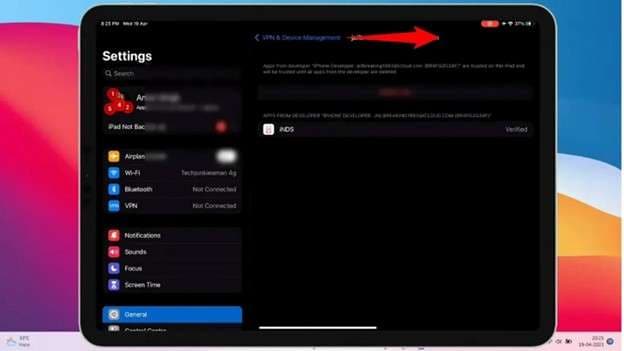
- Step 5. After installation, the app appears on your home screen. Go to Settings > General > Device Management. Select your profile and tap Trust to complete the Apple side load process.
Part 3. Is Google shutting down sideloading?
Short answer: no. But it is becoming harder.
Google is not removing sideloading from Android. It is tightening control starting late 2025 and continuing into 2026. The goal is security. The method is restricted.
What Changed in 2025 to 2026
- Developer Verification: Developers now need to register and verify with Google if they want users to install apps outside the Play Store easily. This step aims to block malware and fake apps.
- Advanced Flow for Power Users: After criticism from developers and privacy groups, Google introduced an advanced install path. Skilled users can still install unverified APK files. However, they must go through extra warnings and security prompts. The process is no longer simple.
- Stronger System Warnings: Android now displays higher-risk alerts before installing apps from unknown sources. This adds friction and slows casual installs.
- Impact on Third-Party Stores: Independent stores may face limits if their developers do not complete Google verification. Smaller developers could feel this pressure most.
What This Means
Google says sideloading is not going away. It remains part of Android’s open design. But it is no longer one tap simple.
This change does not affect sideloadly. Apple uses a signing system through tools like sideloadly iOS, not APK installs.
Part 4. Does sideload require a PC?
Short answer: for iPhone and iPad, yes, in most cases.
Android Devices
Android allows direct APK installs. Users can download a file and install it through system settings. No computer is required. That is part of Android’s open design.
iPhone and iPad
iOS is more controlled. For proper iOS sideloading, Apple requires app signing with a developer certificate. Tools like sideloadly handle this process. That means a computer is usually required to sideload an iPhone or iPad.
If you want to install modified apps, such as sideloaded Spotify, you must use sideloadly on Windows or macOS to sign the IPA file before installation.
What About Scarlet
Some users try Scarlet sideload because it claims to offer PC-free installs. Scarlet uses enterprise certificates to sign apps directly on the device. The risk is stability. Certificates can be revoked by Apple at any time. When that happens, apps stop opening.
Practical Reality
For stable sideloaded apps on iOS, a PC-based method like sideloadly iOS is more reliable than certificate-based shortcuts.
Bonus Tip. Secure Your Data Before iphone sideload
Before you begin iOS sideloading, pause for one important step. Installing apps through sideload on an iPhone or using a quick scarlet sideload method changes how apps run on your device. Most installs work fine. But expired certificates, unstable builds, or storage overload can create issues.
Smart users protect their data first.
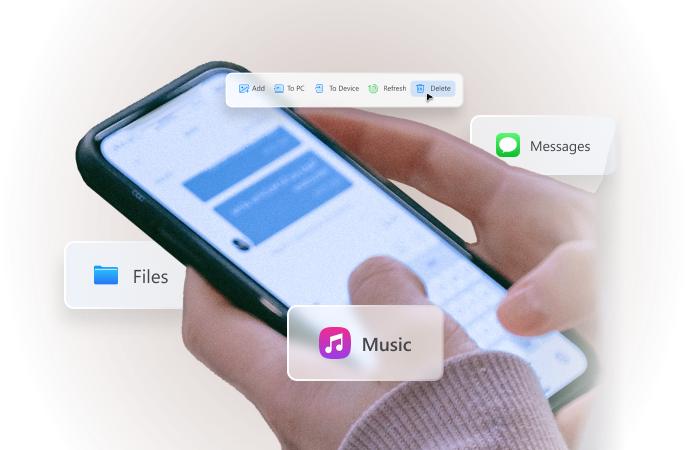
Wondershare Dr.Fone works as a device manager. It lets you back up and manage phone data on your computer before or after sideloading apps. This is useful when you plan to download sideloadly, test beta apps, or manage heavy media files during iPhone side loading.

Wondershare Dr.Fone
One-Stop Solution to Manage and Transfer Data on Android Phone
- Transfer files between Android and computer, including contacts, photos, music, SMS, and more.
- Manage, export/import your music, photos, videos, contacts, SMS, Apps, etc.
- Transfer iTunes to Android (vice versa).
- Manage your Android device on the computer.
- Fully compatible with the newest Android OS.


- Step 1. Install and open Wondershare Dr.Fone on your computer. Connect your phone using a USB cable. Once connected, your device appears in the main dashboard. The software automatically recognizes storage, media, and system categories.
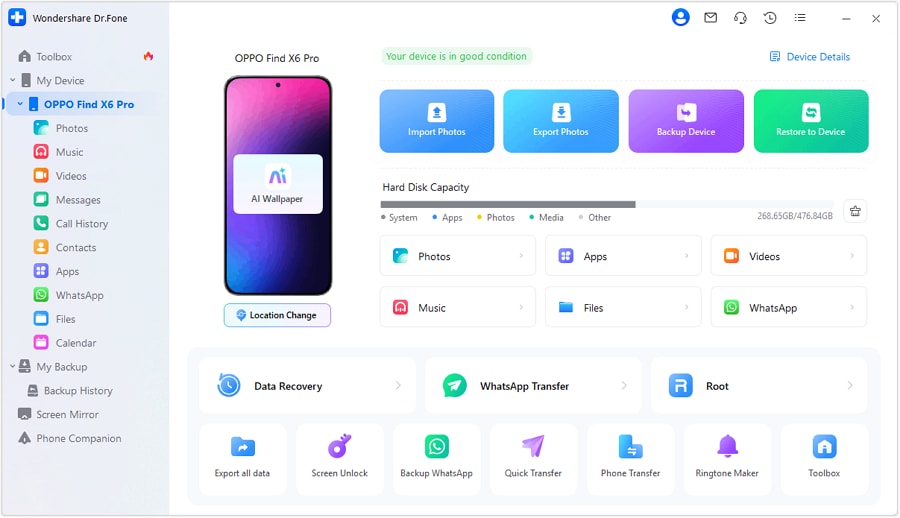
- Step 2. Open the Photos or Videos section. Preview files before taking action. Export important images or videos to your computer. Add new media if needed. Delete unnecessary downloads to free storage space.
- Step 3. Navigate to the Messages or Call History section. View conversations directly from your computer. Export chats for backup. Save attachments separately. Remove old records to clean storage.

- Step 4. Open the Files tab to manage internal storage or SD card data. Create folders. Move files. Export documents. Delete clutter. In the Calendar section, review scheduled events and, if required, export records.

Conclusion
iOS sideloading remains legal when used correctly and tied to proper app signing. Tools like sideloadly make the process structured without jailbreak, yet they still require a computer and valid credentials. Android adds restrictions, but sideloading is not disappearing. On iOS, stability depends on how apps are signed and maintained. Certificate shortcuts may fail. Desktop signing remains more reliable. Before testing new builds, protecting personal data is wise.
A device manager, Wondershare Dr.Fone, adds an extra layer of security, helping keep files secure while you manage changes confidently.
 safe & secure
4,624,541 people have downloaded it
FAQs
 Q1. How many apps can I install at once using Sideloadly?Q2. Can Apple detect apps installed through iOS sideloading?Q3. Why do sideloaded apps suddenly stop opening?Q4. Does sideloadly iphone support the latest iOS versions?Q5. Is a backup necessary before testing the best sideloaded apps on iOS?
Dr.Fone Basic:
Better Control for Your Phone
Manage, transfer, back up, restore, and mirror your device


Android Transfer
- Android to Android
- 1. Transfer Files to Android
- 3. Transfer Contacts to Android
- 4. Data Transfer Apps to Switch Phone
- 5. Transfer Data to Android
- 6. Transfer Text Messages to Android
- 7. Transfer Music to Android
- 8. Transfer Contacts Using Bluetooth
- 9. Transfer Apps to Another Android
- 10. Migrate Data to New Android
- 11. Best Clone Apps for Android
- Android to iPad/iPod
- Android to iPhone
- 1. Transfer Files to iPhone 13
- 2. Transfer Contacts to iPhone 13
- 3. Transfer Music to iPhone
- 4. Transfer Contacts to iPhone
- 5. Android to iPhone Transfer Apps
- 6. Transfer Text Messages to iPhone
- 7. Transfer Photos to iPhone
- 8. Transfer Messages to iPhone 13
- 9. Transfer Contacts to iPhone XS/11
- 10. Transfer Messages to iPhone 12
- 11. FaceTime for Android and iPhone
- 12. Move Data From Android to iPhone After Setup
- 13. Transfer Data from OnePlus to iPhone
- 14. Move Contacts From Android to iPhone
- 15. Transfer Data From Android To iPhone
- 16. Top Apps To Transfer Data From Android To iPhone
- Contacts Transfer
- 1. Sync Contacts to Gmail
- 2. Transfer Contacts from Outlook
- 3. Transfer Contacts to Outlook
- 4. Import Contacts from Excel
- 5. Import Contacts to Android
- 6. Export Contacts to Android Phones
- 7. Merge Contacts in Phones
- 8. Export CSV Contacts for Android
- iOS to Android
- 1. Transfer Files from iPad
- 2. Move Custom Ringtones from iPhone
- 3. Transfer Data from iPhone
- 4. Transfer Music from iPhone
- 5. Transfer Contacts from iPhone
- WhatsApp Transfer
- 1. Transfer WhatsApp from Android
- 2. Transfer WhatsApp Messages
- 3. Transfer WhatsApp Messages to PC
- 4. Transfer Messages to Android
- 5. Transfer WhatsApp Data to Android
- Transfer Tips
- 1. Android USB File Transfer Software
- 2. Android Apps to Transfer Files
- 3. Android Sync Managers
- 4. Android File Transfer Apps
- 5. Fix Transfer Files Not Working
- 6. Simplify Android File Transfer
- 7. Transfer Photos to USB
- 8. Transfer Data to BlackBerry
- 9. Transfer Data From ZTE
- 10. Transfer Data From Windows phone
- 11. Clone Phone and Copy Data
- 11. 12 Best Phone Clone Apps
- 12. Transfer Torrents from PC to Phone
- 13. Send Large Files Through Outlook
- ● Manage/transfer/recover data
- ● Unlock screen/activate/FRP lock
- ● Fix most iOS and Android issues
- Free Download Free Download




James Davis
staff Editor