Effortlessly manage data through preview, delete, export, etc.

 100% Security Verified | No Subscription Required | No Malware

 :
: 
 ChatGPT
 Perplexity
 Gemini
 Claude
 Grok
Grok
You've spent hours downloading a massive game. Only for the installation to fail at 90% with a message, “unarc.dll returned an error code.”
If this sounds familiar, you're not alone. Unarc.dll is a Windows file that decompresses large archives during setup. When it malfunctions, the entire installation process crashes. Therefore, this guide explains what unarc DLL errors are, proven ways to fix them, and how to manually download and install these files. You'll also find tips for effectively managing your Android device and preventing similar problems.
Therefore, this guide explains what unarc DLL errors are, proven ways to fix them, and how to manually download and install these files. You'll also find tips for effectively managing your Android device and preventing similar problems.
Let’s get started.
In this article
Part 1. What is an Unarc.dll Error?
An unarc DLL error occurs when Windows cannot access or run the unarc.dll file during installation. As a result, the setup process stops or fails during the decompression stage. In most cases, this stage is when most of the installation is complete.
What is Unarc.dll File?
Unarc.dll is a system file on Windows. It helps your device unpack archived files during the installation. This can be for large games or software packages. Many developers use strong compression methods to reduce download size. The installer must decompress large amounts of data to complete the setup. A corrupt or missing Unarc.dll file prevents this process from running.
Part 2. Common Unarc.dll Errors and Their Causes
There are several codes and messages associated with the Unarc.dll errors. Each has its own signs and causes. Let’s review these in detail.
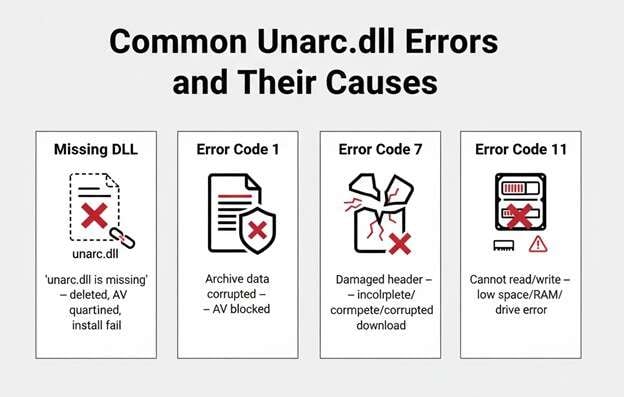
Missing DLL Error
This appears with the message, “The program can't start because unarc.dll is missing from your computer.” It can happen because:
- The file was deleted by mistake.
- Your antivirus program quarantined or removed it.
- The program was not installed correctly, so the file was never added.
Error Code Messages
Many Unarc.dll problems also appear as error codes. Here are some common code numbers and their particular meaning.
- Error Code 1: You may see the message "ERROR: archive data corrupted (decompression fails)” along with the code. Your antivirus software blocked or removed the file during installation. Also, learn how to recover from corrupted archive data errors on Android.
- Error Code 7: The header section of the compressed file is damaged. The installation file was either not fully downloaded or became corrupted afterward.
- Error Code 11: Unarc Dll 11 means that the system cannot properly read from the compressed file. Or it cannot write the extracted data to your drive. The reason can be a lack of free space, limited RAM, or hard drive errors.
Part 3. How do I Fix Unarc.dll Errors?
You can fix Unarc DLL errors by addressing their underlying causes. Here are some proven methods that can help you.
-
Solution 1 Increase Virtual Memory
Extracting large game files uses a large amount of memory. The system needs enough RAM to handle this task. RAM may become full when extracting game files. The operating system then uses virtual memory as extra space to avoid crashes. Insufficient virtual space can cause Unarc.dll errors while unpacking large files. Increasing this memory can resolve the issue.
To do this:
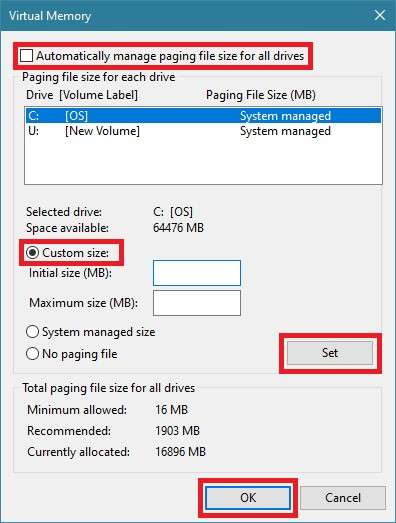
- Right-click “This PC” and select “Properties.” Then, click “Advanced system settings” on the right.
- Under the Performance section, click “Settings” and go to the “Advanced” tab. Click “Change” under Virtual Memory.
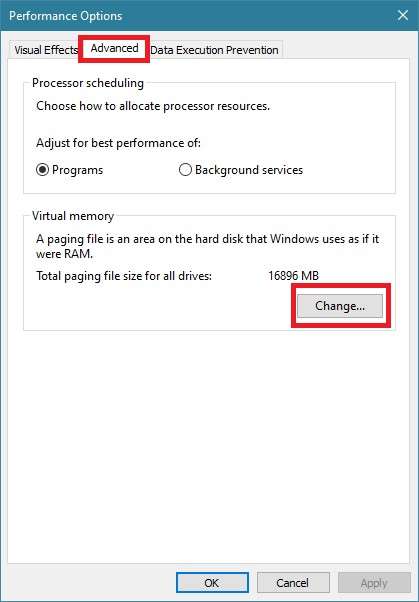
- Uncheck “Automatically manage paging file size for all drives.” Select your system drive and choose “Custom size.” Then, adjust values as needed.
- Click “Set,” then “OK” on all dialog boxes and restart your computer.
 Note: Low storage can also cause errors on Android devices. Check out our guide on preventing Android system crashes due to low storage or memory.
 -
Solution 2 Temporarily Disable Antivirus/Firewall
Security programs can block or isolate files that seem unsafe. Large game files are often highly compressed. Their file activity can resemble the behavior of malicious software. These files can trigger false alarms. So, turning off your antivirus will resolve the unarc DLL errors.
Here’s how to turn off Windows Defender.
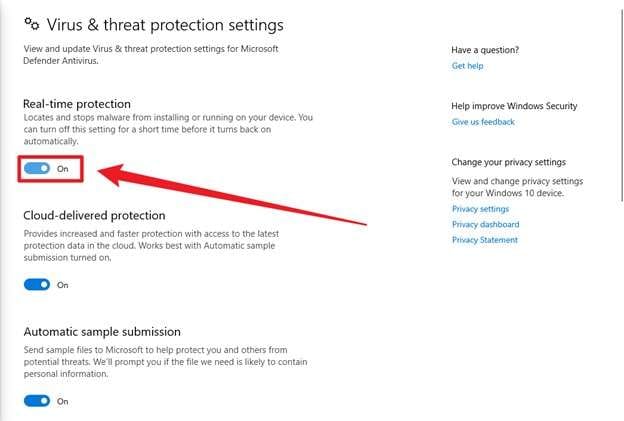
- Search for “Windows Security” in the Start menu and open it.
- Go to “Virus & threat protection.” Click “Manage settings” under Virus & threat protection settings.
- Toggle off “Real-time protection” and finish installing your game.
 Note: If you face similar installation issues on Android, learn how to fix Android app parsing and installation errors.
 -
Solution 3 Run System File Checker (SFC)
Like system files, DLL files can become damaged over time. The System File Checker (SFC) scans and detects them. It replaces them with correct versions from the system cache. As a result, you can resolve issues linked to unarc.dll corruption.
Use these steps to run it.
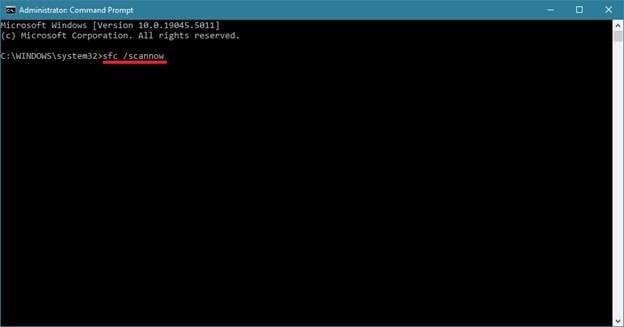
- Search “cmd” in the Start menu. Right-click it and select “Run as administrator”.
- Input the “sfc /scannow” command and then press the “Enter” key.
-
Solution 4 Limit CPU Processors
Modern multi-core processors have 12 or more cores. Older installation programs were not built for this hardware. As a result, these programs may overload the system.
You can reduce the number of active CPU cores. This action makes the computer act like an older machine. Therefore, it lowers the risk of Unarc.dll errors during file extraction.
Here are the steps.
- Press the “Windows + R” keys and type “msconfig.” Then, hit “Enter” on your keyboard.
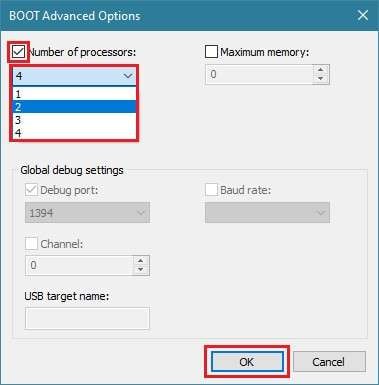
- Click the “Boot” tab and then click the “Advanced options” button.
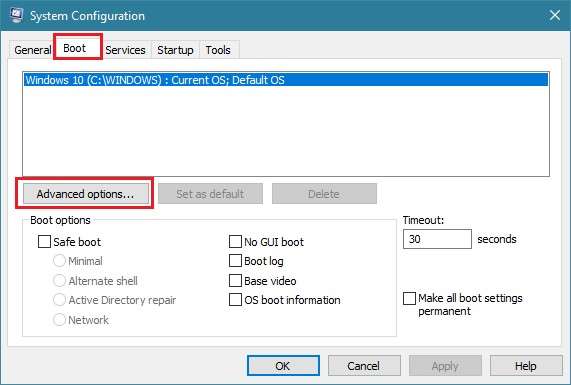
- Check the box for “Number of processors.” From the dropdown, choose a number below your total core count. Then, click “OK” to close the window.
-
Solution 5 Optimize Power Settings
High-performance power plans push your CPU to its top speed. This generates a lot of heat during long decompression tasks. The high temperature can slow down the CPU or make the system unstable. These issues may trigger unarc.dll errors.
Here’s how to optimize power settings and prevent any issues.
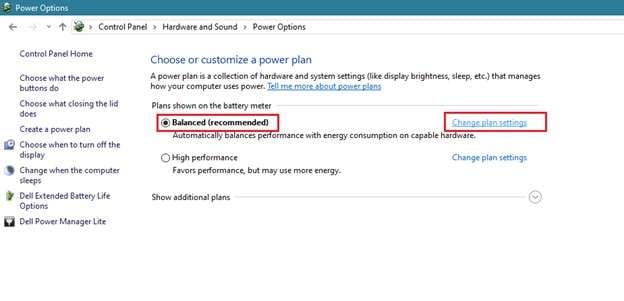
- In the Control Panel, click “Hardware and Sound” and select “Power Options.”
- Choose the “Balanced” power plan and click “Change plan settings” next to it.
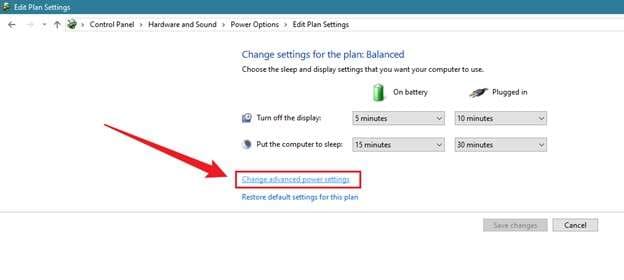
- Click “Change advanced power settings,” and a dialog box with many options will open.
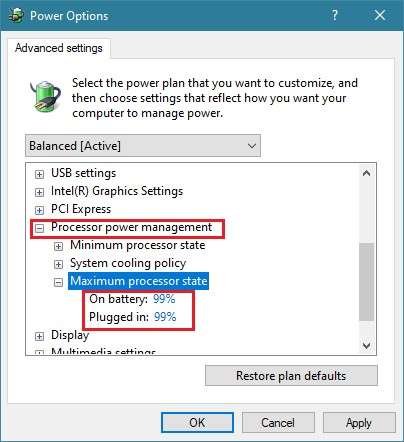
- Expand the “Processor power management” menu. Then click “Maximum processor state.”
- Set “On battery” and “Plugged in” to 99%. Save your changes and complete your installation.
Part 4. How to Download and Manually Install Unarc.dll
Sometimes a missing unarc DLL means that the file is accidentally deleted or removed from your device. In this case, you’ll need to manually download and install it on your computer. Let's look at how it works.
-
Step 1 Download Unarc.dll Safely
Download unarc.dll from a well-reputed source. Look for a site with positive reviews. Also, make sure the file matches your system version. For the unarc DLL download for the 64-bit version, you'll need both 32-bit and 64-bit unarc.dll, depending on the application.
-
Step 2 Paste the File
The unarc DLL file will download in a ZIP format. Extract the file into a separate folder and copy it. Then, go to C:\Windows\System32 or C:\Windows\SysWOW64 according to your system version.
-
Step 3 Register the File
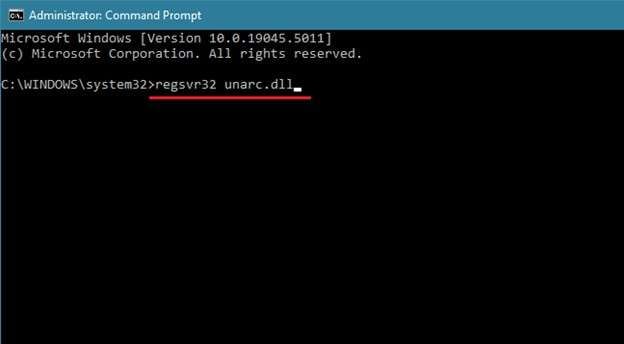
Access the Command Prompt with administrator rights. Then, type “regsvr32 name.dll” and press the “Enter” key. This will register the file to ensure your device can recognize and run it.
Bonus Tip: Manage All Data on Your Android Device with Wondershare Dr.Fone
While it's important to fix any system issues on Windows, proper device care includes more than just your computer. Just like how corrupted files can cause unarc.dll errors, storage and file problems on Android phones can lead to slow performance and loss of data.
Wondershare Dr.Fone helps you avoid this problem. It offers a comprehensive toolset to help you manage your Android data, so your device performs fast and remains free from any corruption. Dr.Fone allows you to access all phone data on your PC. You can preview files before taking action. Then, you can import, export, delete, or print the selected data.
It works with over 10 types of data. This can be media files, documents, app data, call history, messages, attachments, and more. Plus, it supports all major Android brands. These include Samsung, Huawei, OPPO, Vivo, and more.
 Effortlessly manage data through preview, delete, export, etc.
- Transfer all data between devices.
- Robust backup solutions for reliable data protection.
- Mirror screens to PC for meetings, teaching, and control.

Steps to Manage Your Android Device with Dr.Fone
Download Wondershare Dr.Fone on your desktop and install it. Launch the software and connect your device via a USB cable. Then, follow these steps.
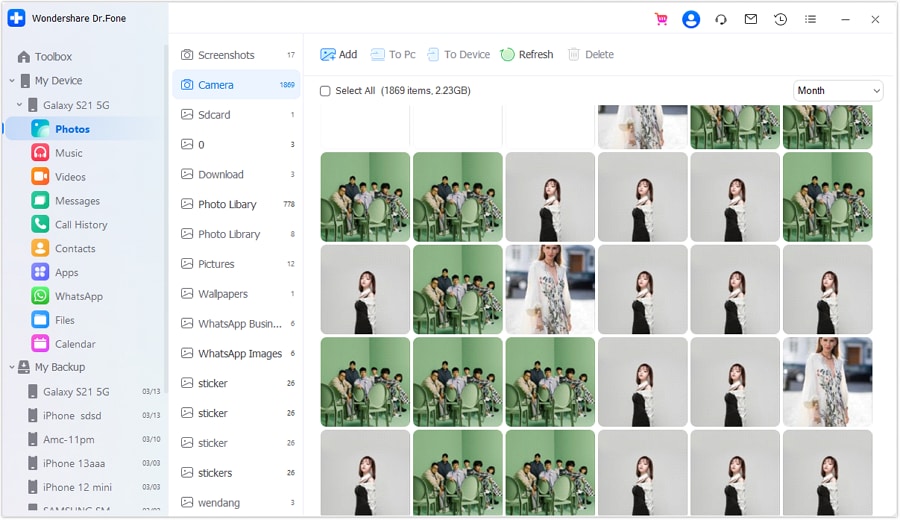
Step 1 On the left panel, select “Photos” under your device name. Then, click “Add” to upload images or click “Delete” to remove them. Alternatively, select the desired files and click “To PC” to export them.
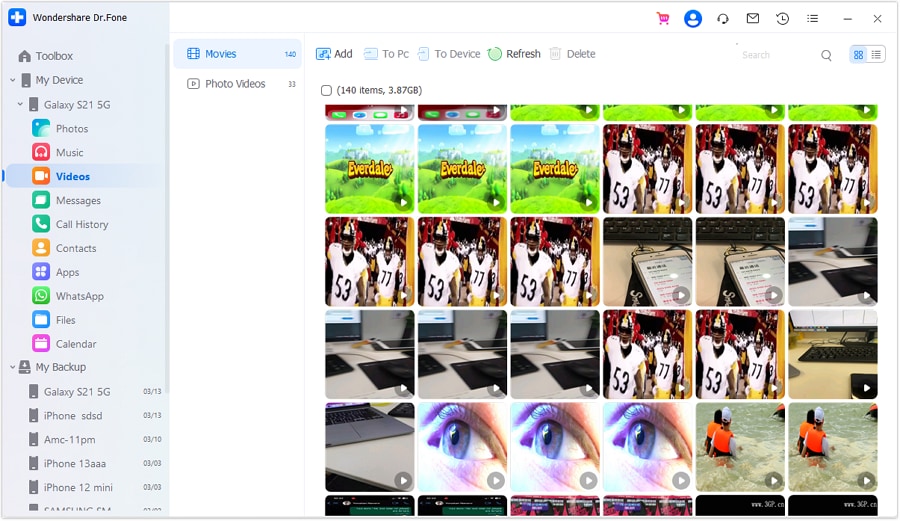
Step 2 Select “Videos” from the left panel. Click the buttons at the top to view, add, or delete the videos. You can also change between “Album View” and “List View” using the icons in the top right.
Step 3 Go to “Messages” and select “All Messages”. Then, select the options to import, export, or delete at the top to manage your chats.

Step 4 You can also manage the message attachment files. Choose the “Attachments” option. Select the desired files and click “Export” to send them to your PC.

Step 5 To manage your call logs, select “Call History” from the left. Then you can export or print the selected data if you need it.

Step 6 Go to “Files” to manage your phone or SD card data. Click “Add File” from the top to import new files, or click “New Folder.” Similarly, select an existing file and click “Export” or “Delete” as needed.

Conclusion
This concludes our guide on unarc.dll files. You may encounter errors linked to these files. Each error shows a specific code that explains the problem. If you accidentally delete the file, download and install it manually to solve the issue.
Besides Windows, Android devices can also experience system errors if you do not manage them properly. Wondershare Dr.Fone helps you organize and control all your device data using a larger PC screen. It works with all major Android brands and supports the latest Android 16. Download and try it to keep your device in the best shape.




FAQs About Unarc.dll
-
1. Where do I paste the unarc.dll file?
On 32-bit Windows, place the unarc DLL in C:\Windows\System32. On 64-bit Windows, paste the file in C:\Windows\SysWOW64. You need administrator access to copy the file. However, a lack of administrator rights prevents access to those locations. In this case, copy the DLL file directly into the folder that contains the installed game files. -
2. How does unarc.dll relate to isdone.dll errors?
ISDone.dll and unarc.dll work together during installation. ISDone.dll manages the overall installation. Unarc.dll handles file decompression. They communicate constantly, so if one fails, the other often shows an error too. Therefore, fixing unarc.dll problems usually resolves isdone.dll errors as well.
 Add Wondershare Dr.Fone as a preferred source on Google