
ShareMe App Review: What It Is, How It Works, & Is It Right for You?

Jun 30, 2026 • Filed to: Device Data Management • Proven solutions
 TL;DR:
ShareMe is a free, offline file-sharing application by Xiaomi that offers a reliable solution for mobile users to move large files without internet access, while Wondershare Dr.Fone provides the necessary alternative for users requiring PC synchronization and advanced data management.
● Operating via Wi-Fi Direct, the app establishes a local peer-to-peer hotspot to transfer unlimited file sizes at speeds up to 45MB per second, supporting devices running Android 4.4 or higher and iPhone 8 or newer on iOS 12 or later.
● Although local transfers prevent cloud data breaches, the application requires broad file permissions and suffers from regional iOS unavailability, embedded iOS advertisements, and occasional cross-platform pairing failures.
● Wondershare Dr.Fone - Basic is best suited for users who need to bypass ShareMe's connectivity issues to preview files, import data from iCloud or Google Drive to Android, and synchronize mobile notifications or iTunes libraries directly on a Windows or Mac computer.
Ask AI for a summary
 ChatGPT
 Perplexity
 Gemini
 Claude
 Grok
Grok
Dr.Fone Basic:
Better Control for Your Phone
Manage, transfer, back up, restore, and mirror your device
Right now, ShareMe claims to make file transfer simple, but is it really worth the hype? This Xiaomi-made app lets users move any type of data and apps between devices without cables or data loss. It also promises clear designs, fast transfer speeds, and easy control.
So, to know if all these claims are valid, this guide will review this application in detail. To see if it's just an overhyped app or a reliable solution, learn about its usage, pros, and cons. In the end, if you want a better alternative for simple file management and transfer, this guide will have one for you.


Part 1. What is the ShareMe App? What Is ShareMe Used For?
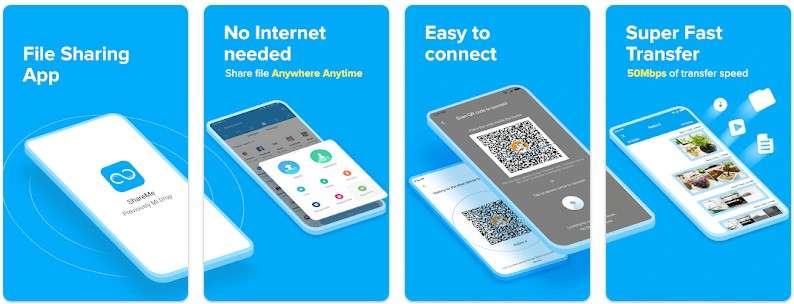
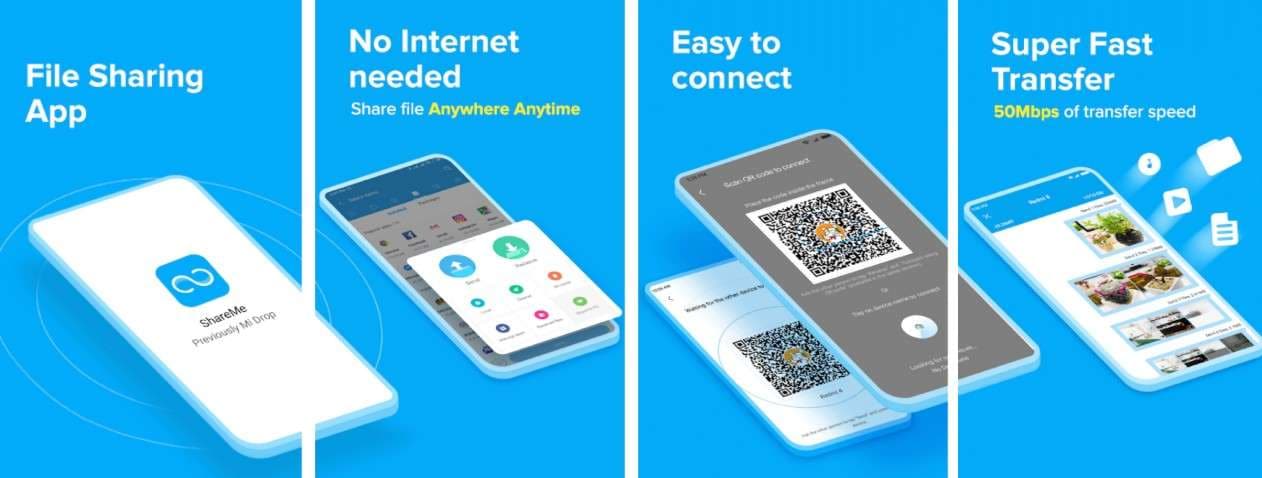
The ShareMe application is a free solution from Xiaomi that helps users transfer photos, videos, and other data across platforms. The app works on Android and iOS without requiring an internet connection. Moreover, it uses Wi-Fi Direct for fast, safe transfers and has gained fame for its quick, offline transfers.
Key Features
To determine what the ShareMe app comes with, review the listed points and know how it transfers data seamlessly:
- Wireless File Transfer: This app allows fast and safe file transfer between Android and iOS smartphones. With the help of Wi-Fi Direct, it establishes a direct connection between devices and transfers data without cables or loss. ShareMe also limits the need for an internet connection, as it creates its own local hotspot so devices can connect directly.
- Cross-Platform Support: ShareMe supports Android and iPhone devices, allowing smooth file transfers across mobile platforms. It even features a clean design, enables easy pairing between phones, and offers a simple interface for fast selection and sharing.
- Unlimited File Size: The application places no limit on how large or how many files a user can move. This helps users share heavy data sets without the usual file size barriers. Additionally, it moves files at speeds that far exceed Bluetooth, often up to 45MB per second or more.
- Resume Interrupted Transfers: If a transfer stops due to movement or a weak connection, ShareMe continues from where it left off once the connection returns. This feature saves time and prevents the need to restart long transfers from the beginning.
- App Sharing Feature: If a person does not have ShareMe installed, the app allows sending its setup file (APK) directly. This feature helps others install ShareMe easily without visiting app stores or using mobile data. It also remains free for all users and offers a fair experience without premium blocks or forced upgrades.
- Privacy and Security: ShareMe protects data through encryption and direct device links. Since no cloud servers handle the files, the data stays between the sender and receiver. This setup reduces risks of leaks or unauthorized access.
Part 2. Is ShareMe a Safe App?
If you want to get benefits from the ShareMe file sharing facility, you might question its security. ShareMe is seen as a safe option for direct file transfers between devices because it does not upload data to any cloud or external server. The system uses encryption to help protect files during transmission and limits all activity to the local network, limiting external access.

Nonetheless, there have been several reports of security vulnerabilities in Xiaomi applications. This includes weak encryption keys or vulnerabilities related to Xiaomi's modified version of the Android operating system. Users, however, should regularly update the software and check the permissions of applications to improve security.
Part 3. How to Use ShareMe to Transfer Files
Now that you have the ShareMe app downloaded on Android phones and seek to move data from Android to Android, review the given steps:
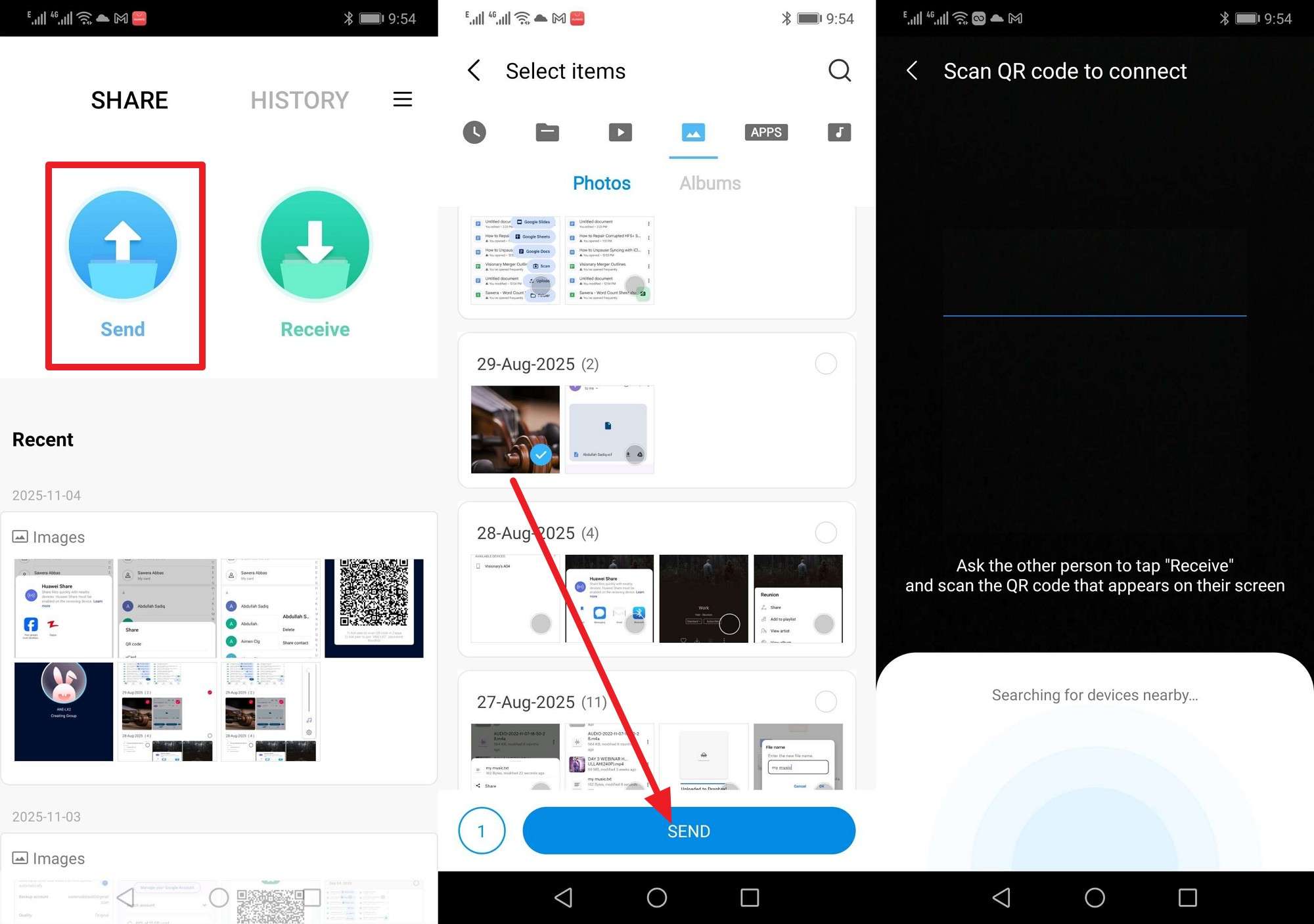
Step 1. On the target phone, pick the “Send” option and choose the data types you seek to send by tapping the “Send” button. This will fetch the QR code scanner that you have to scan from the source phone to deliver data.
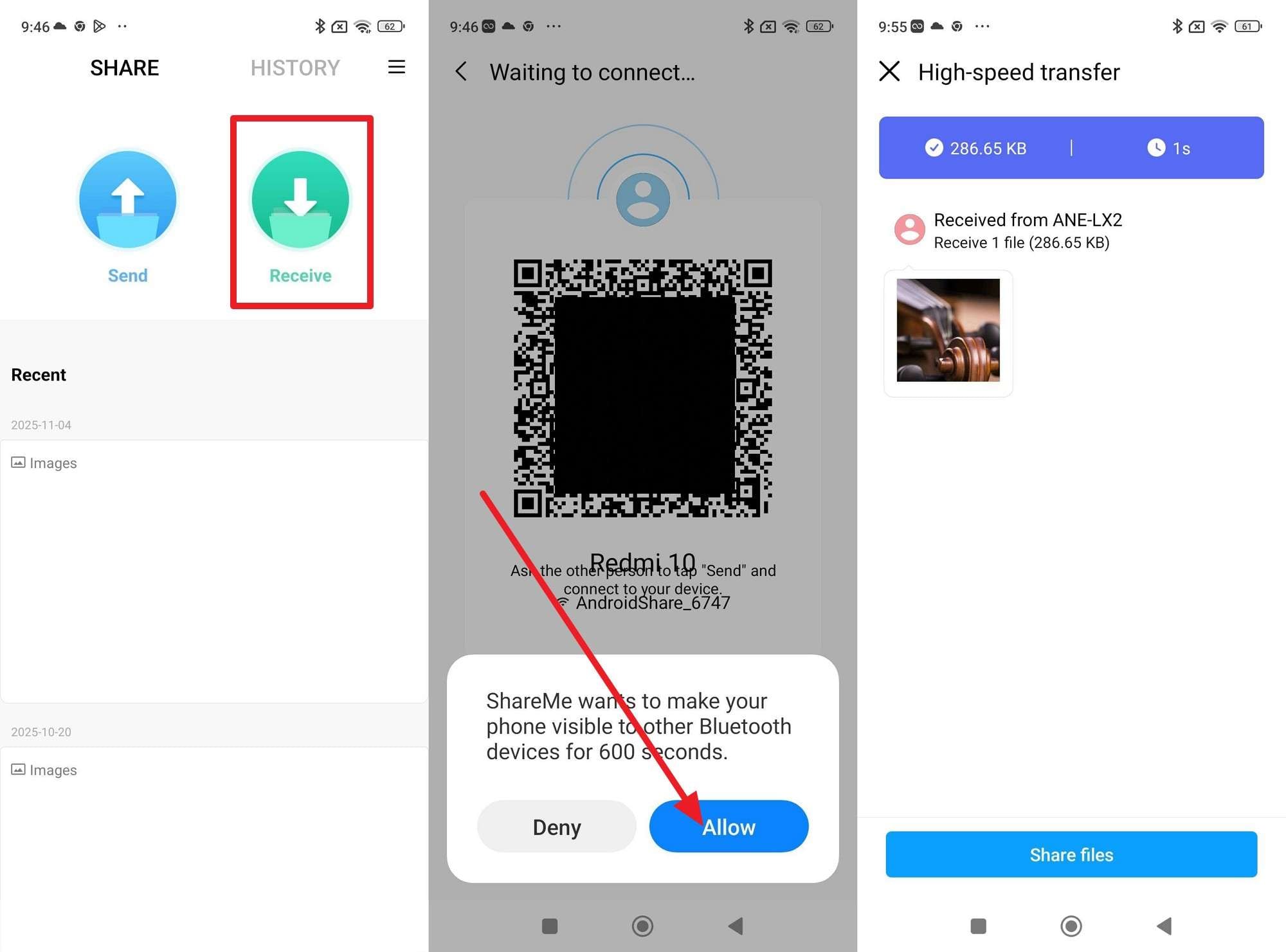
Step 2. At the receiving end, tap the “Receive” button, then on the QR code screen, press the “Allow” button in the pop-up menu to establish a local connection. Now scan the QR code on the target device, and you will receive the data on the Received screen.
Part 4. User Reviews, Pros, & Cons of ShareMe
No matter if you use ShareMe for Android or iPhone, you can review its claims for data transfer via the given details. In this section, you will get to know about user reviews, pros, and cons to see if it's worth trying.
Pros
- Fast wireless file transfer through Wi-Fi Direct without any need for data.
- Works without internet access and helps in offline conditions.
- Simple layout with easy file search and selection.
- No limits on file size or number during transfer.
- Encryption keeps all shared files safe and private.
- Free app without ads, the setup file can be shared easily.
- Resumes file transfers automatically after any interruption.
Cons
- Some security issues may appear on Xiaomi systems, so regular updates remain essential.
- Lacks advanced tools found in premium apps, such as cloud syncing or backup options.
- Both devices must stay close and have ShareMe installed for transfers.
- No built-in malware scan or external file safety check feature.
- App permissions may ask for wide file access, causing user concern.
- Not available for iOS users in all regions, mainly focused on Android.
- The app also comes with unnecessary ads, mainly on iOS.
User Reviews
Positive Reviews
- • “ShareMe is a fast, reliable file-sharing app that works without internet using Wi-Fi Direct. Transferred a 2GB video in less than a minute—way better than Bluetooth!”
- • “Very good app for transferring files. Smooth, flawless, and easy to use. Thank you for making offline transfers so simple.”
Negative Reviews
- • “I am unsure when they will fix the connection issue. I used it a year ago and was facing connectivity problems, and still facing it when pairing with iOS devices.”
- • “Sharing files to other Android phones is very slow sometimes. Also, the file sharing speed and percentage are not displayed on the sending phone—hard to tell progress.”
Part 5. Use Dr.Fone - Basic for Efficient File Management & Transfer
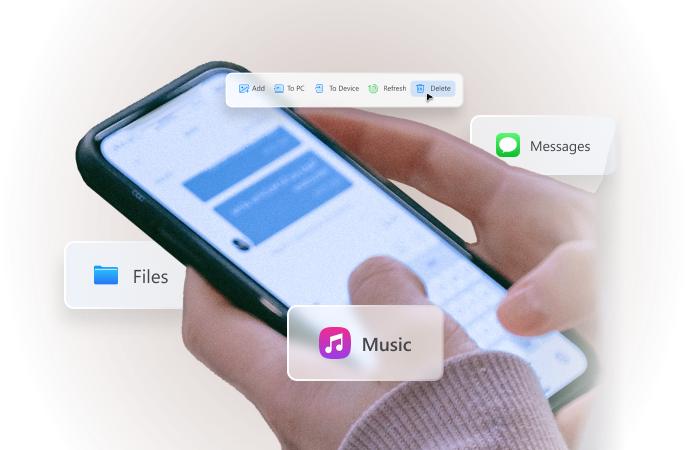
Whether you face security issues with the ShareMe app or encounter limitations with its innovative features, Wondershare Dr.Fone can be a better choice. The tool lets you seamlessly transfer data to a device or PC, where you can preview, delete, and export it. While doing so, you get the facility to move data between Android and a computer and import data from iCloud/Google Drive to Android or a PC.
Additionally, Dr.Fone allows you to view and manage mobile notifications on a PC, giving you a seamless remote experience. The foremost aspect is that it has an intuitive interface and comes with a separate section for each data type, which makes adding, previewing, exporting, or deleting easier. You can also use it to rebuild the iTunes library or sync the phone to the computer, just by connecting the devices via Dr.Fone Link.

Wondershare Dr.Fone
One-Stop Solution to Manage and Transfer Data on Android Phone
- Transfer files between Android and computer, including contacts, photos, music, SMS, and more.
- Manage, export/import your music, photos, videos, contacts, SMS, Apps, etc.
- Transfer iTunes to Android (vice versa).
- Manage your Android device on the computer.
- Fully compatible with the newest Android OS.


Guide to Manage Android Data Effortlessly with Dr.Fone Basic
To determine how Dr.Fone Basic is a more effortless and secure solution than the ShareMe application, follow the guide given below to manage the Android data:
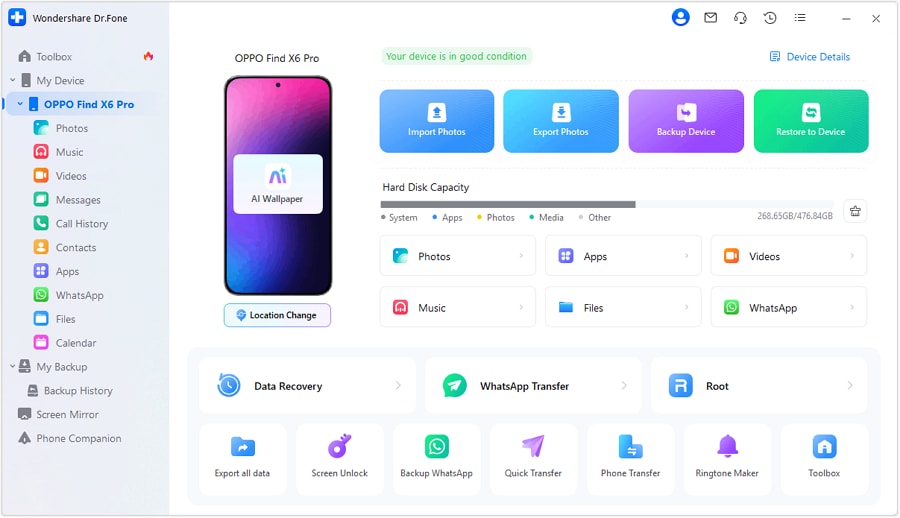
Step 1. Access the App on Android & Scan to Connect
Within the “My Device” tab, start by making a secure connection among devices by installing the Dr.Fone Link app on Android and scanning the QR code.
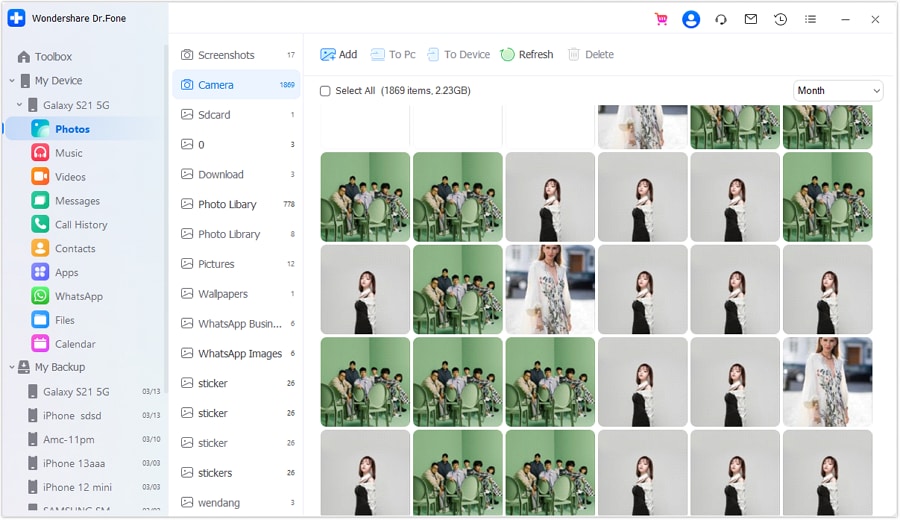
Step 2. Manage the Data & Add or Import to PC
Now that your phone is connected, pick up the "Android Device" and go to the data type, like "Photo", from the left panel. From the top toolbar, choose the "Add" option to fetch the data from PC to Android, or opt for the "To PC" option. This will give you the option to export selected images to the computer.
Conclusion
To sum up, many users wonder whether the ShareMe app is the best option for managing and moving data. This query is resolved in this guide by exploring its usage, pros, and cons. ShareMe excels at offline, fast file transfers between devices—especially for Android users—and its unlimited file size and resume feature make it practical for sharing large files like videos or apps. However, its regional limitations on iOS, lack of advanced tools (like cloud sync or malware scans), and occasional connectivity issues hold it back for some users.
So, review the details and determine if all its claims are worth believing. If you prioritize more comprehensive file management (e.g., previewing, editing, or syncing with PCs/clouds) or need a more stable cross-platform solution, rely on Dr.Fone Basic - Android Manager to add, export, preview, or delete any data. It addresses ShareMe’s gaps by offering PC integration, cloud import/export, and a more intuitive interface for full data control.
 safe & secure
4,624,541 people have downloaded it
Frequently Asked Questions
 Q1. Who developed the ShareMe app?Q2. Does ShareMe work without a Xiaomi phone?Q3. How does ShareMe differ from Bluetooth?Q4. Does ShareMe store files online?
Dr.Fone Basic:
Better Control for Your Phone
Manage, transfer, back up, restore, and mirror your device


Android Manage
- Android to iTunes/iCloud
- Android to Mac
- 1. Transfer Data from Android to Mac
- 2. Transfer Videos from Android to Mac
- 3. Transfer Files from Android to Mac
- 4. Connect Android with Mac
- 5. Transfer Photos from Android to Mac
- 6. Sync Android with Mac OS X
- Android to PC
- 1. Transfer Files Using USB Cable
- 2. Share Apps for Android to PC
- 3. Transfer Photos to Windows 10
- 4. Transfer Contacts to PC
- 5. Transfer Photos from Android
- 6. Transfer Files from Android to PC
- 7. Backup and Transfer SMS
- 8. Transfer Photos from Android to PC
- 9. Transfer Videos from Phone to Computer
- 10. Best MoboRobo Alternative to Manage and Transfer Data
- iCloud to Android
- 1. Tips to Sync Data to Android
- 2. Set Up iCloud Account on Android
- 3. Transfer iCloud Contacts
- 4. Transfer iCloud Photos to Android
- iTunes to Android
- 1. Transfer iTunes Audio Books
- 2. Sync iTunes Music with Google Play
- 3. Copy iTunes Playlists to Hard Drive
- 4. Transfer Music from iTunes
- Mac to Android
- 1. Transfer Files from Mac to Android
- 2. Send Files from Mac to Android
- 3. Transfer Music from Mac
- 4. Transfer Photos from Mac
- PC to Android
- 1. Transfer Files to Android Wi-Fi
- 2. Transfer Pictures from Computer
- 3. Transfer Files from PC to Android
- 4. Transfer data from Acer device
- Manage Tips
- 1. Where Are Screenshots Saved on Android
- 2. Android File Transfer for Mac
- 3. Android File Transfer Alternatives
- 4. Unsend a Text on Android
- 5. Introduction To Send Anywhere
- 6. Bold PolyBuzz Mod APK
- 7. Fix File Transfer Not Working
- 8. Top 4chan Alternatives
- 9. Sideloadly Review
- 10. Top LibGen Alternative Options
- 11. 1337x Alternatives
- 12. Keep2Share Downloader Review
- 13. Tez Files Review and Best Alternatives
- ● Manage/transfer/recover data
- ● Unlock screen/activate/FRP lock
- ● Fix most iOS and Android issues
- Free Download Free Download Free Download


 > How-to > Device Data Management > ShareMe App Review: What It Is, How It Works, & Is It Right for You?
Daisy Raines
staff Editor