
How to Record on Snapchat Without Holding the Button: Easy Hands-Free Guide

Sep 18, 2026 • Filed to: Device Data Management • Proven solutions
 TL;DR:
You can record videos on Snapchat without holding the button by swiping left to the in-app lock icon, setting a video timer, configuring iPhone's AssistiveTouch, or applying continuous pressure to an Android device's volume key.
● For native iOS and Android recording, press the capture button and swipe left to the lock icon for continuous filming, or select the Timer tool to initiate a 3-second countdown for planned solo shots.
● To bypass manual holding using device-specific settings, iOS users experiencing hand strain can map a custom AssistiveTouch accessibility gesture over the record button, while Android users can physically clamp the Volume Up key using a rubber band or tripod.
● Utilizing hands-free methods does not degrade normal video quality, increase battery consumption, or restrict access to Snapchat lenses, and saved media can later be exported or managed on a PC or Mac using Wondershare Dr.Fone.
Ask AI for a summary
 ChatGPT
 Perplexity
 Gemini
 Claude
 Grok
Grok
Dr.Fone Basic:
Better Control for Your Phone
Manage, transfer, back up, restore, and mirror your device
Say you want to record the funny moment on Snapchat, but your hands are busy, or you are clumsy with the record button. The inability to document freely can spoil the moment or awkward snaps. In this case, a hands-free solution will address this issue and allow you to take long shots, reactions, or stories without tapping all the time.
Therefore, when you wonder how to record on Snapchat without holding the button, this guide will present you with a number of built-in functions and hacks. Additionally, learn how to use tools like Dr.Fone to manage your Snapchat saved videos, images, and other data, including your books and call history.
- Part 1. Can Snapchat Record Without Holding the Button?
- Part 2. 4 Methods to Record on Snapchat Without Holding the Button
- Method 1. Using Snapchat’s Built-In Hands-Free Feature
- Method 2. Use the Video Timer (iOS & Android)
- Method 3. AssistiveTouch (iPhone Only)
- Method 4. Volume Keys (Some Devices)
- Part 3. How to Manage Your iPhone or Android Data Efficiently on PC/Mac

- Part 4. Tips for Better Hands-Free Snapchat Recording
Part 1. Can Snapchat Record Without Holding the Button?
Yes, Snapchat lets you make videos without holding the record button. It has a built-in lock and a timer that makes hands-free videos easy. Not just that, you can also use the timer option from the camera tools and set the time to record freely.
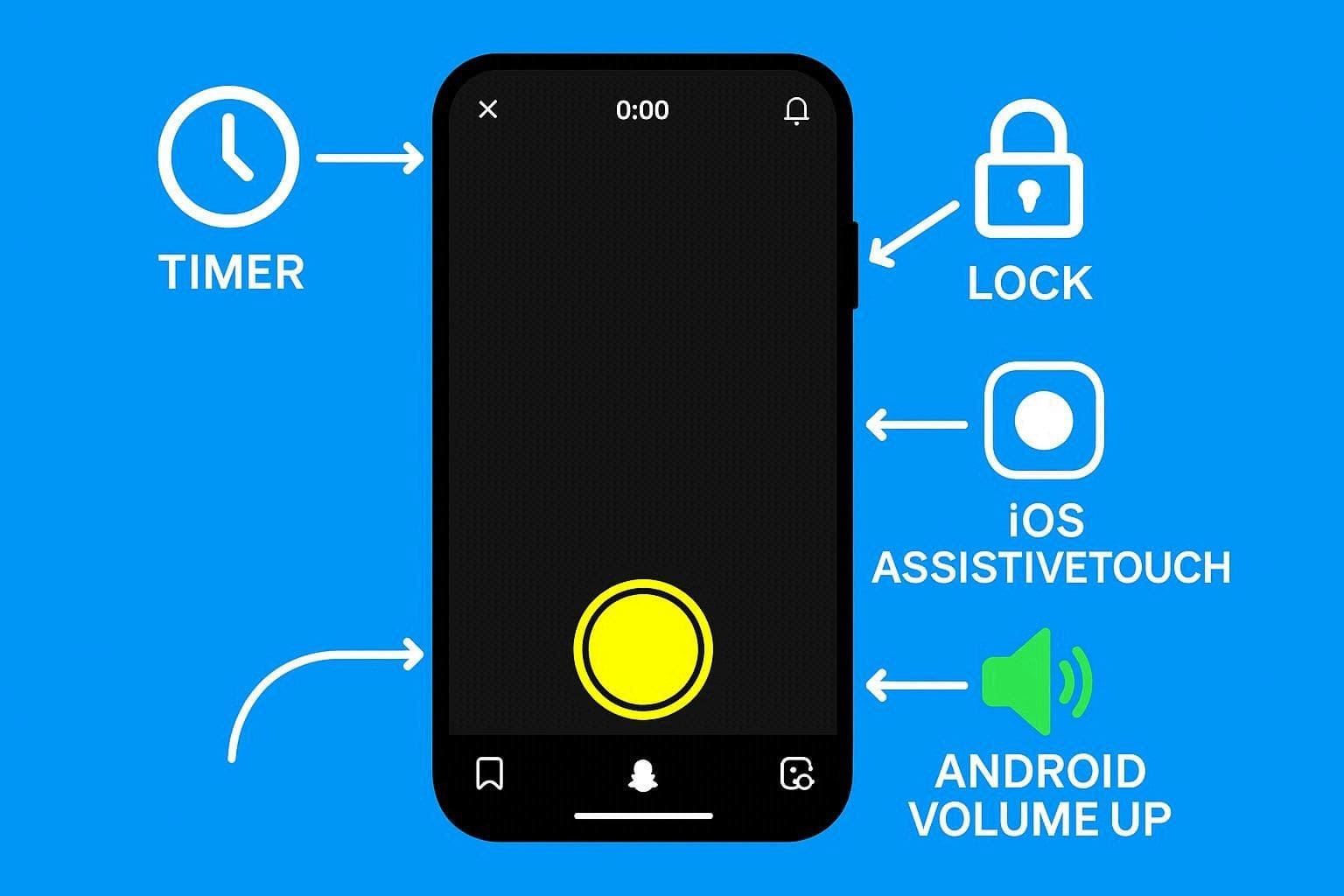
On the contrary, AssistiveTouch can act like a long press for iOS users to have a hand-free record experience. For Android users, the volume button can start video, and some people keep it pressed with a simple trick.
Why Users Want Hands-Free Recording on Snapchat
Before you learn how to record on Snapchat without holding the button, review these reasons and understand the need for this action:
|
Reason |
Why It Matters |
| Easier Multitasking | Let users record while using both hands for actions like cooking, playing instruments, or unboxing items, instead of holding the phone. |
| More Natural Movement | Users can move freely, dance, or interact with others without worrying about keeping a finger on the screen. |
| Better Framing and Stability | The phone can sit on a stand or stable surface, reducing shaky footage and allowing wider or full‑body shots. |
| Solo Filming Without Help | Makes it possible to film alone without asking someone else to hold the phone or record. |
| Longer, Continuous Clips | Hands‑free modes support longer recordings without finger fatigue or accidental stops. |
| Comfort and Accessibility | Helpful for users who find holding the button difficult or uncomfortable over time. |
Part 2. 4 Methods to Record on Snapchat Without Holding the Button
For those who want to know how to record a Snapchat without holding the button, this section offers 4 options to try. So, review the built-in options and workarounds, and determine which option best suits your recording needs.
Method 1. Using Snapchat’s Built-In Hands-Free Feature
This feature uses Snapchat’s own feature, so no extra apps, hacks, or risky tricks are needed. Additionally, the process is almost the same on iPhone and Android devices, and the phone stays steady, which helps the video look smooth and natural. Besides, it records for the full time limit without sudden stops or thumb pain. So, to know how to record on Snap without holding the button, adhere to the listed steps:
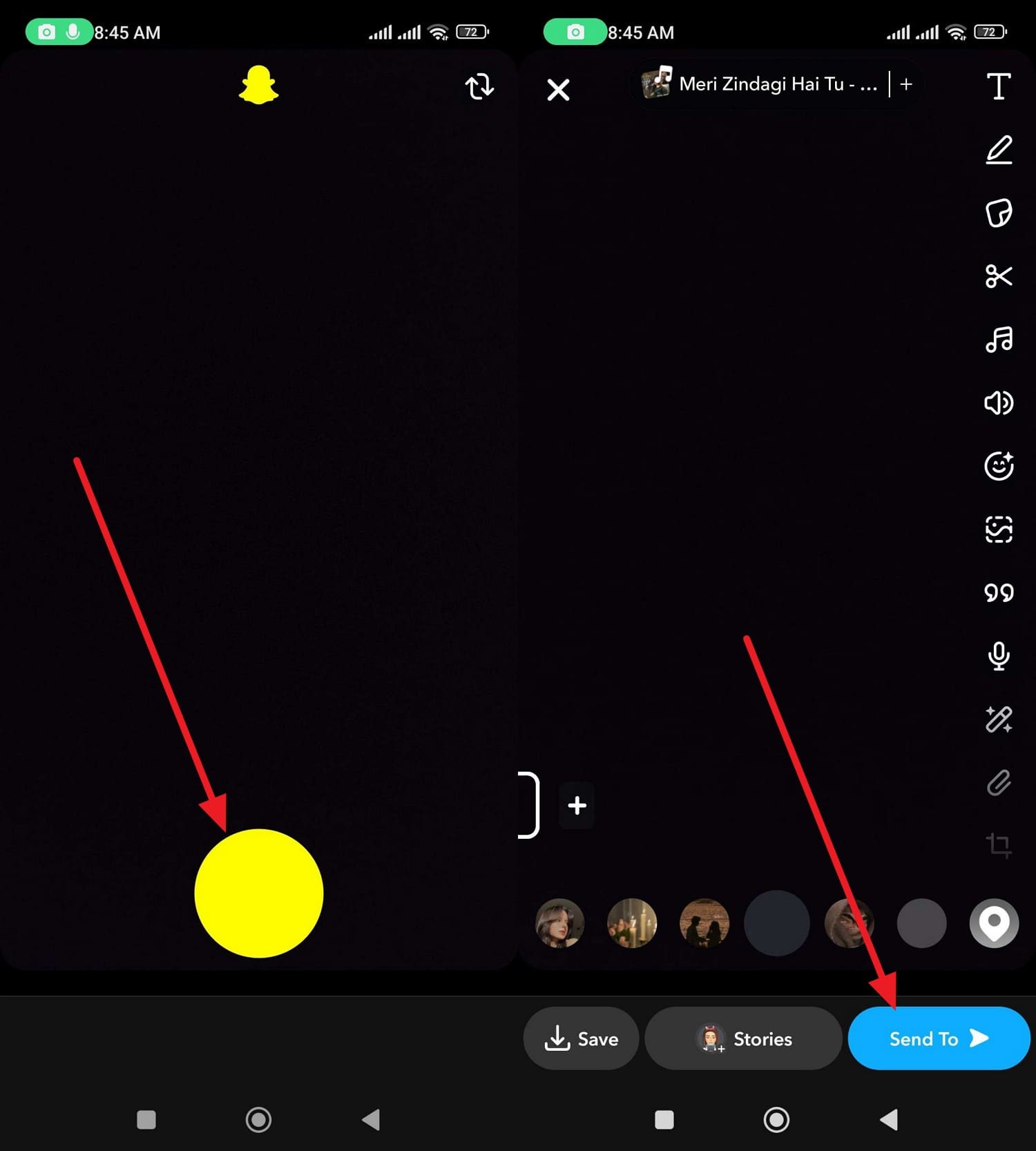
Step 1. On the Snapchat camera screen, press and hold the “Circular Record” and as you locate the “Lock” icon, swipe left (towards it).
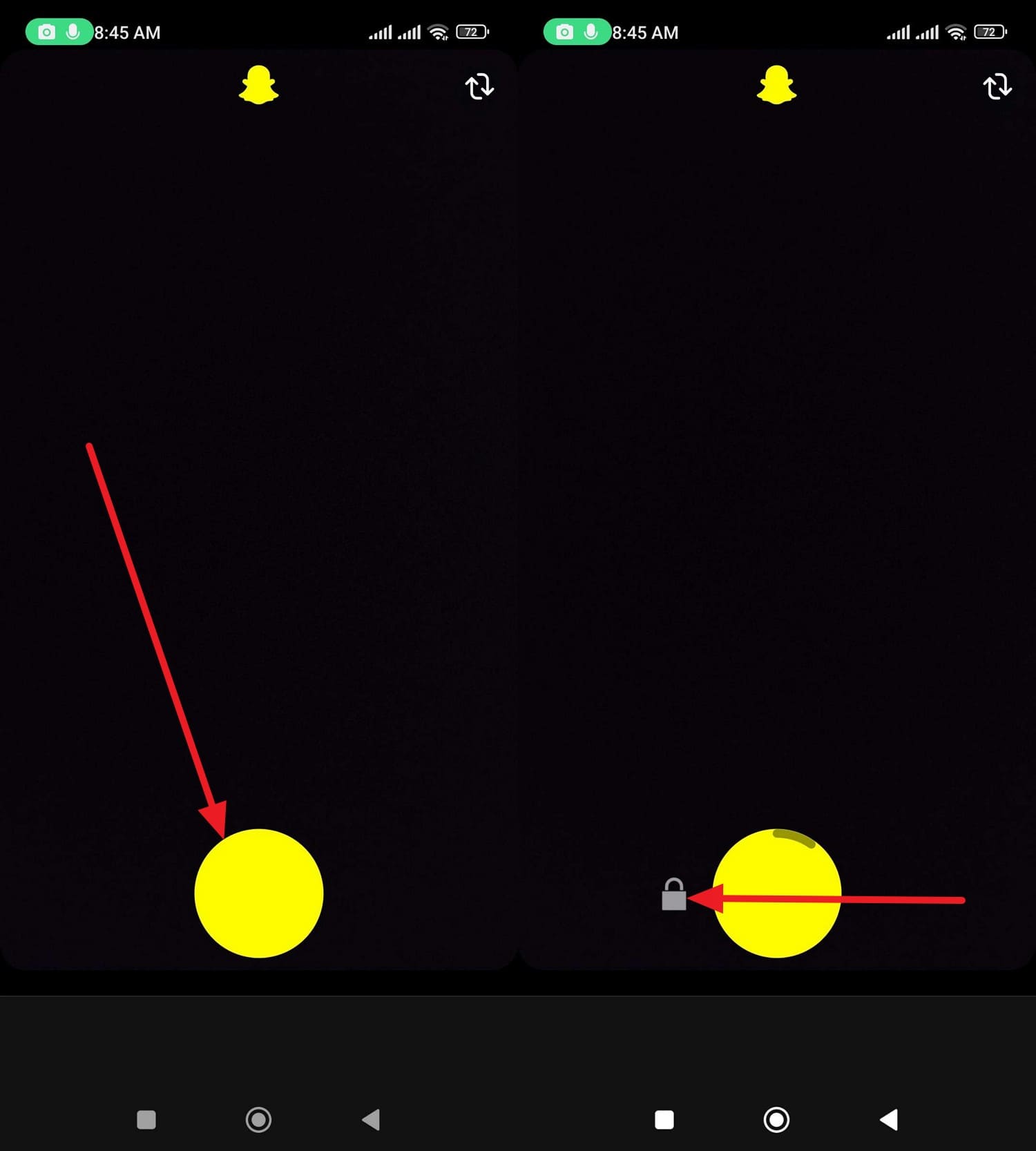
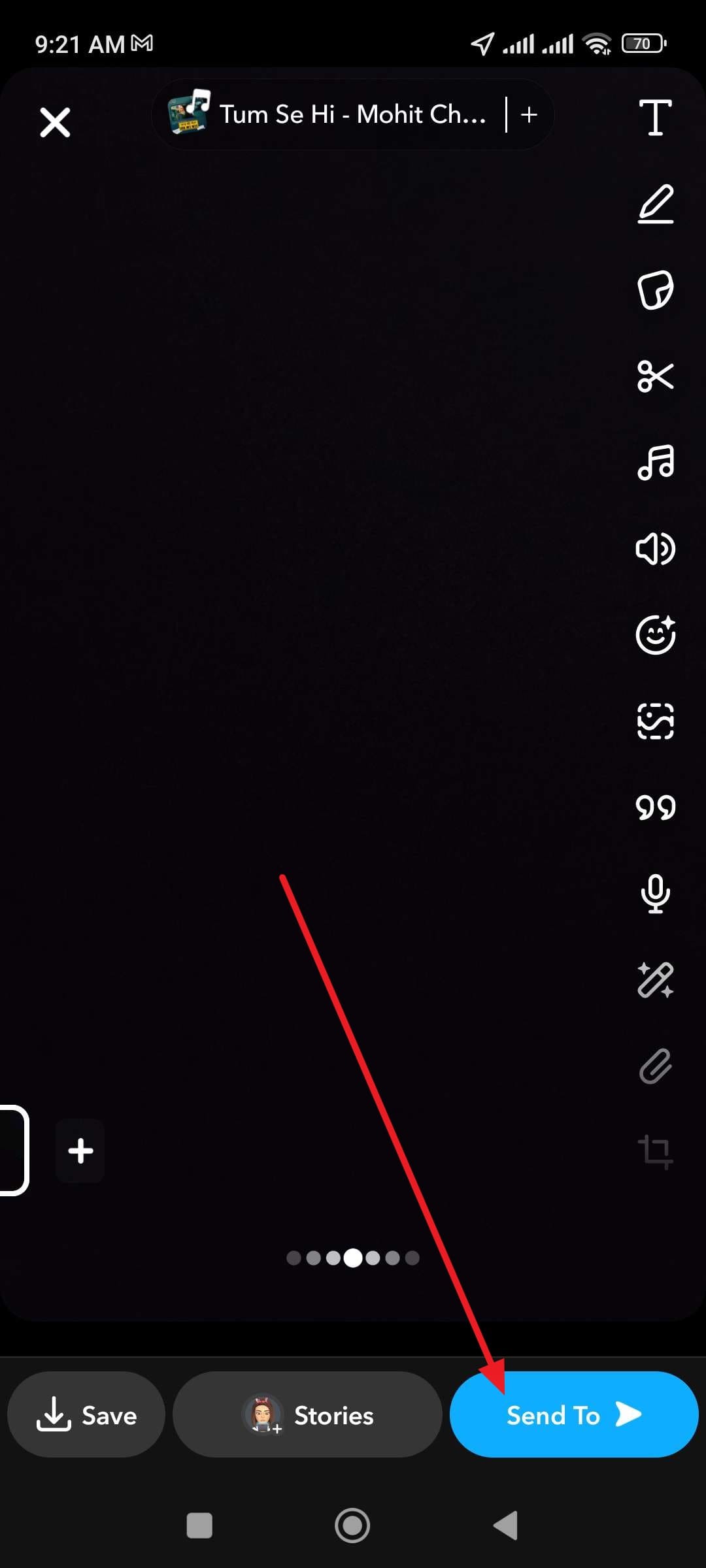
Step 2. This way, the video will record freely, and you can press the “Yellow” record icon to stop and send the video by picking “Send To.”
Method 2. Use the Video Timer (iOS & Android)
Snapchat’s Video Timer feature also lets you record clear, planned clips without holding the button, which is ideal for solo shots and set scenes. You pick the clip length first, and Snapchat stops the video at the right time.
Hence, the short wait before the record enables you to step back, frame the shot, or set props with ease. As you find it easier, here is how to record on Snapchat without holding the button on Android and iOS:
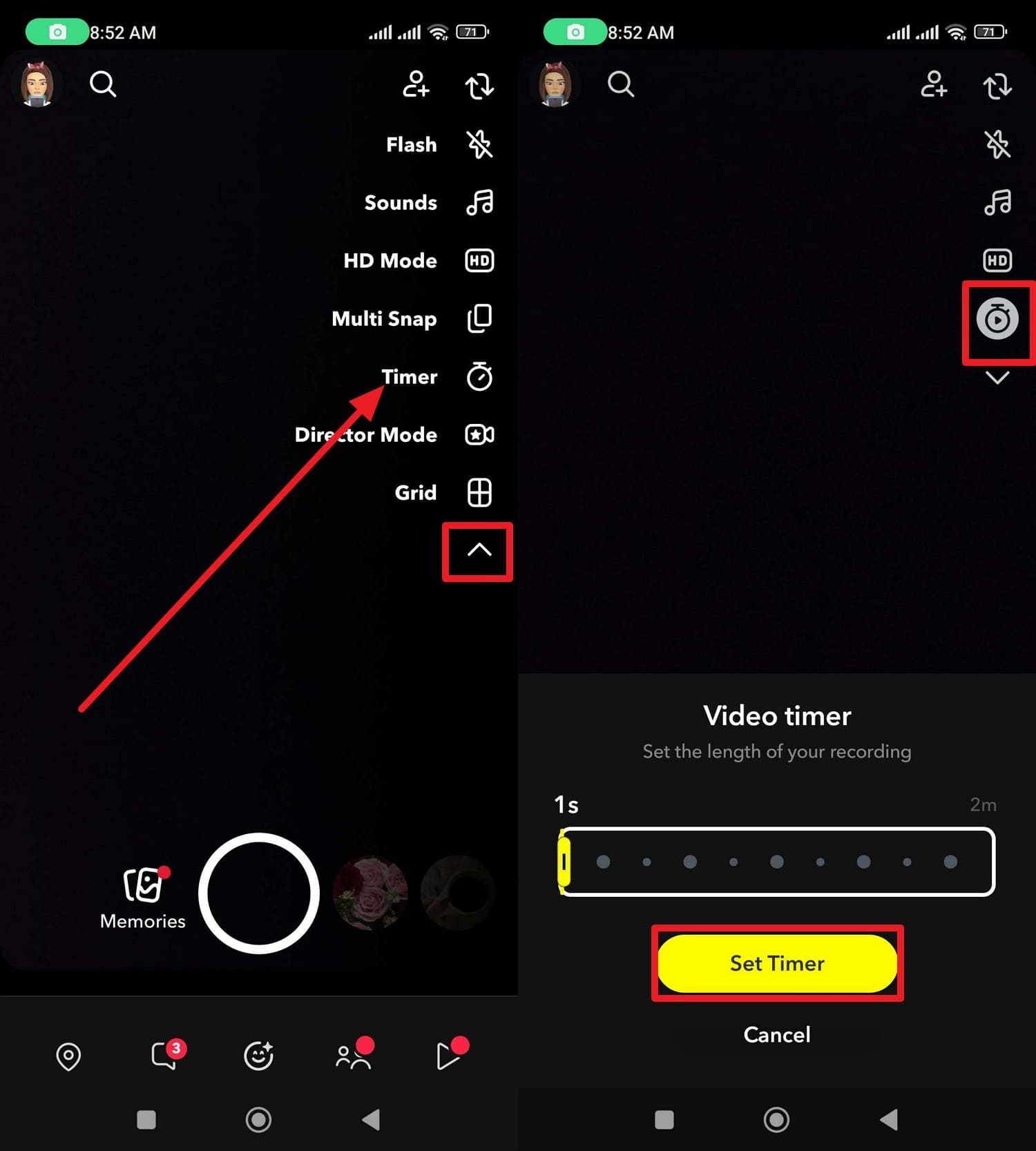
Step 1. Tap the “Upward Arrow” icon under the Grid option and choose the “Timer” option. Press it again, choose the time to record video, then tap the “Set Timer” button to confirm.
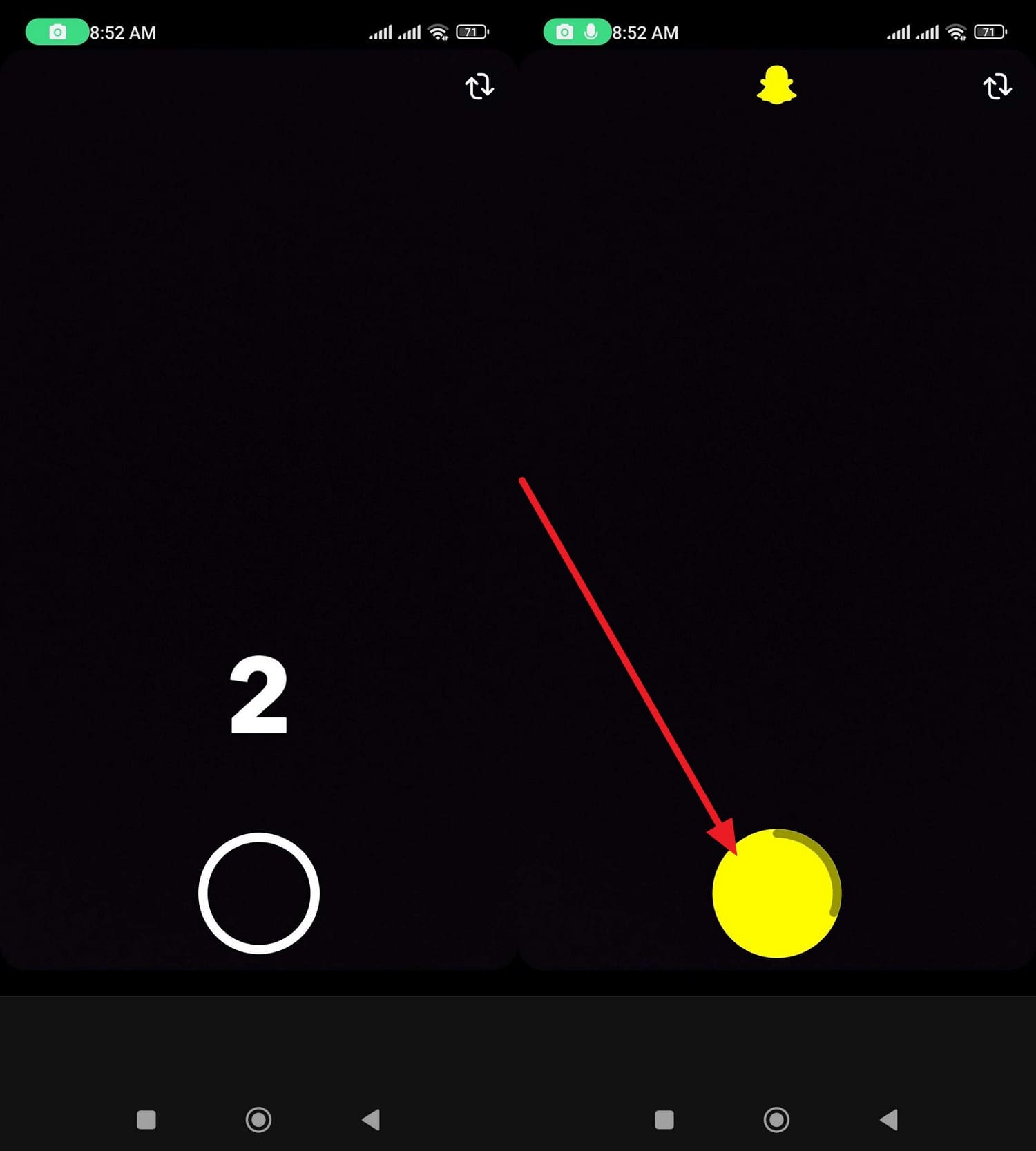
Step 2. The app will start the recording after 3 seconds, and you can tap the “Yellow” icon to stop and “Send” the video.
Method 3. AssistiveTouch (iPhone Only)
AssistiveTouch on iPhone offers a smart way for iOS users to record when Snapchat tools feel limited. You can set a custom press time, which acts like a short clip timer. Hence, this feature helps users who feel hand strain or discomfort during long presses. In addition, the AssistiveTouch menu moves near the record button, so setup feels easy. To know how to record on Snapchat without holding the button, here are the steps:
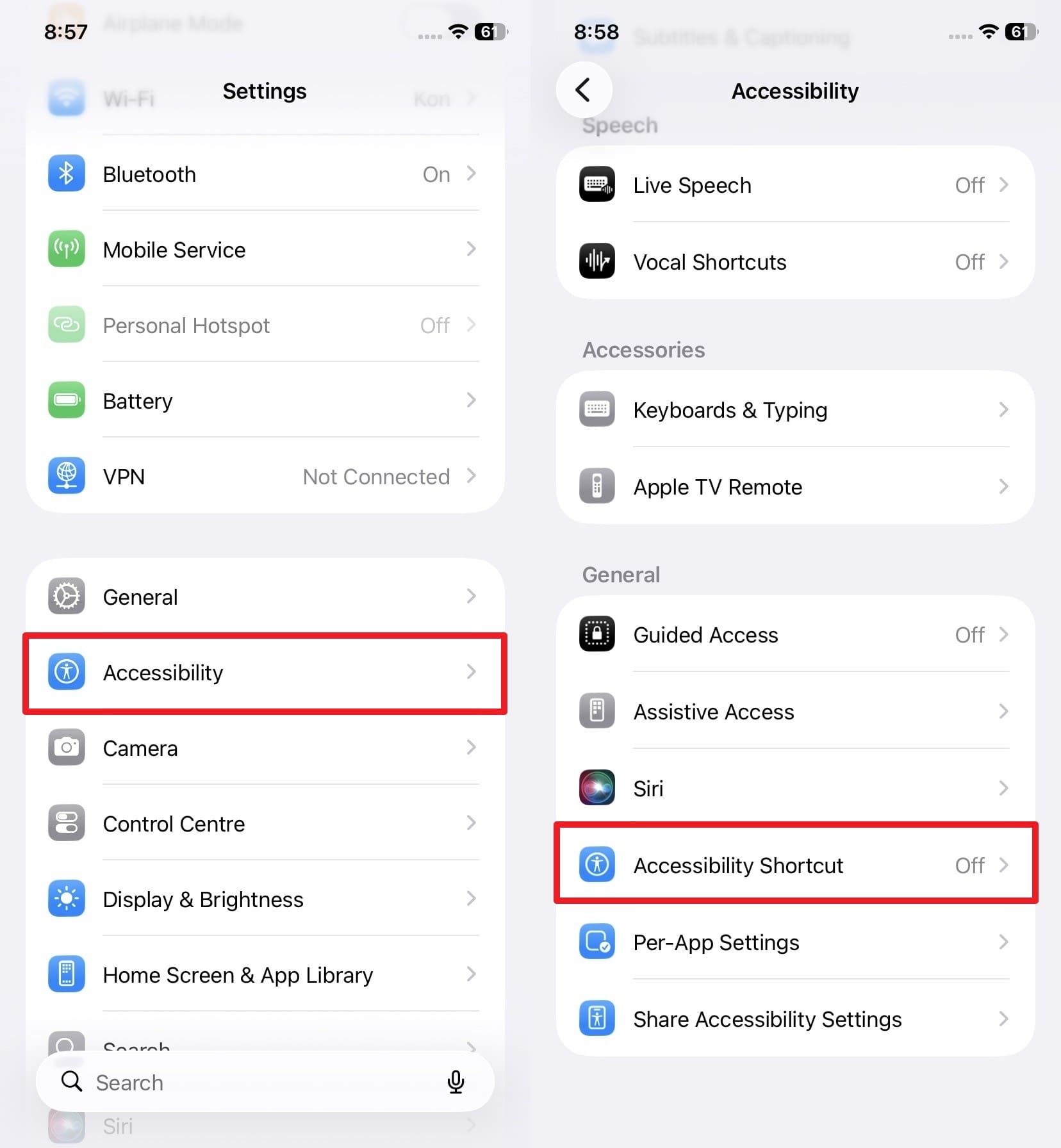
Step 1. Choose “Accessibility” settings, and scroll down to pick the “Accessibility Shortcut” option.
Step 2. After that, tick the “AssistiveTouch” option from the screen and press “Continue” on the pop-up. As the Accessibility icon appears, tap on it to choose the “Custom” option.
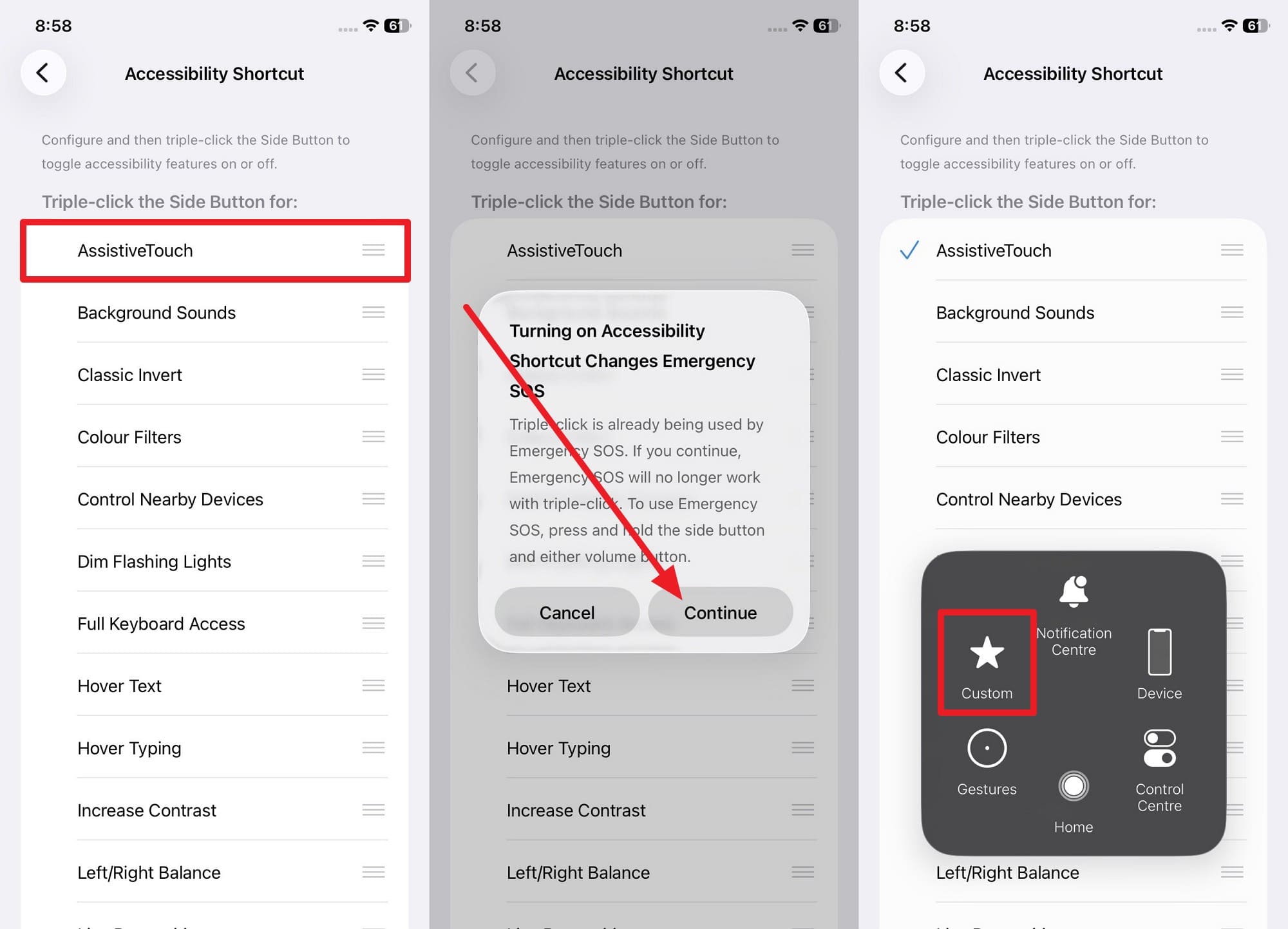
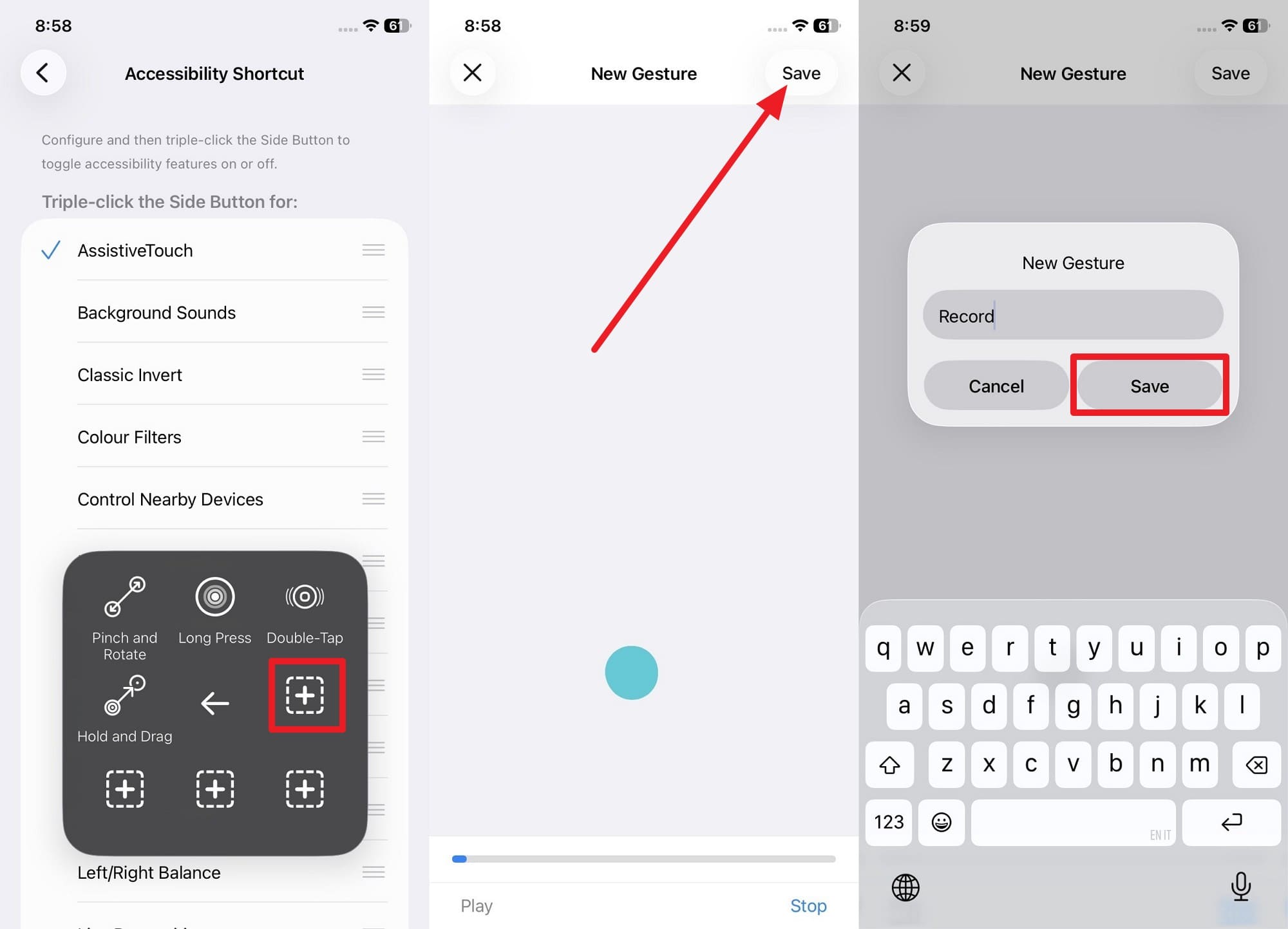
Step 3. Now, press any “+” icon, tap where you want AssistiveTouch, and press the “Save” button. Name the new gesture and pick the “Save” button again on the pop-up.
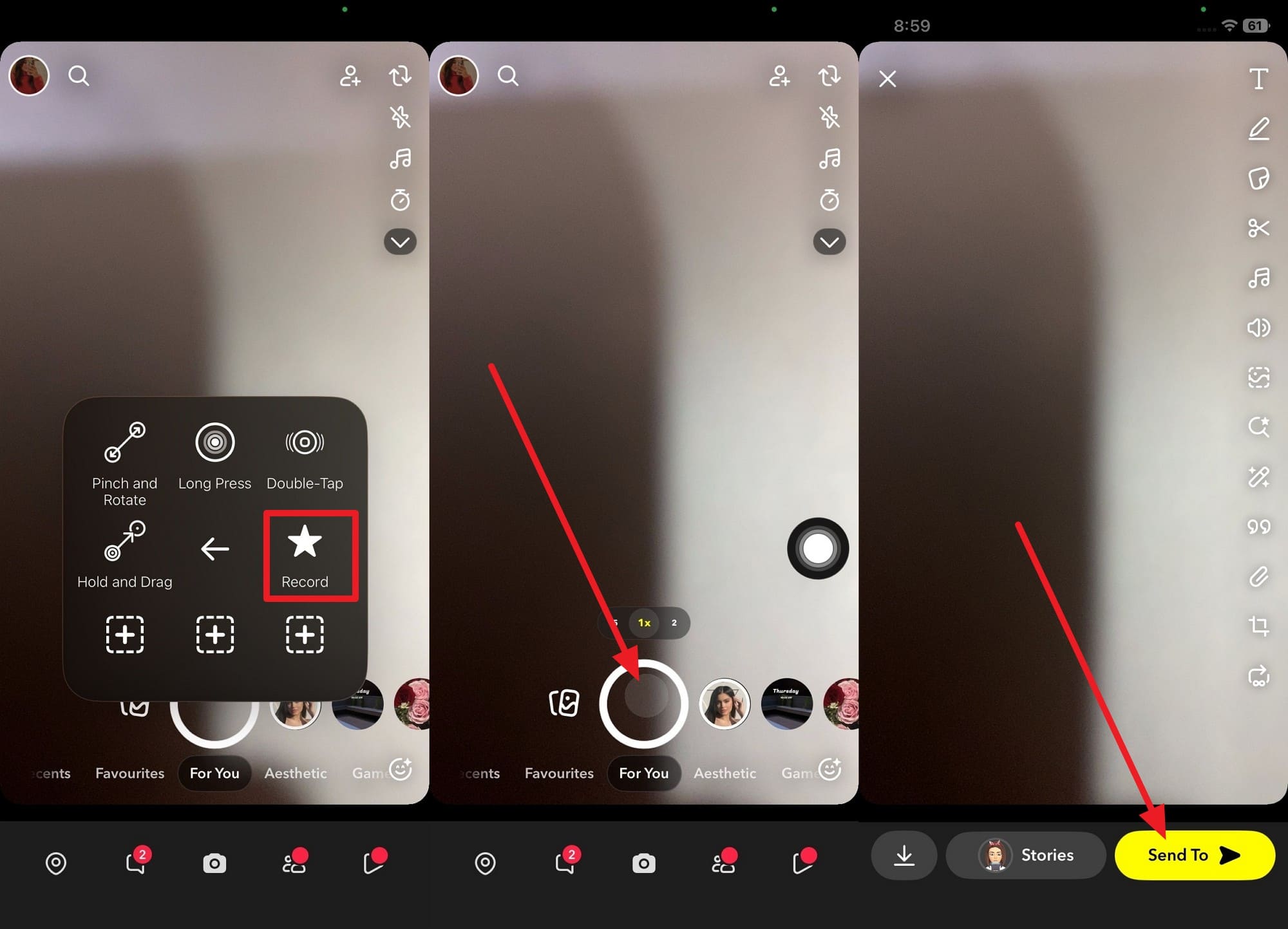
Step 4. On the Snapchat Camera screen, tap the Accessibility icon to choose the “Custom Created” gesture. As the dot appears, tap it to record the video, then use “Send To” to share.
Method 4. Volume Keys (Some Devices)
You can use the Volume keys to know how to record without holding the button on Snapchat on Android. On supported phones, a held volume key can keep the video active, and simple tricks can make it fully hands-free. Moreover, physical keys feel easy to find, so starting and stopping stay quick without looking at the screen. If you want to know what key to use, review the simple steps given below:
Step 1. Use a Tripod stand to keep pressure on the “Volume Up” key, or wrap a rubber band around the button until the “Yellow” record circle appears.
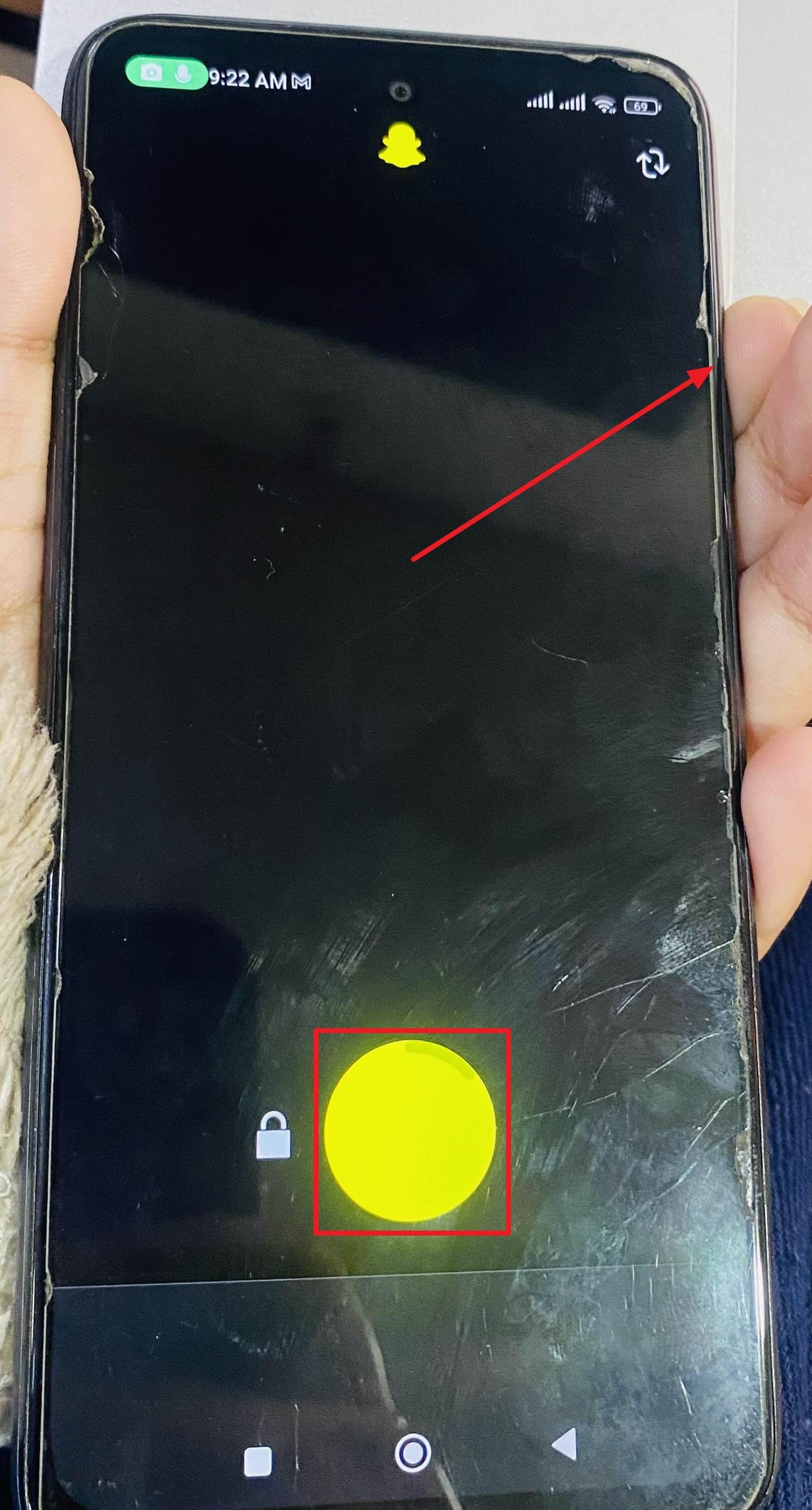
Step 2. Record the video as long as the pressure is maintained, and press the “Send To” option to share or save.
Pro Tip. How to Manage Your iPhone or Android Data Efficiently on PC/Mac
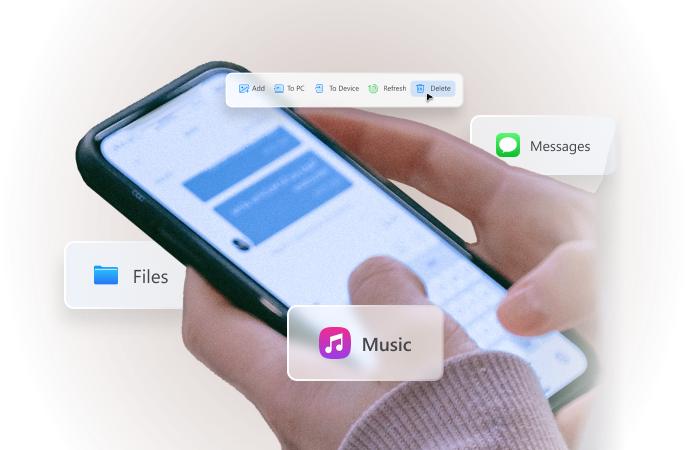
Now that you know how to record a Snapchat video without holding the button, managing saved videos and other files becomes important on both Android and iPhone devices. In this situation, Wondershare Dr.Fone for iOS and Wondershare Dr.Fone for Android help you import, export, delete, and organize data easily across devices and computers. Users can transfer photos, videos, music, contacts, and other files between their phone and a PC or Mac in a few simple steps.
In addition, the tool lets you share data between Android, iPhone, and computer systems without relying on iTunes or cloud services. With support for the latest Android versions and recent iPhone models, users can select multiple data types and manage them efficiently without technical skills. Separate, clearly labelled tabs for each data category also make navigation simple and user-friendly for everyone.

Wondershare Dr.Fone
One-Stop Solution to Manage and Transfer Data on Android Phone
- Transfer files between Android and computer, including contacts, photos, music, SMS, and more.
- Manage, export/import your music, photos, videos, contacts, SMS, Apps, etc.
- Transfer iTunes to Android (vice versa).
- Manage your Android device on the computer.
- Fully compatible with the newest Android OS.


Guide to Manage Snapchat Videos or Other Data with Dr.Fone - Phone Manager
To know how you can use this innovative phone manager to manage the iPhone data effortlessly, review these straightforward steps:
Step 1. Access the Data Types as You Connect the Phone
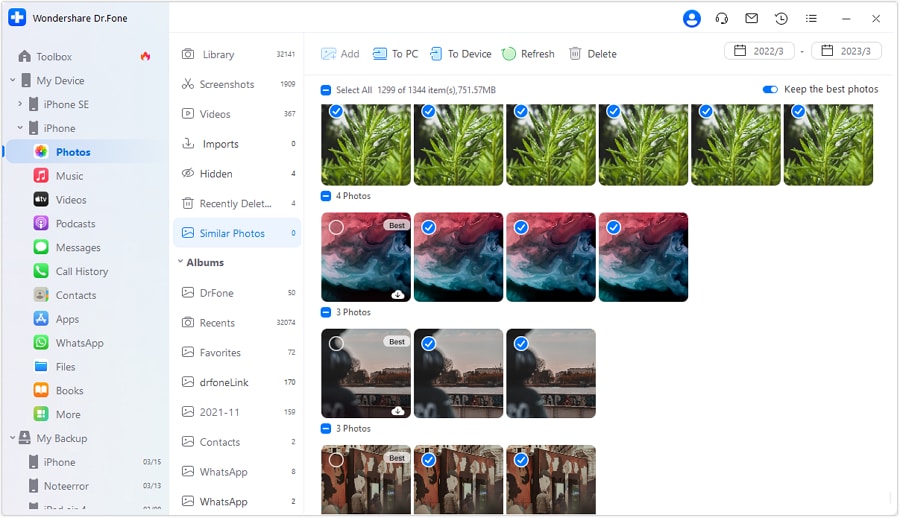
Connect your iPhone to the PC via a wired connection, select the “Photo” tab from the left sidebar, and access the “Snapchat” album.

Step 2. Choose to Import/Export the Videos
If you want to import videos to your phone, press the “Add” button from the top toolbar. On the other hand, you can use the “To PC” button to export the Snapchat videos and free up space on your iOS device.
 safe & secure
4,624,541 people have downloaded it
Part 4. 5 Tips for Better Hands-Free Snapchat Recording
Since you know how to record on Snapchat without holding, follow the listed tips to record snaps seamlessly:
|
Tips |
Why It Helps |
| Use the In‑App Lock | Sliding to the lock keeps recording stably and avoids accidental stops while you move or perform actions. |
| Mount Your Phone | A tripod, stand, or propped‑up phone gives smoother, less shaky video and better framing for full‑body shots. |
| Check Lighting and Angle | Facing a light source and slightly raising the camera makes hands‑free clips clearer and more flattering. |
| Plan Your Movement | Knowing where you will stand, walk, or gesture makes the most of the limited recording time. |
| Test a Short Clip First | A quick test Snap lets you fix framing, audio, or focus before you record a longer hands‑free video. |
Conclusion
To sum up, this guide has answered your query about how to record on Snapchat without holding the button. For that, 4 methods have been shared with an extensive guide to help you record snaps freely. However, in situations where you want to import or export data to manage iPhone or Android storage, Dr.Fone - Phone Manager is a recommended choice.
safe & secure4,624,541 people have downloaded it
FAQs
 Q1. Will video quality drop in hands-free mode?Q2. Can hands-free snaps use filters and lenses?Q3. Does a hands-free record use more battery?
Dr.Fone Basic:
Better Control for Your Phone
Manage, transfer, back up, restore, and mirror your device


Android Manage
- Android to iTunes/iCloud
- Android to Mac
- 1. Transfer Data from Android to Mac
- 2. Transfer Videos from Android to Mac
- 3. Transfer Files from Android to Mac
- 4. Connect Android with Mac
- 5. Transfer Photos from Android to Mac
- 6. Sync Android with Mac OS X
- Android to PC
- 1. Transfer Files Using USB Cable
- 2. Share Apps for Android to PC
- 3. Transfer Photos to Windows 10
- 4. Transfer Contacts to PC
- 5. Transfer Photos from Android
- 6. Transfer Files from Android to PC
- 7. Backup and Transfer SMS
- 8. Transfer Photos from Android to PC
- 9. Transfer Videos from Phone to Computer
- 10. Best MoboRobo Alternative to Manage and Transfer Data
- iCloud to Android
- 1. Tips to Sync Data to Android
- 2. Set Up iCloud Account on Android
- 3. Transfer iCloud Contacts
- 4. Transfer iCloud Photos to Android
- iTunes to Android
- 1. Transfer iTunes Audio Books
- 2. Sync iTunes Music with Google Play
- 3. Copy iTunes Playlists to Hard Drive
- 4. Transfer Music from iTunes
- Mac to Android
- 1. Transfer Files from Mac to Android
- 2. Send Files from Mac to Android
- 3. Transfer Music from Mac
- 4. Transfer Photos from Mac
- PC to Android
- 1. Transfer Files to Android Wi-Fi
- 2. Transfer Pictures from Computer
- 3. Transfer Files from PC to Android
- 4. Transfer data from Acer device
- Manage Tips
- 1. Where Are Screenshots Saved on Android
- 2. Android File Transfer for Mac
- 3. Android File Transfer Alternatives
- 4. Unsend a Text on Android
- 5. Introduction To Send Anywhere
- 6. Bold PolyBuzz Mod APK
- 7. Fix File Transfer Not Working
- 8. Top 4chan Alternatives
- 9. Sideloadly Review
- 10. Top LibGen Alternative Options
- 11. 1337x Alternatives
- 12. Keep2Share Downloader Review
- 13. Tez Files Review and Best Alternatives
- ● Manage/transfer/recover data
- ● Unlock screen/activate/FRP lock
- ● Fix most iOS and Android issues
- Free Download Free Download Free Download


 > How-to > Device Data Management > How to Record on Snapchat Without Holding the Button: Easy Hands-Free Guide
James Davis
staff Editor