

If I Reset My iPhone, Will I Lose Everything? Complete Guide & Precautions
iPhone Backup
- iPhone Data Backup
- 1. Back up iPhone in Recovery Mode
- 2. Back Up iPhone With/Without iTunes
- 3. Back up iPhone to Mac
- 4. Back up iPhone/iPad to Computer
- 5. Back up iPhone to Mac Catalina
- 6. Back up Jailbreak Apps And Restore
- 7. iPhone Backup Software
- 8. Back up iPhone/iPad Easily
- 9. Back up iPhone/iPad in DFU Mode
- 10. Back up iPhone Apps and App Data
- 11. Back up Notes on iPhone and iPad
- 12. Back up iOS to External Hard Drive
- 13. Export Notes from iPhone to PC/Mac
- 14.Back up iPhone Photos to Google Photos
- 15. Back Up Your iPhone Voicemails
- 16. Back Up to External Drive
- 17.How to Back Up to NAS
- 18.Back Up iPhone With Broken Screen
- 19.Back Up iPhone to Google Drive
- 20.Buy Used iPhones
- 21.Sell Used Phone for Cash
- 22.Sell Used iPhone for Dollar
- 23.How Much is My iPhone Worth
- iPhone Data Recovery
- 1. Recover iPhone Data Without Backup
- 2. Restore Calendar on iPhone
- 3. Recover Call History on iPhone
- 4. Recover iPhone Lost Data
- 5. Restore iPhone in Recovery Mode
- 6. Undelete iPhone Backup Files
- 7. Recover Deleted iPhone Messages
- iPhone Data Restore
- 1. Restore iPhone from iTunes Backup
- 2. Restore iPhone after Downgrade
- 3. Restore iPhone from Backup
- 4. Restore iPhone from iPad Backup
- 5. Restore iPhone from DFU Mode
- 6. Restore iPhone Deleted Text Message
- iPhone Backup Problems
- 1. Find iPhone Backup Location on Mac
- 2. iPhone Backup Password Never Set
- 3. iPhone Backup Password Forget
- 4. iCloud Backup Taking Forever
- 5. iPhone Won't Backup to iCloud
- 6. iTunes Won't Backup iPhone
- iPhone Restore Problems
- 1. iTunes Stuck on Verifying iPhone
- 2. Not Space to Restore iPhone Backup
- 3. iTunes Backup Not Restoring
- 4. iPhone Won't Restore
- WhatsApp Backup & Restore
- 1. WhatsApp from Google Drive to iOS
- 2. Restore Old WhatsApp Backup
- 3. Restore WhatsApp Chat on iPhone
- 4. Retrieve WhatsApp Chat History
- 5. See Deleted Messages on WhatsApp
- 6. Restore WhatsApp Stuck on iPhone
- 7. iPhone WhatsApp to Google Drive
- 8. Back Up WhatsApp on iPhone
- 9. Backup WhatsApp Data before Changing Number
- iPhone Backup Tips
- 1. Extract Data From iPhone
- 2. Encrypt iPhone Backup
- 3. Reset iPhone Backup Password
- 4. Extract iPhone Backup in Win 10
- 5. How Long take iPhone to Backup
- 6. Find iPhone Backup Location
- 7. iPhone Backup Password
- 8. View iPhone Backup on Computer
- 9. iPhone Backup with iTunes/iCloud
- 10.Check Last Backup on iPhone
- 11. How To Backup Foldable iPhone
- 12. Best Backup Chargers for iPhone
- 13. Speed Up Your iPhone Backups
- 14. Save Data When iPhone Disabled
- ● Manage/transfer/recover data
- ● Unlock screen/activate/FRP lock
- ● Fix most iOS and Android issues
- Free Download Free Download Free Download


Oct 22, 2026 • Filed to: Backup & Restore Solutions • Proven solutions
 TL;DR:
You will only lose your personal files, apps, and media if you use the "Erase All Content and Settings" factory reset, whereas system resets like a Force Restart, Reset Network Settings, or Reset All Settings restore specific configurations without deleting any of your personal data.
● Before executing a factory reset, you must back up your data, secure your Apple ID and password to authorize the reset, and sign out of your Apple ID/iCloud to prevent Activation Lock.
● For backups, iCloud automatically saves data when charging over Wi-Fi, iTunes/Finder creates full local copies limited only by computer hard drive space, and Dr.Fone - Phone Backup is best for users who want to selectively back up specific data types to a PC (compatible with iOS 26/iPadOS 26 and the iPhone 17 series).
● Your Apple ID and active subscriptions remain fully functional after a device wipe, and you do not need to manually disconnect non-Apple email or social media accounts prior to resetting.
Ask AI for a summary
 ChatGPT
 Perplexity
 Gemini
 Claude
 Grok
Grok
Dr.Fone Basic:
Better Control for Your Phone
Manage, transfer, back up, restore, and mirror your device
Having an iPhone issue suddenly may leave you asking yourself, "If I reset my phone, will I lose everything?" This makes many users nervous because they store photos, messages, apps, and other vital settings on their devices. Software problems, glitches, and default settings can be remedied with a reset, although there is also the chance of losing personal data when done in the wrong way.
Thus, this guide describes the process of resetting your iPhone, the various modes of resets, and the precautions that you need to observe in order to retain your files. In addition, learn how to back up your iPhone to prevent data loss.
 safe & secure
Part 1. Will I Lose Everything If I Reset My iPhone? (Quick Answer)
To get your answer for if I reset my iPhone, will I lose everything, adhere to the given table. Understand each reset type and its effect on the data for better clarity.
| Reset Type | Will You Lose Data? |
|---|---|
| Restart / Soft Reset | No |
| Force Restart (Hard Reset In Some Guides) | No |
| Reset All Settings | No |
| Reset Network Settings | No |
| Reset Keyboard Dictionary | No |
| Rest Handwriting Style | No |
| Reset Home Screen Layout | No |
| Reset Location & Privacy | No |
| Erase All Content And Settings (Factory Reset) | Yes |
Part 2. Different Types of iPhone Resets Explained (And What Each One Deletes)
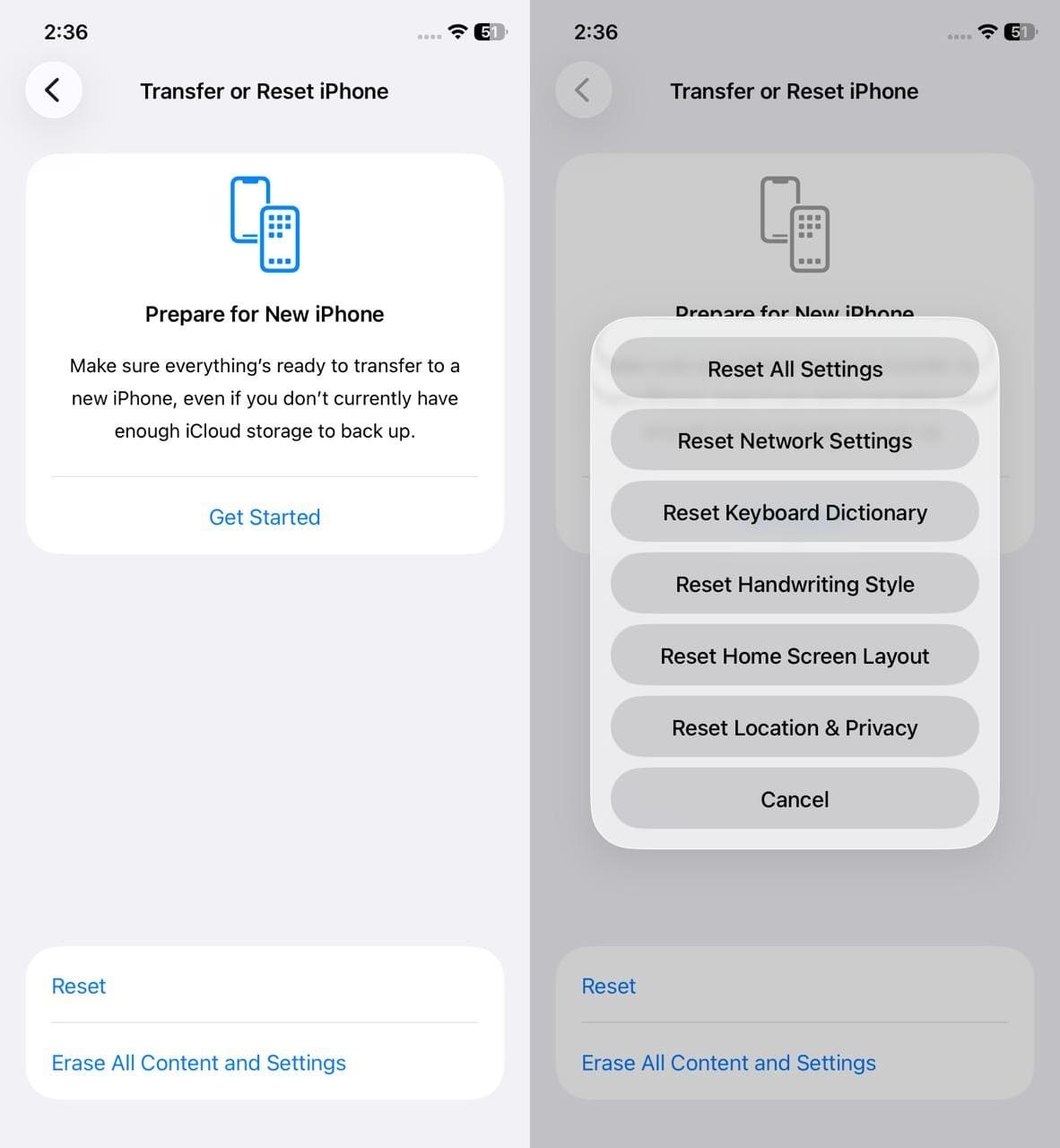
In case you want a detailed answer on whether resetting my iPhone will lose everything, understand the listed Reset type and see what it actually deletes:
1. Soft Reset
A Soft Reset simply turns your iPhone off and back on. It refreshes the system and fixes minor glitches without changing any data.
What It Deletes: Nothing.
2. Force Restart
A Force Restart restarts the iPhone when it freezes or becomes unresponsive. This restart safely reloads the
system without affecting stored data.
What It Deletes: Nothing.
3. Reset All Settings
This option resets all system settings to default while keeping apps, media, and personal files intact.
What It Deletes: Saved Wi-Fi Networks and Passwords, VPN and APN Settings, Display Settings like
Brightness, True Tone, and Night Shift, Sound and Focus Settings, Notification Styles, Home Screen
Preferences, Privacy and Location Permissions, Keyboard Settings, Apple Pay and Wallet Settings.
4. Reset Network Settings
As you Reset Network Settings, it clears all network-related settings and helps fix Wi-Fi, cellular,
Bluetooth, and connectivity issues.
What It Deletes: Wi-Fi Networks and Passwords, Cellular APN Settings, VPN Configurations, Bluetooth
Pairings, Personal Hotspot Settings.
5. Reset Keyboard Dictionary
This type of Reset removes words and shortcuts learned by the keyboard and restores default typing
behavior.
What It Deletes: Learned Words, Custom Text Shortcuts, Autocorrect Data, Prediction History.
6. Rest Handwriting Style
Unlike others, the Rest Handwriting Style option clears handwriting recognition data used with Apple Pencil
or handwritten input features.
What It Deletes: Handwriting Recognition Data, Learned Handwriting Style Patterns.
7. Reset Home Screen Layout
This Rest option returns the Home Screen to its original layout while keeping all apps installed.
What It Deletes: Custom App Icon Arrangement, App Folders and Their Organization, Widget Placement
Layout.
8. Reset Location & Privacy
The Reset Location & Privacy option is used to restore all app permissions and privacy settings to their
default state.
What It Deletes: Location Permissions, Camera Access Settings, Microphone Permissions, Contacts
Access, Photos Access, Calendar Permissions, Bluetooth, and Motion Access Settings.
9. Erase All Content and Settings
This Rest option completely wipes the iPhone and resets it to factory condition, preparing it for resale or
a fresh start.
What It Deletes: All Installed Apps and App Data, Photos, Videos, Messages, Call History, Voice
Memos, Downloaded Files, Apple ID and All Other Accounts, System and Personal Settings, Apple Pay Cards,
Face ID or Touch ID Data, Screen Passcode.
Part 3. How to Back Up Your iPhone Before Resetting
Now you know the answer to: if I factory reset my phone, will I lose everything, depending on the Reset type? So, if you have decided to factory reset the iPhone, make sure to back up all your important data via 3 listed methods:
Method 1: iCloud Backup
iCloud Backup is very useful before any reset because it saves most of your important iPhone data to Apple's servers. It automatically backs up app data and the Home Screen layout when your phone is on Wi-Fi and charging. Moreover, after a factory reset or on a new iPhone, you can restore everything easily with a few taps. So, to know how you can perform it, adhere to the listed steps for guidance:
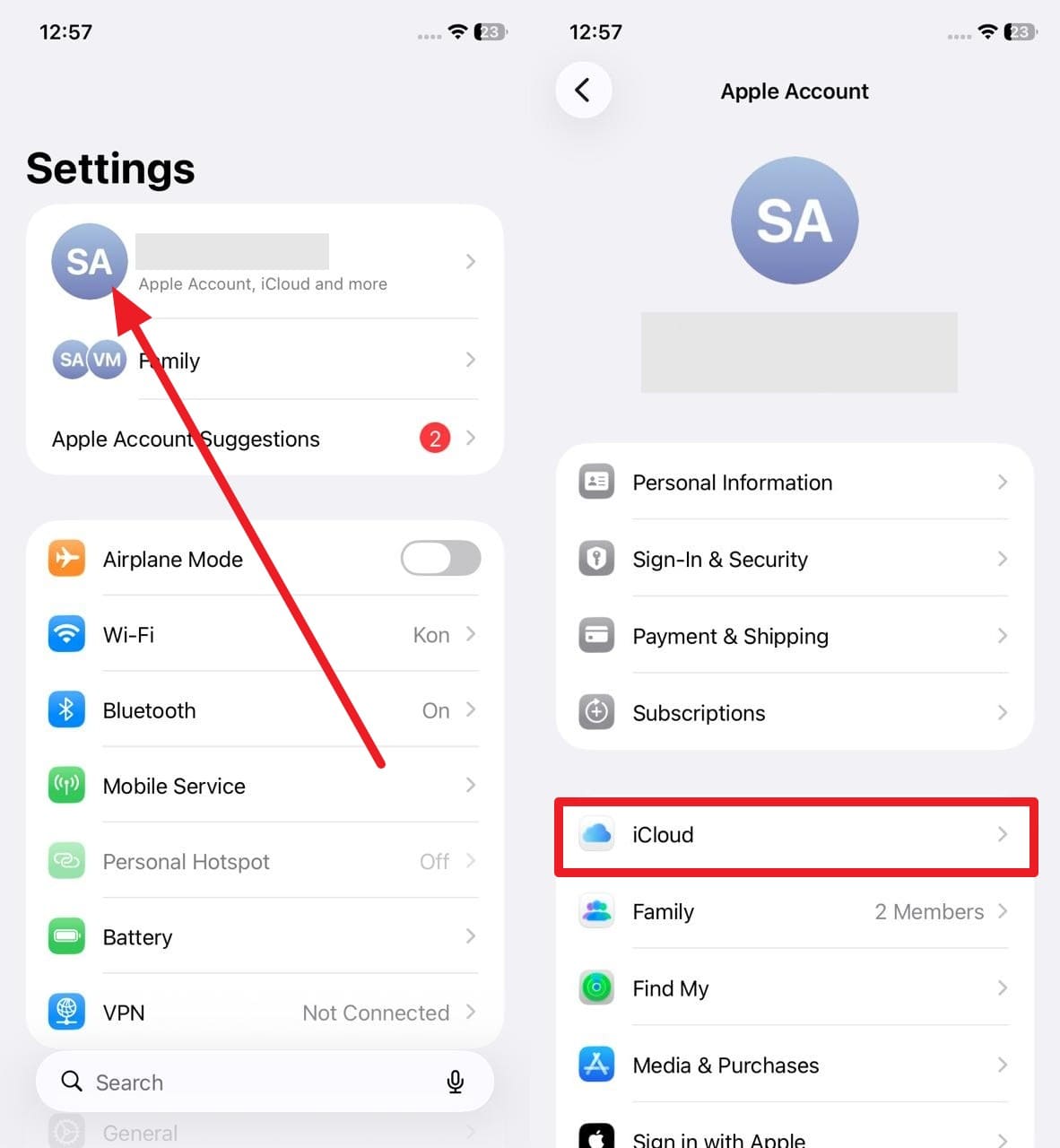
- Step 1. Tap the Apple ID in settings, then choose the "iCloud" option in the Apple Account settings.
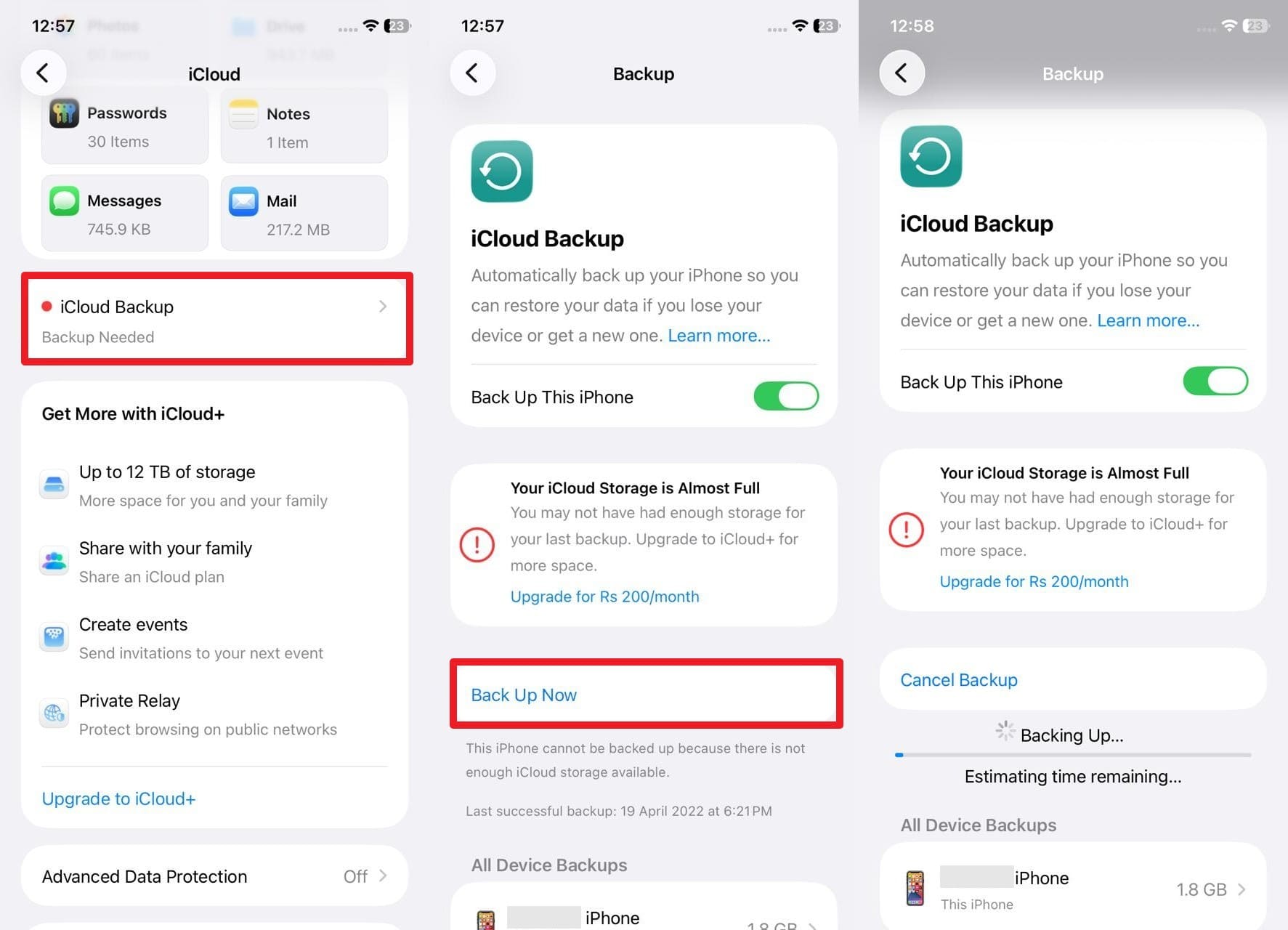
- Step 2. Stretch the menu for "iCloud Backup" and press the "Back Up Now" button. Now, stay connected to the Wi-Fi and wait for it to complete, and use this backup later when you restore after a reset.
Method 2: Backup via iTunes/Finder
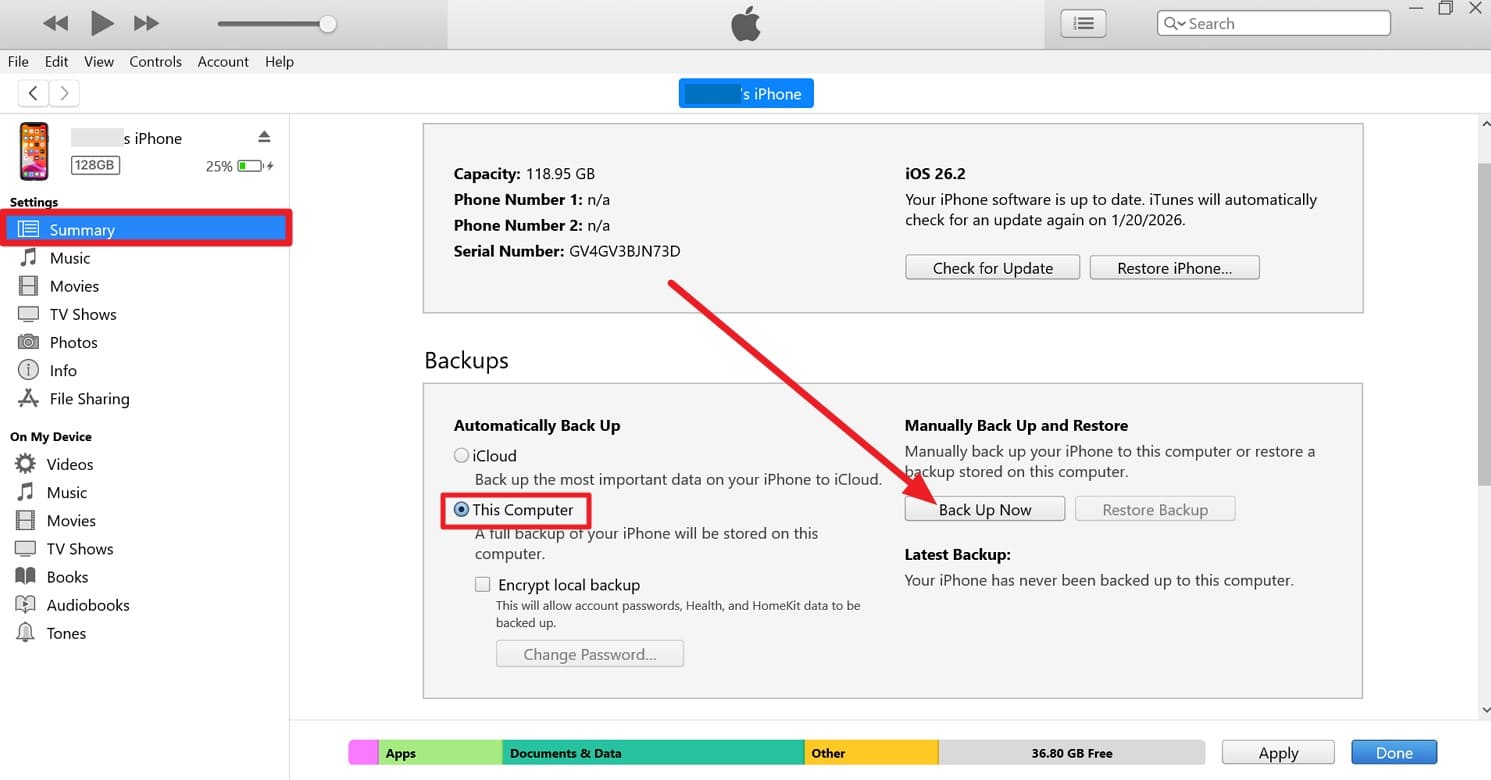
While learning, if I reset my iPhone, will I lose everything? You can also create a backup via iTunes or Finder. This solution creates a full copy of your phone on your computer, and can include more data than iCloud. Additionally, computer backups have no storage limits other than your hard drive, and they are faster to back up and restore. Hence, here is how you can create a backup on iTunes via 2 simple ways:
- Step 1. Tap the small phone icon to access the "Summary" tab as you launch iTunes and connect the phone. There, choose "This Computer" under the "Backups" section and press the "Back Up Now" button.
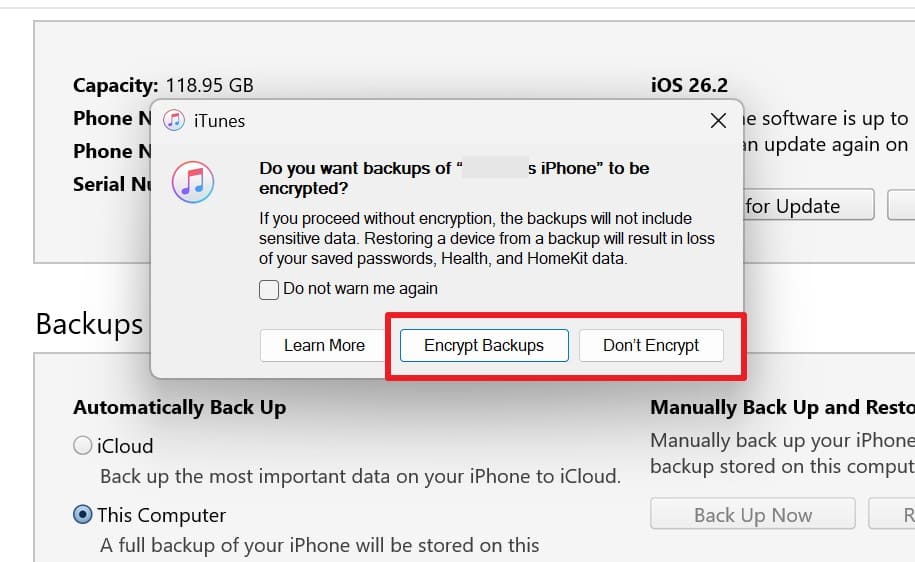
- Step 2. In the popup, choose "Encrypt Backups" or "Don't Encrypt" and wait until the progress bar finishes.
Method 3: Third-party Backup Tools (e.g., Dr.Fone – Phone Backup)
Once you get an answer to whether I reset my phone, will I lose everything? If you seek to create a backup of selected items, choose Dr.Fone - Phone Backup. This tool can automatically and wirelessly back up iPhone, iPad, and iPod touch in just 3 simple steps. Users can choose the destination path and data type when creating a backup to the PC.
Additionally, it supports iOS 26/iPadOS 26 and iPhone 17 series, and guarantees zero data loss during the process. While giving the option to manually or automatically create a backup, users need no learning curve to use Dr.Fone. Thus, it makes it an ideal backup option for all types of users, and you can also get weekly updates to iOS solutions.

Wondershare Dr.Fone
Selectively backup your iPhone data in 3 minutes!
- One-click to backup the whole iOS device to your computer.
- Enable scheduled Wi-Fi backups to automatically protect your iOS data without manual effort.
- Allow previewing and selectively export contacts from iPhone to your computer.
- No data loss on devices during the restoration.
- Works for all iOS devices. Compatible with the latest iOS version.



Guide to Create Your iPhone Backup Securely with Dr.Fone - Phone Backup (iOS)
To know how you can use this tool to create a selective or complete backup of your iPhone, review these 3 simplified steps:
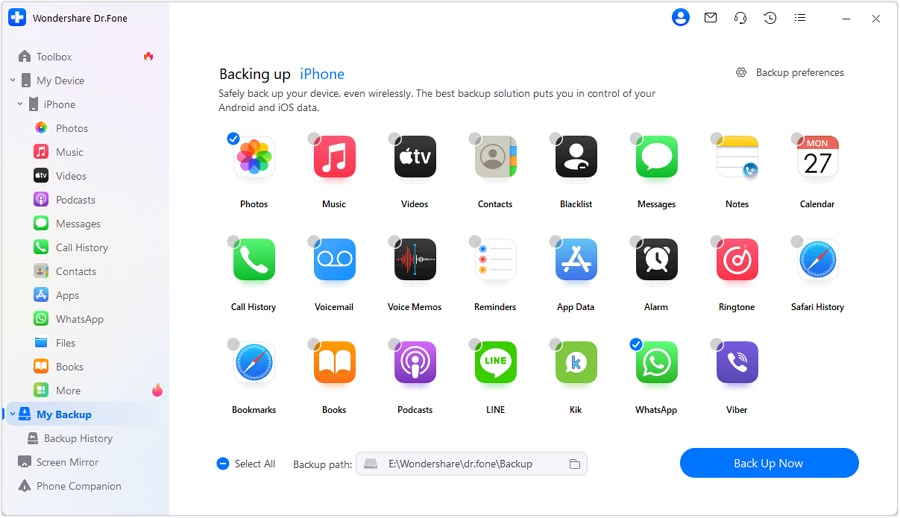
- Step 1. Choose Data and Start the Back Up Process
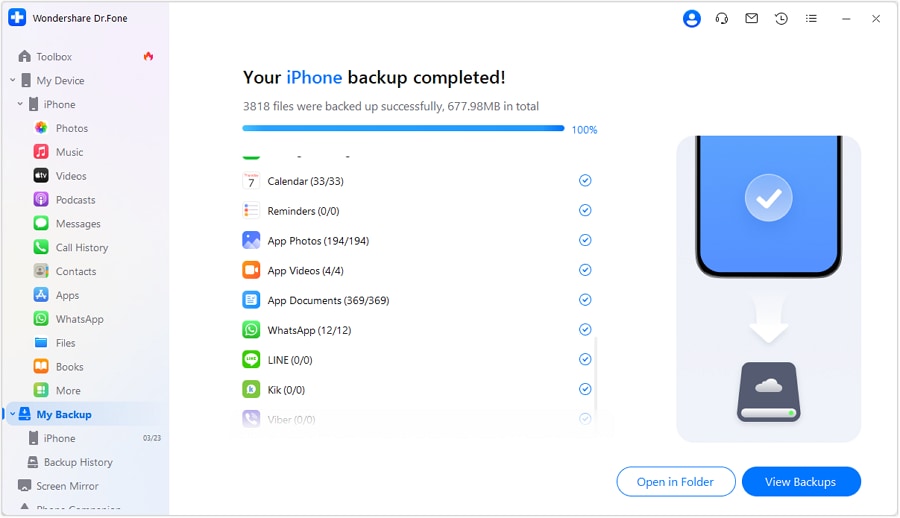
- Step 2. Wait for the iPhone Backup to Complete
Opt for the "My Backups" section on the tool and choose the data you want to keep secure. After that, pick the "Backup To" location and press the "Back Up Now" button to commence.
Wait until the tool completes the process, or choose to "Cancel" it if there is an issue. As it ends successfully, tap the "View Backups" or "Open in Folder" option to preview it on the saved destination path.
safe & securePart 4. How to Factory Reset Your iPhone [All Models]
Once you get familiar with the "I reset my iPhone, will I lose everything?" query. Here is how you can factory reset your iPhone:
Prerequisites
- Backup iPhone: Save data using iCloud or Dr.Fone - Phone Backup before resetting.
- Sign Out of Apple ID/iCloud: Prevent Activation Lock by logging out before resetting.
- Note Apple ID/password: Keep credentials handy to confirm and complete the reset.
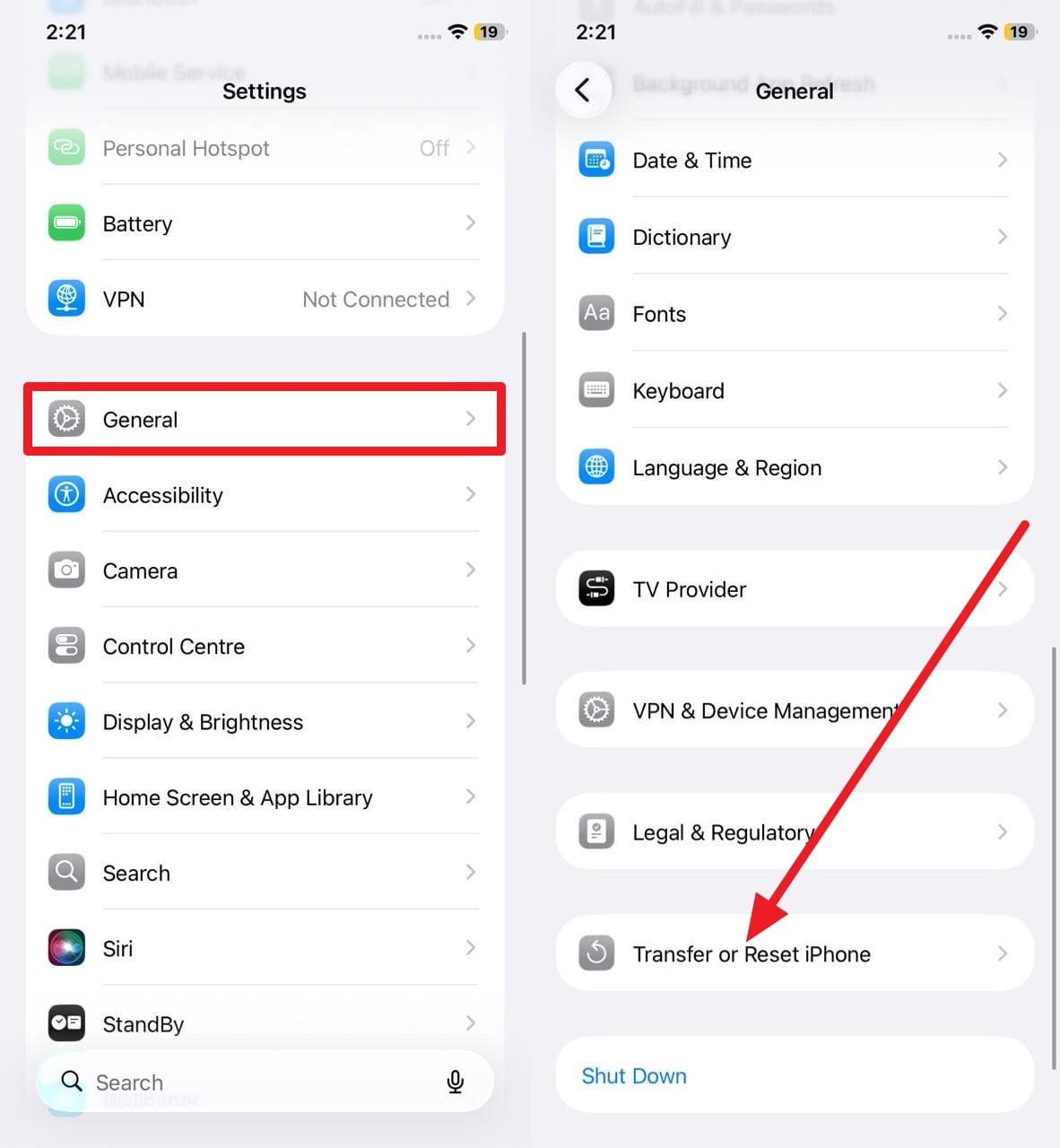
- Step 1. In the "General" settings, choose the "Transfer or Reset iPhone" option.
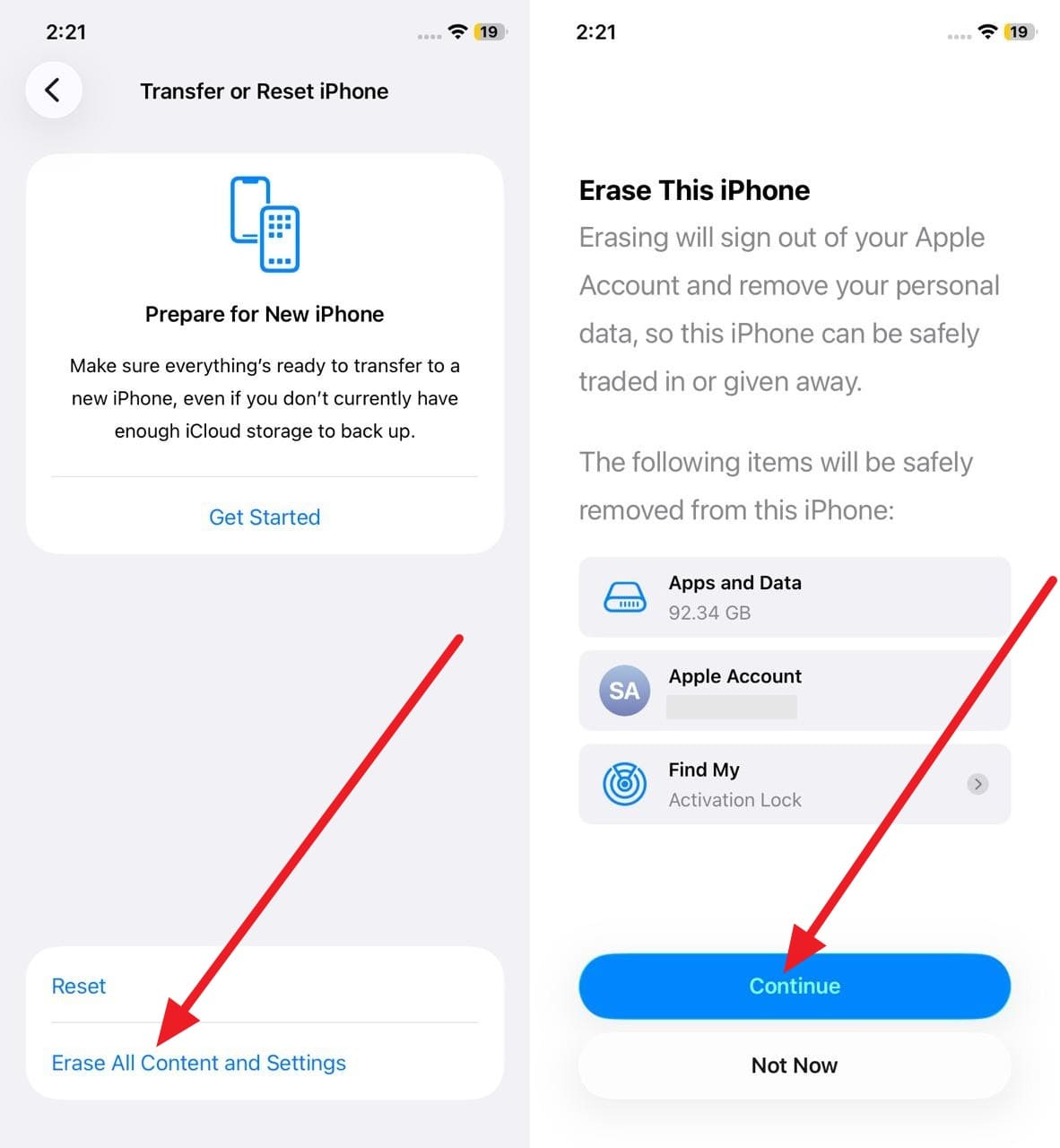
- Step 2. Choose the "Erase All Content and Settings" option and tap the "Continue" button. After that, enter your passcode and Apple ID password if asked, then confirm. The iPhone deletes all data, restarts, and shows the Hello screen; you can set it up or restore a backup.
Conclusion
To sum up, this guide has answered your query about if I reset my phone, will I lose everything. Not just that, possible iPhone Reset options are explained with detailed information on data loss. Additionally, simple steps to factory reset the iPhone are also shared with comprehensive prerequisites to create a backup. In this regard, Dr.Fone - Phone Backup is recommended if you want to back up specific items on your PC.
safe & secureFAQs
 1.
Can I use multiple backup methods before a reset?2.
Will my Apple ID or subscriptions be affected?3.
Should I disconnect non-Apple accounts before the reset?
1.
Can I use multiple backup methods before a reset?2.
Will my Apple ID or subscriptions be affected?3.
Should I disconnect non-Apple accounts before the reset?Dr.Fone Basic:
Better Control for Your Phone
Manage, transfer, back up, restore, and mirror your device


 > How-to > Backup & Restore Solutions > If I Reset My iPhone, Will I Lose Everything? Complete Guide & Precautions
Alice MJ
staff Editor