

How to Pause Location on Find My iPhone: Complete Guide in 2026

Oct 22, 2026 • Filed to: Virtual Location Solutions • Proven solutions
 TL;DR:
Because Apple lacks a dedicated pause feature for Find My iPhone, you must either disable system-level location sharing which stops live updates, or use a location spoofer to hide your whereabouts without losing internet access.
● Disabling Share My Location or enabling Airplane Mode stops real-time tracking, but these built-in methods either block your cellular connectivity or alert contacts by displaying a location not available message.
● Removing your device from the Find My list is not a temporary privacy solution, as this action permanently disables the Activation Lock and allows anyone to set up the phone under a different Apple ID.
● To bypass system restrictions without alerting contacts on iOS 26 and Android 16, Dr.Fone - Virtual Location allows you to teleport or simulate custom route movements across location-based apps like Pokémon GO and Snapchat.
Ask AI for a summary
 ChatGPT
 Perplexity
 Gemini
 Claude
 Grok
Grok
What if your friend checks your location on Find My, but you plan a surprise visit and want privacy for a while? Many iPhone users face this situation in 2026, but the good news is that Apple offers several ways to pause location tracking with minimal effort. With the right steps, you control when others see your place.
Therefore, this guide explains how to pause location on Find My iPhone with simple methods. Here, you learn safe options that keep your device secure and your plans private. You will also be guided on simple ways to fake or teleport the location with a one-click solution: Dr.Fone - Virtual Location.
 safe & secure
Part 1. Can You Pause Location on Find My iPhone? (Reality Check)
To highlight the word "Pause," it's true that Apple doesn't have an option like that. Instead, the system only allows you to stop location sharing or block the phone from sending location updates. When someone checks your location, they may see only your last known location or a message indicating you no longer share your location.
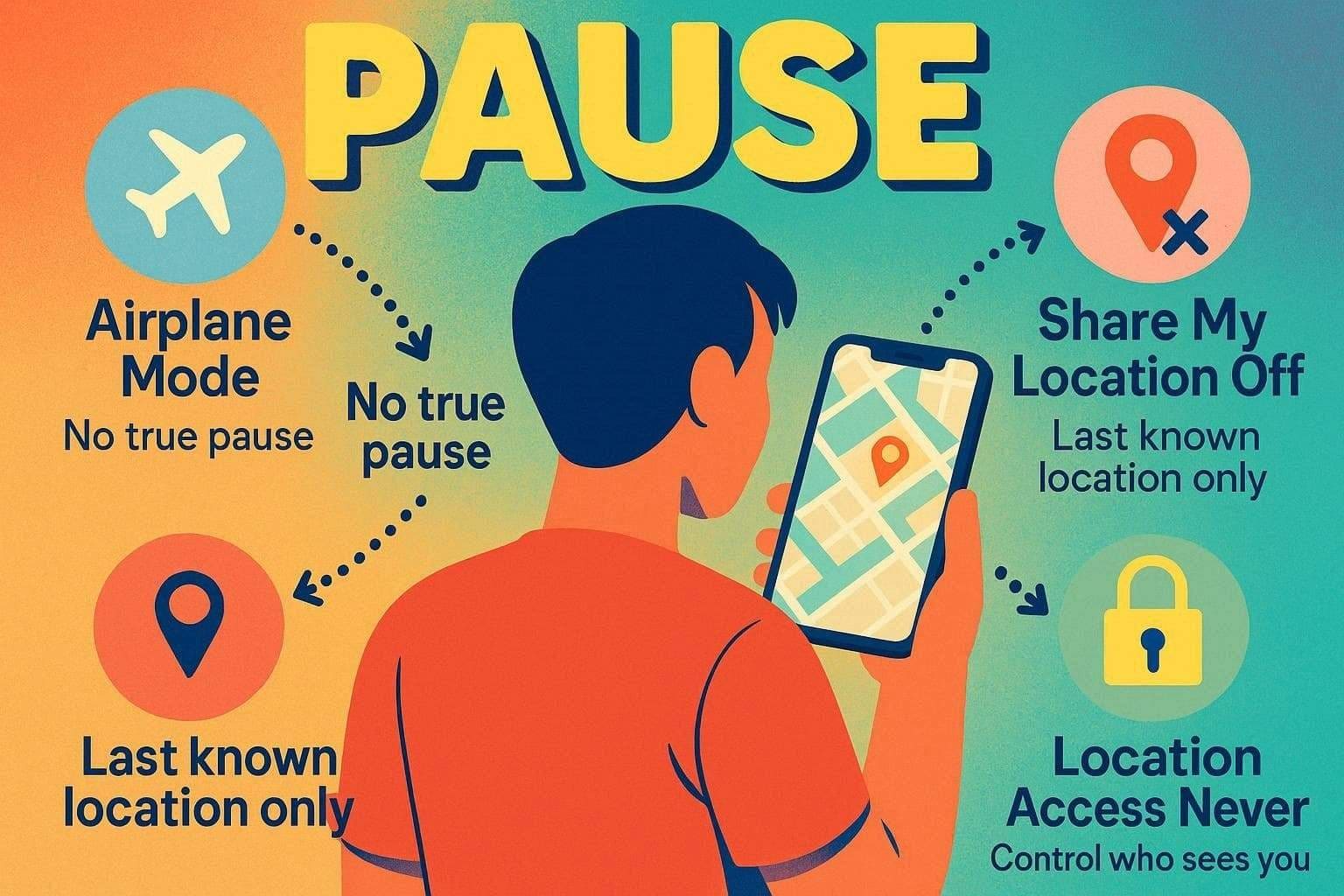
So, if you ask how to pause your location on Find My iPhone, a few simple options can help. This includes Airplane Mode, which turns off cellular, Wi-Fi, and Bluetooth, but calls and mobile data will not work. You can also turn off Share My Location in Settings so others cannot view your place. Plus, you can also set Find My location access to Never, which is guided in the following section.
Part 2. How to Pause Your Location on Find My iPhone - 5 Ways
So, those who wonder how to pause Find My iPhone, try the 5 workarounds mentioned below with detailed guidance:
Way 1: Turn On Airplane Mode
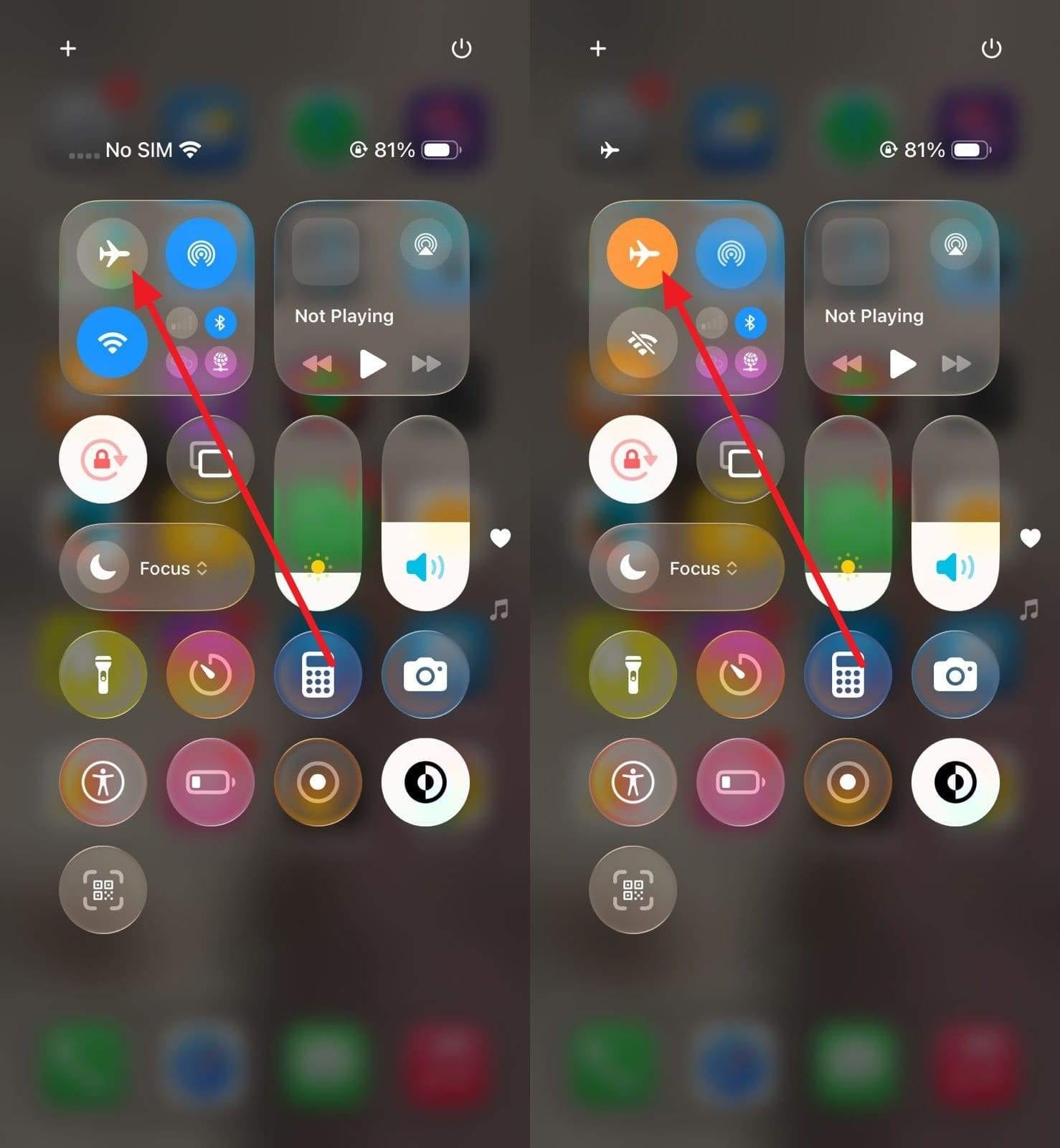
First, try to turn on Airplane Mode to pause location sharing, as this option disables cellular data, Wi-Fi, and Bluetooth. Hence, the phone cannot send live location updates to Apple servers, and your iPhone may still know its place through GPS, but it cannot share that data with others. As a result, people see only your last known location rather than your real-time movement, as guided below:
Instructions: Swipe down to open "Control Center," then tap the "Airplane Mode" icon. When the icon turns orange, Airplane Mode is active.
Way 2: Disable Share My Location
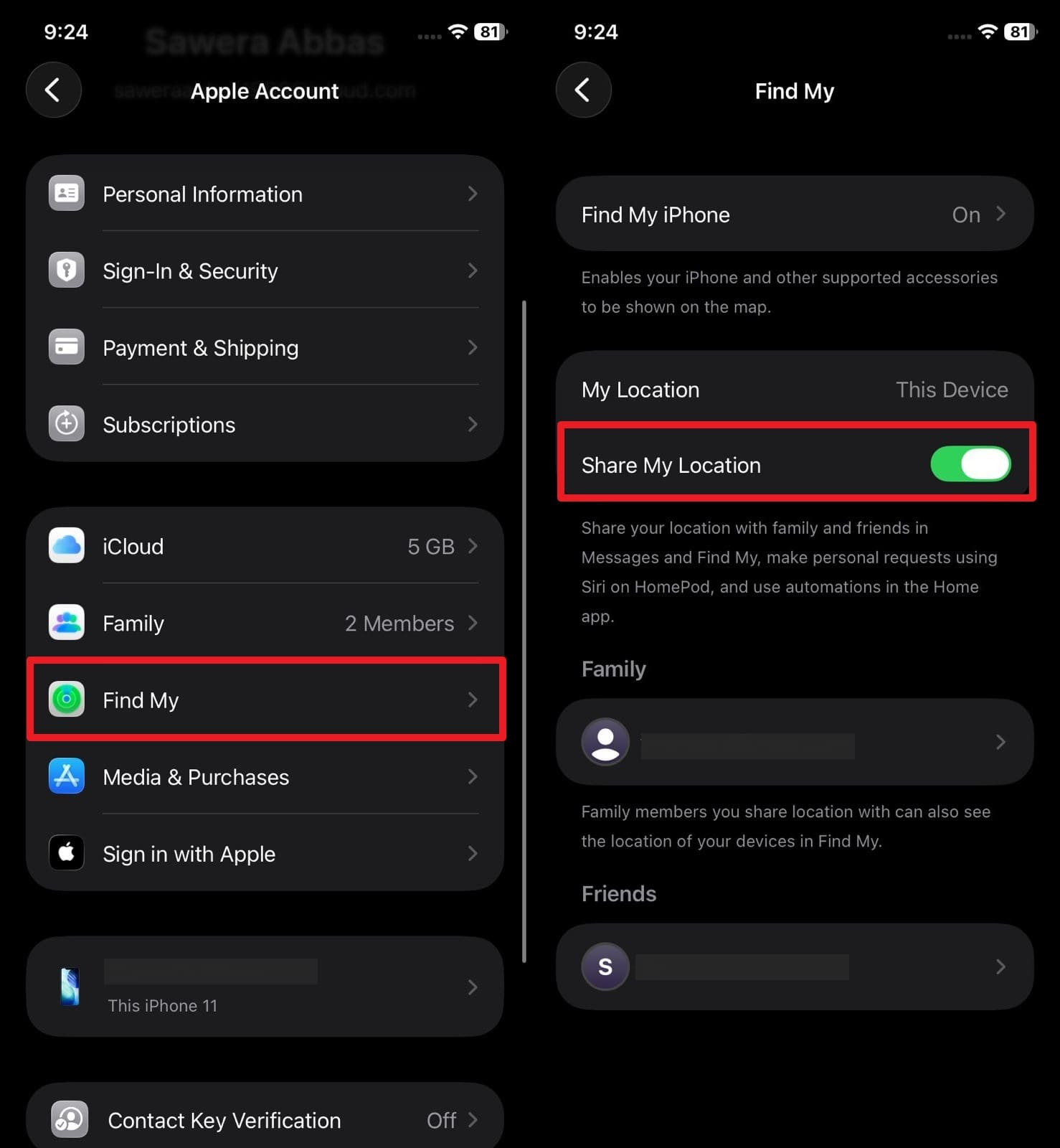
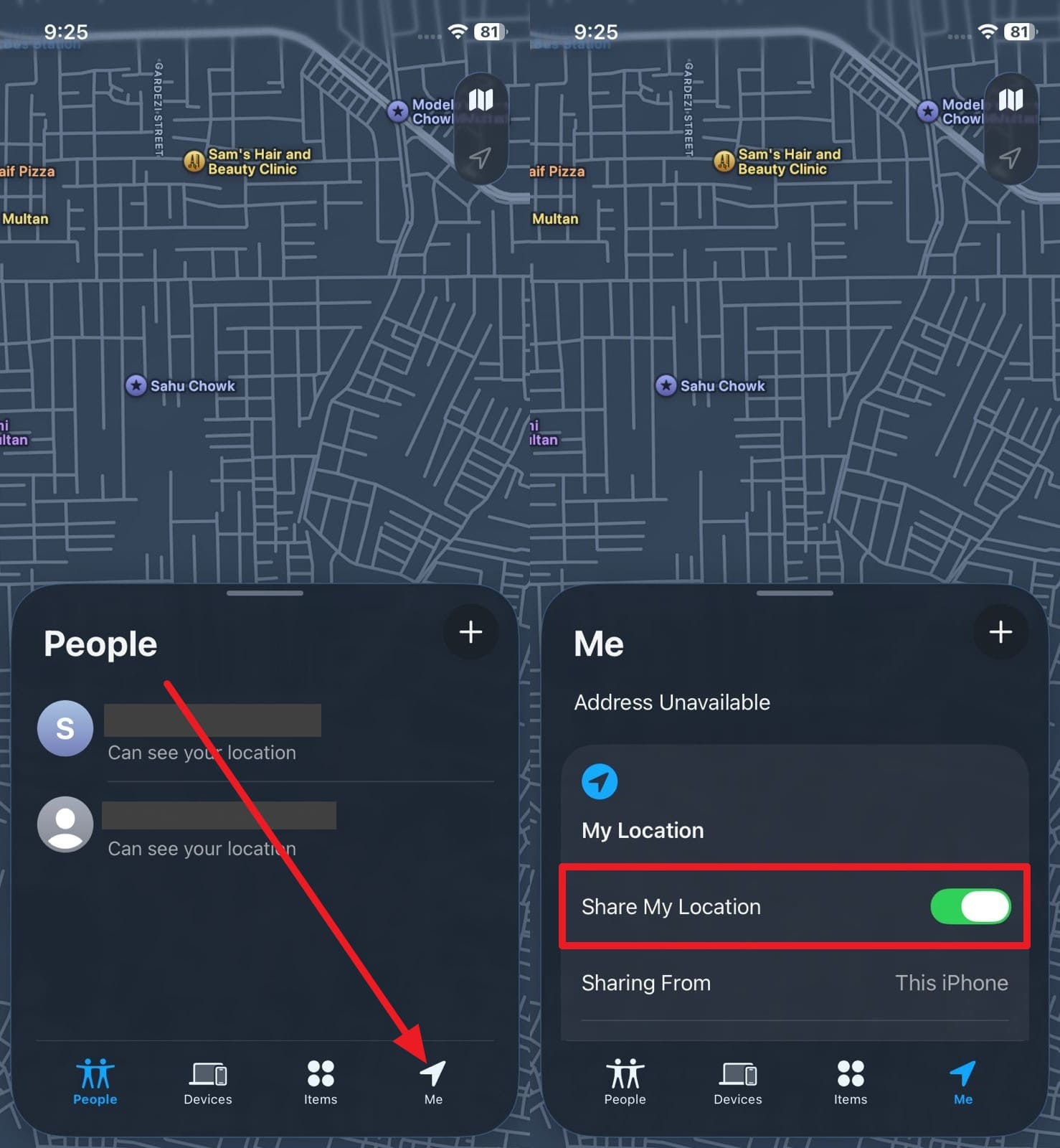
This option also explains how to pause Find My iPhone location by turning off the Share My Location setting. Also known as the built-in ways, it tells Apple to stop sharing your live location with friends and family. However, the device-tracking feature in Find My can still work, so you can locate your iPhone if it is lost.
So, as you turn it off using the guide mentioned, people cannot see your moving location on the map. They may only see a message saying you no longer share your location.
From Settings
Instructions: As you press the Apple ID name in the settings, tap on "Find My" and turn off the "Share My Location" option.
From the Find My App
Instructions: On the Find My App, go to the "Me" section and toggle off the "Share My Location" option.
Way 3: Turn Off Location Services
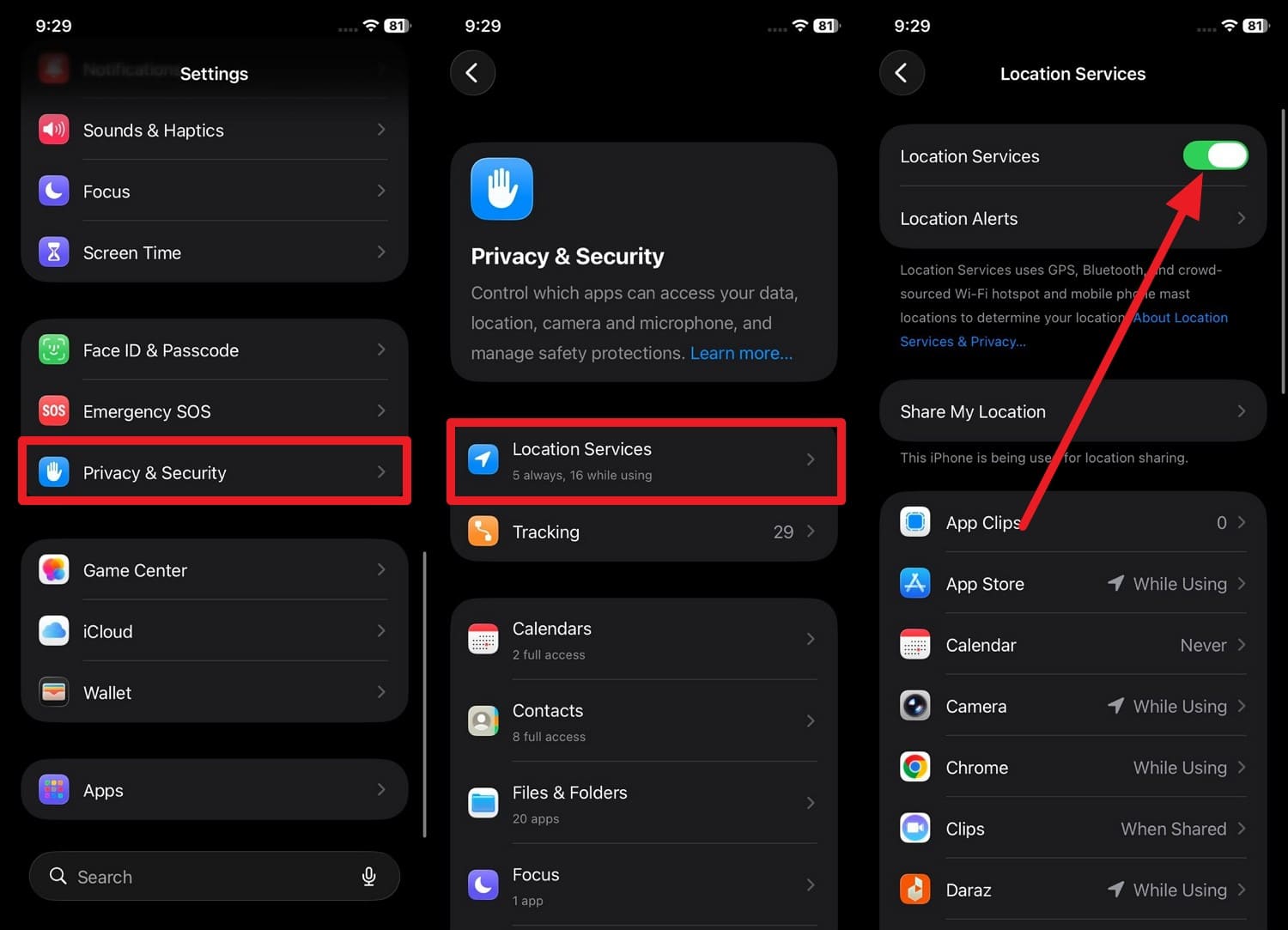
Turn off Location Services on your iPhone to fully stop location use on Find My. This method blocks GPS and other location services at the system level and helps answer the question: Can you pause your location on Find My iPhone?
Once disabled, the phone cannot calculate or update its position for apps or system services. Thus, Find My can only show your last known location until you turn on Location Services again, as demonstrated:
Instructions: Go to the "Privacy & Security" option in the iOS settings, and as you tap on the "Location Services," disable the "Location Services" option.
Way 4: Remove Device from Find My
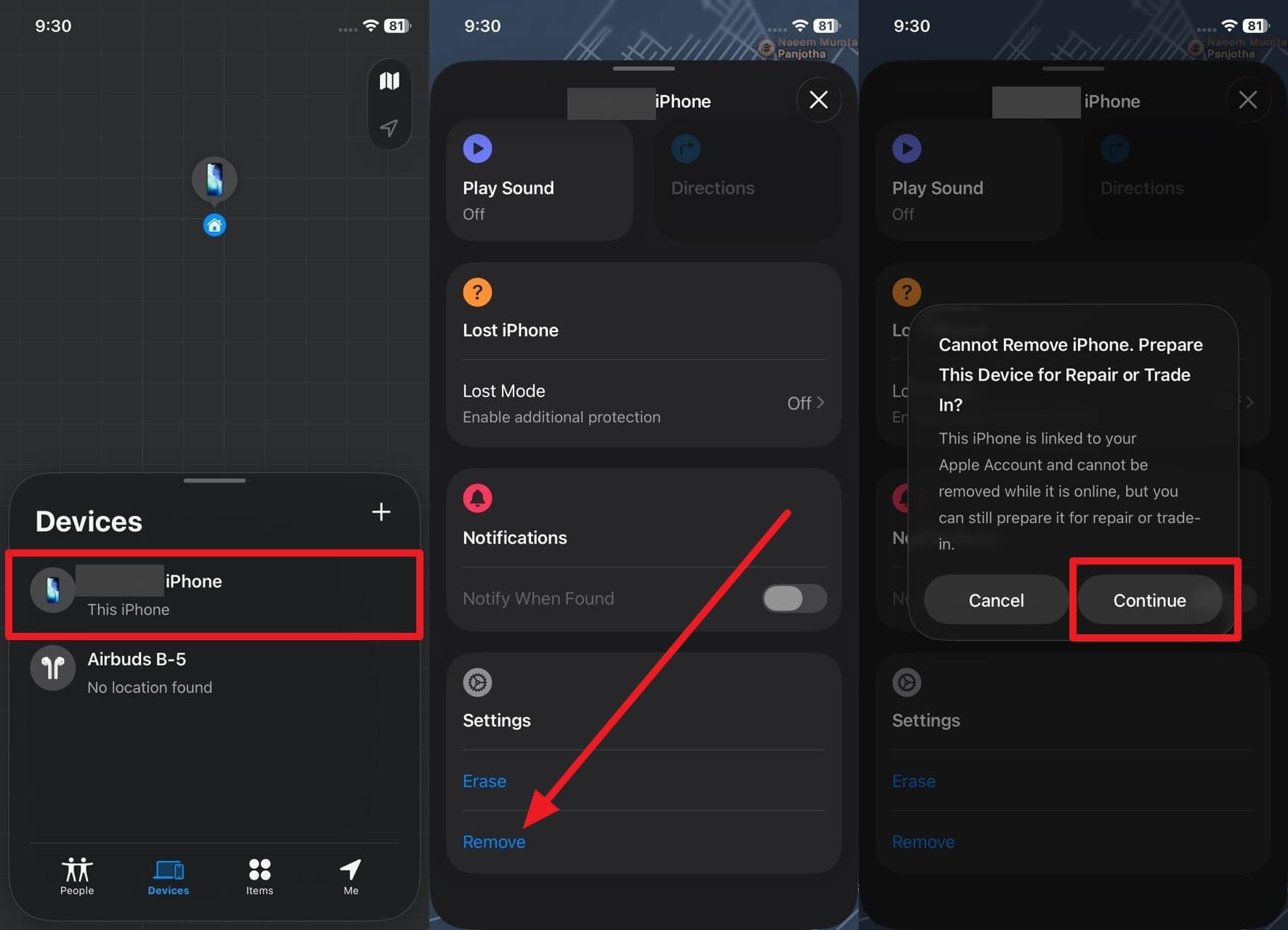
If you still ask how to pause my location on Find My iPhone, turn off the iPhone and remove it from Find My. This option breaks the link between the device and your Apple ID, so the phone no longer appears in your Find My device list. After removal, no one can see its location, play a sound, or use Lost Mode from your account.
Note: When you remove the device from Find My, Activation Lock is also removed, allowing another person to set up the phone with a different Apple ID. Thus, this method is not merely a temporary pause.
Instructions: If you plan to sell, trade, or stop using it, go to Find My app on another phone or browser and head to the "Devices" tab. With the device turned off, select the device you want to remove, then tap "Remove." Tap "Continue" to proceed, and if prompted, enter your Apple ID password to verify the action.
Way 5: Manage Location with Family Sharing
While learning how to pause your location on Find My iPhone, it is also suggested to manage the location with Family Sharing. It lets you control who in your family can see your location in Find My and from which device they can see it.
So, instead of turning off location completely, you can choose, per family member, who can see your live location. Giving control over when, how, and from where your location is, here are the steps:
From Find My App
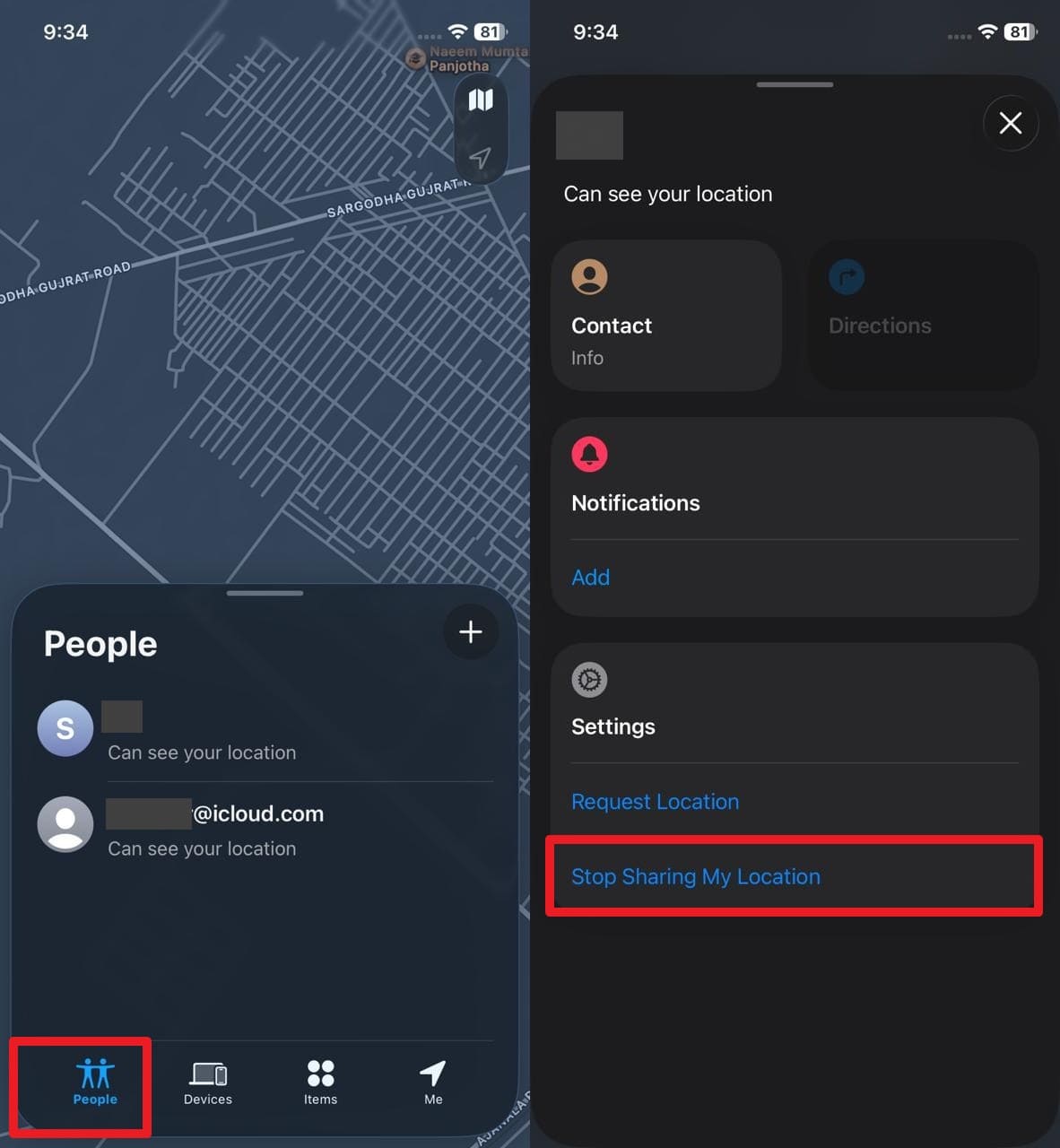
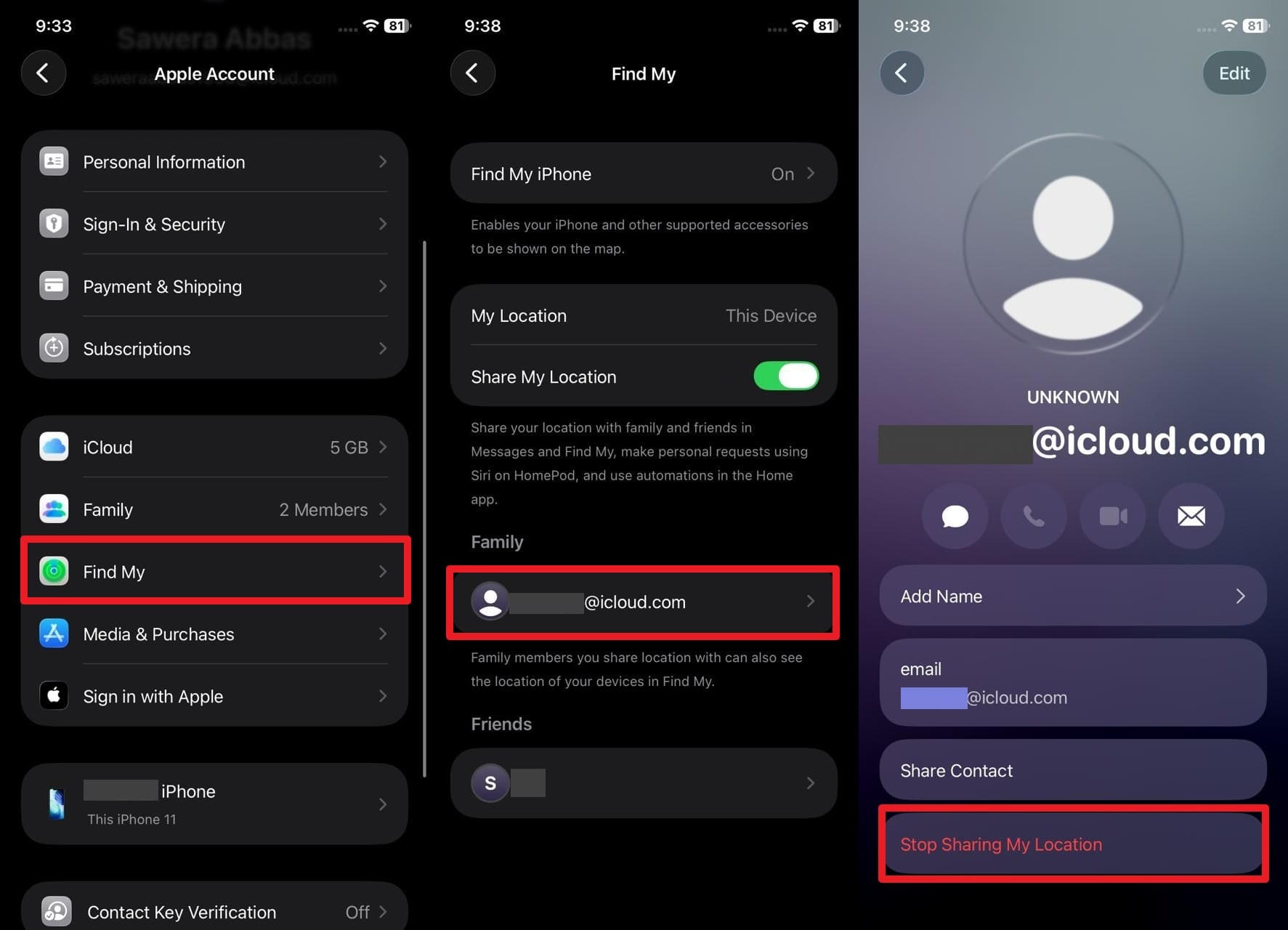
Instructions: Open the Find My app, go to the "People" section, and choose who you want to pause location for. Here, pick the "Stop Sharing My Location" option to stop your location from appearing for that contact.
From Settings
Instructions: Tap on the Apple ID, then go to "Find My" and choose the family member under the "Family" section. On the new interface, pick the "Stop Sharing My Location" option.
Part 3. Advanced Method: Change or Fake Your Location on Find My (If You Need More Control)
Though you know how to pause location on Find My iPhone, what if you don't want to remove Activation Lock or pause location and Wi-Fi services? In this case, you can fake the location using Dr.Fone - Virtual Location solution on iOS 26 and Android 16. In this regard, you can use the joystick to simulate the movements and manually search, or use the Move option to fake a location.
Furthermore, this software offers support for Pokémon GO, MH Now, Snapchat, and Tinder, and provides manual control for AR games and apps. From one to multiple routes, you can also choose to teleport to the location, and the default start and end location on the map. So, without affecting other device functions, the GPS will follow the automatically generated real route to help you share a fake location without fear.

Dr.Fone - Virtual Location
1-Click Location Changer for both iOS and Android
- Teleport from one location to another across the world from the comfort of your home.
- With just a few selections on your computer, you can make members of your circle believe you're anywhere you want.
- Stimulate and imitate movement and set the speed and stops you take along the way.
- Compatible with both iOS and Android systems.
- Work with location-based apps, like Pokemon Go, Snapchat, Instagram, Facebook, etc.


Guide to Fake Find My Location with Dr.Fone Rather Than Pausing It
While getting answers on how to pause your location on Find My iPhone, learn how to teleport the movements with Dr.Fone:
- Step 1. Activate the Teleport Mode on Dr.Fone
- Step 2. Confirm Your Fake Location for Find My
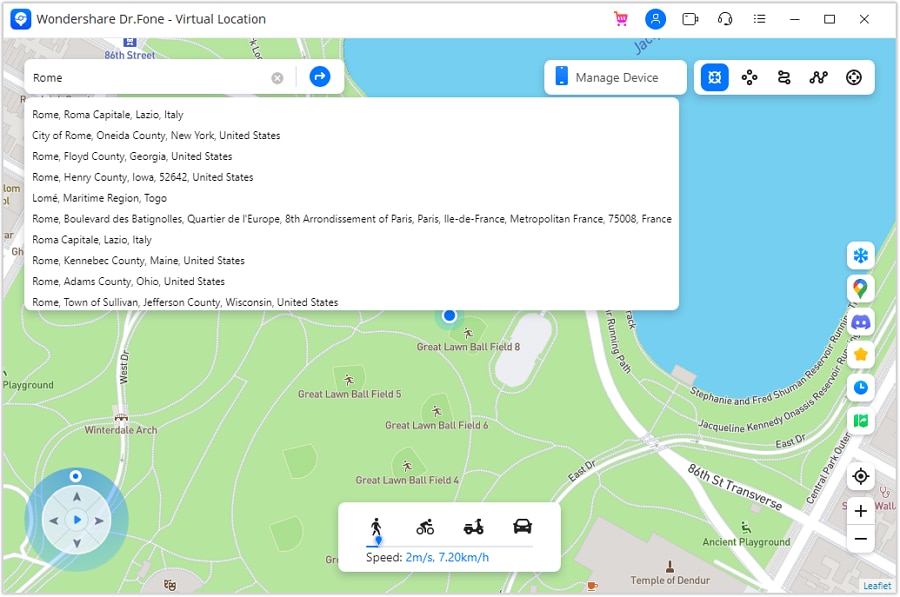
As you enable the "Teleport" mode in the Virtual Location tool, search for the fake location on the tool and press the "Enter" key.
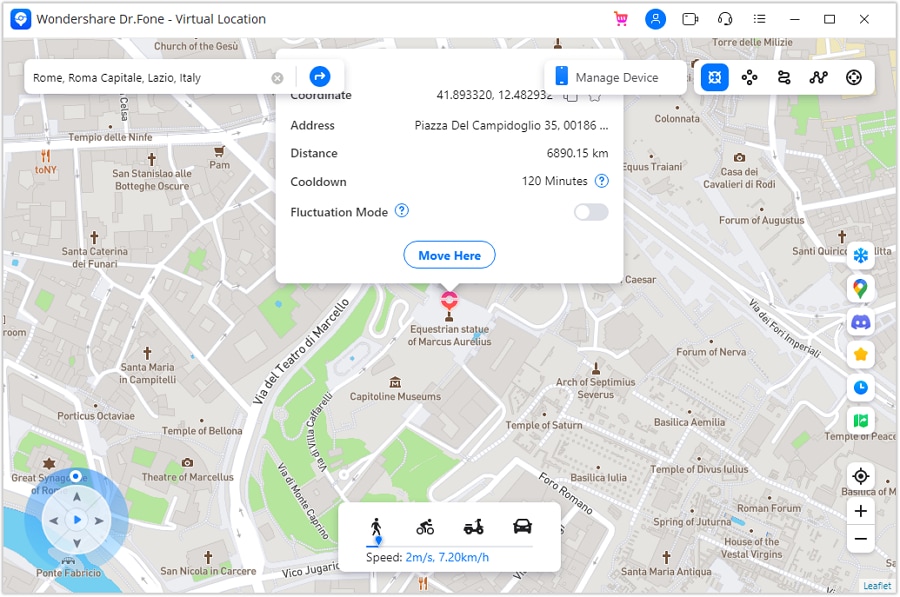
Confirm the location, then click the "Move Here" button to apply the change. Later, confirm the location in the Maps app and send it to others without pausing.
safe & secureConclusion
To sum up, in 2026, people prefer privacy, which drives them to know how to pause location on Find My iPhone. Therefore, this guide has explained how to pause your location on the iPhone Find My. Since these methods can affect other device functions, it's better to fake location with Dr.Fone - Virtual Location.
This tool is the recommended choice because you can freely select any location on the map, and the GPS will follow the route without hindrance. Thus, you can control what others see on Find My while keeping normal phone functions working smoothly.
safe & secureFAQs
 1.
Will someone get notified if I stop sharing my location?2.
Does Find My work without internet?3.
Can I still use other apps if location sharing is off?
1.
Will someone get notified if I stop sharing my location?2.
Does Find My work without internet?3.
Can I still use other apps if location sharing is off?

Virtual Location
- Change iOS Location
- 1. Best iOS Location Changers
- 2. Fake iPhone GPS Location
- 3. Change iPhone Home Address
- 4. Change iPad Weather Location
- 5. Track a Cell Phone Location
- 6. iPhone GPS not Working
- 7. iPhone “No Location Found”
- 8. iPhone “Location Not Available”
- 9. iTools Alternatives
- 10. DoPokeGo++ Alternatives
- 11. 3uTools Alternatives
- 12. Foneazy MockGo Alternatives
- 13. "No Location Found" Vs."Location Not Available"
- Change Android Location
- 1. Best Android Fake GPS Apps
- 2. Free Android Location Spoofers
- 3. Fake Android GPS Location
- 4. Android Location Settings
- 5. Fake GPS No Root
- 6. Fake GPS on Huawei
- 7. Fake GPS without Mock Location
- Hide GPS Location
- 1. Stop Sharing Location without Notifying
- 2. Fake Location on Find My Friends
- 3. Stop Google Tracking Your Location
- 4. Fake Location on Google Maps
- 5. Spoof Location on Life360
- 6. Turn Off Life 360 Without Knowing
- 7. Stop Life360 from Tracking You
- 8. Life360 Circle: Tips & Tricks
- 9. Track Location by Mobile Number
- 10. How Do I Know If My Phone Is Being Monitored
- 11. Can Life360 Track You When Your Phone is Off
- Fake GPS on Games
- 1. Play Pokémon Go Without Moving
- 2. Celebrate National Pokémon Day
- 3. Fake GPS on Mobile Legends
- 4. Spoof Ingress Prime Location
- 5. Spoof Location on Jurassic World Alive
- Fake Location on Social Apps
- 1. Fake Location on Whatsapp
- 2. Fake Location on Facebook
- 3. Fake Location on Telegram
- 4. Fake Location on Tiktok
- 5. Does Your Snap Score Increase with Chats
- 6. Fake Location on Snapchat
- 7. Add Location Filters on Snapchat
- 8. Change Location on Twitter
- 9. Change Instagram Business Location
- 10. Change Instagram Region/Country
- 11. Stop mSpy from Spying You
- 12. Change Location On Linkedin
- Fake Location on Dating Apps
- 1. Fake Hinge GPS
- 2. Top Funny Hinge Prompts
- 3. Apps Like Tinder
- 4. Enjoy Tinder Gold
- 5. Fake Tinder GPS
- 6.Tinder Keeps Crashing
- 7. Find People on Tinder
- 8. Use Grindr on a PC
- 9. Grindr Web app explained
- 10. Fake Grindr GPS
- 11. Grindr Unable to Refresh
- 12. Fake Bumble GPS
- 13. Bumble Snooze Mode Guide
- 14. Tinder vs Bumble vs Hinge
- Get Around Geo-blocking
- 1. Hola Fake GPS Alternative
- 2. Change Netflix Location
- 3. Bypass MLB TV
- 4. Change Location on YouTube TV
- 5. Change Play Store Country
- 6. Change Facebook Marketplace Location
- Followers & Unfollowers Trackers
- Location & Social Apps Tips
- 1. How to Share Live Location on Snapchat
- 2. Best Mobile Number Tracker
- 3. Best Private IG Viewer Tools
- 4. View a Private Instagram Account
- 5. Screenshot on Instagram Without Them Knowing
- 6. Does Instagram Notify When You Screenshot
- 7. Find Out If Someone Screenshots Your Instagram Story
- 8. Does Instagram Notify When You Screen Record
- 9. Fix iPhone Location Not Updating
- 10. Does Snapchat Show Who Viewed Your Profile
- ● Teleport GPS location to anywhere
- ● Play AR games without moving
- ● Spoof Location on the popular Apps
- Free Download Free Download Free Download


 > How-to > Virtual Location Solutions > How to Pause Location on Find My iPhone: Complete Guide in 2026
Julia Becker
chief Editor