Bypass iCloud Activation Lock and Android FRP without password.

 100% Security Verified | No Subscription Required | No Malware

 :
: 
 ChatGPT
 Perplexity
 Gemini
 Claude
 Grok
Grok
Finding yourself locked out of your Samsung Galaxy S5 can be incredibly frustrating. Perhaps you've forgotten a newly set password, your children accidentally entered the wrong code too many times, or you've recently acquired a second-hand device that is still password-protected. This common issue can prevent you from accessing your important contacts, photos, and apps when you need them most.
Similarly, if your Galaxy S5 is locked to a specific carrier, you can't switch to a new network provider for better deals or coverage. The good news is that you don't have to be stuck. There are several reliable methods to regain access to your device. This guide provides three effective ways to unlock your Samsung Galaxy S5, covering both screen lock and network (SIM) lock scenarios.
In this article
Method 1: Instantly Remove Samsung Galaxy S5 Screen Lock with Dr.Fone
When you're locked out of your phone due to a forgotten PIN, pattern, or password, your primary concern is often the data stored inside. While a factory reset is an option, it erases everything. Other technical methods, like using ADB, can be complex and intimidating for the average user. This is where a specialized tool can provide a safe and simple solution.
Dr.Fone - Screen Unlock (Android) is a professional tool designed to remove screen locks from your Samsung Galaxy S5 quickly and efficiently, all without wiping your precious data. It bypasses four types of screen locks—pattern, PIN, password, and fingerprints—making it a versatile solution for any lockout situation. The user-friendly interface guides you through every step, so no technical expertise is required.
 Remove PIN, pattern, password, fingerprint.
- Bypass Google FRP lock easily.
- Works on all Android brands & models.
- No tech skills required – user-friendly.

How to Unlock Your Samsung Galaxy S5 Lock Screen with Dr.Fone
-
Step 1 Launch Dr.Fone and Select Screen Unlock
Start by downloading and installing Dr.Fone on your computer. Open the program and choose the "Screen Unlock" module from the main toolkit interface.

-
Step 2 Connect Your Phone and Select the Model
Connect your Samsung Galaxy S5 to the computer using a USB cable. On the next screen, you will be prompted to select your phone's brand and model from the provided list to ensure the correct recovery package is used.

-
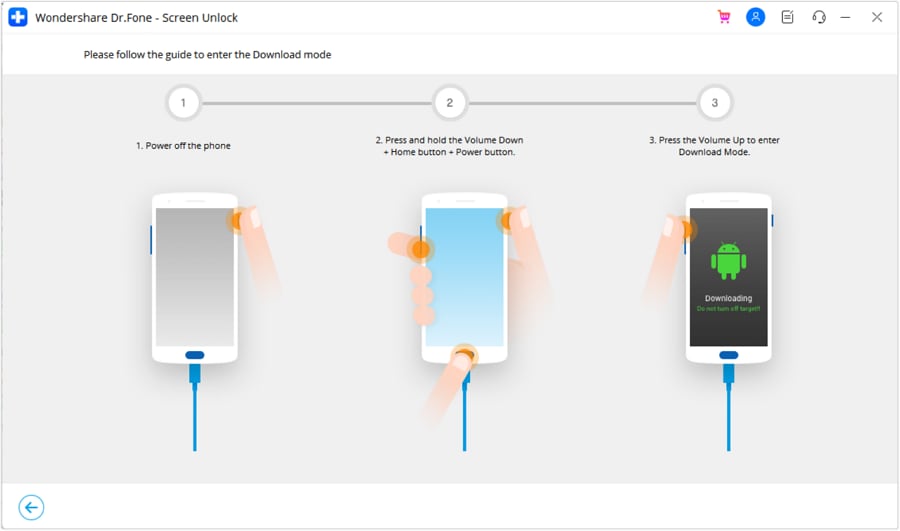
Step 3 Enter Download Mode
You must put your Galaxy S5 into Download Mode for the process to work. Follow these precise instructions:
- Turn off your Samsung Galaxy S5 completely.
- Press and hold the Volume Down, Home, and Power buttons all at the same time.
- Once a warning screen appears, press the Volume Up button to confirm and enter Download Mode.
-
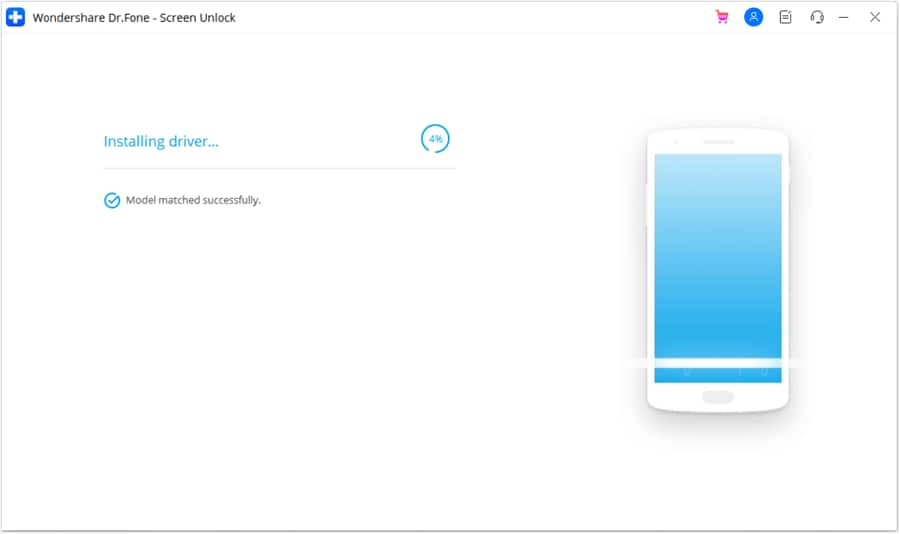
Step 4 Download the Recovery Package
Once your phone is successfully in Download Mode, Dr.Fone will automatically detect it and begin downloading the necessary recovery package. This package is specifically designed for your device model to remove the lock screen safely.
-
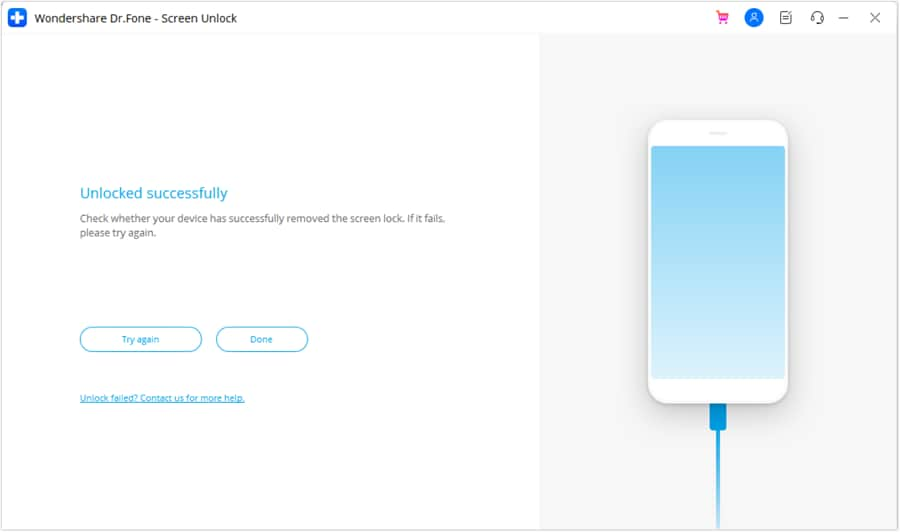
Step 5 Screen Lock Removal Complete
After the download is finished, Dr.Fone will proceed to remove the screen lock. This process only takes a few minutes. Your Samsung Galaxy S5 will then restart automatically, and you will find that the lock screen is gone, giving you full access to your device without any password prompts.




Method 2: SIM Unlock Your Samsung Galaxy S5 Using a Foreign SIM Card
If your Samsung Galaxy S5 was purchased from a carrier like AT&T, Verizon, or T-Mobile, it is likely SIM-locked. This prevents you from using it with a SIM card from a different network. While contacting the carrier is the standard approach, there is an older, more technical method that may work for some Galaxy S5 models.
This method involves accessing a hidden service menu on your phone. It's important to note that this technique is not guaranteed to work on all software versions or device variants, as carriers and Samsung may have patched this loophole in later updates.
-
Step 1 Enter the Service Mode Code
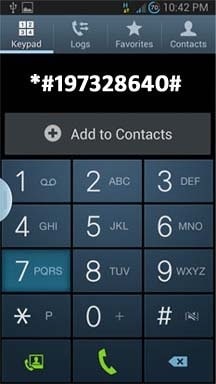
First, insert a SIM card from a different (foreign) carrier into your phone and restart it. Once the device boots up, open the dialer app and carefully type in the code: *#197328640#. This will launch the hidden Service Mode menu.
-
Step 2 Navigate the Debug Menu
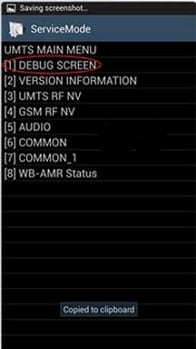
Within the Service Mode menu, you need to navigate through a series of options. Be careful to select the correct items in this exact order: Select [UMTS] > [Debug Screen] > [Phone Control] > [Network Lock] > [Options]. From the options menu, choose [Perso SHA256 OFF].
-
Step 3 Finalize the Unlock Process
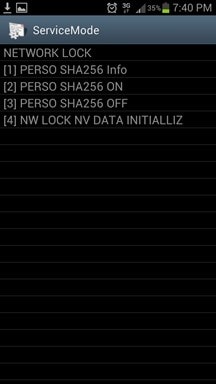
After a moment, return to the Network Lock menu. You should now see a message indicating the lock status. From here, choose the option [NW Lock NV Data INITIALLIZ]. Your phone should now be SIM-unlocked. Restart your device one more time for the changes to take effect.

Method 3: Officially Unlock Your Samsung S5 by Contacting Your Carrier
The safest and most reliable way to SIM unlock your Samsung Galaxy S5 is by requesting an unlock code directly from your network carrier. Most carriers will provide this service for free, provided you meet their eligibility requirements. This is the official method and ensures your device's warranty remains intact.
However, be prepared for a process that may take some time. It often involves a phone call or an online request, and you may need to wait a few days to receive the unlock code. Before you contact them, gather the following information to make the process smoother:
- Your account number, password, and the account holder's full name.
- Your phone's IMEI number (you can find this by dialing *#06#).
- Your phone number associated with the device.
- The last four digits of the account holder's Social Security Number (SSN).
- Confirmation that your contract has been completed or the device has been fully paid for.
Each carrier has slightly different policies and procedures for unlocking devices. It's a good idea to visit their official website or support pages first to understand their specific requirements. For more details on various carriers, you can find instructions to unlock Samsung Galaxy SIM with different carriers. While this method might take longer than others, it is the most legitimate and permanent solution.
Comparison: Which Samsung S5 Unlock Method is Right for You?
Choosing the right unlock method depends entirely on your specific situation—whether you're dealing with a screen lock or a SIM lock, and what your priorities are. The table below compares the three methods to help you make an informed decision.
| Method | Best For | Data Safety | Speed | Complexity |
|---|---|---|---|---|
| Dr.Fone - Screen Unlock | Forgotten screen PIN, pattern, or password | No data loss (for supported models) | Fast (Under 10 minutes) | Low (Step-by-step guide) |
| Foreign SIM Card | SIM (Network) unlock on older firmware | Data is safe | Fast (If it works) | High (Technical & risky) |
| Contacting Carrier | Official SIM (Network) unlock | Data is safe | Slow (Can take days) | Low (Requires a phone call/form) |
Conclusion
Being locked out of your Samsung Galaxy S5, whether by a forgotten password or a carrier restriction, is a solvable problem. For screen lock issues, Dr.Fone - Screen Unlock offers the most straightforward and secure solution, allowing you to regain access without losing your data. For SIM unlocking, contacting your carrier is the official and most reliable route, ensuring a permanent and legitimate unlock. The foreign SIM method remains a potential option for tech-savvy users with older devices, but it comes with risks. By evaluating your specific needs against the methods outlined, you can choose the best path to get your Samsung Galaxy S5 fully unlocked and operational again.
FAQ
-
1. What is the difference between a screen unlock and a SIM unlock?
A screen unlock removes the password, PIN, pattern, or fingerprint lock that prevents you from accessing the phone's home screen and data. A SIM unlock (or network unlock) removes the restriction placed by a carrier, allowing you to use the phone with a SIM card from any other network provider. -
2. Will unlocking my Samsung Galaxy S5 erase my data?
It depends on the method. Using Dr.Fone - Screen Unlock for supported Samsung models will not erase your data. Contacting your carrier to SIM unlock your phone also keeps your data safe. However, performing a factory reset to bypass a screen lock will erase all data on your device. -
3. Can I unlock my Samsung S5 for free?
Yes. Contacting your carrier to SIM unlock your phone is typically free if you have met their conditions (e.g., finished your contract). Some technical methods like the foreign SIM trick are also free but are not guaranteed to work and can be risky. Professional tools usually have a cost but offer higher success rates and safety features like data preservation. -
4. Is it legal to unlock my phone?
Yes, it is legal to unlock your phone in most countries, including the United States, as long as you own the device and have fulfilled the terms of your contract with the carrier. Unlocking a phone that is not fully paid for or is still under contract may violate your carrier's terms of service.
 Add Wondershare Dr.Fone as a preferred source on Google