Bypass iCloud Activation Lock and Android FRP without password.

 100% Security Verified | No Subscription Required | No Malware

 :
: 
 ChatGPT
 Perplexity
 Gemini
 Claude
 Grok
Grok
I am stuck on the Google verification screen on my Samsung A14 after a factory reset. I can't remember my account details. Is there a safe Samsung A14 FRP bypass tool you recommend for 2026?
David Miller, Tech Enthusiast

Samsung's Factory Reset Protection (FRP) is a robust security layer designed to prevent unauthorized access to your Galaxy device if it is lost or stolen. By requiring the original Google account credentials after a hard reset, it ensures that only the rightful owner can use the phone. However, this same security can become a massive hurdle for legitimate owners who have forgotten their passwords or those who purchased a second-hand Samsung A14 with an active Google lock.
For those navigating the complexities of modern security patches, performing a Samsung A14 FRP bypass can seem daunting. This comprehensive 2026 guide explores four effective methodologies—ranging from automated PC software to manual no-PC workarounds—to help you regain full control of your device. We will also provide safe links for frp bypass apk download options for those taking the DIY route. Continue reading to find the solution that fits your technical comfort level.
In this article
Part 1. Overview of Samsung A14 FRP Lock (2026 Update)
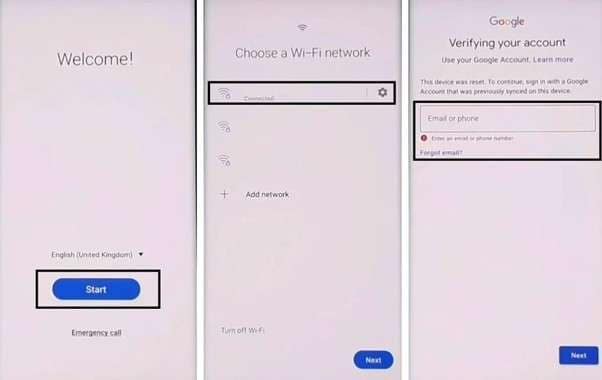
Factory Reset Protection (FRP) is an integrated security feature in the Android ecosystem. On the Samsung Galaxy A14, this lock is automatically activated as soon as a Google account is added to the system. While it effectively deters theft, it presents a challenge during legitimate ownership transfers or accidental lockouts. Even after a complete factory wipe via Recovery Mode, the system will prompt for the "owner's Google account" before allowing home screen access.
In 2026, security patches on Android 14 and Android 15 have made manual bypasses more difficult. Finding a reliable frp bypass samsung a14 method requires staying updated on current exploits. Whether you are dealing with a software bug or simply need a professional tool to bypass samsung a14 frp, understanding the underlying mechanism is the first step toward a successful unlock.
Part 2. Top 3 Tools for Samsung A14 FRP Bypass [With PC]
Professional desktop solutions offer the highest success rates when attempting to bypass frp on samsung a14. These tools interact directly with the device's bootloader or system settings to clear the lock bit. Below is a comparison of the most popular methods currently available for Samsung users.
| Repair Option | Success Rate | Time Needed | Technical Difficulty |
|---|---|---|---|
| Dr.Fone - Screen Unlock | ~99% | 2-5 Mins | Very Easy (★★★★★) |
| Samsung Odin | Medium | ~30 Mins | Difficult (★★☆☆☆) |
| VG 4.1 Tool | High | ~15 Mins | Moderate (★★★☆☆) |
| No-PC Manual Method | Low | 45+ Mins | Very Complex (★☆☆☆☆) |
 Unlock Android phone in seconds.
- Remove PIN, pattern, password, fingerprint.
- Bypass Google FRP lock easily.
- Works on all Android brands & models.
- No tech skills required – user-friendly.

2-1. Tool 1. Dr.Fone - Screen Unlock: The Ultimate 2-Minute Solution
For users who want a definitive result without diving into system files, Dr.Fone - Screen Unlock (Android) is the premier choice. It is designed to handle samsung a14 frp removal regardless of whether you are running Android 13, 14, or the latest 15. The software uses a proprietary removal engine that bypasses the Google verification gate without requiring the original account details.
One of the key advantages of using Dr.Fone is its versatility. It doesn't just act as a samsung a14 frp bypass tool; it can also remove screen patterns, PINs, and biometric locks. The interface is intuitive, providing a wizard-like experience that guides you through every click.
Step 1 Select FRP Removal in Toolbox
Launch the Dr.Fone software and head to the "Toolbox" menu. Select "Screen Unlock" followed by "Android." Choose the option "Remove Google FRP Lock" to begin. Connect your Galaxy A14 via USB and select "Samsung" as your brand.

Step 2 Initiate One-Click Removal
Choose "All Android versions (One-Click Removal)" and click "Start." On your phone, tap the "Emergency Call" button and dial the code *#0*# to open the diagnostic hidden menu. Once the menu is visible, click "Next" on your PC.
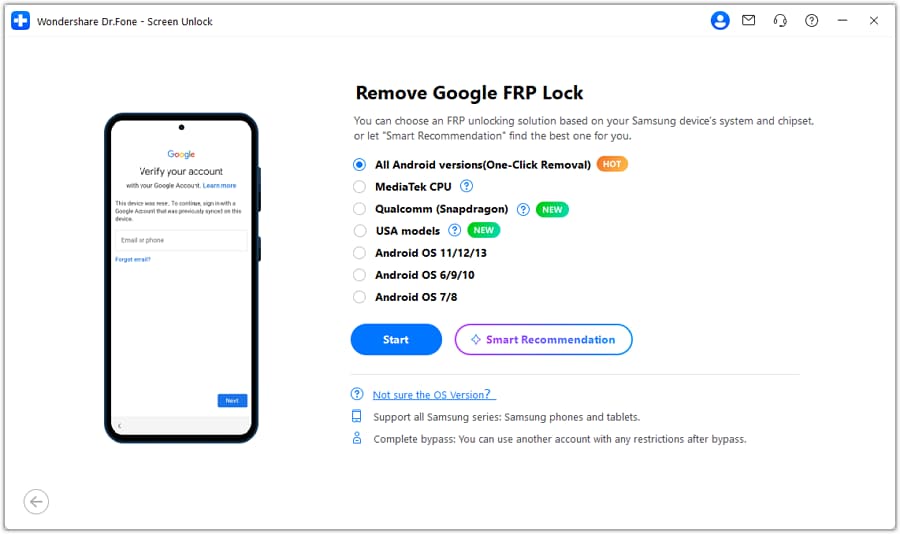
Step 3 Authorize USB Debugging
Your Samsung A14 will prompt you to allow USB debugging. Check the box for "Always allow from this computer" and tap "Allow." Back on the PC, click "Authorized." The software will now automatically strip the FRP lock from your device.




2-2. Tool 2. Bypassing FRP via Samsung Odin (Firmware Flashing)
For advanced users comfortable with flashing partitions, Odin is a classic choice. This method requires downloading a specific "Combination Firmware" file that matches your A14's binary version. By flashing these system components, you can bypass the setup wizard and clear the Google Lock.
Step 1 Prepare Firmware and Enter Download Mode
Download the correct firmware for your region and binary version. Power off your Samsung A14, then hold Volume Up + Volume Down while plugging it into your PC to enter Download Mode.
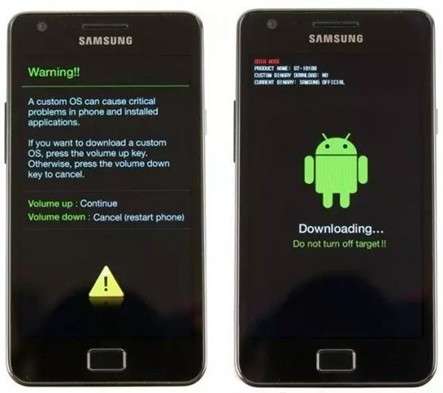
Step 2 Connect to Odin
Open Odin on your computer. Your device should appear under "ID:COM." If it doesn't, ensure you have the latest Samsung USB drivers installed.
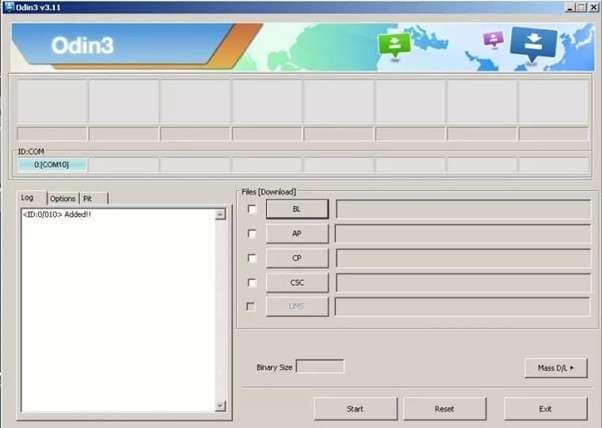
Step 3 Flash the AP File
Click the "AP" button and select your combination file. Ensure "Auto Reboot" is checked and click "Start." Once the process shows "Pass," your phone will reboot with unlocked settings.
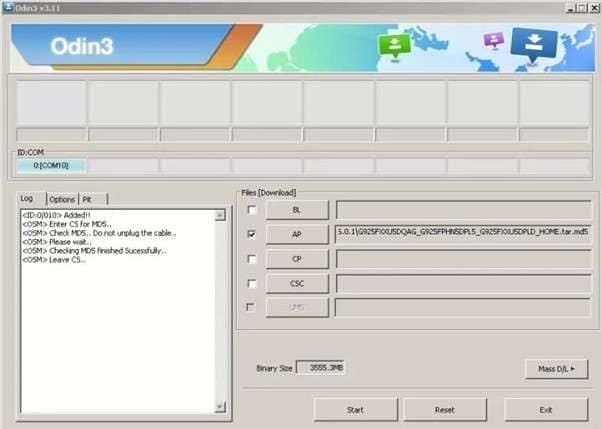
2-3. Tool 3. VG 4.1 Tool for Exploit-Based Removal
The VG Tool V4.1 is a specialized utility that targets the MediaTek chipset often found in the A14 variants. It utilizes the "BROM Mode" exploit to force the hardware into a state where security registers can be overwritten.
Step 1 Setup VG Tool
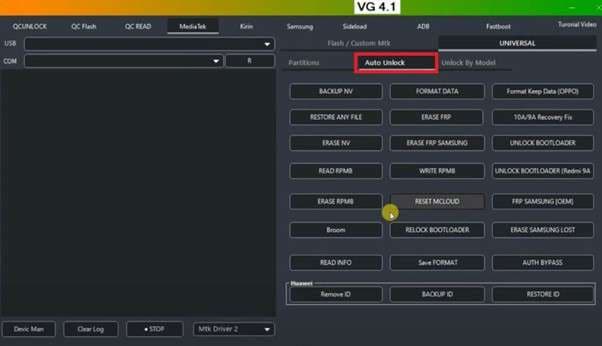
Install VG Tool V4.1. Open the "MediaTek" tab and select the "Universal" section. Connect your A14 to Wi-Fi, then turn it completely off.
Step 2 Select Auto Unlock
Navigate to the "Auto Unlock" menu and click the "Broom" button. This prepares the software to intercept the device during its boot cycle.
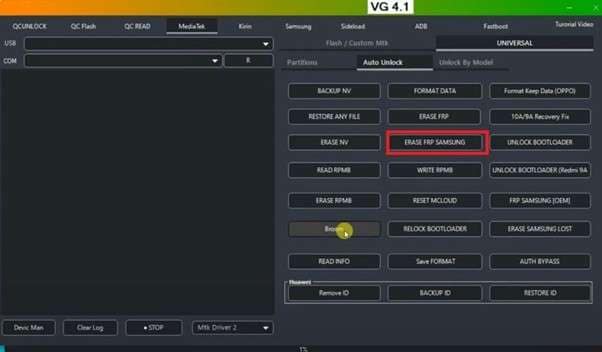
Step 3 Execute Erase FRP
Hold both Volume keys and plug in the USB cable. Once the tool recognizes the device in BROM mode, click "Erase FRP Samsung." Unplug and restart once the "Operation Success" message appears.
Part 3. How To Bypass FRP on Samsung A14 Without a PC
If you don't have access to a computer, you can attempt a manual bypass using the Talkback exploit. This method is significantly more difficult as it relies on navigating through various security loopholes and installing specific utility apps.

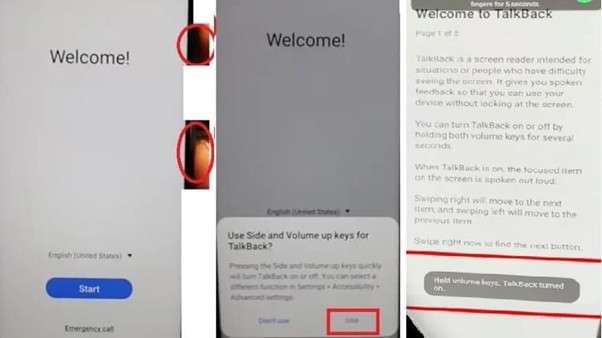
Step 1 Enable Talkback Mode
Power on the device and connect to Wi-Fi. Press Volume Up + Power simultaneously to activate Talkback. Draw a reverse 'L' on the screen to open the voice command menu. Say "Open Google Assistant."
Step 2 Access the Chrome Browser
Once Assistant opens, use your voice to say "Open YouTube." Inside YouTube, go to Settings > About > YouTube Terms of Service. This will force the Chrome browser to open.
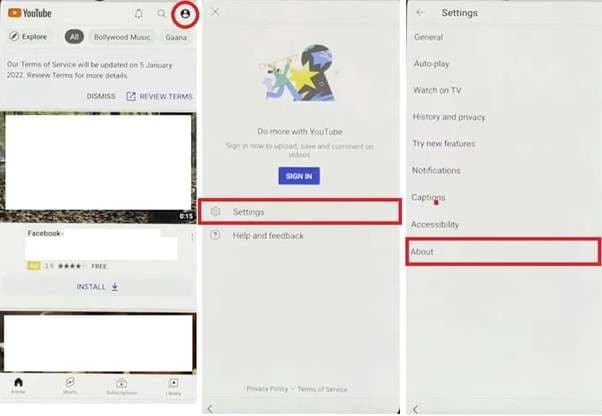
Step 3 Use FRP Bypass APK Tools
In Chrome, search for https://tiny.cc/frptools. Download and install "Package Disabler Pro" and "Files Shortcut." You will need to sign in with a Samsung Account in the Galaxy Store to install Files Shortcut.
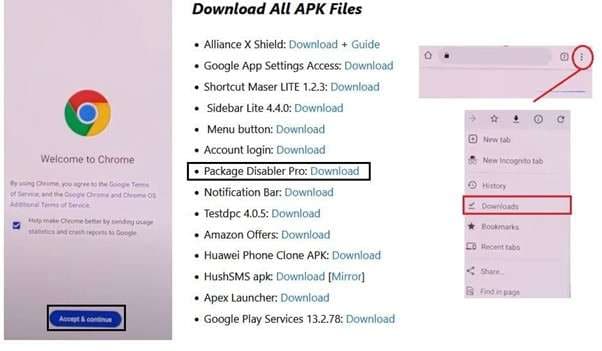
Step 4 Grant System Permissions
Navigate to Settings > Privacy > Permission Manager > Files and Media. Find "Package Disabler Pro" and set it to "Allow management of all files." This is critical for the app to function.
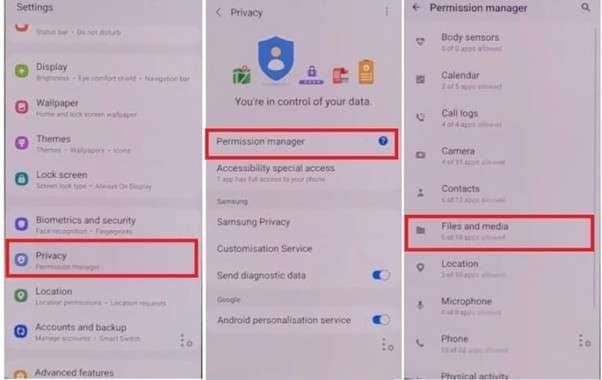
Step 5 Clear Setup Wizard Data
Open Package Disabler Pro, search for "Setup," and disable "Android Setup." Then, find "Samsung Setup Wizard" and click "Clear Data." Your device will skip the Google verification screen and take you directly to the home page.
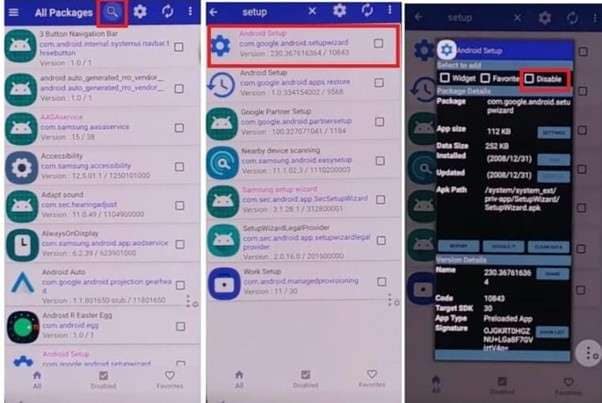
Conclusion
Managing a Samsung A14 FRP removal in 2026 doesn't have to be a stressful experience. While manual no-PC methods and flashing via Odin remain viable options for tech-savvy users, they carry a high risk of failure or device instability. For most users, the most efficient path to success is using a professional tool like Dr.Fone - Screen Unlock (Android). Its ability to handle Android 15 security patches with a simple one-click interface makes it the top recommendation for regaining access to your Galaxy A14 safely and quickly.
FAQ
1. What is the “test point” method for Samsung FRP?
This hardware-level technique involves opening the phone and short-circuiting specific pins to force it into EDL or BROM mode. It is highly effective but should only be performed by professionals as it voids warranties and risks physical damage.2. Can I permanently disable FRP on my Samsung A14?
Yes. To prevent FRP from locking your device in the future, navigate to Settings > Accounts > Google and remove all logged-in accounts before performing a factory reset. Additionally, enabling "OEM Unlocking" in Developer Options will disable FRP.3. Does bypassing FRP void my Samsung warranty?
Soft-bypassing via tools like Dr.Fone typically does not void hardware warranties as no physical changes are made. However, using Odin to flash modified firmware or using the test point method will likely void your official Samsung warranty.4. Will I lose my data after a Samsung A14 FRP bypass?
Generally, yes. Since FRP occurs after a factory reset, your local data is already erased. The bypass process itself clears the remaining Google credentials stored in the secure partition to allow you back into the system.
 Add Wondershare Dr.Fone as a preferred source on Google