

 TL;DR:
Transferring an eSIM to a new phone requires deactivating the digital profile on your old device and activating it on the new one, which mandates that both phones are Wi-Fi-connected and the new device is strictly SIM-unlocked.
● Apple devices support direct migration using the iPhone Quick Start proximity feature during initial setup, whereas Android devices require Android 12 or newer to use the built-in SIM transfer wizard located in the network settings.
● Moving an eSIM between an iPhone and an Android phone, or transferring a profile when your old device is unavailable, requires generating and scanning a new activation QR code through your carrier's application or website.
● Carriers generally restrict self-service eSIM transfers to one or two times per year, and attempting to migrate to a carrier-locked device will fail unless the network restriction is removed through your provider or tools like Dr.Fone Online Unlock.
Ask AI for a summary
 ChatGPT
 Perplexity
 Gemini
 Claude
 Grok
Grok
You just bought your new phone. It looks nice, runs faster, and is ready to set up. How to transfer eSIM to another phone? It cannot be removed and reinserted like a SIM card. Digital SIMs in phones linked to carrier accounts are called eSIMs. This simplifies the process yet confuses novices. Users frequently ask: Can I transfer my eSIM directly? Should I contact my carrier? Will I lose my number? Fear not, because this guide has got you covered. Let's find out how to transfer eSIM to a new iPhone, switch between Android and iPhone, and more.
 Verify your device info safely
In this article

Part 1. What You Need Before Transferring eSIM
Before transferring your eSIM to another phone, learn how it works and what you need. This prevents errors and streamlines the procedure.
1.1 What Is an eSIM and How Is It Different from a Physical SIM?
Embedded SIMs are incorporated inside phones. No inserts or removals are needed, unlike a nano-SIM card.
- It's digital, not physical.
- Connected to your carrier profile
- One device may store numerous eSIM profiles
- Only one profile can be active
Thus, you cannot "move" it like a SIM and must set it up on the new device.
1.2 Can You Actually "Transfer" an eSIM?
An eSIM is deactivated on your old phone and activated on the new one.
- Most carriers allow 1-2 transfers per year.
- Some carriers demand support calls.
- Others allow app or website transfers.
Yes, you can transfer it, but your carrier decides how.
1.3 What You Need Before You Start
Prepare everything before starting:
- Both phones are on and Wi-Fi-connected.
- You know your carrier login.
- New phone supports eSIM
- Phone is SIM-unlocked
Having them ready will streamline your eSIM transfer. Let's explore how to transfer esim from one phone to another.
Part 2. How to Transfer eSIM to a New iPhone
Apple makes it easy to transfer eSIMs, especially if both iPhones are available. Simplest methods are below.
Method 1: Transfer eSIM Using iPhone Quick Start (Both Phones Available)
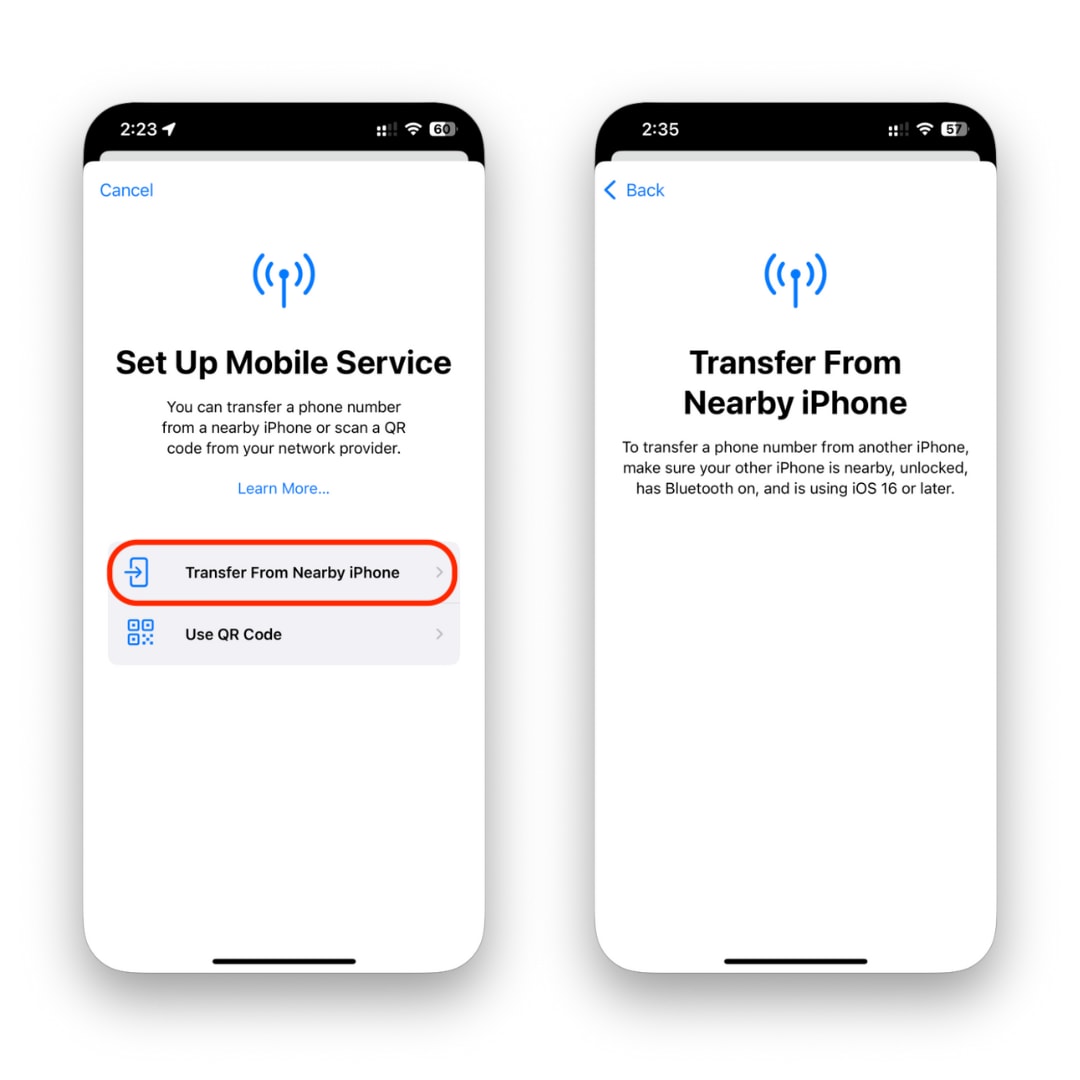
This is the fastest and easiest way to transfer eSIM to a new iPhone. It requires both devices to be nearby during setup. Here's how to move eSIM from one phone to another: Below are the steps:
- Step 1. Activate your new iPhone and set it near your old unlocked iPhone.
- Step 2. When the setup prompt opens on your old iPhone, hit "Continue."
- Step 3. Use your old iPhone to scan the animation on your new one.
- Step 4. Sign in using your Apple ID on the new iPhone and continue the setup procedures.
- Step 4. On the Set Up Cellular screen, pick your phone number or select "Transfer From Nearby iPhone."
- Step 5. Tap "Continue" on your previous iPhone to confirm the transfer.
- Step 6. Enter your new iPhone's verification code.
- Step 7. Complete the setup process.
That's how to change esim from one phone to another.
Method 2: Transfer eSIM via Carrier App or Website
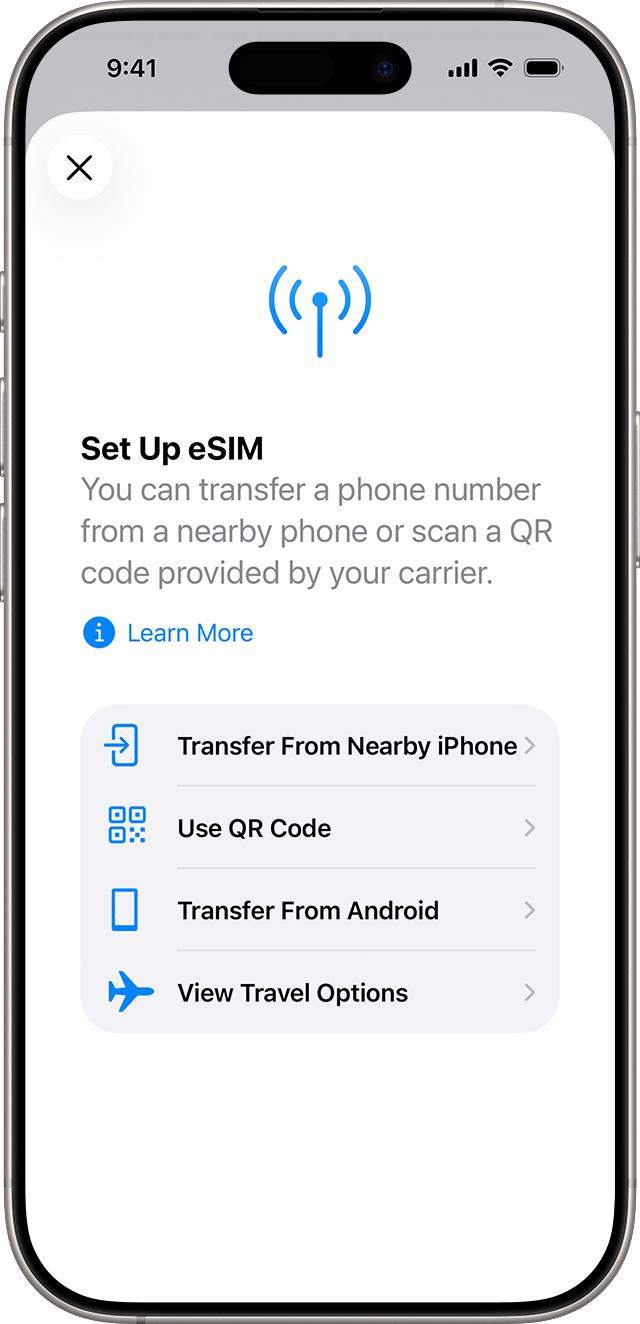
Even without Quick Start, you can transfer eSIM using your carrier's app or website. Let's see how:
- Step 1. Launch the App Store and download your carrier's app (e.g., Verizon, T-Mobile, AT&T).
- Step 2. Log in with carrier credentials.
- Step 3. Select "Manage Device or Transfer Cellular Plan."
- Step 4. Move your eSIM to the new iPhone using the on-screen instructions.
You may activate your eSIM with a QR code from some carriers.
Method 3: How to Transfer eSIM to New iPhone Without Old Phone
Carrier activation lets you move your eSIM to another phone if you don't have your old one. Let's see how to change esim from one phone to another:
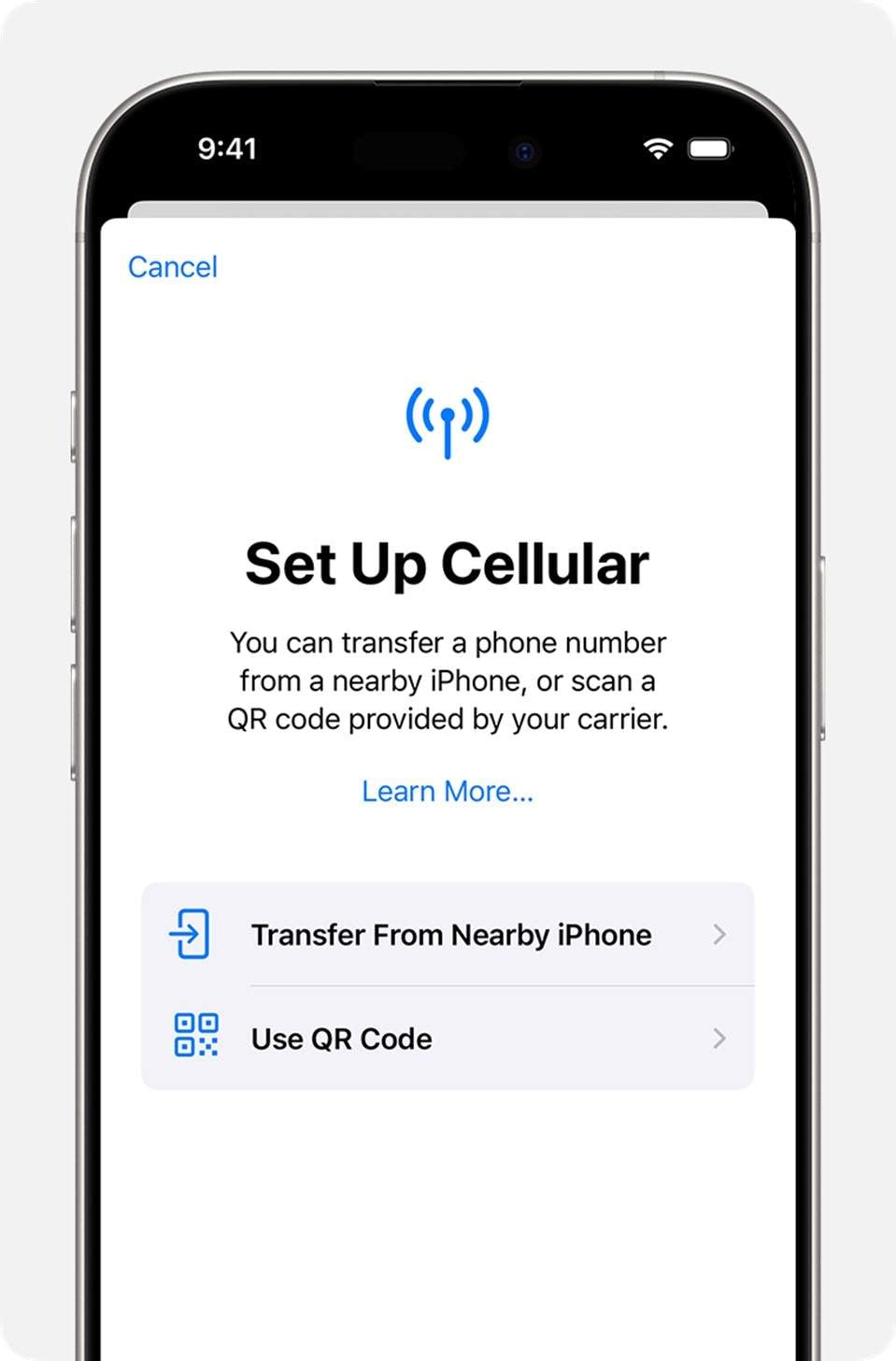
- Step 1. Use your carrier's app, website, or customer support to request a new eSIM for your new iPhone. They'll provide a new QR code for existing e-sim.
- Step 2. Turn on your new iPhone and connect to Wi-Fi. Follow the setup until Cellular Setup.
- Step 3. Tap Use QR Code and then "Continue."
- Step 4. You can also choose a cellular plan to transfer from another iPhone (if it appears). Complete activation and await the Cellular Setup Complete message.
If no plan appears:
- Contact your carrier.
- Await "Carrier Cellular Plan Ready" notice.
- Activate eSIM by going to Settings → Cellular → Add e-sim.
Part 3. How to Transfer eSIM Between Android Phones
Switching Android phones requires a different eSIM transfer process than iPhone.
Method 1: Using Android's Built-In Transfer Wizard (Android 12+)
The setup tool in Android 12 and subsequent phones transfers eSIM to a new phone. Step 1. Open Settings app. Step 2. Tap Network & internet, and then SIMs, and then Add eSIM, and then Transfer SIM from another device. Note: These steps might not be accurate for your Android phone and may vary with the brand.
Method 2: Samsung-Specific eSIM Transfer Steps
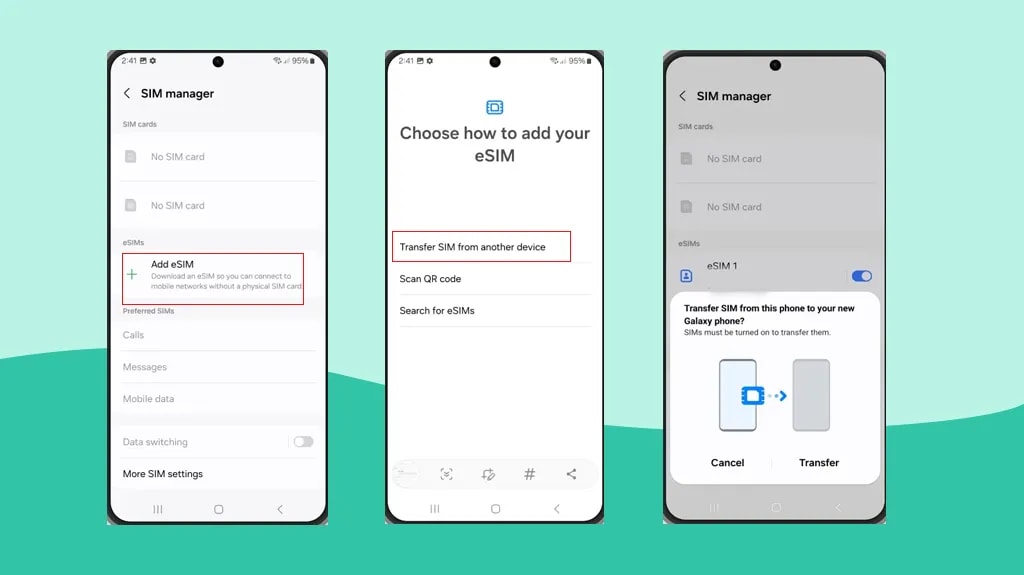
Samsung phones allow eSIM transfer via settings. Let's find out how to transfer an esim to a new phone:
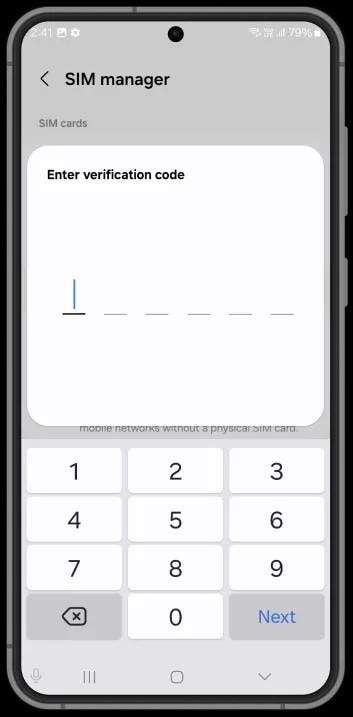
- Step 1. Go to "Settings > Connections > SIM Manager > add eSIM."
- Step 2. Use "Add mobile plan."
- Step 3. Select "Transfer SIM from another device" if available.
- Step 4. On your old device, enter that 6-digit verification code that you see on your new device.
- Step 5. On your new Galaxy device, select a phone number from the list provided by your old Galaxy device, then tap Transfer.
Method 3: Google Pixel-Specific eSIM Transfer
Built-in utilities on Google Pixel phones make eSIM transfer straightforward. Follow the steps:
- Step 1. Go to Settings > Network & internet > SIMs > Add SIM.
- Step 2. Tap on Transfer a SIM from another device.
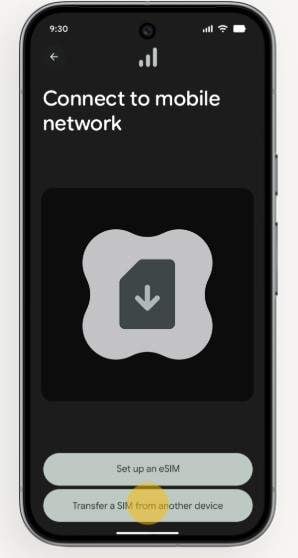
- Step 3. Transfer your eSIM from your old handset to your new one by following the on-screen instructions.
You can manually transfer:
- Scan your carrier QR code.
- Or activate the eSIM using your carrier account.
Part 4. How to Transfer eSIM from iPhone to Android (and Vice Versa)
Switching platforms can be difficult. But if you're wondering how to transfer eSIM between iPhone and Android phones is still straightforward. The same principle applies: take the eSIM from the old handset and activate it on the new one with your carrier.
Method 1: From iPhone to Android
Transfer eSIM from iPhone to Android using these steps:
- Step 1. Power on your Android phone.
- Step 2. While using your iPhone, open the Camera application and point it at the QR code displayed on the Android device screen.
- Step 3. Besides photos, contacts, messages, and calendars, you can also add call history (optional) for transfer. Then, press Continue.
- Step 4. When your data finishes transferring, hit Continue to transfer the eSIM.
Method 2: From Android to iPhone
These instructions let you transfer eSIM to a new iPhone if you're switching back:
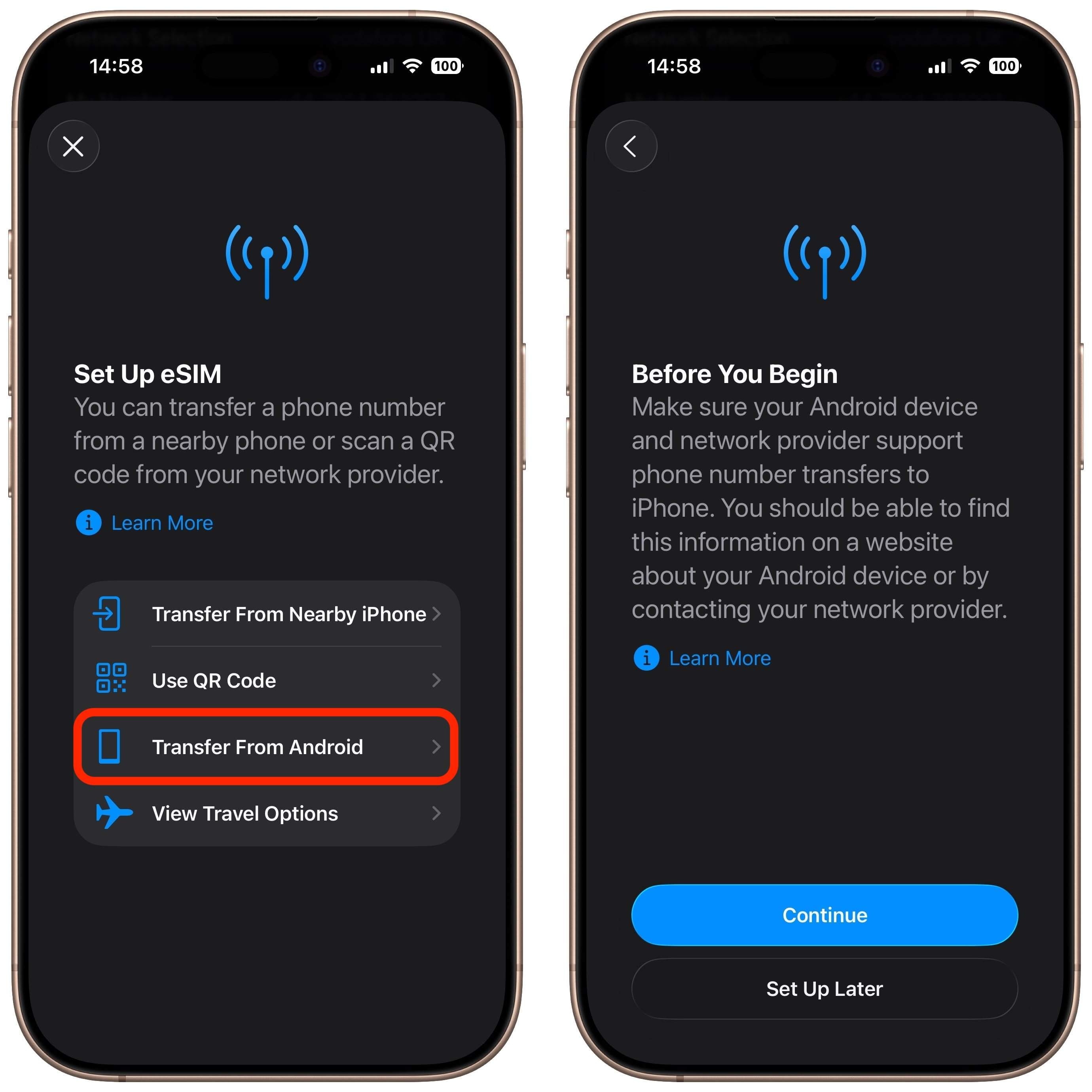
- Step 1. Launch Settings on your iPhone and tap on Set Up Cellular, then Transfer from Android.
- Step 2. Scan the QR code on your iPhone with its camera.
- Step 3. Tap on Yes to confirm that the transferred SIM will be your primary eSIM.
Part 5. SIM Unlock: What to Do If Your Phone Is Locked
Before transferring eSIM, make sure your phone is locked. SIM-locked phones might prevent transfers and cause issues.
Why SIM Lock Blocks eSIM Transfer
A SIM lock limits your phone to one carrier. Your eSIM may not operate on a new device.
- Locked phones only work with one carrier's SIM or eSIM.
- An eSIM from another carrier may fail or give an error.
- Even same-carrier transfers may fail on contract phones.
- Checking Your Phone for SIM Lock
You may simply check this in settings:
On iPhone:
- Go to Settings → General → About → Carrier Lock.
- "No SIM restrictions" = Unlocked
On Android:
- Go to Settings → Connections → SIM card manager
- Look for lock or restriction messages.
Simple Test:
SIM from another provider. It unlocks your phone if it works.
Unlock Your SIM Quickly with Dr.Fone Online Unlock
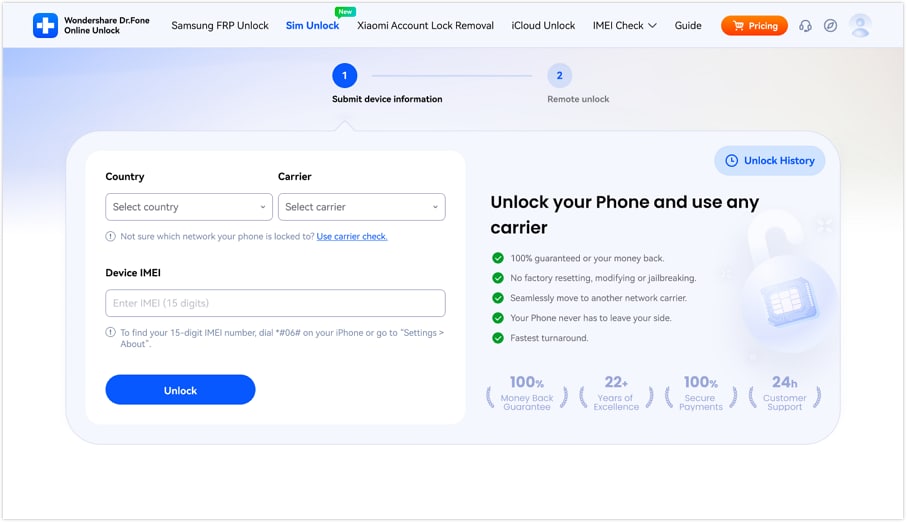
Fix a locked phone and transfer eSIM to a new one without problems. One simple option is Dr.Fone Online Unlock. Wondershare's web-based SIM lock remover works on Android smartphones. No program is needed because it works in your browser. The method is easy for beginners.
Dr.Fone Online Unlock
Easily bypass Samsung FRP, remove Xiaomi account locks, and check IMEI with one trusted tool — fast, secure, and user-friendly.
- One-click Samsung FRP removal, no tech skills required.
- Unlock Xiaomi devices without a password.
- Supports 20+ different types of IMEI checks.
- Free IMEI check with no login, no ads, and instant access.
- Fully mobile-optimized for effortless on-the-go access.
Verify your device info safely in one clickDr.Fone Online Unlock lets you lift your phone's SIM lock conveniently and securely, without the need for a factory reset, jailbreak, or sending your device out. Besides Apple, Samsung, Google, Xiaomi, Motorola, and other major brands, this service is also compatible with the carriers globally. This tool has various uses. If your carrier won't unlock your phone, you bought a used locked handset, or you want to switch carriers but your phone doesn't take eSIM. You can also use it when traveling to get a local SIM or eSIM.
Verify your device info safelyConclusion
Understanding eSIM transfer makes it less complicated than it looks. Moving eSIM from one mobile to another, changing between iPhone and Android or changing carriers is hassle-free. Firstly, make sure your phone is unlocked, then get your devices ready, and lastly, follow the steps meticulously. Dr.Fone Online Unlock is the trustworthy tool that aids in unlocking device and making transfers more convenient. You are able to change your eSIM location without a number or data loss by these simple steps.
Verify your device info safelyFAQs
-
Q: Does transferring an eSIM cost money?
A: Most eSIM transfers are free. However, some carriers may charge a nominal cost for new QR code activation or issuance.
-
Q: Will I lose my phone number when transferring an eSIM?
A: No. It's your carrier account, not the device, that keeps our number. If the transfer is done correctly, your number will stay active.
-
Q: Can I transfer my eSIM to a new phone without calling my carrier?
A: Yes, in some sitautions. Many carriers offer app- or phone-based self-service transfers. Cross-device transfers or difficulties may require carrier contact.



Ahmed Absal
staff Editor
Generally rated4.5(105participated)