

 TL;DR:
You can unlock your phone to any network for free by submitting an official request to your carrier, provided the device is fully paid off, or you can use paid IMEI-based services if you do not meet carrier eligibility requirements.
● Official carrier requests take 2 to 5 business days and strictly require that the device has no remaining installment balance, overdue bills, blacklist flags, or fraudulent activity history.
● Completing an official iPhone unlock requires inserting a new carrier SIM card to trigger Apple activation servers, or performing a full data backup and factory reset if a new SIM is not immediately available.
● If you cannot get carrier approval, third-party IMEI tools like Dr.Fone Online Unlock bypass restrictions for iOS and Android in 0 to 24 hours, while newer Android models made after 2019 may feature a native unlock tool directly in the device settings.
Ask AI for a summary
 ChatGPT
 Perplexity
 Gemini
 Claude
 Grok
Grok
 Verify your device info safely
Just imagine you bought a new smartphone only to realize it's stuck on an expensive network plan. Whether you're traveling abroad and need a local SIM or simply finding a better data deal elsewhere, being locked to one provider feels like a dead end. Nevertheless, the solutions are there, and this guide uncovers simple and practical ways on how to unlock a phone to all networks for free. From free carrier approvals to efficient tools like Dr.Fone, learn about the unlocking requirements. Upon doing so, learn how Dr.Fone Online Unlock can be the ultimate solution for those who need a fast, reliable, and hassle-free way to bypass carrier restrictions.
In this article

Part 1. How to Check If Your Phone Is Locked to a Network
Before you learn how to unlock a phone to any network for free, it's important to know if the device is locked. So, follow the steps mentioned and confirm your smartphone's current status before proceeding with any technical steps:
Method 1: The SIM Card Test (Most Reliable)
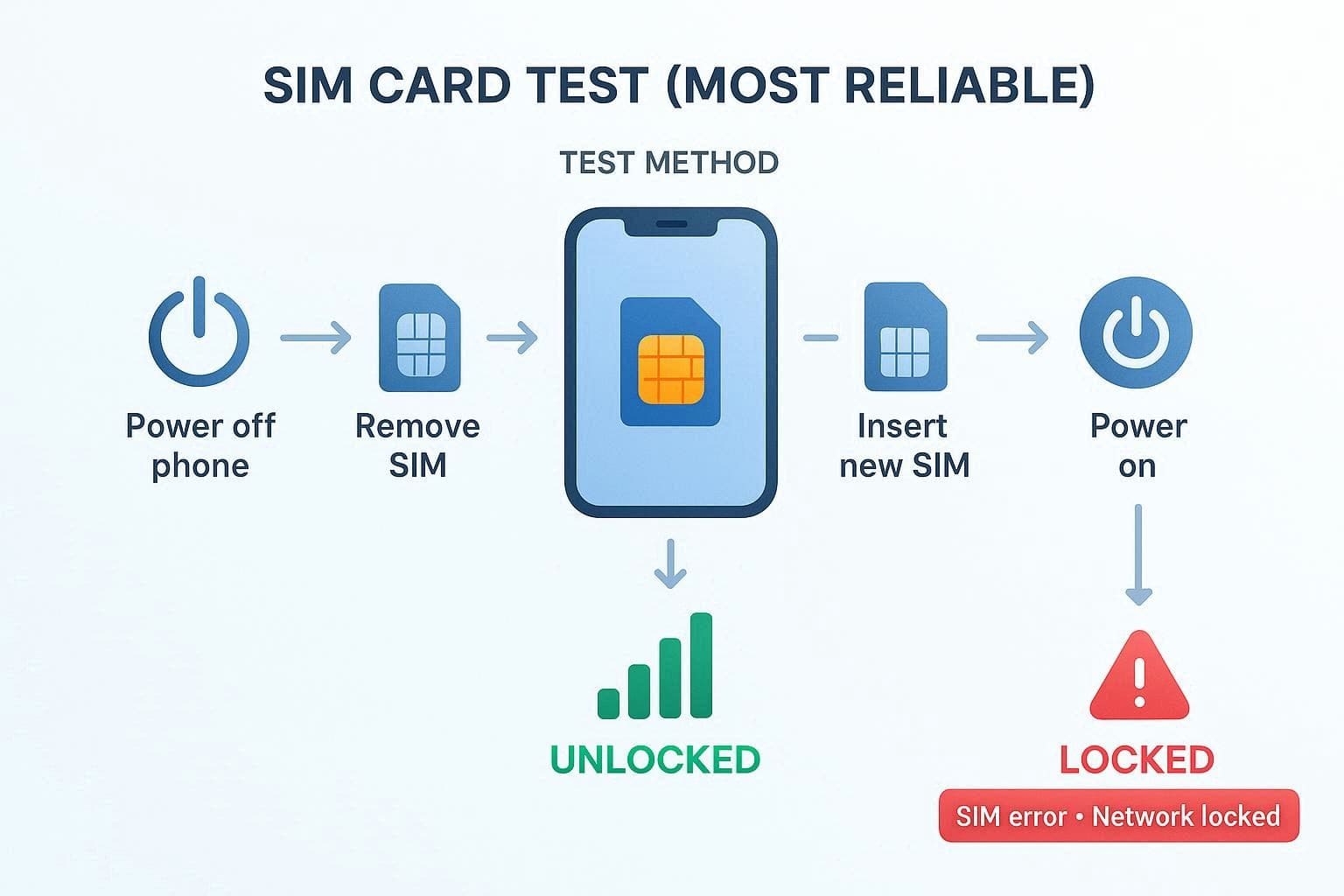
This is the quickest way, as you just have to power off the device, remove the SIM card, and insert the new one. Upon powering on the phone, if it detects a signal and allows you to make a call, it is unlocked. However, if a message like “SIM Not Supported,” “Network Locked,” or “Invalid SIM” appears, your phone is likely locked.
Method 2: Check via Settings (No SIM Required)
It's another no-cost method for determining lock status, and it takes only seconds to show carrier restrictions or network options. Furthermore, it is safe because no system changes happen, and no data risk exists, and it works without another SIM, as guided:
For iPhone (iOS 14 or Later)
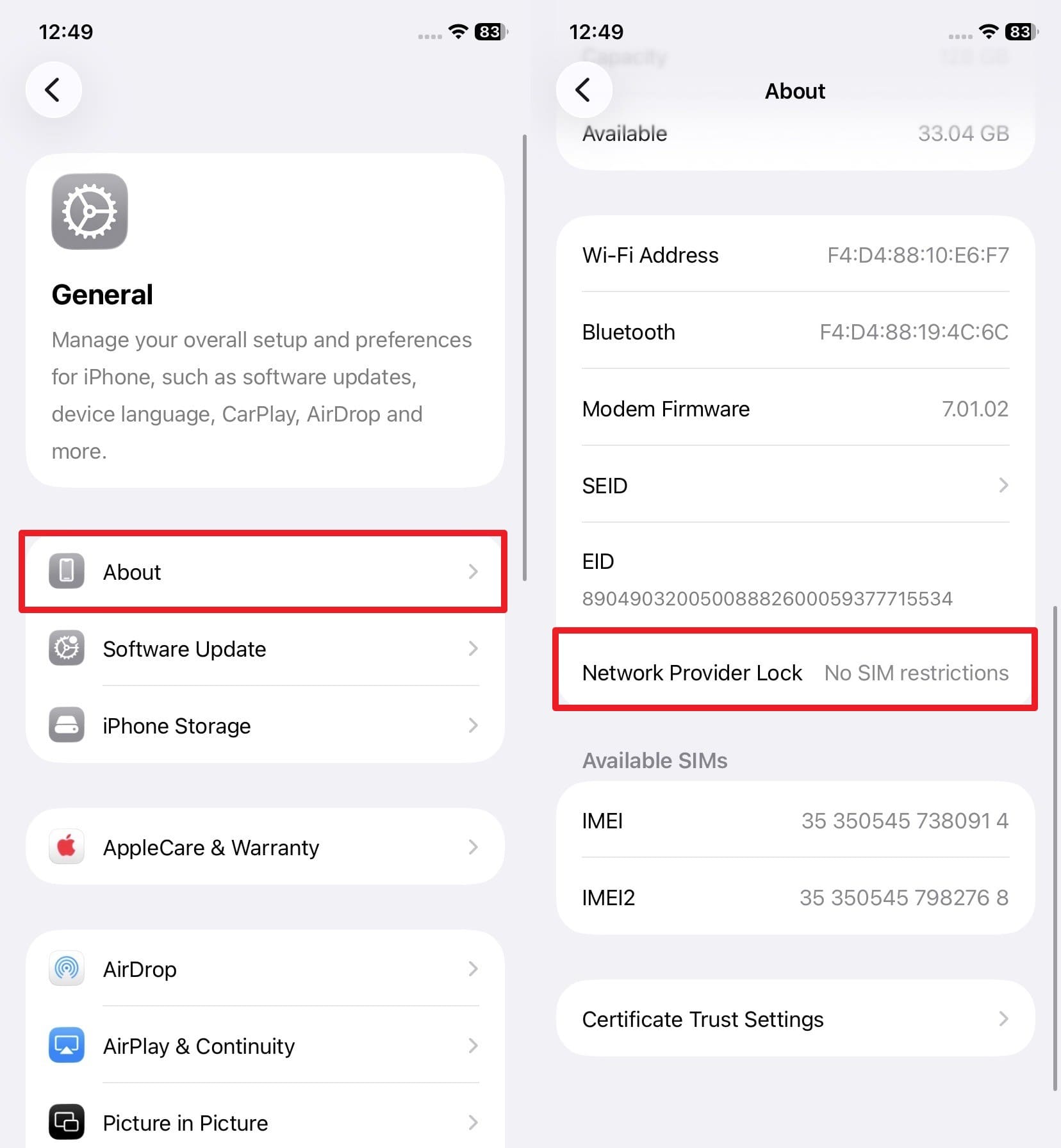
Instructions: In the General settings, choose the “About” option and navigate to the “Network Provider Lock” option. If it says “No SIM Restrictions,” the device is unlocked.
For Android (Menu Names Vary by Manufacturer)
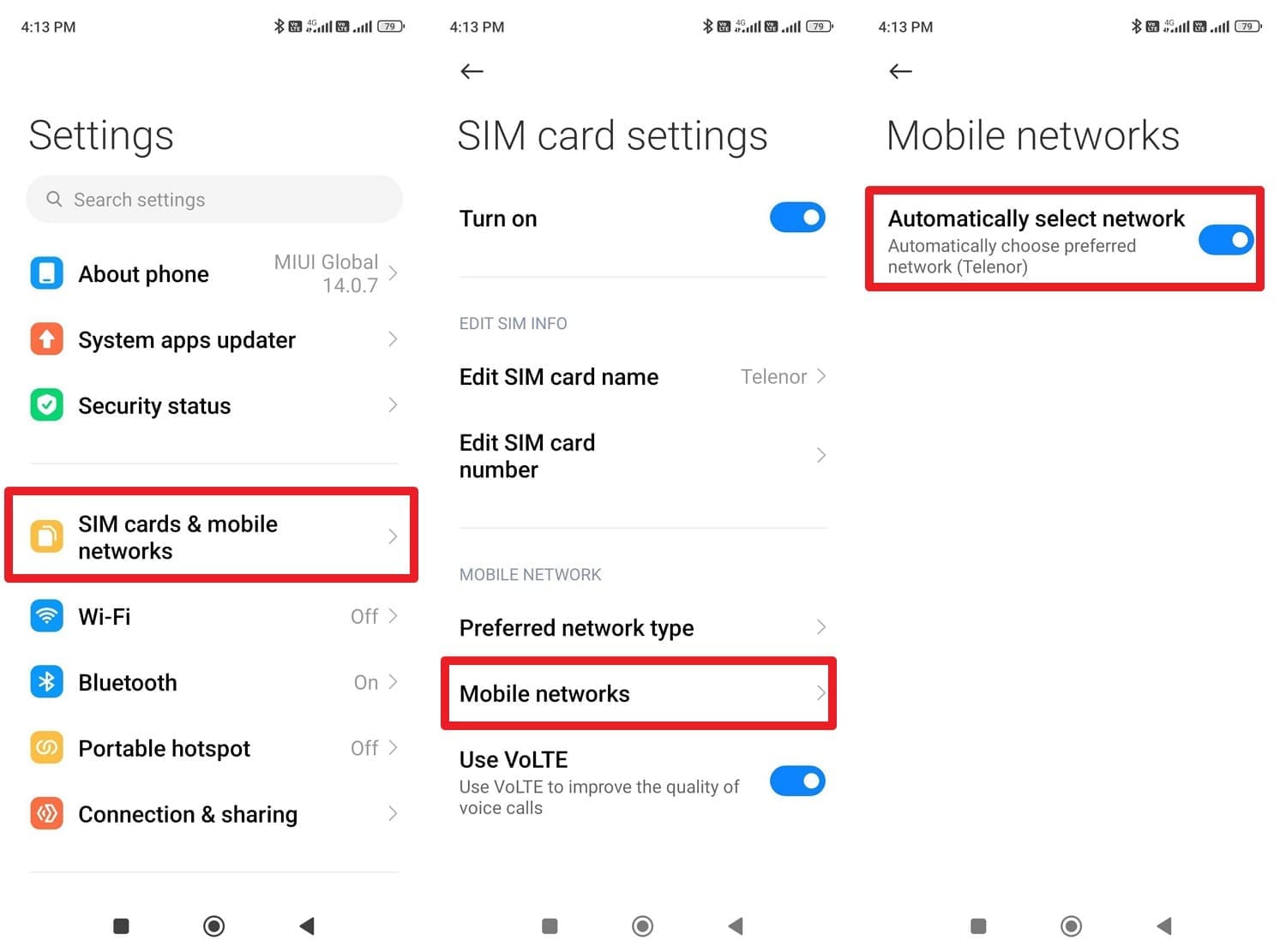
Instructions: Choose “SIM Cards & Mobile Networks” in the settings, then tap on the SIM to select the “Mobile Networks” option. Here, toggle the “Automatically Select Network” option, and if you see a list of multiple available carriers, the phone is unlocked.
Method 3: Check via IMEI (Online)
As you want to know how to open a phone to any network, dial “*#06#” and find your device's IMEI details. Other than that, you can find the details in the settings by following the steps for iOS and Android, and use an online checker like Dr.Fone Online Unlock. Otherwise, add the IMEI details on the carrier's official device support page, where you can see the official local status and warranty details:
For iPhone
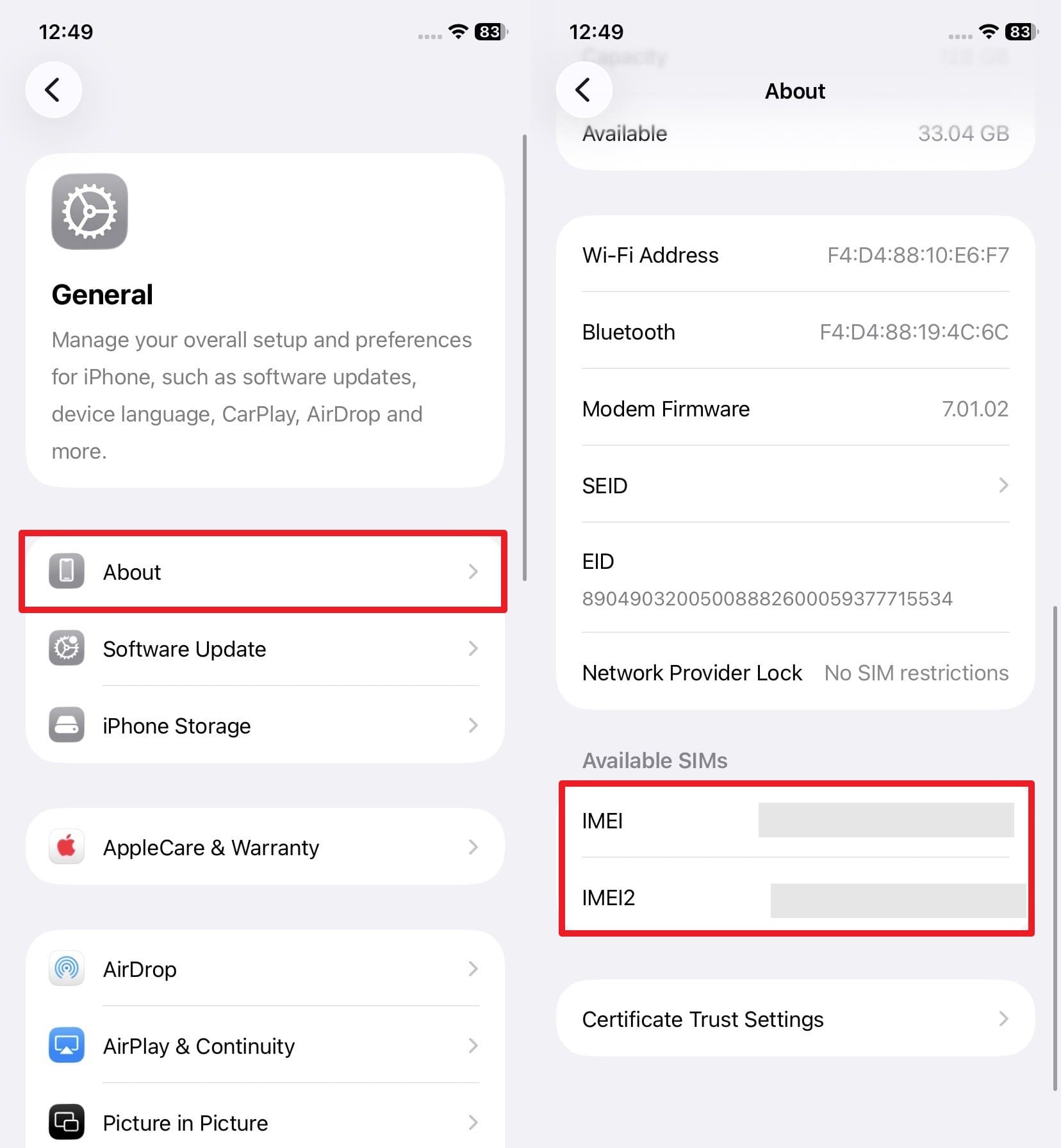
Instructions: Go to the General settings and tap on the “About” option to head to the new interface. There, scroll down and note the IMEI details to check the lock status later.
For Android
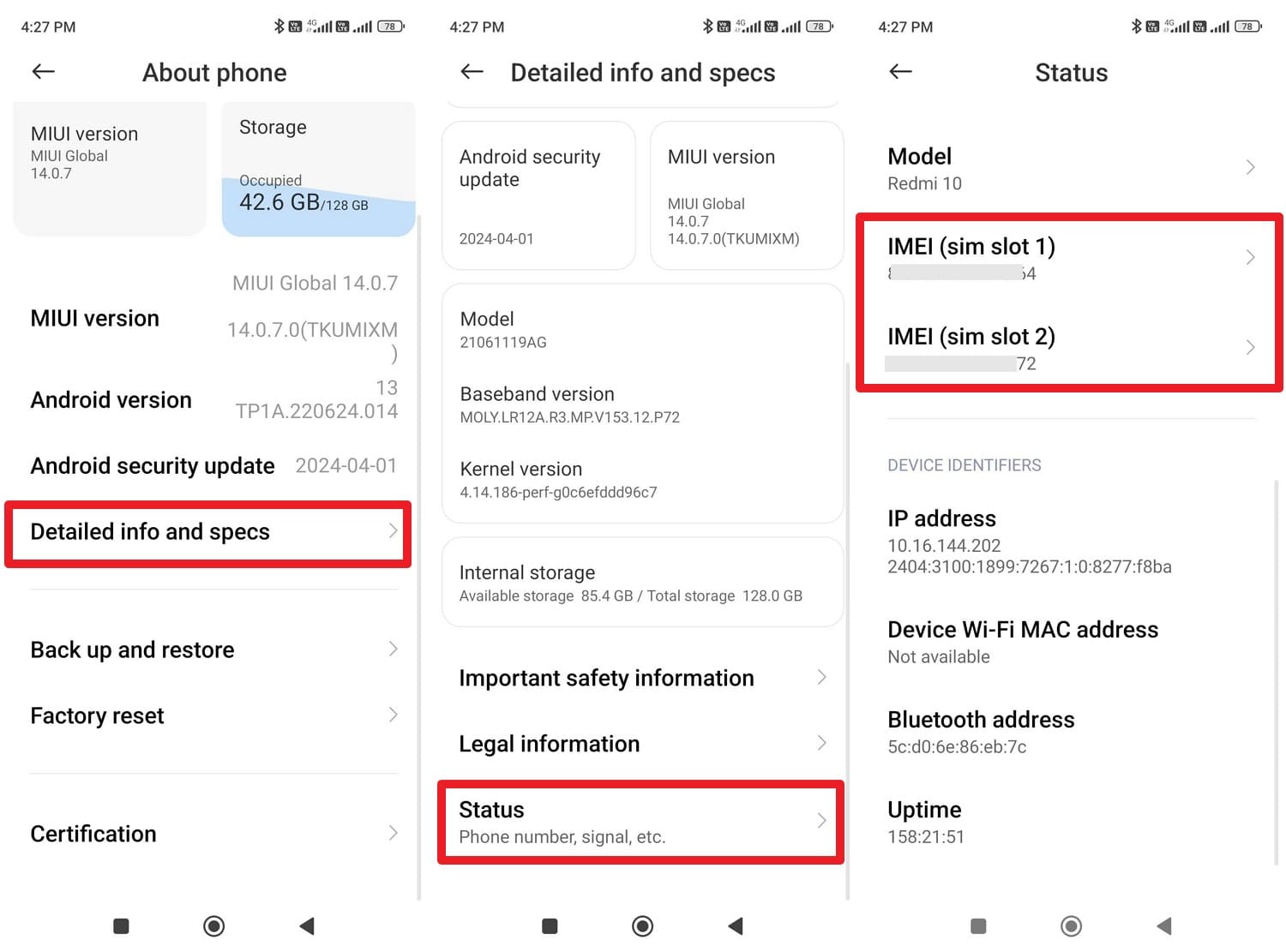
Instructions: In the About Phone settings, pick the “Detailed Info and Specs” option and choose the “Status” option. Find the “Device Identifiers” section and note the IMEI details for later use.
Part 2. Requirements to Unlock a Phone (Read Before You Start)
Let's say you now know the locked status and are ready to uncover the ways on how to open a phone to all networks. If so, make sure you meet the listed unlocking requirements for Android and iOS set by carriers and federal regulations:
- Your phone must not have a remaining installment balance or financing debt with carriers.
- Ensure there are no overdue bills, fraud flags, or collections on your account.
- The device must not be flagged as stolen, blacklisted, or for fraudulent activity.
- Phones must be active on the carrier's network for a specific required period.
- You must prove the device was originally purchased from the specific carrier service.
Part 3. How to Unlock a Phone to Any Network for Free (Official Ways)
Once the requirements are met, explore the mentioned ways to learn how to unlock a phone to any network, including Android and iPhone. This simple method ensures the process is completely free and maintains your device warranty. Additionally, it provides a permanent, legitimate solution that keeps your phone's resale value high, and is guided ahead with AT&T as an example:
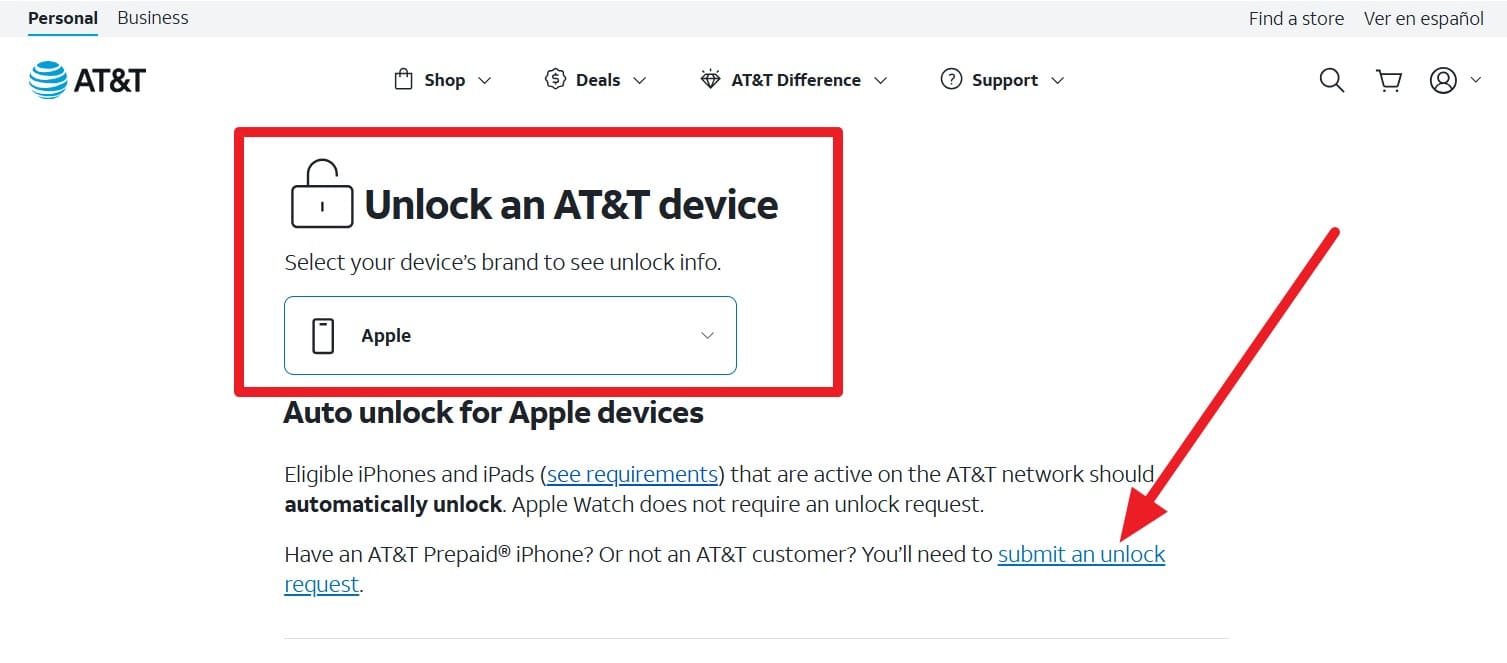
- Step 1. Having the requirements met for this career, choose “Apple” as the locked device under the “Unlock an AT&T Device” section. Then, press the “Submit an Unlock Request” option to continue the unlocking process.
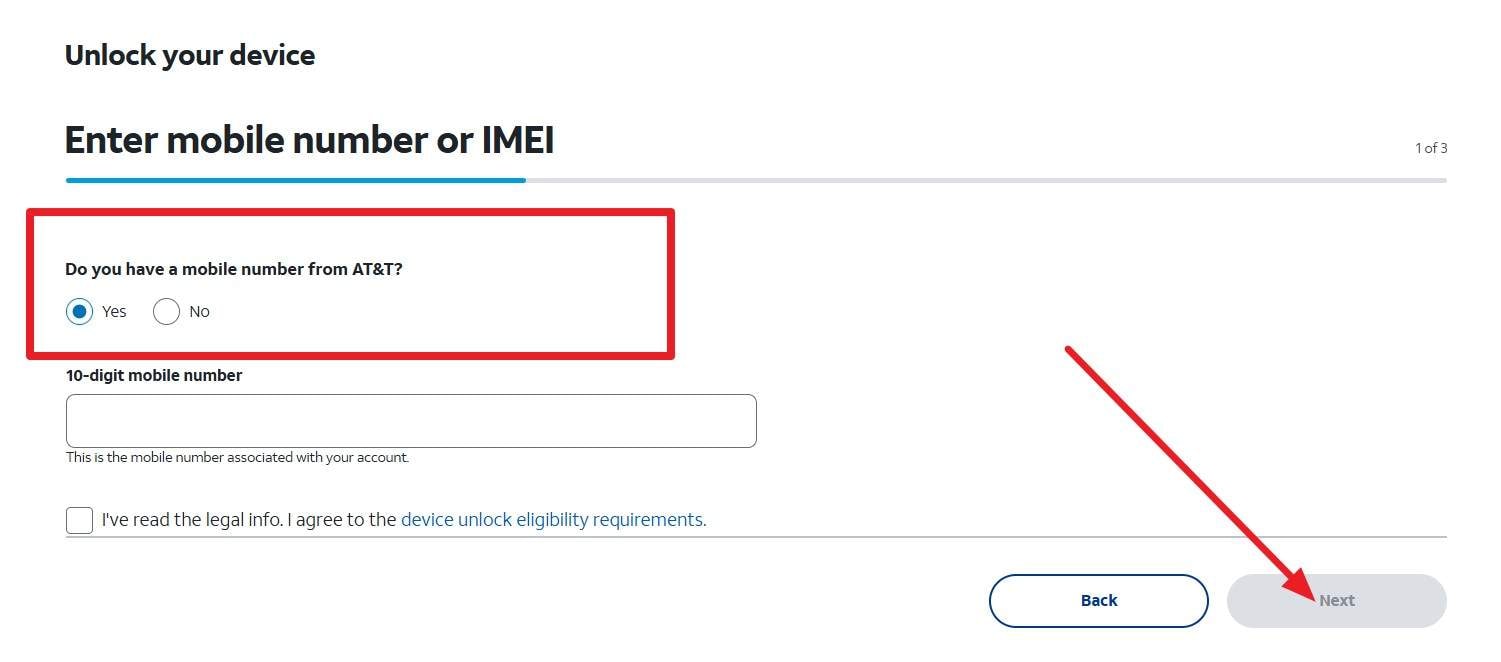
- Step 2. After that, choose the options for “Do You Have a Mobile Number from AT&T?”, and agree to the agreement. Add the MEI details when asked, give your email address, and press the “Next” button.
When you receive the confirmation message, tap the link in the email within 24 hours to finalize the request. The carrier will review your eligibility, and after the approval, you will receive a second email stating that your iPhone is now unlocked and ready for a new SIM card.
Complete the Unlock on the iPhone and Android
Now that you know how to unlock a phone to all networks, confirm it's unlocked on Android and iPhone via the listed ways:
For Android
Power off the phone, remove the old SIM, and add the new carrier's SIM. If it were a code‑based unlock, enter the network unlock code your carrier sent when prompted. After that, wait for the signal, test calls, and mobile data to confirm the phone is fully unlocked.
For iPhone
Since the Android method is simple, iPhone unlock confirmation varies depending on the situation. So, review the given condition and learn how to confirm the final method on how to unlock an iPhone to any network:
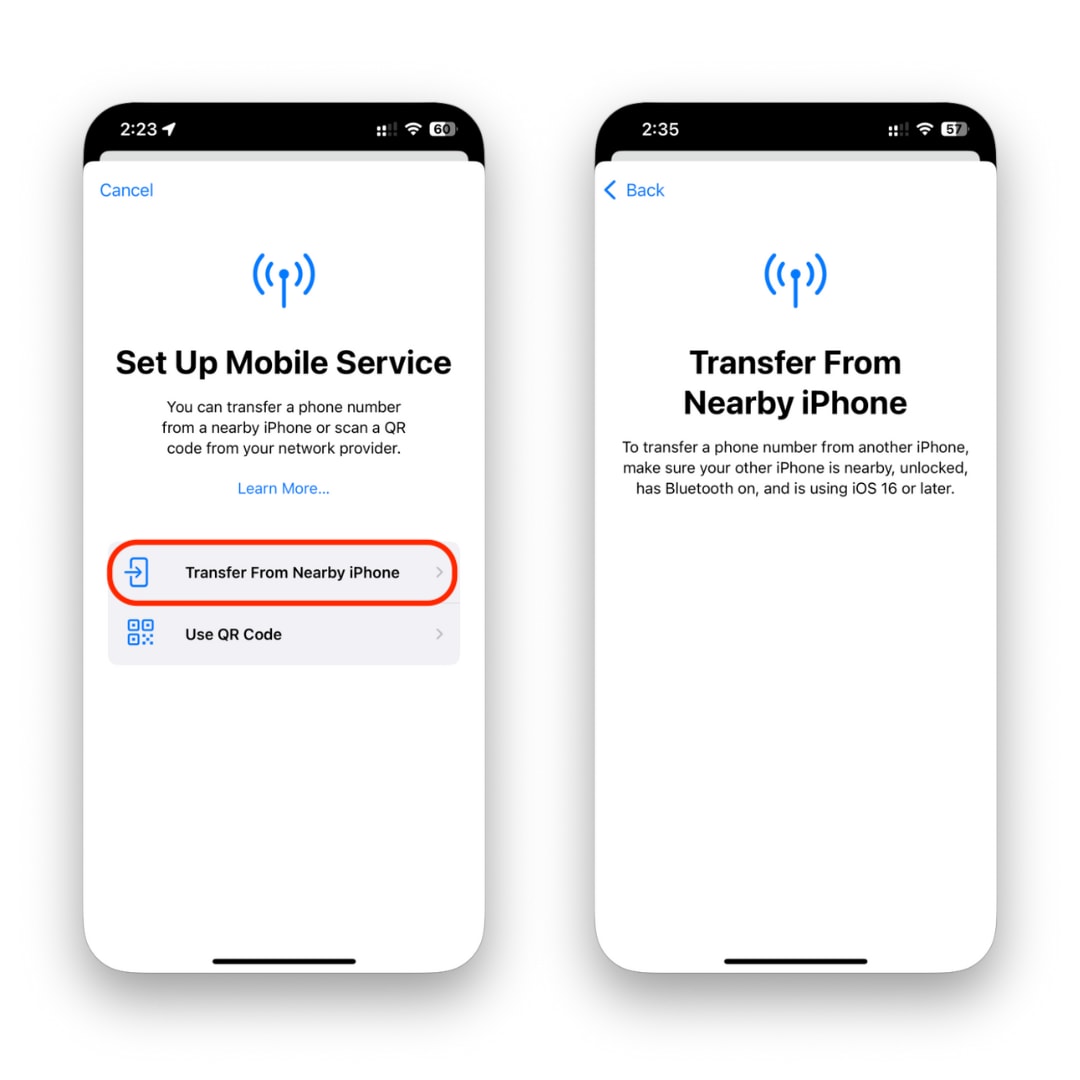
Situation 1: If You Have a New SIM Card: Turn off the iPhone, insert the new SIM, restart the device, then finish setup; the phone connects to Apple servers and activates the new signal.
Situation 2: If You Don't Have a New SIM Card: Back up your iPhone on iCloud or a computer to keep all the data safe before resetting. Then reset the iPhone (General > Transfer or Reset iPhone > Erase All Content and Settings > Continue).
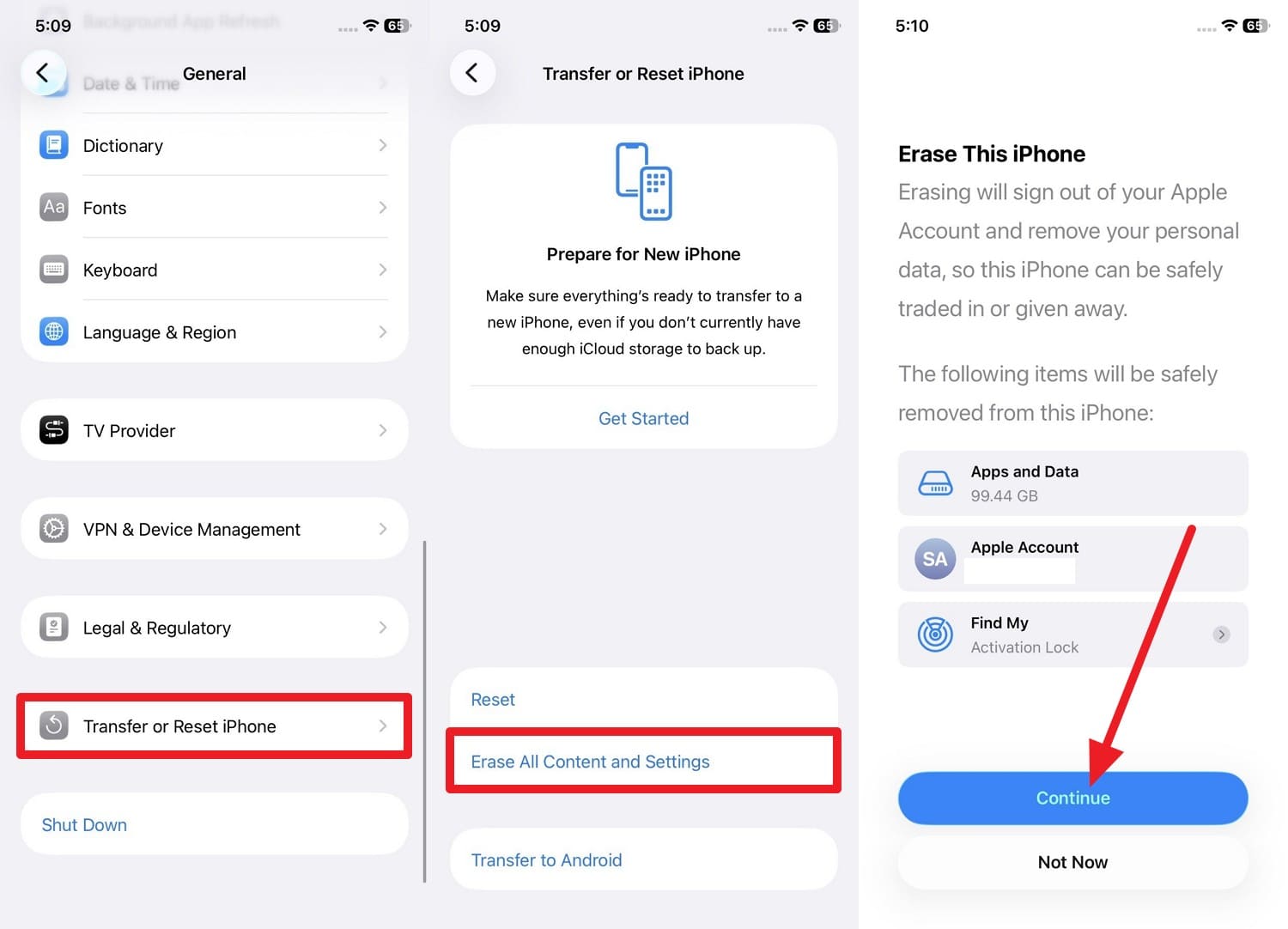
Restore the backup, and the device receives the unlock command during reactivation. Finally, check Settings > General > About > Network Provider Lock; it should say “No SIM Restrictions,” confirming it's unlocked to any compatible network.
Part 4. How to Unlock Phone to All Networks Without Carrier (Alternative IMEI‑Based Method)
Besides the free support solution, you can use applications and online IMEI‑based services to learn how to unlock a phone to any network. Thus, this section will share insights on how you can use built-in apps like Device Unlock/Network Unlock on Android and online tools like Dr.Fone Online Unlock. Since there is no native app that supports network unlocking for iPhones, you can rely on Dr.Fone's online service.
Note: On iPhone, the built‑in, official path is always through the carrier + Apple's activation system, not a separate app.
Way 1. Use the Device Unlock App for Android Unlocking
A Device Unlock app is a simple Android tool that lets you remove carrier restrictions remotely without needing technical skills or special codes. It works by sending your phone's IMEI to a server, making the unlock permanent even after software updates, and is guided ahead:
Instructions: Tap the “Permanent Unlock” option, and the device will connect to the carrier's servers. If your request is approved, you will see a message saying, “Unlock Approved.” Once it appears, tap the “Restart Now” button to remove the carrier lock.
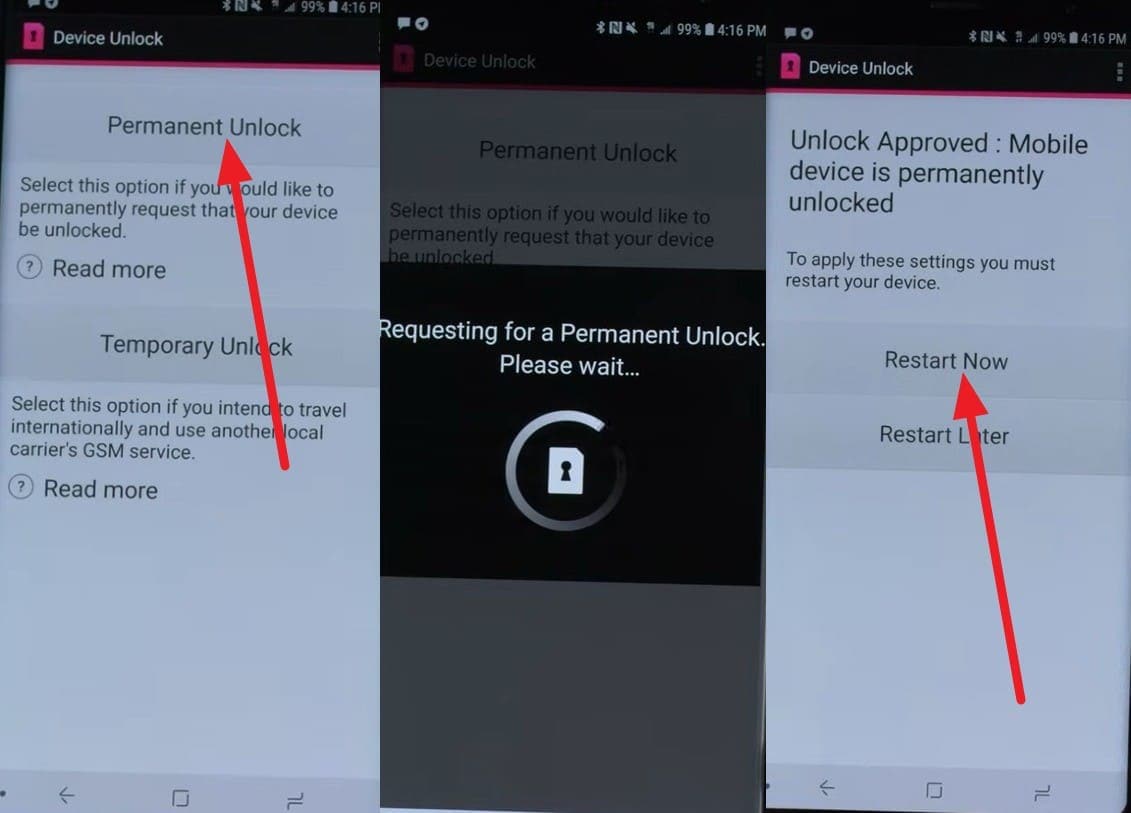
Note: For phones made after 2019, the unlock tool is usually built into the Settings menu rather than being a separate app icon.
For Newer Models: Go to Settings > Connections > More Connection Settings > Network Unlock. On some devices, it may be under Settings > About Phone > Device Unlock.
Way 2. Use Dr.Fone Online Unlock for Android and iOS
Other than the app, you can use the most advanced IMEI-based online tool, Dr.Fone Online Unlock, to remove carrier restrictions. This allows you to switch to different network providers without waiting for official carrier approval. By submitting your IMEI number, the tool initiates a server-side request to remove the network lock, ensuring the warranty remains intact. Additionally, it supports global carriers such as AT&T following its weekly updates.
Furthermore, it is optimized for popular Android manufacturers, including Samsung, LG, Apple, and T-Mobile. This means that, when you can't use the Device Unlock app on iOS, this tool ensures you can remove SIM restrictions in 0-24 hours, in 3 simple steps. Unlike other options, it does not require wiping your phone and avoids risky system modifications, letting you choose 2 options to get the detailed unlocking report.
Dr.Fone Online Unlock
Easily bypass Samsung FRP, remove Xiaomi account locks, and check IMEI with one trusted tool — fast, secure, and user-friendly.
- One-click Samsung FRP removal, no tech skills required.
- Unlock iCloud & SIM lock easily and safely.
- Unlock Xiaomi devices without a password.
- Supports 20+ different types of IMEI checks.
- Free IMEI check with no login, no ads, and instant access.
- Fully mobile-optimized for effortless on-the-go access.
Verify your device info safely in one clickGuide to Unlock Phone to Any Network (Android & iPhone) via Dr.Fone Online Unlock
If you want to know how to open a phone to any network using this online service, here is a simple guide for you:
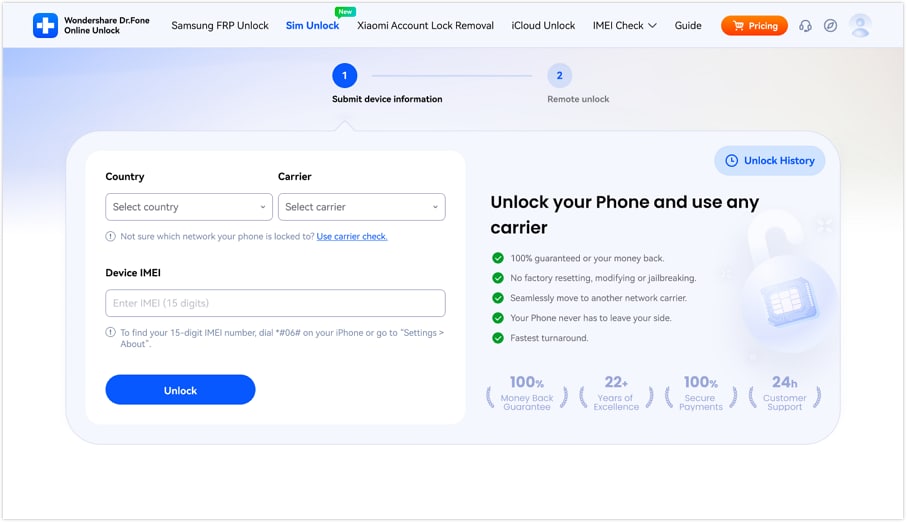
- Step 1. Add the Android or iOS Device Details to the Tool
As you access the SIM Unlock tool of Dr.Fone Online Unlock, add the details like “Carrier, Country and IMEI,” and press the “Unlock” button.
- Step 2. Submit the Request to the Cloud
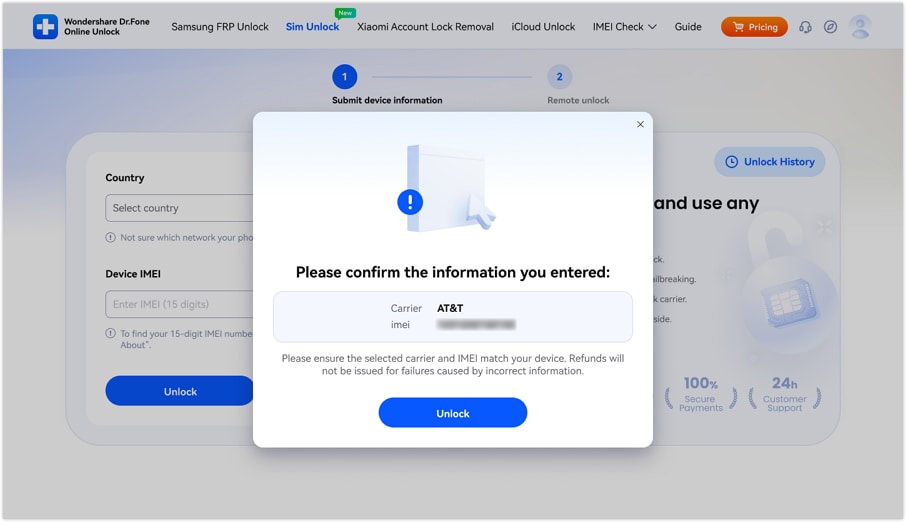
When asked, confirm the details on the new interface and select the “Unlock: button. This will start submitting your unlocking request to the cloud, beginning phone unlocking.
- Step 3. Monitor the Unlocking Request Using the Given Methods
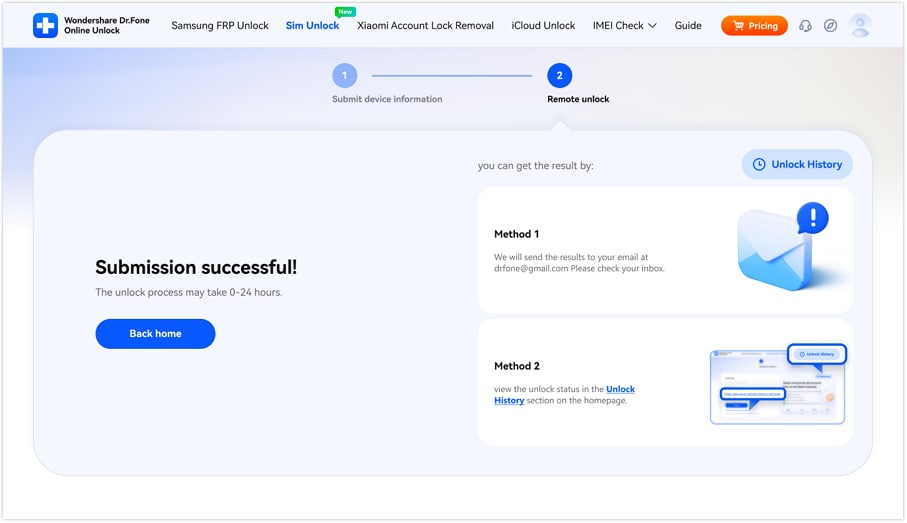
After 0-24 hours, choose between 2 methods in the tool and check whether the Android or iOS device is locked.
Conclusion
Unlocking your phone provides the freedom to choose better plans and avoid expensive roaming fees. Therefore, this guide has explained free and without carrier options on how to unlock a phone to all networks for free. For a hassle-free experience without the wait, Dr.Fone Online Unlock is the ideal solution. It offers a safe, permanent, and software-based way to bypass carrier locks, ensuring your device is ready for any network globally.
Verify your device info safelyFAQs
-
Q: Is it legal to unlock my smartphone to use another network?
A: Yes, unlocking your phone is completely legal as long as your device is fully paid off and has met the carrier's specific contract terms. It is a federally protected right that allows consumers more freedom to choose their service provider.
-
Q: Will unlocking my phone void the manufacturer's warranty?
A: Official carrier unlocks never void your warranty because they use authorized methods supported by the manufacturer. However, using unofficial rooting or firmware hacks can be risky, which is why using a safe tool like Dr.Fone Online Unlock is a better alternative.
-
Q: How long does the network unlocking process typically take?
A: Standard carrier requests usually take between 2 and 5 business days to process, depending on their current backlog. If you need a faster solution, the professional Dr.Fone Online Unlock service can often complete the unlock in as little as 0-24 hours.



Selena Lee
staff Editor
Generally rated4.5(105participated)