
Why Is My Samsung Phone Not Displaying Incoming Calls, and How to Fix It?

Sep 24, 2026 • Filed to: Phone Repair Solutions • Proven solutions
 TL;DR:
To fix a Samsung phone not displaying incoming calls, change the Phone app's display settings to full screen, disable Do Not Disturb mode, and remove conflicting third-party caller ID applications.
● Change the default alert style by opening the Phone app settings and selecting Full Screen under the Call Display while Using Apps menu, ensuring Lock Screen notifications are also set to Show Content.
● Boot the device into Safe Mode to identify and uninstall third-party dialers or spam blockers like Truecaller and Hiya that actively intercept and override Samsung's native incoming call interface.
● Resolve deep OS-level corruption by performing a Factory Data Reset or using Dr.Fone System Repair via a PC to flash official firmware, both of which require backing up your device first due to data removal prompts during the process.
Ask AI for a summary
 ChatGPT
 Perplexity
 Gemini
 Claude
 Grok
Grok
Many Samsung users have reported that their phones suddenly stop showing the incoming call screen. For example, one Reddit user heard the ringtone but could not see the call screen on his Samsung Galaxy S24 Ultra. You may have also faced this problem after software updates or due to misconfigured settings.
Some other possible causes range from Do Not Disturb being on to system file corruption. In this guide, we explain the reason for the “incoming call not showing on the screen Samsung” issue on Samsung devices. Moreover, you will also find detailed solutions for this problem.
- Part 1. Why Is My Samsung Phone Not Displaying Incoming Calls?
- Part 2. How to Fix a Samsung Phone Not Displaying Incoming Calls?
- Method 1. Restart Your Samsung Phone
- Method 2. Check Call Display Settings
- Method 3. Disable Do Not Disturb Mode
- Method 4. Clear Phone App Cache and Data
- Method 5. Update Your Samsung Software
- Method 6. Boot into Safe Mode to Identify App Conflicts
- Method 7. Check for Third-Party Call Blocker Apps
- Method 8. Reset Network Settings
- Method 9. Perform a Factory Reset
- Part 3. How to Show Incoming Calls on the Lock Screen in Samsung?

- Part 4. How to Fix Samsung Phone Issues Using Dr.Fone System Repair Android?
Part 1. Why Is My Samsung Phone Not Displaying Incoming Calls?
Before exploring solutions, read these common reasons your call screen might not appear:
- Software Bugs: Minor system glitches can stop the call screen from functioning. So, simple reboots reload the Phone app and system processes, often restoring normal behavior. Many users find that a simple restart often restores the call screen.
- Call Display Settings Misconfigured: Samsung’s Phone app lets you choose full-screen or pop-up alerts. If set to pop-up/minimized, incoming calls won’t fill the display. You may still hear ringing, but see no full caller screen.
- Do Not Disturb or Focus Mode Enabled: Samsung’s Do Not Disturb (DND) mode can silence or hide call alerts. For example, enabling “Hide full-screen notifications” in DND will suppress incoming calls to pop-ups.
- Third-Party App Conflicts: Some apps (caller-ID, spam blockers, or dialer replacements) can override Samsung’s Phone app. For example, Truecaller or Hiya may suppress the native incoming call screen. These apps might intercept calls, causing the “call not showing on screen Samsung” issue.
- Outdated Software Version: Running an older One UI or Phone app version can introduce bugs. Installing the latest system and app updates, patches, and known errors. If your software isn’t up to date, it may fail to show calls properly.
- Corrupted System Files: Damaged or missing system files (after a failed update) can break the call interface. If core system components are corrupt, the phone may not show calls. Performing a factory reset or a system repair will restore the original system files.
Part 2. How to Fix a Samsung Phone Not Displaying Incoming Calls?
If incoming calls aren’t appearing, try these fixes in order – simpler solutions first, then more advanced:
Method 1. Restart Your Samsung Phone
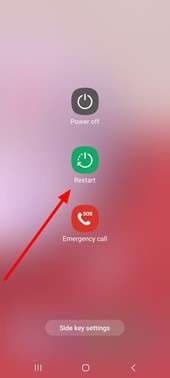
Upon rebooting devices, you can clear minor glitches and reload all apps. After it powers back on, check if incoming calls now appear on the screen. To restart the device:
Step 1. Initiate by pressing and holding the Side/Power button until the power menu appears.
Step 2. Now, tap Restart and confirm if prompted, then wait for the phone to reboot.
Method 2. Check Call Display Settings
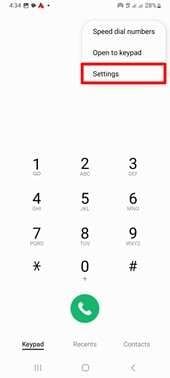
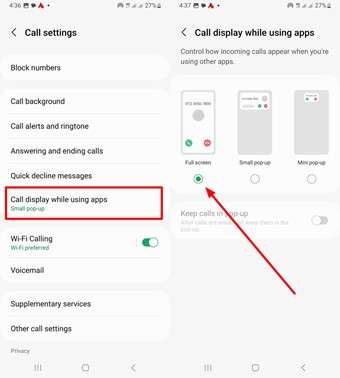
Samsung’s Phone app allows calls to display as a pop-up, mini-popup, or full-screen. If it’s set to a pop-up mode, incoming calls might not fully appear. Once you shift to full screen, the phone wakes to a proper call alert. To fix the “incoming call not showing on screen, Samsung” issue, follow these steps:
Step 1. To start, open the Phone app and tap the Menu icon (⋮) to display a dropdown. Now, hit the Settings button to proceed.
Step 2. Moving forward, tap Call Display while Using Apps and then pick the Full Screen option to fix the problem.
Method 3. Disable Do Not Disturb Mode
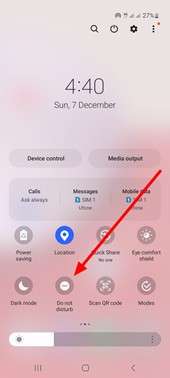
Do Not Disturb or Android’s Focus mode can silence and hide calls. If DND is enabled, incoming calls may only vibrate or flash the status bar. For example, Samsung’s DND has a “Hide full-screen notifications” option that suppresses call pop-ups. Follow these steps to turn DND off so calls can ring and display normally.
Instructions: Swipe down from the top to reveal the Quick Settings screen. Now, simply tap the Do Not Disturb icon to turn it off, so it’s no longer highlighted.
Method 4. Clear Phone App Cache and Data
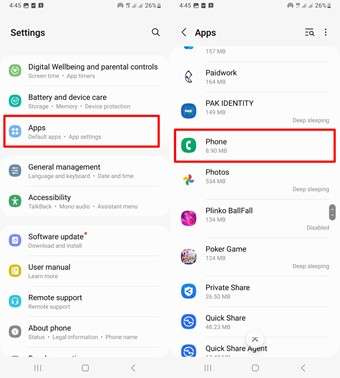
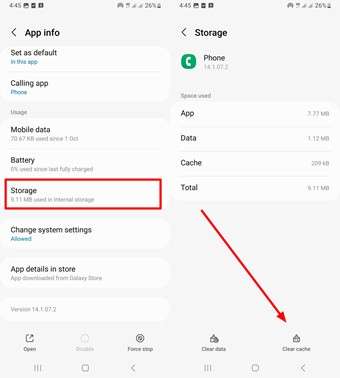
Sometimes, a corrupted cache can break the Phone app’s UI. So, we recommend you clear the cache (and optionally data) to remove temporary files. This resets the app without deleting your call history, so it often resolves hidden bugs. Go through these steps to resolve the “call not showing on screen Samsung” problem.
Step 1. After opening Settings on your phone, go to the Apps screen. Moving forward, find and tap Phone from the available list.
Step 2. Afterwards, you need to open the Storage screen and tap Clear Cache to fix the problem. If needed, press Clear Data to reset settings.
Method 5. Update Your Samsung Software
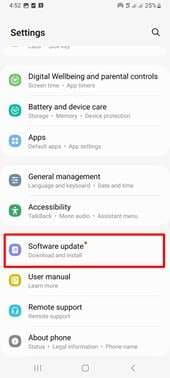
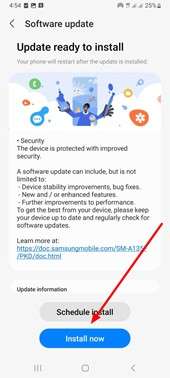
Outdated software can cause call-display bugs due to compatibility issues. To fix the issue caused by this reason, check for updates and install them:
- Upon entering the Settings screen, scroll and tap the Software Update button.
- Next, simply press Download and Install to proceed. If an update is found, hit Install Now and follow instructions you see on screen.
Method 6. Boot into Safe Mode to Identify App Conflicts
With the help of Safe Mode, you can test if an app conflict is the culprit. When calls display normally in such modes, a downloaded app is blocking the calls. To enter Safe Mode:
Step 1. Press and hold the Power button until the power menu appears. After that, tap the Power Off icon until a Safe mode prompt appears.
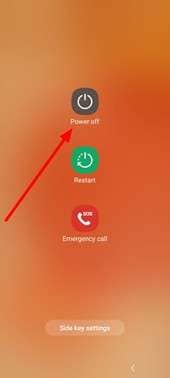
Step 2. On the next screen, hit Safe Mode to restart your device in this mode.
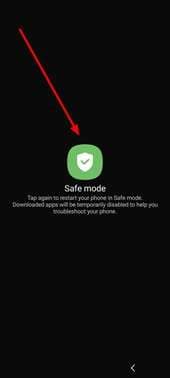
If the call screen shows now, uninstall recently installed or suspicious apps (caller blocker apps) and reboot normally.
Method 7. Check for Third-Party Call Blocker Apps
Some apps explicitly block or replace the incoming call interface. Using apps like Truecaller and Mr.Number can override the original phone dialer. For instance, Truecaller may mark known numbers as spam and not show the call screen.
If you have any caller-ID or “caller assistant” apps installed, uninstall or disable them temporarily. Removing such apps often restores the normal incoming call display.
Method 8. Reset Network Settings
Using this fix to resolve the “incoming call not showing on screen Samsung” issue, you can reset all Wi-Fi and Bluetooth settings to default. While it mainly fixes connectivity issues, it can also resolve strange call-routing problems. On Samsung:
Step 1. Within the Settings app, hit the General Management option and then press Reset.
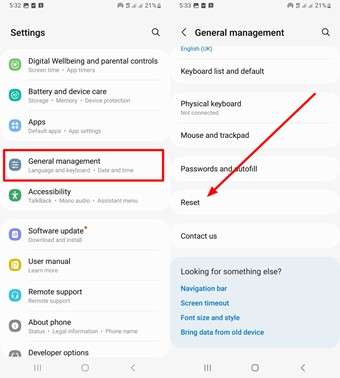
Step 2. On the next screen, press Reset Network Settings and confirm the selection.
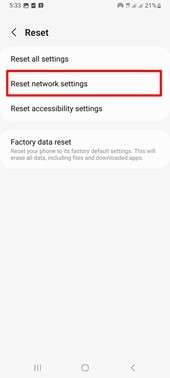
Afterwards, reboot your phone and check if incoming calls appear correctly.
Method 9. Perform a Factory Reset
If none of the above work, a factory reset will erase all data and restore your phone to factory software. This resolves any deep system corruption. So, back up your phone first and follow these steps:
Step 1. After entering the General Management settings, tap the Reset button and hit Factory Data Reset.
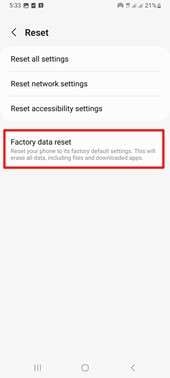
Step 2. Now, follow the prompts to wipe all personal data and reboot. Moving forward, set up the phone again, which should fix the missing incoming call problem.
Part 3. How to Show Incoming Calls on the Lock Screen in Samsung?
After resolving the “call not showing on screen Samsung” problem, you may need to adjust notifications for the lock screen:
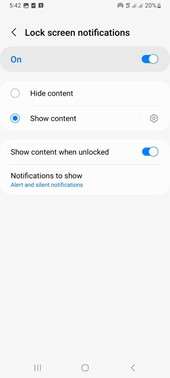
- Enable Lock Screen Notifications: Within the Lock Screen settings, enter Notifications and make sure that notifications are turned on. On top of that, you need to set Notifications on the lock screen to Show Content.
- Adjust Notification Priority: You also need to make sure Phone notifications are high priority. For this, enter the Apps settings and tap on Phone. Now, access the Apps Notifications screen and turn on every type of notification for this application.
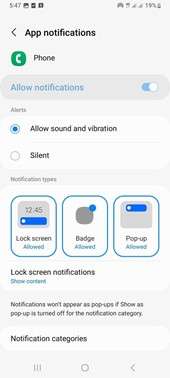
With these lock screen settings enabled, your Samsung will ring and display the incoming call as soon as it arrives, even if the phone is locked.
Part 4. How to Fix Samsung Phone Issues Using Dr.Fone System Repair Android?
When basic fixes fail, a specialized tool can help to resolve the “incoming call not showing on screen Samsung” issue. Dr.Fone - System Repair (Android) by Wondershare is designed to fix deep software issues on Samsung (and other Android) devices. It works by downloading and flashing official firmware to repair the operating system.
In practice, Dr.Fone’s Android System Repair can resolve the call display problem if it results from OS-level bugs or corrupt files. It supports all major Samsung models and many other brands. On top of that, this tool also guarantees data security during repair (no data loss on supported devices).

Dr.Fone - System Repair (Android)
Repair Android System Errors without Any Trouble.
- Fix your Android to normal, no skills required.
- Fix various Android system issues, stuck in boot loop, black screen, or won't turn on, looping on start, etc.
- The high success rate in resolving Android system issues.
- Compatible with a wide range of Android devices and OS versions
- User-friendly interface with easy-to-follow steps.


Steps to Repair Samsung System Issues
If you choose this tool to fix the “call not showing on screen Samsung” issue, follow these steps:
Step 1. Enter the Android Repair Tool
To commence this process, download and install Dr.Fone on your computer. Upon launching this tool, connect your Samsung phone and tap System Repair from the main interface. Moving forward, choose the Android option to fix the problem.

Step 2. Start the Android Repair Process
On the next screen, go to the Android Repair section and hit the Repair Now button. Next, simply pick Samsung as the mobile brand to proceed.

Step 3. Confirm Your Device Information
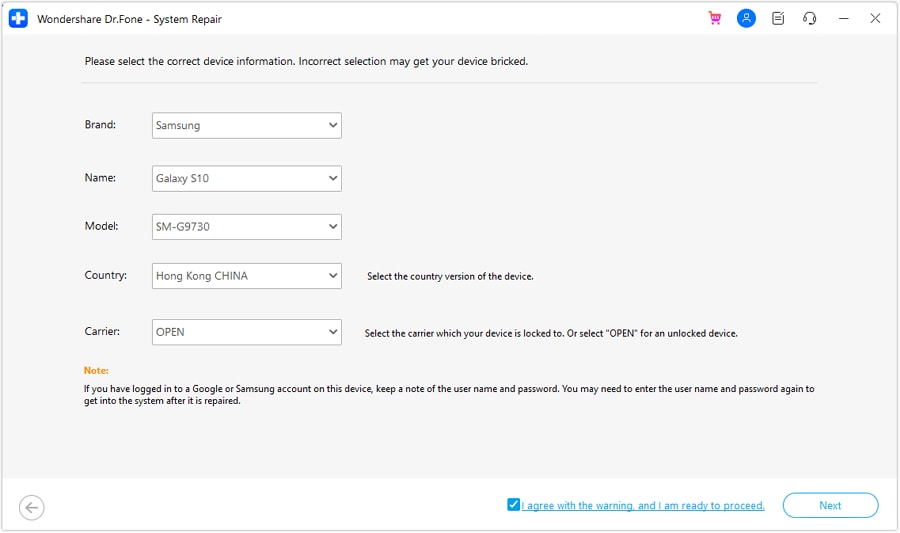
Moving forward, this advanced tool will auto-detect your phone model. From the screen, confirm that the displayed Brand, Model, and other information match your phone. Afterwards, simply agree to the warning and click Next.
Step 4. Put Your Phone into Download Mode and Download the Firmware
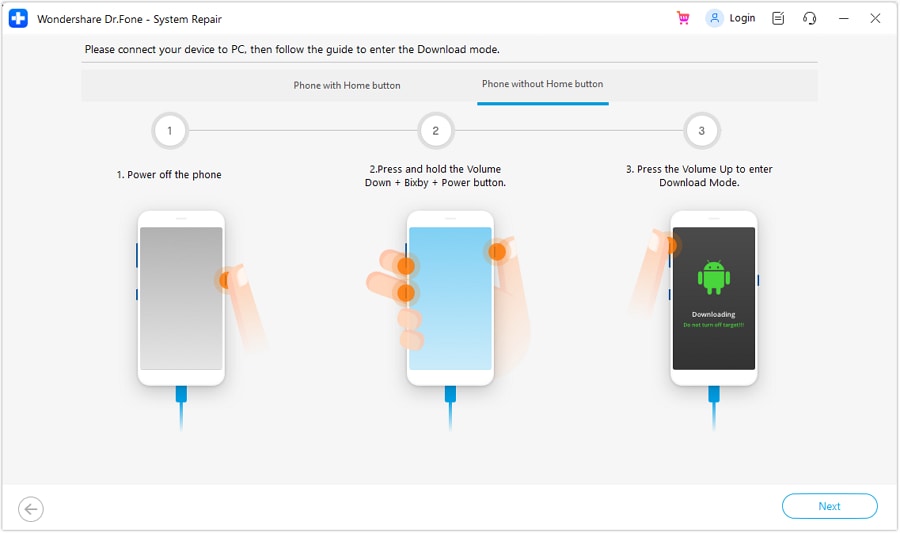
Follow the on-screen instructions until the Download Mode screen appears, then press Volume Up to confirm. After entering this mode, Dr.Fone will download the correct firmware for your phone model, so you have to wait for the download to complete.
Step 5. Repair Your Android Phone
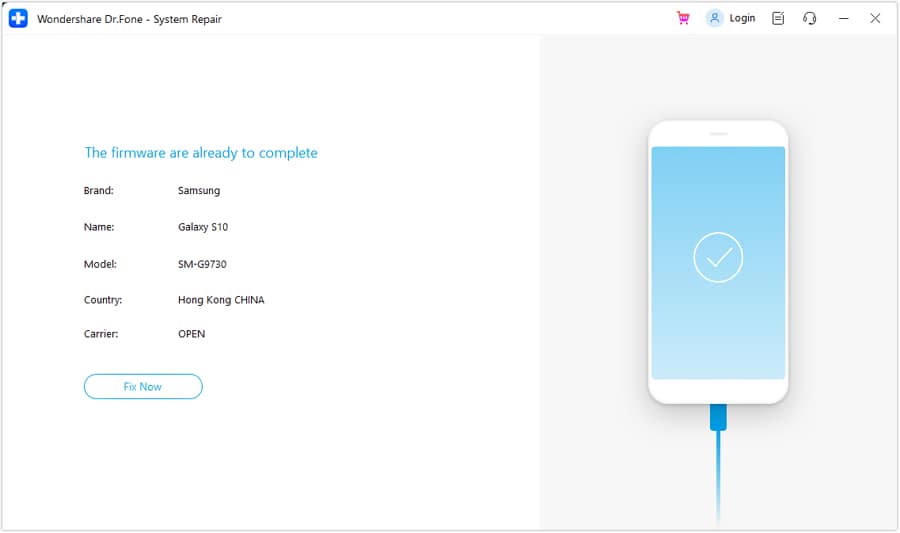
Once the firmware is ready, you have to click the Fix Now button. Upon getting prompted, type 000000 to proceed with the data removal. When the repair process finishes, the phone will reboot normally, so check if incoming calls now appear correctly.
Why is Dr.Fone the Best Solution for Samsung Errors?
With this advanced tool, you can enjoy these powerful features:
- Fixes all Android system issues like boot loops, black screen of death, bricked firmware, and many more.
- Automatically boots Samsung into Download or Odin mode and flashes the proper firmware.
- Works on Samsung Galaxy (S, Note, A), as well as other brands (Xiaomi, Google) to resolve your system issues.
- No root or technical skills required, so anyone can use it to fix phone errors.
Conclusion
You can get frustrated while facing the “incoming call not showing on screen Samsung” issue, but it usually has a fix. We covered many causes, ranging from simple settings issues to system glitches. In most cases, simple solutions, including settings tweaks and system resets, work well.
However, if you prefer a one-stop solution for stubborn software bugs, Dr.Fone Android System Repair is highly recommended. It can address the root cause without data loss, getting your Samsung back to showing incoming calls reliably.
 safe & secure
4,624,541 people have downloaded it
FAQs
 Q1. Why do incoming calls only vibrate without showing on the screen?Q2. Can a screen protector affect the call display on Samsung?Q3. How do I enable call pop-up on Samsung One UI?Q4. Will clearing the cache delete my contacts?


Samsung Issue
- Samsung Phone Issues
- 1. Fix Samsung Camera Failed
- 2. Fix Samsung Phone Hang
- 3. Samsung Phone Not Displaying Incoming Calls
- 4.Fix a Bricked Samsung
- 5. Downloading Do Not Turn Off Target
- 6. Fix Samsung Stuck in Download Mode
- 7. Fix Samsung S5 Won't Turn On
- 8. Fix Samsung Pay Not Working
- 9. Samsung ROM Download & Install
- 10. Samsung Firmware Download
- 11. Fix Samsung Sudden Death
- 12. Fix Samsung Stuck on Boot Screen
- 13. Fix Samsung Frozen on Startup
- 14. Full Guide to Fix 'Samsung Galaxy Phone Keeps Restarting'
- 15. Fix Samsung S3 Won't Turn On
- 16. Fix Samsung J7 Problems
- 17. Fix Samsung S10 Gone Dead
- 18. Fix Samsung S10 Won't Turn On
- 19. Fix Samsung Galaxy S7
- Samsung Screen Issues
- 1. Fix Unresponsive Touchscreen
- 2. Fix Black Screen After Dropping
- 3. Resolve Screen Stuck on Boot Issue
- 4. Fix Samsung Fold Screen Issues
- 5. Fix Samsung Black Screen
- 6. Fix Samsung Screen Not Working
- 7. Fix Half of Screen Not Working
- 8. Fix Samsung Stuck on Bootloop
- 9. Fix Samsung Screen Blacked Out
- 10. Fix Screen Blacked During a Call
- 11. Fix Samsung Stuck on the Screen
- 12. Solve Samsung Yellow Screen
- 13. Fix Samsung Flip Screen Not Working
- 14. Fix Screen Won't Respond
- Samsung Tablet Issues
- Samsung Update
- 1. Flash a Samsung phone
- 2. Samsung Mobile Software Update
- 3. Update Samsung Kies for Mac
- 4. Update Samsung to Android Oreo
- 5. Update Samsung Kies on PC
- 6. Update Android 6.0 for Samsung
- Samsung Useful Tricks
- 1. Remove Google Account Bypass
- 2. Hard/Factory Reset Samsung
- 3. Samsung Root Software
- 4. Transfer Files from Samsung to PC
- 5. Top 5 Samsung Kies Alternatives
- 6. Bypass Samsung Lock Screen Pin
- 7. SIM Network Unlock PIN
- 8. Transfer Whatsapp to iPhone
- 9. Samsung Auto Backup
- 10. Recover File on Samsung
- ● Manage/transfer/recover data
- ● Unlock screen/activate/FRP lock
- ● Fix most iOS and Android issues
- Free Download Free Download Free Download


 > How-to > Phone Repair Solutions > Why Is My Samsung Phone Not Displaying Incoming Calls, and How to Fix It?
Daisy Raines
staff Editor
Generally rated4.5(105participated)