Resolve common problems and system crashes on both iPhone and Android devices.

 100% Security Verified | No Subscription Required | No Malware

 :
: 
 ChatGPT
 Perplexity
 Gemini
 Claude
 Grok
Grok
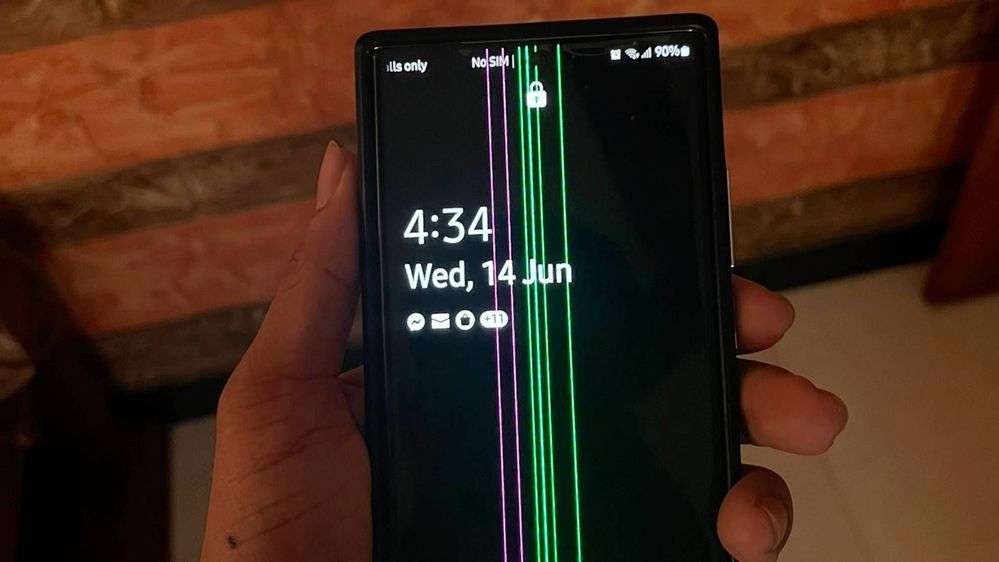
You might unlock your phone and notice a thin green line running down the screen. If this happens, you are not alone. Many Samsung users have reported this issue on different devices, and it often appears without warning.
This problem is more than just a screen issue. A green line can make it harder to see your screen, affect touch response, and make your phone less convenient to use. Some people notice it after a software update, while others see it after long-term use or if the phone gets too hot.
This guide will show you:
- What causes the green line on Samsung phone
- How to tell if the problem can be fixed
- Step-by-step solutions, starting with simple fixes and moving on to system repair
In this article

Part 1. Is Your Samsung Green Line Fixable? (Quick Diagnosis)
Before you try to fix the green line on Samsung screen, find out if it is a software or hardware problem.
Signs It's a Software Issue (Fixable)
- The green line appeared after a software update.
- The line flickers or disappears temporarily.
- The issue changes with brightness or screen settings.
- The line disappears in safe mode.
These signs usually mean there is a system error or a problem with the display driver.
Signs It's a Hardware Problem (Not Easily Fixable)
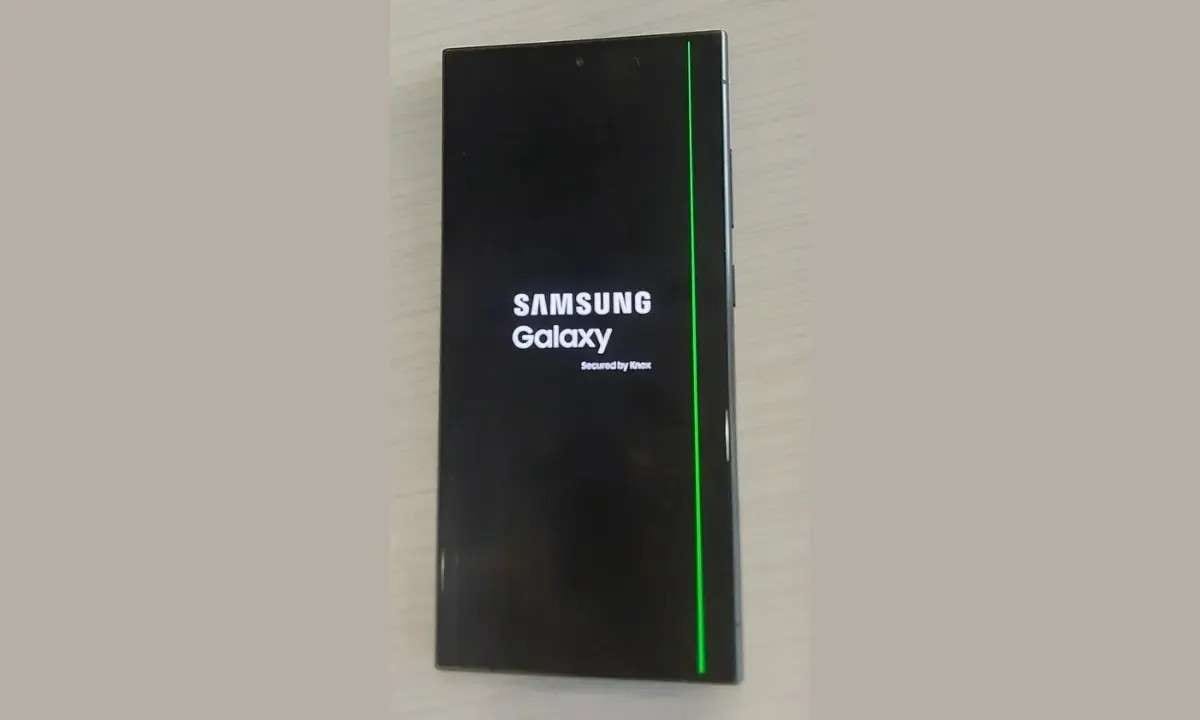
- The line is permanent and does not change.
- Visible even during the boot screen
- The phone has been dropped or exposed to pressure.
- Multiple lines appear over time.
This often means you have:
- AMOLED panel damage
- Display connector issues
Part 2: What Causes the Samsung green line issue?
Understanding the main cause will help you choose the best way to fix Samsung green line on screen.
Software Causes
- System update bugs (especially post-Android 13/14)
- App conflicts (apps that modify display settings)
- Firmware corruption or glitches
Hardware Causes
- Physical damage (drops, impacts, pressure)
- Manufacturing defects (noted in some Samsung S and A series)
- Overheating can also harm the internal display connector.
Part 3: Quick Fixes for the Green Line on a Samsung Phone
If you want to fix the green line on your Samsung device, begin with these simple steps.
3.1 Basic Fixes You Should Try First
Fix 1 Restart your Samsung device
- Hold the power button.
- Tap 'Restart.'
- Wait for the device to reboot.
✔ Works for temporary glitches and minor firmware bugs.
Fix 2 Adjust Display Settings
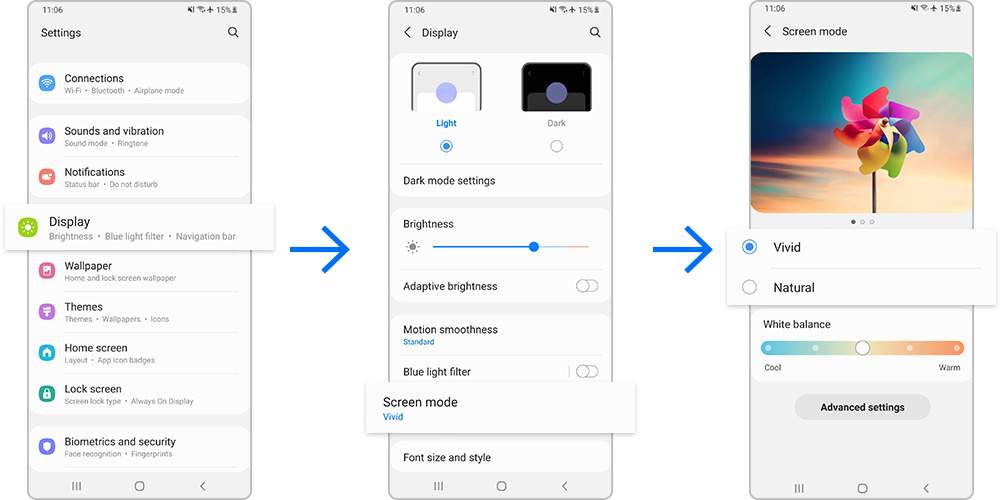
- Lower screen brightness.
- Change refresh rate (set to standard if using 120Hz).
- Turn off adaptive display or color enhancements.
Fix 3 Check for Physical Damage
- Inspect your screen for cracks or pressure marks.
Even small or hidden damage can cause a green line on Samsung screen.
3.2 Software Fixes for Samsung green line issue
Fix 4 Update Software
- Go to Settings > Software update.
- Download and install the latest version.
Updating your software can fix some known problems.
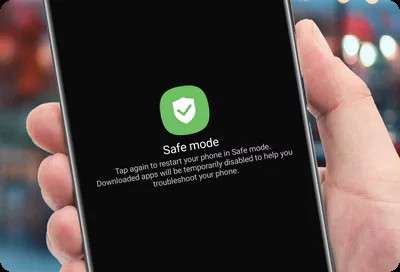
Fix 5 Safe Mode Test
- Restart your phone in Safe Mode (Press and hold Power off > Tap 'Safe mode').
- Check if the green line disappears when your phone is in Safe Mode.
✔ If the line vanishes, a third-party app may be the culprit.
Fix 6 Factory Reset (Last Basic Option)
- Back up all crucial data.
- Go to Settings > General Management > Reset > Factory data reset.
- Reboot your device.


Green lines caused by software issues are usually fixable via updates or resets. If they persist, advanced repair tools are needed.
Mobile Device Technician, 2026Part 4: Advanced Fix: How to Fix Samsung Green Line Using Dr.Fone
If the green line remains after you try the basic fixes, the problem might be deeper in your phone's system. Here's how you can use Dr.Fone - System Repair to fix the Samsung green line, especially if it keeps returning.
Why Basic Fixes Fail for Samsung Green Line
- Deep system corruption after updates
- Firmware-level display bugs
- Hardware-software display driver conflicts
One user reported, "After a factory reset, the green line stayed on my Galaxy S22. Using Dr.Fone's System Repair resolved the issue without a screen replacement." (User report, 2026)
 Fix Android
instantly – no skills needed.
Fix Android
instantly – no skills needed.- Solve boot loop,
black screen, won’t turn on, etc.
- High success
rate for all system issues.
- User-friendly
interface with easy-to-follow steps.

How to Fix Green Line on Phone Screen on Samsung Using Dr.Fone
-
Step 1 Launch Dr.Fone and Select System Repair
Download and install Dr.Fone from the official page.

-
Step 2 Connect Your Samsung Device
Use a USB cable to connect your device to the computer.

-
Step 3 Choose Android Repair and Confirm the Details
Follow the on-screen steps provided by Dr.Fone to complete the process.





Conclusion
The Samsung green line problem can be caused by software bugs, system issues, or hardware damage. Start with simple fixes like restarting, updating, or changing your settings. If the green line is still there, try Dr.Fone - System Repair before thinking about replacing the hardware. This easy four-step process can often get your screen working again quickly.
FAQs
-
1. Why is there a green line on Samsung phone screen?
A green line on a Samsung phone screen usually appears because of software bugs or hardware damage, often after an update or if the phone is dropped. -
2. How to fix green line on phone screen on Samsung?
Restart your phone and update the software. If the problem continues, try Dr.Fone System Repair to fix the green line. -
3. Is the Samsung green line issue permanent?
If the green line is due to software, it can often be fixed. Hardware issues may require screen replacement. -
4. Does a factory reset fix green line issues?
Sometimes a factory reset will solve the problem. If the green line is still there after a reset, it might be caused by deeper system issues. In that case, using a system repair tool could work better. -
5. When should I replace my screen?
If software and system repairs do not work, visit a Samsung service center to have your screen replaced so your phone works properly again.
 Add Wondershare Dr.Fone as a preferred source on Google