
Samsung Yellow Screen: Causes, Fixes & When to Seek Help

Oct 24, 2026 • Filed to: Phone Repair Solutions • Proven solutions
 TL;DR:
You can fix the Samsung yellow screen issue, typically caused by activated blue light filters, software bugs, or high temperatures, by disabling the Eye Comfort Shield, switching the screen mode to Natural, or repairing the system firmware.
● Dr.Fone - System Repair (Android) resolves deeper firmware bugs causing discoloration, but the process requires connecting the phone to a computer and entering Download Mode to authorize the installation.
● Reverting display configurations through the Vision Enhancement accessibility menu clears conflicting color settings directly without deleting any of your personal data.
● If the yellow tint is uneven, localized to the screen edges, or persists after the device cools down, it indicates physical hardware wear that requires genuine component replacement from Samsung Customer Service.
Ask AI for a summary
 ChatGPT
 Perplexity
 Gemini
 Claude
 Grok
Grok
The phone screen should feel clear, calm, and reliable during everyday use. Yet, a sudden color change can confuse users and cause real worry. The Samsung yellow screen appears slowly, making people doubt their eyes. This problem interrupts reading, watching videos, and simple daily tasks people enjoy.
Many users fear damage or costly repair without clear answers yet. The issue may come from settings or even from small software behavior changes. Therefore, knowing the causes and safe fixes helps people act calmly rather than guess. So, this guide explains simple ways to restore standard screen colors.
- Part 1. What Is the Samsung Yellow Screen Issue?
- Part 2. Can the Samsung Yellow Screen of Death Be Fixed?
- Part 3. How to Restore Normal Screen Colors on Samsung - Top 7 Fixes

- Fix 1: Use Dr.Fone – System Repair (Android) [One-Click Repair Solution]
- Fix 2: Turn Off Night Mode / Blue Light Filter
- Fix 3: Adjust Screen Color Mode
- Fix 4: Restart Your Samsung Phone
- Fix 5: Update Your Samsung Software
- Fix 6: Reset Display Settings / All Settings
- Fix 7: Contact the Samsung Customer Service
Part 1. What Is the Samsung Yellow Screen Issue?
The yellow screen Samsung issue happens when the display shows a yellow or warm tint. Along with that, it may appear off-color even when brightness and color settings are unchanged. Sometimes, the yellow shade spreads across the entire display, reducing color accuracy.
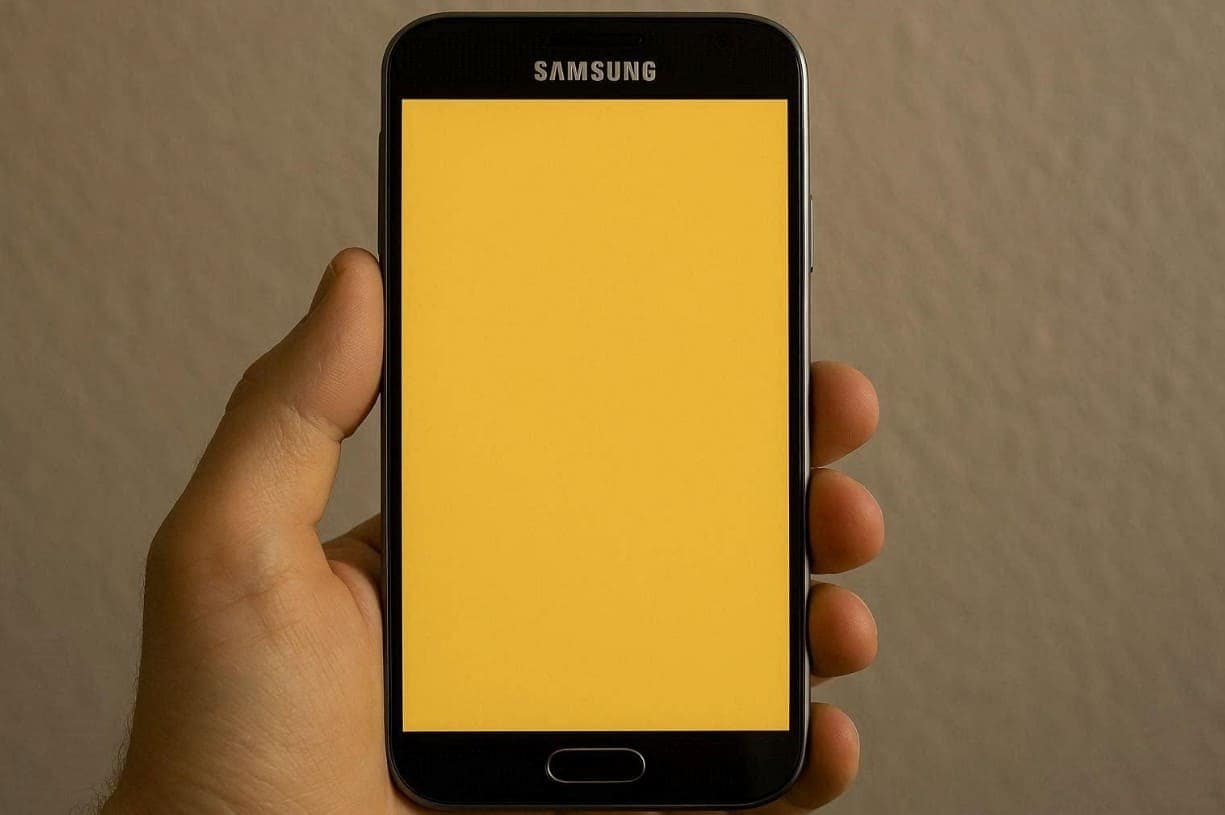
In other cases, it may affect only certain areas, like the bottom or edges. The discoloration often becomes clearer in dark mode or on darker images. As a result, it can make whites look dull and colors less natural, affecting overall visual comfort. This problem may occur suddenly or gradually due to software or display adjustments.
Why Is My Samsung Phone Screen Turning Yellow?
Several common reasons can cause this sudden screen discoloration on your phone. Below, you will explore a few key causes behind this problem:
- Display Settings: Changing color settings can shift whites into warmer shades. This happens after updates or mistaken adjustments in display options.
- Dark Mode: Dark mode increases contrast, making warm tones stand out more. So, yellow shades appear stronger on black or dark gray backgrounds.
- Software Bugs: System glitches can also alter color balance after incomplete updates. These bugs affect display tones without causing permanent damage.
- Old Screen: Aging displays weaken over time and lose proper color tone consistency. This wear can make affected areas show persistent yellow or uneven color spots.
- Heat Exposure: Many times, high temperatures can shift screen colors during heavy usage. The display may look yellow until the device cools down fully.
Part 2. Can the Samsung Yellow Screen of Death Be Fixed?
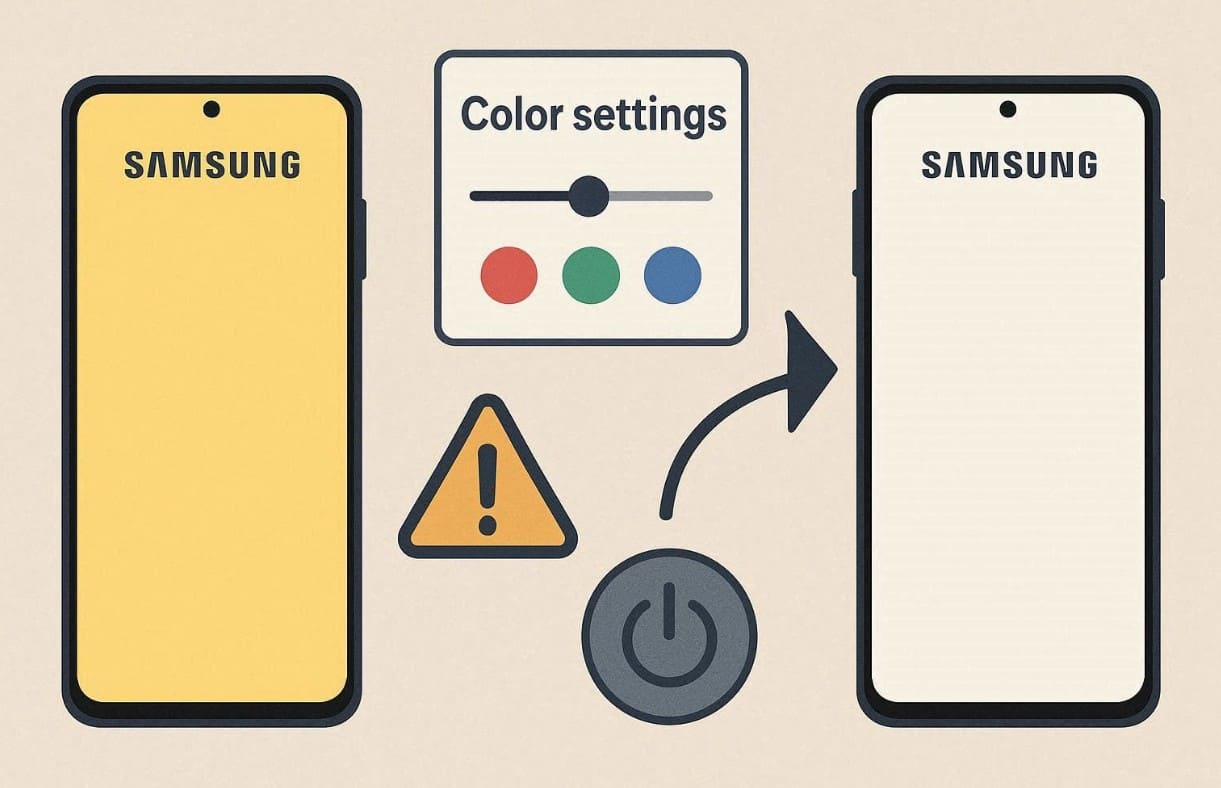
Yes, the Samsung yellow screen of death can be fixed with simple methods. In most cases, it’s caused by display settings or software filters. The Samsung screen yellow tint can often be corrected by adjusting color settings or restarting. Many times, a quick software update or using a repair tool resolves the problem. Only rare cases require professional repair when fixes fail after repeated attempts.
Part 3. How to Restore Normal Screen Colors on Samsung - Top 7 Fixes
Multiple quick solutions exist to help you resolve the Samsung screen yellow problem. The following simple solutions will help you restore standard screen colors:
Fix 1: Use Dr.Fone – System Repair (Android) [One-Click Repair Solution]
Dr.Fone - System Repair (Android) is recommended to fix the Samsung yellow screen issue. This professional tool is designed to solve various Android system problems. It supports over 1000 Android devices, including the latest Samsung models. The software can repair multiple phone issues, like boot loops and the yellow screen of death. Moreover, Dr.Fone ensures a one-click repair process without requiring any technical knowledge.
During repair, it also detects your device model and carrier for accurate repair settings. The tool then downloads the correct firmware suitable for your specific Samsung phone. Plus, Dr.Fone verifies and confirms firmware integrity before starting the final installation process. It also has a proven 99% success rate for repairing multiple Android glitches.

Dr.Fone - System Repair (Android)
Repair Android System Errors without Any Trouble.
- Fix your Android to normal, no skills required.
- Fix various Android system issues, stuck in boot loop, black screen, or won't turn on, looping on start, etc.
- The high success rate in resolving Android system issues.
- Compatible with a wide range of Android devices and OS versions
- User-friendly interface with easy-to-follow steps.


Guide to Fix Samsung Yellow Screen of Death via Dr.Fone
Step 1. Access the Android System Repair Tool
To initiate, choose “System Repair” from the “Toolbox” section and select “Android.” Under “Android Repair,” press the “Repair Now” button and connect your phone to the computer.

Step 2. Provide Your Samsung’s Information
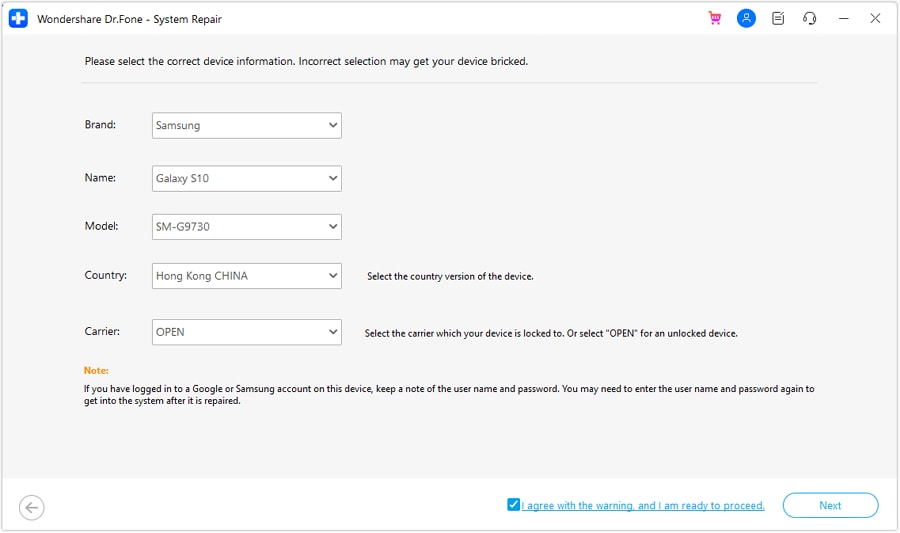
Choose "Samsung" as your device to select the "Yellow Screen" issue and press "Start." Input your device's required details and then tap the "Next" button. Enter your phone into "Download Mode" to install the necessary firmware.
Step 3. Fix the Yellow Screen Issue on Your Phone
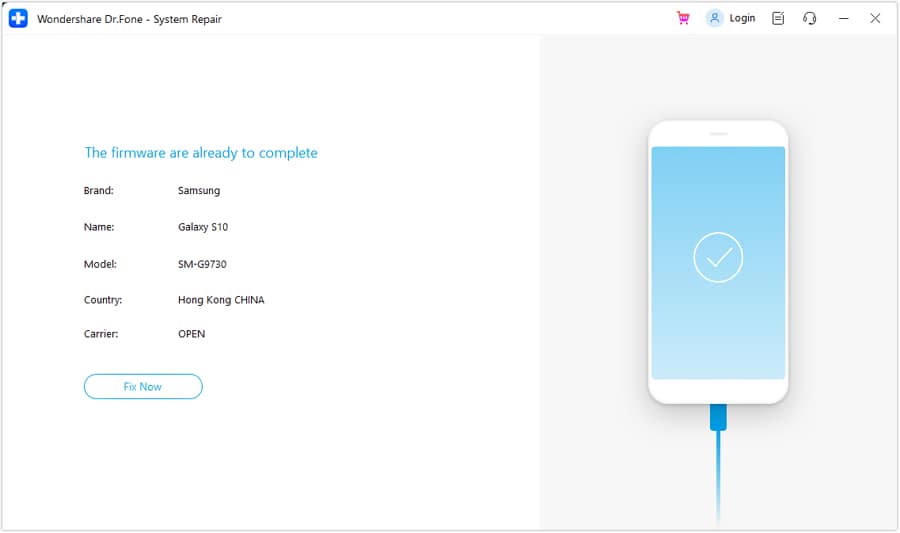
As preparation completes, press “Fix Now” and type “000000” to authorize the repair. Following this, press “Continue” in the prompt shown, letting Dr.Fone fix the yellow screen issue.
 safe & secure
4,624,541 people have downloaded it
Fix 2: Turn Off Night Mode / Blue Light Filter
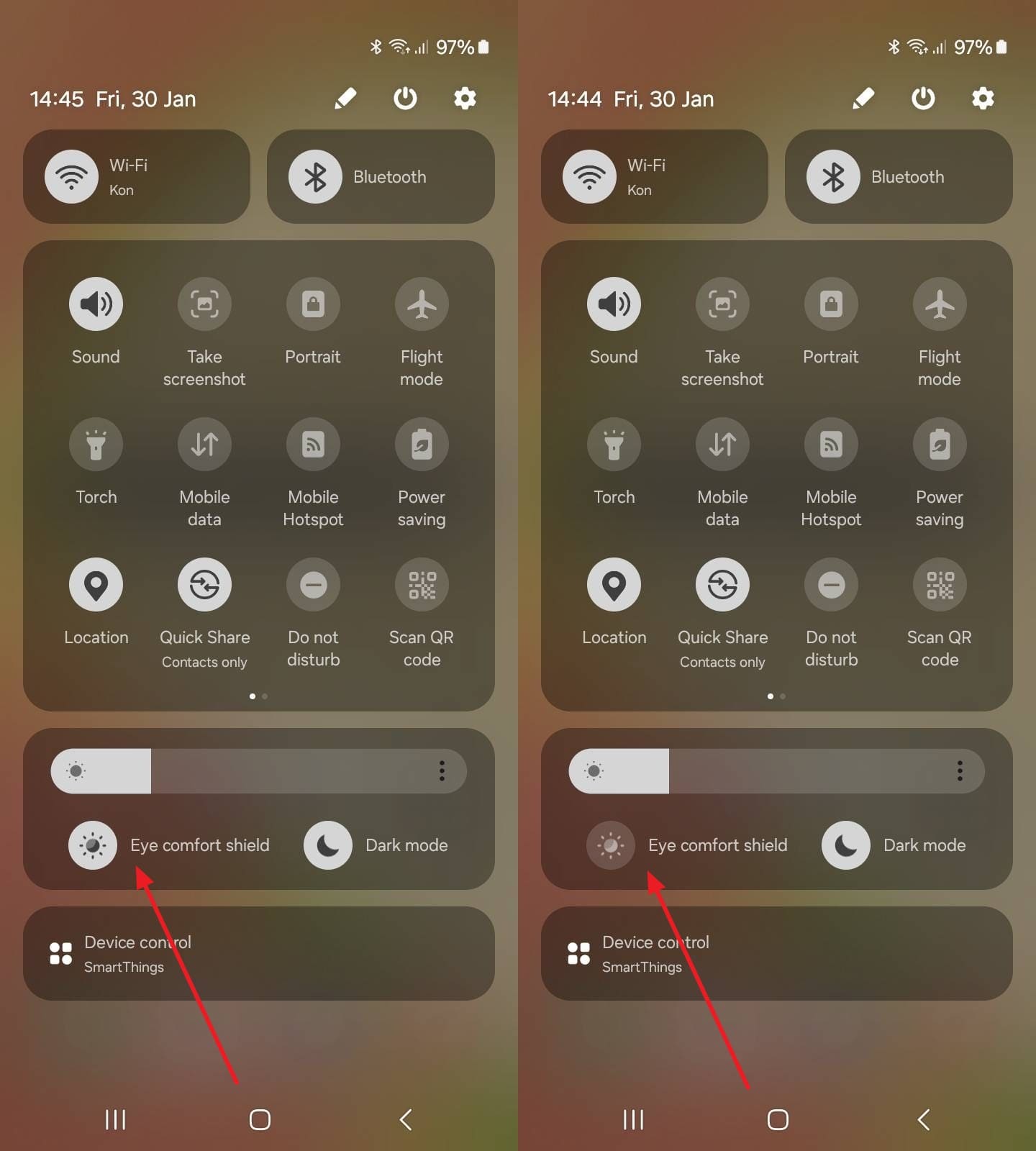
Night Mode reduces blue light by adding warm tones for comfortable nighttime viewing. When active, it causes the yellow screen Samsung problem across all display sections. Disabling it helps restore natural white tones and balanced colors on your device. This simple adjustment works and requires no technical steps or external software support. So, go through the instructions to know how you can disable this feature:
Instructions. Swipe down from the top right screen to view the “Quick Settings” panel. Afterward, tap the “Eye Comfort Shield” option to turn it off.
Fix 3: Adjust Screen Color Mode
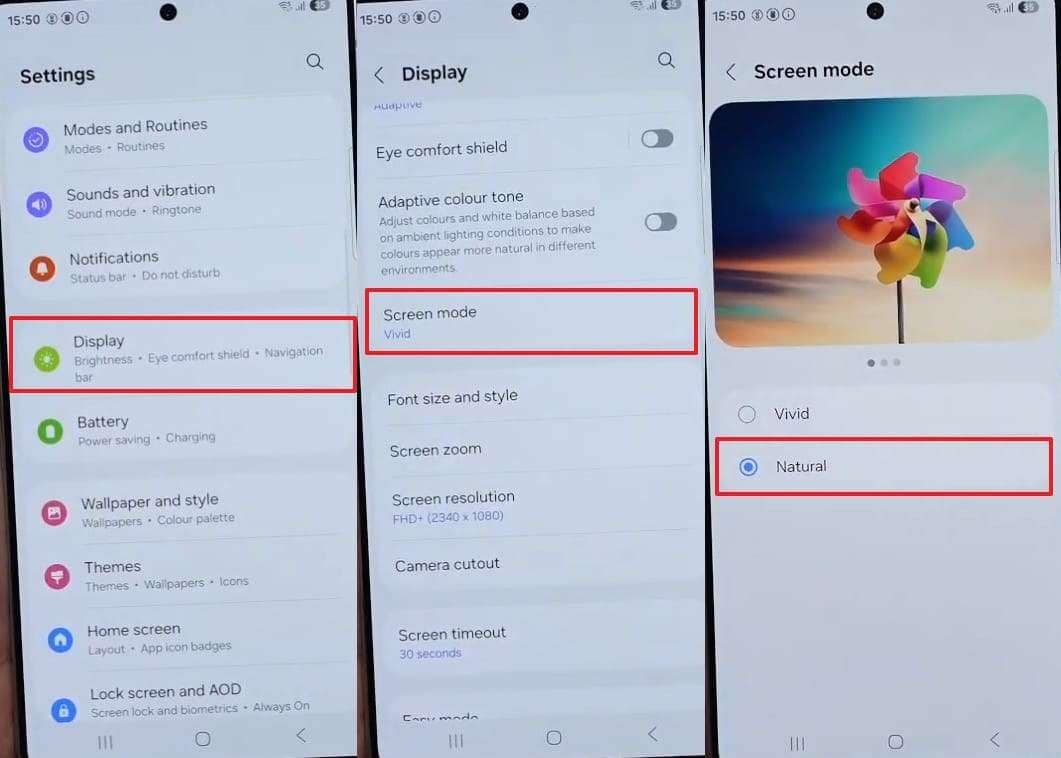
Screen Color Mode also lets users switch between Vivid and Natural display settings. Selecting Natural mode reduces the Samsung screen's yellow tint and restores balanced tones. The advanced settings also help customize RGB levels for more precise visual adjustment. Plus, this native solution provides complete control over display warmth without hassle. Hence, adhere to the steps below to adjust your Samsung's screen color mode:
Instructions. When you access the “Display” settings, tap “Screen Mode” and opt for “Natural.”
Fix 4: Restart Your Samsung Phone
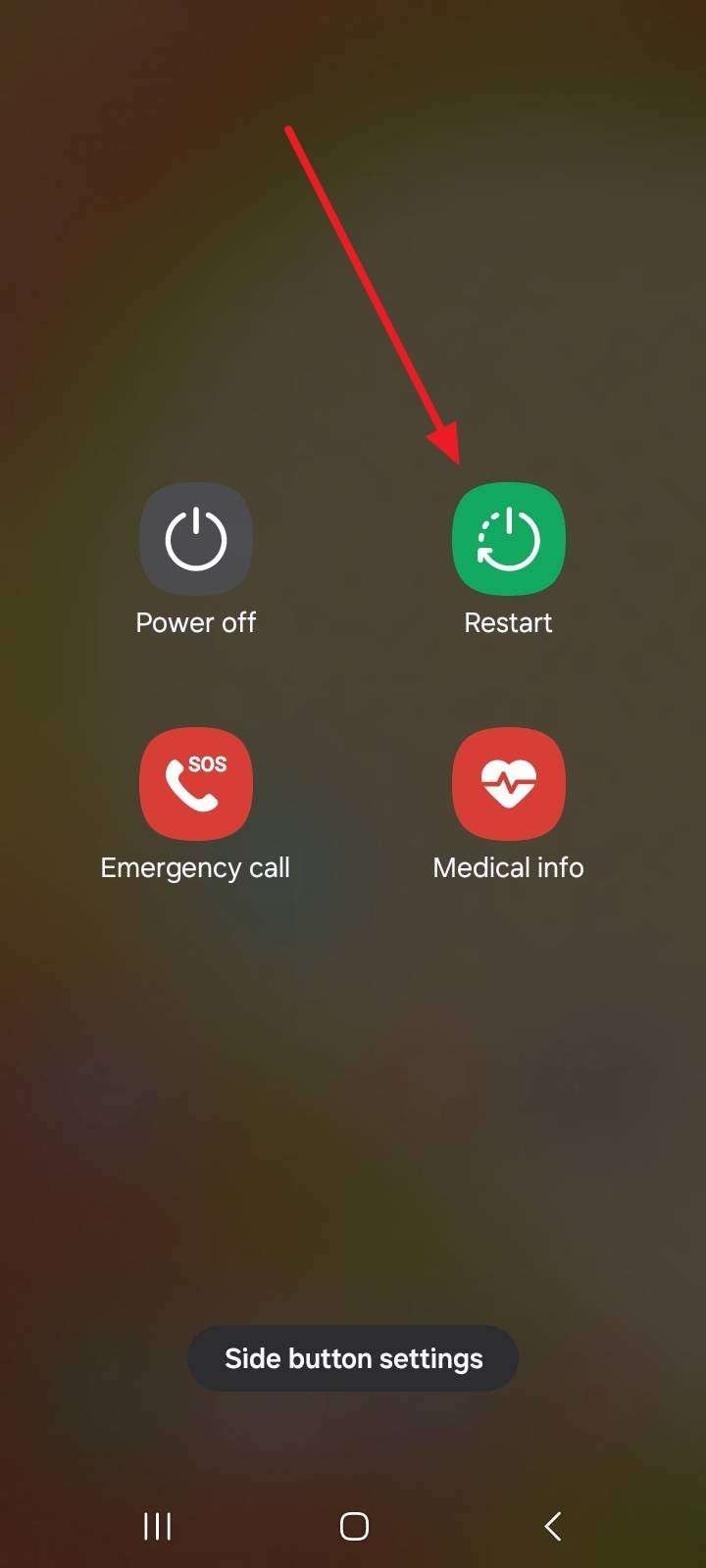
This solution can also clear temporary errors affecting display performance and color balance. It refreshes the device’s system and closes background apps, causing visual glitches. Moreover, restarting reinitializes system components, allowing the phone to reload display settings. It even removes minor software bugs linked to the Samsung screen yellow problem. So, take guidance from below to explore how you can restart your Samsung phone:
Instructions. You need to press the “Power” and “Volume Up” keys for around 5 to 10 seconds. Upon seeing the Power menu, tap “Restart” to reboot your device.
Fix 5: Update Your Samsung Software
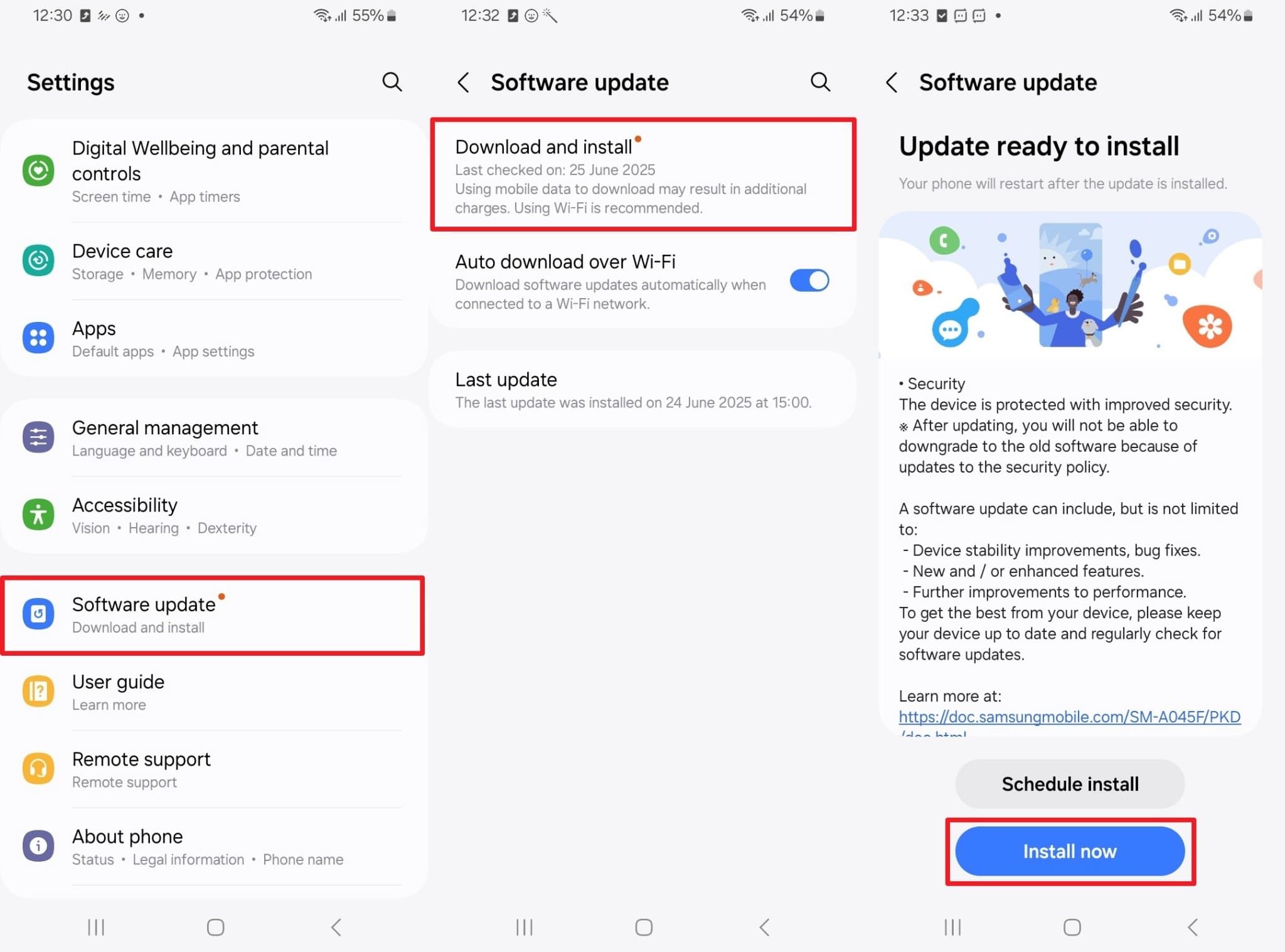
Many times, software updates fix bugs and improve system stability across devices. Each update improves compatibility for smoother visual results overall. Many firmware updates also include display calibration fixes that prevent the Samsung yellow screen. The process installs the latest security patches and optimizations without affecting personal data. Thus, let’s find out how to update the software version on your device:
Instructions. Upon heading to the “Settings” app, tap “Software Update” and go to “Download and Install.” When there is an update available, tap the “Install Now” button.
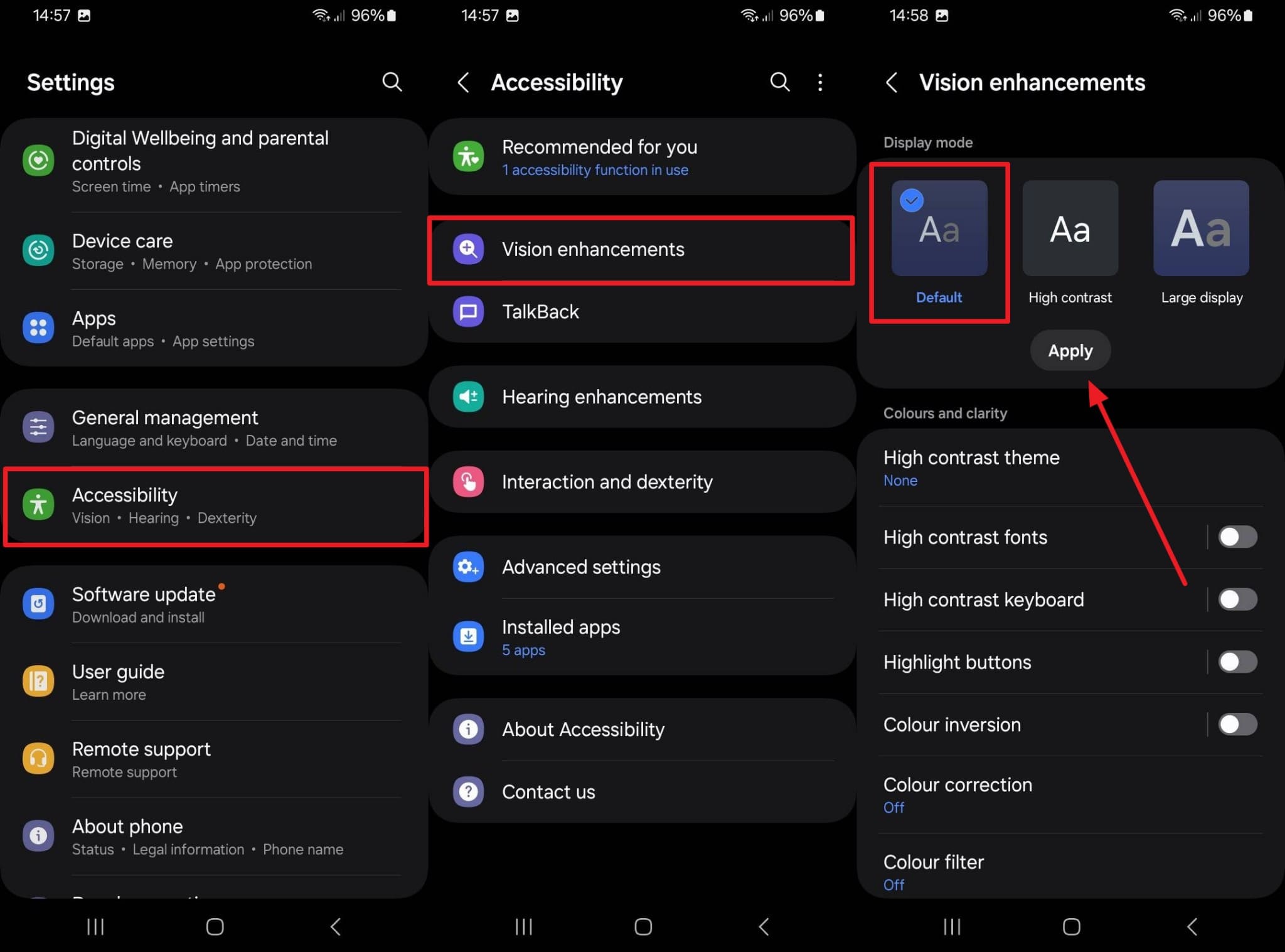
Fix 6: Reset Display Settings / All Settings
Resetting display settings or all settings can also remove faulty configurations. This option refreshes every preference on your phone without erasing personal content. Besides, it helps fix the yellow screen Samsung problem by restoring the default color. The feature also clears conflicting adjustments made after system updates or app installations. Anyhow, you need to follow the given steps to reset display settings on your phone:
Instructions. From the “Accessibility” settings, navigate to the “Vision Enhancement” section. Here, opt for the “Default” and then tap the “Apply” button to reset display settings.
Fix 7: Contact the Samsung Customer Service
When the above solution can’t help, you should now contact the Samsung customer service team. Their experts can diagnose whether the Samsung screen's yellow tint comes from hardware or system faults. They provide official repair and replacement support using genuine components. Moreover, the service team can guide users through warranty coverage and repair options.
Conclusion
To sum up, screen color problems feel stressful, but most causes are simple and manageable. This guide showed how settings, heat, or updates affect daily viewing comfort. Yet, using the proper steps helps fix the Samsung yellow screen without fear or guesswork. Simple changes in display settings or quick system repairs restore accurate colors. For deep system errors, Dr.Fone - System Repair (Android) offers guided repair confidence.
safe & secure4,624,541 people have downloaded it
FAQs
 Q1. Why does my Samsung screen look more yellow at night?Q2. Is the Samsung yellow screen a hardware or software problem?Q3. What if the yellow screen occurs due to system issues?


Samsung Issue
- Samsung Phone Issues
- 1. Fix Samsung Camera Failed
- 2. Fix Samsung Phone Hang
- 3. Samsung Phone Not Displaying Incoming Calls
- 4.Fix a Bricked Samsung
- 5. Downloading Do Not Turn Off Target
- 6. Fix Samsung Stuck in Download Mode
- 7. Fix Samsung S5 Won't Turn On
- 8. Fix Samsung Pay Not Working
- 9. Samsung ROM Download & Install
- 10. Samsung Firmware Download
- 11. Fix Samsung Sudden Death
- 12. Fix Samsung Stuck on Boot Screen
- 13. Fix Samsung Frozen on Startup
- 14. Full Guide to Fix 'Samsung Galaxy Phone Keeps Restarting'
- 15. Fix Samsung S3 Won't Turn On
- 16. Fix Samsung J7 Problems
- 17. Fix Samsung S10 Gone Dead
- 18. Fix Samsung S10 Won't Turn On
- 19. Fix Samsung Galaxy S7
- Samsung Screen Issues
- 1. Fix Unresponsive Touchscreen
- 2. Fix Black Screen After Dropping
- 3. Resolve Screen Stuck on Boot Issue
- 4. Fix Samsung Fold Screen Issues
- 5. Fix Samsung Black Screen
- 6. Fix Samsung Screen Not Working
- 7. Fix Half of Screen Not Working
- 8. Fix Samsung Stuck on Bootloop
- 9. Fix Samsung Screen Blacked Out
- 10. Fix Screen Blacked During a Call
- 11. Fix Samsung Stuck on the Screen
- 12. Solve Samsung Yellow Screen
- 13. Fix Samsung Flip Screen Not Working
- 14. Fix Screen Won't Respond
- Samsung Tablet Issues
- Samsung Update
- 1. Flash a Samsung phone
- 2. Samsung Mobile Software Update
- 3. Update Samsung Kies for Mac
- 4. Update Samsung to Android Oreo
- 5. Update Samsung Kies on PC
- 6. Update Android 6.0 for Samsung
- Samsung Useful Tricks
- 1. Remove Google Account Bypass
- 2. Hard/Factory Reset Samsung
- 3. Samsung Root Software
- 4. Transfer Files from Samsung to PC
- 5. Top 5 Samsung Kies Alternatives
- 6. Bypass Samsung Lock Screen Pin
- 7. SIM Network Unlock PIN
- 8. Transfer Whatsapp to iPhone
- 9. Samsung Auto Backup
- 10. Recover File on Samsung
- ● Manage/transfer/recover data
- ● Unlock screen/activate/FRP lock
- ● Fix most iOS and Android issues
- Free Download Free Download Free Download




Daisy Raines
staff Editor
Generally rated4.5(105participated)