Resolve common problems and system crashes on both iPhone and Android devices.

 100% Security Verified | No Subscription Required | No Malware

 :
: 
 ChatGPT
 Perplexity
 Gemini
 Claude
 Grok
Grok
Many Samsung users are finding their phones unable to connect to mobile data or make calls immediately after the latest system update. This issue is particularly common for those using international SIM cards or traveling abroad, where the device suddenly fails to register on local networks. While software updates are meant to improve performance, they can sometimes scramble carrier configurations or modem firmware, leaving your flagship device virtually unusable.
If the Samsung update broke the international network on your device, this guide shows how to resolve the issue quickly and restore connectivity. Here, learn how to restore the signal with 8 simple, quick, and advanced fixes. If nothing works due to a system issue, learn how system repair tools like Dr.Fone can help you resolve firmware-level bugs.
In this article

Part 1. Does Your Samsung Phone Have This Issue?
Yes, if the Samsung phone suddenly shows "No Service or Emergency Calls Only" alerts. Additionally, if it fails to connect to mobile data while traveling, you likely have a Samsung Galaxy S25 update no service international issue. In fact, many users have shared their concerns regarding this issue on Reddit, saying that:

I updated my US-unlocked Samsung Galaxy S25 and lost all network service while traveling, and now I can't fix it because the latest update blocks downgrades.
- r/Android
With the massive concerns globally, it usually appears as a signal that keeps dropping or a SIM card that isn't recognized at all, despite having a valid plan. To know, check whether your signal disappeared right after an update, or if your phone works on Wi-Fi but fails on mobile.
Part 2. Why Samsung Update Caused Network Issues
If your Galaxy S25 software update broke the SIM card, review the 5 mentioned reasons to know why it happened:
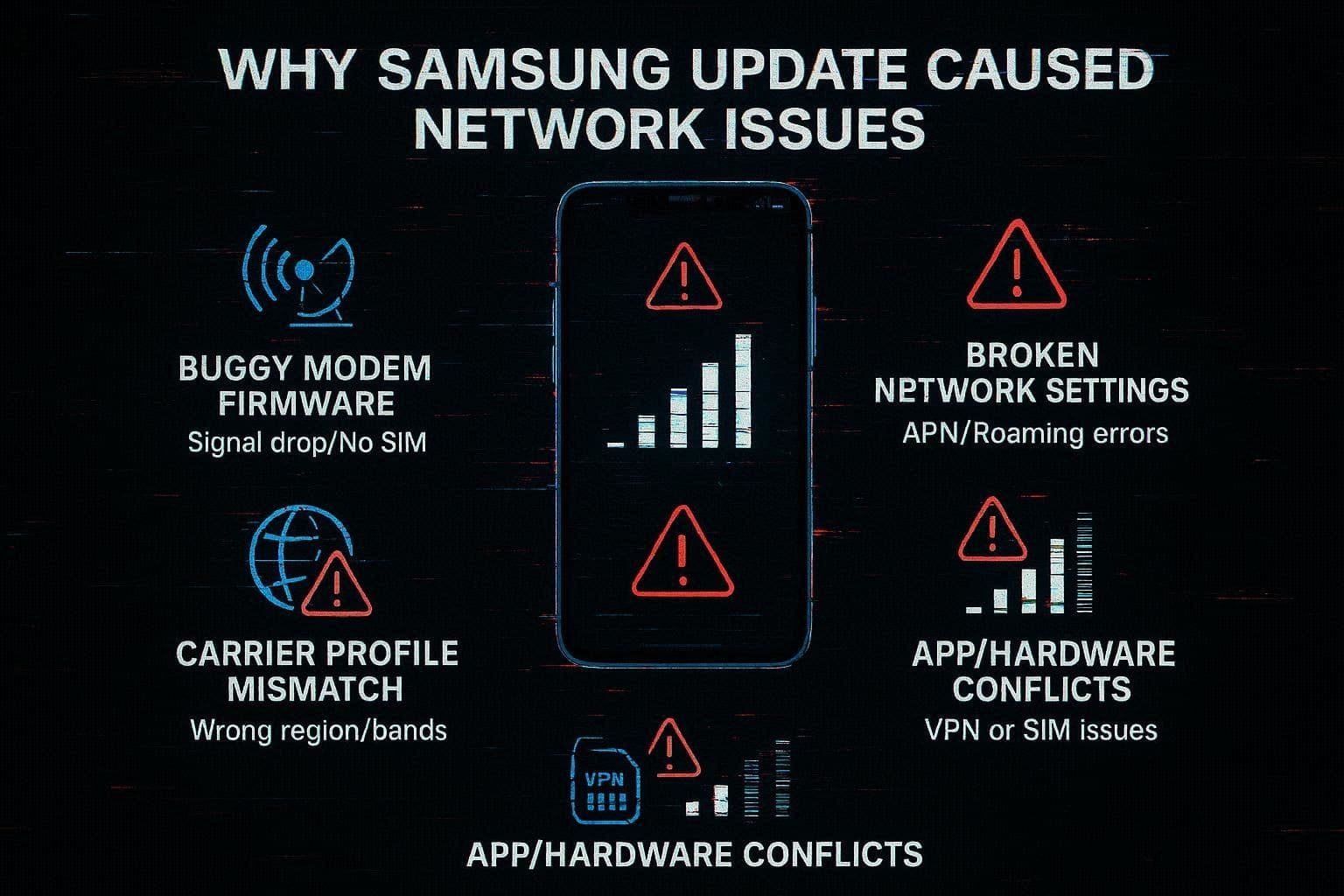
- Buggy or Incompatible Modem Firmware: Major updates can change modem/baseband firmware that controls network connectivity. If it's buggy or not fully compatible, users may see no SIM, no signal, or constant drops.
- Corrupted or Outdated Network Settings: Updates can break APN, roaming, or radio settings, causing failed network registration. Thus, this leads to "No Service," weak data, or roaming not working.
- Carrier or Region Profile Conflicts: The update may load the wrong carrier/region profile for your SIM or country. This can break 4G/5G bands, VoLTE, or international roaming, even if local service works.
- Temporary Post-Update Instability: After a major update, the phone runs background optimizations and reconfiguration. During this time, network drops, slow data, and instability can occur for hours or days.
- App or Hardware Conflicts: VPNs, security apps, and APN tools may clash with the new network system after the update. In rare cases, updates can also expose weak SIM/antenna hardware, causing sudden no internet issues.
Part 3. Fix Samsung International Network Issues After Recent Update
Most Samsung users are experiencing the Samsung One UI update foreign SIM not working issue and have tried multiple quick workarounds. In fact, many Reddit rebates have raised this query, highlighting that:
I've been having ongoing network issues on my Samsung S22, where it keeps dropping to "Emergency Calls Only" even in areas that used to work fine. My SIM works normally in an older phone, so I'm unsure if the issue is with the S22 itself, and I'm even considering upgrading to an S23 Ultra.
- r/samsunggalaxy
To overcome this, this section offers 8 simple and advanced ways to regain stable network connectivity and fix foreign SIM detection issues after the One UI update.
3.1 Quick Fixes (Try First)
If you need a rapid solution to this issue, try the 2 simple methods given below:
Fix 1. Restart Phone and Toggle Airplane Mode
A restart forces the phone to reconnect to cell towers from scratch, clears temporary system glitches, and reloads SIM card and carrier settings. On the contrary, Airplane mode works as a quick reset by cutting all signals and forcing the phone to reconnect, which can fix weak signals and roaming issues. Since both methods are simple, here is how you can perform them in a few taps:
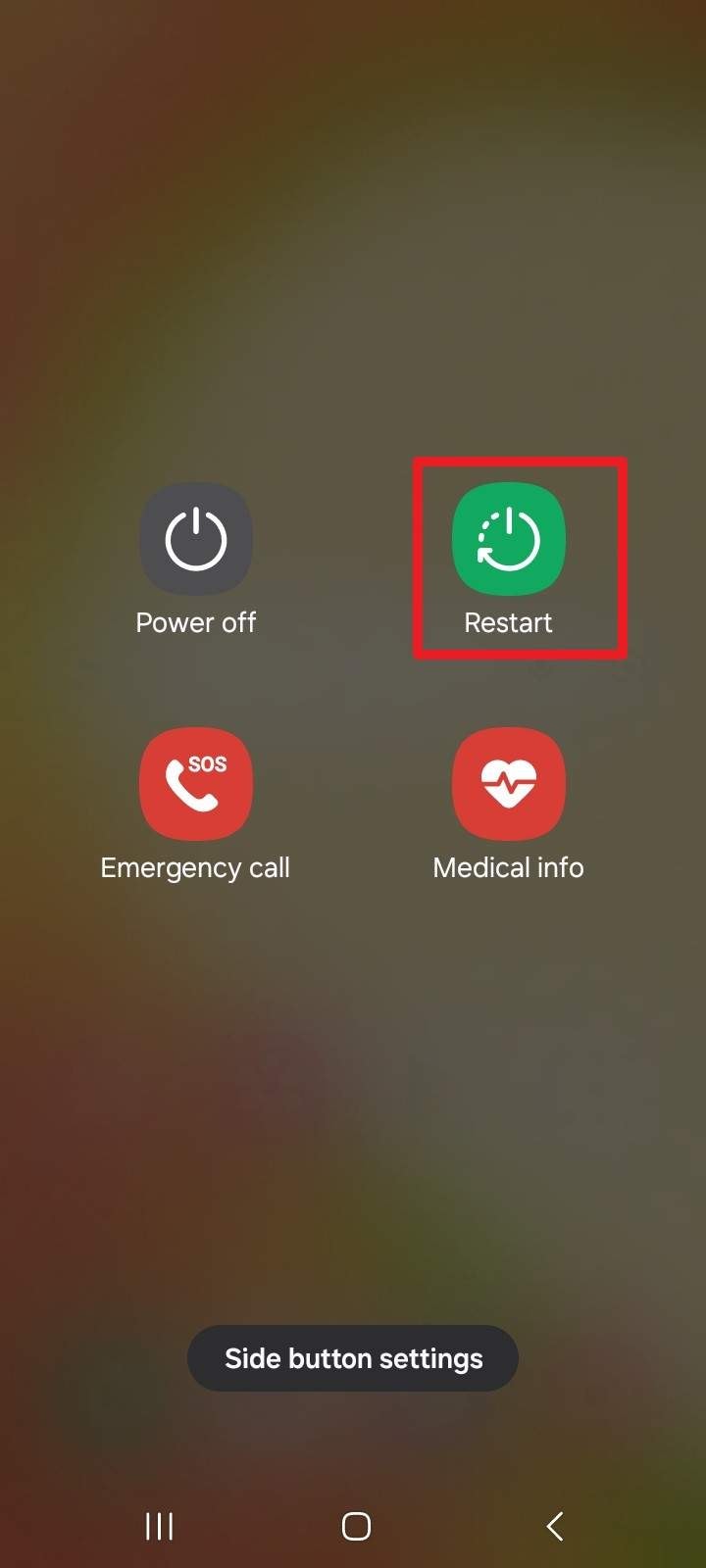
Restart Phone
-
Instructions
Press and hold the "Volume Down" and "Side (Power)" buttons and choose the "Restart" option.
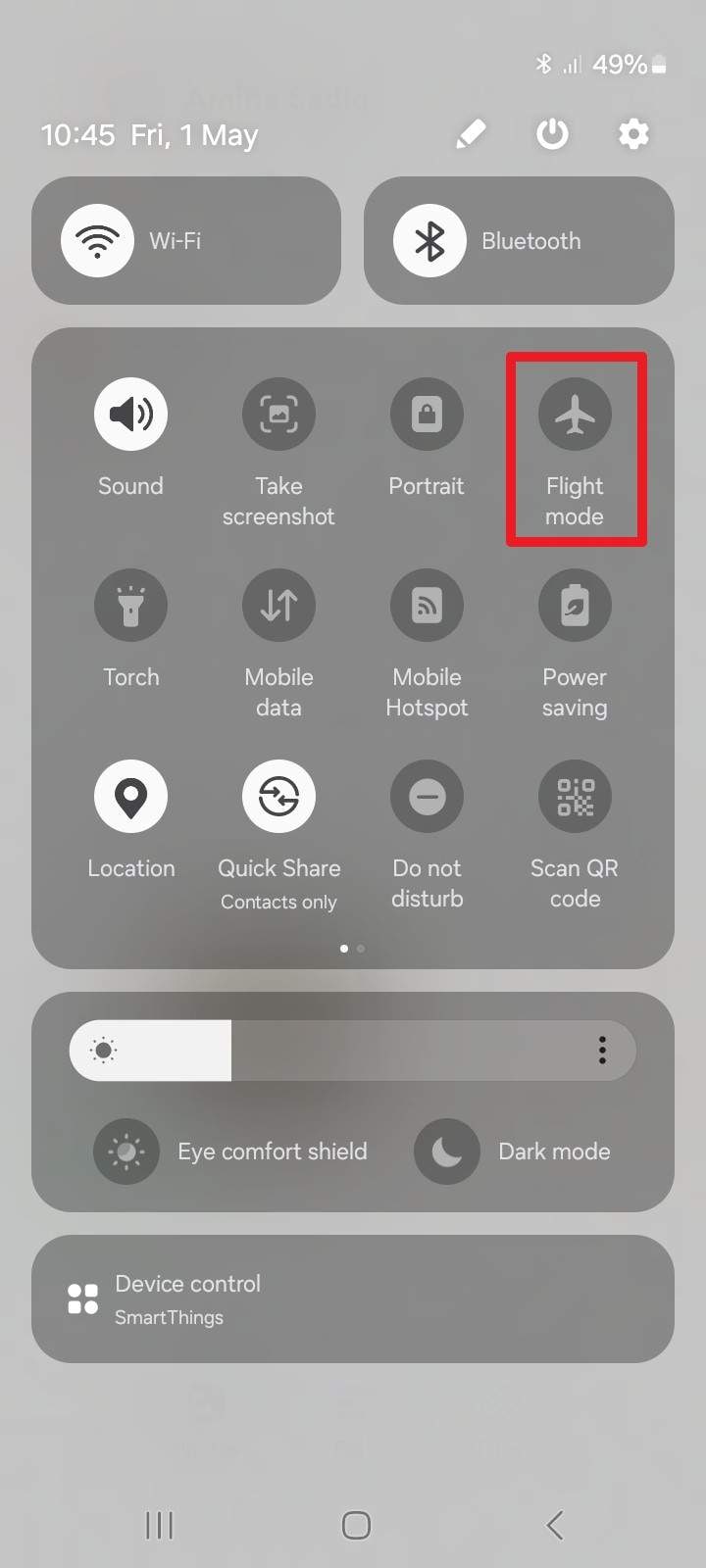
Toggle Airplane Mode
-
Instructions
Scroll down from the top of the screen, then in Quick Settings, enable and disable the "Airplane (Flight)" mode.
Fix 2. Reinsert SIM or Swap SIM Slots (Dual SIM Models)
If the Samsung Galaxy S25 international roaming is still not working, reinsert the SIM or swap the SIM slots. This forces the phone to re-detect the SIM card and rebuild its network connection, which often fixes issues after an update. Additionally, it helps ensure the SIM sits properly in the tray, reloading the carrier and SIM details that may not be applied correctly after an update.
3.2 Network & Carrier Fixes
When the quick fixes fall short, this section explains 5 network and carrier-based fixes that you can try:
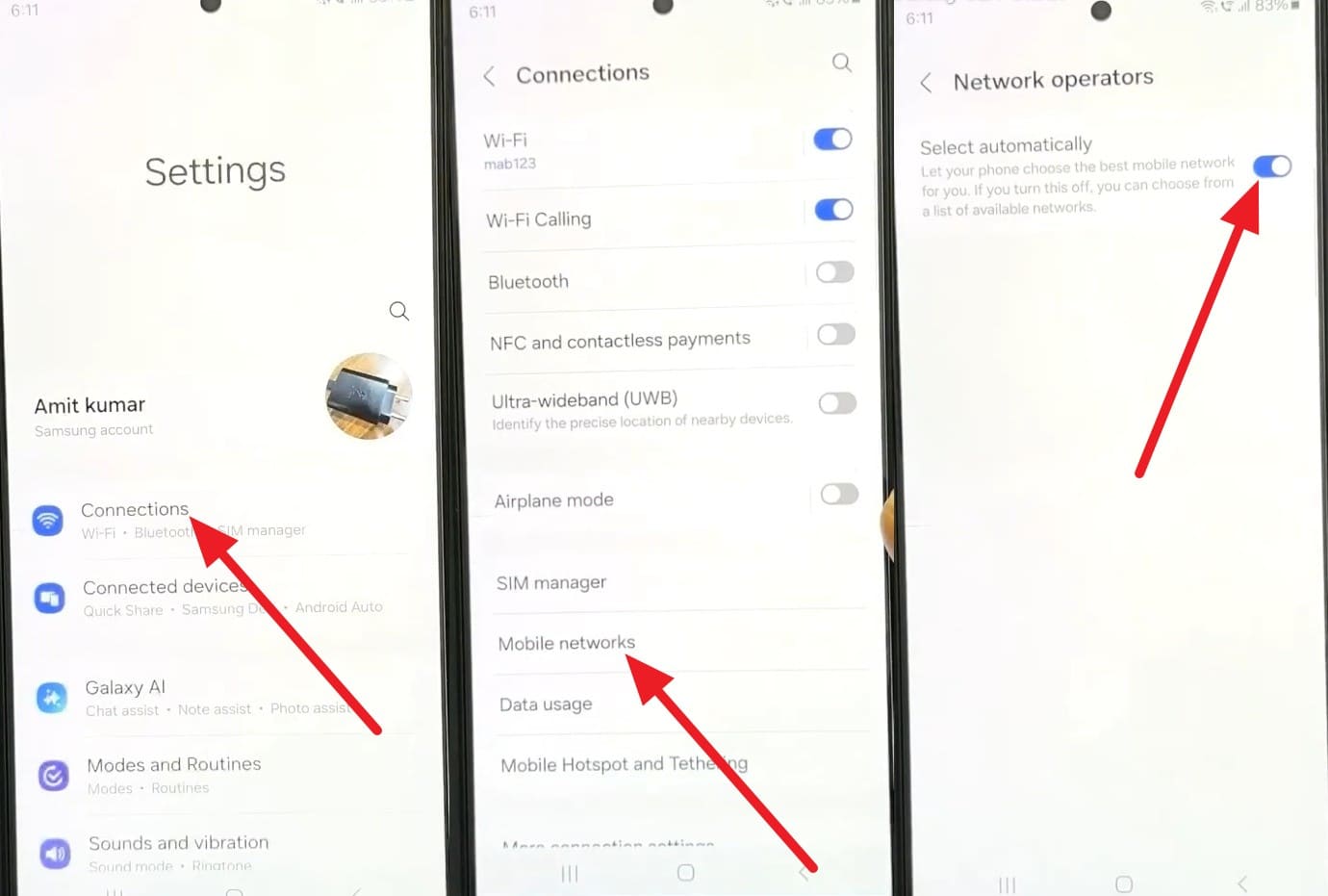
Fix 3. Manually Select the Correct Network Operator
Manually choosing the network operator makes the phone connect to a specific carrier instead of auto mode. Furthermore, it forces a fresh network scan and re-registration, can restore services when auto selection fails, and helps pick a stronger roaming partner when abroad. Since it also helps identify whether the issue is with coverage, SIM, or phone settings, follow the mentioned steps to perform it:
-
Instructions
In the settings, choose the "Connections" option and pick the "Mobile Networks" option. After that, tap on "Network Operators" and turn off the "Select Automatically" option to scan and choose from available networks.
Fix 4. Try the SIM in Another Phone to Rule Out SIM Problems
As another solution for the Samsung S25 US model not working overseas issue, try the SIM in another device. If your SIM does not work in a second phone, it likely has damage or activation issues and needs to be replaced. However, if it works elsewhere but not on Samsung devices, the issue is likely due to hardware or software issues after the update.
Fix 5. Check Roaming Settings and APN Configuration
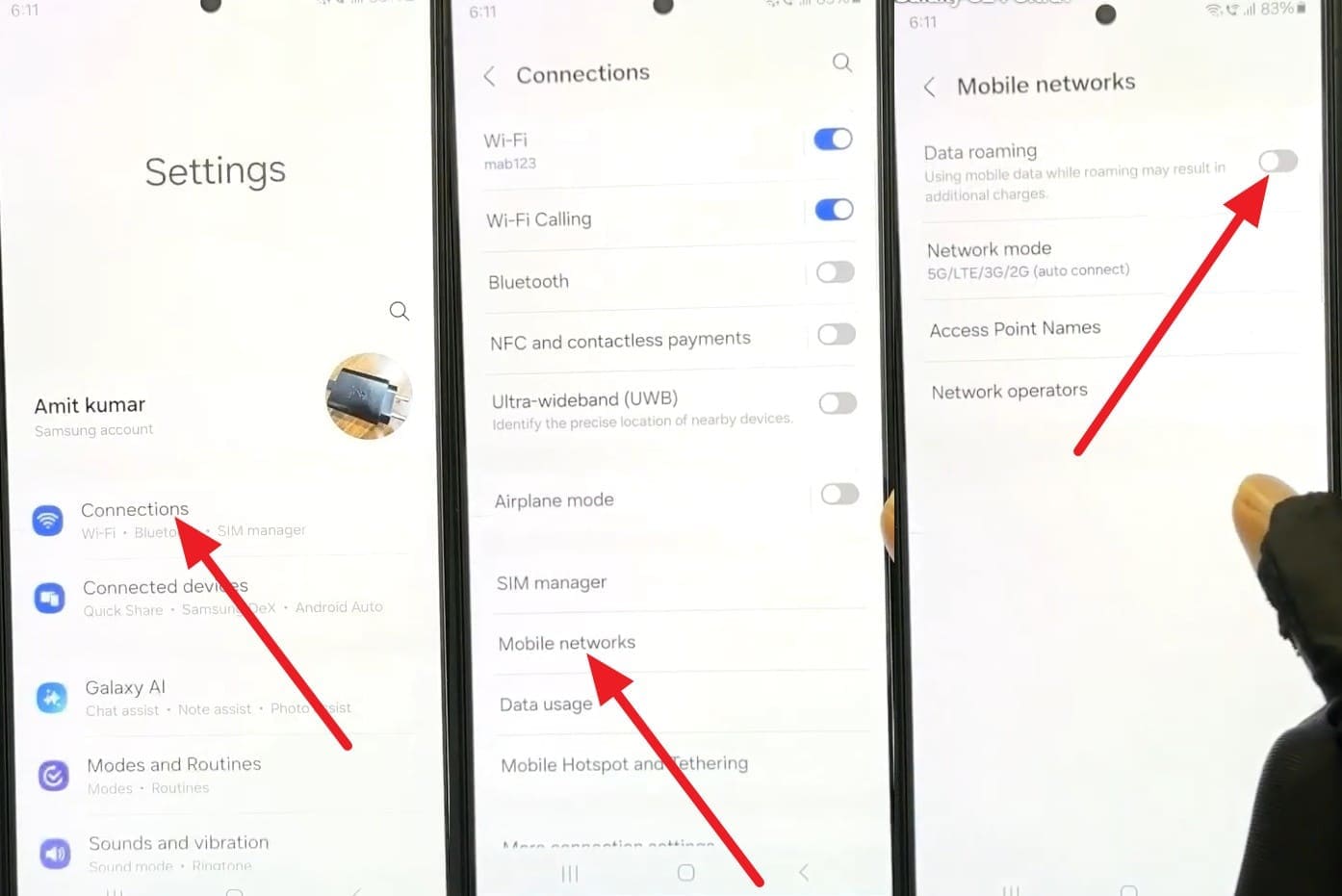
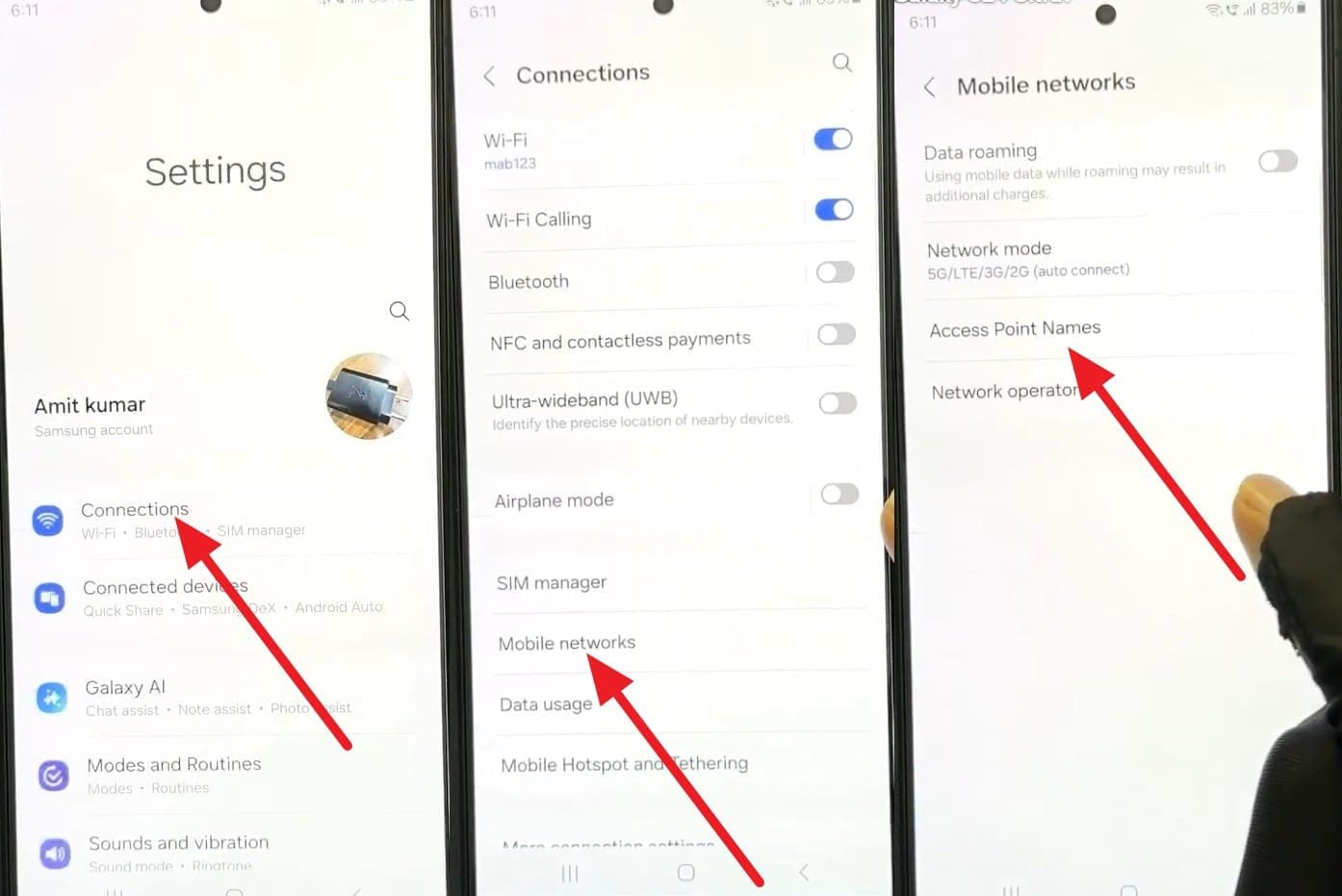
Through this fix, you can ensure your Samsung is properly set up to use mobile data, especially abroad. Additionally, it confirms that data roaming is enabled, restores the correct APN settings if they change or update, and aligns your phone with the carrier's network rules. You can also resolve the post-update issues where mobile data stops working even with the signal, via the steps mentioned below:
Check Roaming Settings
-
Instructions
After choosing the "Connections" and Mobile Networks" in the settings, make sure the "Data Roaming" option is turned on. If your plan supports roaming, toggle data roaming off and back on to refresh the roaming connection.
Check APN Configuration
-
Instructions
In the settings, turn on "Connection and "Mobile Networks" and choose the "Access Point Names" option. There, check that your carrier's APN is selected; if it looks wrong or empty, press "Reset to Default."
Fix 6. Reset Mobile Network Settings to Default
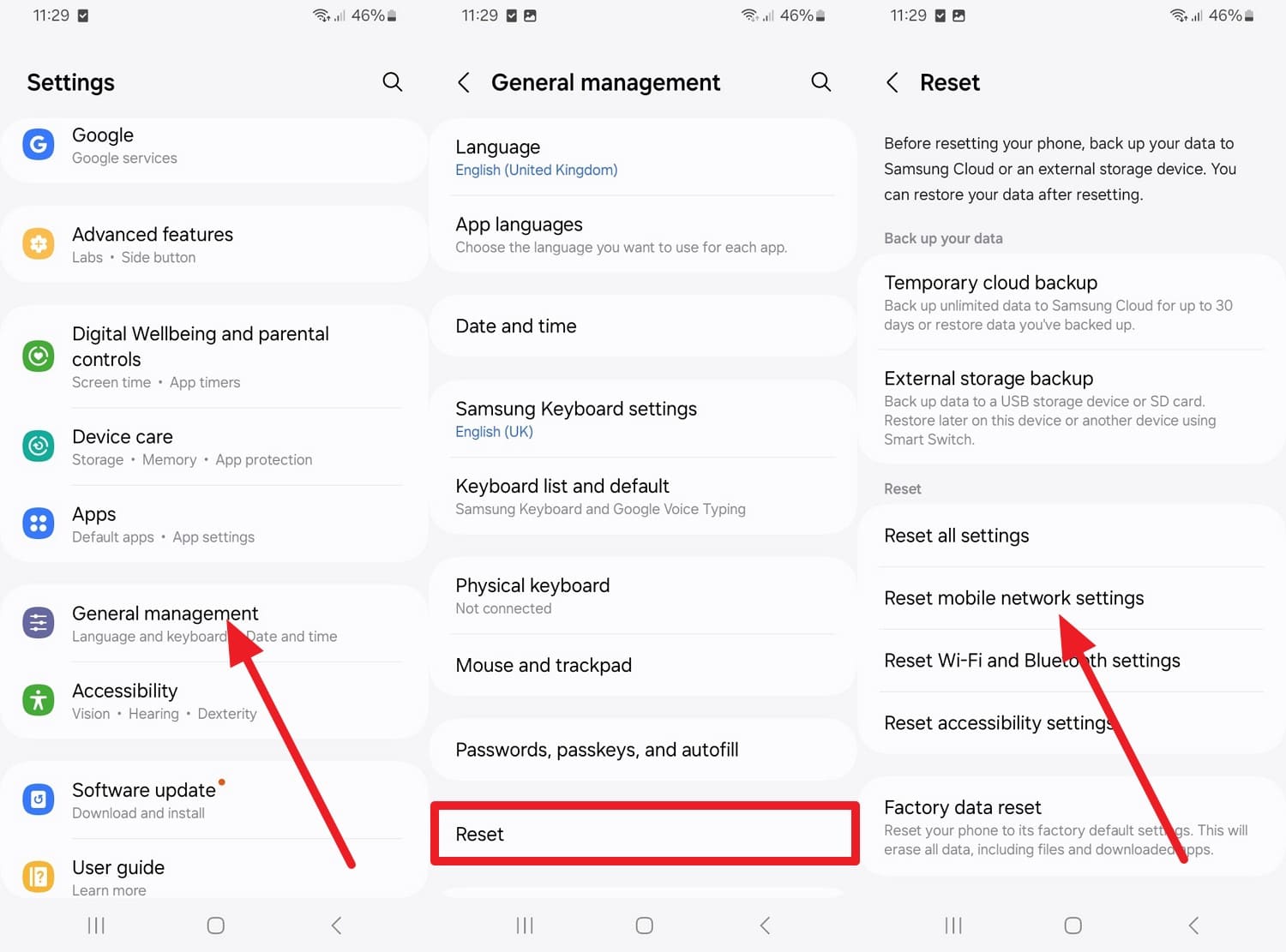
When Samsung's update broke the international network, this fix restores a clean network setup. It removes broken APN, roaming, and hidden network settings, and often solves stubborn "no service" or mobile data problems when basic fixes fail. After the reset, the phone reloads the correct carrier settings from the SIM, improving signal stability and speed, as guided:
-
Instructions
In the "General Management" settings, choose the "Reset" option to pick "Reset Mobile Network Settings. If asked, choose the SIM card and press the "Reset Settings" button to confirm.
Fix 7. Install Any New Carrier or Samsung Patch Updates
These updates replace faulty modem or radio code, improve carrier profiles and network compatibility, and make your phone connect more reliably to 4G/5G and roaming networks. Furthermore, they help improve stability, reduce random disconnections, and add security fixes for network-related systems, as mentioned below:
-
Instructions
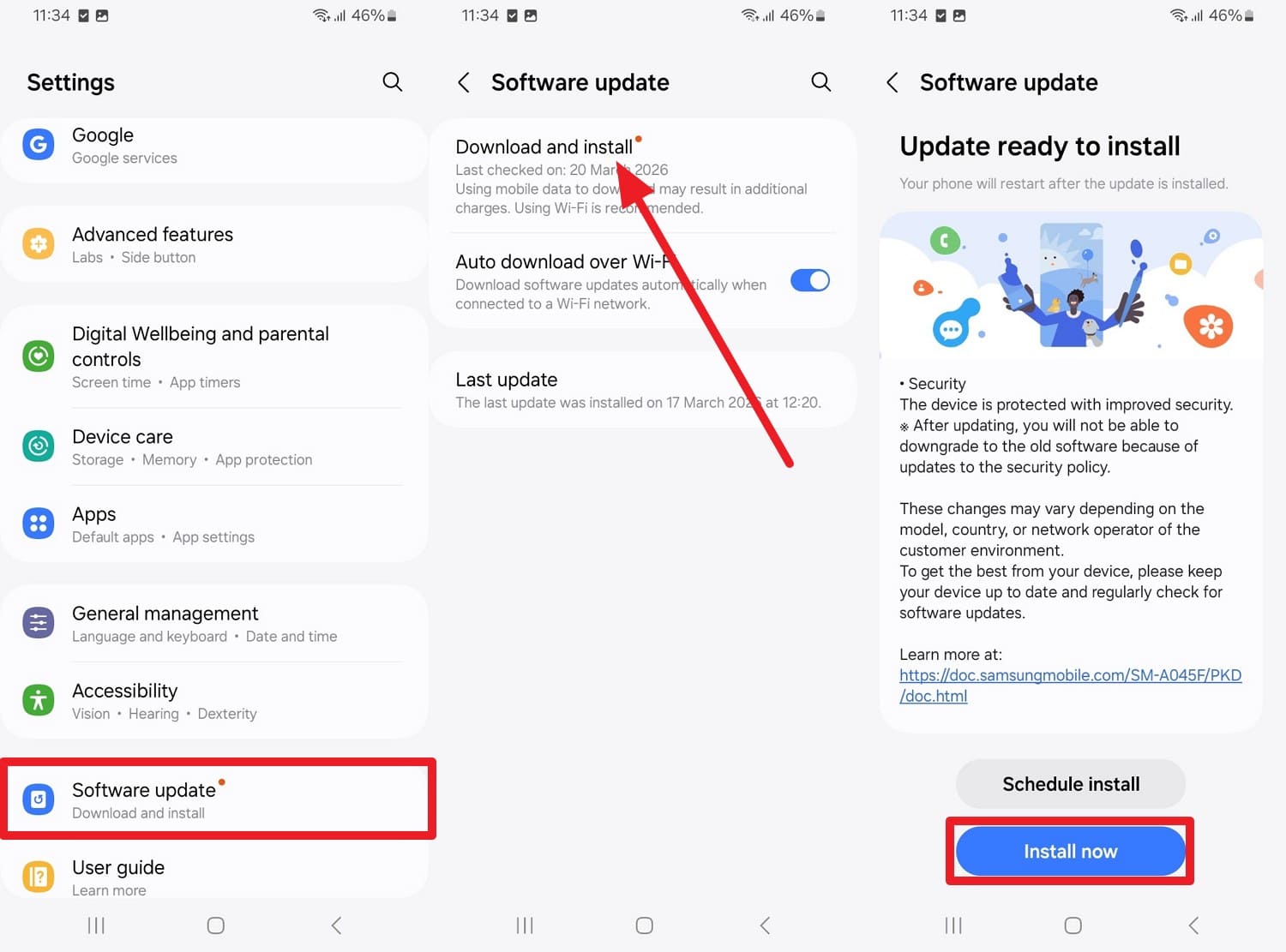
To fix the Galaxy S25 software update broke SIM card issue, choose the "Software Update" option in settings and tap "Download and Install". If the update is available, press the "Update Now" option, keep the phone charged and connected to Wi-Fi until it finishes.
3.3 Advanced Fixes
When an update causes serious network issues like no signal, dropped calls, or broken roaming, try the advanced solution given below:
Fix 8. Roll Back or Re-Flash Official Firmware (Advanced Users Only)
This solution can restore a previous stable version that still worked properly, especially when no official patch is available yet. In addition, reflashing also replaces corrupted system or modem files with clean copies, which can fix deep software problems that normal resets cannot. Since it gives a fresh baseline to test whether the issue is software, hardware, or carrier-related, here is how to do it:
Prerequisites:
- Windows PC: Running Windows 7 or higher.
- USB Data Cable: A high-quality cable to connect your phone to the computer.
- Internet Connection: To download the firmware (usually 5–10 GB) and the flashing tool.
-
Step 1
Locate your device's model number (e.g., SM-G990B2) and region (CSC/Carrier) in Settings > About Phone. As a last resort for the Samsung One UI update foreign SIM not working issue, back up the data first. Additionally, sign out of your Google or Samsung account to avoid Factory Reset Protection issues.
-
Step 2
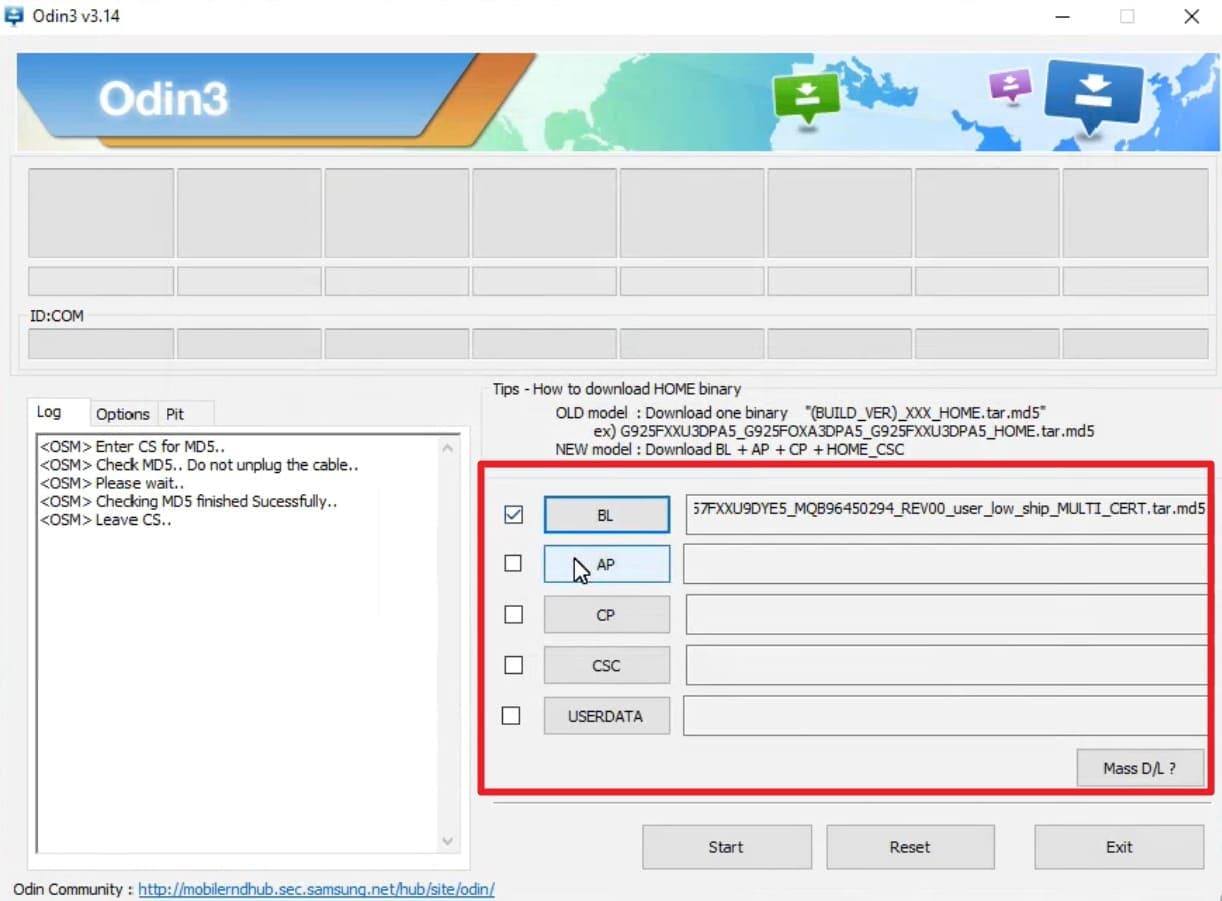
After that, install the Odin tool and use a tool like 7-Zip to extract both the Odin zip file and the firmware zip file to your desktop. Open the extracted Odin folder and run the .exe file as an administrator. In Odin, you just load the firmware files by selecting BL, AP (the largest file), CP, and CSC (use CSC for a clean install, not HOME_CSC).
-
Step 3
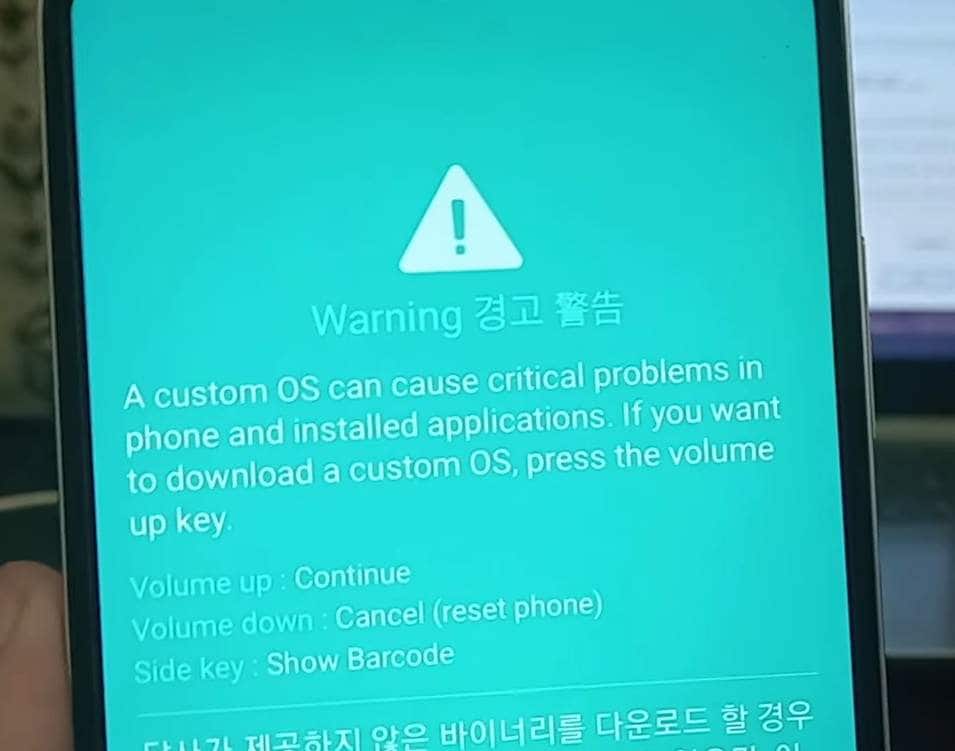
While the phone is off, press and hold the "Volume Up + Volume Down" buttons simultaneously. While holding them, plug the USB cable into your phone, and when the blue warning screen appears, tap the "Volume UP" button to enter "Download Mode."
-
Step 4
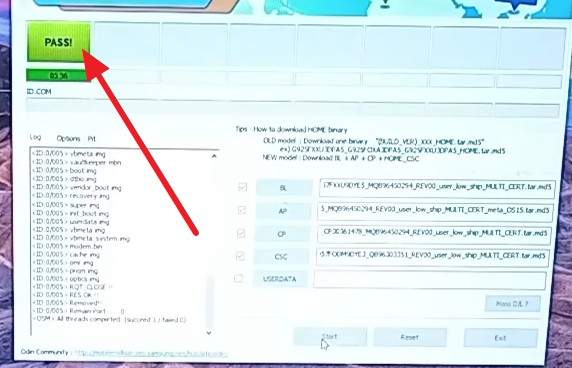
After the phone is detected on the Odin tool, click the "Start" button. A progress bar will appear on both the PC and the phone, and as it finishes, Odin will show a "Pass" message. The phone will automatically restart, so don't unplug the cable until it finishes erasing the old data and begins the initial setup screen.
Part 4. When You Need a System-Level Repair
For the Samsung S25 US model not working overseas, the given table explains when you need a system-level repair:
| Situation | What It Means | Why Go System-level |
|---|---|---|
| All Basic Fixes Failed | Not a simple settings issue | OS/modem/firmware likely corrupted |
| Sim Works in Other Phones, But Not Yours | Phone, not SIM or carrier, is at fault | Radio firmware or device config is broken |
| Issues Began Right After a Big Update | Update introduced a lasting bug | Needs reinstall or rollback of firmware |
| Others on the Same Carrier are Fine | Not a network outage | Your model/build is specifically affected |
| Support Couldn't Fix It with Resets/SIM Swaps | Front-line fixes exhausted | Needs pro flashing, repair, or replacement |
Pro Tip. Fix System-Level Bugs with Dr.Fone - System Repair
When the corrupted firmware or OS issue leads to a Galaxy S25 software update broken SIM card issue, system repair tools like Dr.Fone - System Repair can help. Such tools let you access Download Mode (Odin) for free to repair service issues on Samsung, Xiaomi, Redmi, and POCO phones and tablets. Additionally, you don't need root access, and the repair is completed in 2-3 steps.
It can repair corrupted Android components that cause stubborn network issues by automatically downloading and installing the correct official firmware for your exact device model. Most of all, the guide is there to help the user and is easier to use than the Odin tool. Overall, it is designed for non-technical users and makes complex system recovery much simpler and safer.
 Fix Android
instantly – no skills needed.
Fix Android
instantly – no skills needed.- Solve boot loop,
black screen, won’t turn on, etc.
- High success
rate for all system issues.
- User-friendly
interface with easy-to-follow steps.

How to Use Dr.Fone to Fix Samsung Update Issues
To know how this tool can fix the Samsung One UI update foreign SIM not working issue because of corrupted OS or firmware, this section is for you. Here, the tool's success rate and ease of use are compared and tested with other methods:
-
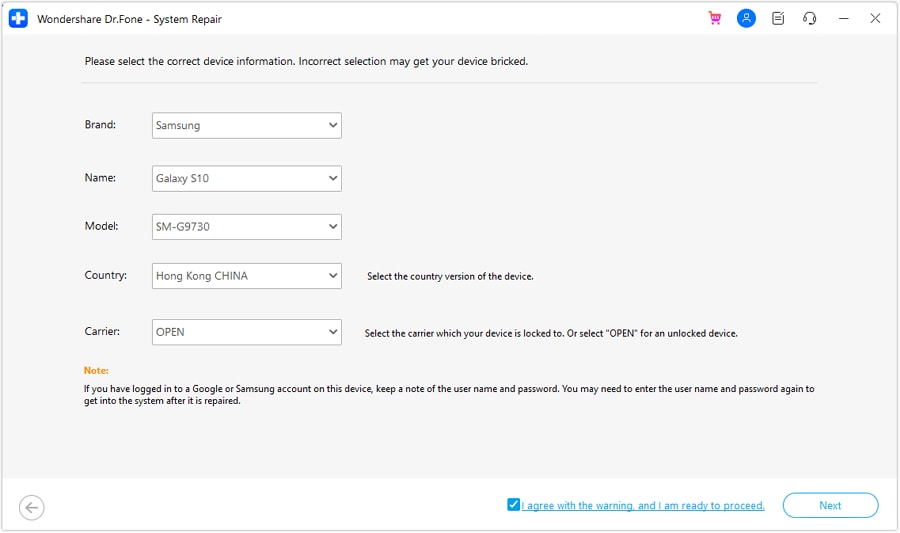
Step 1Access Android System Repair Tool
Choose the System Repair Android tool and tap the "Repair Now" button under the "Android Repair" section. After that, select "Samsung" as the brand and press the "Start" button to confirm the device details.
-
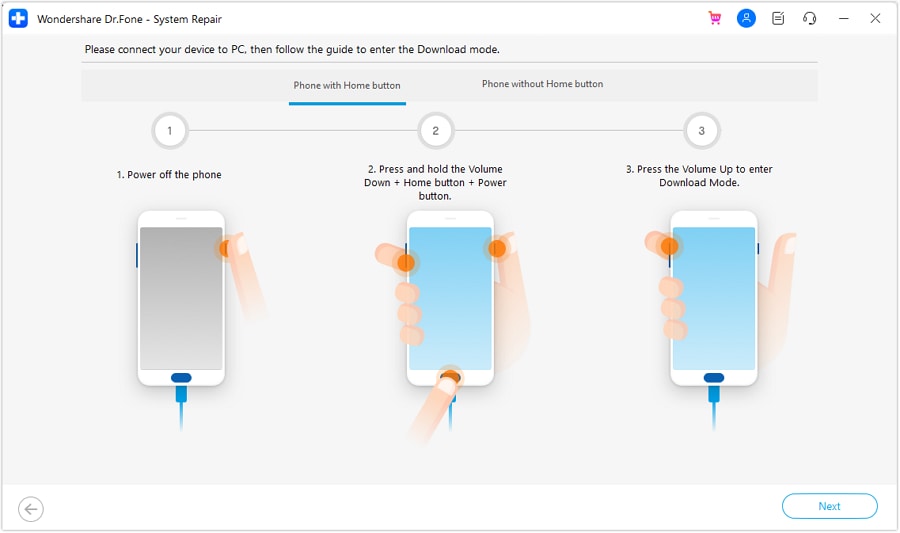
Step 2Enter the Download Mode on the Tool
Put the device into "Download Mode" using the provided instructions, then let the tool download the firmware.
-
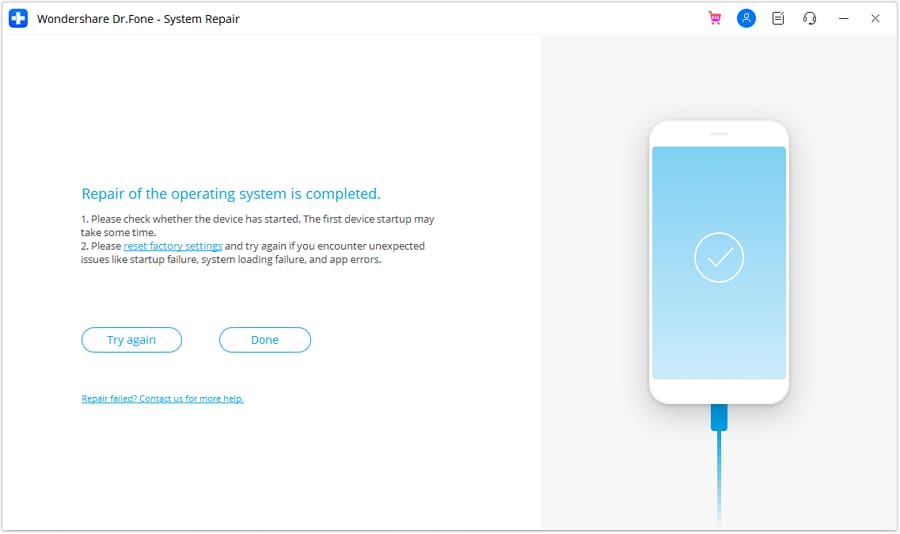
Step 3Type the Code and Conclude Process
Verify the firmware details, then type "000000" and click the "Confirm" button. Then the tool will start the system repair process, and choose "Done" to conclude it.




Conclusion
Software updates can scramble modem configurations, causing Samsung update broke international network issues. If firmware corruption is the culprit, a specialized system repair tool like Dr.Fone - System Repair can effectively resolve OS-level bugs. However, users should first try basic network resets before using advanced repair solutions.
FAQs
-
1. Will flashing official firmware void my Samsung Knox warranty?
Flashing official, region-correct firmware via Odin typically does not trip the Knox counter or void your warranty. -
2. Can I fix "No Service" by simply changing the Network Mode?
Switching from 5G to LTE/3G in settings can often force a connection if the update's 5G modem code is unstable. -
3. Does a physical SIM work differently from an eSIM after this update?
Updates may affect the eSIM profile specifically; deleting and re-downloading the eSIM often restores international service.
 Add Wondershare Dr.Fone as a preferred source on Google