
How to Fix the Galaxy S26 This Device Isn't Play Protect Certified Error

Sep 24, 2026 • Filed to: Phone Repair Solutions • Proven solutions
 TL;DR:
Resolve the "This Device Isn't Play Protect Certified" restriction on the Samsung Galaxy S26 by forcing a fresh connection to Google servers, applying initial One UI patches, or repairing corrupted early-production firmware.
● Force a new Play Protect status request by clearing the data for Google Play Services and the Play Store, while strictly enabling automatic date, time, and time zone settings to prevent synchronization failures.
● If the initial One UI updates from around March 10-11, 2026, do not restore access to banking and essential apps, extract your Google Service Framework (GSF) ID using a Device ID app and submit it manually to the Google Uncertified Device Registration page.
● For persistent system corruption that survives factory resets, restoring the device to a Google-compliant state requires booting into Download Mode (Odin) to reinstall core Android components using Dr.Fone - System Repair.
Ask AI for a summary
 ChatGPT
 Perplexity
 Gemini
 Claude
 Grok
Grok
Imagine buying a new Samsung Galaxy S26 after shipping worldwide on March 11, 2026, and trying to download an app, only to see the message: This device isn't Play Protect certified. For most users, this issue started around March 10-11, 2026, during the initial pre-order phase. Upon its appearance, the app fails to install, and access to essential apps becomes restricted.
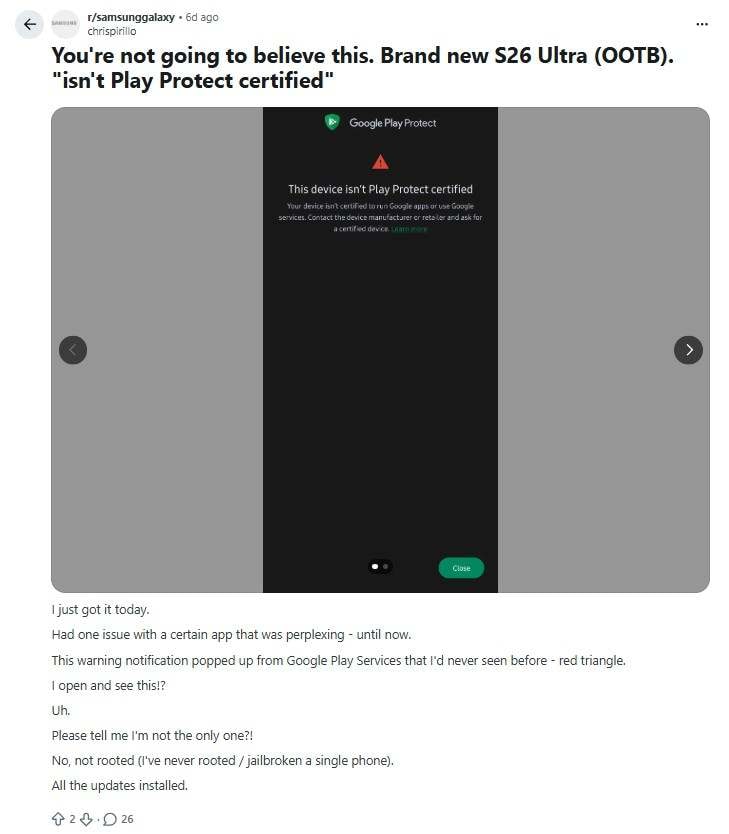
This issue can appear after updates or when switching devices, leaving users confused about why a new phone cannot install trusted apps. Along with you, many users have discussed this issue on Reddit, saying:
"I received it today and noticed a strange warning from Google Play Services with a red triangle. My phone isn't rooted, and everything is updated, so the message was confusing."
Additionally, some reports on Facebook have highlighted this issue and explained a few causes. So, if you seek to know what solutions could resolve this alert, review this guide when you can't find a proper way out on debate pages. As you adhere to the given details, learn how Dr.Fone can be an effective choice for resolving firmware issues.
 safe & secure
4,624,541 people have downloaded it

Part 1. Quick Fixes for the Galaxy S26 Play Protect Error
Those who seek simple ways to fix the Samsung Galaxy S26 Play Protect error, try the 5 basic ways and see if they help. From clearing the Google Play Store cache to a simple restart, many experts have shared seamless ways on Reddit, so let's see how effective they can be.
Way 1. Restart Your Galaxy S26
When the issue comes from a temporary software glitch, a reboot reloads Google Play Services, Play Store, and security checks. It refreshes the connection to Google servers, which helps prevent stuck background processes that block Play Protect verification. Some users on Reddit have also said that this solution has also resolved the error, starting:
"Change the date to a few days earlier, save it, then switch back to automatic date and save again. This fixed the issue on my wife's S26, so hopefully it works for you too. - chieftec999"
Moreover, it is fast and safe because no data or apps are lost, and it can be done via the given steps:
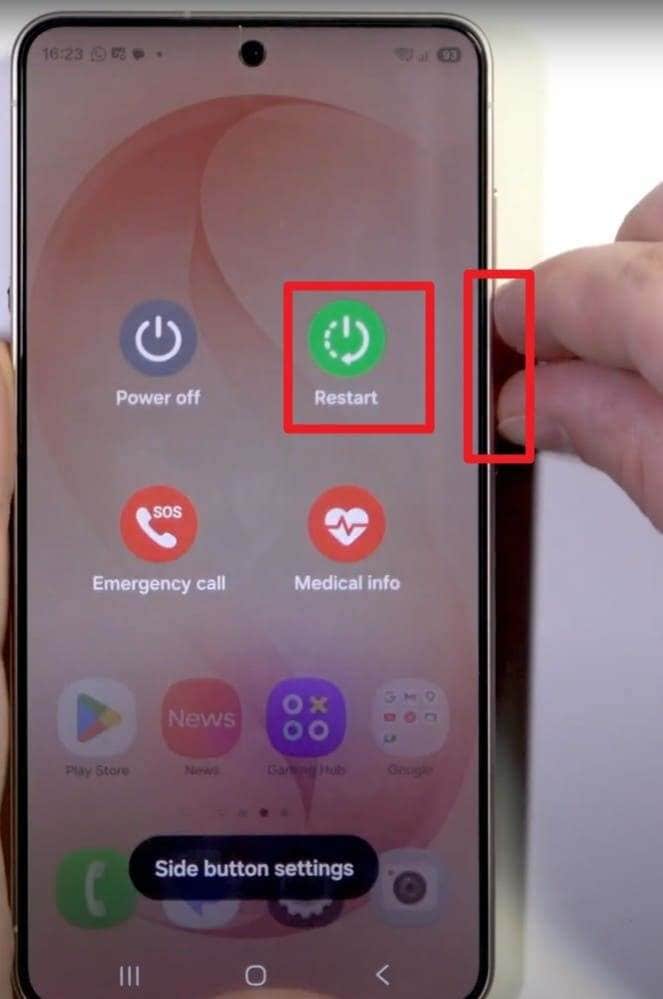
Instructions: Hold the "Side (power)" button and "Volume Down" together for 1-2 seconds, then tap "Restart."
Way 2. Toggle Airplane Mode On and Off
If you get the S26 Ultra play protect certification error, this fix resets Wi-Fi and mobile data in one step, which helps Play Protect reconnect with Google servers. This action drops weak or broken connections and creates fresh network links.
In fact, Google Community also suggests connecting to a strong Wi-Fi connection so that Google Play Services and the Play Store can receive a new verification check for the device. Thus, a simple workflow for this action is given ahead:
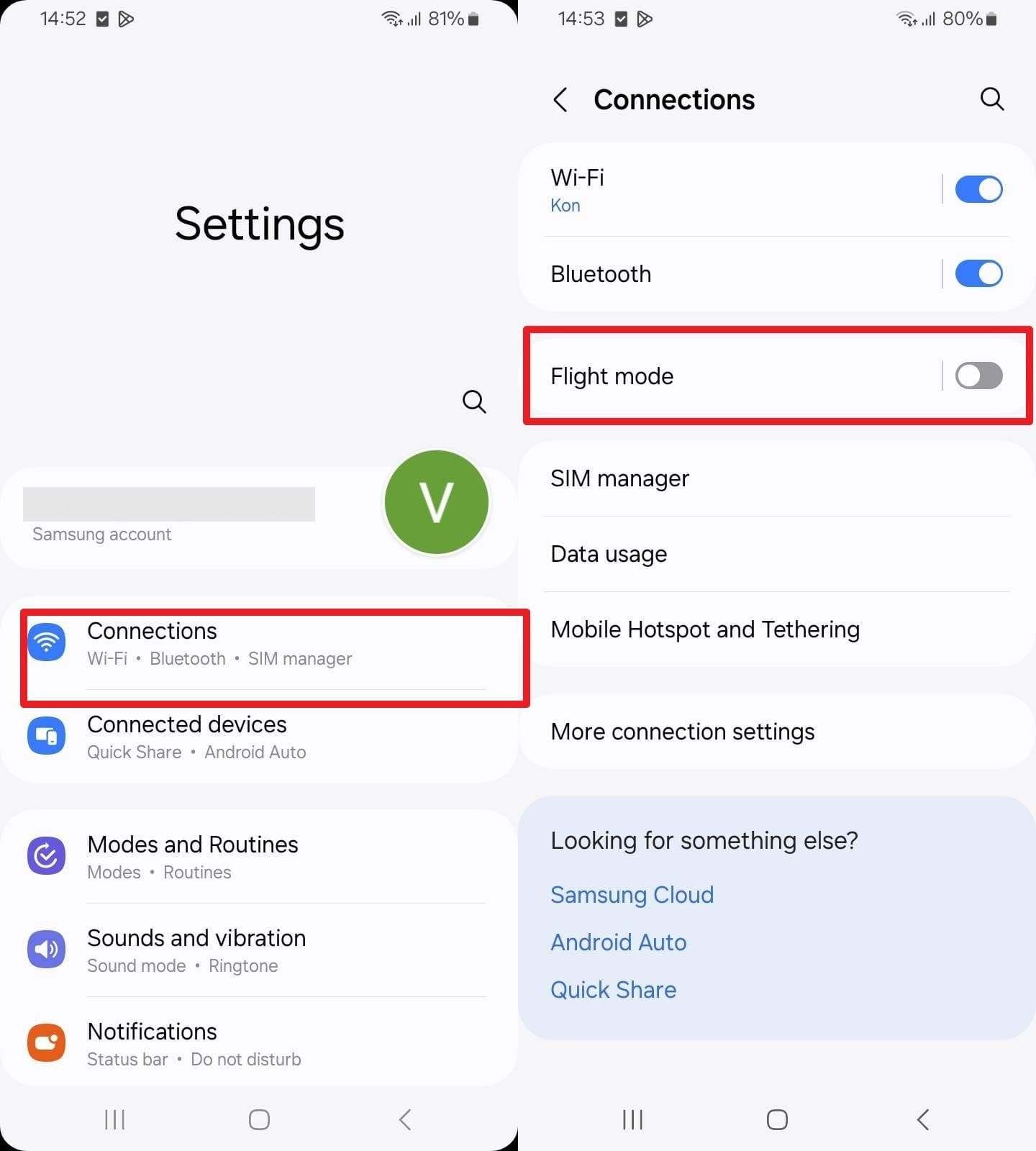
Instructions: Within the settings, go to "Connections" and toggle on the "Flight Mode" option. After a few seconds, turn this mode off to check the issue.
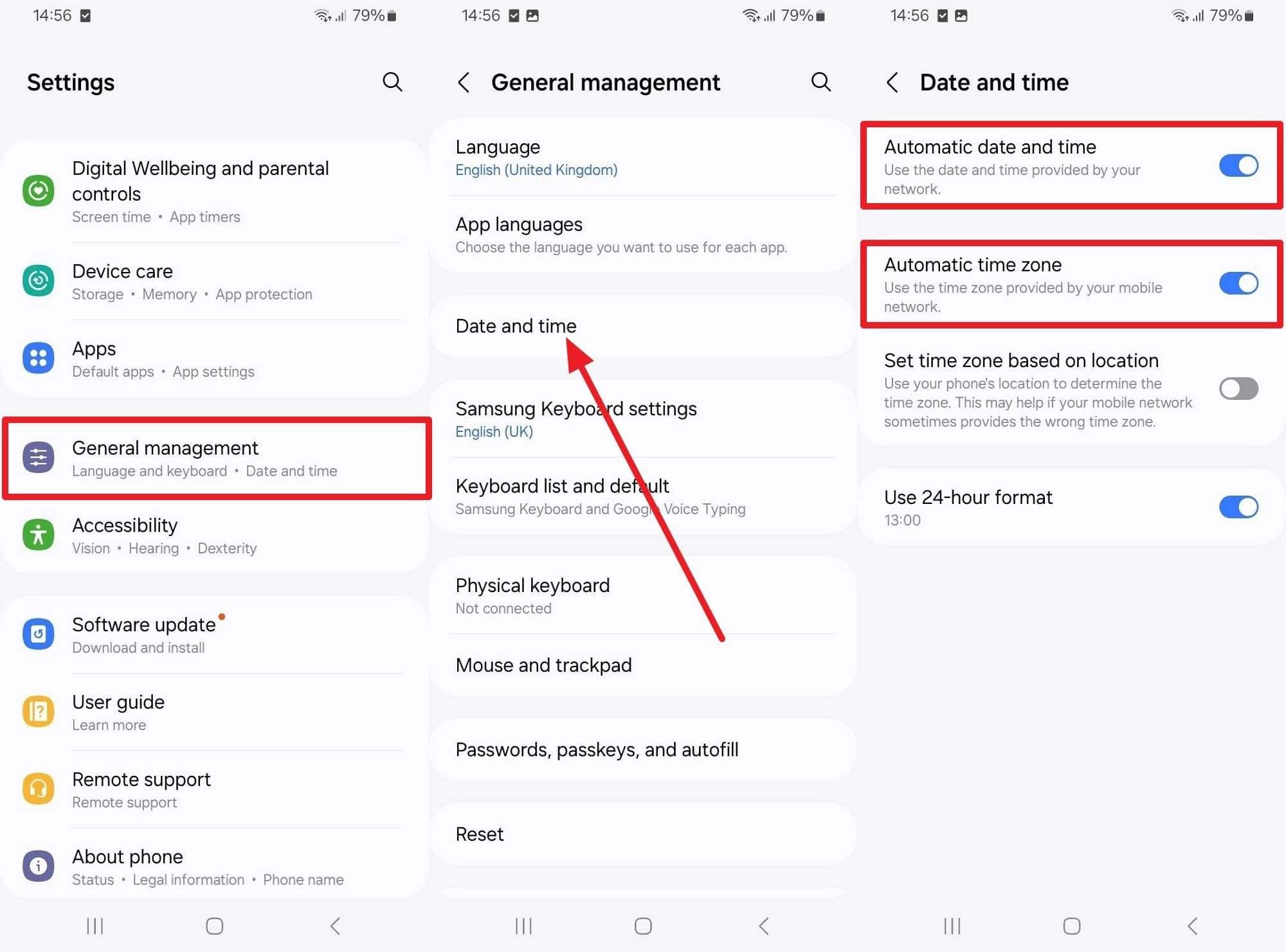
Way 3. Check Date and Time Settings
Note that Play Protect and Google services rely on accurate system time. So, as you perform this quick check, it allows the Play Store and Google services to verify the device properly. Moreover, it prevents sync issues with accounts, app updates, and security apps. So, to know how to fix the Play Protect certification error on Samsung, here is a simple guide:
Instructions: In Settings, tap "General Management" and select "Date and Time." Ensure the switches for "Automatic Date and Time" and "Automatic Time Zone" are both turned "On."
Way 4. Update Google Play Services and Play Store
New versions include updated security checks and bug fixes that can remove the "device not certified" error. In addition, updates improve communication with Google servers, allowing the phone to pass integrity checks correctly. Not just that, this step also ensures compatibility with the new S26 system software, once performed via the listed instructions:
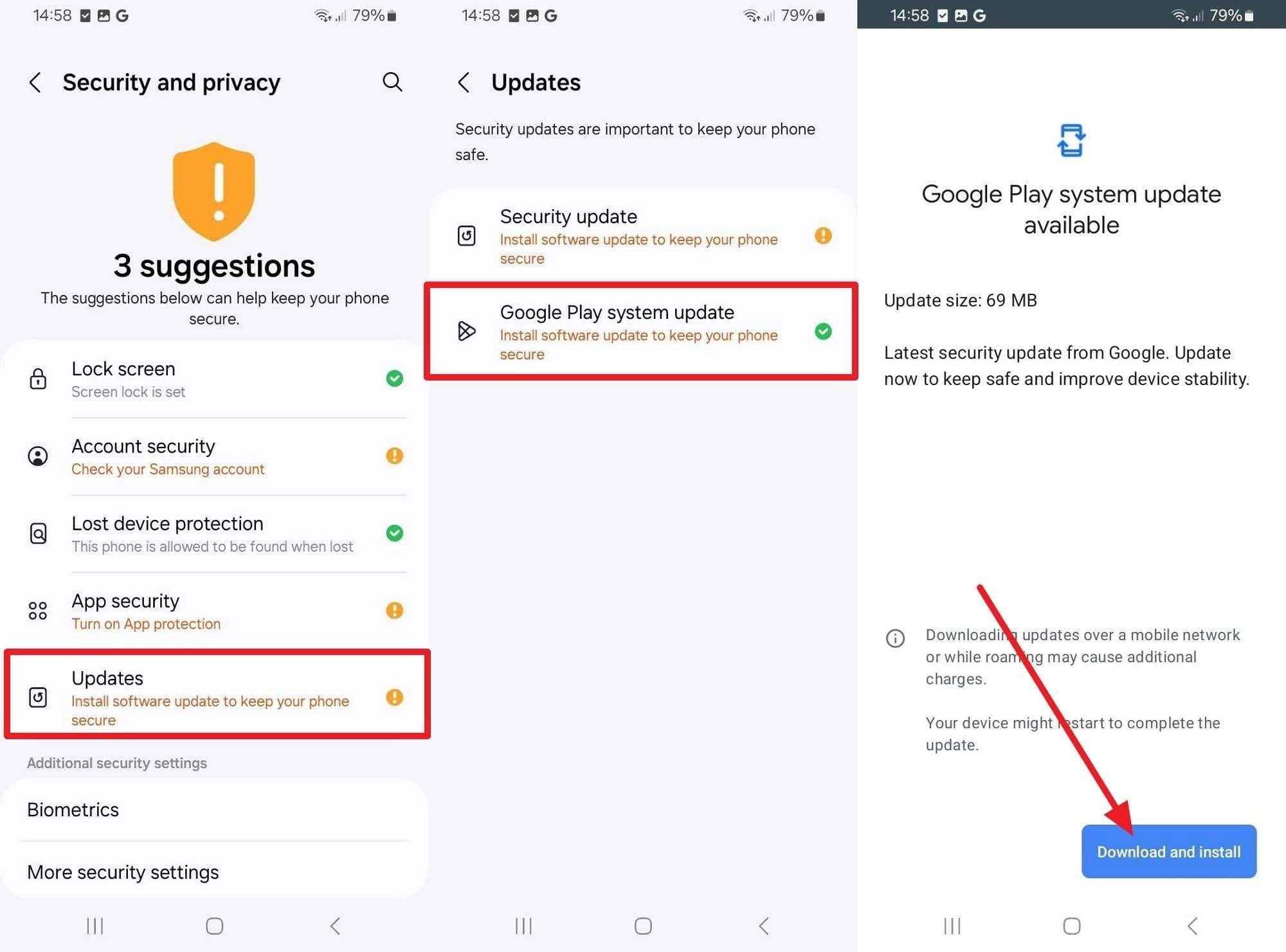
To Update Google Play Services
Instructions: Go to Security and Privacy > Updates > Google Play System Update and choose to "Download and Install."
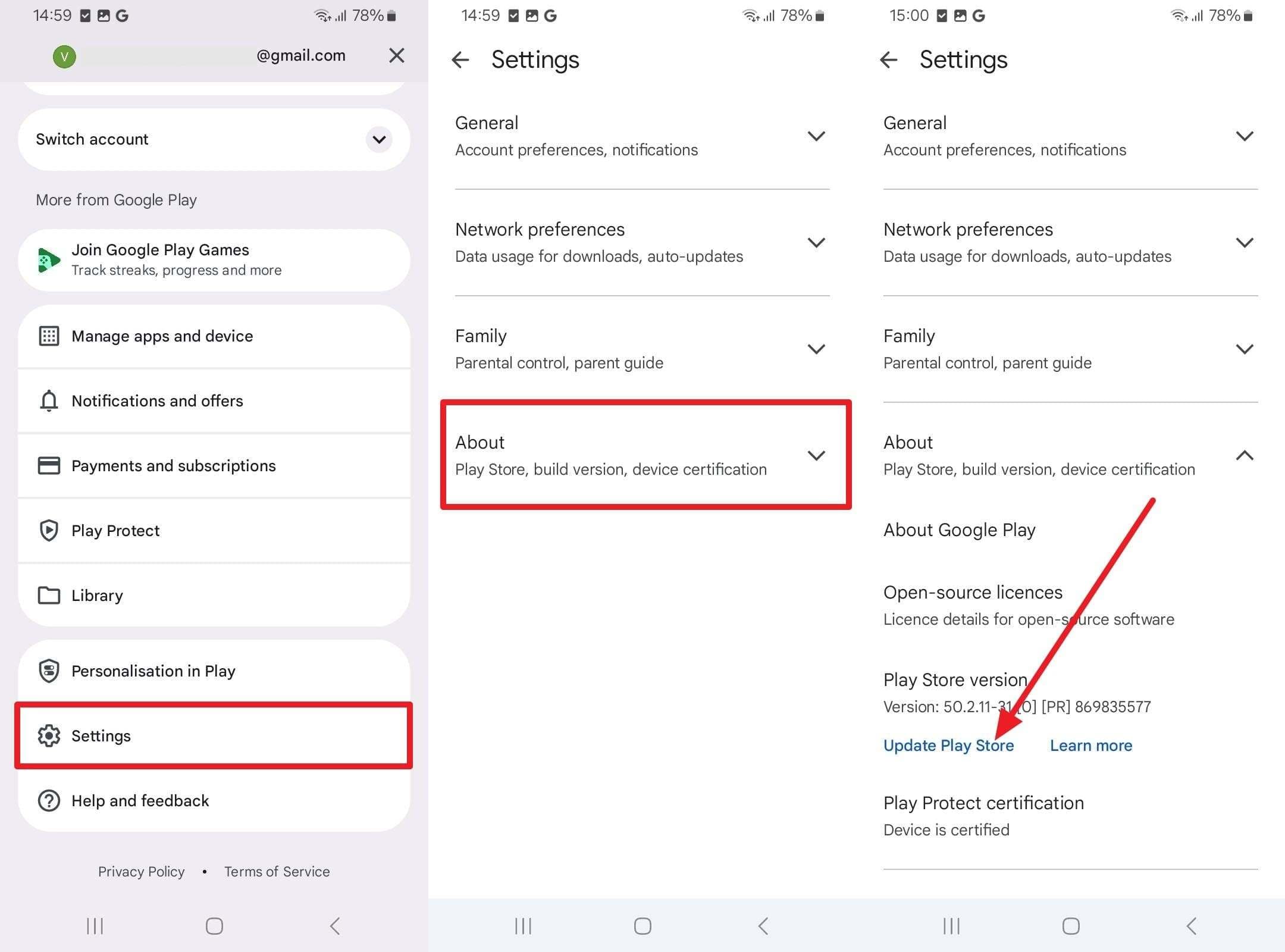
To Update the Play Store
Instructions: Open the app, tap your profile icon, then tap Settings > About > Update Play Store > Understood.
Way 5. Clear Cache for Google Play Services and Play Store
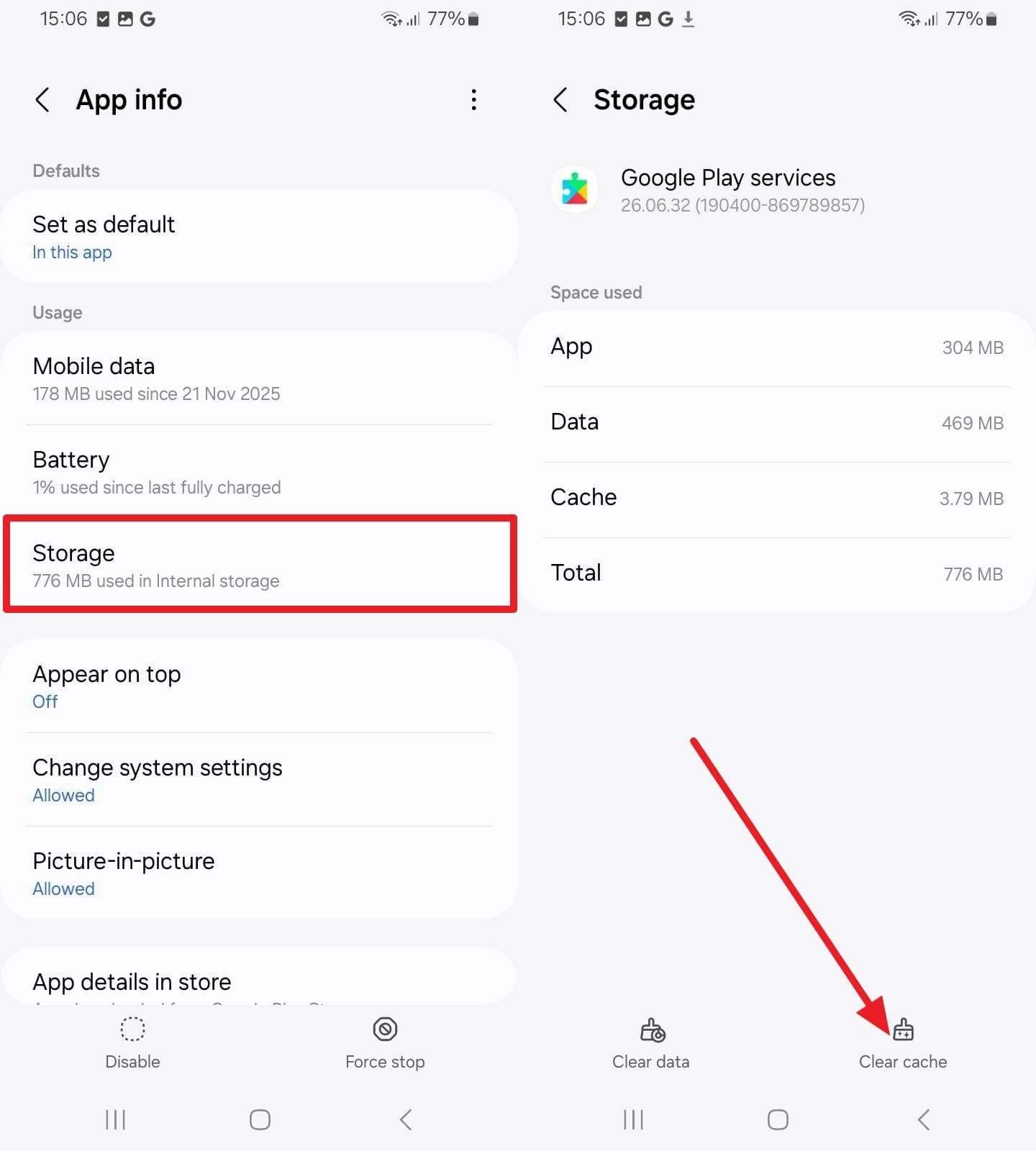
If you still get the Galaxy S26 not certified to run Google apps alert, clear the cache for Google Play Services and the Play Store. Cache removal forces both apps to create fresh temporary data and request a new Play Protect status from Google servers. This step often resolves random glitches and improves app loading speed, as guided:
- Step 1. Choose "Apps" in settings and pick Google Play Services and Play Store one by one. On the Play Store App Info interface, tap on "Storage > Clear Cache."
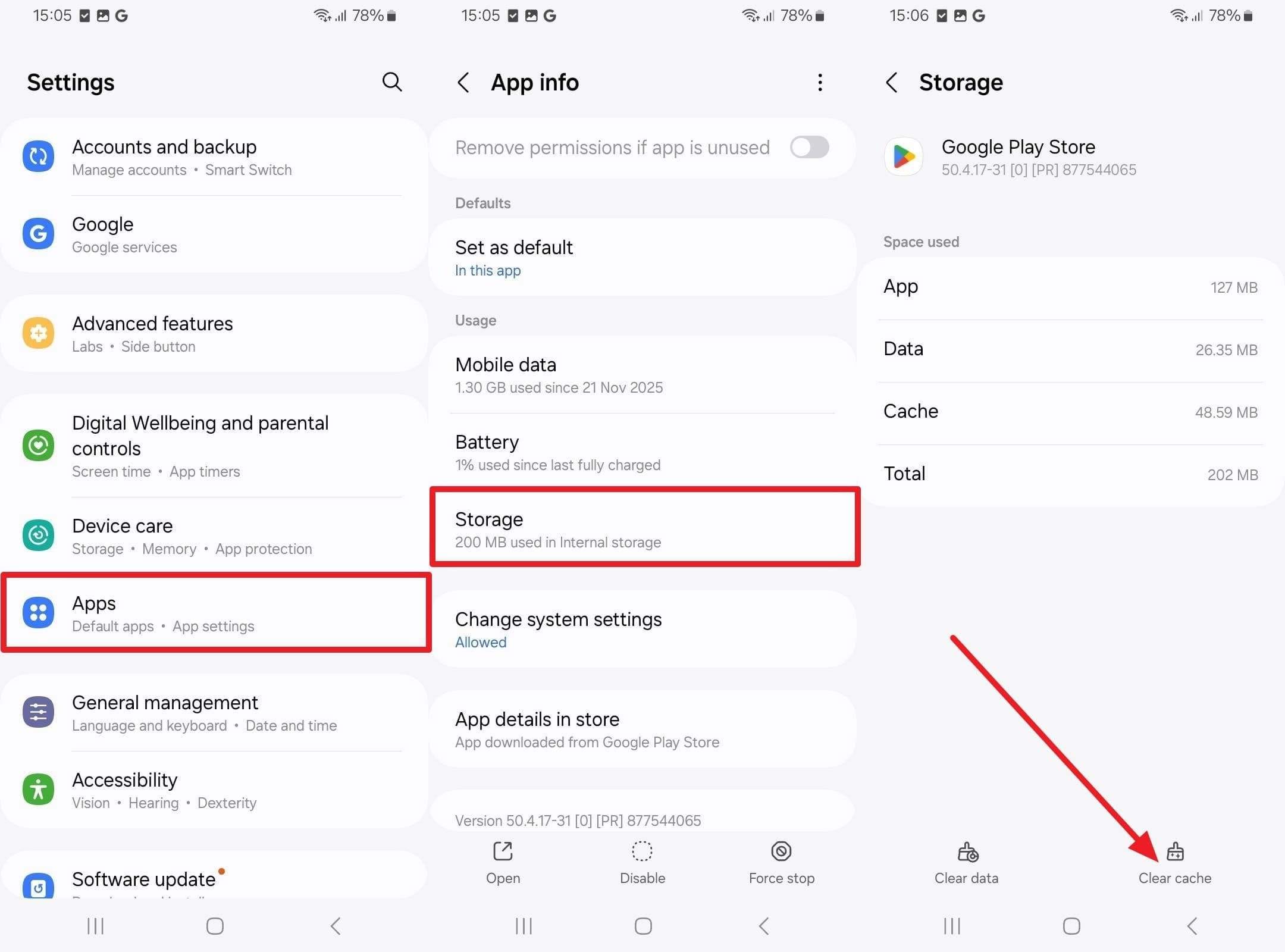
- Step 2. Now, select "Storage > Clear Cache" as you tap on Google Play Services.
Way 6. Register the Device with Google (Basic Account Check)
Ensure your Galaxy S26 is signed in to a valid Google account, because Play Protect links certification to both your device and your account. Correct sign-in lets Google Play Services sync device information and can remove temporary warnings caused by a bad first setup. This is also a stable solution for the S26 Ultra play protect certification error, and is guided below:
Instructions: Go to "Accounts and backup > Manage Accounts," and confirm that your main Google account is added without errors.
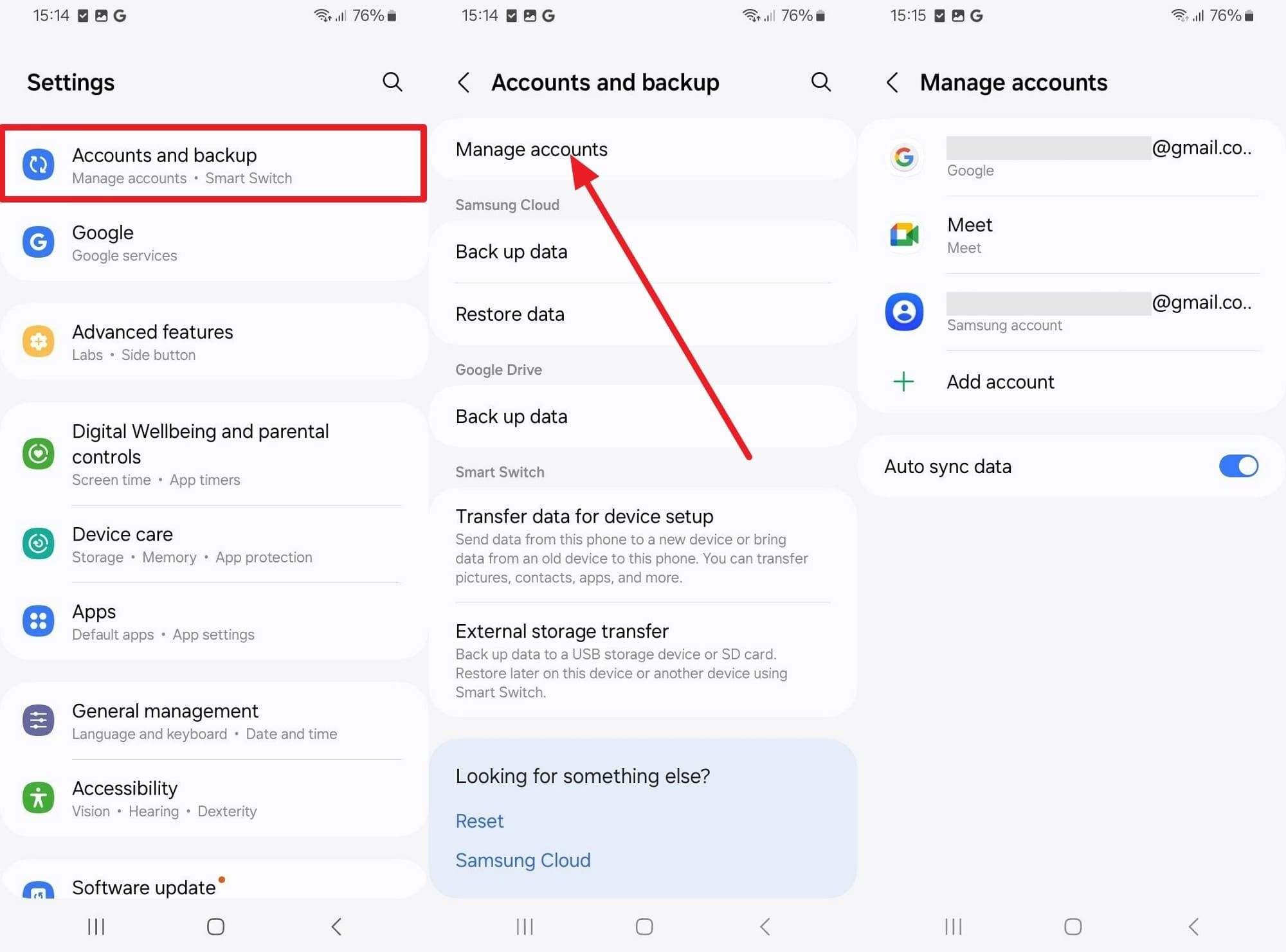
Note: If needed, remove it and add it again by choosing "Add account > Google" and signing in with your credentials. Since it's an advanced solution, it is explained in detail in part 2 for clarity.

Part 2. Top 6 Ways to Fix "This Device Isn't Play Protect Certified" on Galaxy S26
When your S26 banking app is not working after trying the basic ways, try the 6 innovative solutions mentioned below:
Way 1. Verify Play Protect Certification Status in Settings
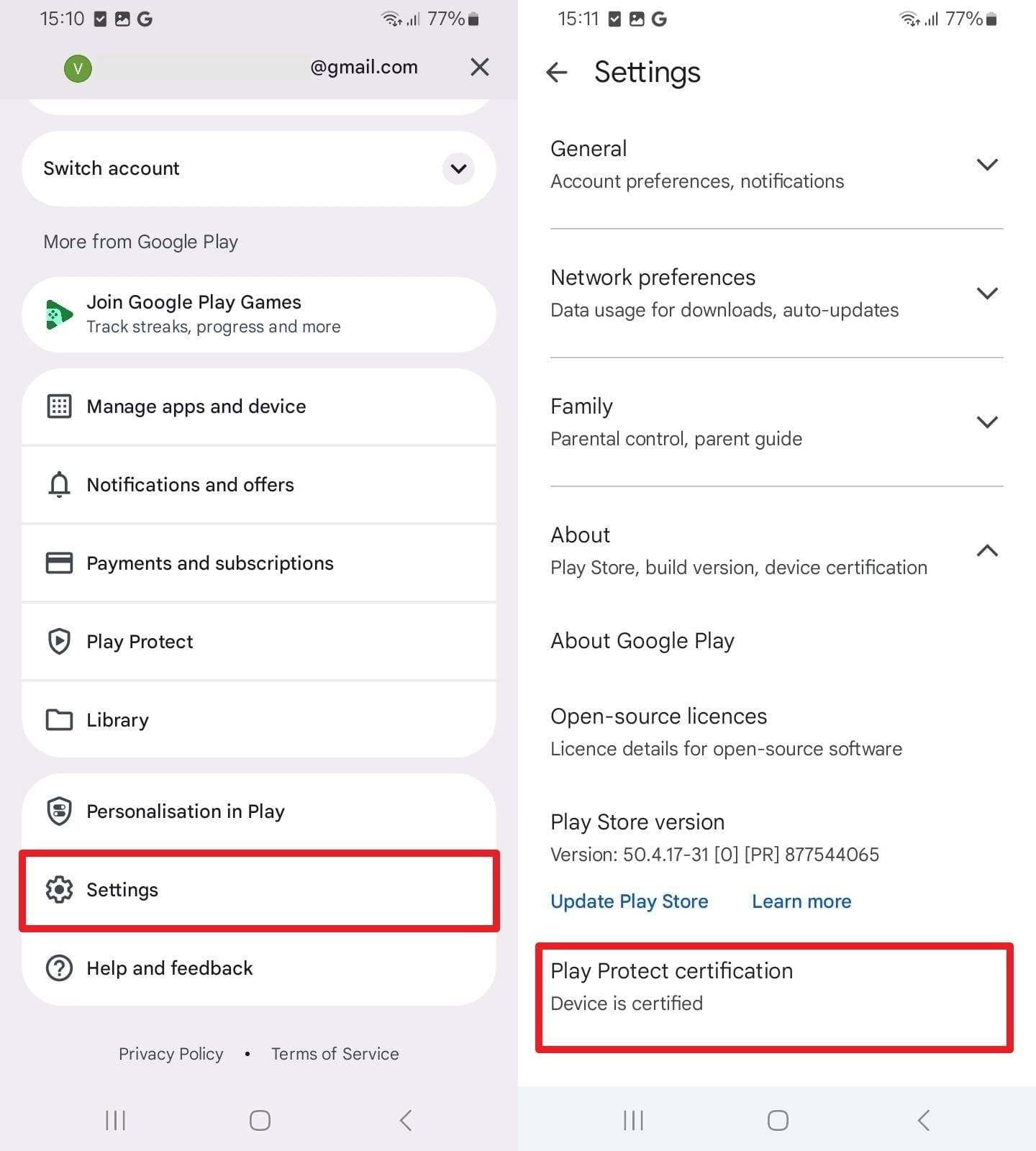
This step confirms whether Google recognizes the phone as certified. Moreover, this page may also show a "Fix device issue" option that helps resolve common problems automatically. Since this information helps you understand whether the error comes from a temporary bug or a deeper system problem, here is how you can perform it:
Instructions: In the Google Play Store app, tap Profile, then go to "Settings > About > Play Protect Certification" to see your device's status.
Way 2. Install the Latest One UI / System Update
When updating Google Play Services and the Play Store doesn't work, try installing the latest One UI/system update. New updates from Samsung and Google can remove the root cause of the "This device isn't Play Protect certified" message. In addition, it refreshes system security components and improves communication with Google Play Services and the Play Store, as illustrated:
Instructions: Go to "Settings > Software Update > Download and Install > Update Now."

Note: Samsung's first S26 series update started rolling out around March 10–11, 2026, and may fix the issue.
Way 3. Sign Out and Sign Back in to Your Google Account
In this way, you can refresh device registration with Google servers. It forces a new security and Play Protect verification check for the phone. In addition, it fixes sync or token problems that affect banking or security apps. So, as one of the effective Samsung Galaxy S26 play protect error fix, try it via the mentioned guide:
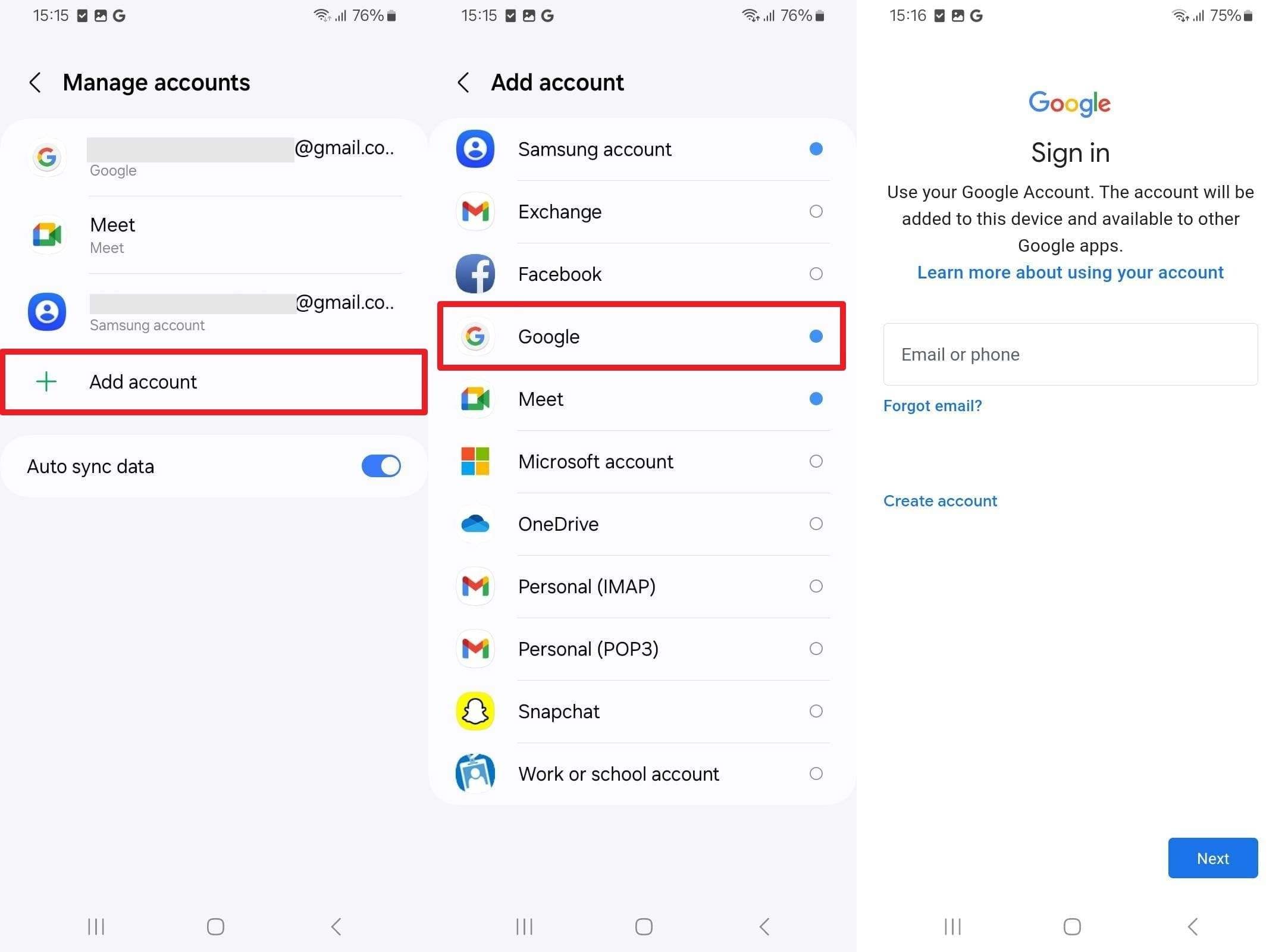
- Step 1. Choose "Accounts and Backup > Manage Accounts" in settings and select the Google account to tap on "Remove Account."
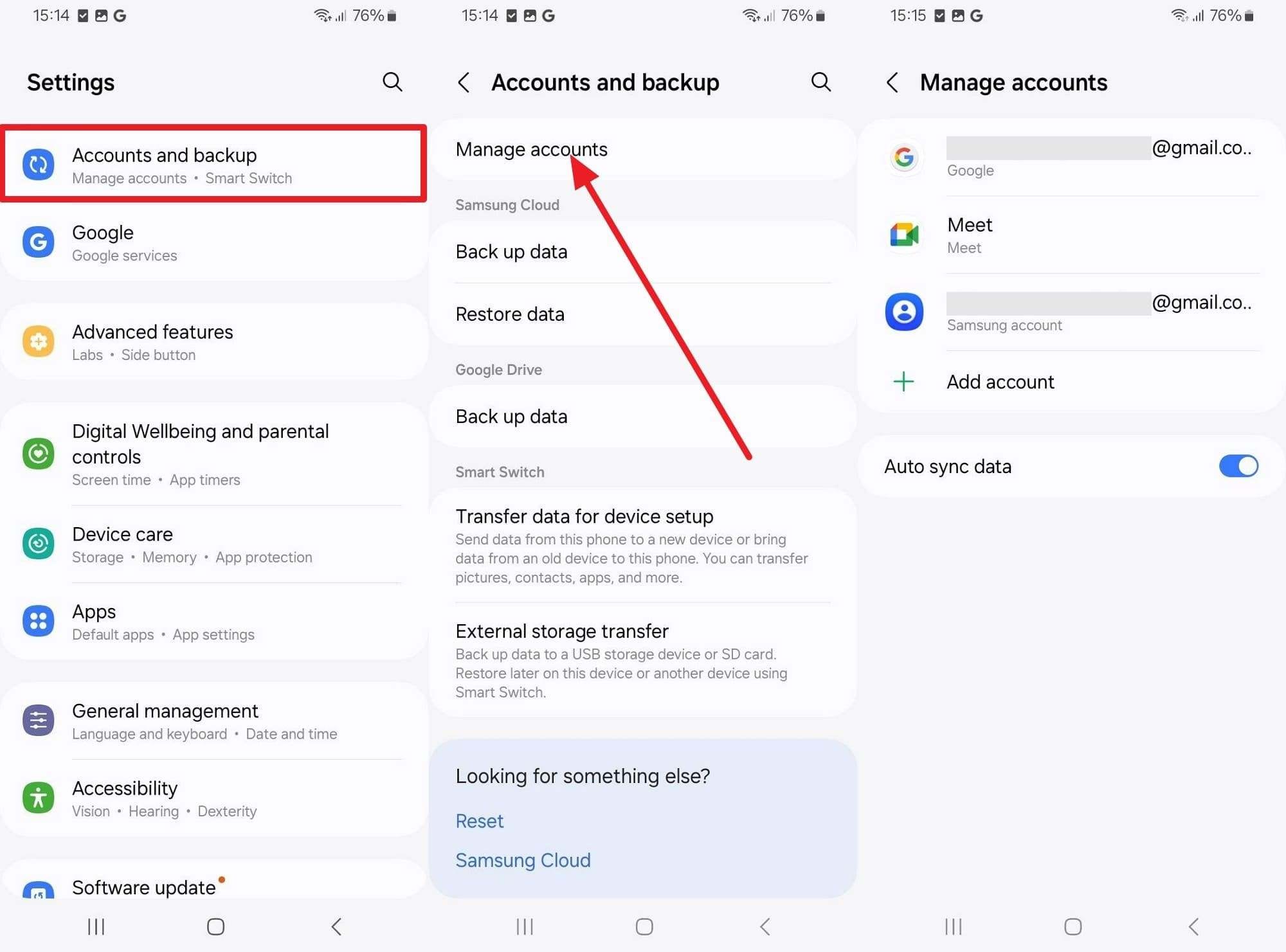
- Step 2. Head back to "Manage Accounts" and select the "Add Account" option, choose Google, and enter the login details.
Way 4. Reset Google Play Services & Play Store (Clear Data)
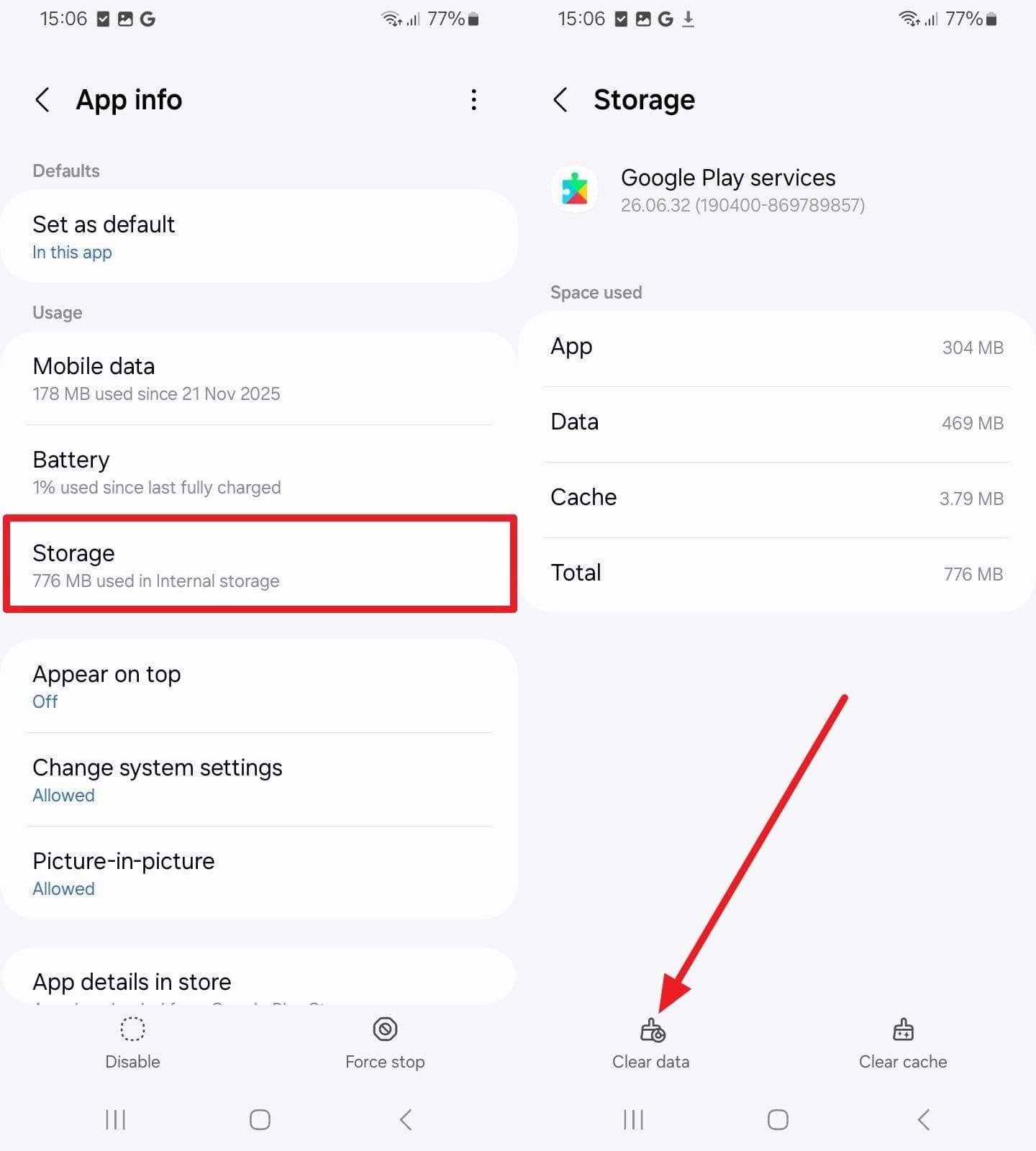
This step forces both apps to rebuild a fresh state and run device certification checks again. However, the process may require accepting the Play Store terms or verifying the account again. Once done through the given steps, it restores proper app updates and syncs with Google servers:
Instructions: In "Settings > Apps," find "Google Play Store" and "Google Play Services" individually. On their App Info interface, pick the "Clear Data" option and see if the error persists.
Way 5. Factory Reset the Samsung S26 Safely
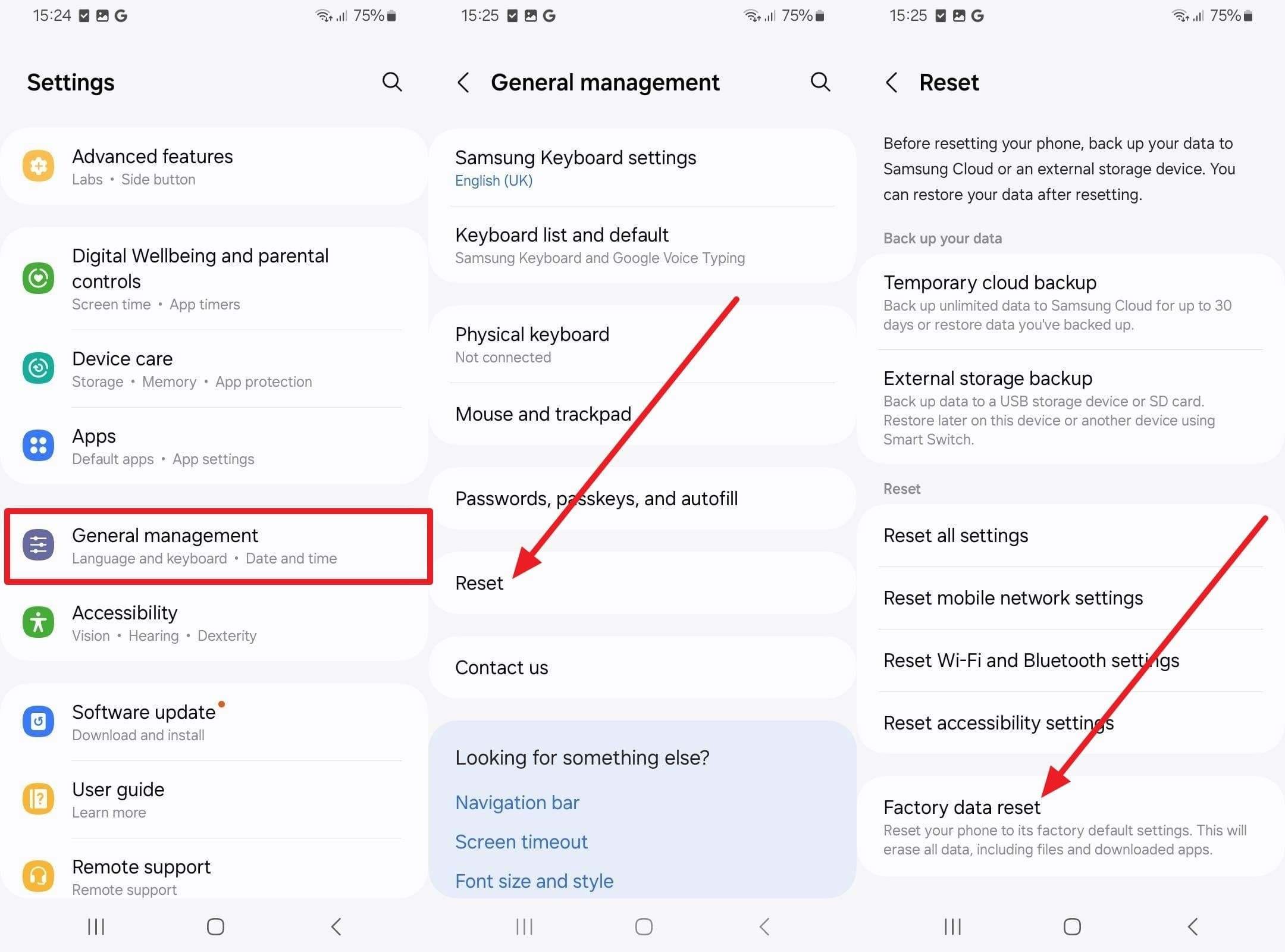
Despite trying all ways, there is a chance you still ask how to fix the Play Protect certification error on Samsung. So, a factory reset restores the phone to a clean, stock state by removing apps, settings, and changes that may confuse Play Protect.
After a reset, the device re-registers with Google servers and Play Protect as a fresh unit, which can correct the certification status. Those who prefer to perform this solution, here is the simple stepwise guide for S26:
Instructions: As you head to the settings, go to "General Management > Reset > Factory Data Reset," and confirm by entering your credentials.
Way 6. Manual Device Registration (If OTA Fails)
Manual registration of the Galaxy S26 can sometimes fix the S26 Ultra Play Protect Certification error when updates, resets, and cache clears fail. It adds your device ID to Google's Play Protect database, which can correct server-side issues that block certification. While not guaranteed, it acts as a strong diagnostic step: if the error clears, the issue was on Google's side.
If not, more extensive action, such as contacting Samsung or seeking repair, may be needed. So, if you prefer to try this option, here is how it's done:
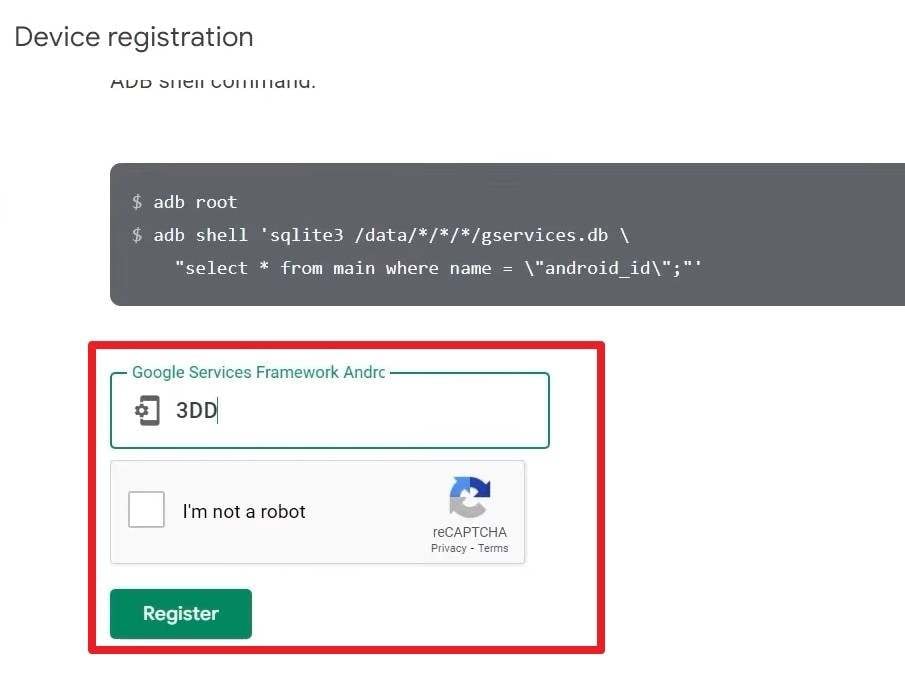
- Step 1. Download the Device ID app from a trusted source or the Play Store to locate the Android ID or GSF ID. Once installed, open it and copy the code listed under the "Google Service Framework ID (GSF ID)" section.
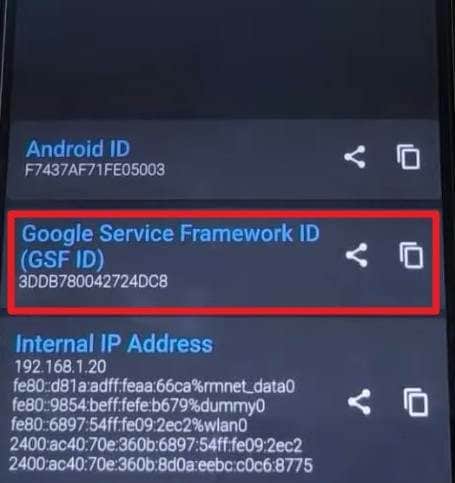
- Step 2. Now, head to the Google Uncertified Device Registration page and add the GSF ID into the "Google Service Framework Android ID" section and press the "Register" button after verification. Restart your S26 and wait; it may take minutes or hours for Google to recognize the certification.
Pro Tip. Repair S26 Firmware Issues with Dr.Fone – System Repair
If your Galaxy S26 still shows the S26 Ultra Play Protect certification error after updates, cache clears, and a factory reset, the issue may lie in the system firmware itself. Here, Dr.Fone - System Repair helps you reinstall and fix core Android/One UI components without manually flashing firmware. Through this, you can remove hidden software corruption and get the device back to a Google‑compliant state by performing 2-3 simple steps.
Since the tool features a simple, guided interface, it claims a zero data loss guarantee. Additionally, it supports Android devices such as Samsung, Xiaomi, Redmi, and POCO phones and tablets. Without paying any charges or needing any technical assistance, you can easily access Download Mode (Odin) on Samsung S26 to install firmware. Plus, every step requires verification, so you can have complete control over the firmware fix.

Dr.Fone - System Repair (Android)
Repair Android System Errors without Any Trouble.
- Fix your Android to normal, no skills required.
- Fix various Android system issues, stuck in boot loop, black screen, or won't turn on, looping on start, etc.
- The high success rate in resolving Android system issues.
- Compatible with a wide range of Android devices and OS versions
- User-friendly interface with easy-to-follow steps.


Guide to Resolve the Firmware Issue via Dr.Fone - System Repair (Android)
To use this tool in 2 simple steps, follow this comprehensive guide to repair system issues, restore normal functionality, and resolve firmware-related problems:
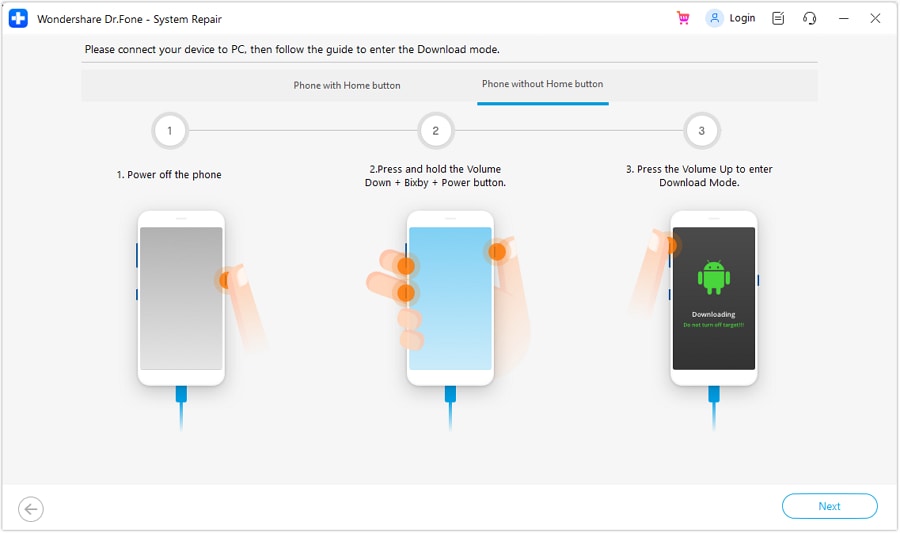
- Step 1. Access the System Repair Tool for Android
When you choose "Repair Now" in the Android Repair tool, select Samsung 26 as your target device. Here, choose the model detail and access the Download Mode depending on your device type.
- Step 2. Start Fixing Your S26 Firmware Issues
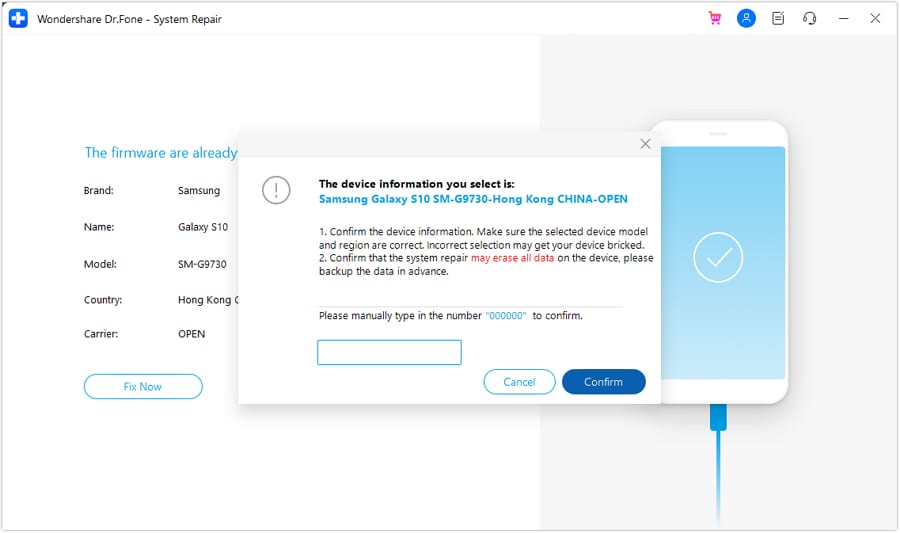
In the mode, the tool will start downloading the firmware, and when it finishes, select the "Fix Now" button. Type "000000" and wait for the tool to fix the firmware issues.
safe & secure4,624,541 people have downloaded it
Part 3. Why the Galaxy S26 May Show the Play Protect Certification Error
As you have learned how to fix the Play Protect certification error on Samsung, most of us might want answers for the cause of this error. In a report from SammyFans and on Reddit, some causes are highlighted, and the following table covers them all while highlighting possible scenarios:
| Causes | Why It Happens on Galaxy S26 – Common Reasons | Possible Device Scenarios (Right Out of the Box) |
|---|---|---|
| Temporary Network Glitch | Weak Wi-Fi or mobile data interrupts Play Protect's online verification process. | The setup was completed on an unstable network, so the initial certification check failed. |
| Outdated Google Components | Google Play Services or the Play Store is not updated yet, or is stuck during an update. | The device ships with an early build that requires immediate Google or Samsung updates. |
| Corrupted Play Store Data | Corrupted cache or data in the Play Store or Play Services affects Play Protect verification. | Data becomes corrupted during the first boot or the initial Google account sign-in. |
| System Software Bug | A minor One UI or firmware bug temporarily misreports the certification status. | Early production units may ship with firmware that requires a patch update. |
| Server-side Certification Sync Issue | Google Play servers temporarily fail to verify the device certification status. | A newly released model may still be syncing with Google's certification database. |
Conclusion
To sum up, this guide has explained why one faces the "This device isn't Play Protect certified" error and how to fix it via quick and advanced ways. However, if the issue is deep-rooted in the system firmware itself, the use of Dr.Fone - System Repair is suggested. By following these solutions step by step, most users can restore Play Protect certification and install apps normally again.
safe & secure4,624,541 people have downloaded it
Frequently Asked Questions
 1. Can this error prevent app downloads?2. Will this error affect all Google services?3. Does this error appear on new phones only?


Samsung Issue
- Samsung Phone Issues
- 1. Fix Samsung Camera Failed
- 2. Fix Samsung Phone Hang
- 3. Samsung Phone Not Displaying Incoming Calls
- 4.Fix a Bricked Samsung
- 5. Downloading Do Not Turn Off Target
- 6. Fix Samsung Stuck in Download Mode
- 7. Fix Samsung S5 Won't Turn On
- 8. Fix Samsung Pay Not Working
- 9. Samsung ROM Download & Install
- 10. Samsung Firmware Download
- 11. Fix Samsung Sudden Death
- 12. Fix Samsung Stuck on Boot Screen
- 13. Fix Samsung Frozen on Startup
- 14. Full Guide to Fix 'Samsung Galaxy Phone Keeps Restarting'
- 15. Fix Samsung S3 Won't Turn On
- 16. Fix Samsung J7 Problems
- 17. Fix Samsung S10 Gone Dead
- 18. Fix Samsung S10 Won't Turn On
- 19. Fix Samsung Galaxy S7
- Samsung Screen Issues
- 1. Fix Unresponsive Touchscreen
- 2. Fix Black Screen After Dropping
- 3. Resolve Screen Stuck on Boot Issue
- 4. Fix Samsung Fold Screen Issues
- 5. Fix Samsung Black Screen
- 6. Fix Samsung Screen Not Working
- 7. Fix Half of Screen Not Working
- 8. Fix Samsung Stuck on Bootloop
- 9. Fix Samsung Screen Blacked Out
- 10. Fix Screen Blacked During a Call
- 11. Fix Samsung Stuck on the Screen
- 12. Solve Samsung Yellow Screen
- 13. Fix Samsung Flip Screen Not Working
- 14. Fix Screen Won't Respond
- Samsung Tablet Issues
- Samsung Update
- 1. Flash a Samsung phone
- 2. Samsung Mobile Software Update
- 3. Update Samsung Kies for Mac
- 4. Update Samsung to Android Oreo
- 5. Update Samsung Kies on PC
- 6. Update Android 6.0 for Samsung
- Samsung Useful Tricks
- 1. Remove Google Account Bypass
- 2. Hard/Factory Reset Samsung
- 3. Samsung Root Software
- 4. Transfer Files from Samsung to PC
- 5. Top 5 Samsung Kies Alternatives
- 6. Bypass Samsung Lock Screen Pin
- 7. SIM Network Unlock PIN
- 8. Transfer Whatsapp to iPhone
- 9. Samsung Auto Backup
- 10. Recover File on Samsung
- ● Manage/transfer/recover data
- ● Unlock screen/activate/FRP lock
- ● Fix most iOS and Android issues
- Free Download Free Download Free Download


 > How-to > Phone Repair Solutions > How to Fix the Galaxy S26 This Device Isn't Play Protect Certified Error
James Davis
staff Editor
Generally rated4.5(105participated)