
Galaxy S26 Battery Not Charging or Draining Fast? Ultimate Tutorial to Fix It [2026]

Sep 24, 2026 • Filed to: Phone Repair Solutions • Proven solutions
 TL;DR:
Resolve Galaxy S26 rapid battery drain and charging failures by restricting background app usage, cleaning the USB-C port, utilizing a 25W-45W PPS charger, and clearing corrupted system cache.
● To fix overnight battery drain, enable "Put Unused Apps to Sleep" in Background Usage Limits, or boot into Recovery Mode (Volume Up + Power) to execute a "Wipe Cache Partition" and clear CPU wake locks.
● For slow or failing charges, physically inspect the USB-C port for lint, manually activate "Fast Charging" in settings, and connect a compatible 25W-45W PPS charger to ensure the device selects the highest supported power tier.
● If standard adjustments fail due to persistent firmware bugs, utilize Dr.Fone - System Repair (Android) to reinstall device-specific firmware via Download Mode (Odin), or verify the physical battery health using the Samsung Members app diagnostics.
Ask AI for a summary
 ChatGPT
 Perplexity
 Gemini
 Claude
 Grok
Grok
Many Galaxy S26 users are facing a frustrating problem: the phone won't charge properly, or the S26 battery drains unusually fast. This can disrupt daily routines, cause missed calls, and create stress when you rely on your device for work, communication, or entertainment. Well, several factors, from software glitches and outdated apps to background processes or battery health, can affect charging speed and battery life.
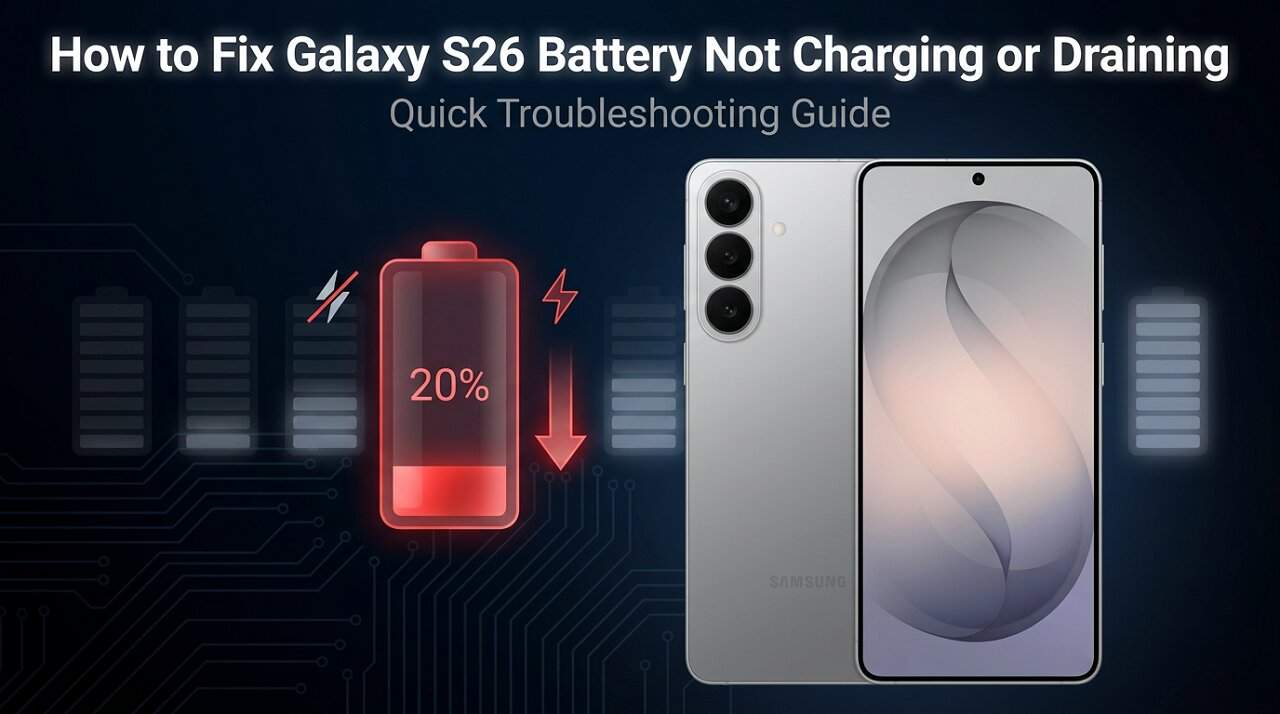
Therefore, in this guide, you will learn practical, easy-to-follow methods to fix Galaxy S26 battery issues, including charging issues and fast battery drain. Among the ways, learn how Dr.Fone can be an effective choice for ensuring your device lasts longer and charges reliably.
 safe & secure
4,624,541 people have downloaded it

Part 1. Quick Diagnosis: What's Wrong with Your S26 Battery?
On Samsung Community, multiple people have reported that their devices take almost 30 minutes to charge to 39-40%. With chargers ranging from 65W to 70W, users have also shared concerns about overnight battery drain, even on Reddit, making usage hectic.
So, if you wonder whether you are having an S26 Ultra battery drain or charging issue, review the given table and review the symptoms and causes:
| S26 Battery Issue | Typical Symptoms | Possible Cause |
|---|---|---|
| Fast Drain | Drops 10–20% in short use; poor screen‑on time | Background apps, high brightness, degraded cell |
| Overheating | Phone feels hot on light use or idle | Heavy apps, AI/NPU tasks, and charging while in use |
| Slow Charging | Takes unusually long to reach full; the last 20% very slow | Dirty USB‑C port, weak charger/cable, and charging limits in settings |
| Not Charging At All | No charging icon; connects and disconnects repeatedly | Lint in port, damaged cable/adapter, port damage |
| Sudden Shutdown | Powers off at 10–30% remaining | Battery wear, voltage drops under load |
| Big Overnight Drop | 10–15% loss while idle, phone warm in pocket | Syncing, background AI, chat/social apps refreshing |
| New Phone Poor Life | From day one, it can't reach the advertised endurance | Heavy usage, many background features on, battery calibration needed |
Part 2. All Workable Ways to Fix S26 Battery Drain Overnight
With the ongoing Reddit debate about the S26 battery drain overnight, many users have either sought assistance from ChatGPT or shared concerns about switching devices. However, if you can't locate a workable solution or afford a new device, here are some expert solutions you can try:
Fix 1. Use Quick Toggles
Turn off Wi-Fi, Bluetooth, GPS, NFC, and Always On Display at night to reduce battery use while you sleep. The phone stops network scans, device links, and location checks, and the screen stays dark. Additionally, it cuts hidden power use, keeps the phone cool, and helps the battery last longer.
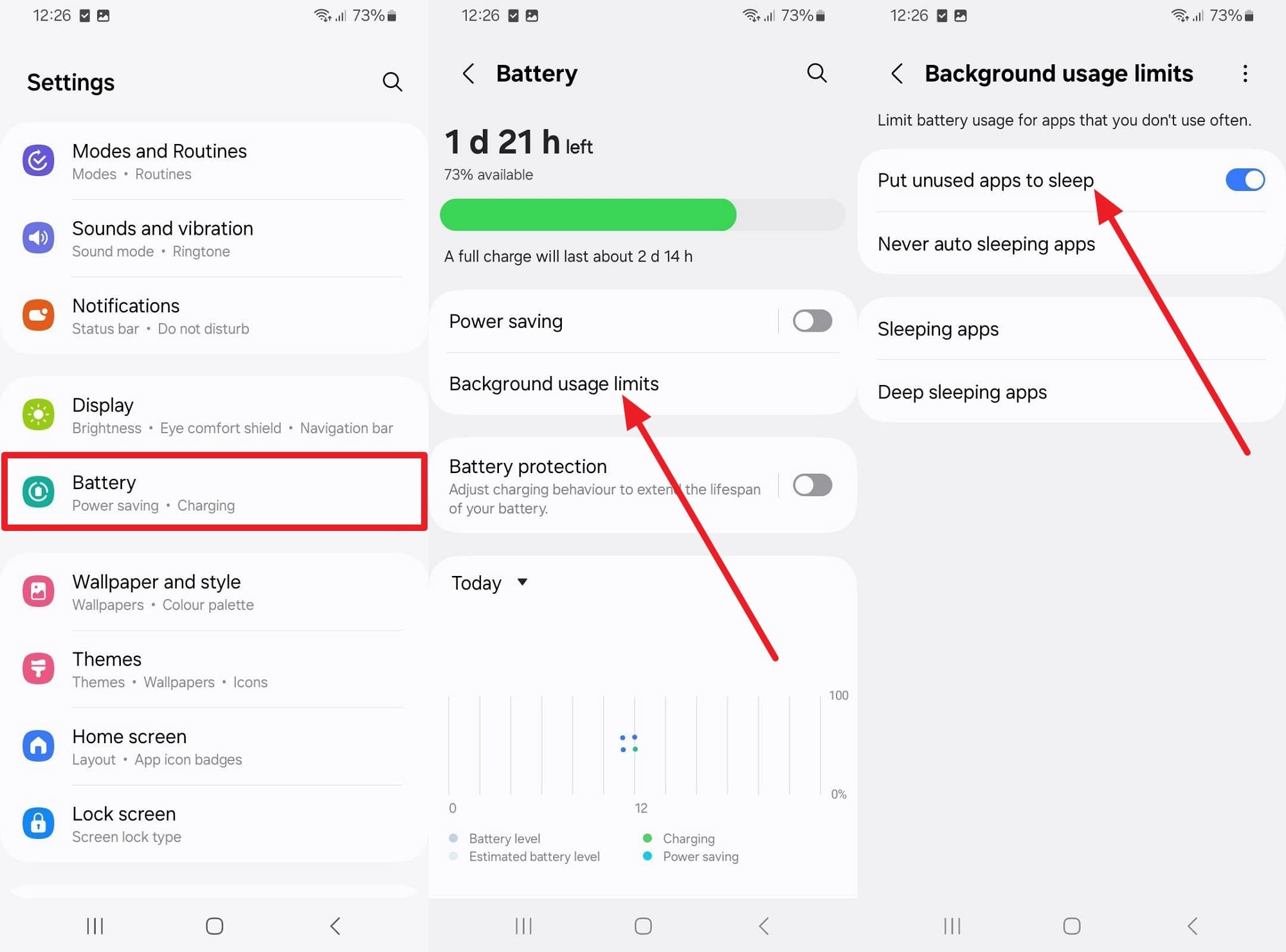
Fix 2. Limit Background Apps (Turn On "Put Unused Apps to Sleep")
Those who see the S26 battery draining fast can also limit background apps so they do not use battery, data, or CPU at night. When you set apps to sleep or deep sleep, they stop auto refresh, network checks, and sensor use. Hence, this keeps the phone idle for longer periods, and night battery loss stays lower, once the following steps are followed:
Instructions: In the Settings app, select "Battery," then tap "Background Usage Limits" to enable "Put Unused Apps To Sleep."
Fix 3. Optimize Battery Settings
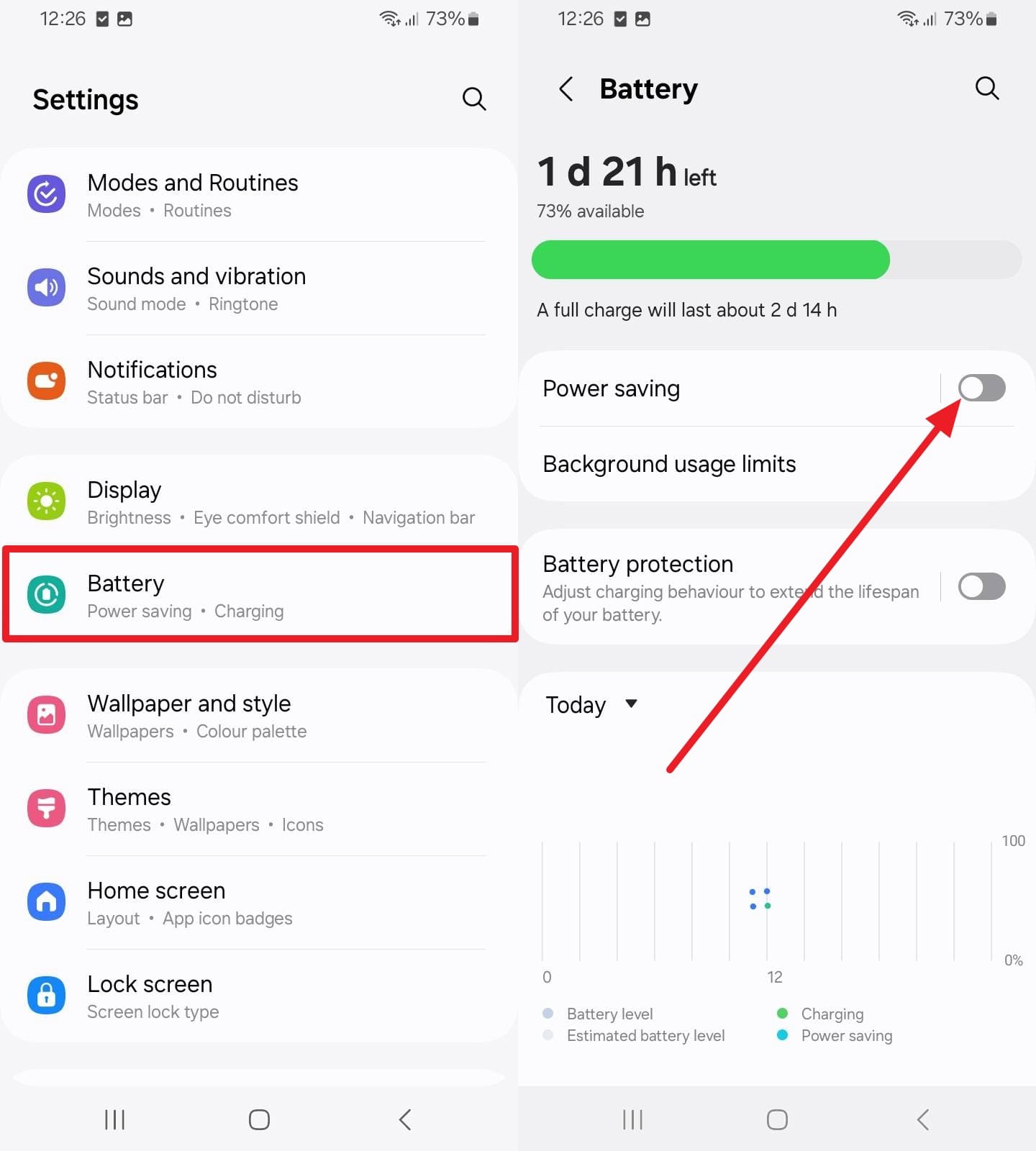
Turn on Power Saving or Sleep Mode and use light performance mode at night so the S26 uses fewer resources. These settings lower CPU and GPU speed, reduce animations and refresh rate, and limit background sync and network activity when the screen stays off. Additionally, it puts the phone in a low-power state, and the steps for power saving are mentioned below:
Instructions: Within the "Battery" settings, toggle on the "Power Saving" option.
Fix 4. Check App and System Issues
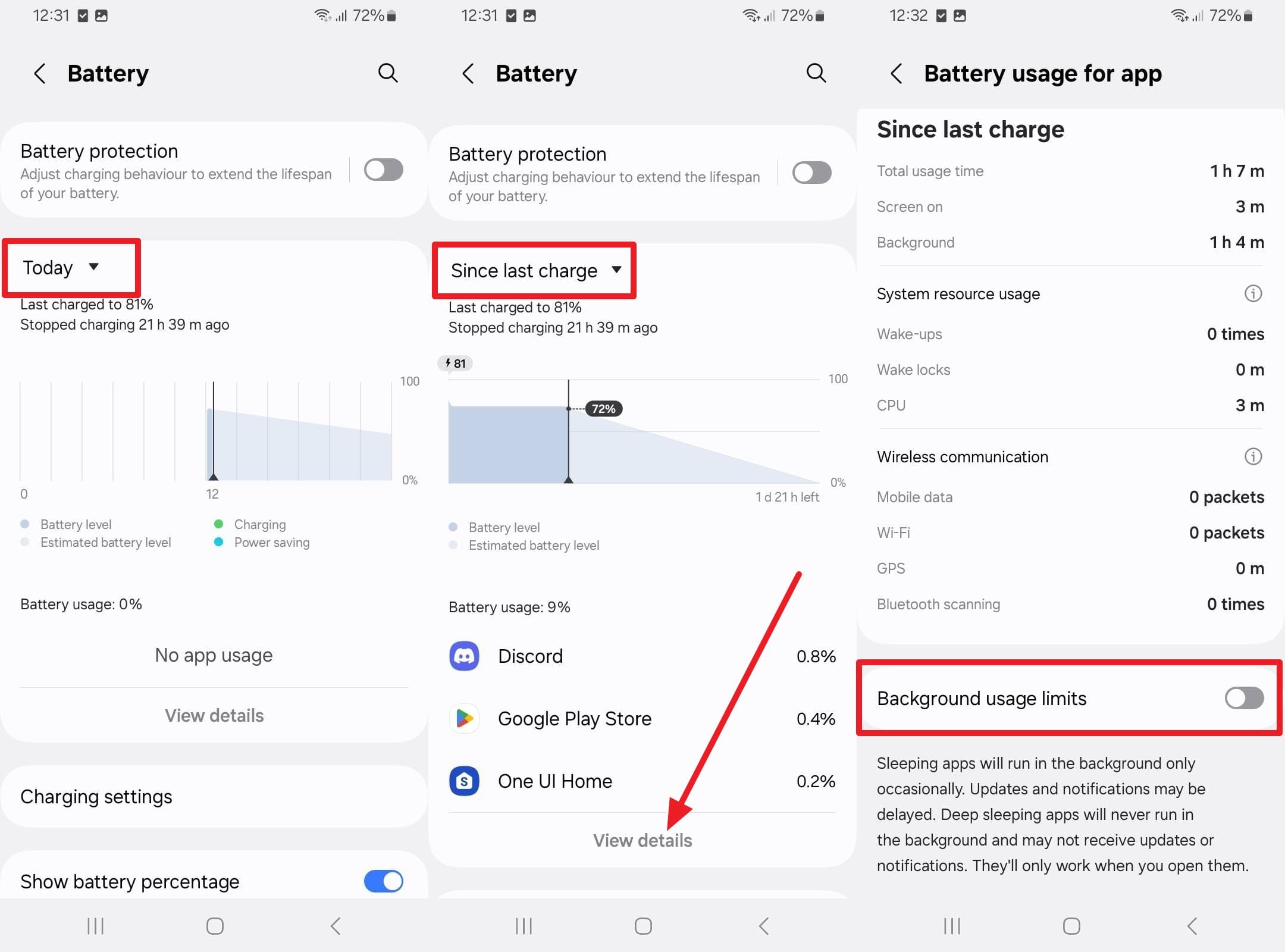
As another S26 battery drain fix, check battery use to find apps that waste power at night. Remove or limit those apps so they stop syncing, location checks, or background tasks while you sleep. Other than this, a quick reboot clears stuck processes that keep the CPU or radios active. Thus, the guidelines to limit or remove the app and reboot the device are here:
Instructions: Stretch the menu for "Today's" battery usage to "Since Last Charge" and choose the "View Details" option. After that, tap the top app using the battery when the screen is off, then enable the "Background Usage Limits" option.
Fix 5. Perform Advanced Cleanup
When all other solutions can't resolve the S26 battery drain, this solution addresses deeper software problems. So, wipe the cache partition to remove corrupted system files that cause battery drain or CPU wake locks. Moreover, safe mode runs only core system apps, which helps you find a bad third-party app that uses power at night. So, to know how to perform these actions, a detailed stepwise guide is provided ahead:
Wipe Cache Partition
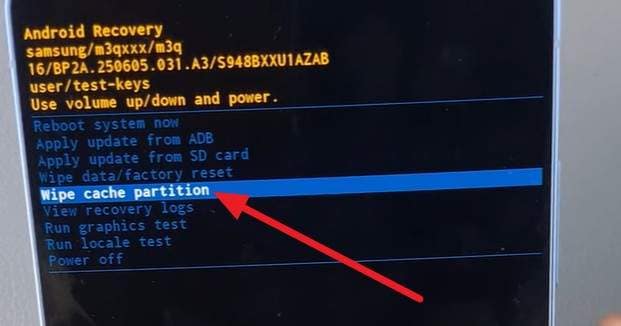
- Step 1. With the device completely turned off, press the "Volume Up + Power" buttons together to access the Samsung/boot logo. Now release the buttons to access Recovery mode, then use the volume keys to select the "Wipe Cache Partition" option.
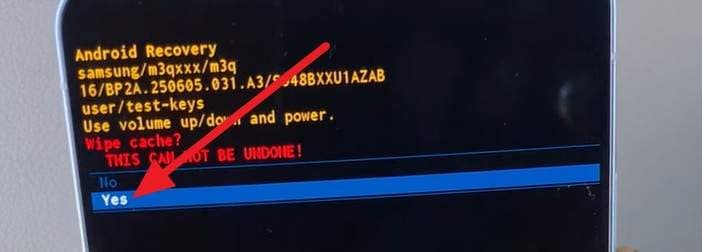
- Step 2. Here, choose "Yes" using the volume keys, then when it ends, choose "Reboot system now" and confirm with the power button.
Test Overnight in Safe Mode
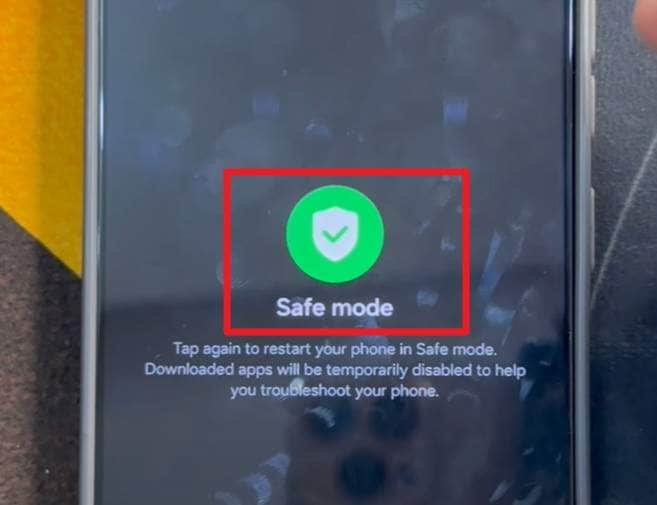
Instructions: As you press the power key to access the "Power Off" option, keep pressing it until you see the "Safe Mode" interface. After this, the phone will restart with only system apps, so charge it to a normal level, and leave it overnight. If the drain is much lower, a third‑party app is the problem.
Part 3. How to Fix S26 Battery Not Charging
Many sources mention quick fixes for the S26 battery not charging, ranging from cable checks to charging port inspections. However, this section provides tested and confirmed solutions you can try before considering a replacement for your S26.
Fix 1. Basic Checks
First, determine the cause of the S26 charging problems, such as a bad cable, charger, outlet, or overheating. In this regard, use a known-good Samsung charger and cable to test whether the accessory is the problem, which is also discussed on Reddit. Other than that, try a different wall outlet to rule out a weak power supply.
Remove the case so heat does not build up, and check whether the phone feels too hot, as the system may pause charging for safety. So, with these quick checks, you can restore normal or fast charging and help confirm that the issue is not due to serious hardware.
Fix 2. Clean the USB-C Port
Clean the USB-C port because dust or lint can block the cable from full contact with the phone's pins. Furthermore, remove debris so the plug fits tightly and the power pins connect correctly. Once you have a clear port, it helps you spot damage such as bent pins or burn marks that can cause S26 battery issues.
Fix 3. Enable Proper Charging Options
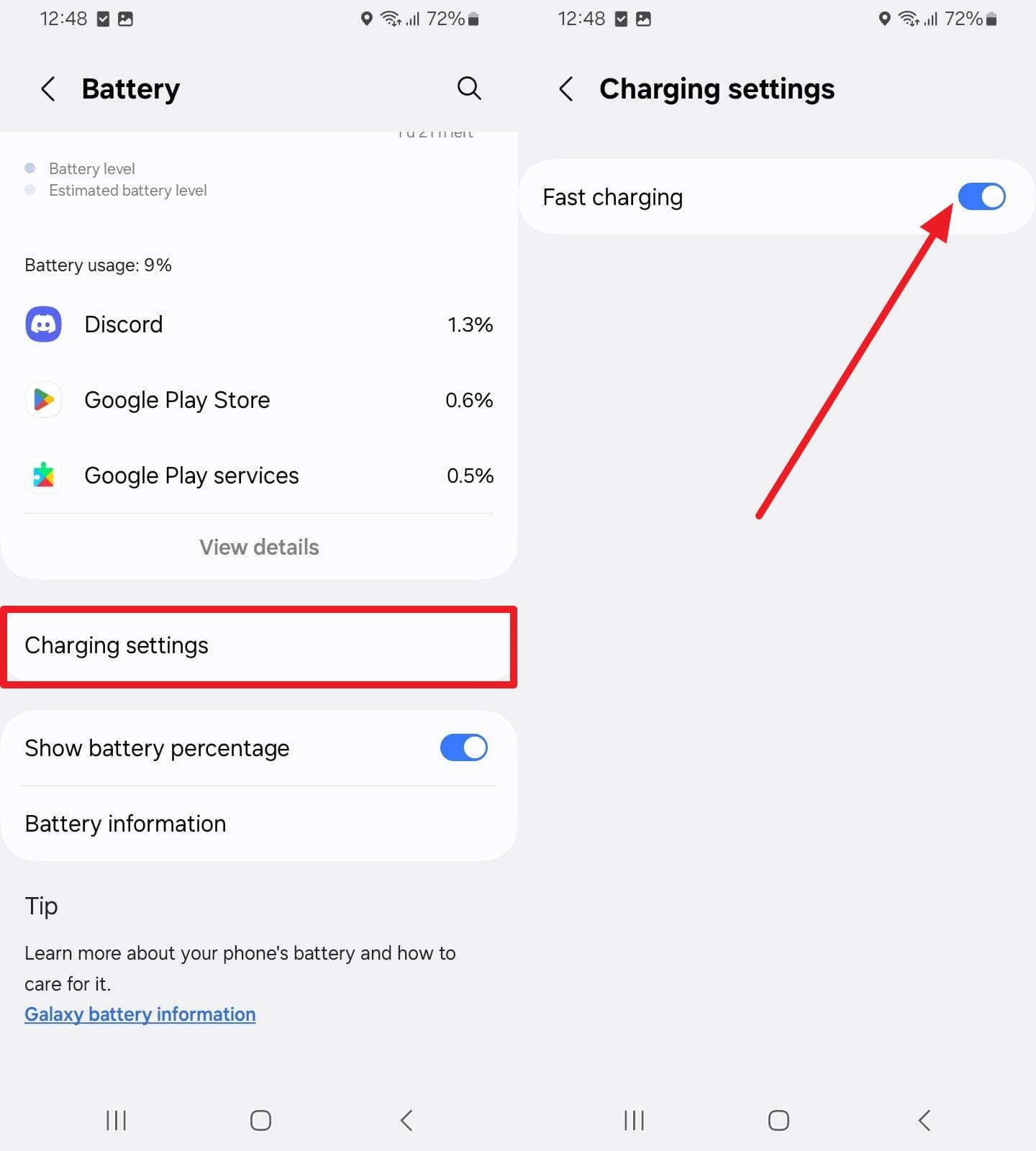
Turn on the fast charging option so the phone can draw higher power. Unlike other ways, this solution checks that your S26 allows fast charging and that the charger supports it. Somehow, if the charging issue remains, use a compatible 25W-45W PPS charger so the device can select the correct charging level instead of a slow mode. So, those who prefer to tweak the charging option, here is the simple guide:
Instructions: Tap "Charging Settings" in the Battery settings and turn on "Fast Charging".
Fix 4. Fix Software Side Problems
To address the S26 battery not charging issue, this fix resolves charging issues caused by software glitches or incorrect settings. When a simple reboot fails, reset the settings to restore default system options without deleting your data. Additionally, check for updates because they often fix charging bugs and improve charger compatibility.
So, as you try both steps according to the instructions, charging may work normally again, with a more stable connection and fewer random stops:
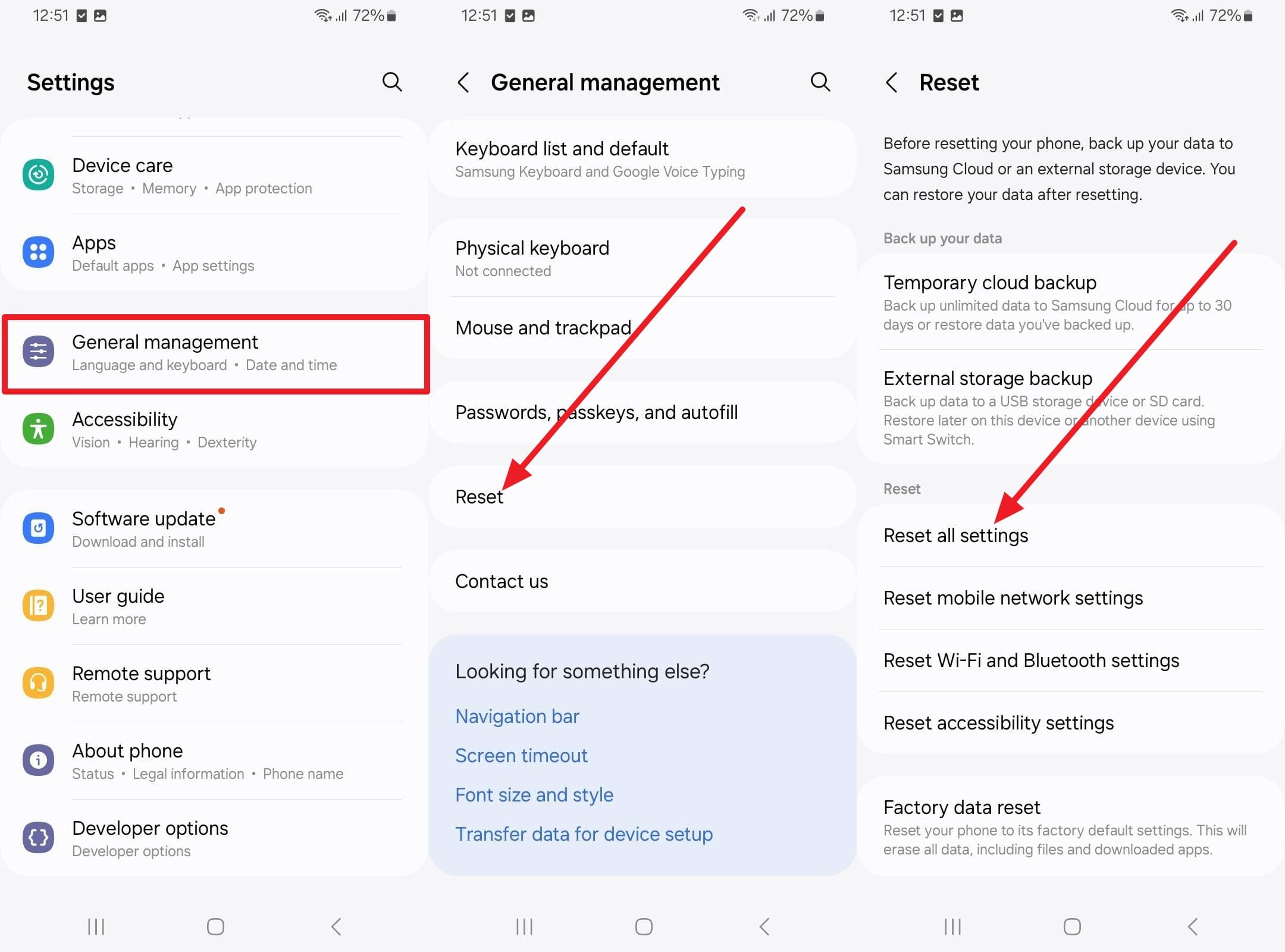
Reset All Settings (Not Data)
Instructions: Head to "General Management > Reset > Reset All Settings" and see if the issue persists.
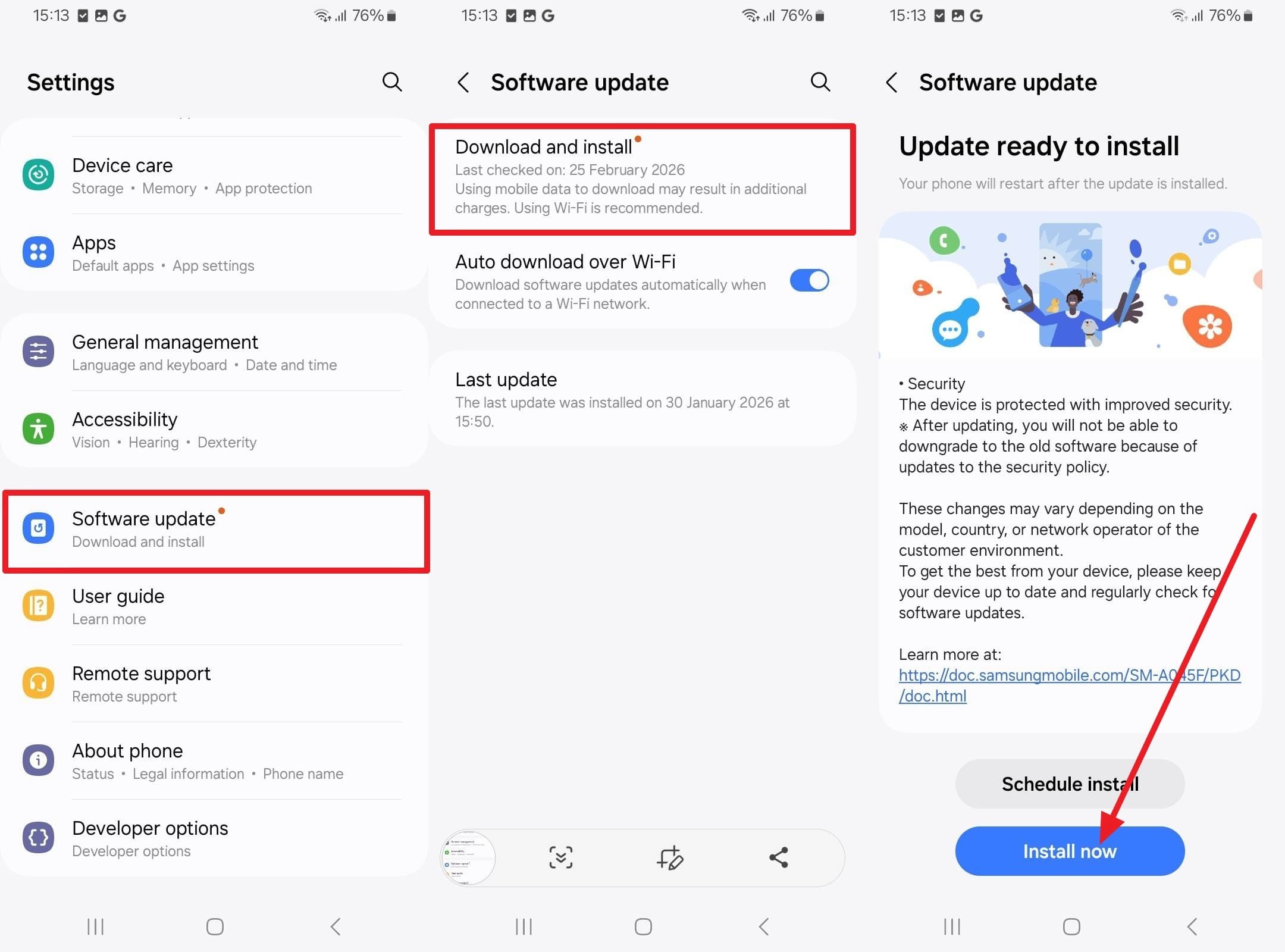
Software Update
Instructions: After accessing the "Software Update" option, choose "Download and Install," and if the update is available, choose "Install Now."
Fix 5. Use Dr.Fone – System Repair for Software-Related Charging Bugs (Not Hardware)
Despite the update, if the S26 battery drains overnight or the charging issue persists, it may be due to software/firmware bugs. Here, Dr.Fone - System Repair scans components for charging and repairs them automatically, without any learning curve. Additionally, it reinstalls the firmware for your exact Samsung model in 3 steps to fix bugs caused by updates or failed system tweaks.
Unlike other tools, it claims to maintain data integrity and let you access Download Mode (Odin) for free. All processes are supported for both older and latest Samsung versions, making it an ideal and versatile choice. In addition, users can use it to address other Android device and tablet issues, such as the black screen of death or a boot loop.

Dr.Fone - System Repair (Android)
Repair Android System Errors without Any Trouble.
- Fix your Android to normal, no skills required.
- Fix various Android system issues, stuck in boot loop, black screen, or won't turn on, looping on start, etc.
- The high success rate in resolving Android system issues.
- Compatible with a wide range of Android devices and OS versions
- User-friendly interface with easy-to-follow steps.


Simple Guide to Fix Battery Drain or Not Charging Issue of Galaxy S26
With the massive device support and seamless workflow, learn how this innovative system repair tool can fix the S26 battery-related issue in real-time:
- Step 1. Access the System Repair Tool to Fix S26 Battery Issues
On the System Repair tool, press the "Repair Now" button under the Android Repair section. Now, choose a Samsung device, determine its model, agree to the terms, and choose the "Next" button.

- Step 2. Choose the Device Model & Enter the Download Mode
At this point, access Download Mode by following the guide for the S266 model types, and wait for the tool to download the firmware. Once done, tap on the "Fix Now" button to install the firmware on your Samsung S26.
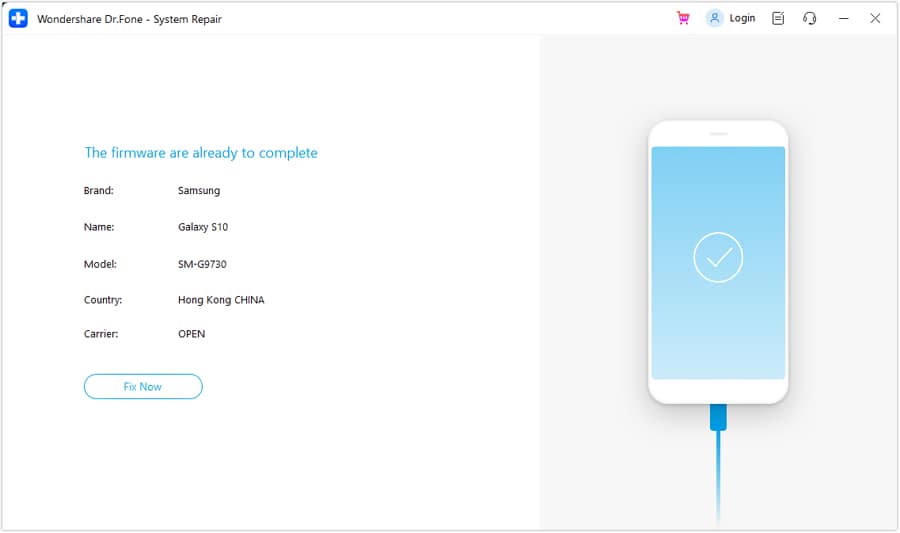
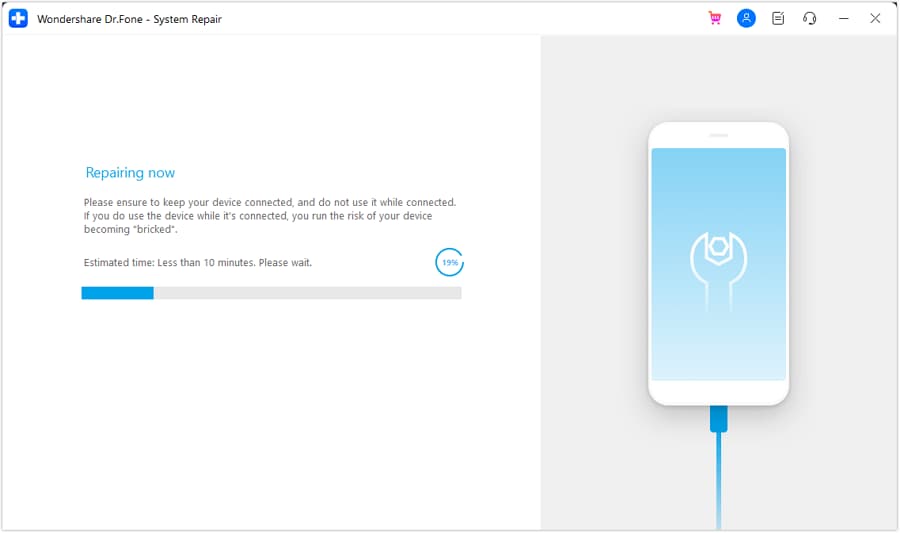
- Step 3. Type the Code and Wait for Repair to Conclude
When asked, type "000000" code and choose the "Confirm" option to start the repairing process.
safe & secure4,624,541 people have downloaded it
Fix 6. When to Seek Samsung Support Team
Seek repair if your S26 still won't charge after trying new cables, chargers, or the S26 battery-saving mode. Moreover, if charging only works at an angle or the port looks bent, get professional help. A technician can test the battery, USB‑C port, and charging IC to identify the root cause.
Part 4. Tested Tips to Improve Galaxy S26 Battery Life
Even if one mentioned battery not charging or the S26 battery drain fix has resolved your issue, it's important to prevent this from happening again. To that end, you can follow the 5 practical tips listed below in the table:
| Tip | What To Do | Main Benefits |
|---|---|---|
| Use Power Saving | Enable Power saving/Light performance mode | Less drain, cooler phone, longer daily use |
| Limit Background Apps | Put unused apps to sleep/deep sleep | Lower idle drain, fewer background wakeups |
| Screen & AOD Tweaks | Reduce brightness, timeout, and limit Always On Display | Big gain in battery, less screen power use |
| Turn Off Unused Radios | Disable Wi‑Fi, Bluetooth, GPS, and NFC when not needed | Cuts hidden drain from constant scanning |
| Keep Software Updated | Install system/app updates regularly | Bug fixes, better battery optimization |
Conclusion
To sum up, the internet has been flooded with reports of Galaxy S26 battery issues since its release. However, some users have failed to locate a proper solution, and this guide has explained battery drain and charging issues in detail. However, those who face this problem due to software/firmware bugs are advised to use Dr.Fone - System Repair to install firmware seamlessly.
safe & secure4,624,541 people have downloaded it
FAQs
 1. How do I know if my Samsung S26 battery is bad?2. Why is my Samsung S26 battery suddenly draining so fast?3. How to test a Samsung Galaxy S26 battery?


Samsung Issue
- Samsung Phone Issues
- 1. Fix Samsung Camera Failed
- 2. Fix Samsung Phone Hang
- 3. Samsung Phone Not Displaying Incoming Calls
- 4.Fix a Bricked Samsung
- 5. Downloading Do Not Turn Off Target
- 6. Fix Samsung Stuck in Download Mode
- 7. Fix Samsung S5 Won't Turn On
- 8. Fix Samsung Pay Not Working
- 9. Samsung ROM Download & Install
- 10. Samsung Firmware Download
- 11. Fix Samsung Sudden Death
- 12. Fix Samsung Stuck on Boot Screen
- 13. Fix Samsung Frozen on Startup
- 14. Full Guide to Fix 'Samsung Galaxy Phone Keeps Restarting'
- 15. Fix Samsung S3 Won't Turn On
- 16. Fix Samsung J7 Problems
- 17. Fix Samsung S10 Gone Dead
- 18. Fix Samsung S10 Won't Turn On
- 19. Fix Samsung Galaxy S7
- Samsung Screen Issues
- 1. Fix Unresponsive Touchscreen
- 2. Fix Black Screen After Dropping
- 3. Resolve Screen Stuck on Boot Issue
- 4. Fix Samsung Fold Screen Issues
- 5. Fix Samsung Black Screen
- 6. Fix Samsung Screen Not Working
- 7. Fix Half of Screen Not Working
- 8. Fix Samsung Stuck on Bootloop
- 9. Fix Samsung Screen Blacked Out
- 10. Fix Screen Blacked During a Call
- 11. Fix Samsung Stuck on the Screen
- 12. Solve Samsung Yellow Screen
- 13. Fix Samsung Flip Screen Not Working
- 14. Fix Screen Won't Respond
- Samsung Tablet Issues
- Samsung Update
- 1. Flash a Samsung phone
- 2. Samsung Mobile Software Update
- 3. Update Samsung Kies for Mac
- 4. Update Samsung to Android Oreo
- 5. Update Samsung Kies on PC
- 6. Update Android 6.0 for Samsung
- Samsung Useful Tricks
- 1. Remove Google Account Bypass
- 2. Hard/Factory Reset Samsung
- 3. Samsung Root Software
- 4. Transfer Files from Samsung to PC
- 5. Top 5 Samsung Kies Alternatives
- 6. Bypass Samsung Lock Screen Pin
- 7. SIM Network Unlock PIN
- 8. Transfer Whatsapp to iPhone
- 9. Samsung Auto Backup
- 10. Recover File on Samsung
- ● Manage/transfer/recover data
- ● Unlock screen/activate/FRP lock
- ● Fix most iOS and Android issues
- Free Download Free Download Free Download


 > How-to > Phone Repair Solutions > Galaxy S26 Battery Not Charging or Draining Fast? Ultimate Tutorial to Fix It [2026]
Daisy Raines
staff Editor
Generally rated4.5(105participated)