
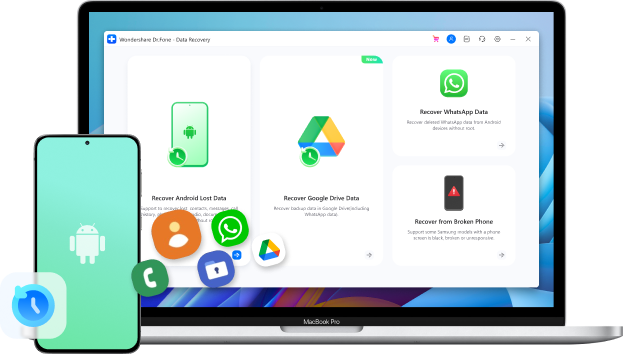
Samsung Smart Switch with Broken Screen: Easy Ways to Recover Data Safely

Jun 11, 2026 • Filed to: Data Recovery Solutions • Proven solutions
 TL;DR:
You can successfully use Samsung Smart Switch to transfer data from a broken or black screen device, provided the phone still powers on and you unlock it first.
● Since Smart Switch cannot bypass lock screens, you must unlock unresponsive devices using an OTG adapter paired with a USB mouse, remote unlocking via Samsung Find My Mobile (SmartThings), or PC mirroring tools like Samsung DeX.
● Once unlocked, execute the transfer via a direct USB-C connection between phones or by backing up to a Windows PC or Mac, ensuring the device remains securely plugged in to prevent battery drops from failing the process.
● If Smart Switch fails to connect, Dr.Fone - Data Recovery serves as the primary alternative software that operates without requiring root access or USB debugging, featuring a dedicated recovery mode for powered-on but unresponsive Android screens.
Ask AI for a summary
 ChatGPT
 Perplexity
 Gemini
 Claude
 Grok
Grok
Can Smart Switch be used with a broken display, dark screen, or broken touch? Many users question. Good news: The Samsung smart Switch broken screen often works. Transfer your photographs, applications, contacts, videos, messages, and settings to a new phone.
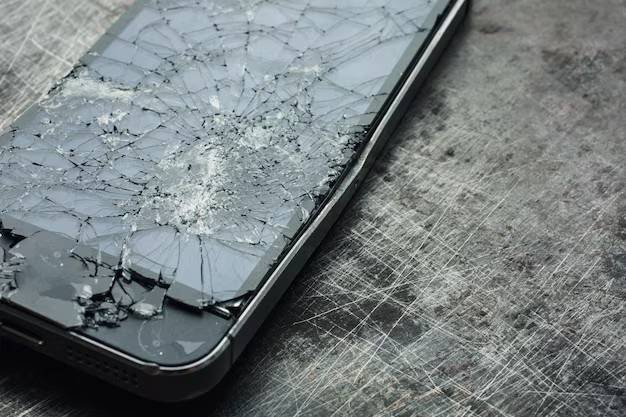
But one rule matters. Unlock your Samsung phone first. You must unlock your device with a PIN, pattern, or password before transferring. Samsung smart Switch broken screen locked phones worry many consumers. Don't worry. This guide shows straightforward ways to unlock or manage your phone even with a black screen. You'll learn how to utilize smart switch with a broken screen utilizing OTG, Find My Mobile, cover screens, and more.
- Part 1: Can You Use Samsung Smart Switch With a Broken Screen? (Requirements & Limitations)
- Part 2: How to Use Smart Switch With a Broken Samsung Screen
- Before You Start: Quick Ways to Unlock or Control a Broken Screen
- Now You Can Transfer — Smart Switch Methods
- Part 3: Smart Switch Not Working? Best Alternative: Dr.Fone – Data Recovery

- Part 4: Tips to Improve Smart Switch Recovery Success
Part 1: Can You Use Samsung Smart Switch With a Broken Screen? (Requirements & Limitations)
Many people wonder if Smart Switch works with cracked, dead, or dark screens. The quick answer is yes – in many circumstances, Samsung smart Switch with a broken screen still functions. You must obey some rules. These rules explain how to utilize Smart Switch with a broken screen without losing data.
Essential Requirements
Samsung Smart Switch damaged screen transfer requires these basic conditions:
- Turn on the phone
The device should turn on. Even with a blank screen, the phone must run. - You must unlock the screen
Smart Switch will not work on a Samsung smart Switch broken screen locked phone. Enter your PIN, pattern, or password.
Later in this article, you will learn how to smart Switch with a broken screen utilizing tools that assist you in unlocking it. - You need a USB cable or a wireless option
Smart Switch requires a reliable connection. You can use:- USB cable (most reliable)
- Wireless Smart Switch transfer (if supported)
- Install Smart Switch on another device
You need Smart Switch on one of these:- Yet another Samsung phone
- A Windows PC
- A Mac computer
Limitations You Should Know
Smart Switch is beneficial; however, it cannot do the following:
- Smart Switch cannot unlock phones
Transferring a locked phone requires unlocking it. Thus, many people struggle to use a smart Switch with a broken screen. - Dead displays may need tools.
If the screen is black or the touch is dead, you may need:- An OTG mouse
- Samsung Mobile Find
- Samsung DeX/mirroring
- Hardware damage may stop the transfer
Smart Switch cannot help if the phone is off.
Part 2: How to Use Smart Switch With a Broken Samsung Screen
If your Samsung phone screen breaks, you may feel trapped. How can you utilize Smart Switch with a broken screen, and is your data lost forever? Despite a shattered Samsung smart Switch screen, you can transfer data. You need to unlock or control your phone. Smart Switch works normally after unlocking.
Start with the easiest phone unlocking and control methods. Then we'll cover the main Smart Switch techniques for moving all your files to a new device.
Before You Start: Quick Ways to Unlock or Control a Broken Screen
To utilize Smart Switch with a broken screen, first unlock or turn on the phone. Here are the safest and easiest methods:
Method 1: OTG Adapter + USB Mouse
This is the easiest and most popular smart switch broken screen remedy.
Things you need:
- The OTG adapter
- A USB mouse
How it helps:
Using a mouse can help if your screen is broken but still displays some information.
You may unlock the phone or open Smart Switch with the mouse pointer.
- Step 1. Connect the Samsung phone to the OTG adapter.
- Step 2. Attach the USB mouse to the OTG adapter.
- Step 3. A small cursor appears on the screen.
- Step 4. Draw patterns, type PINs, and tap apps using the mouse.
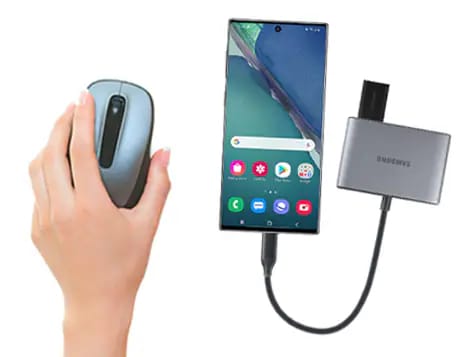
This makes using Smart Switch with a broken screen easier because you can move the phone again.
Method 2: Samsung Find My Mobile Remote Unlock
If your Samsung screen is black and you can't use a mouse, try this. Find My Mobile (Now called Sasmsung SmartThings) unlocks phones online. When the Samsung smart Switch broken screen is locked and the password is unknown, this method works.
- Step 1. Visit Samsung's Find My Mobile website on a computer or phone.
- Step 2. Use the Samsung account from your shattered phone.
- Step 3. Select your device from the list.
- Step 4. Confirm your Samsung password under "Unlock."
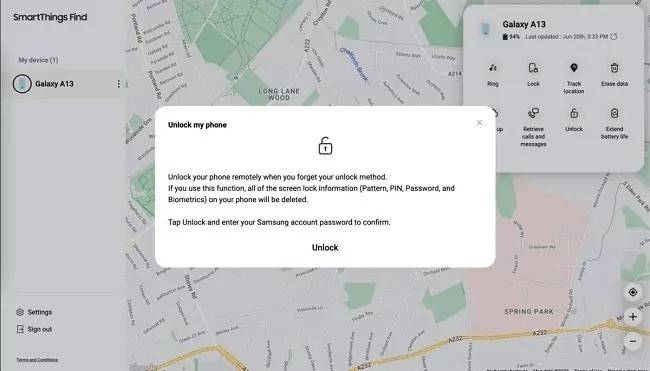
Instantly unlock your device. You can then follow any Smart Switch step.
Method 3: Use the Cover Screen (Samsung Z Fold/Flip)
Galaxy Z Fold and Galaxy Z Flip users may unlock their phones from the outside. This helps when the main screen is broken. Follow the steps below:
- Step 1. Wake the cover screen.
- Step 2. Put in your PIN, pattern, or password. After unlocking, connect to Smart Switch.
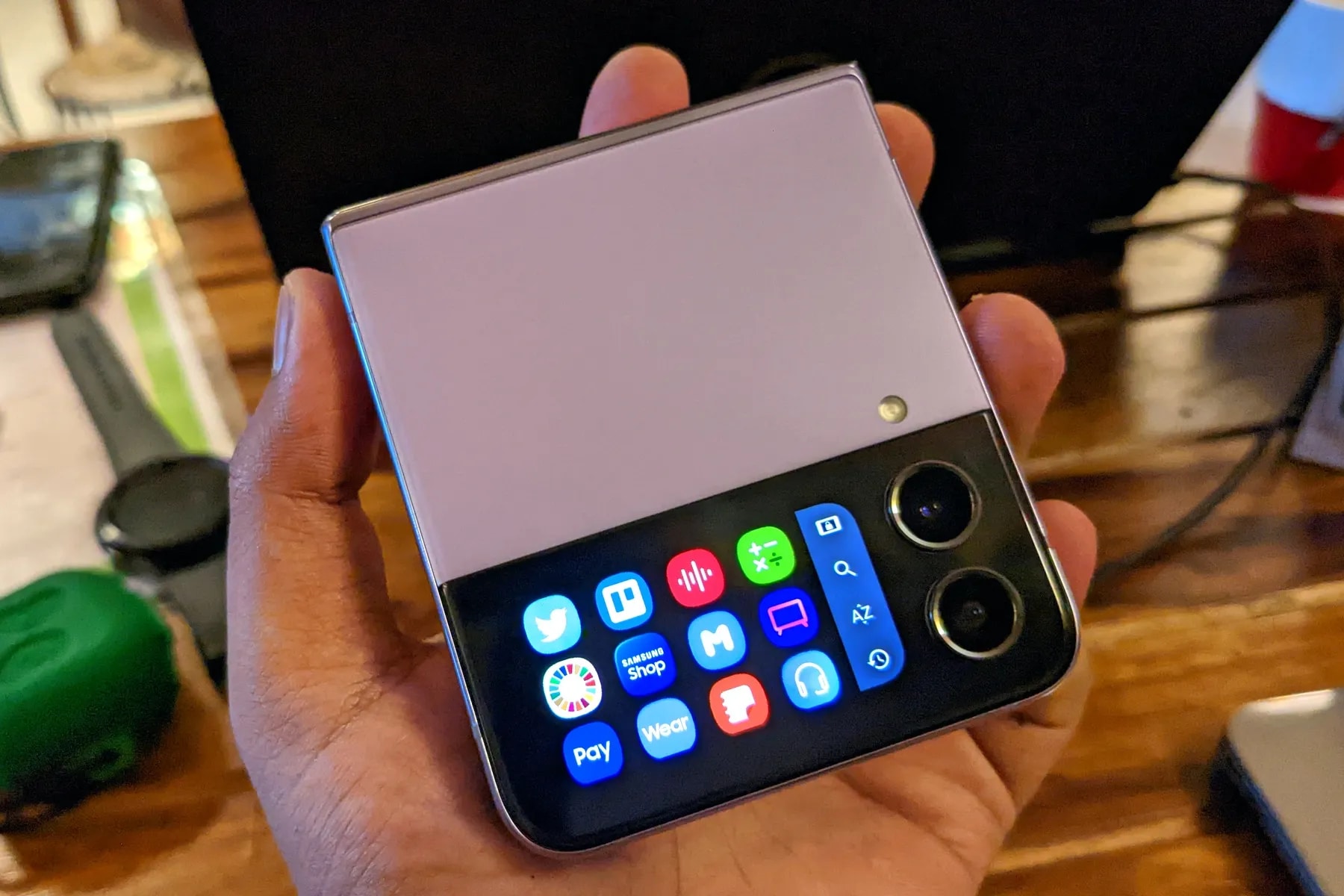
This workaround for smart switches with damaged screens on foldable devices is simple.
Method 4: Samsung DeX, Scrcpy, or Mirroring
Your computer can control the phone if the screen is off, but it powers on.
Among options:
- Samsung DeX
- Scrcpy
- Vysor
- Other mirroring apps
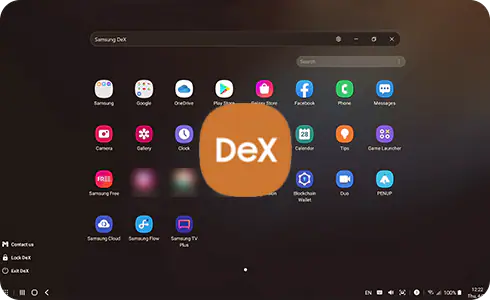
- Step 1. Connect your broken Samsung phone to a PC via USB. Launch Samsung DeX on your computer.
- Step 2. Your phone screen appears on the PC. Open apps, explore files, and copy them to your PC with your mouse.
These tools display phone screens on PCs. Unlock the phone and start Smart Switch after mirroring. Samsung Smart Switch broken screen covers with black screens are ideal for this procedure.
Now You Can Transfer — Smart Switch Methods
Transfer your data after unlocking the phone using one of the ways mentioned. Smart Switch with broken screen transfer instructions are here.
Method 1: Switch From iPhone to Galaxy via Wi-Fi
This solution only works for iPhone-to-Samsung customers. This element is included even though this isn't a Samsung smart Switch damaged screen, because many people use both devices together.
- Step 1. Disable Apple ID two-step verification before starting. Launch Smart Switch on your new Samsung phone. Go to Start, read the conditions, and agree. Smart Switch is here:
- New Samsung phones: "Settings > Cloud/Accounts > Smart Switch."
- Older Samsung phones: Play Store download.
- Step 2. Select "Wireless > Receive > iOS."
- Step 3. Sign in using your iCloud login and password.
- Step 4. Choose what to import. Tap "Import" and wait for data transfer. You can choose photographs, movies, and documents after the basic transmission.
- Step 5. Finish by closing the app. Turn off iMessage on your old iPhone to avoid missed texts.
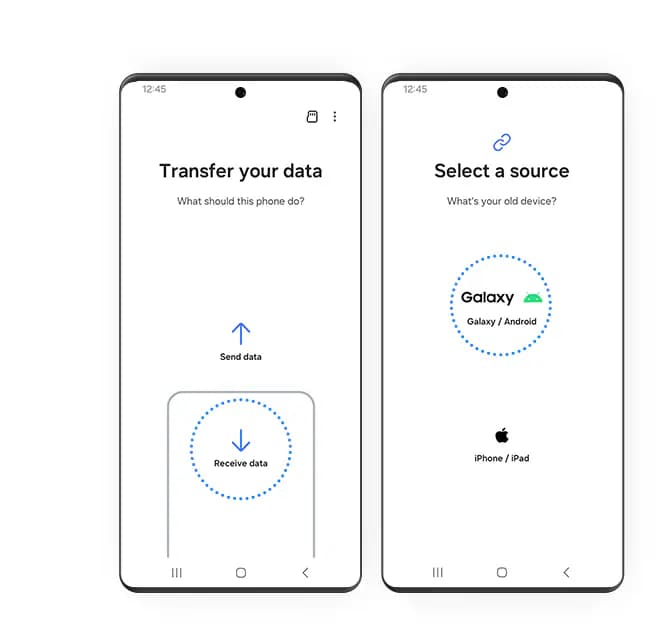
Method 2: USB-Cable Android Switch
This method is ideal for vintage phones with broken screens that unlock. Unlock your phones to transfer everything via wire.
- Step 1. Install Smart Switch on both phones. Find it at: Go to "Settings > Cloud & Accounts >
Smart
Switch." or Go to "Settings > Backup/Accounts > Smart Switch."
Download it from the Play Store if needed. - Step 2. Use your phone's USB-C port. Link both phones. Tap Backup on the old phone, then "Allow" when prompted.
- Step 3. Launch Smart Switch on the new Samsung phone. Tap on Receive Data / Send Data > USB.
- Step 4.Choose the data you wish to transfer.
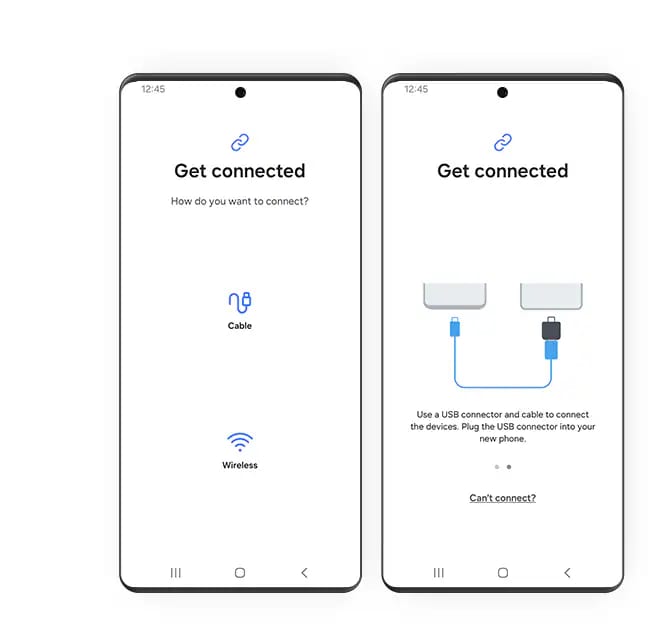
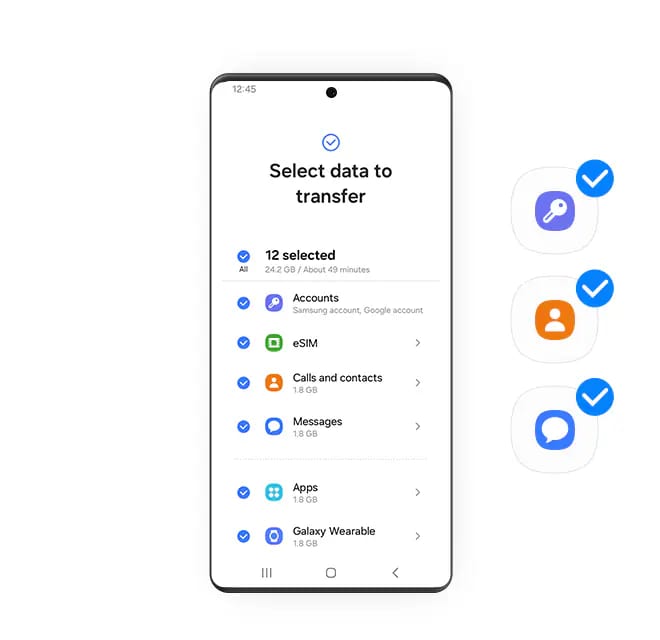
This is the best option for:
- Using a smart Switch with a broken screen
- Damaged screen on Samsung Smart Switch
- Broken smart switch screen
Method 3: Switch From Android to a PC
Use your PC if your phone screen is damaged and you can't connect phone-to-phone. This method works even with a dark screen if you unlocked the phone using OTG or Find My Mobile. For harder Samsung smart Switch broken screen locked scenarios, do this.
- Step 1. Download Smart Switch for Windows or Mac. Install and launch.
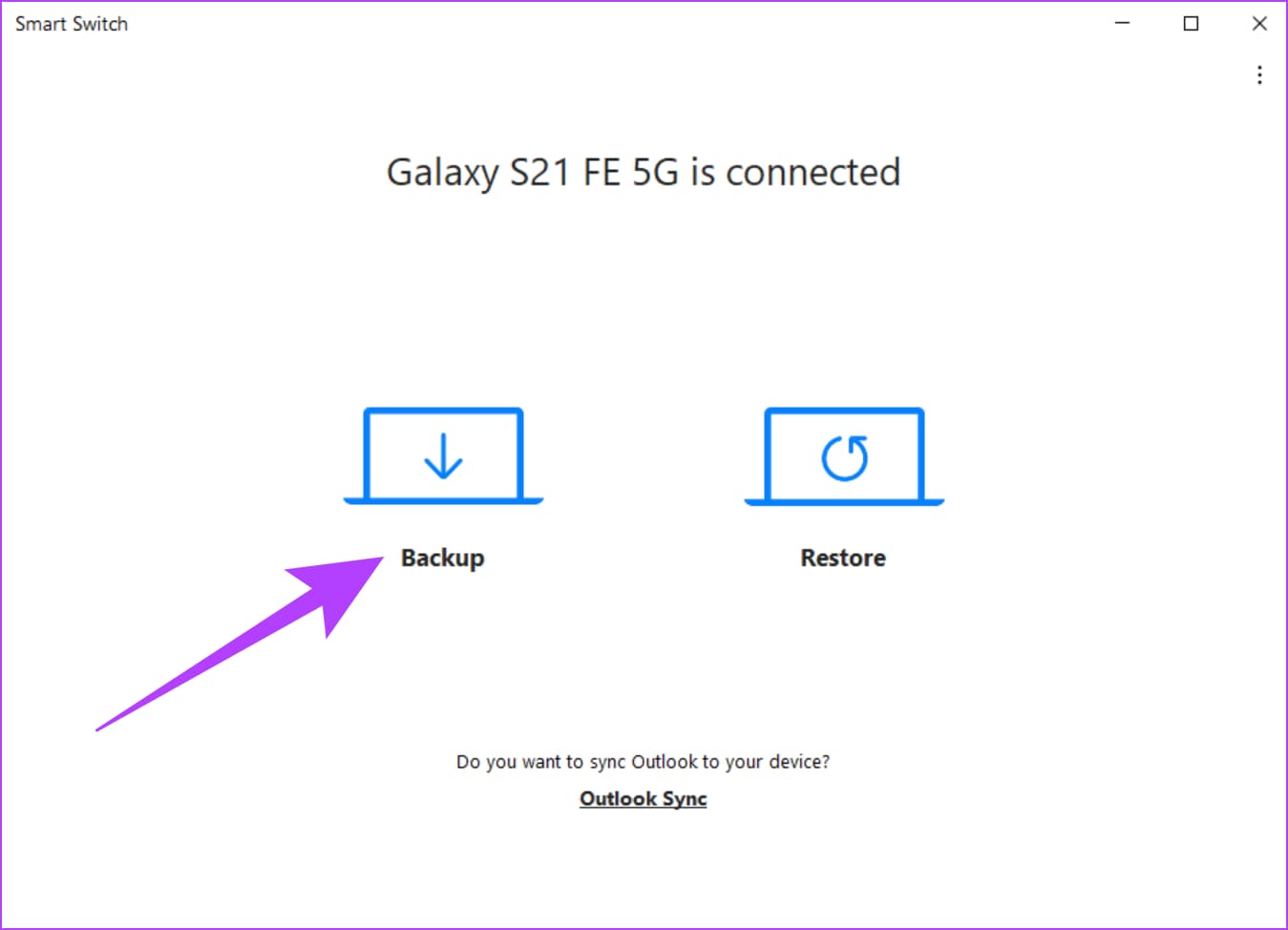
- Step 2. Connect your old Samsung phone to a PC. Tap "Allow" on the phone after tapping Backup on the Smart Switch. Tap "OK" and disconnect the old phone after backing up.
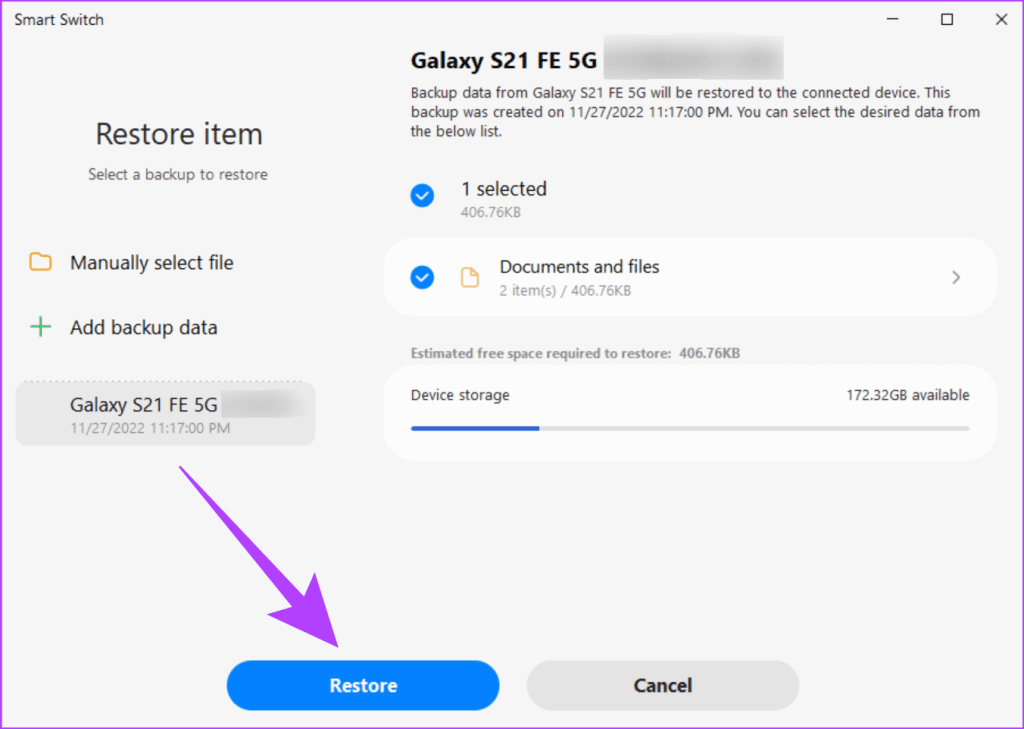
- Step 3. Connect your new Samsung phone to the computer. Click on "Restore".
- Step 4. Smart Switch transfers your backup data to your new phone. Allow the process to finish. Your programs, files, photographs, videos, contacts, and settings will be on the new device.
Part 3: Smart Switch Not Working? Best Alternative: Dr.Fone – Data Recovery (Android)
You can recover your data safely if your damaged screen-locked phone won't connect. Dr.Fone - Data Recovery is excellent. It's fast, easy, and works when Smart Switch fails. This tool works on any Android phone without root or USB debugging. This makes it the greatest option for learning how to smart switch with a broken screen but no phone response.
Why Dr.Fone is the Best Smart Switch Alternative for Broken Screens
Dr.Fone is the first certified Android data recovery tool. It supports over 6000 Android devices, including Samsung, Xiaomi, Vivo, Oppo, Infinix, Tecno, Motorola, and others. It offers the highest market recovery success rate and can recover data from cracked, black, dead, or unresponsive screens. This is helpful when the Samsung smart Switch broken screen won't open or stops transmission.
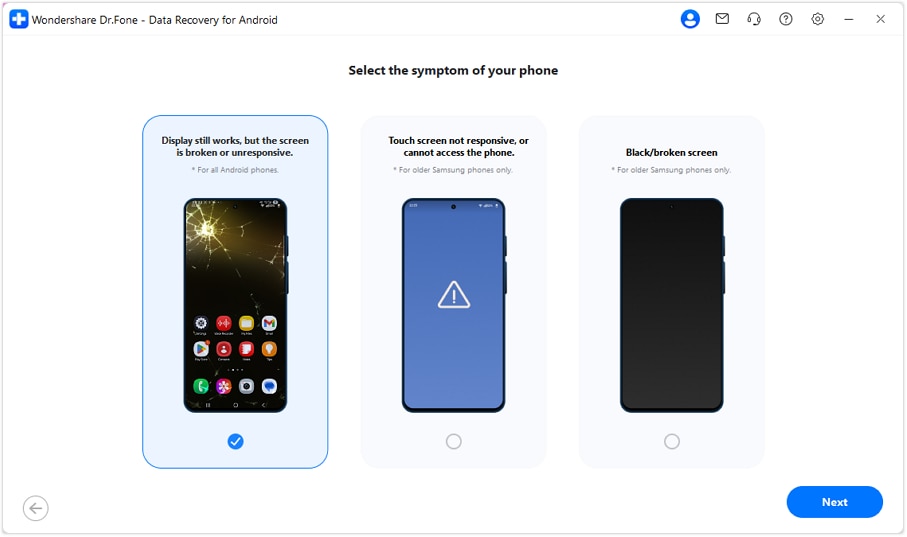
Dr.Fone offers three simple Android data recovery methods. The main recovery option on all Android devices works if your screen is broken but still turns on. Only older Samsung models enable the other two modes for touch screens not responsive or broken screens.

Dr.Fone - Data Recovery (Android)
Recover whatsapp/contacts/messages/call history saved in Google Drive to your computer.
- Recover Android data by scanning your Android phone & tablet directly.
- Preview and selectively recover what you want from your Android phone & tablet.
- Supports various file types, including WhatsApp, Messages & Contacts & Photos & Videos & Audio & Document.
- Supports 6000+ Android Device Models & Various Android OS.


How to Use Dr.Fone for Android Data Recovery
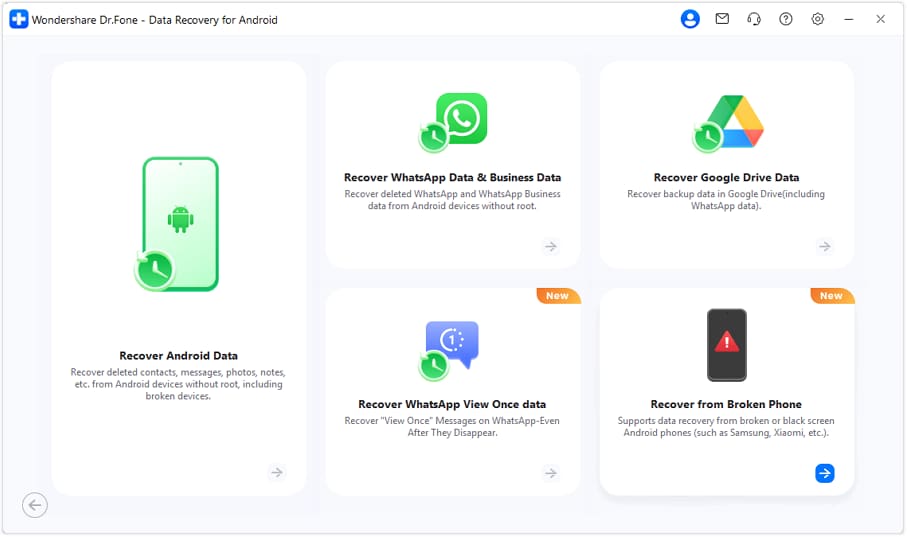
- Step 1. Install and launch Wondershare Dr.Fone on your computer. Go to Toolbox → Android Data Recovery. Select "Recover from Broken Phone."
- Step 2. Choose the problem type. Pick "Display still works, but the screen is broken or
unresponsive."
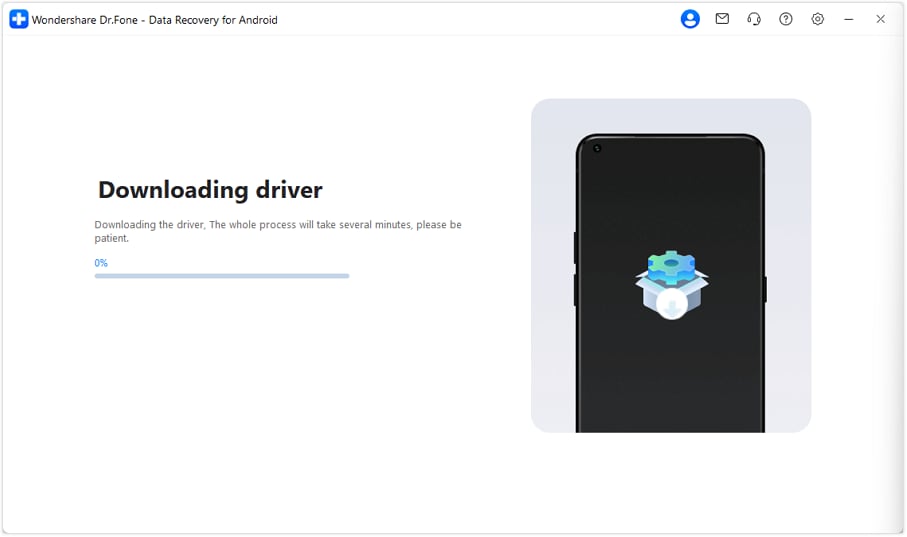
Note: The "Screen On but Unresponsive" recovery mode works with all Android phones. - Step 3. Dr.Fone automatically downloads your drivers.
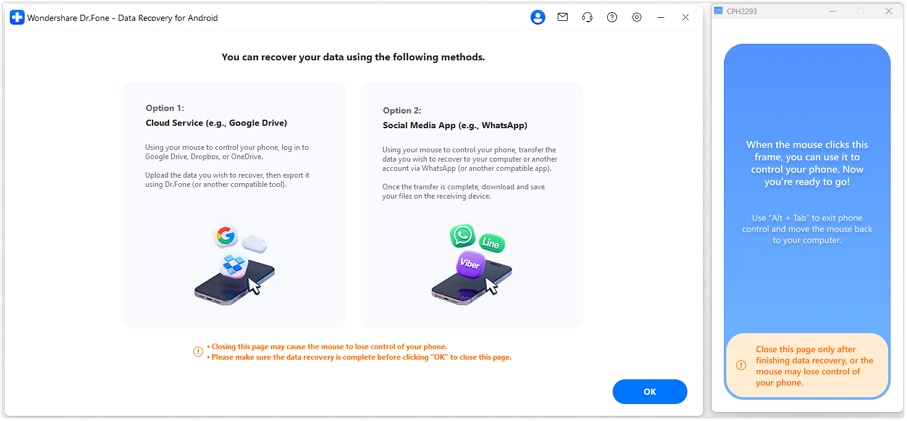
- Step 4. You can either save the data from your phone on the cloud or use a social media app that is supported on both devices so that you can move data from your phone to another device or computer.
 safe & secure
Part 4: Tips to Improve Smart Switch Recovery Success
- Small mistakes can block Smart Switch transfers with broken screens. Keeping things simple and safe is crucial. Even with a broken screen or locked devices, these strategies will enable you to move smoothly.
- Keep your phone charged first. Dropping the battery during travel may stop it. Keep the phone plugged in to avoid transfer failure. Learning how to utilize Smart Switch with a broken screen requires this.
- Next, use a sturdy USB cord. A poor cable can repeatedly disconnect. This is a major issue with smart Switch cracked-screen phones. A good cable stabilizes the link.
- Avoid pressing the cracked screen. Pressure can worsen a broken AMOLED screen. Even light taps can black the screen. This is important for safe smart switching with a broken screen.
- If touch doesn't work, unlock the phone with a USB mouse ASAP. Try this before the screen malfunctions again. Better chances to start the transfer.
- Samsung Fold users should quickly switch to the cover screen. It typically works and helps Samsung smart Switch with faulty screen transfers.
Conclusion
Using Smart Switch with a broken screen is doable if you follow the procedures. Despite popular belief, Samsung Smart Switch can work with a shattered screen if the phone powers on and can be unlocked. A USB mouse or working cover screen can assist in unlocking a Samsung smart Switch broken screen.
The goal is to save data before the screen dies. With meticulous steps, a sturdy cable, and continuous power, you can transfer easily. These suggestions simplify how to use smart switch with a broken screen and smart Switch with a broken screen.
safe & secure


Android Recover
- Recover Apps
- 1. Data Recovery Software for Android
- 2. Top 4 Android Data Recovery Tools
- 3. Restore Deleted Files on Android
- 4. Coolmuster Android Data Recovery
- 5. Guide of Disk Drill for Android
- 6. Android Data Recovery Software
- 7. Gihosoft Android Data Recovery
- 8. Jihosoft Android Phone Recovery
- 9. Minitool Android Mobile Recovery
- 10. Recover Android Data from Fucosoft
- 11. Best Mobile Forensics Tools to Recover Data
- 12. PhotoRec Review
- 13. FoneDog Toolkit
- 14. TWRP Recovery
- Contacts Recover
- 1. Recover Contacts from Stolen phone
- 2. Recover Contacts from Android
- 3. Retrieve Contacts Without Backup
- Files Recover
- 1. Recover Files from Internal Memory
- 2. Recover Miscellaneous Files
- 3. Recover Android's Hidden Files
- 4. Recover Deleted Files from Android
- 4. Recover Deleted Files Without Root
- 5. Recover Files from SD Card
- 6. Undelete Files on Android
- Messages Recover
- Music/Videos Recover
- Photos Recover
- 1. DiskDigger Photo Recover Review
- 2. Recover Deleted Photos from Android
- 3. Recover Photo from Internal Storage
- 4. Recover Photos from Lost Phone
- 5. Restore Android Deleted Photos
- Broken Android Recover
- 1. View Files from Broken Phone Screen
- 2. Recover Data from Dead Phone
- 3. Recover Contacts with Broken Screen
- 4. Recover Text Messages from Android
- 5. Recover Data from Internal Memory
- Social Apps Recover
- 1. Recover Facebook Messages
- 2. Recover WhatsApp Messages
- 3. Recover WhatsApp Messages
- 4. Restore Deleted WhatsApp Messages
- Android Recover Tips
- 1. SD Card Recovery Tools
- 2. Fix Recovery Mode Not Working
- 3. Enter Recovery Mode on Android
- 4. Recover Calendar from Android
- 5. Recover Deleted Call Log on Android
- 6. Clear Cache Partition
- 7. Repair a USB Stick
- 8. USB Repair Tools
- Cloud Storage Tips
- ● Manage/transfer/recover data
- ● Unlock screen/activate/FRP lock
- ● Fix most iOS and Android issues
- Free Download Free Download Free Download

 > How-to > Data Recovery Solutions > Samsung Smart Switch with Broken Screen: Easy Ways to Recover Data Safely
Ahmed Absal
contributor Editor