Recover photos, messages, WhatsApp, and more — no backup
needed.
Recover photos, messages, WhatsApp, and more — no backup
needed.

 100% Security Verified | No Subscription Required | No Malware

 :
: 
 ChatGPT
 Perplexity
 Gemini
 Claude
 Grok
Grok
Accidentally pressing the delete button on a crucial post can be an incredibly frustrating experience. Whether it is your own carefully crafted thought that you lost or a significant update from someone else’s account that suddenly vanished, you might find yourself desperately looking for ways to get it back.
Perhaps the post contained vital information, sparked a massive online debate, or was simply a controversial statement that disappeared too quickly. The good news is that the internet rarely forgets entirely. Deleted data is not necessarily lost forever, and the X platform (formerly Twitter) is absolutely no exception to this rule. By leveraging specific built-in features and external platforms, you can track down those digital footprints.
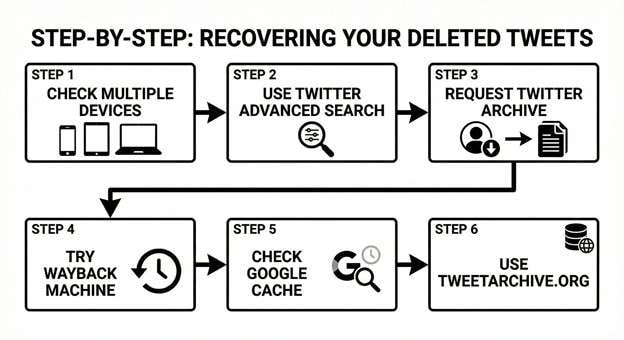
This comprehensive 2026 guide explores six highly effective methods for finding deleted tweets. We will break down exactly how you can perform a successful deleted tweet recovery, whether you are trying to restore your own posts or retrieve deleted tweets from another public user.
Let us dive deep into the ultimate strategies for recovering lost Twitter data.
In this article
Part 1. Is There a Way to See Deleted Twitter Posts?
Yes, retrieving a deleted post on X is entirely possible in many scenarios. However, the overall success rate heavily depends on how rapidly you initiate the recovery process and the specific methodology you choose to apply for the task.
When you actively delete a tweet, Twitter immediately removes the content from its primary public-facing servers. Despite this, digital copies might still exist scattered across external platforms. These residual traces can often be found on third-party archive services, persistent search engine caches, and importantly, within your own comprehensive Twitter data backup.
But what drives the massive demand to retrieve deleted tweets in the first place? Here are a few common scenarios:
- You accidentally deleted something of personal or professional importance.
- You need to verify historical statements or what someone previously posted online.
- You are conducting detailed research or working on investigative journalism.
- You require concrete evidence for legal documentation or compliance needs.
Whatever your specific motivation may be, there are practical solutions that consistently yield results. Let us explore the mechanics behind these methods.
Part 2. Are Deleted Tweets Gone Forever?
Not necessarily. While the public interface wipes the tweet instantly, Twitter itself retains certain backend user data for strict legal compliance and internal moderation purposes. Consequently, internal copies of these seemingly erased tweets may still exist within their isolated databases. Unfortunately, standard users have absolutely no direct means to access these specific corporate records.
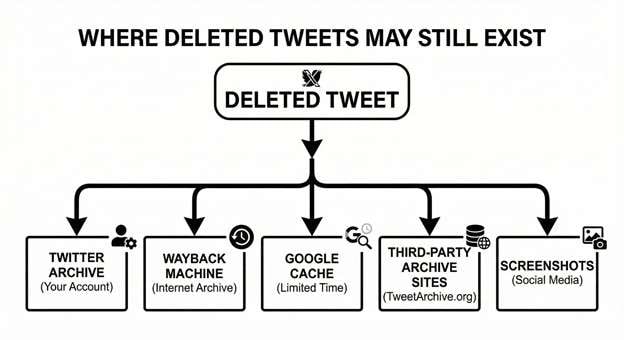
On the flip side, an entire ecosystem of third-party services actively scrapes and collects tweet data around the clock. These robust services include automated web crawlers, dedicated digital archive sites, and major search engines. They continuously capture live snapshots of content across the platform. If these powerful tools manage to detect and index a tweet right before its deletion, they will likely store a permanent, viewable copy.
Nevertheless, it is important to note that public archives simply cannot save every single post. Highly popular accounts inherently have significantly better chances of being archived than smaller profiles with minimal engagement. If you are focused on building an audience and monitoring engagement, you might want to learn how to keep your audience metrics in check with the best Twitter follower trackers.
Furthermore, highly controversial or heavily debated posts naturally attract much more crawler attention. Conversely, if your deleted post was just a random fleeting thought shared in the middle of the night with zero interactions, the likelihood of it being saved anywhere is extremely low.
Timing is arguably the most critical factor. If the third-party archives update their indexing, or if you accidentally clear your local browser cache before saving the screen, the window to restore your content could close completely.
Part 3. How to See Deleted Tweets in 2026: 6 Working Methods
After dedicating extensive hours to testing and research, we have compiled the most reliable techniques to help you successfully restore deleted tweets. Let us review these six distinct methods in thorough detail.
Method 1. Download Your Twitter Archive
If you are attempting to find your very own deleted tweets, requesting your archive is undeniably your best bet. Twitter is obligated to maintain a complete historical archive of virtually everything you have ever posted on the platform, including the material you chose to delete. You simply have to know how to officially request and navigate this extensive file.
-
Step 1 Access Your Account Settings
Open the X (Twitter) application or website. Click on the "More" option located on the left-hand navigation menu. From the expanded list, carefully select "Settings and Privacy."
-
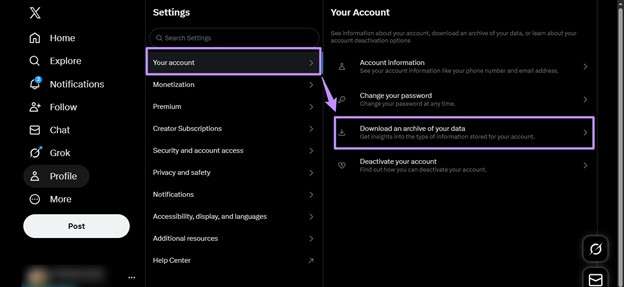
Step 2 Request the Archive Download
Navigate to the "Your account" section. Click directly on the option labeled "Download an archive of your data."
-
Step 3 Pass the Security Verification
Twitter will prompt you to rigorously verify your identity via a code sent to your email or phone. Once authenticated, click the "Request archive" button. You must now wait patiently for Twitter's automated system to generate the file and send a notification email, which can sometimes take up to 24 hours.
-
Step 4 Extract the Data ZIP
Once you receive the confirmation email, download the provided ZIP file onto your computer. Extract the contents of this compressed folder into a dedicated local directory.
-
Step 5 Browse Your Complete History
Locate the "index.html" file within the extracted folder and double-click to open it in your preferred web browser. You will be greeted with an interactive interface showcasing your entire history.
This powerful offline viewer allows you to meticulously search through your entire timeline using specific keywords. It also features robust filtering tools that let you isolate content by specific date ranges, making finding deleted tweets from years ago significantly easier.
Method 2. Use the Wayback Machine
The highly respected Wayback Machine is a monumental archival tool actively operated by the non-profit Internet Archive. It systematically captures precise visual snapshots of billions of web pages over time, including public Twitter profiles. This specific method works best for uncovering the deleted posts of popular accounts, celebrities, or public figures, as their high-traffic profiles are actively archived far more frequently by the system's bots.
Keep in mind that this platform does not typically index individual tweets by text keywords; instead, it saves the visual layout of entire profile pages at specific moments in time. Consequently, you will need to have a rough estimation of exactly when the elusive tweet was publicly visible.
-
Step 1 Visit the Internet Archive
Navigate your web browser directly to the Wayback Machine’s official page hosted on the Internet Archive’s website.
-
Step 2 Input the Target URL
Paste the complete Twitter profile URL of the specific user into the prominent central search bar.

-
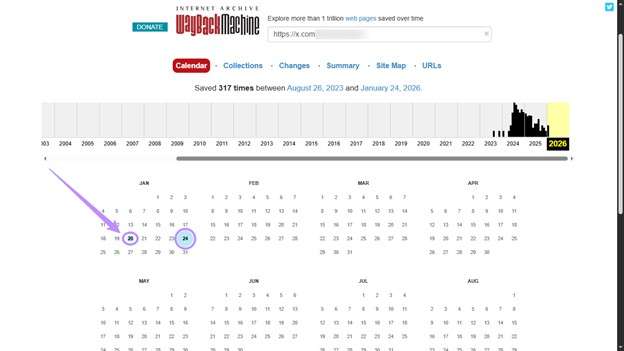
Step 3 Navigate the Archive Calendar
If snapshots exist, a timeline and a calendar will appear. Select a specific year, and then click on a date highlighted with a colored dot (green or blue dots indicate successfully archived days).
-
Step 4 Review the Historical Snapshot
Click on an available timestamp to load the historically archived version of the profile. Carefully scroll through the feed to locate the deleted content.
Method 3. Check Google Cache
The Google search engine automatically stores temporary, cached versions of millions of web pages to ensure faster loading and reliable access, which notably includes profiles and individual posts on X. However, this particular strategy is only viable if you want to restore deleted tweets that were removed very recently. Google clears and updates its server caches quite regularly, so the window of opportunity is incredibly narrow. You absolutely must act fast.
-
Step 1 Formulate the Search Query
Open Google and run a highly specific search by combining the exact username, the word "Twitter", and any unique keywords that you distinctly remember from the post.
-
Step 2 Locate the Dropdown Menu
Carefully scan the search engine results page (SERP) to find the most relevant link. Click the small three-dot icon or the down arrow immediately adjacent to the provided URL.
-
Step 3 Access the Cached Version
From the ensuing contextual dropdown menu, select the "Cached" option to load Google's most recently saved text-only or full version of that page.

Method 4. Try Twitter's Advanced Search
It is important to clarify that Twitter's Advanced Search tool will not miraculously display permanently deleted tweets directly on your timeline. However, it is an invaluable tool for thoroughly confirming whether a tweet you believe to be deleted is actually still actively existing somewhere hidden deep within the X servers. You must be fully logged into your X account to access this sophisticated feature. If you run into login issues, you might want to learn what you can do if you forgot your Twitter username or password.
-
Step 1 Launch Advanced Search
Open the Advanced Search modal dialog directly on the X web platform.
-
Step 2 Input Exact Phrases
In the "Words" section, carefully type the specific words or exact sequential phrases that were included in the targeted post.
-
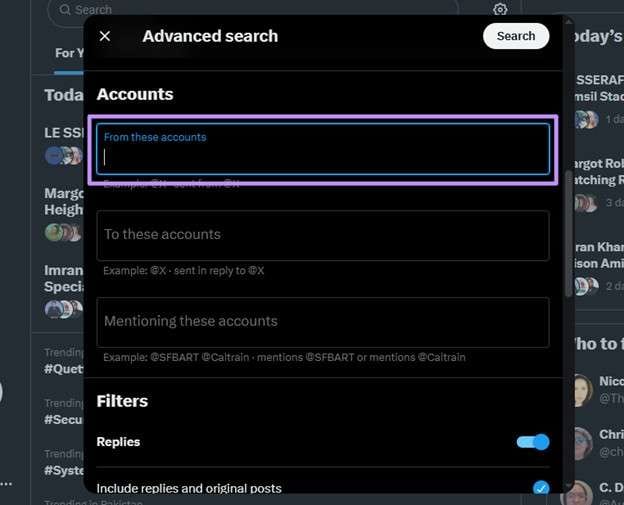
Step 3 Target the Specific Account
Scroll down to the "Account" parameter. Enter the precise handle (without the @ symbol) into the text box labeled "From these accounts."
-
Step 4 Refine and Execute
Supplement the search with any additional information you clearly remember, such as the exact date range, minimum engagement metrics, or accounts that were mentioned. Click search.
If you thoroughly adjust all filters and still do not see anything populated in the results, you can be fairly certain the tweet has been scrubbed from Twitter's active servers. At this point, you must proceed to try the external archival methods.
Method 5. Use TweetArchive.org
TweetArchive.org is a specialized, free, and incredibly straightforward utility strictly dedicated to finding deleted tweets. Instead of relying on a single database, it acts as an aggregator. It gathers and compiles historical results from multiple premier archival sources with just a single automated search, simultaneously scanning platforms like the Wayback Machine and Google Cache.
-
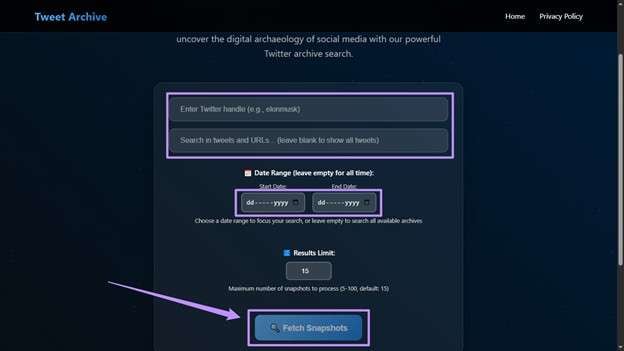
Step 1 Provide the Target Handle
Enter the exact Twitter handle of the user whose data you are investigating.
-
Step 2 Add Specific Keywords
Add a relevant keyword to specifically filter the search within the archived database, or simply leave it completely blank to pull a broad timeline.
-
Step 3 Retrieve the Snapshots
Set your desired date range constraints, then confidently click the "Fetch Snapshots" button to command the tool to scour the web.
Method 6. Check Multiple Devices
If you are actively logged into your X account across multiple hardware devices—such as a smartphone, a secondary tablet, and a desktop browser—you might be able to exploit local caching. Check your timeline on these secondary devices immediately. This workaround is most effective if you check within mere seconds after the deletion occurs, or crucially, if the secondary devices were completely disconnected from active internet access before the deletion signal was broadcasted.
In this specific offline scenario, the Twitter application simply cannot synchronize the deletion command instantly with the server. Consequently, your targeted tweet might still be fully legible on your disconnected tablet or laptop screen temporarily, allowing you to quickly take a screenshot before going back online.
| Method | Best For | Success Rate | Difficulty Level |
|---|---|---|---|
| Twitter Archive | Your own personal tweets | 95% | Easy |
| Wayback Machine | High-profile public accounts | 60% | Easy |
| Google Cache | Extremely recent deletions | 30% | Easy |
| Advanced Search | Confirming existing active tweets | 10% | Easy |
| TweetArchive.org | Any public viral tweets | 50% | Easy |
| Check Multiple Devices | Immediate, recent self-deletions | 20% | Easy |
Part 4. How to Recover Deleted DMs and Messages on Twitter
Many users frequently ask how to find deleted messages on Twitter. Unfortunately, Direct Messages (DMs) operate on fundamentally different privacy protocols compared to public tweets. Once you initiate the deletion of a private conversation, it is permanently scrubbed from your view and the immediate server cache. For strict user privacy and security reasons, Twitter explicitly does not include historically deleted DMs in your downloadable archive file.
That being said, if you absolutely must attempt to find deleted messages on Twitter, here are the few realistic avenues available:
- Politely request the other participant in the conversation to provide screenshots, as the message is only deleted on your end unless they deleted it too.
- Thoroughly check if you manually exported or captured screenshots as backups before the deletion occurred.
- Contact Twitter Support, though it is highly unlikely they will intervene in retrieving personal private messages without a legal mandate.
Ultimately, the most effective long-term solution is to preemptively back up your most critical conversations frequently, so you never find yourself desperately searching for lost chats.
Part 5. Bonus Tip: How to Recover Lost Data from Your Android Phone
What happens if the data loss goes far beyond a simple social media post? Have you recently lost critically important data stored deeply on your mobile hardware? Whether it is downloaded Twitter images, precious family photos, essential business contacts, critical text messages, or vital PDF documents, standard software often falls short. This is where Dr.Fone - Data Recovery (Android) steps in to seamlessly help you recover corrupted or deleted files in just a matter of minutes.
 Scan Android phones and tablets directly.
- Preview and recover only what you want.
- Supports WhatsApp, photos, videos, contacts, and more.
- Works with 6000+ Android devices.

By utilizing the advanced algorithms built into Dr.Fone, you can securely retrieve data from practically any Android device on the market today. Remarkably, it functions flawlessly across extensively damaged or broken devices, entirely bypassing the need for complex USB debugging or risky root access requirements. Additionally, the software empowers you to flawlessly recover data from the phone memory as well as the external SD drive.
Furthermore, its highly intuitive interface grants you the precision to visually preview and select exactly which specific files you genuinely wish to restore, saving massive amounts of time and storage space. It proudly supports well over 6,000 distinct Android devices. This massive compatibility list readily includes the absolute latest operating systems, such as Android 16, and encompasses all major global hardware brands ranging from Samsung and Huawei to OPPO and beyond.
You can reliably gain deep access to over 14 distinct file types. Here is a brief overview of exactly what critical data you can effortlessly recover:
- High-resolution photos and lengthy video recordings
- Extensive address book contacts and detailed call history logs
- Standard SMS messages alongside encrypted WhatsApp chat histories
- Compressed audio files, voice notes, and professional business documents
- Synchronized Google Drive cloud data components
Step-by-Step Guide to Recovering Lost Android Phone Data
-
Step 1 Launch the Dr.Fone Application
Begin by downloading and fully installing Dr.Fone - Data Recovery (Android) onto your primary computer. Once the installation finalizes, launch the executable application and carefully navigate to the comprehensive "Toolbox" section. From there, select the dedicated "Data Recovery" module.

-
Step 2 Specify Your Mobile OS Environment
A new configuration window will instantly pop up on the interface. Accurately choose the "Android" option, as you are specifically attempting to execute a recovery protocol from an Android-based mobile device.

-
Step 3 Initiate Android Data Recovery Mode
You will be presented with several robust diagnostic options displayed cleanly on your screen. Select the prominent "Recover Android Data" button to proceed to the main scanning dashboard.

-
Step 4 Establish the Physical USB Connection
Securely plug your Android smartphone directly into the computer using a high-quality, data-capable USB cable. Allow a few moments for the software engine to successfully detect the hardware. If actively prompted by your phone screen, manually authorize and enable USB debugging permissions.

-
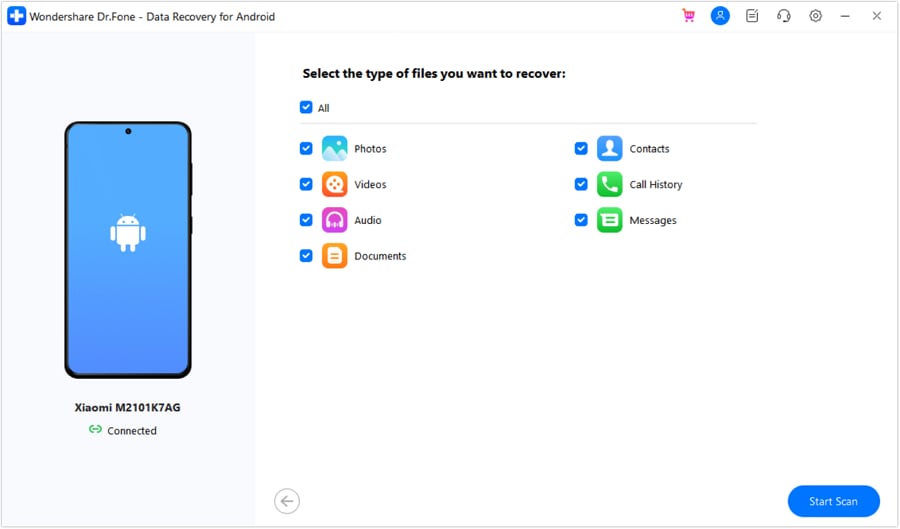
Step 5 Configure the File Scan Parameters
Carefully select the exact file types you desperately want to recover from the provided checklist. Once configured, click the "Start Scan" button. Sit back and wait patiently for the intensive deep-scanning process to reach 100% completion.
-
Step 6 Execute the Final Data Restoration
Thoroughly browse through the detailed list of successfully recovered files and select specifically what you need by utilizing the preview thumbnails. Click the "Recover" button at the bottom right, choose a safe destination folder on your hard drive, and then click "Recover" one final time to complete the critical operation.
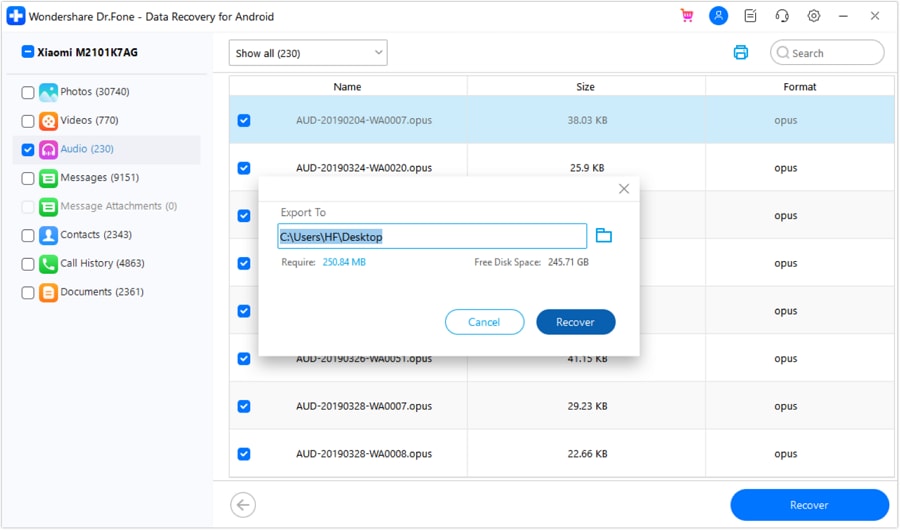




Quick Look: Dr.Fone Data Recovery Advantages
| Feature Highlight | Comprehensive Details |
|---|---|
| Massive Device Support | Fully compatible with 6000+ distinct Android mobile models globally. |
| Extensive Data Compatibility | Supports 14+ specific file formats including high-res photos, text messages, WhatsApp histories. |
| Versatile Recovery Sources | Direct internal storage scanning, integrated Google Drive extraction, broken device bypass. |
| Intelligent Preview System | Yes, guarantees visual verification before committing to permanent file recovery. |
| Exceptional Usability | Designed with a completely beginner-friendly interface requiring absolutely zero technical expertise. |
Conclusion
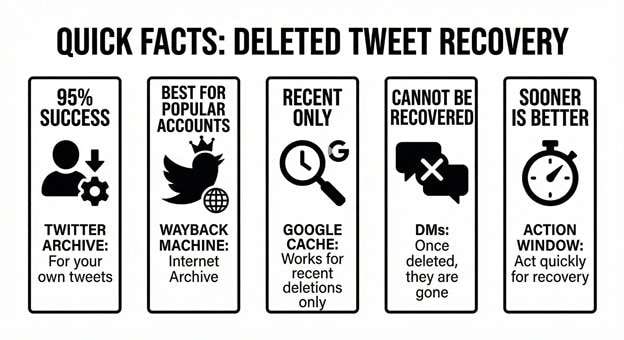
Ultimately, there are multiple robust and genuinely effective ways for finding deleted tweets across the internet today. Requesting your official comprehensive Twitter archive remains the most undisputed and reliable source for recovering your own personal content. For those attempting to recover missing posts from highly visible public figures or viral accounts, web-crawling platforms such as the Wayback Machine and TweetArchive.org are phenomenal working solutions. However, the overarching rule remains constant: you must act with urgency to drastically increase your overall chances of a successful deleted tweet recovery.
But what if you face a much larger data catastrophe and happen to lose vital information stored natively on your Android smartphone? Dr.Fone - Data Recovery is uniquely engineered to seamlessly reverse the damage. Whether you are aiming to resurrect precious family photos, re-establish lost business contacts, undelete critical SMS text messages, or restore vast WhatsApp chat histories, this software is your definitive safety net. Do not leave your digital life to chance—download it immediately and safeguard your precious mobile data!
FAQ
-
1. Can you see deleted tweets of other users?
Yes, it is entirely possible to view the deleted posts of other individuals, provided that third-party archive services successfully captured a snapshot before the actual deletion occurred. Popular tools like the Wayback Machine or the specialized aggregator TweetArchive.org are highly recommended. High-traffic and widely followed public accounts boast a significantly higher recovery success rate, whereas smaller, random accounts are rarely indexed in time. -
2. How long does Twitter actively keep deleted tweets?
The moment you initiate a deletion command, Twitter immediately removes the specific post from public timelines, searches, and direct profile views. However, the platform likely retains these distinct data logs internally for an undisclosed period to ensure strict compliance with legal warrants and security mandates. Unfortunately, average users cannot access this hidden backend archive; relying strictly on your personal downloaded archive is your safest approach. -
3. Is it legally permissible to view deleted tweets online?
Generally speaking, yes. When users initially publish tweets on a public social media platform, that information actively enters the public digital sphere. Consequently, searching for and viewing historically archived versions of these statements is entirely legal. However, it is deeply advised that you refrain from using any recovered personal information maliciously for harassment, doxxing, or any explicitly illegal activities. -
4. Is there a reliable way on how to find deleted messages on Twitter?
Unfortunately, no straightforward method exists. Unlike public timeline posts, deleted Direct Messages (DMs) are permanently and securely scrubbed from your immediate interface and account database. Furthermore, Twitter intentionally excludes private DMs from your officially requested download archive to fiercely protect user privacy. Your absolute only recourse is to politely ask the other conversational participant to check their unaltered device for a matching copy or screenshot.
 Add Wondershare Dr.Fone as a preferred source on Google