
iPhone Green Screen Flickering Causes and Permanent Fixes

Oct 24, 2026 • Filed to: Phone Repair Solutions • Proven solutions
 TL;DR:
Resolving the iPhone green screen of death—typically caused by iOS update bugs, hardware damage, or aggressive setting conflicts—requires sequentially force-restarting the device, updating the firmware, or resetting display configurations before resorting to a permanent data wipe or hardware repair.
● Aggressive combinations of True Tone, Night Shift, Dark Mode, or very low brightness can temporarily push OLED panels into a green tint, which can be safely cleared without data loss by executing the Reset All Settings command.
● For stubborn software corruption, Dr.Fone - System Repair (iOS) can fix display glitches without data loss via its Standard Mode, and it allows users on iOS 26/iPadOS 26 or iPhone 17 Series to downgrade firmware without iTunes or jailbreaking.
● The Erase All Content and Settings option serves as the final software fix by permanently wiping all device data; if the flickering continues afterward, the device has sustained physical liquid or impact damage to the logic board or display panel requiring hardware inspection.
Ask AI for a summary
 ChatGPT
 Perplexity
 Gemini
 Claude
 Grok
Grok
Imagine your iPhone display turns green or flickers, and you are unable to read messages, watch movies, or use applications. After a drop, contact, liquid, or errors in software or hardware, the display may show distorted colors or random flashes. Nevertheless, this ultimate guide provides an explanation of the typical causes of the green-screen flicker and presents enduring solutions.
As you learn the best ways to resolve the iPhone green tint issue, you'll also learn how to prevent it in the future. When you review the solutions given, you will also learn what makes Dr.Fone the best and most reliable option for fixing system issues.
- Part 1. What is the iPhone Green Screen of Death?
- Part 2. How to Resolve iPhone Green Screen – 6 Ultimate Fixes
- Fix 1: Force Restart Your iPhone
- Fix 2: Update Your iOS Firmware
- Fix 3: Reset All iPhone Settings
- Fix 4: Use Dr.Fone - System Repair (iOS) to Fix iPhone Green Screen of Death Efficiently

- Fix 5: Erase All Content from iPhone
- Fix 6: Check for Hardware Damage
- Part 3. How to Avoid the iPhone Green Screen of Death - 5 Tips
Part 1. What is the iPhone Green Screen of Death?
The iPhone green screen of death is a serious issue in which the screen turns solid green, flickers, or stops responding to touch. Hence, this makes the phone hard to use and may prevent normal functions like calls, messages, or apps.
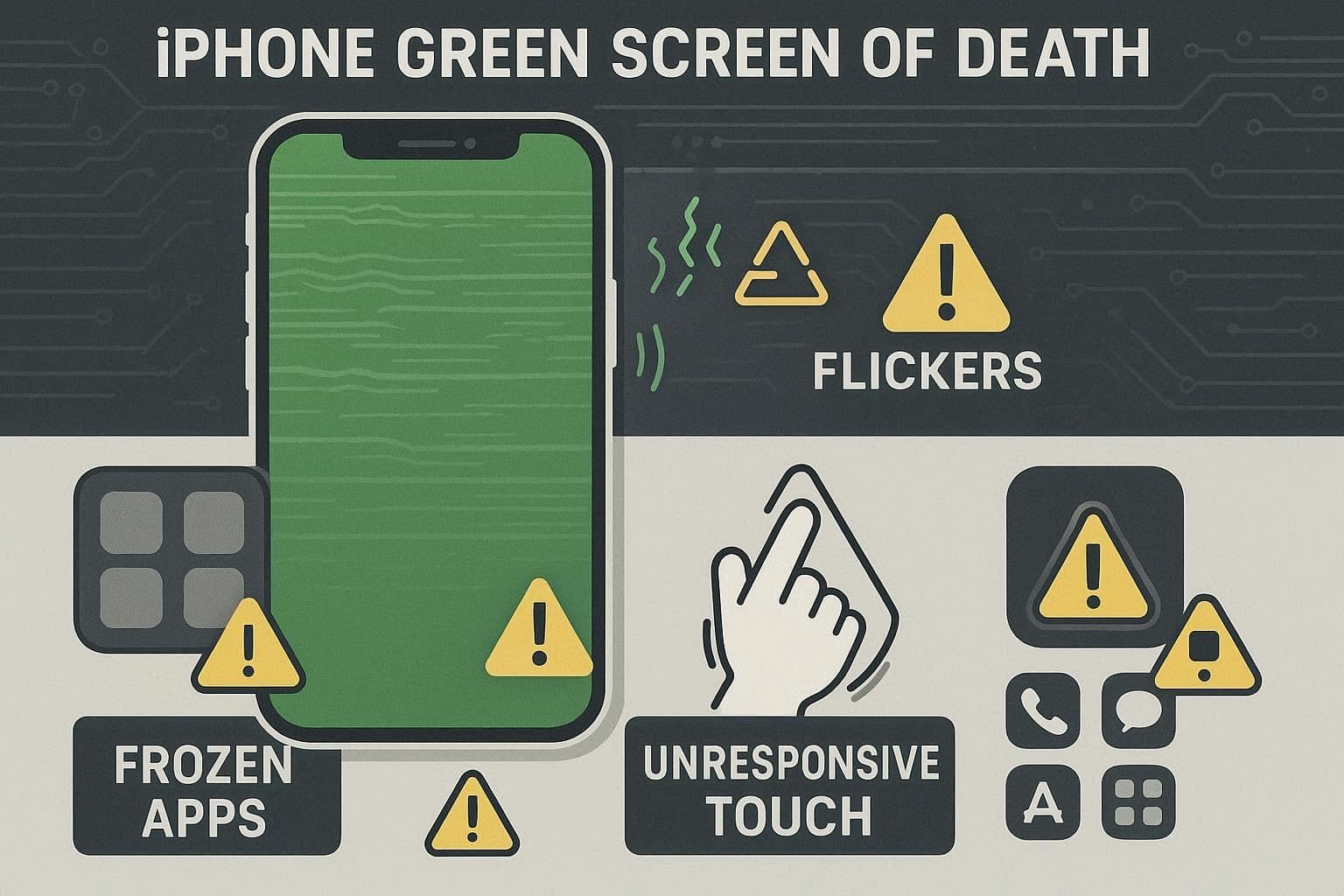
5 Common Causes of iPhone Green Screen
Before you know how to fix the iPhone green screen problem, learn what hardware, software, or environmental factors cause this:
|
Category |
Causes |
How Does It Lead to Green Screen |
| Hardware‑related | Damaged or Loose Display | Faulty OLED/LCD panel, loose flex cable, or logic‑board/display‑driver damage makes colors render incorrectly or lock to green, often with flicker or no touch. |
| Hardware‑related | Water or Impact Damage | Drops or liquid inside the phone corrode or short display circuits, causing an intermittent green tint that can turn into a permanent “green screen of death.” |
| Software‑related | iOS Bug / Failed Update | A buggy or incomplete iOS update corrupts display drivers or color handling, suddenly tinting the screen green or causing random green flashes. |
| Software‑related | Display Settings Conflict | Aggressive combinations of True Tone, Night Shift, Dark Mode, or very low brightness can trigger a persistent green tint on some panels until settings are reset. |
| Environmental / Load | Overheating or Heavy Workload | High temperature, gaming, or long 3D/video sessions stress the GPU and display power circuits, which can temporarily push the panel into a green tint or full green screen. |
Part 2. How to Resolve iPhone Green Screen – 6 Ultimate Fixes
Those who seek to resolve the green screen of death iPhone issue, follow the 6 simple and effective solutions given below:
Fix 1: Force Restart Your iPhone
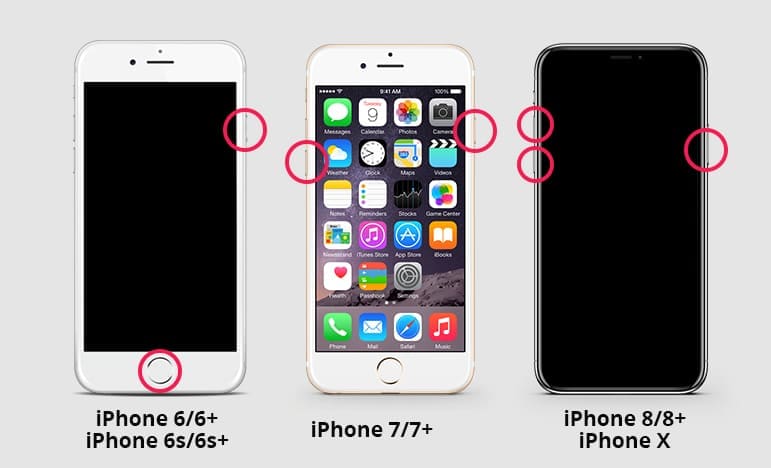
This solution stops small system errors, clears background tasks, and reloads iOS so the display system starts fresh. Additionally, it works when the screen isn't responding, which a normal restart can't. Plus, it only takes a few seconds, needs no tools, and keeps all apps and settings safe. Hence, if you force restart your iPhone via the given steps, and they still remain, the issue will likely be linked to deep software errors:
- iPhone 8 & Latest Models: Maintain pressure on the “Volume Up” button and then the “Volume Down” button. Now, hold the “Side” button until the Apple logo appears, and let go of it.
- iPhone 7 and 7 Plus: Keep pressure on the “Volume Down + Side” buttons simultaneously until the Apple logo appears.
- iPhone 6S or Older Models: Hold the “Home” and “Side/Top” buttons at the same time. When the Apple logo interface appears, press both buttons immediately.
Fix 2: Update Your iOS Firmware
You can also update the iOS firmware to remove the green tint on the iPhone, as new updates can fix system bugs and repair display errors. Not just that, Apple often adds fixes for green tint or glow in later versions, so a simple update can solve the problem. So, this solution keeps the data safe, improves phone stability, and adds better security, once updates are completed through the mentioned steps:
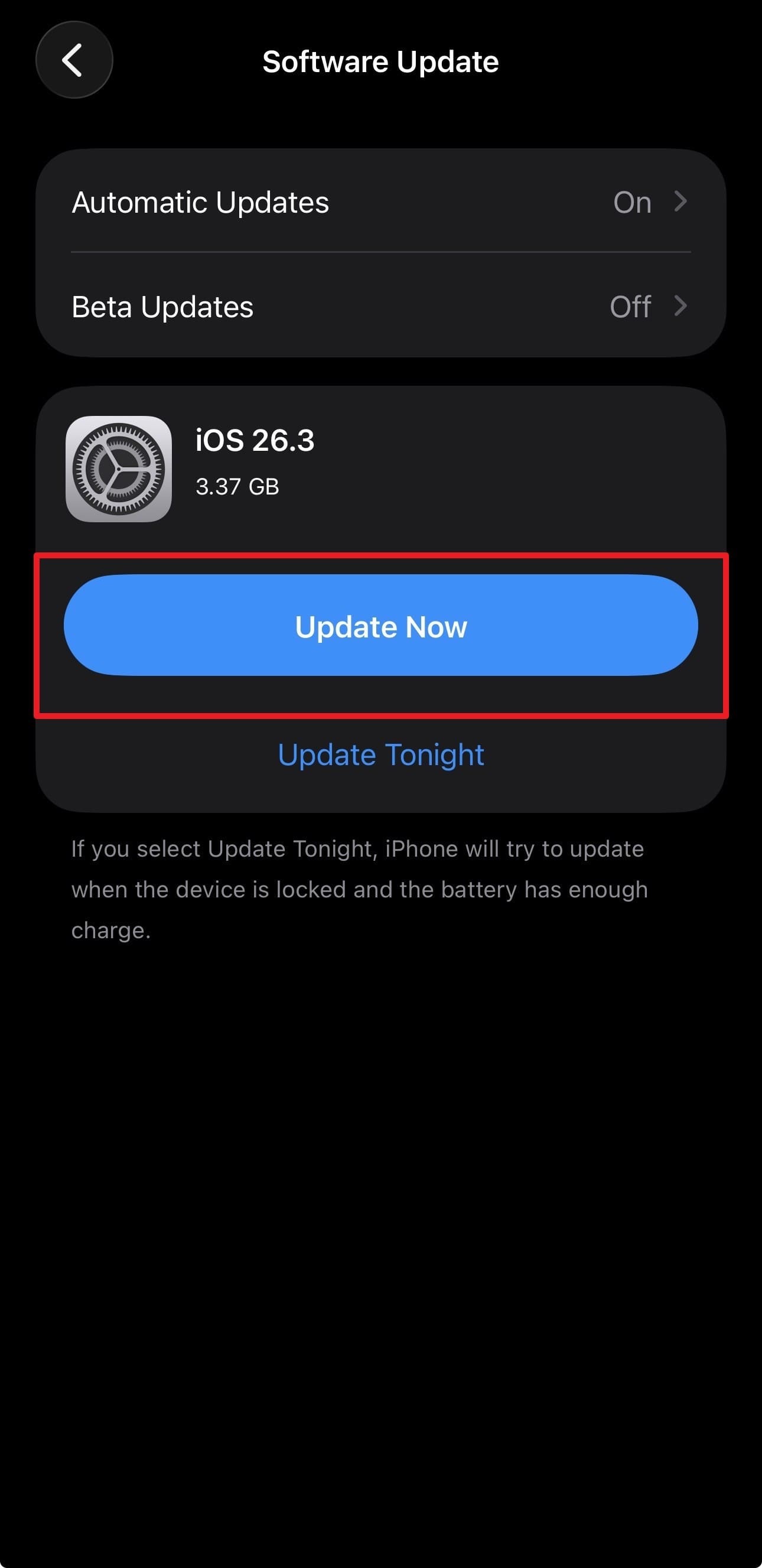
Step 1. Within settings, head to “General” to choose the “Software Update” option.
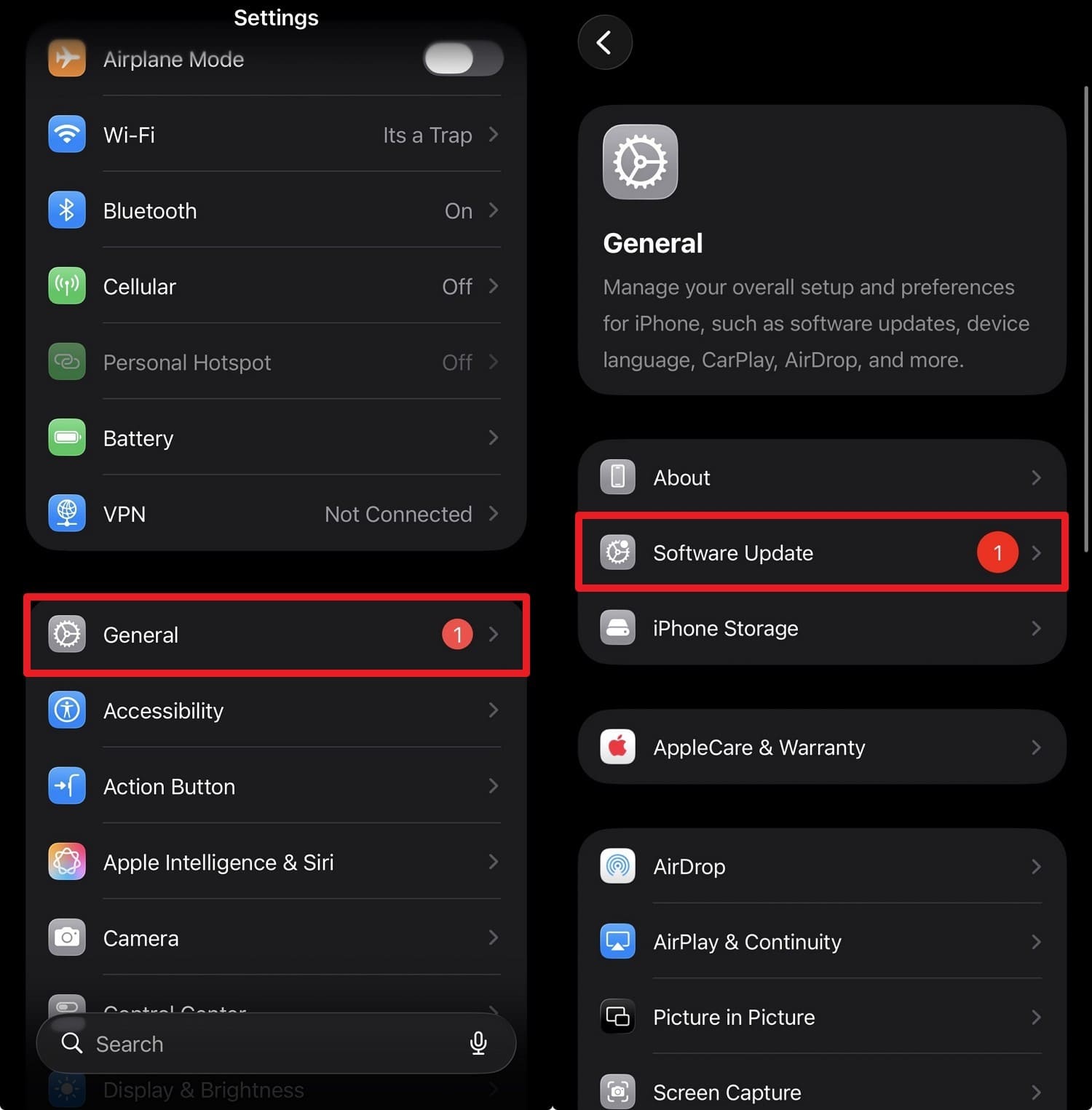
Step 2. Here, if the latest update of iOS 26 is available, choose the “Update Now” button.
Fix 3: Reset All iPhone Settings
It's another iPhone green screen of death fix that can remove wrong options that cause green screen of lines, while all data stays safe. This setup restores display options like brightness, color, True Tone, Night Shift, and accessibility to their default settings. Hence, this may remove the green lines caused by the bad setup, as it also clears hidden system errors from the network or other settings, as guided:
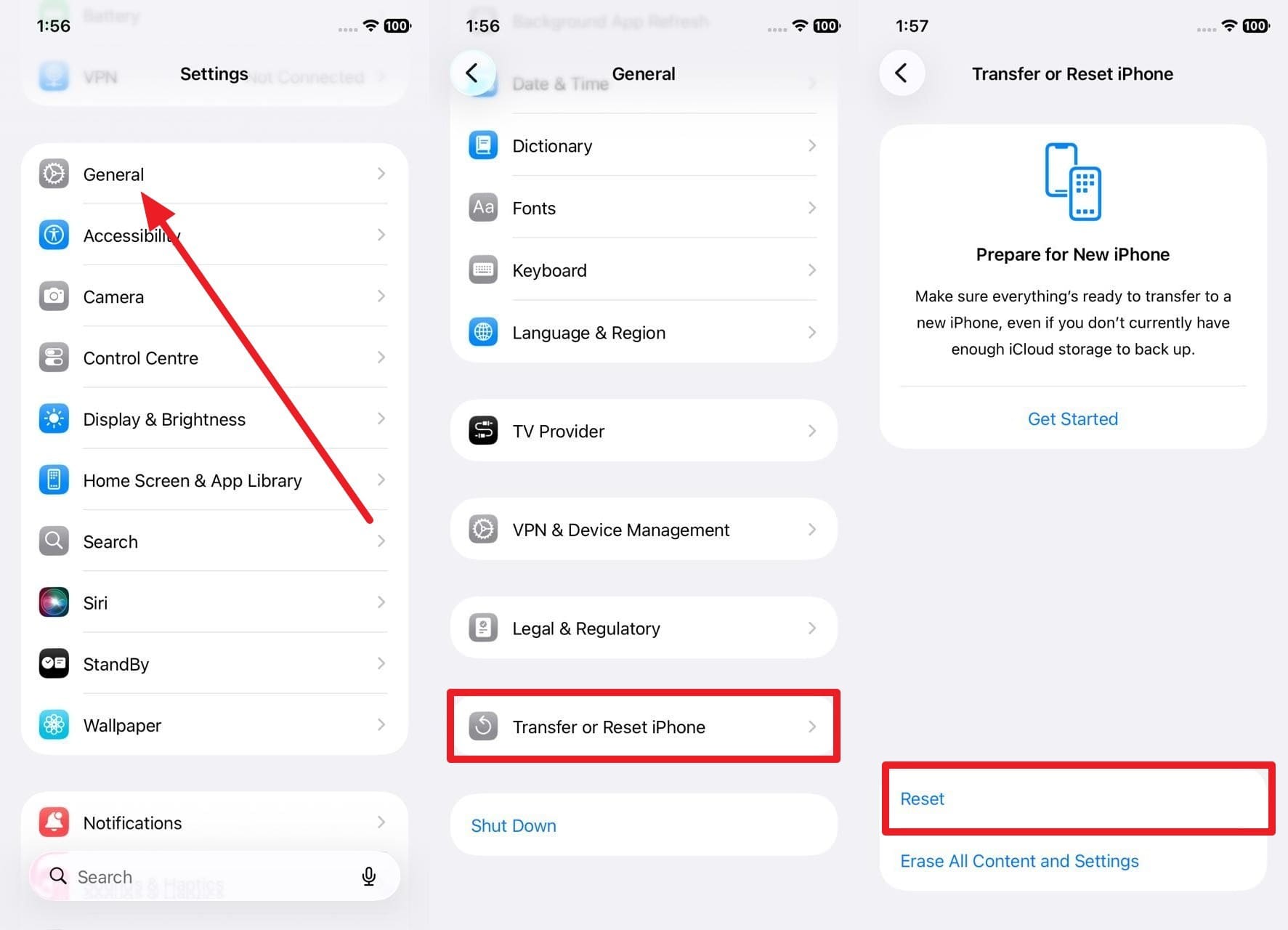
Step 1. Pick the “Transfer or Reset iPhone” and then the “Reset” option in the “General” settings.
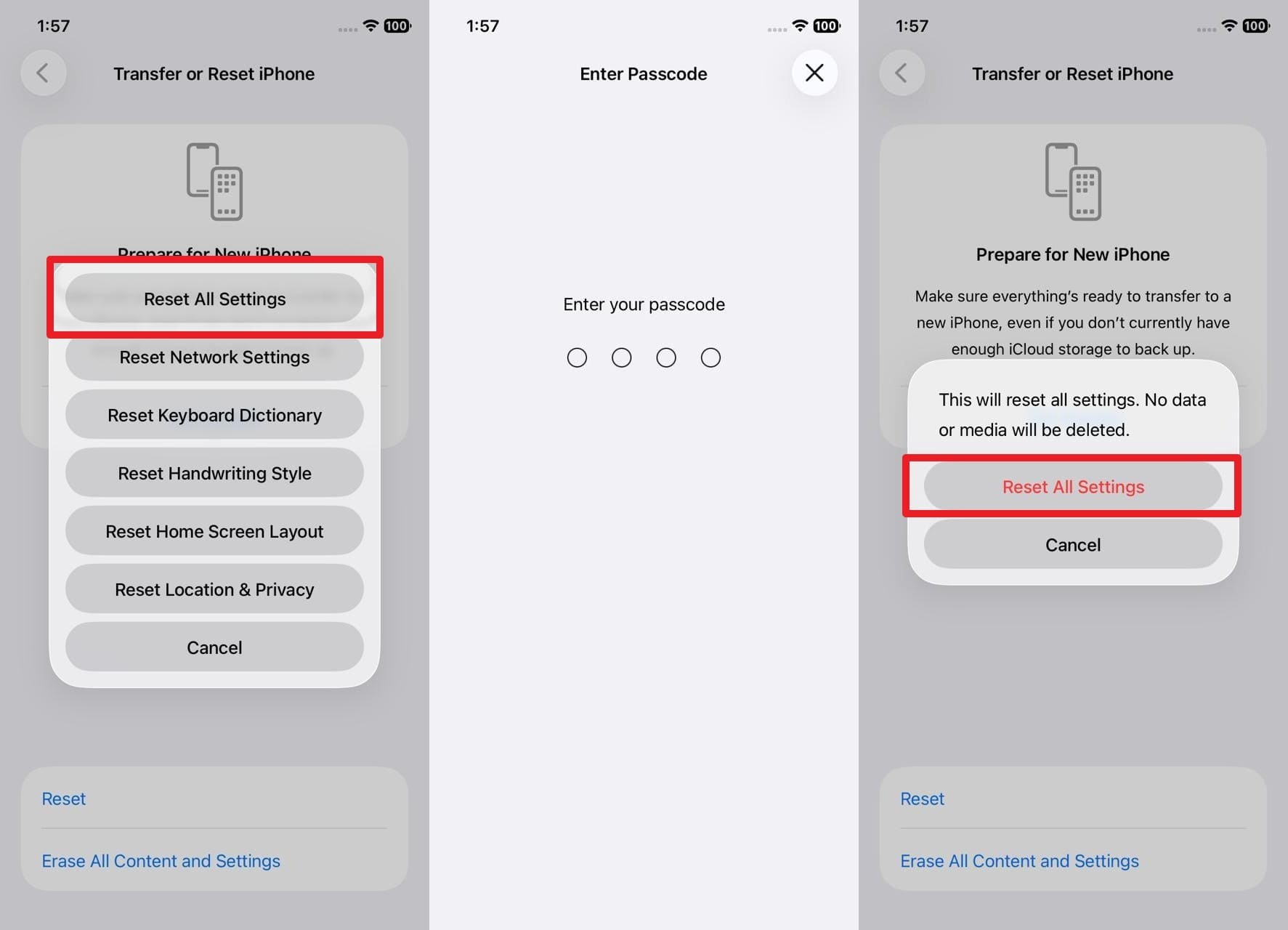
Step 2. On the menu, choose the “Reset All Settings” option and enter the passcode when prompted. After that, press the “Reset All Settings” option and confirm the action.
Fix 4: Use Dr.Fone - System Repair (iOS) to Fix iPhone Green Screen of Death Efficiently
When the iPhone screen glitching green issues arise due to system issues, Dr.Fone - System Repair (iOS) can help. It can fix over 150 iOS system issues and offers support for the latest iOS 26/iPadOS 26 and iPhone 17 Series. To fix green lines, it allows users to choose from various modes, like Standard or Advanced, based on the severity of the problem.
For those who updated to iOS/iPadOS 26 and nothing fixed the green lines, this tool lets you downgrade without jailbreaking or using iTunes. Hence, making it a versatile option, you can enter Recovery Mode freely, and the detailed guide makes the process seamless. Overall, users have complete control over the process and can monitor the progress or try again when needed.

Dr.Fone - System Repair (iOS)
Repair iOS System Errors Without Data Loss.
- Only fix your iOS to normal, no data loss at all.
- Fix various iOS system issues stuck in recovery mode, white Apple logo, black screen, looping on start, etc.
- Upgrade and Downgrade iOS without iTunes at all.
- Work for all iPhone/iPad/iPod Touch, running on all iOS versions.


Guide to Fix System Issues Causing the Green Screen of Death
Step 1. Choose the System Repair for iOS
Connect the device, then in the tool choose “System Repair" for “iOS,” and tap “Repair Now” under the “iOS Repair” feature.

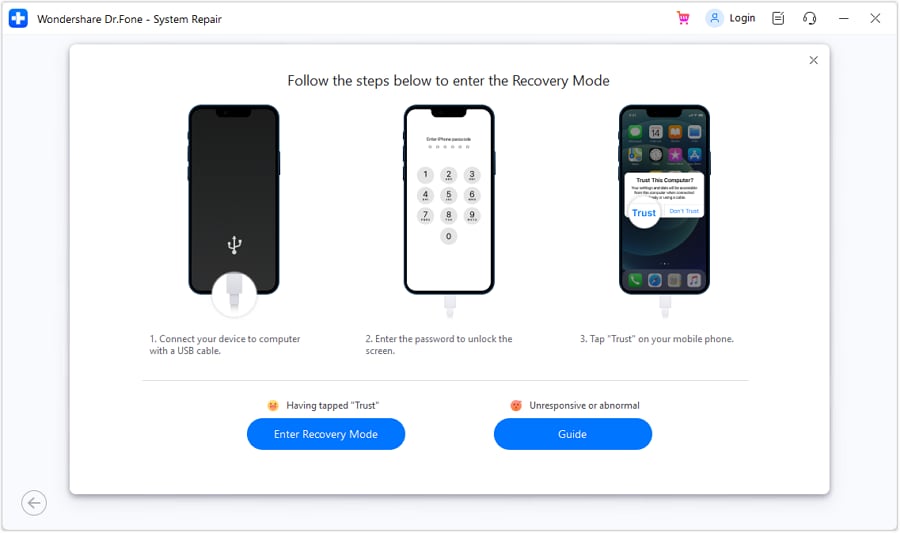
Step 2. Follow the Guide to Enter the Recovery Mode
Here, choose the “Standard Mode” and pick the “Enter Recovery Mode” button. There, wait for the tool to detect the iDevice and display the suitable iOS Firmware.
Step 3. Download the iOS Firmware & Press Repair Now
After detection, press the “Download” button to continue the Firmware installation. When it ends, select the “Repair Now” button and let the tool fix the system issue causing the green tint.

 safe & secure
4,624,541 people have downloaded it
Fix 5: Erase All Content from iPhone
If the iPhone screen green tint persists, this solution will put your iPhone back to a clean state and may remove deep software errors that can cause green lines. Additionally, this step wipes all the data, apps, and custom options, then installs a fresh copy of iOS. This is done so that any bad app, profile, or hidden system error that affects the display goes away, once done, through the following steps:
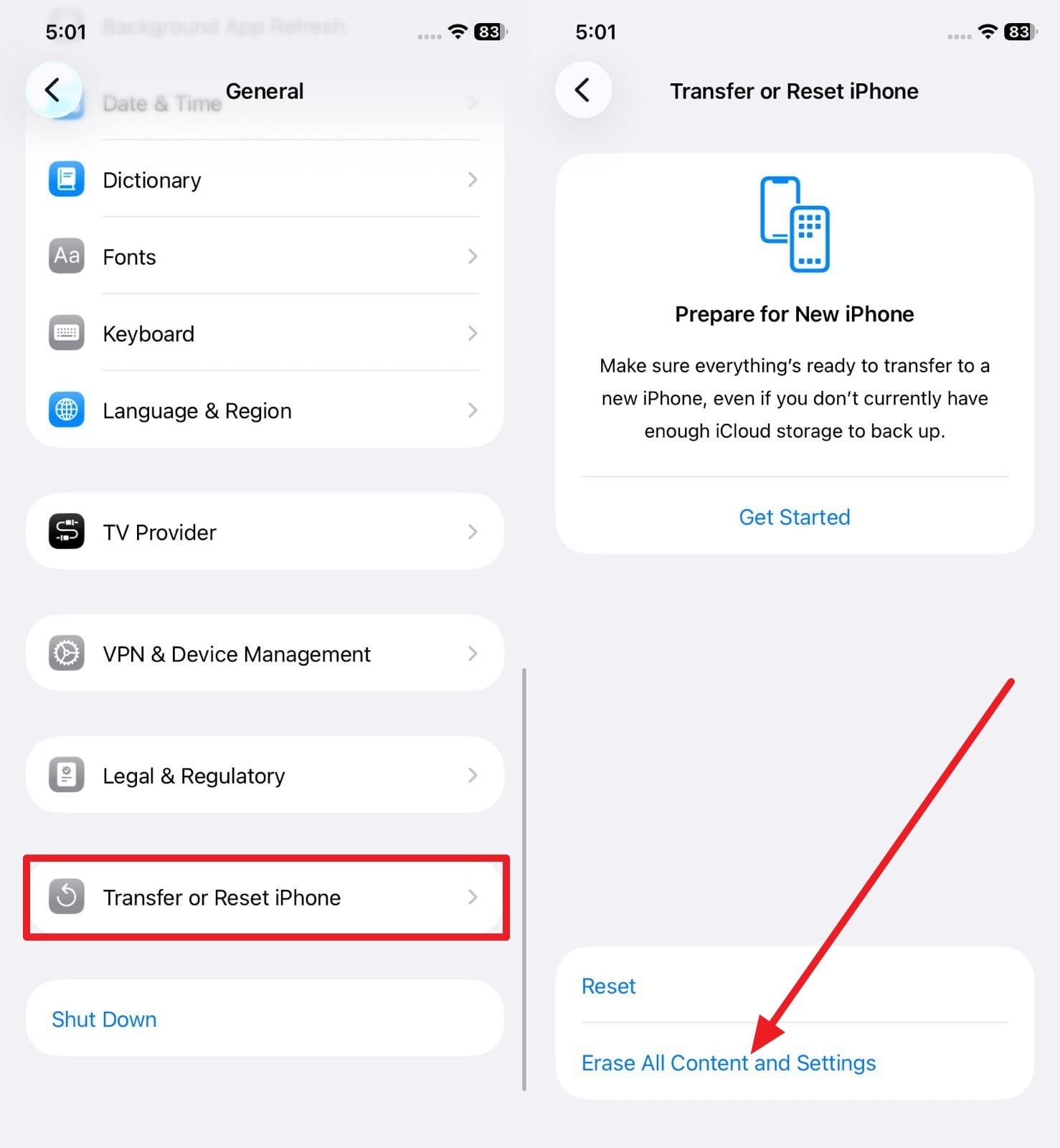
Step 1. After choosing the “Transfer or Reset iPhone” option in General settings, pick the “Erase All Content and Settings” option.
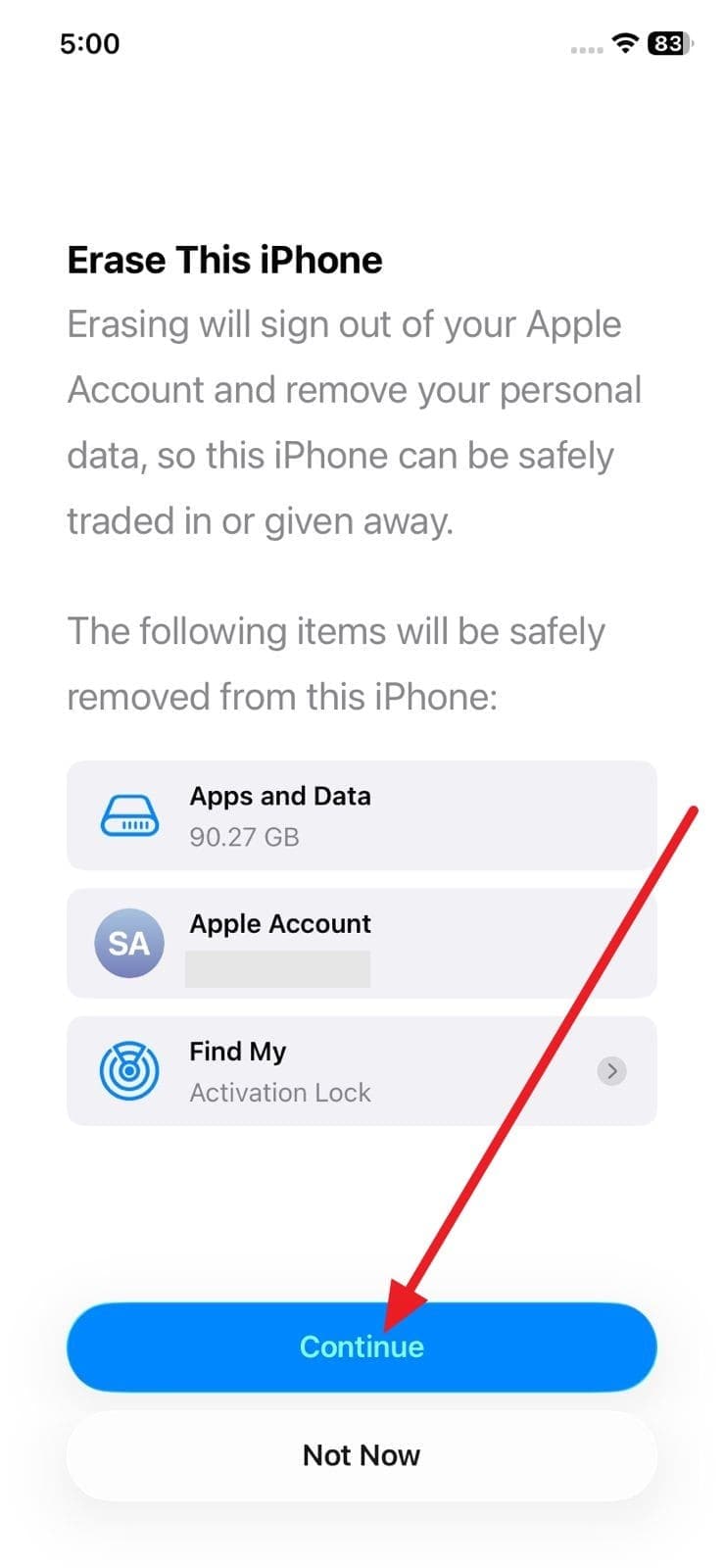
Step 2. Here, press “Continue” and follow the on-screen prompts to add your Apple Account password to turn off Find My and Activation Lock. If you have an eSIM, you can choose to delete it or keep it. The iPhone will restart, and the “Hello” setup screen will appear, indicating a successful factory reset.
Fix 6: Check for Hardware Damage
As the iPhone screen flashing green comes from a faulty display, loose connector, or internal fault, check for hardware damage. A quick inspection can save time, stop repeated software fixes, and help you choose the right repair. Furthermore, it helps with warranty or insurance claims and lets you decide if the phone stays safe for daily use or needs repair or replacement.
Part 3. How to Avoid the iPhone Green Screen of Death - 5 Tips
If you want to avoid having an iPhone green tint screen again, try the given tips and tricks:
|
Tips |
What To Do |
Why It Helps |
| Keep iOS Updated | Install the latest iOS version on time | Fixes display bugs and improves screen stability |
| Avoid Extreme Heat | Keep your iPhone away from direct sunlight or overheating apps | Heat stress can trigger screen tint or flicker |
| Use Quality Chargers | Choose original or certified cables/adapters | A poor power supply may cause display glitches |
| Protect From Drops & Water | Use a strong case and avoid moisture exposure | Physical damage often leads to green lines |
| Manage Display Settings | Check True Tone, Night Shift, and accessibility filters | Wrong color settings can create a green tint |
Conclusion
To sum up, this guide has explained what the iPhone green tint issue is and what software, hardware, or environmental factors cause it. Moreover, 6 effective solutions are provided to help users determine which fix can prevent the green tint from the screen. However, if the issue stems from a system issue, it is suggested to use Dr.Fone - System Repair (iOS) to fix green lines for all.
safe & secure4,624,541 people have downloaded it
Frequently Asked Questions
 Q1. Does the green tint mean my iPhone screen is damaged?Q2. Why does the green tint appear more at low brightness?Q3. Is a green tint common on specific iPhone models?


iPhone Issues
- iPhone Storage Full
- 1. Stuck on Apple Logo Storage Full
- 2. Erase Content Settings not Working
- 3. iPhone Lagging
- 4. iPhone Running Slow
- iPhone Update Problems
- 1. Stuck on Updating iCloud Settings
- 2. iPhone Frozen During iOS Update
- 3. iPhone Checking for Update Stuck
- 4. iPhone Cellular Update Failed
- 5. iPhone Software Update Failed
- 6. iPhone Stuck on Update Requested
- 7. iPhone Update Error 1110
- 8. iPhone is Findable and Won’t Turn On
- 9. iPhone Won't Update
- 10. Update Server Couldn't Be Contacted
- 8. iPhone & iPad Security Updates
- 9. Update iPhone with/without iTunes
- 10. Can't Download or Update Apps
- iPhone Media Problems
- 1. Apple Music Song Not Available
- 2. iPhone Not Ringing
- 3. iPhone Echo Problem
- 4. iPhone Ringer Problems
- 5. iPhone Plays Music by Itself
- 6. Ringer Volume Changes by Itself
- 7. Music Won't Play on iPhone
- 8. Blurry Photos & Videos on iPhone
- 9. iPhone Volume Problems
- iPhone Sound Problems
- 1. YouTube no Sound
- 2. iPhone Microphone Problem
- 3. Test iPhone Microphone
- 4. Headphones No Sound from iPhone
- 5. No Sound on iPhone Game
- 6. iPhone Sound Not Working
- 7. iPhone Screen Recording no Sound
- iPhone Calling Problems
- 1. iPhone No Sound on Calls
- 2. Screen Goes Black During Call
- 3. iPhone Recent Calls Not Showing
- 4. iPhone Dropping Calls Issue
- 5. iPhone Calling Problem
- iPhone Camera Problems
- 1. iPhone Camera Black
- 2. iPhone Camera Blurry
- 3. iPhone Camera Not Working
- 4. iPhone Front Camera Not Working
- 5. TrueDepth Camera Not Working
- 6.Out-of-Focus Photos on iPhone 15
- iPhone Network Problems
- 1. Airpods Won't Connect to iPhone
- 2. iPhone Disabled Connect to iTunes
- 3. iPhone Not Syncing Problems
- 4. iPhone Internet Not Working
- 5. iPhone Keep Disconnecting from Wifi
- 6. iPhone WIFI Not Working
- 7. PC Not Recognizing iPhone
- 8. iPhone Stuck on Connect to iTunes
- 9. iPhone Not Showing up in iTunes
- 10. iTunes Not Detecting Your iPhone
- 11. iPhone Bluetooth Disconnect
- 12.Apple CarPlay Keeps Disconnecting
- iPhone Screen Problems
- 1. White Spots in iPhone Screen
- 2. iPhone Bleeding Screen
- 3. Turn Off iPhone When Frozen
- 4. Fix Orange Dot on iPhone
- 5. iPhone Green Screen Flickering
- 6. Green Lines in iPhone Screen
- Other iPhone Problems
- ● Manage/transfer/recover data
- ● Unlock screen/activate/FRP lock
- ● Fix most iOS and Android issues
- Free Download Free Download Free Download




Daisy Raines
staff Editor
Generally rated4.5(105participated)