 Resolve common problems and system crashes on both iPhone and Android devices.

 100% Security Verified | No Subscription Required | No Malware

 :
: 
 ChatGPT
 Perplexity
 Gemini
 Claude
 Grok
Grok
Help! My screen is black, but it says 'iPhone is Findable' at the bottom. It won't respond to any buttons. Is my iPhone dead?
Alex R. Tech Enthusiast

Seeing your iPhone is findable and won't turn on can be alarming. It creates a paradox: your phone is technically "off" or unresponsive, yet it claims to be broadcasting its location. This phenomenon occurs when your iPhone's battery hits a critical level, triggering a specialized low-power mode designed for security.
In this comprehensive 2026 guide, we will break down the mechanics behind iPhone findable after power off and provide four actionable methods to get your device back into a fully operational state. Whether it's a simple charging issue or a deeper system crash, we have the fix.
In this article
Part 1. What Does "iPhone Is Findable" Mean When Dead?
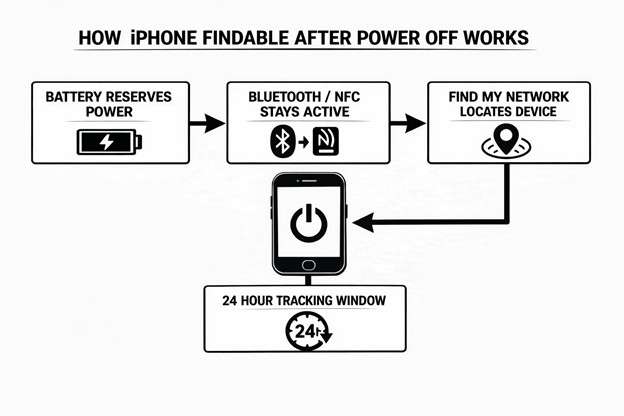
The message "iPhone Findable After Power Off" refers to a sophisticated security feature Apple integrated into the Find My ecosystem starting with iOS 15. It utilizes the U1 (Ultra Wideband) chip, Bluetooth, and NFC to maintain a minimal connection even when the main operating system is shut down.
Essentially, your iPhone allocates a tiny "reserve" of battery power that is inaccessible for normal phone functions but sufficient to ping nearby Apple devices. This ensures you can track a stolen or lost device for up to 24 hours after the battery is depleted or the phone is manually turned off. However, if your iPhone is findable and won't turn on when you try to use it, it means the system is stuck in this reserve state and cannot trigger the boot sequence.
Part 2. Why Your iPhone Is Findable But Won’t Turn On
Understanding the root cause is vital for choosing the right fix. Here are the primary reasons your iPhone is findable after power off yet remains unresponsive:
- Deep Discharge State: The battery has dropped below the threshold required to initialize the CPU, yet the U1 chip continues to run on residual energy.
- Firmware Logic Error: A glitch in the iOS kernel prevents the device from recognizing that a charger is connected, keeping it in a perpetual "findable" loop.
- Interrupted Update: If an iOS 26 update was interrupted, the system might fail to load the UI, leaving only the findable security layer active.
- Peripheral Connection Issues: Lint or debris in the Lightning or USB-C port may allow just enough current for the Find My network but not enough for a full boot.
Part 3. How to Fix iPhone Is Findable and Won’t Turn On
Follow these professional troubleshooting steps in order to safely revive your device.
3-1. Method 1: Advanced Charging Diagnostics
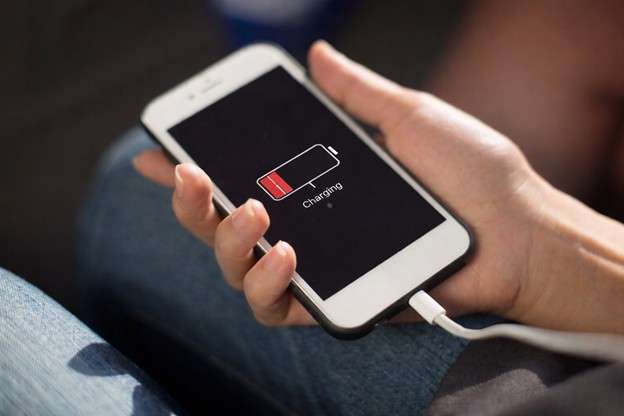
If your iPhone is findable but won't boot, the battery may be in a "deep sleep" state. Standard charging sometimes fails to provide the necessary jumpstart if the power source is weak.
Step 1Verify Hardware Integrity
Switch to an Apple-certified (MFi) 20W power adapter. Avoid using computer USB ports, as they often provide insufficient amperage to wake a deeply discharged battery.
Step 2Clean the Port
Use a non-metallic toothpick to gently remove lint from the charging port. Debris can prevent the pins from making full contact.
Step 3Thermal Reset
If the device is very cold or hot, let it reach room temperature. iPhones won't charge if the internal sensors detect extreme temperatures.
3-2. Method 2: Execute a Forced Hardware Restart
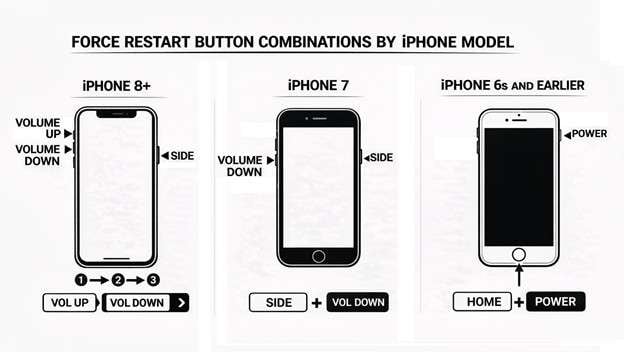
When the iPhone is findable and won't turn on due to a software freeze, a force restart is the most effective "soft" fix. This cuts power to the processor temporarily to clear the cache.
- iPhone 8 through iPhone 17 (and newer): Quickly press and release Volume Up, then Volume Down. Finally, hold the Side button until the Apple logo appears.
- iPhone 7/7 Plus: Hold the Side and Volume Down buttons simultaneously.
- iPhone 6s and older: Hold the Home and Power buttons together.
3-3. Method 3: Use Dr.Fone - System Repair (iOS) [Recommended]
If the hardware is fine but the iPhone findable after power off message persists, you are likely facing a corrupted iOS firmware. Using iTunes to fix this often results in total data loss. Dr.Fone - System Repair (iOS) is designed to fix over 150+ iOS system issues without touching your personal data.
 Fix iOS issues, no data loss.
- One-click repair for all iOS problems.
- Solve recovery mode, Apple logo, black screen, etc.
- Upgrade or downgrade iOS without iTunes

Step 1Launch System Repair
Open Dr.Fone on your computer and navigate to Toolbox > System Repair. Connect your iPhone via a reliable USB cable.
Step 2Select Standard Repair
Choose Standard Repair to fix the "iPhone is findable" bug while keeping all your photos and messages safe.
Step 3Finalize the Recovery
Follow the on-screen instructions to put your device into Recovery Mode. Dr.Fone will download the verified firmware. Once complete, click Repair Now.






3-4. Method 4: Recovery Mode Restore via iTunes/Finder
If you have a recent backup and don't mind wiping the device, an iTunes restore can rebuild the entire operating system. This is a "scorched earth" approach to fixing the iPhone findable after power off loop.
Step 1Connection
Connect your iPhone to your Mac (Finder) or Windows PC (iTunes).
Step 2Enter Recovery Mode
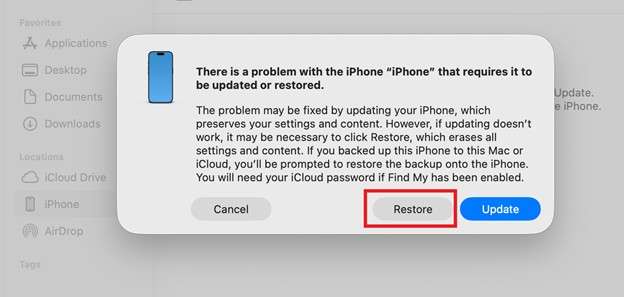
Perform the force restart steps, but keep holding the Side button until the 'support.apple.com/iphone/restore' screen appears.
Step 3The Restore Process
A prompt will appear. Select Restore. Your computer will erase all data and install the latest iOS version.
Part 4. Strategic Comparison of Repair Methods
Choosing the right path depends on your priority: data safety or speed. Here is how the solutions for iPhone findable after power off compare.
| Repair Method | Data Integrity | Success Rate | Complexity |
|---|---|---|---|
| Certified Charging | 100% Safe | Low (40%) | Very Easy |
| Forced Restart | 100% Safe | Moderate (60%) | Easy |
| Dr.Fone Standard Repair | 100% Safe | High (99%) | Easy |
| iTunes/Finder Restore | Data Deleted | High (95%) | Moderate |
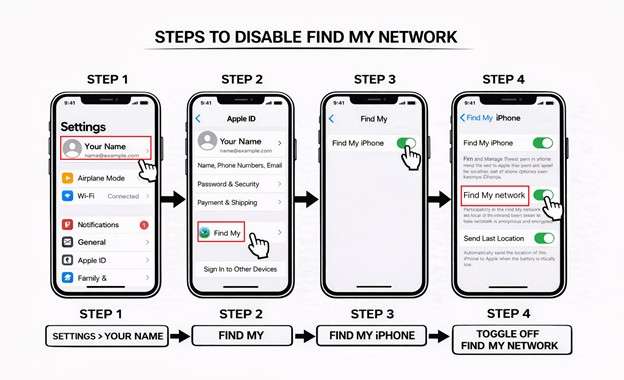
Part 5. Managing Your Privacy: Disabling 'Findable After Power Off'
If you find the "iPhone is Findable" alert annoying or have privacy concerns regarding the U1 chip's background activity, you can disable this feature entirely in the settings.
Step 1Access Settings
Navigate to Settings > [Your Name] > Find My.
Step 2Toggle Network
Tap Find My iPhone and switch off Find My Network. Confirm with your Apple ID password.

Conclusion
When your iPhone is findable and won't turn on, the primary goal is to break the system out of its low-power reserve loop. Start with hardware checks, but if the issue is rooted in the firmware, traditional methods often fail.
For a seamless, no-data-loss experience, Dr.Fone - System Repair (iOS) remains the gold standard in 2026. It bypasses the limitations of iTunes and ensures your digital life remains intact while bringing your hardware back to life. Don't let a software glitch brick your device—restore it today.
FAQ
1. Does "iPhone Findable" mean my battery is actually charging?
No, the message only confirms that the security reserve power is active. You must see the green lightning bolt or the large battery icon to verify that the main charging circuit is functioning.2. Why is my iPhone stuck on the Findable screen after a water spill?
If you see this after liquid contact, it may indicate a short circuit in the charging assembly. If a force restart fails, avoid further charging and seek professional hardware repair.3. Can I track my iPhone more than 24 hours after it dies?
Generally, no. The U1 chip's reserve power is optimized for a 24-hour window. After that, the device will likely show its "Last Known Location" instead of a live ping.4. Is the U1 chip available on all iPhone models?
The U1 chip and the "Findable after power off" feature are available on iPhone 11 and later models running iOS 15 or higher. Older models will simply stay dark when the battery dies.
 Add Wondershare Dr.Fone as a preferred source on Google



