PS4 Controller Flashing White? Here's How to Fix It Fast

Oct 10, 2026 • Filed to: Phone Repair Solutions • Proven solutions
 TL;DR:
A blinking white PS4 controller indicates a Bluetooth connection failure or depleted battery, which can typically be resolved by resetting the controller's stored pairing data or using a proper data transfer cable.
● Perform a hard reset by inserting a paperclip into the small hole near the L2 button for 5 seconds, then reconnect the device to the console using a data-capable USB cable rather than a charge-only generic cable.
● For stubborn connection issues, utilize the Safe Mode method with an 80% success rate by holding the PS4 power button until a second beep sounds, connecting the controller via USB, and pressing the PS button.
● Do not confuse a flashing controller with the console's solid white light of death, which involves a blank TV screen caused by HDMI hardware failures or a damaged IC chip that requires cable replacement or professional soldering.
Ask AI for a summary
 ChatGPT
 Perplexity
 Gemini
 Claude
 Grok
Grok
Your PS4 controller won't stop blinking white. Annoying, right?
You press the PS button. However, the light continues to flash. In some cases, it blinks once and then turns off. In other cases, it keeps blinking without stopping. As a result, the controller becomes unusable.
But you’re not alone. This issue affects thousands of gamers daily. The good news? Most fixes take under five minutes. And you probably don't need a new controller.
In this guide, I will explain the reasons behind a flashing white PS4 controller. Then, I will show clear steps to fix your controller. Let's fix it now.

Part 1. Why Is My PS4 Controller Light Blinking White?
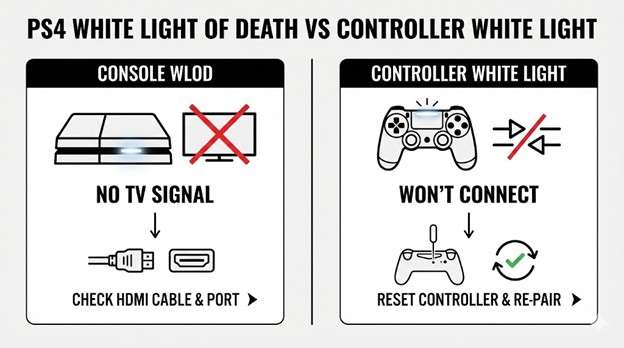
The PS4 controller blinks white when your controller can't connect to your PS4. But several factors cause this same symptom. And each one requires a different fix.
Let’s review these factors in detail.
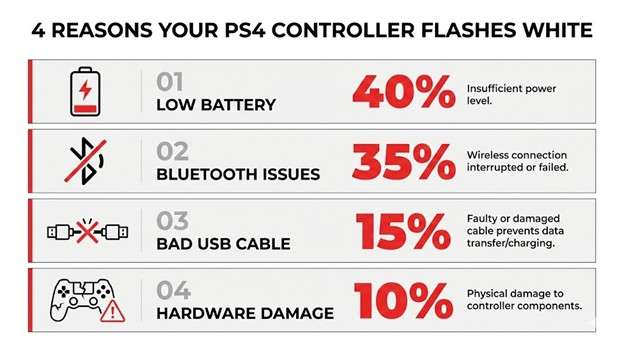
- Low Battery
The PS4 white blinking light indicates that the battery level is very low. This light flashes repeatedly as the controller tries to connect. But it lacks enough power to finish the process. - Bluetooth Pairing Problems
Your controller stores connection data for the last console it paired with. If you previously connected it to a console that’s no longer available, it won't sync now. That’s likely why your PlayStation 4 controller flashes white. This is similar to how other controllers handle previous pairings. Read this guide about Bluetooth pairing for Xbox controllers for more details. - Faulty USB Cable
There are different types of USB cables. Some are used only to charge a device. Others transfer data too. Your PS4 controller needs a data cable to sync properly. A charge-only cable won't cut it. - Hardware Damage
You might have dropped your controller recently. The damage causes the internal Bluetooth antenna or battery connections to loosen. And it can be the reason why your PS4 controller's white light is blinking.
Part 2. How to Fix PS4 Controller Blinking White
Regardless of the reasons, you can get your controller back to working. Start with the easiest fixes first. Most people can solve this issue with the first two methods.
Method 1. Charge Your Controller
Your controller might just be out of battery. You can simply charge it to fix the PS4 controller blinking white light. Here’s what to do.
Step 1. Connect your controller directly to your PS4. Use the USB cable that was included in your package.
Step 2. Stay put for at least 30 minutes or an hour if you can afford more time.
Step 3. Press the PS button. See if the light turns blue and connects.
Sometimes the orange charging light doesn't appear while the controller is plugged in. In this case, your cable might be the problem. Try a different one.
Method 2. Reset Your PS4 Controller
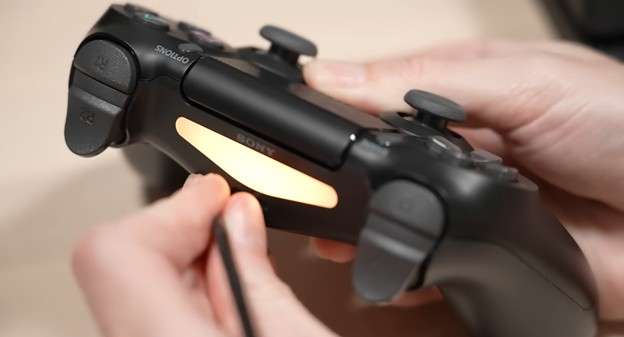
This fix works for the majority of PS4 controller white light flashing cases. It clears stored connection data and forces a fresh pairing.
Step 1. Power off your PlayStation entirely. Don’t put it in rest mode.
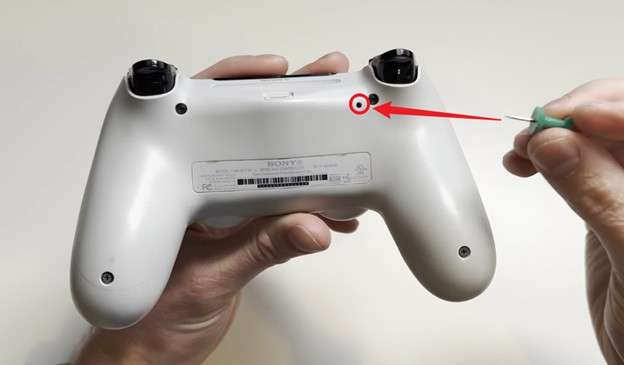
Step 2. Flip your controller over. Find a tiny hole close to the L2 button.
Step 3. Grab a paperclip or pin. Push it into the hole. Hold for 5 seconds.
Step 4. Link your controller to the PlayStation with a USB cable.
Step 5. Power on your PS4, then hit the PS button on your controller.
The light should turn blue. This means a successful connection. This process is similar to setting up PlayStation controllers on other platforms. Check out this Delta Emulator for iOS guide as an example.
Method 3. Try a Different USB Cable
This sounds too simple to work. But it can fix the problem of the PS4 controller's white light blinking surprisingly well.
Some micro USB cables only charge devices. They can't transfer data. Your PS4 controller needs a data cable to sync. This can be the original cable that came with your PS4, which is most likely to work without issues. Generic cables aren’t as reliable.
Also, check the USB ports on your console. The front ports sometimes get loose from frequent use. Try the back ports if your model has them.
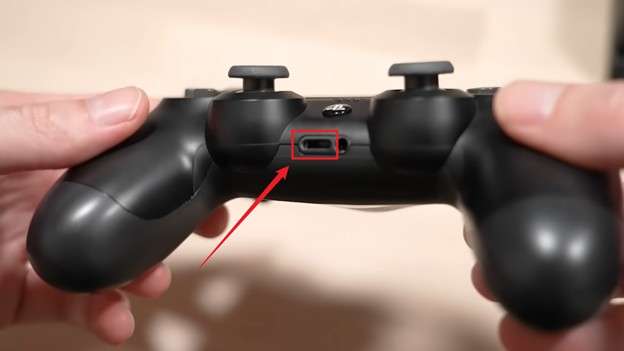
Method 4. Power Cycle Your PS4 Console
Sometimes the console itself is the issue. In this case, try a quick power cycle. It will fix temporary glitches, creating the issue of the PlayStation controller blinking white.
Below are the steps to achieve this.
Step 1. Long-press the power button. Your PS4 will turn off.
Step 2. Keep pressing until you hear the two beeps.
Step 3. Remove the power cable from the back side of the console.
Step 4. Hold for 30 seconds. This clears temporary memory.
Step 5. Plug the cable back in. Turn on the device.
Step 6. Connect your controller through USB. Then, press the PS button.
Method 5. Re-pair Controller in Safe Mode
Your PS4 controller might still be flashing white if it has serious connection issues. In this case, Safe Mode can help fix the problem. It skips the console’s normal startup steps. As a result, it can restore the connection. This method works well when standard pairing steps do not work.
Follow these steps.
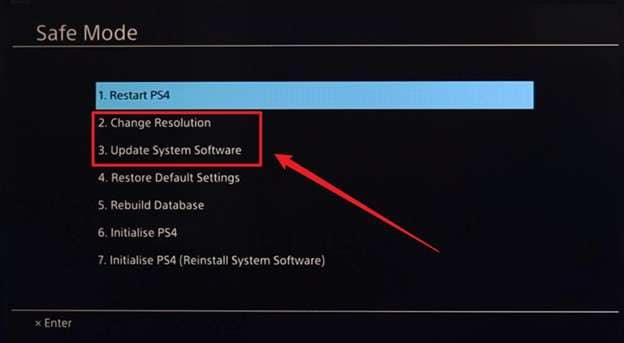
Step 1. Press the power button on your console until you hear a second beep.
Step 2. Link your controller and your PlayStation with a USB connection.
Step 3. Press the PS button. This will pair the controller in Safe Mode.
Step 4. From here, you can update your system software or restart normally. Either option will help you resolve connection issues.
For more on enhancing gaming with Bluetooth controllers, read how to play PC games on iPad or iPhone.
Quick Fix Comparison
|
Method |
Difficulty |
Time |
Success Rate |
| Charge Controller | Easy | 30+ min | 40% |
| Reset Controller | Easy | 2 min | 70% |
| Different Cable | Easy | 1 min | 50% |
| Power Cycle | Easy | 2 min | 60% |
| Safe Mode | Medium | 5 min | 80% |
Part 3. How Can You Fix the PS4 White Light of Death?
The white light of death is different from a PlayStation controller flashing white. This one affects your console itself. In this case, your PS4 turns on and shows a solid white light. But nothing appears on your TV. You cannot hear any sound or see any picture.
The common reason for the PS4 white light of death is HDMI issues. These can be a loose cable, a bad port, or a damaged IC chip inside the console.
Let’s look at the fixes to resolve these issues.
Fix 1. Check Your HDMI Connection
First, verify the integrity of your HDMI cable. It should fit perfectly and shouldn’t be visibly damaged. Here’s what to do.
Step 1. Remove the HDMI cable you’re using from both your PS4 and TV.
Step 2. Look at the cable carefully. You want to focus on visible damage or bent pins.
Step 3. Next, look at the HDMI ports and see if there’s any dust or debris.
Step 4. After checking, connect the cable back. Or, connect to a different HDMI port on your TV.
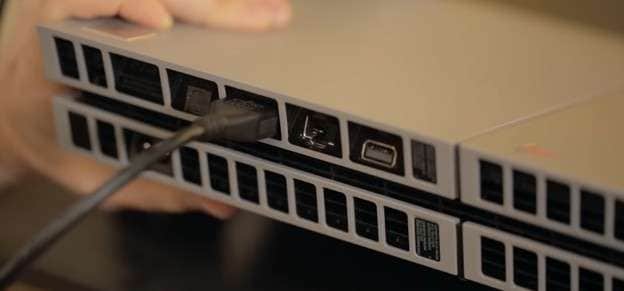
Fix 2. Try a Different HDMI Cable
It's very common for HDMI cables to fail. Even more so when using inexpensive ones. Borrow a known-working cable from another device. Test it with your PS4. For many users, simply replacing the HDMI cable resolves the PS4 with white light issue.
Fix 3. Boot in Safe Mode
You might be familiar with using Safe Mode on Android or other devices. It can also help you fix any software issues causing the PS4 white light of death. Here are the steps.
Step 1. Turn off your PS4 completely.
Step 2. Hold the power button and keep pressing until you hear two beeps.
Step 3. Connect your controller using a USB and press the PS button.
Step 4. Select “Change Resolution” or “Update System Software” from the menu.
Bonus Tip: Fix Any iOS Device Issues with Dr.Fone - System Repair (iOS)
Hardware or system issues aren't just limited to gaming devices. Smartphones, especially iOS devices, can also experience serious problems. These can be frozen screens, boot loops, or devices stuck on logos.
Dr.Fone - System Repair (iOS) can help you fix these iOS issues in easy steps. It offers three repair modes based on your needs. Standard iPhone repair helps you resolve most issues without data loss. Advanced mode handles deeper software issues with loss of data.
Plan to resell or trade your device? You can use the Anti-Recovery Repair mode. It not only fixes system issues but thoroughly wipes all data from your device. With these personalized recovery modes, Dr.Fone has a high success rate. It's also compatible with the latest iOS 26 and iPhone 17 series.
Apart from repair, it also lets you upgrade or downgrade iOS. You don't need iTunes or jailbreaking to do this. Plus, you can use it without any technical steps.

Dr.Fone - System Repair (iOS)
Repair iOS System Errors Without Data Loss.
- Only fix your iOS to normal, no data loss at all.
- Fix various iOS system issues stuck in recovery mode, white Apple logo, black screen, looping on start, etc.
- Upgrade and Downgrade iOS without iTunes at all.
- Work for all iPhone/iPad/iPod Touch, running on all iOS versions.


Steps to Fix iOS Device Issues with Dr.Fone - System Repair (iOS)
Step 1. Download Wondershare Dr.Fone on your computer. Install the software and open it. Then, go to “Toolbox” on the left and click “System Repair.”

Step 2. Connect your iPhone or iPad through a USB cable and then select “iPhone” as the iOS device you need to repair.

Step 3. A new window will open with several options for system repair. Select “iOS Repair” from here.

Step 4. Choose a mode to repair your device. You can choose “Standard Repair” if you want to keep all your data intact.

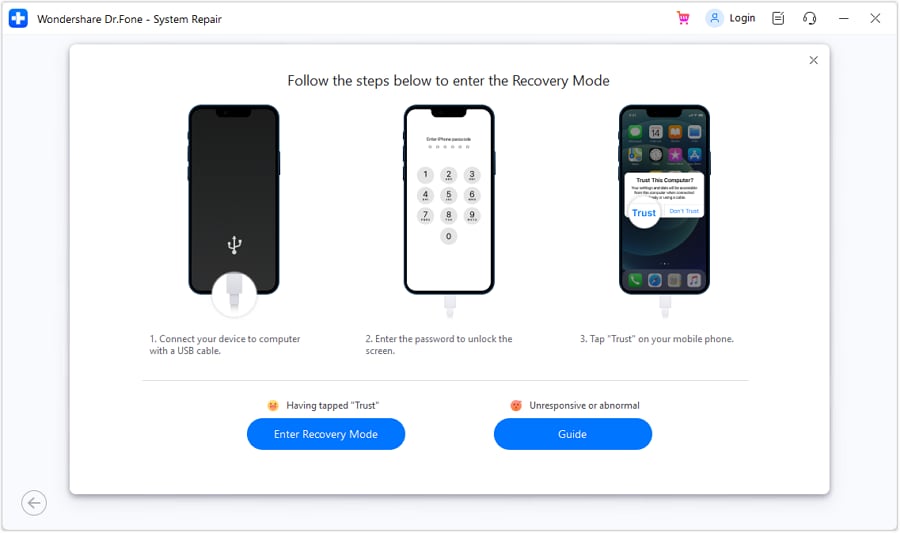
Step 5. Follow the steps on your screen to put your iOS device into recovery mode. Then, click “Enter Recovery Mode” in the Dr.Fone interface.
Step 6. Dr.Fone will find the relevant firmware for your device. Click “Download” for the required version. Wait for the download to finish. Then, click “Repair Now” and let Dr.Fone complete the process.

Conclusion
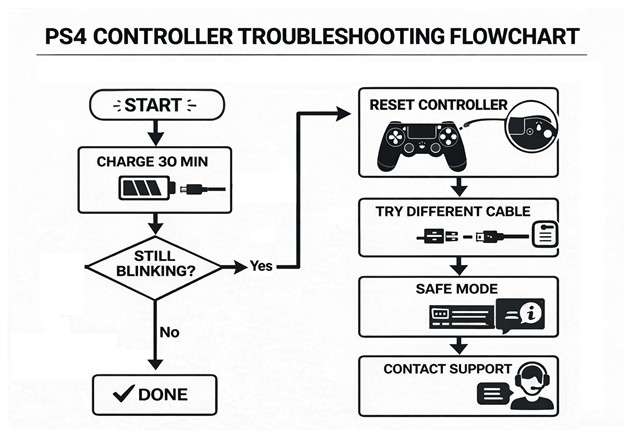
A flashing white PS4 controller feels scary at first. But it's easy to fix. Start by charging the device. Then, reset it or try a different cable. If these don't work, Safe Mode can be helpful. For the white light of death on the console itself, check your HDMI setup before assuming the worst.
And if you're having similar issues with iOS devices, try Dr.Fone - System Repair (iOS) for a quick fix. It’s easy to use and works with most iOS phones. Download it now to get started!
 safe & secure
4,624,541 people have downloaded it
FAQs
 Q1. Why does my PS4 controller flash white, then turn off?Q2. Is the PS4 white light of death fixable at home?Q3. Can I use my PS4 controller on PS5?


iPhone Issues
- iPhone Storage Full
- 1. Stuck on Apple Logo Storage Full
- 2. Erase Content Settings not Working
- 3. iPhone Lagging
- 4. iPhone Running Slow
- iPhone Update Problems
- 1. Stuck on Updating iCloud Settings
- 2. iPhone Frozen During iOS Update
- 3. iPhone Checking for Update Stuck
- 4. iPhone Cellular Update Failed
- 5. iPhone Software Update Failed
- 6. iPhone Stuck on Update Requested
- 7. iPhone Update Error 1110
- 8. iPhone is Findable and Won’t Turn On
- 9. iPhone Won't Update
- 10. Update Server Couldn't Be Contacted
- 8. iPhone & iPad Security Updates
- 9. Update iPhone with/without iTunes
- 10. Can't Download or Update Apps
- iPhone Media Problems
- 1. Apple Music Song Not Available
- 2. iPhone Not Ringing
- 3. iPhone Echo Problem
- 4. iPhone Ringer Problems
- 5. iPhone Plays Music by Itself
- 6. Ringer Volume Changes by Itself
- 7. Music Won't Play on iPhone
- 8. Blurry Photos & Videos on iPhone
- 9. iPhone Volume Problems
- iPhone Sound Problems
- 1. YouTube no Sound
- 2. iPhone Microphone Problem
- 3. Test iPhone Microphone
- 4. Headphones No Sound from iPhone
- 5. No Sound on iPhone Game
- 6. iPhone Sound Not Working
- 7. iPhone Screen Recording no Sound
- iPhone Calling Problems
- 1. iPhone No Sound on Calls
- 2. Screen Goes Black During Call
- 3. iPhone Recent Calls Not Showing
- 4. iPhone Dropping Calls Issue
- 5. iPhone Calling Problem
- iPhone Camera Problems
- 1. iPhone Camera Black
- 2. iPhone Camera Blurry
- 3. iPhone Camera Not Working
- 4. iPhone Front Camera Not Working
- 5. TrueDepth Camera Not Working
- 6.Out-of-Focus Photos on iPhone 15
- iPhone Network Problems
- 1. Airpods Won't Connect to iPhone
- 2. iPhone Disabled Connect to iTunes
- 3. iPhone Not Syncing Problems
- 4. iPhone Internet Not Working
- 5. iPhone Keep Disconnecting from Wifi
- 6. iPhone WIFI Not Working
- 7. PC Not Recognizing iPhone
- 8. iPhone Stuck on Connect to iTunes
- 9. iPhone Not Showing up in iTunes
- 10. iTunes Not Detecting Your iPhone
- 11. iPhone Bluetooth Disconnect
- 12.Apple CarPlay Keeps Disconnecting
- iPhone Screen Problems
- 1. White Spots in iPhone Screen
- 2. iPhone Bleeding Screen
- 3. Turn Off iPhone When Frozen
- 4. Fix Orange Dot on iPhone
- 5. iPhone Green Screen Flickering
- 6. Green Lines in iPhone Screen
- Other iPhone Problems
- ● Manage/transfer/recover data
- ● Unlock screen/activate/FRP lock
- ● Fix most iOS and Android issues
- Free Download Free Download Free Download




James Davis
staff Editor
Generally rated4.5(105participated)