
Green Lines in iPhone Screen: What They Mean and How to Fix

Sep 24, 2026 • Filed to: Phone Repair Solutions • Proven solutions
 TL;DR:
A green line on an iPhone screen signals either a temporary software glitch or a permanent hardware failure, requiring users to test non-destructive iOS resets before pursuing physical screen replacements.
● Hardware-induced green lines frequently result from physical drops, moisture exposure, or OLED manufacturing defects on models like the iPhone X, necessitating physical screen replacement because software tools cannot restore physically broken pixels.
● To resolve potential display driver bugs without erasing personal data, sequentially execute a force restart, install the latest iOS version, and use the Reset All Settings function before attempting a full factory wipe as a last resort.
● For persistent software-related display issues, Dr.Fone - System Repair (iOS) provides a Standard Mode to fix deep system conflicts without data loss, maintaining compatibility with devices up to the iPhone 17 series and iOS 26.
Ask AI for a summary
 ChatGPT
 Perplexity
 Gemini
 Claude
 Grok
Grok
A sudden green line on the iPhone screen can cause stress and confusion quickly. You expect a clean, clear display, but instead you see a bright green stripe that ruins every tap and swipe. This issue often appears after a drop, update, or long screen use, and many users fear screen damage right away. However, the good news is that this problem does not always mean a dead phone.
Sometimes the cause stays simple, and the fix stays easy. Therefore, this guide explains what green lines mean, why they appear, and what steps help restore your screen without panic or waste. In addition, learn why Dr.Fone is the best solution to deal with this issue.
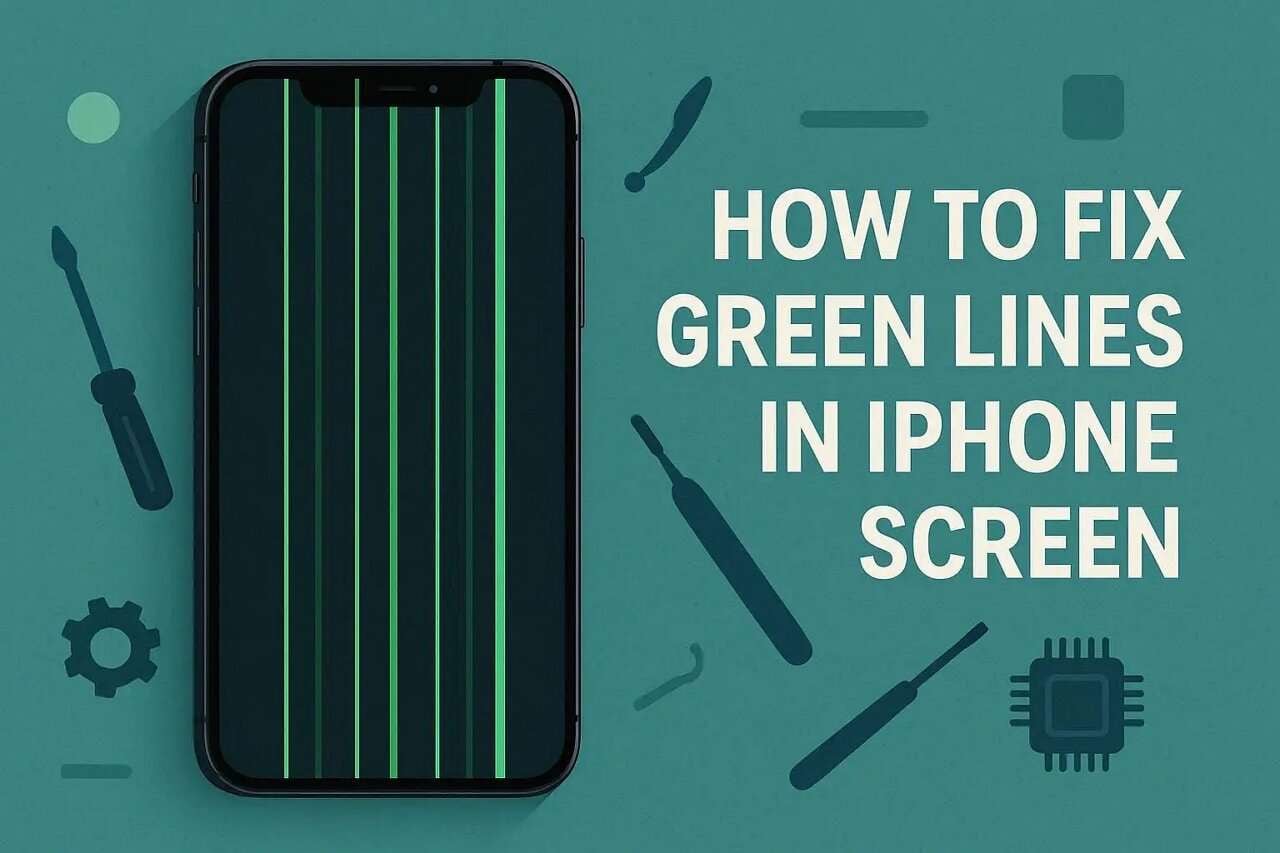

Part 1. What Is the Green Line on an iPhone Screen?
A green line on the iPhone screen can also signal a temporary software glitch, not only a hardware failure. It sometimes appears after an update due to display driver errors on OLED models, forming a straight line. This line may relate to iOS bugs, corrupted settings, or battery calibration, though drops, pressure, heat, liquid, or loose screen connectors still contribute sometimes today.
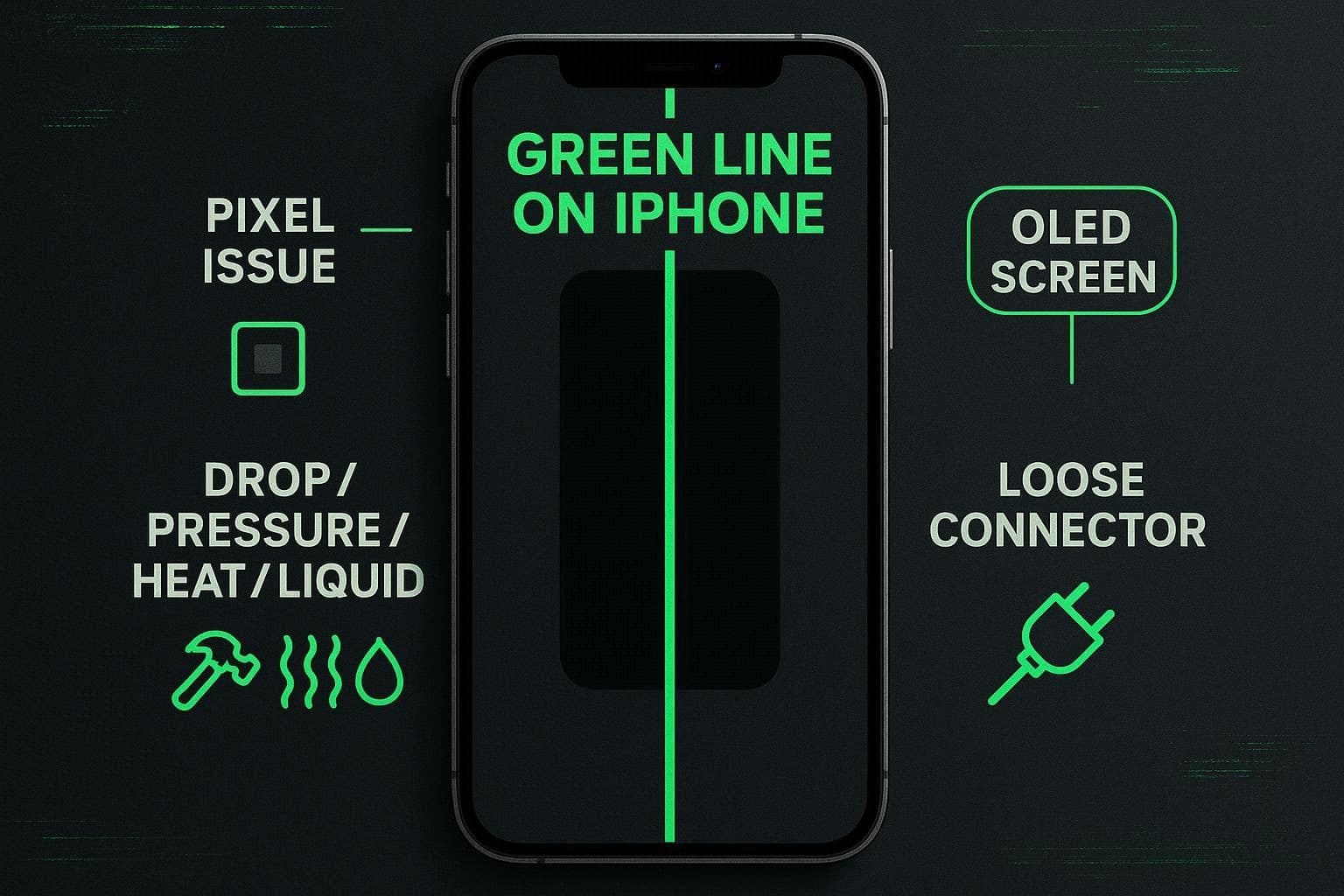
Common Causes of Green Lines on iPhone Screens
To further know why one faces green lines on the iPhone, adhere to the 5 causes in detail for clarity:
- Physical Screen Damage: A hard drop, bending in a pocket, or strong press can harm the screen’s internal layers or flex cables. Hence, this damage usually breaks pixels along a vertical or horizontal line, which shows as a permanent green stripe. Even if the phone looks fine on the outside, the internal OLED or LCD layers can still fail.
- Bad or Weak Display Connector: The screen is connected to the iPhone logic board by a short cable and connector. Thus, when this connector is loose, partially damaged, or misaligned, a section of the screen might break down.
- Manufacturing Defect or OLED Panel Failure: Certain iPhones, particularly OLED models such as the iPhone X and beyond, are capable of forming a green line without any physical harm. This occurs when a row of pixels or sub-pixels within the screen is faulty or electrically defective.
- Water or Moisture Damage: Moisture or water can get inside the phone, onto the screen circuits or connectors. Not only that, corrosion or short circuiting can occur, and the result is green lines, flickers, or unusual display patterns.
- Software Issue or iOS Bug: Sometimes, a system error, corrupted files, or a bad iOS update can cause a temporary green line. Additionally, conflicts between apps, graphics rendering, or memory issues may also show a green stripe on the screen.
Part 2. 6 Fixes— How to Resolve Green Lines on iPhone Screen
To know how you can get rid of the iPhone screen green lines, try these tested and reliable 6 fixes with detailed guidelines:
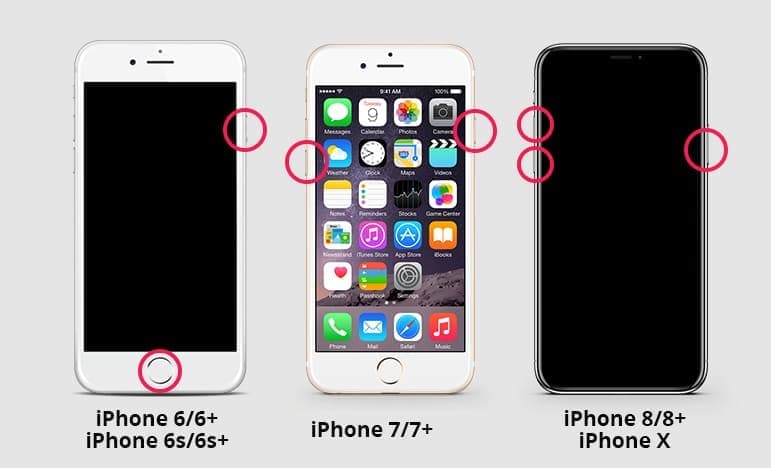
Fix 1: Force Restart Your iPhone
Ideally, a force restart cannot fix a physically damaged screen, but it can help check if a green line or green tint comes from a software problem. It clears minor iOS or graphics glitches that sometimes appear after updates or crashes. Besides, it resets a frozen or unresponsive display when a normal restart fails. Above all, it does not erase any data or settings, and is guided below for all iPhone models:
- iPhone 8 and Later: Press and release the “Volume Up” button, then press and hold the “Volume Down” button. After that, hold down the “Side” button until you see the Apple logo, then release it.
- iPhone 7/7 Plus: Hold the “Side” and “Volume Down” buttons together and keep holding until you get the Apple logo screen, then let go.
- iPhone 6S, SE (1st Gen), and Earlier: Maintain pressure on the “Home” and “Top/Side” buttons at the same time. Keep holding them until you see the Apple logo, then release them.
Fix 2: Update Your iOS Version
This solution can help if the iPhone screen has green lines because of software bugs or driver issues. Updates correct any display glitches known and add screen driver, color, and graphics enhancements. Moreover, recent versions of iOS help determine whether the issue is a software or a hardware problem. The updates also enhance the overall system stability, minimize crashes, and offer security patches. The next steps show how to do:
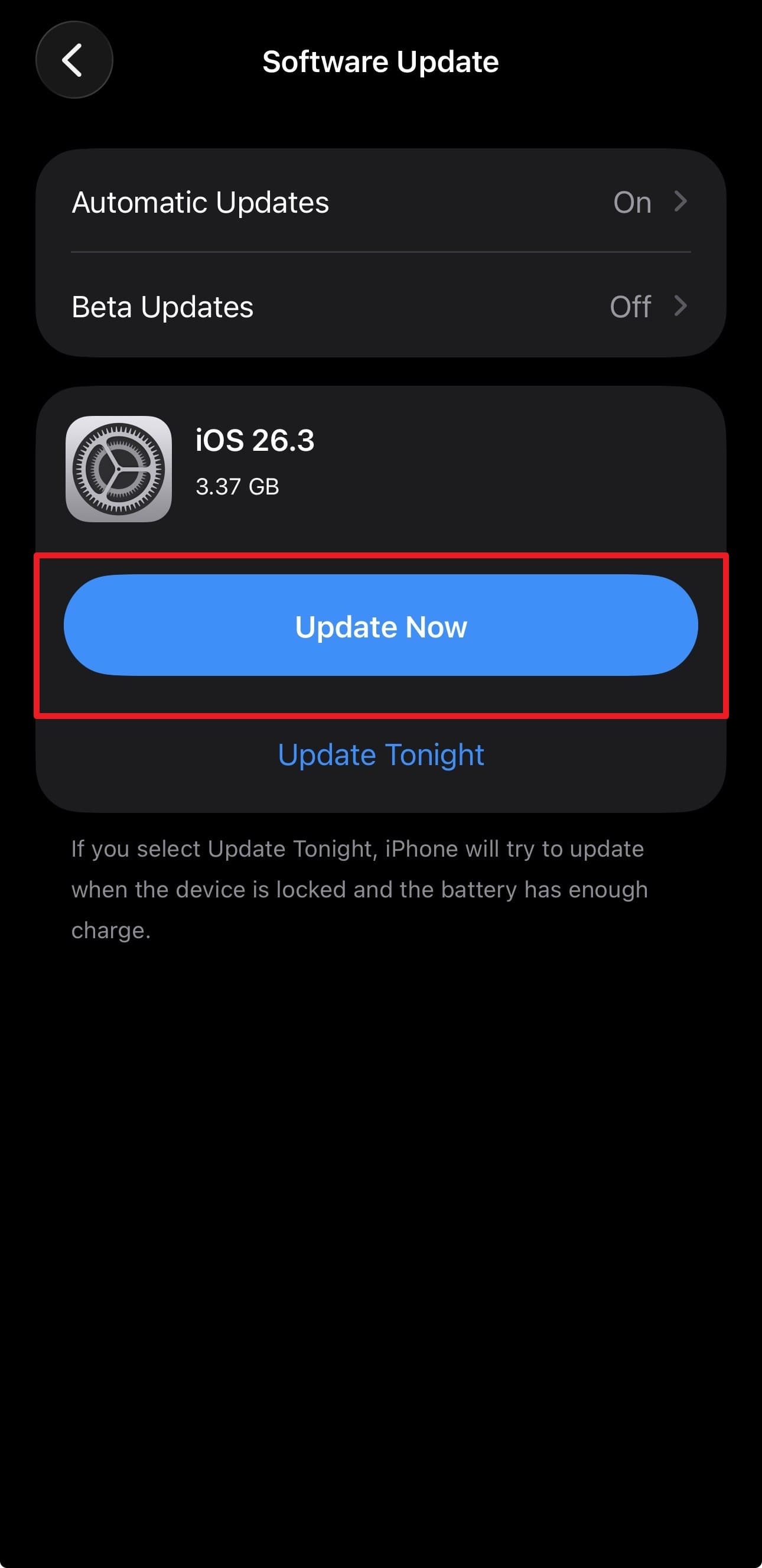
Step 1. Go to the “General” settings and pick the “Software Update” option.
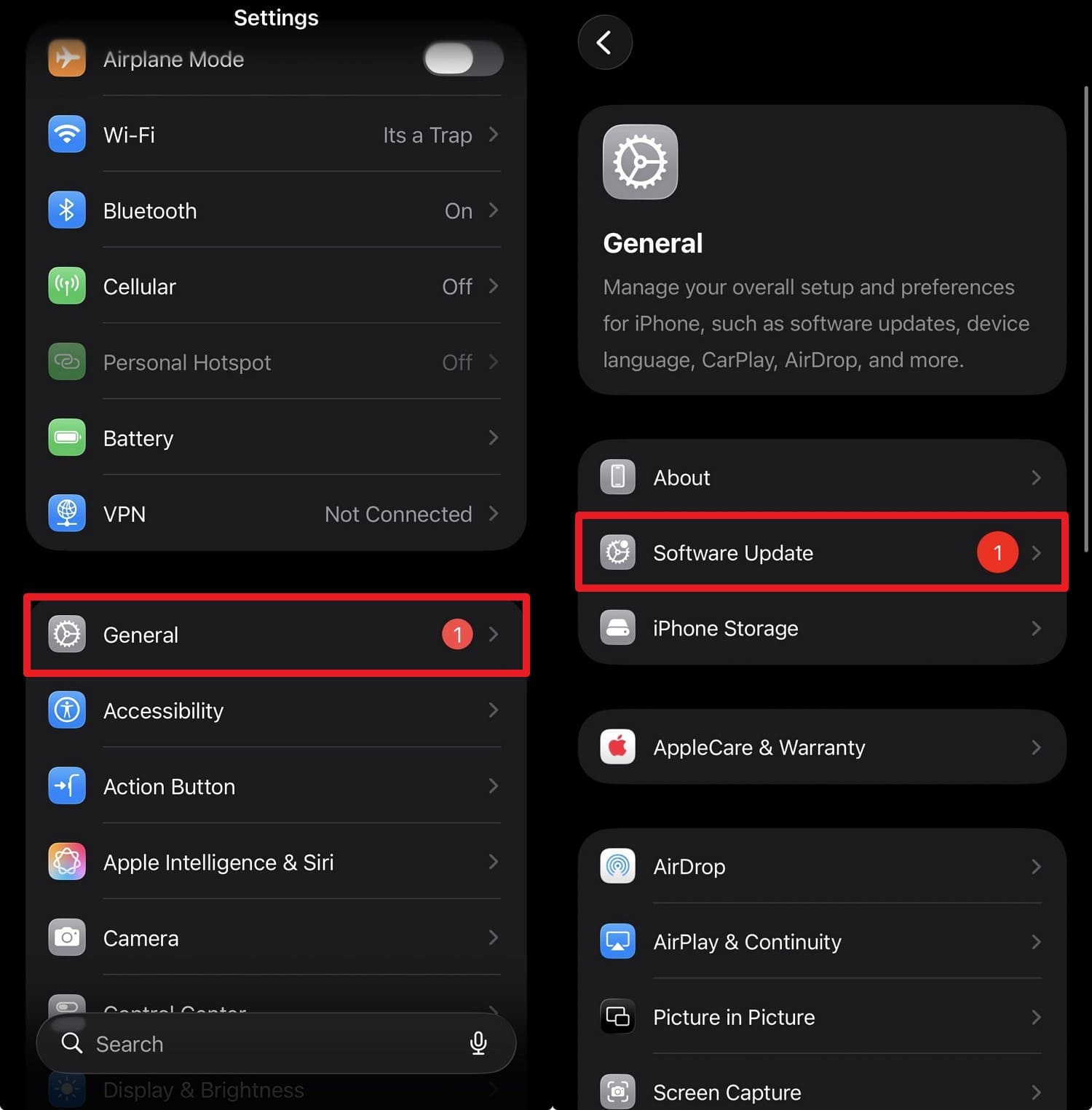
Step 2. If there is an update, press the “Update Now” button and see if the green lines disappear after installation completes.
Fix 3: Reset All iPhone Settings
If the green line on the iPhone persists, this is a software-only step that can sometimes remove the green line without deleting photos or apps. It clears corrupted system, display, and graphics settings that may cause glitches. Moreover, this method works best with other basic fixes like force restarts and iOS updates before considering more drastic solutions. So, to know how you can safely perform this action, review the given guidelines:
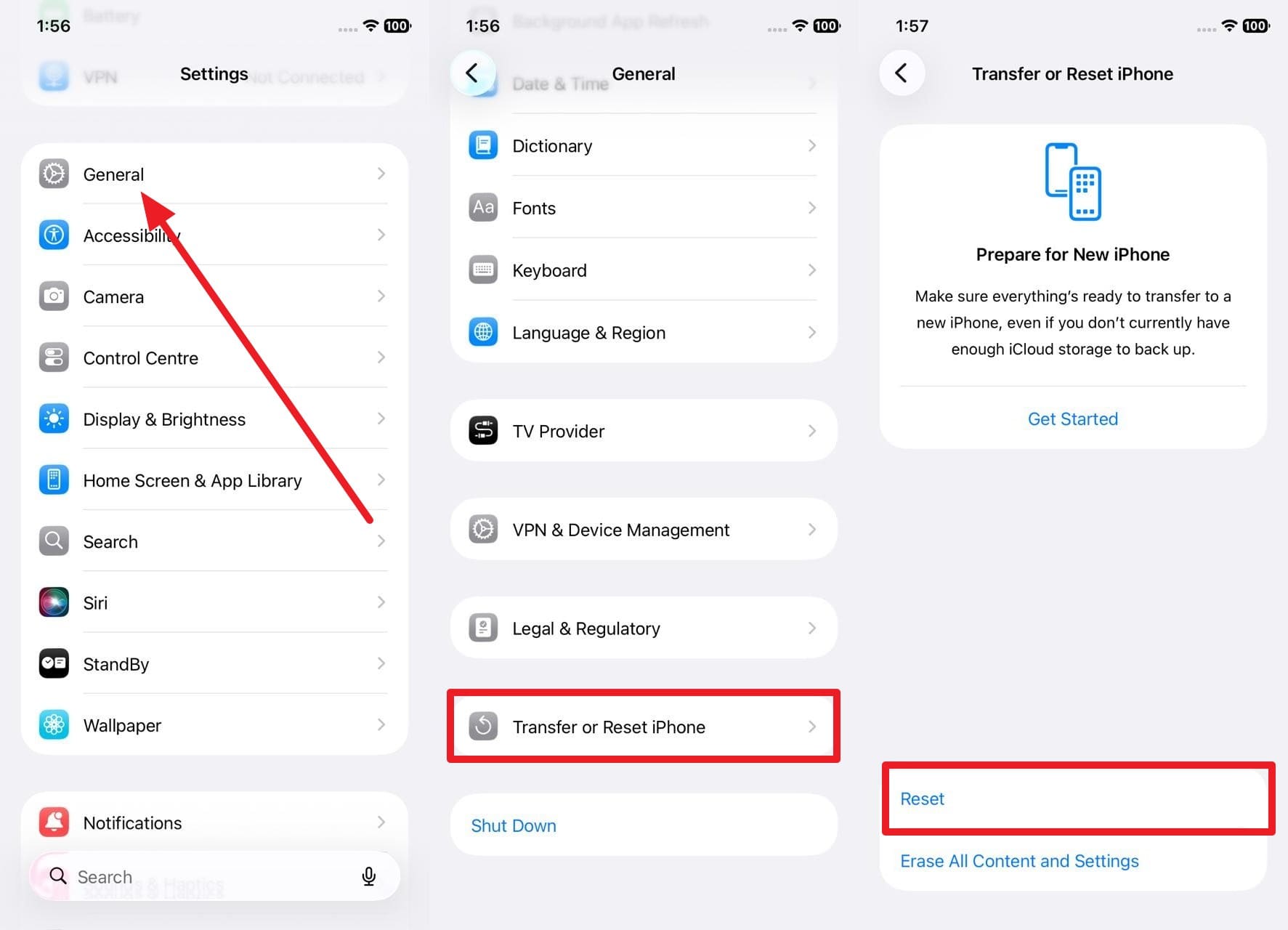
Step 1. In the General settings, pick the “Transfer or Reset iPhone” option and pick “Reset” on the following interface.
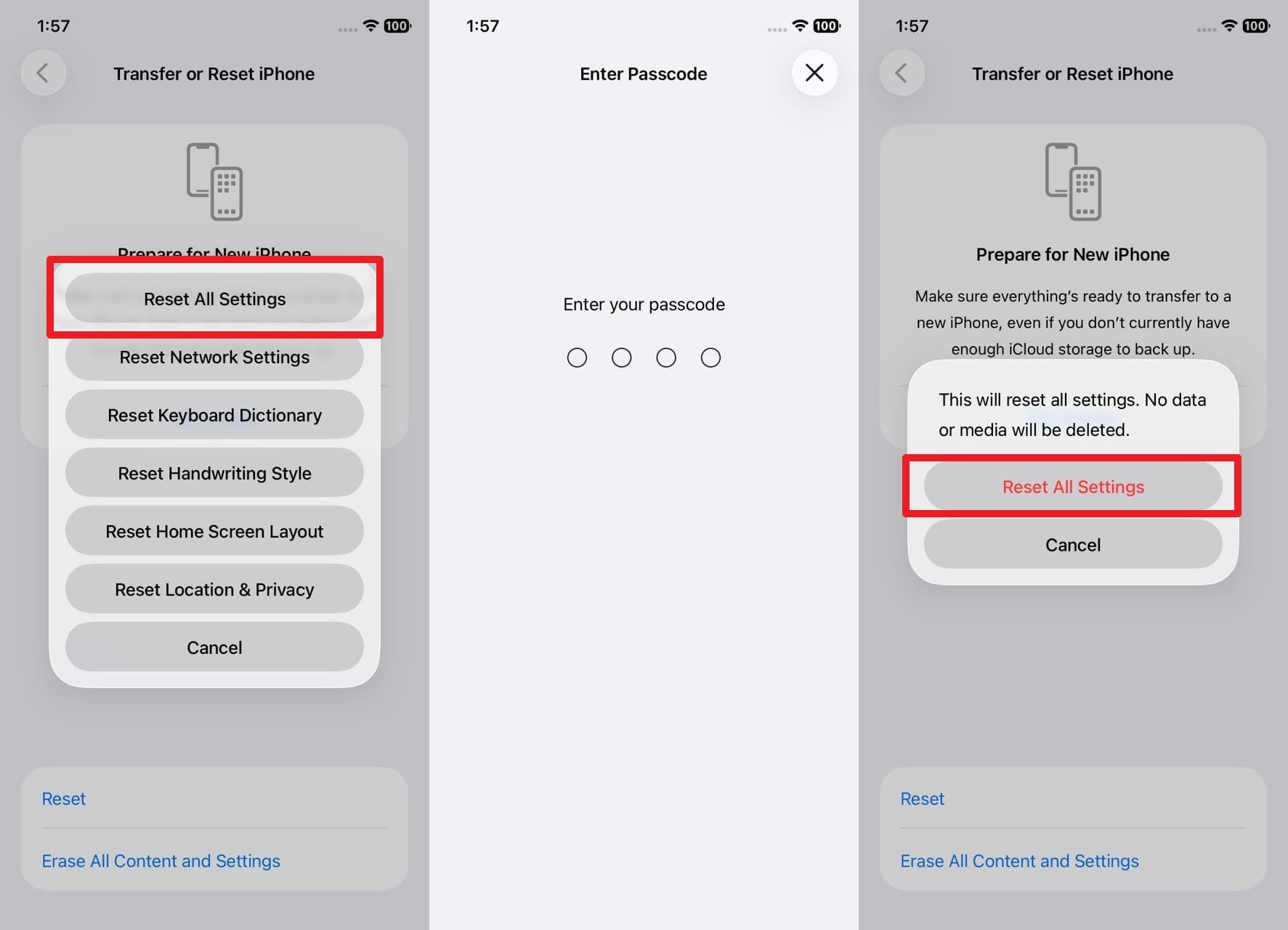
Step 2. After that, choose the “Reset All Settings” option on the pop-up menu and enter the device passcode. Here, choose the “Reset All Settings” option to confirm the action and resolve green lines.
Fix 4: Use Dr.Fone - System Repair (iOS) to Fix Green Lines on iPhone
When a system issue leads to a bright green line on the iPhone screen, rely on Dr.Fone - System Repair (iOS). The tool holds the ability to cater to 150+ iOS system repair issues, like black screen, boot loop, etc. Also, with support for the latest iOS 26/iPadOS 26 and iPhone 17 Series, the tool makes it easy to access the Recovery Mode for free.
Unlike other fixes or tools, users can also choose between Standard and Advanced Mode when resolving the green lines. The Standard Mode suits those who seek to resolve common iOS problems without data loss. On the contrary, Advanced and Anti-Recovery Mode perform deep scans and suit those who seek to sell or dispose of their iDevice. While being versatile, one can easily use it without needing any learning curve.

Dr.Fone - System Repair (iOS)
Repair iOS System Errors Without Data Loss.
- Only fix your iOS to normal, no data loss at all.
- Fix various iOS system issues stuck in recovery mode, white Apple logo, black screen, looping on start, etc.
- Upgrade and Downgrade iOS without iTunes at all.
- Work for all iPhone/iPad/iPod Touch, running on all iOS versions.


Guide to Fix System Issues Leading to Green Lines on iPhone
Step 1. Choose the iOS System Repair Tool & Standard Mode
Launch the System Repair tool and pick the “iOS” option after connecting the iDevice. Opt for the “Standard Mode” as you choose the “iOS Repair” feature.

Step 2. Get the Guide to Enter the Recovery Mode
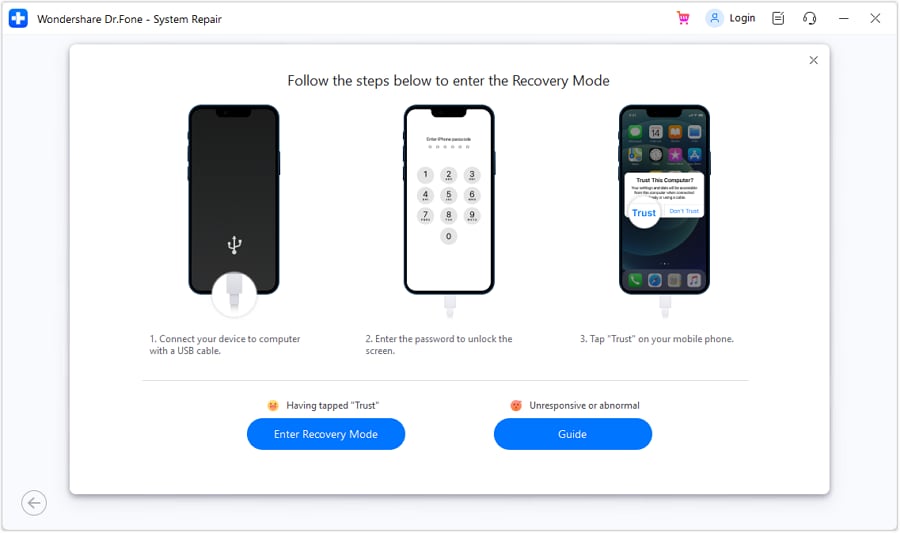
Now, follow the on-screen instructions and pick the “Enter the Recovery Mode” button, or press the “Guide” button to fetch detailed instructions.
Step 3. Wait for Dr.Fone to Fix System Issues
Once the tool detects and displays the appropriate iOS Firmware, select the “Download” button and wait for the installation to complete. Now, press the “Repair Now” button to let the tool resolve the system issue leading to green lines.

 safe & secure
4,624,541 people have downloaded it
Fix 5: Perform Factory Reset
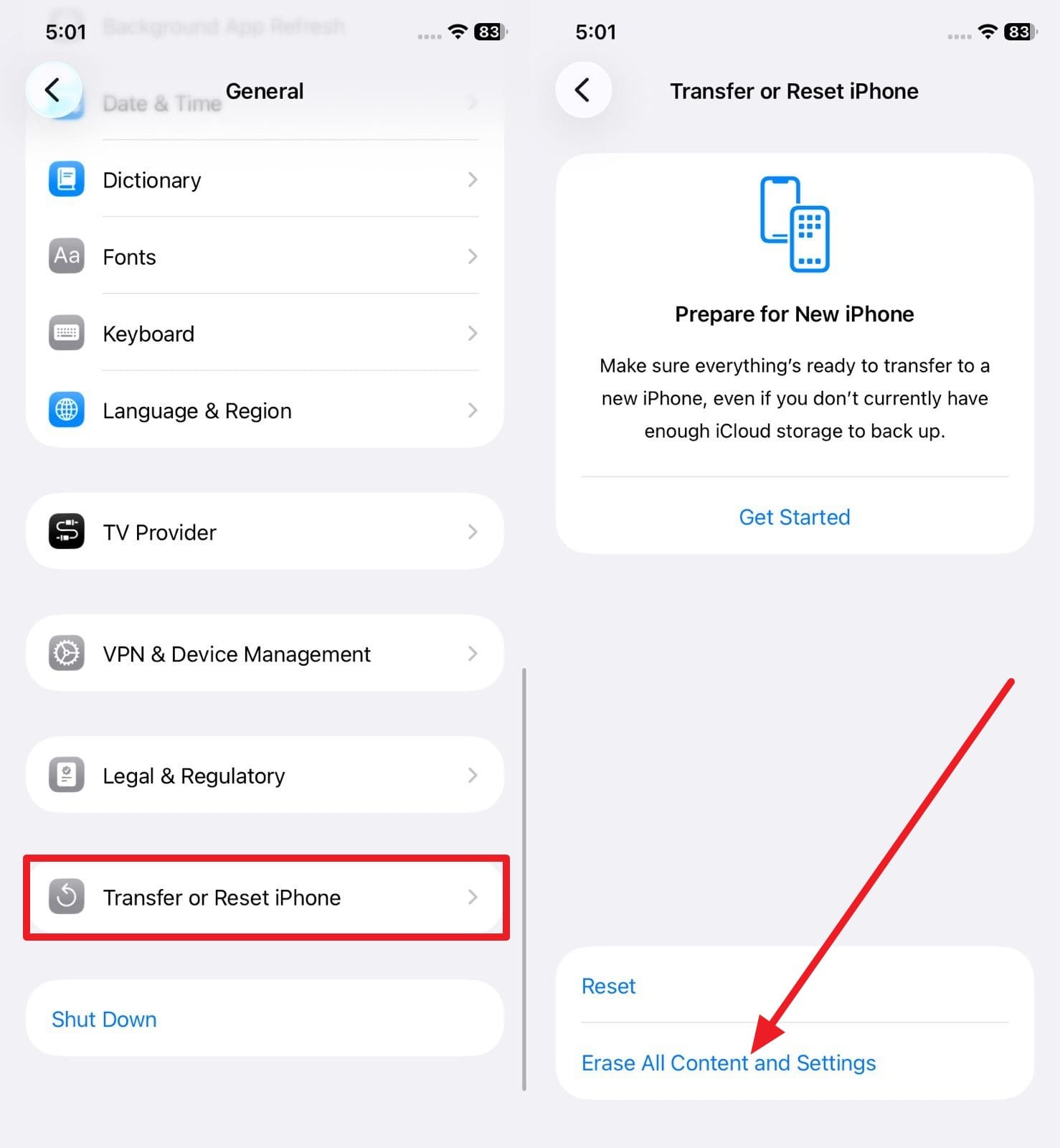
When nothing resolves the green line on the iPhone X screen, try to factory reset the device. A factory reset is a last resort software step for green lines that wipes iOS back to a clean state. Hence, it removes all corrupted settings and system files, which can fix display glitches caused by deep software issues. Hence, to know how you can perform it, adhere to the few steps given ahead:
Step 1. After choosing the “Transfer or Rest iPhone” option from general settings, tap the “Erase All Content and Settings” option.
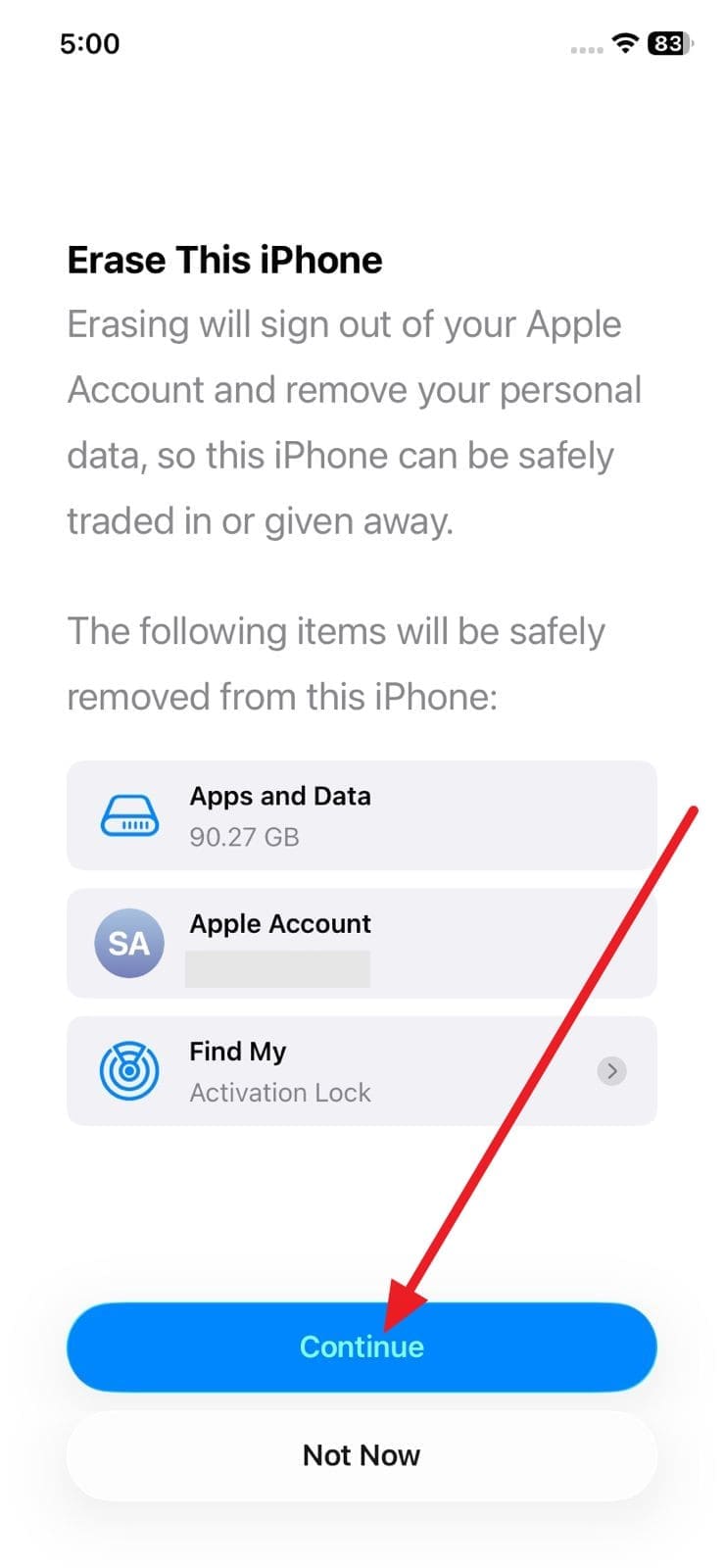
Step 2. Select the “Continue” button, then follow the on-screen instructions to reset the device. If you have an eSIM, choose the “Keep eSIM” or “Delete eSIM and Erase Data” options. Later, enter your Apple ID password to turn off Find My and Activation Lock, then tap “Turn Off.” Once done, press “Erase iPhone” to confirm and start the process.
Fix 6: Check for Hardware Damage
When the above software-related fixes can’t fix the green line in the iPhone, the issue is likely hardware-related. So, it is important to check for damage because most green lines come from physical screen or connector faults, not software. It helps you know if software steps are useless when the phone is dropped, bent, or exposed to water. Furthermore, it guides the choice between trying fixes at home or visiting a repair shop.
Conclusion
To wrap up, this comprehensive guide has explained what green lines in the iPhone screen are and why they appear. As one becomes familiar with the issue, solutions have also been provided to help determine whether the problem is software- or hardware-related. However, when a system issue causes green lines, usage of Dr.Fone - System Repair (iOS) is recommended, as it deals with 150+ issues.
safe & secure4,624,541 people have downloaded it
Frequently Asked Questions
 Q1. Can green lines on the iPhone screen be fixed?Q2. Is it safe to use an iPhone with a green line?Q3. Can Apple repair a green line?


iPhone Issues
- iPhone Storage Full
- 1. Stuck on Apple Logo Storage Full
- 2. Erase Content Settings not Working
- 3. iPhone Lagging
- 4. iPhone Running Slow
- iPhone Update Problems
- 1. Stuck on Updating iCloud Settings
- 2. iPhone Frozen During iOS Update
- 3. iPhone Checking for Update Stuck
- 4. iPhone Cellular Update Failed
- 5. iPhone Software Update Failed
- 6. iPhone Stuck on Update Requested
- 7. iPhone Update Error 1110
- 8. iPhone is Findable and Won’t Turn On
- 9. iPhone Won't Update
- 10. Update Server Couldn't Be Contacted
- 8. iPhone & iPad Security Updates
- 9. Update iPhone with/without iTunes
- 10. Can't Download or Update Apps
- iPhone Media Problems
- 1. Apple Music Song Not Available
- 2. iPhone Not Ringing
- 3. iPhone Echo Problem
- 4. iPhone Ringer Problems
- 5. iPhone Plays Music by Itself
- 6. Ringer Volume Changes by Itself
- 7. Music Won't Play on iPhone
- 8. Blurry Photos & Videos on iPhone
- 9. iPhone Volume Problems
- iPhone Sound Problems
- 1. YouTube no Sound
- 2. iPhone Microphone Problem
- 3. Test iPhone Microphone
- 4. Headphones No Sound from iPhone
- 5. No Sound on iPhone Game
- 6. iPhone Sound Not Working
- 7. iPhone Screen Recording no Sound
- iPhone Calling Problems
- 1. iPhone No Sound on Calls
- 2. Screen Goes Black During Call
- 3. iPhone Recent Calls Not Showing
- 4. iPhone Dropping Calls Issue
- 5. iPhone Calling Problem
- iPhone Camera Problems
- 1. iPhone Camera Black
- 2. iPhone Camera Blurry
- 3. iPhone Camera Not Working
- 4. iPhone Front Camera Not Working
- 5. TrueDepth Camera Not Working
- 6.Out-of-Focus Photos on iPhone 15
- iPhone Network Problems
- 1. Airpods Won't Connect to iPhone
- 2. iPhone Disabled Connect to iTunes
- 3. iPhone Not Syncing Problems
- 4. iPhone Internet Not Working
- 5. iPhone Keep Disconnecting from Wifi
- 6. iPhone WIFI Not Working
- 7. PC Not Recognizing iPhone
- 8. iPhone Stuck on Connect to iTunes
- 9. iPhone Not Showing up in iTunes
- 10. iTunes Not Detecting Your iPhone
- 11. iPhone Bluetooth Disconnect
- 12.Apple CarPlay Keeps Disconnecting
- iPhone Screen Problems
- 1. White Spots in iPhone Screen
- 2. iPhone Bleeding Screen
- 3. Turn Off iPhone When Frozen
- 4. Fix Orange Dot on iPhone
- 5. iPhone Green Screen Flickering
- 6. Green Lines in iPhone Screen
- Other iPhone Problems
- ● Manage/transfer/recover data
- ● Unlock screen/activate/FRP lock
- ● Fix most iOS and Android issues
- Free Download Free Download Free Download




James Davis
staff Editor
Generally rated4.5(105participated)