
Orange Dot on iPhone — What It Means and How to Fix It

Oct 27, 2026 • Filed to: Phone Repair Solutions • Proven solutions
 TL;DR:
The orange dot on iPhones running iOS 14 or newer is a built-in privacy indicator showing that an app is actively using your microphone, which you can manage by identifying the active app in the Control Center.
● The indicator does not signify unauthorized hacking or constant secret recording; it only activates during live audio tasks like phone calls, Siri requests, or active voice notes, and causes minimal battery drain.
● To stop unwanted microphone usage, close the active application via the App Switcher or navigate to Settings > Privacy & Security > Microphone to permanently revoke access for unrecognized apps.
● If the dot remains visible when no app is using audio, you can clear misconfigurations via Reset All Settings or use the Standard Mode in Dr.Fone - System Repair (iOS) to resolve persistent software bugs on devices up to the iPhone 17 series and iOS 26.
Ask AI for a summary
 ChatGPT
 Perplexity
 Gemini
 Claude
 Grok
Grok
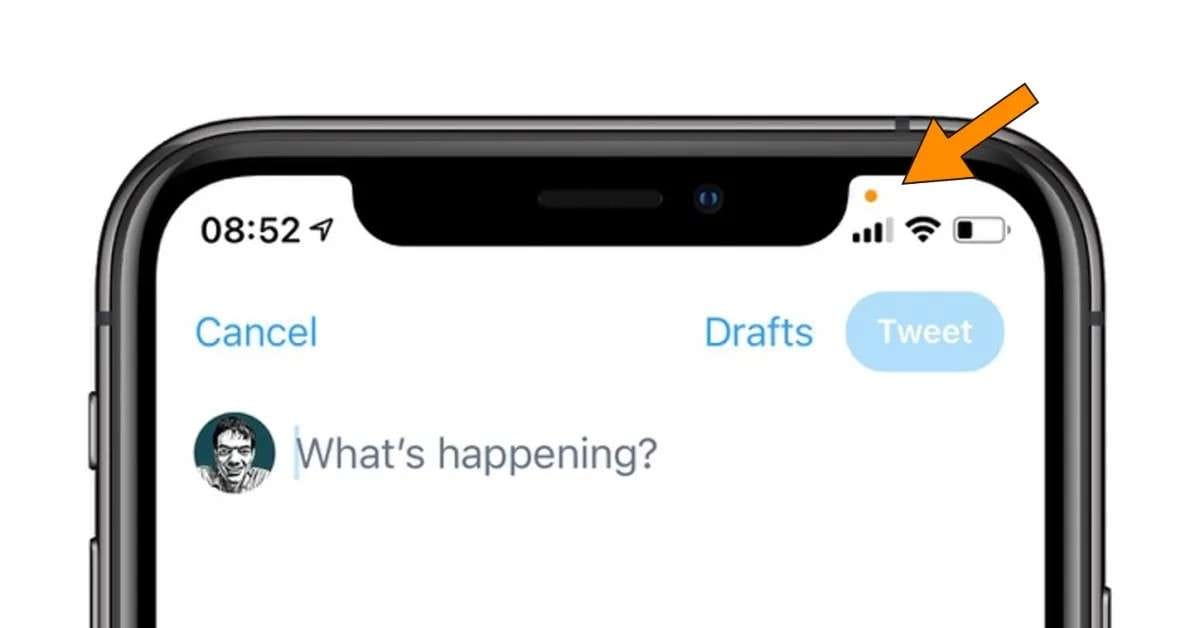
Wonder what the orange dot on the iPhone signifies, as most consumers understand it to be, and feel confused. Ideally, the orange dot would be displayed at the upper right of the screen, close to the battery icon. In some cases, it appears even when no application is visible, and this can be a cause of concern to the user.
However, little do they suspect that it is one of the privacy features of Apple to ensure that the users are aware. Therefore, this guide explains why the orange dot appears and provides simple steps to fix it. As you try the listed ways to fix it, learn how Dr.Fone can be the most effective option.
- Part 1. What Does the Orange Dot on iPhone Mean?
- Part 2. Common Scenarios Where the Orange Dot Appears
- Part 3. How to Identify Which App is Causing the Orange Dot
- Part 4. Try 6 Fixes [How to Get Rid of the Orange Dot on iPhone]

- Fix 1. Use Dr.Fone – System Repair (iOS) to Fix Hidden System-Level Issues
- Fix 2. Close Apps Using the Microphone
- Fix 3. Check and Revoke Microphone Permissions
- Fix 4. Restart Your iPhone
- Fix 5. Update iOS to the Latest Version
- Fix 6. Reset All iPhone Settings
- Part 5. How to Prevent Unwanted Microphone Access - 5 Tips
Part 1. What Does the Orange Dot on iPhone Mean?
An orange dot on an iPhone shows that an app is using your microphone. You see it at the top of the screen when a phone call, voice message, voice memo, Siri, or other app accesses sound. In some Accessibility settings, it may appear as an orange square, but it means the same thing.
Does the Orange Dot Mean Someone Is Listening or Recording Me?
No, it appears when the mic is active for calls, voice messages, Siri, or voice recording. The dot is a privacy warning to help you notice unusual microphone use. If it appears when no app should need the mic, check which app is active in the Control Center.
What the Orange Dot Doesn’t Mean (Common Myths)
|
Myths |
Reality |
| The Government is Listening to Me | The dot does not mean any government agency is watching you. It only shows that some app on your phone is using the microphone. |
| It Proves My iPhone is Hacked | Most of the time, the dot appears for normal things like calls, voice notes, or apps with mic permission, not because of malware. |
| Someone is Secretly Recording All the Time | The indicator lights up only while the microphone is active. It does not mean constant recording in the background without pause. |
| If the Dot is On, a Person is Definitely Listening | Audio might be processed on the phone or used for app features (dictation, voice trigger) and not necessarily listened to by a human. |
| The Dot Itself is the Spying Feature | The dot is a privacy feature Apple added so you can easily notice unexpected microphone or camera access. |
Part 2. Common Scenarios Where the Orange Dot Appears
To further know when you can get the orange dot on the iPhone screen, review the mentioned situations:
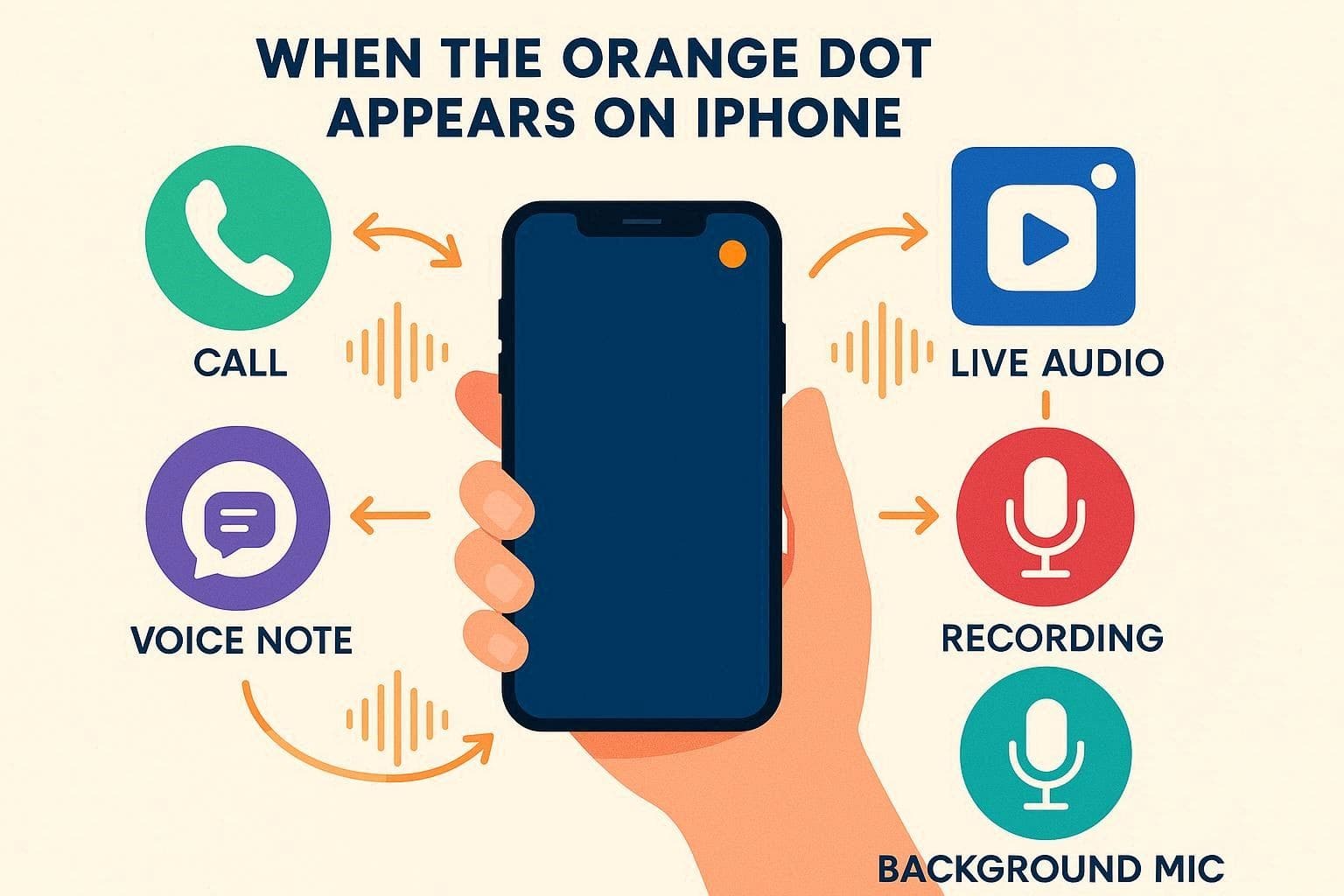
- Regular Phone Calls and Voice Calls: During a normal phone call or internet call, the orange dot shows the microphone is active. Hence, it stays on for the whole call and disappears shortly after the call ends.
- Voice Messages and Audio Notes in Apps: When you send a voice note in apps like WhatsApp or Messenger, the dot appears. It turns off after you finish recording, but may stay a moment if the mic is still open.
- Recording in Voice Memos or Similar Apps: As you open Voice Memos or other audio recording apps, the dot turns on to indicate sound capture. Thus, the dot stays visible even if you leave the app, and recording continues in the background.
- Social Media and Live Audio Features: Apps like Twitter/X Spaces or Instagram Live turn the dot on when they listen to your voice. It disappears when you leave the session or close the live audio feature in the app.
- Apps Using the Mic in the Background: The dot may appear when no app appears to be active if an app still has mic access. You can check the app in the Control Center and limit access in settings to prevent it from appearing again.
Part 3. How to Identify Which App is Causing the Orange Dot
If none of the given situations are happening and you are still seeing an orange dot on top of your iPhone, review this section. Get to know how you can intensify which app is causing it and how you can stop it instantly:
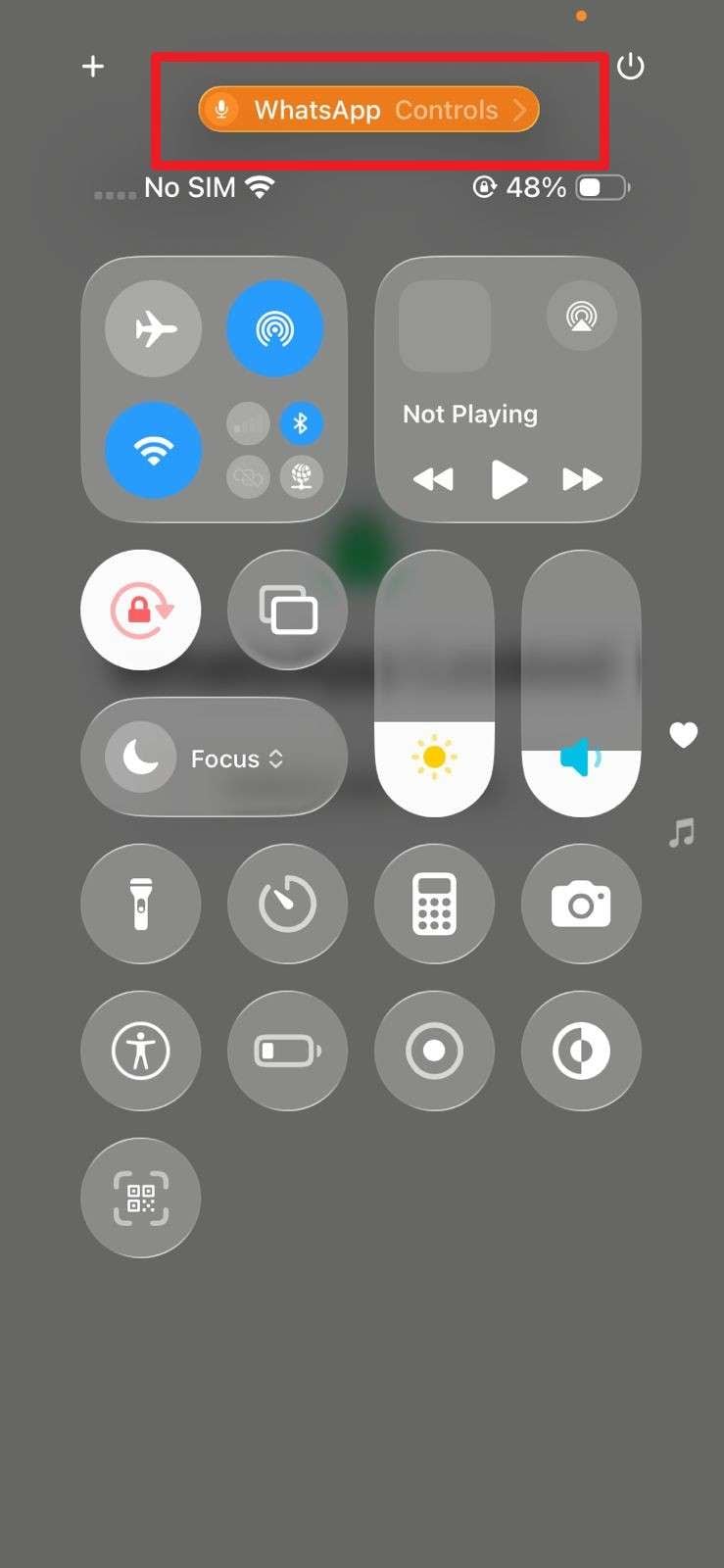
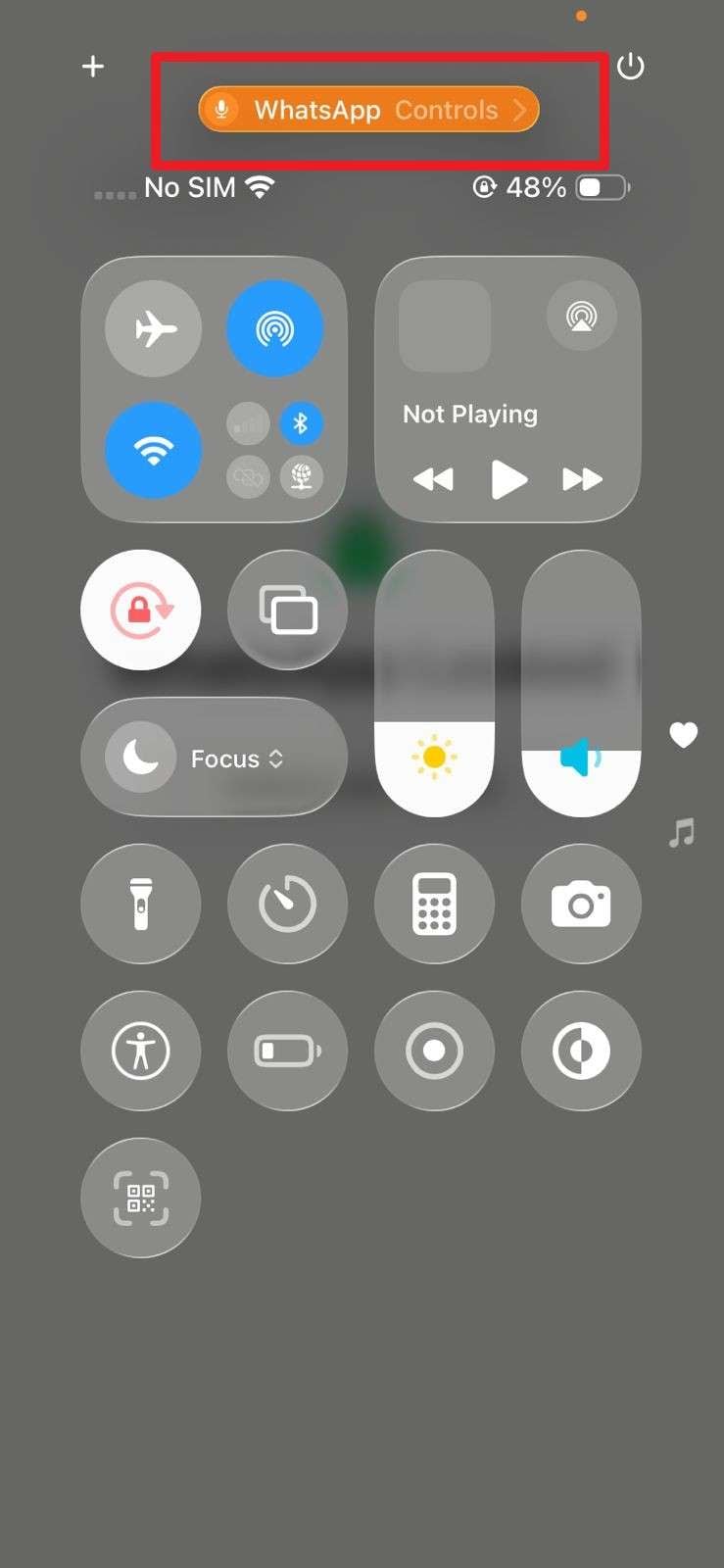
Instructions: Swipe down to the Control Center, then find the app name using the microphone.
Part 4. Try 6 Fixes [How to Get Rid of the Orange Dot on iPhone]
While determining the root app causing this issue, try the 6 listed fixes to turn off the orange dot on the iPhone:
Fix 1. Use Dr.Fone – System Repair (iOS) to Fix Hidden System-Level Issues
Opt for tools like Dr.Fone - System Repair (iOS) when the iPhone keeps showing an orange dot or causes an iPhone stuck issue, due to system issues. This tool supports the latest iOS 26/iPadOS 26 and iPhone 17 series and allows you to repair 150+ iOS system issues. While doing so, Dr.Fone makes accessing Recovery Mode free for users who are looking for affordable repair solutions.
Additionally, it offers 2 modes to repair iOS-related issues and automates iOS firmware installation for a seamless experience. Its Standard Mode is designed to fix common iOS issues, whereas Advanced mode handles complex ones via a deep scan. Unlike other tools, Dr.Fone claims a 100% success rate and assures it can fix an Apple device stuck at the logo or bugs causing orange dots in 3 simple steps.

Dr.Fone - System Repair (iOS)
Dedicated Tool to Get Rid of the Orange Dot on iPhone
- Only fix your iOS to normal, no data loss at all.
- Fix various iOS system issues stuck in recovery mode, white Apple logo, black screen, looping on start, etc.
- Upgrade and Downgrade iOS without iTunes at all.
- Work for all iPhone/iPad/iPod Touch, running on all iOS versions.


Guide to Resolve System Issues Causing an Orange Dot on Your iPhone
Step 1. Access the System Repair Tool for iOS
Choose the “Repair Now” button on the “iOS Repair” tool as you pick the “System Repair” feature for “iOS,” and connect the iPhone to the tool.

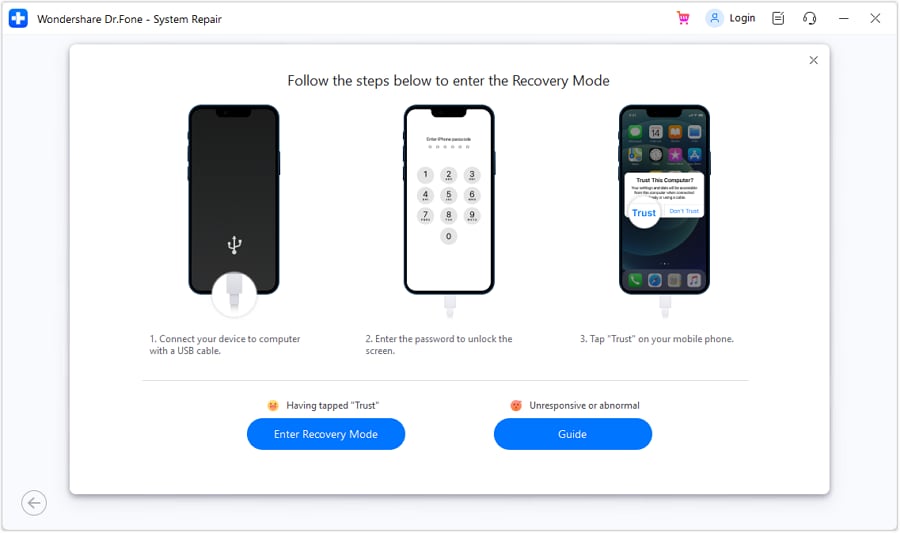
Step 2. Choose the Standard Mode to Access the Recovery Mode
Here, pick the “Standard Mode” option and press the “Enter Recovery Mode” button or follow the “Guide.”
Step 3. Install the iOS Firmware to Repair System Issues
In Recovery Mode, when the tool detects iOS firmware, tap the “Download” button to continue the installation. Once done, press the “Repair Now” button to commence the repair process, and wait until it ends.

 safe & secure
4,624,541 people have downloaded it
Fix 2. Close Apps Using the Microphone
To get rid of the orange dot on an iPhone, this solution stops the app from accessing the mic, so the dot disappears once no app records or listens. If the dot appears unexpectedly, closing background apps helps check whether it was a normal app or something unknown. Hence, this protects privacy, lowers the risk of spyware, reduces battery and data use, and is seamless to perform, as guided below:
Step 1. As you seek the orange dot on the top, determine which app is causing it from the Control Center.
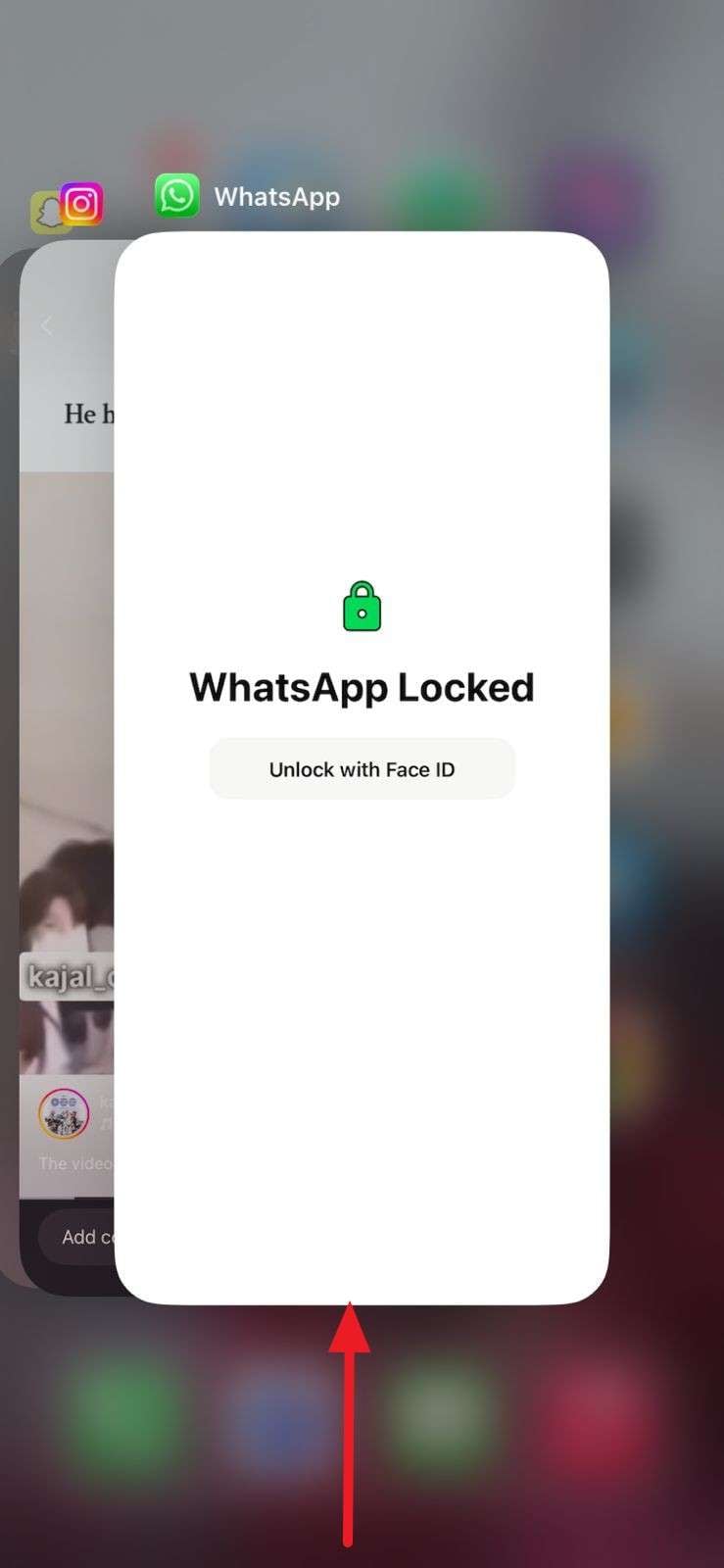
Step 2. After that, swipe up from the middle of the screen, locate the app in App Switcher, and swipe up to close it.
Fix 3. Check and Revoke Microphone Permissions
If the iPhone orange dot persists, try this solution, as it shows which apps can use your microphone, so you can remove access from apps that do not need it. As you turn off access for untrusted apps via the listed steps, they stop triggering the orange dot or recording in the background. Thus, this reduces the risk of spyware, improves phone and battery performance, and clarifies why the orange dot appears.
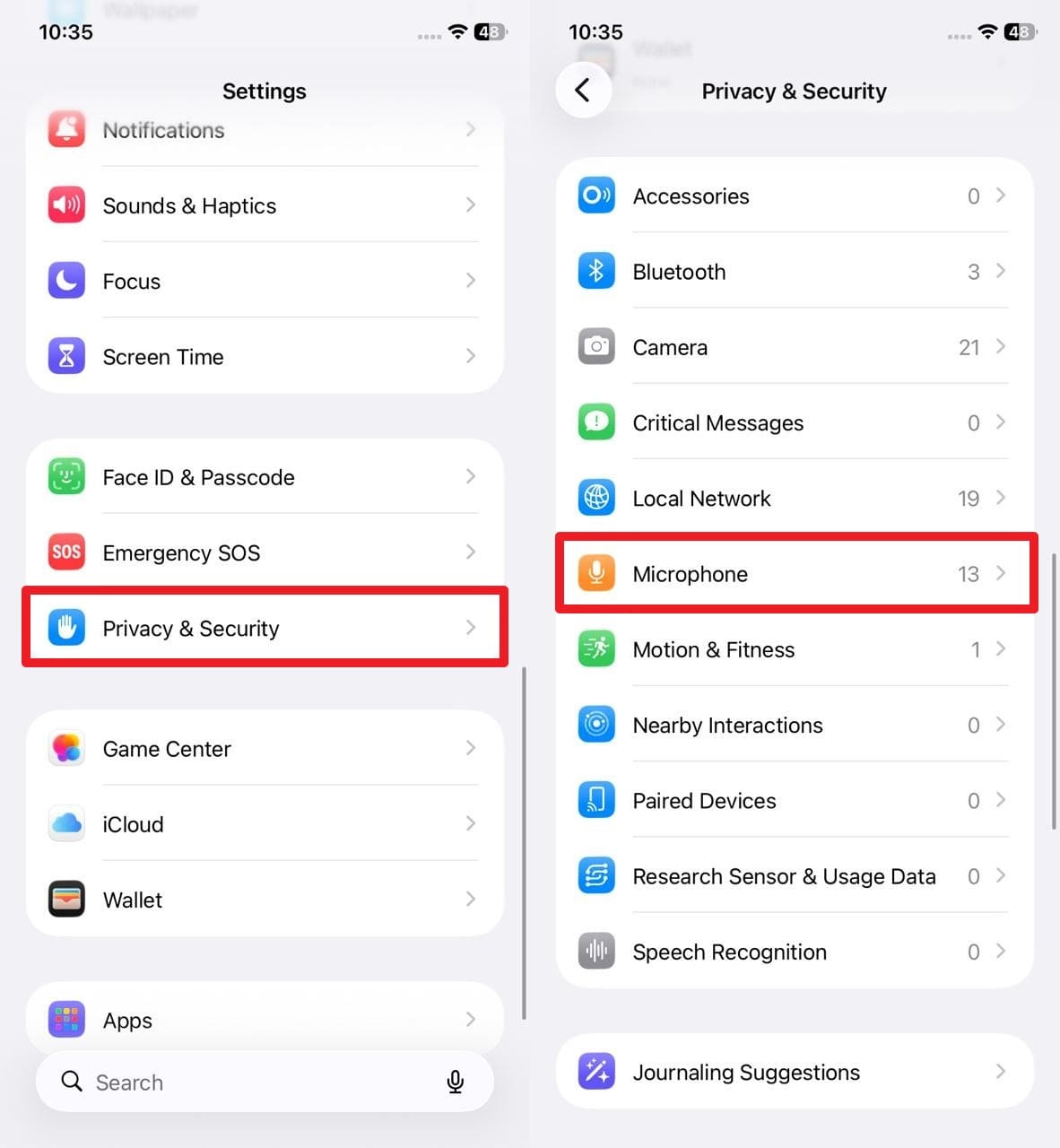
Step 1. In the setting, locate the “Privacy & Security” option and choose the “Microphone” option.
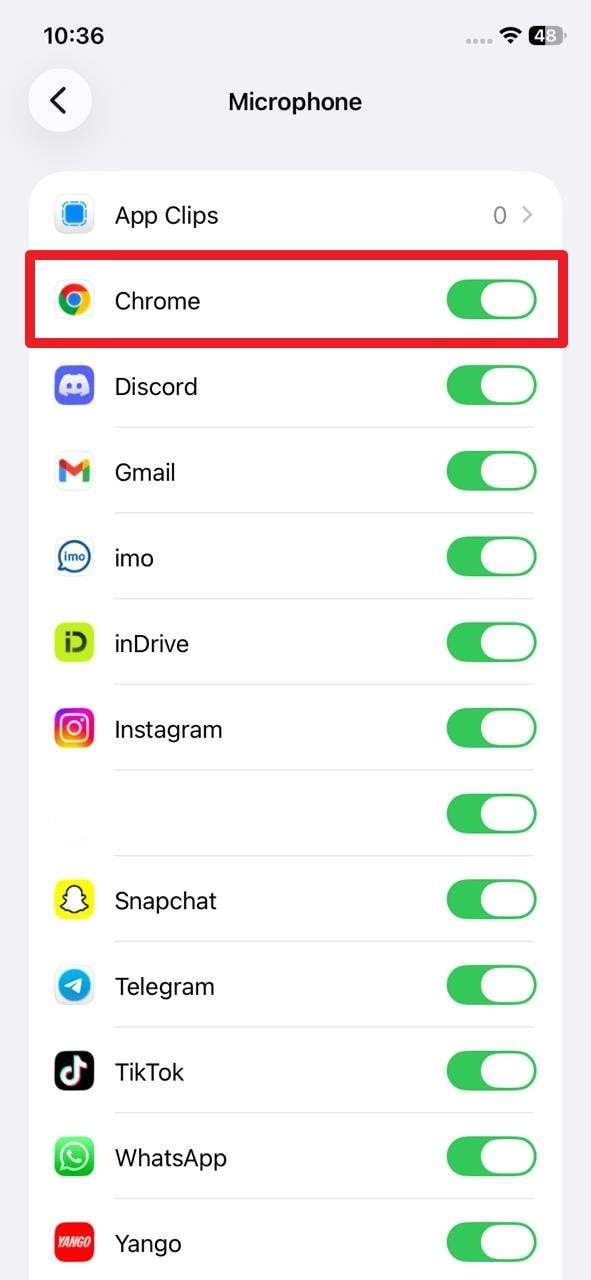
Step 2. After that, toggle “Off” any app you don’t recognize to get rid of the orange dot.
Fix 4. Restart Your iPhone
A restart reloads iOS and stops all background tasks, shutting down apps that kept the microphone active incorrectly. So, if the dot shows because of a small bug or recent update, rebooting resets the microphone state, so it disappears. This solution is also a quick and safe troubleshooting step, and is further guided. If the dot goes away and does not return, it usually means there is no real security issue.
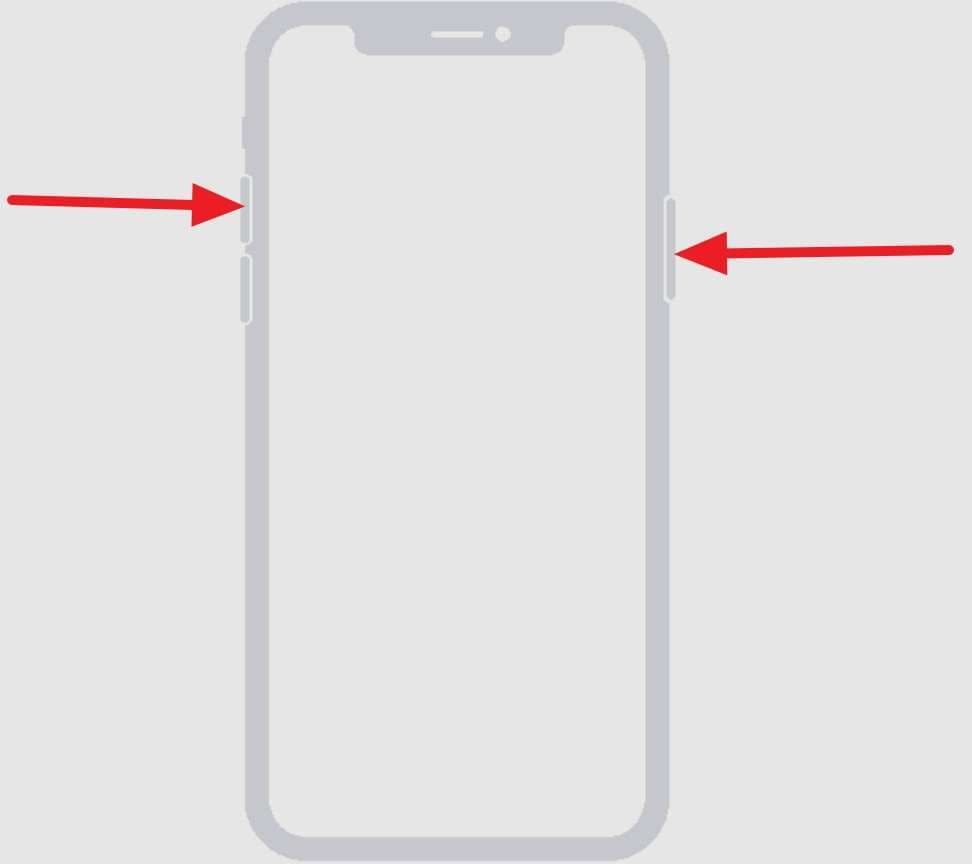
Step 1. To remove the little orange dot on the iPhone, press the "Power" and "Volume Up" buttons.
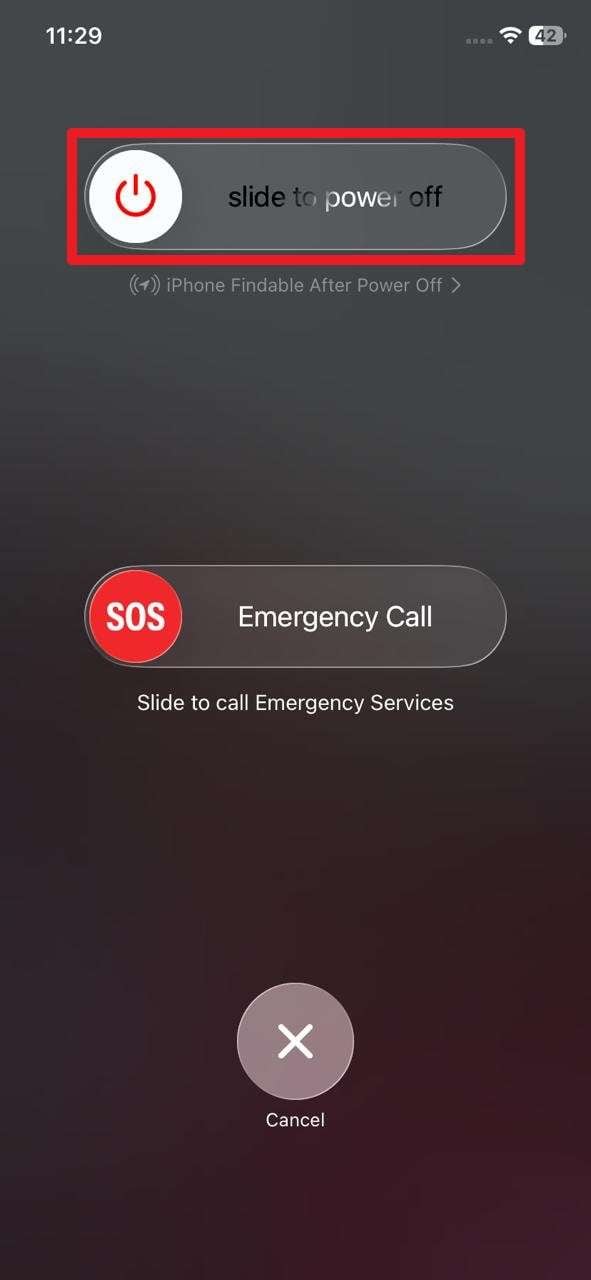
Step 2. As you get the “Slide to Power Off” slider, swipe it and wait for the screen to go black.
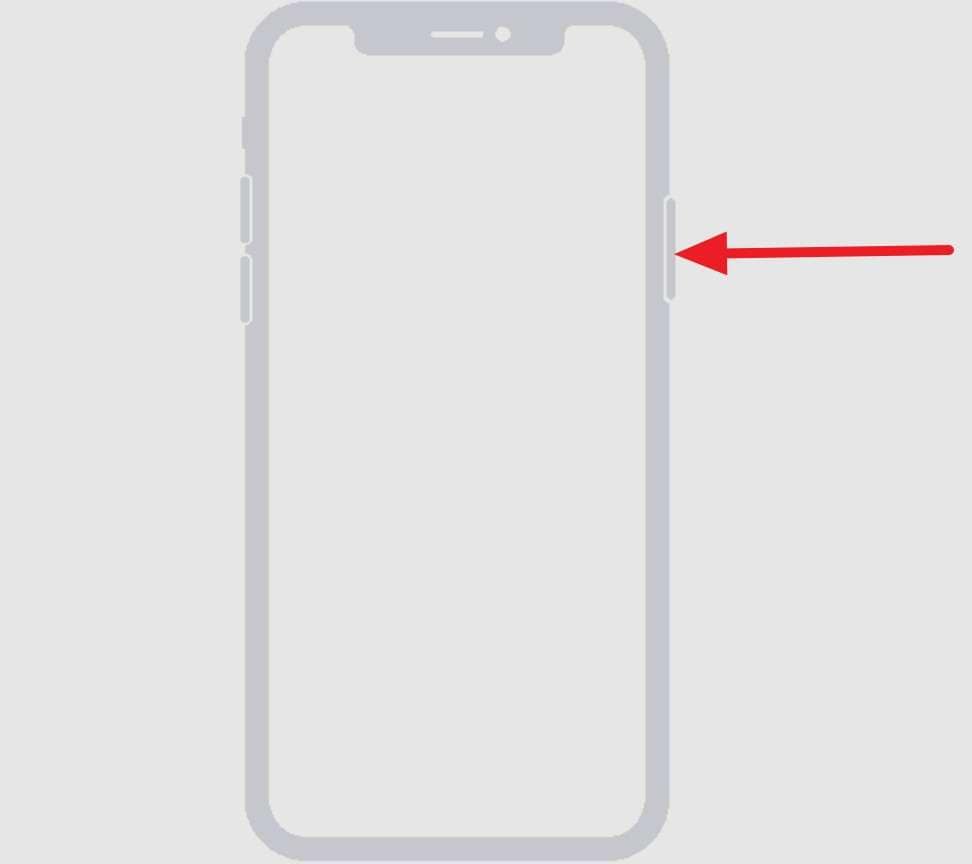
Step 3. Then, press the “Power” button again to restart the phone and check whether the dot is removed.
Fix 5. Update iOS to the Latest Version
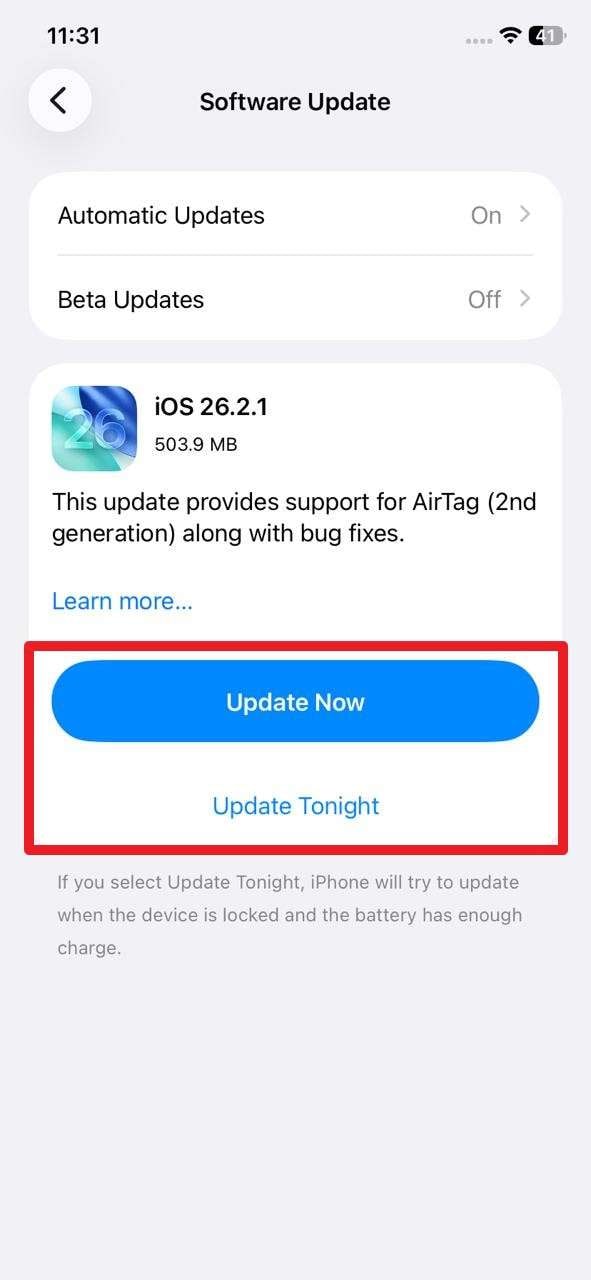
You can also try to update iOS, as some versions have small bugs that make the dot stay on even when no app uses the mic, and Apple fixes these in minor updates. New updates make privacy indicators more accurate and reflect real microphone activity. Additionally, it improves privacy, patches security issues, and fixes orange-dot glitches. So, to fix the orange dot on the phone, follow the simple steps to update the iOS:
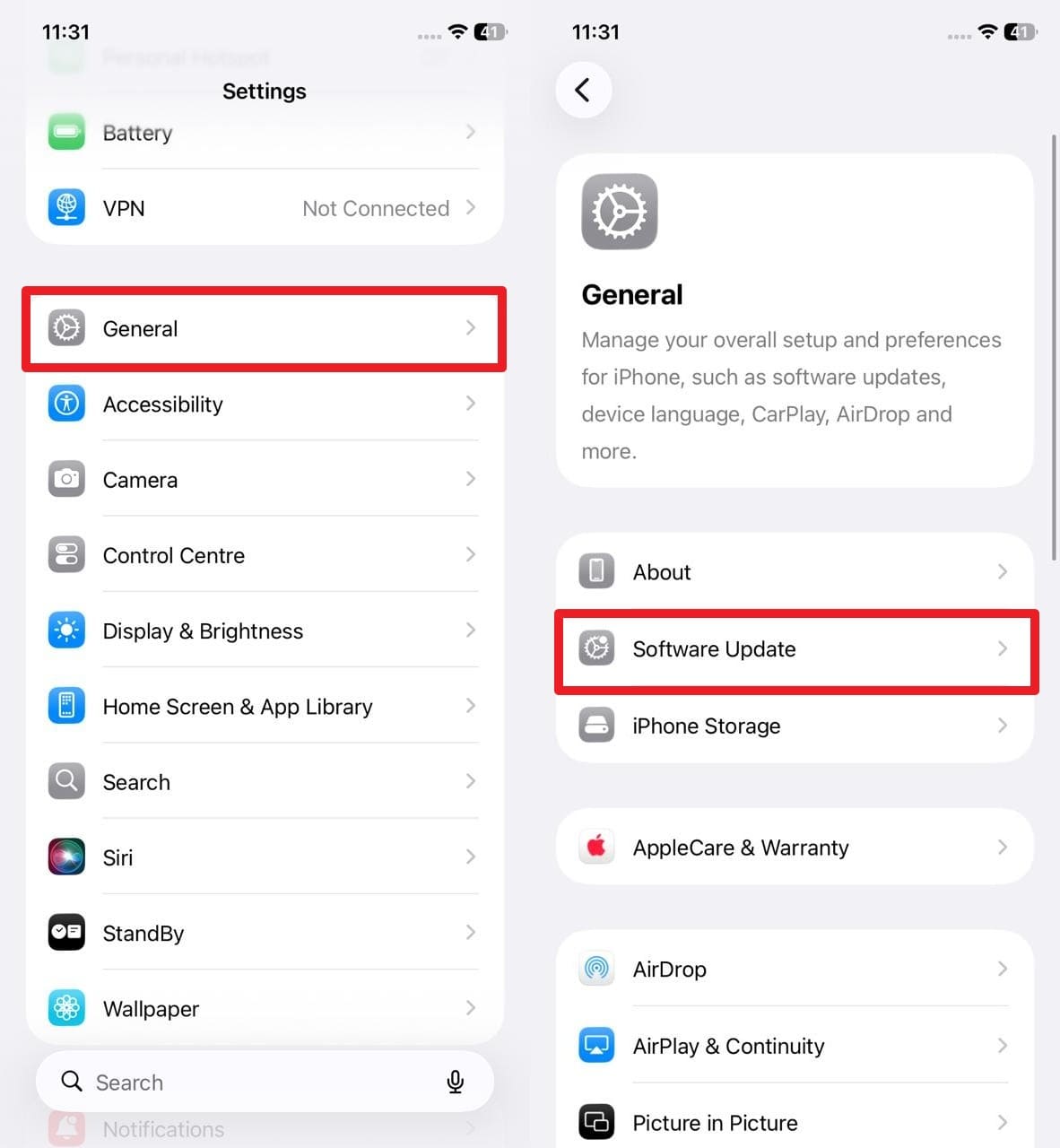
Step 1. In the Settings, choose the “General” option and pick the “Software Update” option.
Step 2. If the update is available, choose the “Update Now” button, then select “Update Tonight” to schedule it.
Fix 6. Reset All iPhone Settings
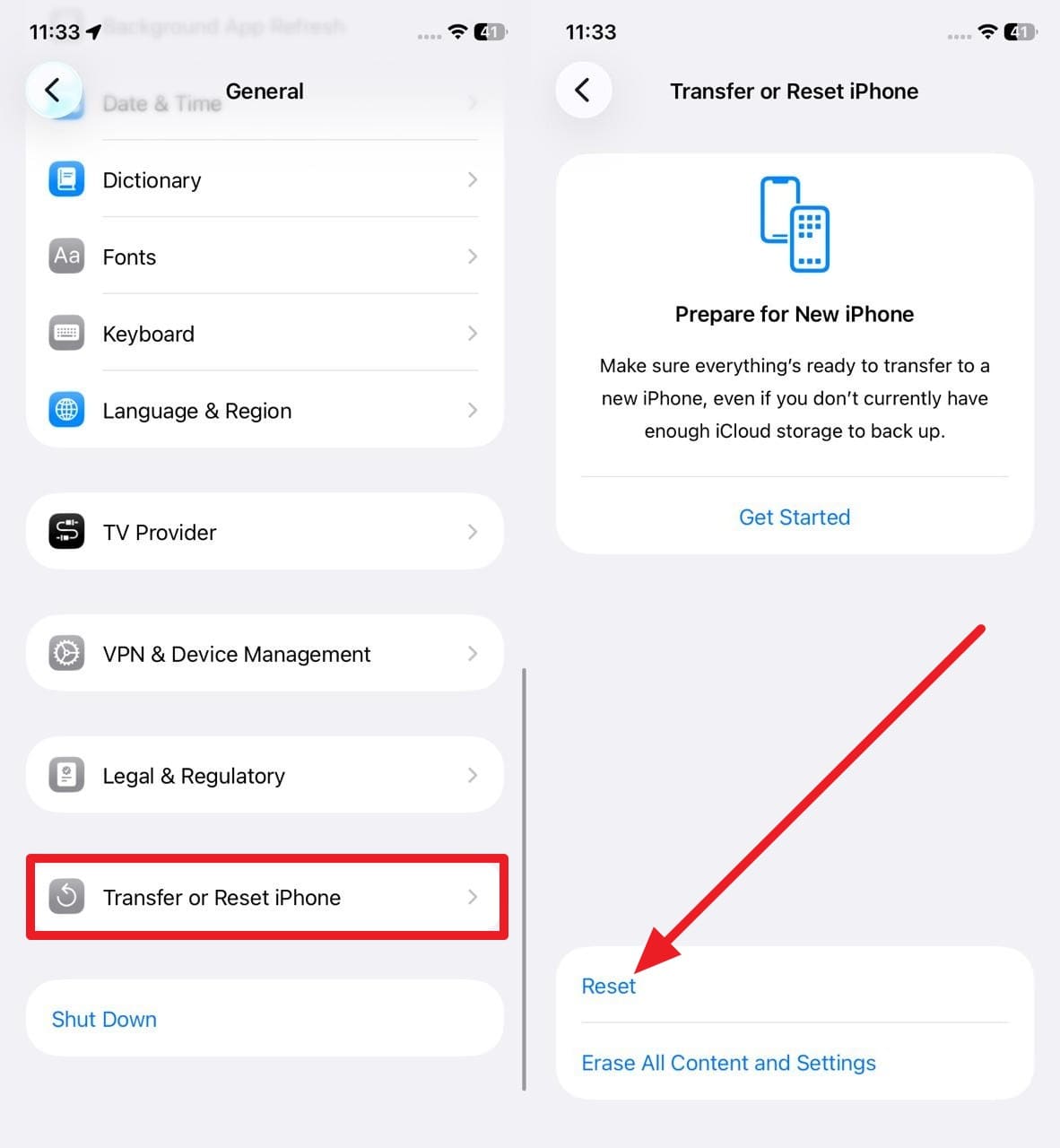
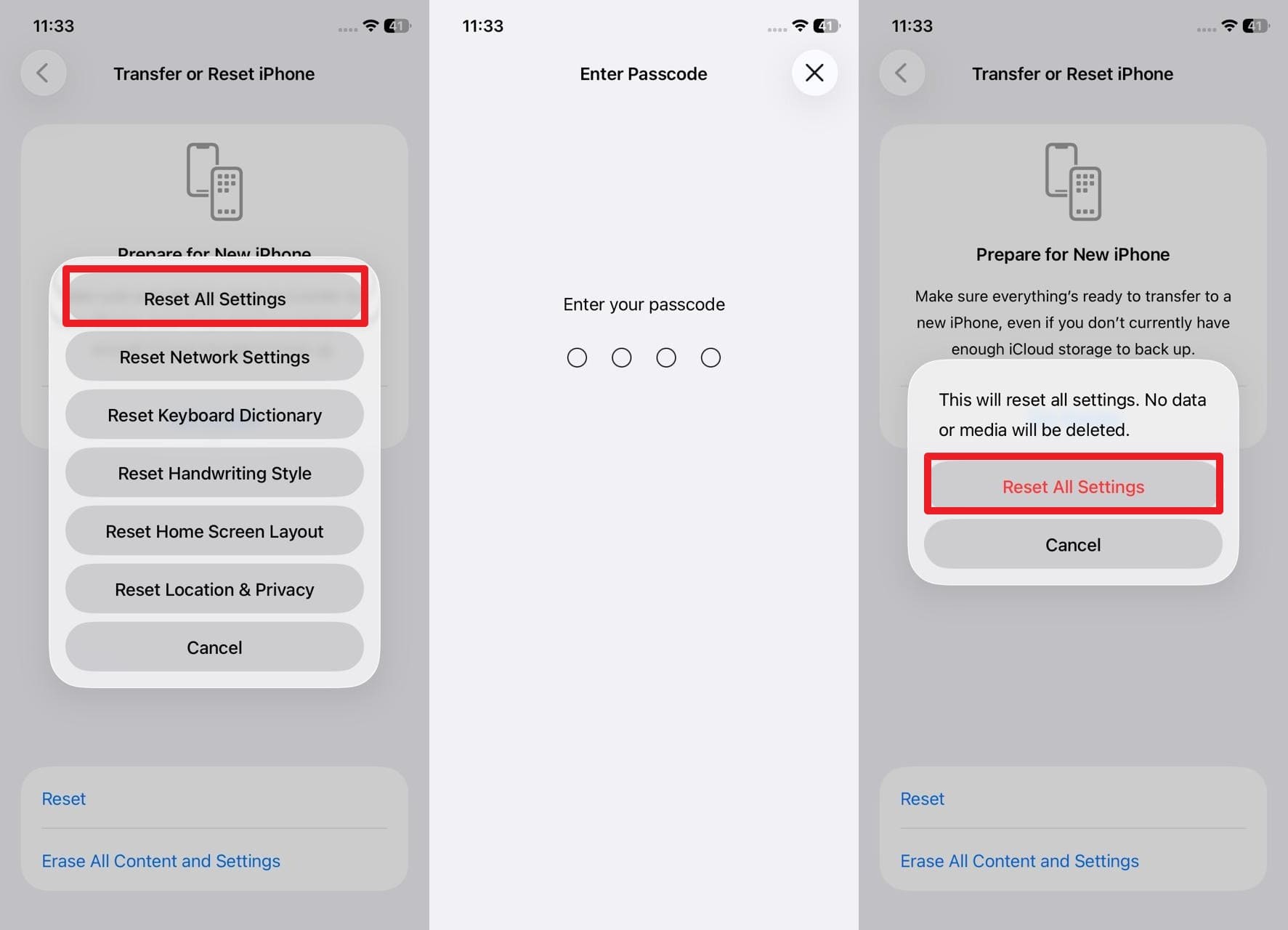
If nothing fixes the orange dot at the top of the iPhone, try resetting the iOS settings. Conflicting or corrupted settings for privacy, network, or accessibility can cause the mic indicator to remain on incorrectly. Hence, “Reset All Settings” restores iOS defaults and removes misconfigurations that trigger the dot falsely. This fixes stubborn indicator bugs, refreshes app permissions, and is illustrated below in detail:
Step 1. In the General settings, choose “Transfer or Reset iPhone” and pick the “Reset” option.
Step 2. On the new pop-up, select the “Reset All Settings” option, enter the code, and pick “Reset All Settings” to confirm.
Part 5. How to Prevent Unwanted Microphone Access - 5 Tips
To ensure you don’t get the little orange dot on iPhone again, follow the simple and effective tips given below:
|
Tips |
Why It Helps |
| Review Mic Permissions | Prevents unnecessary apps from using your microphone in the background. |
| Limit Siri Listening | Reduces always-listening behavior that can keep the microphone active. |
| Close Unused Apps | Stop active sessions that might still access the microphone. |
| Keep iOS Updated | Fixes privacy bugs and improves microphone permissions and indicators. |
| Use Only Trusted Apps | Lowers the risk of apps misusing microphone access. |
Conclusion
To conclude, this guide has explained what the orange dot on the iPhone is and why it happens. To that end, some myths have been debunked, and possible situations in which you may encounter this dot on the screen have been explained. So, as you consider the listed 6 ways to fix it, usage of Dr.Fone - System Repair (iOS) is suggested to fix the 150+ iOS system issues causing the orange dot.
safe & secure4,624,541 people have downloaded it
FAQs
 Q1. Will the orange dot drain my battery?Q2. Can the orange dot record me without an app open?Q3. Does the orange dot work on all iPhone models?


iPhone Issues
- iPhone Storage Full
- 1. Stuck on Apple Logo Storage Full
- 2. Erase Content Settings not Working
- 3. iPhone Lagging
- 4. iPhone Running Slow
- iPhone Update Problems
- 1. Stuck on Updating iCloud Settings
- 2. iPhone Frozen During iOS Update
- 3. iPhone Checking for Update Stuck
- 4. iPhone Cellular Update Failed
- 5. iPhone Software Update Failed
- 6. iPhone Stuck on Update Requested
- 7. iPhone Update Error 1110
- 8. iPhone is Findable and Won’t Turn On
- 9. iPhone Won't Update
- 10. Update Server Couldn't Be Contacted
- 8. iPhone & iPad Security Updates
- 9. Update iPhone with/without iTunes
- 10. Can't Download or Update Apps
- iPhone Media Problems
- 1. Apple Music Song Not Available
- 2. iPhone Not Ringing
- 3. iPhone Echo Problem
- 4. iPhone Ringer Problems
- 5. iPhone Plays Music by Itself
- 6. Ringer Volume Changes by Itself
- 7. Music Won't Play on iPhone
- 8. Blurry Photos & Videos on iPhone
- 9. iPhone Volume Problems
- iPhone Sound Problems
- 1. YouTube no Sound
- 2. iPhone Microphone Problem
- 3. Test iPhone Microphone
- 4. Headphones No Sound from iPhone
- 5. No Sound on iPhone Game
- 6. iPhone Sound Not Working
- 7. iPhone Screen Recording no Sound
- iPhone Calling Problems
- 1. iPhone No Sound on Calls
- 2. Screen Goes Black During Call
- 3. iPhone Recent Calls Not Showing
- 4. iPhone Dropping Calls Issue
- 5. iPhone Calling Problem
- iPhone Camera Problems
- 1. iPhone Camera Black
- 2. iPhone Camera Blurry
- 3. iPhone Camera Not Working
- 4. iPhone Front Camera Not Working
- 5. TrueDepth Camera Not Working
- 6.Out-of-Focus Photos on iPhone 15
- iPhone Network Problems
- 1. Airpods Won't Connect to iPhone
- 2. iPhone Disabled Connect to iTunes
- 3. iPhone Not Syncing Problems
- 4. iPhone Internet Not Working
- 5. iPhone Keep Disconnecting from Wifi
- 6. iPhone WIFI Not Working
- 7. PC Not Recognizing iPhone
- 8. iPhone Stuck on Connect to iTunes
- 9. iPhone Not Showing up in iTunes
- 10. iTunes Not Detecting Your iPhone
- 11. iPhone Bluetooth Disconnect
- 12.Apple CarPlay Keeps Disconnecting
- iPhone Screen Problems
- 1. White Spots in iPhone Screen
- 2. iPhone Bleeding Screen
- 3. Turn Off iPhone When Frozen
- 4. Fix Orange Dot on iPhone
- 5. iPhone Green Screen Flickering
- 6. Green Lines in iPhone Screen
- Other iPhone Problems
- ● Manage/transfer/recover data
- ● Unlock screen/activate/FRP lock
- ● Fix most iOS and Android issues
- Free Download Free Download Free Download




Daisy Raines
staff Editor
Generally rated4.5(105participated)