
Why iMessage Needs to Be Enabled to Send This Message Appears and How to Fix It

Sep 30, 2026 • Filed to: Phone Repair Solutions • Proven solutions
 TL;DR:
The "iMessage needs to be enabled to send this message" error indicates a hidden failure in Apple ID sync, network connectivity, or activation servers rather than a disabled toggle, requiring you to refresh your connections or repair the iOS system.
● Before attempting system repairs, refresh your connection by turning iMessage off and back on, reselecting your Apple ID and phone number under Send & Receive, and ensuring your Date & Time is set to Automatic.
● If manual toggles fail, perform a Reset Network Settings to clear cached carrier data that may be blocking activation, and check your device for pending Carrier Settings Updates.
● For persistent errors where iOS services repeatedly fail, use Dr.Fone - System Repair (iOS) in Standard Repair mode to fix corrupted background daemons without data loss, noting that its Advanced Repair mode will erase all device data and requires a prior backup.
Ask AI for a summary
 ChatGPT
 Perplexity
 Gemini
 Claude
 Grok
Grok
You may have tried to send a message, and it didn’t go through. Instead, your iPhone showed a line that feels unhelpful: “iMessage needs to be enabled to send this message.” You may have used iMessage earlier the same day. Yet now the message won’t send, and there’s no clear explanation.
This error usually means something in the iMessage setup has stopped responding properly. It could be an activation issue tied to your Apple ID, a network or carrier conflict, or a Messages setting that hasn’t synced correctly. In some cases, users see variations like cannot send message iMessage needs to be enabled, even though nothing appears disabled. In this article, we break down why your iPhone shows this message, how to enable iMessage correctly, and which fixes actually resolve the issue when simple toggles don’t work.
- What Does “iMessage Needs to Be Enabled to Send This Message” Mean?
- How to Fix “iMessage Needs to Be Enabled to Send This Message.”
- Method 1: Make Sure iMessage Is Properly Enabled (Not Just Toggled On)
- Method 2: Check that iMessage Is Linked to the Correct Apple ID and Phone Number
- Method 3: Verify Network and Cellular Message Settings
- Method 4: Restart Your iPhone to Clear Message Services
- Method 5: Reset Network Settings
- Method 6: Check Apple System Status and Carrier Support

- Method 7: Repair iOS System Issues When iMessage Still Won’t Enable
Part 1. What Does “iMessage Needs to Be Enabled to Send This Message” Mean?
The message “iMessage needs to be enabled to send this message” appears when your iPhone cannot send a message through Apple’s iMessage servers. It does not always mean iMessage is turned off. In many cases, it is enabled but not working properly in the background.
Why does this error appear
- iMessage activation did not complete
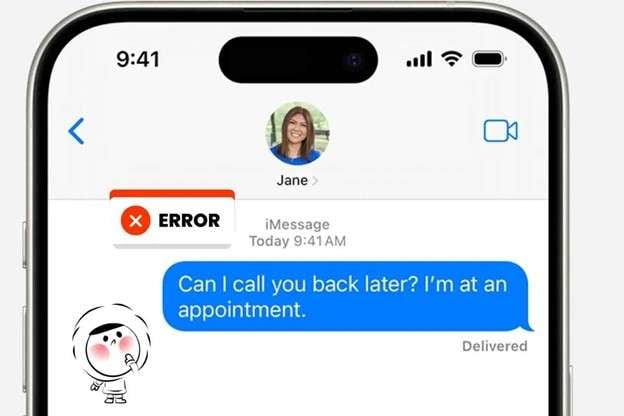
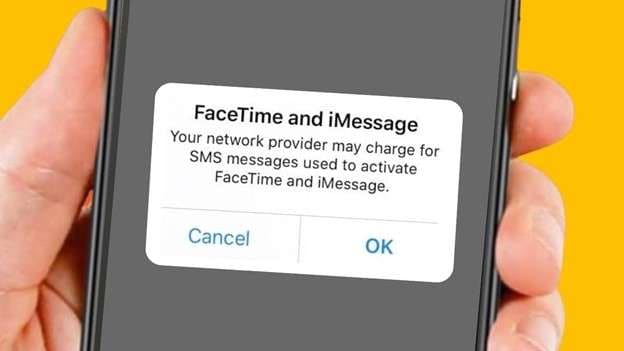
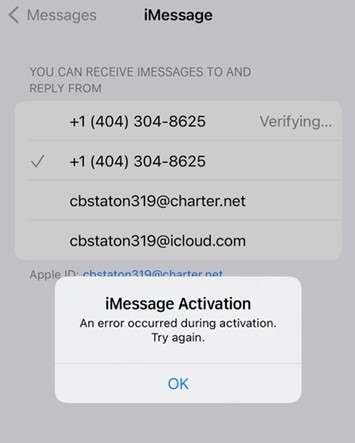
iMessage may be switched on, but Apple ID verification or carrier activation failed. When the setup does not finish, messages cannot be sent.
- Network interference
Public Wi-Fi, VPNs, office networks, or unstable mobile data can block Apple’s servers, causing message delivery to fail.
- Carrier or SIM issues
Outdated carrier settings or SIM registration problems can prevent Messages from deciding between iMessage and SMS.
- Incorrect date and time
If your iPhone’s date and time are not set automatically, Apple’s servers may reject the message request.
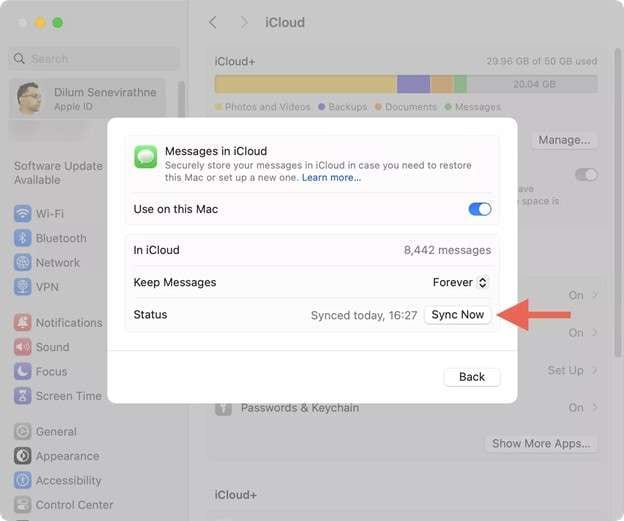
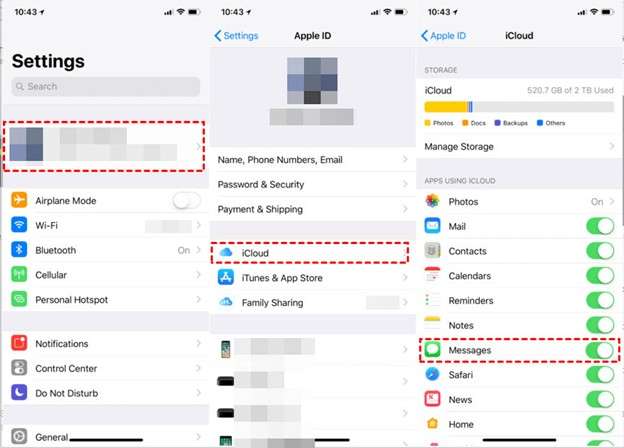
- Apple ID or iCloud sync problems
Background sign-out, failed iCloud sync, or recent system updates can interrupt iMessage without warning.
Part 2. How to Fix “iMessage Needs to Be Enabled to Send This Message.”
By the time this message shows up, most people have already checked the obvious things. iMessage looks switched on. The contact is correct. Other conversations might even work. That’s what makes this error confusing.
In reality, this often happens with minor hiccups: a carrier update that didn’t complete cleanly, an Apple ID sign-in that got stuck in the background, a network change that broke iMessage registration without alerting you. Nothing breaks outright, but Messages quietly stops trusting the connection. The fixes below are quick connection fixes and go further if the issue keeps coming back.
Method 1: Make Sure iMessage Is Properly Enabled (Not Just Toggled On)
Many users see this error even though iMessage appears enabled. The setting may be on, but activation may not have completed correctly.
What to do:
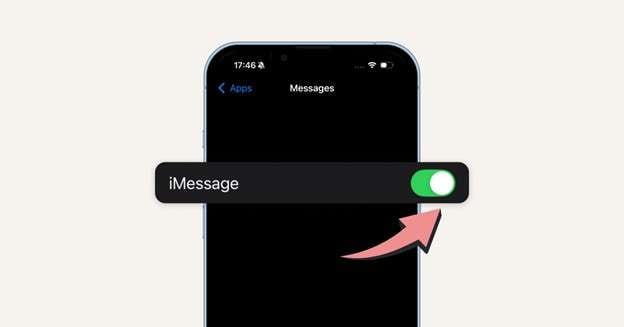
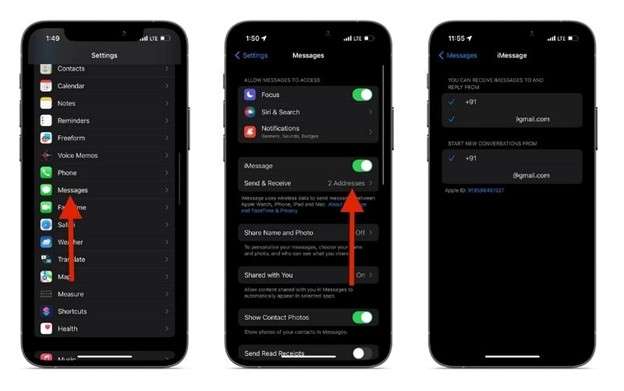
- Open Settings → Messages
- Turn iMessage off
- Wait about 30 seconds
- Turn iMessage back on
After enabling it again, your iPhone may briefly show “Waiting for activation.” This is normal. If activation completes, the iMessage needs to be enabled to send error often disappears immediately.
Method 2: Check that iMessage Is Linked to the Correct Apple ID and Phone Number
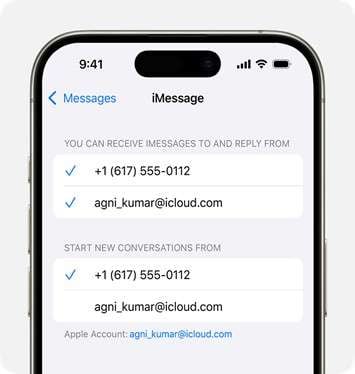
If iMessage is enabled but not associated with the right account, messages may fail with variations like cannot send message, iMessage needs to be enabled.
What to do:
- Go to Settings → Messages → Send & Receive
- Confirm that your phone number and Apple ID are checked
- If needed, tap your Apple ID and sign out
- Restart your iPhone
- Sign back in and reselect your number
This refreshes Apple’s message routing and often resolves account-related conflicts.
Method 3: Verify Network and Cellular Message Settings
iMessage relies on data, not SMS. If your network is unstable, the error may appear even when the settings look correct.
What to check:
- Make sure Wi-Fi or cellular data is active
- Turn Airplane Mode on for 10 seconds, then off
- Go to Settings → General → Date & Time
- Enable Set Automatically
Incorrect time settings can interfere with Apple’s activation servers and trigger the iMessage needs to be enabled warning.
Method 4: Restart Your iPhone to Clear Message Services
This sounds basic, but it works more often than expected. Background message services can stall silently.
What to do:
- Power off your iPhone completely
- Wait at least 30 seconds
- Turn it back on and try sending the message again
After a restart, the cannot send iMessage message no longer appears.
Method 5: Reset Network Settings
If iMessage still won’t activate, network configuration conflicts may be blocking it.
What to do:
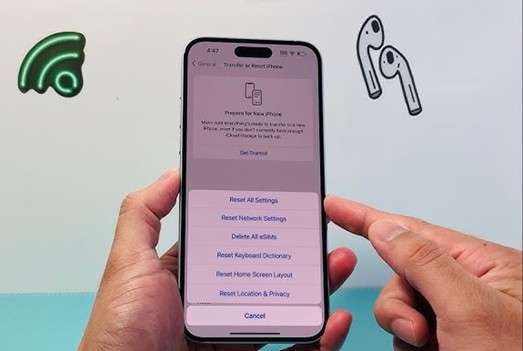
- Go to Settings → General → Reset iPhone
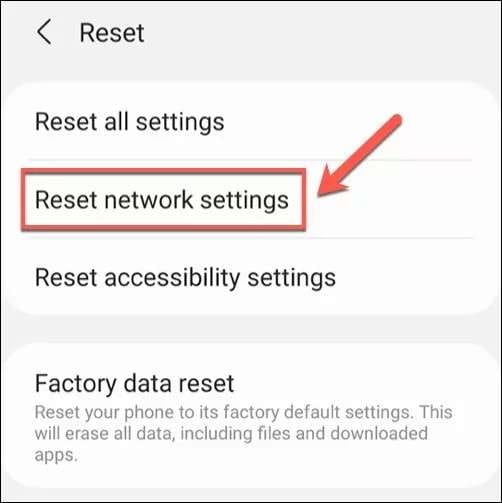
- Tap Reset → Reset Network Settings
This removes saved Wi-Fi networks and VPN profiles but does not delete personal data. It often fixes stubborn activation issues tied to carriers or outdated network profiles.
Method 6: Check Apple System Status and Carrier Support
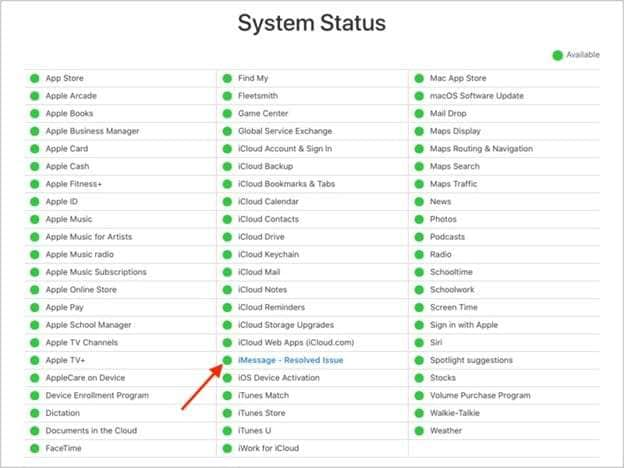
Apple’s iMessage servers occasionally experience outages, and carrier settings updates can lag. In this case, the iMessage fails to deliver the messages.
What to do:
- Check Apple’s System Status page for iMessage
- Go to Settings → General → About
- If prompted, install a Carrier Settings Update
If Apple’s servers are down, the iMessage needs to be enabled to send this message alert, which will persist until service is restored.
Method 7: Repair iOS System Issues When iMessage Still Won’t Enable
If you’ve checked settings, network, Apple ID, and carrier options, yet your iPhone still shows “iMessage needs to be enabled to send this message”, this error points to an underlying iOS problem.
This is why you need a dedicated system repair tool. Dr.Fone - System Repair (iOS) is designed for situations where built-in fixes don’t stick, especially when features like iMessage refuse to activate or repeatedly reset after being enabled.
Why This Works for iMessage Errors
iMessage depends on multiple system components: activation services, Apple ID sync, time and network frameworks, and messaging daemons running correctly in the background. When iOS files are corrupted or partially updated, you may see variations like cannot send message iMessage needs to be enabled, even though the toggle is already on.
Dr.Fone repairs those system layers directly, without requiring a factory reset in its standard mode.

Dr.Fone - System Repair (iOS)
Repair iOS System Issues When iMessage Still Won’t Enable.
- Only fix your iOS to normal, no data loss at all.
- Fix various iOS system issues stuck in recovery mode, white Apple logo, black screen, looping on start, etc.
- Upgrade and Downgrade iOS without iTunes at all.
- Work for all iPhone/iPad/iPod Touch, running on all iOS versions.


How to Fix iMessage Activation Issues Using Dr. Fone (Step by Step)
Step 1. Open System Repair in Dr.Fone
Start Wondershare Dr. Fone on your PC. To get the ball rolling, click on System Repair while you are on the main Toolbox panel.

Step 2. Connect and Select Your iPhone
Plug your iPhone into the computer with the USB cable. Then select iPhone as the device type when required, and you can move along to repair the iOS system.

Step 3. Choose iOS Repair and Standard Mode
Select iOS Repair, then choose Standard Repair. This mode fixes system issues while keeping your data intact.

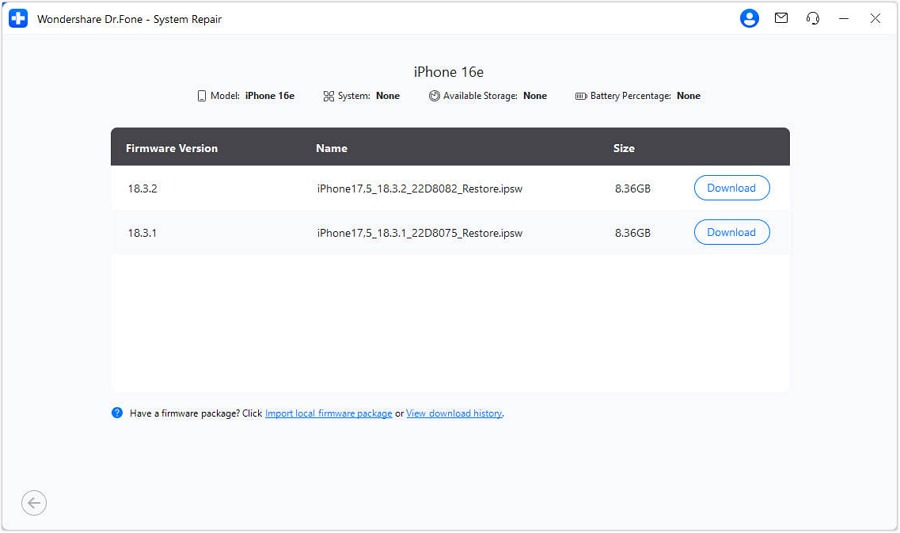
Step 4. Enter Recovery Mode and Download Firmware
Follow the on-screen instructions to put your iPhone into Recovery Mode. Dr.Fone will detect the correct iOS firmware automatically. Start the download and wait for verification.
Step 5. Repair and Restart
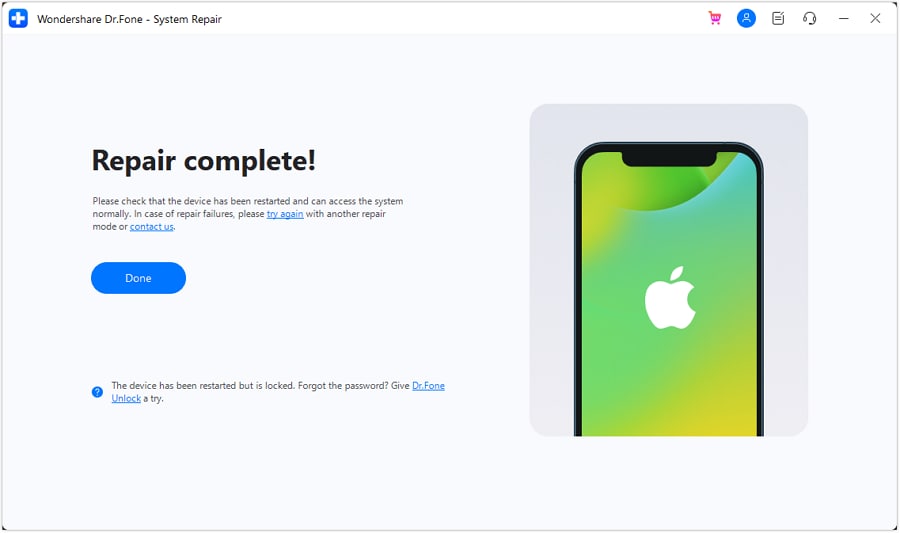
Click Repair Now to install the firmware and fix system components. Keep your iPhone connected until the process completes, then restart the device and test iMessage.
If Standard Repair Doesn’t Work
If the error persists and your device shows broader system instability, Advanced Repair is available. This mode performs a deeper system rebuild but erases all data, so a backup is required before proceeding. It’s typically reserved for severe cases where iOS services repeatedly fail.
When This Method Is the Right Choice
This solution is appropriate when:
- iMessage is enabled, but still won’t send
- The error keeps returning after resets and network fixes
- You see repeated prompts that iMessage needs to be enabled, despite the correct settings
- Other Apple services behave inconsistently
It’s not the first fix to try, but when configuration fixes fail, repairing the system itself is often what finally resolves the issue.
Conclusion
The error “iMessage needs to be enabled to send this message” often feels misleading because the setting itself is rarely the real issue. In most cases, the problem lies deeper—in activation sync, network registration, carrier data, or background iOS services that quietly stop responding. Simple steps like reactivating iMessage, correcting time settings, or resetting network data resolve many cases.
When the issue keeps returning, and manual fixes no longer hold, repairing the system layer becomes necessary. Tools like Dr.Fone – System Repair (iOS) address these hidden conflicts directly, restoring message delivery without disrupting your data or daily use.
 safe & secure
4,624,541 people have downloaded it
FAQs
 Q1. Why does my iPhone say “iMessage needs to be enabled” when it’s already on?Q2. Can this error happen only with certain contacts?Q3. Does resetting network settings fix this problem?Q4. Will updating iOS fix “iMessage needs to be enabled to send this message”?


iPhone Issues
- iPhone Storage Full
- 1. Stuck on Apple Logo Storage Full
- 2. Erase Content Settings not Working
- 3. iPhone Lagging
- 4. iPhone Running Slow
- iPhone Update Problems
- 1. Stuck on Updating iCloud Settings
- 2. iPhone Frozen During iOS Update
- 3. iPhone Checking for Update Stuck
- 4. iPhone Cellular Update Failed
- 5. iPhone Software Update Failed
- 6. iPhone Stuck on Update Requested
- 7. iPhone Update Error 1110
- 8. iPhone is Findable and Won’t Turn On
- 9. iPhone Won't Update
- 10. Update Server Couldn't Be Contacted
- 8. iPhone & iPad Security Updates
- 9. Update iPhone with/without iTunes
- 10. Can't Download or Update Apps
- iPhone Media Problems
- 1. Apple Music Song Not Available
- 2. iPhone Not Ringing
- 3. iPhone Echo Problem
- 4. iPhone Ringer Problems
- 5. iPhone Plays Music by Itself
- 6. Ringer Volume Changes by Itself
- 7. Music Won't Play on iPhone
- 8. Blurry Photos & Videos on iPhone
- 9. iPhone Volume Problems
- iPhone Sound Problems
- 1. YouTube no Sound
- 2. iPhone Microphone Problem
- 3. Test iPhone Microphone
- 4. Headphones No Sound from iPhone
- 5. No Sound on iPhone Game
- 6. iPhone Sound Not Working
- 7. iPhone Screen Recording no Sound
- iPhone Calling Problems
- 1. iPhone No Sound on Calls
- 2. Screen Goes Black During Call
- 3. iPhone Recent Calls Not Showing
- 4. iPhone Dropping Calls Issue
- 5. iPhone Calling Problem
- iPhone Camera Problems
- 1. iPhone Camera Black
- 2. iPhone Camera Blurry
- 3. iPhone Camera Not Working
- 4. iPhone Front Camera Not Working
- 5. TrueDepth Camera Not Working
- 6.Out-of-Focus Photos on iPhone 15
- iPhone Network Problems
- 1. Airpods Won't Connect to iPhone
- 2. iPhone Disabled Connect to iTunes
- 3. iPhone Not Syncing Problems
- 4. iPhone Internet Not Working
- 5. iPhone Keep Disconnecting from Wifi
- 6. iPhone WIFI Not Working
- 7. PC Not Recognizing iPhone
- 8. iPhone Stuck on Connect to iTunes
- 9. iPhone Not Showing up in iTunes
- 10. iTunes Not Detecting Your iPhone
- 11. iPhone Bluetooth Disconnect
- 12.Apple CarPlay Keeps Disconnecting
- iPhone Screen Problems
- 1. White Spots in iPhone Screen
- 2. iPhone Bleeding Screen
- 3. Turn Off iPhone When Frozen
- 4. Fix Orange Dot on iPhone
- 5. iPhone Green Screen Flickering
- 6. Green Lines in iPhone Screen
- Other iPhone Problems
- ● Manage/transfer/recover data
- ● Unlock screen/activate/FRP lock
- ● Fix most iOS and Android issues
- Free Download Free Download Free Download


 > How-to > Phone Repair Solutions > Why iMessage Needs to Be Enabled to Send This Message Appears and How to Fix It
Daisy Raines
staff Editor
Generally rated4.5(105participated)