
Puran File Recovery Review: Free Tool or Outdated Option?

Sep 30, 2026 • Filed to: Data Recovery Solutions • Proven solutions
 TL;DR:
Puran File Recovery is a functional, completely free data restoration tool best suited for basic Windows setups, but its lack of updates since 2016 (version 1.2) means users needing mobile device support or modern storage compatibility should choose updated cross-platform alternatives like Dr.Fone – Data Recovery.
● To minimize the risk of permanently overwriting lost data on your main hard drive, Puran provides a portable version that launches directly from a USB device without installation and scans FAT12, FAT16, FAT32, and NTFS file systems.
● There is no official Puran File Recovery Android APK; any third-party website offering a mobile download is deceptive and potentially risky, as the software was exclusively built for desktop architecture.
● Dr.Fone – Data Recovery serves as the necessary premium alternative for mobile users, utilizing AI-based detection to restore specialized files like WhatsApp media and contacts from over 6,000 Android and iOS devices without requiring root access.
Ask AI for a summary
 ChatGPT
 Perplexity
 Gemini
 Claude
 Grok
Grok
Puran File Recovery is a free data recovery software for Windows that tons of people still rely on for restoring deleted files. It's straightforward, very light and widely liked by those who want a free method to recover their lost files without complex settings.
However, by 2026, the demand for data recovery would have increased substantially. Effective recovery methods are needed as digital data—from personal photos to critical business documents—becomes more valuable. Modern programs scan faster, detect with AI, and support more devices. Features, scan modes, real-world performance, restrictions, user feedback, comparisons, and a paid advanced recovery option like Dr.Fone – Data Recovery.
 safe & secure
- Part 1. Quick Answer: Is Puran File Recovery Still Worth It?
- Part 2. What Is Puran File Recovery?
- Part 3. Puran File Recovery Download: Is It Safe to Use?
- Part 4. Key Features of Puran Data Recovery Software and Real Performance Test
- Part 5. Puran File Recovery for Android – Myth vs Reality
- Part 6. Puran File Recovery vs Other Data Recovery Tools
- Bonus section: Dr.Fone — the premium alternative for Android & iOS recovery

Part 1. Quick Answer: Is Puran File Recovery Still Worth It?
Yes, but with limitations. In 2026, Puran File Recovery offers free, lightweight Windows file recovery. It successfully recovers recently deleted files from hard drives, USBs, and memory cards. Speed and thoroughness are available with quick and deep scans.
However, the software is slightly outdated. Firstly, it hasn't been updated in years, raising issues regarding file system compatibility, SSD optimisation, and data storage technology. Second, the design feels old compared to newer recovery programs that prioritise automation and user experience. Third, AI-based recovery, preview enhancements, and mobile device support are missing.
Its Windows-only availability is another drawback. Users need multi-device recovery tools that operate with smartphones, tablets, and numerous operating systems, which Puran doesn't supply.
Who should use it?
- Users seeking fast, free healing for uncomplicated instances
- Users of previous Windows systems
- Anyone who likes portable, no-install tools
Who should skip it?
- Mobile data recovery users
- Large-scale data loss specialists
- Users seeking new features and continuing support
Part 2. What Is Puran File Recovery?
Puran File Recovery is a free, lightweight Windows data recovery tool. It is part of Puran Software's suite of utilities, which launched in 2007 with Puran Defrag. Since then, the business has developed system optimisation and maintenance solutions to boost PC speed and usability.
Developer Background & Toolkit
Puran Software offers a variety of useful tools rather than just one. Along with its recovery tool, the suite includes:
- Disk Check (for drive faults)
- Remove duplicate files with Duplicate File Finder
- Remove Empty Folder for system cleanup
- Disk wipe (secure data deletion)
This makes Puran File Recovery part of a multi-utility ecosystem rather than a solo, ever-changing recovery solution.
Version & Updates
The update history is one of the most talked-about aspects:- Latest version: 1.2
- Release date: June 15, 2016
- Compatibility: Updated for Windows 10
No major modifications have been made since then, raising worries about long-term compatibility with modern systems and storage.
Storage & Platform Support
The tool supports many storage media and is designed for Windows:
The only supported OS is Windows.
Stored Devices:
- Hard Drives
- Solid-state drives
- USB pen drives
- Memory and SD cards
- Storage devices external
This versatile tool can scan formatted drives, lost partitions, and RAW discs for rudimentary recovery.
Core Capabilities
Despite its simplicity, Puran File Recovery has many features:- Quick Scan for immediate results
- Complete recovery with a deep Scan
- Full partition and formatted drive scan
- FAT12/16/32 and NTFS support
- File preview before recovery
- Portable (no installation)
- Keep original folder structure
Puran File Recovery is a simple yet effective data recovery program; its antiquated development cycle restricts its effectiveness.
Part 3. Puran File Recovery Download: Is It Safe to Use?
Puran File Recovery download is safe, provided you follow the instructions.
How to Download and Use Puran File Recovery
Downloading and using Puran File Recovery safely and effectively takes only four steps:
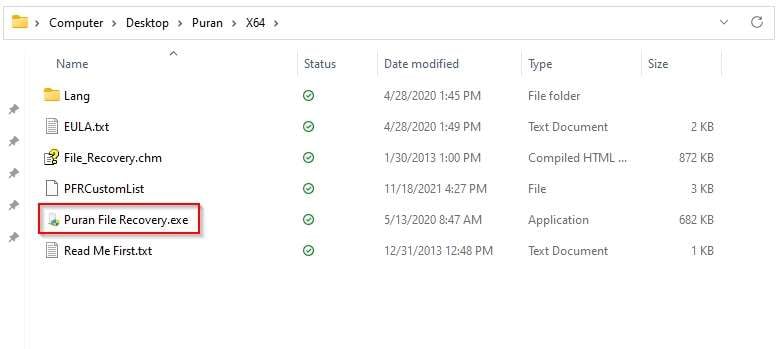
- Step 1. Download the software from Puran's website. You can install it on your PC or use the portable version. If you're recovering files from your main drive, the portable option reduces the risk of overwriting data.
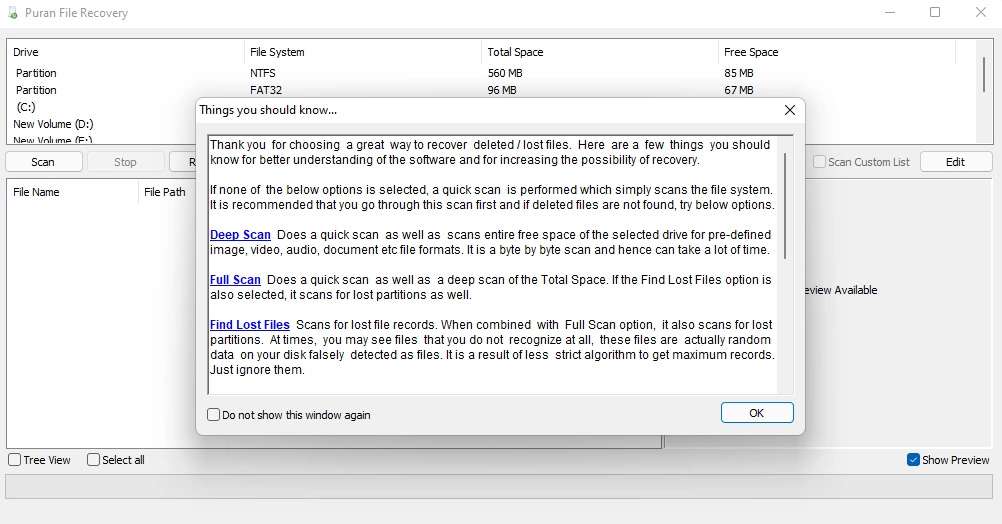
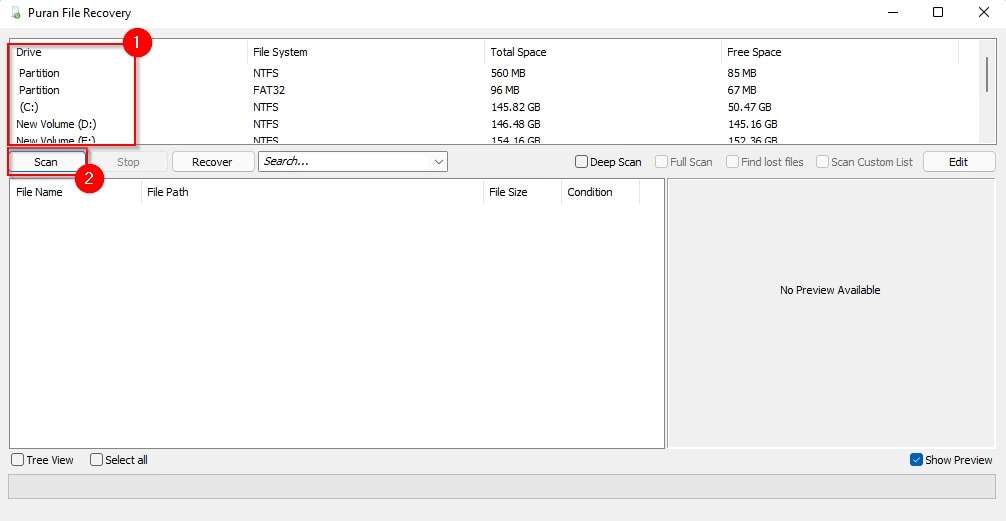
- Step 2. Open the tool and click "OK" on the intro. Available drives are listed. Choose the USB, hard drive, or memory card with your lost files.
- Step 3. Find recently deleted files with a quick "Scan" first. Search deeper with Deep Scan if results are incomplete. Deep scanning takes longer but boosts recovery.
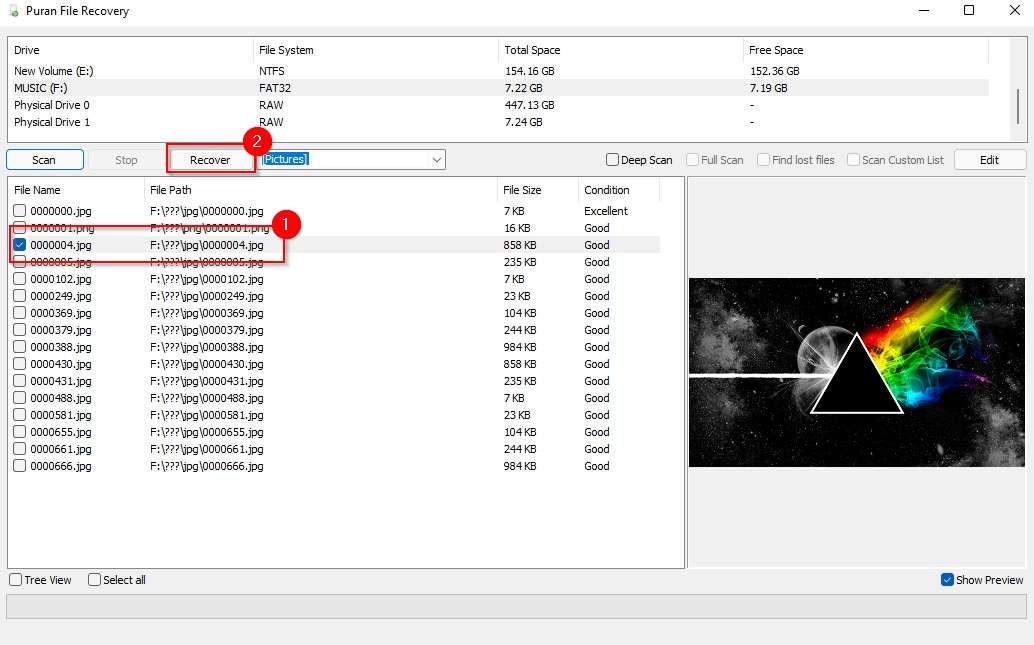
- Step 4. Choose the files to restore and click "Recover." Choose from options like:
- Just Recover
- Recover with Folder Structure
- Custom Size Recovery
Save recovered files to a different location for best results.
Possible Risks
Users should be aware of these hazards, even though the product does not include malware:
- Third-party download sites: May include malware.
- Outdated software: No updates since 2016 may cause compatibility or security issues.
- Recovery limitations: "Excellent" files may not open after recovery.
Importantly, installing any recovery tool on the same drive as lost data can obliterate recoverable files. This is why the portable version or installing on a different drive is advised.
Performance Reality Check
Testing in real life:
- Recently deleted files benefit from Quick Scan.
- Deep Scan greatly enhances healing.
- Final Safety Verdict: Some retrieved files may be corrupted or useless.
If downloaded correctly, Puran File Recovery is secure; its antiquated nature makes it risky.
Part 4. Key Features of Puran Data Recovery Software and Real Performance Test
Puran File Recovery is a simple but powerful Windows recovery tool. Its main functions are impressive for a free app, despite lacking AI-driven improvements. Check out its features and performance.
Key Features (Detailed Breakdown)
Multiple Scan Modes (Flexibility for Different Data Loss Scenarios)
Puran's scan modes let users customise recovery depth, one of its best features:
- Deep Scan: Deep Scan analyses the storage device byte-by-byte, not just file records. Even without metadata, pattern recognition finds lost files. This greatly improves deletion recovery, especially for earlier deletions.
- Full Scan: This advanced option detects formatted drives and missing partitions. It can analyse RAW discs, which is important in catastrophic data loss circumstances.
1. Wide File Format Support (Recover Almost Everything)
Puran supports 50+ file formats and hundreds with pattern detection. This can recover:
- Photos (JPG, PNG, BMP)
- Video (MP4, AVI, MKV)
- Document (DOCX, PDF, XLSX)
- Audio Files - MP3, WAV
- Archives (ZIP/RAR)
Even without file names or locations, the tool can locate files using internal data structures.
2. File System Compatibility (Broad Windows Support)
The app supports major Windows file systems:
- FAT12/FAT16/FAT32 (USB drives, memory cards)
- NTFS (current Windows standard)
- This ensures interoperability with older and newer storage devices.
3. Portable Version (Safe and Easy Use)
Portable versions are a big benefit:
- Works without installation
- Launchable from a USB device and compatible with WinPE settings.
This is important since installing recovery software on the same drive may overwrite data. The portable version reduces that risk.
4. Recovery from Multiple Data Loss Scenarios
Puran can handle many real-world situations:
- Accidental file deletion
- Recovery from formatted drives
- Corruption or lost partitions
- USB, SD card, etc. recovery
It also allows:
- File preview before recovery
- File restoration with original folder structure
- File searching with filters and wildcards
- Real Performance Test (What Happens?)
Part 5. Puran File Recovery for Android – Myth vs Reality
Is there a Puran File Recovery APK?
Some people try to find Puran File Recovery APK, but the fact is: There is no
such
thing as
an official Puran File Recovery for Android app.
Any site that offers "Puran File Recovery APK download" is either unofficial, outdated, or just deceptive. The program was designed solely for Windows PCs and has never been launched as a mobile app.
Why recovery on Android is a challenge
There are several reasons why data recovery on Android is more difficult:
- Strong encryption on modern phones
- Very limited access to internal storage
- Permission system in Android apps restricts deep scanning capability
- In most cases, root access is necessary for any kind of advanced recovery
Part 6. Puran File Recovery vs Other Data Recovery Tools
Advanced data recovery tools are available to users. While Puran File Recovery still does simple tasks, current solutions offer greater compatibility, recovery, and user experience. Compare it to the top competitors Disk Drill and Dr.Fone – Data Recovery:
| Feature | Puran File Recovery | Disk Drill | Dr.Fone |
|---|---|---|---|
| Platform | Windows only | Windows, Mac | Windows, macOS, Android, iOS |
| Free Version | Yes (personal use) | Limited free recovery | Free Scan & preview |
| Deep Scan | Yes (basic) | Advanced | Advanced with smart detection |
| Mobile Recovery | Not supported | Limited | Full Android & iOS support |
| Advanced Features | Basic | Recovery vault, backup tools | AI-based recovery, selective restore, backup extraction |
| Ease of Use | Simple but outdated | Modern UI | Highly intuitive and guided |
Bonus section: Dr.Fone — the premium alternative for Android & iOS recovery
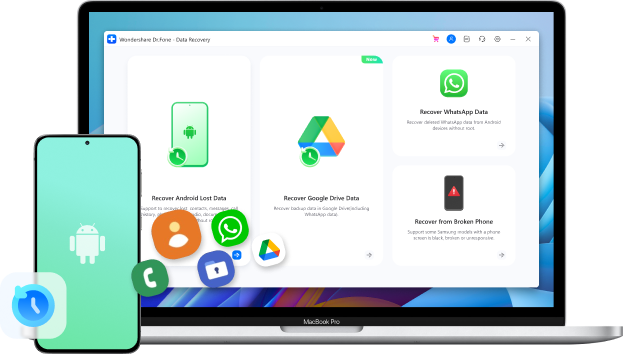
Dr.Fone – Data Recovery is a powerful tool for Android data recovery. It is the first Android recovery software in the world that has been certified, and without rooting, it can support more than 6,000 devices from various brands like Samsung, Xiaomi, OPPO, Vivo, Motorola, etc. Dr.Fone is able to perform an immediate scanning of your phone, provide a free preview of the recoverable files, and restore photos, videos, contacts, messages, WhatsApp data (including "View Once" media), documents, and other files even from broken or unresponsive phones.

Dr.Fone - Data Recovery (Android)
Recover whatsapp/contacts/messages/call history saved in Google Drive to your computer.
- Recover Android data by scanning your Android phone & tablet directly.
- Preview and selectively recover what you want from your Android phone & tablet.
- Supports various file types, including WhatsApp, Messages & Contacts & Photos & Videos & Audio & Document.
- Supports 6000+ Android Device Models & Various Android OS.


How to Use Dr.Fone for Android Data Recovery
- Step 1. Open Dr.Fone on your PC, click "Toolbox," select "Data Recovery," and select "Android." This opens the Android recovery dashboard.
- Step 2. Connect your phone via USB, grant permission if requested, and let the software detect it. Connect and choose "Recover Android Data."
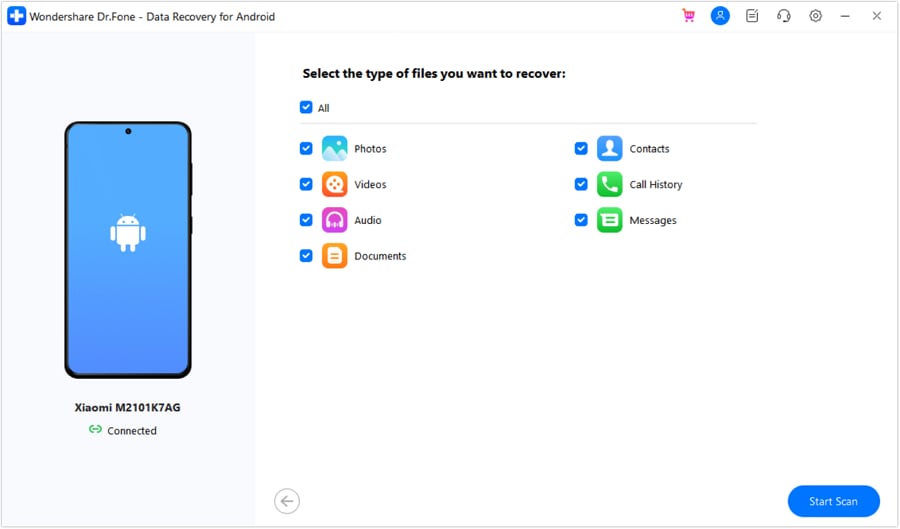
- Step 3. Select desired data kinds (e.g., Photos, Messages, Contacts, WhatsApp) > click "Start Scan"> let the tool deep scan your device.
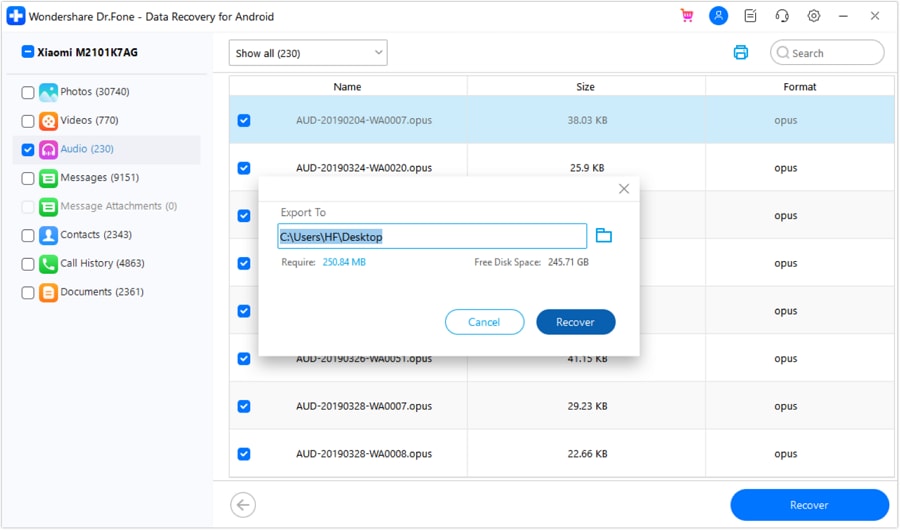
- Step 4. Browse retrieved data, use filters, select desired files, click "Recover," choose a save location, and confirm recovery.


safe & secureConclusion
Puran File Recovery is a good free Windows recovery tool. Its deep scanning and wide file format support make it suitable for basic tasks. Its outdated design, lack of upgrades, and limited capabilities make it unsuitable for modern data recovery.
For complex data loss, especially on mobile devices, Dr.Fone – Data Recovery is more reliable and comprehensive. Puran helps with quick fixes, but not vital recovery.
safe & secureFAQs
 1.
Is Puran File Recovery safe?2.
Can Puran retrieve deleted files permanently?
1.
Is Puran File Recovery safe?2.
Can Puran retrieve deleted files permanently?


Android Recover
- Recover Apps
- 1. Data Recovery Software for Android
- 2. Top 4 Android Data Recovery Tools
- 3. Restore Deleted Files on Android
- 4. Coolmuster Android Data Recovery
- 5. Guide of Disk Drill for Android
- 6. Android Data Recovery Software
- 7. Gihosoft Android Data Recovery
- 8. Jihosoft Android Phone Recovery
- 9. Minitool Android Mobile Recovery
- 10. Recover Android Data from Fucosoft
- 11. Best Mobile Forensics Tools to Recover Data
- 12. PhotoRec Review
- 13. FoneDog Toolkit
- 14. TWRP Recovery
- Contacts Recover
- 1. Recover Contacts from Stolen phone
- 2. Recover Contacts from Android
- 3. Retrieve Contacts Without Backup
- Files Recover
- 1. Recover Files from Internal Memory
- 2. Recover Miscellaneous Files
- 3. Recover Android's Hidden Files
- 4. Recover Deleted Files from Android
- 4. Recover Deleted Files Without Root
- 5. Recover Files from SD Card
- 6. Undelete Files on Android
- Messages Recover
- Music/Videos Recover
- Photos Recover
- 1. DiskDigger Photo Recover Review
- 2. Recover Deleted Photos from Android
- 3. Recover Photo from Internal Storage
- 4. Recover Photos from Lost Phone
- 5. Restore Android Deleted Photos
- Broken Android Recover
- 1. View Files from Broken Phone Screen
- 2. Recover Data from Dead Phone
- 3. Recover Contacts with Broken Screen
- 4. Recover Text Messages from Android
- 5. Recover Data from Internal Memory
- Social Apps Recover
- 1. Recover Facebook Messages
- 2. Recover WhatsApp Messages
- 3. Recover WhatsApp Messages
- 4. Restore Deleted WhatsApp Messages
- Android Recover Tips
- 1. SD Card Recovery Tools
- 2. Fix Recovery Mode Not Working
- 3. Enter Recovery Mode on Android
- 4. Recover Calendar from Android
- 5. Recover Deleted Call Log on Android
- 6. Clear Cache Partition
- 7. Repair a USB Stick
- 8. USB Repair Tools
- Cloud Storage Tips
- ● Manage/transfer/recover data
- ● Unlock screen/activate/FRP lock
- ● Fix most iOS and Android issues
- Free Download Free Download Free Download



Alice MJ
staff Editor