
How to Recover Deleted Telegram Messages: Step-by-Step Guide [2026]

Oct 24, 2026 • Filed to: Data Recovery Solutions • Proven solutions
 TL;DR:
Deleted Telegram messages are generally unrecoverable once removed from cloud servers via the "Delete for everyone" option, but you can conditionally retrieve them through a 5-second undo window, recipient copies, pre-configured notification histories, or local device cache scanning.
● Telegram provides a built-in Undo button to instantly reverse a chat deletion on iOS and Android, but this action is strictly limited to a 5-second window immediately after removal.
● Android users can bypass server deletions by reading incoming texts through the system Notification History, strictly on the condition that this tracking feature was actively enabled prior to the data loss.
● While cloud text is permanently erased, missing media files can sometimes be retrieved offline from the internal org.telegram.messenger cache folder or by scanning the device using Dr.Fone - Data Recovery, which supports iOS 26, the iPhone 17 series, and over 6000 Android models.
Ask AI for a summary
 ChatGPT
 Perplexity
 Gemini
 Claude
 Grok
Grok
Imagine you open Telegram and realize an important message disappeared from a chat. In this situation, you feel frustrated because it may contain important information or a memory you want back. Even though this issue can happen for various reasons, there are ways to recover deleted messages safely and effectively.
To help you find what they are, this guide will explain how to recover deleted Telegram messages using official Telegram features or notification history. So, as you try all the ways, determine how Dr.Fone's recovery solution can be the most effortless of all.
 safe & secure
Part 1. Can Deleted Telegram Messages Be Recovered?
Before you ask how I can recover deleted messages from Telegram, let's see Telegram's deletion process. Ideally, when you delete a message on Telegram, it can disappear just for you or for everyone. Choosing "Delete for me" removes it only from your view, but others may still see it. Alternatively, if you go for "Delete for everyone," it removes it from all devices synced with Telegram cloud, including group chats if allowed.
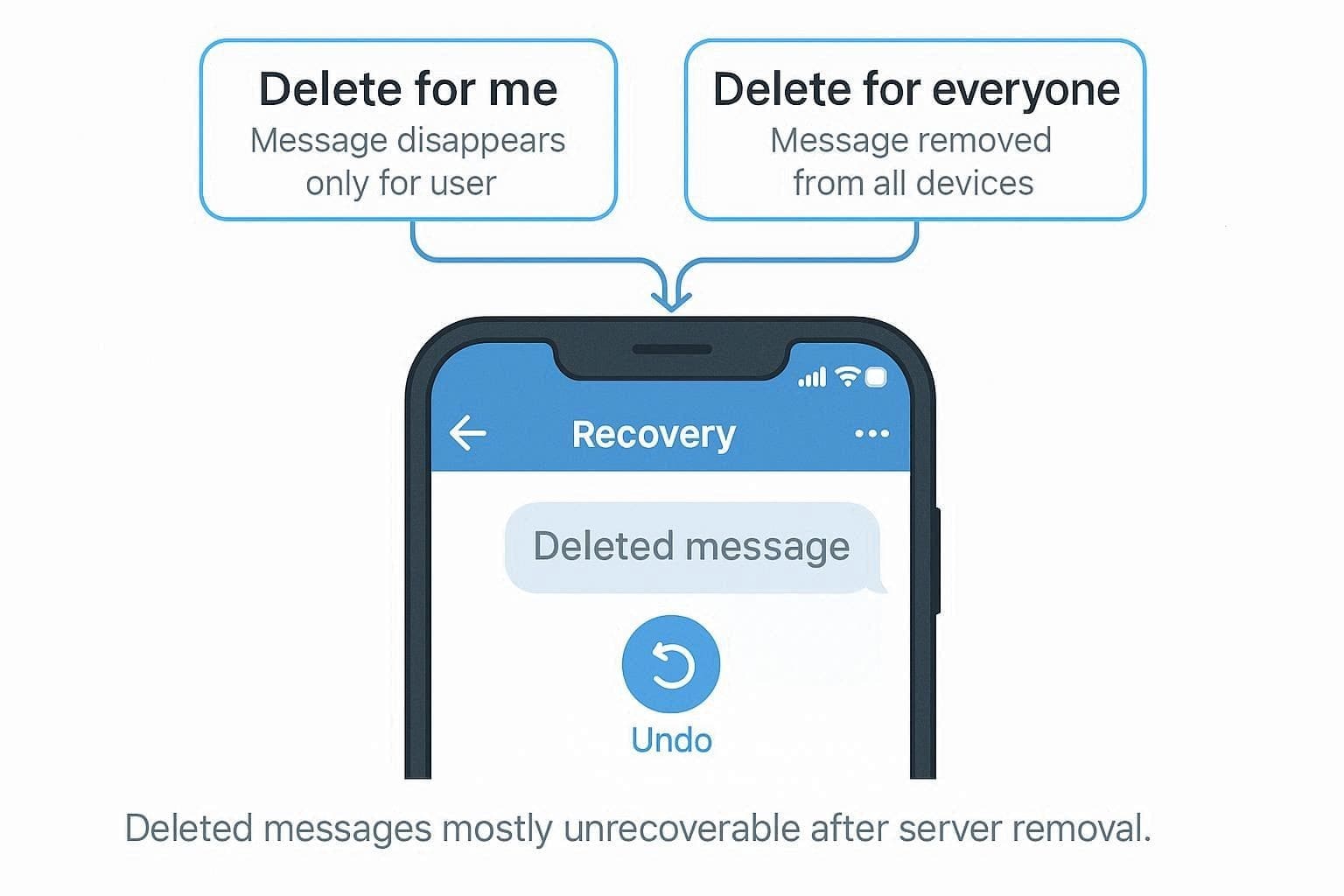
To state further, Telegram also shows a short "Undo" button after deletion; if you tap it in time, the message returns. Once messages are removed from Telegram's servers, they generally cannot be recovered, which affects privacy and recovery options.
What Telegram Stores vs. What is Gone
So, on the quest to seek an answer to recover deleted Telegram messages, let's first see what is removed and what is saved:
| Type of Data | Where It Lives | When You Can Still Get It Back | When It's Effectively Gone |
|---|---|---|---|
| Cloud Chat Messages (Normal Chats, Groups) | Telegram cloud servers synchronize across logged-in devices. | If the message still exists in the chat on any participant's account or device. | After "Delete for Everyone" synchronizes across the cloud, no participant retains a copy. |
| Secret Chat Messages | Stored locally on the two participating devices only (end-to-end encrypted). | Only while the message still exists on one of the two devices. | After deletion, logout, reinstallation, or expiration of the self-destruct timer. |
| Media/Files in Cloud Chats | Telegram servers plus temporary device cache. | If the media remains in the chat, exported data, or device cache/backups. | After deletion for everyone, the cache or backups are overwritten. |
| Local Cache (Images, Thumbnails) | Temporary application storage on the device. | Sometimes, it is recoverable before the system overwrites cached storage sectors. | After cache clearing, storage overwrite, or app reinstallation. |
Part 2. How to Recover Deleted Telegram Messages - 6 Methods Explained
For the Telegram recover deleted chat issue, review the 6 simple and effective solutions in this section to recover deleted Telegram messages safely and quickly.
Method 1: Use Dr.Fone - Data Recovery | One-Click Telegram Recovery Solution
If you have lost valuable chats due to a device issue, Dr.Fone - Data Recovery for Android Recovery and iOS Recovery can help you recover them. This innovative iOS and Android data recovery software scans your phone and finds deleted Telegram messages in real-time. While doing so, the tool shows recoverable chats and lets you restore them selectively. Hence, while having complete control over the recovery, you can do this process in 3 simple steps.
Both for iPhone and Android, the tool claims to have 100% local recovery and guarantees to secure the data. iOS users can also use it to recover data from iTunes and iCloud without overwriting it. Since the interface is simple and the steps are guided, Dr.Fone supports iOS 26 & iPhone 17 series, as well as over 6000 Android models.

Dr.Fone - Data Recovery (Android)
Recover whatsapp/contacts/messages/call history saved in Google Drive to your computer.
- Recover Android data by scanning your Android phone & tablet directly.
- Preview and selectively recover what you want from your Android phone & tablet.
- Supports various file types, including WhatsApp, Messages & Contacts & Photos & Videos & Audio & Document.
- Supports 6000+ Android Device Models & Various Android OS.


How to Recover Telegram Messages from Android with Dr.Fone
So, if you are eager to know how to find deleted chats on Telegram via Dr.Fone, review this simple guide if you are an Android user:
- Step 1. Choose the Data Recovery Tool for Android
As you tap on the "Data Recovery" tool for "Android" in the toolbox, choose the "Recover Android Data" option. After that, the tool will ask you to connect the device to continue Telegram message recovery.

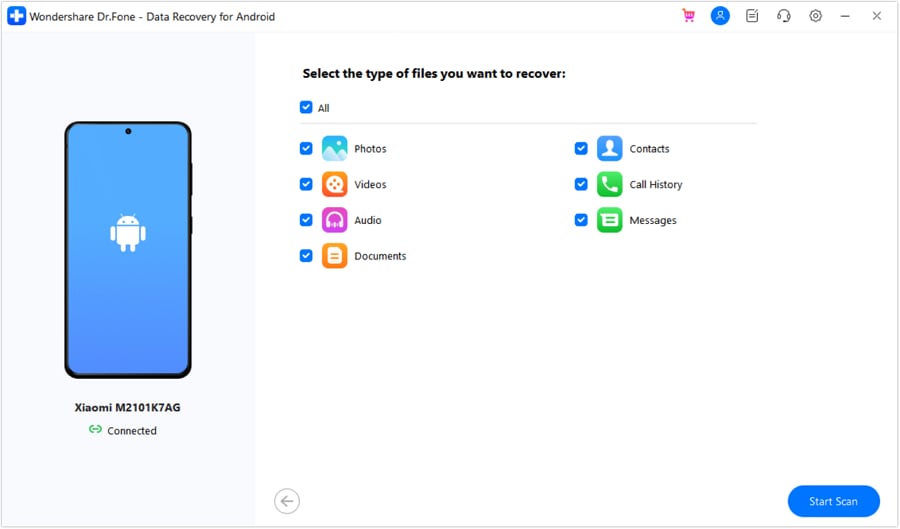
- Step 2. Select Messages as Recoverable Data Types
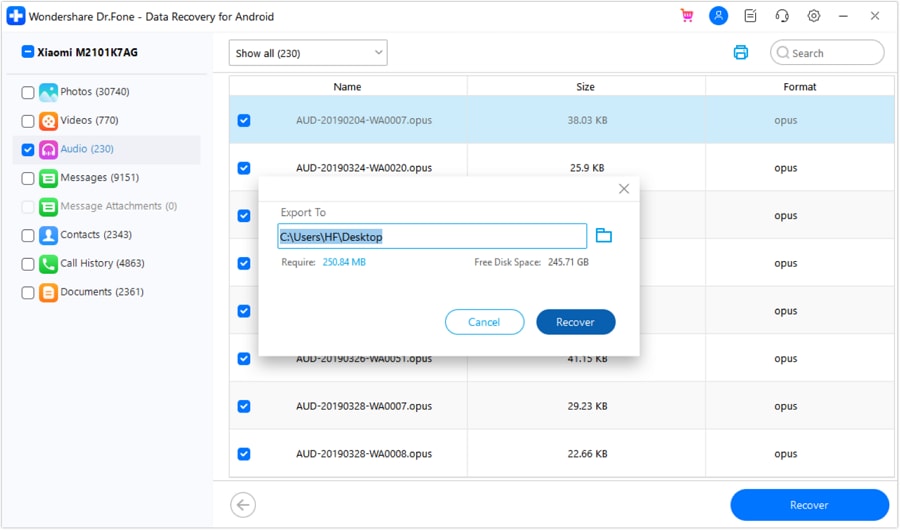
Wait until the tool displays data types, pick the required options like Photos, Videos, Documents, and Audio, and tap on the "Start Scan" button.
- Step 3. Prefer to Filter and Pick the Export Location
When Telegram data is recovered, filter it by expanding the "Show All" menu. After that, choose the "Recover" button, pick the "Export To" location, and click "Recover" again to export the required Telegram data.
safe & secureMethod 2: Immediate "Undo" Button (5-second Window)
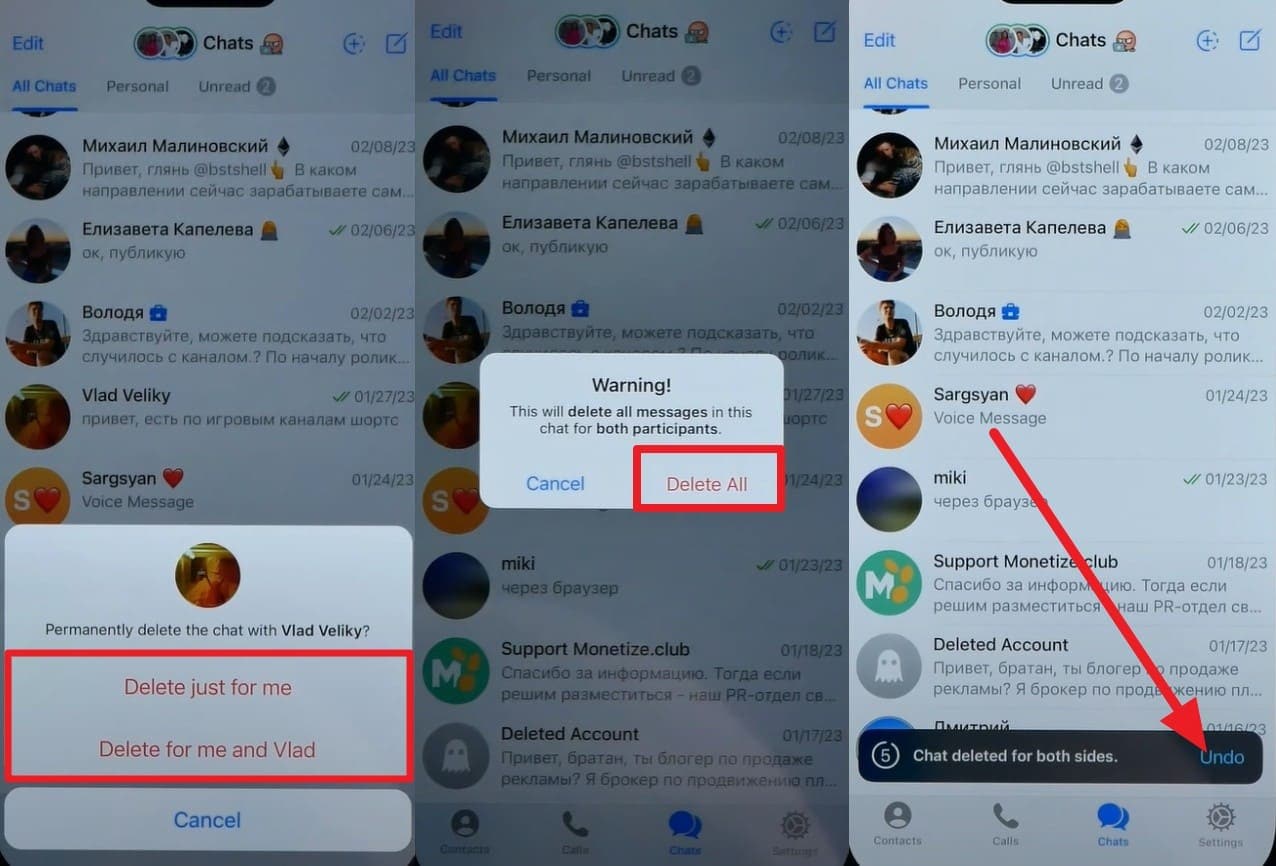
Even though you might have gotten hold of messages via Dr.Fone by now, try the undo trick if you haven't bypassed the time limit and recover deleted Telegram messages. It brings the chat back instantly without backups, tools, or extra apps. So, being the fastest way, it works on Android and iOS, is free, and keeps your privacy safe. Follow the given guidelines for Android and iOS to know how it works:
Instructions: As you delete the message by picking the given deleted options, tap on the "Undo" button. If you do this within 5 seconds, your chat will recover instantly.
Method 3: Check with the Recipient
If you still ask how to find deleted messages on Telegram, it's better to ask the other person in the chat. There is a chance they still have a copy of the messages if you opted for the "Delete for Me" option. Your deletion does not remove the messages from their side, so they can send texts or files back to you. Overall, it's free, safe, and doesn't need tools or backups.
Method 4: Android Notification History
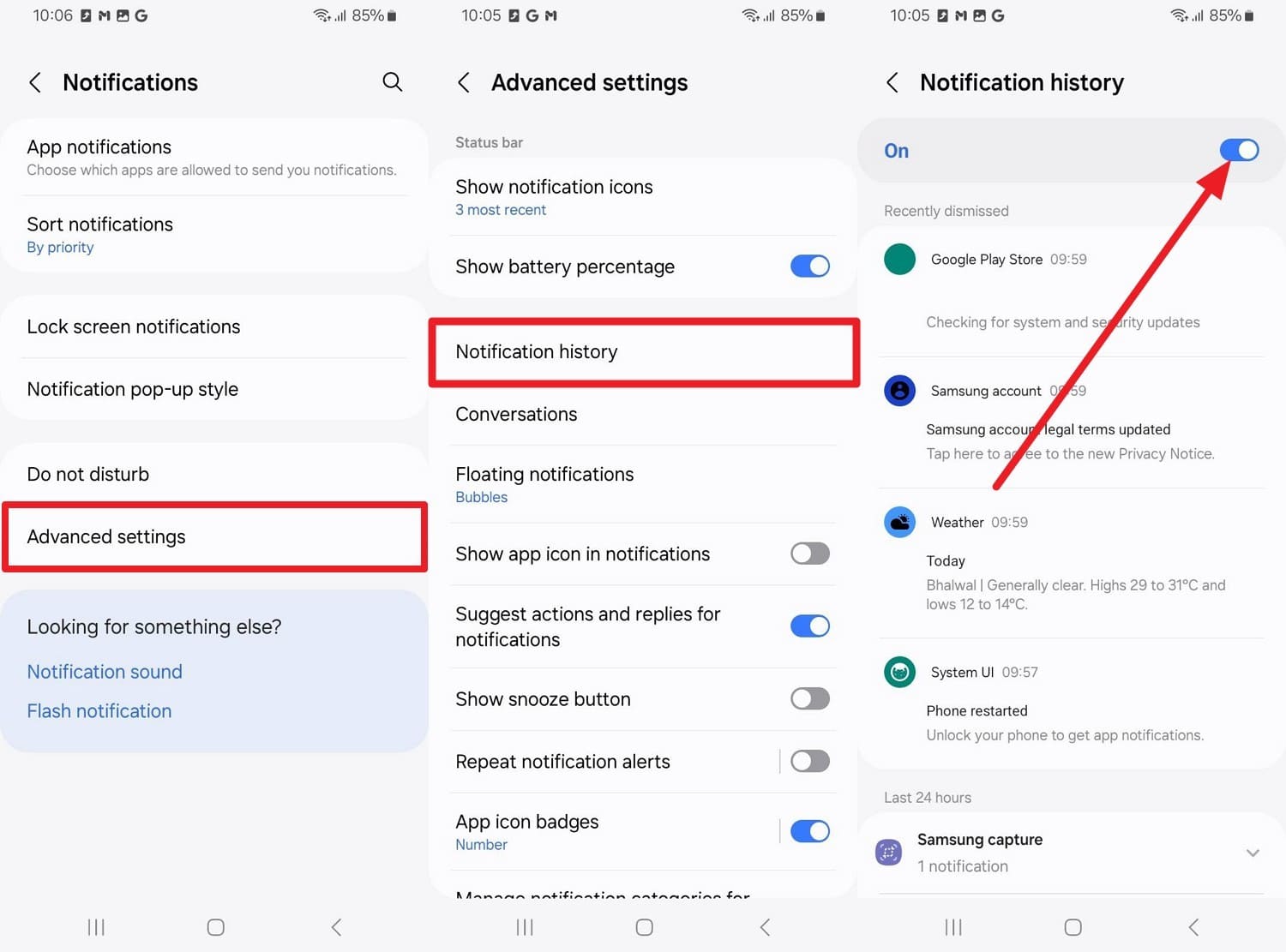
This fix also answers your questions about whether I can restore a deleted Telegram chat. Android Notification History can help you read deleted Telegram messages because Android saves notification text when a message arrives. So, if this feature was on before the deletion, you can open Settings and view the saved messages. In this regard, adhere to these instructions and learn how to perform that:
Instructions: Choose the "Advanced Settings" option in the Settings app and press on the "Notification History" option. If this option was enabled prior to deletion, locate the desired Telegram message in the "Recently Dismissed" list.
Method 5: Use Telegram's Local Folder
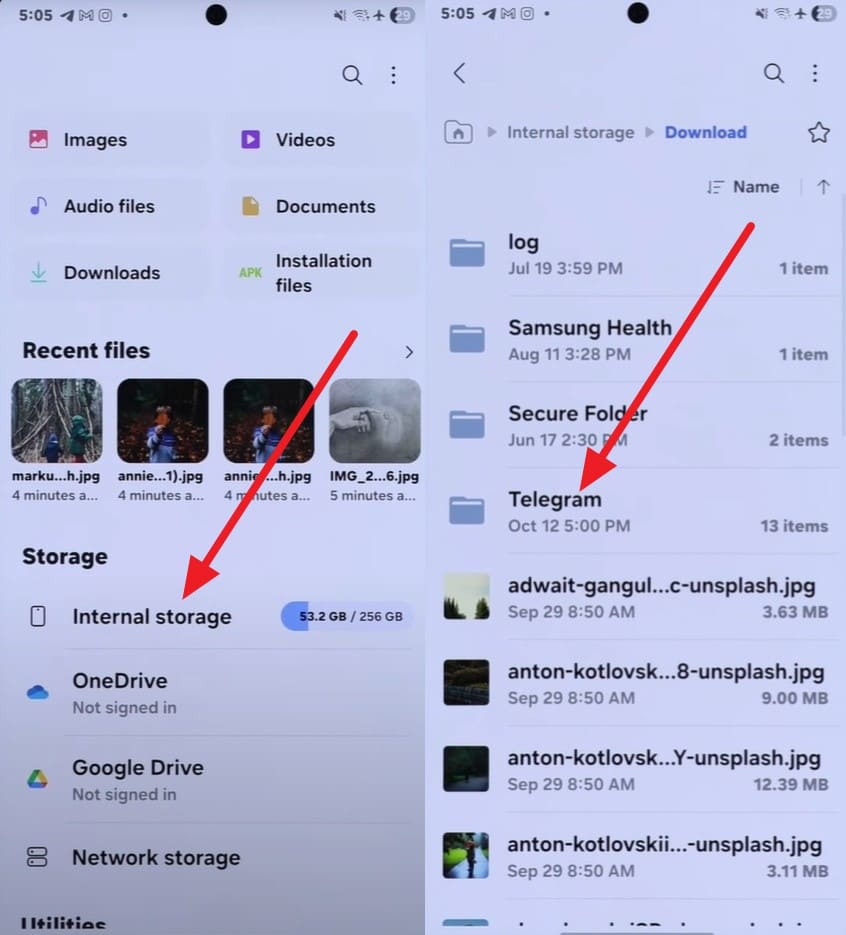
The Telegram local folder can also help with message recovery if you are asking, Can I recover deleted messages on Telegram? However, this method will only work if you want access to certain images and documents from the deleted chat, but not the text. Unlike other solutions, this method works offline for Android, whereas iOS data is directly sent to your Photos app, not a specific folder, as guided below:
Check the Main Telegram Folder
Instructions: Tap on "Internal Storage" and find the folder named "Telegram" in the list. Within the subfolders, check videos, images, and Telegram documents from the deleted chats.
If the Main Telegram Folder is Empty or Incomplete
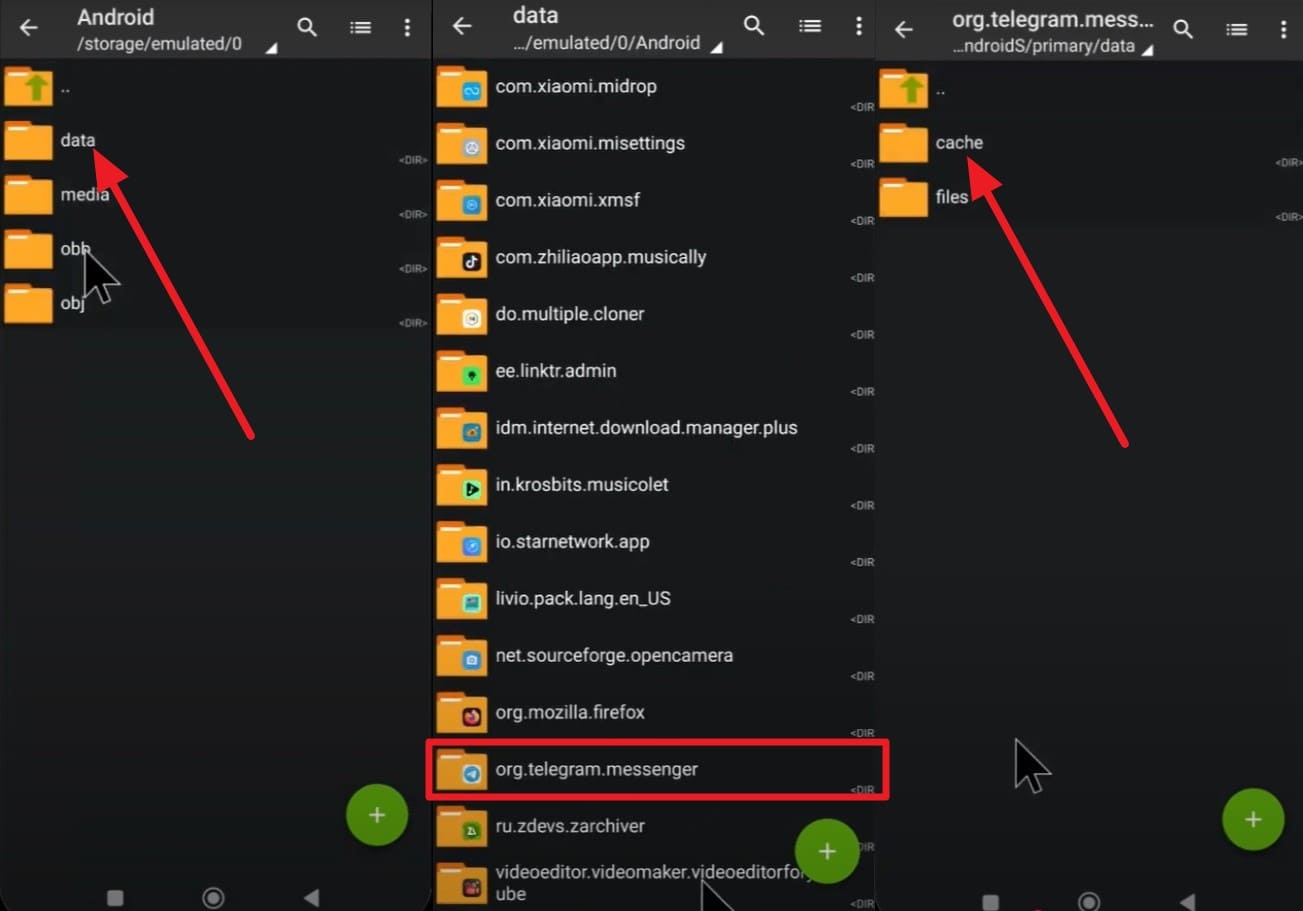
Instructions: To check the app cache path, go to the "Android" and "Data" option in the File Manager. There, locate the folder "org.telegram.messenger" and pick the "Cache" folder to locate the media/files from the deleted chat.
Method 6. Check Archived Chats and Saved Messages
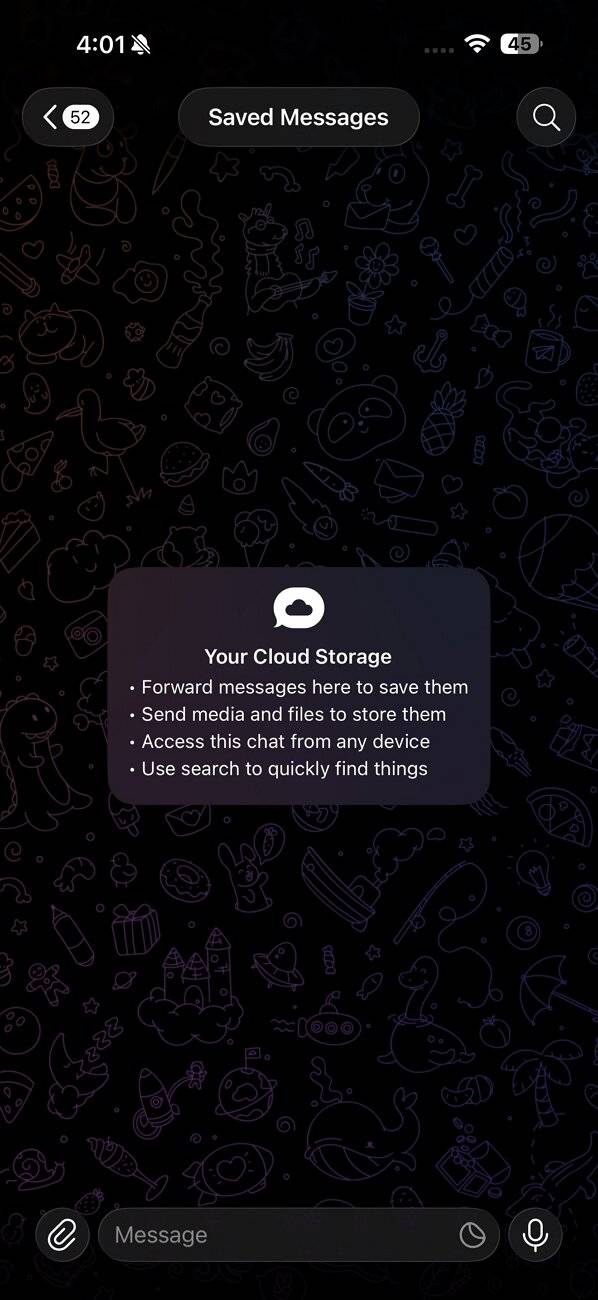
Sometimes chats are archived, not deleted, so check "Archived Chats" and unarchive if needed. Additionally, messages or media may also appear in Saved Messages if forwarded there. You can also use Telegram search to locate messages by keywords, dates, or shared file names. Moreover, check linked devices because the chat may still be visible on another logged-in session.
Conclusion
To sum up, the question of how to recover deleted Telegram messages arises when you have lost access to precious data. Therefore, this ultimate guide has explored some effortless ways to retrieve messages using built-in features and workarounds.
Since options like Undo are time-oriented, and the Notification history solution is not guaranteed, Dr.Fone – Data Recovery is the suggested choice. Use this tool to selectively recover deleted Telegram messages on Android and iOS, regardless of when they were deleted.
safe & secureFAQs
 1.
Are deleted Telegram messages gone forever?2.
Does logging into Telegram on another device restore deleted messages?3.
Can recovery apps guarantee Telegram message recovery?4.
Is it possible to recover a Telegram deleted message from iTunes/iCloud/Google Drive Backup?
1.
Are deleted Telegram messages gone forever?2.
Does logging into Telegram on another device restore deleted messages?3.
Can recovery apps guarantee Telegram message recovery?4.
Is it possible to recover a Telegram deleted message from iTunes/iCloud/Google Drive Backup?


Android Recover
- Recover Apps
- 1. Data Recovery Software for Android
- 2. Top 4 Android Data Recovery Tools
- 3. Restore Deleted Files on Android
- 4. Coolmuster Android Data Recovery
- 5. Guide of Disk Drill for Android
- 6. Android Data Recovery Software
- 7. Gihosoft Android Data Recovery
- 8. Jihosoft Android Phone Recovery
- 9. Minitool Android Mobile Recovery
- 10. Recover Android Data from Fucosoft
- 11. Best Mobile Forensics Tools to Recover Data
- 12. PhotoRec Review
- 13. FoneDog Toolkit
- 14. TWRP Recovery
- Contacts Recover
- 1. Recover Contacts from Stolen phone
- 2. Recover Contacts from Android
- 3. Retrieve Contacts Without Backup
- Files Recover
- 1. Recover Files from Internal Memory
- 2. Recover Miscellaneous Files
- 3. Recover Android's Hidden Files
- 4. Recover Deleted Files from Android
- 4. Recover Deleted Files Without Root
- 5. Recover Files from SD Card
- 6. Undelete Files on Android
- Messages Recover
- Music/Videos Recover
- Photos Recover
- 1. DiskDigger Photo Recover Review
- 2. Recover Deleted Photos from Android
- 3. Recover Photo from Internal Storage
- 4. Recover Photos from Lost Phone
- 5. Restore Android Deleted Photos
- Broken Android Recover
- 1. View Files from Broken Phone Screen
- 2. Recover Data from Dead Phone
- 3. Recover Contacts with Broken Screen
- 4. Recover Text Messages from Android
- 5. Recover Data from Internal Memory
- Social Apps Recover
- 1. Recover Facebook Messages
- 2. Recover WhatsApp Messages
- 3. Recover WhatsApp Messages
- 4. Restore Deleted WhatsApp Messages
- Android Recover Tips
- 1. SD Card Recovery Tools
- 2. Fix Recovery Mode Not Working
- 3. Enter Recovery Mode on Android
- 4. Recover Calendar from Android
- 5. Recover Deleted Call Log on Android
- 6. Clear Cache Partition
- 7. Repair a USB Stick
- 8. USB Repair Tools
- Cloud Storage Tips
- ● Manage/transfer/recover data
- ● Unlock screen/activate/FRP lock
- ● Fix most iOS and Android issues
- Free Download Free Download Free Download

 > How-to > Data Recovery Solutions > How to Recover Deleted Telegram Messages: Step-by-Step Guide [2026]
Selena Lee
chief Editor