
How to Watch Private or Unlisted YouTube Videos (What's Allowed & What's Not)

Oct 22, 2026 • Filed to: Data Recovery Solutions • Proven solutions
 TL;DR:
To watch private YouTube videos, you must request access from the creator and receive a direct email invitation, whereas unlisted videos require only the direct URL to view.
● You must sign into the exact Google account invited by the uploader to access private content, as sharing the URL with uninvited accounts or using bypass tools will result in a block.
● If you lack a direct link for an unlisted video, you can locate it by checking the creator's public playlists or searching the third-party Unlisted Videos database, though results are strictly limited to user submissions.
● If you lose local YouTube files, Dr.Fone - Data Recovery can retrieve over 14 file types across 6000+ Android models, or 35+ data types on iOS devices without requiring a prior backup.
Ask AI for a summary
 ChatGPT
 Perplexity
 Gemini
 Claude
 Grok
Grok
Have you ever tried to view a private/unlisted YouTube video and could not do it? This issue occurs to many individuals when a friend provides them with a link or when a creator restricts their material. It is rather frustrating that when you search or just browse, you cannot find such videos. Thus, one should know what is permitted and what is not to observe safely without breaking the rules.
Thus, this guide explains the correct ways to watch these videos while respecting YouTube's rules. Since it answers the query of how to watch private YouTube videos, you will also learn how to recover lost phone content via Dr.Fone – Data Recovery.
 safe & secure
- Part 1. Private vs. Unlisted YouTube Videos: What's the Difference?
- Part 2. Can You Watch a Private YouTube Video Without Permission?
- Part 3. How to Watch Private YouTube Videos (If You Have Permission)
- Pro Tip. Dr.Fone – Data Recovery: The Expert Way to Retrieve Missing YouTube
Content

- Part 4. How to View Unlisted YouTube Videos
- Part 5. Common Mistakes to Avoid When Trying to Watch Private Videos
Part 1. Private vs. Unlisted YouTube Videos: What's the Difference?
Before you know, how can I watch a private video on YouTube? Are you clear about private and unlisted videos? If not, this section explains both terms in detail and highlights who can access private videos.
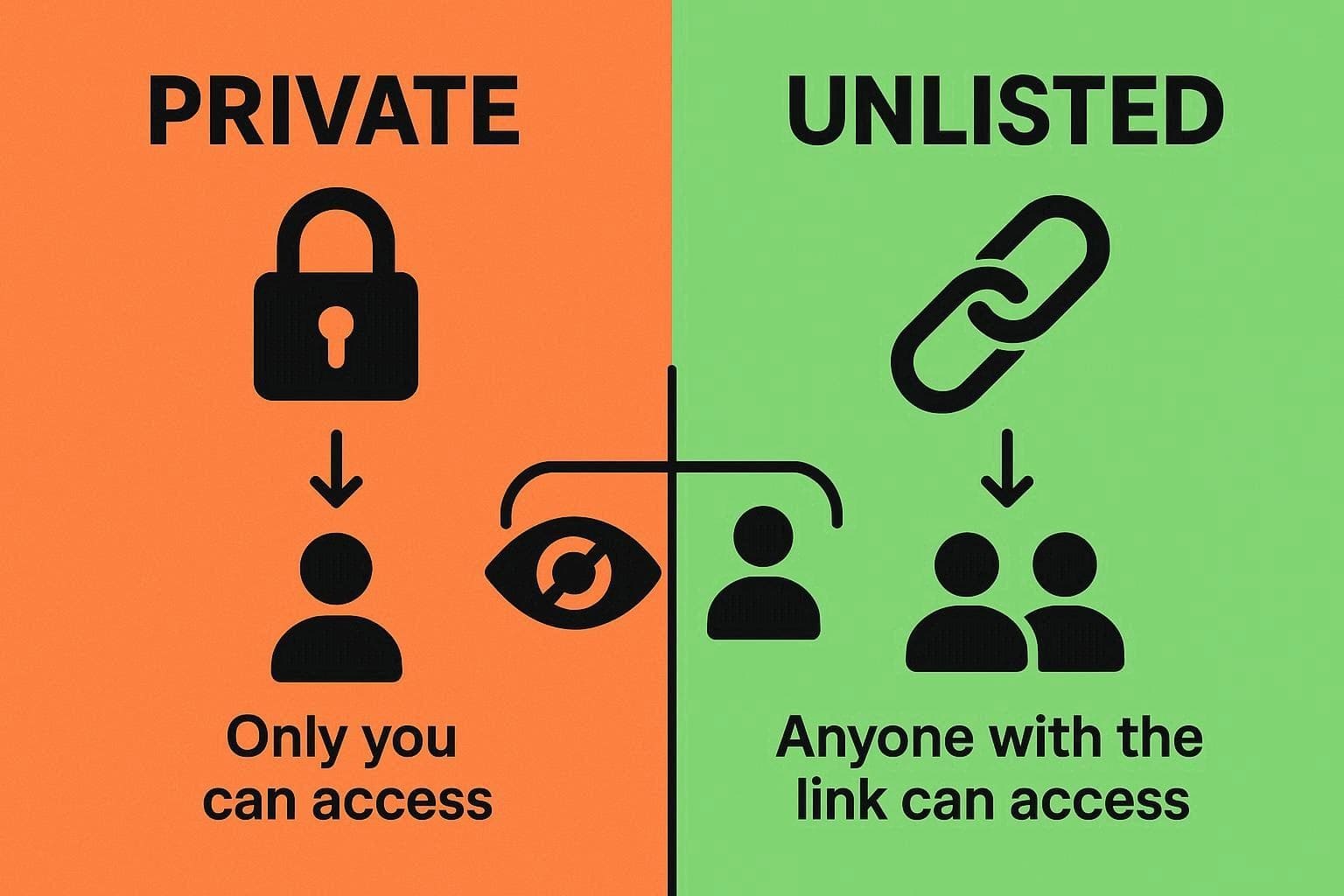
Understanding Private vs. Unlisted YouTube Videos
Private videos are viewable only with an invitation, while unlisted videos can be seen by anyone with the link. To know more about them in detail, adhere to the given comparison table for clarity:
| Aspect | Private | Unlisted |
|---|---|---|
| Who Can Watch | Only specific invited Google accounts | Anyone with the link |
| Sign‑in Required | Yes, with an invited Google account | No |
| Appears In Search | No | No |
| Shows On The Channel | No | No |
| Share Method | Add viewer emails | Send/share the link |
| Link Alone Works? | No | Yes |
| Embedding Allowed | Effectively, no (only invited can view) | Yes, anyone with the page link can view |
| Typical Use | Personal/internal, tightly controlled | Semi‑private sharing, clients, classrooms |
Who Can Access Private Videos
Only the owner and people invited by email can watch a private YouTube video. However, the invited viewers must sign in with the same Google account used to invite them. Hence, other users, like subscribers, random viewers, or searchers, cannot see the video. It does not appear in search results, recommendations, or on the channel page.
Part 2. Can You Watch a Private YouTube Video Without Permission?
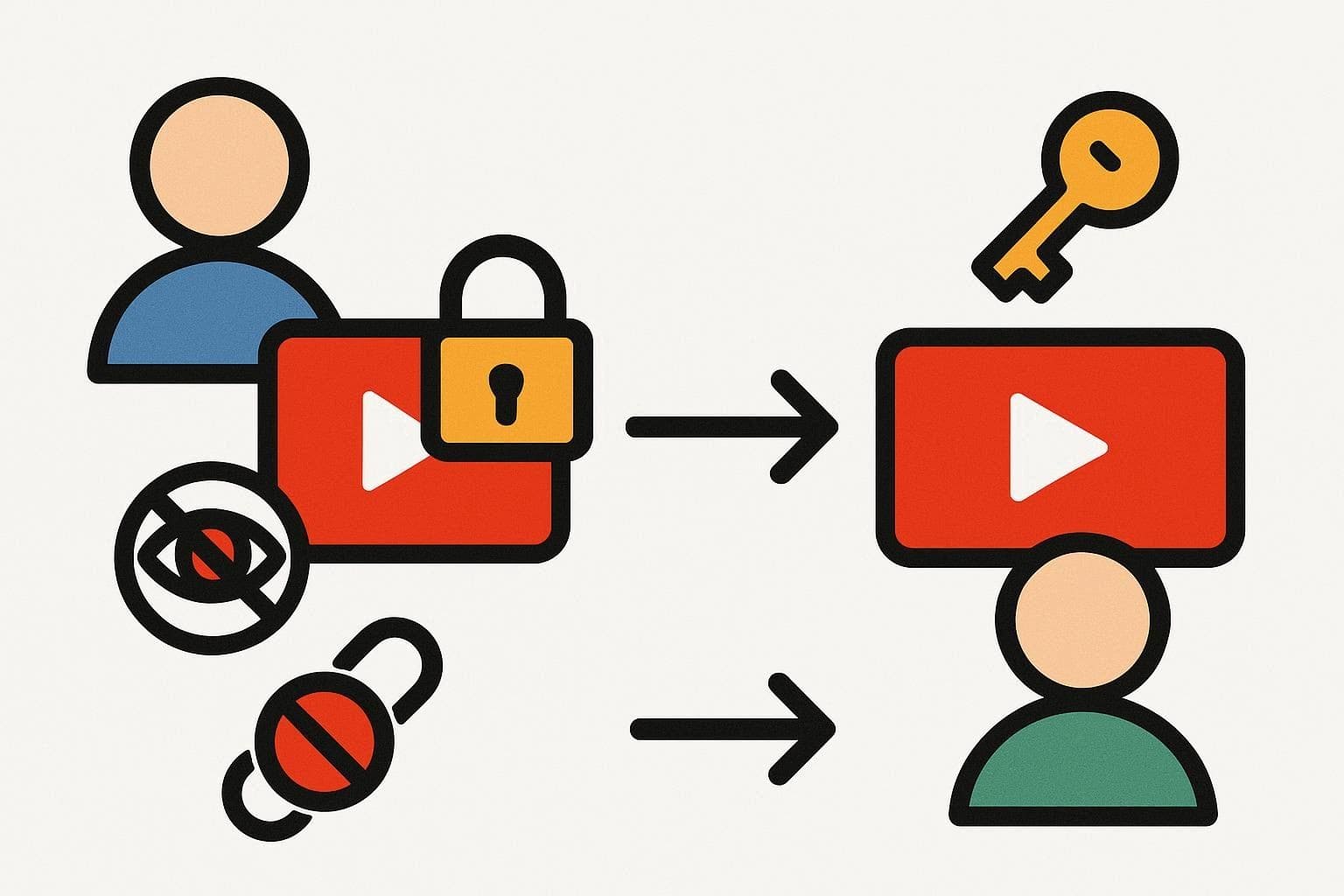
While getting the answers for how I can watch a private YouTube video, know that you cannot watch a private YouTube video without the uploader's permission. Only the uploader and specific Google accounts they invite can view it. So, if you just have the link, it will not work, and YouTube will block any account not on the allowed list.
Part 3. How to Watch Private YouTube Videos (If You Have Permission)
Since you can't view private videos without permission, your query of how to view private videos on YouTube will be tackled in this section. The only proper way is to ask the creator to give your account access or change the video to unlisted or public. Therefore, review the given sections and get to know how to request and view the private YouTube video seamlessly:
How to Request Permission for Private YouTube Videos?
This way shows you value their privacy, keeps your account safe, and avoids illegal or risky tools. Additionally, it can build trust, improve future access, and help maintain a good relationship, once asked politely via the listed steps:
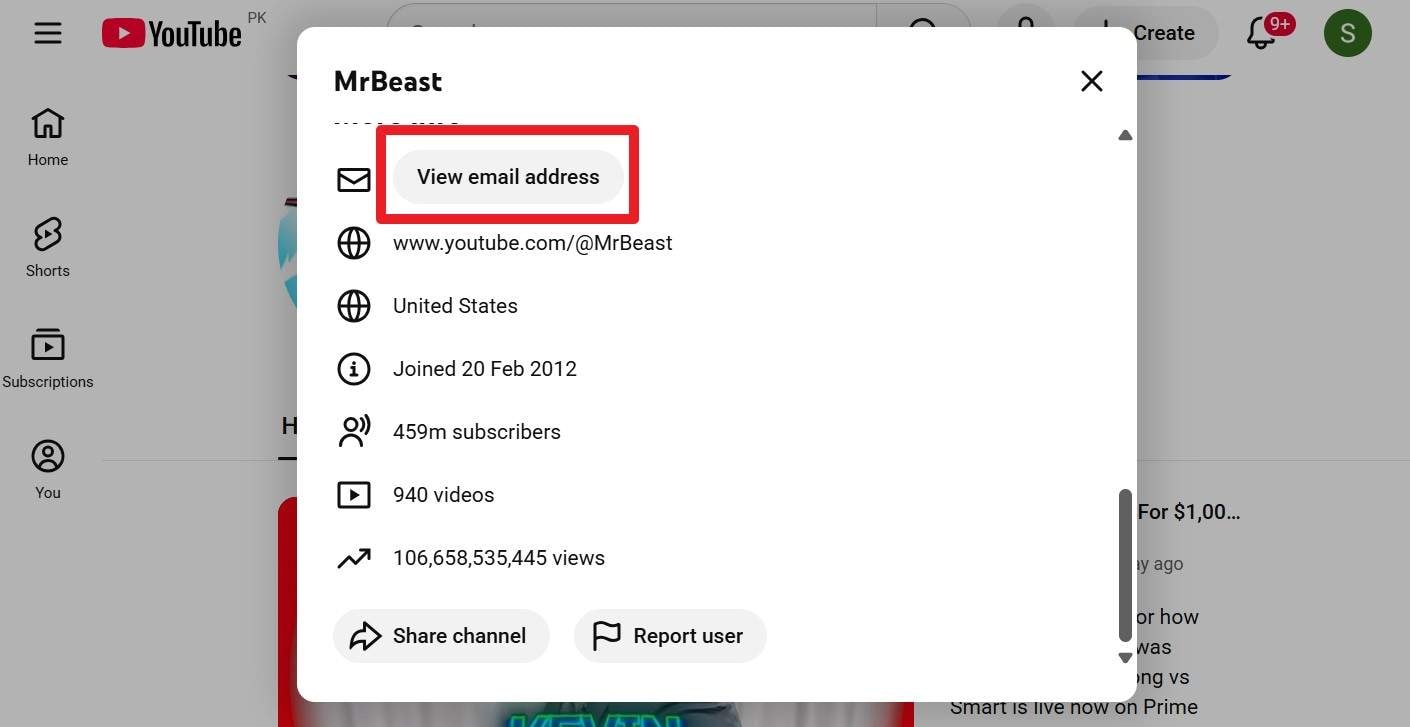
- Step 1. Visit the creator's channel, press the "More" option in the description, and press the "View Email Address" option. When you receive the email, copy it to message them and specify the video you want, and provide the exact Google/YouTube email address so they can share it privately.
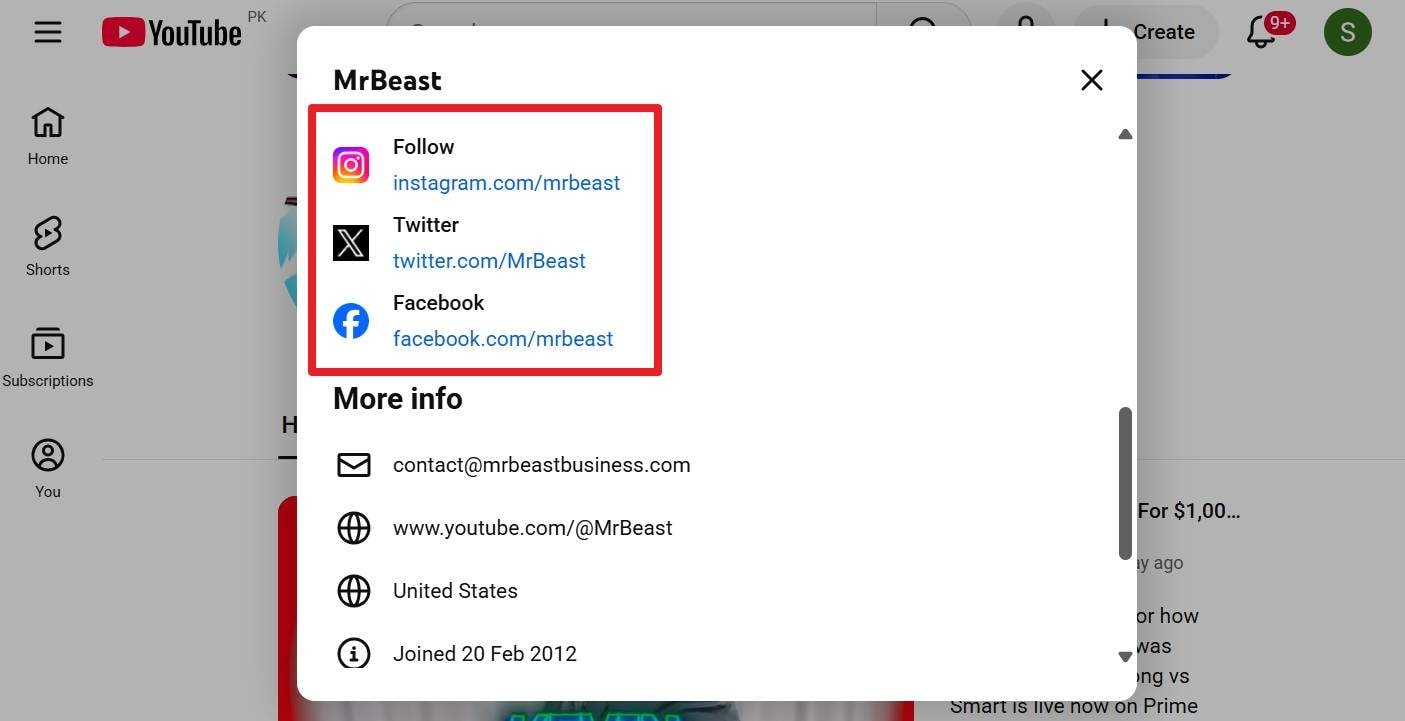
- Step 2. On the same page, you can also get their social media platforms. Simply tap on the link and message them directly to request the video.
How to View Private Videos on YouTube
To view a private YouTube video, the creator must invite you or share the link. Besides, you must sign in to the exact Google account that received it, as private videos aren't public or searchable. So, to know you can send an invite as an owner and help resolve the question of how to watch a private video on YouTube, simple steps are given below:
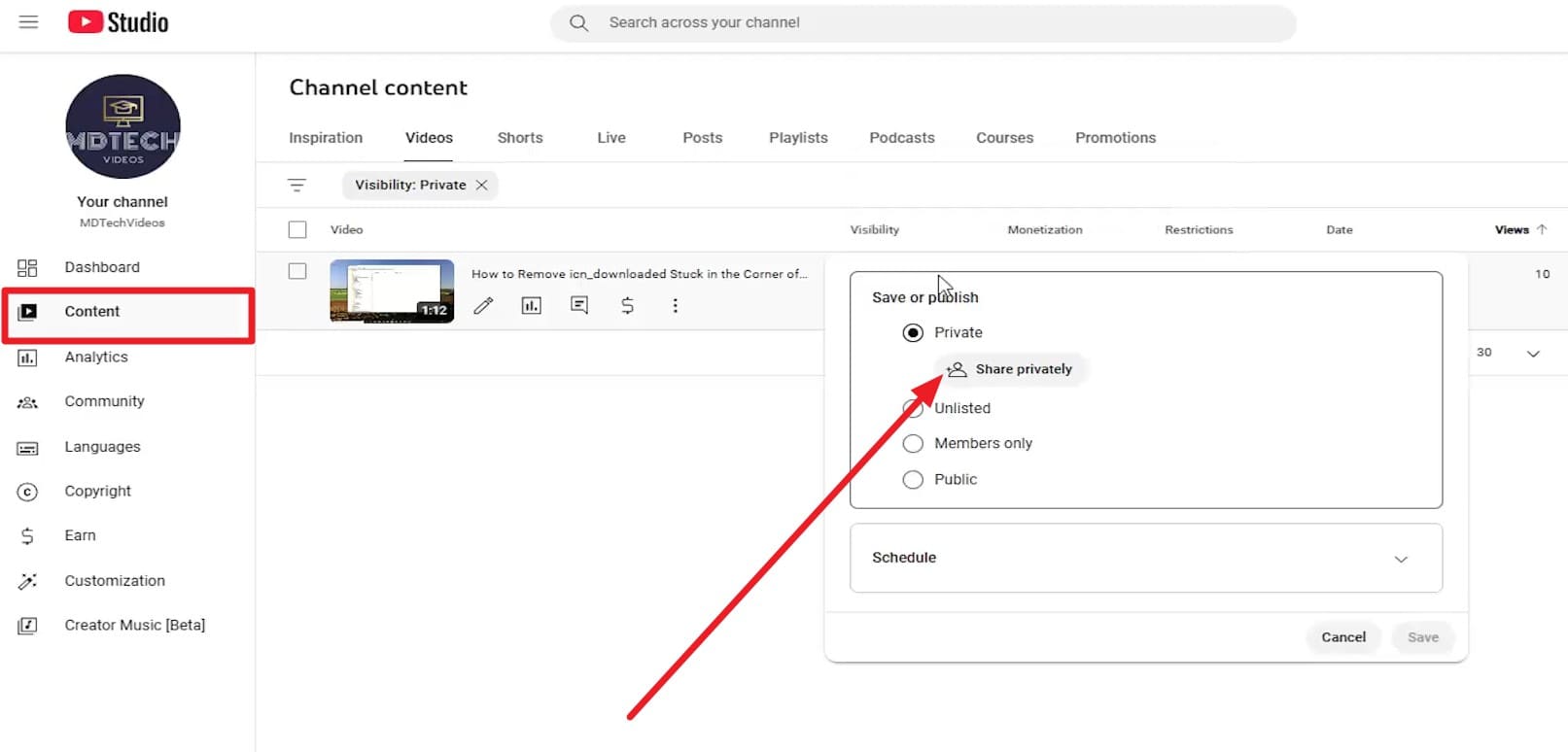
- Step 1. Go to the "Content" section by pressing the "Hamburger" icon on YouTube. Under the "Visibility" section, stretch the menu for the "Private" and pick the "Share Privately" option on the popup menu.
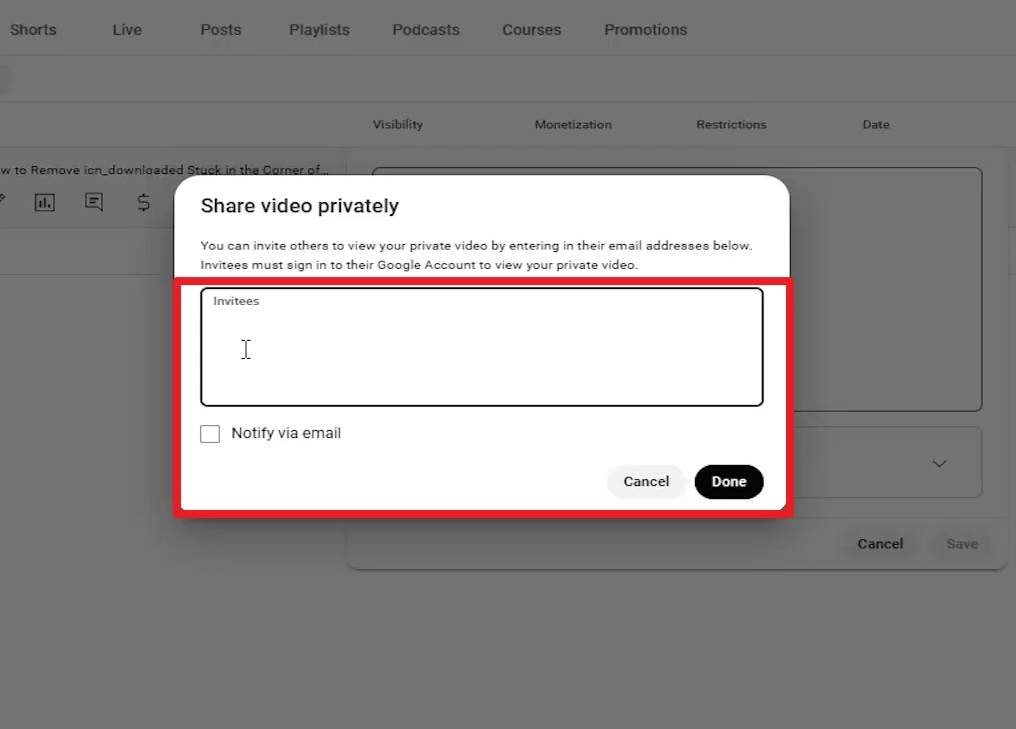
- Step 2. After that, enter the email address below, tick the "Notify Via Email" option, and press the "Done" button to send the invite.
Pro Tip. Dr.Fone – Data Recovery: The Expert Way to Retrieve Missing YouTube Content
On the quest for how to watch private videos on YouTube, what if you lose your YouTube content while uploading, saving, or making it private on your phone? In this case, Dr.Fone – Data Recovery tool offers you a seamless solution to retrieve data on Android and iOS. Dr.Fone - Data Recovery (Android) allows you to recover 14+ file types like photos and videos across over 6000 Android models.
Whereas Dr.Fone - Data Recovery (iOS) can retrieve 35+ data types from iOS devices without a backup. Users can also use it to recover Tunes & iCloud backups, and the steps are fully guided. Since both tools are intuitive, they are ideal data recovery solutions for all types of users. Additionally, users can selectively choose the data they seek to recover and preview it later.

Dr.Fone - Data Recovery (Android)
Recover whatsapp/contacts/messages/call history saved in Google Drive to your computer.
- Recover Android data by scanning your Android phone & tablet directly.
- Preview and selectively recover what you want from your Android phone & tablet.
- Supports various file types, including WhatsApp, Messages & Contacts & Photos & Videos & Audio & Document.
- Supports 6000+ Android Device Models & Various Android OS.


Simple Guide to Restore Deleted YouTube Videos on Android
When learning how to watch a private video on YouTube, get to know how this tool helps when you lose your content:
- Step 1. Access the Android Data Recovery Tool
- Step 2. Choose Video Option and Start the Scan
- Step 3. Filter & Restore the YouTube Videos
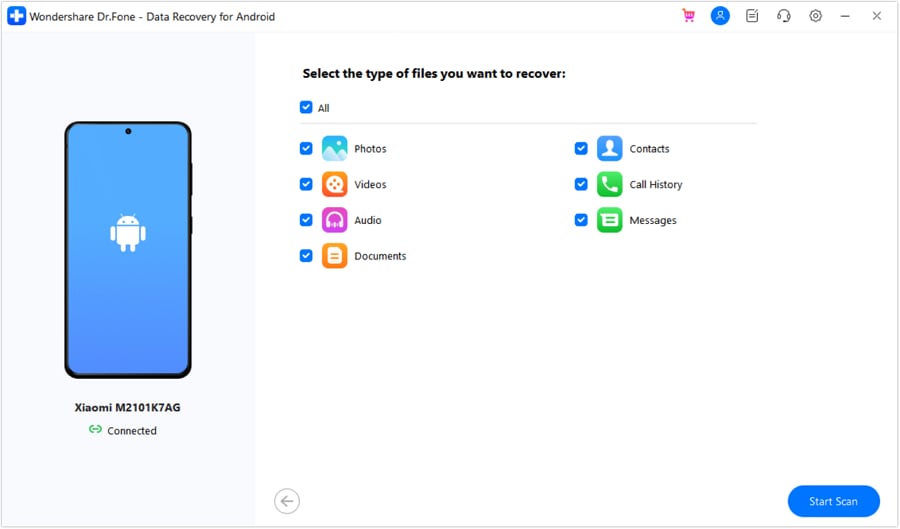
Select the "Recover Android Data" option in the Android Data Recovery tool, then connect your Android smartphone when prompted.

As the tool detects the device, it displays the data types in the interface. Choose the one you seek to recover, like "Videos," and press the "Start Scan" button.
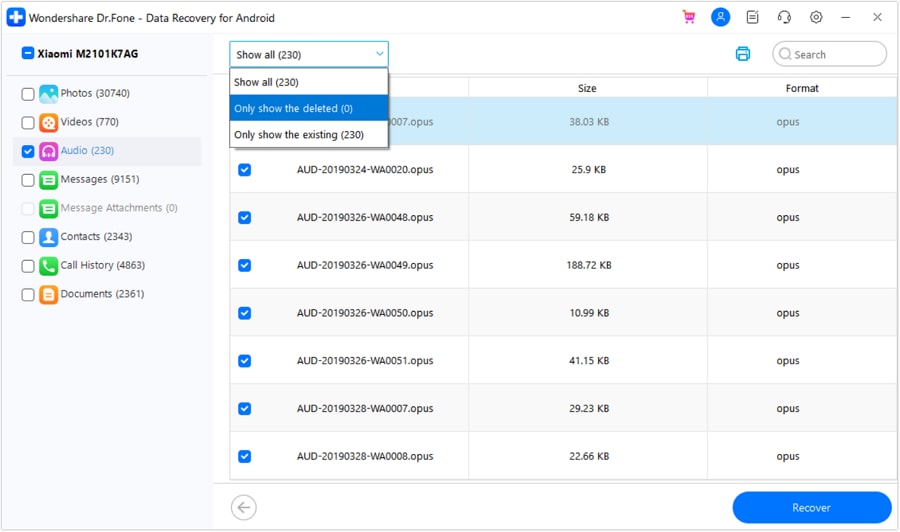
When the process ends, stretch the "Show All" menu to filter the YouTube videos you want to retrieve. Now, press the "Recover" button and add the destination path in the "Export To" section and press "Recover."
safe & securePart 4. How to View Unlisted YouTube Videos
Apart from private videos, YouTube also has unlisted videos. Unlike private videos, these can be viewed by anyone with the link. Since you now know how to access private videos on YouTube, this section explains how to view unlisted videos from the perspectives of both owners and viewers.
For Owners:
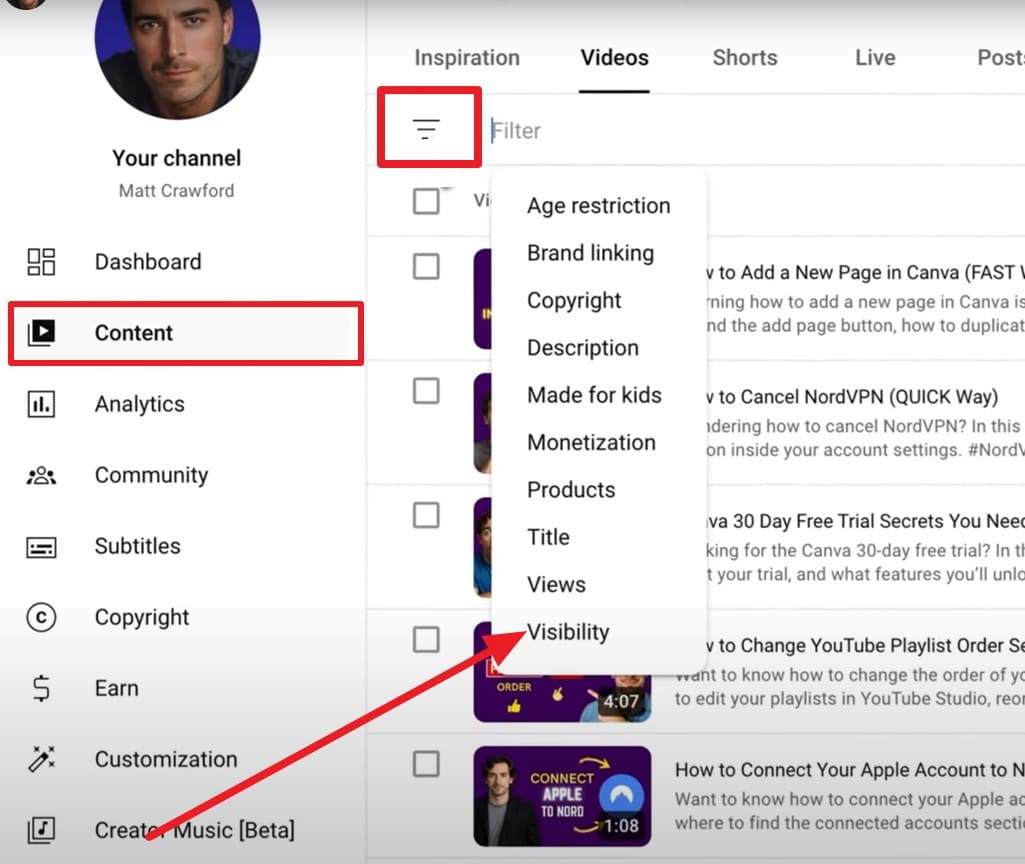
- Step 1. Head to the "Content" tab on the YouTube channel and tap the "Filter" icon to choose the "Visibility" option.
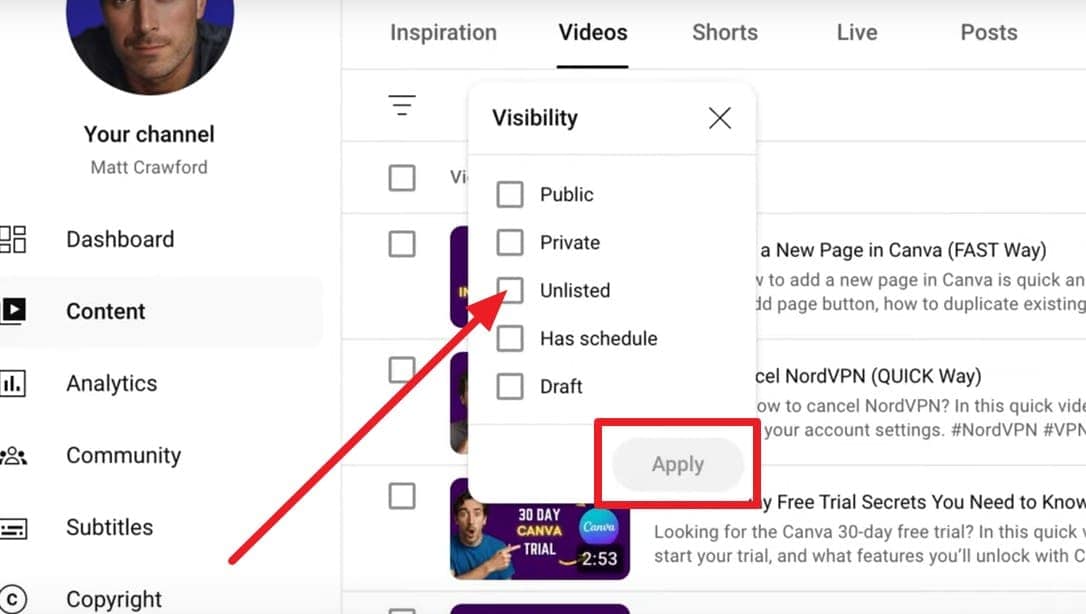
- Step 2. After that, press the "Unlisted" option from the list, tap on "Apply," and fetch the list of unlisted videos on your channel.
For Viewers:
- Use the direct link the creator shared to watch.
- Check public playlists where the creator may include unlisted videos.
- Third-party search sites exist, but only find videos in playlists. They rely on users submitting links, so results are limited.
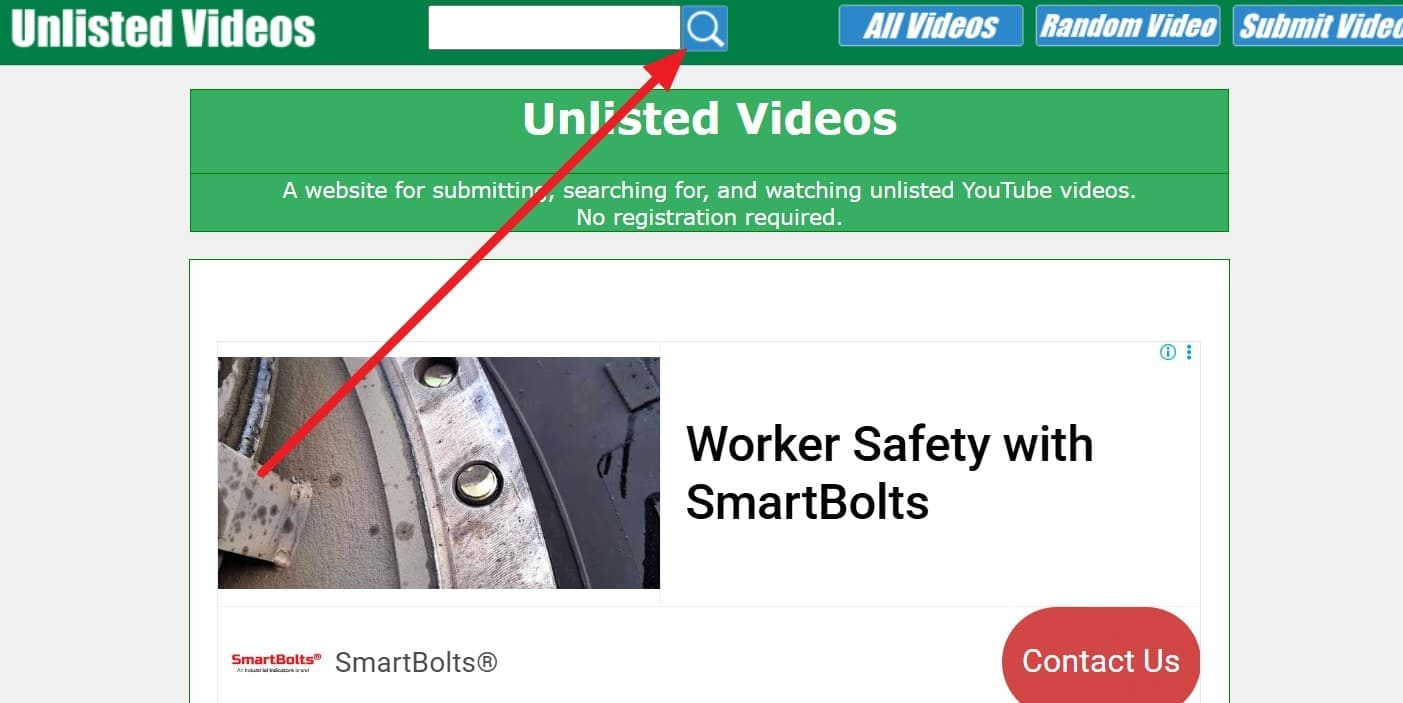
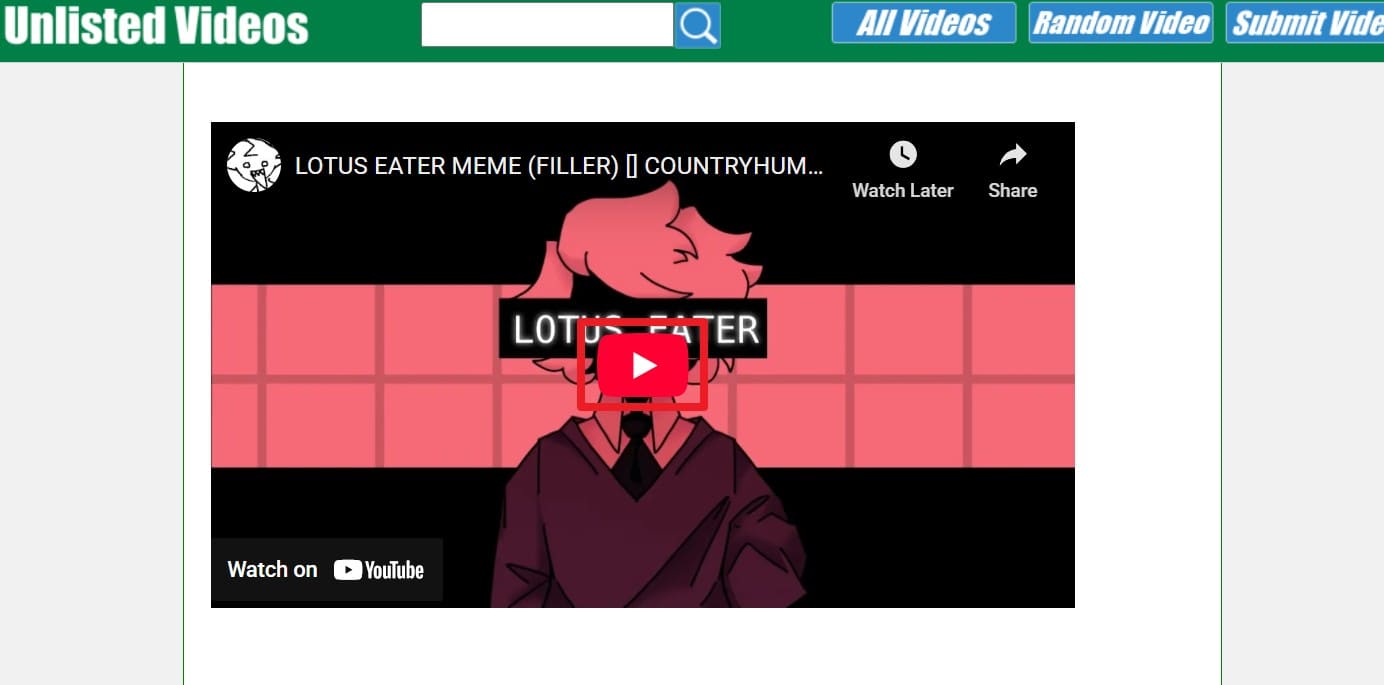
If you ought to use third-party sites, opt for Unlisted Videos since it comes with a search bar to locate a certain unlisted video. This site displays the submission and upload dates for certain YouTube videos and includes a short description. So, to know how to view unlisted videos on YouTube on this site, adhere to the listed steps:
- Step 1. Search for a certain "Unlisted Video" in the search bar and press the "Enter" key.
- Step 2. Scroll down to read the description or tap the "Play" button to view the video.
Part 5. Common Mistakes to Avoid When Trying to Watch Private Videos
After having the answers for how to view unlisted videos on YouTube, along with the private content, try to avoid the given mistakes for safety:
| Mistake | Why It's A Problem |
|---|---|
| Trying To Watch With Only The Link | Private videos also require an explicit invitation to your account; a URL alone does not work. |
| Not Signing Into The Invited Google Account | Even if you were invited, you must log in with the exact Google account that has access. |
| Using "Hack" or Bypassing Websites/Tools | These often violate YouTube's rules, can be scams, and may infect your device or steal data. |
| Assuming You're Blocked or Banned | Most access errors are due to privacy settings or a wrong account, not personal blocking. |
| Re-Uploading or Screen‑recording If You Do Get Access | Sharing someone's private content without consent is unethical and can break copyright and platform policies. |
| Skipping a Polite Access Request | Not asking the creator directly ignores their rights and removes the only legitimate way you might be granted access. |
Conclusion
To wrap up, this article has explained how to watch private YouTube videos in an ethical way with detailed insight on how to send the invite. Not just that, a third-party way to view the unlisted videos for viewers has also been shared to view a video that isn't searchable or visible. If you have lost YouTube videos on your phone, Dr.Fone – Data Recovery is recommended for Android and iOS users.
safe & secureFAQs
 1.
Can I share a private video link with others?2.
Can the owner remove my access after inviting me?3.
Why can't I open a private video even with a link?
1.
Can I share a private video link with others?2.
Can the owner remove my access after inviting me?3.
Why can't I open a private video even with a link?


Android Recover
- Recover Apps
- 1. Data Recovery Software for Android
- 2. Top 4 Android Data Recovery Tools
- 3. Restore Deleted Files on Android
- 4. Coolmuster Android Data Recovery
- 5. Guide of Disk Drill for Android
- 6. Android Data Recovery Software
- 7. Gihosoft Android Data Recovery
- 8. Jihosoft Android Phone Recovery
- 9. Minitool Android Mobile Recovery
- 10. Recover Android Data from Fucosoft
- 11. Best Mobile Forensics Tools to Recover Data
- 12. PhotoRec Review
- 13. FoneDog Toolkit
- 14. TWRP Recovery
- Contacts Recover
- 1. Recover Contacts from Stolen phone
- 2. Recover Contacts from Android
- 3. Retrieve Contacts Without Backup
- Files Recover
- 1. Recover Files from Internal Memory
- 2. Recover Miscellaneous Files
- 3. Recover Android's Hidden Files
- 4. Recover Deleted Files from Android
- 4. Recover Deleted Files Without Root
- 5. Recover Files from SD Card
- 6. Undelete Files on Android
- Messages Recover
- Music/Videos Recover
- Photos Recover
- 1. DiskDigger Photo Recover Review
- 2. Recover Deleted Photos from Android
- 3. Recover Photo from Internal Storage
- 4. Recover Photos from Lost Phone
- 5. Restore Android Deleted Photos
- Broken Android Recover
- 1. View Files from Broken Phone Screen
- 2. Recover Data from Dead Phone
- 3. Recover Contacts with Broken Screen
- 4. Recover Text Messages from Android
- 5. Recover Data from Internal Memory
- Social Apps Recover
- 1. Recover Facebook Messages
- 2. Recover WhatsApp Messages
- 3. Recover WhatsApp Messages
- 4. Restore Deleted WhatsApp Messages
- Android Recover Tips
- 1. SD Card Recovery Tools
- 2. Fix Recovery Mode Not Working
- 3. Enter Recovery Mode on Android
- 4. Recover Calendar from Android
- 5. Recover Deleted Call Log on Android
- 6. Clear Cache Partition
- 7. Repair a USB Stick
- 8. USB Repair Tools
- Cloud Storage Tips
- ● Manage/transfer/recover data
- ● Unlock screen/activate/FRP lock
- ● Fix most iOS and Android issues
- Free Download Free Download Free Download

 > How-to > Data Recovery Solutions > How to Watch Private or Unlisted YouTube Videos (What's Allowed & What's Not)
Daisy Raines
staff Editor