
Fix 'This Message Has Not Been Downloaded from the Server' on iPhone

Sep 24, 2026 • Filed to: Phone Repair Solutions • Proven solutions
 TL;DR:
You can fix the iPhone "This Message Has Not Been Downloaded from the Server" error, which occurs when the Mail app retrieves the header but fails to load the message body, by troubleshooting the network connection, adjusting Mail app settings, or repairing underlying iOS bugs.
● Change the Mail app's Fetch New Data setting to Automatically or to a 15 or 30-minute interval to bypass Push bugs, or delete and re-add the email account to clear corrupted sync data.
● Fix persistent iOS system-level blockers without data loss using Dr.Fone - System Repair (iOS) in Standard Mode, or use the Reset Network Settings option to clear problematic Wi-Fi and cellular configurations.
● If the error strictly affects messages with large attachments and fails to load via webmail on a separate device, the root cause is a temporary email provider server outage that you cannot bypass locally.
Ask AI for a summary
 ChatGPT
 Perplexity
 Gemini
 Claude
 Grok
Grok
Imagine you try to read an important email on your iPhone, but it shows "This Message Has Not Been Downloaded from the Server." This issue can happen when the network fails, the settings block downloads, or the server experiences a temporary problem. However, fixing it does not always require a restore or complex tools. Instead, check network connections, adjust settings, or refresh the app to recover messages quickly.
Therefore, this guide will examine the meaning and causes of this issue in detail. So, get to know how Dr.Fone, paired with basic fixes, can effortlessly resolve the iOS-level issue, leading to a fully functional iPhone without data loss.
 safe & secure
4,624,541 people have downloaded it
- Part 1. What Does "This Message Has Not Been Downloaded from the Server" Mean on iPhone
- Part 2. Try These Quick Checks First (Fix the Issue in Minutes)
- Part 3. Fix Mail Sync and Account Issues on iPhone
- Part 4. Fix iOS-Level Issues When Emails Still Won't Download

- Part 5. When "This Message Has Not Been Downloaded from the Server" Is Caused by Email Server Issues
Part 1. What Does "This Message Has Not Been Downloaded from the Server" Mean on iPhone
On iPhone, "This message has not been downloaded by the server" means the Mail app shows a placeholder for the email. The phone knows the email exists, but it could not get the full content or attachments from the mail server.
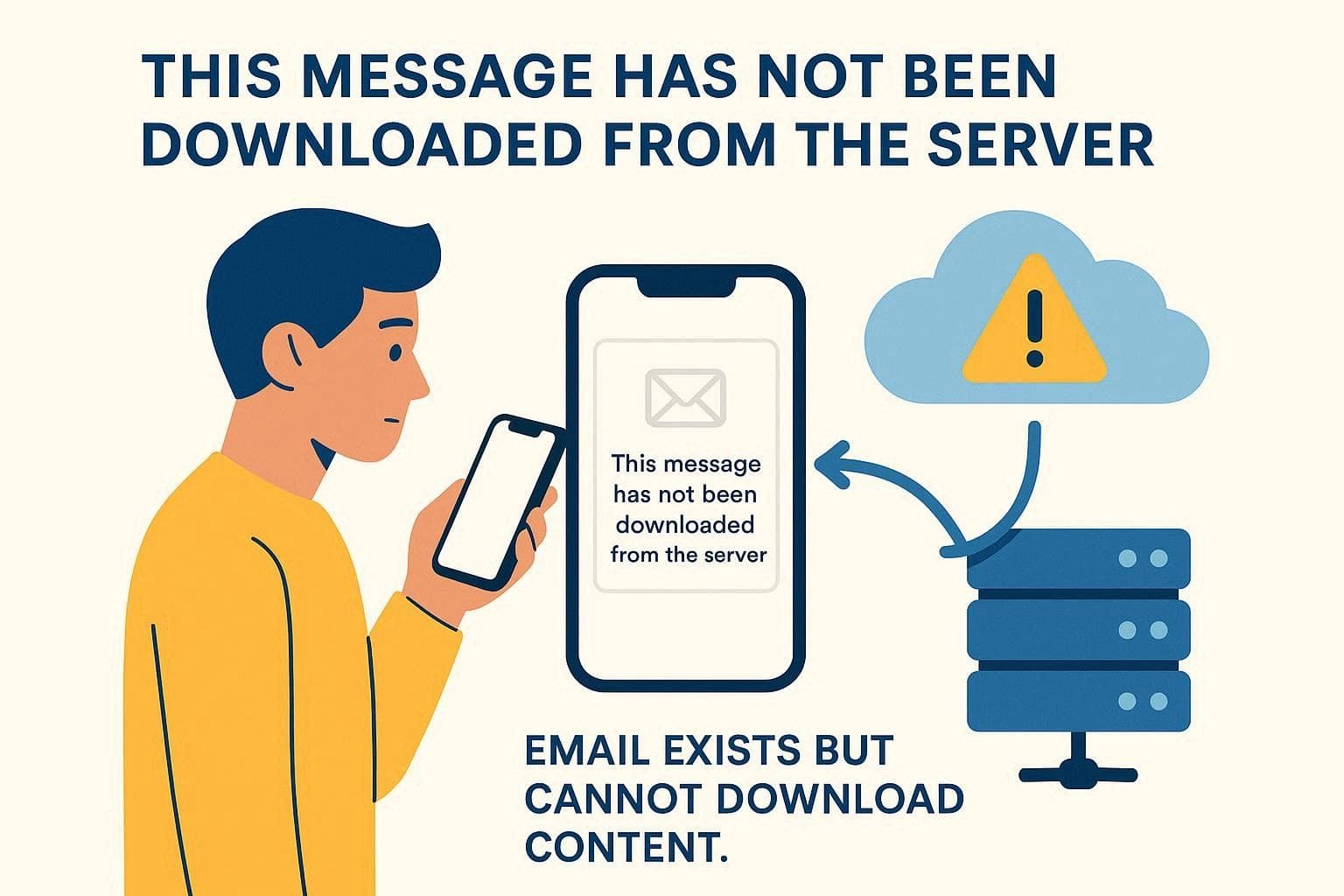
When the iPhone tries to fetch the email, a server problem, a deleted message, or a sync error can stop it. Essentially, the email is on the server, but your device cannot access it until the issue is fixed.
Why This Error Appears in the iPhone Mail App
To know what factors lead to the "this message has not been downloaded from the server" issue, adhere to the listed points:
| Causes | What's Happening In Simple Terms |
|---|---|
| Weak or No Internet | The phone can see the email header, but the full message can't be downloaded over the network. |
| Temporary Server Issue | Your mail provider's server is slow, busy, or briefly unreachable when Mail asks for the body. |
| Sync Glitch in Mail | The Mail app has cached only the header and "forgets" to fetch the rest of the message. |
| Large Message/Attachments | The email is big, so the download stalls or times out before it completes. |
| Mail Settings or Limits | Fetch/preview or account settings stop Mail from grabbing the full content reliably. |
| Corrupted Mail Data/App | Mail's local cache or app files are damaged, so it fails to pull the message properly. |
Part 2. Try These Quick Checks First (Fix the Issue in Minutes)
If you seek to resolve the "this message has not been downloaded from the server on iPhone" issue, try the 3 basic steps first:
1. Check Your Internet Connection
Mail first shows basic info like sender and subject, then tries to download the full message and attachments. So, if Wi‑Fi or mobile data is weak, off, or unstable, this step fails. Therefore, it is advised to check the network by turning on Airplane Mode, using another connection, or opening a webpage. This helps determine whether the problem is the network or the app itself.
2. Restart the Mail App
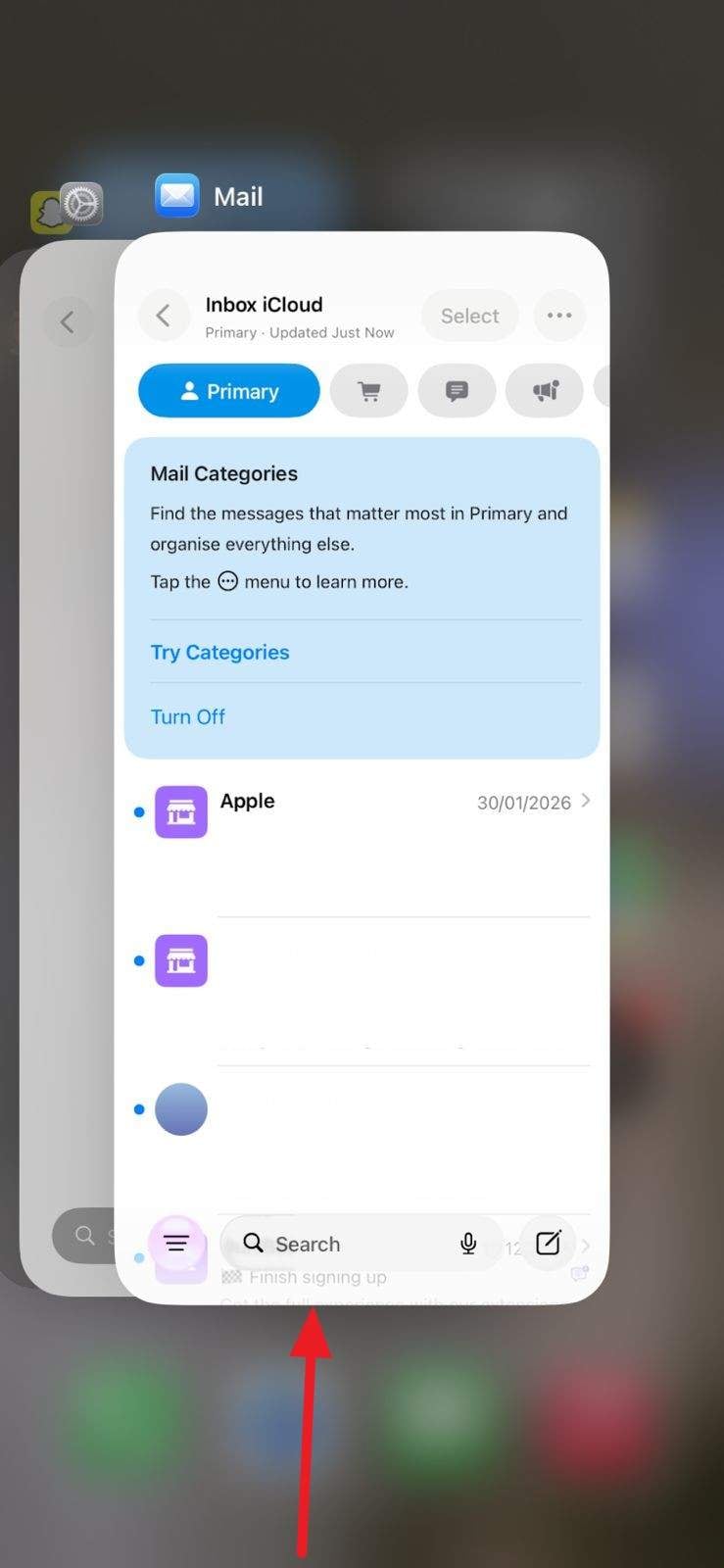
If the app is causing the "this message has not been downloaded from the server on iPhone," restart it. It refreshes the connection to the server, clears minor bugs or cache issues, and gives the app a clean start without touching your account or messages. Above all, this method is quick and low-risk, safer than removing the account or changing settings. So, here is how you can easily do that in one go:
Instructions: With the Mail app open, swipe up in the middle of the screen. In the App Switcher, swipe up again to quit the app. Later, reopen it and determine if the issue persists.
3. Force Restart Your iPhone
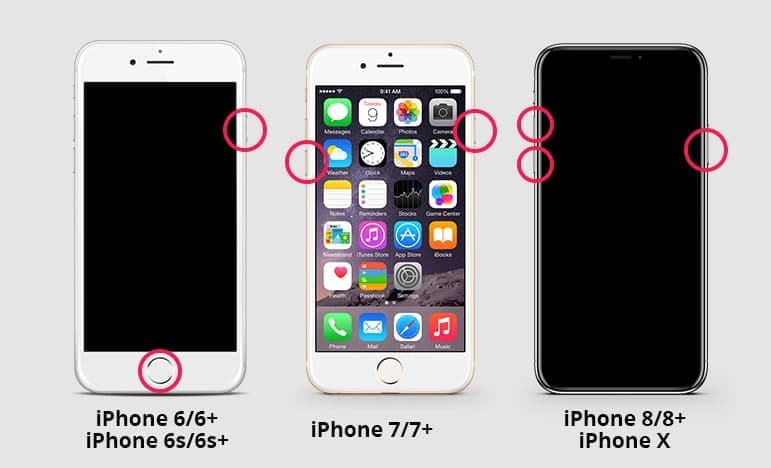
If the iPhone message has not been downloaded from the server, a force restart is another solution. It resets stuck system processes, clears hidden bugs, and refreshes the background network and Mail services. Additionally, it's safe and does not delete emails, apps, or settings, making it better than a factory reset. Hence, here is how you can perform the action via the steps mentioned for various models:
- iPhone 8, X, or Newer: Quickly press and release the "Volume Up" button, then press and release the "Volume Down" button. After that, hold the "Side" button and release it when the Apple logo appears.
- iPhone 7 and 7 Plus: Press and hold the "Volume Down" and "Sleep/Wake" buttons together, and release them when the Apple logo appears.
- iPhone 6s, 6s Plus, or Older: Hold the "Home" and "Top or Side" buttons together, and release when the Apple logo appears.
Part 3. Fix Mail Sync and Account Issues on iPhone
Despite trying basic checks, if this message has not been downloaded from the server on the iPhone, the issue persists. Try to fix the mail sync issue via the mentioned solutions:
1. Refresh or Re-sync the Mail Account
This solution clears any bad or outdated sync information and updates your login and server settings. Additionally, it rebuilds the local mailbox index and removes hidden account glitches. Other than these, it will let Mail reconnect properly so all messages download without errors. So, here is how you can refresh and resync the Mail app effortlessly:
Instructions: To refresh the Mail account, go to the inbox causing the issue and pull down from the top of the screen until the loading spinner appears.
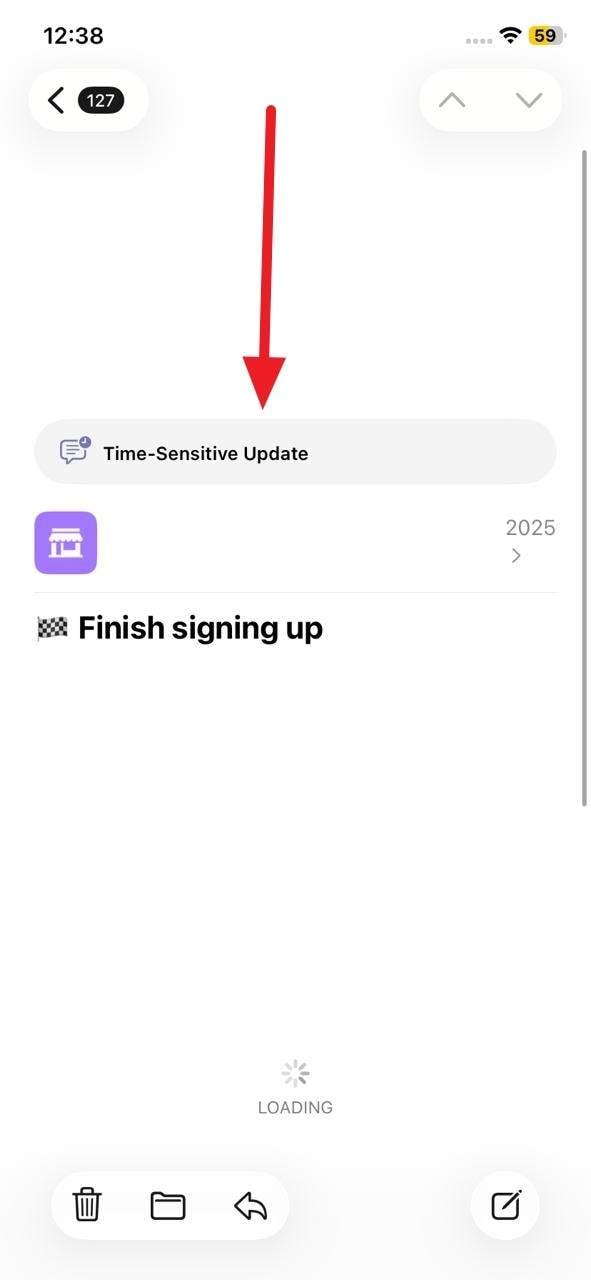
2. Adjust Mail Fetch and Push Settings
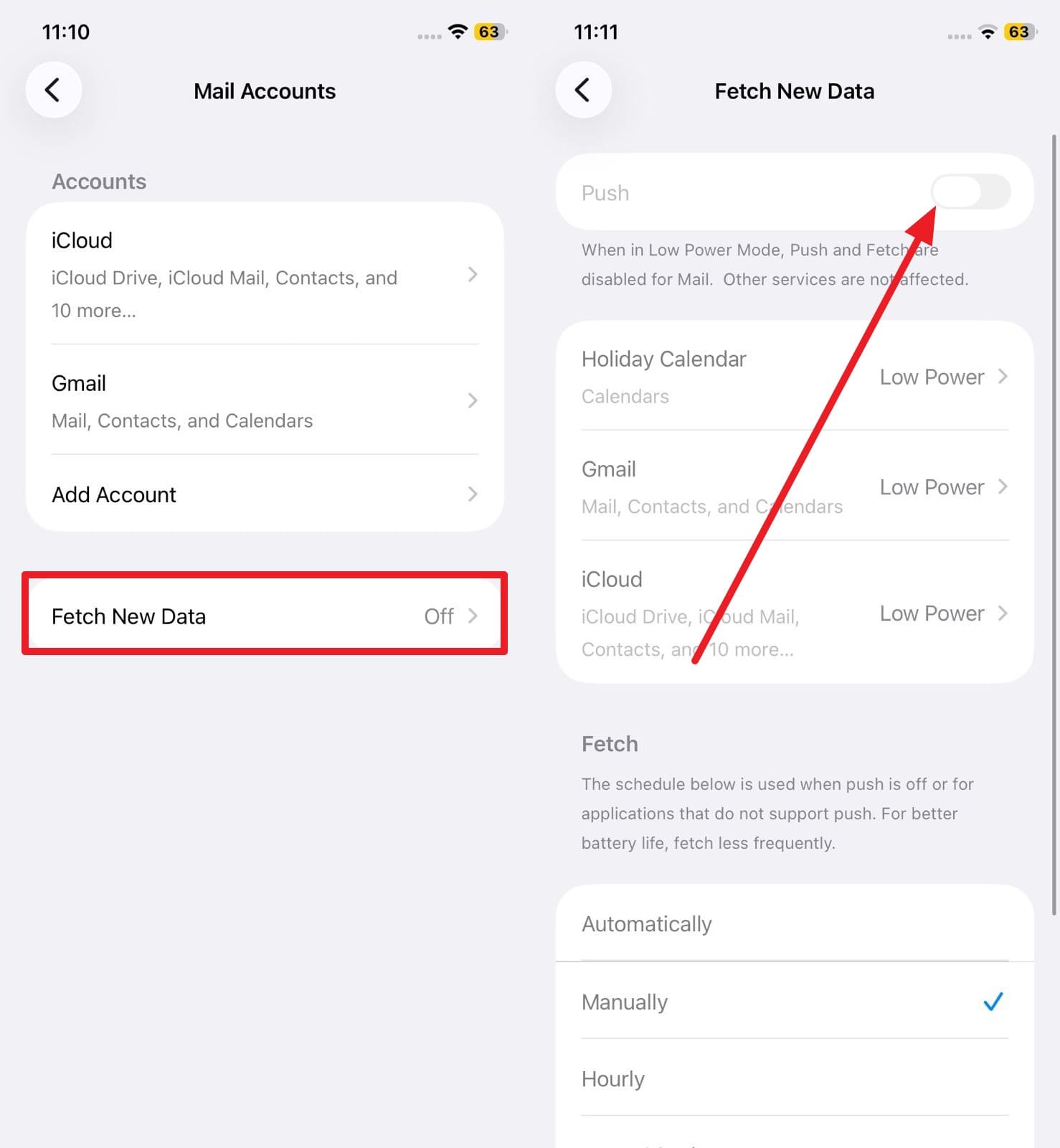
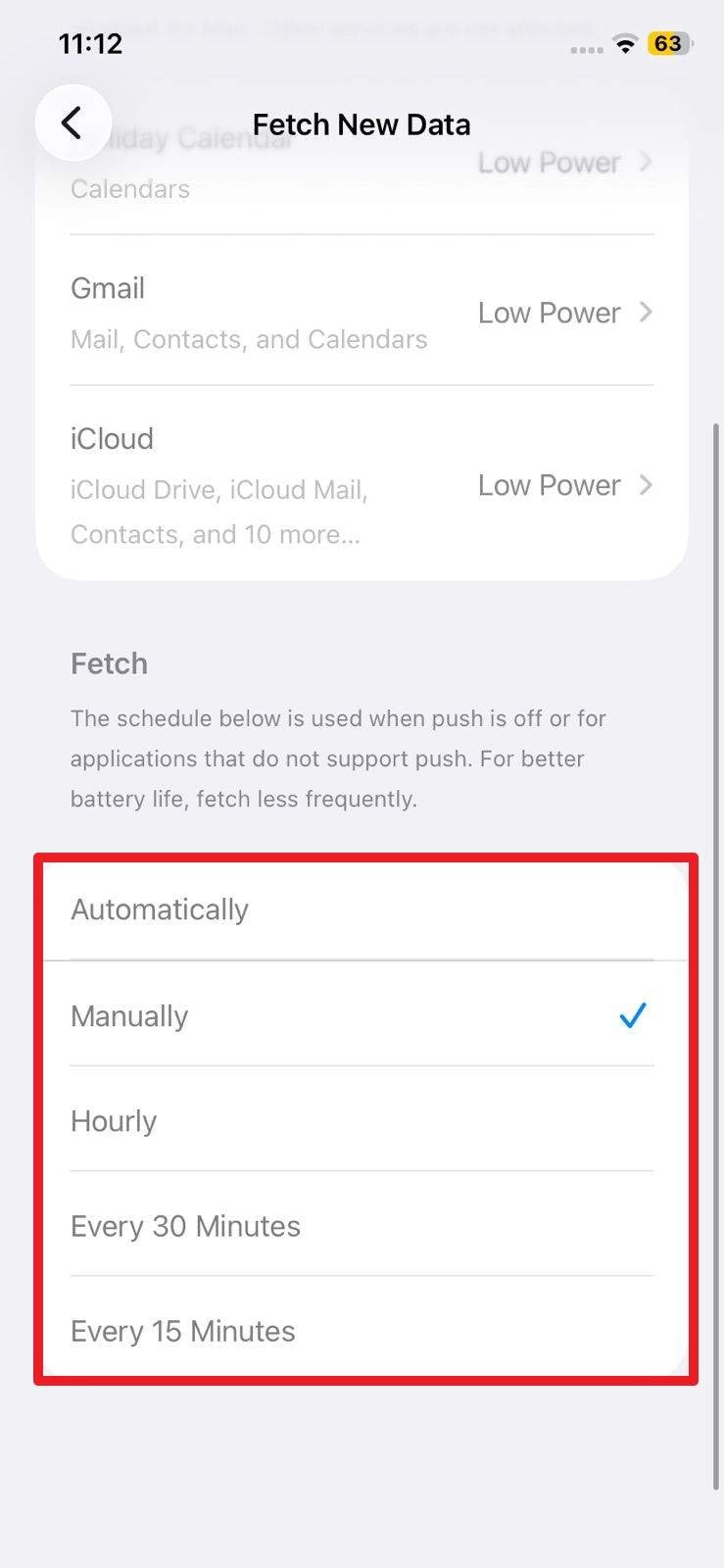
When you face the "this message has not been downloaded from the server" alert, try this solution to fix the messages stuck as header only. Using Fetch on a regular schedule helps Mail download all messages, avoid Push bugs, and keep all contacts consistent. Furthermore, it lets you balance how often Mail checks for new mail with battery use. To do that, adhere to the simple steps mentioned below for guidance:
- Step 1. On the Mail > Mail Accounts interface, pick the "Fetch New Data" option and toggle the "Push" option on.
- Step 2. Now, scroll down to the Fetch schedule and choose the "Automatically" option, or select a shorter interval, such as 15 or 30 minutes. Head back to the Mail app, swipe down to refresh, and try opening the message again.
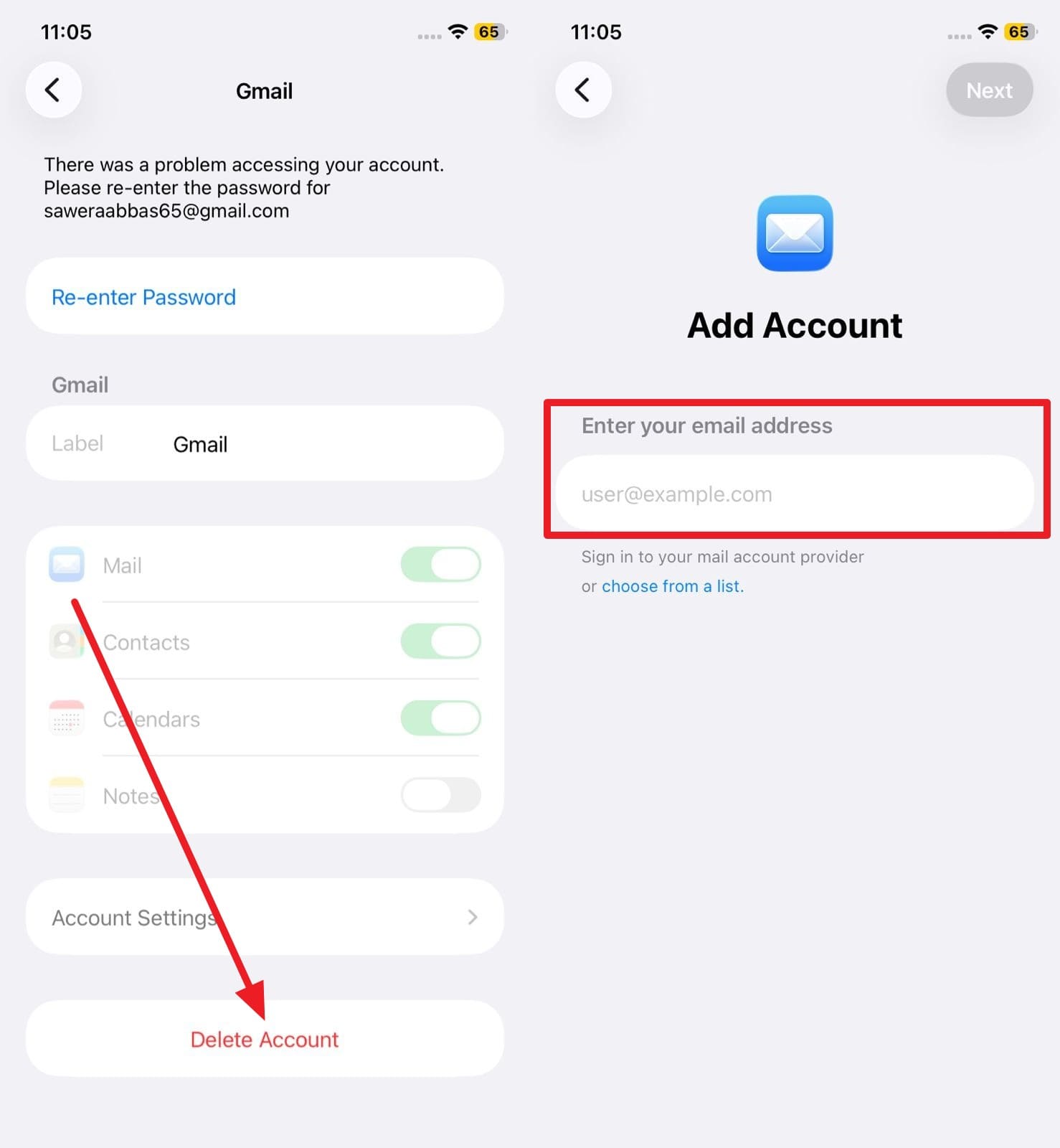
3. Delete and Re-add the Email Account
It's another solution for the message has not been downloaded from the server on iPhone issue/alert. It removes corrupted data, resets logon and server settings, and rebuilds the mailbox index. While doing so, it will also clear hidden account glitches and let Mail start fresh. So, without affecting server messages, here is how you can perform this action in a few clicks:
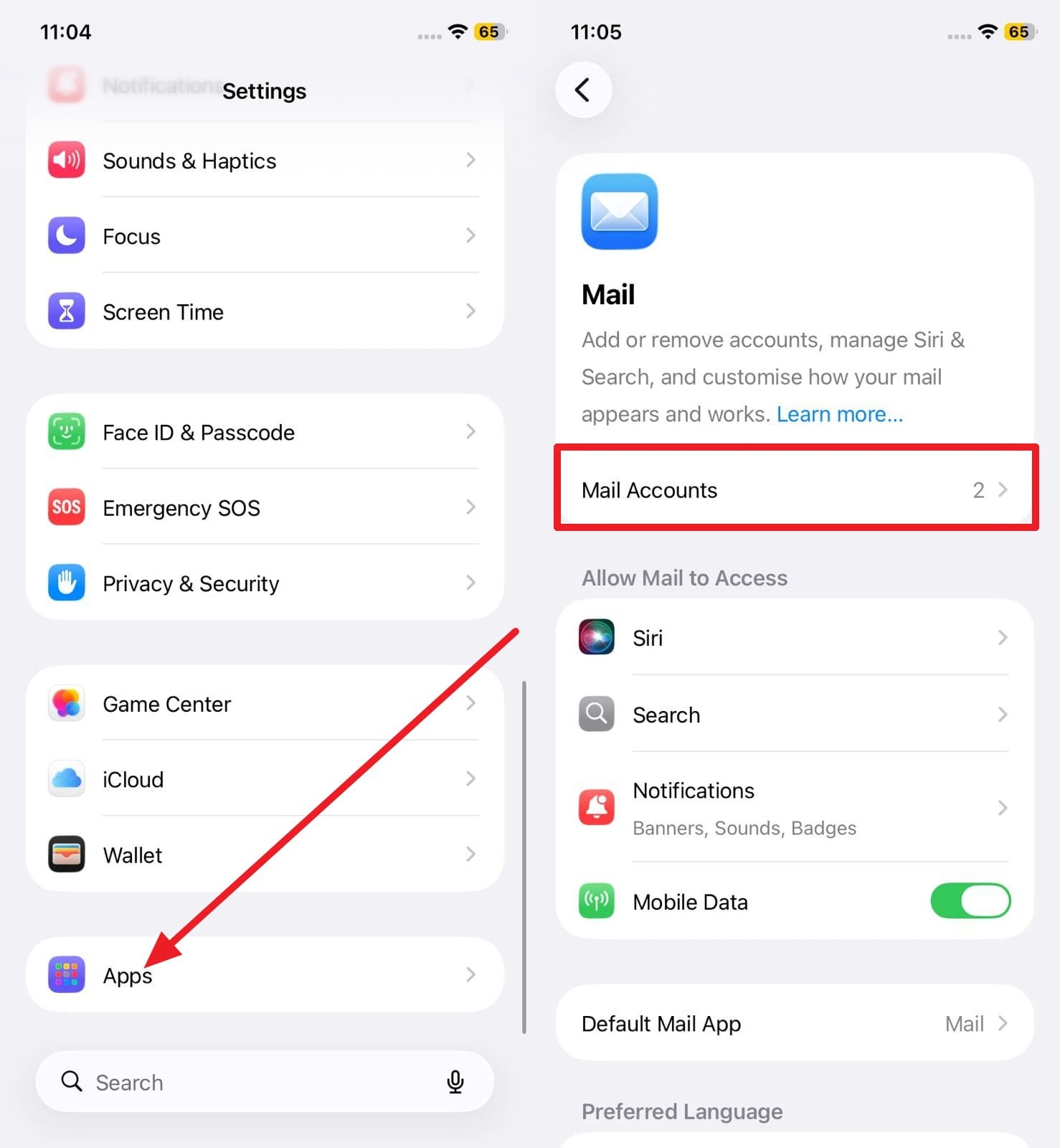
- Step 1. Choose the "Mail' option in "Apps" settings and go to the "Mail Accounts" option.
- Step 2. There, select the mail account causing the issue, and pick the "Delete Account" option at the bottom. Once removed, head back to the Mail Accounts interface and choose to "Add Account" to re-enter your credentials.
4. Clear Mail Cache and Temporary Data
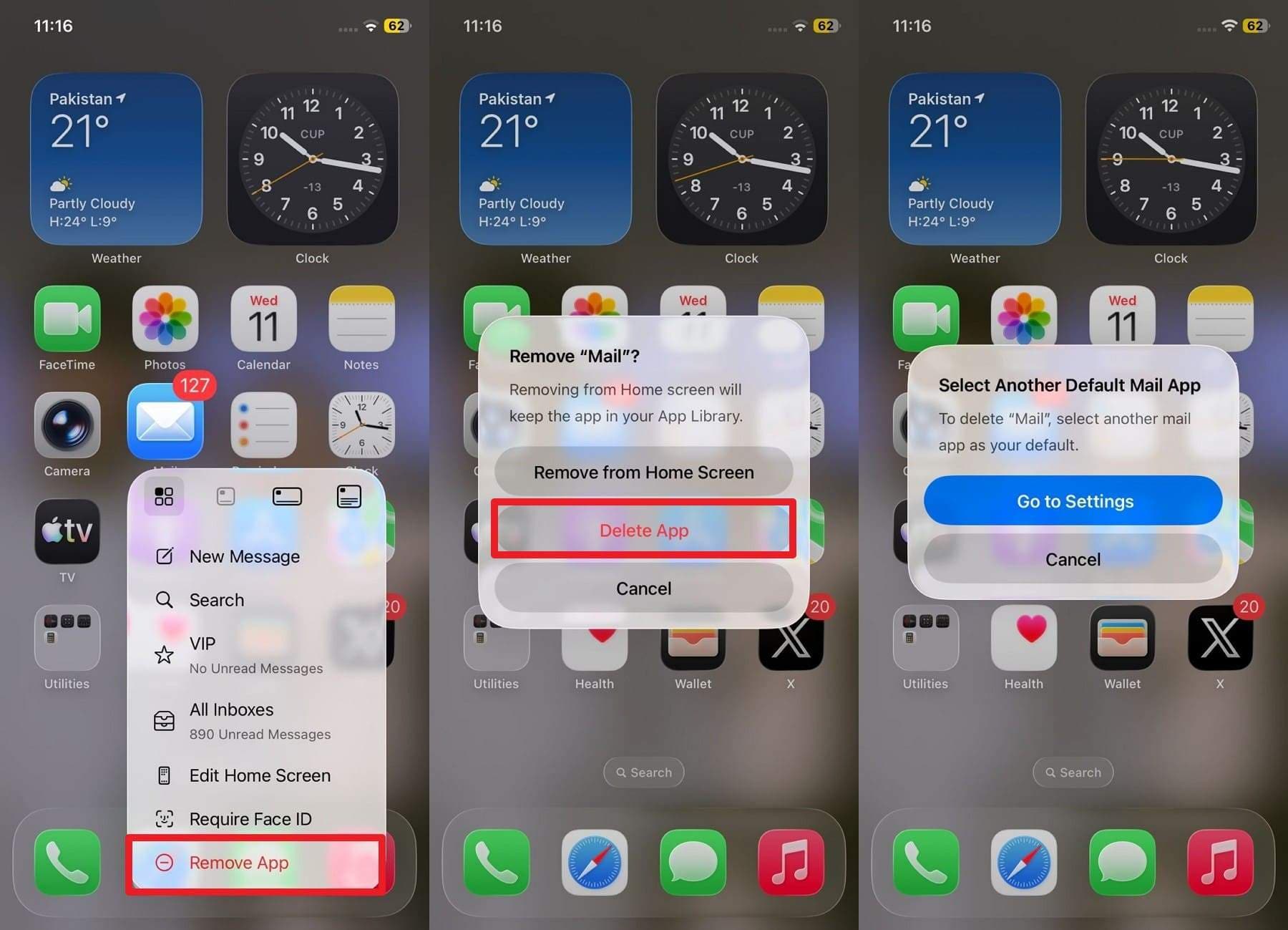
You can also fix the "this message has not been downloaded by the server" issue by clearing the Mail cache or temporary data that won't fully download. Thus, this removes corrupted data, fixes sync problems with the server, and improves app speed and stability. So, by following the given instructions, you can restore connections so Mail can rebuild everything easily:
Instructions. By following Fix 4, remove the email account in Settings, then add it back to clear the cache, or force a sync by pulling down in the Mail app. You can also remove and reinstall the mail app by picking "Remove App > Delete App" options.
Part 4. Fix iOS-Level Issues When Emails Still Won't Download
Sometimes, the iOS system-level issue can also lead to iPhone this message has not been downloaded from the server issue. Therefore, this section offers 3 simple and practical solutions that you can consider to resolve it quickly:
1. Fix Hidden iOS System Issues That Block Mail Download
Dr.Fone - System Repair is surely the best solution to address the iOS system issue with a success rate of 100%. The tool is designed to resolve around 150+ iOS system issues, leading to the iPhone message has not been downloaded from the server error. In this context, Dr.Fone – System Repair (iOS) allows users to access Recovery mode for free, where a detailed guide makes it even easier.
Since the tool suits both novices and professionals, users can also use it to upgrade to a newer iOS version if the older one was causing Mail issues. Once resolved, users can downgrade to an earlier iOS version without jailbreaking or using iTunes. As this iOS system repair tool is versatile, it also enables one to factory reset the iPhone without a passcode/iTunes/Finder.

Dr.Fone - System Repair (iOS)
Repair iOS System Errors Without data loss.
- Only fix your iOS to normal, no data loss at all.
- Fix various iOS system issues stuck in recovery mode, white Apple logo, black screen, looping on start, etc.
- Upgrade and Downgrade iOS without iTunes at all.
- Work for all iPhone/iPad/iPod Touch, running on all iOS versions


Detailed Guide to Fix the Mail App Issues Seamlessly Using Dr.Fone
To resolve "this message has not been downloaded from the server," adhere to the given guide and fix the iOS-level issue:
- Step 1. Select the iPhone System Repair Tool
- Step 2. Opt for Standard Mode & Follow the Recovery Guide
- Step 3. Download & Install the iOS Firmware
As you connect the problematic iPhone, pick the "System Repair" tool for iOS and choose the "Repair iOS" option under iOS Repair.

After that, pick the "Standard Mode" and press the "Guide" or "Enter Recovery Mode" buttons. Once in the recovery mode, the tool will detect and display the respective iOS firmware.
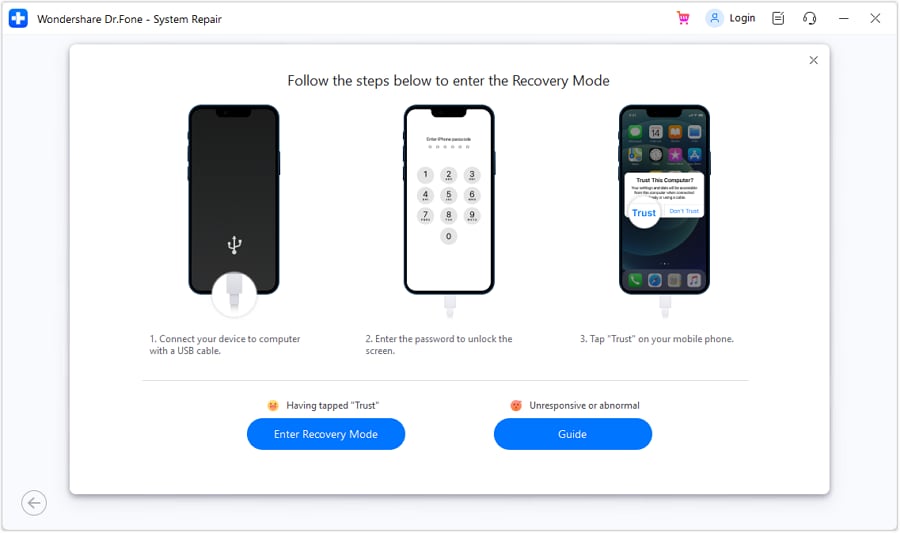
There, click the "Download" button and commence the installation and verification. As it concludes, choose the "Repair Now" button and let Dr.Fone fix iOS system issues.

safe & secure4,624,541 people have downloaded it
2. Update iOS to the Latest Version
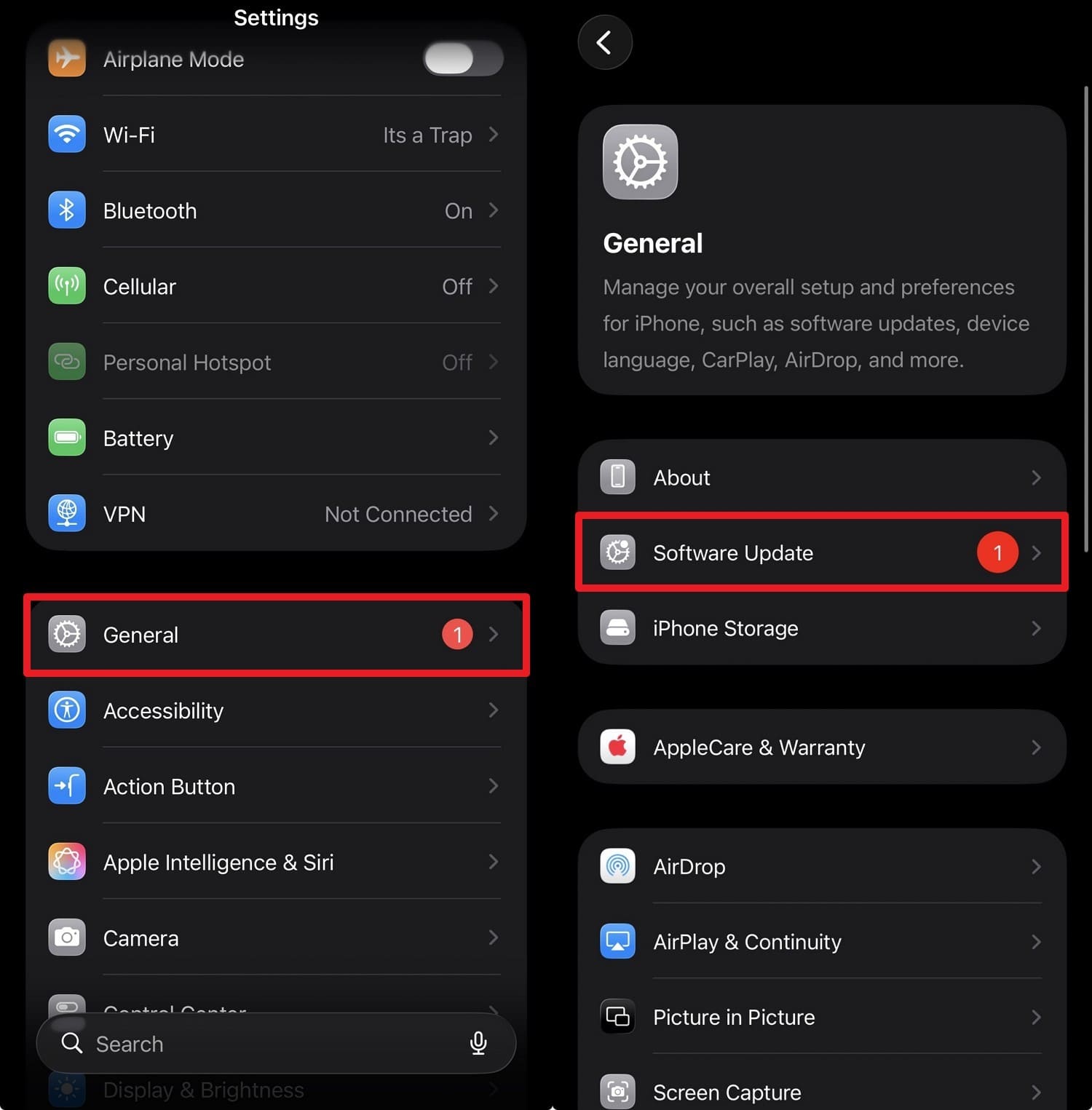
While using Dr.Fone, you can also update the iOS version via settings to resolve the message that has not been downloaded by the server. This solution will fix Mail app bugs, improve server compatibility, and repair system files. It also boosts performance and network handling, once done via the simple steps illustrated below:
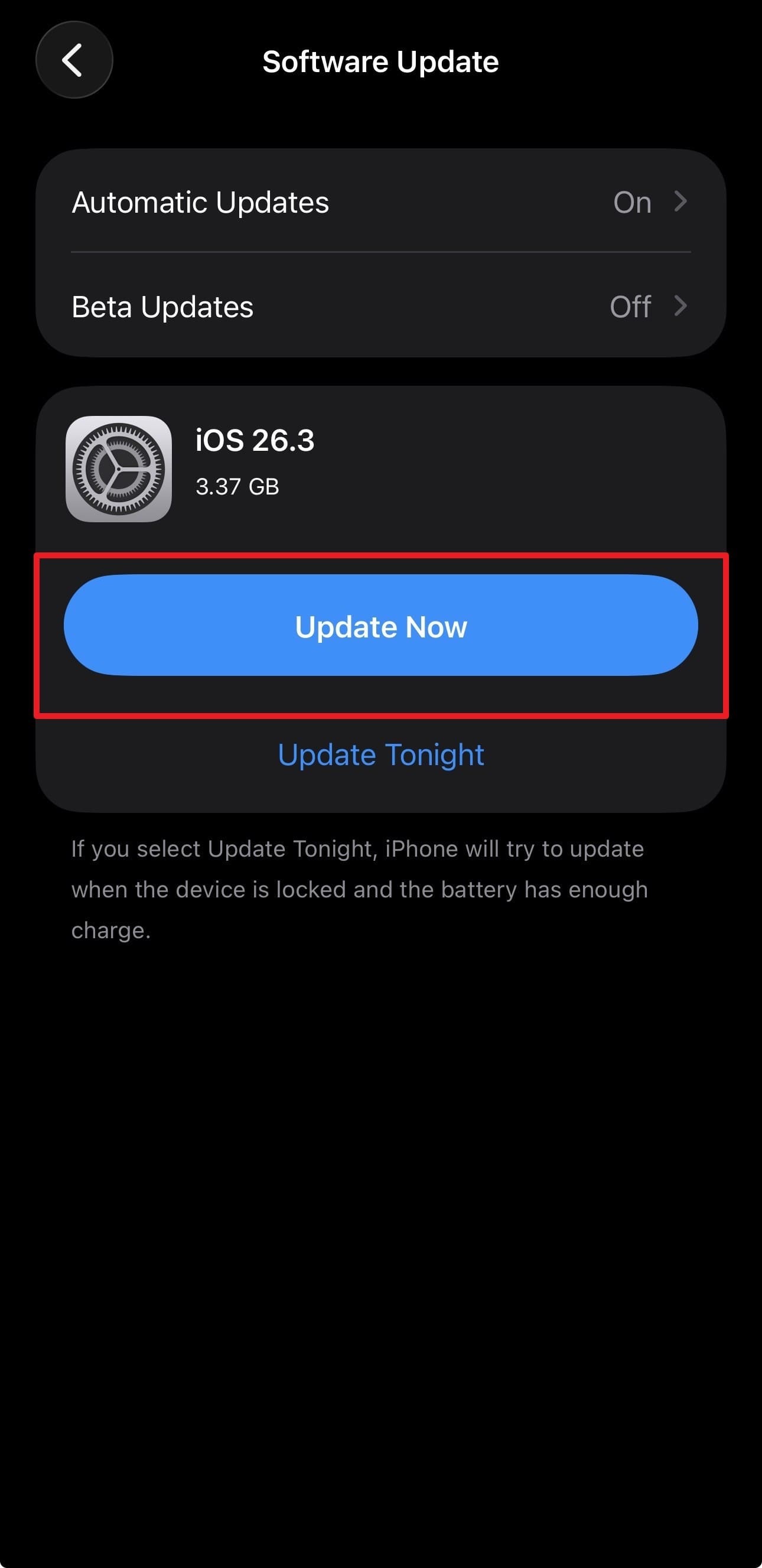
- Step 1. Choose the "General" settings and pick the "Software Update" option within the list.
- Step 2. If a new iOS version is available on the new screen, pick the "Update Now" button.
3. Reset Network Settings on iPhone
As a last resort for this message has not been downloaded from the server issue, try to reset the network settings. This will clear broken Wi‑Fi, cellular, and DNS settings and remove problematic VPN or proxy configurations. Furthermore, users can resolve the hidden network glitches and give a clean base for Mail to connect properly, once settings are reset through the mentioned steps:
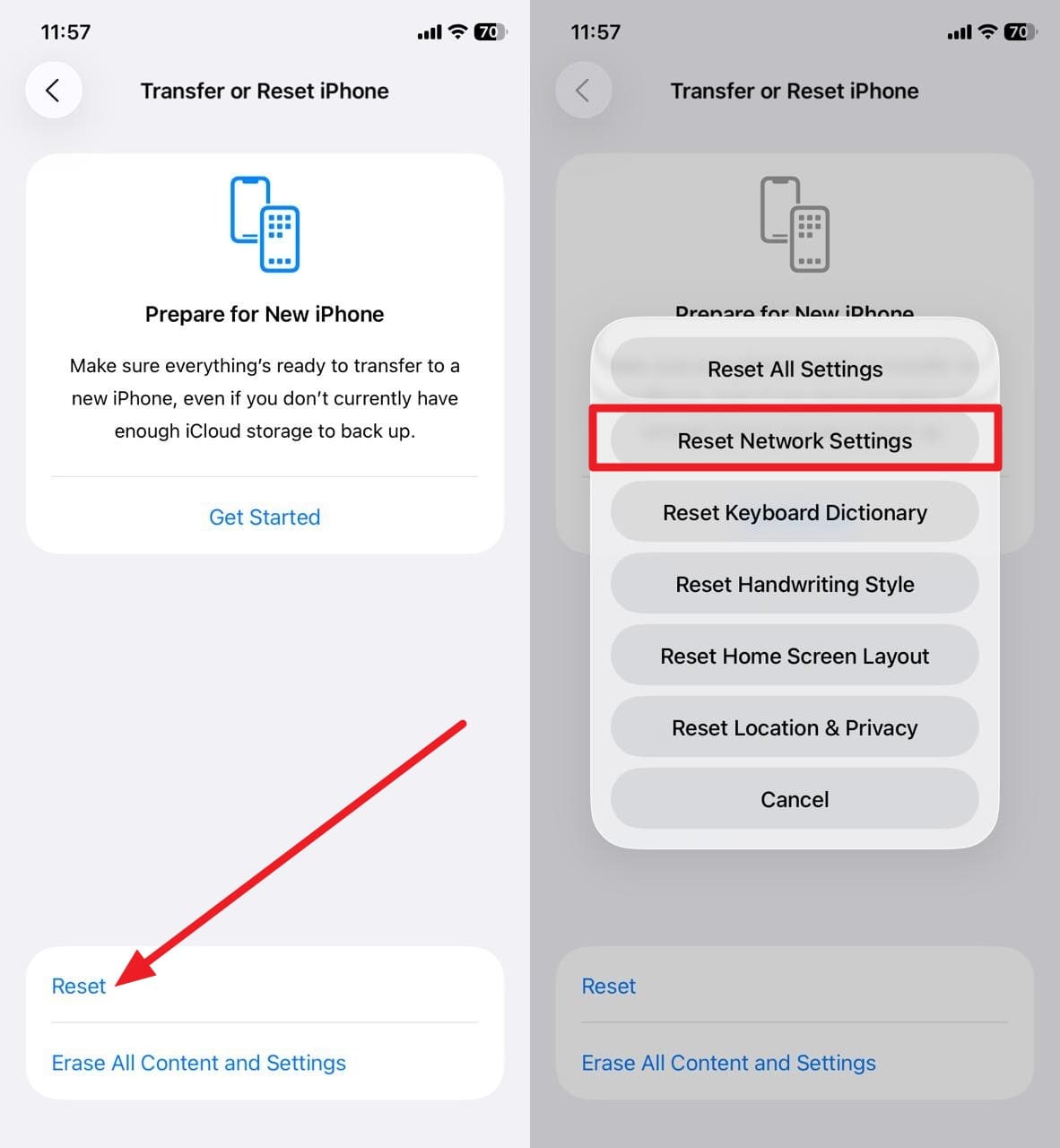
- Step 1. Scroll down to General settings to pick the "Transfer or Reset iPhone" option and press the "Reset" option.
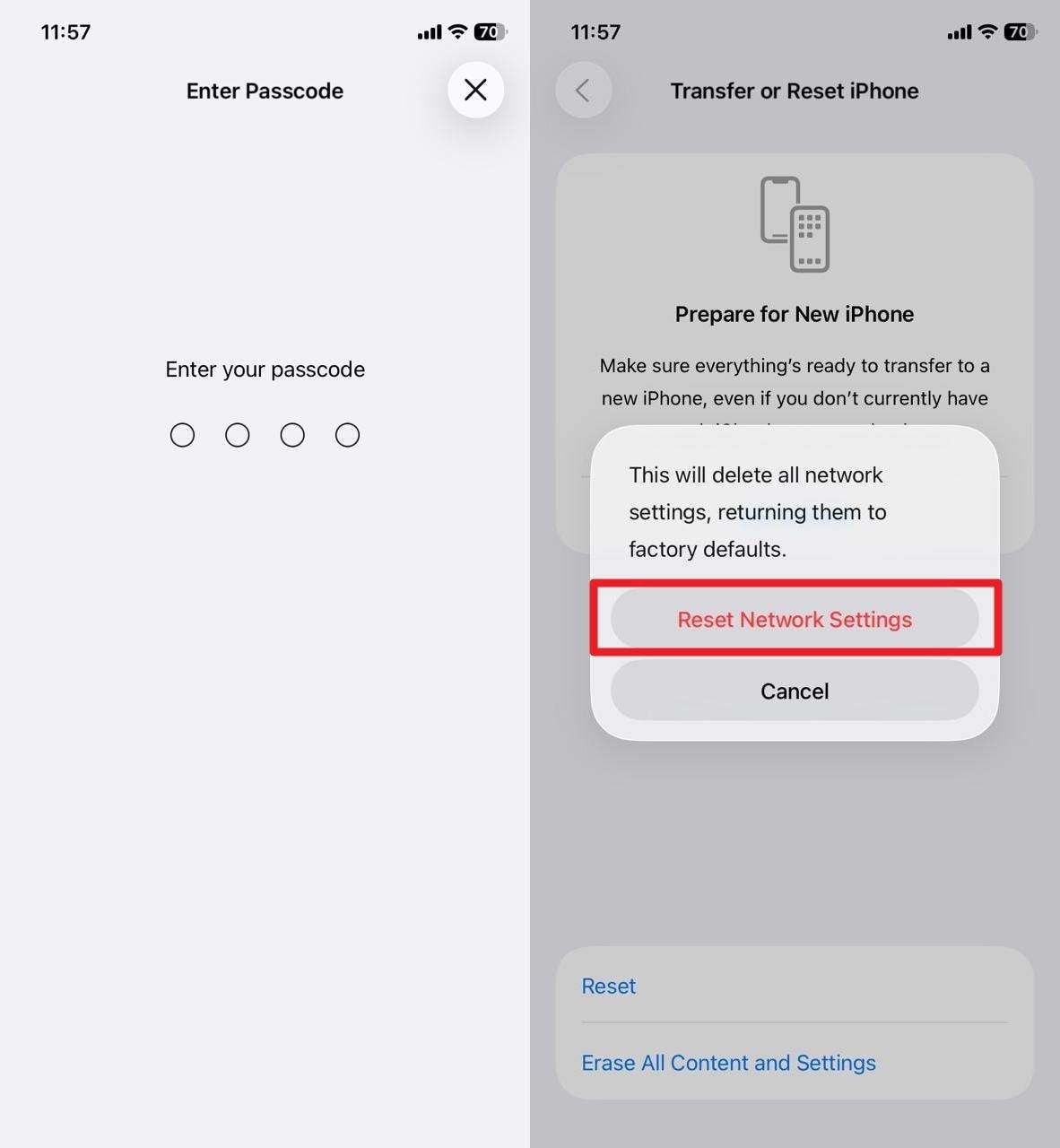
- Step 2. Choose the "Reset Network Settings" option, enter the device code, and press "Reset Network Settings" again.
Part 5. When "This Message Has Not Been Downloaded from the Server" Is Caused by Email Server Issues
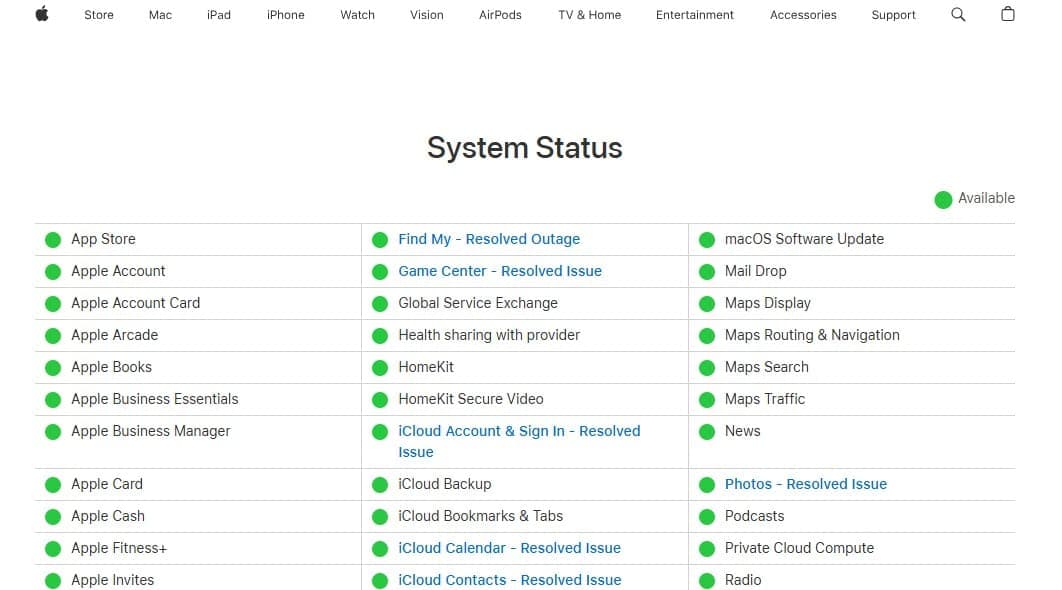
When the server is the root cause for "this message has not been downloaded by the server," you can't fix it on your iPhone. Instead, check the Apple Status page for outages and wait, as during a server issue, only headers may load, and full messages won't download.
You can also try logging in to webmail or using another device or mail app. If the message still fails or is slow, the problem is likely on the server or with that specific email.
Conclusion
To sum up, this comprehensive guide has explained what the "this message that has not been downloaded from the server" issue is. To that end, a few basic iOS-level fixes are explained in detail to help you quickly troubleshoot and resolve the problem. Among all, it is recommended to use Dr.Fone - System Repair, as it can fix 150+ iOS issues, including support for latest iOS and iPhone Series.
safe & secure4,624,541 people have downloaded it
FAQs
 1.
Can I still see the email header if the body isn't downloaded?2.
Does this error affect all emails or just some?3.
Can this happen on multiple devices?
1.
Can I still see the email header if the body isn't downloaded?2.
Does this error affect all emails or just some?3.
Can this happen on multiple devices?


iPhone Issues
- iPhone Storage Full
- 1. Stuck on Apple Logo Storage Full
- 2. Erase Content Settings not Working
- 3. iPhone Lagging
- 4. iPhone Running Slow
- iPhone Update Problems
- 1. Stuck on Updating iCloud Settings
- 2. iPhone Frozen During iOS Update
- 3. iPhone Checking for Update Stuck
- 4. iPhone Cellular Update Failed
- 5. iPhone Software Update Failed
- 6. iPhone Stuck on Update Requested
- 7. iPhone Update Error 1110
- 8. iPhone is Findable and Won’t Turn On
- 9. iPhone Won't Update
- 10. Update Server Couldn't Be Contacted
- 8. iPhone & iPad Security Updates
- 9. Update iPhone with/without iTunes
- 10. Can't Download or Update Apps
- iPhone Media Problems
- 1. Apple Music Song Not Available
- 2. iPhone Not Ringing
- 3. iPhone Echo Problem
- 4. iPhone Ringer Problems
- 5. iPhone Plays Music by Itself
- 6. Ringer Volume Changes by Itself
- 7. Music Won't Play on iPhone
- 8. Blurry Photos & Videos on iPhone
- 9. iPhone Volume Problems
- iPhone Sound Problems
- 1. YouTube no Sound
- 2. iPhone Microphone Problem
- 3. Test iPhone Microphone
- 4. Headphones No Sound from iPhone
- 5. No Sound on iPhone Game
- 6. iPhone Sound Not Working
- 7. iPhone Screen Recording no Sound
- iPhone Calling Problems
- 1. iPhone No Sound on Calls
- 2. Screen Goes Black During Call
- 3. iPhone Recent Calls Not Showing
- 4. iPhone Dropping Calls Issue
- 5. iPhone Calling Problem
- iPhone Camera Problems
- 1. iPhone Camera Black
- 2. iPhone Camera Blurry
- 3. iPhone Camera Not Working
- 4. iPhone Front Camera Not Working
- 5. TrueDepth Camera Not Working
- 6.Out-of-Focus Photos on iPhone 15
- iPhone Network Problems
- 1. Airpods Won't Connect to iPhone
- 2. iPhone Disabled Connect to iTunes
- 3. iPhone Not Syncing Problems
- 4. iPhone Internet Not Working
- 5. iPhone Keep Disconnecting from Wifi
- 6. iPhone WIFI Not Working
- 7. PC Not Recognizing iPhone
- 8. iPhone Stuck on Connect to iTunes
- 9. iPhone Not Showing up in iTunes
- 10. iTunes Not Detecting Your iPhone
- 11. iPhone Bluetooth Disconnect
- 12.Apple CarPlay Keeps Disconnecting
- iPhone Screen Problems
- 1. White Spots in iPhone Screen
- 2. iPhone Bleeding Screen
- 3. Turn Off iPhone When Frozen
- 4. Fix Orange Dot on iPhone
- 5. iPhone Green Screen Flickering
- 6. Green Lines in iPhone Screen
- Other iPhone Problems
- ● Manage/transfer/recover data
- ● Unlock screen/activate/FRP lock
- ● Fix most iOS and Android issues
- Free Download Free Download Free Download


 > How-to > Phone Repair Solutions > Fix 'This Message Has Not Been Downloaded from the Server' on iPhone
James Davis
staff Editor
Generally rated4.5(105participated)