
Best Way to Handle IPSW Firmware Without Errors or Risks

Oct 22, 2026 • Filed to: Phone Repair Solutions • Proven solutions
 TL;DR:
To safely handle IPSW firmware for updating, downgrading, or restoring your Apple device, you can either manually flash the file via iTunes for full version control or use Dr.Fone - System Repair (iOS) to automate the firmware matching process without losing personal data.
● Sourcing firmware from third-party hubs like IPSW ME or IPSW Downloads is safe because they link directly to Apple servers, but the installation will fail if Apple is no longer actively "signing" that specific iOS version.
● The manual iTunes or Finder method is best for users who require exact control over downgrades and clean installs, provided they can manually match the correct device model, use the necessary keyboard shortcuts, and accept a complete wipe of all device data.
● Dr.Fone - System Repair (iOS) is ideal for users looking to resolve system crashes like boot loops or black screens with minimal technical skill, as it automatically detects the required firmware and features a Standard Mode that repairs the device without erasing files.
Ask AI for a summary
 ChatGPT
 Perplexity
 Gemini
 Claude
 Grok
Grok
You press update on your iPhone, and instead of relief, doubt sets in. Will the phone restart fine? Will it get stuck halfway? The file behind this moment is the IPSW. It is not a name most users know, yet it holds the power to fix a frozen screen, restore a broken system, or even downgrade when updates feel heavy. Many of you have searched for IPSW download late at night, opened IPSW ME, and wondered if the file is safe. Some found success, others faced the dreaded error message.
The goal of this article is to explain IPSW in plain words, show safe ways to use it, and reveal an easier method for those who want zero risk.
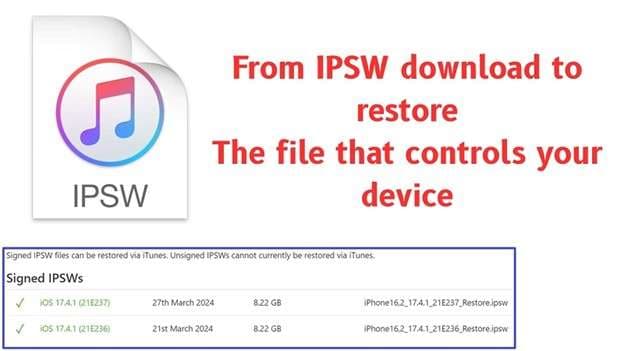

Part 1. What does IPSW stand for? What is it used for?
The term IPSW is a contraction of iPhone Software. And it’s not just some ordinary little file, but in fact a whole package containing the OS for Apple devices. Contained within this file are all the ingredients required to boot up iOS, iPadOS, macOS, watchOS, and even tvOS. Each time a new release of the system appears, Apple creates a new IPSW. It’s like this: users will have the solution when it comes to restoring or updating their iDevice.
What is IPSW used for
An IPSW file gives you control over the software on your Apple device. It is not only about updates; it can also solve problems that normal settings cannot fix.
Here are the main uses of an IPSW file:
- ● Update to a new version: Install the latest system when you want a fresh start.
- ● Restore a device: Bring back a clean system if the phone or iPad is stuck or damaged.
- ● Downgrade when possible: Move back to an earlier version while Apple still signs the file.
- ● Troubleshoot software issues: Repair errors that appear after an update or system crash.
Before starting, always back up your data. Installing an IPSW wipes the device clean. Don’t install unofficial files, as these may corrupt the system, lose security, and come between you and your warranty.
Part 2. Is IPSW ME official?
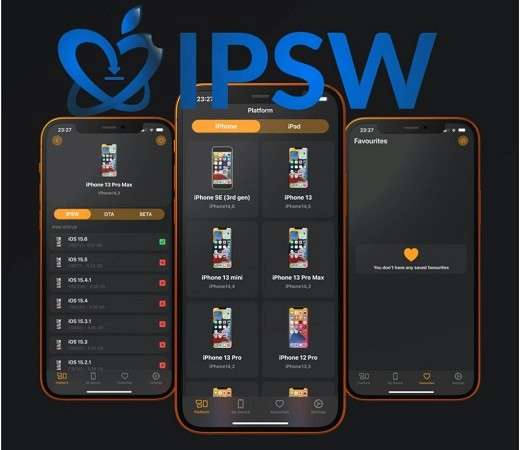
IPSW ME is not an Apple-owned site. It acts as a hub listing firmware links, but those links point to Apple’s own servers. The site does not host the firmware files themselves.
Why do people trust it
- ● Because the downloads are done directly from Apple servers, the firmware remains unmodified.
- ● Users rely on it to check which iOS versions are still “signed” by Apple (meaning Apple allows installation of that version).
What being “official” means & the limits
- ● It isn’t official in the sense that Apple maintains or supports the site.
- ● Apple never endorses third-party aggregators, so if any issue arises during restore/update, Apple support may refer to official tools (like iTunes, Finder, or Settings) only.
- ● The site’s safety depends on the correct matching of firmware to device, and whether the firmware is still signed. If not, installation will fail.
Part 3. Where can I find IPSW files?
The vast majority of users never touch these files directly. If automatic updates are enabled, the machine takes care of it all quietly in the background. The newest update comes via Software Update on these devices, and the Apple IPSW is temporarily downloaded from Apple’s servers. Once you connect the device to a computer, iTunes or Finder downloads the appropriate firmware itself.
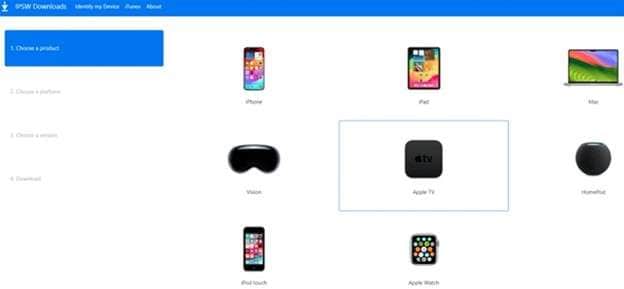
Only if you are downloading a downgrade or flashing once should it be manual downloads. In such cases, trusted sources are important. Here are some reliable places:
- ● iClarified: keeps a record of every IPSW release. Device model and version label files.
- ● iDownloadBlog: offers firmware links for iPhone, iPad, iPod, and Apple TV, along with some extra tools.
- ● IPSW Downloads: one of the largest directories, covering iPhone, iPad, Mac, Vision, Apple Watch, and more.
Part 4. Is the IPSW file safe?
It depends on what you mean by safe. The IPSW file is safe because it’s just from Apple. This is the package used by iTunes or Finder to undo, reinstall, or upgrade your iPhone or iPad.
After the installation is done, you're through with that file on your computer. At this point, it can be safely removed. When you’re done with it, deletion simply reclaims storage space, just like your device is untouched.
If you want to restore or update again, then a new version of the firmware will be released. The newest build can be downloaded from Apple’s servers when you need to use it.
Part 5. How to use an IPSW?
You know the sources and safety of an IPSW file. The next challenge is using it correctly. A small mistake here can decide success or a failed restore.
Method 1. How to Use an IPSW File to Restore an iPhone with iTunes
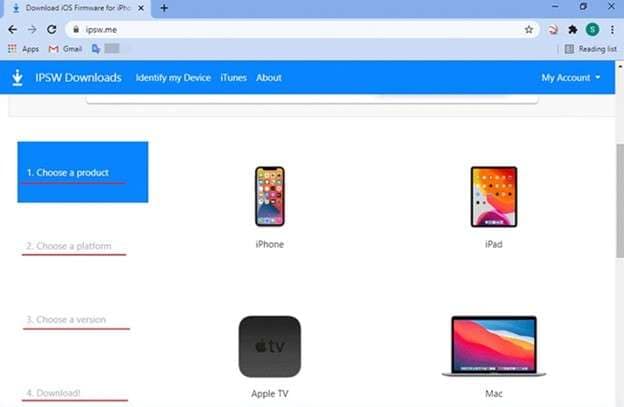
Step 1. Download the file
Go to a trusted source such as IPSW Downloads. Select your device model and platform. The site will then display the right IPSW firmware for your iPhone. Save it on your computer.
Step 2. Connect the device
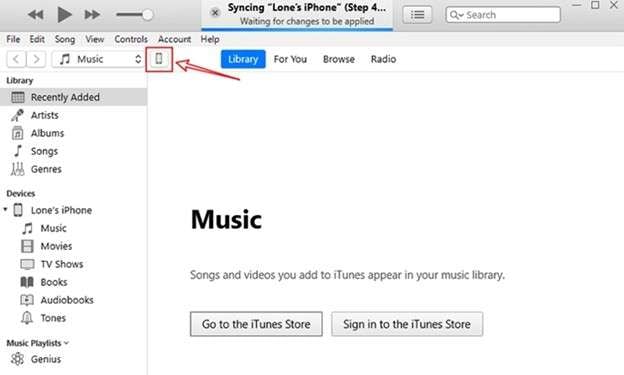
Launch iTunes on your Windows PC. Plug the iPhone into a USB cable. Once connected, click the small iPhone symbol near the Music bar.
Step 3. Make a backup
Restoring clears all data. Create a backup first. You can store it on iCloud or locally. In iTunes, select Back Up Now.
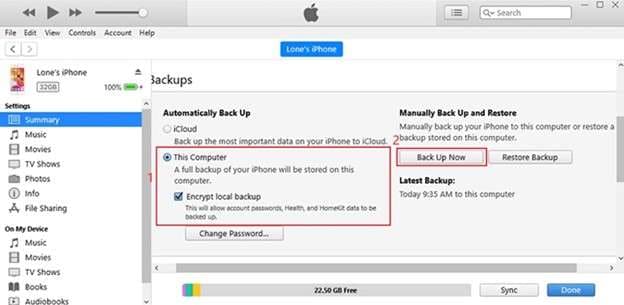
On Windows, backups are usually saved under:
C:\Users\[Username]\AppData\Roaming\Apple Computer\MobileSync\Backup
This folder may vary slightly by system. For more safety, protect the backup with a password.
Step 4. Start restore
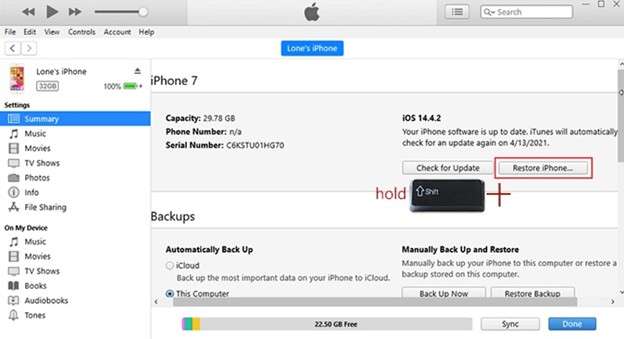
Hold down the Shift key and click Restore iPhone. A new window opens. Browse and choose the IPSW file you downloaded. Confirm, and let iTunes complete the process. Your phone will restart with fresh firmware installed.
Method 2. Best IPSW File Alternative to Restore iPhone without iTunes
Manually restoring with iTunes often feels slow and complex. First, you go to an IPSW download site, then save the right firmware, and finally run the restore. You also need a backup in advance, because using iTunes wipes the phone. Many users find this process confusing.
A simpler way is to use a trusted tool like Dr.Fone - System Repair (iOS). This software removes the need for manual steps.
Why Dr.Fone makes it easier
- 1. Once you connect your device, it detects the platform and shows the correct iOS IPSW based on sources like IPSW ME. This saves time and avoids mistakes.
- 2. Standard Mode repairs or restores without deleting your personal data.
- 3. Beyond installing a file IPSW, it also fixes common issues such as iPhones stuck on the Apple logo, recovery mode, or a black screen.

Dr.Fone - System Repair (iOS)
Best IPSW File Alternative to Restore iPhone without iTunes
- Only fix your iOS to normal, no data loss at all.
- Fix various iOS system issues stuck in recovery mode, white Apple logo, black screen, looping on start, etc.
- Upgrade and Downgrade iOS without iTunes at all.
- Work for all iPhone/iPad/iPod Touch, running on all iOS versions.


This option works for all models, from older builds like iPhone 6 IPSW and iPhone 7 plus IPSW to newer versions such as IPSW iPhone 11, IPSW iPhone X, and even iPad IPSW.
Step 1. Install and launch the tool
Download the latest Wondershare Dr.Fone on your computer. Open it, go to Toolbox, and choose System Repair. Select iOS as your device type.

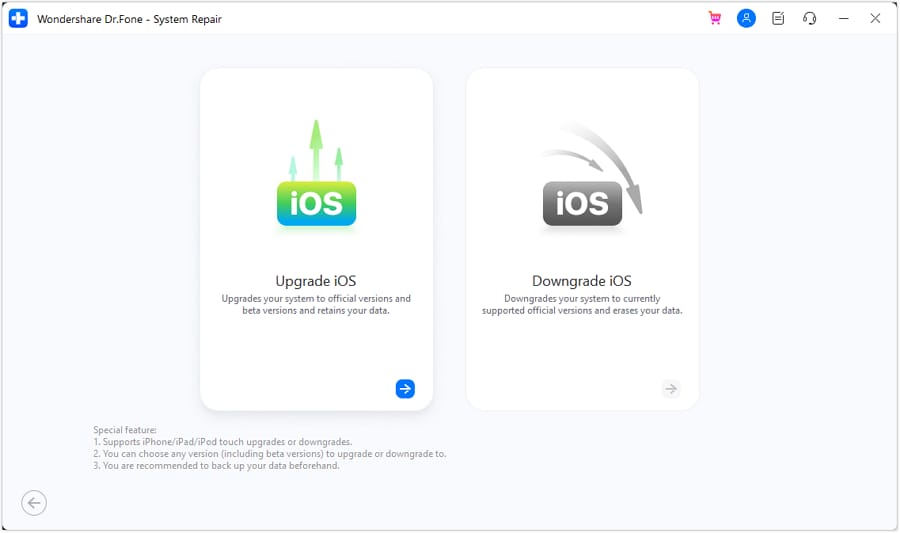
Step 2. Pick the right option
On the next screen, choose iOS Upgrade/Downgrade. Then select Upgrade iOS to continue.
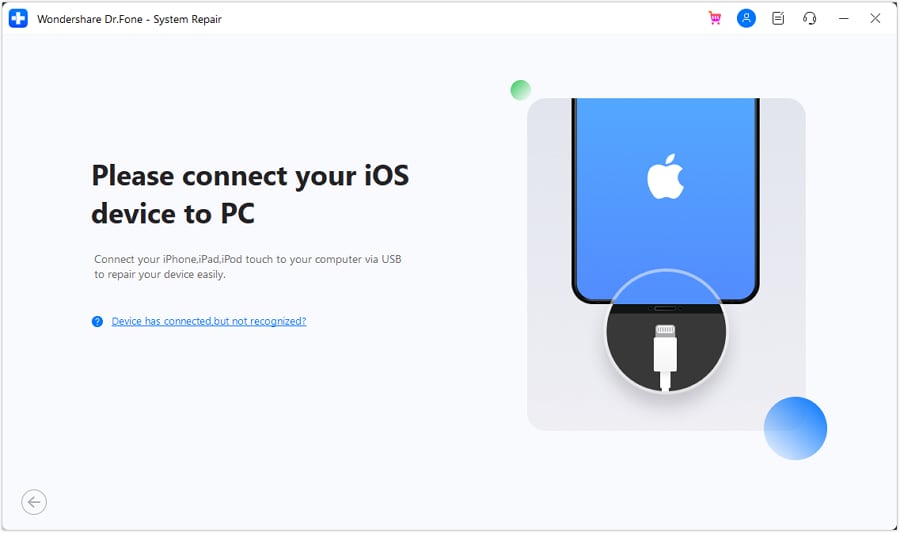
Step 3. Connect your iPhone or iPad
Use a USB cable to connect the device. The program will detect it automatically and show available firmware versions.
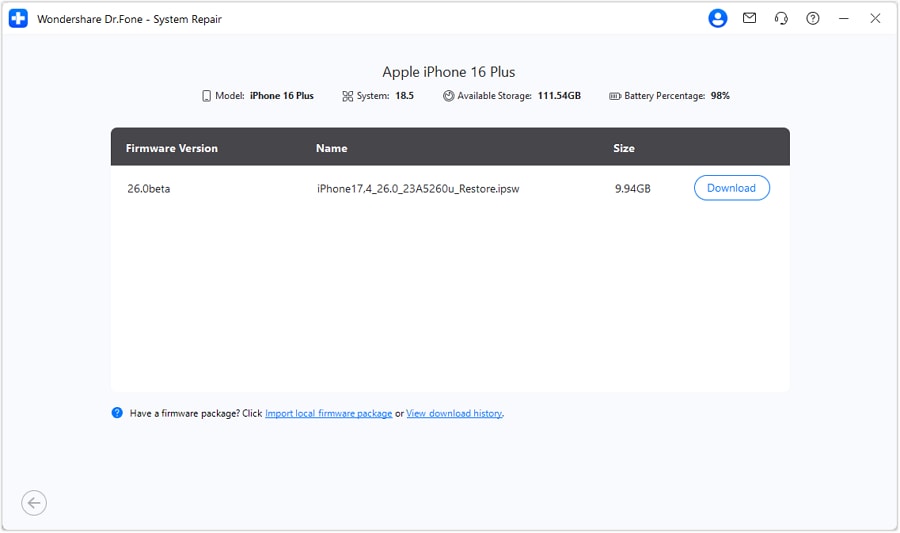
Step 4. Download and install firmware
Choose the iOS version you want and click Download. Once verified, press Repair Now. Wait for the progress bar to finish. Your device will restart with the new system.
Dr.Fone vs Manual IPSW Restore – What’s Easier
A manual restore needs an IPSW download from trusted sites or direct Apple IPSW servers. Dr.Fone removes these steps. Comparing both methods shows which one truly saves time and reduces risk.
|
Feature |
Manual IPSW via iTunes/Finder |
Dr.Fone – System Repair (iOS) |
| Data Loss | Always erases data during restore. You lose apps, photos, and settings unless you back up beforehand. | Has a Standard Mode that repairs or restores without wiping data. |
| Technical Skill Needed | Requires knowing how to find the correct file ipsw, matching model/version, entering recovery/DFU mode, using keyboard shortcuts (Shift / Option), etc. Errors are common. | Easy UI, guided steps. Dr.Fone detects the device model and suggests compatible firmware. Less chance of picking the wrong model. |
| Speed & Convenience | Can be slower: you must download the IPSW manually, then restore via iTunes/Finder. Need correct backups, ensuring signing status, etc. | Faster for many users. Firmware download + repair in the same tool. Many issues can be fixed without full wipes. |
| Scope of Repair | Good for complete restores, downgrades (if signed), and clean installs. But there is a risk of errors if the wrong version or a corrupted file is used. | Broader repair functions: black/white screen fix, boot loop, stuck recovery mode, freezing, etc. All-in-one tool. |
| Control Over Firmware | Full control: you select the exact IPSW version, and can use older versions if still signed. | Also gives the option to choose a version. But mostly focuses on the latest official builds, with less manual risk. |
If you want full control and don’t mind doing things manually, a manual IPSW restore gives you that. But it comes with complexity, risk, and more steps. Dr.Fone steps in as a safer, simpler path: less chance of error, fewer manual steps, less risk to your data.
Conclusion
The journey through IPSW firmware shows how central it is to every Apple device. From updates and restores to downgrades and fixes, this file decides if your iPhone works smoothly or struggles with errors. We explored safe sources, the role of IPSW me, and the risks of using unofficial builds.
Manual restores still have value for those who want control, but they demand time and skill. Tools like Dr.Fone offer a way to cut through the complexity, letting users repair or update with less risk while keeping their data safe.
 safe & secure
4,624,541 people have downloaded it


iPhone Issues
- iPhone Storage Full
- 1. Stuck on Apple Logo Storage Full
- 2. Erase Content Settings not Working
- 3. iPhone Lagging
- 4. iPhone Running Slow
- iPhone Update Problems
- 1. Stuck on Updating iCloud Settings
- 2. iPhone Frozen During iOS Update
- 3. iPhone Checking for Update Stuck
- 4. iPhone Cellular Update Failed
- 5. iPhone Software Update Failed
- 6. iPhone Stuck on Update Requested
- 7. iPhone Update Error 1110
- 8. iPhone is Findable and Won’t Turn On
- 9. iPhone Won't Update
- 10. Update Server Couldn't Be Contacted
- 8. iPhone & iPad Security Updates
- 9. Update iPhone with/without iTunes
- 10. Can't Download or Update Apps
- iPhone Media Problems
- 1. Apple Music Song Not Available
- 2. iPhone Not Ringing
- 3. iPhone Echo Problem
- 4. iPhone Ringer Problems
- 5. iPhone Plays Music by Itself
- 6. Ringer Volume Changes by Itself
- 7. Music Won't Play on iPhone
- 8. Blurry Photos & Videos on iPhone
- 9. iPhone Volume Problems
- iPhone Sound Problems
- 1. YouTube no Sound
- 2. iPhone Microphone Problem
- 3. Test iPhone Microphone
- 4. Headphones No Sound from iPhone
- 5. No Sound on iPhone Game
- 6. iPhone Sound Not Working
- 7. iPhone Screen Recording no Sound
- iPhone Calling Problems
- 1. iPhone No Sound on Calls
- 2. Screen Goes Black During Call
- 3. iPhone Recent Calls Not Showing
- 4. iPhone Dropping Calls Issue
- 5. iPhone Calling Problem
- iPhone Camera Problems
- 1. iPhone Camera Black
- 2. iPhone Camera Blurry
- 3. iPhone Camera Not Working
- 4. iPhone Front Camera Not Working
- 5. TrueDepth Camera Not Working
- 6.Out-of-Focus Photos on iPhone 15
- iPhone Network Problems
- 1. Airpods Won't Connect to iPhone
- 2. iPhone Disabled Connect to iTunes
- 3. iPhone Not Syncing Problems
- 4. iPhone Internet Not Working
- 5. iPhone Keep Disconnecting from Wifi
- 6. iPhone WIFI Not Working
- 7. PC Not Recognizing iPhone
- 8. iPhone Stuck on Connect to iTunes
- 9. iPhone Not Showing up in iTunes
- 10. iTunes Not Detecting Your iPhone
- 11. iPhone Bluetooth Disconnect
- 12.Apple CarPlay Keeps Disconnecting
- iPhone Screen Problems
- 1. White Spots in iPhone Screen
- 2. iPhone Bleeding Screen
- 3. Turn Off iPhone When Frozen
- 4. Fix Orange Dot on iPhone
- 5. iPhone Green Screen Flickering
- 6. Green Lines in iPhone Screen
- Other iPhone Problems
- ● Manage/transfer/recover data
- ● Unlock screen/activate/FRP lock
- ● Fix most iOS and Android issues
- Free Download Free Download Free Download




Julia Becker
chief Editor
Generally rated4.5(105participated)