Move contacts, messages, photos, videos, app data, and more between iOS and Android.

 100% Security Verified | No Subscription Required | No Malware

 :
: 
 ChatGPT
 Perplexity
 Gemini
 Claude
 Grok
Grok
Capturing the perfect moment without manual adjustments is the ultimate goal of mobile photography. With the highly anticipated release of the Samsung Galaxy S26 camera on February 25, 2026, Samsung continues to push the boundaries of computational imaging. Powered by the sophisticated One UI 8.5, this latest flagship integrates advanced AI photo tools, robust sensor technology, and refined video capabilities to deliver rich colors and impeccable details in every shot you take.
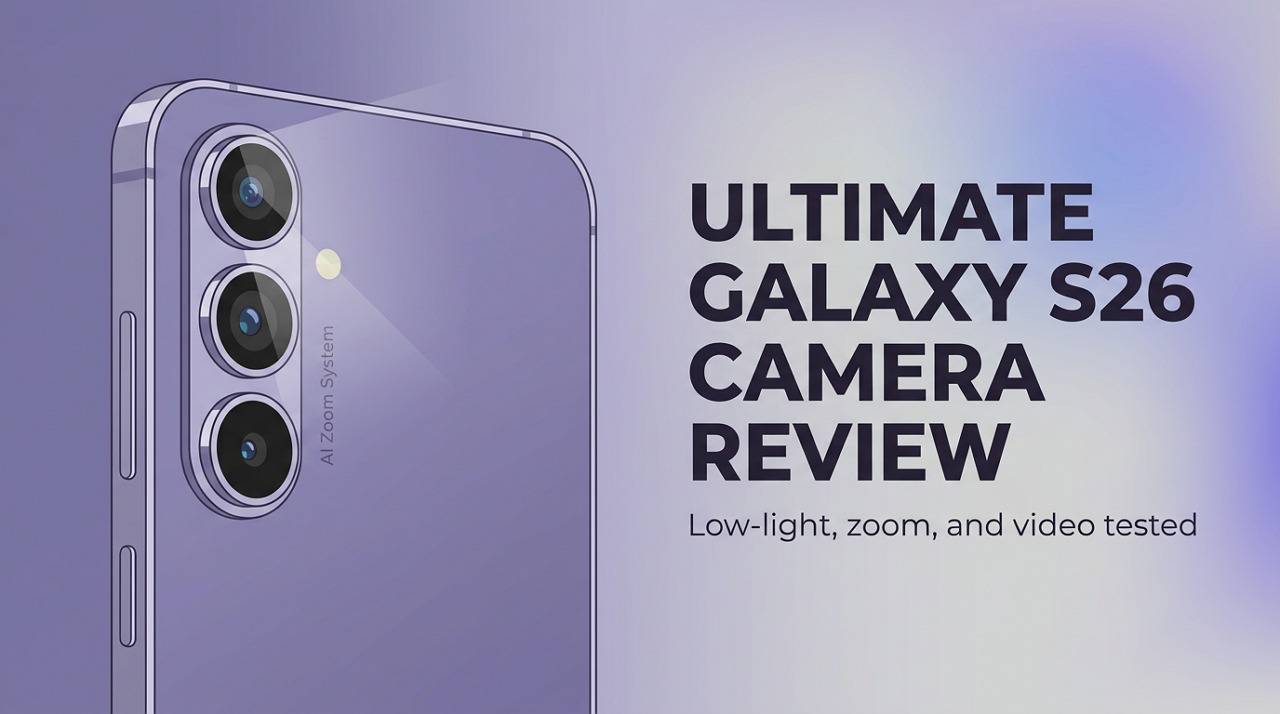
For mobile photography enthusiasts evaluating whether all the features of the S26 camera justify an upgrade, this comprehensive guide breaks down the essentials. We explore transformative capabilities like 10-bit HDR video recording, generative AI editing, and enhanced resolution flexibility. Furthermore, if the S26 camera spaces persuade you to upgrade to this stellar device, we explain how robust software can facilitate smooth phone transfers.
In this article
Part 1. Samsung Galaxy S26 Camera Review – Quick Verdict
The official specs and structural updates for the Samsung Galaxy S26 highlight a clear paradigm shift: Samsung is prioritizing robust AI image processing over massive hardware overhauls. Before diving deep into our S26 camera review, many users want the bottom line. Ultimately, the Galaxy S26 camera offers exceptional daily performance, boasting noticeable enhancements in computational low-light photography, stabilized video recording, and refined portrait zoom.
Anchored by a formidable 50 MP main camera (f/1.8, 24mm, OIS), the device consistently produces photos that exhibit wide dynamic range, vivid color accuracy, and zero shutter lag. Online communities have already noted the improvements:

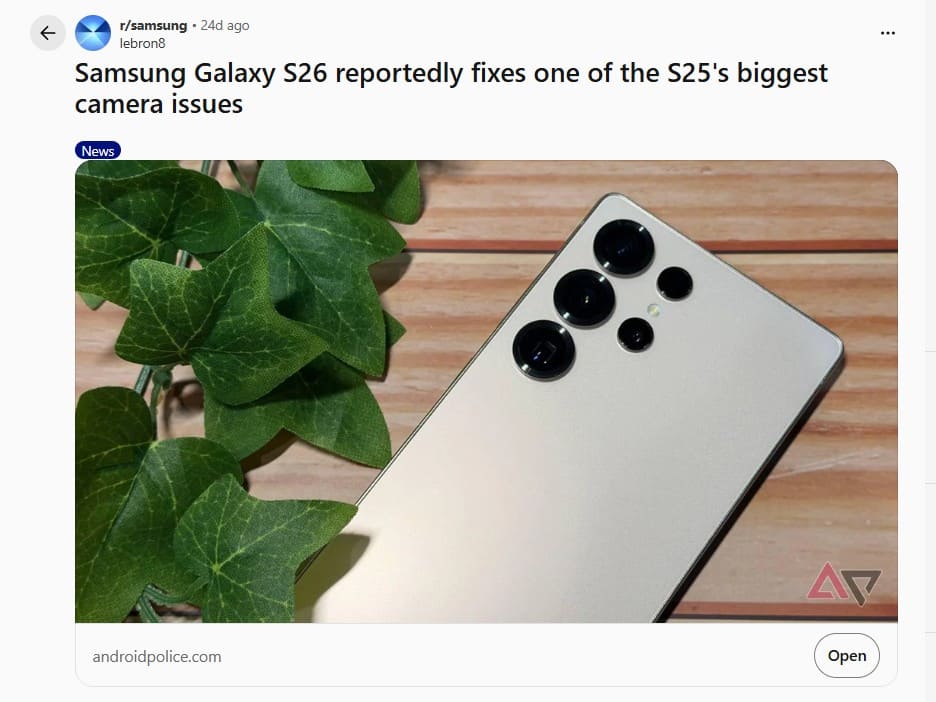
Samsung Galaxy S26 reportedly fixes one of the S25's biggest camera issues. - lebron8
Thanks to the ProVisual Engine, nighttime captures look radically cleaner and significantly brighter than those produced by preceding generations. The 10 MP telephoto lens handles 3x optical zoom adeptly for flattering portraits, while the 12 MP ultra-wide ensures sweeping landscapes fit perfectly in the frame. Additionally, videographers will appreciate 8K recording at 30 fps and 4K at 60 fps featuring 10-bit HDR processing and advanced gyro-EIS.
- The ProVisual Engine radically improves low-light details and general night photography.
- The 3x optical telephoto lens enables crystal-clear portraits and distinct distance shots.
- Video recording remains remarkably stable and detailed, perfect for social content and vlogging.
- Color tuning maintains Samsung's signature vibrance while introducing better exposure control.
- The front-facing selfie camera offers sharp 4K video rendering and immense detail.
- The underlying sensor hardware remains largely identical to the older Galaxy S25 and S24 models.
- Zooming beyond 3x begins to exhibit quality loss compared to premium 5x periscope competitors.
- Aggressive HDR processing occasionally renders certain scenes overly saturated or artificially bright.
Part 2. Key Features of the Galaxy S26 Camera
Across various technology forums, an overwhelming number of users have expressed deep satisfaction with the S26 night mode camera and its overarching software enhancements:
I upgraded my phone from the Samsung Galaxy S23 to the S26. What a great choice this was! The battery life is so much better, and the interface is much faster, allowing me to easily switch between various applications. The camera is great, with darker pictures capturing more light into the image, allowing me to store many more pictures and videos on the huge 512GB storage. Although lightweight, the phone is durable. - Rach93
If you are attempting to decipher whether these heavily marketed attributes translate to real-world excellence, this section deconstructs every major feature. Keep these specifications in mind for later when we contrast the S26 vs iPhone 17 camera to help you determine your ideal upgrade path.
1. Camera Hardware: Lenses, Sensors, and Aperture Upgrades
Let us begin by dissecting the core optical components equipped on the Galaxy S26 rear and front chassis, and how these specs benefit the average user.
Main Rear Camera System
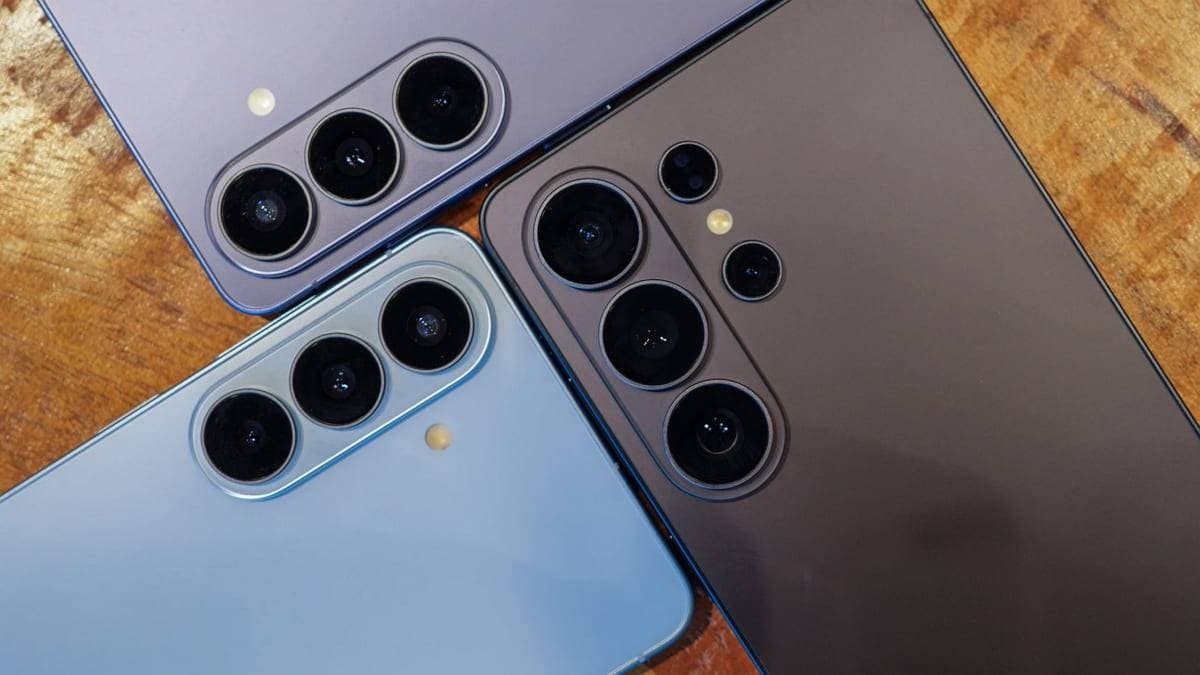
The primary trio of lenses on the S26 provides versatile focal lengths for diverse shooting environments:
- Wide Lens (50 MP, 24mm, OIS, Dual Pixel AF): Produces incredibly sharp and stabilized shots, ensuring high reliability for fast-moving subjects and everyday standard photography.
- Telephoto Lens (10 MP, 67mm, 3x Optical Zoom, OIS, PDAF): Specifically calibrated for portraiture and mid-range distant subjects, preventing quality degradation up to its optical limit.
- Ultra-Wide Lens (12 MP, 13mm, 120° FOV, Super Steady): Optimizes action shots and expansive travel landscapes, keeping vast sceneries cleanly within the frame without extreme edge distortion.
Sensor Specifications
- 50 MP Wide Sensor (1/1.56", 1.0µm pixels): Balances resolution and light intake, retaining excellent texture details even in indoor lighting.
- 10 MP Telephoto Sensor (1/3.94", 1.0µm pixels): Maintains clarity and structural integrity when pushing closer to your subject visually.
- 12 MP Ultra-Wide Sensor (1/2.55", 1.4µm pixels): Its larger pixel size heavily bolsters light capture compared to older generations, boosting indoor wide shots.
Aperture Breakdown
- Wide (f/1.8): A wide opening invites a massive influx of light, directly impacting the brightness and clarity of low-light photographs.
- Telephoto (f/2.4): Strikes a harmony between light exposure and depth of field, rendering distant subjects sharp while naturally blurring the background.
- Ultra-Wide (f/2.2): Efficiently handles sprawling scenes while maintaining sufficient brightness across the entirety of the expansive frame.
Selfie Camera Excellence
When analyzing the S26 camera vs S25, the front-facing optics continue to emphasize autofocus reliability and wider perspectives.
- Lens Specifications: A 12 MP wide-angle module (26mm, f/2.2) equipped with dual-pixel PDAF guarantees incredibly fast face-tracking for instantaneous social media selfies and sharp video conferencing.
- Sensor Mechanics: Featuring a 1/3.2" sensor with 1.12µm pixels, it easily digests incoming light to retain natural skin textures.
- Aperture Design: The f/2.2 aperture prevents noisy artifacts in dimly lit rooms, making nighttime selfies significantly more viable.
….. The low-light performance is insanely good on it now due to the better Lens/Aperture….- bomzisss
2. ProVisual Engine & AI-Powered Image Processing
Beyond the physical lens elements, the Galaxy S26 truly distinguishes itself through its algorithmic intelligence. To fully utilize effective S26 camera tips, you must understand how the ProVisual Engine fundamentally alters your captured data.
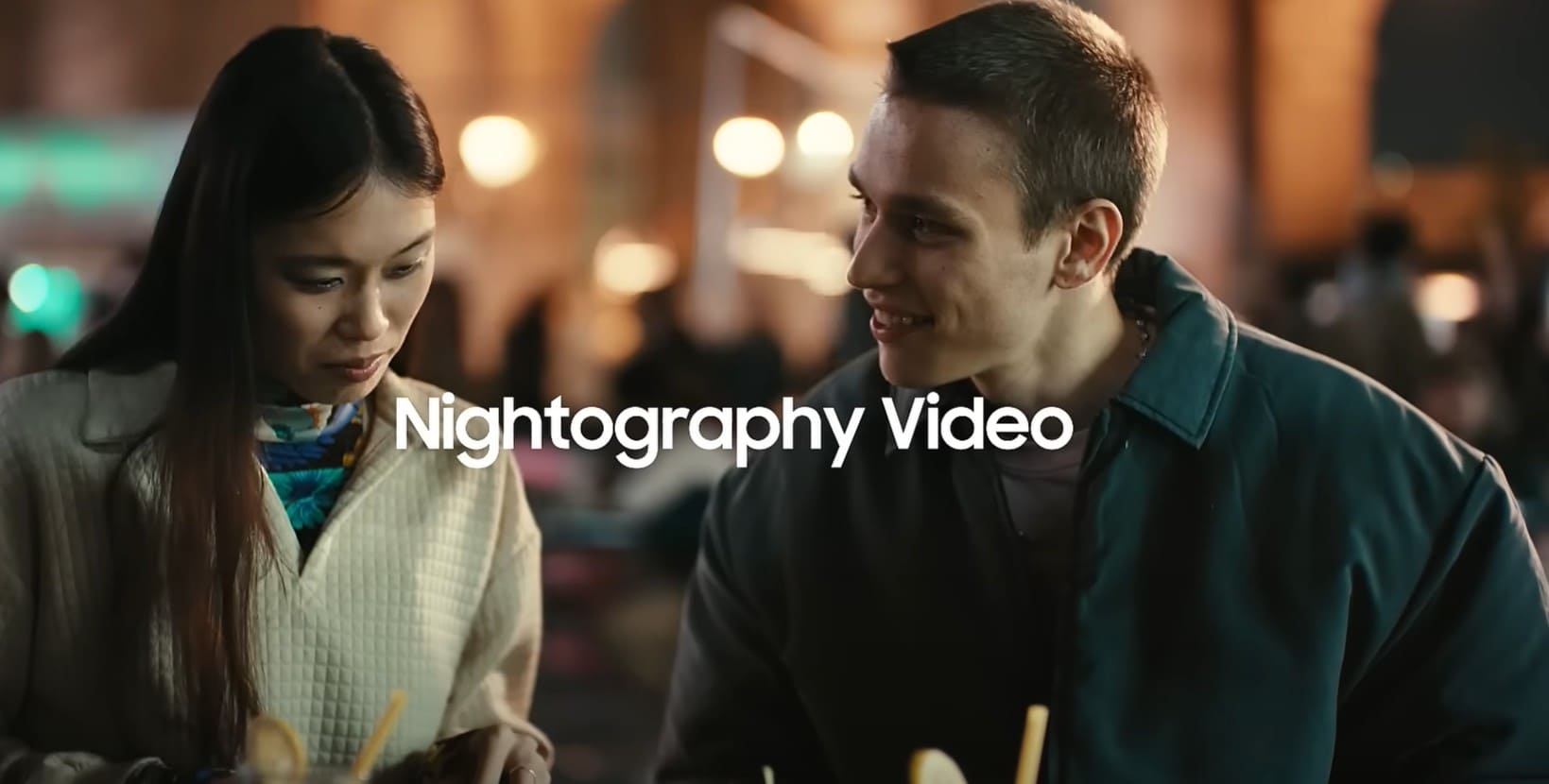
- Nightography Video Enhancement: Merges generative AI and an expansive dynamic range to synthetically reduce grain and intelligently reconstruct facial details hidden by shadows.
- AI-Powered Image Signal Processor (ISP): Hardwired to refine light and shadow contrast, it prioritizes authentic skin tones and meticulously preserves facial contours.
- mDNIe Technology: The mobile Digital Natural Image engine boasts a 4x increase in processing precision, ensuring graphical color translation remains astonishingly accurate.
- ProScaler & Detail Sharpness: This AI utility actively seeks out text and intricate textures, sharpening them dramatically while smoothing out adjacent surfaces.
- Advanced AI Editing: Operating alongside Photo Assist 11, users can issue conversational text prompts to seamlessly extract, resize, or entirely erase elements within their gallery.
3. Shooting Modes and AI Photo Tools
Integrating top-tier hardware with flexible software allows the Samsung Galaxy S26 to adapt to virtually any scenario. This segment of our S26 camera review highlights the modes designed to grant you ultimate creative control, including its specialized AI features.
Standard Shooting Modes
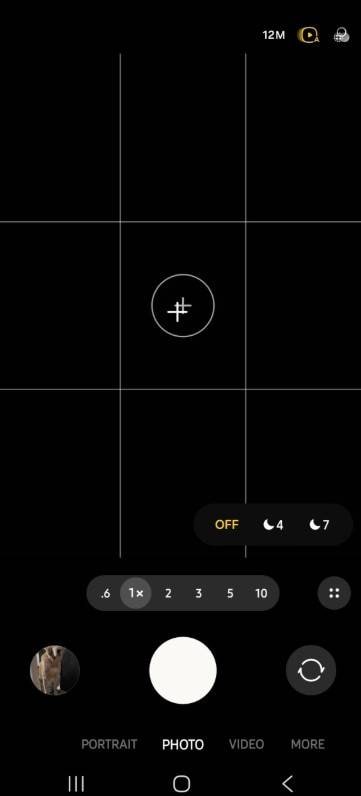
- Photo & Portrait Mode: Leverage the Camera Assistant application to unlock a forced 24 MP capture mode, offering a middle ground between the standard 12 MP and storage-heavy 50 MP settings.
- Nightography Suite: Dedicated algorithms force brighter exposures without requiring a tripod, elevating your evening photography instantly.
- Pro Mode & Video: Granular controls for the purist. Manually dictate your ISO parameters, tweak shutter speeds, and pull focus precisely where you want it.
AI Photo Tools (Photo Assist Suite)
Before concluding the S26 vs iPhone 17 camera debate, it is vital to acknowledge Samsung's dominant lead in post-processing generative features. The embedded Photo Assist toolkit effectively places a graphic designer inside your phone:
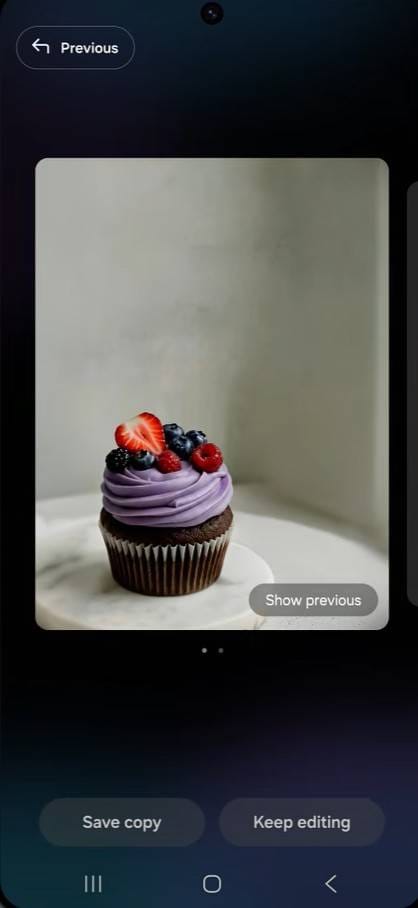
- Generative Editing: Reconstruct backgrounds, flawlessly move subjects, or alter clothing styles entirely using predictive AI filling.
- Creative Studio: A specialized sandbox environment capable of transforming crude sketches or text inputs into polished stickers and wallpapers.
- Natural Language Editing: Request complex modifications effortlessly, such as typing "change the background to a sunset scene."
- Improved Object Removal: An upgraded eraser tool that not only removes photobombers but intelligently recreates the shadows and reflections they left behind.
4. Video Capabilities: Pro Video, Log Recording, and Stabilization
If cinematography is your priority, the Galaxy S26 provides an incredibly robust toolset designed to stabilize and enhance moving images.
- Main Camera Supremacy: Supports hyper-detailed 8K recording, smooth 4K, and 1080p outputs injected with 10-bit HDR processing and advanced gyro-EIS.
- Selfie Video: Consistently outputs 4K at 60 fps, ensuring vloggers capture fluid, highly detailed front-facing footage.
- ProVisual Engine for Video: Applies frame-by-frame noise reduction during low-light video shoots, maintaining crisp edges in dark environments.
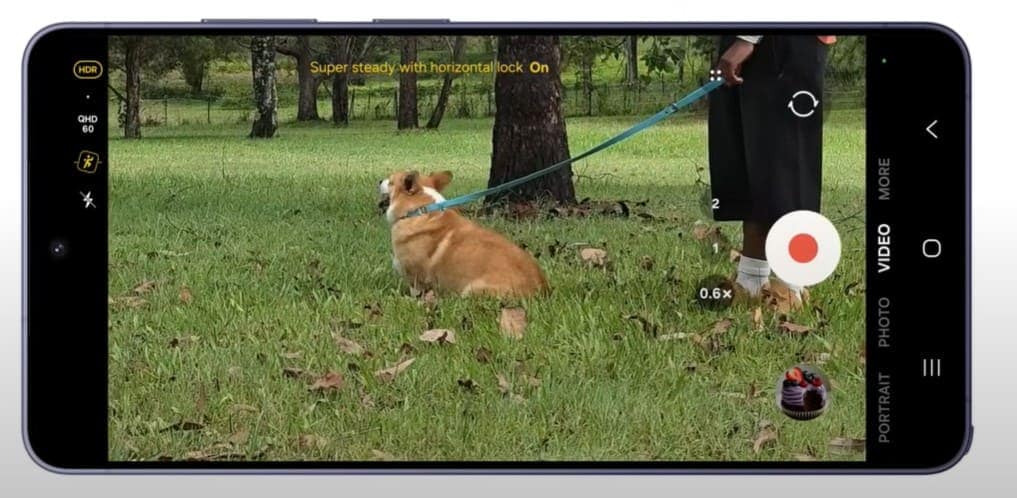
- Horizontal Lock: Anchors the horizon line using AI and gyro data, simulating physical gimbal stabilization during extreme movement.
- Dual Recording: Captures streams from both the front and rear lenses simultaneously, perfect for recording reactions in real-time.
- Super Steady Mode: Employs aggressive electronic cropping to eliminate footstep jitter during running or action sequences.
5. Zoom System: Space Zoom, Telephoto, and Optical Quality
Samsung retains its reputation for exceptional magnification with the S26 zoom configuration:
- Zoom Range & Space Zoom: Capable of reaching 30x digital magnification, leaning heavily on deep-learning algorithms to reconstruct blurry textures at extreme distances.
- Telephoto Lens: A true 3x optical hardware zoom backed by OIS ensures medium-distance shots remain entirely uncompromised.
- Optical Quality Crop: By intelligently utilizing the center pixels of the massive 50 MP sensor, it produces a lossless 2x zoom effect without requiring a dedicated 2x lens.
Part 3. Galaxy S26 Camera Comparison – S25 and iPhone 17
For those caught in the ongoing S26 vs iPhone 17 camera debate, or questioning if they should upgrade from the S25, the specifications speak volumes. Review the detailed comparative metrics below to identify which flagship aligns with your photographic needs:
| Feature | Galaxy S25 | Galaxy S26 | iPhone 17 |
|---|---|---|---|
| Main Camera | 50 MP, 24 mm, f/1.8, OIS | 50 MP, 24 mm, f/1.8, OIS | 48 MP, 26 mm, f/1.6, sensor-shift OIS |
| Ultra-wide Camera | 12 MP, 13 mm, f/2.2 | 12 MP, 13 mm, f/2.2 | 48 MP, 13 mm, f/2.2, 120° |
| Telephoto / 2x | 10 MP, 3x optical, f/2.4 | 10 MP, 3x optical, f/2.4 | 12 MP, 2x optical-quality crop (52 mm, f/1.6) |
| Rear Video | 8K30, 4K60, 1080p up to 240 fps | 8K30, 4K60, 1080p up to 240 fps | Up to 4K Dolby Vision 60 fps |
| Selfie Camera | 12 MP, f/2.2, 4K60 | 12 MP, f/2.2, 4K60 | 18 MP, f/1.9, 4K60, Center Stage |
| OIS & Stabilization | OIS on wide/telephoto; gyro-EIS | OIS on wide/telephoto; Horizontal Lock | Sensor-shift OIS on main; Action Mode |
| Night Mode | Nightography with ProVisual Engine | Enhanced ProVisual Engine; superior AI noise reduction | Photonic Engine with advanced A19 low-light processing |
Pro Tip. Transfer Data from Android/iPhone to S26 with Dr.Fone
After digesting this comprehensive S26 camera review, deciding to purchase the device post-March 2026 presents a new challenge: data migration. Fortunately, migrating to the Galaxy S26 ecosystem is effortless with Dr.Fone - Phone Tranfer. This intuitive software eliminates the anxiety of data loss, allowing users of all technical skill levels to securely move their content in just a few clicks.
Dr.Fone boasts full cross-platform compatibility, supporting data bridges between Android 16 and the latest iOS 20 iterations. Whether you need to move contacts, massive photo libraries, or WhatsApp chat histories, the interface provides complete granular control over what gets transferred. Unlike restrictive built-in tools, Dr.Fone allows you to preview selected data types and execute secure cross-OS transfers without overriding your existing target data.
Ultimate Guide to Move Data from Old Smartphone to S26 via Dr.Fone
If you are eager to utilize the new S26 camera features without leaving your old memories behind, follow these simple steps to execute a flawless data switch:
 Move data between iOS to Android and vice versa.
- Transfer contacts, SMS, photos, videos, music, and more types.
- Available with all phones with Android and iOS versions.
- Simple, click-through process.

-
Step 1 Determine the Source and Target Devices
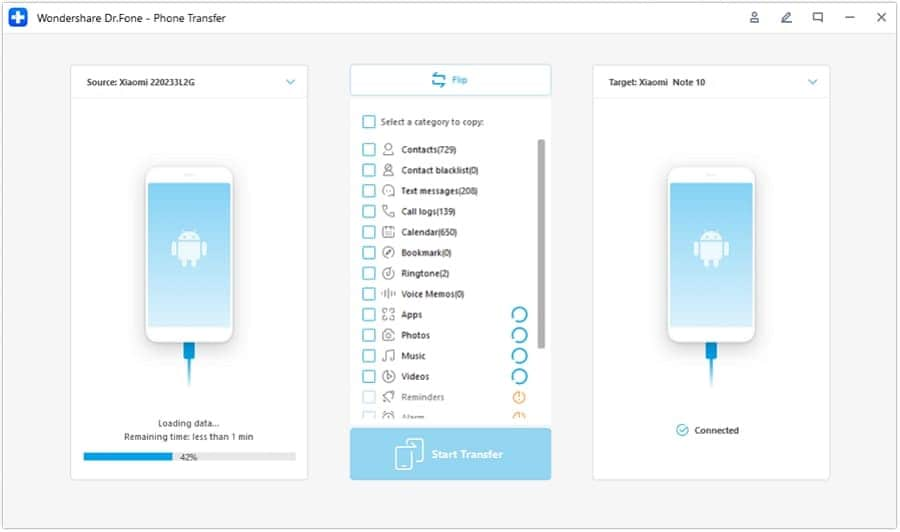
Launch the Dr.Fone software on your computer and select the "Phone Transfer" module. Connect both your old device (Android or iOS) and your new Samsung Galaxy S26. Use the intuitive "Flip" button in the center of the interface to ensure your old phone is designated as the 'Source' and the S26 is positioned as the 'Destination'.
-
Step 2 Select the Data to Move & Start Transfer
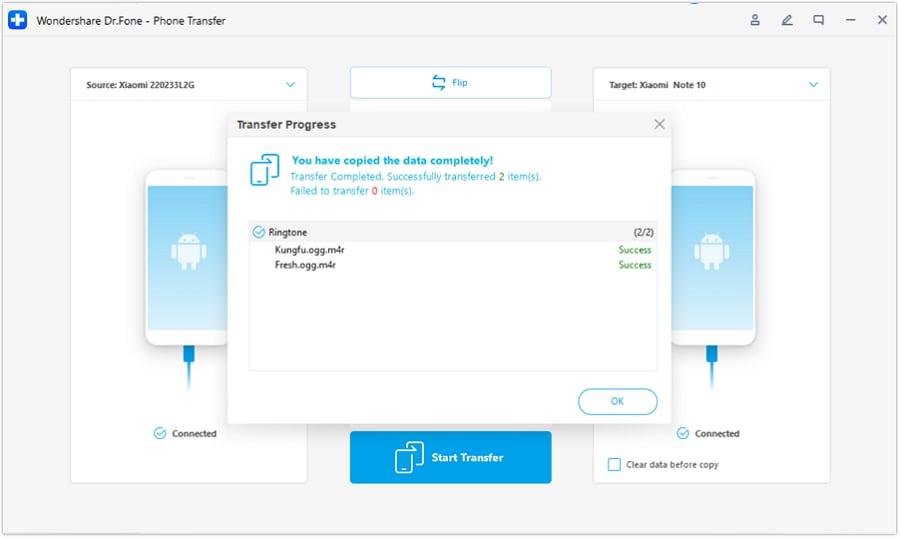
Once both devices are recognized, Dr.Fone will display a checklist of all transferable data types. Select the specific files you wish to migrate—such as Photos, Videos, Contacts, and Messages. Click the "Start Transfer" button and allow the software to process the data securely. Within minutes, a successful transfer prompt will appear, signifying your S26 is ready to use.




Part 4. S26 Photography Tips to Maximize Your Camera Performance
For individuals seeking to exploit the full potential of Samsung's upgraded optics, applying deliberate configurations is key. Master your device instantly with these five actionable S26 camera tips:
| Tip | What To Do on S26 | Benefit for Your Photos |
|---|---|---|
| Use 24 MP Photo Mode | Install the Camera Assistant app and toggle the 24 MP capture option for standard shooting. | Provides noticeably crisper details than the default 12 MP without consuming the massive storage space required by 50 MP files. |
| Turn On Scene Optimizer | Navigate to your Camera settings and ensure the Scene Optimizer toggle is actively enabled. | Automatically calibrates color profiles and exposure based on AI scene recognition, removing the need for manual tweaking. |
| Stabilize with Super Steady | Prior to recording active movement, tap the hand icon in Video mode to activate Super Steady. | Dramatically smooths out handheld jitter when walking, panning, or tracking fast subjects. |
| Switch to Night Mode | Manually select the Moon icon within the Photo interface to force extended exposure times in the dark. | Generates vastly clearer night photos, recovering hidden textures and significantly reducing visual grain. |
| Try Pro Mode for Tricky Scenes | Swipe to Pro Mode to override the automatic ISO, shutter speed, and focus algorithms manually. | Grants total creative control, preventing blown-out highlights in harsh lighting and crushing deep shadows. |
Conclusion
Ultimately, determining whether the S26 camera warrants an upgrade heavily depends on your reliance on AI-driven photography. As outlined in this comprehensive review, while the fundamental optical hardware remains remarkably similar to its predecessor, the software leap is undeniably vast. With enhancements in ProVisual Engine rendering, superior low-light Nightography, and unparalleled generative editing tools, the Galaxy S26 provides an incredibly robust creative suite. If these advanced capabilities align with your creative ambitions, making the leap to this 2026 flagship is highly recommended. To ensure a seamless transition, remember to utilize Dr.Fone - Phone Tranfer to migrate all your precious data securely and rapidly.
FAQ
-
1. How can I take sharper photos on the S26?
To achieve maximum sharpness on the Galaxy S26, install the Camera Assistant and activate the 24 MP shooting mode. This offers a higher baseline resolution than the default 12 MP. Additionally, ensure the lenses are clean and consider utilizing a tripod to eliminate minor handshakes during capture. -
2. Can I shoot portraits with a blurred background?
Yes, the Galaxy S26 features an advanced Portrait Mode specifically designed for this effect. By utilizing the 3x optical telephoto lens in Portrait Mode, the ProVisual Engine accurately isolates your subject and applies a natural-looking bokeh (blur) to the background, mimicking professional DSLR depth-of-field. -
3. What's the best way to use Space Zoom on the S26?
When attempting to capture objects at high magnification (10x to 30x), the AI-enhanced Space Zoom algorithm will automatically kick in. To get the best results, rest your arms on a stable surface or use a tripod, as even minor movements are drastically amplified at 30x magnification. -
4. Does the Galaxy S26 have a dedicated macro mode?
While it lacks a specifically branded "Macro Lens," the Galaxy S26 utilizes the ultra-wide lens combined with Focus Enhancer software to capture incredibly detailed close-up photography. Simply move the camera very close to your subject, and the system will automatically adjust focus for macro-level clarity.
 Add Wondershare Dr.Fone as a preferred source on Google