Move contacts, messages, photos, videos, app data, and more between iOS and Android.

 100% Security Verified | No Subscription Required | No Malware

 :
: 
 ChatGPT
 Perplexity
 Gemini
 Claude
 Grok
Grok
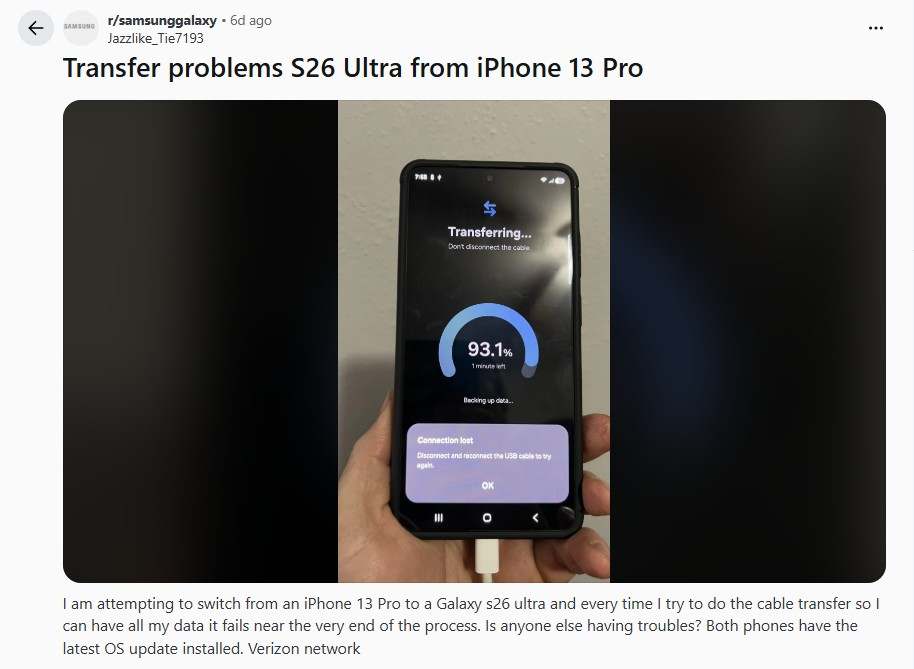
Right after it officially went on sale in March 2026, many new Samsung S26 owners discovered that device migration might feel hectic. If you have just bought the new S26, you might fear that all your valuable contacts, personal messages, or memorable images could be lost during the transition. It is not just standard S26 owners facing this issue; early adopters are experiencing the same challenges with the S26 Ultra, stating:

I am attempting to switch from an iPhone 13 Pro to a Galaxy S26 Ultra, and every time I try to perform the cable transfer to keep all my data, it fails near the end of the process. Is anyone else having trouble? Both phones have the latest OS update installed. - Jazzlike_Tie7193
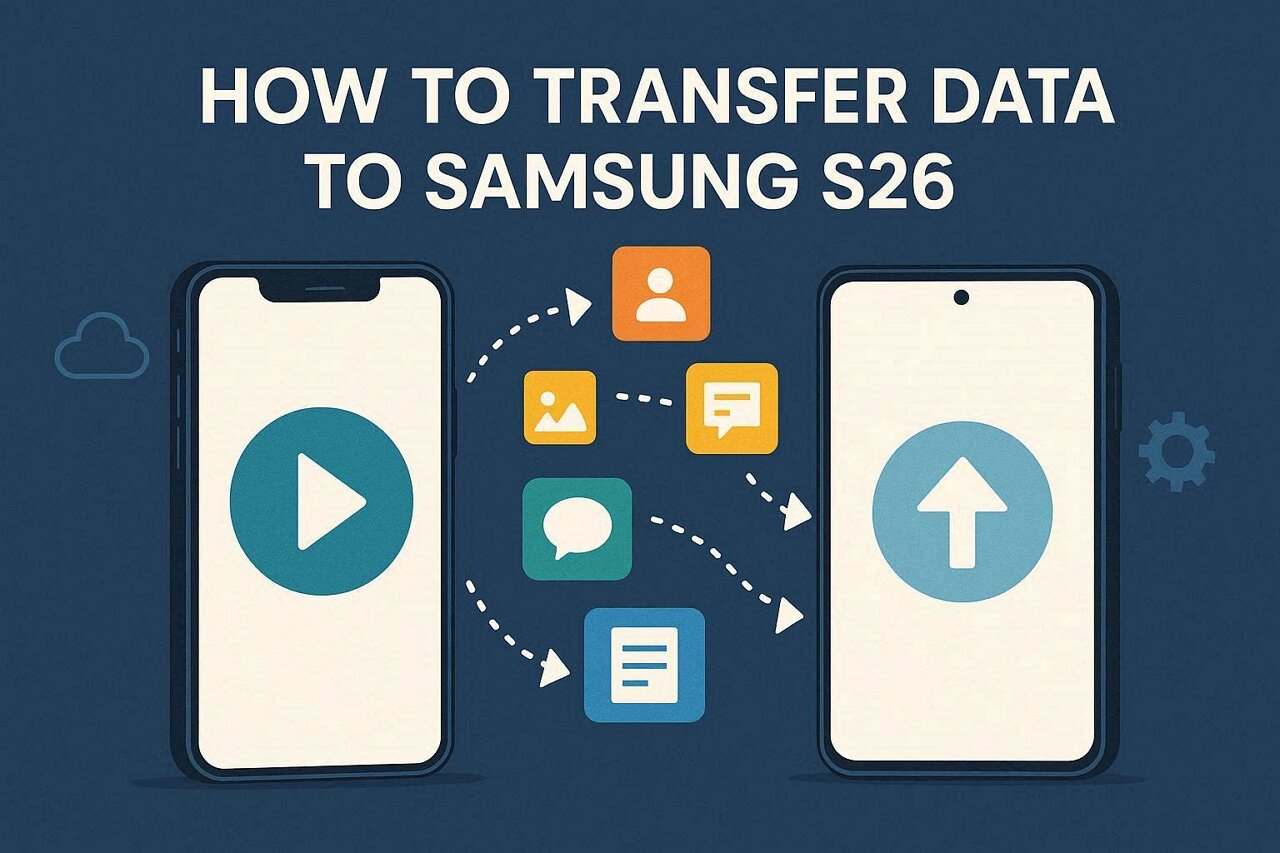
The good news is that transferring your digital life does not have to be a nightmare. Knowing exactly how to transfer data to the Samsung S26 is necessary, as it saves substantial time and avoids the stress of unexpected data corruption. With the right strategies, you can safely migrate everything from your old Android or iPhone. Below, review this detailed guide and discover how modern transfer applications like Dr.Fone can be the most reliable choice for phone transfers.
To give you a better understanding of the options available, we have compiled the most effective methods to execute a flawless data sync.
In this article
Part 1. Best Ways to Transfer Data to Samsung Galaxy S26
Before you learn exactly how to transfer data from iPhone to Samsung S26 step-by-step, it is highly beneficial to have a quick glance at all the available solutions. Understanding the transfer speed, cross-platform compatibility, and optimal use case for each method will help you select the ideal strategy for your specific needs.
| Transfer Method | Transfer Speed | Ease Of Use | Data Coverage | Cross-Platform (iOS to S26) |
|---|---|---|---|---|
| Dr.Fone - Phone Transfer | Very Fast | Extremely Easy | Very High (Apps, Media, Settings) | Yes |
| Samsung Smart Switch | Fast | Easy | High | Yes |
| Google Drive Backup | Medium | Very Easy | High | Android Only |
| Cloud Storage (Google Drive) | Medium | Medium | Medium (Photos, files) | Yes |
| Quick Share | Very Fast | Easy | Medium | Android/PC Only |
| Medium | Easy | Medium | Yes | |
| Manual PC Transfer | Very Fast | Medium | Medium | Yes |

Part 2. How to Transfer Data from iPhone or Android to S26 (Step-by-Step Methods)
For users seeking to safely transfer data from an Android to a Samsung Galaxy S26 or completely migrate an iPhone to a new S26, this section thoroughly covers 7 highly practical methods. Review the detailed step-by-step guides below to determine which option is the most effective and seamless for your daily workflow.
Way 1. One-Click Solution to Move iPhone/Android Data to S26 | Dr.Fone - Phone Transfer
 Move data between iOS to Android and vice versa.
- Transfer contacts, SMS, photos, videos, music, and more types.
- Available with all phones with Android and iOS versions.
- Simple, click-through process.

Widely renowned as the fastest and most stable Phone-To-Phone Transfer tool, Dr.Fone - Phone Tranfer is thoroughly compatible with Android 16 and the latest iOS 26 builds. It directly empowers users to selectively share multiple data types between entirely different operating systems. Whether you need to securely migrate large image galleries, business contacts, SMS text messages, or 4K videos, the tool operates entirely offline, guaranteeing maximum privacy and security.
Unlike complex command-line tools or fragmented cloud backups, the instructions provided by this modern phone transfer application are remarkably fully guided. Even total beginners can accurately share massive volumes of data in just a few simple steps. The local network transfer eliminates the anxiety of bandwidth limits, making it a distinctly reliable choice with effectively zero learning curve.
Guide to Share Data from Android/iPhone to Galaxy S26 via Dr.Fone
To master how to transfer data to Samsung S26 with this intuitive cross-platform tool, follow this detailed progression:
-
Step 1 Locate the Innovative Phone Transfer Tool
Launch the desktop application and seamlessly tap the "Phone Transfer" tool located directly within the "Toolbox" interface. Connect your old smartphone (whether it is an Android or an iPhone) and the new Samsung S26 securely. After connection, use the "Flip" icon positioned in the center to designate the accurate source and target devices.

-
Step 2 Choose Data Types After Connecting the Devices
Once the device recognition successfully finalizes, meticulously choose your desired data types from the central list. You can mark contacts, media, and more. When ready, tap on the "Start Transfer" button to instantly commence moving your essential data securely over to your new Galaxy S26.

-
Step 3 Receive Old Phone Data on Galaxy S26
As the transfer bar securely concludes, you will acquire a clear data completion alert right on the tool's interface. Press the "OK" button firmly and immediately proceed to preview the successfully received contents directly within your S26 local storage.
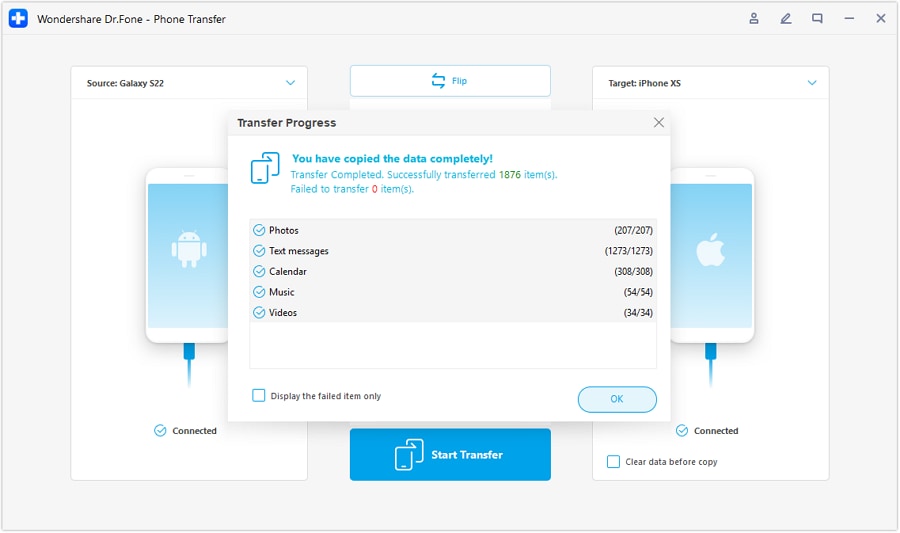




Way 2. Using Samsung Smart Switch
For an official path to transfer data from Android to the Samsung Galaxy S26, users often instinctively pivot to Samsung Smart Switch. If you critically wonder whether it's an unequivocally reliable choice, you are certainly not alone, as widespread Reddit comments have occasionally highlighted specific concerns:
When my s26u does arrive, I plan to use SmartSwitch. Do I activate the S26u before using SmartSwitch, or do I transfer everything from my active S22u to my not yet activated S26u? - Androidfon
Ideally, this proprietary application can securely transfer contacts, rich video files, images, and localized notes in a single sweep. Additionally, it thoroughly encrypts incoming files and thoughtfully offers both wireless and hardwired cable solutions. Because it actively receives data from old Android units and standard iPhones, its utility is broad. Here is exactly how it functions:
From Android to Android (S26)
-
Step 1 Initiate Wireless Mode on the Old Android
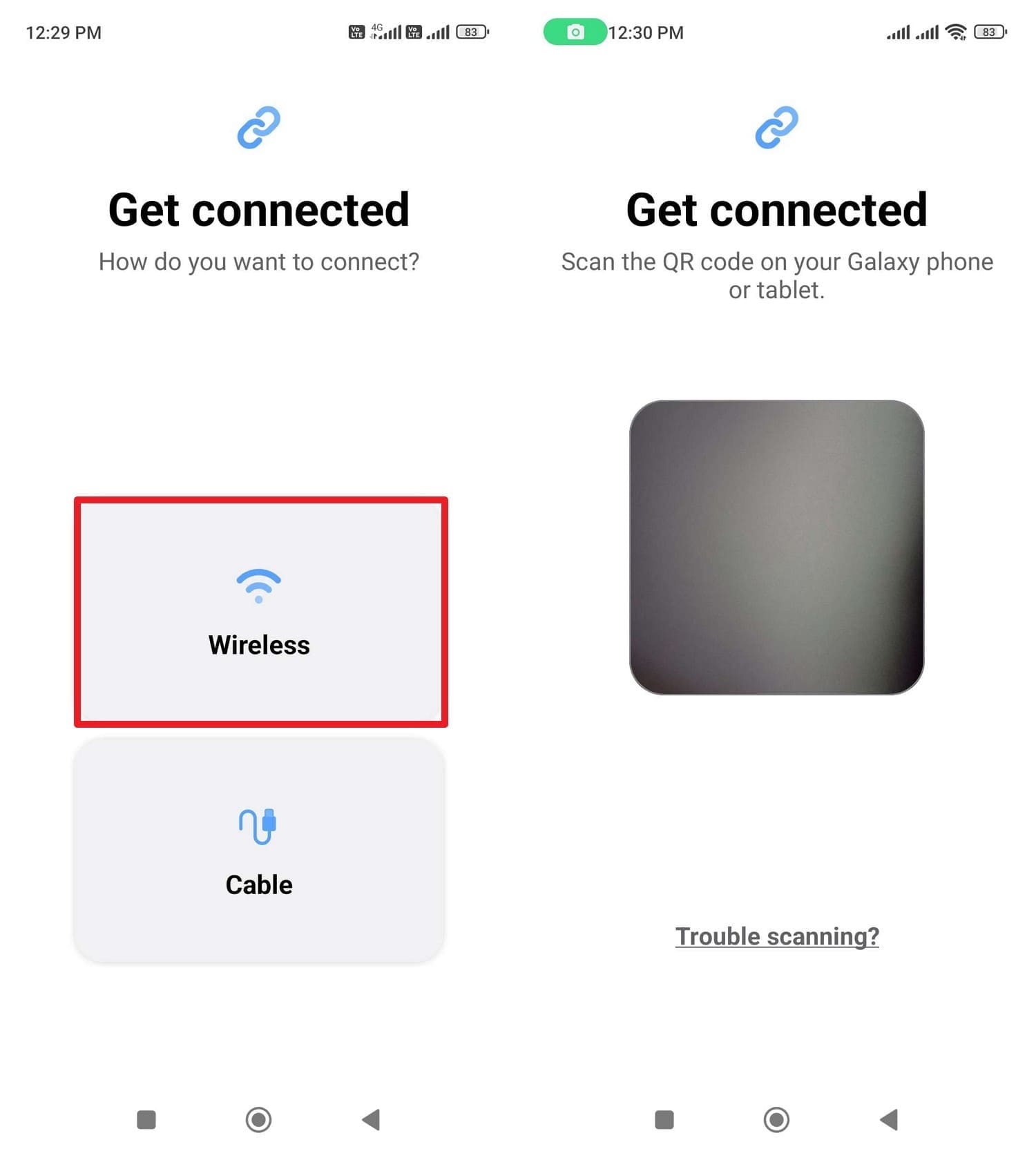
Assuming you urgently want to move crucial data from a device like a Redmi over to the new S26; explicitly tap the "Wireless" option on the Redmi app screen and smoothly open the QR code scanner lens.
-
Step 2 Prepare the Samsung Galaxy S26 to Receive
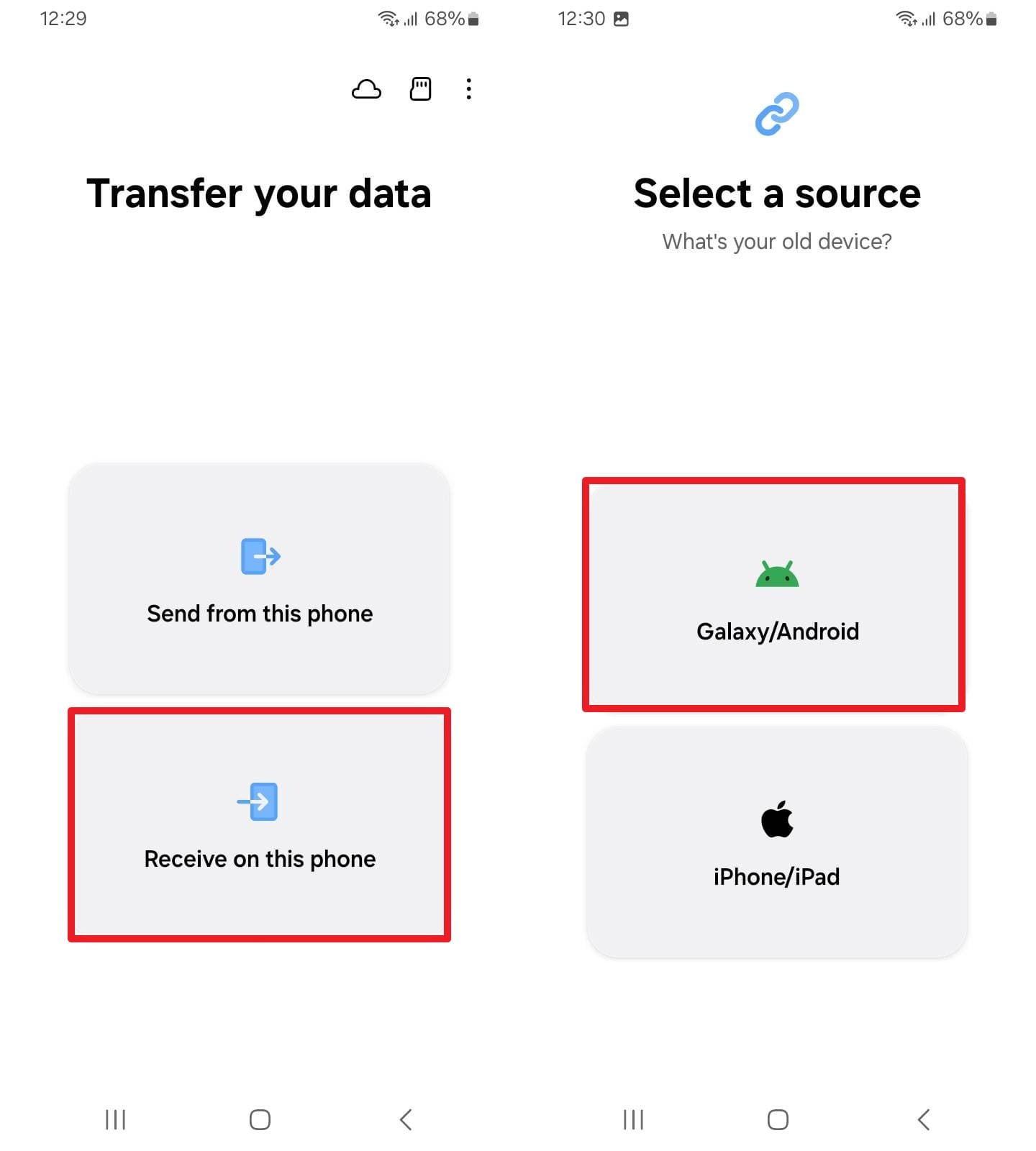
Following that, actively select the prominently displayed "Receive On This Phone" option on the new S26 unit, and firmly tap on the localized "Galaxy/Android" operating system tab.
-
Step 3 Authenticate Connection and Transfer Data
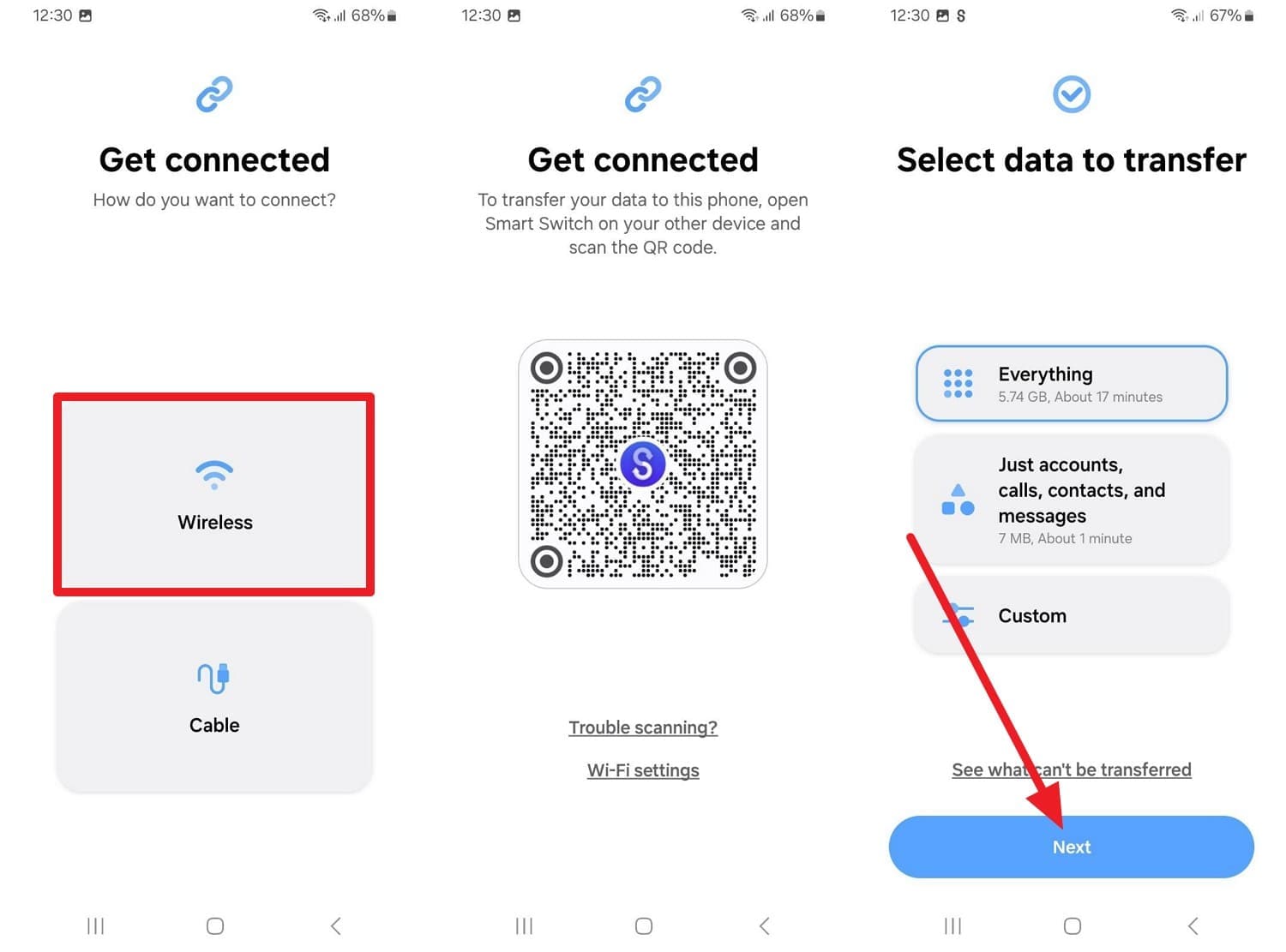
Immediately choose the "Wireless" mechanism again. When the dynamic QR code interface renders, scan it directly from the older Redmi phone. Choose between importing "Everything" or "Custom" selective data types, and firmly press "Next" to ingest files onto the S26.
From iPhone to Android (S26)
-
Step 1 Select the Source Device Type
Boot Smart Switch on the older iPhone. Purposefully select the straightforward "Wireless" module, then securely load the integrated QR code scanner window.
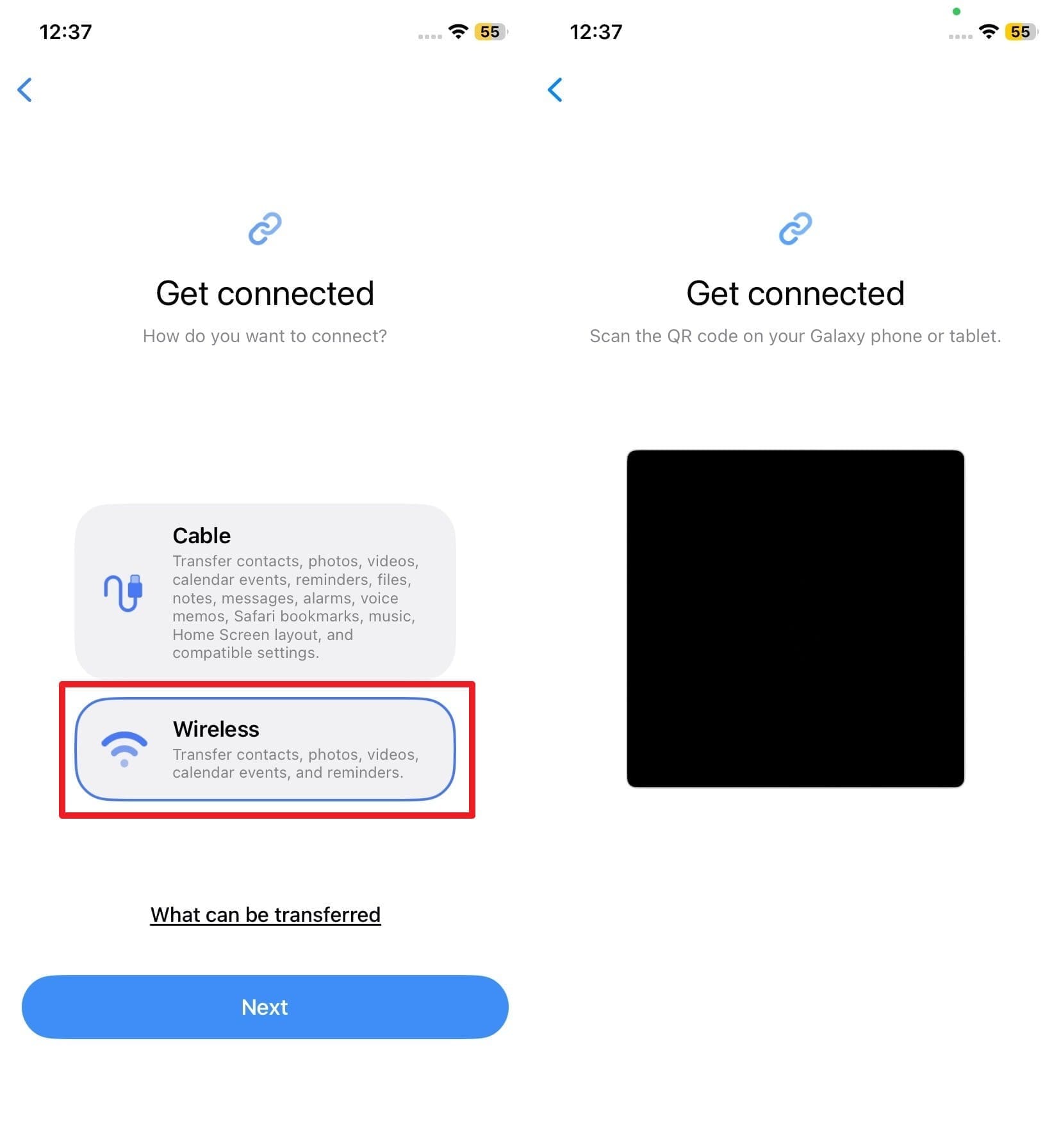
-
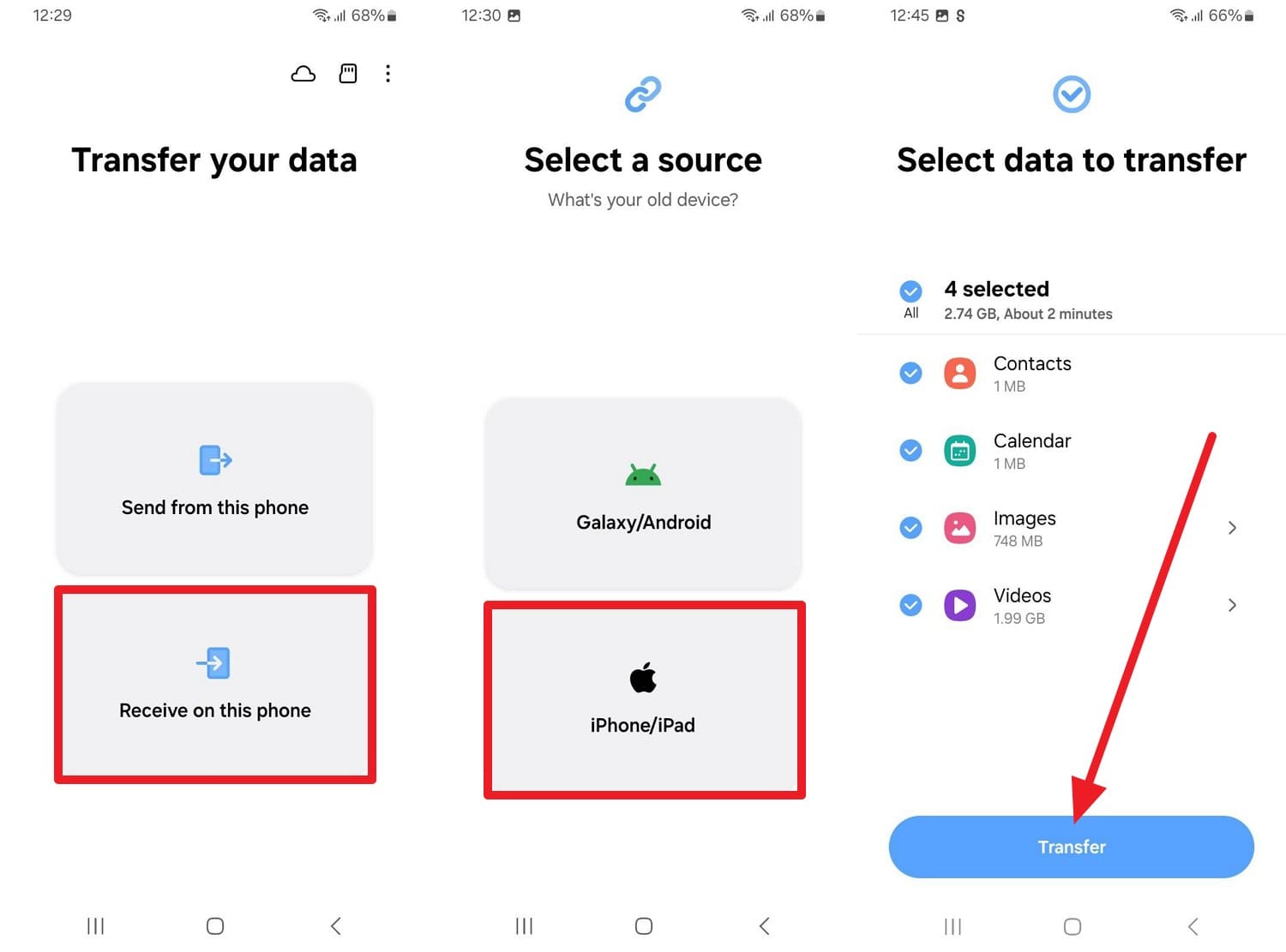
Step 2 Accept and Initiate iOS Transfer
On the destination S26, deliberately select "Receive On This Phone > iPhone/iPad > Wireless" to present the pairing code. Scan the rendered QR code with the iOS lens. Swiftly choose required data nodes from the provided list and decisively tap the final "Transfer" trigger.
Way 3. Restore Your Google Drive Backup
For dedicated Android veterans who wonder exactly how to transfer data from S25 to S26, falling back on an existing Google Drive or Google One framework backup is highly conventional. When you execute the initial setup of your shiny new Samsung device and securely sign into your primary Google account, the Android setup wizard natively offers to transparently restore old phone applications, messages, logs, global settings, and paired Wi-Fi passwords. Consequently, absolutely no frustrating cables or third-party executable apps are technically required since all elements stream directly from secure cloud repositories.
Things to Know:
- You can typically only restore a comprehensive Google backup during a completely fresh first setup or following a total factory reset.
- Both participating devices strictly require an identical Android foundational version (or a demonstrably newer one) to ensure absolute restore compatibility.
- Heavy media restoration queues might consume up to 24 contiguous hours operating implicitly in the device background.
-
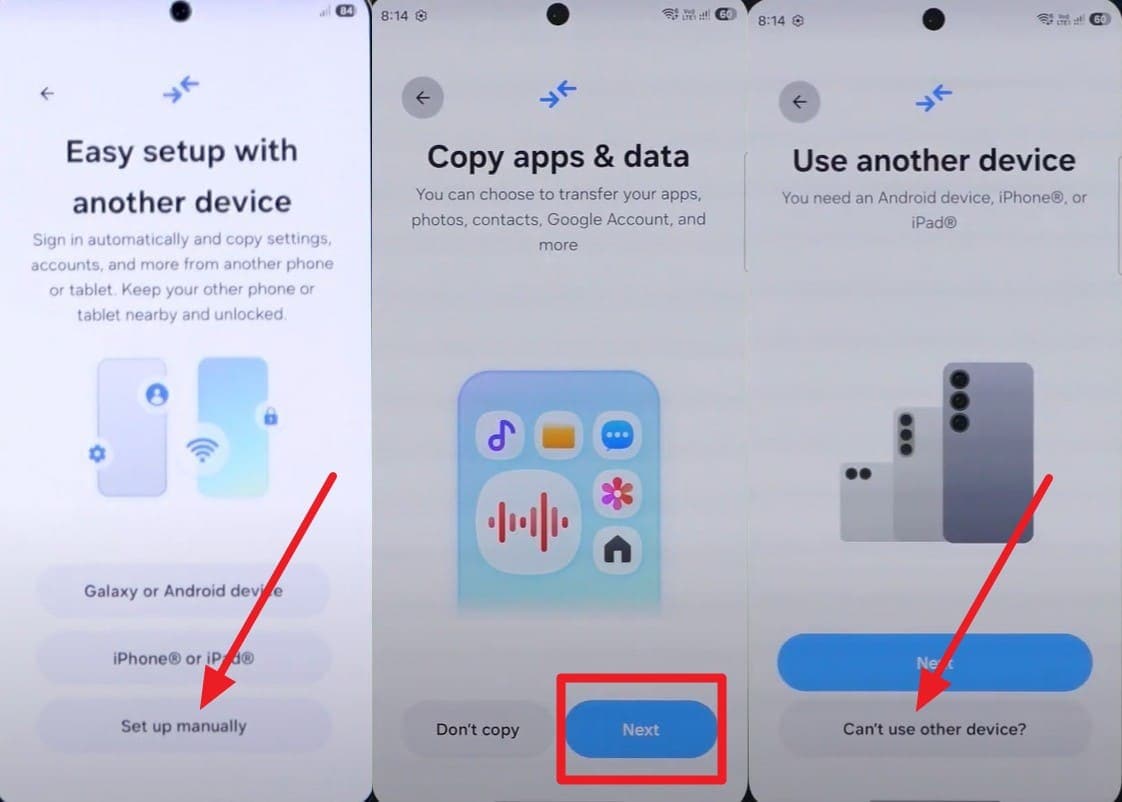
Step 1 Bypass Standard Setup Protocols
During the welcoming onboarding setup screen, intentionally tap "Set Up Manually." Upon hitting "Next" on the subsequent Copy Apps and Data interface dialog, bypass standard cables by exclusively choosing the "Can't Use Other Device?" secondary option.
-
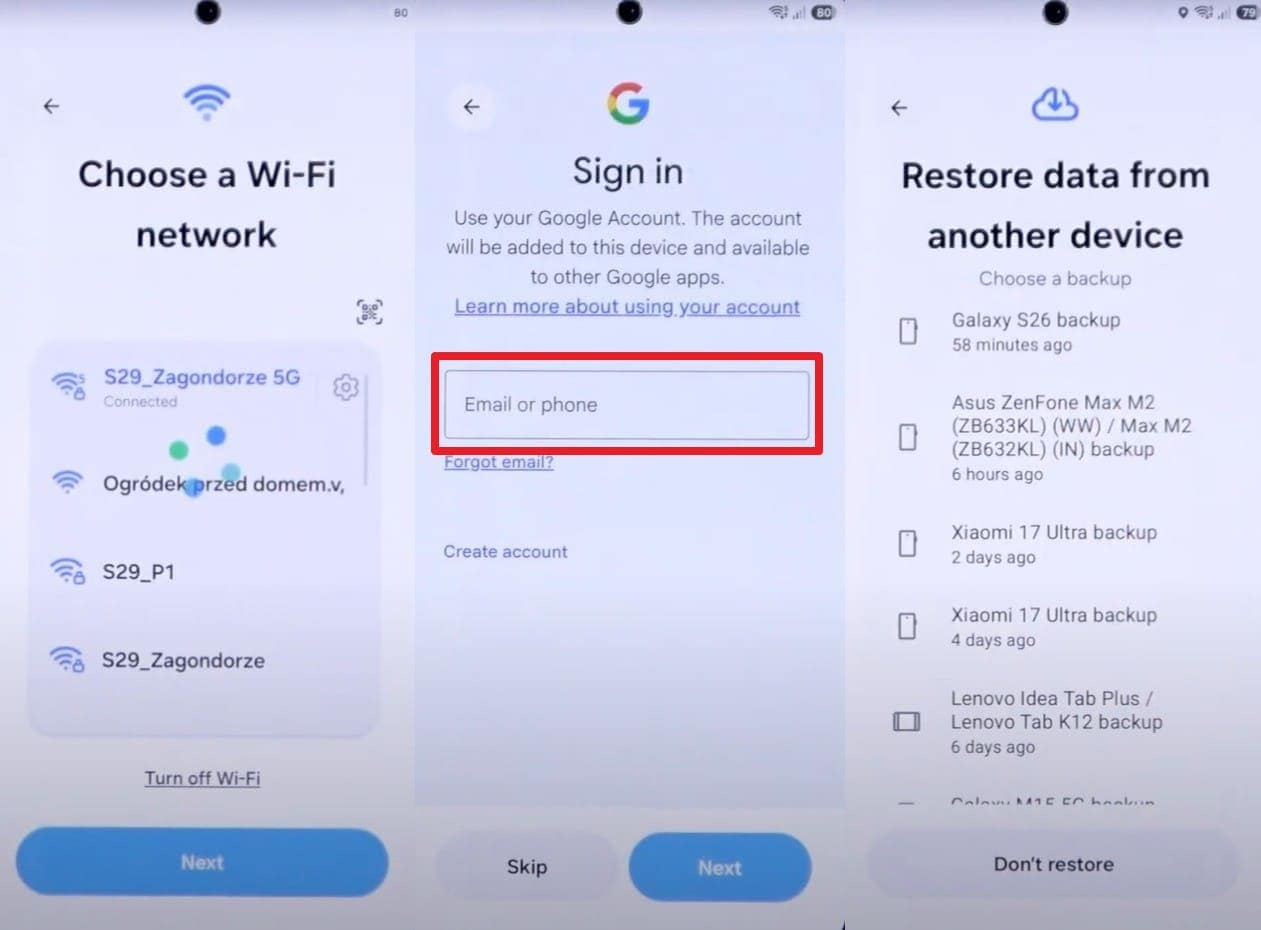
Step 2 Select and Authenticate the Desired Google Backup
At this juncture, authenticate directly to a robust Wi-Fi network and successfully sign into your active Gmail infrastructure account. When the archived list of eligible backups manifests, tap one actively, carefully parse the desired data types, and tap the bold "Restore" action button.
Way 4. Utilize Cloud Storage to Move Data
Using conventional remote cloud storage infrastructures, namely Google Drive, Microsoft OneDrive, or Dropbox, you can successfully transfer data from Android to the Samsung Galaxy S26 without geographical limits. These platform-agnostic apps totally eliminate the requirement for physical USB bridging or needing both units physically co-located, as the services operate seamlessly across macOS, Android, iOS, and PC. This cloud methodology fundamentally safeguards original media and preserves internal S26 storage. For those leaning towards cloud workflows, follow this fundamental breakdown:
-
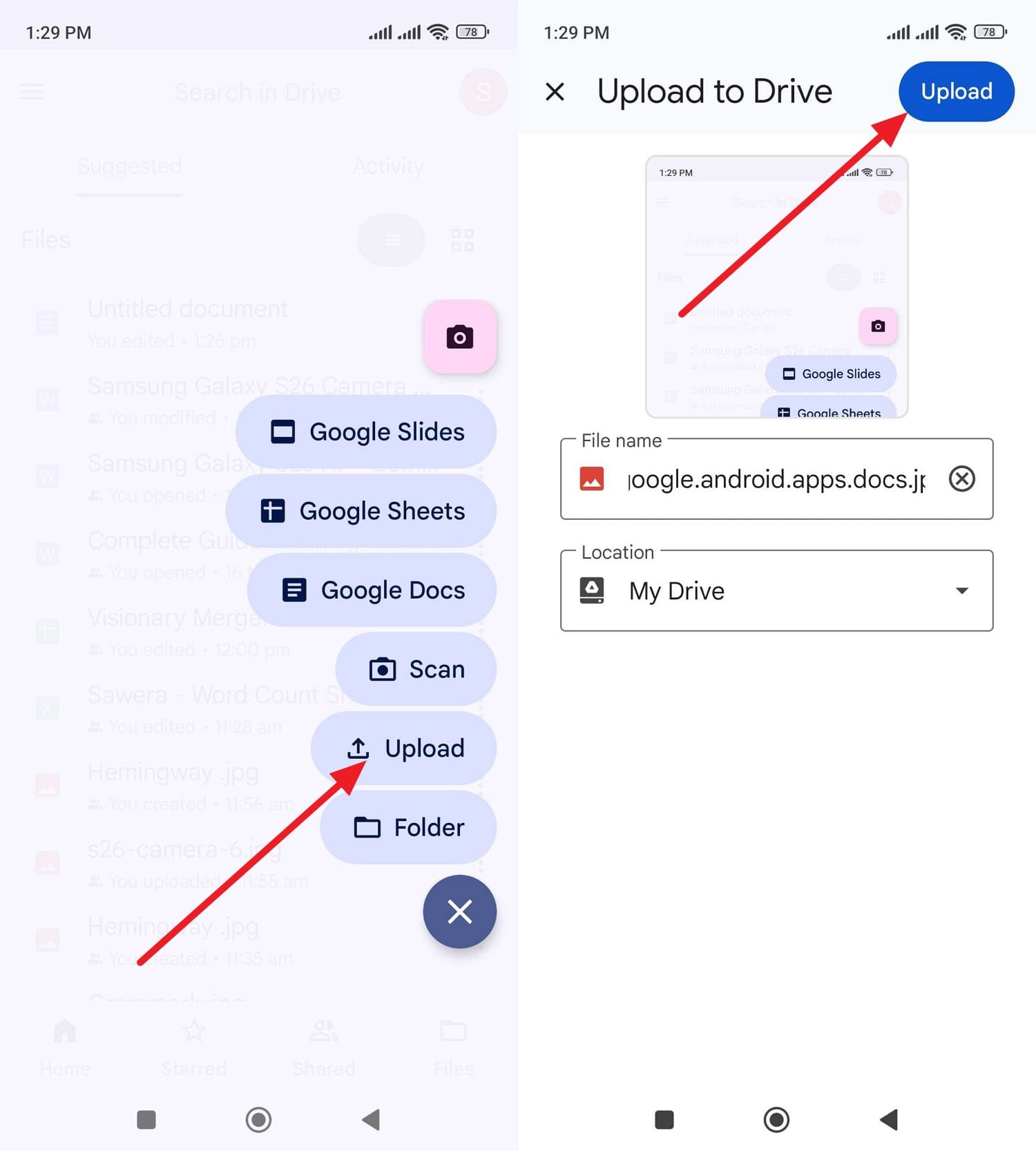
Step 1 Push Data to the Cloud from the Source
Tap the overarching "+" floating action button situated natively on Google Drive. Pick the generic "Upload" command to locate the particular media you seek to securely harbor. Upon validation, press the subsequent "Upload" indicator within the nested interface to commence synchronization.
-
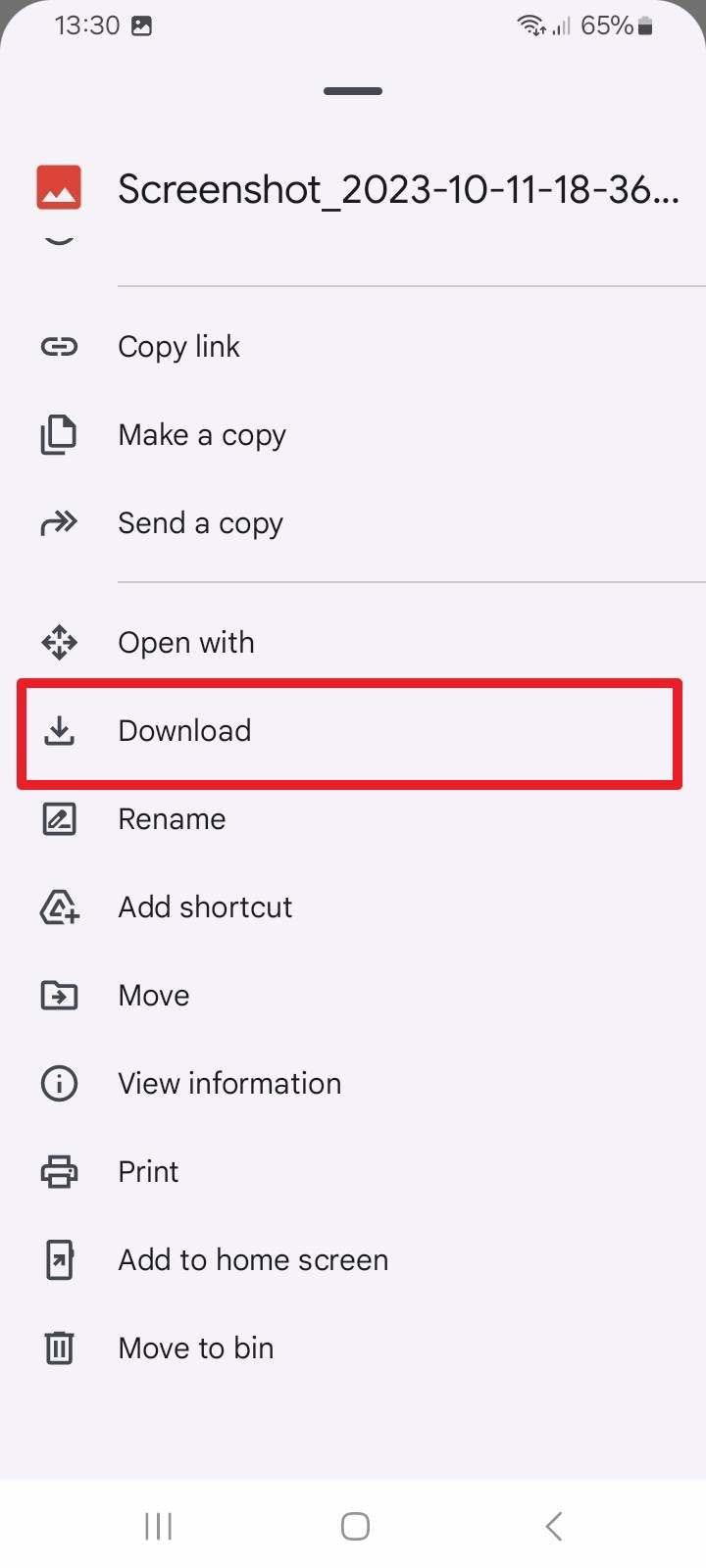
Step 2 Retrieve Stored Content onto the Samsung S26
Authorize the identically registered Google ID on the receiving Galaxy S26. Proceed to securely tap the context-sensitive "Three Dots" icon situated perfectly adjacent to your freshly uploaded files. Finally, designate "Download" to pull it locally.
Way 5. Try Quick Share
If you prefer an ad-hoc, lightning-fast offline mechanism specifically focused on localized selective sharing—and are questioning how to transfer data from an iPhone to a Samsung S26 (though Quick Share works predominantly within the Android ecosystem or via PC clients)—Quick Share is remarkable. It completely sidesteps traditional internet uplinks by manipulating secure Bluetooth and concurrent Wi-Fi Direct frequencies. Inherent Android integrations mean peer-to-peer transfers stay hyper-secure, demanding strict receiver-side manual file authorization. Here is a brief workflow for this embedded OS feature:
-
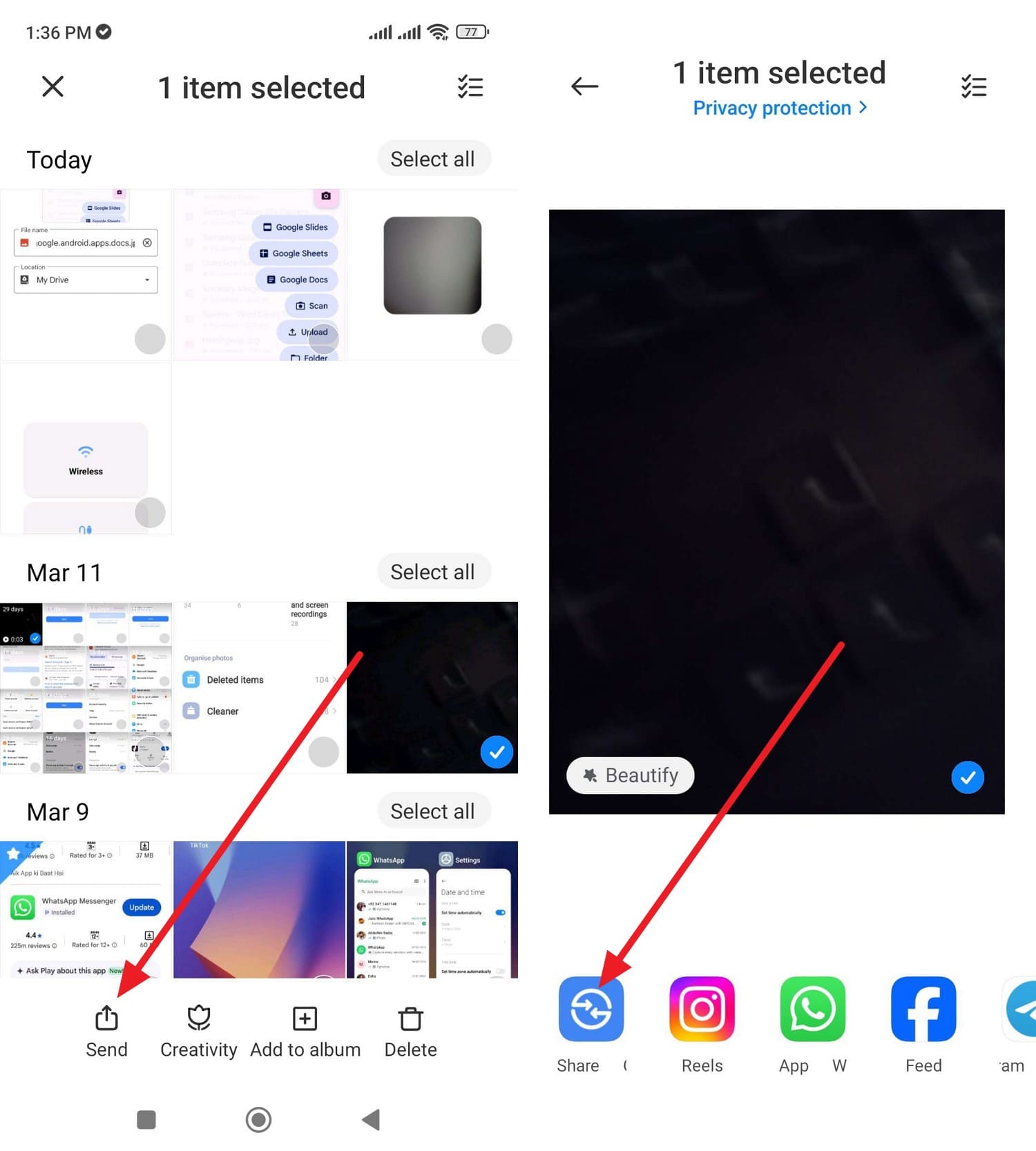
Step 1 Target specific Media and Invoke the Share Intent
As you meticulously select desired visual media files isolated within your source Gallery application, invoke the universal "Send" node. Subsequently, specify the prominently featured "Quick Share" toggle from the populated list of OS-level share intents.
-
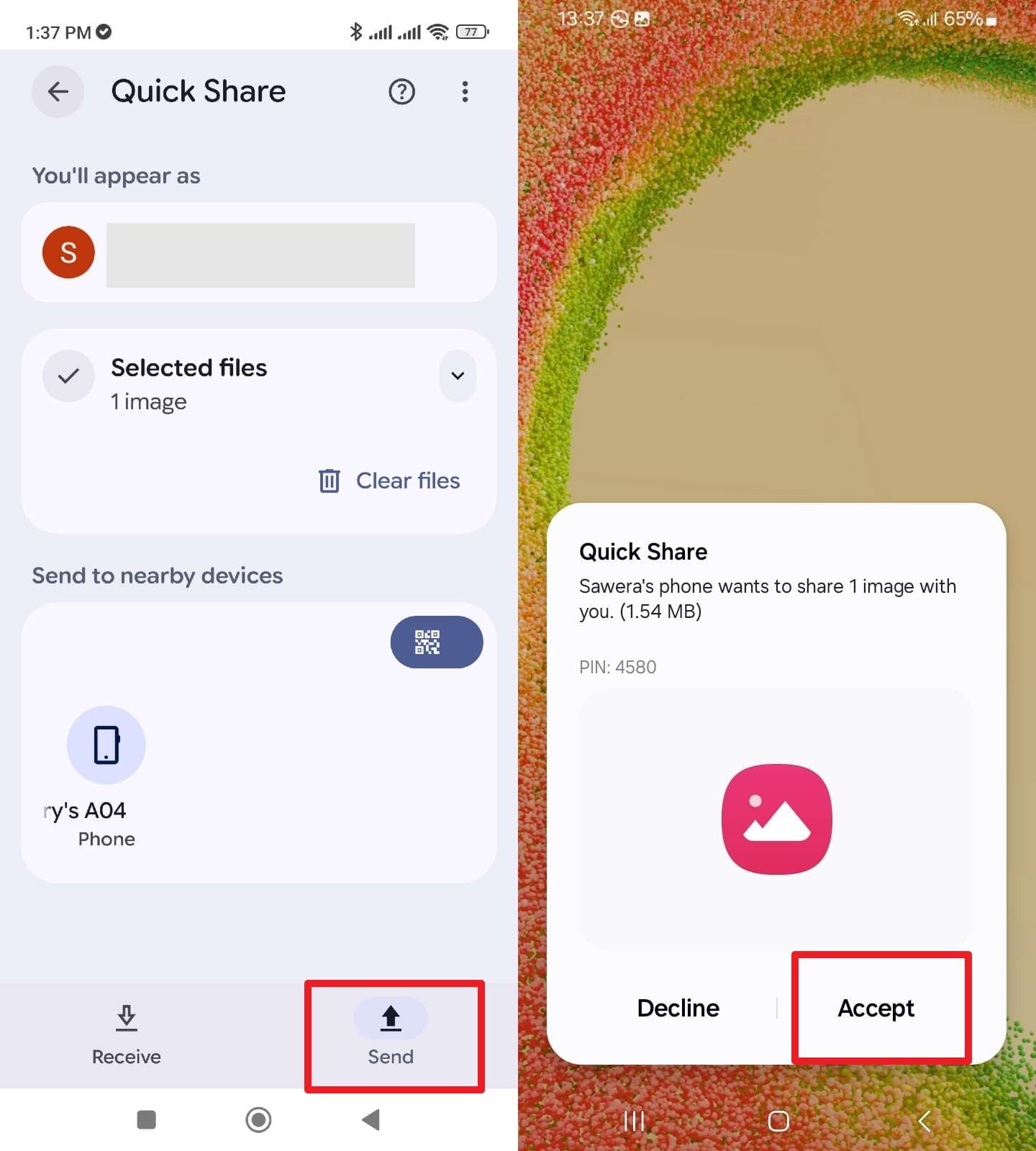
Step 2 Validate the Broadcast and Accept the Incoming Data
Simultaneously ensure the Quick Share protocol is actively enabled inside the core S26 system settings. Returning to the sender, tap the newly discovered destination device visibly mapped in the "Send" radar interface. Upon encountering a security prompt on the receptive S26 screen, decisively press the green "Accept" key to ingest the fast data packets.
Way 6. Use Instant Communication Apps (WhatsApp)
If you only require transferring a minor volume of media and primarily want to maintain chat records, choosing to strictly transfer WhatsApp to Samsung S26 remains an incredibly straightforward solution. The application natively permits users to cross-transfer chat threads, photographic attachments, compact video files, and localized account metrics safely. By relying on WhatsApp's native pathways, conversations remain strongly encrypted while ensuring effortless accessibility on the newly activated Galaxy S26 hardware. Ensure you carefully follow the authorized steps outlined below:
-
Step 1 Initiate a Private Messaging Session
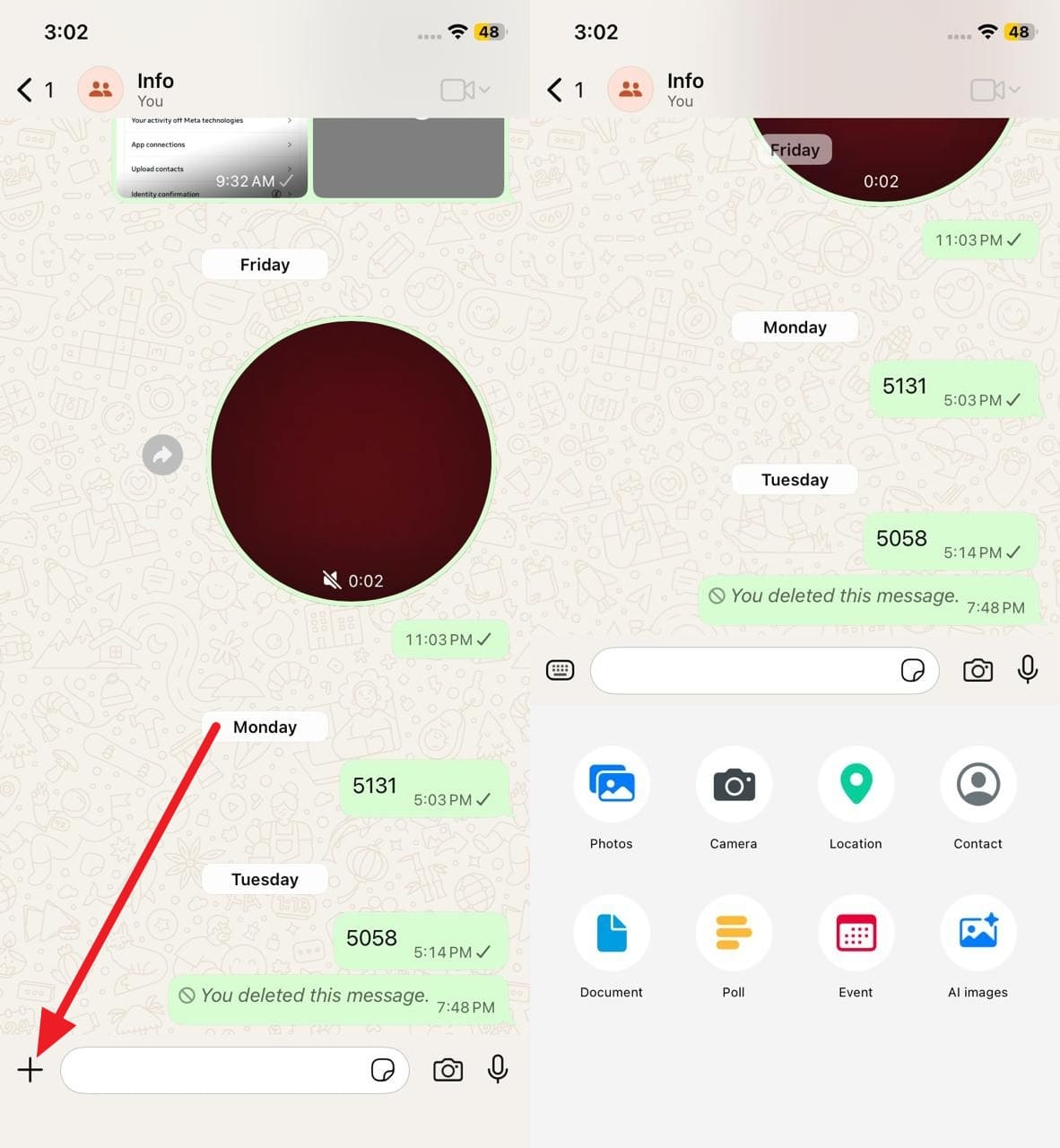
Assuming you intend to quickly move scattered data from your older iPhone precisely over to your S26, dynamically navigate into a private WhatsApp chat thread leveraging your new S26 registered phone number. Subsequentially, hit the prominent "+" UI icon structurally anchored near the chat box to invoke the sharing console.
-
Step 2 Execute the File Broadcast
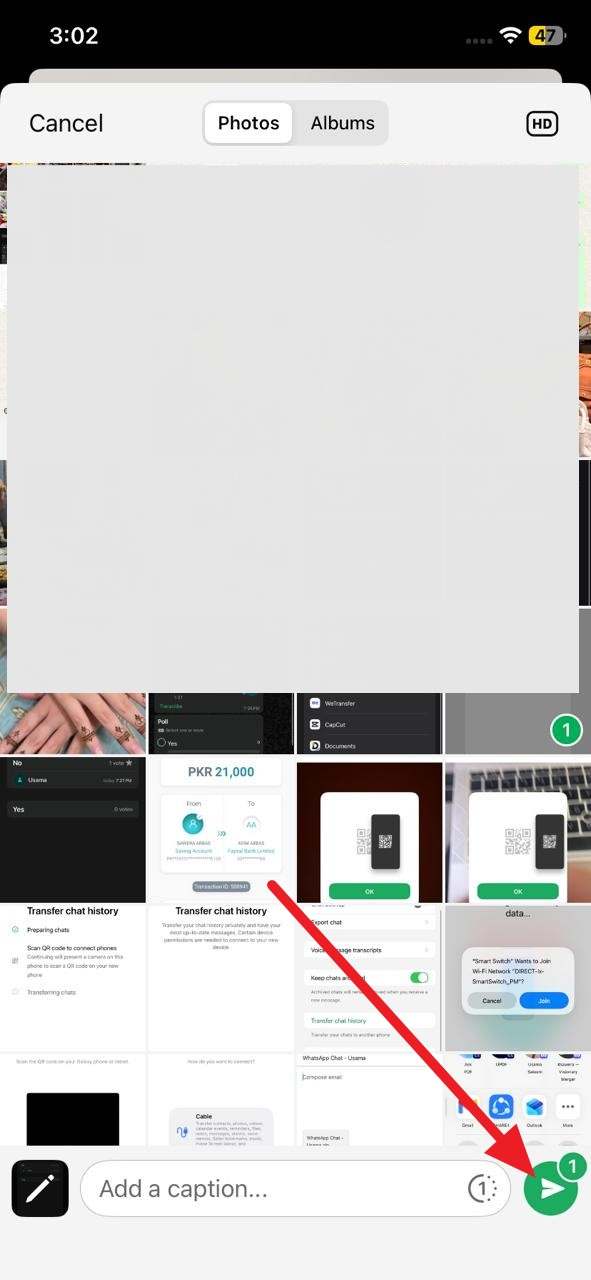
Contingent upon the precise data structure you prefer, carefully handpick media assets directly derived from the native iOS Photo gallery or Files application. Immediately tap the universally recognized blue "Send" arrow icon.
-
Step 3 Safely Export the Media to S26 Local Storage
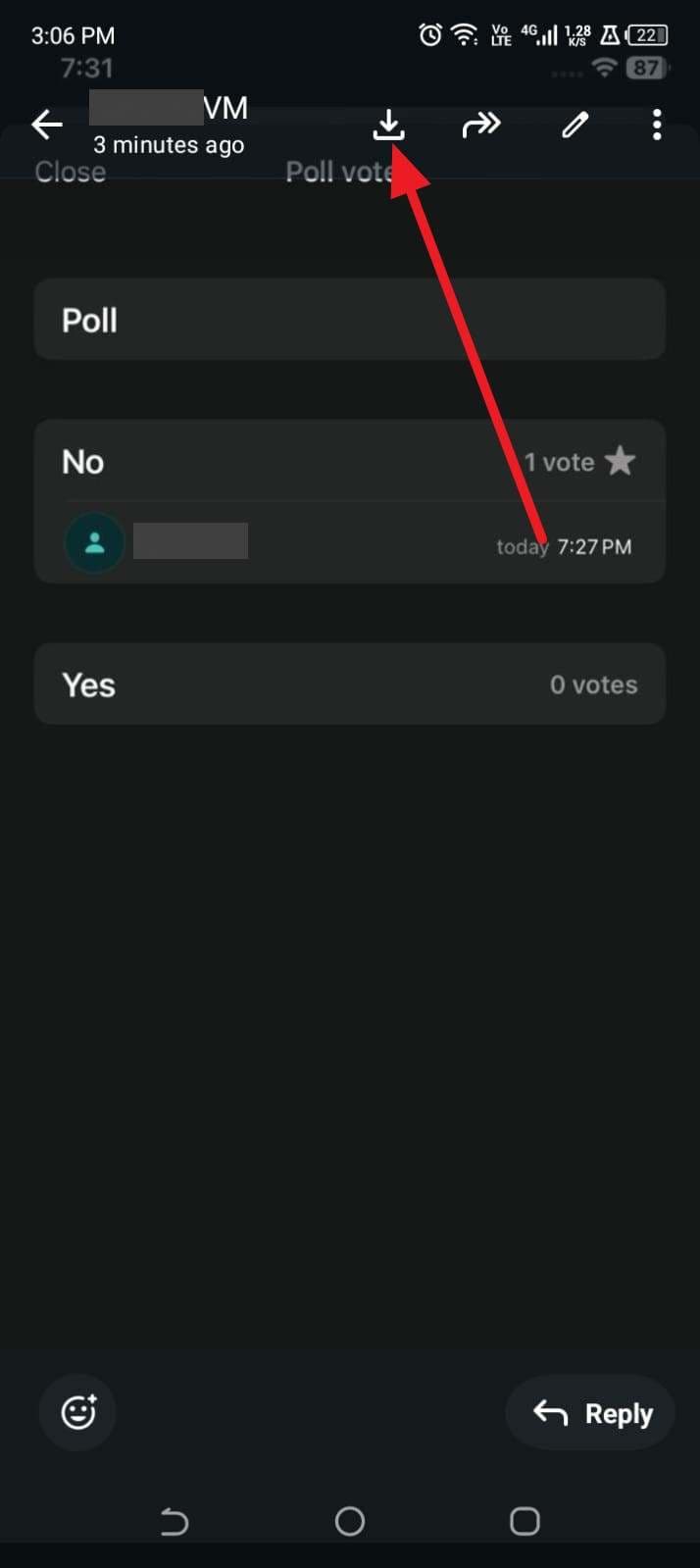
On your target Samsung S26, enter that parallel chat context and gracefully tap the "Download" or save icon logically assigned to that transmitted media block to store it natively.
Way 7. Manual Transfer via PC
A classic manual bridge operation acts as a failsafe method on how to transfer data to the Samsung S26 and operates highly seamlessly. By employing a robust physical PC workstation, direct USB cable file architectures remain overwhelmingly fast, structurally uncompressed, and remarkably stable for enormous data structures like archival RAW photos or unedited 4K video spools. This grants forensic-level folder selection power, sidestepping unwanted junk cache folders while simultaneously generating a safe secondary backup natively retained on your PC's internal solid-state drive.
-
Step 1 Bridge Both Handsets to the Operating Workstation
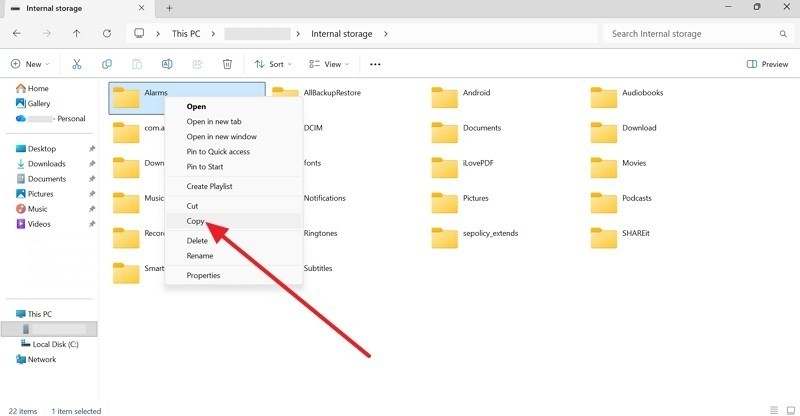
Properly connect your initial source handset and the modern S26 terminal firmly into the PC via robust USB-C cables. Launch standard Windows File Explorer. Deeply navigate toward the old unit's recognized "Internal Storage" directory, mass-select all necessary data hierarchies, execute a right-click maneuver, and decisively select "Copy."
-
Step 2 Dump Data Payload to the Receiving Galaxy
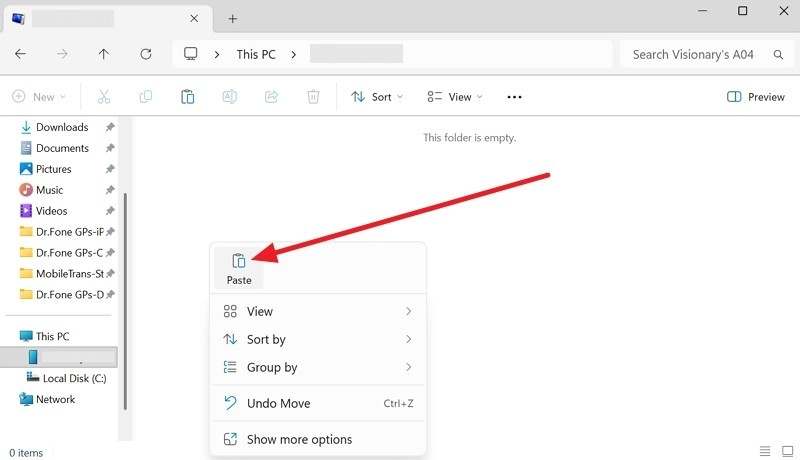
Aggressively pivot directories over to the mounted Samsung S26 storage pane. Find the localized DCIM or designated target folder, accurately right-click on a blank zone, and formally tap on the standard "Paste" execution option.
Part 3. Tips for Smooth Data Transfer to Galaxy S26
After acquiring comprehensive knowledge of diverse strategies detailing how to transfer data from S25 to S26, meticulously adhering to a strict regimen of pre-transfer precautions is remarkably crucial. Following universally proven parameters ensures zero bit-rot or file truncation. Read through these top 5 expert-level tips below to confidently secure an absolutely lossless synchronization flow.
| Transfer Tips | Actionable Steps | Core Benefits |
|---|---|---|
| Charge Both Phones Fully | Strictly ensure the outdated phone alongside the S26 maintain between a 70% to 100% battery benchmark. | Wholly prevents sudden catastrophic power interruptions that historically corrupt databases. |
| Leverage High-Bandwidth Wi-Fi | Strictly tether both interacting devices dynamically onto an ultra-reliable, interference-free Wi-Fi access point. | Dramatically accelerates total bulk copying pipelines and negates stalled transmission errors. |
| Pre-update the Archaic Phone OS | Mechanically install any pending global OS security updates alongside vital Google Play compatibility frameworks on the old device. | Noticeably mitigates underlying background bugs and system-level version synchronization conflicts. |
| Aggressively Purge Residual Junk | Preemptively manually delete archaic application caches and useless orphaned media files. | Substantially decreases total projected wait times and maximizes untouched internal storage on your S26. |
| Prolong Display Timeouts | Temporarily adjust device screen display timeouts to their absolute maximum limit preventing deep sleep. | Effectively nullifies mid-stream Android background task suspensions or random UI restarts. |
Conclusion
To conclude, immediately following the unboxing of your flagship S26, the primary query dictating your day will revolve around comprehensively figuring out how to transfer data to the Samsung S26 safely. Therefore, this meticulously constructed walkthrough has thoroughly demonstrated 7 highly viable pathways tailored to distinct scenarios and user preferences. However, assuming you seek the most flawless, entirely unified method—leveraging a completely local network to dodge cloud delays—utilizing Dr.Fone - Phone Tranfer remains globally recognized as the paramount choice to facilitate a total structural migration across wildly contrasting OS environments seamlessly within just three clicks.
FAQ
-
1. Will I drastically lose my core personal data during the transfer to the new Galaxy S26?
No, your core personal media remains utterly safe assuming you deliberately execute proper foundational steps and preemptively retain a local or cloud safety backup. In order to bypass severe connection drops, it is strongly suggested to employ a robust offline application precisely like Dr.Fone - Phone Transfer, largely due to its proven capacity to orchestrate heavily encrypted, 100% localized network handshakes, eliminating the inherent anxiety of cloud data loss entirely. -
2. Will my high-resolution photos and 4K videos retain their absolute original quality after migrating?
Yes, the vast majority of direct cabling methods rigorously lock in comprehensive data bitrates completely without forcing detrimental lossy compression downscaling. Yet, assuming you demand an absolute assurance pipeline where extreme data integrity stays untouched and specifically bypasses sketchy third-party web application tracking—Dr.Fone surely stands unparalleled across the industry. -
3. What specific categories of digital data typically fail to transition smoothly between disparate ecosystems?
Extremely localized internal application cache files, severely encrypted password management keystores, and highly proprietary OEM ecosystem display settings frequently fail to transition harmoniously. Consequently, users absolutely must mentally prepare to manually relog into heavily protected financial applications and structurally tweak deeper interface parameters completely by hand. -
4. How long does the entire data cloning process usually take when upgrading to a Samsung S26?
The cumulative transfer lifecycle heavily depends on dual factors: your total utilized gigabytes and the selected networking methodology. A physical, hardwired PC-based extraction can rapidly funnel 50GB inside 15 brief minutes, whereas attempting to sequentially pull massive multi-gigabyte iCloud or Google Drive archives strictly via an unstable cellular connection easily inflates wait times stretching beyond three agonizing hours.
 Add Wondershare Dr.Fone as a preferred source on Google