
How to Transfer Data from a Broken-Screen Phone: Android and iPhone

Oct 24, 2026 • Filed to: Data Recovery Solutions • Proven solutions
 TL;DR:
You can extract data from a damaged Android or iPhone using OTG adapters, direct PC connections, or cloud syncing, strictly on the condition that the device still powers on.
● For Android devices with a visible but unresponsive display, connecting a USB mouse via an OTG adapter allows you to click your PIN or pattern to unlock the system for PC file transfers.
● iPhone users locked out by a cracked screen can connect an external USB keyboard through a Lightning-to-OTG adapter to type their passcode and authorize an iTunes or macOS Finder backup.
● Third-party tools like Wondershare Dr.Fone can recover Android data without USB debugging, but its specific extraction feature for completely black screens is restricted exclusively to older Samsung models.
Ask AI for a summary
 ChatGPT
 Perplexity
 Gemini
 Claude
 Grok
Grok
A broken screen does not automatically mean your files are gone. First check whether the phone still powers on, whether its display and touch work, and whether you can unlock it with your own passcode. A phone that is locked, completely dark, or unable to start needs a different route from one with a visible but unresponsive screen. Existing cloud copies can often be checked before you connect any recovery software.
Data transfer means copying files or restoring a previously saved copy to another device. It generally needs an accessible old phone or an existing backup; a dead phone cannot make a new one. Data recovery from a damaged phone depends on the specific hardware, credentials and product mode. This guide shows how to transfer data from a phone with broken screen on Android and iPhone, including when direct transfer is not realistic. See how to transfer data from a broken phone for the Android product route and its device-specific limitations below.
- Part 1: Quick Check — What Type of Broken Screen Do You Have
- Part 2: How to Transfer Data From a Phone With a Broken Screen (Android)
- Bonus Tip: When Transfer Isn't Possible on Android — Use Data Recovery Tools
(Dr.Fone)

- Part 3: How to Transfer Data From a Phone With a Broken Screen (iPhone)
- Part 4: Special Case — Completely Dead Phone
Part 1: Quick Check — What Type of Broken Screen Do You Have
Before transferring data from a phone with a broken screen, identify what still works. Choose a method based on the display, touch, power, passcode and whether a trusted computer or backup was already set up; no single method works for every Android phone or iPhone.
Screen Condition Overview
| Screen Condition | What It Means | How It Affects Transfer |
|---|---|---|
| The screen is visible, but the touch is not working | You can see the screen, but the touch does not respond. | On supported Android phones, try an OTG mouse and enter your own passcode; iPhone accessories vary. |
| The screen is black, but the phone turns on | The phone is working, but the display is dead. | Check existing cloud copies first. USB transfer needs unlocking and authorization; external display or repair depends on the device. |
| Partially working display | Part of the screen is visible or flickering. | If you can see enough to enter your passcode, back up the accessible files before further repair. |
| Broken foldable screens (Samsung Fold / Flip) | The outer or inner display is damaged. | If a usable screen and required permissions remain available, back up data before repair. |
Part 2: How to Transfer Data From a Phone With a Broken Screen (Android)
If the Android phone still starts, try the least disruptive route first: check data already synced to Google Photos, Contacts or your other account, then try a working display with an OTG mouse or an authorized USB transfer. A locked or black display cannot be treated as an unlocked storage drive; the methods below are conditional, not universal.
Method 1: Use OTG Cable + USB Mouse to Control the Phone
This is excellent if your screen is viewable, but the touchscreen doesn't work. Also works for partially working displays.
If your Android model supports USB OTG and its display shows the interface, a compatible mouse may let you enter your existing PIN or password and start a backup. A mouse does not bypass the screen lock, and this method alone will not help if you cannot see the display.
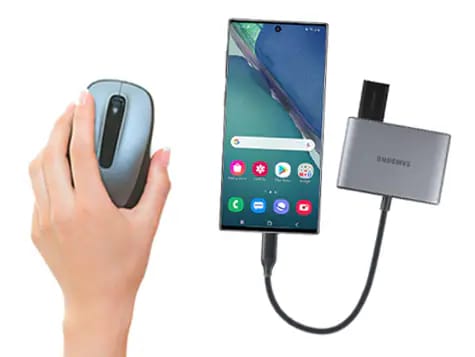
- Step 1. Use an OTG adapter with a USB mouse.
- Step 2. Connect the OTG adapter and mouse to the phone. A pointer should appear only if the model supports the accessory and the display still works.
- Step 3. Enter your own PIN, pattern or password using the visible screen and mouse; do not assume an accessory can bypass a lock.
- Step 4. Launch Files, Photos, Google Drive, Samsung Smart Switch, or backup program.
- Step 5. Move data to a new phone, PC, or cloud.
When the screen is visible and OTG works, this may be a practical way to control the phone long enough to back up your data.
Method 2: Transfer Data to a PC Using a USB Cable
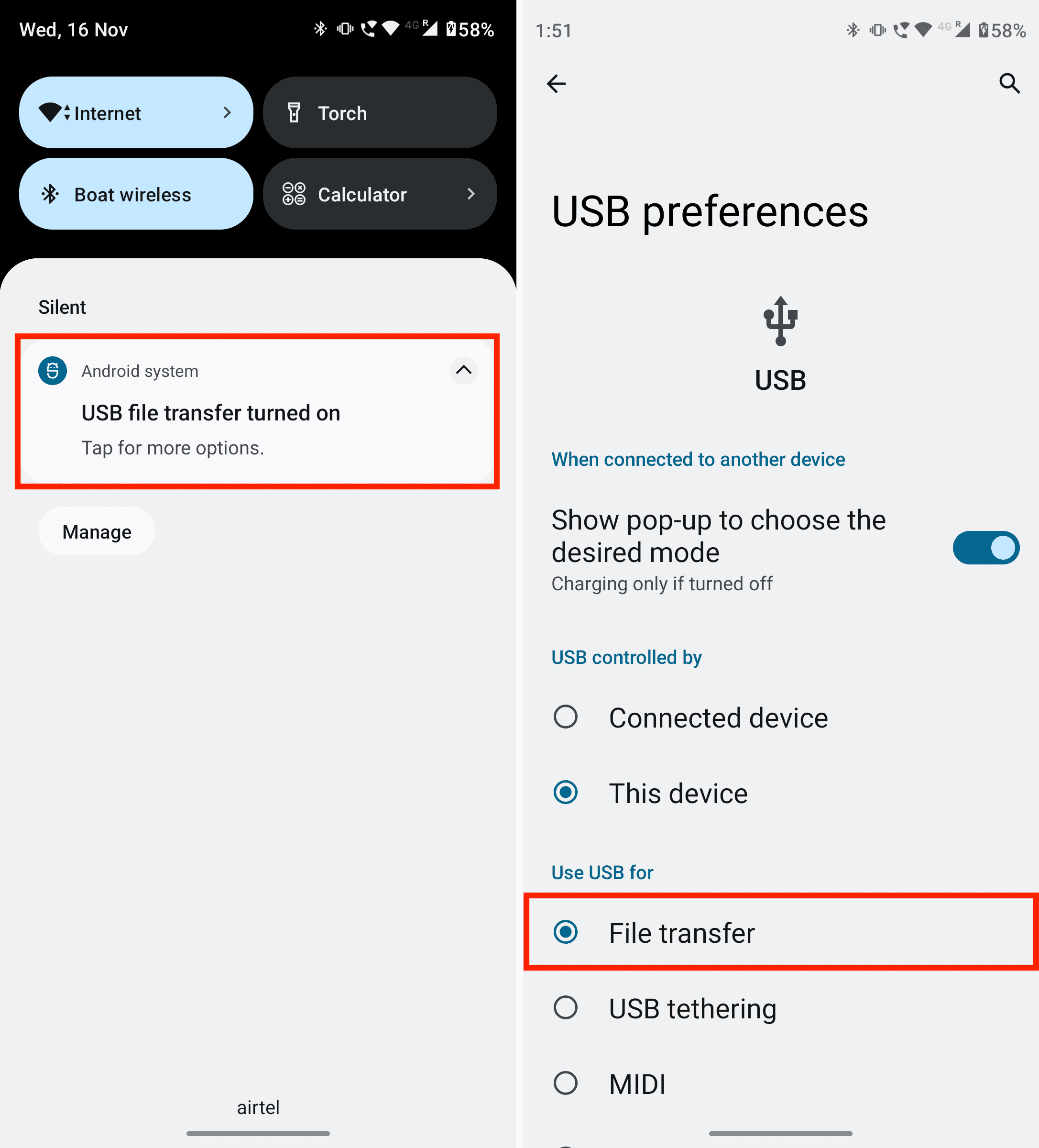
A USB cable can copy accessible files only when the phone is powered on, unlocked and set to File Transfer (MTP); a new computer may also need authorization on the phone. USB debugging is not the same as MTP access, and having debugging enabled does not automatically make a black-screen phone readable.
- Step 1. Connect the broken phone to your PC or Mac using its original USB cord.
- Step 2. Choose a connection type on your phone from "File Transfer or MTP." (This is if the phone screen is working partially.)
- Step 3. Once the phone is unlocked, authorized and set to MTP, copy accessible folders such as DCIM, Pictures, Movies, Documents and Downloads. MTP does not expose the entire encrypted device or every app's private data.
- Step 4. Store them safely on your PC.
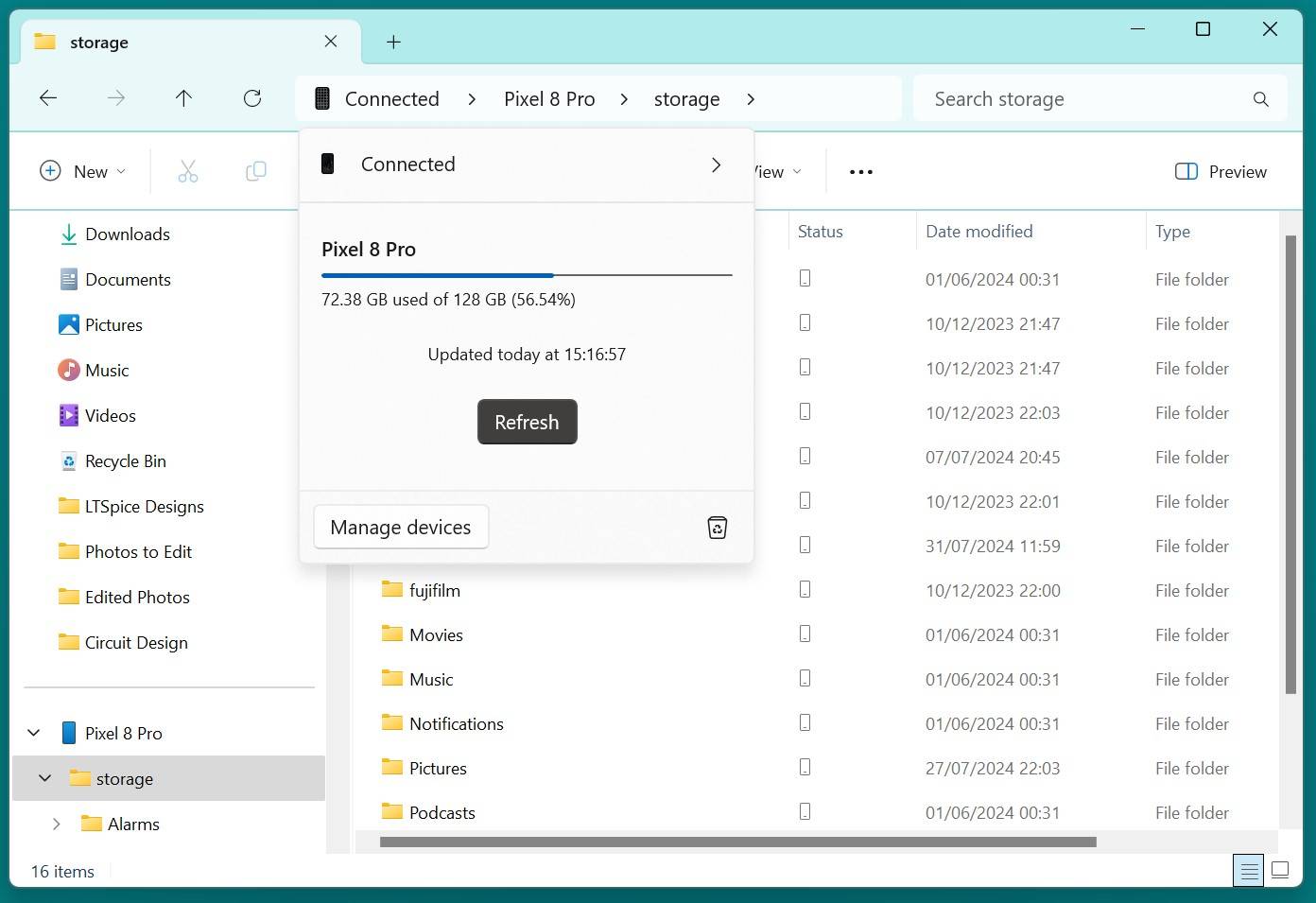
If the screen is fully black, an OTG mouse by itself cannot show where you are clicking. Check previously synchronized files, a supported external display on models that provide video output, or data-preserving screen repair. Reconnect to a PC only after you can unlock the device and approve file access.
Method 3: Transfer Data to a New Phone using OEM Tools
Many Android manufacturers offer a phone-to-phone transfer app. Both devices generally must be working and the old phone must be unlocked or otherwise accessible to approve pairing; available file types vary. If the old screen cannot be used, check an existing backup rather than assuming the app can copy everything.
Samsung Smart Switch
Samsung Smart Switch can receive supported data on a new Samsung phone when the source phone can participate in pairing and transfer. Follow the on-screen prompts for your device; damaged-screen access still depends on the old phone.
- Step 1. Download Smart Switch on both phones.
- Step 2. Use your mouse to open Smart Switch on your broken phone.
- Step 3. Select "Send Data > Wireless or Cable."
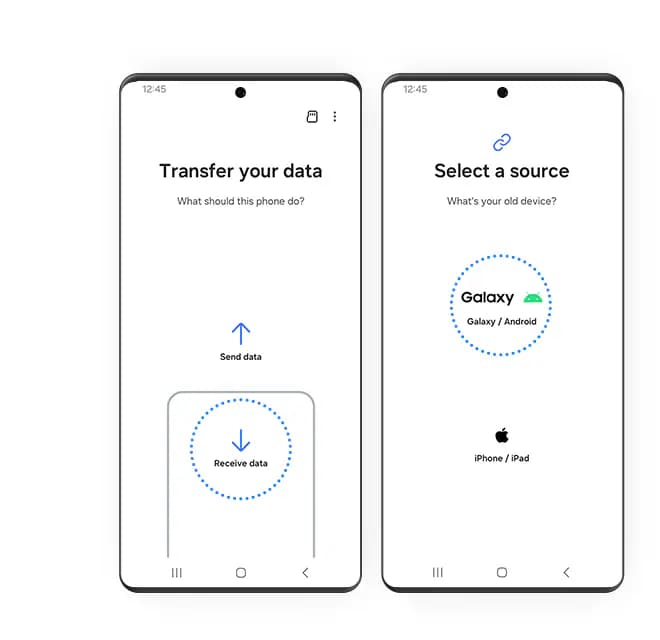
- Step 4. Select "Receive Data" on the new Samsung phone.
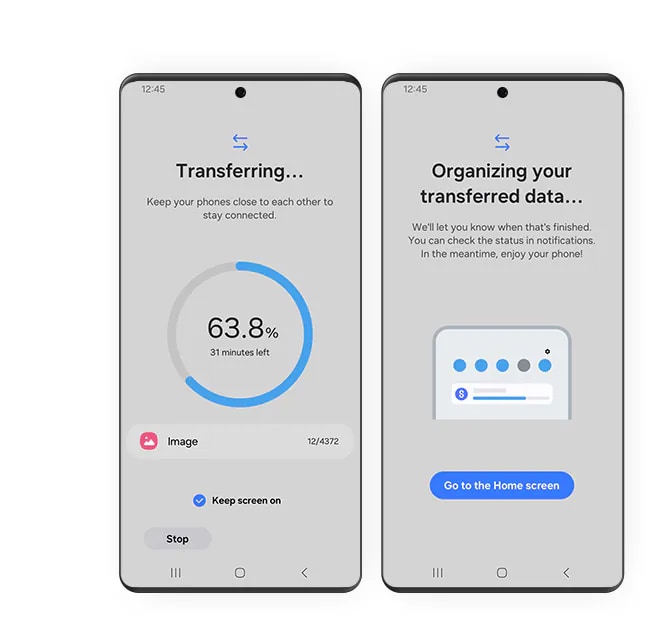
If the old phone cannot be unlocked or paired, use a previously saved account or computer backup instead of relying on Smart Switch.
Method 4: Google Account Data Transfer
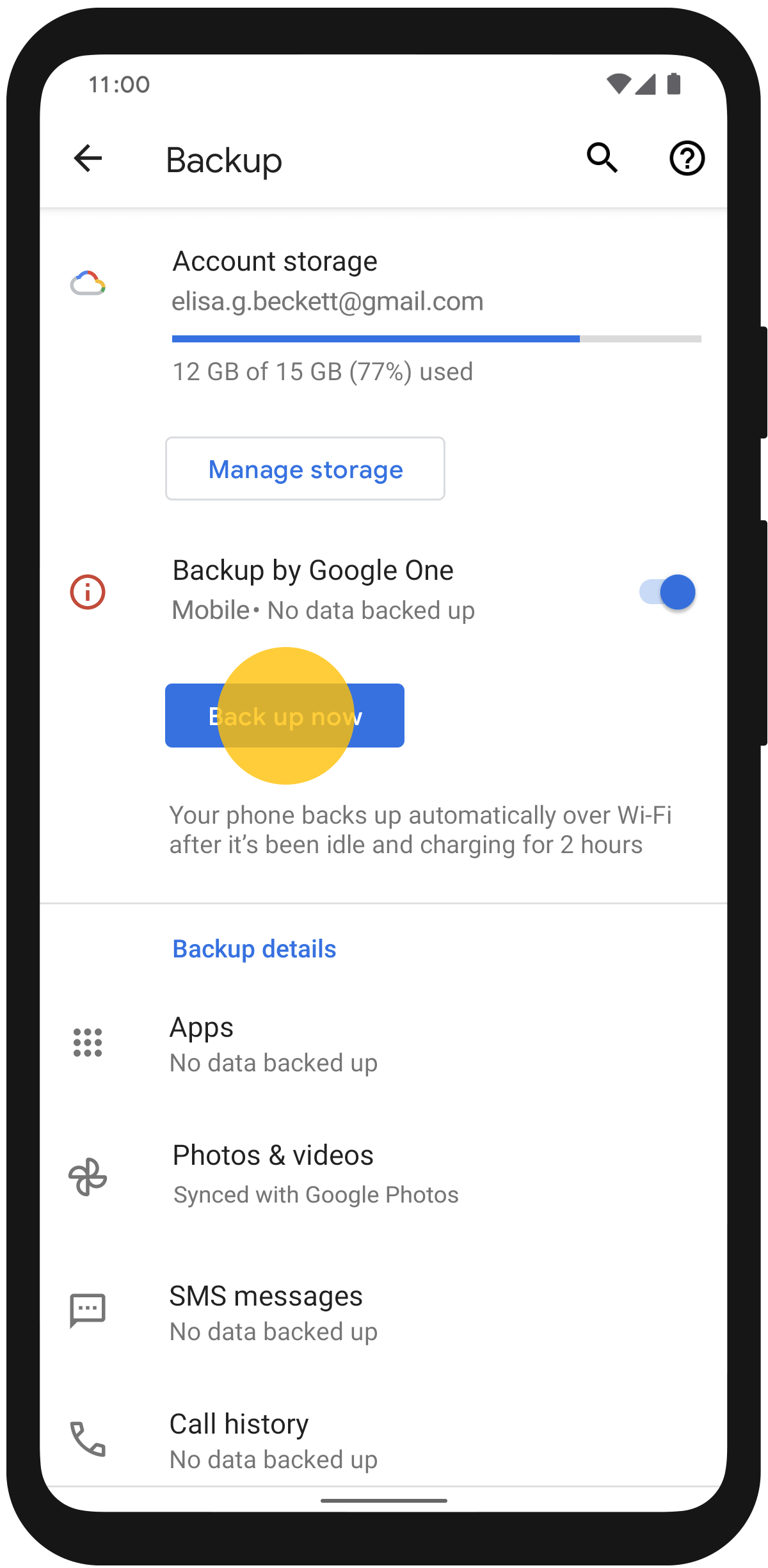
Google's existing device backup is useful even if the old phone is now inaccessible. If it can still be operated, check Settings > Google services > All services > Backup (wording can vary) and verify the last backup time before making another one.
- Step 1. On an accessible phone, open Settings > Google services > All services > Backup and review what is saved. If the phone cannot be unlocked, inspect existing copies in the same Google account from another device.
- Step 2. If the phone is usable and connected, select Back up now and wait for it to finish; you cannot start a new backup on a phone you cannot operate.
- Step 3. Use your Google account on your new phone.
- Step 4. During setup of a new Android phone, choose to restore from an existing Google backup if available. You may need the old device PIN, and some device data is restored during setup rather than simply by signing into an already configured phone.
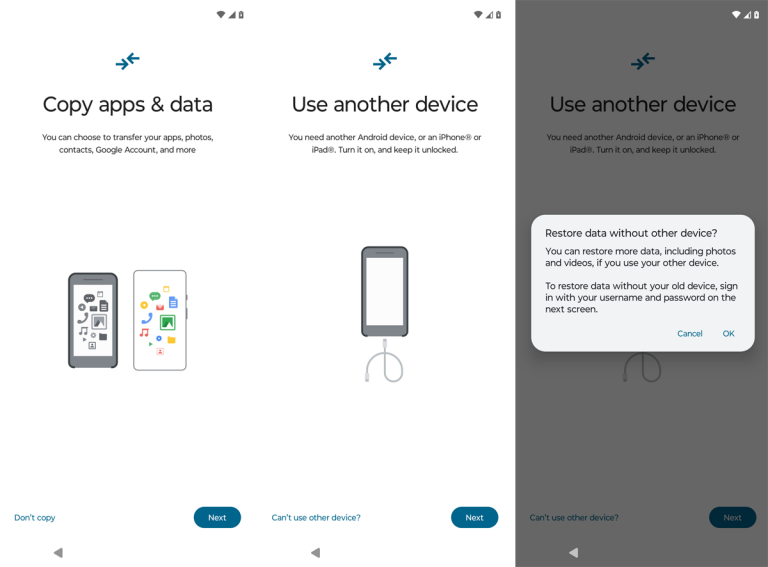
- Step 5. Review the restored categories. Contacts and synced photos may already be in their respective cloud apps; apps, messages and settings depend on what the earlier device backup actually included.
You can compare the device and backup routes with Google's Android backup instructions. Do not reset your current phone merely to test whether an unverified backup exists.
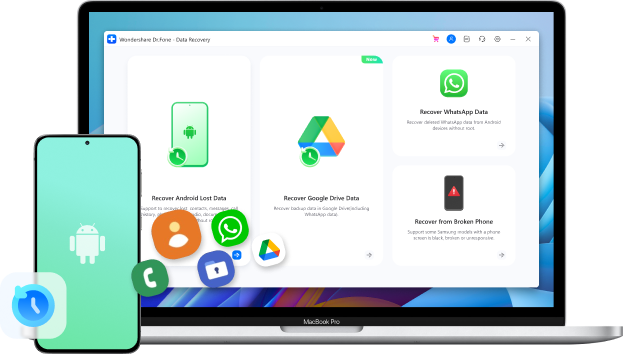
Bonus Tip: When Transfer Isn't Possible on Android — Use Data Recovery Tools (Dr.Fone)
If the phone is accessible but ordinary transfer is blocked, Dr.Fone - Data Recovery offers several recovery workflows. Check the exact symptom and device support before installing or paying: a black or unpowered phone is not automatically accessible, and no software bypasses your passcode or encryption.
The general Android data-recovery device list is not a compatibility list for every broken-screen mode. The screen-on-but-unresponsive workflow requires a working display and suitable driver/phone access; Dr.Fone's black-screen workflow is documented for certain older Samsung models only. Google Drive recovery requires a pre-existing copy. Direct device scanning and exporting found files depend on the model, file type, permissions and license.
Use the official broken-Android guide to distinguish a visible-but-unresponsive display from a black-screen Samsung workflow. Neither path means that all Android brands support every option. Keep the original device and its credentials available; confirm compatibility before changing the phone.

Dr.Fone - Data Recovery (Android)
Recover WhatsApp/contacts/messages/call history saved in Google Drive to your computer.
- Recover Android data by scanning your Android phone & tablet directly.
- Preview and selectively recover what you want from your Android phone & tablet.
- Supports various file types, including WhatsApp, Messages & Contacts & Photos & Videos & Audio & Document.
- Supports 6000+ Android Device Models & Various Android OS.


Note: The product guide describes the "Screen On but Unresponsive" route as broadly available to Android phones, but it requires a lit, readable display and the ability to complete the supported connection and controls. Black-screen extraction is a separate, model-limited workflow. The unchanged product box above advertises general data types and device totals, not guaranteed broken-screen support or free export.
Step-by-Step Guide
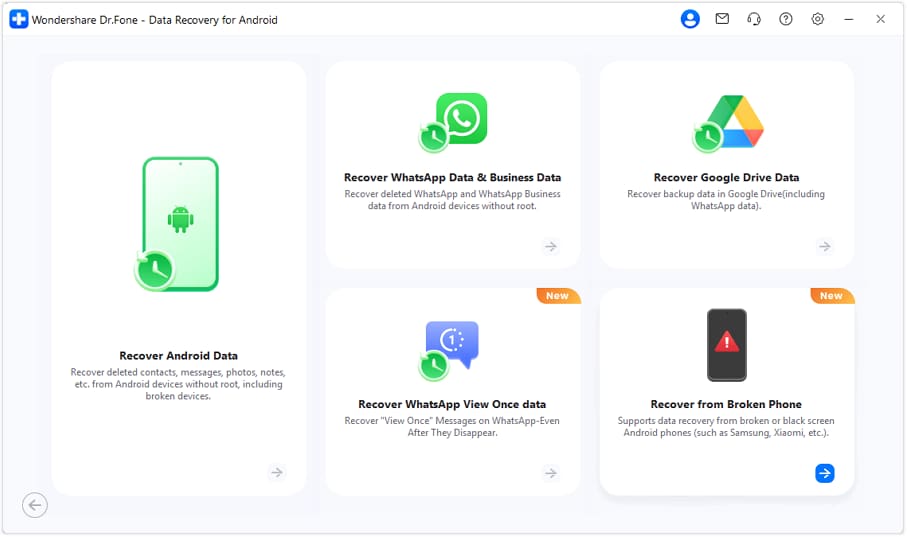
- Step 1. Install and launch Wondershare Dr.Fone on PC. Click "Toolbox > Data Recovery" from the main page and select Android. Different recovery choices appear. Choose "Recover from Broken Phone."
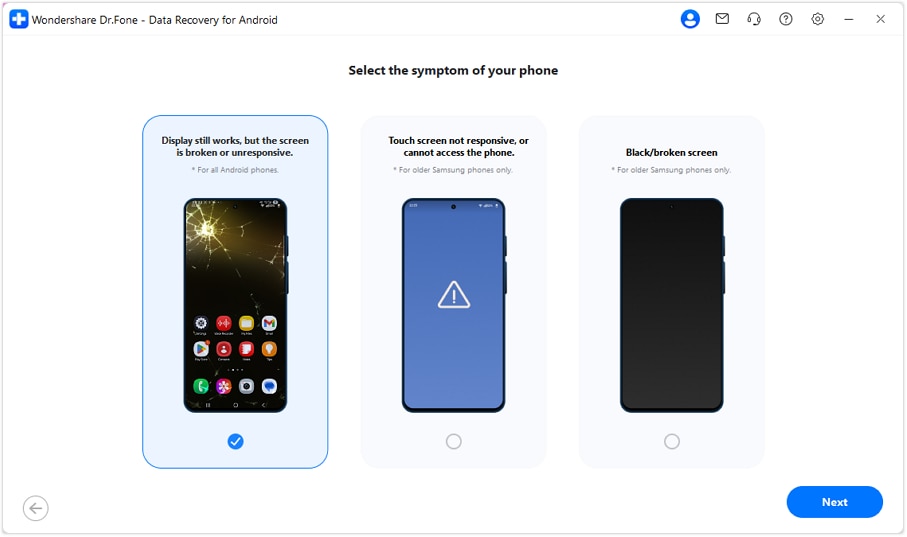
- Step 2. Select "Screen On but Unresponsive" only if you can see the lit display but cannot operate it by touch. The black-screen option is separate and limited to specified older Samsung devices; check supported models before choosing it.
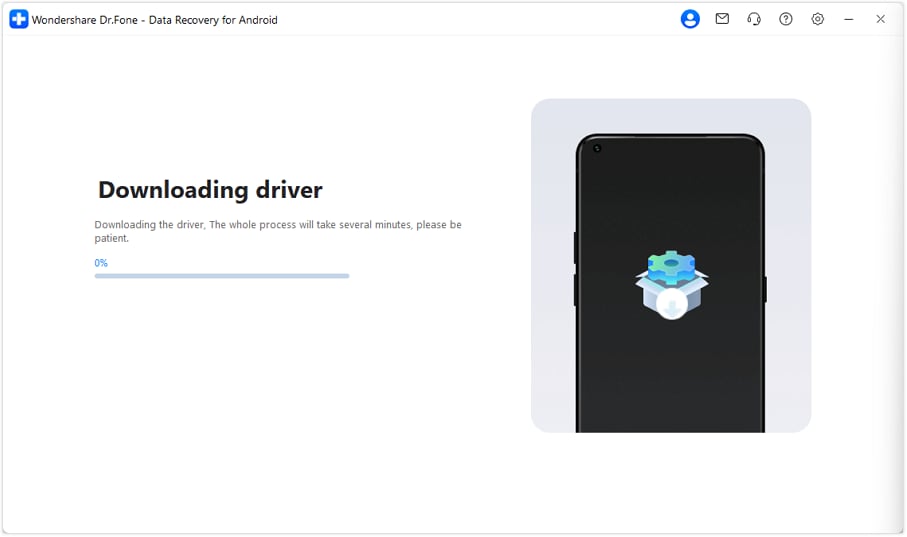
- Step 3. If the program offers compatible drivers, follow its prompts and confirm that your phone can be controlled. Driver installation or computer detection alone does not grant access to a locked device.
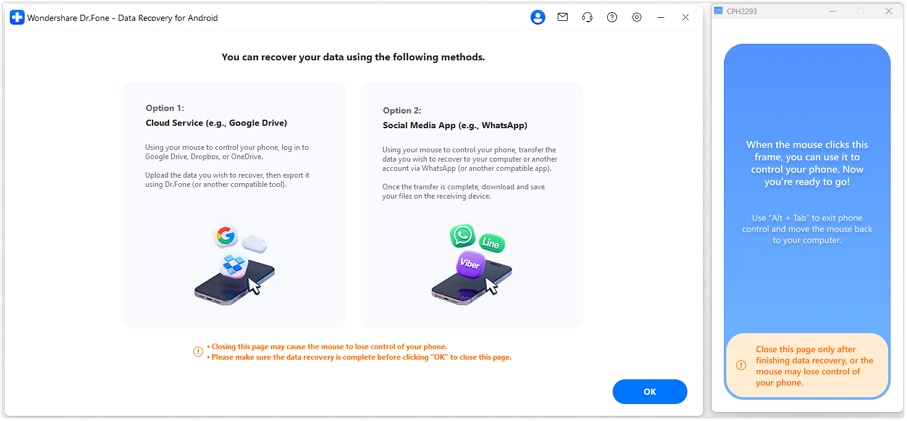
- Step 4. If the supported on-screen control works, choose an available cloud or supported app transfer path and verify the copied files on another device. The route may still require your account credentials, an unlocked phone and a compatible app; it is not guaranteed extraction from a dead device.
 safe & secure
Part 3: How to Transfer Data From a Phone With a Broken Screen (iPhone)
On an iPhone with a damaged display, start with data that was already synced to iCloud or an existing backup. To make a new backup or a direct phone-to-phone transfer, you may need to unlock the old iPhone, approve Trust This Computer or interact with the old screen. A black screen does not disable those security checks.
Choose among the following methods according to whether the old device can still be unlocked and whether an iCloud or computer backup exists. Not every method works with an unresponsive or completely dark display.
Method 1: iCloud Sync & Auto Backup
If iCloud sync or iCloud Backup was enabled before the damage, check the same Apple Account for an existing copy. Creating a new backup from the old iPhone requires it to be powered on, connected and operable; restoring a device backup occurs during new-device setup.
- Step 1. Check whether a usable iCloud backup already exists in your Apple Account. If the old iPhone is still accessible, connect it to Wi-Fi and power before attempting a new backup.
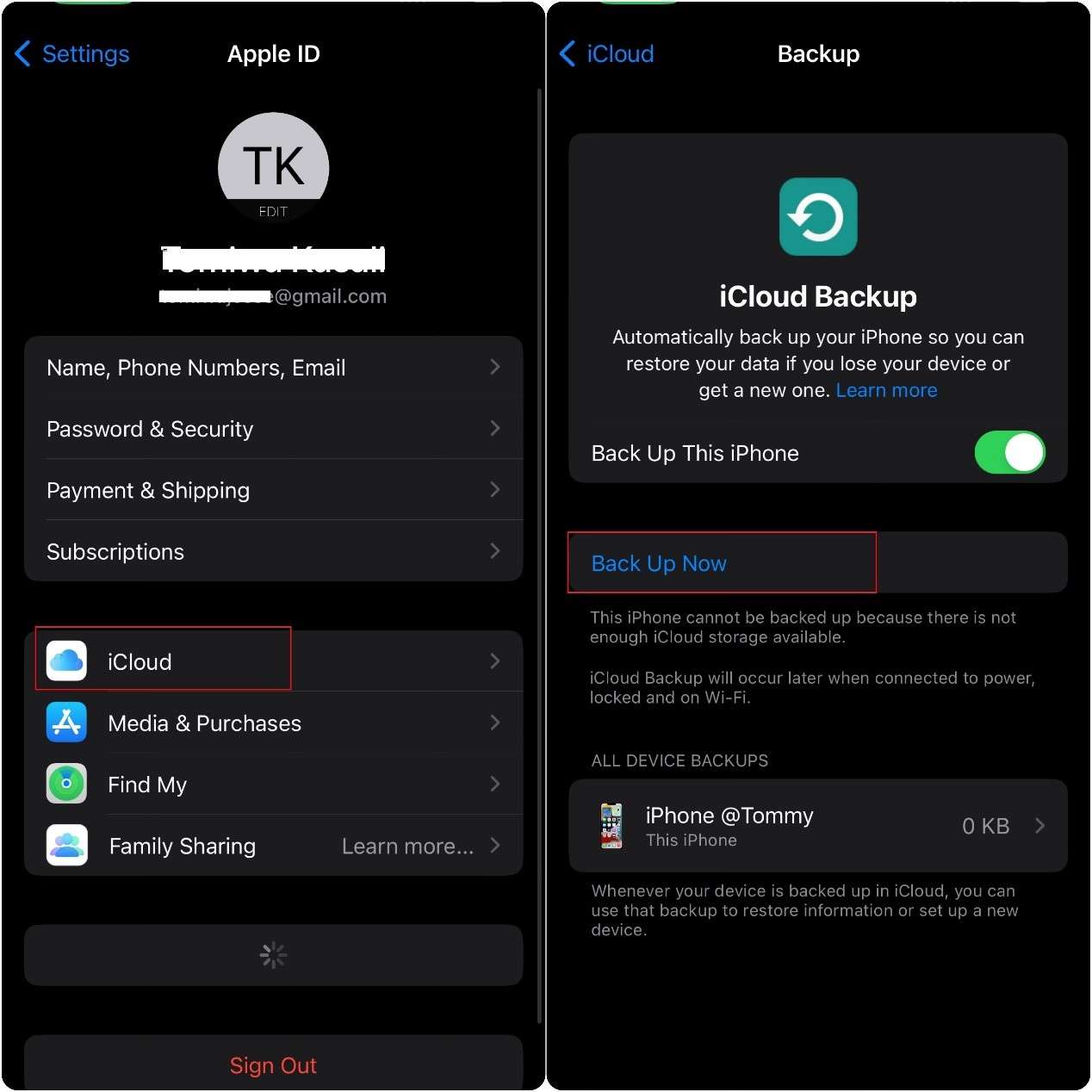
- Step 2. Only if you can operate the phone, go to Settings > [your name] > iCloud > iCloud Backup (labels vary by iOS version).
- Step 3. Tap Back Up Now and verify the backup completion time; signing in to iCloud from another device does not start a backup on an inaccessible iPhone.
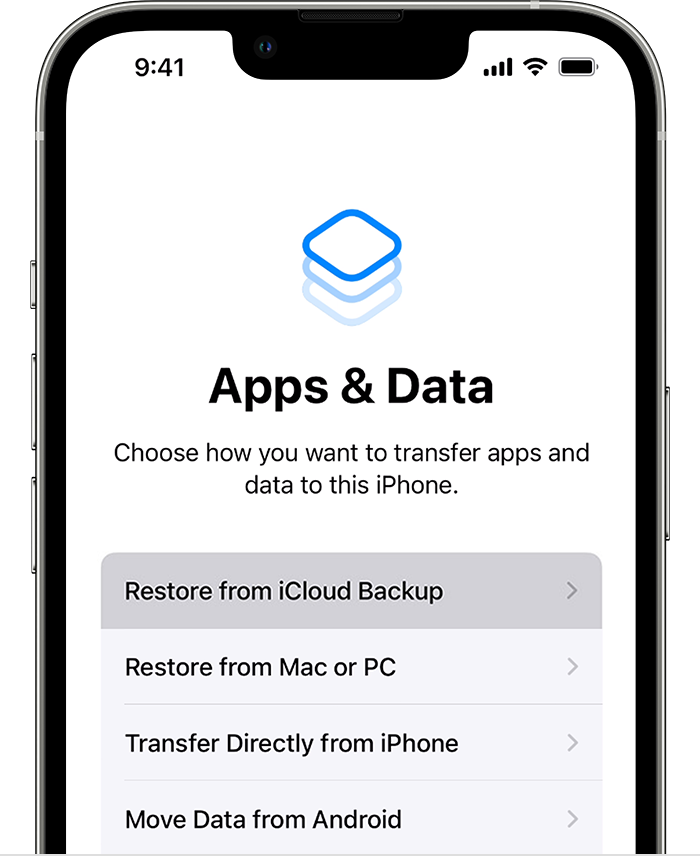
- Step 4. During setup of a new or erased iPhone, choose From iCloud Backup and select the relevant dated backup. Back up any current data before erasing a phone that is already set up.
Pre-existing synced Photos, Contacts and iCloud Drive files may be accessible without controlling the broken device; a full device backup is a different copy. See Apple's backup restore instructions before erasing or replacing a device.
Method 2: Use iCloud.com from a Computer
Use iCloud.com to download items that had already synced to the same Apple Account. It cannot read unsynced files directly from the damaged phone, and some account sign-ins may require two-factor authentication. Not all app data is available from iCloud.com.
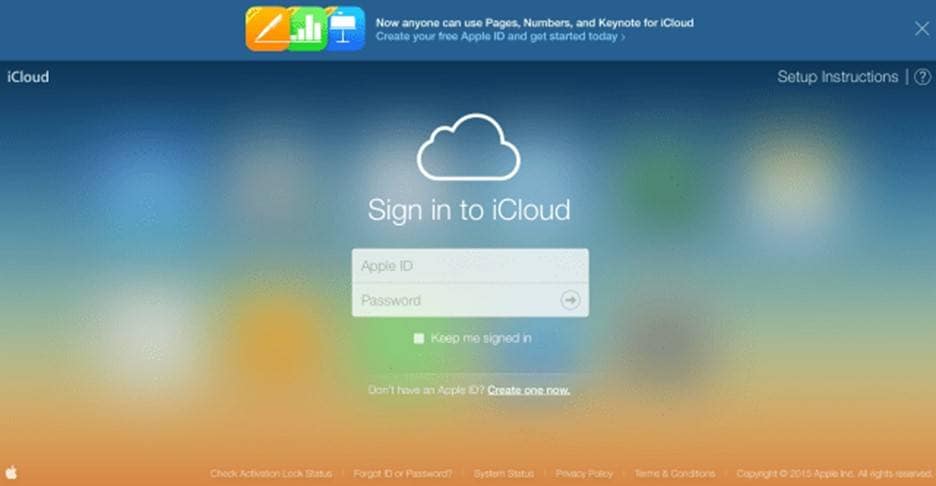
- Step 1. Open a browser on a computer and navigate to iCloud.com.
- Step 2. Sign in with your Apple ID.
- Step 3. Access Photos, Contacts, Notes, or iCloud Drive.
- Step 4. Download what you need to your PC. You can transfer these files to your new phone.
This option does not require touching the old iPhone if the account and previously synced files are already accessible, but it does not create a fresh full-device backup.
Method 3: Finder/iTunes Data Transfer
A Mac or Windows computer can make a new backup only if the iPhone can be unlocked and the computer is trusted when prompted. An already trusted computer may help, but a broken display that prevents required authorization can still block a backup.
- Step 1. Connect the broken iPhone to your Mac or Windows PC via cable.
- Step 2. Open Finder on macOS Catalina or later, Apple Devices on supported Windows PCs, or iTunes on older Windows/macOS systems.
- Step 3. Select the iPhone if it appears; if prompted, enter the passcode on the iPhone and approve Trust This Computer. Do not assume a new computer can access a locked device.
- Step 4. Click "Back Up Now."
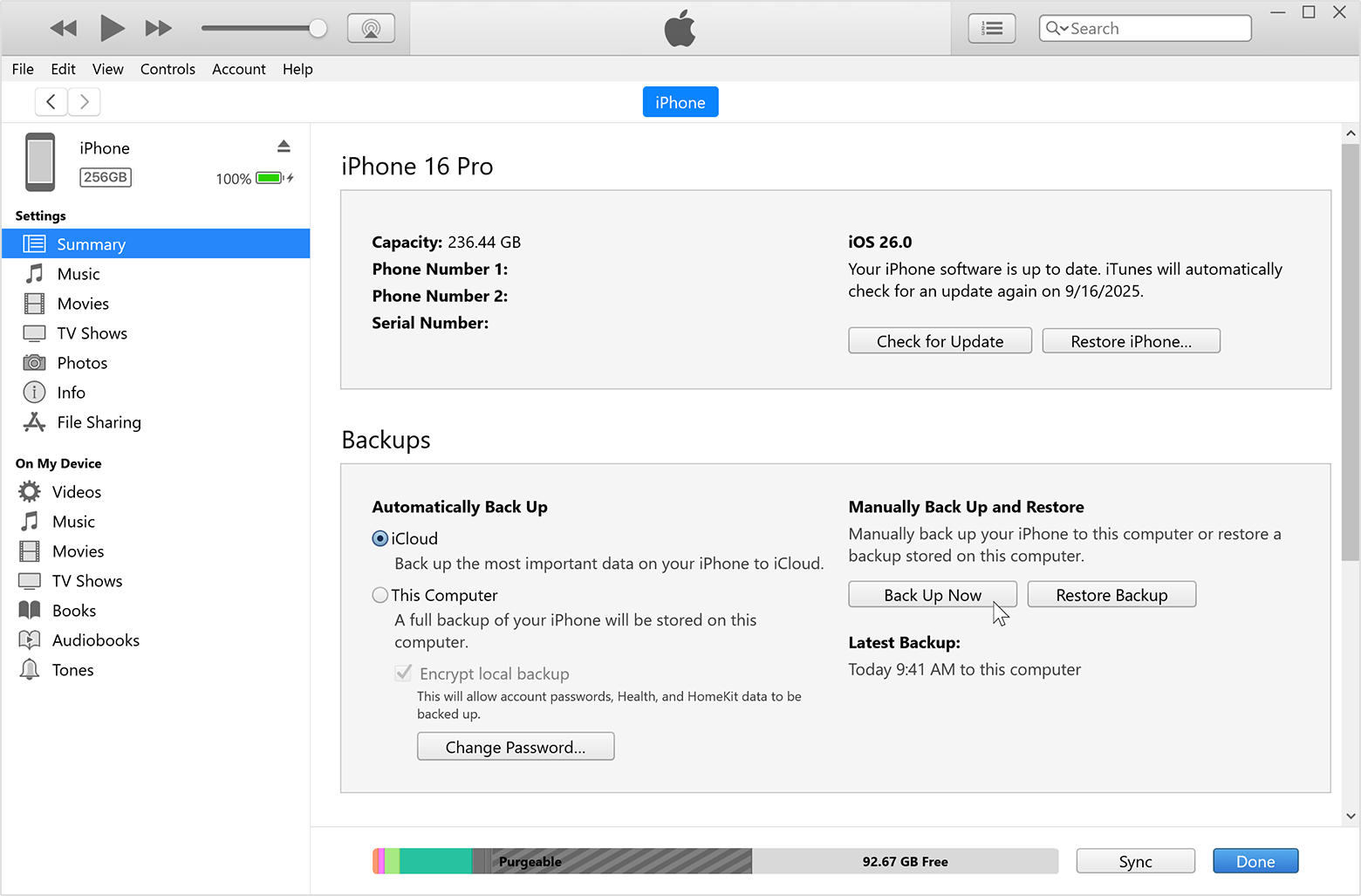
When the backup completes, set up the replacement iPhone and choose the dated computer backup. A backup encrypted with a password requires that password to restore; check the files you need after setup.
Method 4: External Keyboard/Lightning OTG
Some iPhones support external input through a compatible adapter or accessibility setup, but adapter, iPhone model and iOS behavior vary. An external keyboard is not a reliable way to unlock a black-screen phone or approve a Trust prompt you cannot see. Try this only when you can verify the screen and enter your own passcode.
- Step 1. Check which connector and compatible input accessories your specific iPhone supports; Lightning and USB-C models differ.
- Step 2. If supported, connect the accessory and confirm that the iPhone actually recognizes input.
- Step 3. If the display is readable, enter your own passcode and follow any on-screen Trust prompt. Blind passcode entry can lock the device after repeated mistakes and is not recommended.
- Step 4. Connect iPhone to PC/Mac and back up with iTunes/Finder after unlocking.
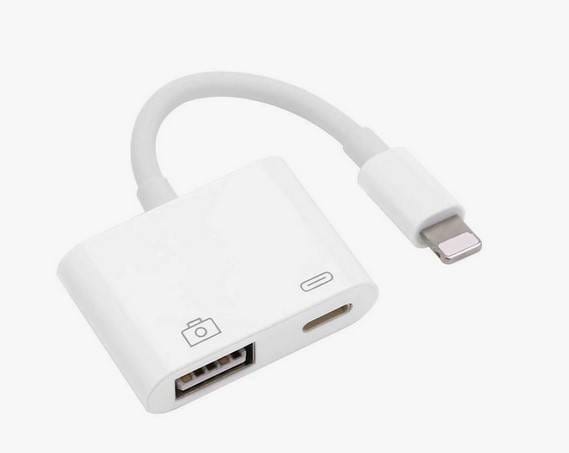
If you cannot see the display or complete the authorization prompts, check an existing iCloud/computer backup or arrange screen repair that preserves the original data before attempting another transfer.
Part 4: Special Case — Completely Dead Phone
A phone that cannot power on or establish a data connection cannot provide a new USB, OTG or direct device-to-device transfer. First distinguish a failed screen or battery from a failed mainboard; the steps below are about preserving access, not guaranteed extraction.
A dead phone cannot start a new backup, but existing Google or iCloud backups and previously synced files remain worth checking from another device. If no saved copy exists, ask a qualified repair provider to preserve the original board and data while diagnosing the fault. Avoid a factory reset or board replacement without understanding the effect on your files.
1. Repair the Screen or Hardware
A data-preserving screen, connector or battery repair may restore enough access to unlock the device and back it up. Tell the technician you need the original data and do not authorize a reset or replacement of the storage-bearing board without review.
2. Use a Pro Data Recovery Lab
A specialist may repair the original electronics to regain normal authenticated access. Ask about model support, privacy and costs; encrypted storage and physical damage mean recovery is uncertain.
3. Chip-Off Recovery
Chip removal alone is generally not a practical way to read modern encrypted Android or iPhone storage: decryption depends on hardware-bound keys and a functioning original device. Treat any chip-off proposal as exceptional, requiring a device-specific technical explanation and no guarantee.
Conclusion
A broken display calls for a decision, not a universal recovery trick: check existing cloud copies, then use a visible screen/OTG or an authorized computer connection if the phone can be unlocked. If the screen is dark or the device is dead, prioritize data-preserving repair and verified backups. How to transfer data from broken screen phone depends on the exact device state and credentials.
If ordinary Android transfer remains blocked, Dr.Fone - Data Recovery may offer a supported broken-screen workflow. Verify the exact model and symptom in its current guide; a fully black or unpowered phone is not automatically supported. The unchanged download buttons below are trials, not proof that your device can be accessed or every file can be exported for free.
safe & secure


Android Recover
- Recover Apps
- 1. Data Recovery Software for Android
- 2. Top 4 Android Data Recovery Tools
- 3. Restore Deleted Files on Android
- 4. Coolmuster Android Data Recovery
- 5. Guide of Disk Drill for Android
- 6. Android Data Recovery Software
- 7. Gihosoft Android Data Recovery
- 8. Jihosoft Android Phone Recovery
- 9. Minitool Android Mobile Recovery
- 10. Recover Android Data from Fucosoft
- 11. Best Mobile Forensics Tools to Recover Data
- 12. PhotoRec Review
- 13. FoneDog Toolkit
- 14. TWRP Recovery
- Contacts Recover
- 1. Recover Contacts from Stolen phone
- 2. Recover Contacts from Android
- 3. Retrieve Contacts Without Backup
- Files Recover
- 1. Recover Files from Internal Memory
- 2. Recover Miscellaneous Files
- 3. Recover Android's Hidden Files
- 4. Recover Deleted Files from Android
- 4. Recover Deleted Files Without Root
- 5. Recover Files from SD Card
- 6. Undelete Files on Android
- Messages Recover
- Music/Videos Recover
- Photos Recover
- 1. DiskDigger Photo Recover Review
- 2. Recover Deleted Photos from Android
- 3. Recover Photo from Internal Storage
- 4. Recover Photos from Lost Phone
- 5. Restore Android Deleted Photos
- Broken Android Recover
- 1. View Files from Broken Phone Screen
- 2. Recover Data from Dead Phone
- 3. Recover Contacts with Broken Screen
- 4. Recover Text Messages from Android
- 5. Recover Data from Internal Memory
- Social Apps Recover
- 1. Recover Facebook Messages
- 2. Recover WhatsApp Messages
- 3. Recover WhatsApp Messages
- 4. Restore Deleted WhatsApp Messages
- Android Recover Tips
- 1. SD Card Recovery Tools
- 2. Fix Recovery Mode Not Working
- 3. Enter Recovery Mode on Android
- 4. Recover Calendar from Android
- 5. Recover Deleted Call Log on Android
- 6. Clear Cache Partition
- 7. Repair a USB Stick
- 8. USB Repair Tools
- Cloud Storage Tips
- ● Manage/transfer/recover data
- ● Unlock screen/activate/FRP lock
- ● Fix most iOS and Android issues
- Free Download Free Download Free Download

 > How-to > Data Recovery Solutions > How to Transfer Data from a Broken-Screen Phone: Android and iPhone
James Davis
staff Editor