
How to Mute Calls on WhatsApp: A Complete Guide to Silence and Control WhatsApp Calls
WhatsApp Manage
- WhatsApp Transfer
- 1. Save Whatsapp Audio
- 2. Transfer WhatsApp Photos to PC
- 3. WhatsApp from iOS to iOS
- 4. WhatsApp from iOS to PC
- 5. WhatsApp from Android to iOS
- 6. WhatsApp from iOS to Android
- 7. Whatsapp Communities Messages
- 8. Switch Between WhatsApp and GBWhatsApp
- 9. Recover Deleted WhatsApp Call History
- 10. Delete Call History on WhatsApp
- 11. Starred Messages in WhatsApp
- 12. Send Bulk SMS on WhatsApp
- 13. Download Whatsapp Audio Notes
- 14. Saving Videos from WhatsApp
- WhatsApp Backup
- 1. Access WhatsApp Backup
- 2. WhatsApp Backup Extractor
- 3. Backup WhatsApp Messages
- 4. Backup WhatsApp Photos/Videos
- 5. Backup WhatsApp to PC
- 6. Backup WhatsApp to Mac
- 7. WhatsApp Backup Stuck
- 8. Restore WhatsApp Backup from Google Drive to iCloud
- 9. Find the Best WhatsApp Clone App
- WhatsApp Restore
- 1. Top Free WhatsApp Recovery Tools
- 2. Best WhatsApp Recovery Apps
- 3. Recover WhatsApp Messages Online
- 4. Recover Deleted WhatsApp Messages
- 5. Restore Deleted WhatsApp Messages
- 6. Retrieve Deleted WhatsApp Messages
- 7. Recover Deleted WhatsApp Images
- 8. WhatsApp Restoring Media Stuck
- 9. Restore Old WhatsApp Backup
- 10. See Deleted WhatsApp Messages
- WhatsApp Tips
- 1. Best WhatsApp Status
- 2. Best WhatsApp Messages
- 3. Most Popular WhatsApp Ringtones
- 4. Best WhatsApp Mod Apps
- 5. What is Blue WhatsApp
- 6. 234 Country Code WhatsApp
- 7. Delete WhatsApp Account
- 8. Hide WhatsApp Ticks
- 9. Hack WhatsApp Account
- 10. Verify WhatsApp without SIM
- 11. Blue Ticks on WhatsApp
- 12. WhatsApp Plus Download
- 13. Grey Tick on WhatsApp
- 14. Does WhatsApp Notify Screenshots
- WhatsApp Problems
- 1. WhatsApp Common Problems
- 2. WhatsApp Calls Not Working
- 3. Whatsapp Not Working on iPhone
- 4. WhatsApp Backup Stuck
- 5. WhatsApp Not Connecting
- 6. WhatsApp Not Downloading Images
- 7. WhatsApp Not Sending Messages
- 8. Couldn‘t Restore Chat History
- 9. WhatsApp Not Showing Contact Names
- WhatsApp Business Manage
- 1. WhatsApp Business for PC
- 2. WhatsApp Business Web
- 3. WhatsApp Business for iOS
- 4. Add WhatsApp Business Contacts
- 5. Backup & Restore WhatsApp Business
- 6. Convert a WhatsApp Account to a Business Account
- 7. Change A WhatsApp Business Account to Normal
- 8. WhatsApp Notifications Are Not Working
- Other Social Apps Manage
- ● Manage/transfer/recover data
- ● Unlock screen/activate/FRP lock
- ● Fix most iOS and Android issues
- Free Download Free Download


Oct 23, 2026 • Filed to: Social App Management • Proven solutions
 TL;DR:
Although WhatsApp lacks a native toggle to completely disable incoming calls, you can effectively silence or block them by restricting OS-level permissions, utilizing temporary system pauses, or configuring built-in privacy filters.
● Revoking microphone access in your Android or iPhone system settings causes incoming calls to fail before ringing, but this workaround prevents you from sending voice memos or recording video audio until the permission is restored.
● For short interruptions, Android users can apply the Force Stop system setting to suspend all calls and text messages until the app is reopened, whereas iPhone users must rely on iOS Focus Mode to mute call notifications without fully dropping the connection.
● Activating the Silence Unknown Callers option within WhatsApp is the optimal choice for targeting spam, as it permits saved contacts to ring normally while silently routing unfamiliar numbers directly to your call log.
Ask AI for a summary
 ChatGPT
 Perplexity
 Gemini
 Claude
 Grok
Grok
WhatsApp calls can arrive at any time. Sometimes they come during work, sleep, or quiet moments. Many users want a way to stay on WhatsApp but stop calls.
The app does not give a direct button to completely disable calls on WhatsApp. But there are smart tricks that work very well. You can stop the ringtone, silence unknown callers, or block call permissions. These simple methods help you control both voice and video calls.
Here’s how to mute WhatsApp calls. It only takes a few steps for each approach to operate on both Android and iPhone.

Part 1. Why People Want to Turn Off WhatsApp Calls
Before diving into the steps, it is worth understanding why users search for how to disable WhatsApp calls.
Common reasons include
- Don't answer calls from numbers you don't know.
- Cut down on distractions while you work
- Stop spam calls
- Control WhatsApp notifications
- Stop video calls from strangers
Additionally, WhatsApp now has an option that disables ringing when unknown numbers call. It's called Silence Unknown Callers. Even while your device remains silent, the call remains in your call log.
Now, let us go through the practical solutions.
Part 2. How to Disable WhatsApp Calls on Android (Step-by-step Method)
The flexible nature of Android gives more control over app behavior compared to iOS. It means that you can limit the access an app might receive to data. One of the easiest methods to turn off WhatsApp calls on Android is through revoking some system-level permissions. With those permissions crippled, WhatsApp won’t be able to finish calls, but text messages should still come through as normal.
Method 1: No Microphone No Call Trick to Mute WhatsApp Calls
This method is one of the most reliable ways to mute a WhatsApp call. The idea is simple. If WhatsApp cannot use the microphone and phone permissions, incoming calls will not connect before they even start ringing.
Step 1. Go to Settings on your Android mobile.
Step 2. Scroll through that to open Apps or Manage Apps, then tap WhatsApp.
Step 3. Tap Permissions.
Step 4. Identify the microphone and modify the setting from Ask to Do not allow.
Step 5. Locate Phone and change it to Do not allow.
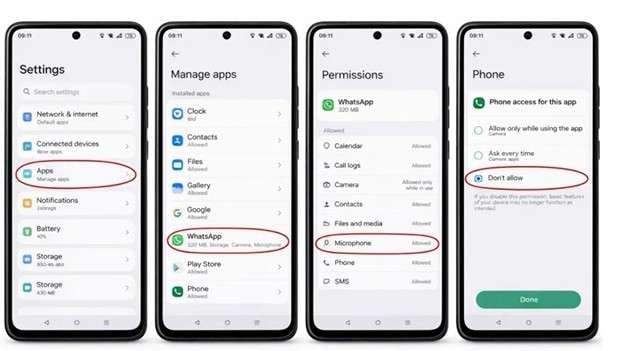
Note: Using this method, the voice notes will not function until you re-enable the microphone. Text messages will still arrive instantly.
Method 2: Force Stop Trick to Turn Off WhatsApp Calls for A Short Time
If you prefer to temporarily avoid calls without changing your phone settings, simply use the Force Stop option. Lastly, this trick will help you turn off WhatsApp calls for a limited time. It prevents the app from running until you call it back up.
Step 1. Long-press the WhatsApp icon on your phone screen.
Step 2. Hit the App Info icon that shows.
Step 3. Open the app settings page and select Force Stop.
Once you apply this option, WhatsApp will no longer run. There will be no phone calls and no messages during this time. The app will remain dormant until you open WhatsApp again.
Note: (For iPhone users, the same does not apply.) Because iOS handles WhatsApp calls using the callkit system, rejecting calls is much harder than it is on Android. A tool can recover lost call logs when you delete them by changing these settings, and it is possible to recover deleted WhatsApp data on iOS.
Part 3. How to Disable WhatsApp Calls on iPhone iOS 26
WhatsApp calls on iPhone are run using Apple's CallKit. Due to this, WhatsApp calls essentially function like standard phone calls on the device. Users cannot simply flip a switch to disable the calling feature in the app entirely. These options allow you to turn off WhatsApp calls iPhone behavior without blocking the contacts who call you.
Method 1: Focus mode trick to silence WhatsApp calls
Recent iOS updates introduced Focus Filters. This feature allows users to manage how apps behave during certain periods. It can help to disable WhatsApp calls on iPhone by silencing the app's notifications.
Step 1. Go to Settings on your iPhone
Step 2. Open up the Focus section.
Step 3. Select a focus profile (ex, Work or Do Not Disturb).
Step 4. In the Allowed Notifications section, ensure WhatsApp is not there
Step 5. Scroll down to the bottom of this section and open Focus Filters
Step 6. Click on Add Filter and enter a filter for the selected focus profile
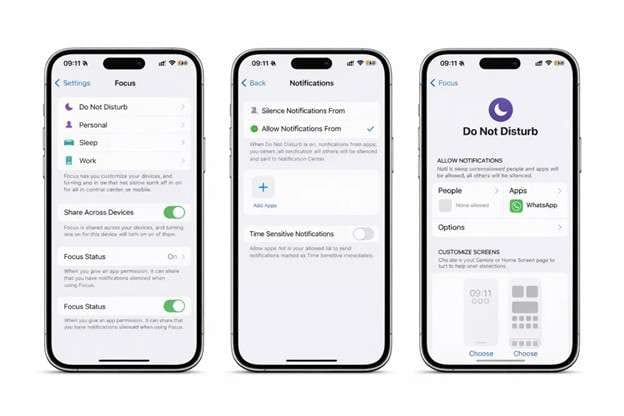
As of now, iOS doesn't have an option to completely mute WhatsApp calls using Focus Filters. But that setting can mute WhatsApp notifications through the chosen timeframe.
Method 2: Silence unknown callers setting to mute WhatsApp calls from unknown numbers
If your goal is to block spam calls or calls made from numbers not stored in your contacts, there’s already a built-in option for iPhone users through WhatsApp. This feature is useful for users who turn off WhatsApp call alerts on iPhone without blocking.
Step 1. Launch WhatsApp on your iOS device. Select Settings from the bottom of the screen.
Step 2. Go to the Privacy menu and pick Calls. The Silence Unknown Callers option needs to be turned on.
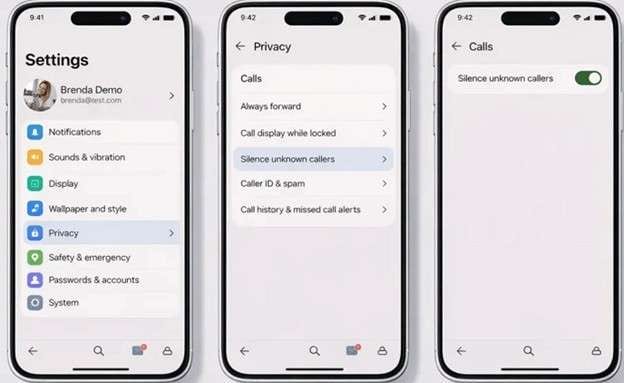
Calls from numbers that aren't in your contacts will no longer ring your phone once you enable this setting.
Method 3: Microphone permission trick to disable WhatsApp calls on iPhone
To quickly stop all incoming WhatsApp calls, you can revoke the microphone permission in the app. This is the method that may assist in searching for how to disable WhatsApp calls on iPhone.
Step 1. Launch the iPhone Settings app, navigate to Privacy and Security.
Step 2. Tap Microphone.
Step 3. Locate WhatsApp and disable microphone access.
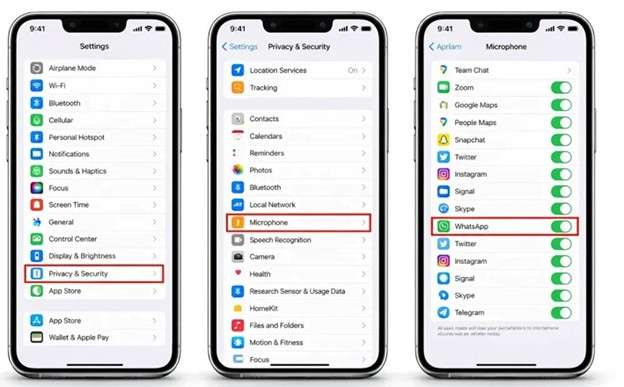
After this change, calls to you will not connect. However, remember that this also stops voice memos and video audio recording inside WhatsApp.
Part 4. Bonus Part: Want to Move WhatsApp Chats to a New Phone
After adjusting settings to turn off WhatsApp calls or control call interruptions, many users also change phones. When switching devices, the biggest concern is keeping WhatsApp chats safe. Moving messages between Android and iPhone is not always simple because the two systems handle data differently.
Dr.Fone - WhatsApp Transfer is a solution you can trust. This does exactly that, transferring your chats and media from one device to another without losing anything on WhatsApp. It is compatible with transfers from Android to iPhone, Android to Android, and iPhone to iPhone. The software allows for the safe transfer of messages, photos, videos, files, voice notes, and even WhatsApp call history.
Key features of Dr. Fone WhatsApp Transfer
- Cross-platform transfer support
The tool allows WhatsApp data transfer between Android and iPhone devices, which is usually difficult with standard backup methods. - Selective data transfer control
Users can choose the type of data they want to move. This includes chats, photos, videos, voice notes, documents, and WhatsApp call logs. - Data preview and merging option
The software allows previewing certain data and combining existing WhatsApp chats with older ones before starting the transfer. - Safe and direct device connection
Devices connect through USB to a computer, which keeps the transfer stable and reduces the risk of data loss.

Dr.Fone - WhatsApp Transfer
One-click to Transfer, Backup, and restore Your WhatsApp Data
- Transfer WhatsApp messages from Android to iOS, Android to Android, iOS to iOS, and iOS to Android.
- Backup WhatsApp messages from iPhone or Android on your PC.
- Allow restoring any item from the backup to iOS or Android.
- Completely or selectively preview and export WhatsApp messages from iOS backup to your computer.
- Support all iPhone and Android models.


Simple steps to transfer WhatsApp data with Dr. Fone
Step 1: Open Wondershare Dr. Fone on your computer and connect both phones to the computer through USB cables.
Step 2: Go to the Toolbox section and select WhatsApp. Tap on Transfer to access the transfer feature
Step 3: Click “Transfer WhatsApp messages”, and choose the source and target phone. You can switch the positions of your devices if necessary.
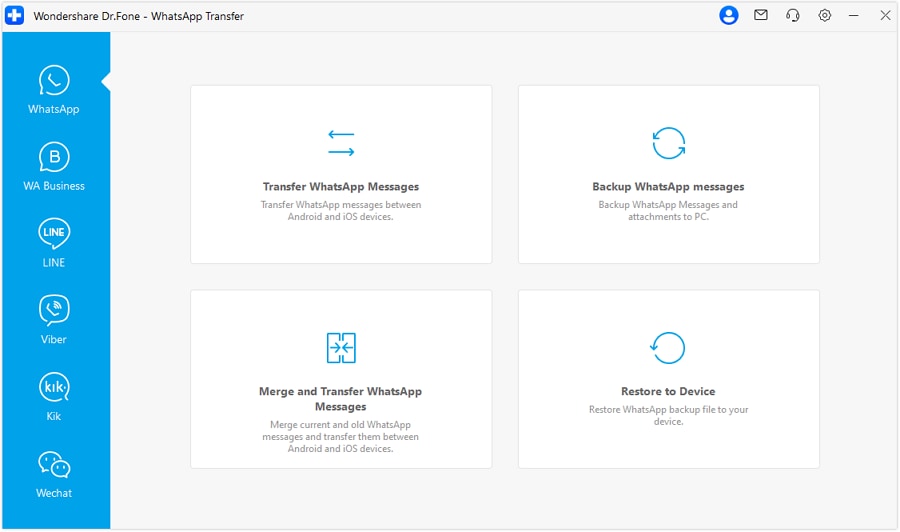
Step 4: Choose the type of data you want to move, such as voice notes, conversations, images, videos, files, or WhatsApp call records.

Step 5: Click "Transfer" and wait for the progress bar to complete and the transfer to succeed.

|
Method Name |
Device |
Purpose |
Result |
Limitations |
Best Use Case |
| No Microphone No Call Permission Trick | Android | Block WhatsApp call connection | Calls fail before ringing | Voice notes disabled | Permanent call blocking while keeping messages |
| Force Stop Trick | Android | Temporary silence from WhatsApp | No calls, no messages until the app opens | Messages also paused | Short break from WhatsApp activity |
| Focus Mode Filter | iPhone | Silence WhatsApp notifications | Calls muted during Focus period | Calls not fully disabled | Work hours or scheduled quiet time |
| Silence Unknown Callers | iPhone | Stop spam or unknown calls | Unknown numbers muted | Known contacts can still call | Reduce spam interruptions |
| Microphone Permission Trick | iPhone | Prevent call connection | Calls fail to connect | Voice memos and video audio are disabled | Quick emergency stop for all calls |
| Dr Fone WhatsApp Transfer | Android iPhone | Move WhatsApp data to a new phone | Chats, media, and call logs transferred | Requires a computer and a USB | Switching devices without losing data |
Conclusion
WhatsApp does not provide a direct switch to stop calls, but the methods in this guide offer practical control. Android users can remove microphone permissions to block calls while keeping chats active. The Force Stop option works well for short breaks when silence is needed quickly. On iPhone, Focus mode aids work time, and Silence Unknown Callers eliminates spam displays. The microphone permission trick comes in handy when you want to disable WhatsApp calls temporarily.
When moving to a new phone after adjusting these settings, keeping chats safe becomes important. Dr.Fone WhatsApp Transfer securely moves messages and media between devices.
 safe & secure
4,624,541 people have downloaded it
FAQs
 Q1. Can I completely disable WhatsApp calls?Q2. Will muting WhatsApp calls affect my messages?Q3. Can I transfer WhatsApp call history to a new phone?


 >
How-to
>
Social App Management
> How to Mute Calls on WhatsApp: A Complete Guide to Silence and Control WhatsApp Calls
>
How-to
>
Social App Management
> How to Mute Calls on WhatsApp: A Complete Guide to Silence and Control WhatsApp Calls

James Davis
staff Editor