Transfer WhatsApp Swiftly between iOS and Android.

 100% Security Verified | No Subscription Required | No Malware

 :
: 
 ChatGPT
 Perplexity
 Gemini
 Claude
 Grok
Grok
The small checkmarks next to your WhatsApp messages might seem like a minor detail, but they carry significant meaning. These ticks, especially the infamous blue ones, confirm that a message has not only been delivered but also read by the recipient. While this feature can be useful for confirming communication, it often creates a sense of pressure to reply immediately or justify any delays.
This social expectation is a primary reason why many users are seeking greater control over their digital privacy. The constant awareness that others can see exactly when you've read a message can feel intrusive. This comprehensive guide will explain the meaning behind each WhatsApp tick and show you exactly how to hide or turn off the blue tick on WhatsApp, giving you back control over your chat experience.
In this article
- Part 1. Decoding WhatsApp Ticks: What Do The Blue Checkmarks Mean?
- Part 2. Should You Disable WhatsApp Blue Ticks? A Look at the Pros and Cons
- Part 3. Step-by-Step: How to Hide Blue Ticks in WhatsApp
- Part 4. 3 Stealthy Ways to Read WhatsApp Messages Without Triggering Blue Ticks
- Part 5. Troubleshooting: Why Aren't Blue Ticks Showing and How to Fix It?
- Part 6. Bonus Tip: Securely Back Up and Transfer Your WhatsApp Data
Part 1. Decoding WhatsApp Ticks: What Do The Blue Checkmarks Mean?
The blue ticks on WhatsApp are officially known as "Read Receipts," and they serve as the final confirmation in the message delivery process. Each time you send a message, WhatsApp uses a system of checkmarks to show its current status. Understanding this system is key to managing your chat privacy.
A single grey tick indicates that your message has been successfully sent from your device to the WhatsApp servers. When you see a double tick in WhatsApp (two grey checkmarks), it confirms the message has been delivered to the recipient's phone. Finally, when both of those ticks turn blue, it signifies that the recipient has opened your chat and viewed the message. This feature is active by default but requires both the sender and receiver to have read receipts enabled to function.
Part 2. Should You Disable WhatsApp Blue Ticks? A Look at the Pros and Cons
While blue ticks are designed to enhance communication by making it more transparent, the constant tracking isn't for everyone. Many users wonder if they should disable WhatsApp blue ticks to reclaim some privacy. The decision comes with trade-offs.
On one hand, keeping read receipts active eliminates guesswork. You know precisely when your important messages have been seen, which can be crucial for time-sensitive conversations. On the other hand, this transparency creates an unspoken expectation for an immediate response. Deciding whether to turn off the 2 blue ticks on WhatsApp depends on how you value privacy versus transparency. Here's a breakdown of the pros and cons to help you decide.
- Grants you the freedom to read messages on your own schedule without pressure.
- Enhances personal privacy when you're not available for instant replies.
- Prevents misunderstandings by allowing you time to formulate a thoughtful response.
- You give up the ability to see if others have read your messages.
- Communication becomes less transparent, which can be problematic.
- May cause confusion or delays in urgent or important conversations.
Part 3. Step-by-Step: How to Hide Blue Ticks in WhatsApp
Disabling read receipts allows you to hide blue ticks in your one-on-one chats, giving you more privacy. Once turned off, the sender will only see two grey ticks, even after you've read the entire conversation. It's important to note this setting does not affect group chats, where blue ticks will still appear for messages you've read. Here’s a simple guide on how to turn off the blue tick in WhatsApp for both Android and iOS devices.
For Android Devices
-
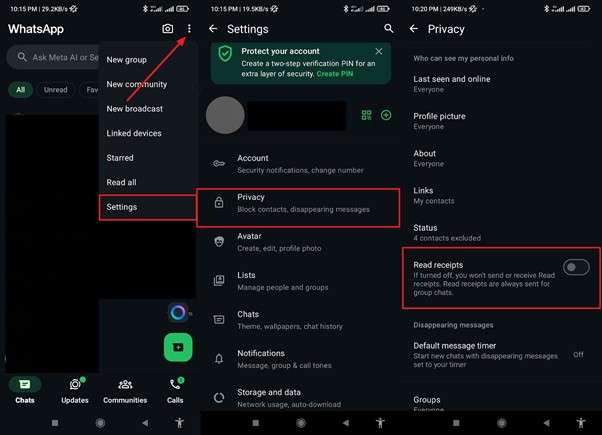
Step 1 Open WhatsApp Settings
Launch WhatsApp and tap the three-dot menu icon in the top-right corner of the main screen. From the dropdown menu, select "Settings."
-
Step 2 Navigate to Privacy
In the Settings menu, tap on "Privacy" to access your privacy controls.
-
Step 3 Disable Read Receipts
Scroll down to find the "Read Receipts" option and toggle the switch to the off position. This will immediately disable blue ticks for your individual chats.
For iPhones
-
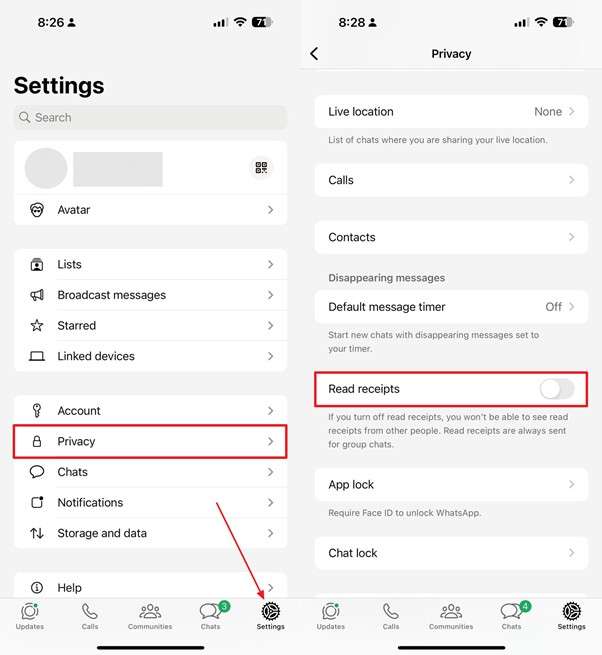
Step 1 Access the Settings Tab
Open WhatsApp on your iPhone and navigate to the "Settings" tab located in the bottom-right corner of the screen.
-
Step 2 Go to the Privacy Menu
From the Settings screen, select the "Privacy" option to manage your account's privacy features.
-
Step 3 Turn Off Read Receipts
Find the "Read Receipts" toggle and switch it off. Your blue ticks are now hidden for all one-on-one conversations.
Part 4. 3 Stealthy Ways to Read WhatsApp Messages Without Triggering Blue Ticks
Even if you prefer to keep your read receipts enabled, there are several clever workarounds to read messages without notifying the sender. Below are three effective methods for learning how to read WhatsApp messages without blue tick appearing.
Method 1. Preview Messages Directly from Your Phone's Screen
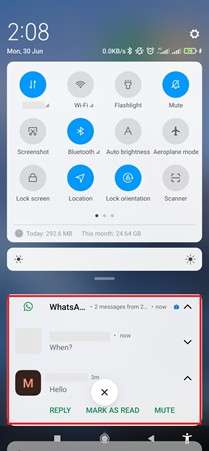
The simplest method is to read incoming messages from your phone's notification panel or lock screen. Modern smartphones display a preview of new messages, allowing you to read the content without opening the app and triggering the blue ticks. However, this method is best for short messages, as longer texts will be truncated in the preview, forcing you to open the chat to read the full content.
Method 2. Use the In-App Search Bar to Find Specific Chats
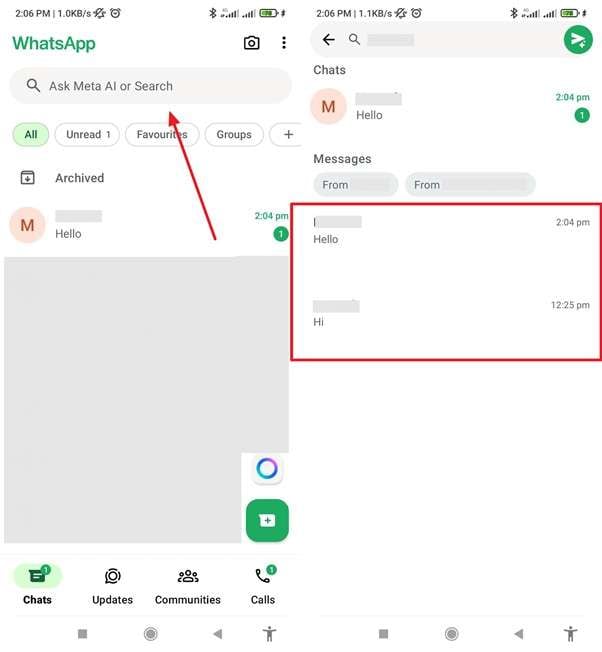
Another useful trick involves using WhatsApp's built-in search functionality. By searching for a contact's name, the app will display snippets of your conversations containing that name, including recent messages. Since you are only viewing search results and not entering the chat itself, the read receipts remain untriggered. This can be a great way to recall a specific message without revealing you've been online. Simply launch WhatsApp and type the contact's name into the search bar at the top.
Method 3. Leverage the WhatsApp Widget for Unseen Reading
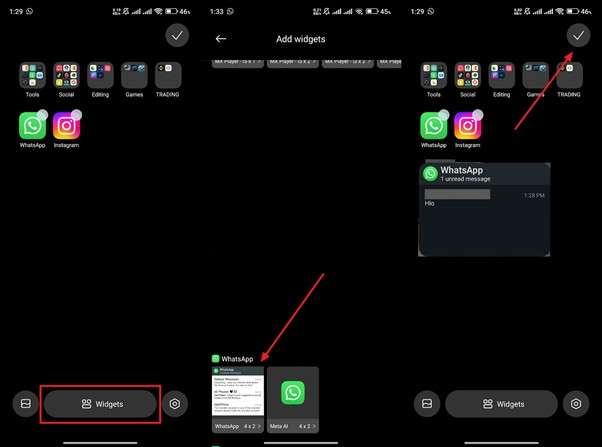
For Android users, creating a WhatsApp widget on your home screen provides a powerful way to read messages discreetly. The widget displays recent unread messages in a scrollable window. You can read entire conversations directly from the widget without opening the app, thus avoiding the blue ticks WhatsApp feature. To set it up, long-press on an empty space on your home screen, select "Widgets," find the "WhatsApp 4×2" widget, and place it on your screen.
Part 5. Troubleshooting: Why Aren't Blue Ticks Showing and How to Fix It?
Sometimes you might notice that blue ticks are not appearing, even when you're fairly certain your message has been read. Several factors can cause this. Here are the most common reasons for the blue tick not showing in WhatsApp and how to troubleshoot them.
Fix 1. Verify Your Read Receipt Settings
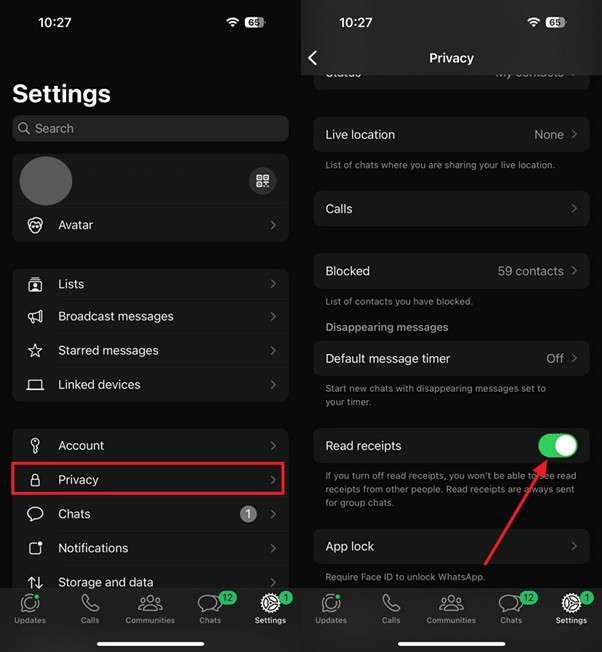
The most common cause is that either you or the recipient has disabled Read Receipts. Remember, this feature is reciprocal. If you've turned it off in your privacy settings, you won't see blue ticks for others, and they won't see them for you. To check, go to WhatsApp Settings > Privacy and ensure the "Read Receipts" toggle is enabled.
Fix 2. Confirm the Recipient Has Opened the Chat
A message is only marked as "read" when the recipient actively opens the conversation screen. If they have only seen the message via a lock screen notification, a pop-up, or a widget, the ticks will remain grey. Patience is key; the blue ticks will only appear once the chat is physically opened.
Fix 3. Clear the Application Cache to Resolve Glitches
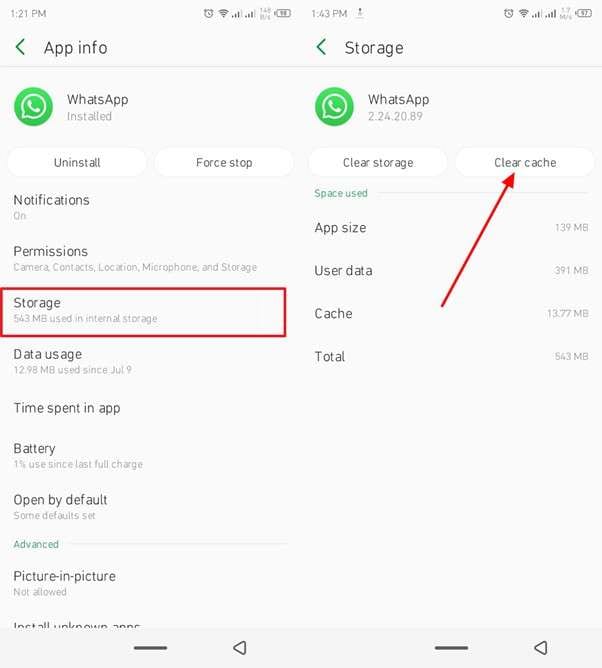
Occasionally, temporary glitches or corrupted cache files within the app can interfere with features like read receipts. Clearing the app's cache on Android devices can often resolve these issues without affecting your chats or data. To do this, navigate to your phone's Settings > Apps > WhatsApp > Storage, and tap "Clear Cache."
Fix 4. Update WhatsApp to the Latest Version
Using an outdated version of WhatsApp can lead to various performance issues, including problems with message status updates. Developers frequently release updates to fix bugs and improve functionality. To ensure everything runs smoothly, visit the Google Play Store or Apple App Store, search for WhatsApp, and tap the "Update" button if one is available.

Part 6. Bonus Tip: Securely Back Up and Transfer Your WhatsApp Data
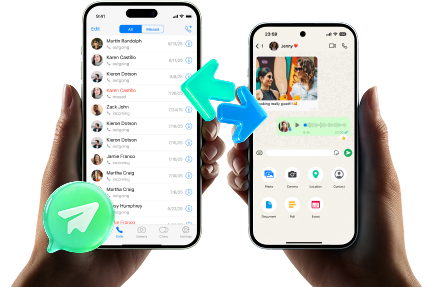
Beyond managing the meaning of WhatsApp ticks, a common concern for users is how to safely back up and transfer their chat history, especially when switching to a new phone. To avoid the risk of data loss, a reliable tool is essential. We highly recommend Dr.Fone – WhatsApp Transfer, a powerful solution that simplifies moving your entire chat history between iOS and Android devices seamlessly.
Dr.Fone supports all data types, including photos, videos, voice notes, and attachments, ensuring a complete and lossless transfer. Additionally, it allows you to create comprehensive backups of your conversations on your computer with a single click. You can later preview this backup and restore it to any device whenever you need. This tool is compatible with both personal WhatsApp and WhatsApp Business accounts, making it a versatile solution for all users.
 Transfer WhatsApp across Android & iOS.
- Backup & restore WhatsApp to PC securely.
- Preview & export chats selectively.
- Works with all iPhone & Android models.
Step-by-Step Guide to Backing Up and Restoring WhatsApp Data with Dr.Fone
Follow this detailed guide to learn how to effortlessly back up and restore your WhatsApp data using this powerful tool:
-
Step 1 Launch Dr.Fone and Select WhatsApp Transfer
Download and install the latest version of Dr.Fone on your computer. Open the program, navigate to the "Toolbox" tab on the left panel, and click on the "WhatsApp Transfer" module to begin.

-
Step 2 Initiate the Backup Process
In the WhatsApp Transfer window, select "WhatsApp" from the side menu and then click the "Backup WhatsApp messages" button. Connect your iOS or Android device to the computer using a compatible cable to start the process.

-
Step 3 Complete and View the Backup
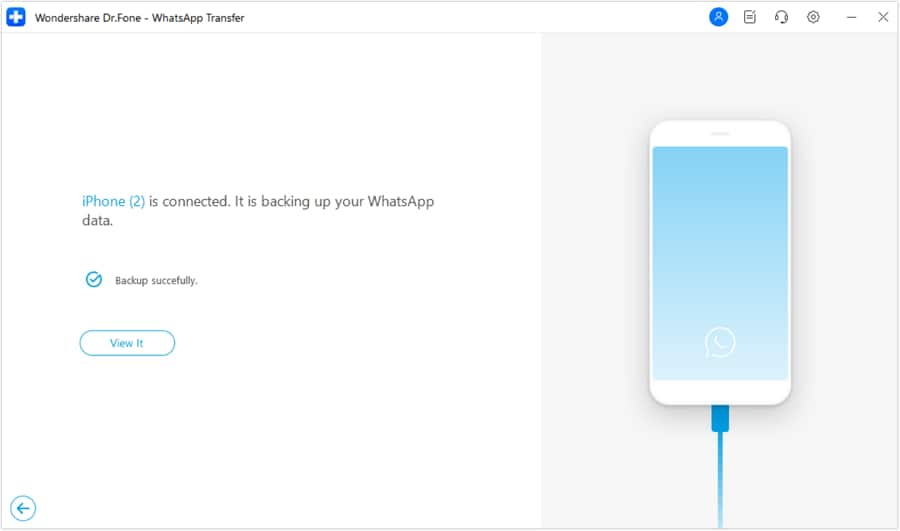
Once the backup is complete, a confirmation message will appear. You can click the "View It" button to inspect the contents of your newly created backup file.
-
Step 4 Start the Restore Process
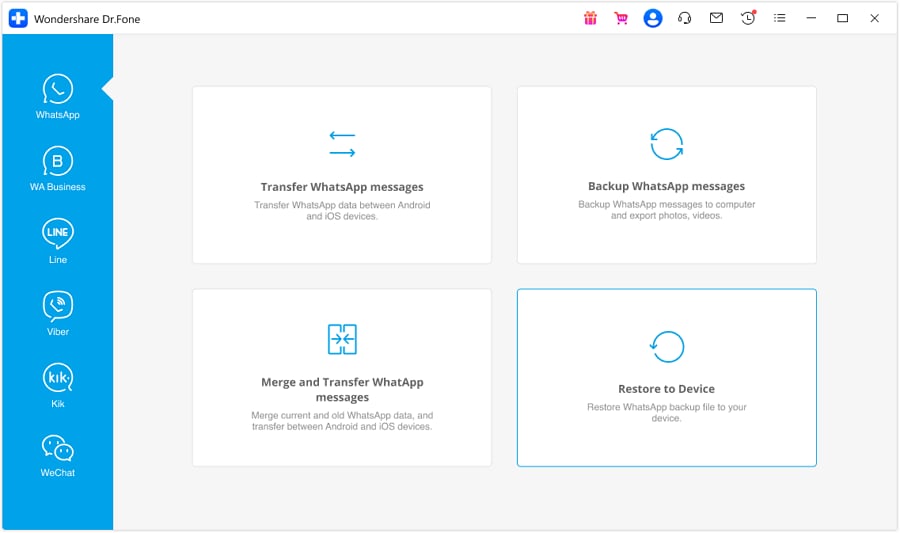
To restore data, return to the "WhatsApp" section in Dr.Fone and select the "Restore to Device" option. Ensure your target device is connected to the computer.
-
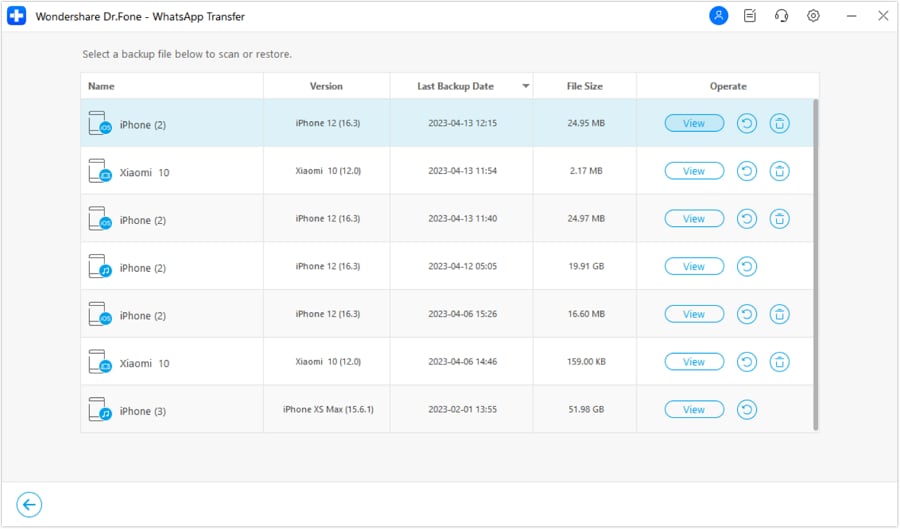
Step 5 Select the Backup File
A list of all available backup files will be displayed. Choose the specific backup you wish to restore from the list and proceed.
-
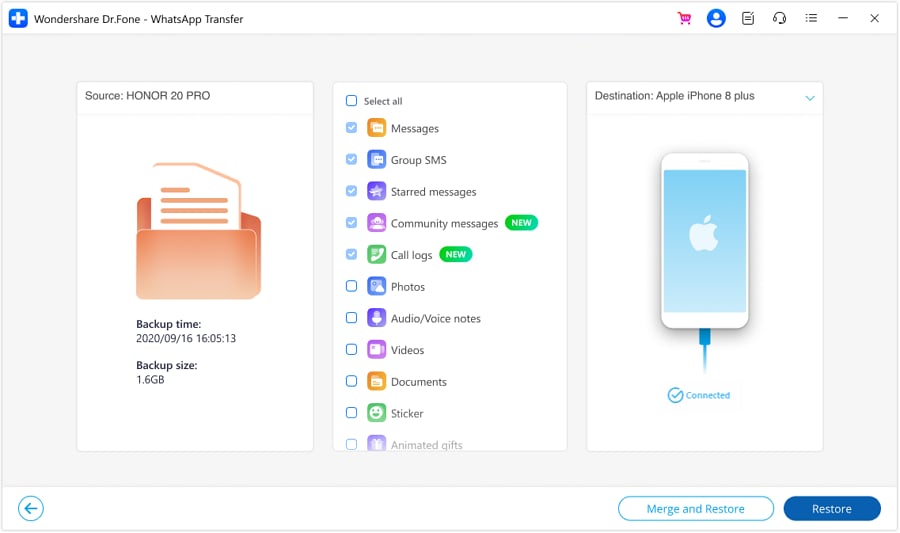
Step 6 Confirm the Restoration
On the next screen, you can preview and select the data you want to restore. Choose either "Restore" or "Merge and Restore" to continue with the process.
-
Step 7 Handle Existing Data Warning
A warning will appear, informing you that existing WhatsApp data on the target device may be overwritten. You can choose to "Backup" the current data first or click "Continue" to proceed directly with the restoration.

-
Step 8 Disable 'Find My' on iOS
If you are restoring to an iPhone, you will be prompted to disable the "Find My" feature. Follow the on-screen instructions on your device, then click "OK" on your computer to continue.

-
Step 9 Finalize the Restoration
Allow the restoration process to complete. Once finished, a confirmation screen will appear. Click "OK" to finalize the process. Your WhatsApp data is now restored.

Conclusion
In conclusion, understanding and managing how blue ticks WhatsApp functions is essential for taking control of your online privacy. This guide has provided you with a clear method to disable read receipts and several clever workarounds to read messages discreetly. Whether you choose to turn them off permanently or use these tricks occasionally, you now have the tools to manage your chat interactions on your own terms.
Furthermore, when it comes to safeguarding your valuable conversations, especially during a phone upgrade, a robust tool is indispensable. Dr.Fone – WhatsApp Transfer offers a secure, simple, and effective way to back up and transfer your chat data across devices, ensuring your memories and important information are always protected.




FAQ
-
1. Why don't blue ticks appear even after I know my message was read?
There are a few possible reasons. The most common is that the recipient has disabled their "Read Receipts" in their privacy settings. It could also be due to a poor internet connection on either end, which delays the status update. Finally, if they only read the message from a notification preview without opening the WhatsApp application, the blue ticks will not be triggered. -
2. What happens to blue ticks if I read a message in airplane mode?
If you enable airplane mode and then open WhatsApp to read a new message, the blue ticks will not appear immediately for the sender because your device is offline. However, the status will be sent to WhatsApp's servers as soon as you disable airplane mode and reconnect to the internet. The sender will then see the blue ticks. -
3. Do blue ticks work the same way in group chats?
Blue ticks function differently in group chats. In a group, the two checkmarks will only turn blue after every single participant in the conversation has read your message. If even one person has not yet seen it, the ticks will remain grey for you. -
4. Can I disable blue ticks for a specific contact only?
No, WhatsApp does not currently offer a feature to disable read receipts for individual contacts. The "Read Receipts" setting is a global one; when you turn it off, it applies to all of your one-on-one chats. There is no way to selectively hide your read status from specific people while leaving it on for others.
 Add Wondershare Dr.Fone as a preferred source on Google