Transfer WhatsApp Swiftly between iOS and Android.

 100% Security Verified | No Subscription Required | No Malware

 :
: 
 ChatGPT
 Perplexity
 Gemini
 Claude
 Grok
Grok
Have you ever received a memorable video on WhatsApp and worried about losing it? Whether it's a cherished family moment, a critical work clip, or just a funny video you want to keep, figuring out how to save a video from WhatsApp can sometimes be confusing. This is particularly true for temporary status videos or media shared via WhatsApp Web.
This comprehensive guide provides clear, step-by-step instructions to help you securely download videos from WhatsApp. We'll cover how to save video from WhatsApp status, chats, and your computer. Follow these simple methods for Android, iPhone, and PC to ensure your important videos are always safe and accessible.
In this article
Part 1. Common Reasons You Can't Save WhatsApp Videos
Encountering issues when trying to save video from WhatsApp is common. These problems often stem from privacy restrictions, incorrect settings, or device limitations. Understanding these hurdles is the first step to solving them.
- Disappearing Media: WhatsApp Status videos are designed to disappear after 24 hours and lack a direct save button. Similarly, 'View Once' videos cannot be saved by design for privacy reasons.
- Insufficient Storage: If your phone's storage is full, WhatsApp cannot download any new media, including videos. You'll need to free up space to save new files.
- Network Problems: A weak or unstable internet connection can interrupt or prevent video downloads from completing successfully.
- Incorrect App Settings: Media auto-download might be disabled, or WhatsApp may not have the necessary permissions to access your device's storage, preventing it from saving files.
Fortunately, most of these issues can be resolved. By adjusting your settings, managing your storage, or using tools like a file manager, you can successfully save the videos you need.
Part 2. How to Save WhatsApp Videos on Any Device
Saving videos from WhatsApp is crucial for preserving important memories and information. Whether you need offline access or want to prevent a video from disappearing, the following methods provide the simplest ways to download WhatsApp videos to your phone or computer.
Method 1: Save Videos from WhatsApp Chats on Android
On Android, WhatsApp can automatically save videos to your gallery if the auto-download feature is active. If not, you can easily save them manually. Here’s how to manage both options.
-
Step 1 Open WhatsApp Settings
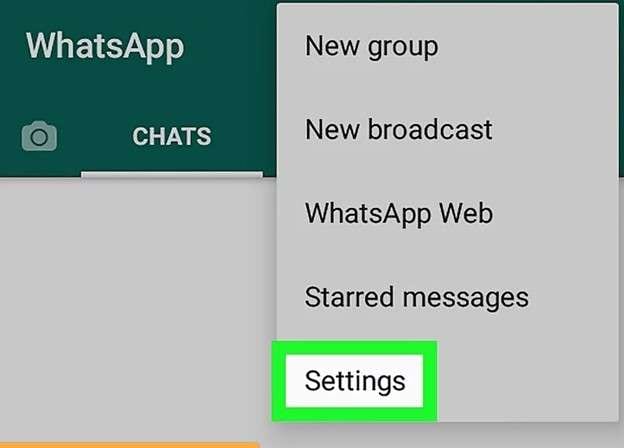
Launch WhatsApp on your Android device. Tap the three-dot menu in the top-right corner and select 'Settings'.
-
Step 2 Enable Media Auto-Download
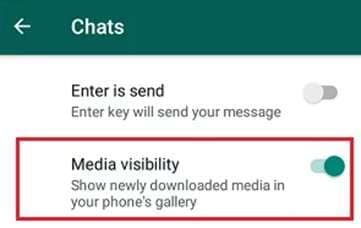
In the Settings menu, navigate to 'Storage and data'. Here, you can manage your auto-download preferences for mobile data, Wi-Fi, and roaming. Ensure videos are set to download automatically over your preferred network.
-
Step 3 Manually Download and Save a Video
If auto-download is off, open the chat containing the video and tap the download icon on the video thumbnail. Once downloaded, the video will be saved in your phone's gallery, typically inside a 'WhatsApp Videos' album.

Method 2: Save Videos from WhatsApp on Your iPhone
For iPhone users, saving WhatsApp videos is straightforward. You can configure the app to automatically save all incoming media directly to your Camera Roll.
-
Step 1 Navigate to WhatsApp Settings
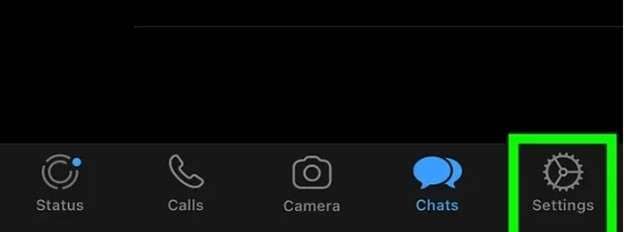
Open WhatsApp on your iPhone and tap on the 'Settings' tab located in the bottom-right corner of the screen.
-
Step 2 Enable 'Save to Camera Roll'
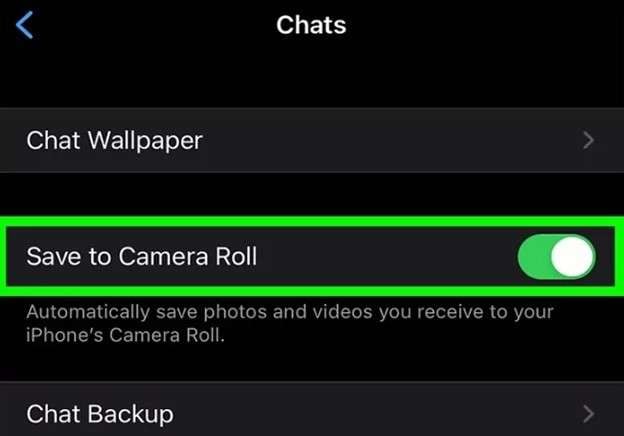
In the Settings menu, select 'Chats'. Look for the 'Save to Camera Roll' option and toggle it on. This will ensure that all photos and videos you receive are automatically saved.
-
Step 3 Find Videos in the Photos App
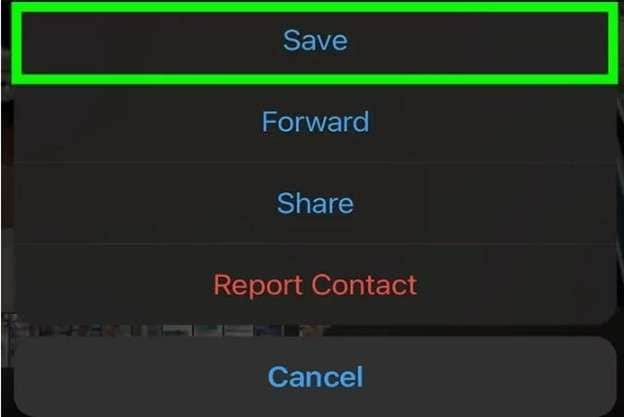
Once enabled, any video you receive and view in WhatsApp will automatically appear in your iPhone's Photos app, ready to be viewed or shared.
Method 3: Save a WhatsApp Status Video on Android
WhatsApp status videos are temporary, but there's a clever way to save them on Android using a file manager. When you view a status, the file is temporarily cached on your device.
-
Step 1 View the Desired WhatsApp Status
First, open WhatsApp and watch the full status video you want to save. This action downloads a temporary copy to your phone's internal storage.
-
Step 2 Locate the Hidden Statuses Folder
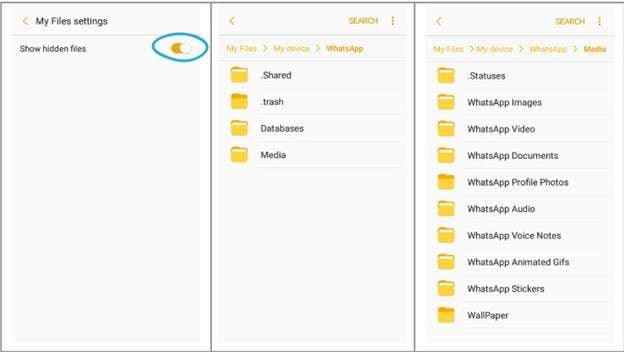
Open your device's File Manager app. You'll need to enable the option to 'Show hidden files' in the file manager's settings. Then, navigate to this path: `Internal Storage > Android > media > com.whatsapp > WhatsApp > Media > .Statuses`.
-
Step 3 Copy and Paste the Video
Inside the `.Statuses` folder, you will find all the status videos you have recently viewed. Long-press the video you want to keep, select 'Copy' or 'Move', and paste it into a different folder, such as 'Downloads' or 'Videos', to save it permanently.
Method 4: Download Videos Using WhatsApp Web or Desktop
If you use WhatsApp on your computer, saving videos from your chats is incredibly simple. This method allows you to download files directly to your PC or Mac.
-
Step 1 Open WhatsApp on Your Computer
Log in to your WhatsApp account via WhatsApp Web in a browser or by using the WhatsApp Desktop application. Navigate to the chat containing the video you wish to save.
-
Step 2 Download the Video
Hover over the video thumbnail and click to open it in the media viewer. In the top-right corner, you will see a download icon (an arrow pointing down). Click this icon.
-
Step 3 Locate the Saved File
The video will be saved directly to your computer's default 'Downloads' folder. From there, you can move it to any other location for permanent storage.

Part 3. How to Fix Issues with WhatsApp Video Downloads
Are your WhatsApp videos failing to download? This frustrating issue can usually be traced back to a few common causes, such as poor internet connectivity, insufficient storage space, or incorrect app settings. Before turning to advanced solutions, try these basic troubleshooting steps:
- Check Your Internet Connection: Ensure you are connected to a stable Wi-Fi network or have a strong mobile data signal. A slow or intermittent connection is a primary reason for download failures.
- Free Up Storage Space: Check your device's storage. If it's nearly full, WhatsApp won't be able to save new files. Delete old apps, photos, or files to create space.
- Verify App Permissions: Go to your phone's settings, find WhatsApp in the app list, and check its permissions. Make sure it has been granted access to your device's storage.
- Clear App Cache: Sometimes, a cluttered cache can cause performance issues. Go to WhatsApp's app info in your phone settings and clear the cache (for Android users).
- Update WhatsApp: Make sure you are using the latest version of WhatsApp. An outdated app can have bugs that may be fixed in a newer release.
If you've tried these steps and the problem persists, it might indicate a more complex software issue. In such cases, a dedicated system repair tool can help resolve underlying problems without data loss.
Part 4. Bonus Tip: Easily Transfer WhatsApp Videos Between Phones
When you upgrade to a new phone, especially when switching between Android and iPhone, transferring your WhatsApp data, including all those saved videos, can be a major challenge. WhatsApp's native solutions are often limited and don't support cross-platform transfers seamlessly, putting your valuable memories at risk.
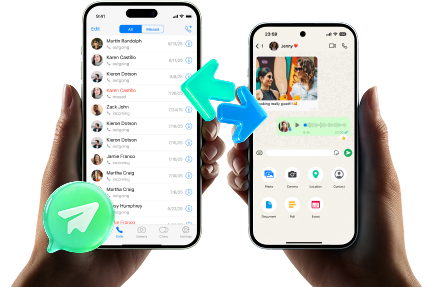
This is where a specialized tool like Dr.Fone – WhatsApp Transfer provides a reliable solution. It is designed to make the process of moving WhatsApp data between any two devices effortless. With just a few clicks, you can transfer all your chats, videos, photos, and attachments securely, ensuring nothing gets left behind.
 Transfer WhatsApp across Android & iOS.
- Backup & restore WhatsApp to PC securely.
- Preview & export chats selectively.
- Works with all iPhone & Android models.
How to Transfer WhatsApp Videos Between Any Two Phones
Transferring your WhatsApp data, including videos, between iOS and Android devices is now a simple process. Follow these steps to move all your messages and media files without any data loss.
-
Step 1 Launch Dr.Fone and Connect Your Phones
Download and install Wondershare Dr.Fone on your computer. Open the program, navigate to Toolbox > WhatsApp Transfer, and connect both your old and new phones to the computer using USB cables.

-
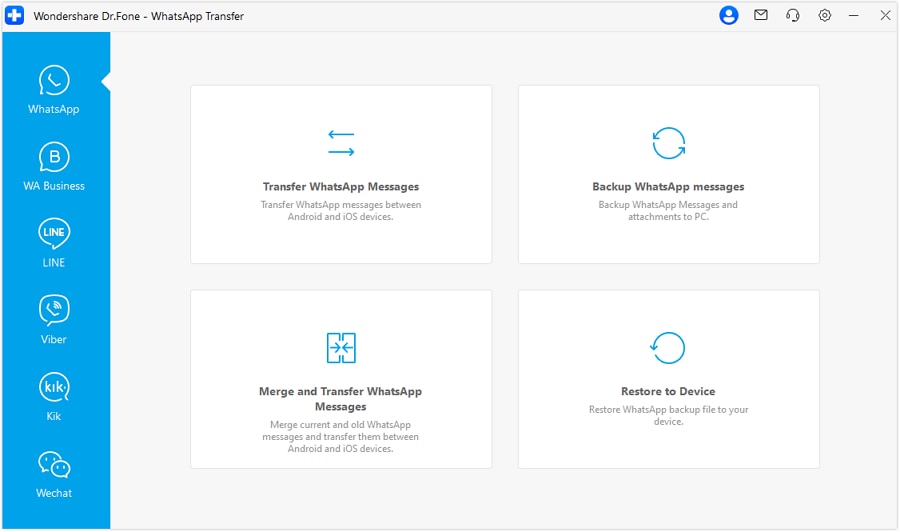
Step 2 Choose the 'Transfer WhatsApp Messages' Feature
From the main WhatsApp Transfer window, select 'Transfer WhatsApp Messages' to begin the process. The tool will automatically detect your connected devices.
-
Step 3 Confirm Source and Destination Devices
Ensure your old phone is set as the 'Source' and the new phone is the 'Destination'. You can use the 'Flip' button to switch their positions if needed. Click 'Transfer' to proceed.

-
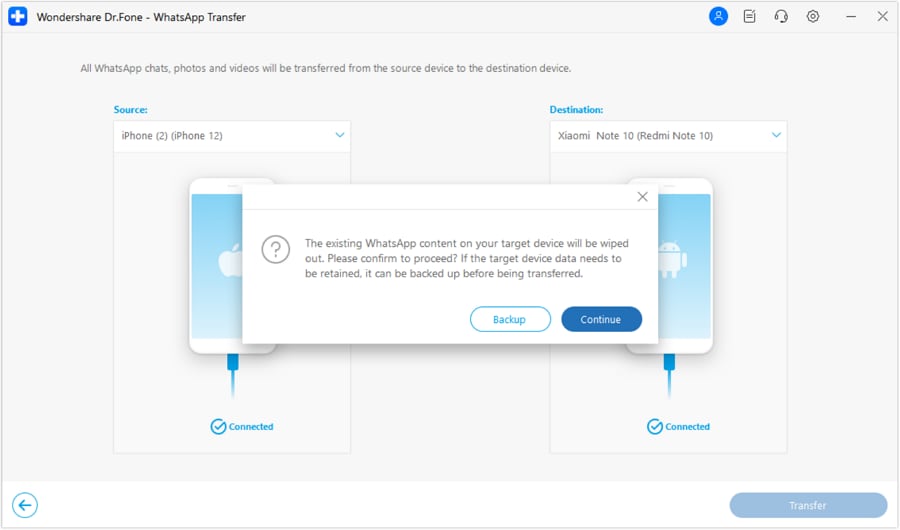
Step 4 Handle Existing Data on the Destination Phone
A pop-up will appear, warning you that existing WhatsApp data on the destination device will be overwritten. Choose 'Continue' to proceed with the transfer.
-
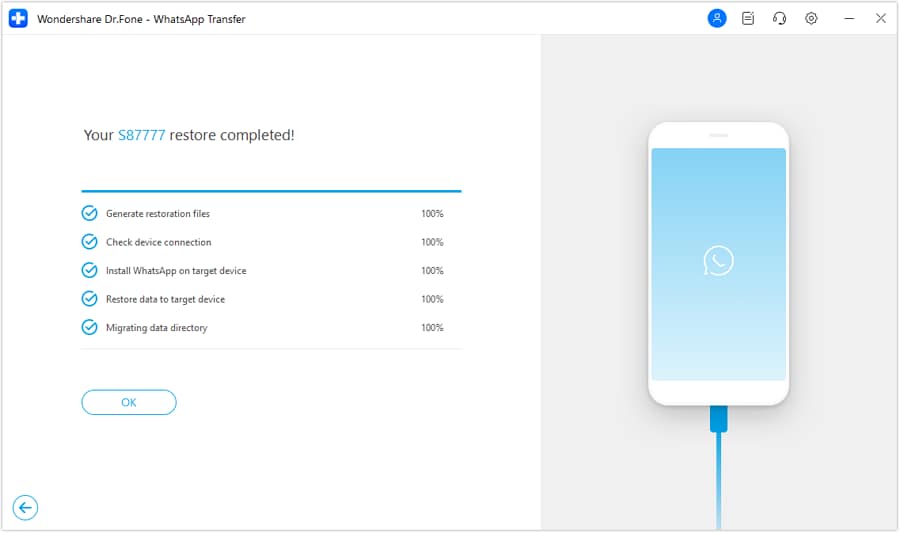
Step 5 Complete the Transfer Process
The transfer will now begin. Keep both phones connected until you see the confirmation screen indicating that the process is complete. Your WhatsApp videos and chats are now on your new device.
Conclusion
With the right techniques, saving videos from WhatsApp is a simple task. Whether you're trying to download a video from a chat, preserve a disappearing status, or access media from WhatsApp Web, this guide has provided you with reliable methods for every scenario. You can use built-in features like auto-download or employ a file manager for more elusive files.
Furthermore, when it comes to migrating your precious videos to a new device, tools like Dr.Fone – WhatsApp Transfer eliminate the complexity and risk of data loss. By following these steps, you can ensure your important WhatsApp videos remain safe, secure, and accessible whenever you need them.




FAQ
-
1. How can I save a 'View Once' video on WhatsApp?
Unfortunately, WhatsApp designs 'View Once' media to be unsavable to protect sender privacy. The app blocks screenshots and screen recordings on most devices for this type of media. Any third-party apps claiming to bypass this are risky and may violate WhatsApp's terms of service. The only intended way to see it is once. -
2. Where are WhatsApp status videos saved on Android?
When you view a status, it is temporarily stored in a hidden folder. To access it, use a file manager, enable 'Show hidden files', and navigate to `Internal Storage > Android > media > com.whatsapp > WhatsApp > Media > .Statuses`. You must copy the files from this folder to another location to save them permanently. -
3. Why are my saved WhatsApp videos not showing in my iPhone's gallery?
This usually happens for one of two reasons. First, ensure the 'Save to Camera Roll' option is enabled in WhatsApp under `Settings > Chats`. Second, check your iPhone's settings under `Privacy & Security > Photos > WhatsApp` and make sure access is set to 'All Photos'. If it's restricted, WhatsApp cannot save media to your gallery. -
4. Is it possible to save WhatsApp videos in their original quality?
WhatsApp automatically compresses videos to save data and storage space, which reduces their quality. To send or receive a video in its original quality, it must be sent as a document. Tap the paperclip icon, choose 'Document', and then select the video file. The recipient can then download the video file without compression.
 Add Wondershare Dr.Fone as a preferred source on Google