Recover photos, messages, WhatsApp, and more — no backup
needed.
Recover photos, messages, WhatsApp, and more — no backup
needed.

 100% Security Verified | No Subscription Required | No Malware

 :
: 
 ChatGPT
 Perplexity
 Gemini
 Claude
 Grok
Grok
Accidentally dropping your device and facing a shattered display is a nightmare scenario for any user. A phone with a broken screen can instantly block access to essential contacts, important messages, irreplaceable photos, and critical work files. When users find themselves suddenly disconnected and unable to use their devices normally, frustration and panic are natural reactions. However, physical damage to the exterior doesn't automatically mean your internal data is gone forever.
If you are wondering how to access a phone with a broken screen, you have landed in the right place. This comprehensive tutorial covers the most practical, field-tested methods to recover your data safely and maintain control over your device. We will walk you through exactly how to use a phone with broken screen functionality, ensuring you can still retrieve your digital life effectively.
1. Identify the damage type
Determine whether only the glass is shattered, the touch digitizer is unresponsive, or the LCD is entirely black, as this dictates your recovery strategy.
2. Utilize external peripherals and software
Employ solutions like USB-C dongles with mice, voice assistants, or dedicated recovery software to navigate your device without relying on touch.
In this article
Part 1. Can You Still Access a Phone with a Broken Screen? (Quick Check Table)
Before diving into how to use a phone with a broken screen, it is crucial to perform a quick diagnostic check. Smartphone displays consist of the LCD/OLED panel (for visuals) and a digitizer (for touch input). Understanding which layer is compromised will help you assess the phone's condition and whether it's directly accessible or requires external workarounds.
| Screen Condition | Touch Works? | Display Visible? | Can Access Directly? |
|---|---|---|---|
| Cracked (Touch and Display Work) | Yes | ||
| Cracked (Touch Not Working, Display Fine) | Partially | ||
| Display Broken but Touch Works | Partially | ||
| Both Touch and Display are Broken | No | ||
| Phone Does Not Power On | No |
Part 2. How to Use a Phone with a Broken Screen - 10 Simple Ways!
Now that you have analyzed the phone's state, you can learn how to use a phone with a broken screen through these comprehensive and verified solutions tailored for both major mobile platforms.
For Android
Fix 1: Use a USB-C Dongle & External Display
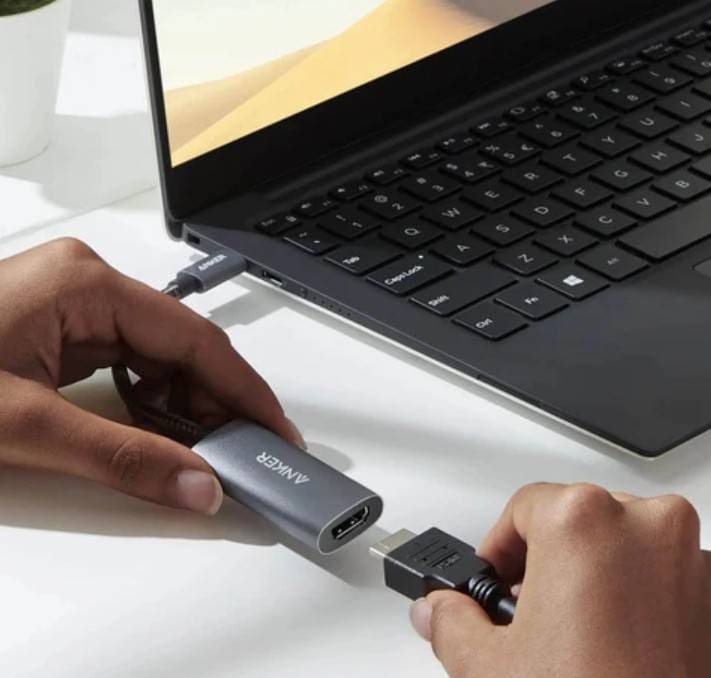
This powerful hardware solution allows you to output your phone's interface to a computer monitor or television, especially useful in cases where the screen is blank or entirely broken. A traditional computer mouse and keyboard can be attached to the device to control the cursor, enter PINs securely, and access internal files. Furthermore, many recent flagship Android devices support USB-C to HDMI Alt Mode with no additional configuration required. This technique works efficiently across various brands.
-
Step 1 Assemble the necessary equipment
Make sure your phone supports USB-C video output and gather the following items: a USB-C to HDMI dongle (preferably with extra USB ports), an HDMI cable, an external monitor, and a wired mouse. Plug the dongle into the phone's charging port, connect the HDMI cable to the monitor, and switch the display to the correct HDMI input channel.
-
Step 2 Navigate using the mouse
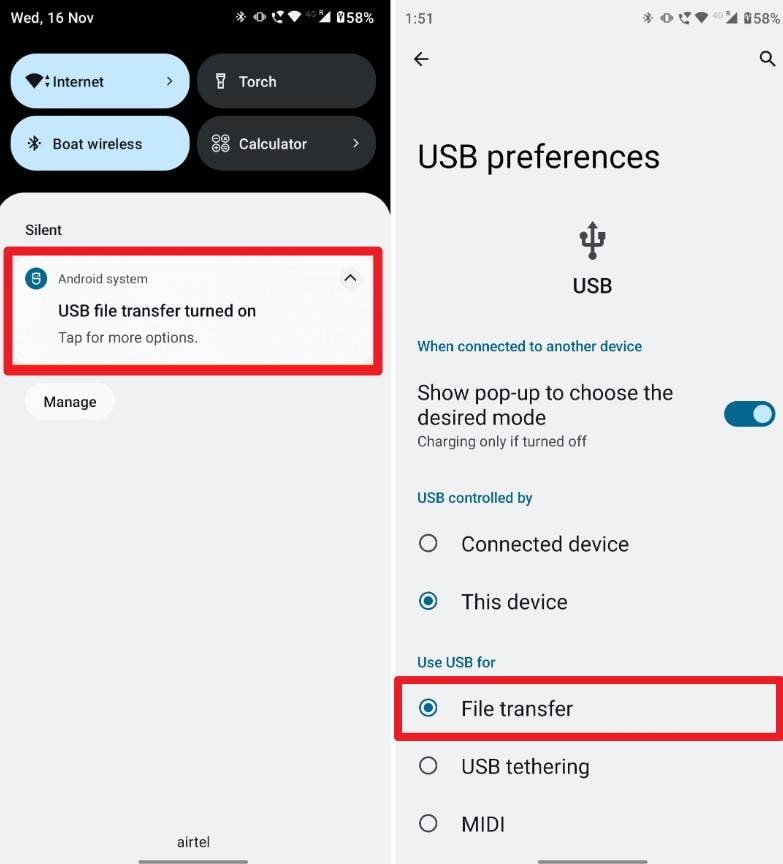
Connect the mouse to the dongle's USB-A port to control the device if the touchscreen digitizer is dead. You will see a standard cursor appear on the external display. Use the mouse to simulate swipes, unlock the phone, input your password, and set the USB connection mode to "File Transfer" or "MTP" to begin extracting files to an external drive or PC.
Fix 2: Try Screen Mirroring/Control Apps
If you are searching for how to use a broken screen phone without buying expensive hardware adapters, try a screen mirroring solution. This lets you view and control your entire Android environment from a larger computer display. This fix works remarkably well even if the physical screen is cracked or entirely black. High-quality mirroring tools like Dr.Fone - Screen Mirror (Android) serve as the best solution here.
By using such tools, it enables you to connect the mobile phone via USB or Wi-Fi, allowing you to seamlessly take a screenshot, record the screen, and fully control the phone from a Windows PC or Mac. You can effortlessly access internal files, images, and contacts, and utilize essential applications such as encrypted messaging or mobile banking without having to touch the broken glass at all.
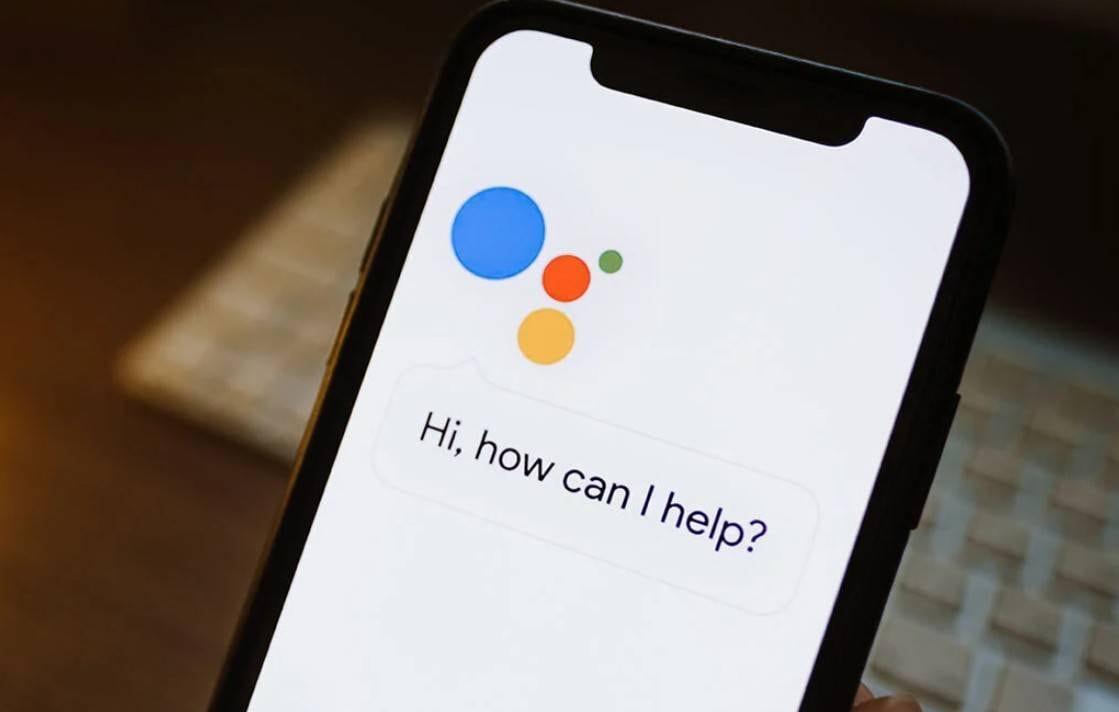
Fix 3: Utilize Google Voice/Assistant
It is surprisingly simple to operate a broken smartphone with the help of Google Voice or Google Assistant. Voice-activated controls allow you to interact with numerous core functions and third-party applications without ever having to touch the physical display. In addition, the AI assistant can read incoming text messages aloud, dictate your verbal responses, and successfully draft an email or send WhatsApp messages. Plus, no additional external hardware is required, and it can be utilized instantly, provided the "Hey Google" voice match feature was previously enabled.
Fix 4: Connect the Phone with the PC via USB
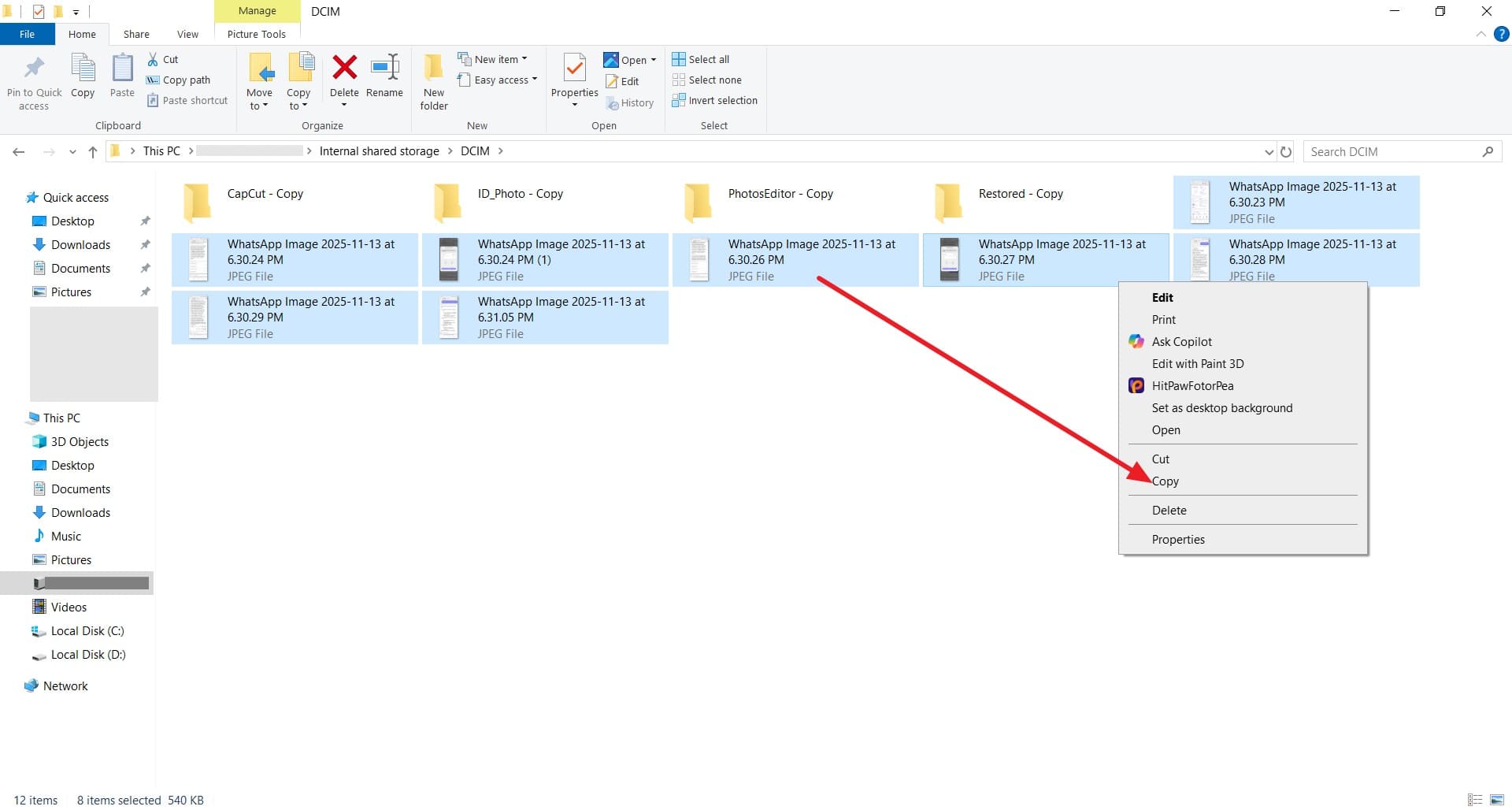
Users who consistently wonder how to access a phone with a broken screen should always try the standard USB connection method first. This fundamental approach lets you view and transfer accessible internal files directly through the Windows AutoPlay or File Explorer function when the phone is authenticated and readable by the computer. It is incredibly suitable for bulk-managing high-resolution photos, videos, and vital documents stored on the internal device memory. While this method works consistently with nearly all Android brands and OS versions and offers incredibly fast, secure data transfer, be aware that it cannot mirror the interface or actively control the device.
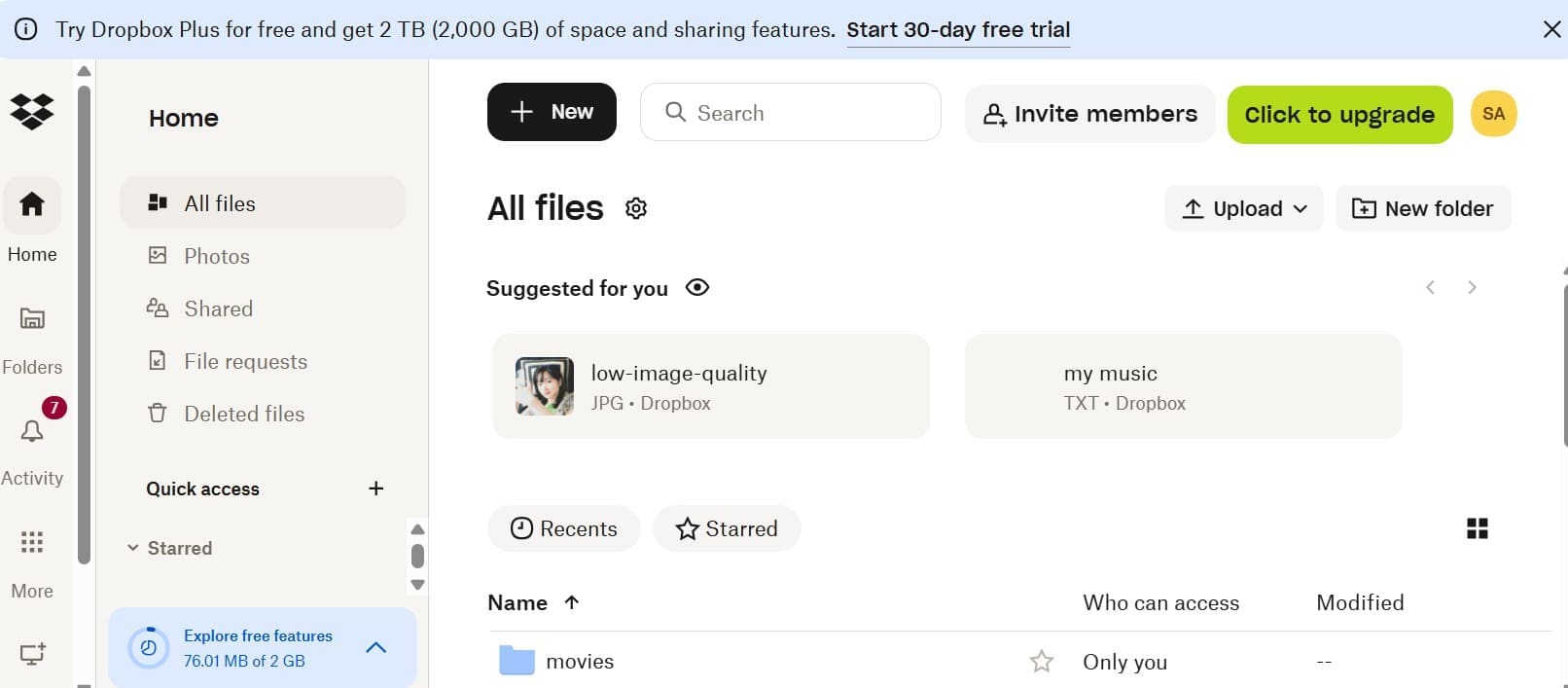
Fix 5. Access Phone Data Using Cloud Sync Apps
Automated cloud sync applications provide a seamless, wireless way to access your phone data whenever the screen is physically broken beyond repair. Therefore, an individual can securely view data of any type and app history hosted on Google Drive, iCloud, OneDrive, or Dropbox, completely irrespective of the device's physical condition. There is absolutely no need to touch the compromised phone; just log in to your corresponding cloud account from a secondary desktop or tablet. Besides, this remote solution is universally compatible with all Android versions, requires zero additional hardware, and strictly keeps your personal data safe from hardware failure.
Pro Tip. How to Restore Data from a Broken Android
When actively learning how to access a phone with a broken screen, if you discover you have lost any critical local data, a specialized data recovery tool can entirely save the day. For that exact scenario, Dr.Fone - Data Recovery allows you to safely recover data from all severely broken Android phones without requiring complicated Root access or previously enabled USB Debugging modes. Additionally, the software supports an impressive 14+ file types and maintains full compatibility with over 6000 different Android device models for maximum user convenience.
Since the platform is exceptionally versatile and highly intuitive, you can also effortlessly use it to retrieve WhatsApp & Business data instantly, and even safely View Once media. No matter how badly your handset is physically broken, its operation remains exceptionally simple and consistently offers a fully guided, step-by-step solution to recover your entire dataset. Above all, the toolkit provides you with complete administrative control over the data restoration process, allowing you to carefully scan, choose, and preview the specific data you wish to restore selectively before saving it to your PC.
Review the comprehensive tool below to resolve your broken screen access issues:
 Scan Android phones and tablets directly.
- Preview and recover only what you want.
- Supports WhatsApp, photos, videos, contacts, and more.
- Works with 6000+ Android devices.

Following the successful installation of the software, you can execute the recovery process immediately.
How to Restore Data from Broken Android Using Dr.Fone - Data Recovery
On your quest for exactly how to use a broken screen phone, if you suffer data loss due to hardware failure, here is exactly how you can efficiently retrieve it in 3 simple, stress-free steps using Dr.Fone:
-
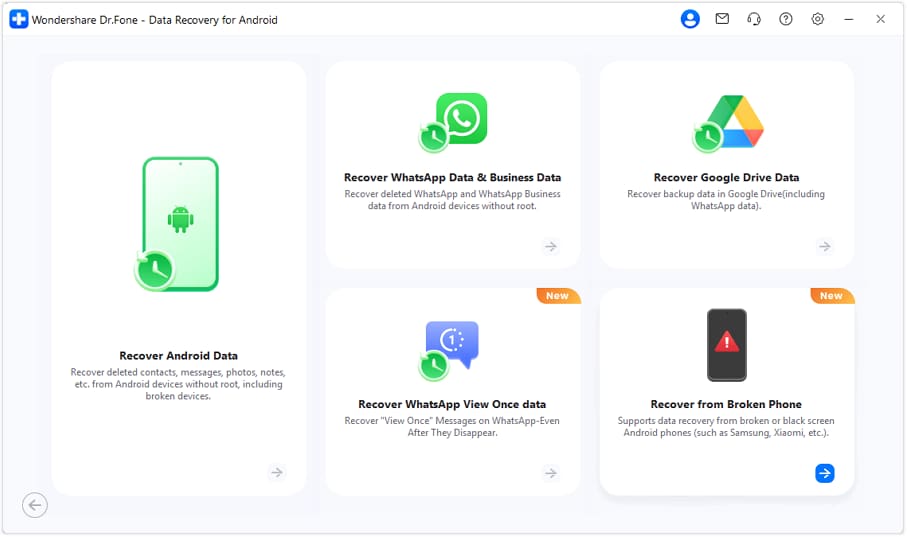
Step 1 Locate and Launch the Broken Data Recovery Tool
When you successfully open the Data Recovery toolkit designed for Android environments, navigate to and select the "Recover from Broken Phone" dedicated feature. Following this, securely connect the Android device sporting the broken screen directly to the computer using a high-quality data cable.
-
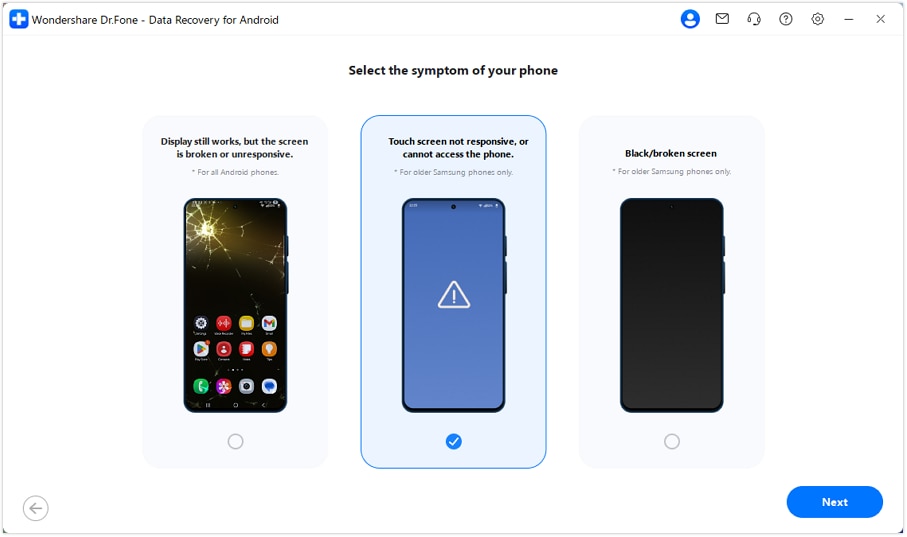
Step 2 Determine the Condition of Your Android
Upon reaching the "Select the Symptoms of Your Phone" setup interface, precisely select the "Screen On But Unresponsive" or equivalent damage feature, as this powerful algorithm can work natively with all supported Android devices in this physical state, then press the "Next" confirmation button.
-
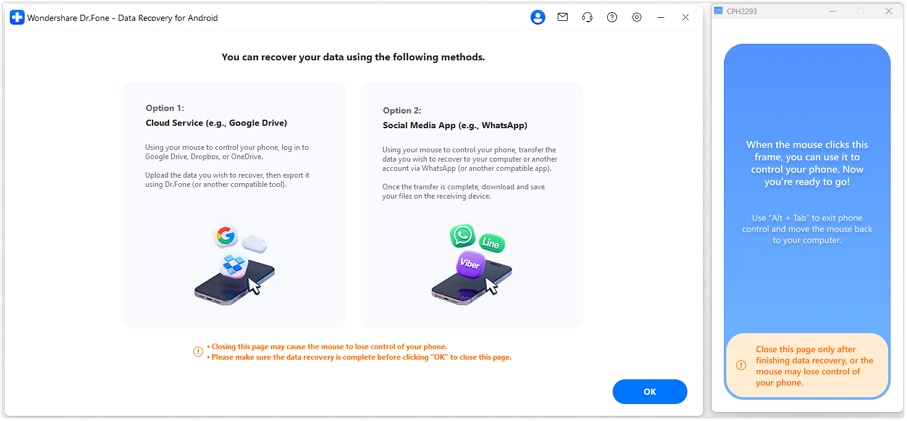
Step 3 Confirm the Data Recovery Mode
Afterward, the Dr.Fone software will intuitively detect your physically broken device to automatically download the relevant specialized firmware drivers for it. Once the necessary drivers are securely installed, you will be able to regain control over the system logic. Now, carefully specify the data recovery method through which you wish to restore your highly important data safely to the desktop.
For iPhone
Fix 1: Use Siri and VoiceOver
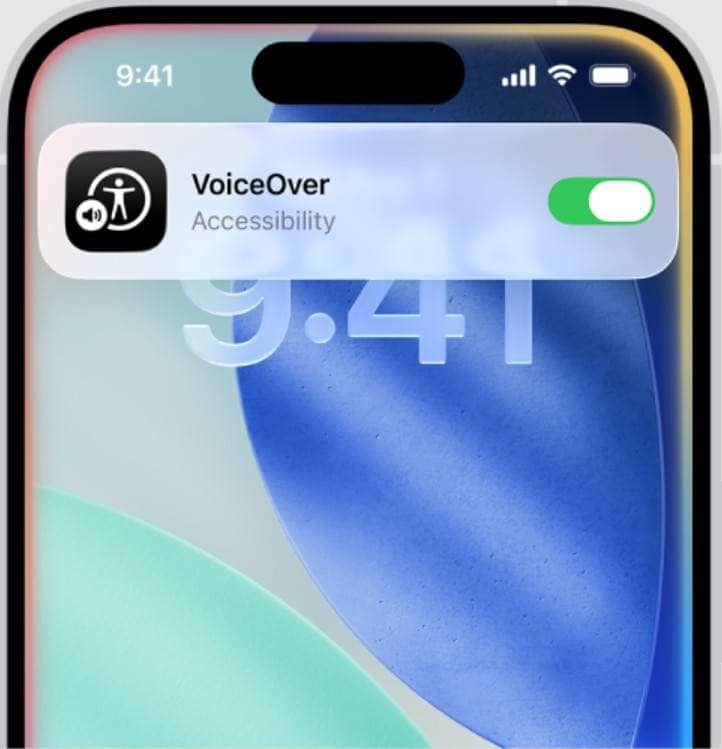
If you are an Apple iOS user who deeply questions how to access a phone with a broken screen, the most immediate built-in fix is to try Siri and VoiceOver accessibility features. Advanced voice commands fundamentally let you make outbound calls, send detailed texts, play background music, set vital reminders, and even forcefully open third-party apps. On the contrary, utilizing Siri and VoiceOver together can successfully read complex messages aloud and help you accurately reply via speech-to-text to stay seamlessly connected. Additionally, you can audibly navigate system menus, rapidly adjust backend settings, or reliably get GPS directions during critical emergencies.
Fix 2: Connect to iTunes/Finder
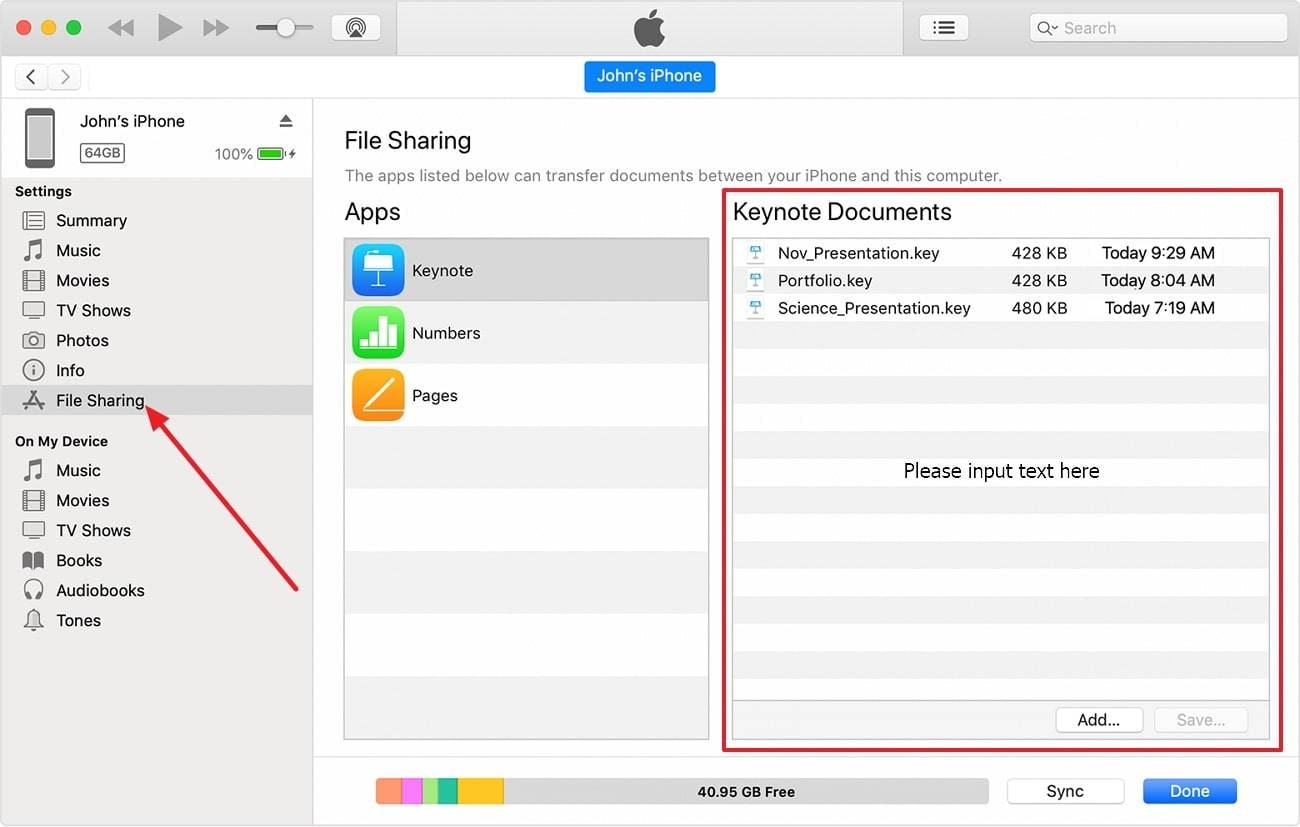
This traditional desktop method lets you fully back up all internal system data to a trusted PC or Mac computer safely, and you can later effortlessly restore it to a brand-new replacement device without ever touching the compromised screen. Additionally, it intelligently lets you access and save your highly important individual iPhone files by natively using the File Sharing core feature. With this wired solution, the connection remains strictly secure and incredibly fast, and it makes it wonderfully easy to comprehensively preserve your important information. So, to accurately know how to perform it properly, thoroughly review the given simple guide below for much better operational clarity:
-
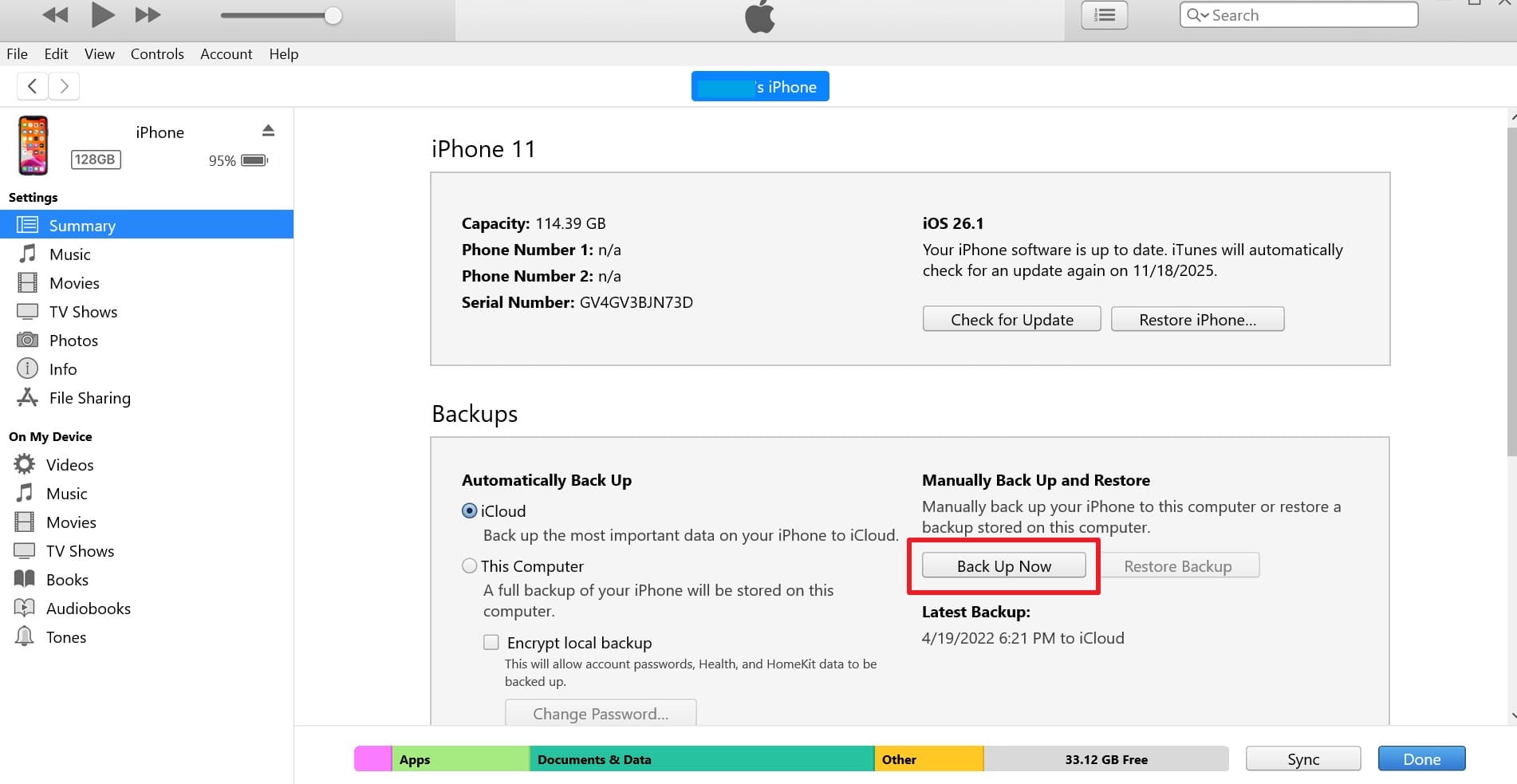
Step 1 Connect and initialize backup
Procure an MFi-certified USB lightning cable compatible with your exact iPhone model and boot a computer equipped with updated iTunes (or Finder on newer macOS). Plug the damaged iPhone into the computer, and the OS system should theoretically detect the device automatically assuming you had previously authorized the "Trust This Computer" prompt. Head directly to the "Summary" primary tab as you press the recognizable "Phone" icon, and forcefully choose the "Back Up Now" execution button to start securely saving files locally.
-
Step 2 Navigate the File Sharing directory
To directly access your standalone iPhone files instead of a monolithic backup, quickly access the "File Sharing" contextual tab situated on the left navigational pane and specifically choose the app where your intended files are currently stored. From here, you simply need to actively select the desired file and click the standard "Save" button to accurately designate the final save location locally on your computer's hard drive.
Fix 3: Through iCloud Web Portal
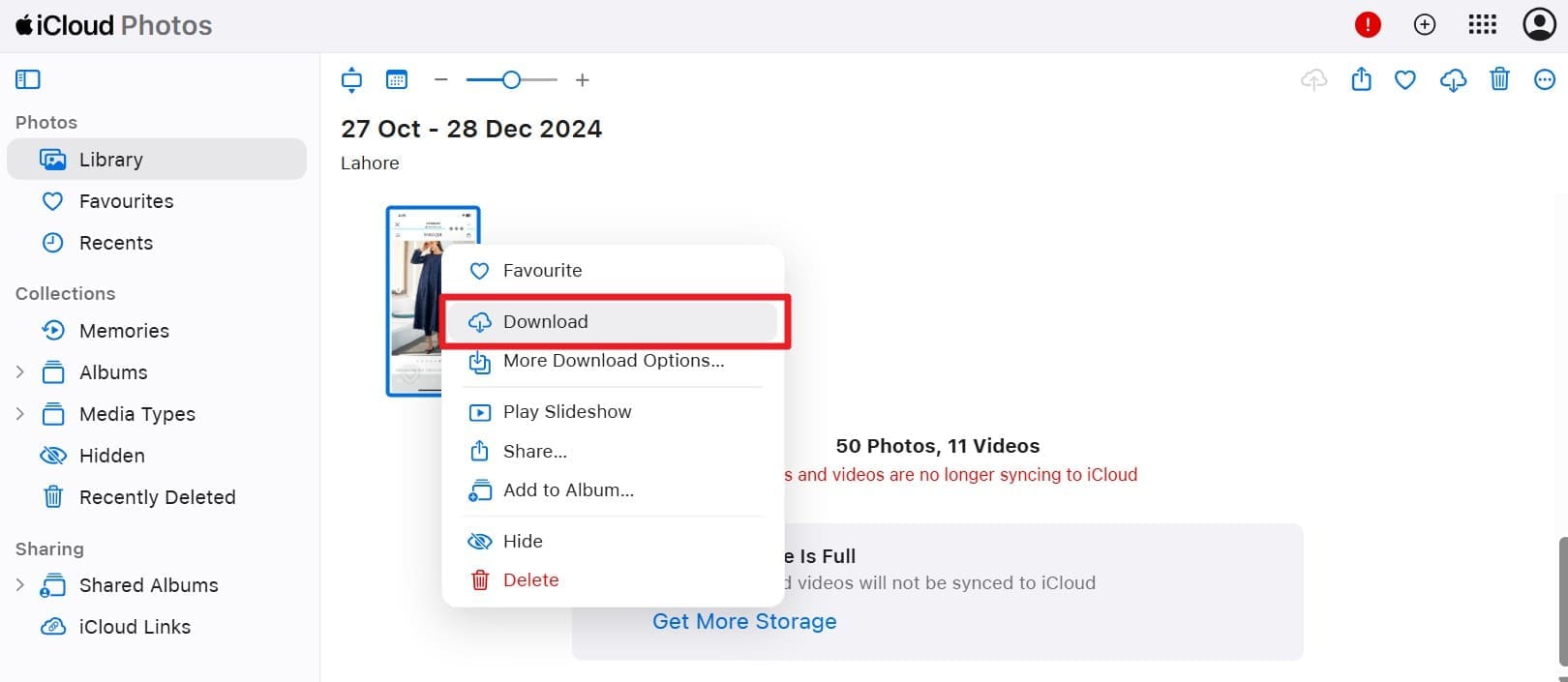
To accurately know how to use a phone with a broken screen without relying on physical wires, you can always securely access your synced data remotely through the official iCloud Web Portal. When you correctly sign in to iCloud Web utilizing the exact same Apple ID credential currently active on the broken iPhone, you are immediately granted permission to view or seamlessly download all successfully synced data. This extensive coverage includes high-res photos, 4K videos, contact cards, private notes, scheduled reminders, shared calendars, Apple mail, and heavy iCloud Drive files. Besides, the universal web solution can flawlessly work natively on a Windows desktop, a Mac ecosystem, Linux distributions, or even competing Android devices.
Fix 4: Using an iPhone Screen Mirroring Tool
If standard syncing falls short, try a robust screen mirroring software solution like Dr.Fone - Screen Mirror (iOS) to visibly control the iOS device remotely via your PC. Just by establishing a highly secure, encrypted connection either via standard USB or local Wi-Fi, you can seamlessly open specific apps, read unread text messages, and successfully perform various other complex tasks. You can also actively adjust the digital screen resolution for a significantly wider desktop view and easily take high-quality screenshots or silently record active screens. Overall, the comprehensive method provides extremely quick system access, secure closed-loop operations, and highly efficient local data recovery operations without forcibly repairing the expensive screen assembly first.
Fix 5: USB Keyboard (With Adapter)
To truly understand how to access an iPhone with a broken screen when the touch layer is dead, you can successfully try the specialized USB keyboard bypass method. This hardware-based option fundamentally helps you forcefully enter your numeric passcode even when the capacitive touchscreen completely fails to respond. You can also carefully navigate basic OS functions if the specific iPhone build successfully supports standard external HID input. However, actual compatibility varies drastically because iOS strictly maintains stricter accessory protocol support than typical open-source Android. The technical approach detailed below explains exactly when it works and how to confidently try it safely:
What You Need:
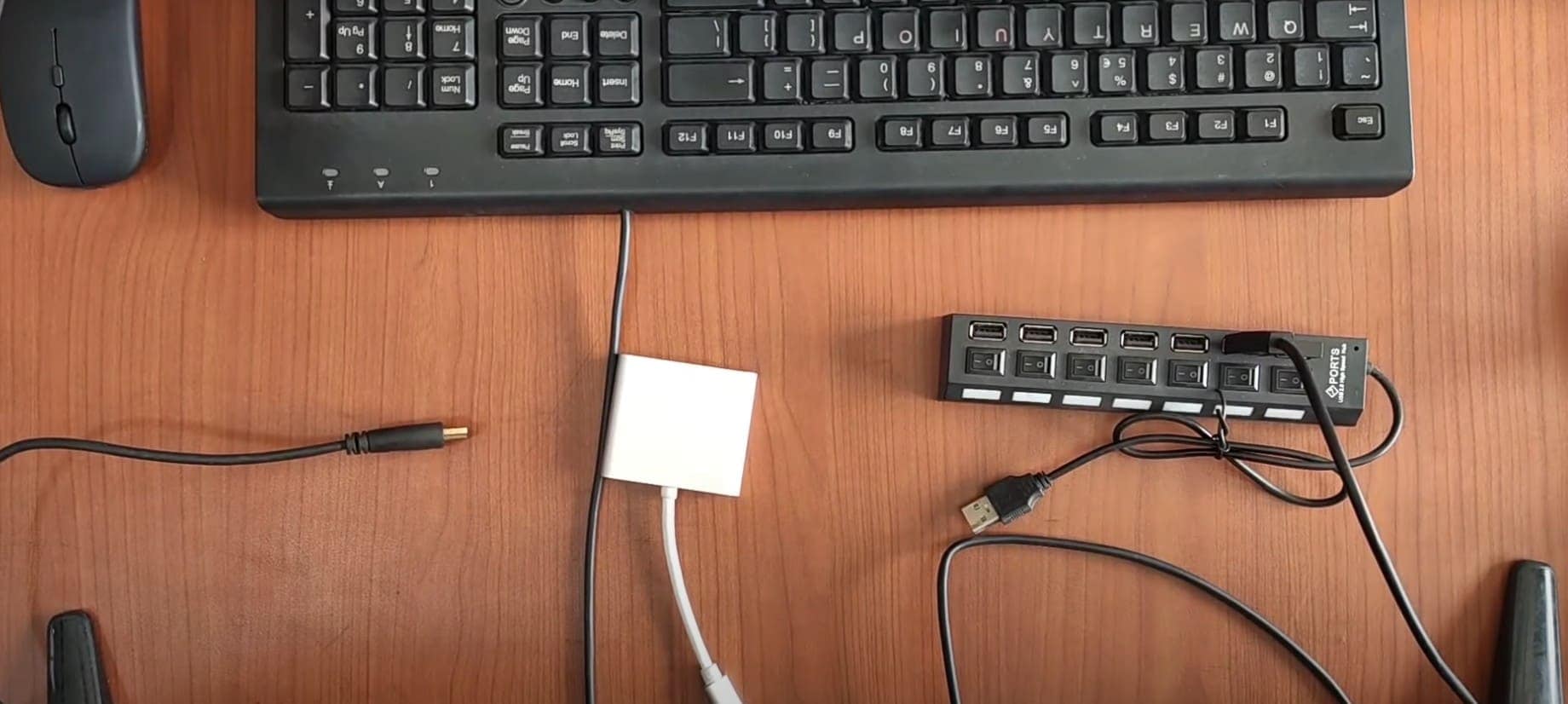
- A genuine Lightning to USB Camera Adapter or a certified USB-C to USB Adapter for newer iPhone 15/16 models.
- A standard wired USB desktop keyboard.
- A wired USB mouse is strictly optional because standard iOS architecture does not widely support absolute cursor control on most legacy models without the AssistiveTouch feature already being previously enabled.
-
Step 1 Connect the hardware peripherals
Firmly plug the Apple Lightning to USB Camera Adapter or the modern USB-C to USB Adapter directly into the iPhone's charging port. Securely attach the wired USB keyboard cable into the adapter's female port. If the accessibility AssistiveTouch feature was already miraculously enabled prior to the damage, you can also simultaneously connect a wired USB mouse via a hub for noticeably easier graphical control.
-
Step 2 Bypass the lock screen
Actively use the connected physical keyboard to blindly but accurately enter your security passcode to unlock the internal iPhone filesystem. If a connected mouse is miraculously supported through the AssistiveTouch protocol, freely use it to visibly open apps and actively move through nested menus. If not, persistently continue using solely the keyboard arrow keys and enter commands for basic interface actions.
Conclusion
In a nutshell, if you ever aggressively question exactly how to access a phone with a broken screen, thoroughly read this definitive guide to get all the actionable answers. Here, multiple surprisingly simple hardware and software fixes for both Android architectures and Apple iPhone ecosystems are meticulously listed in high detail to fundamentally help you quickly access locked data easily. However, if you sadly discover you have lost any vital internal data on standard Android devices while desperately trying these solutions, the powerful Dr.Fone - Data Recovery toolkit exclusively designed for Android environments makes the complex data recovery of 14+ distinct file types across 6000+ different devices incredibly seamless and completely stress-free.




FAQ
-
1. Can I damage my phone further by trying to access it with a broken screen?
Yes, exerting too much direct pressure on cracked glass or using incorrect hardware tools can easily make the internal phone damage significantly worse than before. Shards of glass can puncture the delicate LCD underneath or sever critical ribbon cables. Therefore, it is highly recommended to handle the compromised device extremely gently and completely avoid applying any excessive force on external cables, exposed connectors, or physical hardware buttons at any time.
-
2. Is reliable data recovery possible if my phone screen is completely black?
Yes, you can still successfully recover your files safely and effectively by deploying Dr.Fone - Data Recovery (Android) directly installed on your desktop computer. This specialized desktop software bypasses the need for local touch input entirely and lets you securely access encrypted photos, raw contacts, SMS messages, and internal system documents even when the screen stays entirely unusable and completely black.
-
3. Will my personal and sensitive data remain secure during the recovery process?
Yes, as long as you use official, widely trusted tools and heavily verified recovery software, which keeps your highly sensitive personal data completely safe from malicious theft or unintended permanent loss. Always ensure you strictly avoid unverified, untrusted third-party mobile apps or obscure unknown websites that may actively attempt to extract or copy your private information in the background without explicitly granting them permission.
-
4. Can I mirror my broken Android screen to a TV if the touch is completely dead?
Yes, mirroring is entirely possible without touch functionality if you strategically utilize a USB-C multi-port hub. By simultaneously connecting an HDMI cable (for the visual TV output) and a standard wired USB mouse (for precise cursor navigation) to the exact same hub, you can bypass the dead touch digitizer completely. The mouse provides full cursor input to approve prompts, while the HDMI outputs the live display directly to your television screen.
 Add Wondershare Dr.Fone as a preferred source on Google