Recover photos, messages, WhatsApp, and more — no backup
needed.
Recover photos, messages, WhatsApp, and more — no backup
needed.

 100% Security Verified | No Subscription Required | No Malware

 :
: 
 ChatGPT
 Perplexity
 Gemini
 Claude
 Grok
Grok
Experiencing a severely broken smartphone can instantly trigger panic, especially if your device holds precious, irreplaceable photos trapped behind an unresponsive or shattered black screen. A hardware disaster does not necessarily mean your memories are permanently lost. With the right techniques and a clear understanding of your device's ecosystem, you can successfully retrieve your data.
If you find yourself frantically searching for how to get photos off a broken phone, this comprehensive 2026 guide will walk you through the most efficient, fast, and safe methods to secure your pictures, whether you are an Android or iOS user.
In this article
Part 1. Can You Recover Photos from a Broken Phone? (Quick Answer)
Whenever you lose critical images from a malfunctioning or shattered device, questioning how to get pictures from a broken phone is natural. The short answer is yes, recovery is highly possible. However, the ultimate success heavily depends on the severity of the hardware damage and where the media was originally saved.

If your broken smartphone still retains power and the internal motherboard is functional, you can usually hook it up to a computer to extract your galleries. For Androids equipped with removable storage, swapping out the SD card is an instant fix. Moreover, modern workarounds like USB adapters, OTG cables, or external displays allow users to bypass non-functioning touch screens completely.
Is It Possible to Retrieve Photos When the Screen Is Broken?
Absolutely. A broken, cracked, or bleeding LCD screen does not erase your internal storage. Numerous proven solutions exist to bypass a dead screen. That being said, if your device is heavily locked with a PIN or password, and critical settings like USB Debugging are disabled, relying on professional extraction software becomes a necessity.
What Affects Your Recovery Success Rate?
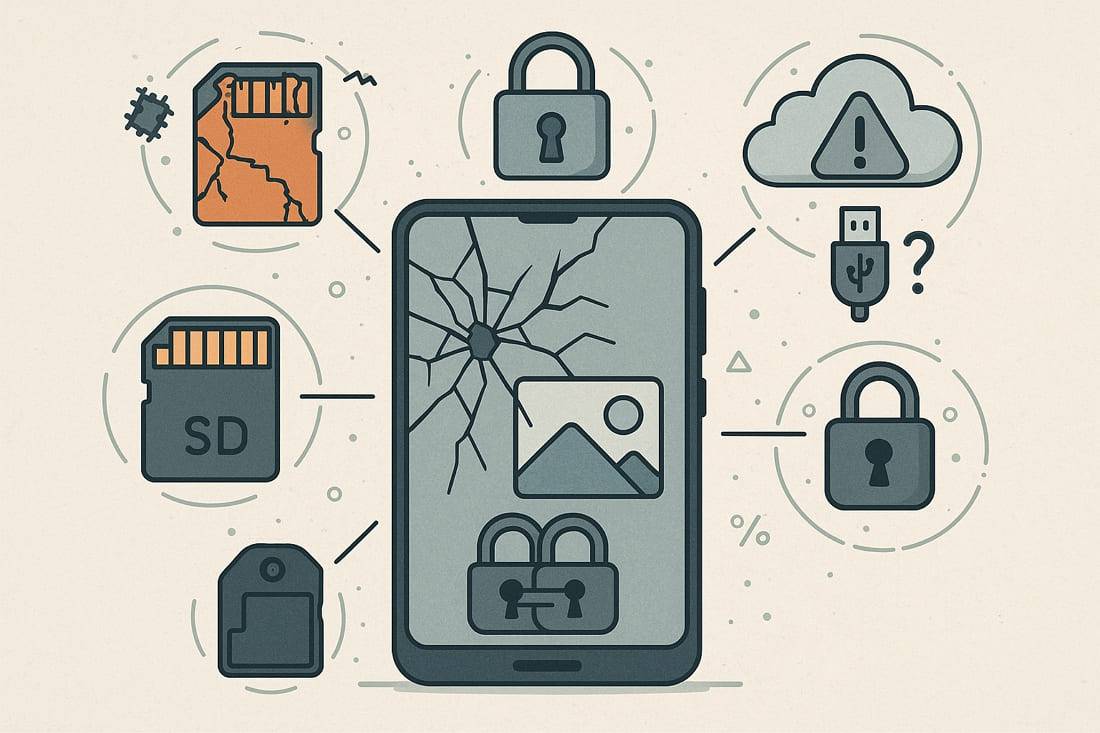
Before exploring detailed steps on how to retrieve photos from broken phone models, it is essential to identify what factors govern your chances of success:
- Memory Chip Integrity: Physical damage directly to the motherboard or flash memory chips can render data completely unrecoverable by conventional means.
- Device Locking: A locked smartphone with an unresponsive screen prevents standard USB data transfers unless specialized bypassing methods are applied.
- Backup Habits: A lack of prior cloud syncing (Google Drive, iCloud) or SD card utilization severely narrows down your software-free recovery options.
- USB Configurations: Standard recovery tools and desktop computers cannot access internal folders if MTP (Media Transfer Protocol) or USB Debugging was never authorized.
- Extent of Physical Trauma: Extensive water damage or severe structural crushing greatly decreases the likelihood of a DIY file extraction.
- Data Encryption: Highly encrypted modern file systems elevate the complexity of bypassing lock screens to reach your raw photo data.
Part 2. How to Retrieve Photos from a Broken Phone [Android]?
Android ecosystems offer remarkable flexibility during hardware failures. If you are struggling with how to recover photos from a broken phone running Android, try executing the following robust fixes:
Solution 1. Use AutoPlay to Retrieve Photos
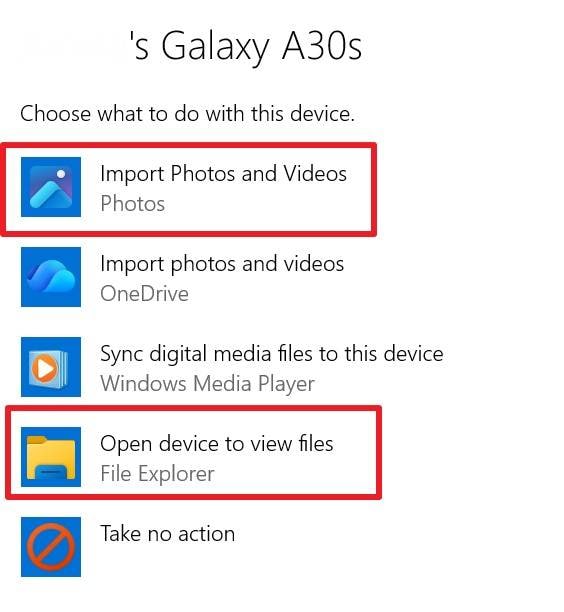
If your smartphone can still power on and the USB connection was previously trusted, the Windows AutoPlay feature provides a direct bridge to your internal storage folders. This straightforward approach allows you to copy massive media directories without needing a functional screen.
-
Step 1 Configure Windows AutoPlay
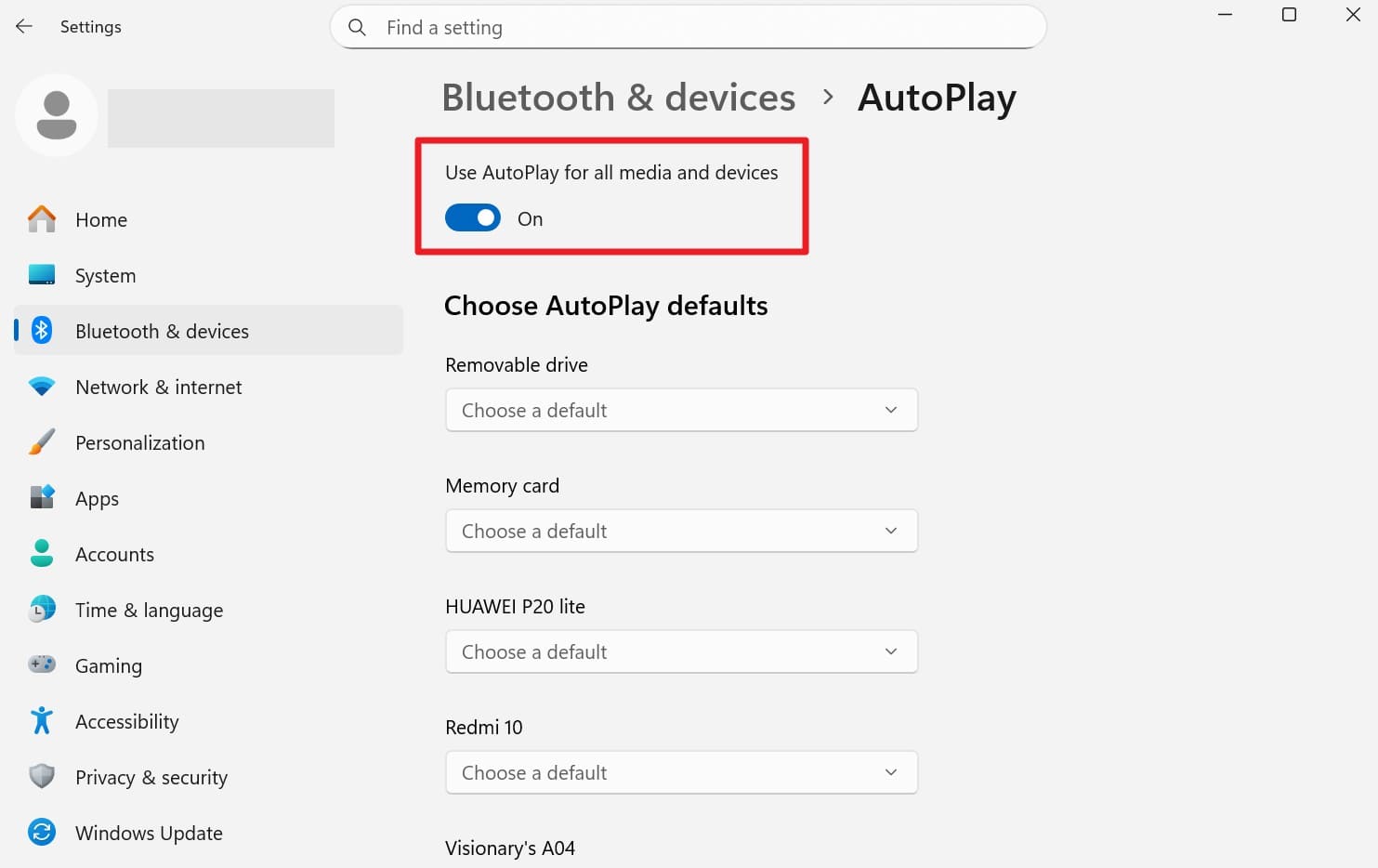
On your Windows PC, navigate to your computer's Settings > Bluetooth & devices > AutoPlay. Ensure the main AutoPlay toggle is switched on to allow automatic folder detection.
-
Step 2 Initiate File Transfer
Connect your damaged Android to the PC using a high-quality data cable. If possible, unlock the device. Once recognized, select "Import Photos and Videos" or "Open Device To View Files" from the AutoPlay prompt to copy your galleries safely to your local hard drive.
Solution 2. Restore Google Drive Backup
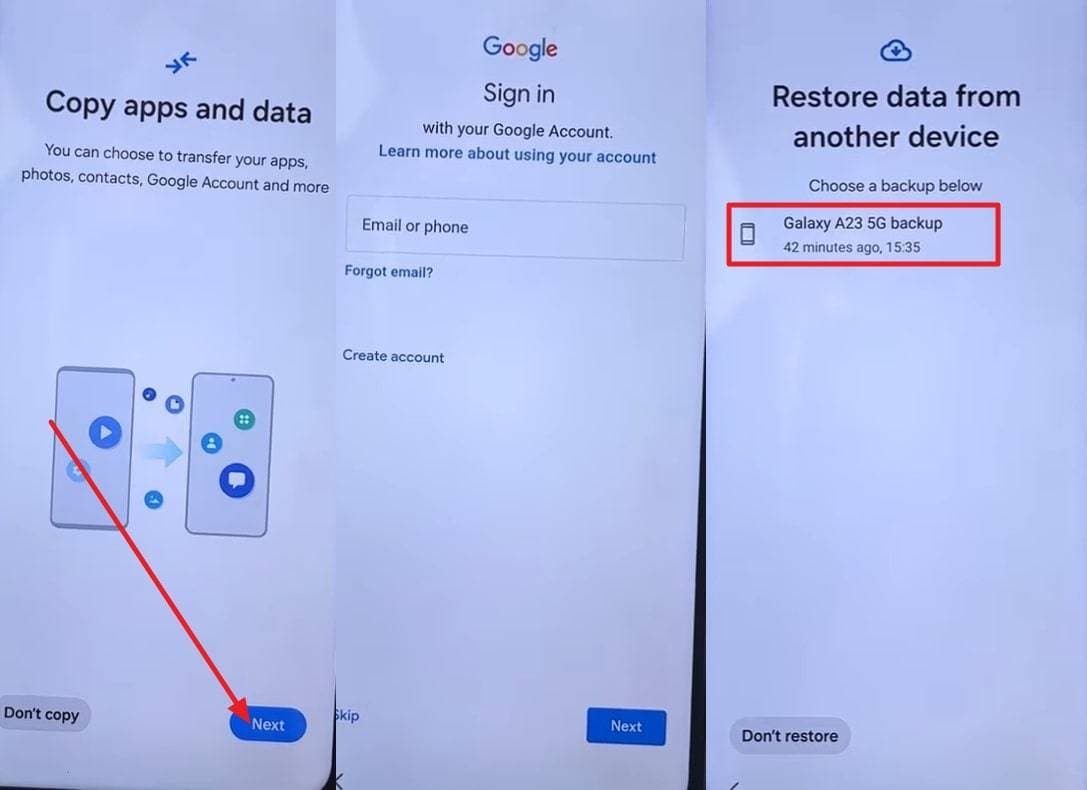
For users continually asking how can i get pictures off a broken phone without any physical connection, cloud restores are a lifesaver. Google Drive routinely backs up device data, storing it behind strong cryptographic security accessible from any functional handset.
Instructions: Start setting up a secondary or new Android device. Connect it to a stable Wi-Fi network and proceed until you reach the Google sign-in screen. Enter the exact Google credentials used on your damaged phone. When prompted by the setup wizard, select the latest backup archive linked to your old phone, check the boxes for the specific data types you wish to recover, and tap "Restore."

Solution 3. Check Google Photos
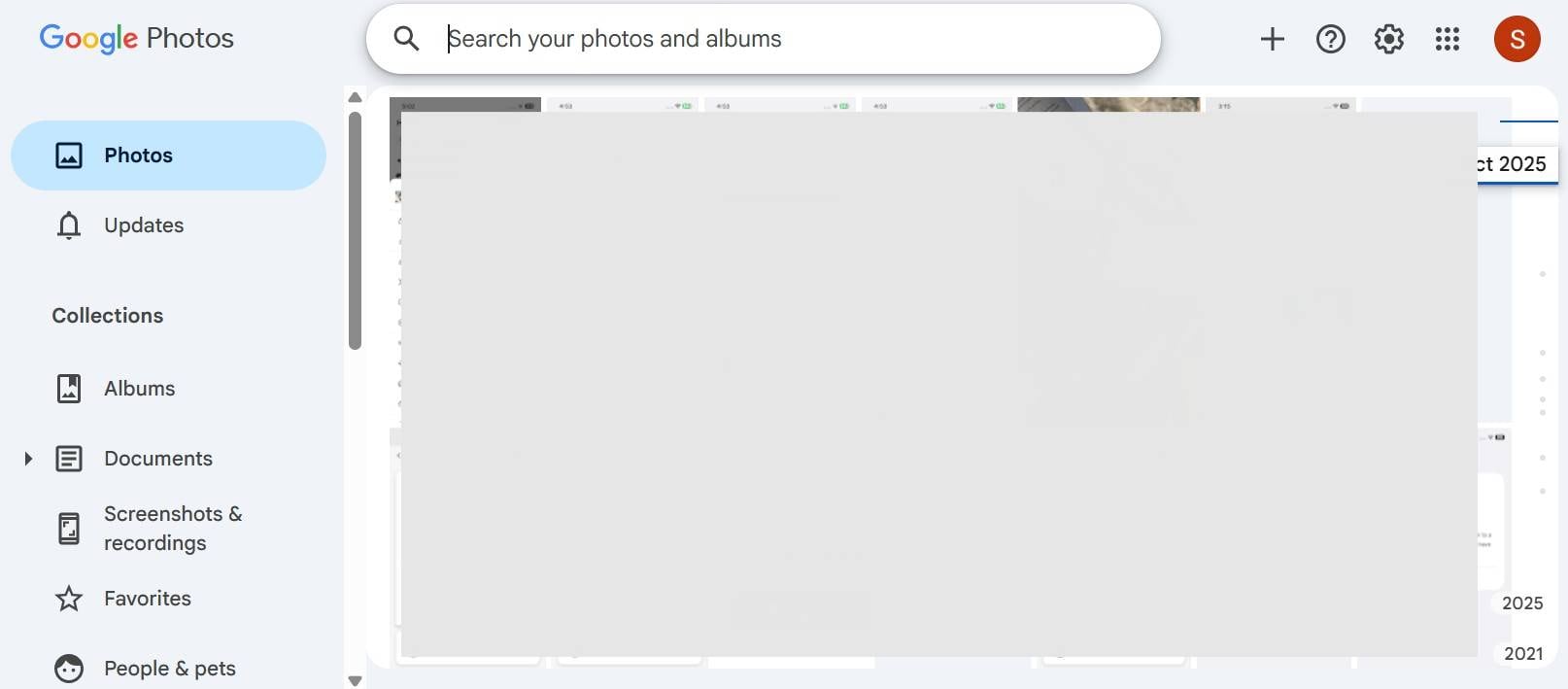
Google Photos automatically uploads camera roll directories in the background. By accessing the web client for Google Photos on any desktop browser, you can seamlessly view or download your entire visual timeline without physically interacting with the malfunctioning hardware.
Solution 4. Use One-Click Broken Android Recovery Software - Dr.Fone
When basic system connections fail, learning how can you get pictures off a broken phone requires specialized assistance. This is where Dr.Fone - Data Recovery steps in. This powerful utility is explicitly designed to bypass non-responsive screens and extract trapped data from broken Android systems without requiring Root access or prior USB Debugging authorization.
This software restores over 14 distinct file categories across a massive library of 6,000+ Android models. Furthermore, it empowers users with selective recovery, enabling you to preview media—including complex WhatsApp attachments and business documents—before committing to the final extraction step. Its user-friendly interface guides you to place the phone into Download Mode, establishing a deep-level connection that bypasses standard OS locks.
 Scan Android phones and tablets directly.
- Preview and recover only what you want.
- Supports WhatsApp, photos, videos, contacts, and more.
- Works with 6000+ Android devices.

Guide to Retrieve Data from a Broken Android Device via Dr.Fone
Follow these standardized instructions to rescue your media archives securely using the Dr.Fone interface:
-
Step 1 Launch the Broken Recovery Module
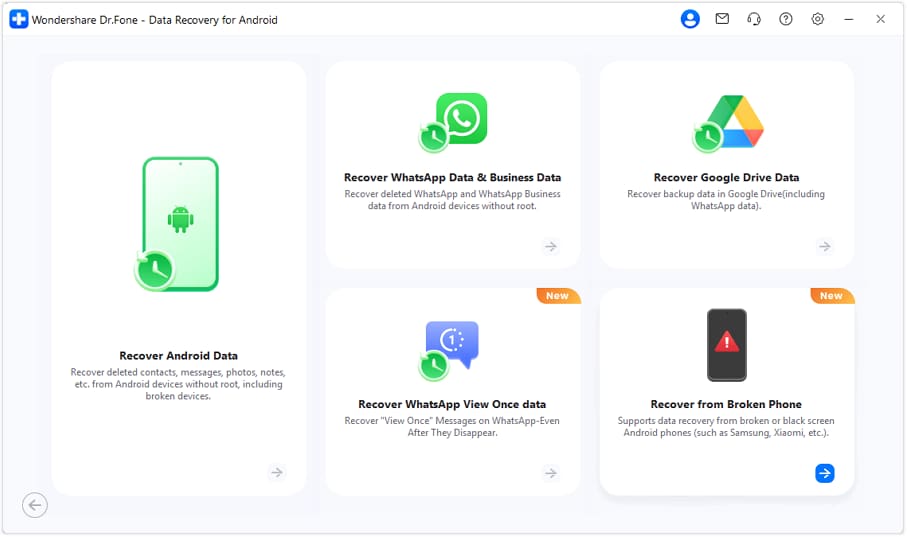
After launching the main toolkit, navigate to the "Toolbox" tab and select "Data Recovery." From the Android side, specify the "Recover from Broken Phone" pipeline to begin the specialized extraction.
-
Step 2 Identify the Hardware Fault
The software will present various damage scenarios. Select the tile that best describes your situation, such as "Screen On but Unresponsive," and proceed by clicking "Next."
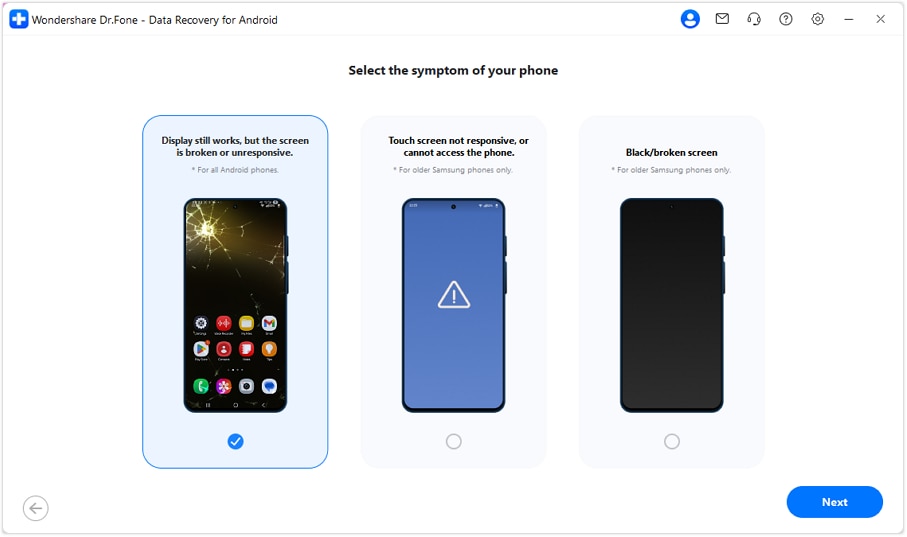 Note: The "Screen On but Unresponsive" category applies universally to Android devices where the internal display panel lights up but completely ignores tactile touch inputs.
 -
Step 3 Connect and Authorize
Link your damaged hardware to the desktop. The software automatically installs necessary background drivers, facilitating a virtual bridge that allows you to interface with the phone despite the broken digitizer.
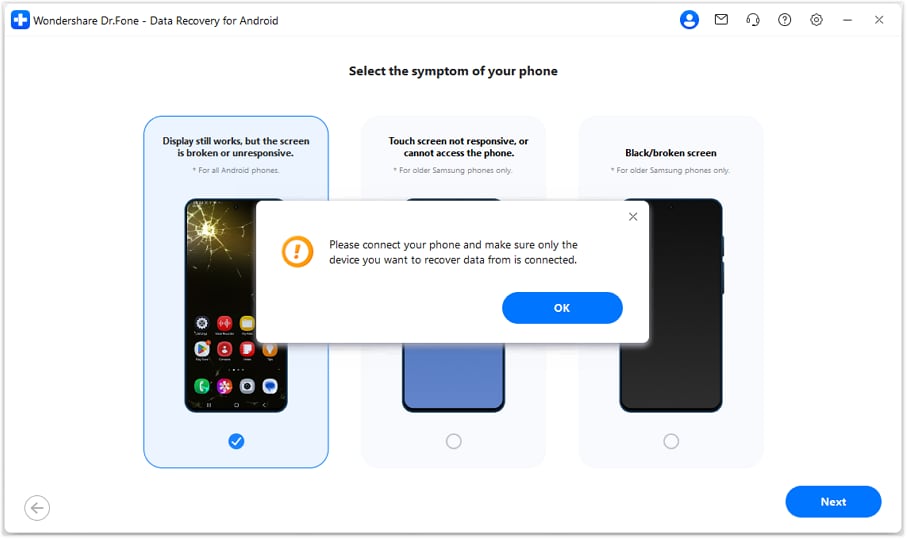
-
Step 4 Execute Data Recovery
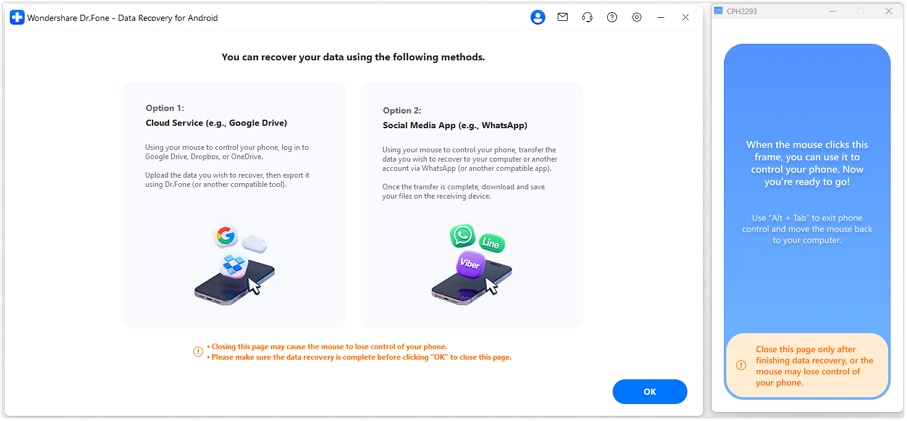
Determine your preferred pathway for saving the recovered assets:
- Cloud Service: Safely upload the extracted data directly to cloud storage for easy future downloads.
- Local Transfer: Push the retrieved multimedia straight to your computer's local hard drive or connected peripherals.




Solution 5. Recover Pictures from SD Card
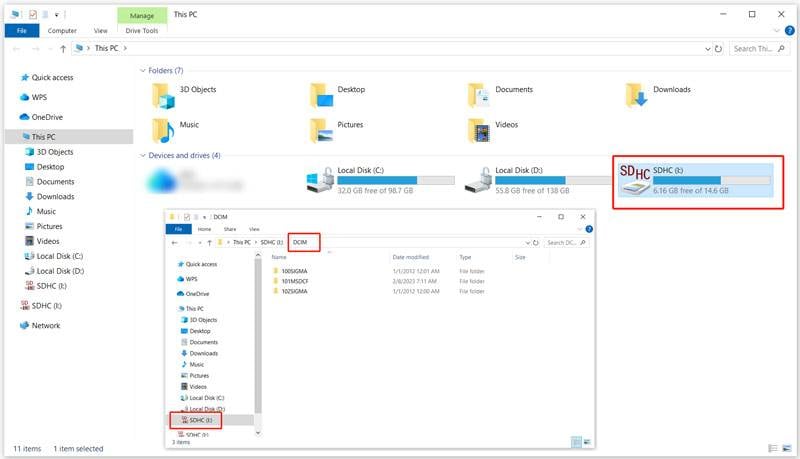
If your device utilizes external storage, the motherboard status becomes irrelevant. You can simply eject the microSD card and read it directly via an external adapter. This permits selective, rapid file transfers without messing with intricate software.
Instructions: First, securely power down the mobile device to avoid data corruption, then eject the SIM/SD tray. Mount the SD card into a USB card reader and plug it into any functional computer. Browse through the file manager (Windows File Explorer or macOS Finder) to locate the "DCIM" or "Pictures" directories. Bulk copy these folders to a safe desktop partition.
Solution 6. Try Using a USB-C Dongle & External Display
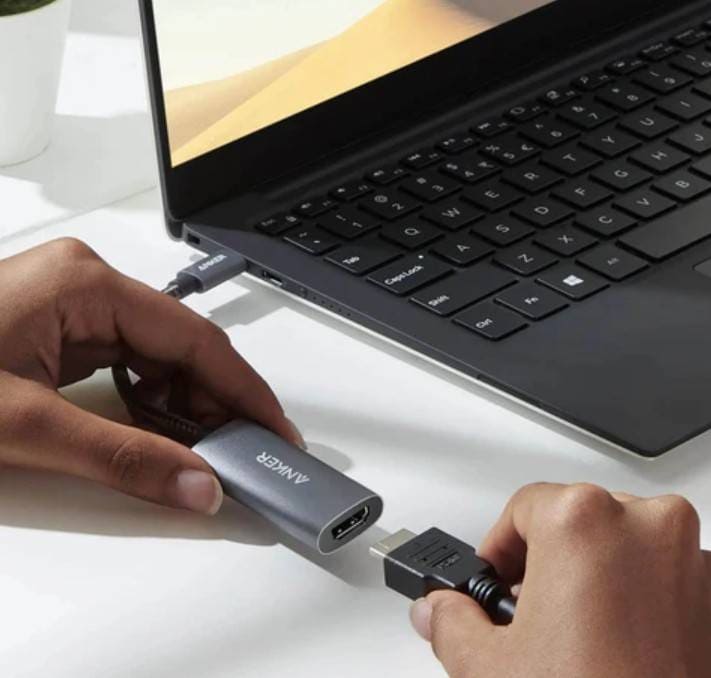
Understanding how to get photos off of a broken phone involves clever hardware tricks. If the underlying OS still operates but the screen is shattered, a multiport USB-C dongle can mirror your interface to an external monitor while passing through mouse inputs.
-
Step 1 Connect External Output
Verify that your smartphone model supports DisplayPort Alternate Mode over USB-C. Gather a compatible USB-C hub, an HDMI cable, and a standard USB mouse. Connect the hub to your phone, link the monitor via HDMI, and change the monitor's input channel to mirror the Android UI.
-
Step 2 Navigate via Mouse
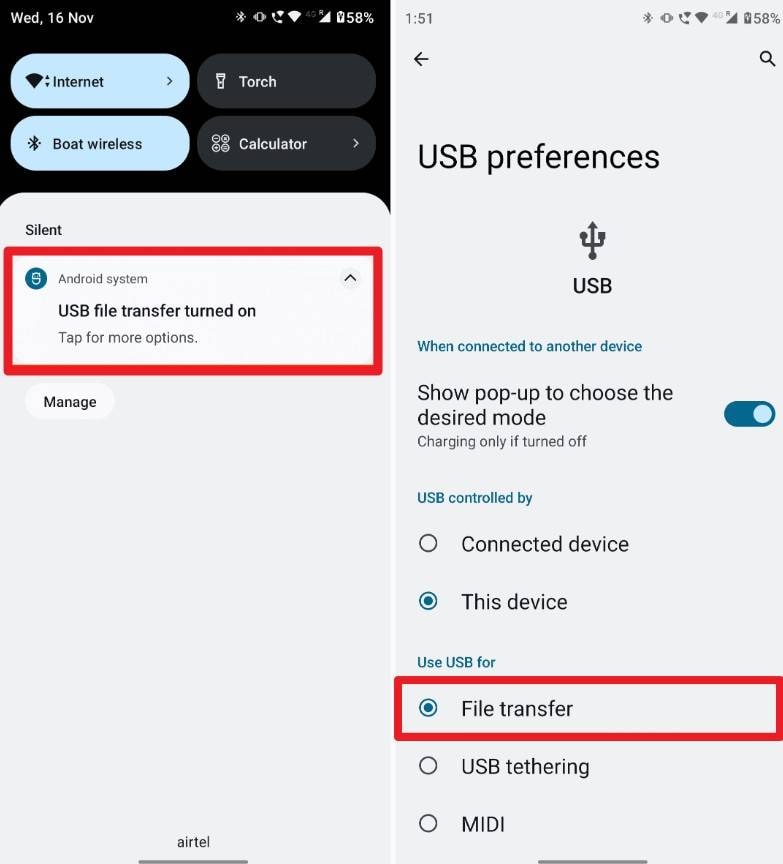
Plug the mouse into the dongle's USB-A port. You will see a cursor appear on the external display. Use it to swipe up, input your PIN or pattern, and dive into your settings to activate "File Transfer" or "MTP" mode. From there, you can connect a thumb drive to another port on the hub and drag-and-drop the "DCIM" folder directly.
Part 3. How to Get Photos from a Broken Phone [iPhone]?
iOS ecosystems possess tight security parameters, leaving Apple users anxiously wondering how to get photos off a broken phone. Despite the strict sandbox environment, there are five highly structured avenues to liberate your Apple photo libraries.
Solution 1. Via USB Connection
Your iPhone inherently behaves like a digital camera when linked to a computer. If the handset powers on and you have previously "trusted" the target computer—or the touch screen remains responsive enough to hit the trust dialog—you can pull images effortlessly.
Instructions: Use an MFi-certified Lightning or USB-C cable to tether the iPhone to your computer. Wake the screen and tap "Trust" when the prompt surfaces.
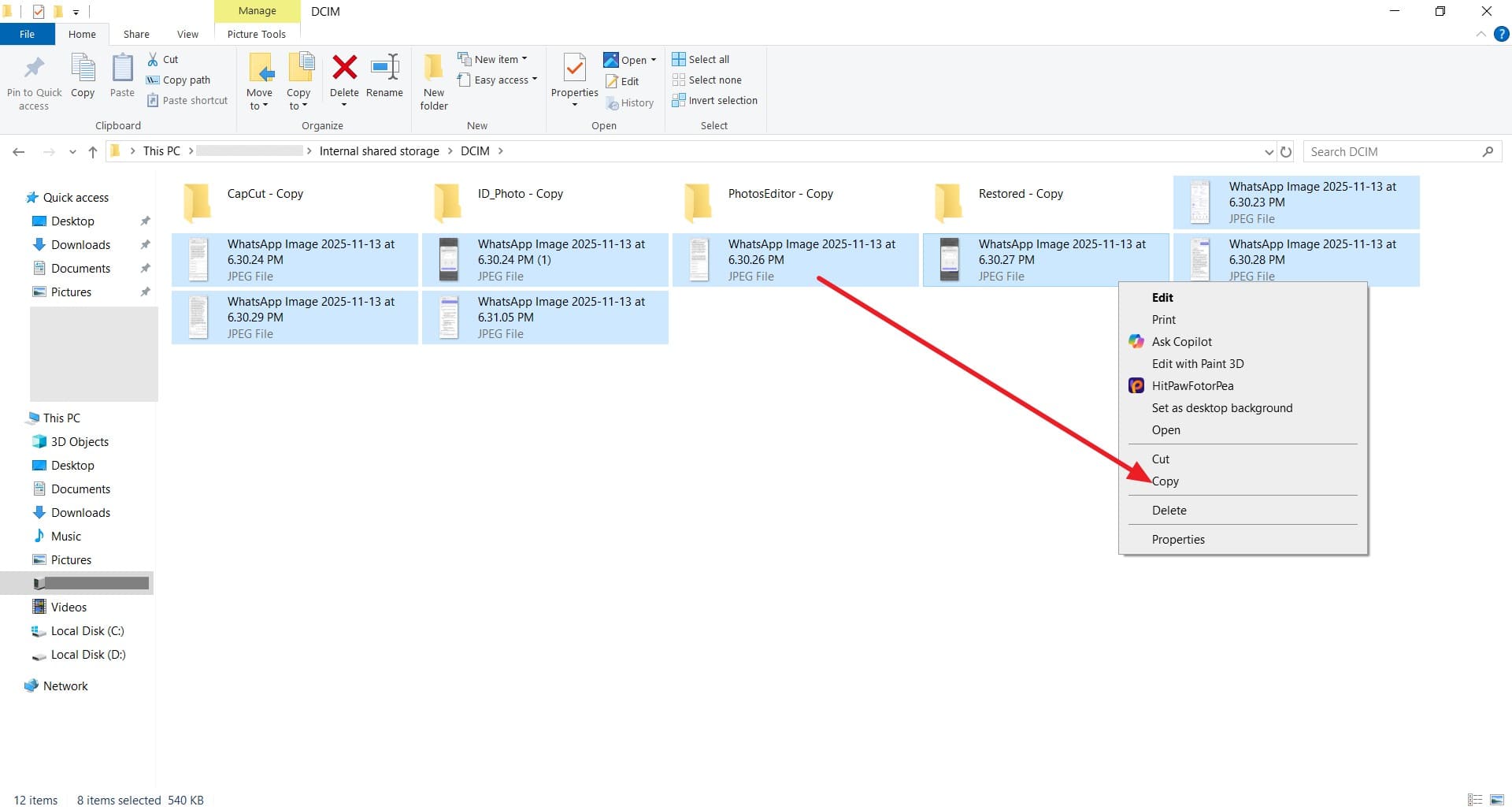
- On Windows PC: Open "This PC," identify your iPhone under "Devices and drives," navigate to "Internal Storage > DCIM," and copy your preferred media folders directly.
- On Mac: Launch the built-in Photos app, Image Capture, or Finder. Select your device from the sidebar to review and securely import your high-resolution albums.
If the display is too damaged to acknowledge the trust request, try utilizing Face ID, Touch ID, or invoking Siri with voice commands to bypass the lock screen. Without establishing trust, the USB data pipeline remains firmly shut.
Solution 2. iCloud Photos/Google Photos
Figuring out how to get pictures from a broken phone is vastly simplified if cloud sync was toggled on. Cloud directories preserve an identical, full-resolution copy of your camera roll remotely. It completely negates the need for physical device interaction.
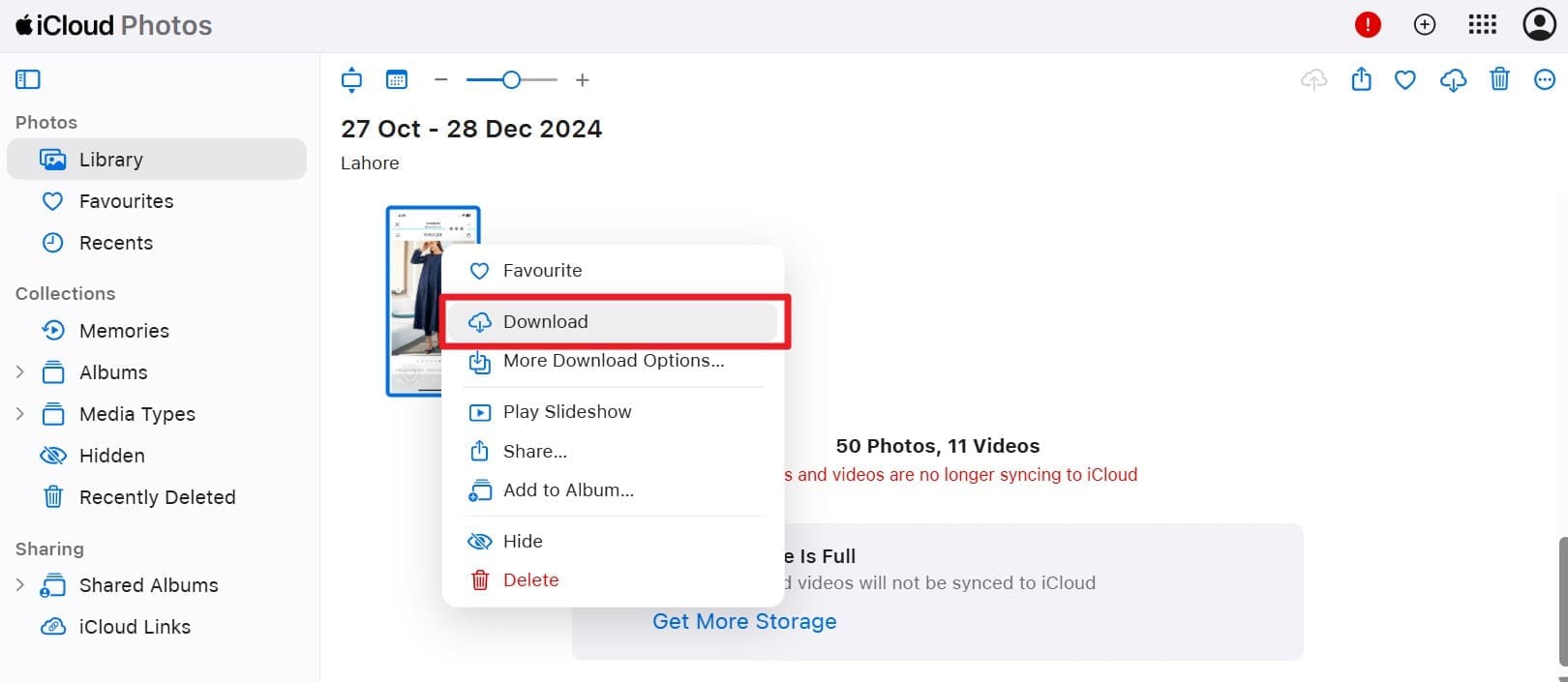
Instructions: Open any modern web browser and navigate to iCloud.com. Authenticate with the specific Apple ID bound to your broken handset. Proceed to the "Photos" application to view your archived gallery. Highlight the desired images, select them, and utilize the "Download" icon in the upper right to save them locally.
Solution 3. iTunes/Finder Backup
Legacy backups stored on your computer via iTunes (Windows/older Macs) or Finder (macOS Catalina and later) represent a goldmine of data. These full system snapshots contain an exact replica of your photography vault, circumventing the need for active internet or a functioning iPhone display.
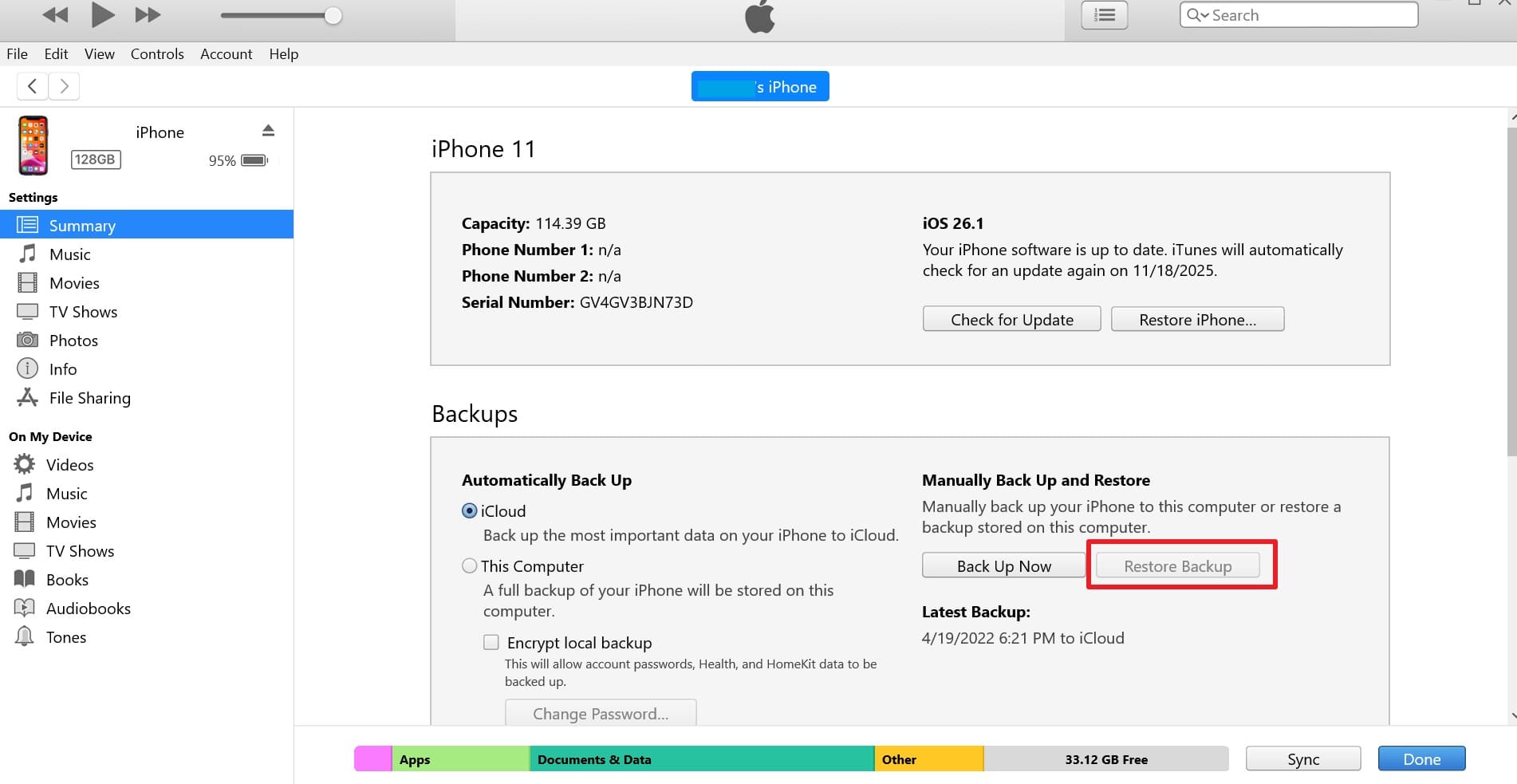
Instructions: Connect a functioning replacement or secondary iOS device to the computer holding the backup. Launch iTunes or Finder, select the newly attached device, and hit "Restore Backup." Pick the most recent timestamp associated with your damaged phone and authorize the restoration. Once complete, the replacement phone will house every photo identical to the broken unit.
Solution 4. Dr.Fone - Data Recovery (iOS)
If you are an iPhone owner questioning how to retrieve photos from a broken phone directly from raw encrypted backups, Dr.Fone - Data Recovery (iOS) offers the ultimate technical edge. The application serves as an advanced parser, allowing you to extract individual photos securely from messy iTunes & iCloud backups without forcing a full system wipe on a new device.
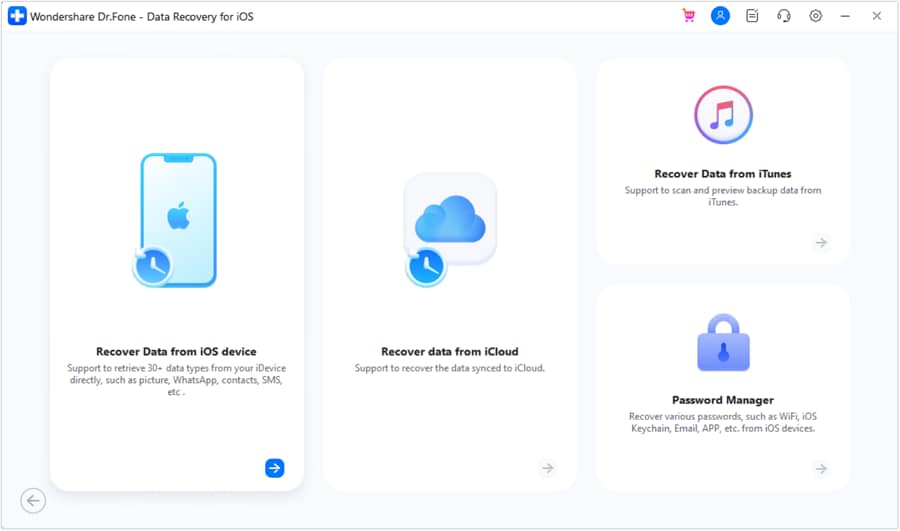
- Recovers data after deletion, crashes, or device damage.
- Supports photos, messages, contacts, WhatsApp, and more.
- Supports all major iPhone, iPad, and iPod models.
- Preview and recover only what you need.
This utility isolates and targets 35+ specific data categories, enabling users to salvage high-value media, view once media, and iWork documents natively. Featuring frequent updates to match current iOS kernels, Dr.Fone requires zero technical experience to navigate.
Solution 5. Contact Apple Support/Professional Data Recovery
If DIY options fail to demystify how to get pictures off a broken phone—especially in scenarios involving extreme thermal destruction or internal corrosion from water damage—escalating the issue is wise. Apple Support or certified third-party data recovery technicians possess forensic-level extraction suites capable of rebuilding NAND chip connections to safely liberate your images.
Conclusion
Ultimately, countless users face the dilemma of figuring out how to get photos off a broken phone. From leveraging AutoPlay and OTG connections to restoring over-the-air iCloud endpoints, multiple avenues exist to resurrect your content. However, for those seeking a highly streamlined, barrier-free solution without tangled technical prerequisites, utilizing Dr.Fone - Data Recovery for Android and iOS systems remains unparalleled. Equip yourself with these modern tools and recover your irreplaceable memories with total confidence.
FAQ
-
1. Can I recover photos from a phone that is completely dead?
Recovery primarily depends on whether the handset's internal memory chips or the external SD card remain functional and insulated from structural damage. While standard software often fails on entirely non-responsive motherboards, professional forensic services can frequently solder to and retrieve data from a "dead" logic board, though ultimate success is never unconditionally guaranteed. -
2. Is professional recovery expensive or guaranteed?
Employing professional hardware-level data recovery services is generally costly due to the intensive labor, micro-soldering, and specialized cleanroom environments required. Despite the high price tag, technicians cannot guarantee total file restoration, as severe flash memory degradation may render files permanently unreadable. -
3. Are my photos safe during recovery?
Yes, provided you utilize reputable software like Dr.Fone or enlist certified professional services, your files are handled in a highly secure environment. These tools deploy read-only access modes designed to prevent any accidental overwriting or corruption of your original data while strictly adhering to user privacy standards. -
4. Can I enable USB debugging on a broken Android screen?
Enabling USB debugging natively requires a functional touch display. However, if your touch digitizer is unresponsive but the display output works, you can bypass this limitation by connecting a USB mouse via an OTG (On-The-Go) cable to manually navigate the settings menu and flip the required toggles.
 Add Wondershare Dr.Fone as a preferred source on Google