Resolve common problems and system crashes on both iPhone and Android devices.

 100% Security Verified | No Subscription Required | No Malware

 :
: 
 ChatGPT
 Perplexity
 Gemini
 Claude
 Grok
Grok
A practical planning range for an iPhone update is about 20–60 minutes under normal conditions, but there is no fixed Apple time limit. A small update on fast Wi-Fi can finish sooner, while a major iOS upgrade, a slow connection, limited storage, or a busy update server can push the total beyond an hour.
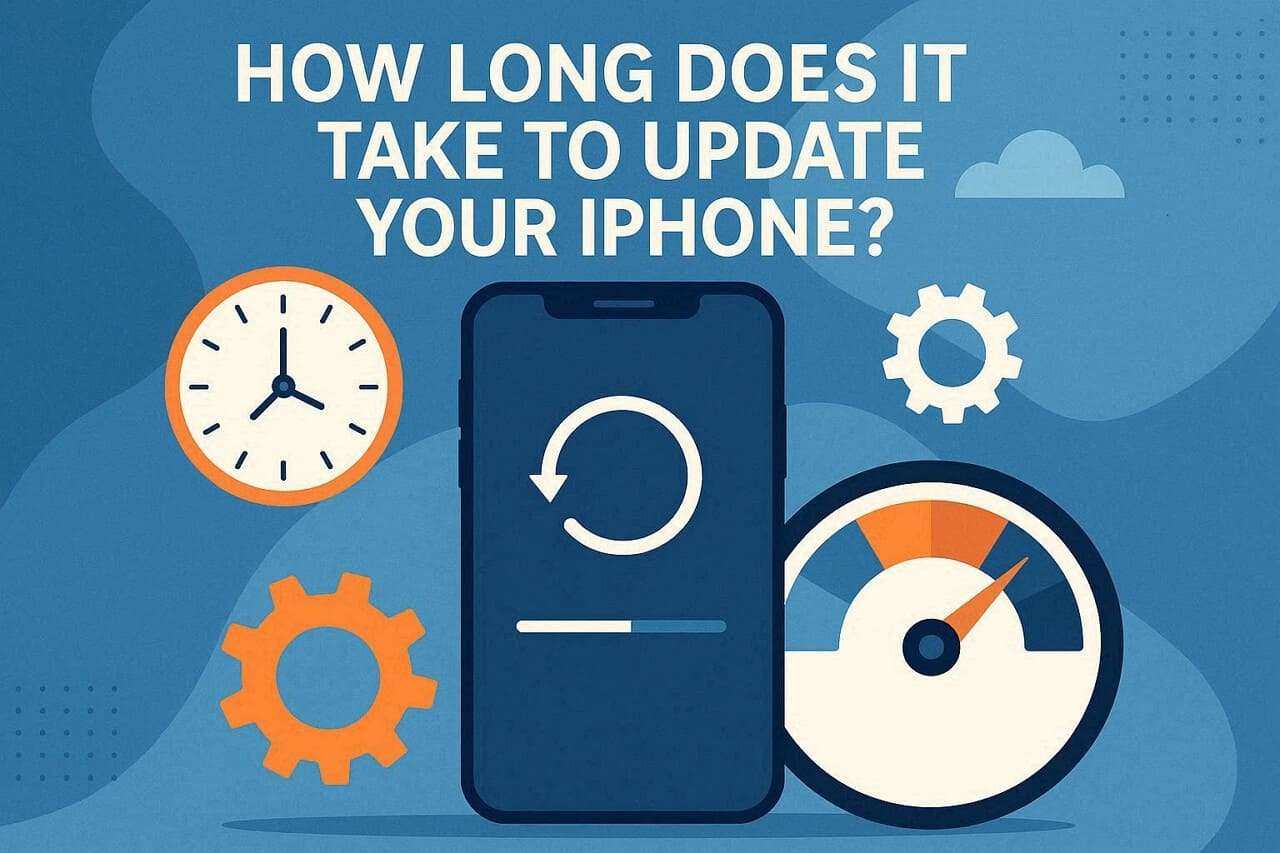
The total time includes downloading the update, preparing and verifying it, installing it, restarting the iPhone, and finishing any post-update setup. Apple says download time depends on the update size and your internet speed, while installation time can also vary with the update size and the number of files on the device. As of September 7, 2026, iOS 26.6.1 is the latest stable iOS release; iOS 27 is still in beta/preview rather than a stable public release.

Part 1. What Happens During an iPhone Update?
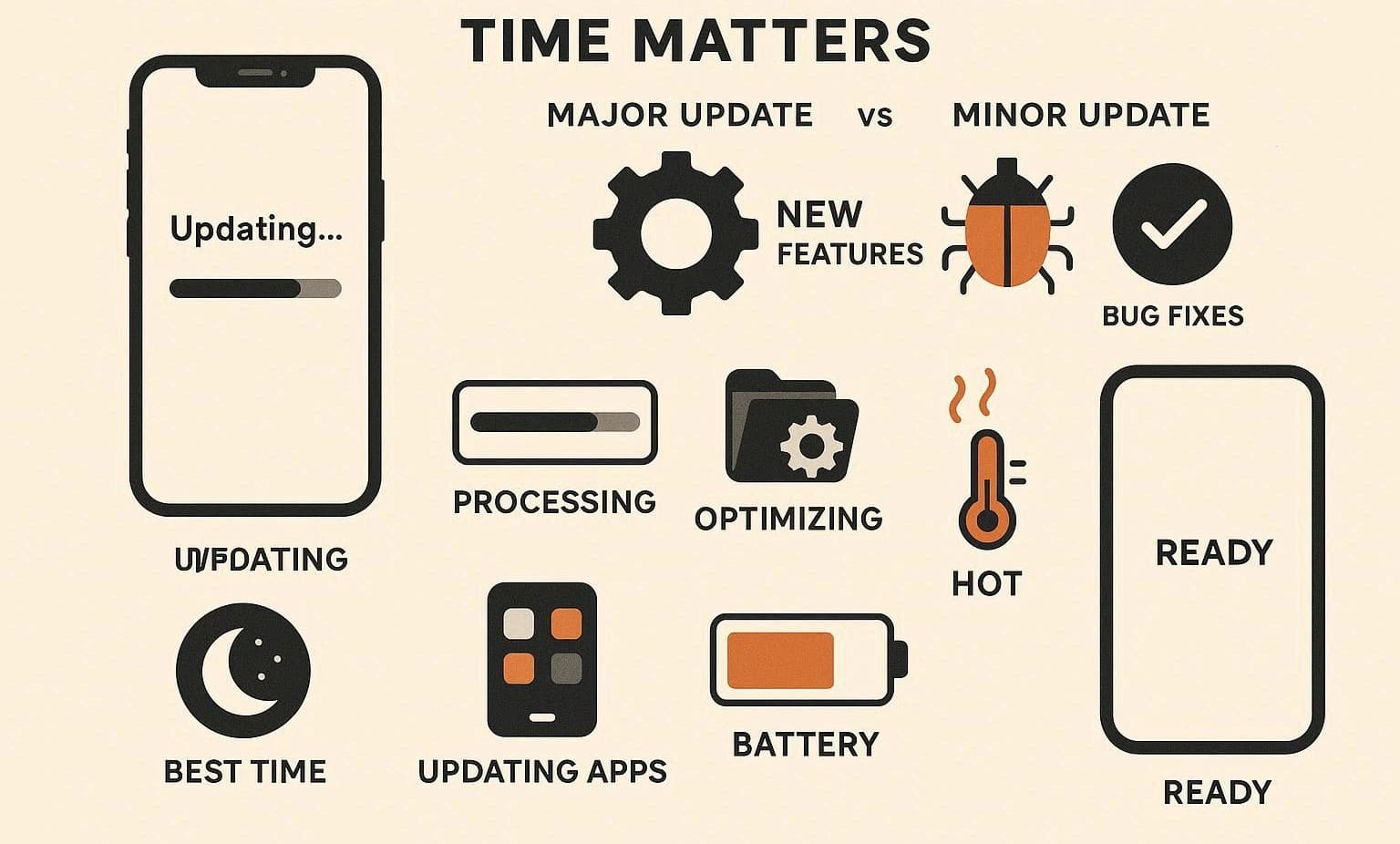
An iOS update is not a single action. The iPhone first gets the update package, prepares and verifies the files, installs the software, restarts, and then completes post-update setup. This is why the answer to how long does it take to update iPhone depends on which stage you are watching.
Common iPhone Update Stages
- Download: The iPhone downloads the update package. Apple says you can still use the device while the update is downloading.
- Prepare and verify: iOS checks the downloaded package and gets the device ready for installation.
- Install and restart: The iPhone restarts and shows the Apple logo and a progress bar while the update is applied. The device is not usable during this installation stage.
- Post-update setup: The device finishes setup, may ask for a passcode or other confirmation, and can continue background tasks after you return to the Home Screen.
If your iPhone is still in the download stage, a fluctuating estimate does not necessarily mean the update is stuck. If it is sitting on Update Requested or Verifying Update without meaningful progress, use the troubleshooting steps in Part 4.
What Affects iOS Update Speed?
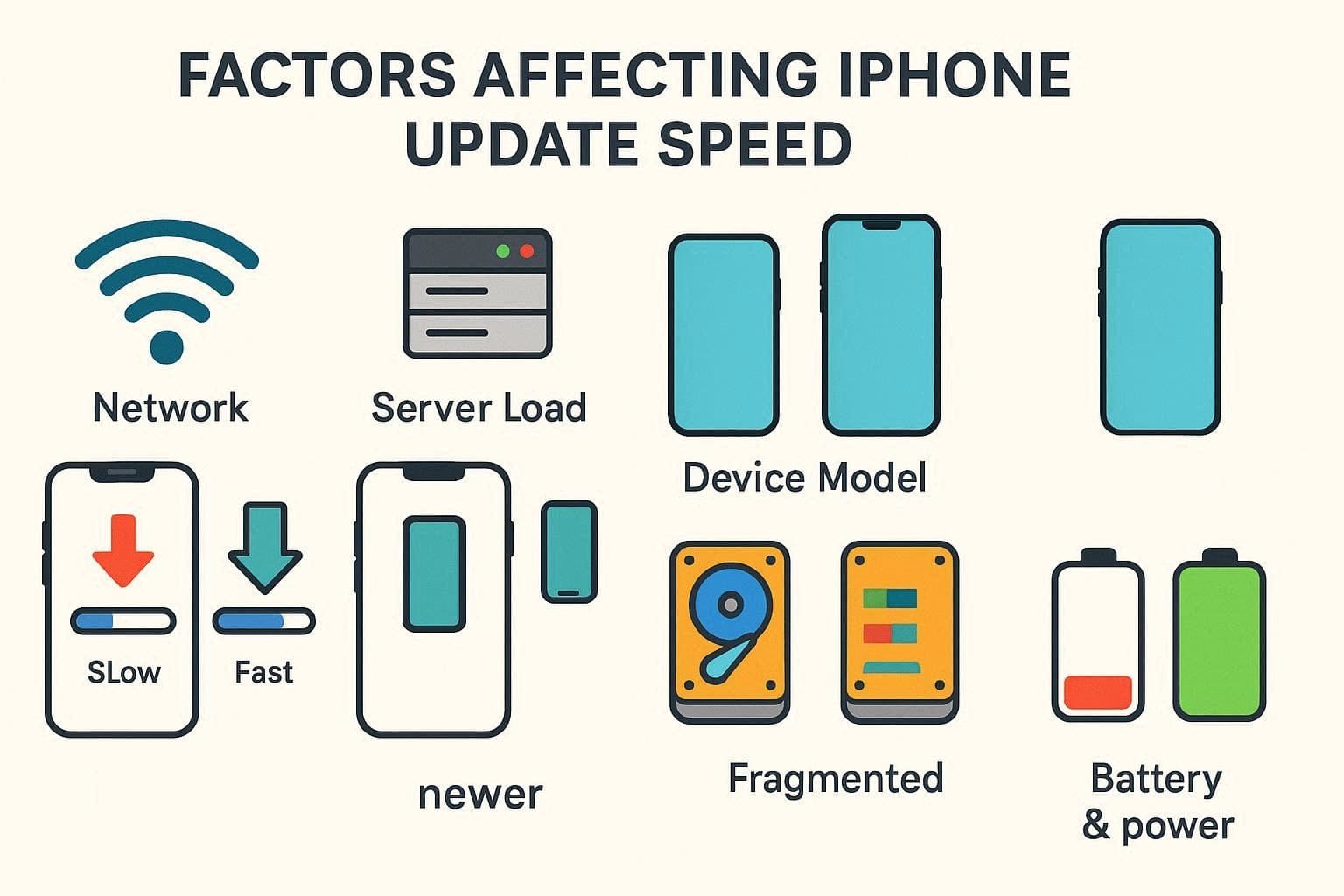
- Update size and internet speed: Apple specifically notes that download time varies with the size of the update and the speed of the internet connection.
- Available storage: The device needs enough free space to download and install the update.
- Device model and system state: Hardware performance, current software state, and the amount of data on the device can affect preparation and installation work.
- Power: Keep the iPhone connected to power during the update, especially if installation is already underway.
- Server or network conditions: A slow or unstable path to Apple’s update servers can extend the download or trigger a retry.
Part 2. How Long Does It Take to Update an iPhone by Stage?
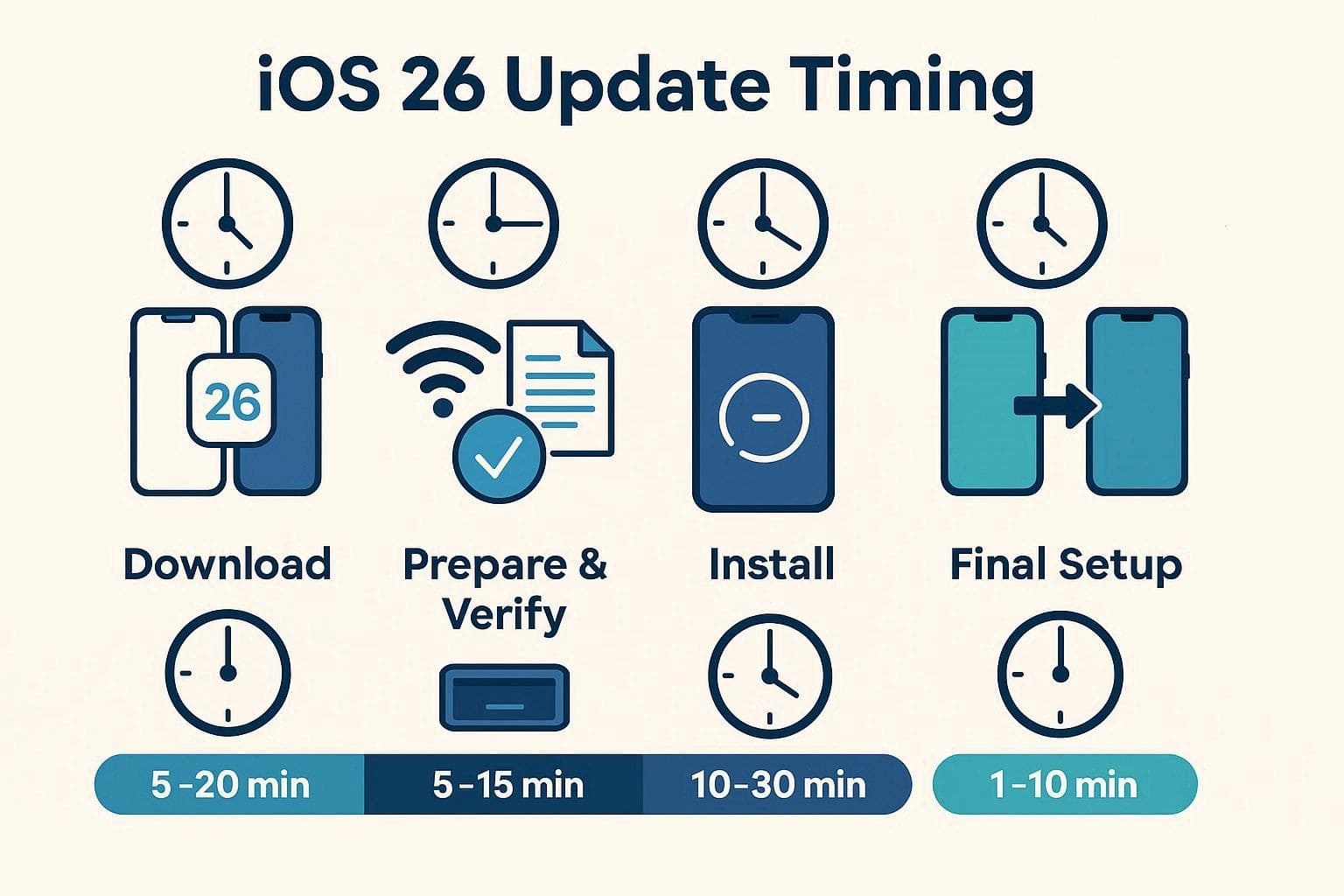
If you are asking how long does an iOS update take, use the numbers below as practical planning ranges rather than guaranteed deadlines. Apple does not publish a universal fixed time for each update, and the same iOS release can finish at different speeds on two iPhones.
| Update Stage | Practical Planning Range | Can You Use the iPhone? | What Changes the Time? |
|---|---|---|---|
| Download | About 10–20 minutes in good conditions; potentially much longer | Yes | Update size, Wi-Fi/internet speed, network stability, server conditions |
| Prepare & Verify | Often around 5–15 minutes | Usually limited once installation preparation takes over | Available storage, package verification, device state |
| Install & Restart | Often around 10–30 minutes | No | Update size, number of files, device performance |
| Post-update setup | A few minutes for most on-screen setup | Yes after you return to the Home Screen | Migration/setup prompts and background indexing or app activity |
Bottom line: for a routine update, setting aside roughly 20–60 minutes is reasonable. A major update, slow download, or older/slower device can take longer. If the progress bar is still moving, Apple notes that installation progress can simply be slow; troubleshoot when progress appears frozen for an unusually long period, the update repeatedly errors, or the device returns to the same failed state.
Part 3. Why an iPhone Update Can Take Longer Than Expected
When the answer to how long does iOS update take suddenly becomes “much longer than expected,” the reason is usually tied to the download, storage, verification, or installation environment rather than one universal timer.
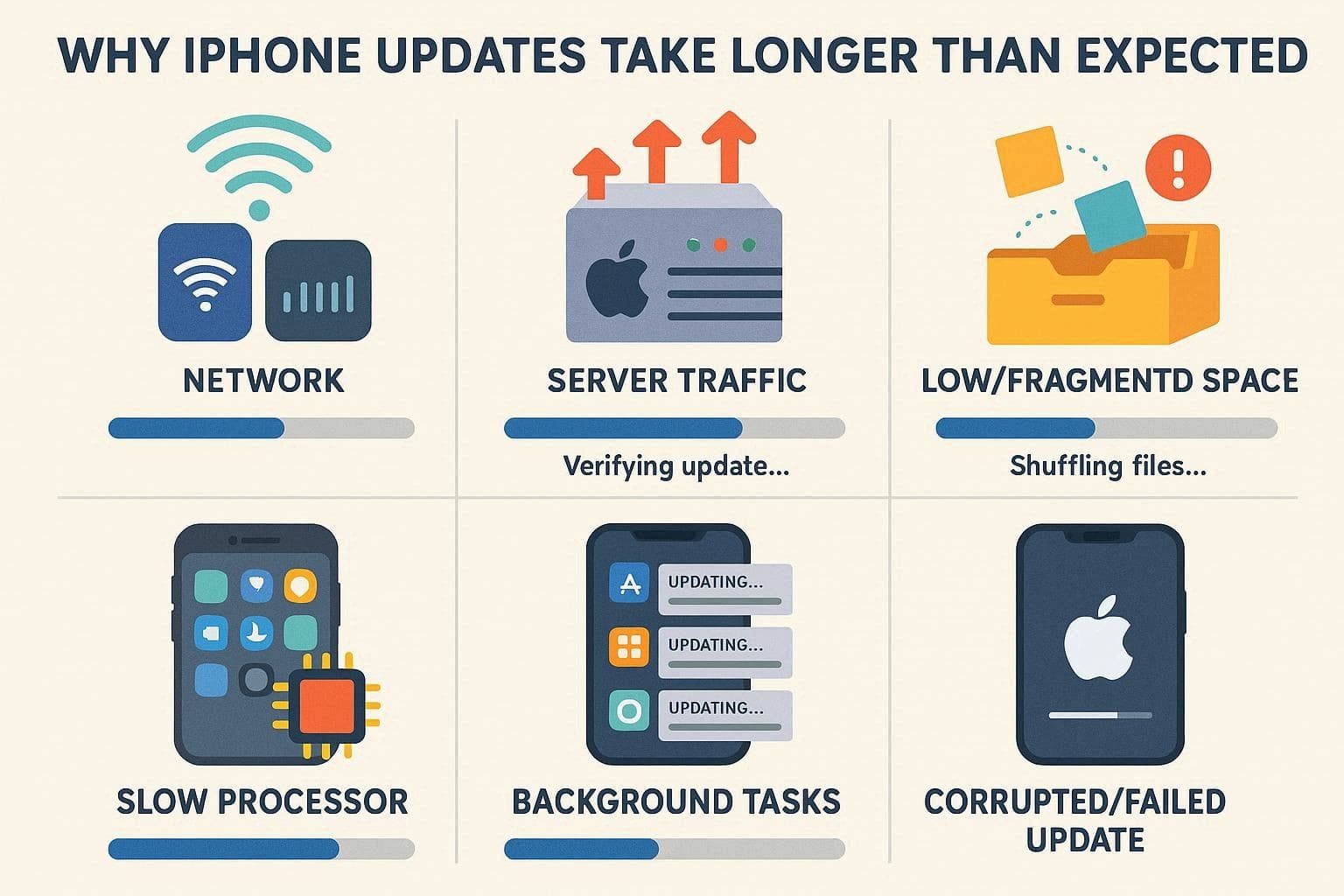
- Slow or unstable internet: The download can stretch far beyond the normal planning range if the connection is weak.
- Not enough available storage: The iPhone needs room for the update package and installation work.
- A damaged or incomplete downloaded update: If the same package repeatedly fails, deleting the downloaded update and fetching a fresh copy can help.
- Verification or service reachability problems: The device may be unable to reach or verify with the update service on the current network.
- Installation is genuinely still running: Apple notes that the progress bar can move slowly and that installation time depends on the update size and the number of files on the device.
Before You Start: Reduce Avoidable Delays
| Before Updating | Why It Helps |
|---|---|
| Use reliable Wi-Fi | Helps the update package download without avoidable pauses or retries. |
| Check free storage | Apple requires enough available storage for the update to download and install. |
| Connect to power | Prevents a low battery from interrupting an installation that is already in progress. |
| Back up first | A standard iOS update is designed to keep your data and settings, but a current backup protects you if troubleshooting later requires a more disruptive recovery step. |
| Avoid other large downloads | Apple recommends avoiding other downloads when you want the software update to download faster. |
Part 4. Try 7 Fixes When Your iPhone Update Is Taking Too Long
If the update is no longer making meaningful progress, work from the lowest-risk checks toward computer-based or repair options. You do not need to jump straight to Restore.
Fix 1. Check Apple Service Status
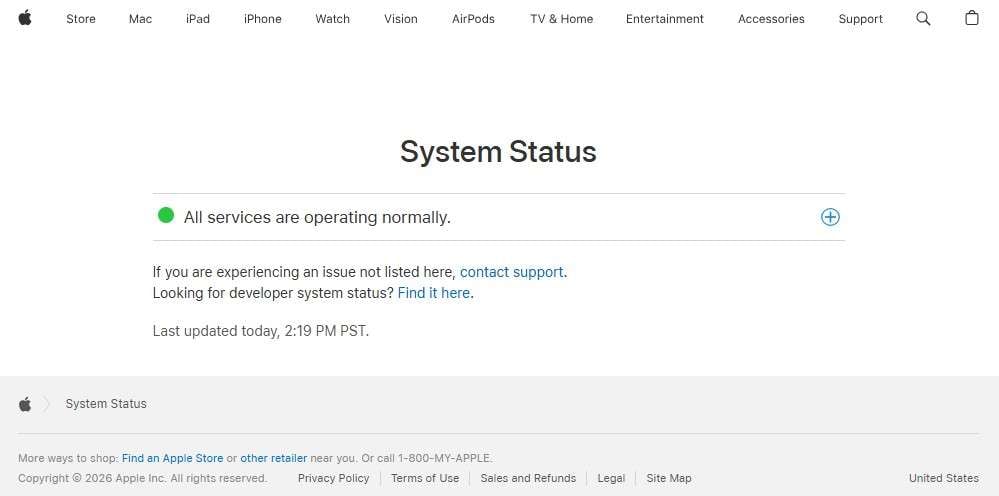
Before changing device settings, check whether Apple is reporting a service problem. If the update service is having an outage or major disruption, local resets will not fix the server-side issue. You can review Apple System Status and retry later if a relevant service is affected.
Fix 2. Check Wi-Fi and Network Settings
For an update that is still downloading, start with the connection. Move closer to the router, avoid other large downloads, and retry on another trusted Wi-Fi network if the device cannot reach or verify the update service. If a VPN is clearly interfering with access to the update server, disable it temporarily and retry.
If Wi-Fi Still Fails: Reset Network Settings
Use this only if normal network troubleshooting has not worked, because resetting network settings removes saved Wi-Fi networks and related network configuration.
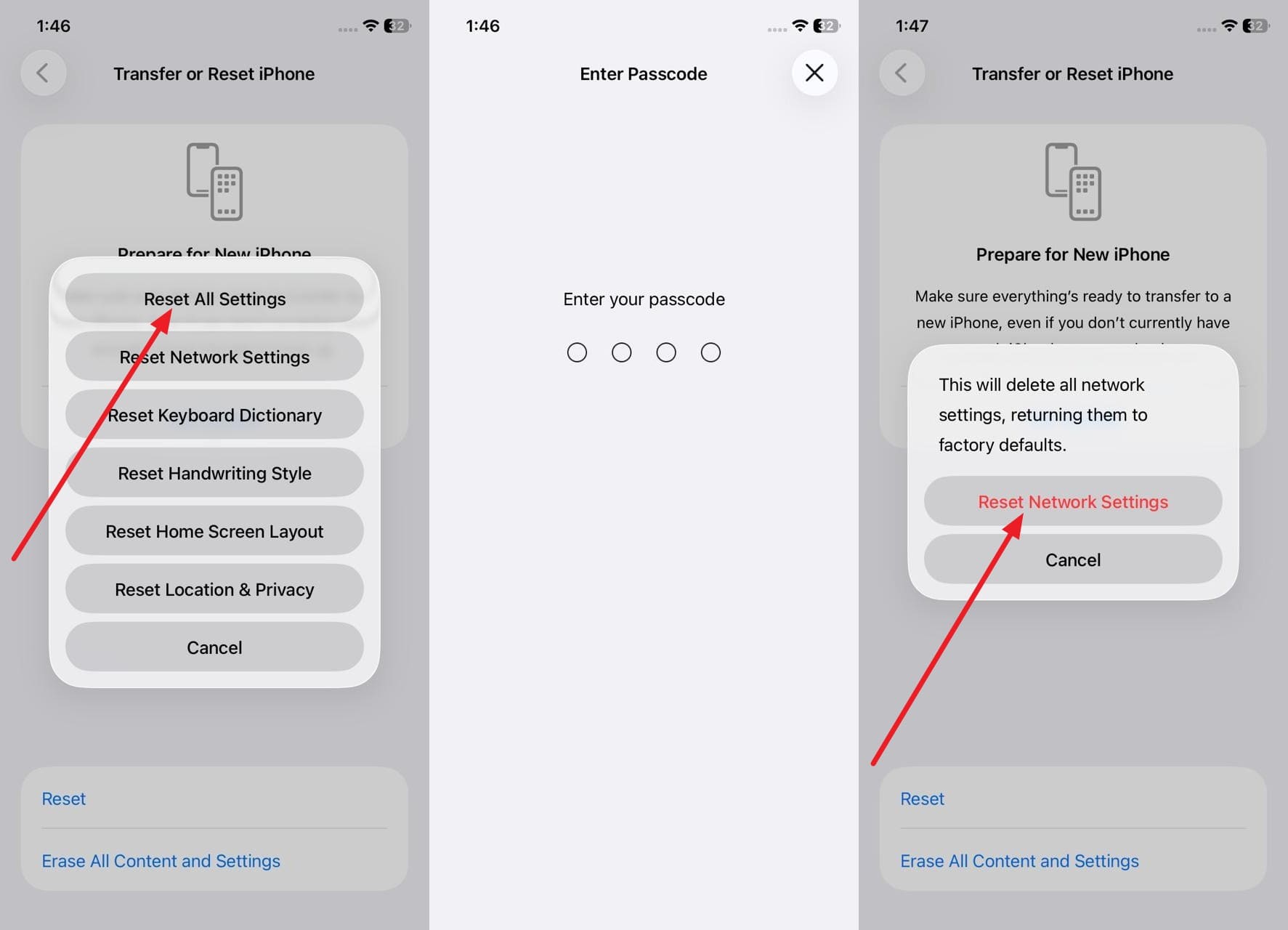
- Step 1. Go to Settings > General > Transfer or Reset iPhone > Reset.
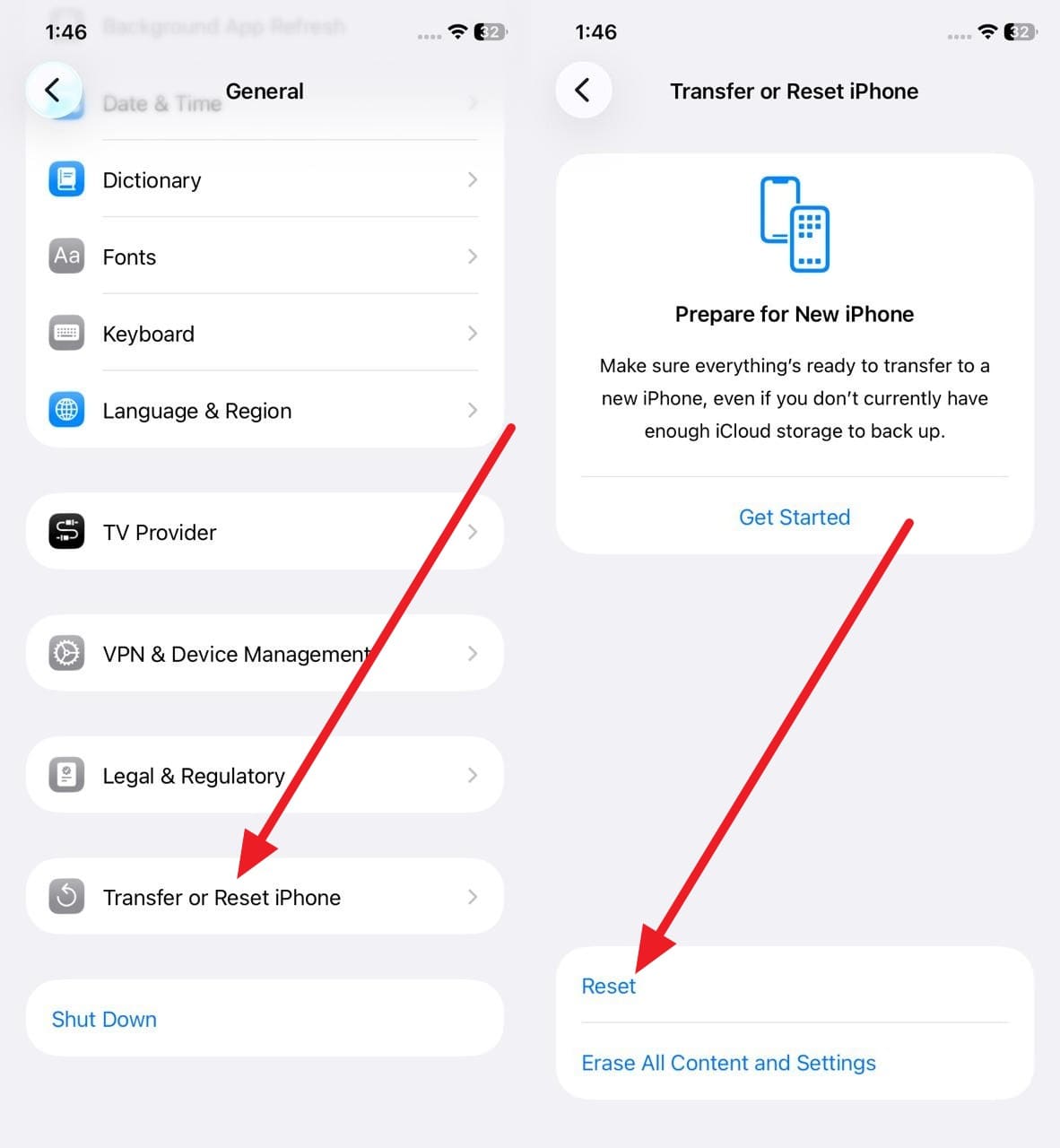
- Step 2. Tap Reset Network Settings, enter the passcode if prompted, and confirm.
Fix 3. Free Up Storage Space
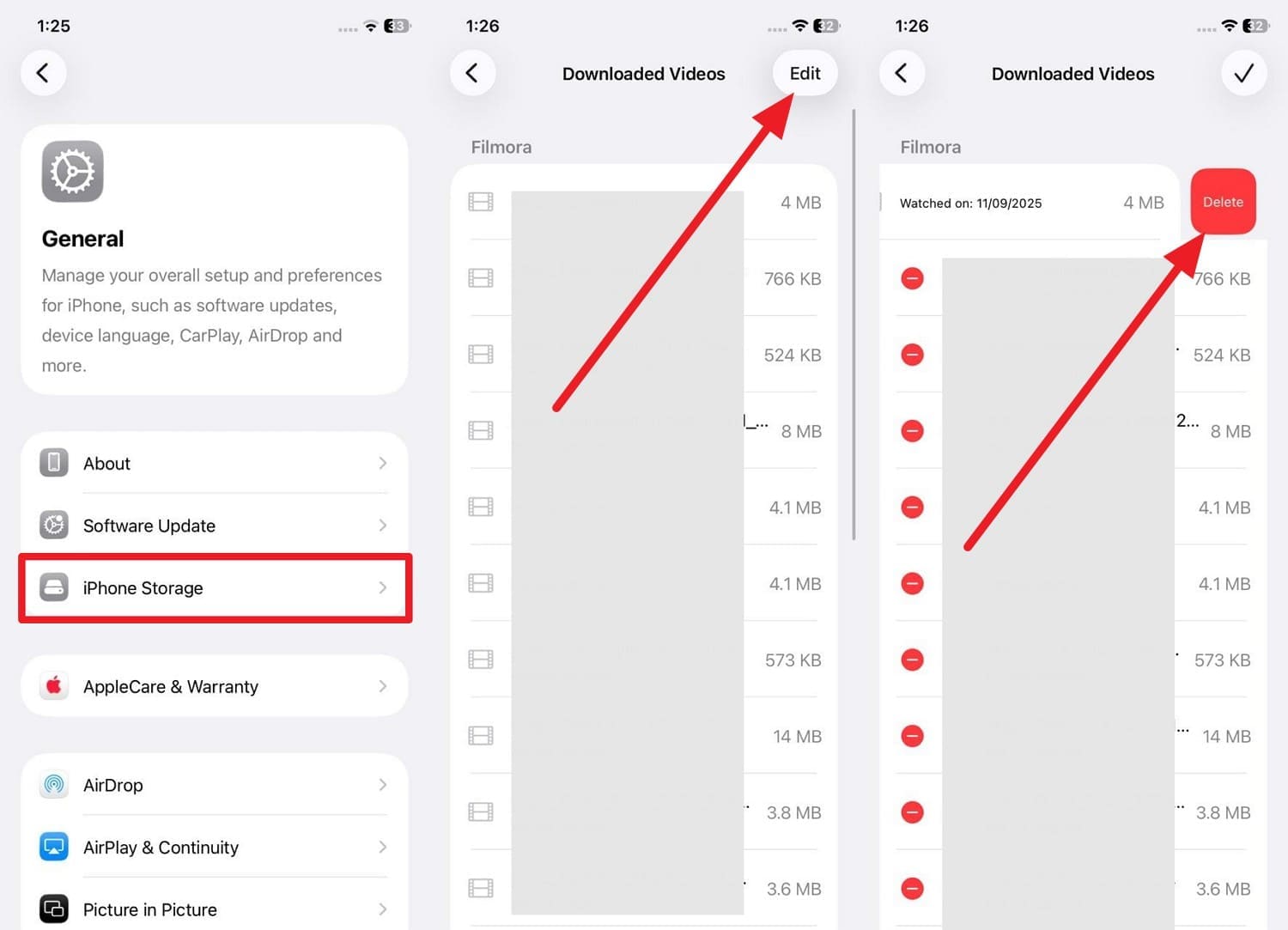
If storage is nearly full, go to Settings > General > iPhone Storage and remove or offload content you no longer need. Apple requires enough available space for the update package and installation files.
- Step 1. Review storage recommendations and large apps or files you can safely remove.
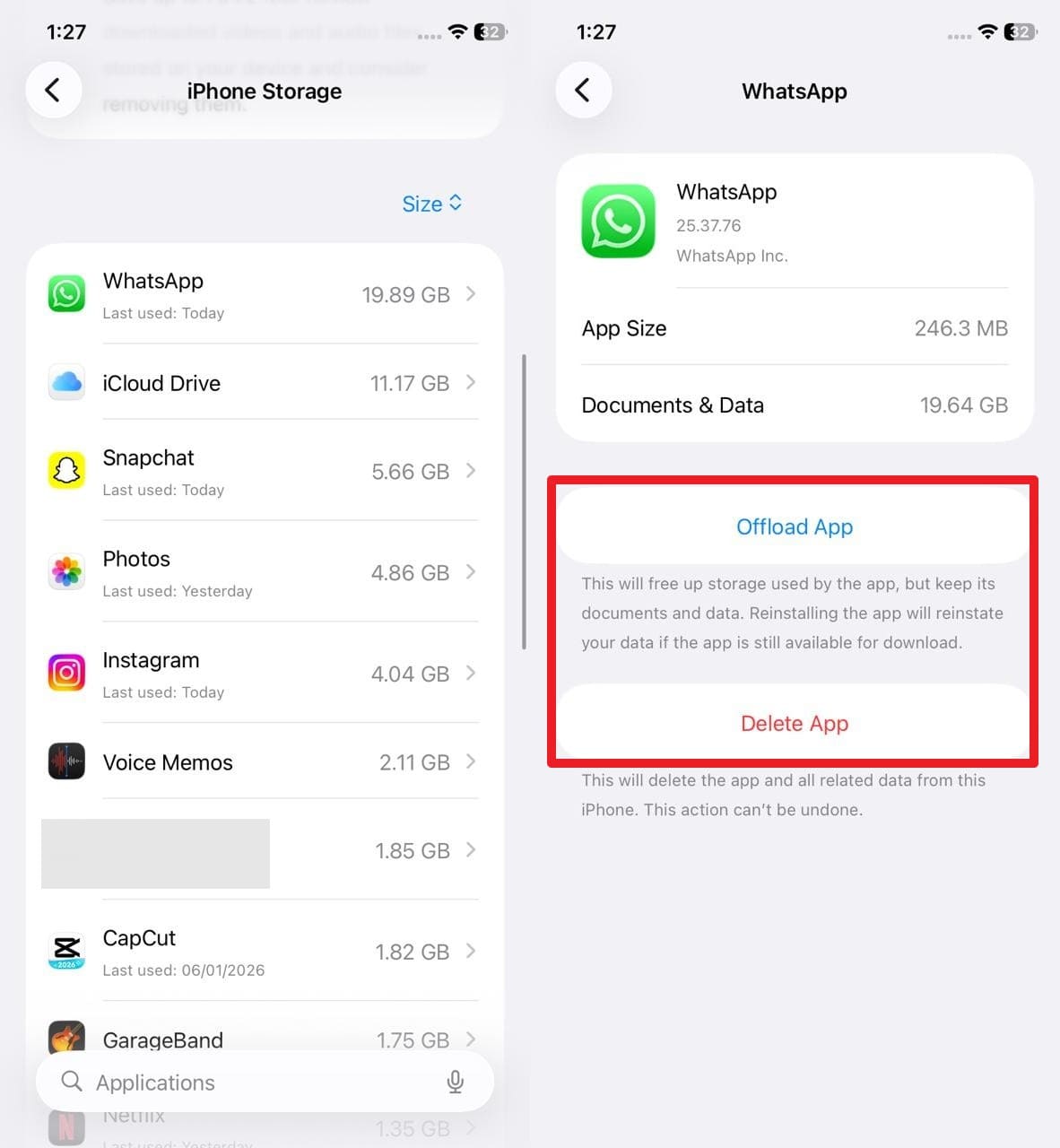
- Step 2. If an app is using substantial space, choose Offload App when you want to keep its documents and data, or Delete App if you no longer need it.
Fix 4. Delete the Downloaded Update and Download It Again
If the same update repeatedly stalls or fails, Apple recommends removing the downloaded update and fetching a fresh copy:
- Go to Settings > General > iPhone Storage.
- Find the iOS update in the list.
- Tap the update, then tap Delete Update.
- Return to Settings > General > Software Update and download the update again.
If the update does not appear in iPhone Storage or the same problem returns, use a computer for the next attempt.
Fix 5. Restart Your iPhone and Retry
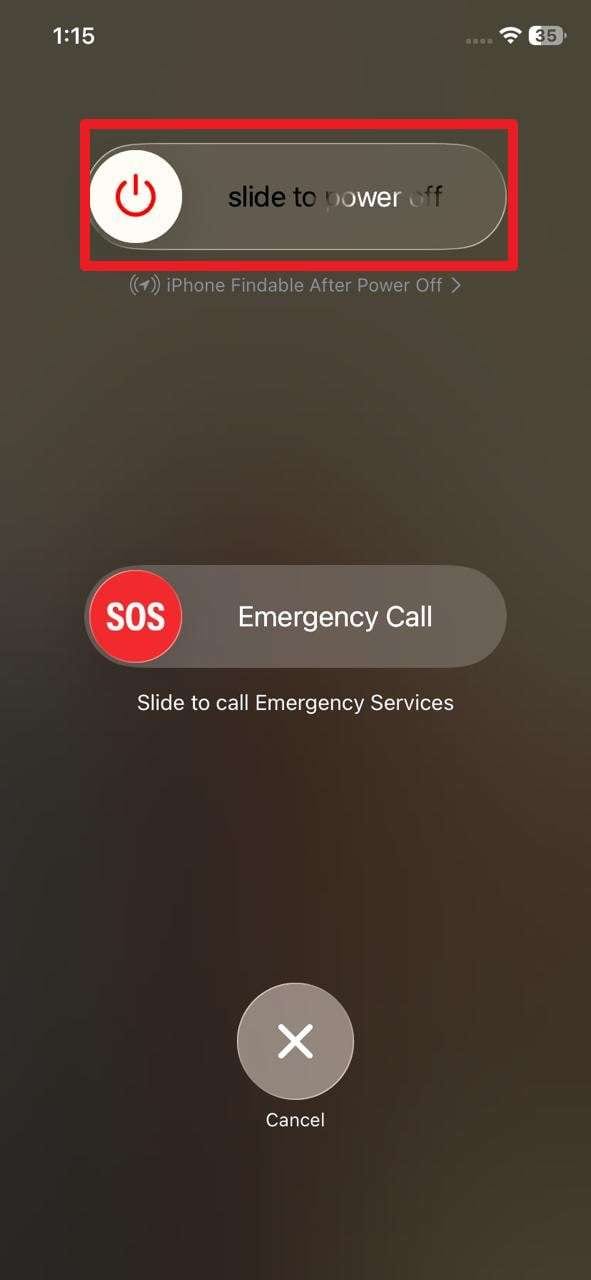
A restart can clear a temporary process that is blocking the update request or verification step. On Face ID models, press and hold the side button and either volume button until the power-off slider appears, then slide to power off. After the iPhone shuts down, turn it on again and retry the update.
Fix 6. Update with Finder, Apple Devices, or iTunes
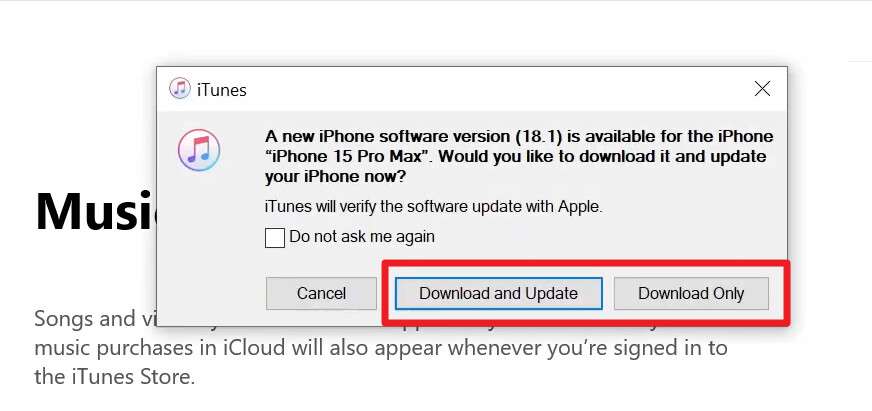
If the over-the-air update remains stuck, update with a computer. On a recent Mac, use Finder. On Windows, you can use the Apple Devices app; iTunes is still applicable in environments where Apple directs you to it. Back up the device first, connect it with a reliable cable, select the iPhone, check for an update, and choose Update.
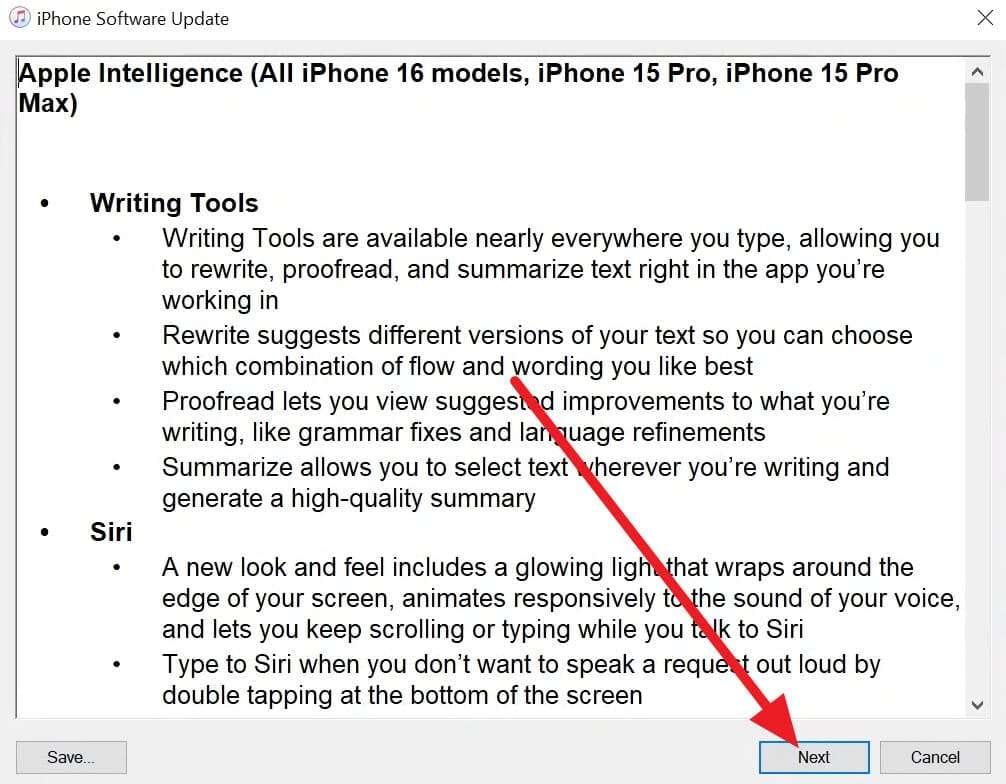
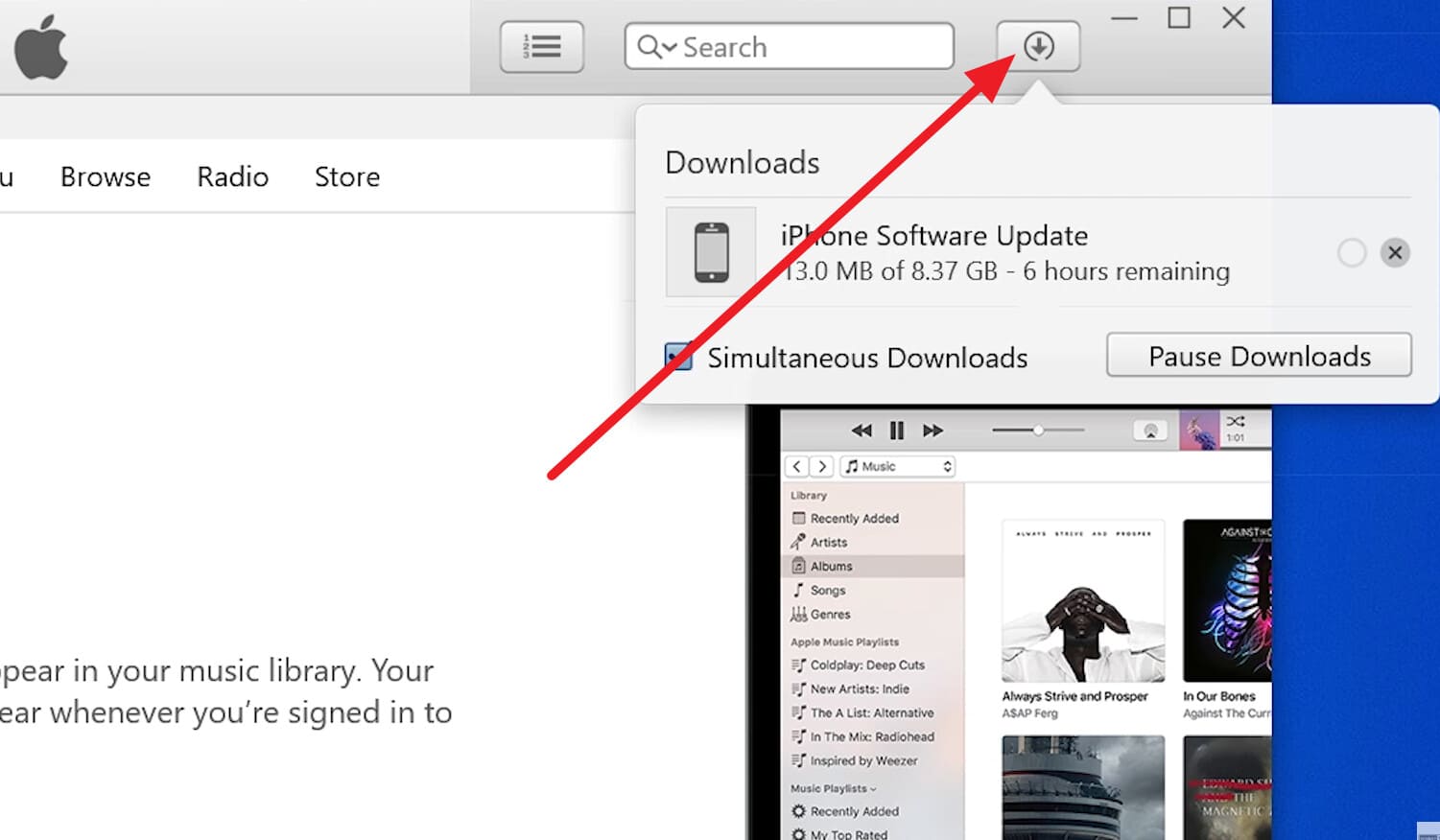
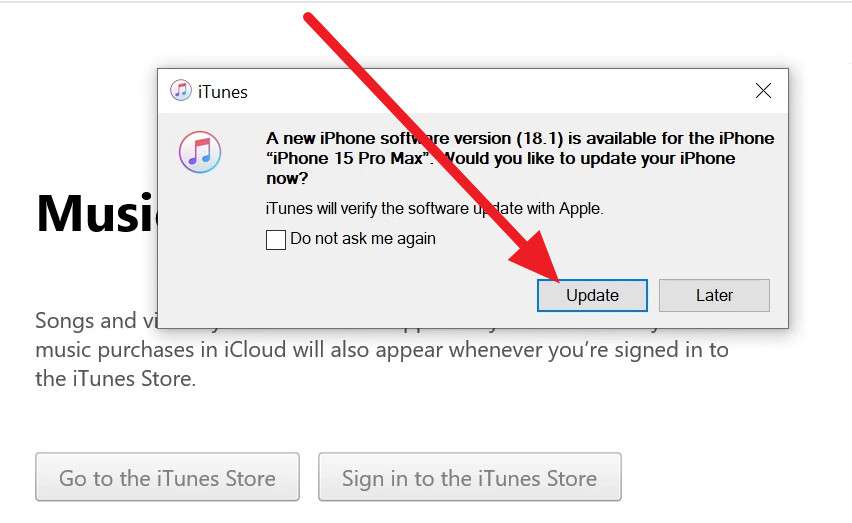
The screenshots below show the iTunes-style workflow; Finder and Apple Devices use different labels/layouts but follow the same basic idea of selecting the device and choosing the software update action.
- Step 1. Connect the iPhone, select it in the computer app, and choose the available update option.
- Step 2. Review the update information and continue through the confirmation prompts.
- Step 3. Keep the iPhone connected while the software downloads and is prepared.
- Step 4. Choose Update when prompted and wait for the installation to complete before disconnecting the device.
Fix 7. Use Dr.Fone for a Guided iOS Upgrade or System Repair
If the standard update keeps failing because the device is stuck in an iOS system issue, Dr.Fone - System Repair (iOS) provides a guided iOS Upgrade/Downgrade workflow and system-repair options. It should be treated as an escalation after the basic Apple troubleshooting above, not as a promise that every slow download will finish faster.
Dr.Fone - System Repair (iOS) supports iOS 26 and iPhone 17 Series, and its current iOS upgrade feature is designed to retain user data during the upgrade process. Back up important data before using repair or recovery options, especially when choosing a method that may involve deeper system changes.
 Fix iOS issues, no data loss.
- One-click repair for all iOS problems.
- Solve recovery mode, Apple logo, black screen, etc.
- Upgrade or downgrade iOS without iTunes

Guide: Upgrade iOS with Dr.Fone
- Step 1. Open the iOS Upgrade workflow.
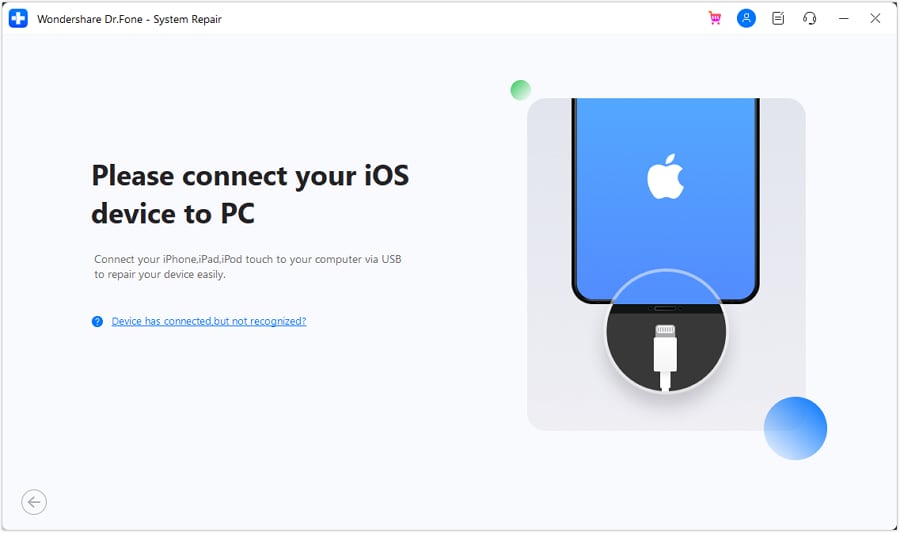
Launch Dr.Fone, go to Toolbox > System Repair, select iPhone, then choose iOS Upgrade/Downgrade > Upgrade iOS. Connect the iPhone with USB when prompted.
- Step 2. Select and download the firmware.
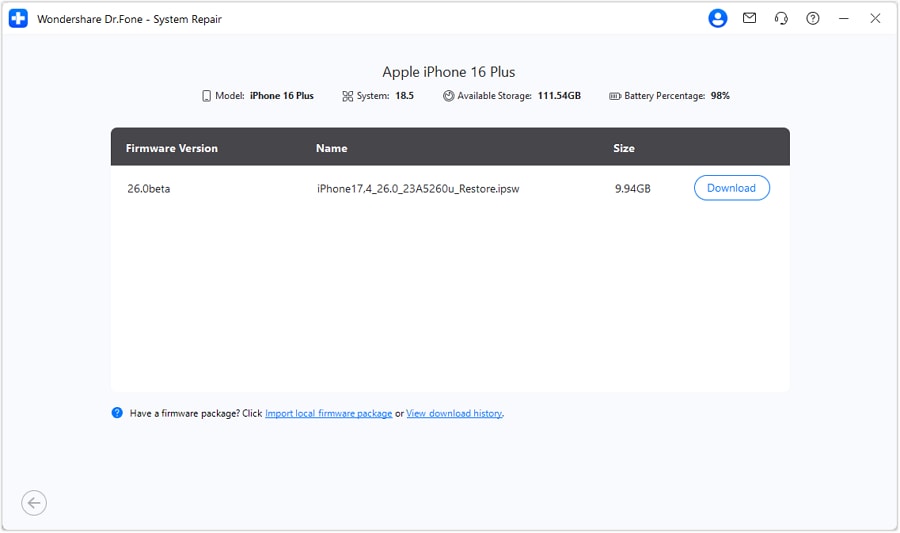
After Dr.Fone detects the device, select an available firmware version and click Download. Wait while the firmware downloads and is verified.
- Step 3. Start the upgrade.
When the firmware is ready, click Repair Now and keep the device connected until the upgrade process completes.




 safe & secure
4,624,541 people have downloaded it
Conclusion
So, how long does an iPhone update take? A useful planning range is about 20–60 minutes, but the real answer depends heavily on the download speed, update size, available storage, and installation state. If the progress bar is moving, it may simply need more time. If the update is repeatedly failing or not progressing, work through Wi-Fi, storage, Delete Update/redownload, restart, and a computer update before escalating to a system-repair tool.
FAQs
-
1. Do all iPhones receive the same iOS update?
Not necessarily. The update offered to an iPhone depends on whether that model supports the software release. As of September 2026, iPhone 11 and later are on the current iOS 26.6.1 track, while some older supported models remain on an iOS 18 security-update track. -
2. Can I use my iPhone during an update?
Yes during the download stage. Apple says you can keep using the device while the update downloads. Once installation starts and the iPhone restarts with the Apple logo/progress bar, the device cannot be used until installation finishes. -
3. Does updating iOS delete my data?
A normal iOS update is designed to keep your data and settings. Back up first anyway, especially if the phone has already failed an update and you may need a recovery or Restore step later.
 Add Wondershare Dr.Fone as a preferred source on Google