
How to Stay Invisible with Ghost Mode WhatsApp Tricks
WhatsApp Manage
- WhatsApp Transfer
- 1. Save Whatsapp Audio
- 2. Transfer WhatsApp Photos to PC
- 3. WhatsApp from iOS to iOS
- 4. WhatsApp from iOS to PC
- 5. WhatsApp from Android to iOS
- 6. WhatsApp from iOS to Android
- 7. Whatsapp Communities Messages
- 8. Switch Between WhatsApp and GBWhatsApp
- 9. Recover Deleted WhatsApp Call History
- 10. Delete Call History on WhatsApp
- 11. Starred Messages in WhatsApp
- 12. Send Bulk SMS on WhatsApp
- 13. Download Whatsapp Audio Notes
- 14. Saving Videos from WhatsApp
- WhatsApp Backup
- 1. Access WhatsApp Backup
- 2. WhatsApp Backup Extractor
- 3. Backup WhatsApp Messages
- 4. Backup WhatsApp Photos/Videos
- 5. Backup WhatsApp to PC
- 6. Backup WhatsApp to Mac
- 7. WhatsApp Backup Stuck
- 8. Restore WhatsApp Backup from Google Drive to iCloud
- 9. Find the Best WhatsApp Clone App
- WhatsApp Restore
- 1. Top Free WhatsApp Recovery Tools
- 2. Best WhatsApp Recovery Apps
- 3. Recover WhatsApp Messages Online
- 4. Recover Deleted WhatsApp Messages
- 5. Restore Deleted WhatsApp Messages
- 6. Retrieve Deleted WhatsApp Messages
- 7. Recover Deleted WhatsApp Images
- 8. WhatsApp Restoring Media Stuck
- 9. Restore Old WhatsApp Backup
- 10. See Deleted WhatsApp Messages
- WhatsApp Tips
- 1. Best WhatsApp Status
- 2. Best WhatsApp Messages
- 3. Most Popular WhatsApp Ringtones
- 4. Best WhatsApp Mod Apps
- 5. What is Blue WhatsApp
- 6. 234 Country Code WhatsApp
- 7. Delete WhatsApp Account
- 8. Hide WhatsApp Ticks
- 9. Hack WhatsApp Account
- 10. Verify WhatsApp without SIM
- 11. Blue Ticks on WhatsApp
- 12. WhatsApp Plus Download
- 13. Grey Tick on WhatsApp
- 14. Does WhatsApp Notify Screenshots
- WhatsApp Problems
- 1. WhatsApp Common Problems
- 2. WhatsApp Calls Not Working
- 3. Whatsapp Not Working on iPhone
- 4. WhatsApp Backup Stuck
- 5. WhatsApp Not Connecting
- 6. WhatsApp Not Downloading Images
- 7. WhatsApp Not Sending Messages
- 8. Couldn‘t Restore Chat History
- 9. WhatsApp Not Showing Contact Names
- WhatsApp Business Manage
- 1. WhatsApp Business for PC
- 2. WhatsApp Business Web
- 3. WhatsApp Business for iOS
- 4. Add WhatsApp Business Contacts
- 5. Backup & Restore WhatsApp Business
- 6. Convert a WhatsApp Account to a Business Account
- 7. Change A WhatsApp Business Account to Normal
- 8. WhatsApp Notifications Are Not Working
- Other Social Apps Manage
- ● Manage/transfer/recover data
- ● Unlock screen/activate/FRP lock
- ● Fix most iOS and Android issues
- Free Download Free Download


Nov 11, 2026 • Filed to: Social App Management • Proven solutions
 TL;DR:
Choose the privacy control that matches your goal
- To hide your activity indicator, set Last seen to Nobody and Online to Same as last seen. You can also exclude one person.
- To hide blue ticks in individual chats, turn off Read receipts. This does not stop delivery ticks or group read receipts.
- To protect conversations on your phone, use Chat Lock; muting and archiving serve different purposes.
- You cannot reliably identify someone else's settings from missing activity indicators. The common clues are not proof, and a proxy is not a ghost-mode switch.
Ask AI for a summary
 ChatGPT
 Perplexity
 Gemini
 Claude
 Grok
Want to check a WhatsApp message without feeling pressured to reply immediately? WhatsApp ghost mode is a nickname for combining privacy settings, not an official switch that makes you invisible. You can reduce what other people see while continuing to use the app.

- Part 1. What Is Ghost Mode on WhatsApp?
- Part 2. What Is Invisible Mode in WhatsApp
- Part 3. How to Activate WhatsApp Ghost Mode?
- Part 4. Add Extra Layers: Screen Lock & Notifications
- Part 5. How to Tell if Someone's WhatsApp is in Ghost Mode?

- Part 6. Bonus Tip: How to Transfer Data on WhatsApp Business
Part 1. What Is Ghost Mode on WhatsApp?
Ghost mode on WhatsApp means using several built-in privacy controls together: last seen and online visibility, read receipts, and the audience for your profile information or Status updates. There is no single official setting named Ghost Mode. You do not need a separate ghost-mode app or modified WhatsApp client to use these controls.
Think of it as reducing specific activity signals, not becoming anonymous. Your contacts can still receive your replies, and these settings do not hide your identity or erase conversations already on someone else's device.
Part 2. What Is Invisible Mode in WhatsApp
WhatsApp invisible mode usually refers to the same combination of privacy settings. To appear offline on WhatsApp, hide your online indicator; you do not have to disconnect your phone from the internet. Messages and calls can still arrive.
- Last seen and online controls who sees your activity timestamp and current online indicator.
- Read receipts controls blue ticks in individual chats. It is separate from the gray ticks that show message delivery.
- Profile photo, About, and Status have separate audience controls. Changing one does not automatically change the others.
One gray tick means a message was sent; two gray ticks mean it was delivered. Turning off read receipts does not make delivered messages stay on one tick. Muting notifications also does not disconnect WhatsApp or hide your online presence.
Part 3. How to Activate WhatsApp Ghost Mode?
Use the settings below to control different kinds of visibility. Start with online activity and blue ticks, then add only the other controls you need.
3.1 Hide Last Seen & Online Status
Don’t want others to know when you were last online or if you’re active now or not. Adjusting your Last Seen and Online status is the first step to going invisible on WhatsApp.
How to do it:
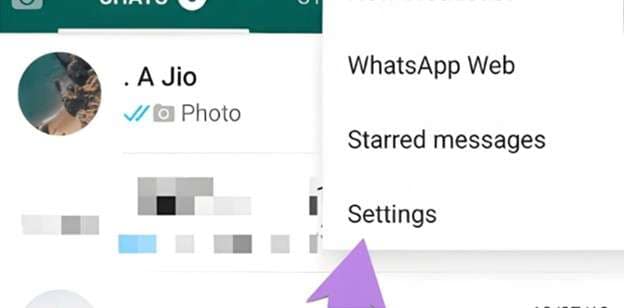
Step 1: Open WhatsApp. On iPhone, tap Settings; on Android, open the three-dot menu and tap Settings. Select Privacy.
Step 2: Tap Last seen & online
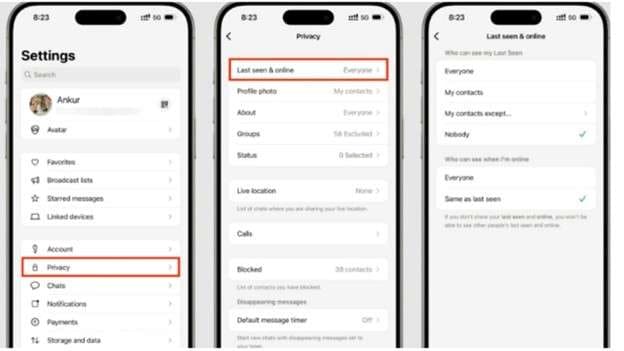
Step 3: Under Who can see my last seen, choose Nobody. Under Who can see when I'm online, choose Same as last seen. Changing only last seen is not enough if online visibility remains set to Everyone.
Hide from one person instead: Choose My contacts except... for last seen, select that contact, and keep online visibility set to Same as last seen. This limits those indicators for the excluded contact without blocking messages or calls. It does not turn off read receipts for just that person.
To turn off ghost mode: Return to Settings > Privacy > Last seen and online. Choose the last-seen audience you want, then set online visibility to Everyone or Same as last seen for that audience. Turn Read receipts back on separately if you want to share blue ticks again; photo, About, and Status audiences also remain separate choices.
3.2 Turn Off Read Receipts (Blue Ticks)
Blue ticks mean someone’s read your message, and that can make you feel like you have to reply right away. Turning them off takes that pressure off and keeps things more private.
Here’s how:
Step 1: Go to Settings ▸ Privacy
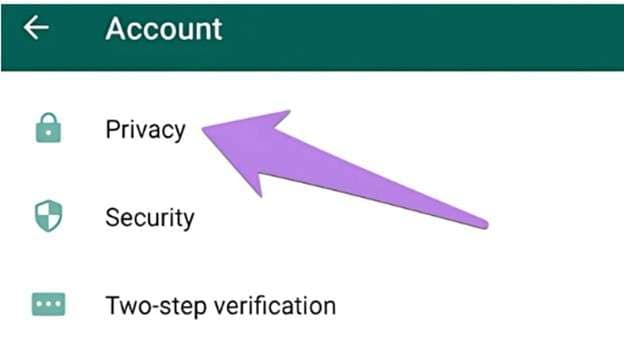
Step 2: Scroll to Read receipts
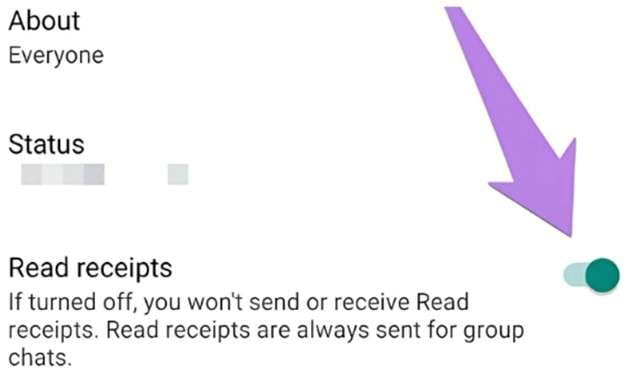
Step 3: Turn off Read receipts. In individual chats, you will no longer share blue read ticks or see the other person's read receipts. Delivery ticks are unaffected.
Important exceptions: Group chats still show read activity. Voice-message playback can also reveal listening activity, so do not treat this toggle as a guarantee of listening invisibly. With read receipts off, you also cannot see who viewed your Status updates. This is not a way to prove whether another person has read a message.
3.3 Tighten Status Privacy
WhatsApp Status updates can show more than you might realize. That’s why it’s important to choose who can see them; it’s a simple way to protect your privacy.
Step-by-step guide:
Step 1: Go to Settings on WhatsApp
Step 2: Tap Privacy.
Step 3: Select Status
Step 4: Choose one of the following:
- My contacts: Share with your eligible contacts.
- My contacts except...: Exclude selected contacts from your Status audience without blocking their chats.
- Only share with...: Select the contacts who should receive your updates.
For one-person exclusions, use My contacts except.... For a small audience, use Only share with.... Status does not have the same Nobody option as last seen. Set the audience before posting a new update; changing it is not a recall of an update already shared.
3.4 Lock, Mute, or Archive Chats
Choose by the problem you want to solve: Chat Lock adds authentication for sensitive conversations; Mute reduces notification interruptions; Archive moves chats out of the main list. Muting or archiving is not a substitute for locking a chat and does not hide your online status.
To lock a chat:
Step 1: Open the chat. Tap the name at the top. Tap Chat lock
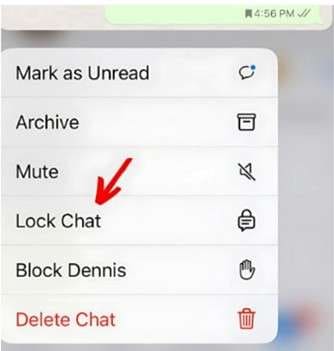
Step 2: Enable the lock and authenticate with your device password or biometrics. The conversation moves into Locked chats, and its notification content is hidden. To reopen it, pull down on the chat list, open Locked chats, and authenticate. Anyone who can authenticate with your device credentials may be able to open it.
To mute a chat:
- On Android, touch and hold the chat and tap the mute icon. On iPhone, swipe left on the chat and choose More > Mute. Choose 8 hours, 1 week, or Always.
To archive a chat:
- On iPhone, swipe left on the chat and tap Archive. On Android, touch and hold the chat and tap the archive icon. You can find it again in Archived; archiving does not delete the conversation.
For organizing older conversations, see how to archive and unarchive WhatsApp chats. For stronger local access protection, use Chat Lock rather than relying on Archive.
3.5 Use Disappearing Messages
Use a timer to limit how long new messages stay in a conversation. This controls message history, not whether you appear online.
Step-by-step guide:
Step 1: Open a chat on WhatsApp. Tap the name at the top
Step 2: Choose Disappearing Messages. Select: 24 hours, 7 days, or 90 days.
The timer applies to new messages after it is enabled, not old chat history. For future one-to-one chats, use Settings > Privacy > Default message timer. The chat shows that disappearing messages are enabled. Recipients can still save or copy content, so this is not a no-trace guarantee.
3.6 Hide Profile Photo and About Info
Limit who can see your profile photo and About information separately from online activity and Status posts.
Step 1: Go to Settings > Privacy and open Profile photo.
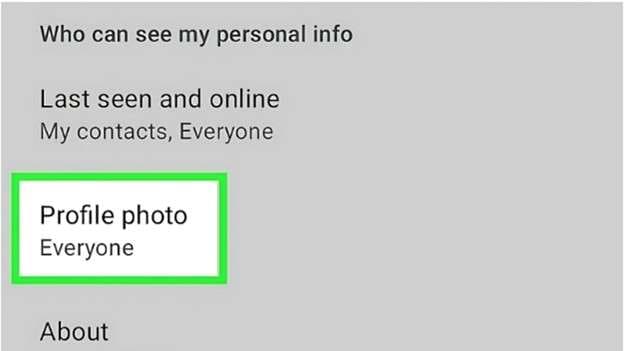
Step 2: Choose Nobody to hide it, or My contacts except... for selected exclusions. Return to Privacy, open About, and choose its audience separately.
3.7 Restrict Group Invites
Make sure you have your privacy preferences set so that you will only accept people whom you would like, and spam is not in your inbox. You have the option of blocking strangers (or even some of your contacts) from being added to random group chats.
Here's how to take control:
Step 1: Open WhatsApp and go to Settings. Now select Privacy and then go to Groups.
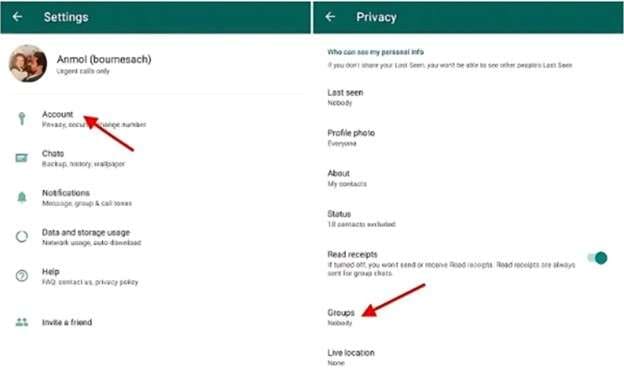
Step 2: Select “My contacts except…” This lets you control who in your contacts can add you to group chats.
Step 3: Select the contacts who should not be able to add you directly, then confirm. They can still send a private group invitation, which you can decline. This does not block their individual messages.
Part 4. Add Extra Layers: Screen Lock & Notifications
Online visibility controls what contacts see; device and notification controls protect what someone holding your phone can see.
- Use a secure device passcode and WhatsApp's app-lock option under Settings > Privacy, where available. Its label can be App lock or Screen Lock, depending on your platform and version.
- Hide notification previews: on iPhone, open Settings > Notifications > WhatsApp > Show Previews and choose When Unlocked or Never. On Android, open the phone's Settings > Notifications and hide sensitive lock-screen content for WhatsApp; the menu name varies by phone.
- Use WhatsApp > Settings > Privacy > Privacy Checkup, then Start checkup, to review who can contact you and see your personal information.
Keep your device credentials private. Hiding a preview is not the same as stopping a message from arriving.
4.1 Trade-Offs: What You Lose in Ghost Mode WhatsApp
Going invisible on messaging apps has its perks, but it comes with trade-offs.
- Hiding your own last seen or online information also limits your ability to see other people's corresponding activity information.
- Turning off read receipts means losing individual-chat read receipts and the list of viewers for your Status updates.
- Group read activity remains visible; voice playback and typing activity are not a promise of invisibility.
- Disappearing messages announce their setting and do not prevent someone from retaining a copy.
- Chat Lock requires authentication when you open the protected conversation.
Ghost mode on WhatsApp gives you peace of mind and not total invisibility. You’re in control of what stays private.
4.2 Important: Avoid GBWhatsApp & Other Mods
A WhatsApp mod is an unofficial modified client, not a built-in privacy mode. GBWhatsApp and apps advertised as ghost-mode APKs are not required for the settings in this guide. A third-party download page or an old app with a similar name is not proof of an official WhatsApp feature.
- Unknown installers and unnecessary permissions can expose your device or private data.
- Claims about bypassing another person's privacy or recovering deleted messages need separate evidence; do not assume a download can do either.
- Unofficial clients can create account-support and restriction risks. Use the official WhatsApp app for the privacy controls described here.
What about the ghost-mode proxy or one-tick trick? WhatsApp's proxy feature is designed to restore a connection when direct access is unavailable, not to hide whether delivered messages reached you. A nonworking proxy can stop new messages from arriving; it cannot provide normal live messaging while guaranteeing one delivery tick. If a proxy you enabled is preventing messages from arriving, return to Settings > Storage and data > Proxy, turn off Use proxy, and check your connection. Do not copy random proxy addresses from a video to try to become invisible.
Part 5. How to Tell if Someone's WhatsApp is in Ghost Mode?
You cannot reliably tell. WhatsApp does not display a badge showing that a person has combined these privacy settings. Missing indicators can have several explanations, so do not treat them as proof that someone is hiding activity or has blocked you.
|
Clue |
What you may notice |
| You cannot see their Last Seen time or when they are Online, but you once could | Their audience settings may exclude you, but the missing indicator alone does not establish their current activity or a single cause. |
| Blue ticks do not appear on an individual-chat message | Read receipts may be off, or the person may not have opened the chat. Gray delivery ticks do not prove a message was read. |
| Profile photo or status updates do not change or are invisible to you | They may have limited the audience or simply not changed their photo or posted a new Status. This is not evidence of ghost mode. |
| You don’t see them typing or doing group or status activities, even though they respond elsewhere | You may not be observing the relevant chat at that moment. Absence of typing or group activity is not a reliable indicator of someone's privacy settings. |
Even several of these signs together are not a dependable test. Respect the other person's visibility choices rather than relying on trackers or attempts to bypass their settings.
Part 6. Bonus Tip: How to Transfer Data on WhatsApp Business
Switching phones is a separate task from hiding your online presence. If you also need to move business conversations and attachments, Dr.Fone - WhatsApp Transfer provides a computer-guided workflow for WhatsApp and WhatsApp Business, including transfers to phones that are already set up.
It supports all four phone-to-phone directions and adds local backup, preview, restore, and export options, so you can keep a computer copy of supported chat records. It does not activate ghost mode or bypass anyone else's privacy settings.
Dr.Fone supports:
- Android to iOS, iOS to Android, Android to Android, iOS to iOS
- Up to 17 WhatsApp data types, including messages and supported attachments such as photos, videos, voice notes, documents, and call logs.
- Data-type selection for Android-to-iPhone WhatsApp and WhatsApp Business transfers; other directions use full data-type transfer.
- Computer backup, preview, restore, and PDF, HTML, CSV, or Excel export for supported WhatsApp data on iOS and Android. LINE, Kik, Viber, and WeChat backup/restore workflows are for supported iOS data.
Compatibility:
- Desktop toolkit requirements: Windows 11/10/8.1/8/7 or macOS 10.13 and later.
- The chosen transfer workflow must support both connected devices. Keep a backup and access to the phone number needed for account verification.

Dr.Fone - WhatsApp Transfer
One-click to Transfer, Backup, and restore Your WhatsApp Data
- Transfer WhatsApp messages from Android to iOS, Android to Android, iOS to iOS, and iOS to Android.
- Backup WhatsApp messages from iPhone or Android on your PC.
- Restore a supported Dr.Fone WhatsApp backup to an iPhone or Android device.
- Completely or selectively preview and export WhatsApp messages from iOS backup to your computer.
- Connect supported iPhone and Android devices for the selected transfer workflow.


Example: Transfer WhatsApp Business from iPhone to Android
Connect both phones to your computer with USB cables. Keep them connected throughout the transfer and follow the device-unlock, permission, and account-verification prompts shown for your devices.
Step 1: Open the Business transfer workflow
Launch Dr.Fone and open Toolbox > WhatsApp Transfer. Select WhatsApp Business, then Transfer WhatsApp Business messages.
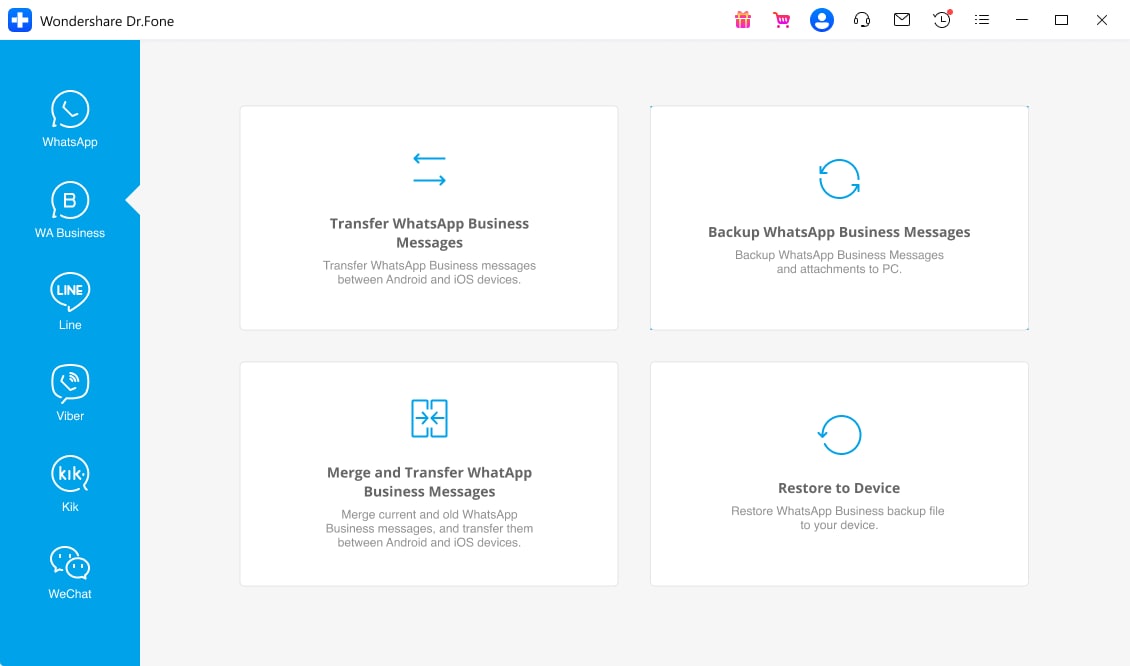
Step 2: Confirm the transfer direction
Set the iPhone as Source and the Android phone as Destination; use Flip if they are reversed. Select Transfer. This iPhone-to-Android example uses full data-type transfer, not the Android-to-iPhone selection option.

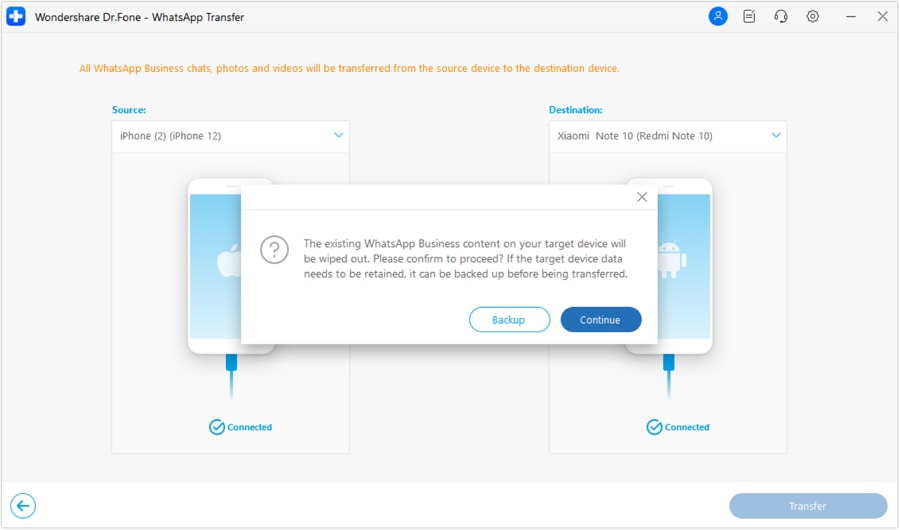
Step 3: Back up existing destination data before continuing
Important: This workflow deletes existing WhatsApp Business data on the destination Android phone. Choose Backup if you need to keep that history. Select Continue only after saving what you need and accepting replacement; do not assume automatic merging.
Step 4: Complete the transfer and check the new phone
Let Dr.Fone finish while both phones remain connected. If you need to stop, use Cancel in the progress window. After the completion confirmation, follow any remaining account prompts and open WhatsApp Business on the Android phone to check your chats and supported media before removing the old copy.
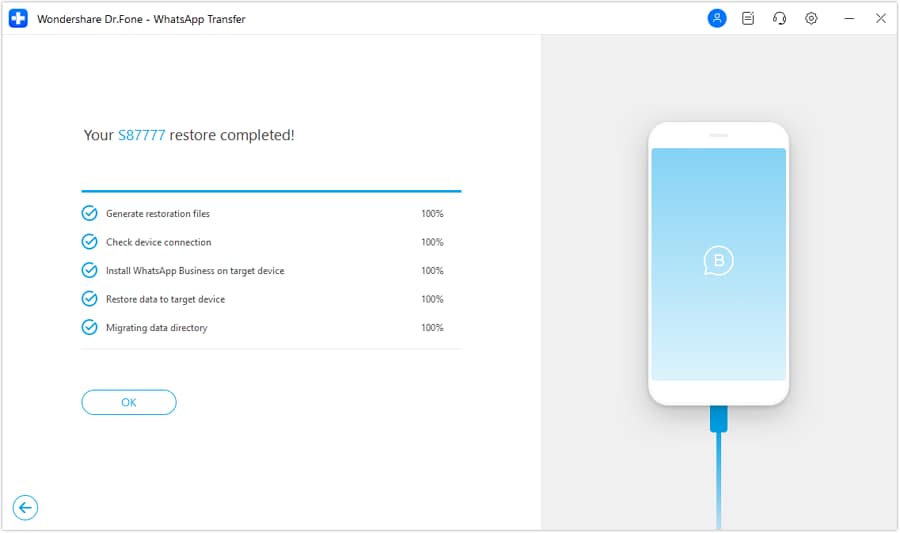
For the full illustrated workflow and the iPhone-to-iPhone branch, see the WhatsApp Business transfer guide for iPhone.
Conclusion
Use WhatsApp's built-in controls to choose who sees your online activity, read receipts, profile information, and Status updates. Add Chat Lock when the concern is access to conversations on your phone. These choices give you more privacy without promising total invisibility or revealing someone else's settings.
If you are also changing phones, Dr.Fone - WhatsApp Transfer offers a guided path for moving supported WhatsApp or WhatsApp Business chats and keeping a computer backup. Review the destination-data choice before transferring, then verify the conversations on your new phone.
 safe & secure
4,624,541 people have downloaded it



Alice MJ
staff Editor