
Direct Open FRP MobileTech: Full Review and Best Alternative in 2026

Oct 10, 2026 • Filed to: Screen Lock Removal • Proven solutions
 TL;DR:
Direct Open FRP MobileTech offers a free, PC-less method to bypass Google Factory Reset Protection on older Androids, while Dr.Fone - Screen Unlock (Android) serves as the secure desktop alternative for modern devices.
● Direct Open FRP MobileTech requires an OTG cable and a USB flash drive to manually install bypass APKs, such as Easy Flashing FRP Bypass 8.0, directly onto the locked phone.
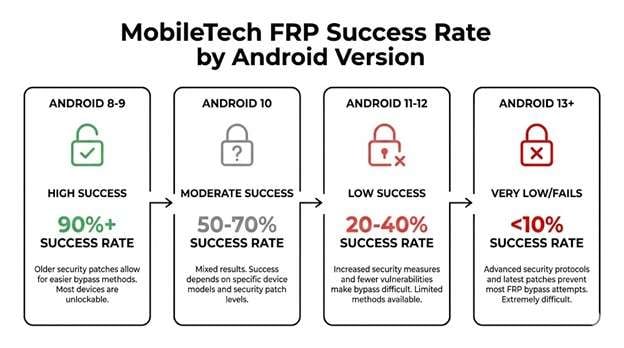
● The free MobileTech toolkit only functions reliably on Samsung and Huawei phones running Android 10 or below, failing on Android 11 and newer security patches while introducing high malware risks from unverified download sources.
● Dr.Fone - Screen Unlock (Android) is a paid Windows and Mac application that uses legitimate device protocols to remove FRP locks in 5 to 10 minutes, supporting Android 5 through Android 16 across a broader range of brands including Xiaomi, Motorola, OnePlus, and Vivo.
Ask AI for a summary
 ChatGPT
 Perplexity
 Gemini
 Claude
 Grok
Grok
Are you stuck at Google verification when setting up your device?
Maybe you’ve bought a second-hand phone. Maybe you’ve done a factory reset. Either way, the FRP lock is blocking your access to your phone. Sound familiar?
Direct Open FRP MobileTech promises a free fix. But does it actually work? And more importantly, is there something better for bypassing FRP locks on modern Android devices?
In this guide, I will review Direct Open FRP Mobile Tech. You will learn about its features, pros, cons, and how to use it. Plus, you’ll find a better alternative to bypass FRP and unlock your device.

Part 1. What Is Direct Open FRP MobileTech?
Direct Open FRP MobileTech is not a single app. It is a group of tools and APK files. These help bypass Factory Reset Protection on Android phones.
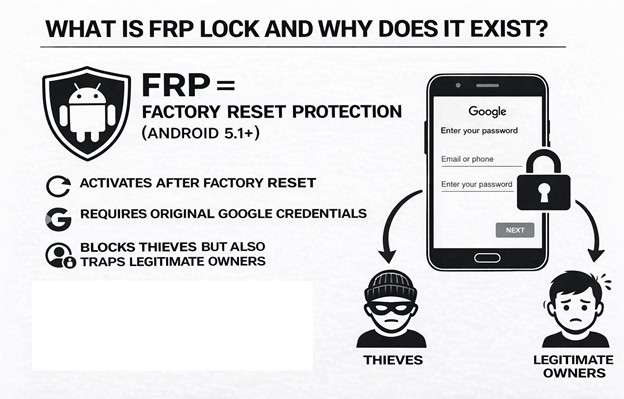
Google added FRP in Android 5.1. This feature improves device security. After a thief resets a stolen phone, the system blocks access. The phone then requires the original Google account details. However, this system can also block real owners. This problem happens after a forgotten password or after buying a used Samsung phone.
MobileTech uses several APK files. These files take advantage of weaknesses in older Android versions. The toolkit includes Easy Flashing FRP Bypass 8.0. It also includes Quick Shortcut Maker. In addition, it uses different Google Account Manager versions. Each tool works with specific Android versions. Each tool also targets certain device brands.
Most bypass methods work without a computer. You can save the APK on a USB drive. Then, connect it with an OTG cable to run the direct open FRP bypass directly on the locked phone.
Part 2. How to Download and Use Direct Open FRP MobileTech
The steps change by Android version and phone brand. However, the method below works on most devices.
What You Need
- A USB flash drive that stores the APK files
- An OTG cable. Used to link the USB drive to the phone
- Easy Flashing FRP Bypass 8.0 APK. Or use a similar FRP bypass APK.
Step-by-Step Process
Step 1. Download the APK.
Visit the MobileTech website. Locate the Easy Flashing FRP Bypass APK. Choose a trusted source only. Many unsafe websites include malware in these files. For safety, use the official website.
Step 2. Move the APK to the USB drive.
Let the package download. Copy it to the USB flash drive. Then, connect the USB drive to the Android phone. Use an OTG cable.
Step 3. Install the APK.
The file manager will open. Tap the APK file to start installation. A warning about unknown sources may appear. Open the Settings app. Go to “Security” or “Privacy.” Enable the option for “Unknown Sources.”
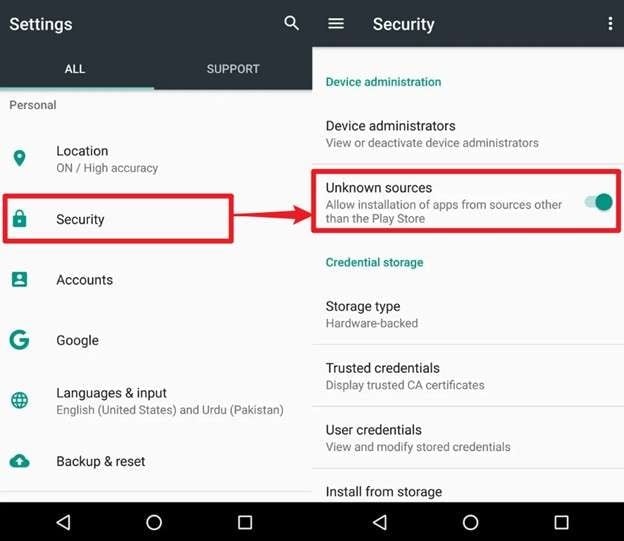
Note: Phones running the latest Android security patches may block this step. Installation may fail in such cases.
Step 4. Follow the instructions.
Open the bypass tool. Follow each prompt shown on the screen. Access the “Settings” menu through the tool. Add a new Google account. Use system shortcuts to disable FRP.
Step 5. Restart the device.
Complete all steps. Then restart the phone. The device should start normally. The FRP lock should no longer appear.
Part 3. Pros and Cons of Direct Open FRP MobileTech
Before you commit to using MobileTech tools, let's be honest about what works and what doesn't.
In short, direct open FRP bypass with MobileTech works best on older devices running Android 10 or below. If you've got a newer phone with recent security updates, it will likely not work for you.
Part 4. Best Alternative: Dr.Fone - Screen Unlock (Android)
Here's the thing about free FRP tools like Direct Open FRP MobileTech. They rely on security holes that Google keeps patching. Every Android update potentially breaks them. If you need something that actually works on modern devices, Dr.Fone - Screen Unlock (Android) takes a different approach entirely.
Rather than exploiting vulnerabilities, this desktop software uses legitimate device protocols to remove FRP locks. The result? Consistent success rates across way more devices and Android versions. It even works with the latest Android 16 and Samsung S25 series.
Apart from FRP bypass, Dr.Fone also helps you remove any screen lock. This could be a PIN, pattern, fingerprint, or face lock. It is also easy to use. You won’t need any technical help to operate it.
Dr.Fone - Screen Unlock (Android)
A Powerful Tool for Removing FRP on Android Devices
- Remove FRP lock on Samsung, Xiaomi, Redmi, Oppo, Realme, Vivo, Motorola, Lenovo, Huawei, Micromax, ZTE, and OnePlus phones without password or Google account.
- Bypass Google FRP account on all Samsung Phones and Tablets.
- 100% success rate for FRP bypass on Samsung Snapdragon devices.

- Bypass Google account verification after factory reset.
- No tech knowledge required, Simple, click-through, process.


Why Dr.Fone Works Better
- Broad device support. Works with Xiaomi, Redmi, OPPO, Realme, Vivo, Motorola, Samsung, OnePlus, Huawei, and more. Not limited to just one or two Android brands.
- Current Android compatibility. Supports Android 6 through the latest versions. Gets updated when new security patches roll out.
- Simple interface. No hunting for different APKs or matching Google Account Manager versions. One program handles everything.
- No malware risk. Download directly from Wondershare's official site. No sketchy third-party sources.
How to Use Dr.Fone to Bypass FRP Lock
Step 1. Download Dr.Fone - Screen Unlock (Android) on your computer. Install the software. Open it and click on “Toolbox.” Then, select the “Screen Unlock” tool.

Step 2. Select “Android” as your phone’s brand, and then choose the “Remove Google FRP Lock” option.

Step 3. Choose your phone brand. Select from the list of supported manufacturers like Xiaomi, Samsung, OPPO, Vivo, or others. Then, click “Start.”

Step 4. Dr.Fone will download the required driver. Once done, turn off your phone and connect it with a USB cable. When connecting, press the Volume Up and Down buttons at once for 3 seconds.
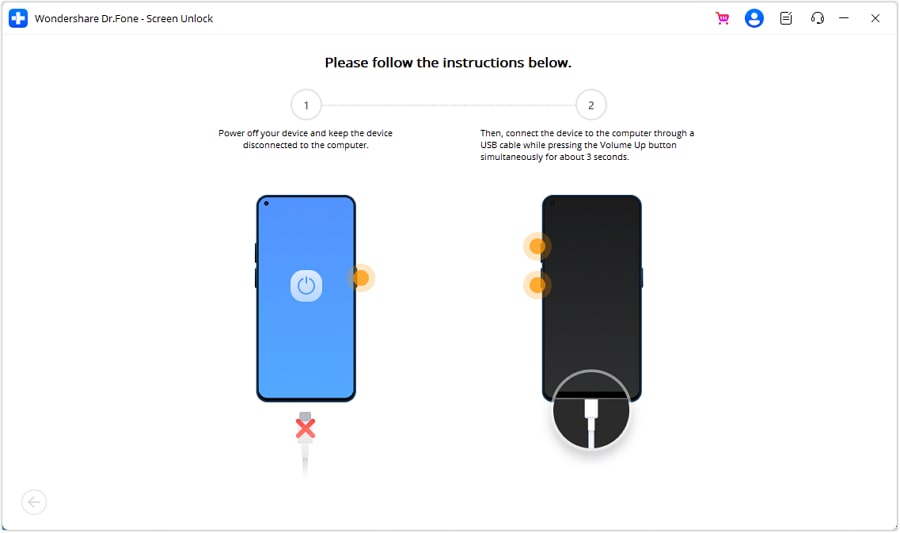
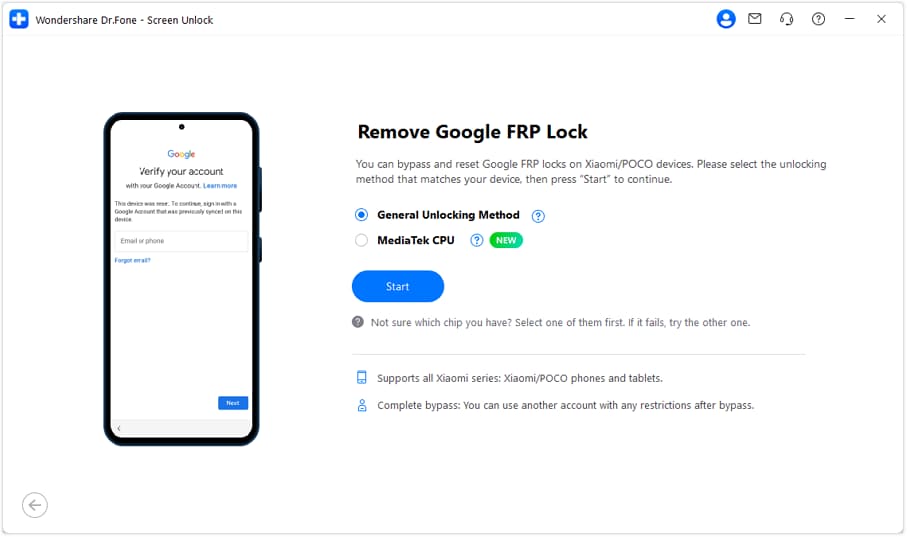
Step 5. Select the “General Unlocking Method” to proceed with bypassing FRP. Then, click “Start.”
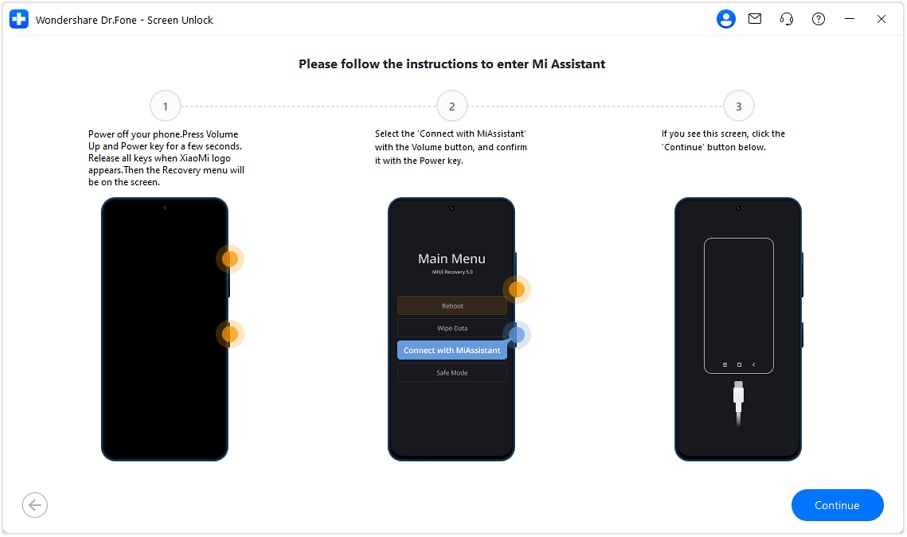
Step 6. Follow the instructions on your screen to put the device in Recovery Mode. Then, click “Continue.”
Step 7. Dr.Fone will start removing the FRP lock on your device. Wait for the process to complete and then click “Done” to conclude it.
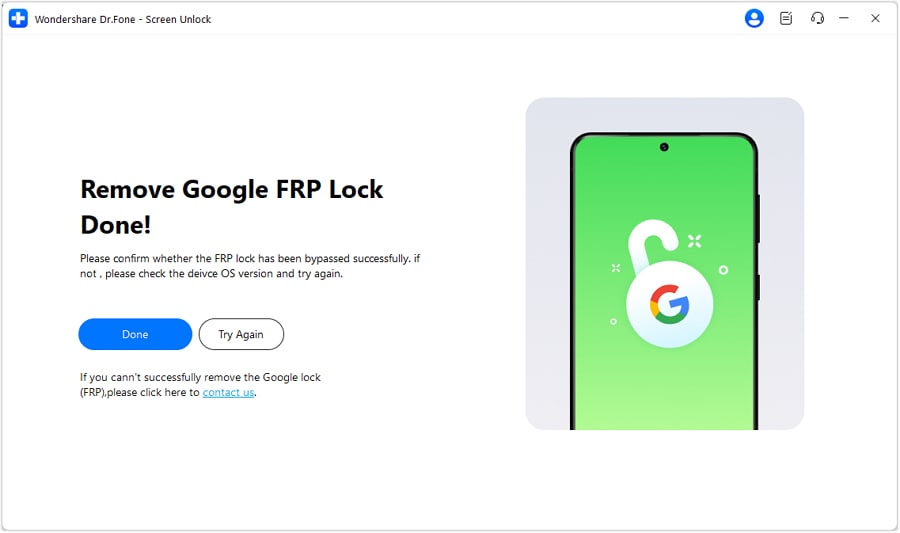
The whole process takes around 5-10 minutes. Most of that is downloading firmware specific to your phone model.
 safe & secure
4,624,541 people have downloaded it
Direct Open FRP MobileTech vs. Dr.Fone: Head-to-Head
|
Feature |
Direct Open FRP MobileTech |
Dr.Fone - Screen Unlock |
| Price | Free | Paid (with free trial) |
| Computer Required | No | Yes (PC or Mac) |
| Android Support | Android 5.1 to 10 (unreliable after) | Android 5 to the latest |
| Device Brands | Mainly Samsung, Huawei | Samsung, Xiaomi, OPPO, Vivo, Moto, OnePlus, Huawei, and more |
| Success Rate | Variable (depends on security patch) | High (regularly updated) |
| Safety | Risk of malware from APK sources | Safe (official download) |
| Technical Difficulty | Moderate to High | Easy |
| Customer Support | None | 24/7 support available |
If you've got an older device and time to experiment, open direct FRP MobileTech might work. But for anything modern or mission-critical, Dr.Fone is the safer bet.
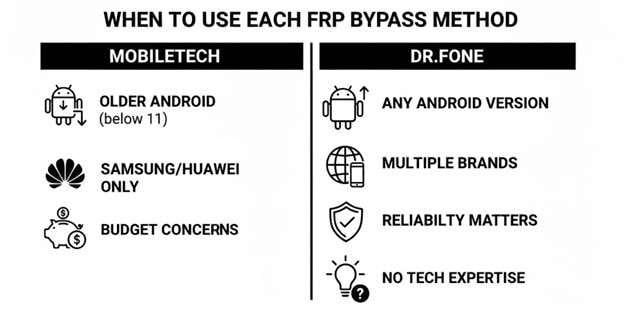
Conclusion
Direct Open FRP MobileTech is your free method to bypass Google Factory Reset Protection. This option helps users who own older phones and need a low-cost solution. However, the tool has limits. It often fails on newer Android versions. APK downloads also create security risks. In addition, compatibility problems reduce reliability for many users.
Phones running Android 11 or later need a more stable tool. Dr.Fone - Screen Unlock (Android) can be your go-to alternative. It supports a wider range of devices. The developer releases frequent updates to address new Android security patches. The program also avoids malware risks linked to unofficial APK files. So, download it now to unlock your device in minutes.
safe & secure4,624,541 people have downloaded it
FAQs
 Q1. Is Direct Open FRP MobileTech safe to use?Q2. Why does Direct Open FRP MobileTech fail on my phone?Q3. Can I bypass FRP without losing data?Q4. Is it legal to bypass the FRP lock on my phone?Q5. What if I don't have a computer?Q6. How long does FRP bypass take?


Android Unlock
- Android Password Lock
- 1. Reset Lock Screen Password
- 2. Ways to Unlock Android Phone
- 3. Unlock Wi-Fi Networks
- 4. Reset Gmail Password on Android
- 5. Unlock Android Phone Password
- 6. Unlock Android Without Password
- 7. Emergency Call Bypass
- 8. Enable USB Debugging
- 9. Unlock Asus Phone
- 10. Unlock Asus Bootloader
- Android Pattern Lock
- Android Pin/Fingerprint Lock
- 1. Unlock Android Fingerprint Lock
- 2. Recover a Locked Device
- 3. Remove Screen Lock PIN
- 4. Enable or Disable Screen Lock PIN
- 5. Pixel 7 Fingerprint Not Working
- Android Screen Lock
- 1. Android Lock Screen Wallpapers
- 2. Lock Screen Settings
- 3. Customize Lock Screen Widgets
- 4. Apps to Reinvent Your Android
- 5. Lock Screen Wallpaper on Android
- 6. Unlock Android with Broken Screen
- 7. Unlock Google Find My Device Without Problems
- 8. Forgot Voicemail Password on Android
- 9. Unlock SafeSearch on Google
- Android Screen Unlock
- 1. Android Device Manager Unlock
- 2. Unlocking Android Phone Screen
- 3. Bypass Android Face Lock
- 4. Bypass Android Lock Screen
- 5. Bypass Lock Screen By Emergency Call
- 6. Remove Synced Google Account
- 7. Unlock Android without Data Loss
- 8. Unlock Phone without Google Account
- 9. Unlock Android phone
- 10. Reset a Locked Android Phone
- 11. Unlock Doogee Phones
- 12. Best 10 Unlock Apps For Android
- 13. Remove Gmail Account
- 14. Unlock 30/30 Attempts Remaining
- 15. OEM Unlock Missing
- 16. Change Lock Screen Clock
- 17. OEM Unlocking on Android
- 18.Bypass Knox Enrollment Service
- 19. Unlock Google Pixel 6a, 6 or 7
- 20. Best Alternative to MCT Bypass Tool
- 21. Best Way to Unlock Your ZTE Phone
- Android SIM Unlock
- 1. Easily Unlock Android SIM
- 2. 5 Android Unlock Software
- 3. Carrier Unlock Phone to Use SIM
- 4. Change Android Imei without Root
- 5. How to Change SIM PIN on Android
- 6. Best Unlocked Android Phones
- Android Unlock Code
- 1. Lock Apps to Protect Information
- 2. Unlock Secret Features on Phone
- 3. Android SIM Unlock Code Generator
- 4. Ways to Sim Unlock Phone
- 5. Remove Sim Lock without Code
- 6. Updated Android Factory Reset Code
- Google FRP Bypass
- 1. Bypass Google Account Verification
- 2. Bypass Google FRP Lock On Phones
- 3. Bypass Google Pixel FRP
- 4. Huawei Bypass FRP Tools for PC
- 5. Direct Open FRP MobileTech
- 6. Bypass Samsung S24 FRP Lock
- 7. EDL Cable Unlock FRP
- 8. Unlock OnePlus Nord FRP
- 9. Tecno FRP Bypass
- 10. Remove Infinix FRP Lock
- 11. FRP Itel Lock Removal
- 12. Itel A23 FRP Bypass Easy Guide
- 13. Itel A16 FRP Bypass
- 14. Remove Google FRP Using Online Tools
- Unlock Bricked Phone
- 1. Restore Bricked Mobile Phone
- 2. Fix Motorola Bricked Phone
- 3. Fix Bricked Redmi Note
- 4. Unbrick Oneplus Easily
- 5. Unbrick Xiaomi Phone
- 6. Unbrick Huawei Phone
- 7. Unbrick Poco X3
- 8. Software to Unbrick Samsung
- 9. Unbrick 3DS
- 10. Unbrick PSP
- Android Unlock Tools
- 1. Griffin Unlocker Tool Review
- 2. BMB Unlock Tool Review
- 3. Android Multi Tools Review
- 4. Best Bootloader Unlock APKs
- 5. Top 5 Micromax FRP Tools
- 6. Pangu FRP Bypass
- 7. Google Account Manager APK FRP Review
- 8. D&G Password Unlocker Review
- 9. Android Multi Tools Review
- 10. Easy Samsung FRP Tool Review
- 11.Samfw FRP Tool
- Android MDM
- ● Manage/transfer/recover data
- ● Unlock screen/activate/FRP lock
- ● Fix most iOS and Android issues
- Free Download Free Download Free Download


 > How-to > Screen Lock Removal > Direct Open FRP MobileTech: Full Review and Best Alternative in 2026
Daisy Raines
staff Editor