
Easy Solution for FRP Itel Lock Removal in 2026

Oct 24, 2026 • Filed to: Screen Lock Removal • Proven solutions
 TL;DR:
To permanently remove the Factory Reset Protection (FRP) on Itel models like the Vision 1 and A48, Dr.Fone - Screen Unlock provides the most reliable guided solution for systems up to Android 16, whereas APKs and PC flashing tools offer alternative methods depending on user technical skill and computer availability.
● Users without a computer can attempt to install the FRP Bypass APK or follow Techeligible manual guides using accessibility shortcuts like TalkBack, but these on-device methods are highly restricted by recent Android security patches.
● Technicians repairing older Itel models can execute a firmware-level bypass by installing the SPD USB Driver on a PC and running the specific Itel FRP bypass file through the SPD Research Download Tool while the device is connected in volume-down mode.
● Prior to any bypass attempt, the device must maintain at least a 50% battery charge; the process clears existing personal data, and FRP will re-lock the phone if a future factory reset occurs without manually removing the active Google account first.
Ask AI for a summary
 ChatGPT
 Perplexity
 Gemini
 Claude
 Grok
Grok
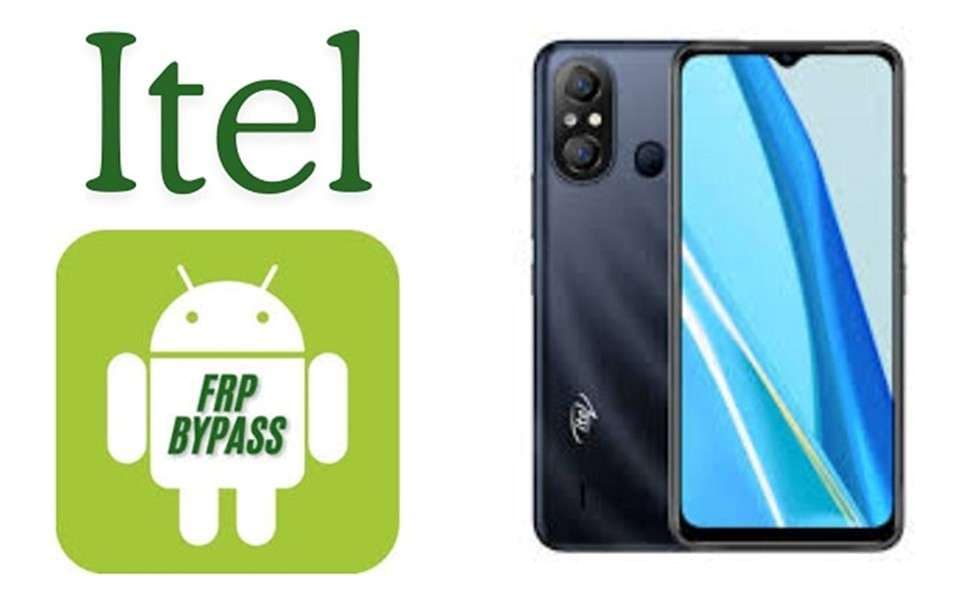
A factory reset on an Itel phone can suddenly block access to the device. The screen asks for the previous Google account before setup can continue. Itel FRP Factory Reset Protection is a security feature. It prevents misuse of lost or stolen phones. It can also lock the legitimate owner out when the login details are misplaced.
Itel devices are widely used in Asia and Africa. Transsion brands, including Itel, shipped tens of millions of devices globally according to the IDC smartphone shipment reports 2025. That is why a lot of users are looking for secure Itel FRP bypass methods.
This guide explains practical ways for FRP Itel unlock, including reliable tools and methods for models like Itel Vision 1 and Itel A48.
- Part 1: Why does the Itel FRP lock appear after a factory reset
- Part 2: How to prepare your Itel phone before Itel FRP bypass
- Part 3: How to perform Itel FRP bypass using FRP Bypass APK
- Part 4: How to complete the Itel FRP bypass using Techeligible guides
- Part 5: How to perform Itel FRP bypass using itel FRP bypass file with flashing tool
- Part 6: Best method for Itel FRP bypass using Dr.Fone

Part 1. Why does the Itel FRP lock appear after a factory reset
Factory Reset Protection is a built-in Android security system. On Itel devices, this protection is known as Itel FRP. Its purpose is to keep the phone and personal data safe from unauthorized access after a reset.
Understanding why FRP Itel appears also explains why many users later search for an Itel FRP bypass method.
- A Google account is added to the phone
- The phone is reset without removing the account first
- Android detects the reset as a possible risk
- The device asks for the previously used Google account
- FRP prevents stolen phones from being reused
- User data stays protected after the reset
- The phone cannot be set up without verification
Part 2. How to prepare your Itel phone before Itel FRP bypass
Before starting any Itel FRP bypass method, it is important to prepare the phone and tools. Proper preparation helps avoid errors during the unlock process.
- Charge the phone fully: Ensure the battery is at least 50% charged to prevent shutdown during the process.
- Use a stable USB cable: A poor-quality cable may cause connection issues with PC-based tools.
- Keep a compatible computer ready: For software-based methods, have a working Windows or Mac PC available.
- Download the required tools or files: Prepare APKs, flashing tools, or drivers in advance to avoid interruptions.
- Back up any accessible data: If possible, save files from the SD card or cloud accounts before resetting.
- Check the phone model and Android version: Different models (e.g., Itel Vision 1, Itel A48) may require different bypass techniques.
Part 3. How to perform an Itel FRP bypass using FRP Bypass APK
One of the most mentioned apps on the Android forums is FRP Bypass APK, which bypasses your FRP lock after a factory reset. The app will allow users to access hidden phone settings or another login screen. From here, you can add a new Google account to finish setting up.
Lastly, this is a method many users try since the file is small and easy to install. It can also function without a computer available. But the FRP Itel success may vary by Android version and its security patches.
- Go to phone settings and security. Enable apps to install from unknown sources. This allows the phone to install APK files outside of the Play Store.
- You can open a browser that works on the locked device. Now download the FRP Bypass APK file directly into the phone.

- Once the download is complete, open the file manager and locate the APK file. Open the file and go through the installation steps. The app is used to bypass the Google verification screen.
- Now, click on the installed FRP Bypass app. Enter all the prompts that appear on the screen and progress through the setup options.
- The steps follow inside the app to create a new Google account or remove the existing verification step.
- Restart the device after the process is complete. Continue the setup normally. If the process works correctly, the Itel FRP lock will no longer appear.
Part 4. How to complete the Itel FRP bypass using Techeligible guides
Techeligible is a website known for sharing technical tutorials and resources related to Android locks. Rather than a single unlocking tool, it provides step-by-step guides to try for various models of the phone.
Many people follow these guides to launch a browser or settings page from the verification screen. From there, they attempt an FRP Itel unlock using account login options or available device settings. The success of this Itel bypass method can vary because different Itel models and Android security patches behave differently.
- Switch on the itel phone and connect the device to a stable WiFi. Keep performing the setup process until you see the Google verification page.
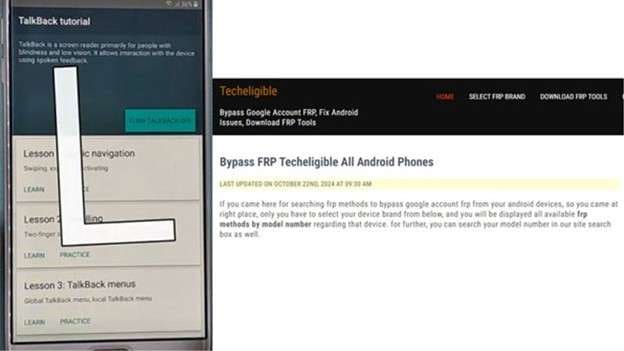
- Activate features like TalkBack or other shortcuts available on the setup screen. These options may help open a browser or reach phone settings.
- Launch the browser, check for the Techeligible website & please open the guide related to Itel FRP bypass according to your specific device model.
- Read the steps on the website carefully. The guide may provide access to FRP tools, sign-in pages, or device settings needed for FRP Itel removal.
- Use the login page shown in the process to enter a new Google account. This step helps move past the previous verification requirement.
- Restart the device after adding the account. Continue the setup normally. If the method works, the Itel FRP lock should no longer appear during setup.
Part 5. How to perform Itel FRP bypass using the Itel FRP bypass file with flashing tool
The itel FRP bypass file is a firmware-related resource used with flashing tools on a computer. This method changes certain system settings so the phone can skip Google account verification during setup.
Technicians often use this approach because it works with flashing software and drivers. It can provide stable results for FRP Itel removal, especially on older Itel models. However, it requires a computer and basic knowledge of flashing tools.
- Download the correct itel FRP bypass file along with the SPD Research Download Tool and SPD USB Driver on your PC.
- After downloading, extract each file on the computer so the tools and resources are ready to use.
- Install the SPD USB driver on the computer. This allows the system to recognize the Itel phone during the Itel FRP bypass process.
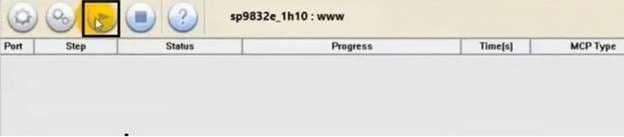
- Run the Research Download Tool program on the computer to begin the process.
- Click the gear icon inside the tool. Then choose the folder where the extracted itel FRP bypass file is saved.
- Power off the itel phone completely. Press and hold the volume down button and connect the device to the computer using a USB cable.
- Click the start button in the flashing tool. The program will begin removing the Itel FRP lock.
- Allow the tool to finish the process. Once done, disconnect the phone and restart it. The device should now continue setup without the Google verification screen.
Part 6. Best method for Itel FRP bypass using Dr. Fone Screen Unlock Android
The previous methods rely on APK files, websites, or flashing tools. These solutions may work, but results often change with Android security updates. Many users now prefer software that provides a guided process and a higher success rate.
Dr.Fone - Screen Unlock (Android) is an efficient professional unlocking tool for removing screen lock and Google verification from Android devices. There are thousands of Android phones supported by the software, and no tricky technical steps are required to eliminate FRP.
This method offers a safer, easier approach than manual tricks. It can help complete the Itel FRP bypass on many devices, including models that require a reliable Itel bypass process.
Dr.Fone - Screen Unlock (Android)
A Powerful Tool for Removing FRP on Android Devices
- Remove FRP lock on Samsung, Xiaomi, Redmi, Huawei, and mainstream Android phones without a password or Google account.
- Bypass Google FRP account on all Samsung Phones and Tablets.
- 100% success rate for FRP bypass on Samsung Snapdragon devices.

- Bypass Google account verification after factory reset.
- No tech knowledge required, Simple, click-through, process.


Key features of Dr. Fone Screen Unlock
- Removes pattern, PIN, password, fingerprint, and face lock quickly.
- Helps perform the Itel FRP bypass and regain full device access.
- Supports newer Android systems, including Android 16 devices.
- Shows strong FRP removal performance on compatible devices.
- Works with Samsung, Huawei, Xiaomi, OPPO, Vivo, LG, OnePlus, and more.
- Guided steps make FRP Itel removal easy without technical skills.
Steps to perform Itel FRP bypass with Dr. Fone
- Download and install Dr. Fone on your PC, and launch the software. Head over to the toolbox section and click on Screen Unlock. On the next screen, choose Android.

- Choose the option which is remove Google FRP lock. Select the Android phone brand so that the tool knows what unlock process to prepare.
Select the device model if prompted.

- Power off the phone and connect it to a computer via USB. Follow the on-screen instructions, and let the system detect your device.
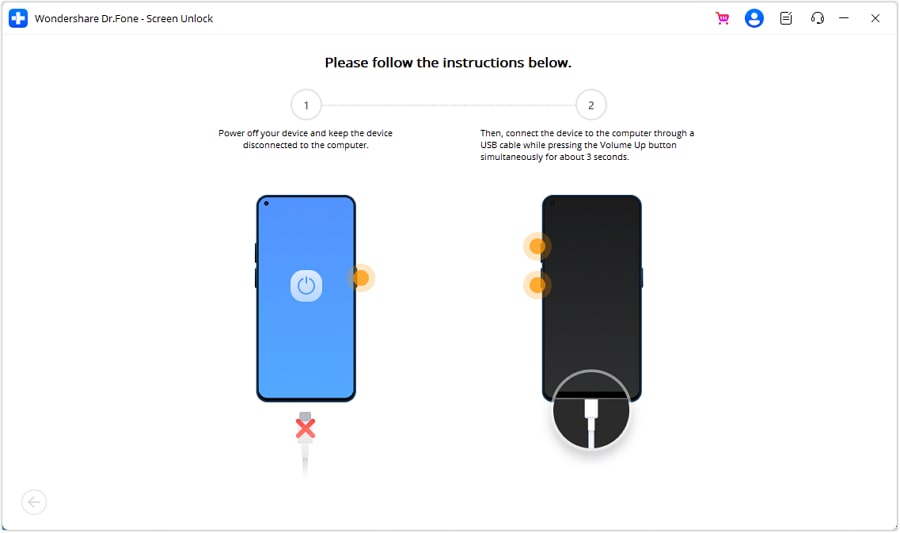
- When the program asks you to enter it, then enter the needed mode. The software will help you by guiding you through the steps to initiate the Itel FRP bypass process.
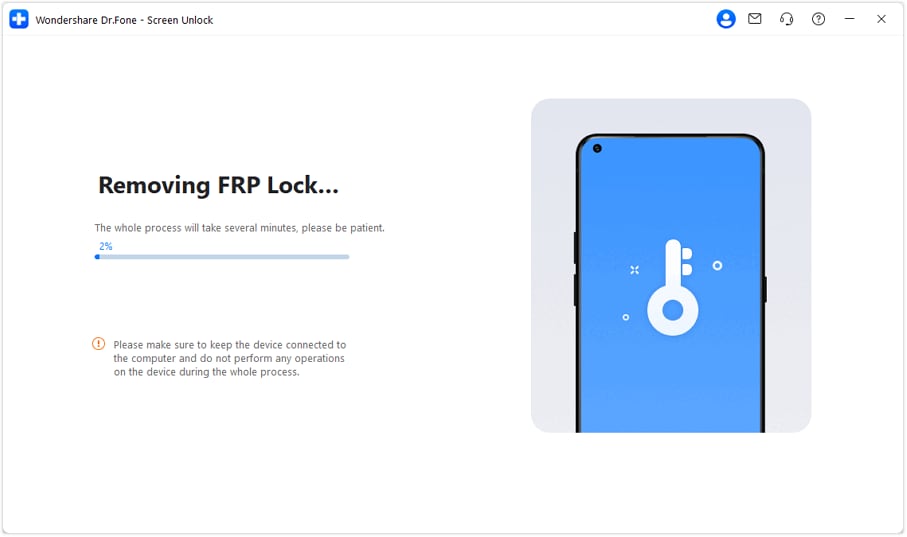
- The tool automatically removes Google verification. When the process is complete, tap Done. So, the phone will reboot, and then I can configure the phone again with a new Google account.
Conclusion
Each Itel FRP bypass method serves a different situation. FRP Bypass APK works best when a computer is not available, and the device still allows access to a browser or settings. Techeligible guides are helpful for users who prefer to take manual steps with accessibility features. The flashing file method is usually chosen by technicians who are comfortable using PC tools and drivers.
However, these options can depend on Android security updates or technical skills. For users who want a clearer process, Dr.Fone - Screen Unlock (Android) is recommended. Its guided interface handles the complex steps while removing the Itel FRP, allowing the phone to restart and complete setup with a new Google account.
 safe & secure
4,624,541 people have downloaded it
FAQs
 Q1. Is Itel FRP bypass legal?Q2. Does the Itel FRP bypass remove phone data?Q3. Why does FRP Itel bypass sometimes fail?Q4. Is the Itel FRP bypass permanent?Q5. How can I avoid the Itel FRP lock in the future?


Android Unlock
- Android Password Lock
- 1. Reset Lock Screen Password
- 2. Ways to Unlock Android Phone
- 3. Unlock Wi-Fi Networks
- 4. Reset Gmail Password on Android
- 5. Unlock Android Phone Password
- 6. Unlock Android Without Password
- 7. Emergency Call Bypass
- 8. Enable USB Debugging
- 9. Unlock Asus Phone
- 10. Unlock Asus Bootloader
- Android Pattern Lock
- Android Pin/Fingerprint Lock
- 1. Unlock Android Fingerprint Lock
- 2. Recover a Locked Device
- 3. Remove Screen Lock PIN
- 4. Enable or Disable Screen Lock PIN
- 5. Pixel 7 Fingerprint Not Working
- Android Screen Lock
- 1. Android Lock Screen Wallpapers
- 2. Lock Screen Settings
- 3. Customize Lock Screen Widgets
- 4. Apps to Reinvent Your Android
- 5. Lock Screen Wallpaper on Android
- 6. Unlock Android with Broken Screen
- 7. Unlock Google Find My Device Without Problems
- 8. Forgot Voicemail Password on Android
- 9. Unlock SafeSearch on Google
- Android Screen Unlock
- 1. Android Device Manager Unlock
- 2. Unlocking Android Phone Screen
- 3. Bypass Android Face Lock
- 4. Bypass Android Lock Screen
- 5. Bypass Lock Screen By Emergency Call
- 6. Remove Synced Google Account
- 7. Unlock Android without Data Loss
- 8. Unlock Phone without Google Account
- 9. Unlock Android phone
- 10. Reset a Locked Android Phone
- 11. Unlock Doogee Phones
- 12. Best 10 Unlock Apps For Android
- 13. Remove Gmail Account
- 14. Unlock 30/30 Attempts Remaining
- 15. OEM Unlock Missing
- 16. Change Lock Screen Clock
- 17. OEM Unlocking on Android
- 18.Bypass Knox Enrollment Service
- 19. Unlock Google Pixel 6a, 6 or 7
- 20. Best Alternative to MCT Bypass Tool
- 21. Best Way to Unlock Your ZTE Phone
- Android SIM Unlock
- 1. Easily Unlock Android SIM
- 2. 5 Android Unlock Software
- 3. Carrier Unlock Phone to Use SIM
- 4. Change Android Imei without Root
- 5. How to Change SIM PIN on Android
- 6. Best Unlocked Android Phones
- Android Unlock Code
- 1. Lock Apps to Protect Information
- 2. Unlock Secret Features on Phone
- 3. Android SIM Unlock Code Generator
- 4. Ways to Sim Unlock Phone
- 5. Remove Sim Lock without Code
- 6. Updated Android Factory Reset Code
- Google FRP Bypass
- 1. Bypass Google Account Verification
- 2. Bypass Google FRP Lock On Phones
- 3. Bypass Google Pixel FRP
- 4. Huawei Bypass FRP Tools for PC
- 5. Direct Open FRP MobileTech
- 6. Bypass Samsung S24 FRP Lock
- 7. EDL Cable Unlock FRP
- 8. Unlock OnePlus Nord FRP
- 9. Tecno FRP Bypass
- 10. Remove Infinix FRP Lock
- 11. FRP Itel Lock Removal
- 12. Itel A23 FRP Bypass Easy Guide
- 13. Itel A16 FRP Bypass
- 14. Remove Google FRP Using Online Tools
- Unlock Bricked Phone
- 1. Restore Bricked Mobile Phone
- 2. Fix Motorola Bricked Phone
- 3. Fix Bricked Redmi Note
- 4. Unbrick Oneplus Easily
- 5. Unbrick Xiaomi Phone
- 6. Unbrick Huawei Phone
- 7. Unbrick Poco X3
- 8. Software to Unbrick Samsung
- 9. Unbrick 3DS
- 10. Unbrick PSP
- Android Unlock Tools
- 1. Griffin Unlocker Tool Review
- 2. BMB Unlock Tool Review
- 3. Android Multi Tools Review
- 4. Best Bootloader Unlock APKs
- 5. Top 5 Micromax FRP Tools
- 6. Pangu FRP Bypass
- 7. Google Account Manager APK FRP Review
- 8. D&G Password Unlocker Review
- 9. Android Multi Tools Review
- 10. Easy Samsung FRP Tool Review
- 11.Samfw FRP Tool
- Android MDM
- ● Manage/transfer/recover data
- ● Unlock screen/activate/FRP lock
- ● Fix most iOS and Android issues
- Free Download Free Download Free Download




Julia Becker
chief Editor