
How to Remove Infinix FRP Lock Easily?

Oct 10, 2026 • Filed to: Screen Lock Removal • Proven solutions
 TL;DR:
Bypassing the Factory Reset Protection (FRP) lock on Infinix devices requires verifying device ownership and using PC-based software like Dr.Fone Screen Unlock or the MediaTek FRP Tool for Android 13 and 14, as manual loopholes are increasingly blocked on newer updates.
● Bypassing the lock without a computer is only possible on older Android builds by accessing the System Settings through the Google Keyboard Help and Feedback menu to trigger a secondary factory data reset.
● Dr.Fone provides a guided PC software solution suitable for beginners covering Android 5.1 to 13, whereas the Octoplus FRP Tool requires hardware activation and is strictly designed for professional repair technicians handling controlled connection modes.
● Authorized Infinix service centers offer the safest official bypass route but require valid identification and proof of purchase, and users must accept that all successful bypass methods involve a data-erasing factory reset.
Ask AI for a summary
 ChatGPT
 Perplexity
 Gemini
 Claude
 Grok
Grok

A phone reset should take two minutes. Yet many Infinix users stop at one screen, asking for a Google account that they no longer remember. That message appears due to Factory Reset Protection (FRP), known as Infinix FRP. Google added this security feature in Android 5.1 to stop stolen devices from being used without the original account (Google Android Security documentation). The problem is simple: real owners get locked out, too. This situation often appears on devices like the Infinix Smart 6, Infinix Hot 10, and other Smart or Hot models after a factory reset.
The aim of this article is clear. It explains reliable methods for FRP bypass Infinix devices using updated solutions confirmed to work in 2026, including professional tools like Dr.Fone Screen Unlock and practical manual options.
- Part 1: What to Do Before Starting Infinix FRP Bypass
- Part 2: Why Infinix Phones Get Stuck on FRP Lock
- Part 3: Best Tools and Methods for Infinix FRP Bypass
- Method 1: Easy Infinix FRP bypass with Dr.Fone

- Method 2: How to Remove the Infinix FRP Lock Through System Settings
- Method 3: Remove FRP Infinix Lock Using MediaTek FRP Tool
- Method 4: Remove Infinix FRP Bypass Lock Using Octoplus FRP Tool
- Method 5: Remove FRP Infinix Lock Through Official Infinix Support
- Part 4: Infinix FRP Bypass Methods Comparison
Part 1. What to Do Before Starting Infinix FRP Bypass
Removing a Google lock works best when a few basic checks are done first. These steps help avoid errors during FRP bypass Infinix methods and keep the phone safe during the process.
- Confirm device ownership: FRP is a security feature. It protects phones from misuse after a factory reset. Only continue if the device belongs to you and you have the right to unlock it.
- Check battery level: Charge the phone before starting any Infinix FRP bypass method. A battery level above 50 percent is recommended so the device does not shut down during the process.
- Verify buttons are working: Most FRP Infinix solutions require using the Power and Volume buttons. Test them first to make sure they respond correctly.
- Connect to the internet: A stable Wi-Fi or mobile data connection is important. Many Infinix FRP steps need internet access during the setup screen.
- Insert SIM if required: Some Infinix bypass techniques involve calls or messages. Insert a working SIM card if the method requires it.
- Prepare another phone if needed: In some cases, another device is used for calls or messages that help open system settings during the bypass.
- Keep a USB cable and computer ready: PC tools are often the safest way to perform Infinix FRP Bypass Android 11 or other modern Android versions. Make sure a working USB cable and computer are available.
- Restart the phone once: A quick restart can remove temporary glitches before you begin the FRP Infinix process.
- Check the device model and Android version: The steps for Infinix Smart 6 FRP bypass or Infinix Hot 10 FRP bypass may differ depending on the Android version and system update.
- Read the method fully first: Understand the steps before starting. This reduces mistakes during the Infinix FRP bypass process.
- Avoid unknown tools or files: Use trusted software only. Unsafe apps can damage the phone or cause data loss.
- Back up any accessible data: If files are still accessible through an SD card or cloud account, save them before beginning the FRP bypass Infinix process.
Part 2. Why Infinix Phones Get Stuck on FRP Lock
Several common situations lead users to look for an Infinix FRP bypass. The most frequent reasons are listed below.
- Forgotten Google Account Details: After a factory reset, the Infinix FRP asks for the previously synced Google account. If the email or password is forgotten, the phone remains locked at the verification screen.
- Buying a Second-Hand Phone: A used device may still have the previous owner’s Google account. If it was not removed before the reset, the new user cannot complete setup without an Infinix bypass solution.
- Factory Reset Without Removing Account: Resetting the phone before signing out of the Google account activates FRP Infinix protection. The system then requires the original login to continue setup.
Part 3. Best Tools and Methods for Infinix FRP Bypass
There are five main types of Infinix FRP bypass approaches:
Method 1: Easy Infinix FRP Bypass with Dr. Fone Screen Unlock
The previous methods may require manual tricks, drivers, or service visits. A simpler option is to use a dedicated unlocking tool. Dr.Fone - Screen Unlock (Android) provides a guided solution to complete FRP bypass Infinix without complicated steps. The software connects the phone to a computer and handles the technical process through clear on-screen instructions. It automatically prepares the device environment so users can remove the Infinix FRP lock safely. Once the process finishes, the phone can be set up again with a new Google account, and normal access is restored.
Dr.Fone - Screen Unlock (Android)
A Powerful Tool for Removing FRP on Android Devices
- Remove FRP lock on Samsung, Xiaomi, Redmi, Huawei, and mainstream Android phones without a password or Google account.
- Bypass Google FRP account on all Samsung Phones and Tablets.
- 100% success rate for FRP bypass on Samsung Snapdragon devices.

- Bypass Google account verification after factory reset.
- No tech knowledge required, Simple, click-through, process.


Key Features of Dr. Fone Screen Unlock
- Helps remove Google verification locks and supports many devices, including those needing Infinix FRP Bypass Android 11 solutions.
- Shows clear instructions on the screen, which simplifies the FRP Infinix removal process.
- Downloads the required drivers automatically so the computer can detect the phone correctly.
- Provides a general unlocking option if the standard Infinix FRP bypass method fails.
Steps to Perform FRP Bypass Infinix Using Dr. Fone
- Install and launch Dr.Fone on your computer. Go to Toolbox and select Screen Unlock. Choose Android on the next screen.

- Choose the option to remove Google FRP lock.
Then select the Android phone brand so the tool can prepare the correct process.

- Let the software download this driver. Disable the phone, and connect to the computer. Hold Volume Up + Down together for a few seconds during the connection.
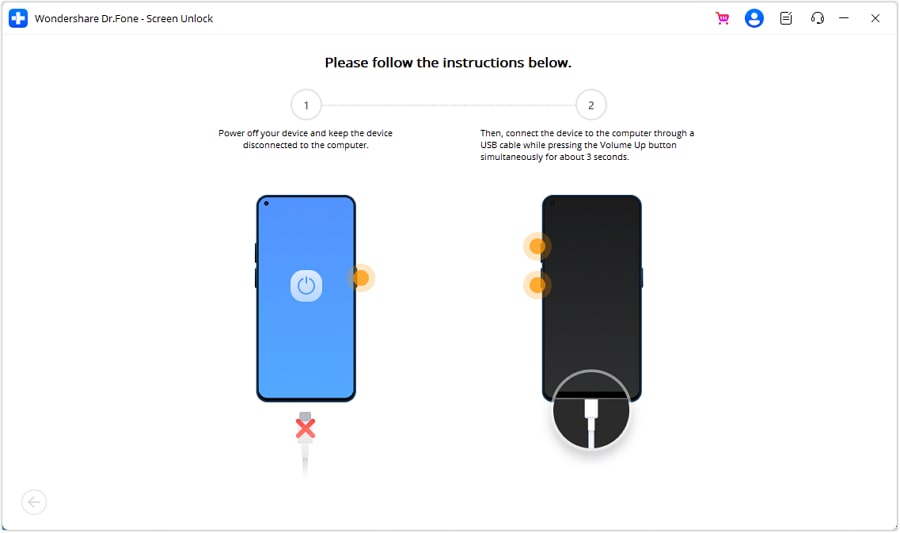
- Once the Recovery menu is displayed, follow along with the prompts on screen to select unlocking and connect.
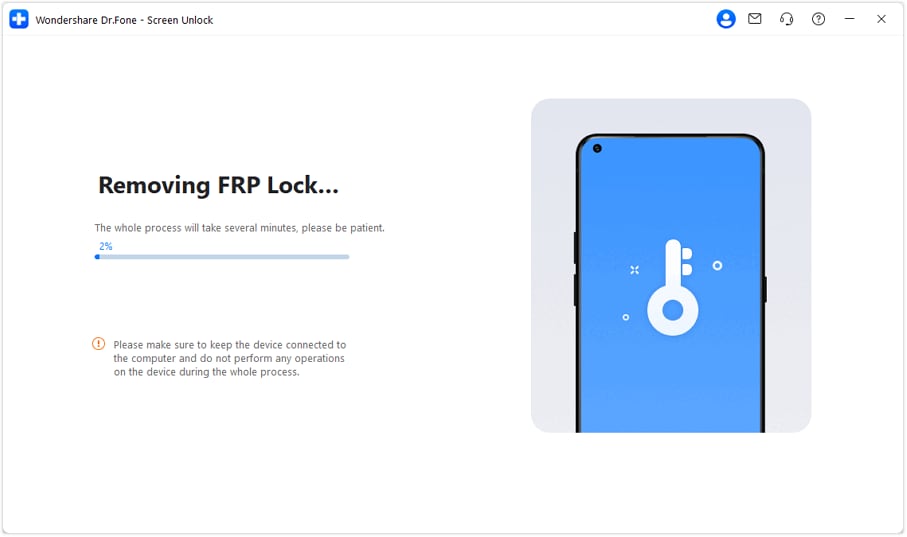
- The tool will begin the Infinix bypass procedure automatically. After the lock is removed, select Done. The device will be ready to set up again with your Google account.
 safe & secure
4,624,541 people have downloaded it
Method 2: How to Remove the Infinix FRP Lock Through System Settings
In some cases, an Infinix FRP bypass can be completed using built-in system options. Certain accessibility paths during setup may allow users to open device settings before the Google verification step completes. This is an effortless FRP bypass for Infinix, which verified owners get once the option emerges on their workstation without utilizing additional devices.
This method is based on the phone model and Android version, which is why it may work for some devices but not all of them.
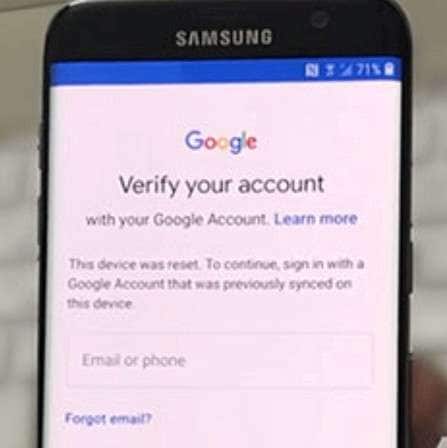
- Proceed to the device configuration and connect your Infinix phone to a live Wi-Fi network. Proceed with the setup until the Google account verification screen appears.
- Tap into the text box of the mail so that the keyboard comes up. The keyboard configuration menu is opened, then press the “@” key on the keyboard and hold for a moment.
- Select confirm keyboard settings (Use Google Keyboard Layout). Then, click on the three-dot menu in the top corner of your screen.
- Choose the Help and Feedback button. This will bring up a help page from which you can conduct a search using your keyboard.
- Highlight any word on the help page and choose the Web Search option. This action opens a Google search page.
- In the search field, type the word “setting”. From the results, open the System Settings option that appears.
- Inside the settings menu, open Backup and Reset. Then select Factory Data Reset and confirm the reset process.
- Once the reset finishes, the device will restart and return to the welcome screen. Connect to Wi-Fi again and add a new Google account to complete the setup and finish the Infinix bypass process.
Method 3: Remove FRP Infinix Lock Using MediaTek FRP Tool
Some users choose PC tools made for MediaTek-powered phones. Since most Infinix devices use MediaTek chipsets, these utilities can find the hardware and do basic unlocking operations. The software is able to initiate the Infinix FRP bypass process at a lower-level system point if everything else in the phone is connected. Because this method works with device drivers and computer software, careful setup is important. Verified owners who follow the instructions on the screen can complete the FRP bypass Infinix procedure and remove the previous Google account lock.
- Make sure the phone is yours before proceeding with the Infinix bypass process, and ensure you can prove it's yours if necessary.
- Make sure to download and install the necessary MediaTek USB drivers on your PC so that the system recognizes the Infinix phone properly.
- Shut down the phone or put it into the necessary connection mode. Then plug the device into a computer with a functional USB cable.
- Open MediaTek FRP Bypass Tool on the computer. The FRP Infinix unlock tool will then recognize the device using its numbers and get it ready for the process.
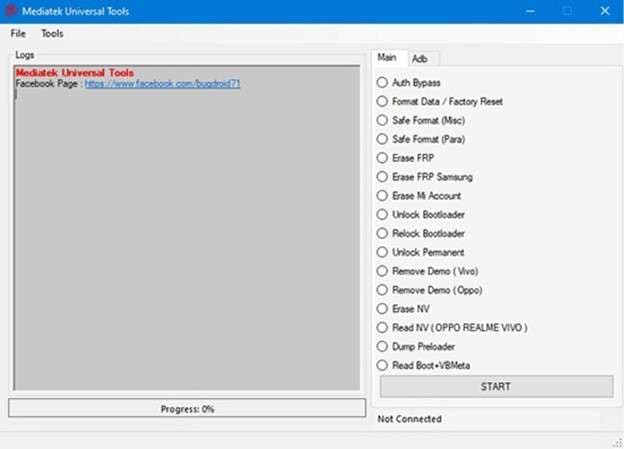
- Use the available options inside the tool to begin the general FRP unlock operation. Follow the instructions shown on the screen during the process.
- Once the tool finishes clearing the Google lock, restart the phone. Complete the setup and add your own Google account to finish the Infinix FRP bypass procedure.
Method 4: Remove Infinix FRP Bypass Lock Using Octoplus FRP Tool
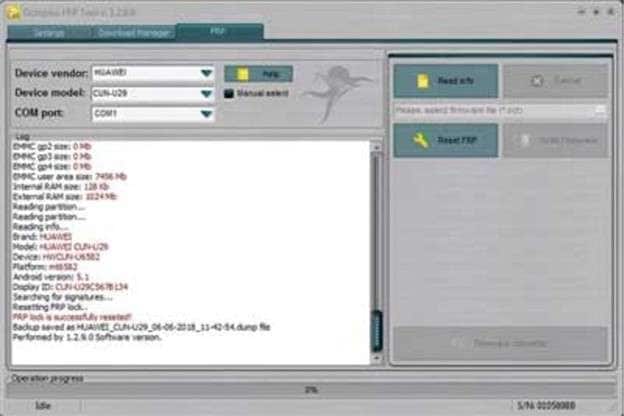
Many repair technicians use specialized software to handle Google lock issues on Android phones. One example is the Octoplus FRP Tool. This program is commonly used in service centers for supported Infinix devices.
It works through structured menus and controlled connection modes to perform FRP-related operations. Because the software interacts with the device at a system level, it is usually handled by users who understand the process. When used correctly, it can complete an FRP bypass Infinix procedure and allow the phone to be set up again with a new Google account.
- First, download Octoplus FRP Tool from the official website and install it on your PC to run the FRP Infinix recovery process.
- Switch off the Infinix (Hot, S, Smart, Note, GT, or Zero Series) Device. Next, link the phone to the computer via a USB cable.
- Launch the Octoplus FRP Tool on your computer. Select the FRP function designed for device recovery.
- Follow the instructions displayed on the screen. The tool will guide you through the process to remove the Infinix FRP lock from the verified device.
- After the process finishes, restart the phone and complete the setup using your own Google account to finalize the Infinix bypass procedure.
Method 5: Remove FRP Infinix Lock Through Official Infinix Support
And the safest solution, sometimes, is to ask for help from the manufacturer. Reaching out to official support offers a trusted solution to bypass Infinix FRP without compromising device integrity. Authorized service centers verify ownership before performing any unlocking work.
Their technicians follow manufacturer procedures and use certified tools designed for supported devices. After the process is finished, the phone is returned, ready for normal setup with a new Google account.
- Visit the official Infinix repair support page on the Infinix website. Choose your region and select the repair or service option available.
- Locate an authorized Infinix service center or contact the available online support channel to submit a service request for FRP Infinix assistance.
- Share proof of purchase, the phone’s IMEI number, and valid identification so the support team can confirm that the device belongs to you.
- Bring the phone to the authorized service center or ship it if the support process requires delivery. Technicians will perform the FRP bypass Infinix procedure using approved service tools.
- Wait for the service team to complete the process. After the Infinix bypass procedure is finished, collect or receive your device and complete the normal setup with your Google account.
Part 4. Infinix FRP Bypass Methods Comparison
Different Infinix FRP bypass methods work in different ways. Some need a PC and tools, while others do not. The table below compares each FRP bypass Infinix method clearly.
|
Method |
Tools Required |
Works Without PC |
Difficulty Level |
Best For |
| Dr.Fone - Screen Unlock (Android) | Dr. Fone desktop app, plus USB cable, plus PC or Mac | No | Easy | Beginners who want guided steps and minimal manual work |
| System Settings | No extra tools required, just a phone plus Wi Fi access | Yes | Medium | Users who can still reach the keyboard Help and Feedback path on their specific Android build |
| MediaTek FRP Tool | Windows PC plus USB cable plus MediaTek USB drivers plus MTK FRP tool | No | High | MediaTek Infinix devices, when you can install drivers and follow PC tool prompts |
| Octoplus FRP Tool | Octoplus FRP Tool software plus Octoplus dongle or activation plus PC plus USB cable | No | Very High | Repair shops and technicians handling supported devices and controlled connection modes |
| Official Infinix Support | Proof of ownership, IMEI, ID plus access to Carlcare authorized service | Yes | Easy | Anyone who wants the most official route, with ownership verification handled by the service center |
Conclusion
Unavailability of the bypass solution for the Infinix FRP activation screen becomes a headache after your phone has been factory reset, especially on some Infinix devices like Infinix Smart 6 or Infinix Hot 11. There are even some safe methods you can pursue to regain control of your device, like recovery, manual tricks, or tools.
Of these all, Dr.Fone - Screen Unlock (Android) is the most secure and simple option for Infinix bypass. If you follow the steps and choose the method that best suits your skills, it will certainly help you remove the Google lock and get your phone back without any confusion.
safe & secure4,624,541 people have downloaded it
FAQs
 Q1. Does the Infinix FRP Bypass Work on Android 13 and 14?Q2. Can I Bypass Infinix FRP Without a Computer?Q3. Is It Legal to Bypass Infinix FRP Lock?Q4. Will Bypassing FRP Delete My Data?Q5. Can Dr.Fone Bypass FRP on All Infinix Models?


Android Unlock
- Android Password Lock
- 1. Reset Lock Screen Password
- 2. Ways to Unlock Android Phone
- 3. Unlock Wi-Fi Networks
- 4. Reset Gmail Password on Android
- 5. Unlock Android Phone Password
- 6. Unlock Android Without Password
- 7. Emergency Call Bypass
- 8. Enable USB Debugging
- 9. Unlock Asus Phone
- 10. Unlock Asus Bootloader
- Android Pattern Lock
- Android Pin/Fingerprint Lock
- 1. Unlock Android Fingerprint Lock
- 2. Recover a Locked Device
- 3. Remove Screen Lock PIN
- 4. Enable or Disable Screen Lock PIN
- 5. Pixel 7 Fingerprint Not Working
- Android Screen Lock
- 1. Android Lock Screen Wallpapers
- 2. Lock Screen Settings
- 3. Customize Lock Screen Widgets
- 4. Apps to Reinvent Your Android
- 5. Lock Screen Wallpaper on Android
- 6. Unlock Android with Broken Screen
- 7. Unlock Google Find My Device Without Problems
- 8. Forgot Voicemail Password on Android
- 9. Unlock SafeSearch on Google
- Android Screen Unlock
- 1. Android Device Manager Unlock
- 2. Unlocking Android Phone Screen
- 3. Bypass Android Face Lock
- 4. Bypass Android Lock Screen
- 5. Bypass Lock Screen By Emergency Call
- 6. Remove Synced Google Account
- 7. Unlock Android without Data Loss
- 8. Unlock Phone without Google Account
- 9. Unlock Android phone
- 10. Reset a Locked Android Phone
- 11. Unlock Doogee Phones
- 12. Best 10 Unlock Apps For Android
- 13. Remove Gmail Account
- 14. Unlock 30/30 Attempts Remaining
- 15. OEM Unlock Missing
- 16. Change Lock Screen Clock
- 17. OEM Unlocking on Android
- 18.Bypass Knox Enrollment Service
- 19. Unlock Google Pixel 6a, 6 or 7
- 20. Best Alternative to MCT Bypass Tool
- 21. Best Way to Unlock Your ZTE Phone
- Android SIM Unlock
- 1. Easily Unlock Android SIM
- 2. 5 Android Unlock Software
- 3. Carrier Unlock Phone to Use SIM
- 4. Change Android Imei without Root
- 5. How to Change SIM PIN on Android
- 6. Best Unlocked Android Phones
- Android Unlock Code
- 1. Lock Apps to Protect Information
- 2. Unlock Secret Features on Phone
- 3. Android SIM Unlock Code Generator
- 4. Ways to Sim Unlock Phone
- 5. Remove Sim Lock without Code
- 6. Updated Android Factory Reset Code
- Google FRP Bypass
- 1. Bypass Google Account Verification
- 2. Bypass Google FRP Lock On Phones
- 3. Bypass Google Pixel FRP
- 4. Huawei Bypass FRP Tools for PC
- 5. Direct Open FRP MobileTech
- 6. Bypass Samsung S24 FRP Lock
- 7. EDL Cable Unlock FRP
- 8. Unlock OnePlus Nord FRP
- 9. Tecno FRP Bypass
- 10. Remove Infinix FRP Lock
- 11. FRP Itel Lock Removal
- 12. Itel A23 FRP Bypass Easy Guide
- 13. Itel A16 FRP Bypass
- 14. Remove Google FRP Using Online Tools
- Unlock Bricked Phone
- 1. Restore Bricked Mobile Phone
- 2. Fix Motorola Bricked Phone
- 3. Fix Bricked Redmi Note
- 4. Unbrick Oneplus Easily
- 5. Unbrick Xiaomi Phone
- 6. Unbrick Huawei Phone
- 7. Unbrick Poco X3
- 8. Software to Unbrick Samsung
- 9. Unbrick 3DS
- 10. Unbrick PSP
- Android Unlock Tools
- 1. Griffin Unlocker Tool Review
- 2. BMB Unlock Tool Review
- 3. Android Multi Tools Review
- 4. Best Bootloader Unlock APKs
- 5. Top 5 Micromax FRP Tools
- 6. Pangu FRP Bypass
- 7. Google Account Manager APK FRP Review
- 8. D&G Password Unlocker Review
- 9. Android Multi Tools Review
- 10. Easy Samsung FRP Tool Review
- 11.Samfw FRP Tool
- Android MDM
- ● Manage/transfer/recover data
- ● Unlock screen/activate/FRP lock
- ● Fix most iOS and Android issues
- Free Download Free Download Free Download




Daisy Raines
staff Editor