
Itel A23 FRP Bypass Easy Guide: Unlock Google Account on Itel A23

Oct 10, 2026 • Filed to: Screen Lock Removal • Proven solutions
 TL;DR:
Bypassing the Factory Reset Protection on an Itel A23 running Android 8 or 9 requires exploiting system menus to install bypass APKs or using a PC-based tool for a guided unlock.
● Manual bypass methods require a stable WiFi connection and exploit SIM card emergency contacts, keyboard language settings, or screen pinning to force open a browser and install third-party applications like VNROM or QuickShortcutMaker.
● Manual interface exploits frequently fail on devices updated to Android 10 or higher, making PC software like Dr.Fone - Screen Unlock (Android) necessary to force the device into recovery mode via a USB connection.
● The FRP bypass process cannot recover user data wiped during the previous factory reset, and the unlocked phone will require a completely new Google account to finish the setup process.
Ask AI for a summary
 ChatGPT
 Perplexity
 Gemini
 Claude
 Grok
Grok
Itel A23 is a basic and entry-level Android smartphone that is made for call & messaging, and a few of the daily apps. It is affordable for users, powered by Android Go and supported by a Spreadtrum processor.
Like most modern Android devices, it also includes Factory Reset Protection. This security feature activates when a Google account is added and requires the same account after a factory reset to verify the owner.
This protection is better for device security, but it also means access to the phone can be blocked if someone forgets their account credentials or changes ownership of their phone. This will require an Itel A23 FRP Bypass. This guide explains practical methods and tools that help remove the verification screen and restore normal device setup.

Part 1. Understanding Itel A23 FRP Bypass and Why The Lock Appears
Factory Reset Protection is a security system in Android devices. It will be activated upon adding a Google account to the phone. The device usually blinks much to their surprise after a reset, asking for the same account again, confirming the real owner.
This security protects phones from theft. But it can also block normal users in cases like:
- The Google account password is forgotten
- The phone was purchased second-hand
- The device was reset without removing the account
- The previous owner did not remove the account
Part 2. Quick preparation before starting the A23 FRP bypass
Before using any solution, prepare a few basic things. This helps avoid errors during the process.
Basic requirements
- A stable WiFi connection
- Battery above 60 percent
- A PC for software-based methods
- SIM Card
- USB cable
- Backup of important files if possible
Once these are ready, you can start the itel A23 Google account bypass steps.
Part 3. Methods for Itel A23 Google Account Bypass Without PC
This approach uses system settings and browser access to add a new Google account. It works on many Android 8 or Android 9 devices like the Itel A23.
Method 1: SIM card trick for Itel A23 FRP bypass
This method uses the SIM card + messaging settings to access the browser and install applications required for the Itel A23 Google account bypass.
- Place a SIM card in the Itel A23 and power on the device. Authenticate to a WiFi network. Close the welcome screen and return to the dashboard after the connection is opened.
- Tap the emergency call option. Then double-tap Emergency information so the contact section opens.
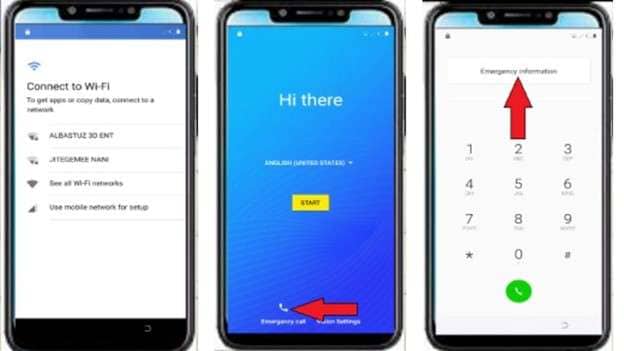
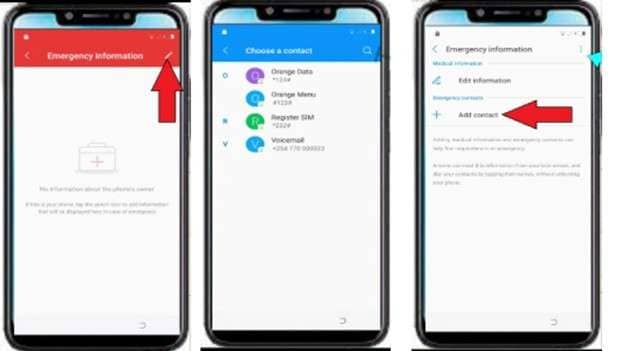
- Choose a contact from the SIM card and tap the edit icon. Select Add Contact, then pick any phone number. Tap the number so the options appear.
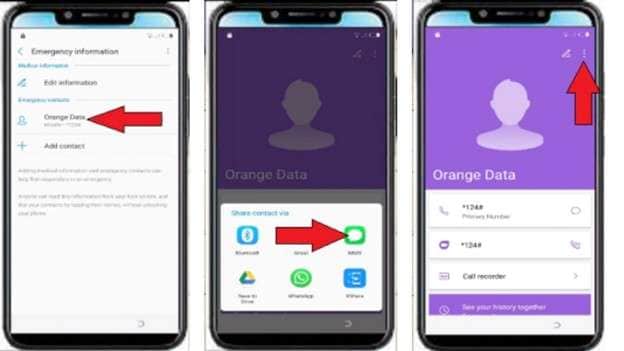
- Press the three dots at the top right of the screen and select Share. A list of apps will appear. Long-press the MMS option and open App info.
- Scroll down and open the SMS application settings. Tap Opening links and choose YouTube from the list.
- Open YouTube settings and select app notifications.
From there, choose additional settings. Go to the About section and tap YouTube Terms of Service. This will open the Chrome browser.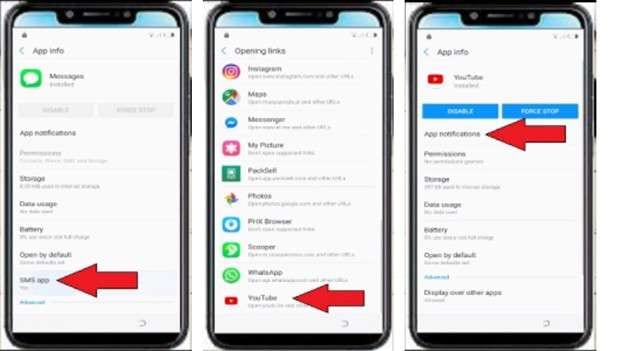
- In Chrome, tap Accept and Continue, then choose Next and select No thanks. Once the browser opens, search for the Albastuz3D website and download the two files. The first is the Google Account Manager APK file for your Android version, and the second is to download the QuickShortcutMaker APK.
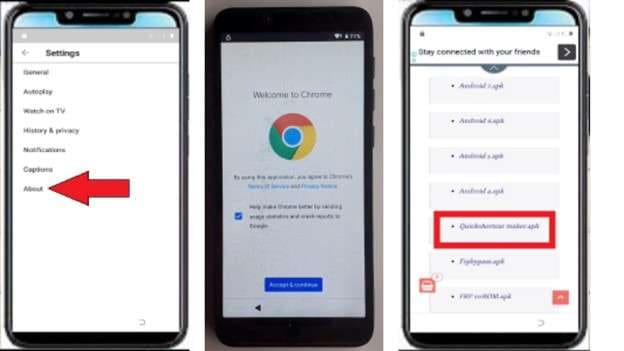
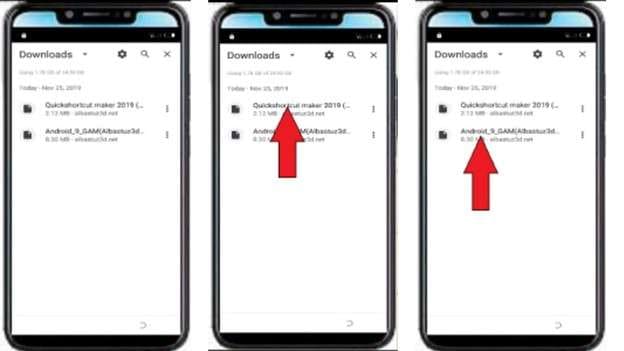
- Allow the downloads to complete. Then open the Chrome menu and tap Downloads to find both files.
- Tap the Google Account Manager file. When the installation warning appears, open Settings and enable Allow from this source. Go back and install the application, then tap Done.
- Next, install the QuickShortcutMaker application and open it after installation.
- Inside the QuickShortcutMaker screen, use the search bar and type Google Account Manager. Select the option that appears and tap Try.
- On the next page, tap the three dots at the top right corner. Choose Browser sign-in and confirm the action.
- The Google sign-in screen will appear. Enter any valid Gmail account and sign in. After logging in, restart the phone.
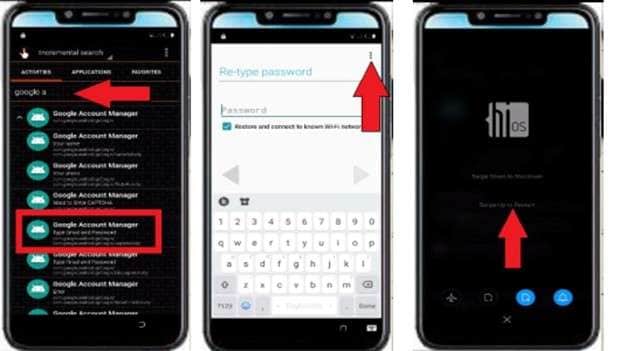
- When the device turns on again, tap Start and choose Set up as new. Continue the setup and select Next, then Skip when asked for account options.
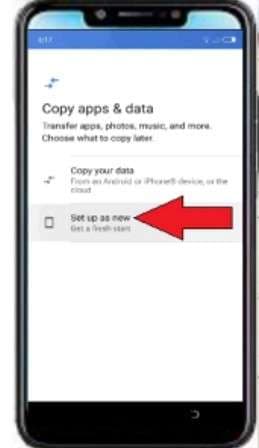
Method 2: Language Settings Trick for Itel A23 FRP Bypass
This method uses keyboard language settings to reach the browser and install apps needed for the Itel A23 Google account bypass.
- Start by turning on the Itel A23 and connecting to WiFi. Return to the start screen and open language settings. Edit the phone language and choose the third-last language. This modification expands keyboard options and settings.
- On the WiFi page, tap Show all WiFi networks. Touch add network. To access keyboard options, long-press the space key or globe icon when the keyboard appears.
- Select the last option under keyboard settings. On the next page, choose the last blue option below the QWERTY setting. Scroll down and tap the first option that shows an arrow.
- Now tap the three dots at the top right of the screen. Select the second option and search for About Switch Access. Open it and tap the share icon.
- A list of apps will appear for sharing. Select the Google option. Then tap the indicated option and press the blue icon at the bottom of the screen. This will open the Google search page.
- Inside Google, tap the search bar and change the keyboard language back to English using the globe icon. Now search for the Albastuz3D website.
- Open the website and scroll down to download the required files. Download the Google Account Manager that matches your Android version, and also download the FRP Bypass APK file.
- Wait until the downloads finish. Open the browser downloads page and tap the Google Account Manager file to install it.
- When the installation warning appears, open Settings and enable Allow from this source. Go back and install the Google Account Manager app, then tap Done.
- Next, go on to install and open the FRP Bypass app. Tap the three dots in the top right corner when the menu appears and select what is displayed onscreen.
- A Google sign-in page will appear. Log in with any Google account (link is external) having the same email ID and password. Confirm login and restart the device.
- After the phone turns on again, continue the setup process. Tap Skip where required and continue the setup steps. When the screen lock page appears, you can skip it.
Method 3: PIN or pattern trick for Itel A23 FRP bypass
This method uses a temporary screen lock and language settings to reach system options and complete the Itel A23 Google account bypass.
- Start the Itel A23 and connect to WiFi. On the Copy applications and data screen, select Do not copy.
- The phone requests a pattern or PIN. Enter 0000 for PIN requests. For patterns, draw an L. Return to the start screen.
- Select the last language under language settings. Tap the second option on the following screen to confirm.
- Open the WiFi network list on the WiFi connection page. Touch add network. Long-press the space key or globe icon to enter keyboard settings when the keyboard appears.
- Tap the last blue option underneath the QWERTY setting and the last keyboard option. Scroll down and select the arrow option.
- Now, click on the three dots in the top right corner and select the second option. On the next page, first open that option and click on the share icon.
- A sharing list will appear. Select the Google option. Then tap the option shown on the screen and press the blue icon at the bottom. This action opens the Google search page.
- Inside Google, tap the search bar and change the keyboard language to English using the globe icon. Now search for the Albastuz3D website.
- Navigate to the website and get the Development Settings APK file. It will be opened in the browser and will wait for the download to be completed.
- To install the file you downloaded, tap on it. When you get the installation warning, go to settings and let installations from unknown sources happen. Finish the installation and then start the app.
- The settings screen will appear. Scroll down to the bottom and open the System option. Select the first option with the globe icon. Tap the first option again and add the English language using the plus icon.
- Long-press on the English language option and drag it to the extreme top so that this becomes the default language.
- Cancel back to the main settings page. Navigate to the Security option and click on Screen pinning. Turn this feature on.
- The phone will prompt you to set a lock method. If you select a PIN, put in 0000. If you select a pattern, please make an L shape and then verify it.
- Go back to the start page and tap Start. Continue the setup and skip the options that appear. When the phone asks for pattern verification, draw the same L pattern again.
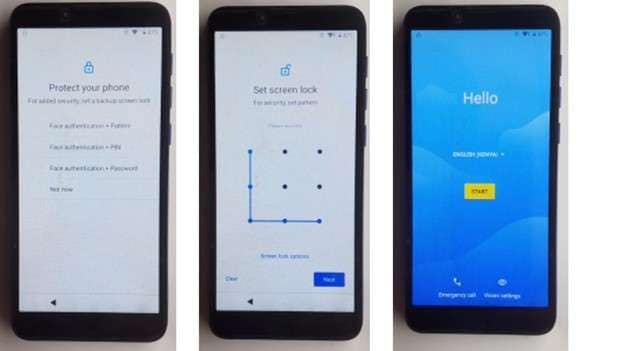
- Wait for the setup page to load and skip the remaining options. Confirm the pattern one more time when the phone asks for it.
Method 4: VNROM settings method for Itel A23 FRP bypass
To remove the Itel A23 Google account bypass, use the VNROM files and system settings.
- Start the Itel A23 and connect to WiFi. On the Copy applications and data screen, select Do not copy. Return to the start page if the phone requests a pattern or PIN verification.
- Select the third-last language in language settings. Return to the WiFi tab and select Show all WiFi networks after adjusting the language.
- Tap Add Network. To access keyboard options, long-press the space key or globe icon when the keyboard appears.
- Choose the last keyboard option and the last blue option below QWERTY. Scroll down and tap the arrow-marked choice.
- Tap the three dots at the top right corner and choose the second option. Search for the topic Delete or disable apps on Android. On that page, tap the blue link that says Tap to go to Application settings.
- Scroll down in the application list and open YouTube. Tap the first option and then select the arrow shown on the screen. On the next page, scroll down and tap the option that opens the browser.
- Chrome browser will open. Accept the terms and continue to access the browser. In the search bar change the keyboard language to English using the globe icon.
- Search for the Albastuz3D website. Once the page opens, scroll down and download two files called FRP vnROM APK and Development Settings APK.
- After the download is complete, open the browser menu and go to the downloads section. Install the VNROM file first but do not open it.
- Now install the Development Settings file and open it. The settings page will appear on the screen.
- Select the System option by scrolling down. Press the first globe-shaped option. Re-select the first selection, then use the + sign to add the English language.
- Replace the English language and pull it first.
- Return to the Main Settings Page. Go to Apps and notifications > See all apps. Scroll down to Google Play services and tap it, then disable it. Now open the Google Play Store and mute it also.
- Return to the settings menu and go into Accounts. Select the add account option on this and select Google. Press Continue and wait for the sign-in screen to show.
- Enter a valid Google account email and password, then sign in.
- Return to Apps and notifications, then tap See all apps. Let's disable Google Play Services and Google Play Store that you turned off before.
- Return to the main settings screen and open Security. Tap Device admin apps and select Android Device Manager. Activate this device admin application.
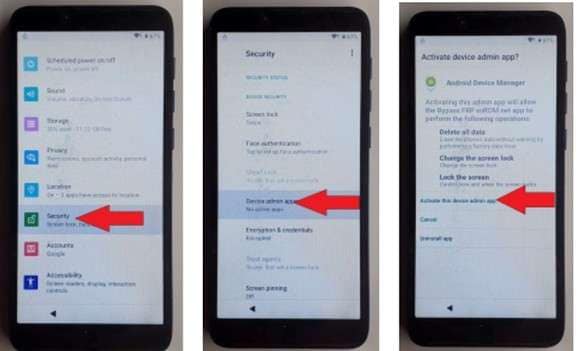
- Restart the phone. After the device turns on, continue the setup process and skip the remaining options.
Method 5: Professional Itel A23 FRP bypass tool: Dr.Fone
The previous solutions use browser methods and hidden settings. After system updates, they work but take time and are unstable. You can unlock Android smartphones directly with a professional tool.
We recommend Dr.Fone - Screen Unlock (Android). Wondershare's mobile toolkit removes Android locks, including Google FRP verification. The software uses a guided desktop program to prepare the device, enter recovery mode, and safely remove the verification lock. Many users prefer it because the interface is simple and the process is guided step by step, instead of using complicated manual tricks.
Dr.Fone - Screen Unlock (Android)
A Powerful Tool for Removing FRP on Android Devices
- Remove FRP lock on Samsung, Xiaomi, Redmi, Huawei, and mainstream Android phones without a password or Google account.
- Bypass Google FRP account on all Samsung Phones and Tablets.
- 100% success rate for FRP bypass on Samsung Snapdragon devices.

- Bypass Google account verification after factory reset.
- No tech knowledge required, Simple, click-through, process.


Steps for Itel A23 FRP bypass
- Install and open Dr.Fone on your computer. From the main screen, open the toolbox section and select Screen Unlock. Choose Android when the program asks for the device type.

- Select the option to remove Google FRP lock. Then choose the phone brand so the software can prepare the correct unlocking method.
Select the device model if prompted.

- Turn off the phone and connect it to the computer with a USB cable. When connecting, press and hold the volume up and volume down buttons together so the tool can detect the device.
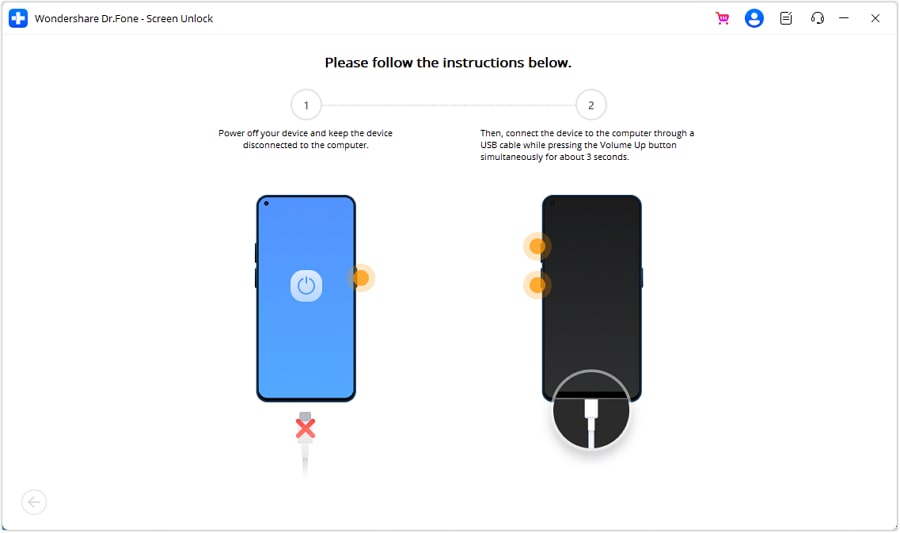
- Follow the instructions shown by the program to enter recovery mode on the phone. Once the device is ready, the software will start the unlocking process.
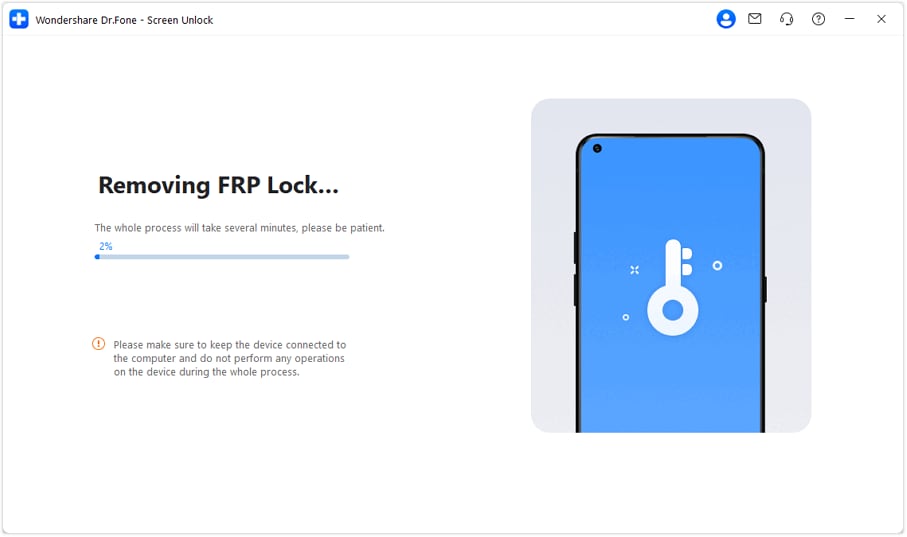
- Wait while the tool removes the verification lock. When the process finishes, click Done and restart the device. The phone can now be set up again without the Google verification screen.
Conclusion
Several working paths exist for Itel A23 FRP bypass, and each fits a different situation. The SIM card trick helps when a quick browser route is needed. Language and keyboard methods work well for users comfortable with system menus. The PIN or pattern approach is useful when temporary lock settings can be created during setup. VNROM settings provide deeper access for users who can install files and manage system apps.
However, these routes involve many steps and may fail after updates. Dr.Fone is a dedicated Itel A23 FRP bypass tool that simplifies the process. Its guided desktop method removes the verification lock with fewer actions, making device setup smoother when manual solutions become complicated.
 safe & secure
4,624,541 people have downloaded it
FAQs
 Q1. Can I bypass Itel A23 FRP without a computer?Q2. Is Dr.Fone safe for Itel A23 FRP removal?Q3. Will I lose data after bypassing FRP on Itel A23?Q4. Can I use the same Google account after bypass?Q5. Does Itel A23 FRP bypass work on Android 10 and above?


Android Unlock
- Android Password Lock
- 1. Reset Lock Screen Password
- 2. Ways to Unlock Android Phone
- 3. Unlock Wi-Fi Networks
- 4. Reset Gmail Password on Android
- 5. Unlock Android Phone Password
- 6. Unlock Android Without Password
- 7. Emergency Call Bypass
- 8. Enable USB Debugging
- 9. Unlock Asus Phone
- 10. Unlock Asus Bootloader
- Android Pattern Lock
- Android Pin/Fingerprint Lock
- 1. Unlock Android Fingerprint Lock
- 2. Recover a Locked Device
- 3. Remove Screen Lock PIN
- 4. Enable or Disable Screen Lock PIN
- 5. Pixel 7 Fingerprint Not Working
- Android Screen Lock
- 1. Android Lock Screen Wallpapers
- 2. Lock Screen Settings
- 3. Customize Lock Screen Widgets
- 4. Apps to Reinvent Your Android
- 5. Lock Screen Wallpaper on Android
- 6. Unlock Android with Broken Screen
- 7. Unlock Google Find My Device Without Problems
- 8. Forgot Voicemail Password on Android
- 9. Unlock SafeSearch on Google
- Android Screen Unlock
- 1. Android Device Manager Unlock
- 2. Unlocking Android Phone Screen
- 3. Bypass Android Face Lock
- 4. Bypass Android Lock Screen
- 5. Bypass Lock Screen By Emergency Call
- 6. Remove Synced Google Account
- 7. Unlock Android without Data Loss
- 8. Unlock Phone without Google Account
- 9. Unlock Android phone
- 10. Reset a Locked Android Phone
- 11. Unlock Doogee Phones
- 12. Best 10 Unlock Apps For Android
- 13. Remove Gmail Account
- 14. Unlock 30/30 Attempts Remaining
- 15. OEM Unlock Missing
- 16. Change Lock Screen Clock
- 17. OEM Unlocking on Android
- 18.Bypass Knox Enrollment Service
- 19. Unlock Google Pixel 6a, 6 or 7
- 20. Best Alternative to MCT Bypass Tool
- 21. Best Way to Unlock Your ZTE Phone
- Android SIM Unlock
- 1. Easily Unlock Android SIM
- 2. 5 Android Unlock Software
- 3. Carrier Unlock Phone to Use SIM
- 4. Change Android Imei without Root
- 5. How to Change SIM PIN on Android
- 6. Best Unlocked Android Phones
- Android Unlock Code
- 1. Lock Apps to Protect Information
- 2. Unlock Secret Features on Phone
- 3. Android SIM Unlock Code Generator
- 4. Ways to Sim Unlock Phone
- 5. Remove Sim Lock without Code
- 6. Updated Android Factory Reset Code
- Google FRP Bypass
- 1. Bypass Google Account Verification
- 2. Bypass Google FRP Lock On Phones
- 3. Bypass Google Pixel FRP
- 4. Huawei Bypass FRP Tools for PC
- 5. Direct Open FRP MobileTech
- 6. Bypass Samsung S24 FRP Lock
- 7. EDL Cable Unlock FRP
- 8. Unlock OnePlus Nord FRP
- 9. Tecno FRP Bypass
- 10. Remove Infinix FRP Lock
- 11. FRP Itel Lock Removal
- 12. Itel A23 FRP Bypass Easy Guide
- 13. Itel A16 FRP Bypass
- 14. Remove Google FRP Using Online Tools
- Unlock Bricked Phone
- 1. Restore Bricked Mobile Phone
- 2. Fix Motorola Bricked Phone
- 3. Fix Bricked Redmi Note
- 4. Unbrick Oneplus Easily
- 5. Unbrick Xiaomi Phone
- 6. Unbrick Huawei Phone
- 7. Unbrick Poco X3
- 8. Software to Unbrick Samsung
- 9. Unbrick 3DS
- 10. Unbrick PSP
- Android Unlock Tools
- 1. Griffin Unlocker Tool Review
- 2. BMB Unlock Tool Review
- 3. Android Multi Tools Review
- 4. Best Bootloader Unlock APKs
- 5. Top 5 Micromax FRP Tools
- 6. Pangu FRP Bypass
- 7. Google Account Manager APK FRP Review
- 8. D&G Password Unlocker Review
- 9. Android Multi Tools Review
- 10. Easy Samsung FRP Tool Review
- 11.Samfw FRP Tool
- Android MDM
- ● Manage/transfer/recover data
- ● Unlock screen/activate/FRP lock
- ● Fix most iOS and Android issues
- Free Download Free Download Free Download




Daisy Raines
staff Editor