
Ultimate Guide to Tecno FRP Bypass Without PC and With Tools That Work

Oct 10, 2026 • Filed to: Screen Lock Removal • Proven solutions
 TL;DR:
Bypassing the Tecno FRP lock requires either recovering the original Google account, obtaining remote device removal from the previous owner, manually installing the TechnoCare APK on older devices, or utilizing PC software like Dr.Fone - Screen Unlock (Android) for newer security patches.
● The free TechnoCare APK method allows users to bypass FRP without a PC by accessing hidden system settings via TalkBack, but this process relies on vulnerabilities that are patched and fail on updated Android 13 and Android 14 devices.
● The safest approaches involve official Google Account Recovery or having the previous owner remove the Tecno device remotely via myaccount.google.com, as neither method alters system files or requires third-party downloads.
● Dr.Fone - Screen Unlock (Android) provides a guided bypass process for updated devices without relying on unsecure APK files, but it strictly requires a Windows or Mac computer, a USB connection, and cannot restore any user data wiped during the triggering factory reset.
Ask AI for a summary
 ChatGPT
 Perplexity
 Gemini
 Claude
 Grok
Grok
When a borrowed phone wakes with someone else’s login screen, it feels like time has stopped. You hold your own device, a Tecno Spark FRP bypass message staring back at you, and frustration rises because you cannot access home, contacts, photos, or life’s notes.
Millions of Android users face this exact lock every year after a reset because Google’s Factory Reset Protection keeps devices safe, but can block rightful owners too (data verified from Android security protocols and device behaviour in 2025).
This article aims to provide clear and practical solutions for Tecno FRP Bypass using safe and updated methods. It guides rightful users toward reliable options, including manual steps and a trusted Tecno FRP tool, to regain access efficiently.
- Part 1: Methods for Tecno Spark FRP Bypass Without PC
- Method 1: How to Perform Tecno FRP Bypass Using TechnoCare APK
- Method 2: Regain Access Through Google Account Recovery for Tecno FRP Bypass
- Method 3: Remove Tecno FRP Bypass Lock by Working with the Previous Owner
- Part 2: Introducing the Best Option: Dr.Fone - Screen Unlock (Android)

Part 1. Methods for Tecno Spark FRP Bypass Without PC
Many users search for Tecno Spark FRP bypass without a PC because they want a quick solution without needing a laptop or desktop. While PC methods are often more stable, there are still some ways to attempt a bypass directly on the device.
Method 1: How to Perform Tecno FRP Bypass Using TechnoCare APK
One common free method for Tecno FRP Bypass uses an APK file called TechnoCare. This method works by opening hidden system settings. Once inside those settings, you can add a new Google account and unlock the device.
Many users choose this option because it does not require a PC or paid software. The steps are manual and take time. You must follow each part carefully. If done correctly, it can work on some Tecno models, especially older Android versions.
Below is the step-by-step process explained in simple terms.
- Turn on your Tecno phone. Stay on the welcome screen. Tap the Home button three times quickly. This will activate TalkBack.
Now draw the letter L on the screen. The TalkBack menu will open. Go to TalkBack Settings.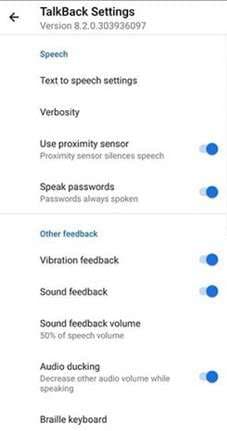
- Inside settings, search for Getting Started with TalkBack. Open that page. Play the help video.
Tap the three dots on the video screen. Choose Share. Select Google Plus if available. This action redirects you to YouTube. - Inside YouTube, tap the profile icon or menu and look for Terms and Privacy Policy. Tap it. This will open the device browser.
Once the browser opens, go to Bookmarks. Then open History. After that, open Downloads. From here, enter the File Manager. - Insert an SD card that contains the Apex Launcher APK. Install Apex Launcher using File Manager.
After installation, open the launcher. Go to Settings. Then open Security. Find Device Administrators. Turn off Find My Device. - Go back to Settings. Open Apps. Choose Show System Apps. Find Google Account Manager. Disable it. Find Google Play Services. Disable it as well.
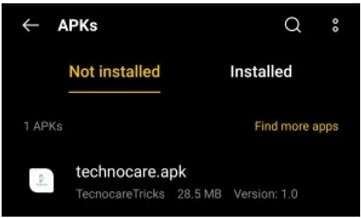
- Now install the TechnoCare FRP APK from storage. Open the app.
Add a new Google account that you remember. Make sure the login is successful. This account will replace the old locked account. - Return to Apps in Settings. Enable Google Play Services again. Enable Google Account Manager again.
Restart the Tecno phone. After rebooting, the device should open normally without asking for the previous Google account.
Method 2: Regain Access Through Google Account Recovery for Tecno FRP Bypass
APKs or Tecno FRP tools may not help you perform a Tecno FRP Bypass, and the best way is to restore access to the original account. There is an official recovery system by Google, and it allows users to reset their passwords upon identity checking.
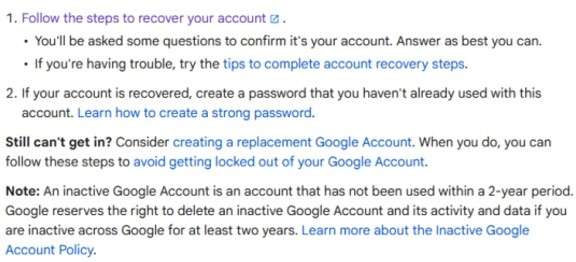
This method gives you a second chance if you forgot your login details. The most legal and safest method to bypass the FRP screen. It does not alter system files. That just re-institutes your account, so the phone will accept your login again.
This is the step-by-step process laid out in clear terms.
- Turn on your Tecno device. Hook it up to a steady WiFi connection. On the Google verification screen, click on Forgot password. It is going to lead you to the Google Account Recovery Page.
- Follow the on-screen instructions carefully. Type in the email associated with your locked device. Start identity verification at Google.
- Select one of the provided recovery options. An SMS code will be sent to your recovery phone number. A verification link will be sent to your recovery e-mail.
Google may, in some instances, request security questions and/or previous passwords. Follow the verification steps exactly as specified. - This will help you to create a new password for your Google account after successful verification. Pick a powerful yet memorable password.
Wait at least five minutes after resetting the password. This allows Google servers to sync the update. - Return to the Tecno setup screen. Enter the same Google email and the new password.
If the recovery was successful, the device will accept the login. The FRP screen will disappear, and setup will continue normally.
Method 3: Remove Tecno FRP Bypass Lock by Working with the Previous Owner
One simple and safe way to complete a Tecno FRP Bypass is to contact the person who first used the device. The FRP lock is tied to the Google account that was active before the reset. If that account holder helps you, the lock can be cleared quickly and legally.
The previous owner can either provide the correct login details or remove the device from their Google account remotely. This method follows proper ownership rules and keeps the device secure.
Below are the correct steps.
- Ask the previous owner for the Google email address and password that were used on the Tecno phone.
Enter those details on the FRP verification screen. If the information is correct, the phone will pass the verification stage. - If needed, request the owner to sign in directly on the device to complete the Google verification process. Once verification is approved, the setup can continue without restriction.
- Ask the previous owner to visit myaccount.google.com and sign in. They should open the Security section and find the list under Your Devices.
From there, they must select the Tecno phone and remove it from the account. After this step, restart the device. The FRP screen should no longer block access. - If the previous owner still has physical access to the phone, ask them to open Settings. Go to Accounts. Then open Google. Choose Remove Account.
After removing the account, perform a fresh factory reset. The device will restart without triggering FRP again.
Part 2. Introducing the Best Option: Dr.Fone - Screen Unlock (Android)
Some manual tricks and account recoveries can go through, but this depends on the Android version, security patch level, and possession of old login credentials. When they do not work, a more regimented path is helpful.
Dr.Fone - Screen Unlock (Android) lets you get rid of the screen lock pattern and bypass Google FRP verification. It also enables FRP removal on various Android brands and will unlock your device irrespective of the lock, PIN, pattern, password, or fingerprints. It offers guided, onscreen instructions, brand selection support, and automatic driver installation that minimizes user error.
This Tecno FRP Bypass method takes away the guesswork and saves users time as they won't need to install any APK file on their phone, which they cannot trust.
Dr.Fone - Screen Unlock (Android)
A Powerful Tool for Removing FRP on Android Devices
- Remove FRP lock on Samsung, Xiaomi, Redmi, Huawei, and mainstream Android phones without a password or Google account.
- Bypass Google FRP account on all Samsung Phones and Tablets.
- 100% success rate for FRP bypass on Samsung Snapdragon devices.

- Bypass Google account verification after factory reset.
- No tech knowledge required, Simple, click-through, process.


How to Use Dr.Fone for Tecno FRP Bypass
- Install and launch Wondershare Dr.Fone on your computer. From the main dashboard, open Toolbox and choose Screen Unlock. When prompted, select Android since the goal is FRP removal.

- After entering the Android section, choose Remove Google FRP Lock.
A list of supported brands will appear. Select TECNO from the list to continue.

- The program will automatically download the proper driver for your selected brand. Once ready, power off your Tecno phone. Connect it to the computer using a USB cable. Press the Volume Up and Volume Down buttons together for a few seconds while connecting, as guided on screen.
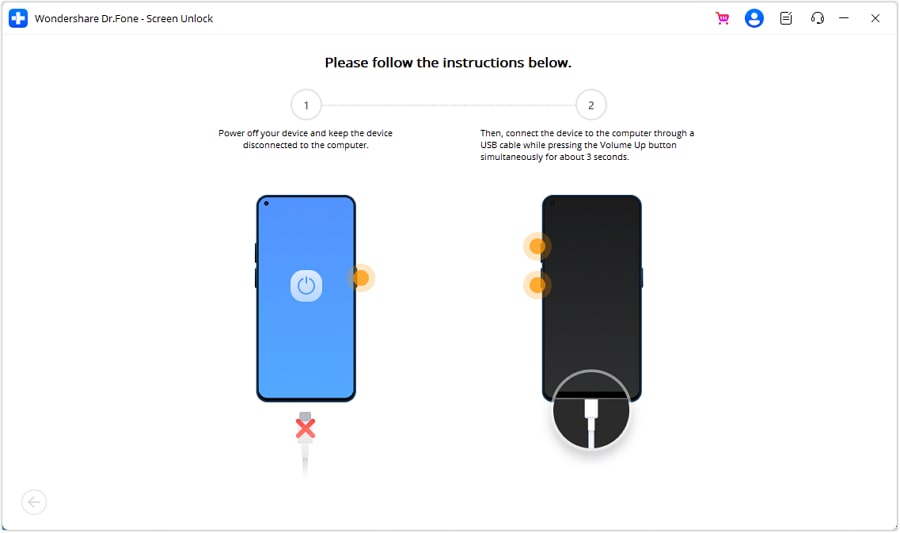
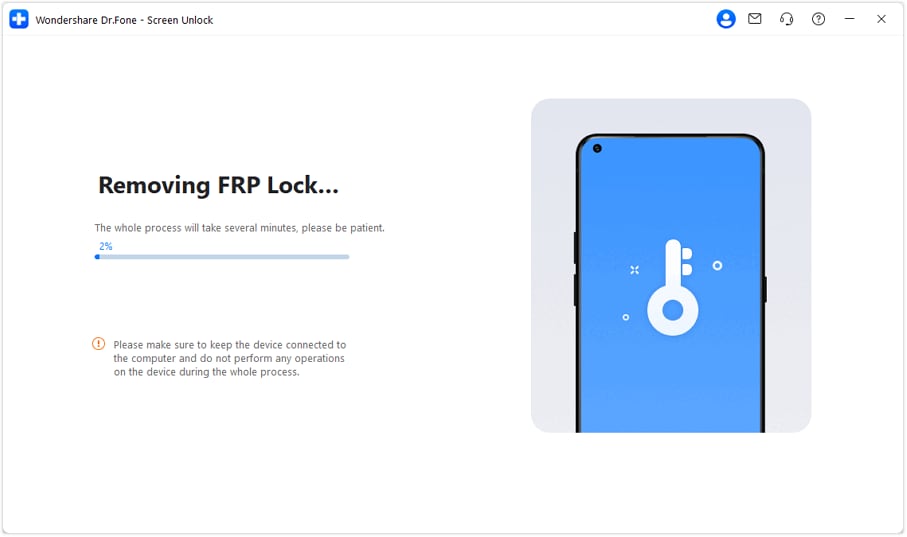
- Follow the instructions displayed in the software interface. The system will initiate the Google FRP removal procedure. This may take a few minutes. After completion, select Done. You can now set up the device without the previous Google account lock.
 safe & secure
4,624,541 people have downloaded it
Conclusion
Factory Reset Protection can protect your data, but it can also block real owners after a reset. In this guide, we covered practical paths for Tecno FRP Bypass, from manual APK steps to official Google Account Recovery and help from the previous owner. Each method has its place. Free options may work on older systems, while account recovery remains the safest route when access details are available.
For users who want a more guided, structured process, Dr.Fone - Screen Unlock (Android) is a dedicated Tecno FRP tool that offers a stable workflow with clear instructions. The right method depends on your device, Android version, and access situation.
safe & secure4,624,541 people have downloaded it
FAQs
 Q1. Does Tecno FRP Bypass Still Work After New Android Updates?Q2. Will FRP Bypass Damage My Tecno System?Q3. Can Dr.Fone Remove FRP on Tecno and Other Brands?Q4. Is Dr.Fone Safer Than Free APK Methods?Q5. Can Tecno FRP Bypass Be Done Without Losing Data?


Android Unlock
- Android Password Lock
- 1. Reset Lock Screen Password
- 2. Ways to Unlock Android Phone
- 3. Unlock Wi-Fi Networks
- 4. Reset Gmail Password on Android
- 5. Unlock Android Phone Password
- 6. Unlock Android Without Password
- 7. Emergency Call Bypass
- 8. Enable USB Debugging
- 9. Unlock Asus Phone
- 10. Unlock Asus Bootloader
- Android Pattern Lock
- Android Pin/Fingerprint Lock
- 1. Unlock Android Fingerprint Lock
- 2. Recover a Locked Device
- 3. Remove Screen Lock PIN
- 4. Enable or Disable Screen Lock PIN
- 5. Pixel 7 Fingerprint Not Working
- Android Screen Lock
- 1. Android Lock Screen Wallpapers
- 2. Lock Screen Settings
- 3. Customize Lock Screen Widgets
- 4. Apps to Reinvent Your Android
- 5. Lock Screen Wallpaper on Android
- 6. Unlock Android with Broken Screen
- 7. Unlock Google Find My Device Without Problems
- 8. Forgot Voicemail Password on Android
- 9. Unlock SafeSearch on Google
- Android Screen Unlock
- 1. Android Device Manager Unlock
- 2. Unlocking Android Phone Screen
- 3. Bypass Android Face Lock
- 4. Bypass Android Lock Screen
- 5. Bypass Lock Screen By Emergency Call
- 6. Remove Synced Google Account
- 7. Unlock Android without Data Loss
- 8. Unlock Phone without Google Account
- 9. Unlock Android phone
- 10. Reset a Locked Android Phone
- 11. Unlock Doogee Phones
- 12. Best 10 Unlock Apps For Android
- 13. Remove Gmail Account
- 14. Unlock 30/30 Attempts Remaining
- 15. OEM Unlock Missing
- 16. Change Lock Screen Clock
- 17. OEM Unlocking on Android
- 18.Bypass Knox Enrollment Service
- 19. Unlock Google Pixel 6a, 6 or 7
- 20. Best Alternative to MCT Bypass Tool
- 21. Best Way to Unlock Your ZTE Phone
- Android SIM Unlock
- 1. Easily Unlock Android SIM
- 2. 5 Android Unlock Software
- 3. Carrier Unlock Phone to Use SIM
- 4. Change Android Imei without Root
- 5. How to Change SIM PIN on Android
- 6. Best Unlocked Android Phones
- Android Unlock Code
- 1. Lock Apps to Protect Information
- 2. Unlock Secret Features on Phone
- 3. Android SIM Unlock Code Generator
- 4. Ways to Sim Unlock Phone
- 5. Remove Sim Lock without Code
- 6. Updated Android Factory Reset Code
- Google FRP Bypass
- 1. Bypass Google Account Verification
- 2. Bypass Google FRP Lock On Phones
- 3. Bypass Google Pixel FRP
- 4. Huawei Bypass FRP Tools for PC
- 5. Direct Open FRP MobileTech
- 6. Bypass Samsung S24 FRP Lock
- 7. EDL Cable Unlock FRP
- 8. Unlock OnePlus Nord FRP
- 9. Tecno FRP Bypass
- 10. Remove Infinix FRP Lock
- 11. FRP Itel Lock Removal
- 12. Itel A23 FRP Bypass Easy Guide
- 13. Itel A16 FRP Bypass
- 14. Remove Google FRP Using Online Tools
- Unlock Bricked Phone
- 1. Restore Bricked Mobile Phone
- 2. Fix Motorola Bricked Phone
- 3. Fix Bricked Redmi Note
- 4. Unbrick Oneplus Easily
- 5. Unbrick Xiaomi Phone
- 6. Unbrick Huawei Phone
- 7. Unbrick Poco X3
- 8. Software to Unbrick Samsung
- 9. Unbrick 3DS
- 10. Unbrick PSP
- Android Unlock Tools
- 1. Griffin Unlocker Tool Review
- 2. BMB Unlock Tool Review
- 3. Android Multi Tools Review
- 4. Best Bootloader Unlock APKs
- 5. Top 5 Micromax FRP Tools
- 6. Pangu FRP Bypass
- 7. Google Account Manager APK FRP Review
- 8. D&G Password Unlocker Review
- 9. Android Multi Tools Review
- 10. Easy Samsung FRP Tool Review
- 11.Samfw FRP Tool
- Android MDM
- ● Manage/transfer/recover data
- ● Unlock screen/activate/FRP lock
- ● Fix most iOS and Android issues
- Free Download Free Download Free Download


 > How-to > Screen Lock Removal > Ultimate Guide to Tecno FRP Bypass Without PC and With Tools That Work
Alice MJ
staff Editor