

How to Share Live Location on Snapchat — Complete Guide

Oct 24, 2026 • Filed to: Virtual Location Solutions • Proven solutions
 TL;DR:
You can broadcast your real-time position on Snapchat for a set duration by selecting the Share My Live Location option within a specific friend's chat profile or through the Snap Map settings.
● Unlike the standard Snap Map that only displays your last known position when the app was actively open, the live location feature updates continuously but will freeze if your device loses its internet connection.
● If the sharing toggle disappears or fails to work, you must disable Ghost Mode and configure your smartphone settings to grant Snapchat the Always or Allow All Time location permission with precise tracking enabled.
● To fake your coordinates instead of sharing your real position, you can use the Dr.Fone - Virtual Location tool to teleport or simulate joystick movements on devices running iOS 26 and Android 16.
Ask AI for a summary
 ChatGPT
 Perplexity
 Gemini
 Claude
 Grok
Grok
Imagine you plan to meet a friend in a busy city, but you cannot find each other. You both try to call, but the traffic noise makes it hard to talk. Here, Snapchat solves this problem by letting you share your live location. Thus, you can show your exact position on a map so your friends know where you are. It keeps everyone updated without repeated messages or calls.
Hence, in this ultimate guide, you will get to know how to share a live location on Snap with a specific person and overall. Moreover, learn how to play tricks by faking a location where you don’t intend to share the real one.
- Part 1. What Is Live Location on Snapchat? Why Share It?
- Part 2. How to Share Your Live Location on Snapchat
- Part 3. How to Share Your Location with One Person
- Part 4. Why Can’t I Share My Live Location on Snapchat Anymore?

- Part 5. Pro Tip. Own Your Map: Fake Snapchat Live Location with Dr.Fone – Virtual Location
- Part 6. How to Make Your Snap Location Live Again – 4 Tested Fixes
Part 1. What Is Live Location on Snapchat? Why Share It?
Live Location on Snapchat allows selected friends to see your location in real time. It updates continuously as you move, unlike Snap Map, which shows your last updated location when the app was opened. Therefore, you can choose who can see your live location through Snap Map settings or individual chats.
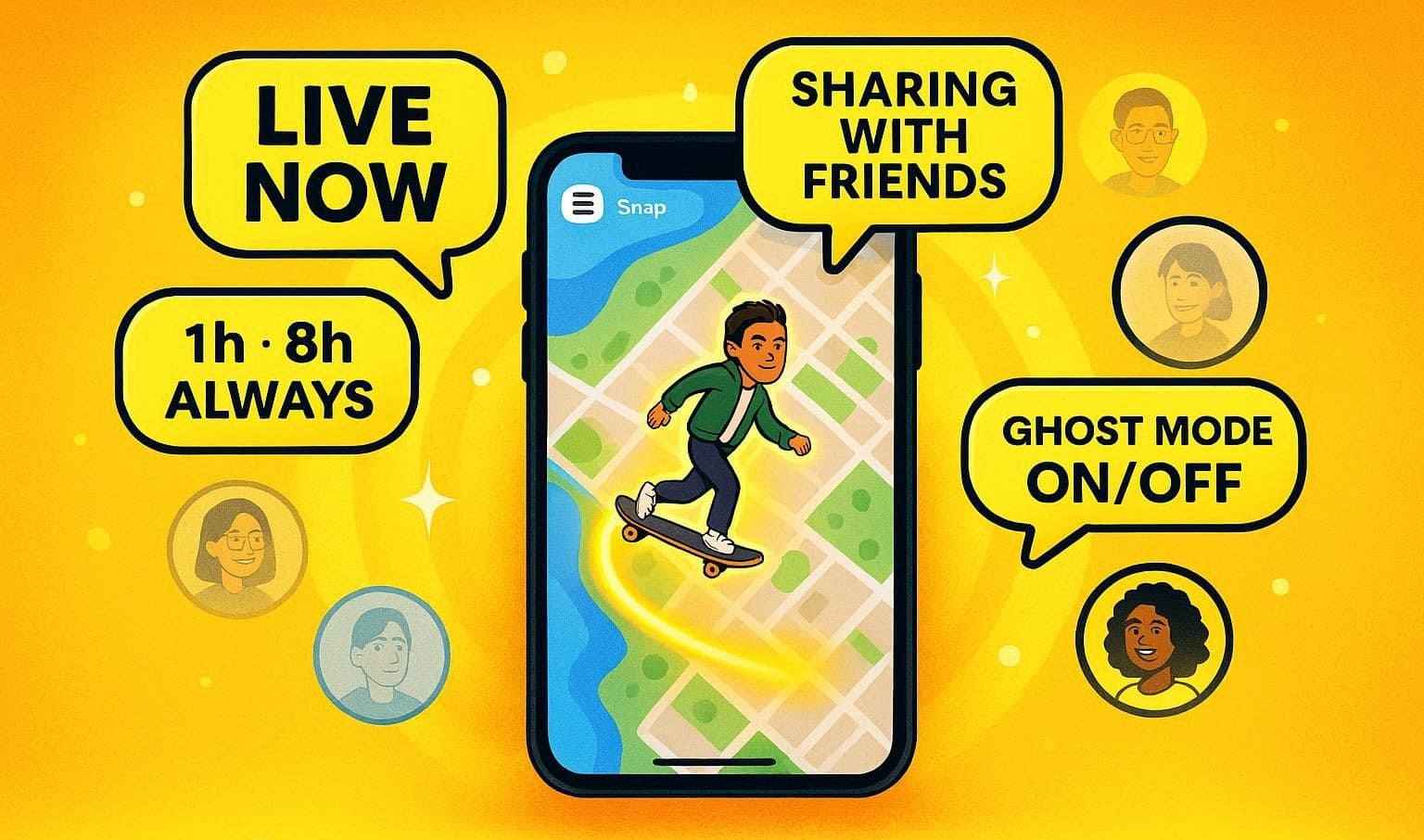
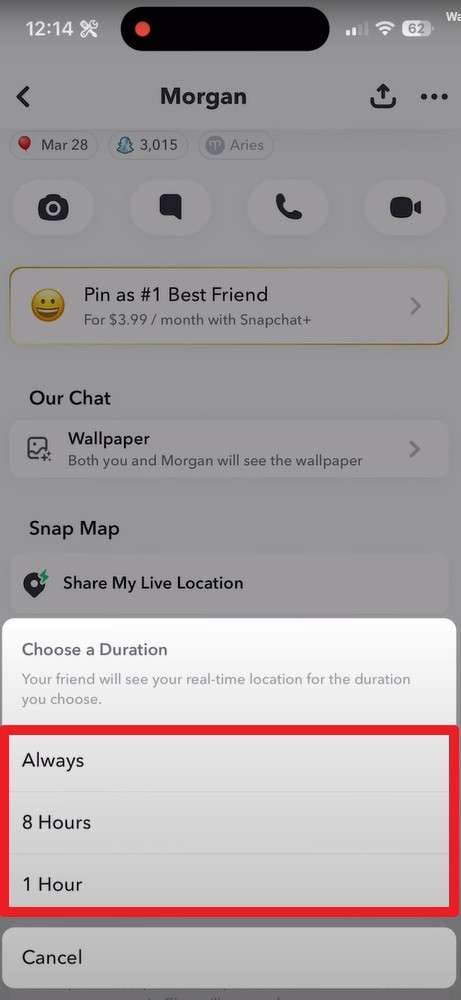
In Snapchat, you can also select how long you want to share the location, like 1 hour, 8 hours, or always. Hence, your Bitmoji moves on the map to show your current position. Moreover, you can stop sharing at any time or use Ghost Mode to hide your location. So, adhere to some of the reasons mentioned below to learn why one needs to share a live location snap:
- Meeting Up in Crowded Places: When you and a friend try to find each other at a mall, concert, or busy street, live location shows the exact spot. Hence, you can walk straight to each other without sending “Where Are You” messages back and forth.
- Staying Safe While Walking or Going Home: If you walk alone at night or travel in a new area, share your live location with a trusted friend or family member. Thus, they can watch your route in real time until you safely arrive.
- Coordinating Travel and Trips: During road trips, meetups, or group outings, live location shows who is nearby and who is late. So, this helps plan stops and meet points without constant messaging or calls.
- Checking on Friends or Teens Without Constant Calls: Parents and friends can quickly confirm someone's location, such as at school, an event, or home. This avoids repeated calls or texts while keeping track of their safety.
- Short-Term “Buddy System” in Risky or New Situations: When visiting a new city, meeting someone new, or going to a party, use live location temporarily. A trusted friend can track you for always or for 1 hour, then it stops automatically.
Part 2. How to Share Your Live Location on Snapchat
Now that you want to know how to share your live location on Snapchat with all your friends, you can do it from Snap Map. It helps friends find each other at malls, events, or campuses, and it shows where everyone is, which can make people feel more connected. So, to know how you can do that, adhere to the detailed steps:
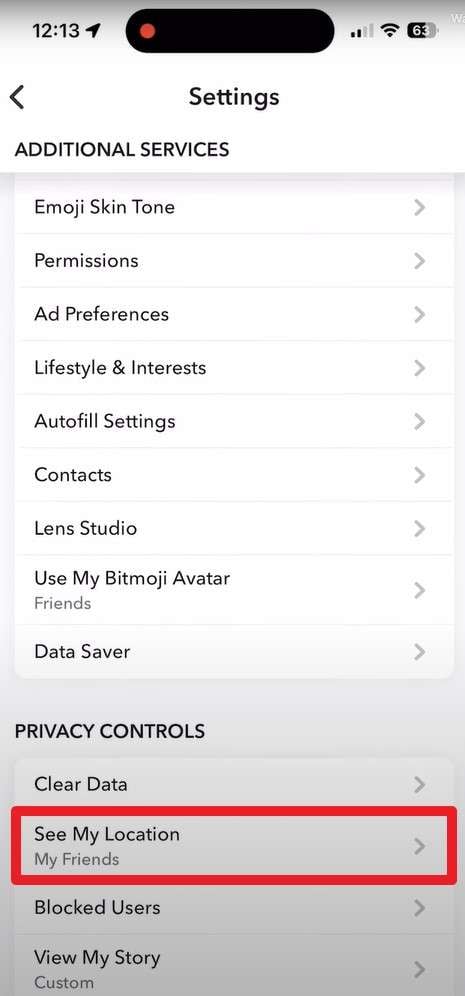
Step 1. As you press the profile icon on the app, go to the settings and pick the “See My Location” option.
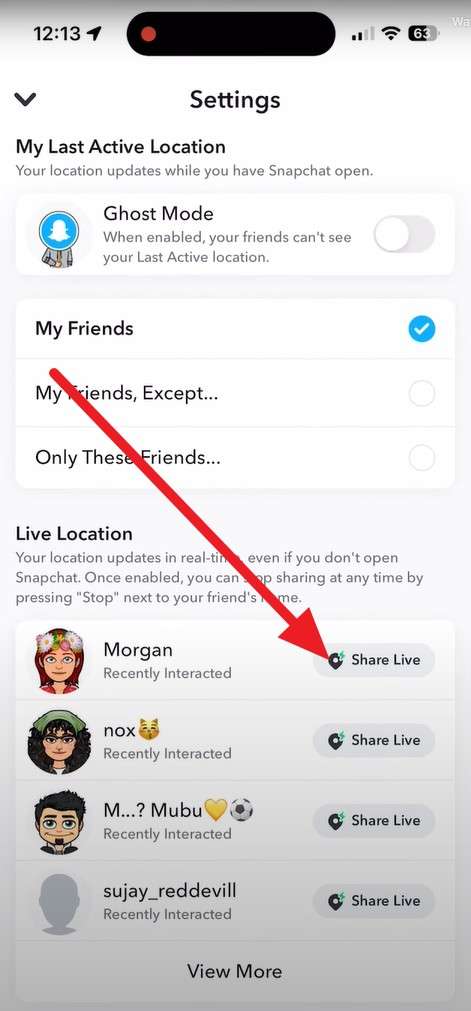
Step 2. There, locate the person with whom you seek to share location, and press the “Share Live” option.
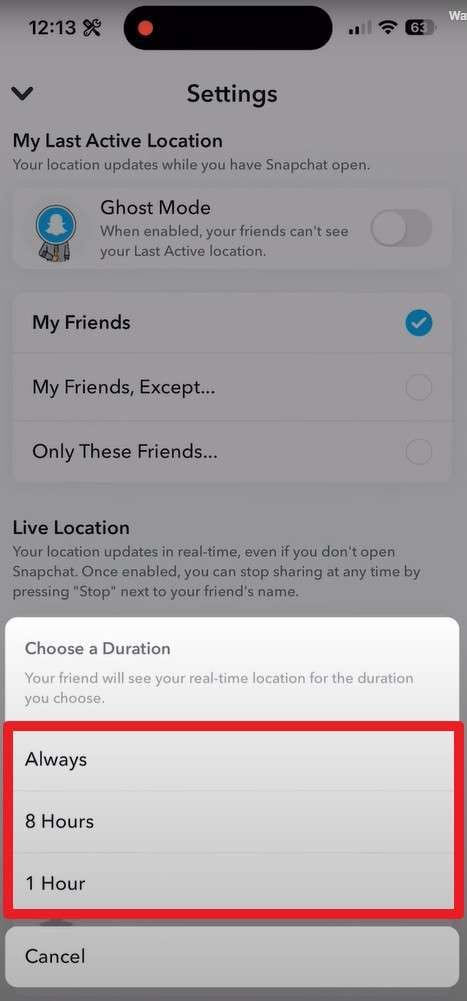
Step 3. After that, choose the duration, and your live location will be shared for a set duration.
Part 3. How to Share Your Location with One Person
If you don't want to tailor the "Who Can See My Location" settings and choose to share location with a particular friend, you can do so in chat. This method gives more control than sharing with all friends and builds trust with close people. So, to know how to share a location in Snapchat with one person only, review the given guidelines:
From Chat Settings
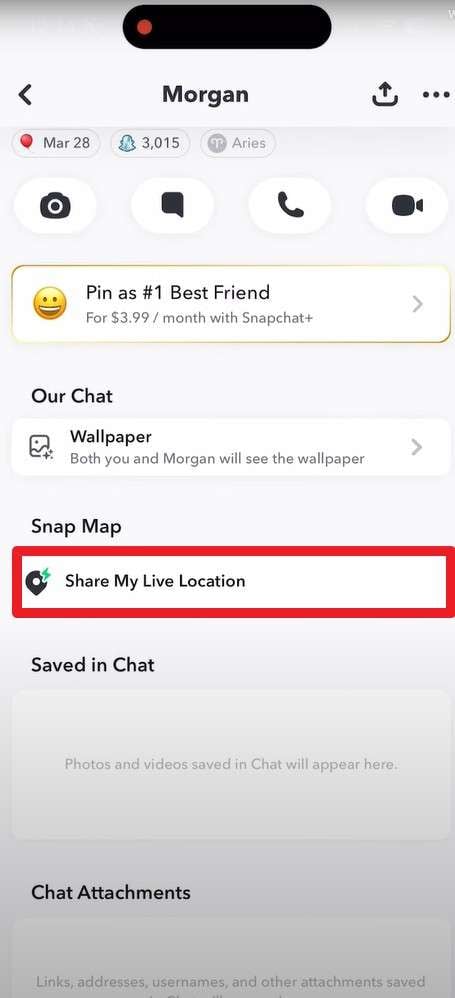
Step 1. Tap the "Profile" icon of a certain person and scroll down to choose the "Share My Live Location" option.
Step 2. Within the pop-up menu that appears, choose the duration to let them see the live location.
From Chat
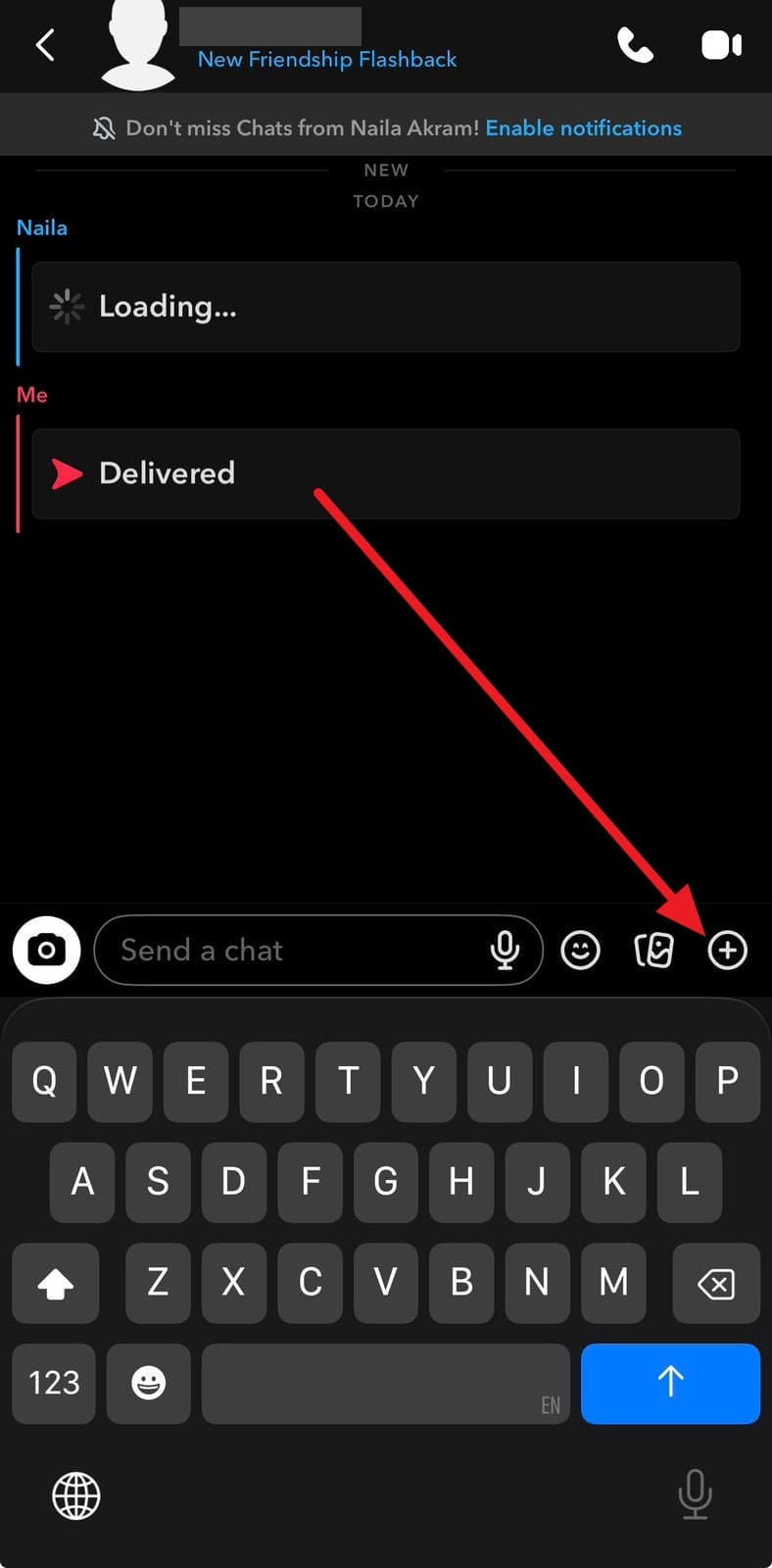
Step 1. Tap the "+" icon on the textbox as you head to the chat of a particular person you seek to share location with.
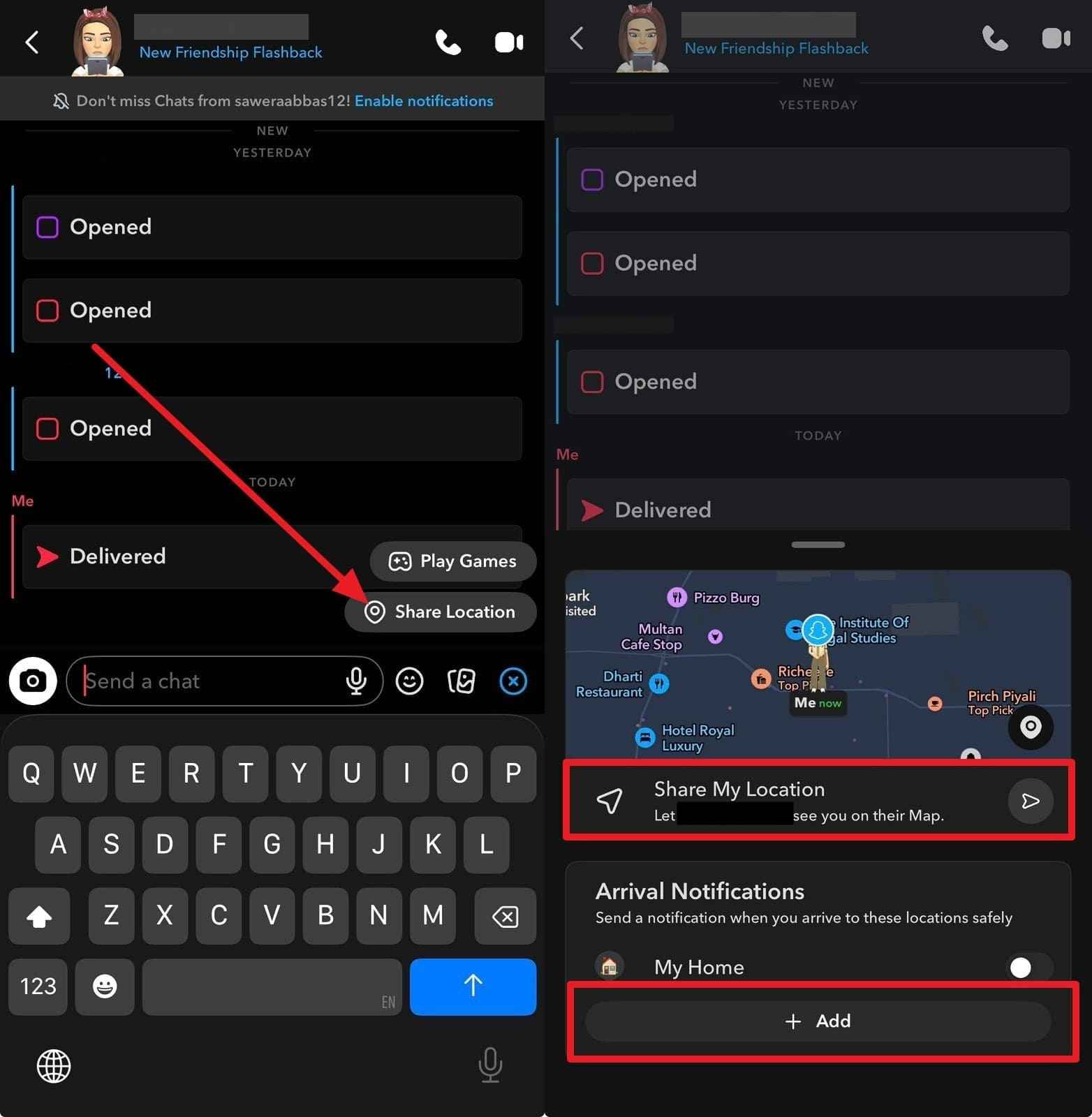
Step 2. Choose the “Share Location” option and press the “Share My Live Location” icon to send it. There, you can also add more locations by picking the “+Add” button.
Part 4. Why Can’t I Share My Live Location on Snapchat Anymore?
As you have learned how to turn on a live location on Snapchat, there is a chance that your friend might not be able to share it with you. If this is the case, review the listed points and determine why this issue is happening:
|
Possible Reasons |
What It Means in Practice |
| Location Permission Turned Off or Set to “While Using” | Your phone’s settings don’t allow Snapchat to access location “Always,” so the Live Location option disappears or doesn’t work. |
| Ghost Mode or Snap Map Sharing is Disabled | If Ghost Mode is on, or you’re not sharing location on Snap Map at all, you can’t broadcast live location to friends. |
| App Not Updated / Temporary Bug | A recent Snapchat update or a glitch can remove or break the Live Location toggle until you update, restart, or reinstall the app. |
| Weak Internet Or GPS Issues | Poor connection or a disabled device Location (GPS) prevents Snapchat from getting accurate coordinates, so live location can’t start or update. |
| Account or Region‑specific Changes | Some users report the option disappeared on one account but works on a new one, suggesting limited tests, rollouts, or account-specific issues. |
Part 5. Pro Tip. Own Your Map: Fake Snapchat Live Location with Dr.Fone – Virtual Location
While knowing why one can’t make Snapchat location sharing possible, there are chances that they seek to share a fake one. In this case, Dr.Fone - Virtual Location makes it possible for both Android and iOS users to mimic real movements. To that end, they can either search the location or choose the Joystick to teleport or simulate the movements.
Furthermore, the 360° Joystick offers flexible, manual control for AR games and Apps like Pokémon GO, MH Now, and Snapchat. As the tool is compatible with iOS 26 and Android 16, users can choose between one-stop and multi-stop routes, or jump directly to teleport mode. One can also control the movements on the keyboard with keys like W, A, S, and D to make spoofing effortless.

Dr.Fone - Virtual Location
1-Click Location Changer for both iOS and Android
- Teleport from one location to another across the world from the comfort of your home.
- With just a few selections on your computer, you can make members of your circle believe you’re anywhere you want.
- Stimulate and imitate movement and set the speed and stops you take along the way.
- Compatible with both iOS and Android systems.
- Work with location-based apps, like Pokemon Go, Snapchat, Instagram, Facebook, etc.


Guide to Spoof Location with Teleport Mode on Dr.Fone - Virtual Location
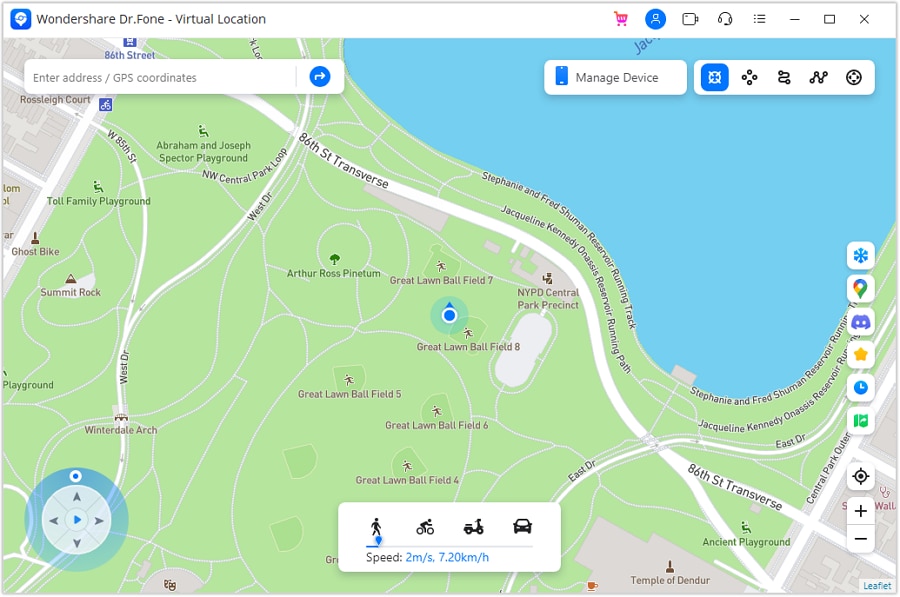
Step 1. Enable the Teleport Mode Feature
Connect your Android or iOS smartphone to the tool and press the “Box-like” icon to enable the “Teleport Mode.”
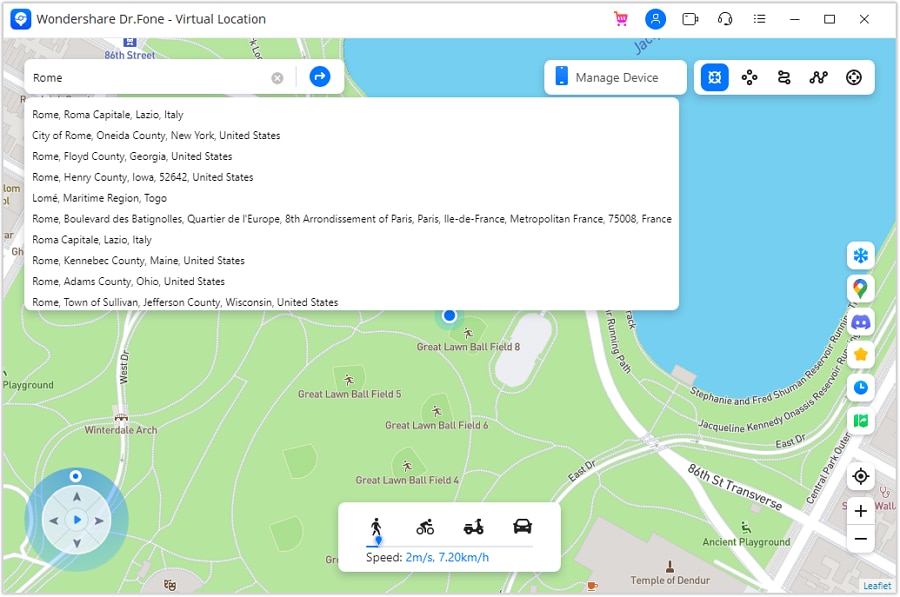
Step 2. Choose the Location on the Tool
After that, search for the location that you seek to share with a friend, and press the “Enter” key.
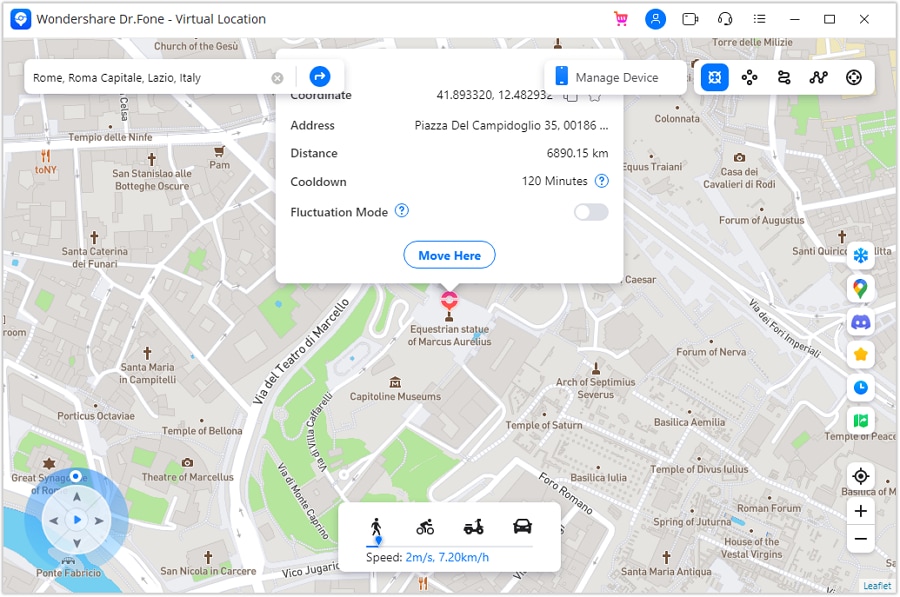
Step 3. Confirm Your Spoofed Snapchat Location
Tap the “Move Here” button to confirm it, and confirm it in Snapchat or the Maps app.
 safe & secure
4,624,541 people have downloaded it
Part 6. How to Make Your Snap Location Live Again – 4 Tested Fixes
When you can’t share the location even though you know how to send a location on Snapchat, try these 4 fixes:
Fix 1: Enable Location Services
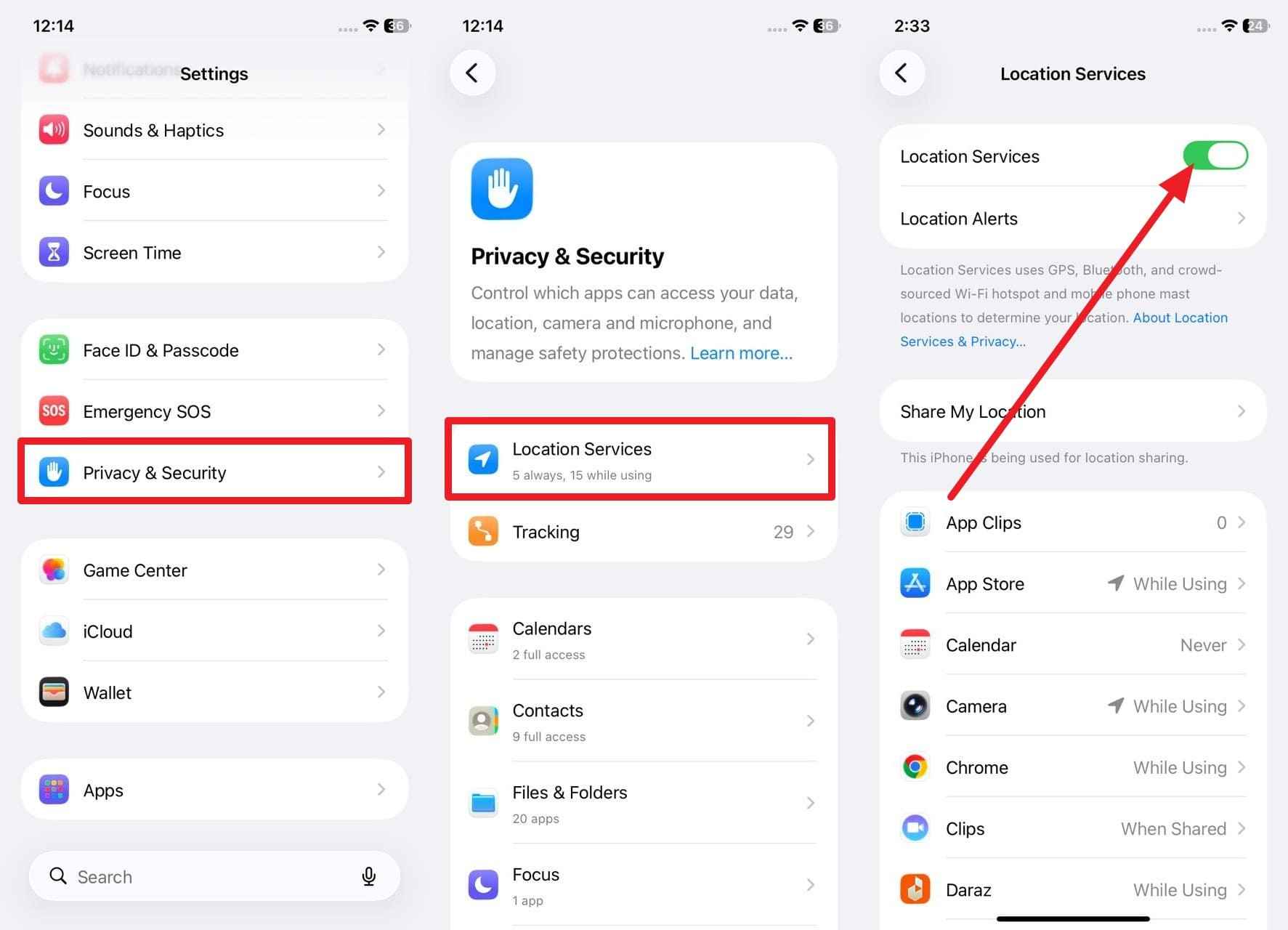
Turning on Location Services is needed to send your location on Snapchat, and gives extra benefits. Hence, you can share your position with friends and use Snap Map or Live Location for meetups and safety. Additionally, you get location-based filters, lenses, and local stickers that match your city or events. To know how you can enable location service on Android and iOS, review the given steps:
On iPhone
Instructions. Within the settings, choose the “Privacy & Security” option and ensure the “Location Services” option is enabled.
On Android
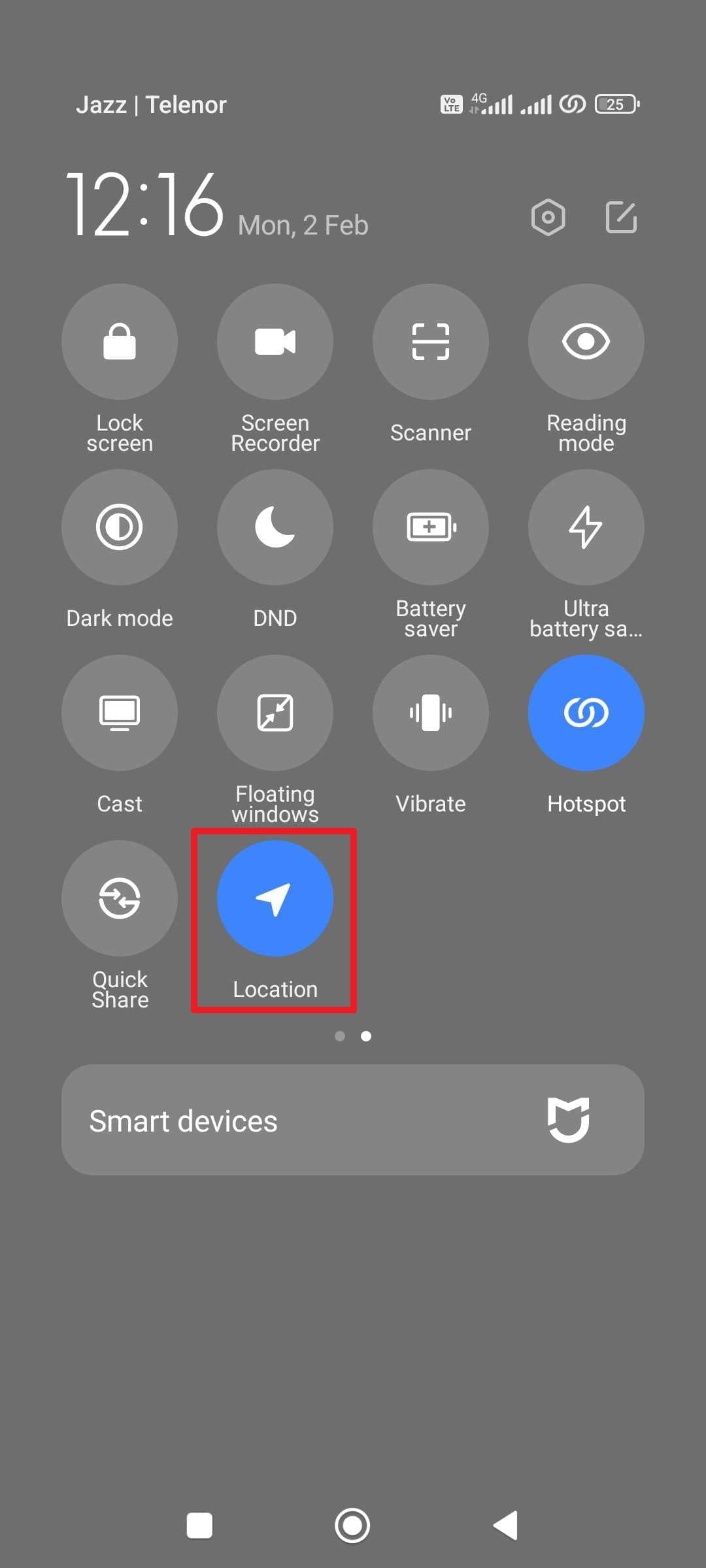
Instructions. Swipe down from the Control Center or Quick Settings and turn on the “Location” icon.
Fix 2: Check Snapchat Permissions
If you still can’t send a live location on Snapchat, check your app permissions to see if that's the issue. As you enable Location permission, it restores “Send Location,” Snap Map, and Live Location. The Permissions settings also show what is blocked, like the Camera or Microphone, so you know if it is a settings issue. Additionally, on Android and iOS, you can control privacy by using precise location, as guided:
On iPhone
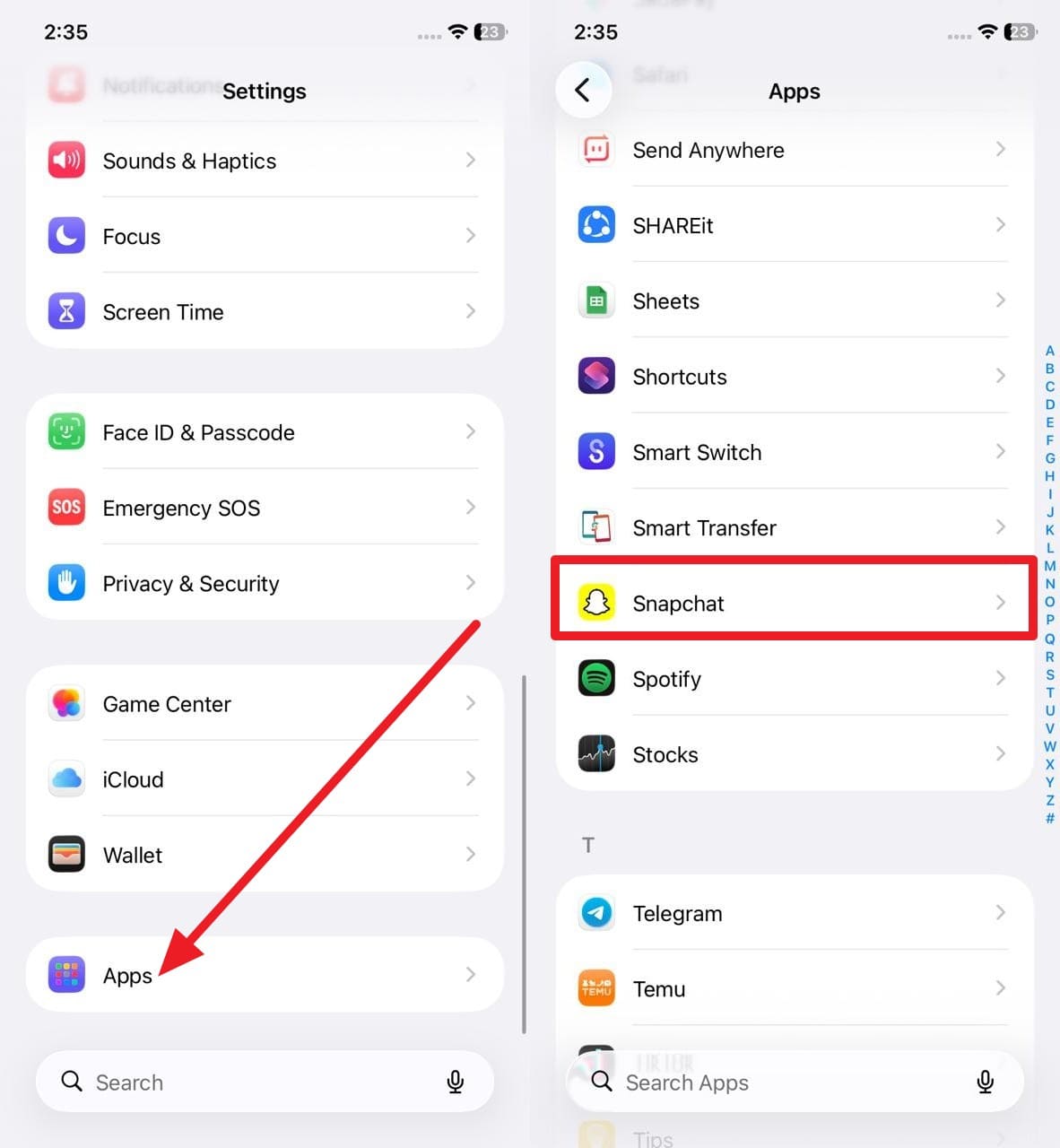
Step 1. In the settings, head to the “Apps” settings, and choose “Snapchat” from the list.
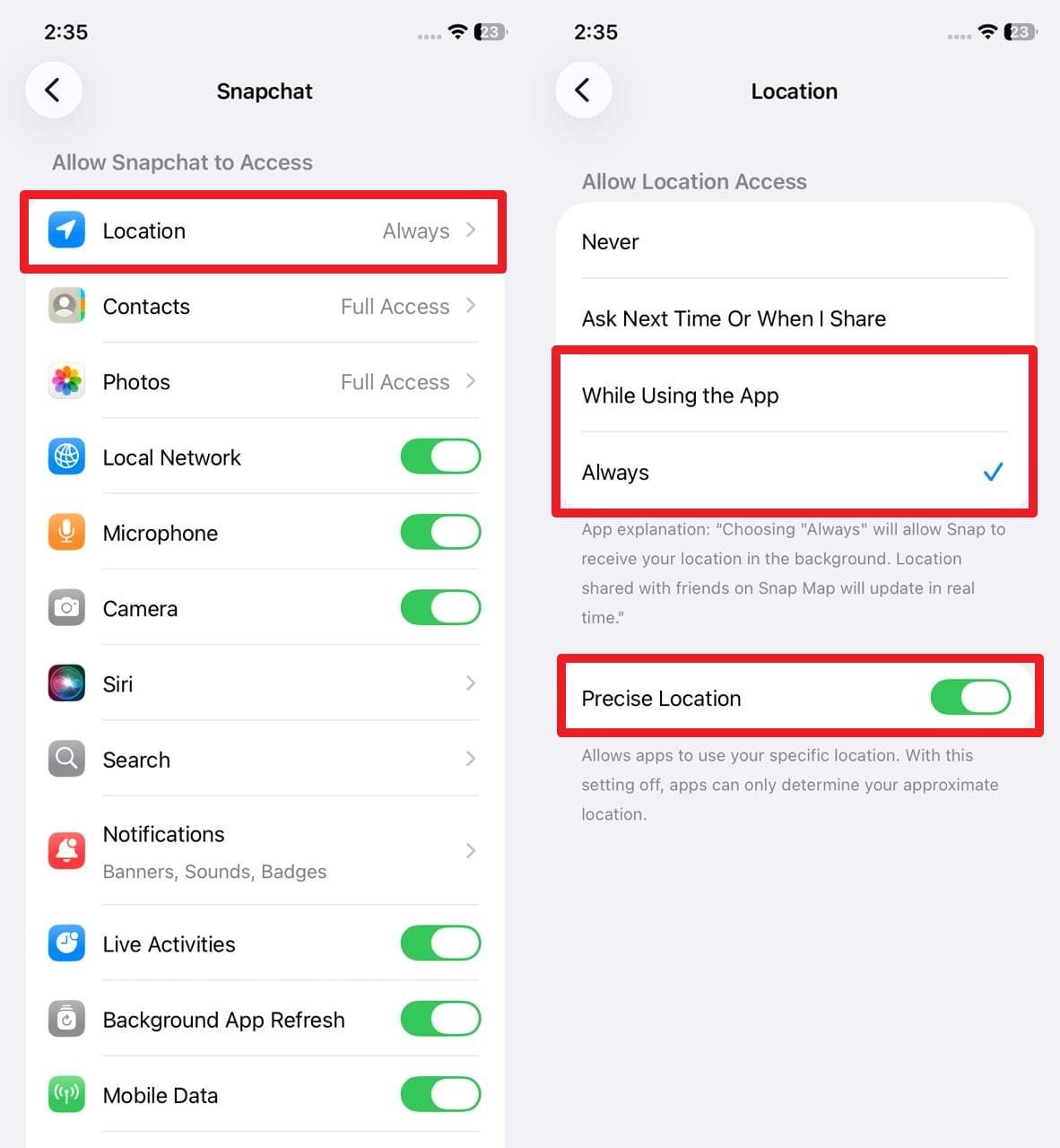
Step 2. Now expand the “Location” menu and choose to set it on “Always” or “While Using the App.” On the same interface, also toggle the “Precise Location” option to use your specific location.
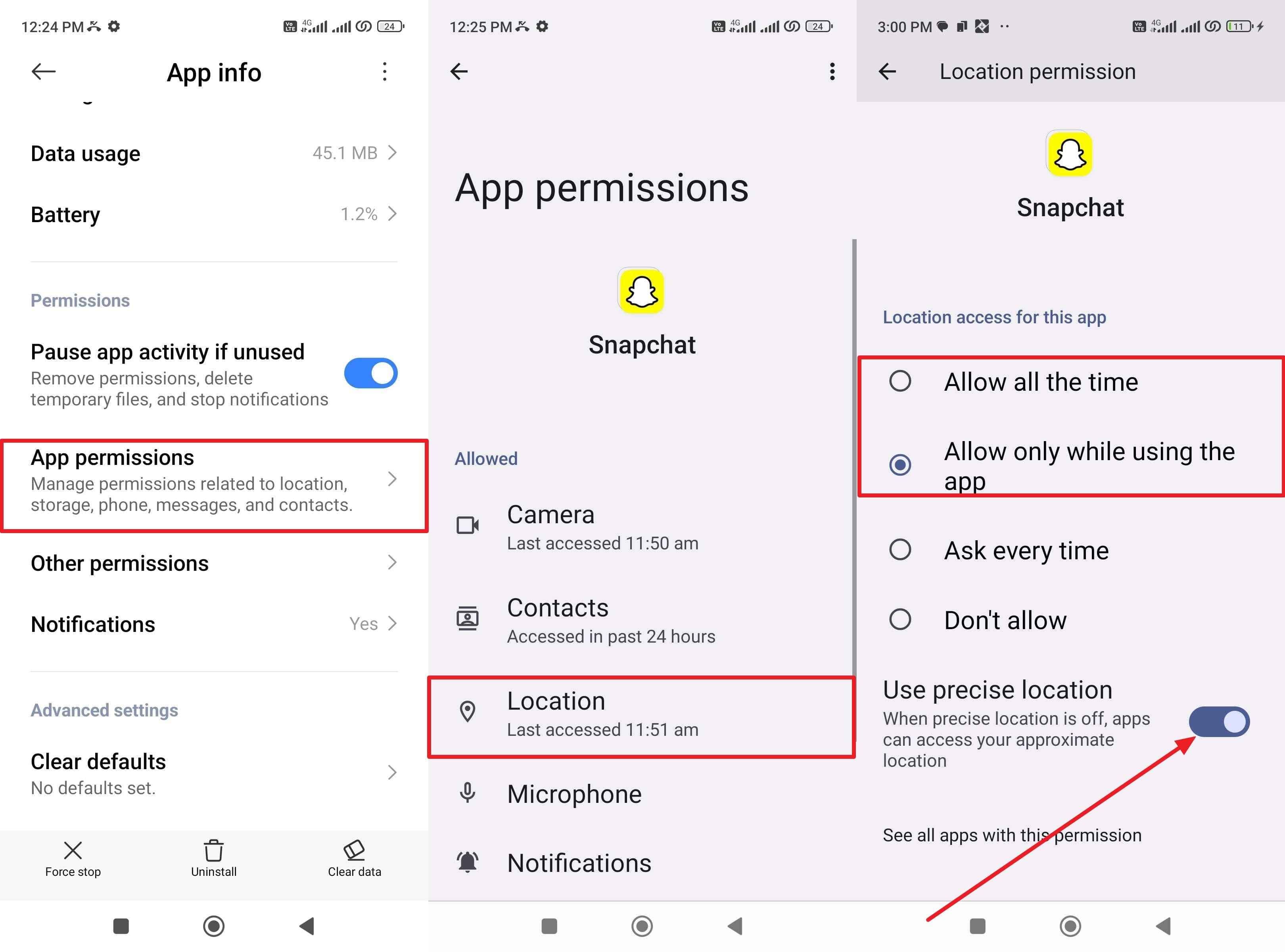
On Android
Step 1. In the “Apps” settings, choose the “Manage Apps” option and pick “Snapchat” from the list.
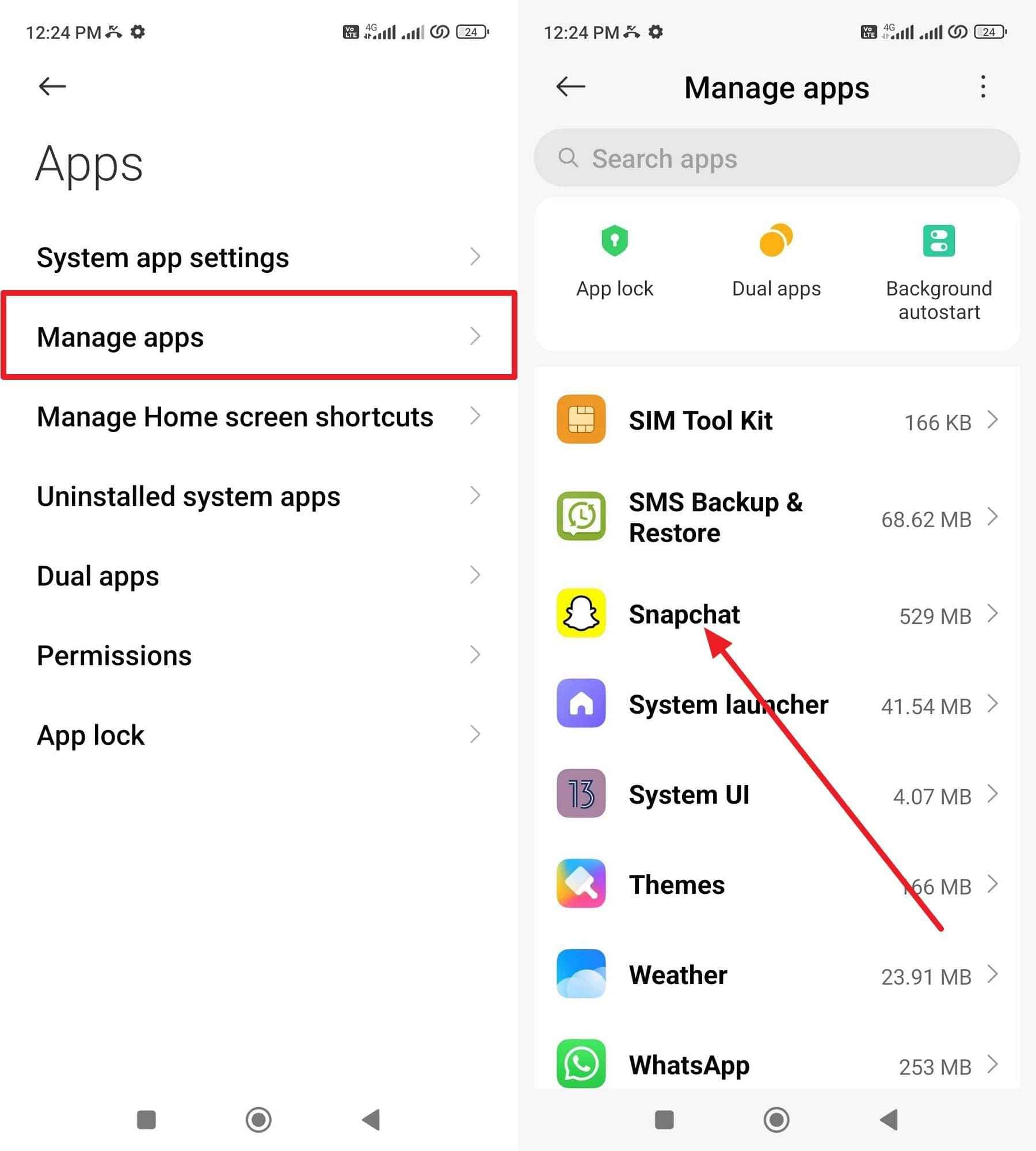
Step 2. After that, stretch the menu for “App Permissions,” choose “Locations,” and set it to “Allow All Time” or “Allow Only While Using the App.” There, also choose to enable the “Use Precise Location” option to use your approximate location.
Fix 3: Disable Ghost Mode
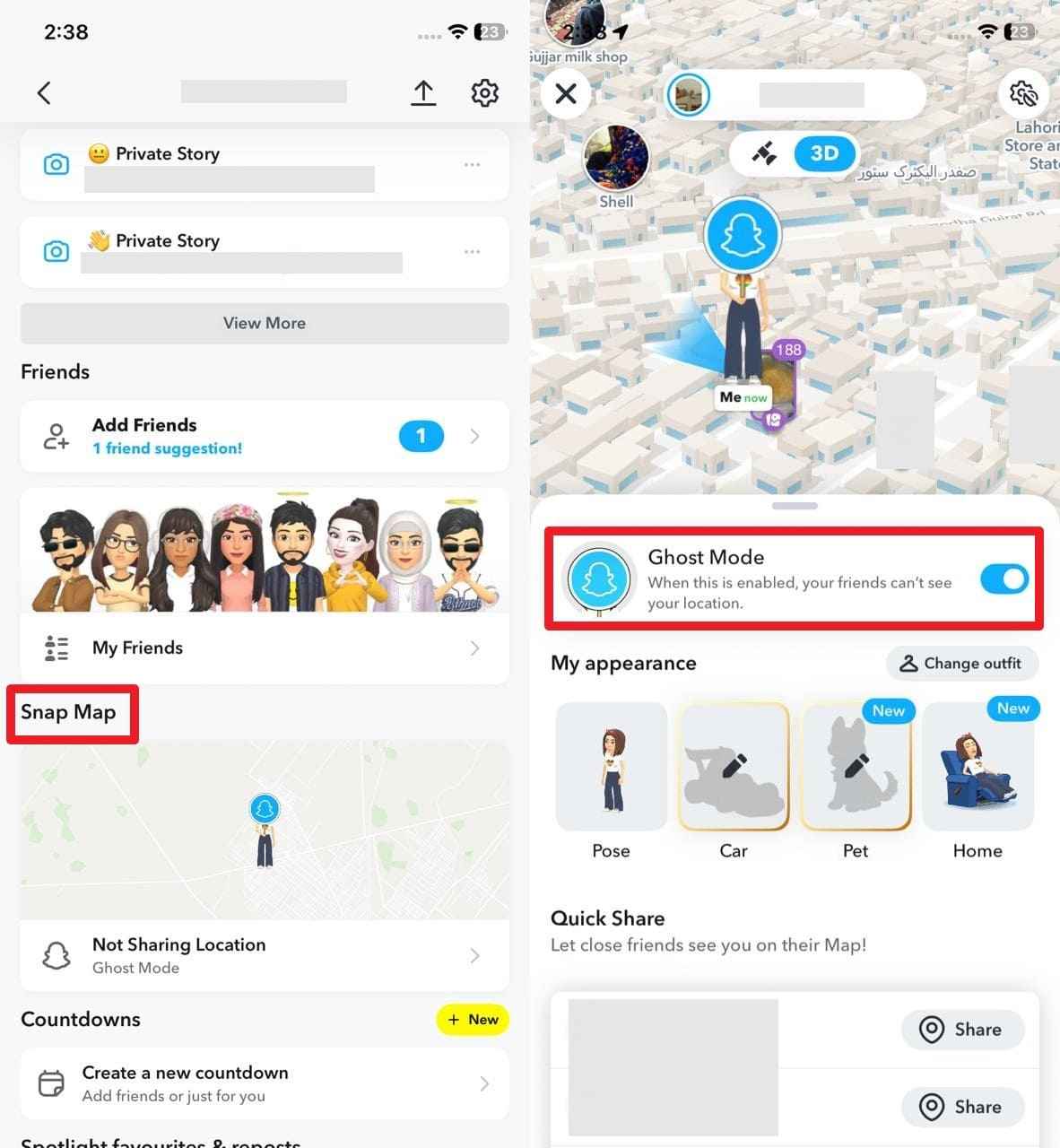
Another reason that you can’t share your live location on Snapchat is that your Ghost Mode might be enabled. So, as you turn it off, it lets friends see your Bitmoji and location again. Many people think location is broken when it is just Ghost Mode, so turning it off solves the issue quickly. To ensure your friends and family check your route or find you for safety, follow the listed steps:
Instructions. Go to Snap Map from your “Profile” tab and disable the “Ghost Mode” option on the following interface.
Fix 4: Update Snapchat App
If you still can’t share a live location snap, try to update the app, as older versions can have bugs or miss features that break location sharing. Hence, a new version fixes these problems and updates make Snap Map and Live Location faster, more stable, and less likely to freeze. They also keep your location and account safer with security fixes, and steps to update on Android and iOS are mentioned below:
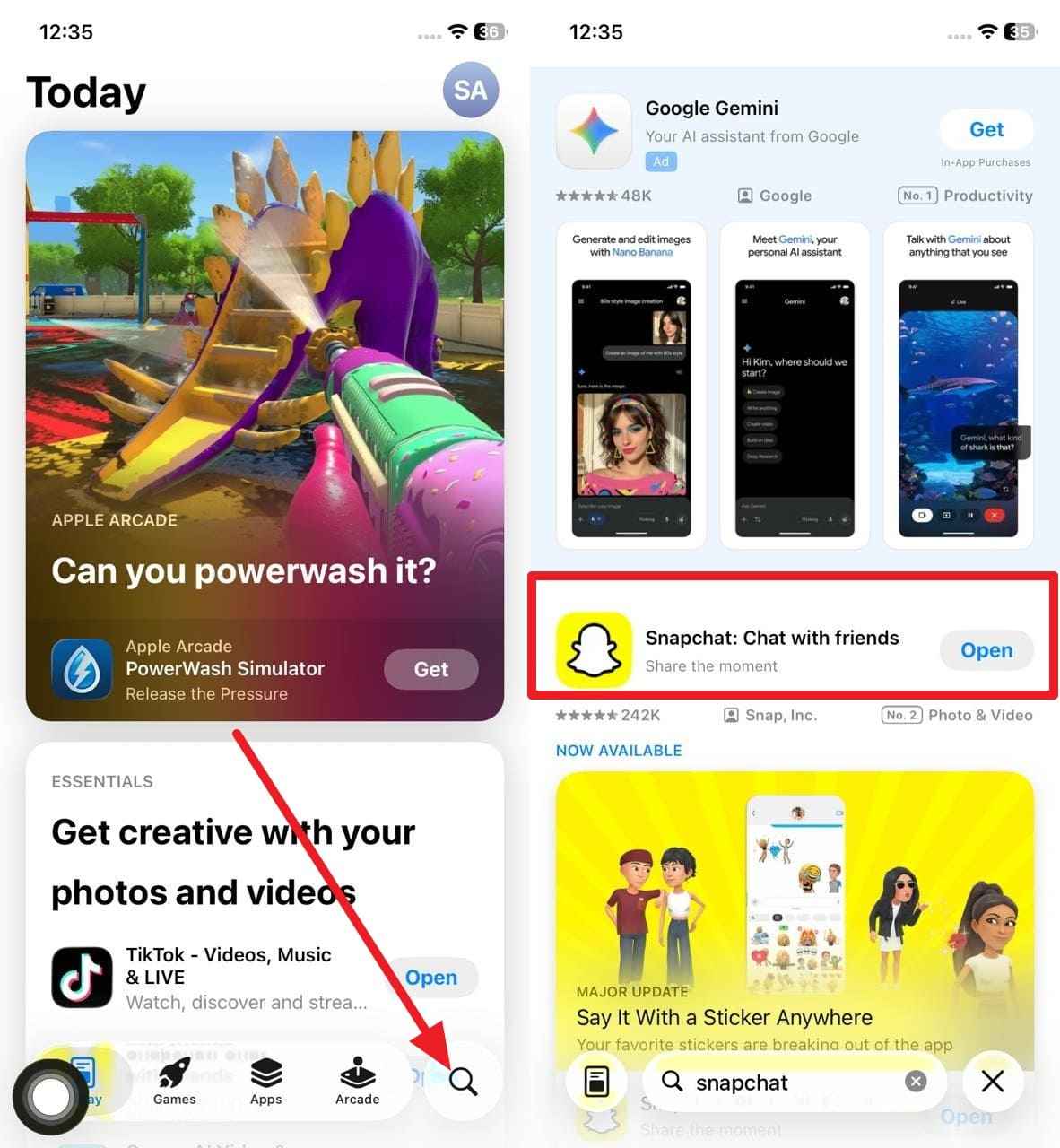
On iPhone
Instructions. On the App Store, press the “Search” icon and type “Snapchat.” If the update is available, pick the “Update” button to install the latest version.
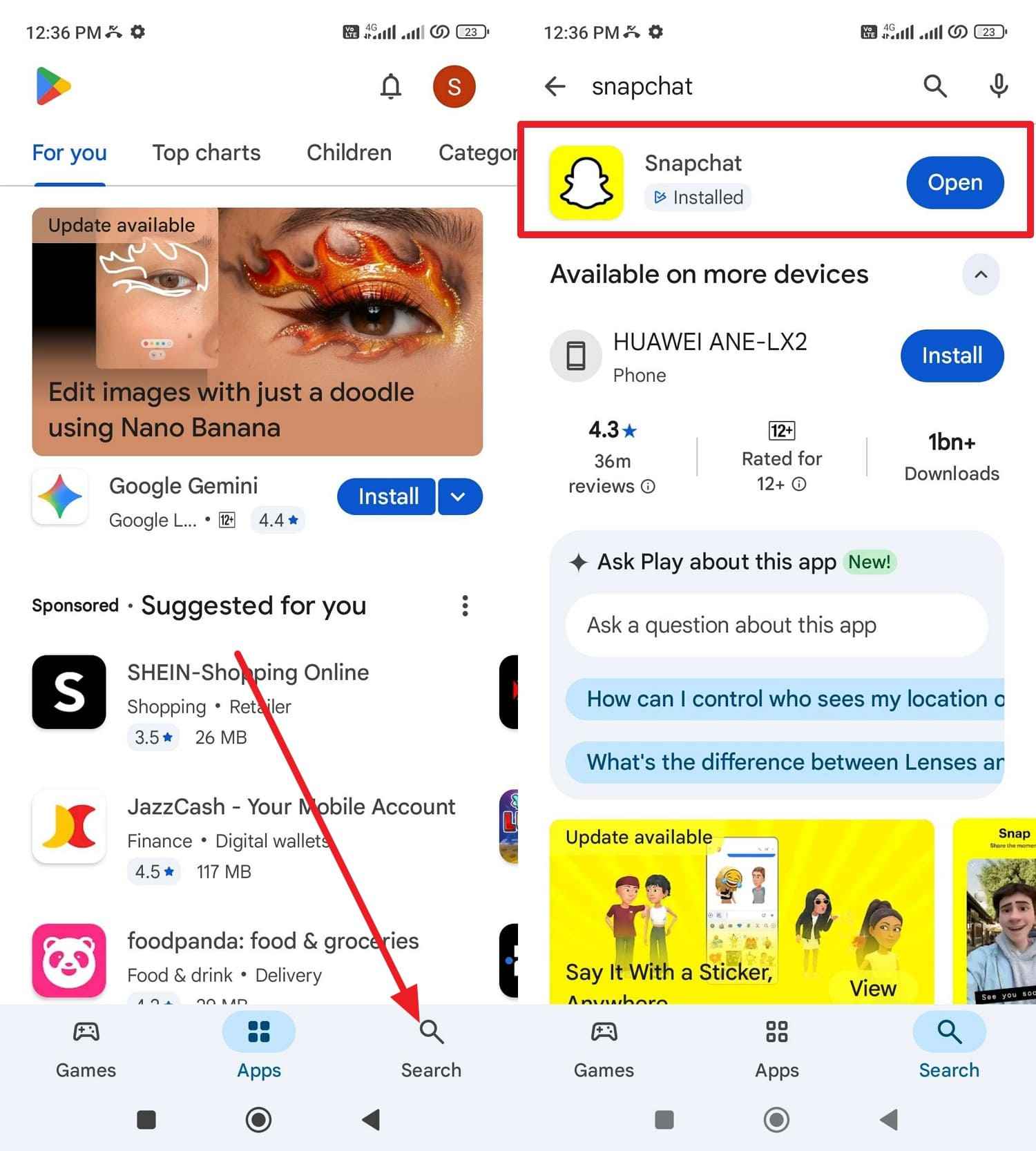
On Android
Instructions. On the Play Store, search for “Snapchat,” and press the “Update” button if it's available.
Conclusion
To sum up, this guide has explained how to share a live location on Snap with all friends or a certain one. Not just that, some reasons why one can’t share the location are also given, with 4 detailed solutions to resolve them. However, if you don’t want to share the exact location, it is recommended to spoof it with Dr.Fone - Virtual Location for Android and iOS users.
safe & secure4,624,541 people have downloaded it
Frequently Asked Questions
 Q1. Will Live Location work if I lose the internet?Q2. Does Live Location affect Snap Map privacy?Q3. Can I stop Live Location anytime?
You Might Also Like

Virtual Location
- Change iOS Location
- 1. Best iOS Location Changers
- 2. Fake iPhone GPS Location
- 3. Change iPhone Home Address
- 4. Change iPad Weather Location
- 5. Track a Cell Phone Location
- 6. iPhone GPS not Working
- 7. iPhone “No Location Found”
- 8. iPhone “Location Not Available”
- 9. iTools Alternatives
- 10. DoPokeGo++ Alternatives
- 11. 3uTools Alternatives
- 12. Foneazy MockGo Alternatives
- 13. "No Location Found" Vs."Location Not Available"
- Change Android Location
- 1. Best Android Fake GPS Apps
- 2. Free Android Location Spoofers
- 3. Fake Android GPS Location
- 4. Android Location Settings
- 5. Fake GPS No Root
- 6. Fake GPS on Huawei
- 7. Fake GPS without Mock Location
- Hide GPS Location
- 1. Stop Sharing Location without Notifying
- 2. Fake Location on Find My Friends
- 3. Stop Google Tracking Your Location
- 4. Fake Location on Google Maps
- 5. Spoof Location on Life360
- 6. Turn Off Life 360 Without Knowing
- 7. Stop Life360 from Tracking You
- 8. Life360 Circle: Tips & Tricks
- 9. Track Location by Mobile Number
- 10. How Do I Know If My Phone Is Being Monitored
- 11. Can Life360 Track You When Your Phone is Off
- Fake GPS on Games
- 1. Play Pokémon Go Without Moving
- 2. Celebrate National Pokémon Day
- 3. Fake GPS on Mobile Legends
- 4. Spoof Ingress Prime Location
- 5. Spoof Location on Jurassic World Alive
- Fake Location on Social Apps
- 1. Fake Location on Whatsapp
- 2. Fake Location on Facebook
- 3. Fake Location on Telegram
- 4. Fake Location on Tiktok
- 5. Does Your Snap Score Increase with Chats
- 6. Fake Location on Snapchat
- 7. Add Location Filters on Snapchat
- 8. Change Location on Twitter
- 9. Change Instagram Business Location
- 10. Change Instagram Region/Country
- 11. Stop mSpy from Spying You
- 12. Change Location On Linkedin
- Fake Location on Dating Apps
- 1. Fake Hinge GPS
- 2. Top Funny Hinge Prompts
- 3. Apps Like Tinder
- 4. Enjoy Tinder Gold
- 5. Fake Tinder GPS
- 6.Tinder Keeps Crashing
- 7. Find People on Tinder
- 8. Use Grindr on a PC
- 9. Grindr Web app explained
- 10. Fake Grindr GPS
- 11. Grindr Unable to Refresh
- 12. Fake Bumble GPS
- 13. Bumble Snooze Mode Guide
- 14. Tinder vs Bumble vs Hinge
- Get Around Geo-blocking
- 1. Hola Fake GPS Alternative
- 2. Change Netflix Location
- 3. Bypass MLB TV
- 4. Change Location on YouTube TV
- 5. Change Play Store Country
- 6. Change Facebook Marketplace Location
- Followers & Unfollowers Trackers
- Location & Social Apps Tips
- 1. How to Share Live Location on Snapchat
- 2. Best Mobile Number Tracker
- 3. Best Private IG Viewer Tools
- 4. View a Private Instagram Account
- 5. Screenshot on Instagram Without Them Knowing
- 6. Does Instagram Notify When You Screenshot
- 7. Find Out If Someone Screenshots Your Instagram Story
- 8. Does Instagram Notify When You Screen Record
- 9. Fix iPhone Location Not Updating
- 10. Does Snapchat Show Who Viewed Your Profile
- ● Teleport GPS location to anywhere
- ● Play AR games without moving
- ● Spoof Location on the popular Apps
- Free Download Free Download Free Download




Daisy Raines
staff Editor