

How to Fix iPhone Location Not Updating in Find My

Oct 24, 2026 • Filed to: Virtual Location Solutions • Proven solutions
 TL;DR:
Restore a frozen iPhone location in Find My by ensuring Location Services are granted Always access with Precise Location enabled and briefly toggling Airplane Mode to clear stalled background network connections.
● To fix a specific friend's location not refreshing, create a new arrival or departure notification in the People tab to force the app to actively ping their device for updated coordinates.
● Cross-device GPS tracking requires exact system time validation, meaning the location will refuse to sync across Apple IDs unless the iPhone's Date and Time is configured to Set Automatically.
● If system bugs persist, Dr.Fone - Virtual Location can manually override the displayed iOS location without jailbreaking, though this method requires a tethered computer and replaces live tracking with a static GPS point.
Ask AI for a summary
 ChatGPT
 Perplexity
 Gemini
 Claude
 Grok
Grok
A parent leaves a concert venue late at night and opens Find My on an iPhone. The map shows a street from hours earlier. The phone is moving, but the location does not change. Calls work. Messages send. Only the map stays still. Many users face this exact moment when they realize that Find My iPhone isn't updating their location. The issue is rarely a broken GPS chip. In most cases, it starts after network switches, background limits, or privacy changes. This is why people report iPhone location not updating, even while using their phone normally.
The aim of this article is to explain why location not updating on iPhone occurs and to share practical fixes that restore accurate tracking based on real iOS behavior
- Part 1: Why is Find My iPhone Not Updating Location
- Part 2: What to Do When iPhone Location Won't Update- Best Solutions
- Solution 1. Fix Location Not Updating On iPhone By Allowing Find My
- Solution 2. Restart Your iPhone to Fix Location Not Updating
- Solution 3. Add a Location Notification to Fix Find My Friend Not Updating
- Solution 4. Toggle Airplane Mode to Refresh iPhone Location Updates
- Solution 5. Re-sign in to your Apple ID to fix Find My iPhone Not Updating
- Solution 6. Switch Network Connection to Fix Find My iPhone Location Delay
- Solution 7. Update iOS and Restart iPhone to Restore Find My Location
- Solution 8. Set Date and Time Automatically to Fix Find My Location Errors
- Part 3: Change Phone Location Safely After Fixes Do Not Work

- Part 4: Quick Comparison Table Which Fix Works Best When iPhone Location Wont Update
Part 1. Why is Find My iPhone Not Updating Location
When Find My stops refreshing a location, the cause is usually simple. The system depends on several services working together. If one fails, finding my iPhone not updating location becomes noticeable.
- Unstable or weak internet connection
Find My relies on live data. If Wi-Fi drops or mobile data becomes unstable, the phone cannot send fresh GPS details. In this case, iPhone location not updating happens even though the device remains online for calls or messages. - Location Services turned off or restricted
When Location Services are disabled or limited, apps cannot access live GPS data. The phone then shares the last known place. - Background App Refresh disabled
Find My updates its location in the background. If this feature is turned off, the app cannot refresh unless opened. - iOS version no longer current
Older iOS versions may contain location bugs. These bugs can block GPS sync and prevent the iPhone from updating its location in Find My and Maps. - Incorrect date and time settings
Location services depend on accurate system time. If the date or time is set manually or incorrectly, GPS updates may fail.
Part 2. What to Do When iPhone Location Won't Update- Best Solutions
After identifying what interrupts location updates, the next step is to correct it. These methods address the exact settings and system processes that prevent Find My from showing live movement.
Solution 1. Fix Location Not Updating On iPhone By Allowing Find My
When Find my iPhone is not updating the location, the first thing to confirm is system access. If iOS cannot read live GPS data, the map shows an old position. This also explains many cases of the location not updating on the iPhone.
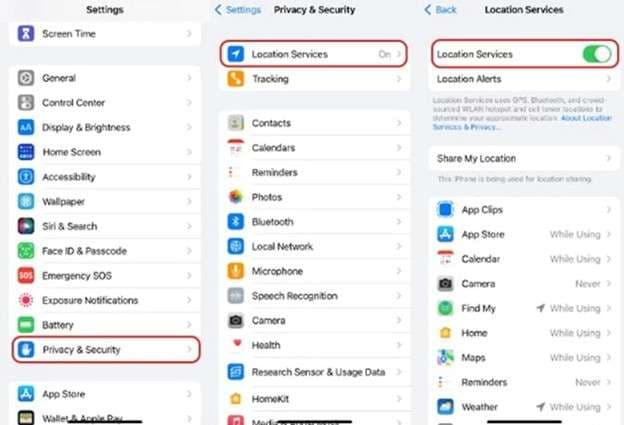
Step 1. Turn on Location Services
Open Settings on your iPhone. Go to Privacy and Security. Tap Location Services. Make sure the Location Services switch is turned on.
Step 2. Allow Find My to use location data
Stay inside Location Services. Scroll down and tap Find My. Set location access to Always. Enable Precise Location.
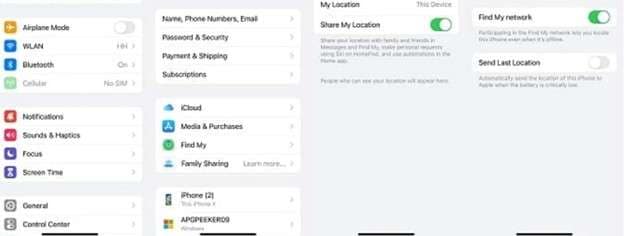
Step 3. Enable Find My iPhone and location sharing
Return to the main Settings screen. Tap your Apple ID name at the top. Select Find My. Turn on Find My iPhone. Enable Share My Location if tracking friends or family.
Solution 2. Restart Your iPhone to Fix Location Not Updating
A restart refreshes system services that handle GPS and background tasks. When iphone not updating its location without warning, temporary system conflicts are often the cause. Restarting clears active memory and resets these services.
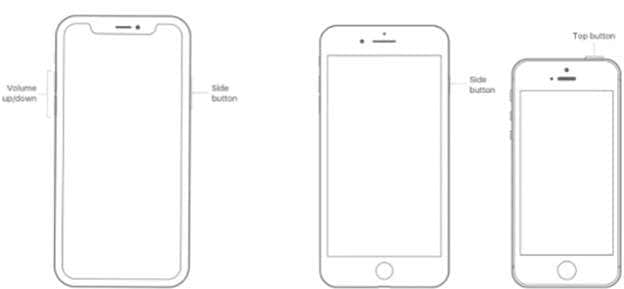
A- Restart iPhone X 11 and newer models
Press and hold the Side button together with either Volume button. Wait until the power slider appears.
Drag the slider to turn the phone off. After the screen goes dark, wait a few seconds. Press and hold the Side button again until the Apple logo appears.
B- Restart iPhone 6, 7, 8, and SE second generation
Press and hold the Side button. Release it when the power slider shows. Slide to shut down the device. Wait briefly, then press the Side button again to restart.
C- Restart iPhone 5 and earlier models
Press and hold the Top button. Wait for the power slider to appear. Slide to power off the phone. After the shutdown, hold the Top button again until the Apple logo appears.
Restart Your iPhone When Your iPhone Is Not Updating Location
Solution 3. Add a Location Notification to Fix Find My Friend Not Updating
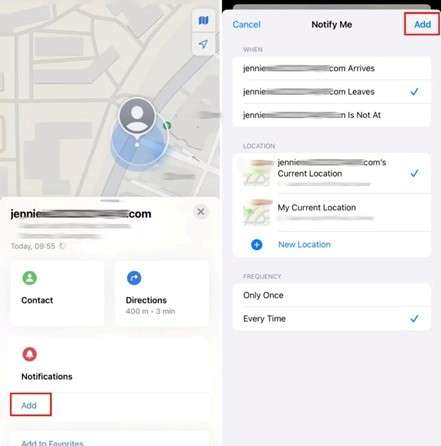
When I find my friend's location not updating issue happens, the issue may not be GPS or internet-related. In many cases, Find My fails to refresh because no active trigger exists. Adding a location notification forces the app to monitor changes.
Step 1. Open the Find My app
Unlock your iPhone. Open the Find My app from the Home Screen.
Step 2. Select the person with the updated issue
Tap the People tab at the bottom. Choose the contact whose location is not refreshing.
Step 3. Add a new location notification
Scroll down to the Notifications section. Tap Add under Notifications.
Step 4. Set arrival or departure alerts
Select Notify Me. Choose whether to get alerts when the person arrives or leaves a place. This creates an active check.
Step 5. Save the notification
Tap Add to confirm the notification. After this, Find My often refreshes location data correctly.
Solution 4. Toggle Airplane Mode to Refresh iPhone Location Updates
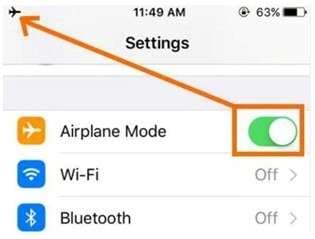
When iphone location is not updating without a clear reason, the issue may come from a stalled network signal. Airplane Mode briefly disconnects all wireless connections while GPS remains active. Toggling it forces the phone to reconnect cleanly.
Step 1. Open iPhone settings
Unlock your iPhone. Open the Settings app.
Step 2. Turn on Airplane Mode
Tap the Airplane Mode toggle. Wait about 10 seconds. During this time, mobile data and Wi-Fi pause, but GPS stays active.
Step 3. Turn off Airplane Mode
Tap the toggle again to disable Airplane Mode. Wait for Wi-Fi or mobile data to reconnect.
Solution 5. Re-sign in to your Apple ID to fix Find My iPhone Not Updating
Find My works through your Apple ID connection. When that connection becomes unstable, location data may stop syncing.
Step 1. Open Apple ID settings
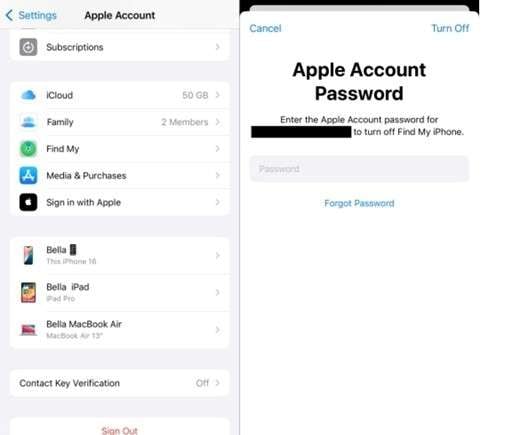
Unlock your iPhone. Open Settings. Tap your Apple ID name at the top of the screen.
Step 2. Sign out of your Apple ID
Scroll down and tap Sign Out. Enter your Apple ID password when asked. Tap Turn Off to proceed.
Step 3. Keep a copy of the data
Choose to keep a copy of important data on your device. Tap Sign Out again to confirm.
Step 4. Restart sign in process
Return to the Settings screen. Tap Sign In to your iPhone. Enter your Apple ID email and password.
Solution 6. Switch Network Connection to Fix Find My iPhone Location Delay
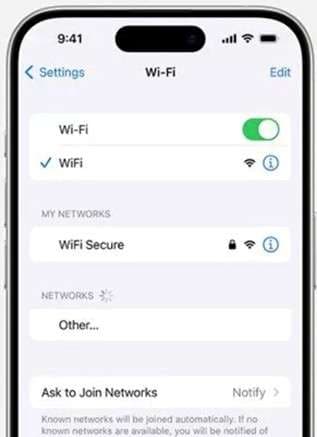
Find My depends on a stable internet connection to send live GPS data. When the signal drops or becomes weak, the app shows an older position.
Step 1. Check the current internet strength
Unlock your iPhone. Check if Wi-Fi or mobile data is active. If the signal is weak, location updates may pause.
Step 2. Change the active network
Connect to a different Wi-Fi network if available. If using Wi-Fi, try switching to mobile data.
Step 3. Reset the network signal
Open Settings. Turn on Airplane Mode. Wait for about 10 seconds. Turn Airplane Mode off again.
Step 4. Refresh the location in Find My
Open the Find My app. Pull down to refresh the location status.
Solution 7. Update iOS and Restart iPhone to Restore Find My Location
System bugs can block location refresh without warning. When iOS becomes outdated, background services may fail to sync correctly.
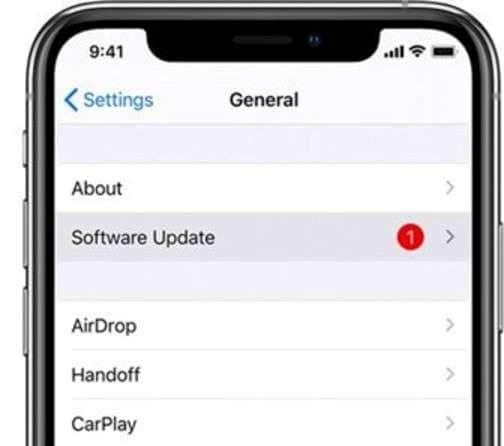
Step 1. Open software update settings
Unlock your iPhone. Open Settings from the Home Screen. Tap General.
Step 2. Check for the latest iOS version
Select Software Update. Wait while the device checks for available updates. If an update appears, it usually contains fixes for location not updating on the iPhone and GPS sync issues.
Step 3. Download and install the update
Tap Download and Install. Enter your passcode if prompted. Keep the phone connected to Wi-Fi and power.
Step 4. Allow the phone to restart
Wait until the update finishes installing. The iPhone will restart automatically.
Solution 8. Set Date and Time Automatically to Fix Find My Location Errors
Accurate time settings matter more than many users expect. Find My relies on system time to sync GPS updates between devices. When a date or time is set manually, location sharing can fail.
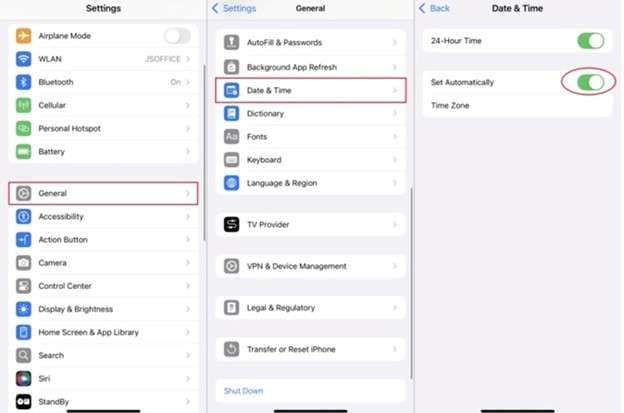
Step 1. Open device settings
Unlock the iPhone showing the update issue. Open the Settings app.
Step 2. Access date and time controls
Tap General. Select Date and Time.
Step 3. Enable automatic time setting
Turn on Set Automatically. Confirm the correct time zone is shown.
Part 3. Change Phone Location Safely After Fixes Do Not Work
Most issues behind find my iphone not updating location get fixed with settings, network checks, and iOS updates. If updates still look unreliable or if you want full control over what your phone reports, then you need a different approach. Instead of waiting for Find My to refresh, you set the GPS point yourself. That is where a virtual location changer becomes useful.
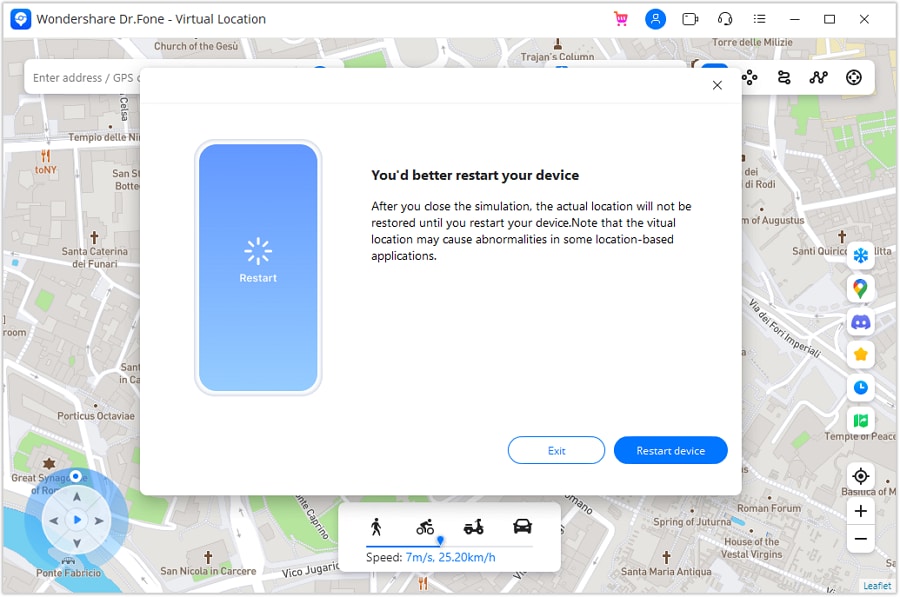
Dr.Fone - Virtual Location is built for one job. It changes the GPS location your phone reports to apps. It does not require jailbreaking. It works from a computer and applies the new location to the phone in real time. This makes it a practical option when you want to stop live location changes in Find My or you need a stable displayed location for privacy or testing.

Dr.Fone - Virtual Location
1-Click Location Changer for both iOS and Android
- Teleport from one location to another across the world from the comfort of your home.
- With just a few selections on your computer, you can make members of your circle believe you’re anywhere you want.
- Stimulate and imitate movement and set the speed and stops you take along the way.
- Compatible with both iOS and Android systems.
- Work with location-based apps, like Pokemon Go, Snapchat, Instagram, Facebook, etc.


Features
- Teleport mode to set a new location instantly
- Route simulation to move like a real trip
- Speed control for walking, cycling, or driving style movement
- Joystick-style control for small location shifts
- Supports iOS and Android without jailbreak in normal use
Step-by-step guide to Teleport Mode
Step 1. Connect and open Virtual Location
Install Dr. Fone on your computer. Connect the iPhone using a cable. Open Virtual Location and choose Teleport Mode.
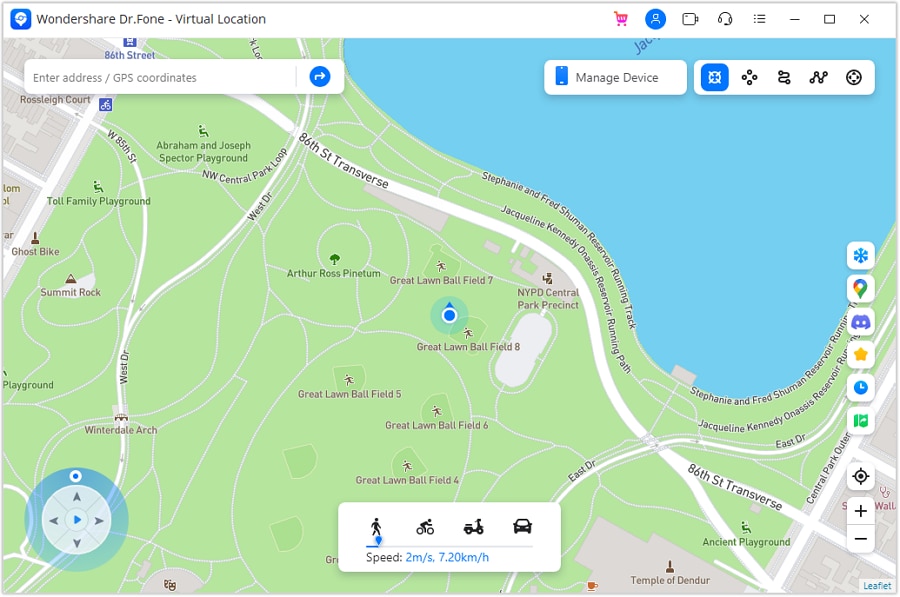
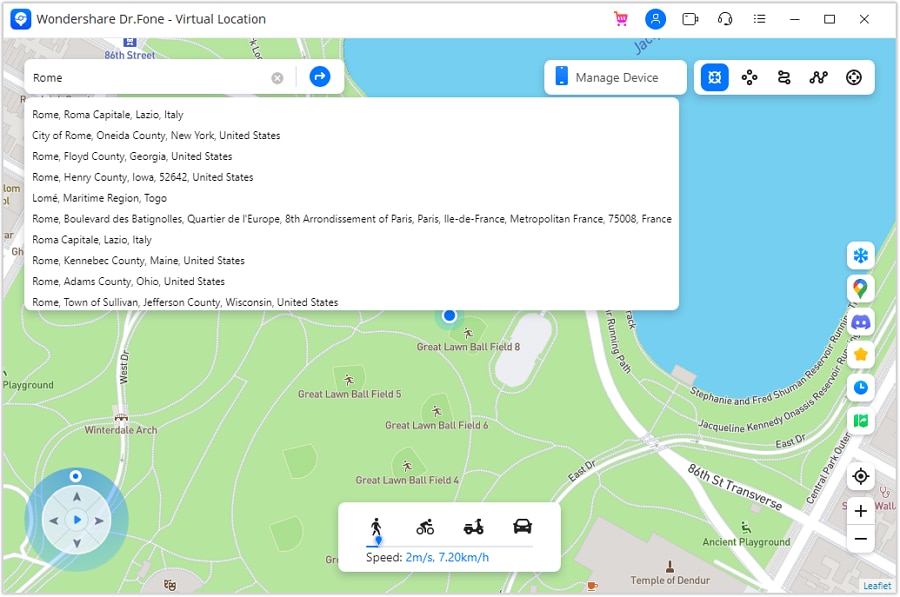
Step 2. Search for the location you want
Use the search bar to type a city or place. Press Enter and let the map jump to that area.
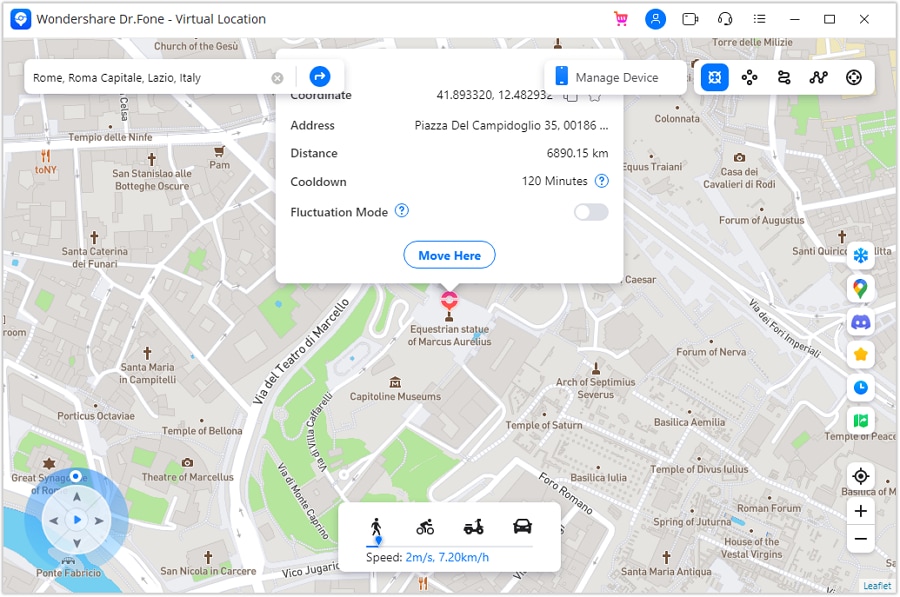
Step 3. Confirm the new point
Check the spot on the map. Select the move option to set that point as the phone location.
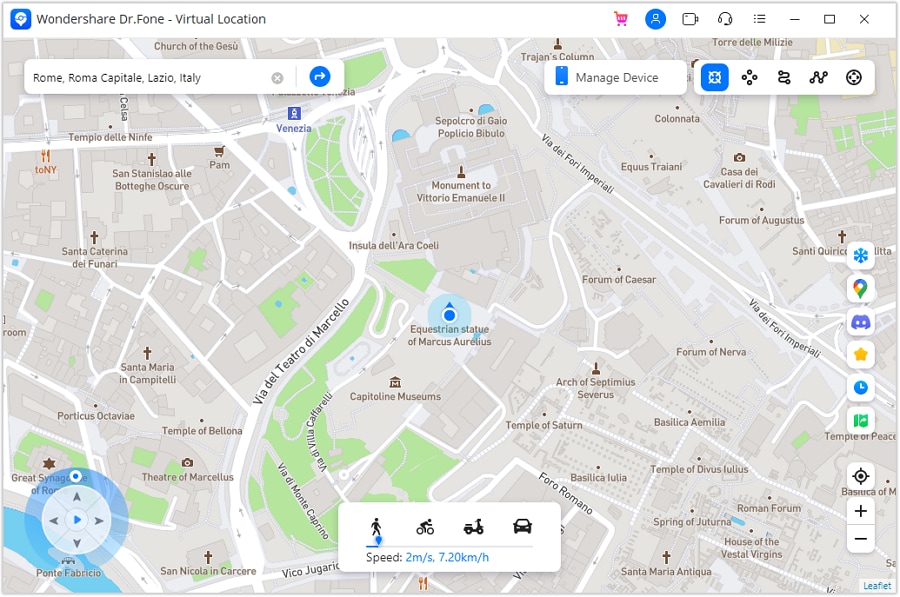
Step 4. Apply the change instantly
The computer map updates at once. The iPhone GPS now matches the selected location.
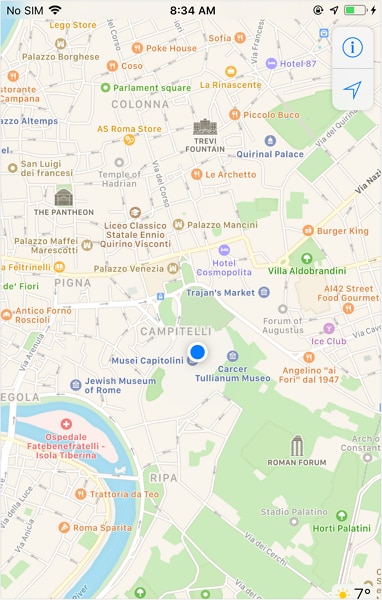
Step 5. Verify on the phone
Open Apple Maps on the iPhone. Confirm the dot matches the chosen place. Then open Find My to confirm what it displays.
 safe & secure
4,624,541 people have downloaded it
Part 4. Quick Comparison Table: Which Fix Works Best When iPhone Location Wont Update
|
Solution |
Best Used When |
What It Fixes |
Pros |
Cons |
Skill Level |
Time Needed |
| Allow Find My Location Access | Location permissions were changed or restricted | Location Services and Find My access | Fast and effective Restores core GPS access | Does not help if a network or iOS bug exists | Easy | 2–3 minutes |
| Restart iPhone | The issue started suddenly without any setting changes | Temporary system and memory glitches | Simple, no data loss Clears background conflicts | May not work for deeper system issues | Easy | 2 minutes |
| Add Location Notification | Friend location not refreshing, but sharing is enabled | Find My refresh trigger | Forces active location check. Works for shared locations | Only affects the People tab, not the device GPS | Easy | 2–3 minutes |
| Toggle Airplane Mode | Location is stuck after the network switch | Network sync and signal refresh | Quickly resets Wi-Fi and data | Temporary fix does not solve permission issues | Easy | 1 minute |
| Sign Out and Sign In to Apple ID | Find My is not syncing across devices | Apple ID and iCloud sync | Fixes account-related sync problems | Requires Apple ID password | Medium | 5 minutes |
| Switch Network Connection | Location updates are delayed or frozen | Internet stability and routing | Effective on weak Wi-Fi or travel | Depends on network quality | Easy | 3–5 minutes |
| Update iOS and Restart | Issue persists after other fixes | System bugs and GPS service errors | Long-term fix: Improves overall stability | Update may take time | Medium | 15–30 minutes |
| Set Date and Time Automatically | Location sharing fails across devices | Time sync and GPS validation | Often fixes instantly. Very reliable | Rare cause but easy to miss | Easy | 1 minute |
| Change Location Using Dr.Fone Virtual Location | You want full control or privacy | GPS output and location display | Stops live updates Sets stable location, no jailbreak | Requires computer | Medium | 5–10 minutes |
Conclusion
Most cases of Find My iPhone not updating location come down to permissions, sync delays, or unstable connections. This guide focused on fixes that restore real movement on the map instead of guesswork. Location access, background refresh, network resets, Apple ID sync, system updates, and time settings solve the problem for most users.
When updates still feel unreliable, some prefer to decide what location their phone shows instead of waiting for iOS to catch up. Dr.Fone - Virtual Location serves that purpose quietly, offering a stable GPS point without system changes, which helps when privacy or consistency matters more than refresh speed.
safe & secure4,624,541 people have downloaded it
You Might Also Like

Virtual Location
- Change iOS Location
- 1. Best iOS Location Changers
- 2. Fake iPhone GPS Location
- 3. Change iPhone Home Address
- 4. Change iPad Weather Location
- 5. Track a Cell Phone Location
- 6. iPhone GPS not Working
- 7. iPhone “No Location Found”
- 8. iPhone “Location Not Available”
- 9. iTools Alternatives
- 10. DoPokeGo++ Alternatives
- 11. 3uTools Alternatives
- 12. Foneazy MockGo Alternatives
- 13. "No Location Found" Vs."Location Not Available"
- Change Android Location
- 1. Best Android Fake GPS Apps
- 2. Free Android Location Spoofers
- 3. Fake Android GPS Location
- 4. Android Location Settings
- 5. Fake GPS No Root
- 6. Fake GPS on Huawei
- 7. Fake GPS without Mock Location
- Hide GPS Location
- 1. Stop Sharing Location without Notifying
- 2. Fake Location on Find My Friends
- 3. Stop Google Tracking Your Location
- 4. Fake Location on Google Maps
- 5. Spoof Location on Life360
- 6. Turn Off Life 360 Without Knowing
- 7. Stop Life360 from Tracking You
- 8. Life360 Circle: Tips & Tricks
- 9. Track Location by Mobile Number
- 10. How Do I Know If My Phone Is Being Monitored
- 11. Can Life360 Track You When Your Phone is Off
- Fake GPS on Games
- 1. Play Pokémon Go Without Moving
- 2. Celebrate National Pokémon Day
- 3. Fake GPS on Mobile Legends
- 4. Spoof Ingress Prime Location
- 5. Spoof Location on Jurassic World Alive
- Fake Location on Social Apps
- 1. Fake Location on Whatsapp
- 2. Fake Location on Facebook
- 3. Fake Location on Telegram
- 4. Fake Location on Tiktok
- 5. Does Your Snap Score Increase with Chats
- 6. Fake Location on Snapchat
- 7. Add Location Filters on Snapchat
- 8. Change Location on Twitter
- 9. Change Instagram Business Location
- 10. Change Instagram Region/Country
- 11. Stop mSpy from Spying You
- 12. Change Location On Linkedin
- Fake Location on Dating Apps
- 1. Fake Hinge GPS
- 2. Top Funny Hinge Prompts
- 3. Apps Like Tinder
- 4. Enjoy Tinder Gold
- 5. Fake Tinder GPS
- 6.Tinder Keeps Crashing
- 7. Find People on Tinder
- 8. Use Grindr on a PC
- 9. Grindr Web app explained
- 10. Fake Grindr GPS
- 11. Grindr Unable to Refresh
- 12. Fake Bumble GPS
- 13. Bumble Snooze Mode Guide
- 14. Tinder vs Bumble vs Hinge
- Get Around Geo-blocking
- 1. Hola Fake GPS Alternative
- 2. Change Netflix Location
- 3. Bypass MLB TV
- 4. Change Location on YouTube TV
- 5. Change Play Store Country
- 6. Change Facebook Marketplace Location
- Followers & Unfollowers Trackers
- Location & Social Apps Tips
- 1. How to Share Live Location on Snapchat
- 2. Best Mobile Number Tracker
- 3. Best Private IG Viewer Tools
- 4. View a Private Instagram Account
- 5. Screenshot on Instagram Without Them Knowing
- 6. Does Instagram Notify When You Screenshot
- 7. Find Out If Someone Screenshots Your Instagram Story
- 8. Does Instagram Notify When You Screen Record
- 9. Fix iPhone Location Not Updating
- 10. Does Snapchat Show Who Viewed Your Profile
- ● Teleport GPS location to anywhere
- ● Play AR games without moving
- ● Spoof Location on the popular Apps
- Free Download Free Download Free Download




James Davis
staff Editor